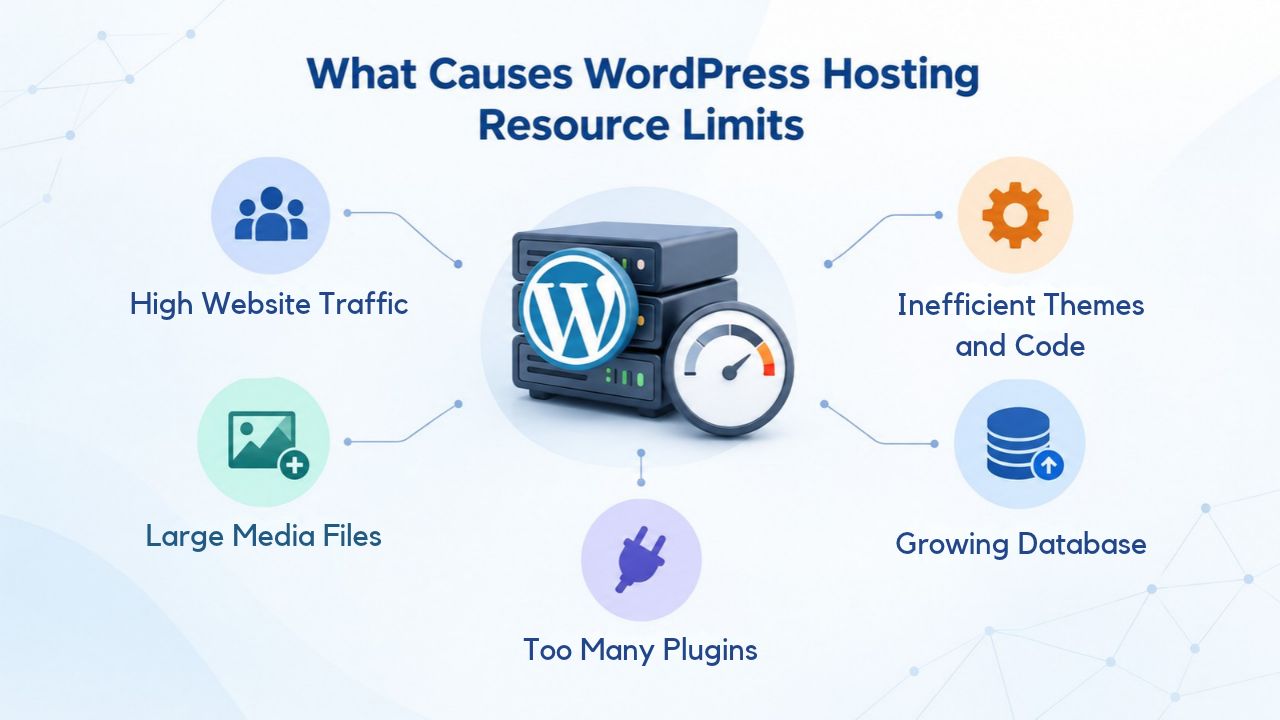
Every WordPress site runs on a server with finite resources. Whether you’re managing a small blog or scaling toward thousands of daily visitors, understanding resource limits is essential to keeping your site stable, fast, and available. Resource limits exist by design, and knowing what they are and why your host enforces them helps you make smarter decisions about your hosting setup and when to upgrade.
Understanding Resource Limit Basics
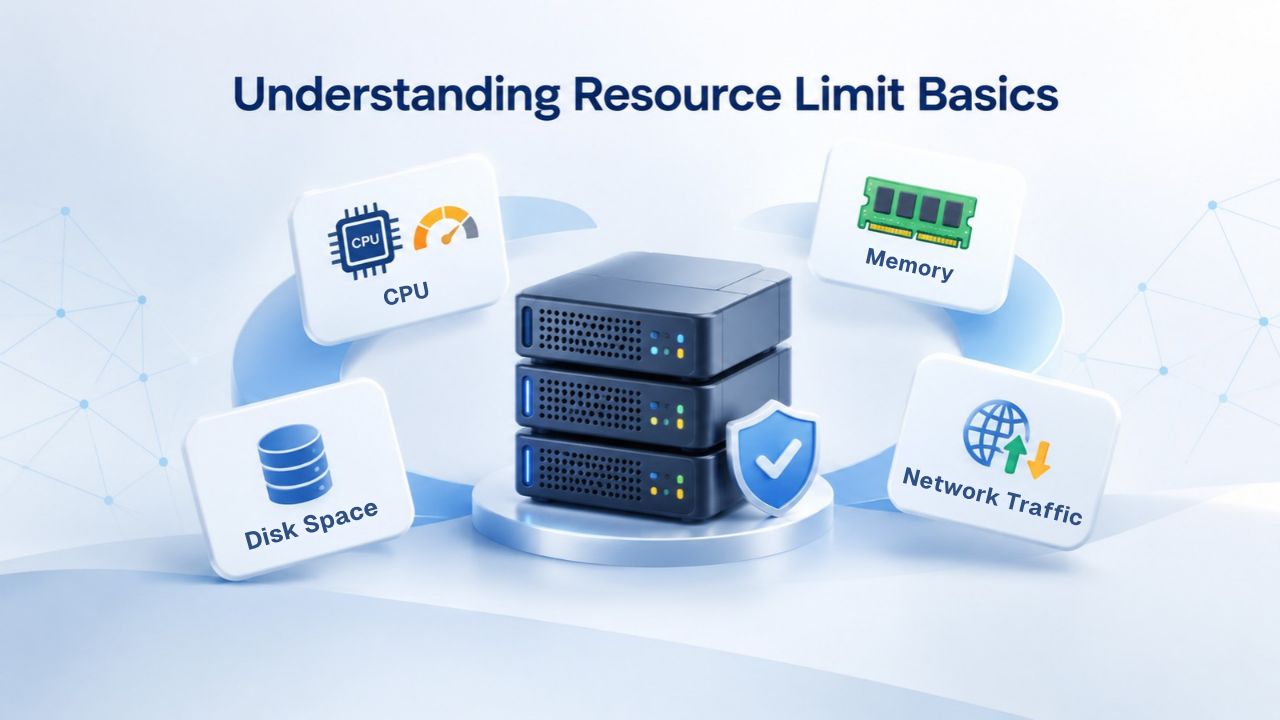
Resource limits are thresholds hosting providers set to manage server capacity and prevent any single site from degrading service for others. On shared hosting, where multiple WordPress sites run on the same physical server, these limits divide available CPU, memory, database connections, and disk I/O fairly among accounts. Managed WordPress hosting environments typically allocate resources at a higher level per plan tier, but limits still exist to support the infrastructure’s long-term stability and performance.
What Resource Limits Control
Resource limits protect four primary dimensions of server operation. PHP memory limits cap how much RAM a single script can consume before it terminates, typically ranging from 64 MB to 256 MB on shared hosting. Execution time limits force long-running operations to complete within a set window, usually 30 to 300 seconds, preventing scripts from consuming CPU indefinitely. Database connection limits restrict how many concurrent sessions can open to the MySQL or PostgreSQL server, commonly set between 10 and 50 connections per account. Disk I/O limits, enforced on higher-density shared servers, throttle read and write operations to prevent one site’s bulk imports or backups from starving storage performance for neighboring accounts.
Each limit serves a technical purpose tied to fair-use principles. When you hit a PHP memory limit, WordPress stops execution and returns a fatal error; you cannot simply raise the limit yourself on shared hosting because doing so would consume resources promised to other customers. The same applies to database connections: opening 100 concurrent sessions would block other sites from querying their databases. Understanding this architecture helps explain why a simple “raise the limit” solution doesn’t exist everywhere, and why upgrading your hosting plan or moving to a managed environment becomes the practical path forward.
How Limits Vary by Hosting Type
Shared hosting enforces the strictest per-account limits because multiple sites split one server’s total resources. Managed WordPress hosting typically allocates resources at the plan level; a “Pro” plan might include 2 GB of dedicated RAM and 50 concurrent database connections, whereas a “Basic” plan includes 512 MB and 20 connections. This architecture lets hosting providers scale resources generously within each tier while still protecting the server from any single runaway site. Unmanaged VPS hosting and dedicated servers give you a fixed pool of resources for your account, but you control allocation; if you run out of database connections or memory, you’re responsible for optimizing, scaling, or adding capacity.
Resource Limit Types, Triggers, and Typical Ranges
| Limit Type | What It Controls | Common Triggering Action | Typical Shared Hosting Range | Impact If Exceeded |
|---|---|---|---|---|
| PHP Memory Limit | Maximum RAM a single script can use | Importing large post/media batches; running bulk plugin operations | 64–256 MB | Fatal error: “Allowed memory exhausted”; page fails to load |
| Max Execution Time | Maximum seconds a script can run | Backup exports; bulk imports; site migrations | 30–300 seconds | Fatal error: “Maximum execution time exceeded”; operation terminates midway |
| Database Connections | Concurrent sessions to the database server | Traffic spike; multiple plugins querying simultaneously | 10–50 per account | “Too many connections” error; database queries queue or fail; severe slowdown |
| CPU Allocation | Processing power available to your site | High-traffic periods; inefficient code loops; bulk operations | Shared/throttled (varies by host) | All processes slow; timeouts increase; server response time degraded |
| Disk I/O | Read/write operations to disk per second | Large file uploads; backups; bulk media imports; full database scans | Shared/throttled (varies by host) | File operations slow or hang; backups fail or take hours; media uploads timeout |
| File Upload Size Limit | Maximum size of a single file upload to the server | Adding large media files to the library | 64 MB–2 GB (depends on plan) | Upload rejected with error; file not added to media library |
WordPress Pricing Plans
Choose the WordPress hosting plan that fits your website needs, with reliable performance, security, storage, backups, and tools to help your site grow.
WordPress Basic
A great way to get started.
- 1 website
- 10 GB NVMe storage
- Unmetered bandwidth
- Free SSL Certificate *
- WordPress pre-installed
- Weekly backups
- Web Application Firewall
- Daily malware scans
- One-time malware removal

WordPress Deluxe
Improve your site performance with Cloudflare CDN.
- 1 website
- 20 GB NVMe storage
- Unmetered bandwidth
- Free SSL Certificate *
- WordPress pre-installed
- Daily backups
- Web Application Firewall
- Daily malware scans
- One-time malware removal
- Up to 2x faster performance with global Cloudflare CDN **
- Enhanced security with DDoS protection
- Staging site
WordPress Ultimate
Add online marketing with more sites, storage and security.
- 1 website
- 30 GB NVMe storage
- Unmetered bandwidth
- Free SSL Certificate *
- WordPress pre-installed
- Daily + on-demand backups
- Web Application Firewall
- Daily malware scans
- Unlimited malware removal
- Up to 2x faster performance with global Cloudflare CDN **
- Enhanced security with DDoS protection
- Staging site
- WordPress code optimizer
- Smart WordPress plugin manager
- Sell online with WooCommerce
Why Hosting Providers Enforce Resource Limits
Hosting providers enforce resource limits because of shared hosting economics. A single physical server, whether in an on-premises data center or running on cloud infrastructure through an enterprise-grade cloud partner, has finite CPU cores, RAM, and disk space. To make shared hosting economically viable, providers must host hundreds or thousands of sites on one server. Without per-account limits, a single site using a poorly optimized theme or a runaway plugin could consume all available CPU, memory, and connections, causing every other site on that server to time out, slow down, or become completely unavailable.
The Fairness Problem at Scale
Enforcing resource limits is fundamentally about fairness. If a hosting provider didn’t cap PHP memory usage per account, a single site running a buggy plugin that builds a massive array in memory could crash the entire server. If database connections weren’t limited, one account opening 500 concurrent sessions could exhaust the MySQL server’s connection pool, leaving other customers unable to load their sites. Resource limits create a hard boundary: your site gets a defined share of CPU, memory, and I/O, and hitting that boundary doesn’t harm neighboring accounts. This is why shared hosting can offer affordable plans; the limits make overbooking sustainable and fair.
Managed WordPress hosting removes some of this fairness constraint by isolating sites more strictly and automatically scaling infrastructure. However, even managed hosts enforce limits to maintain service quality and prevent cascading failures. A managed host’s resource limit is typically higher and more forgiving than a shared host’s. Still, the principle remains: limits protect the platform’s overall reliability and ensure all customers get predictable performance.
Scaling Infrastructure vs. Raising Limits
Hosting providers have two general levers: scaling infrastructure to add more total resources, or raising per-account limits. Scaling infrastructure is expensive, adding more servers, upgrading networking, provisioning larger databases, and the cost is spread across all customers through pricing. Raising per-account limits without scaling infrastructure would move the bottleneck from one customer to others. For this reason, when you outgrow your hosting plan’s limits, the standard solution is to upgrade to a plan with higher limits (often by moving to a higher-tier managed plan or a VPS), not to ask your host to remove limits entirely.
When You Hit Resource Limits
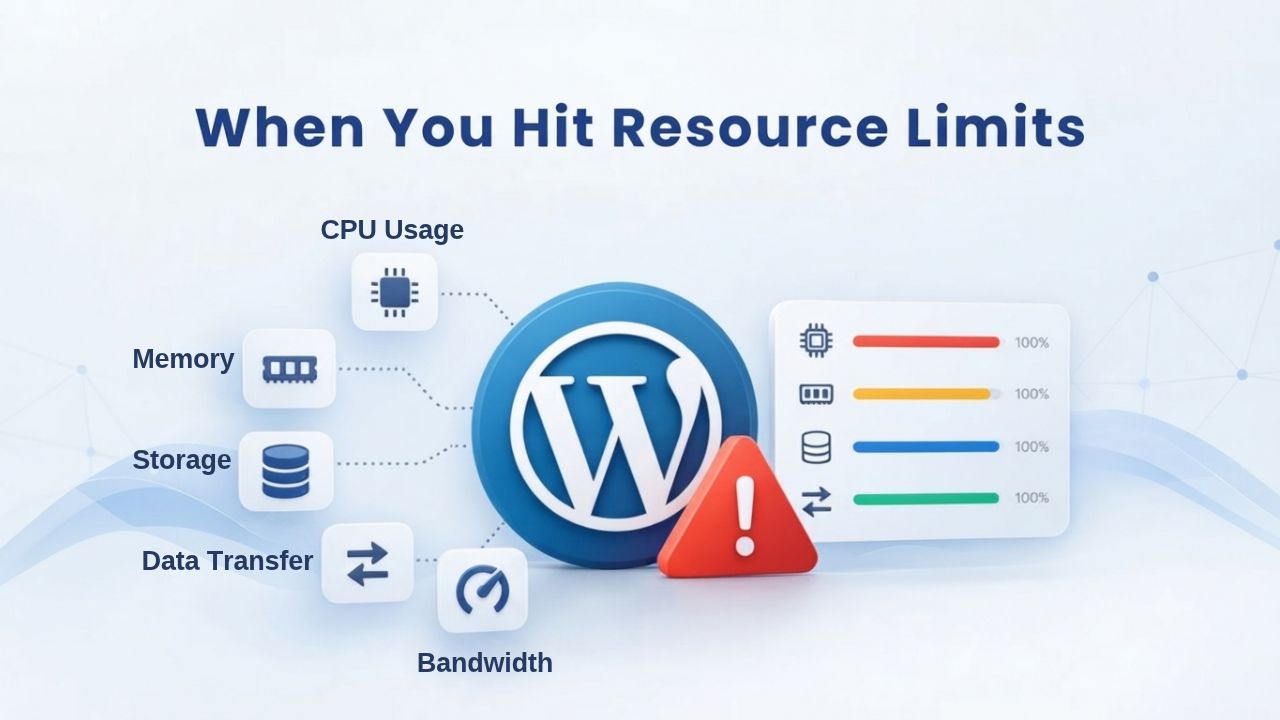
Resource-limit exhaustion rarely happens out of nowhere. Most sites hit limits during specific, predictable scenarios: traffic spikes, bulk operations, poorly optimized code, or a combination of factors. Recognizing the triggering conditions helps you anticipate when you might exceed your plan’s capacity and take proactive steps.
Traffic Spikes and Plugin Overload
A sudden traffic surge is one of the most common limit triggers. When traffic increases, the number of concurrent WordPress processes also increases; each visitor requesting a page consumes PHP memory and opens a database connection. If a site normally handles 10 concurrent visitors but suddenly receives 50 due to a viral social-media post or a marketing campaign, resource usage spikes proportionally. If your hosting plan’s limits were sized for 10 concurrent users, 50 users will hit multiple ceilings simultaneously: your PHP memory limit is exhausted, your database connection pool fills, and server response time plummets.
Plugin and theme inefficiency compounds traffic spikes. A plugin that loads inefficiently, loops through thousands of database queries on every page load, or builds massive arrays in memory during initialization will consume resources at a multiple of a well-optimized plugin. As traffic increases and a poorly optimized plugin runs for more visitors, resource consumption multiplies. You might run fine with 10 daily visitors, but a 5x traffic increase combined with that plugin could mean 50x resource consumption, easily exceeding your allocation.
Bulk Operations and Migrations
Bulk operations, importing thousands of posts, running a full-site backup, upgrading WordPress core and all plugins simultaneously, can spike resource usage to dangerous levels. A backup export operation forces WordPress to load every post, every attachment, and every piece of metadata into memory, serialize it, and write it to disk. On a site with 50,000 posts and 20,000 media files, this process alone might require 1–2 GB of RAM and run for 10–15 minutes, far exceeding a shared hosting plan’s 256 MB memory limit or 300-second execution time cap.
Database migrations present a similar challenge. If you’re importing data from an external source (another site, a CRM, an e-commerce platform), the import script must load, validate, transform, and write it to the WordPress database. Each write opens a database connection; if your import processes 10,000 records and each record triggers a connection, you could easily exceed a 20-connection limit, causing the import to hang or fail partway through.
Seasonal Traffic Patterns
E-commerce sites, event-driven content sites, and seasonal businesses often experience predictable traffic spikes at specific times of year. An online retailer selling holiday gifts will see 10x normal traffic in November and December. A ticketing platform for concert sales will spike when a popular artist announces a show. A site covering tax season will peak in February and March. These predictable spikes repeatedly push sites against resource limits. If you’re allocated for your baseline traffic, each seasonal peak forces you to either upgrade temporarily, optimize aggressively, or accept degraded performance.
Recognizing Resource-Limit Exhaustion
Resource limits rarely fail silently. When you hit a limit, WordPress and your server produce clear, diagnostic signals, if you know where to look. Recognizing these symptoms lets you act before a problem cascades.
Error Messages and Logs
The most direct indicator of PHP memory exhaustion is a fatal error: “Allowed memory exhausted (attempted to allocate X bytes).” This error appears in the WordPress debug log, server PHP error logs, or sometimes as a white screen on the front end. Similarly, “Maximum execution time exceeded” signals that a script ran longer than your server’s time limit allows. “MySQL server has gone away” or “Too many connections” errors indicate database-level limits have been reached, either the connection pool is full, or the database server itself has restarted due to resource pressure.
To locate these errors, enable WordPress debugging by editing wp-config.php to set WP_DEBUG to true and WP_DEBUG_LOG to a valid path, which writes all PHP and WordPress errors to a dedicated debug.log file. Server error logs (usually stored in /var/log/php-fpm.log, /var/log/apache2/error.log, or equivalent, depending on your server configuration) record system-level failures and timeouts. Database query logs, if your host enables them, show slow queries or connection errors. Most managed WordPress hosts and modern shared hosting providers offer resource-usage dashboards in their control panels that show real-time CPU, memory, database connection, and disk I/O utilization.
Performance Degradation Without Error Messages
Not all resource exhaustion produces obvious errors. Sometimes your site slows down without crashing. This happens when your server is resource-constrained but not completely out of resources. Each request takes longer because the operating system must context-switch between competing processes, disk I/O becomes the bottleneck, or database queries queue up waiting for a free connection. The site remains technically online, but admin dashboard page loads take 10+ seconds, visitors experience 5+ second page load times, and backups stall midway through.
This subtle degradation is harder to diagnose because there’s no fatal error to point to. The best diagnostic tools for this scenario are performance monitoring: check your hosting provider’s resource-usage charts for sustained high CPU, memory, or I/O usage. Use Google PageSpeed Insights or WebPageTest to track Time to First Byte (TTFB), the time from browser request to first data arriving from your server. If TTFB is consistently above 600 ms and your site’s code is optimized, resource constraints are a likely cause.
Third-Party Monitoring and Alerts
Most managed WordPress hosting plans include built-in monitoring and alerts. Many hosts can notify you via email or dashboard alert when you’re approaching a limit, say, 80% of your PHP memory used, or 70% of your concurrent connection pool filled. These alerts warn you to optimize, scale, or contact support before you hit a hard ceiling. Some hosts also offer server-status pages showing real-time CPU, memory, and connection usage; monitoring these during traffic spikes or bulk operations gives you visibility into how close you are to limits.
Diagnostic Symptoms, Likely Causes, and Where to Check
| Symptom | Likely Resource Limit or Cause | Where to Check | Diagnostic Approach |
|---|---|---|---|
| White screen of death on front end or admin | PHP memory limit exceeded | WordPress debug.log (enable WP_DEBUG_LOG); Server PHP error log (/var/log/php-fpm.log, etc.) | Look for “Allowed memory exhausted” error; check control panel memory usage dashboard |
| “Too many connections” MySQL error | Database connection limit exhausted | Server MySQL error log (/var/log/mysql/error.log); host control panel database connection chart | Check current connection count vs. allocated; review slow query log for queries holding connections open |
| Admin dashboard extremely slow; timeouts on form submissions | PHP max execution time + database connection contention | WordPress debug log; server error log; database query log if enabled | Monitor execution time; check if queries are timing out or queuing for a free connection |
| Backup or import fails partway through | PHP memory limit or max execution time during bulk operation | Backup tool output; WordPress debug log; server error log | Look for memory or time-exceeded errors; attempt smaller batches; increase time limit if host allows |
| Site goes offline during or after traffic spike | CPU exhausted, connection pool full, or out-of-memory condition | Hosting control panel resource-usage dashboard (check during spike); MySQL connection count; PHP-FPM process queue | Watch dashboard during peak hours; correlate outage timing with traffic spike; check logs for resource exhaustion signals |
| Media uploads hang or are rejected | Upload size limit exceeded OR disk space quota full OR disk I/O throttled | Server error log; control panel disk-usage chart; upload attempt browser console | Check uploaded file size vs. limit; check total disk usage; test upload with smaller file |
| Scheduled WordPress tasks (WP-Cron) don’t run; emails don’t send; backups skip | Execution time limit or connection exhaustion preventing cron-triggered operations | WordPress debug log for WP-Cron output; cron job logs (if SSH access available); backup tool log | Manually trigger a cron test; check if timeouts occur; review whether connections are available during cron window |
Ready to Diagnose Your Site’s Resource Usage?
If you’re experiencing slowdowns, errors, or mysterious crashes, the first step is figuring out whether resource limits are the cause. Niya Digital’s managed WordPress hosting includes built-in resource monitoring and expert support to help you troubleshoot bottlenecks before they impact your visitors. Get clarity on what’s holding your site back, and a clear upgrade path when you need it.
Database-Specific Resource Limits
Databases are the backbone of WordPress, and database-level resource limits often become the first constraint. Unlike PHP memory (which is per-script), database limits are shared by all concurrent site visitors, making them a potential bottleneck earlier than you might expect.
Connection Pools and Concurrent Access
Every WordPress page load opens one or more database connections: one to execute the main query, and often additional ones for plugins, caching layers, or search functionality. If 50 visitors load pages simultaneously, and each visitor’s request opens 2 database connections, that’s 100 concurrent connections. If your hosting plan allocates 50 connections per account, 50 of those requests must queue, waiting for a connection to free up. While they wait, the visitor’s page load slows, and PHP’s script execution time clock keeps running.
Shared hosting typically allocates 10–50 database connections per account, often tied to CPU or memory tier. A “Basic” shared plan might include 10 connections; a “Standard” plan, 25; an “Advanced” plan, 50. Managed WordPress plans usually allocate more generously; a managed “Starter” plan might include 75 connections; a “Professional” plan, 200 or more. The allocation depends partly on expected traffic and partly on the hosting provider’s infrastructure design.
Connection limits are particularly frustrating because they’re often invisible during development or low-traffic phases. Your site works fine on your local development environment (where you’re the only user) or during initial launch (when traffic is minimal). A poorly optimized plugin opening 5 database connections per page load might go unnoticed until traffic reaches 100 concurrent visitors. At that point, the connection pool exhausts and visitors experience timeouts.
Query Performance and Slow-Query Thresholds
Database limits encompass not just concurrent connections but also query performance. A poorly optimized query, one that full-table-scans a large table without an index, or one that runs a correlated subquery millions of times, consumes CPU and I/O resources on the database server. If enough slow queries run simultaneously, they can starve the database server’s CPU, making fast queries slow by proxy. Some hosting providers implement automatic slow-query thresholds: queries running longer than 5 or 10 seconds are automatically killed, protecting the server from runaway operations.
Identifying slow queries requires database-level monitoring. Most hosting providers enable the MySQL slow query log, which records queries taking longer than a configurable threshold (often 1–2 seconds). The WordPress.org Debugging Guide and database query analysis tools can help isolate problematic queries. Once identified, you can typically fix slow queries by adding database indexes (making full-table scans unnecessary), rewriting query logic to avoid correlated subqueries, or disabling/replacing the plugin or theme feature causing the slow query.
Storage Capacity and Backup Constraints
Database storage limits are separate from general-account disk space limits. A database might be allocated 5 GB of storage, while your account’s total disk allocation is 50 GB (for WordPress files, themes, plugins, uploads, and backups). When your WordPress database grows large, common on high-traffic sites, e-commerce stores with large product catalogs, or sites with years of posts and comments, you can hit database-specific storage limits. Additionally, backing up large databases is resource-intensive: the backup process must read the entire database into memory or to disk, compress it, and transfer it to backup storage.
The Role of Plugins and Themes in Resource Consumption
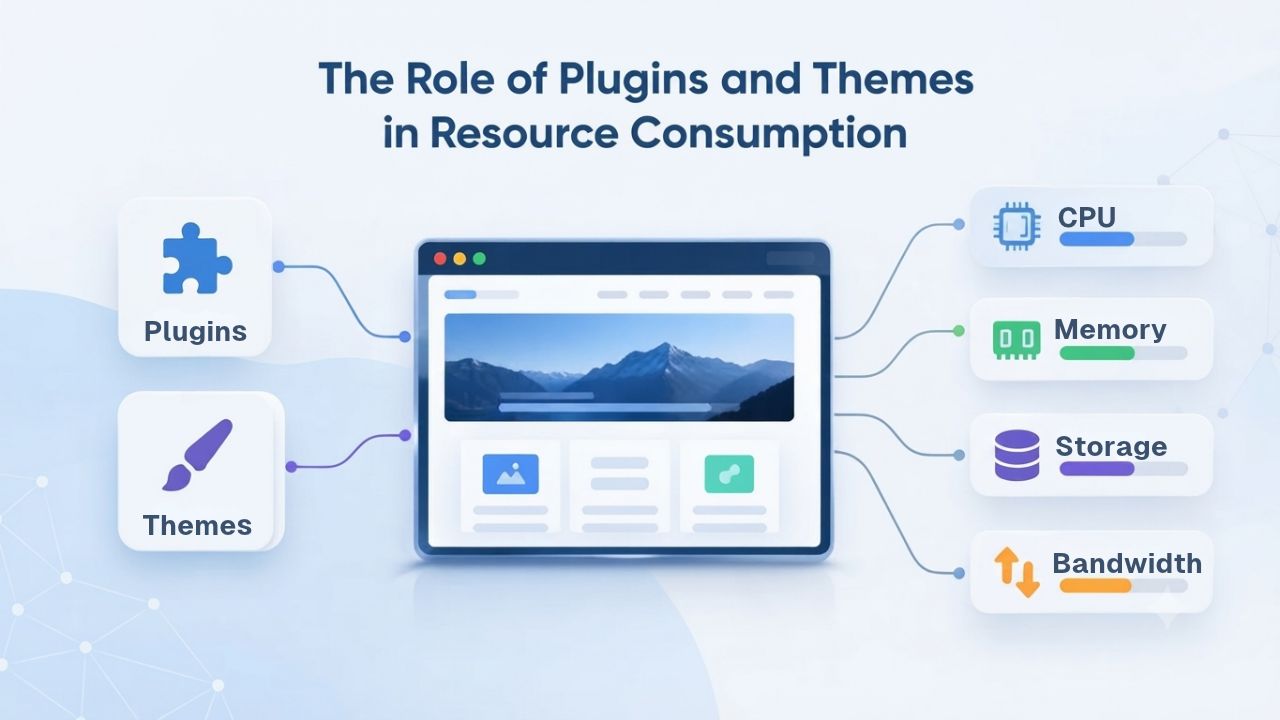
One of the most underappreciated drivers of resource-limit exhaustion is poor code quality in plugins and themes. WordPress itself is generally well optimized; resource spikes most often come from inefficient third-party code.
Unoptimized Database Queries
A poorly coded plugin might run database queries inside a loop that should be run once and cached. Classic example: a plugin that retrieves one post at a time in a loop, instead of using a single query to fetch all posts at once. If a page displays 50 posts and the plugin loops 50 times, running one query per loop, that’s 50 database queries per page load, compared to the optimal 1 query. Multiply that by 50 concurrent visitors, and you’ve generated 2,500 unnecessary queries on a single page load, exhausting database connections and CPU.
The fix is typically straightforward once identified: rewrite the query to use a batch operation, or disable the problematic plugin/feature. However, most site owners don’t discover this problem until they hit a resource limit and see it in the slow-query log. When you’re running dozens of plugins, identifying the culprit requires methodical disabling and re-testing or access to query logs and performance profiling tools.
Memory-Intensive Operations and Autoloading
Plugins often use WordPress hooks and filters, which run their code on every page load. A poorly designed plugin might hook into a fundamental WordPress action (like wp_loaded or wp-header) and do resource-intensive work unconditionally: loading large arrays into memory, running regex operations on large texts, or querying thousands of database rows. WordPress option autoloading (where certain database values load into memory on every page) can be misused: if a plugin stores gigabytes of serialized data in autoloaded options, that data loads into memory on every page load, consuming precious PHP memory.
The solution involves auditing plugin options (WordPress developers can use tools to detect oversized autoloaded options) and selectively disabling problematic features. Some hosting providers and managed WordPress plans include tools to diagnose and report problematic plugins; Niya Digital’s team has found that proactive plugin audits during site migrations often identify these issues before they cause outages.
Theme Render and API Call Overhead
Themes control how WordPress outputs HTML. A poorly coded theme might render 50 API calls to external services (weather data, social feeds, ad networks) on every page load, timing out when APIs are slow and consuming bandwidth in the process. Or a theme might generate massive amounts of inline CSS and JavaScript on every page load, pushing HTML size to megabytes. While not a direct resource-limit issue on the host, excessive external API calls and oversized pages indirectly trigger resource limits by slowing page loads, keeping PHP and database connections open longer, and encouraging browsers to retry failed requests.
Traffic Patterns, Caching, and Performance
Traffic patterns and the effectiveness of caching layers directly influence resource-limit impact. The same traffic spike that crashes one site might be invisible to another, depending on how well the site is optimized and cached.
How Traffic Multiplies Resource Consumption
Resource consumption scales roughly with concurrent traffic, but not linearly. If one visitor uses 1 MB of PHP memory, you might expect 50 visitors to use 50 MB. In reality, 50 concurrent visitors often use 100–200 MB due to overhead. Database connections scale similarly: the first visitor might open 2 connections, but 50 visitors often open 80–100 connections because of connection-pooling inefficiency and plugin behavior. This non-linear scaling is why a “5x traffic” increase can mean “20x resource increase”, one of the most common surprises for site owners running near capacity.
Seasonal traffic patterns and unexpected viral moments both cause sudden traffic multiplication. A site running fine at 10 requests per second might crash immediately when traffic jumps to 50 requests per second, especially if the hosting plan was sized for average traffic, not peak traffic. For this reason, many WordPress operators plan hosting capacity based on peak traffic, not average traffic.
Caching as a Resource Multiplier
Caching reduces resource consumption dramatically. A fully cached page (pre-rendered HTML or served from a cache layer without running PHP or querying the database) consumes virtually no hosting resources compared to a dynamically generated page. A site with effective caching, using page caching, database query caching, and object caching, can handle 5–10x the traffic on the same hosting plan compared to a non-cached site.
For this reason, managed WordPress hosting providers usually include built-in caching. WordPress.org Performance Best Practices emphasize caching as a foundational optimization. A site hitting resource limits might solve the problem not by upgrading hosting, but by installing and configuring a caching plugin (WP Super Cache, W3 Total Cache, or equivalent) or enabling server-level caching if the host provides it. Caching doesn’t eliminate resource limits, but it often moves them far enough to the right that traffic spikes become manageable.
CDN and Static Asset Offloading
Content Delivery Networks (CDNs) reduce hosting resource consumption by serving images, CSS, JavaScript, and other static files from geographically distributed edge servers, not from your hosting account. This reduces bandwidth and disk I/O on your host’s servers. Serving a 5 MB image from your host’s server consumes disk I/O; serving it from a CDN edge server consumes none. For sites with heavy media consumption, stock photo portfolios, video sites, media-heavy blogs, a CDN can reduce resource-limit pressure by 20–50%.
Deciding to Scale: Shared Hosting to Managed to VPS
Understanding when to upgrade from shared hosting to managed WordPress hosting, or from managed to VPS, requires understanding how resource allocation changes across each tier.
Shared Hosting Resource Model
Shared hosting allocates resources per account, with limits enforced to ensure fairness among hundreds of sites on one server. Typical shared hosting plans tier upward: a “Basic” plan might include 1 GB of memory per script, 50 database connections, 100 GB of disk space, and a PHP execution time of 300 seconds. A “Professional” plan might include 2 GB of memory, 100 connections, 250 GB of disk space, and the same time limit. An “Advanced” plan might include 4 GB of memory, 200 connections, and 500 GB of disk.
These increases come with correspondingly higher plan costs, but the infrastructure is still shared: hundreds of sites still run on one server, and limits still exist to prevent one site from crashing others. Shared hosting is ideal for small blogs, portfolios, and business sites receiving under 50,000 monthly visits with efficient, well-optimized WordPress installations. It’s also a great starting point: you can launch a site affordably and upgrade later if traffic demands it.
Managed WordPress Hosting Resource Model
Managed WordPress hosting typically allocates resources at the environment level, with automatic scaling as traffic increases. A “Starter” managed plan might include isolated infrastructure (or semi-isolated on higher-density managed servers), automatic WordPress updates, automatic backups, built-in caching, and CDN integration, alongside resource allocations of 2 GB RAM, 75 database connections, and 50 GB storage. A “Professional” plan scales up to 4 GB RAM, 150 connections, and 100 GB storage. An “Enterprise” plan might offer 8 GB RAM, 300+ connections, and 500+ GB storage, with the ability to add resources on demand.
The key difference: managed hosts often auto-scale. If your site’s traffic grows gradually, the host’s infrastructure automatically adds capacity; you don’t hit a hard ceiling and crash. This is possible because managed hosts use cloud infrastructure (via enterprise-grade cloud infrastructure partners) designed for elastic scaling, unlike shared hosting on fixed physical servers.
Managed hosting is ideal for growing sites (50,000 to 500,000 monthly visits), agencies managing multiple client sites, and any situation where uptime and performance are critical. The tradeoff is higher cost compared to shared hosting, offset by better reliability, performance, and support.
VPS and Dedicated Resources
A VPS allocates a fixed pool of resources to your account, say, 4 CPU cores, 8 GB RAM, 200 GB SSD storage. Unlike shared hosting, where resource contention with other sites is possible, a VPS is isolated: your site’s resource usage doesn’t affect neighbors, and neighbors’ usage doesn’t affect you. However, you’re responsible for optimization and scaling. If your site hits the VPS’s resource limits, you must upgrade the VPS (more CPU, more RAM) or optimize your site.
VPS hosting is ideal for high-traffic WordPress sites (500,000+ monthly visits), developers comfortable with server administration, and organizations with specialized infrastructure needs. It offers maximum control but requires either technical expertise or managed VPS support (which, priced higher, approaches managed WordPress hosting).
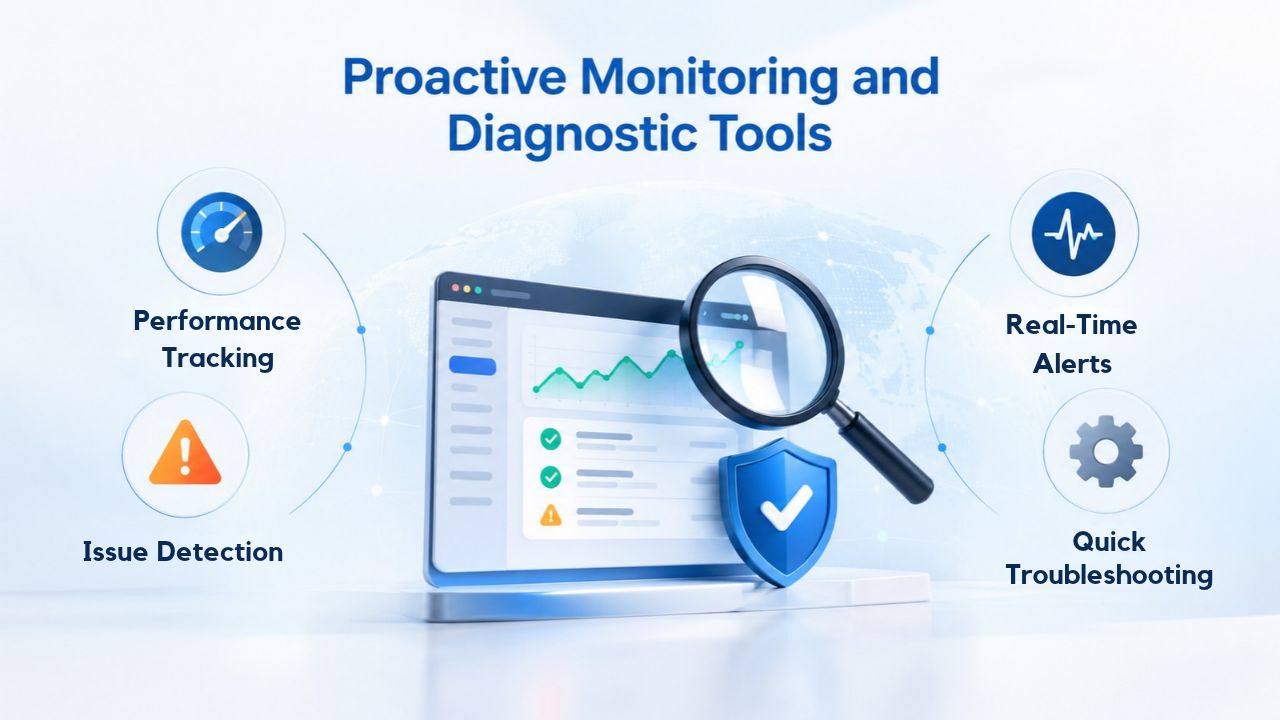
Proactive Monitoring and Diagnostic Tools
The best way to stay ahead of resource limits is to monitor continuously and establish baselines for your site’s normal resource consumption.
Control Panel and Built-In Dashboards
Most shared and managed hosting providers offer resource-usage dashboards in their control panels (cPanel, Plesk, or proprietary interfaces). These display real-time or near-real-time CPU usage, memory usage, database connection count, and disk I/O. Checking this dashboard weekly, especially before and after traffic spikes or major site updates, gives you a clear picture of whether you’re approaching limits.
Server Logs and WordPress Debug Tools
WordPress’s built-in debug mode, enabled by editing wp-config.php, writes all PHP errors, warnings, and notices to a debug log. Additionally, query logging (if enabled by your host) records all database queries and their execution time, helping identify slow queries or excessive query counts. Server error logs record Apache, Nginx, PHP-FPM, and MySQL errors. These logs are your diagnostic toolkit: when a site slows down or crashes, they tell you whether the cause is PHP memory exhaustion, a database connection issue, or something else entirely.
Many hosting providers offer log access through a File Manager or SSH terminal; managed WordPress hosts sometimes provide pre-built log analysis tools or alerts.
Support and When to Escalate
Identifying a resource-limit problem often requires collaboration with your host’s support team. They can access logs you can’t, run profiling tools, and identify whether your site’s issue is a limit problem, a code problem, or an infrastructure problem. High-quality hosting support, available during your time zone and equipped to handle WordPress-specific problems, is invaluable when troubleshooting. If your host’s support is slow or unresponsive, escalating to more senior staff (if available on your plan) or considering a higher-tier plan with better support is worth the investment.
Planning for Growth and Seasonal Peaks
Long-term resource planning means sizing your hosting not for average traffic, but for expected peak traffic 6–12 months out, accounting for seasonal spikes and projected growth.
Baseline Sizing and Growth Trajectory
To plan effectively, measure your site’s current baseline resource consumption: what does a typical day look like in terms of page views, concurrent visitors, and CPU/memory/database usage? Then project growth: if you’re growing 10% month over month, where will you be in six months? What about in a year? If you have historical data showing seasonal peaks (holiday traffic, back-to-school season, tax season, annual events), factor those into your planning. A site hosting an annual conference will see 10x normal traffic for one week per year; your hosting should accommodate that peak without degrading.
A practical baseline: if your hosting plan’s limits are sized for your current peak traffic with 20% overhead remaining, you’re well-positioned. If you’re consistently using 80% of limits, an upgrade is overdue. If you’re approaching or hitting limits, an upgrade is urgent.
Upgrade Paths and Migration Planning
When it’s time to upgrade, understand your options: within shared hosting, you can upgrade plans relatively painlessly (usually just a control-panel change). Moving from shared to managed hosting or to VPS typically requires site migration, copying your WordPress database, files, and configuration to new servers. WordPress.org’s migration guide outlines the process. However, most hosting providers offer migration assistance for free or for a small fee.
Plan migrations during low-traffic periods (early mornings, weekends, or the off-season for your site type) to reduce the risk of hitting resource limits during the migration. Test the site thoroughly after migration to ensure all plugins, themes, and customizations work correctly on the new infrastructure.
Automation and Scalability Planning
Managed WordPress hosting’s automatic scaling is a major planning advantage. Rather than manually upgrading when you hit limits, the infrastructure scales up automatically as traffic increases. However, automatic scaling isn’t infinite; even managed hosts have upper limits, beyond which you need to contact sales to discuss a custom plan or architecture. Understanding your host’s scaling limits and having a growth plan beyond those limits ensures you’re never blindsided.
Ready to Optimize Your Hosting for Growth?
Resource limits are a natural part of shared hosting infrastructure, but they don’t have to limit your ambitions. Niya Digital’s managed WordPress hosting plans scale with your traffic, automatically adjusting resources as your site grows, eliminating the guesswork and letting you focus on content and business goals. Explore how managed infrastructure can handle your site’s peak traffic without manual upgrades or downtime concerns.
Frequently Asked Questions
What is a PHP memory limit, and why does it matter?
A PHP memory limit is the maximum amount of RAM a single PHP script can consume before WordPress terminates it with a fatal error. WordPress and plugins run within this limit; a poorly coded plugin or a large import operation can exceed it. On shared hosting, the limit is typically 64–256 MB per request. If you hit the memory limit, you’ll see an “Allowed memory exhausted” error and your page won’t load. Increasing the limit is sometimes possible on managed plans, but on shared hosting, it’s capped to prevent one site from consuming all server RAM.
How many database connections does WordPress typically use?
A single WordPress page load typically opens 1–3 database connections, depending on plugins and caching. An uncached page load with multiple plugins might use 3–5 connections. Multiply by the number of concurrent visitors: 50 visitors might consume 150–250 connections. If your hosting plan allocates 50 connections, the site will time out. This is why caching, which bypasses database queries entirely, is such a powerful resource multiplier.
When should I move from shared hosting to managed WordPress hosting?
Move to managed hosting when you consistently use 70% or more of your shared plan’s limits, experience traffic spikes or seasonal peaks that approach those limits, or find support slow or unable to resolve WordPress-specific issues. Managed hosting also makes sense if you’re managing multiple WordPress sites or if uptime and performance are business-critical. The higher cost is typically offset by better performance, automatic scaling, and faster support.
Can I “raise my resource limits” on shared hosting?
No. Shared hosting limits are enforced per-account to ensure fairness; if one account could raise its limits arbitrarily, it would consume resources promised to other customers. Managed WordPress hosting offers more flexibility: some plans let you request limit increases, and auto-scaling plans automatically allocate more resources as traffic grows. On shared hosting, the upgrade path is to move to a higher-tier shared plan, managed hosting, or VPS.
What’s the difference between a resource limit and a quota?
A resource limit is a per-moment cap (e.g., “max 2 GB RAM per script right now”). A quota is a total allocation over time (e.g., “100 GB of disk space total, used however you want”). Both exist on hosting plans, but limits affect performance under peak load, while quotas affect long-term storage capacity. Hitting a resource limit causes immediate slowness or crashes; hitting a quota means you need to delete files or upgrade storage.
How do I know if my site has hit a resource limit vs. other performance problems?
Check three things:
(1) Look at your hosting control panel’s resource-usage dashboard; if CPU, memory, or database connections are near maximum, a limit is likely the cause.
(2) Check your WordPress debug log and server error logs for “memory exhausted,” “too many connections,” or “execution timeout” messages.
(3) Use Google PageSpeed Insights to check your Time to First Byte (TTFB).
If TTFB is high (600+ ms) and resource usage is high, resource limits are a factor. If TTFB is high but resource usage is low, a slow plugin or theme is more likely the culprit.
Do caching plugins solve resource-limit problems?
Caching dramatically reduces how often you hit resource limits because cached pages bypass PHP and database queries entirely. Effective caching can resolve memory-limit issues. However, caching is not a complete solution: if your site’s uncached code is deeply flawed (1,000 queries per page load), caching helps but doesn’t solve the underlying problem. Additionally, some operations- backups, imports, and updates- can’t be cached, so they’ll still hit limits even on a cached site.
What’s the difference between managed WordPress hosting and unmanaged VPS?
Managed WordPress hosting is optimized for WordPress: it includes automatic updates, automatic backups, automatic caching, staging environments, and expert WordPress support. The host manages server optimization. An unmanaged VPS is a virtual machine you control entirely; you’re responsible for installing WordPress, managing updates, configuring caching, and troubleshooting. Managed hosting is easier and includes support, but it costs more. VPS is cheaper but requires technical expertise. Some hosts offer managed VPS (a hybrid: you get a VPS, but the host manages updates and backups).
How do I plan hosting capacity for a site with seasonal peaks?
Measure your current baseline traffic and resource usage (CPU, memory, connections). Identify your highest-traffic period historically (e.g., November–December for retail, February–March for tax prep). Size your hosting plan to handle peak-period traffic with 20% overhead; don’t plan for average traffic. If peak traffic is 2x average, consider managed hosting with auto-scaling or a VPS that can handle 2x your baseline. If peak traffic is 10x average, consider VPS or dedicated hosting, or plan to upgrade temporarily during peak season.
What happens if I exceed my resource limits?
WordPress stops, plugins fail, or your site becomes extremely slow. Specific outcomes depend on which limit you hit: PHP memory limit = white screen with a fatal error. Execution time limit = page load times out and returns a 504 error. Database connection limit = “too many connections” error and broken database queries. CPU limit = all processes run slowly. In production, hitting limits is bad: visitors see errors or timeouts, you lose traffic, revenue (if applicable), and reputation. That is why monitoring and upgrading before you hit limits is critical.
Can I use a CDN to reduce resource-limit pressure?
Yes. A CDN serves static files (images, CSS, JavaScript) from geographically distributed edge servers, reducing bandwidth and disk I/O on your hosting server. If your site serves many images or large files, a CDN can reduce resource-limit pressure by 20–50%. However, CDNs don’t reduce PHP memory or database connection limits (you’ll hit those regardless of whether a CDN serves static files). CDN is a complementary optimization, not a replacement for proper hosting capacity or site optimization.
What should I ask my hosting provider about resource limits?
Ask:
(1) What are the exact resource limits for my plan (PHP memory, execution time, database connections)?
(2) How are limits enforced; are they hard limits (immediate termination) or soft limits (gradual throttling)?
(3) How do I monitor my current usage, and what alerts are available?
(4) What happens if I exceed limits?
(5) Can I upgrade temporarily during traffic spikes?
(6) What’s the upgrade path if I outgrow this plan?
(7) Do you offer site optimization or caching recommendations?
A good host will answer these clearly and proactively.
Is a resource-limit problem a sign I need to change hosting providers?
Not necessarily. Resource limits are normal; every hosting provider enforces them to maintain fairness and reliability. If you’re hitting limits, it usually means your site has outgrown your current plan, not that your host is bad. The right response is to upgrade within your host (if possible), move to a higher-tier plan, or switch to a higher-capacity host (managed WordPress hosting or VPS) if your current host doesn’t offer a suitable upgrade path. If your host is unresponsive, expensive, or lacks good support, then switching might be justified, but the problem is the host, not the existence of limits.
Glossary
- Database Connection: A session between an application (WordPress) and a database server (MySQL). Each page load and each visitor typically opens one or more connections. Database connection limits cap the maximum number of concurrent connections per account or per server.
- PHP Memory Limit: The maximum amount of RAM a single PHP script is allowed to consume. Typically 64–256 MB on shared hosting. When a script uses more memory than the limit, PHP terminates it with a fatal error.
- Max Execution Time: The maximum number of seconds a PHP script is allowed to run. Typically 30–300 seconds, depending on the hosting plan. Scripts exceeding this time are forcibly terminated.
- Time to First Byte (TTFB): The time between a browser requesting a page and the first data arriving from the server. TTFB reflects server response time; if TTFB is high (600+ ms) while CPU/memory are unconstrained, code inefficiency is likely the cause. If TTFB is high and CPU/memory are maxed out, resource limits are likely the cause.
- Object Caching: Caching database query results (as PHP objects) in memory or in a fast storage backend, so repeated queries return cached data instead of hitting the database. Dramatically reduces database load.
- Slow Query Log: A MySQL/database log recording queries that run longer than a configured threshold (typically 1–2 seconds). Identifying slow queries helps pinpoint which plugins or features are resource-intensive.