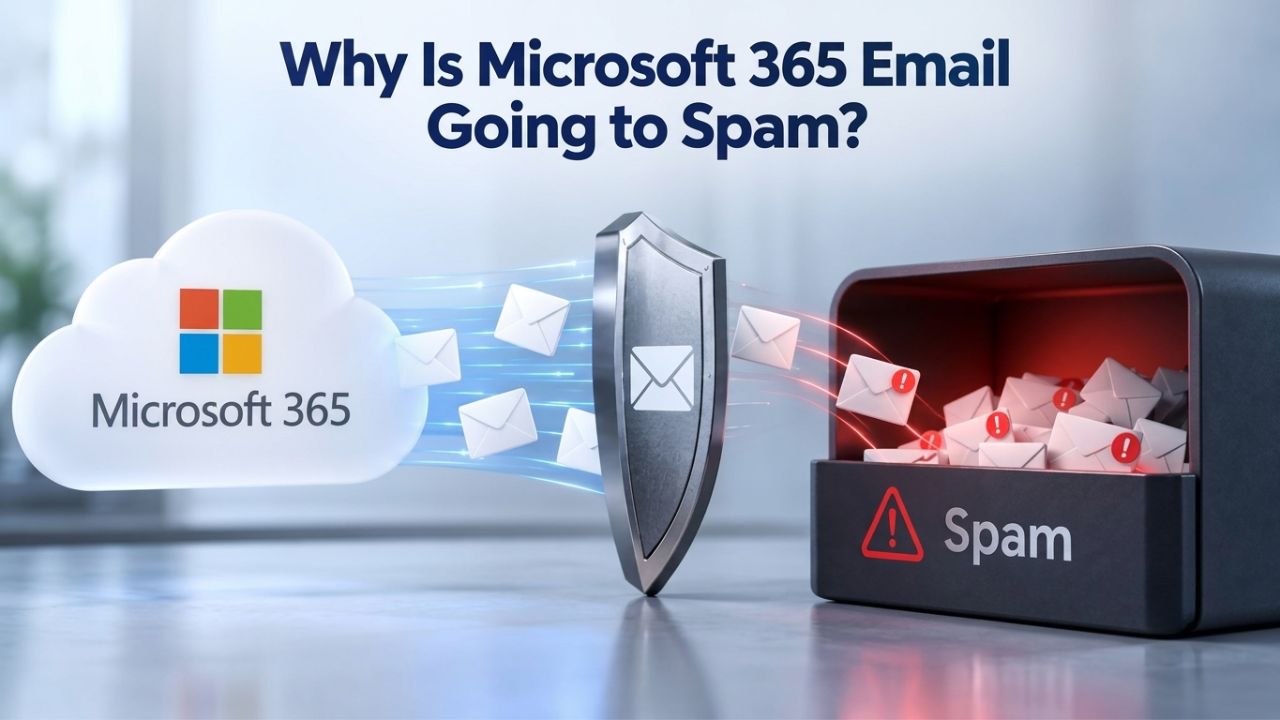
How Microsoft 365 Filters Email
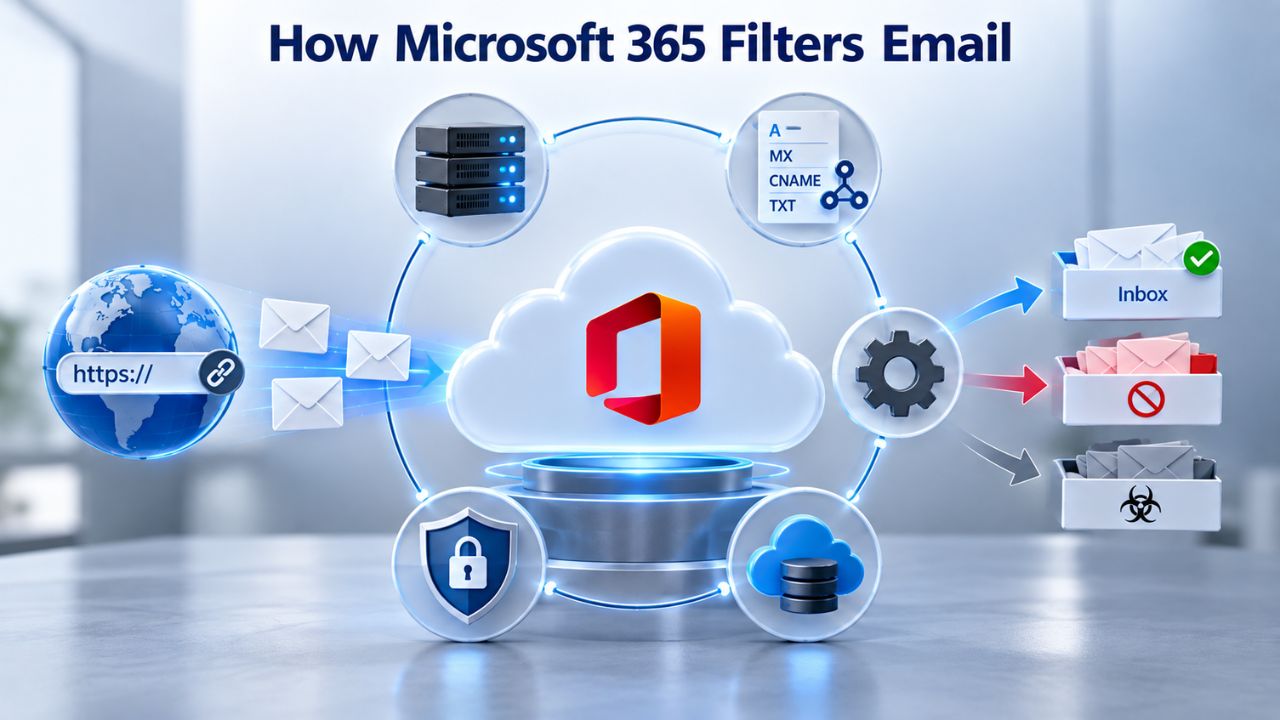
Microsoft 365 uses a multi-layered approach to protect users from unwanted mail. Every message entering your system passes through several detection points before reaching an inbox.
Understanding Exchange Online Protection
Exchange Online Protection (EOP), Microsoft 365’s email filtering system, scans all inbound, outbound, and internal messages using reputation-based, content-based, and machine-learning techniques. When your email arrives at a recipient’s Microsoft 365 tenant, it enters the EOP pipeline in this order: connection filtering (sender reputation check) → content filtering (anti-spam, anti-spoofing classification) → verdict-based action (delivery to inbox, Junk folder, or quarantine). EOP assigns a Spam Confidence Level (SCL) score between 0 and 9, where SCL 7–9 signals high-confidence spam and routes the message to the Junk folder.
Why does Microsoft 365 filter so aggressively? Because incoming mail volume is enormous, and legitimate users expect protection. This defense-first approach is a feature, not a bug. The challenge arises when authentication is missing, sender reputation is unknown, or list quality is poor; legitimate mail gets caught in the same filters built to stop malware and phishing.
The Five Layers of EOP Filtering
EOP protects your organization through IP and URL reputation, domain reputation, spam filtering, malware filtering, content filtering, connection filtering, and spoof intelligence. A single misconfigured authentication record or a bounce spike can trigger enough suspicion to push mail toward Junk.
If you need protection beyond EOP’s baseline, Microsoft Defender for Office 365 extends filtering with advanced threat protection, including zero-day detection and time-of-click URL protection. The filtering system is not random. It follows measurable signals. Understanding those signals is the key to keeping your email out of spam.
Microsoft 365 Plans & Pricing
Find the Microsoft 365 plan that fits your needs, whether you're using it at home, with your family, or for your business. With a range of plans designed for different budgets and requirements, you can enjoy the tools you need to stay productive, connected, and protected.
Microsoft 365 Email Essentials
Professional email with 10GB of email storage.
- Professional email using your domain name
- 10GB storage for email, contacts & calendar
- Sync across all devices
- Shared online calendars
- Up to 400 email aliases

Microsoft 365 Email Plus
Professional email with 50GB of email storage.
- Professional email using your domain name
- 50GB storage for email, contacts & calendar
- Sync across all devices
- Shared online calendars
- Up to 400 email aliases
Microsoft 365 Online Business Essentials
Office web apps & professional email.
- Office apps (online only)
- 1TB OneDrive storage
- Unlimited online meetings & HD video
- Professional email using your domain
- 50GB email storage
- Sync across all devices
Microsoft 365 Business Professional
Office apps on 5 devices, web apps & professional email.
- Office apps installed on up to 5 devices
- Office web apps
- 1TB OneDrive storage
- Business apps included
- Professional email using your domain
- 50GB email storage
Email Authentication Fundamentals: SPF, DKIM, and DMARC
No configuration element matters more than authentication. Without it, receiving servers can’t verify that mail claiming to be from your domain actually comes from you.
SPF and DKIM: Proving Sender Identity
Sender Policy Framework (SPF) is an email authentication technique that specifies which mail servers are authorized to send mail on behalf of yourdomain.com. When a recipient’s mail system receives email claiming to be from yourdomain.com, it checks the SPF record to confirm the sending server is on your authorized list. A missing or incorrect SPF record, such as multiple SPF records in DNS or forgetting to include a third-party service, signals to receiving servers that the mail might be forged. Creating a single SPF record with the value v=spf1 include:spf.protection.outlook.com -all tells receiving servers that only Microsoft’s mail servers and any other services you explicitly list are authorized to send from your domain.
DKIM (DomainKeys Identified Mail) adds a digital signature to every outgoing message; receiving servers verify it against a public key published in your DNS records, confirming the message hasn’t been altered and was authorized by your domain. Enabling DKIM in the Microsoft 365 admin center generates two CNAME records (selector1 and selector2) that you must publish in DNS. Critically, DNS propagation can take up to 48 hours; if you toggle DKIM “on” before the CNAME records resolve, the toggle fails with an error, and DKIM never activates. Niya Digital’s team has found that misconfigured DKIM, often from CNAMEs added to the wrong DNS zone or left unpublished entirely, is the single most common setup obstacle for organizations migrating to Microsoft 365 email.
DMARC: Enforcement, Monitoring, and Recovery
DMARC (Domain-based Message Authentication, Reporting, and Conformance) tells other organizations how you’d prefer them to handle email that doesn’t match your SPF and DKIM configuration. A DMARC record sits at _dmarc.yourdomain.com and can enforce a policy (p=reject or p=quarantine) or monitor without enforcing (p=none).
Despite DMARC’s critical role in preventing spoofing and improving deliverability, only 33.4% of the top 1 million websites maintain valid DMARC records. This gap means most domains face increased spam filtering and reputation risk. A proper DMARC record also generates forensic reports, showing you exactly which servers are sending mail on your behalf, invaluable for catching unauthorized senders.
| Authentication Method | Primary Function | Why It Fails Email Delivery | Fix |
|---|---|---|---|
| SPF (Sender Policy Framework) | Specifies authorized sending servers for the domain | Multiple SPF records / incorrect server IP listed | Create a single SPF record with all authorized sources included |
| DKIM (DomainKeys Identified Mail) | Adds cryptographic signature to message headers | DKIM not enabled in Microsoft 365 admin / CNAME records not added to DNS | Enable DKIM in Exchange admin center; add both CNAME records; wait for DNS propagation (up to 48 hrs) |
| DMARC (Domain-based Message Authentication, Reporting, and Conformance) | Tells receiving servers how to handle unauthenticated mail; provides feedback on authentication failures | DMARC record missing / policy set to p=reject too early | Create DMARC TXT record at \_dmarc.yourdomain.com; start with p=none or p=quarantine for monitoring |
| MX Record (Mail Exchange) | Routes inbound email to the correct mail server | MX record absent / points to old email provider | Update MX record to mail.protection.outlook.com (Microsoft 365 format) |
| Custom Domain in Microsoft 365 | Enables professional email (user@yourdomain.com) | Domain added after MX record/users added before MX update | Add domain first → add users → then update MX to minimize interruption |
| Autodiscover (CNAME) | Allows Outlook clients to auto-discover mailbox settings | CNAME not published in DNS | Add CNAME record for Autodiscover as specified by Microsoft 365 wizard |
Custom Domain Setup: DNS Order and Timing
Setting up a custom domain in Microsoft 365 requires precise sequencing. One small mistake- adding users before the MX record updates or forgetting to publish DNS records- can cause email delays or loss.
DNS Records Required for Full Functionality
When you add a custom domain to Microsoft 365, the setup wizard verifies you own the domain, then guides you to create DNS records for proper domain management and email delivery. At minimum, you need an MX record (to route inbound email to Microsoft 365), an SPF TXT record (to authorize sending servers), DKIM CNAME records (to sign messages), and Autodiscover CNAME records (so Outlook clients configure automatically). The MX record typically resembles yourdomain-com.mail.protection.outlook.com with a priority of 0; without it, emails sent to your domain will not reach your Microsoft 365 mailboxes.
Add users after adding the custom domain but before updating the MX record; this sequence prevents email interruption as mail transitions from your previous provider to Microsoft 365. Many admins add the MX record first, cutting off mail delivery to the old system before new mailboxes are ready to receive.
Propagation Timing and Verification
DNS changes do not take effect instantly. TTL (Time To Live) settings on your DNS records control how long changes take to propagate globally, typically 24–48 hours, though some registrars or DNS providers can be slower. Setting a low TTL (e.g., 300 seconds) during setup expedites propagation; once verified, you can restore a normal TTL.
After you finish setting up a custom domain and the MX record updates, all email for your domain starts routing to Microsoft 365. Don’t rush this step. Verify each DNS record is live before moving to the next one. Tools like IntoDNS or your domain registrar’s DNS checker can confirm records are published and correct.
Sender Reputation and Domain Warmup
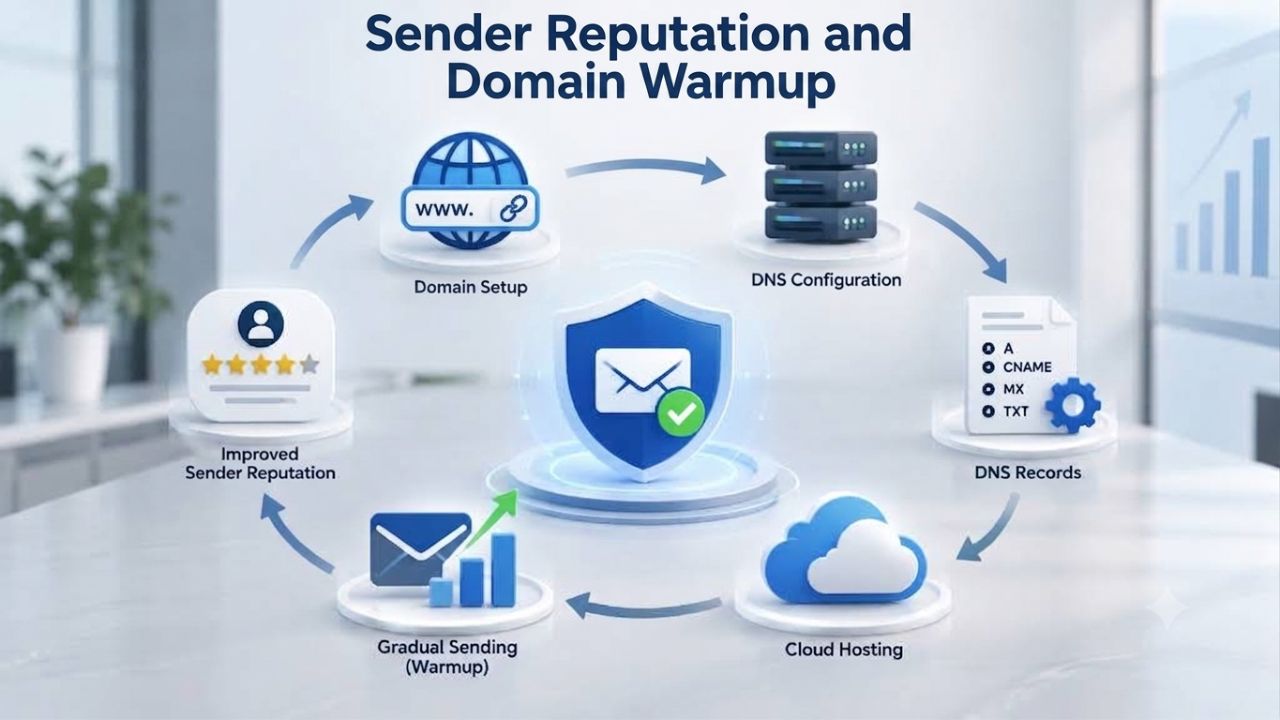
A brand-new domain is invisible to email providers. It has no sending history, engagement data, or reputation. Starting with high volume on day one guarantees spam filtering, regardless of how perfect your authentication setup is.
Why New Domains Start at Zero Reputation
A brand-new domain has zero reputation with Gmail, Outlook, Yahoo, and other mailbox providers, so sending high volume on day one triggers spam filters and reputation damage that can take months to recover. This is not a Microsoft 365-specific rule; it applies across all email systems. Providers treat unknown senders with suspicion because new domains are historically a common source of spam.
Microsoft 365 evaluates sender reputation independently of Gmail, meaning a domain that performs well with Gmail can still face aggressive filtering in Outlook if the warmup process never targeted Microsoft inboxes. B2B organizations often overlook this reality and then face sudden, widespread blocks after their first campaign.
The Warmup Schedule and Realistic Volume Targets
Email warmup is the process of gradually increasing send volume from a new domain so mailbox providers learn you are a legitimate sender; this typically takes 4–8 weeks. The schedule isn’t arbitrary. A reasonable ramp looks like: Week 1, send 10–20 emails per day to your most engaged recipients; Week 2–3, expand to 30–100 per day to known, verified addresses; Week 4+, scale to 100–500 per day while monitoring bounce rates. Jumping to 500+ emails on day one, even to clean lists, signals spam behavior to Microsoft’s filters.
Before sending a single warmup email, SPF, DKIM, and DMARC must be live and passing; unauthenticated mail is treated as suspect no matter how carefully you ramp volume. Many organizations optimize for Gmail authentication but skip Microsoft checks, then wonder why their warmup fails on Outlook. Microsoft 365 is 61% of the B2B email audience; overlooking it is a costly mistake.
Content, List Quality, and Engagement Signals
Even with perfect authentication and a warmed domain, poor list quality and spam-trigger content can sink deliverability. Mailbox providers monitor more than technical signals; they watch how recipients interact with your mail.
How Content Triggers Spam Filters
Certain content patterns reliably trigger spam classification, independent of sender reputation. Emails filled with spam keywords (e.g., “act now,” “limited time,” “free money,” “click here”), excessive images with little text, misleading subject lines, and hidden links all raise SCL scores. Content-related issues like these serve as spam triggers and affect deliverability.
Interestingly, aggressive filtering does not punish legitimate business language. “Exclusive offer” or “special pricing” in a business context is fine; “Click here NOW or lose out FOREVER!!!” is not. The tone matters. Format matters. Restraint matters.
List Hygiene and Engagement Metrics
Maintaining a positive sender reputation derived from complaint rates, engagement metrics, and bounce rates is vital to bypassing spam filters. A high bounce rate signals that your list contains invalid addresses, which damages sender reputation. High complaint rates (recipients marking mail as spam) directly trigger Microsoft 365 spam filters. Unengaged subscribers, people who never open, click, or reply, degrade your reputation over time.
The solution is ruthless list hygiene. Remove invalid addresses. Segment by engagement level. Re-engagement campaigns should win back inactive users or remove them. Maintaining list quality is foundational; sending to unengaged lists rapidly degrades sender reputation and increases the likelihood of emails landing in spam folders.
Ready to Fix Your Microsoft 365 Email Deliverability?
Diagnosing and fixing deliverability issues requires both technical precision and operational discipline. Niya Digital works with authorized Microsoft partners to audit your current setup, identify authentication and reputation gaps, and implement a custom warm-up strategy tailored to your sending patterns. Our team can guide you through custom domain setup, authentication configuration, and post-migration monitoring to ensure your inbox placement stays strong.
Troubleshooting: Verifying Authentication Records
When emails land in spam, the first step is always to check authentication. A single misconfigured record can block all your mail.
Verifying SPF, DKIM, and DMARC Records
To verify whether SPF, DKIM, and DMARC are configured correctly, use online tools like IntoDNS or your domain registrar’s DNS checker. These tools scan your domain and report whether an SPF record is found (yes/no), DKIM selectors are published (yes/no), a DMARC record is present (yes/no), and whether policies are enforced or monitoring-only. A common mistake is setting DMARC to p=reject before you configure all your mail sources; this causes legitimate mail to bounce. Start with p=none to collect reports, then advance to p=quarantine or p=reject only after you’ve verified all authorized senders.
Another frequent error is creating multiple SPF records. DNS allows only one SPF record per domain; multiple SPF records cause validation failures. If you have existing SPF records from another email provider, combine all authorized services into a single record using the include: mechanism.
Common Configuration Errors and Fixes
| Issue / Diagnostic Step | What to Check | Typical Timeline | Root Cause(s) |
|---|---|---|---|
| Emails landing in Junk folder consistently | SPF/DKIM/DMARC validation status; message trace logs in Exchange admin center | Immediate (configuration-based) | Missing/misconfigured authentication; new domain reputation; high bounce rate |
| Emails bouncing (non-delivery reports) | DNS record syntax; MX record priority; recipient list validity | Minutes to hours (DNS-dependent) | Incorrect MX record; typos in SPF/DKIM syntax; invalid recipient addresses |
| Sporadic email loss despite correct setup | SCL/BCL scoring; sender reputation history; complaint/bounce rates | Hours to days (reputation-based) | List hygiene degradation; sudden volume spike triggering throttling; unengaged subscribers |
| New domain, all mail going to spam | Warmup schedule; sender reputation age; list engagement metrics | 4–8 weeks (reputation building phase) | Zero sender reputation; new domain flagged as risk; warmup not performed |
| Emails only affected in Outlook/Microsoft 365 but fine in Gmail | EOP filtering; Microsoft 365 independent reputation evaluation; DMARC alignment | Immediate (EOP policy-based) | EOP/SmartScreen filtering; domain reputation tracked separately by Microsoft; DMARC p=reject applied prematurely |
| Sudden email blocks despite good metrics | Blocklisting; ISP feedback loop; rate-limiting triggered | Hours to days | Unexpected complaint spike; unsolicited bulk detection; volume scaled too aggressively |
Troubleshooting: Sender Reputation and Recovery
Authentication issues are fixable overnight. Sender reputation issues take time to heal.
Diagnosing Reputation Decay
A poor IP address reputation, stemming from past spam activity or unestablished status, triggers spam filters and reduces deliverability. However, in Microsoft 365, you do not own the IP address; Microsoft does. Your reputation is domain-based, not IP-based. This is good news: if a previous tenant on a shared IP behaved badly, it doesn’t directly harm your domain.
Check these reputation signals: What is your bounce rate (target: under 2%)? What is your complaint rate (target: under 0.1%)? How many of your emails are marked as spam vs. junk by recipients? Are you sending to unengaged lists? Microsoft independently measures each of these and contributes to your domain’s SCL score.
Recovery Timeline and Best Practices
Reputation recovery is not instant. If your domain has been flagged due to high complaints or bounces, expect 4–12 weeks to rebuild trust. Start by removing all bounced addresses, suppressing all complainers, and segmenting your list to high-engagement recipients only. Send smaller volumes with tighter targeting. Monitor your metrics weekly. Consistently monitor and analyze bounce rates, complaint rates, and engagement metrics to identify the cause of deliverability problems.
In Microsoft 365, use the Message Trace tool in the Exchange admin center to see where each email landed (Inbox, Junk, Quarantine, Delivered, or Failed). This transparency is invaluable for diagnosing whether your problem is authentication, reputation, or content.
Industry Context: The Global Deliverability Crisis
Email deliverability is harder than ever. Providers worldwide are tightening sender requirements, and compliance is no longer optional.

Global Deliverability Trends and Compliance Mandates
The global average inbox placement rate is about 83.1%, meaning roughly one in six marketing emails never reaches the intended recipient because of authentication failures, list hygiene gaps, sender reputation decay, and increasingly sophisticated AI-powered spam filters. This 14-point gap between delivery and inbox placement is larger than most senders realize.
Starting in February 2024, Google and Yahoo mandated SPF, DKIM, and DMARC for all bulk senders of 5,000-plus emails per day. This is no longer a best practice recommendation; it is a legal requirement for bulk senders. 61% of email marketing professionals report deliverability becoming progressively harder year over year, reflecting rising ISP sophistication and stricter authentication requirements globally.
Microsoft 365 Stands Out for Stricter Filtering
Outlook and Hotmail use Microsoft’s SmartScreen technology, which is known in the industry for aggressive filtering. Regional and provider variations demand strategic adaptation: Europe achieves 91% inbox placement.
In comparison, Asia Pacific manages only 78%, with Gmail leading at about 95% deliverability compared to Outlook’s 75.6%. This gap reflects both regional policy differences and Microsoft’s stricter heuristics. For organizations targeting Microsoft 365 users, the warm-up and reputation-building process must be deliberate and Microsoft-specific.
Staging a Safe Migration to Microsoft 365
Migrating to Microsoft 365 email requires planning to avoid the combined risks of downtime, data loss, and deliverability damage.
Planning and Phasing the MX Cutover
When you move your email from another provider to Microsoft 365, updating your MX record immediately routes all inbound mail to Microsoft. If your users aren’t ready to receive it, mail will bounce or be delayed. Add users and set up mailboxes in Microsoft 365 for all email users on your domain before adding an MX record to keep email working without interruption as it moves from the previous provider to Microsoft 365.
A safe migration typically follows this sequence:
(1) Add your custom domain to Microsoft 365.
(2) Set up all user mailboxes and verify they can send and receive test mail.
(3) Configure authentication records (SPF, DKIM, DMARC) and let them propagate.
(4) Export mail from the old system and migrate it into Microsoft 365 mailboxes (if needed).
(5) Only then update the MX record to point to Microsoft 365.
(6) Monitor bounce rates and delivery logs for 48 hours.
(7) Remove the old email system’s DNS records after confirming no mail is still routing to it.
Minimizing Sender Reputation Impact During Migration
A migration is itself a reputation risk. If you suddenly change your sending infrastructure without proper warm-up, recipients’ spam filters may block your mail. To minimize disruption during migrations, stage volume increases and monitor closely. If you send marketing or transactional email, consider a mini-warmup post-migration, even if your domain is established. Send to your most engaged recipients first, monitor delivery metrics, then expand volume.
Proactive Monitoring and Long-Term Deliverability Health
Once your Microsoft 365 email is live and performing well, the work does not stop. Ongoing monitoring is essential to catch issues before they become crises.

Tools and Metrics to Track
Microsoft 365 provides built-in visibility through the Exchange admin center. Near-real-time reporting and message trace capabilities enable monitoring of the email environment. Use Message Trace to see where individual emails landed and why. Use Delivery Reports to see aggregate bounce and failure rates. Monitor your domain’s sender reputation score if your email service provider exposes it.
Outside Microsoft 365, external monitoring tools can provide insight. Google Postmaster Tools offers feedback specifically on Gmail and Workspace deliverability. Some organizations use third-party reputation monitoring services to track blacklist status and independent ISP feedback.
When to Engage Support
If you have checked authentication, warmed your domain, cleaned your list, and emails still land in spam, it is time to escalate. Self-service support resources include online help articles, training videos, and community forums; for assisted support, you can contact Microsoft support by phone, chat, or email for help troubleshooting problems and optimizing your use of Microsoft 365 features. Business plans include email and phone support; Enterprise E5 plans include proactive support with health monitoring.
Get Expert Help Restoring Your Microsoft 365 Email Deliverability Today
Email deliverability problems compound if left unaddressed. Niya Digital partners with organizations to diagnose root causes, implement fixes, and establish monitoring so your Microsoft 365 email reaches inboxes reliably. Whether you are migrating to Microsoft 365 for the first time or recovering from a deliverability crisis, we can help you succeed. Talk to our team about Microsoft 365 migration support and setup services tailored to your business email needs and timeline.
Frequently Asked Questions
Why does my Microsoft 365 email land in spam when Gmail emails from the same domain work fine?
Microsoft 365 (Outlook, Hotmail) evaluates sender reputation independently from Gmail. A domain can have a strong Gmail reputation but a weak Outlook reputation if the warm-up process never targeted Microsoft inboxes. Microsoft 365 accounts for 61% of B2B email, uses aggressive SmartScreen filtering, and requires deliberate, platform-specific reputation building. Rebuilding Outlook reputation typically takes 4–8 weeks of targeted warm-up to engaged Microsoft 365 recipients.
What is the fastest way to fix emails bouncing immediately after migrating to Microsoft 365?
Bounces typically indicate an MX record misconfiguration. Verify your MX record is updated and points to mail.protection.outlook.com, and wait for DNS propagation (up to 48 hours). Check that all user mailboxes were created in Microsoft 365 before you updated the MX record. If bounces persist after 48 hours, use Message Trace in the Exchange admin center to identify which recipients are bouncing and why; common causes are invalid addresses, mailboxes not yet migrated, or an old email system still processing mail.
Can I set DMARC to p=reject immediately, or should I start with p=none?
Start with p=none. This policy tells receiving servers to monitor and report DMARC failures but still deliver the mail. After collecting DMARC forensic reports for 1–2 weeks and verifying that all authorized mail sources pass, upgrade to p=quarantine. Only move to p=reject after confirming no legitimate mail sources are being filtered. Moving to p=reject too early can block your own legitimate mail.
Our new domain keeps going to spam despite proper SPF/DKIM/DMARC. What else could it be?
Authentication is necessary but not sufficient. Your domain still has zero reputation. Follow a disciplined 4–8 week warm-up, starting with 10–20 emails per day to engaged recipients. Ensure your list is clean (no invalid addresses, no purchased lists). Monitor complaint and bounce rates; both must be under 0.1% and 2%, respectively. Avoid spam-trigger content. If you have completed warm-up and metrics are clean, but mail still goes to spam, contact Microsoft support to check whether your domain or IP is blocklisted.
How long does it take to recover if my domain was flagged for high bounce rates?
Reputation recovery depends on severity. Mild reputation damage (from a single spike in bounces) recovers in 2–4 weeks with clean sending practices. Severe damage (chronic high bounces or complaints over months) can take 8–12 weeks or longer. Throughout recovery, remove all bounced addresses immediately, suppress all complainers, and send only to engaged segments. Use Message Trace to monitor delivery paths and SCL scores. Weekly metric reviews speed diagnosis and adjustment.
Do I need to warm up a domain if I am moving email from an old Microsoft 365 tenant to a new one?
No formal warm-up is needed if both tenants use the same domain and sender reputation transfers with the domain. However, reputation does not transfer if you are using a brand-new domain for the new tenant. If you are also adding a completely new domain, treat it as a new sender and run an abbreviated warm-up (2–4 weeks) even if the organization is established, since mailbox providers track reputation by domain, not by organization.
What is the difference between SCL (Spam Confidence Level) and BCL (Bulk Complaint Level)?
SCL measures how likely a message is to be spam (0–9 scale); high SCL messages go to Junk. BCL measures how likely a message is unsolicited bulk mail (0–9 scale). A message can be legitimate (low SCL) but still bulk (high BCL) if sent to large recipient lists. Both scores influence filtering, but SCL is the primary spam/phishing detector. Reducing SCL requires authentication and reputation; reducing BCL requires list consent and engagement.
Our emails are marked “external” in Outlook. Does this damage deliverability?
The “external” banner does not affect filtering or deliverability; it is a trust indicator shown to end-users, alerting them that the email originated outside the organization. It does not hurt your inbox placement. However, if external-sender mail is being filtered more aggressively, the cause is sender reputation or content, not the banner itself.
Should I warm up one domain at high volume or multiple domains at low volume?
Warm up one domain to full reputation before deploying a second. Splitting volume across multiple new domains dilutes warm-up across all of them and delays reputation building. Once your primary domain reaches full warm-up (4–8 weeks), add secondary domains one at a time and run abbreviated warm-ups for each. This sequential approach protects your overall sending reputation.
Can I use subdomains to reset reputation if my main domain is flagged?
Using a subdomain (e.g., marketing.company.com instead of company.com) does reset reputation from a technical standpoint, but mailbox providers increasingly track reputation hierarchically; parent domain reputation can influence subdomain filtering. Subdomains are a short-term tactic, not a long-term fix. The right approach is to fix the root causes (list hygiene, authentication, engagement) on your primary domain and earn back reputation through clean sending practices.
How do I know if my emails are being throttled vs. rejected outright?
Throttling causes delayed delivery (mail arrives hours or days later) or soft bounces (temporary failures). Rejection causes immediate hard bounces (5.x.x SMTP codes). Check Message Trace in the Exchange admin center; it categorizes each message as Delivered, Failed, Pending, or Expanded. If many messages show “Pending” over hours, throttling is likely. Sudden volume spikes from new domains or reputation issues often trigger throttling. Reduce send volume and spread sending over time.
Is there a way to monitor my domain’s reputation score in real-time?
Microsoft 365 does not expose a public reputation score, but the Exchange admin center provides indirect signals: bounce rates, complaint rates, and Message Trace delivery paths. Google Postmaster Tools provides feedback on Gmail/Workspace reputation. Third-party monitoring services (e.g., Return Path, Validity) track reputation across multiple ISPs. For most organizations, monitoring bounce/complaint rates and SCL trends in Message Trace is sufficient.
What should I do if I wake up to find all my email suddenly blocked by Microsoft 365?
This is typically a sudden reputation collapse, often triggered by a list quality issue or a spike in bounces/complaints. First, stop sending immediately to prevent further damage. Check Message Trace for delivery paths and failures. Review your recipient list for invalid addresses, purchased lists, or other quality issues. Run a bounce audit and remove all failed addresses. Then contact Microsoft support (via the Exchange admin center) to request a reputation reset. Reputation resets are rare but may be granted if you can show you’ve identified and fixed the issue.
Do I need Defender for Office 365 to improve email deliverability, or is standard EOP enough?
EOP is sufficient for baseline deliverability. Defender for Office 365 adds advanced threat protection (zero-day detection, time-of-click URL protection), which improves security but not deliverability. If your primary issue is spam filtering, focus on authentication, warm-up, and list quality. Defender is valuable if you are concerned about phishing, ransomware, or business email compromise.
How can I tell if a particular recipient’s mail service is the source of filtering problems?
Use Message Trace to check delivery status for specific recipients. If one recipient’s domain (e.g., all mail to @bigcorp.com) consistently lands in Junk while others succeed, the issue is specific to that recipient’s filtering policy, not your domain’s reputation. Contact the recipient to confirm they added you to their safe sender list or adjusted their mail filters. If multiple recipients report the same issue, the problem is likely your domain reputation or authentication, not theirs.
Glossary
- Sender Reputation: A numerical or categorical score assigned by email providers (Microsoft, Gmail, Yahoo) based on authentication compliance, complaint rates, bounce rates, and engagement patterns. New domains start at zero reputation and require warm-up to build trust with receiving servers.
- Exchange Online Protection (EOP): Microsoft 365’s cloud-based email filtering service that scans all inbound, outbound, and internal messages for spam, malware, and phishing threats using reputation-based, content-based, and machine-learning analysis.
- DNS Propagation: The time required for changes to DNS records (MX, SPF, DKIM, CNAME) to spread across the global DNS system and take effect on receiving servers. Typically 24–48 hours, depending on TTL (Time To Live) settings and registrar performance.
- Bounce Rate: The percentage of emails that cannot be delivered to a recipient’s mailbox. High bounce rates degrade sender reputation and increase spam filtering risk; targets are under 2% for healthy lists.
- List Hygiene: The practice of maintaining a clean email recipient list by removing invalid addresses, unengaged subscribers, and addresses marked as spam. Poor list hygiene directly increases spam filtering risk and damages sender reputation.
- Spam Confidence Level (SCL): Microsoft 365’s scoring system (0–9 scale) that rates the likelihood that a message is spam. SCL 7–9 indicates high-confidence spam and routes the message to the Junk folder; SCL 0–6 typically allows inbox delivery.