WordPress powers over 41% of all websites globally, making it the single most targeted CMS by attackers. Securing your WordPress site, regardless of hosting type, means knowing what your hosting provider should handle and what you must manage yourself.
Understanding WordPress Security Fundamentals
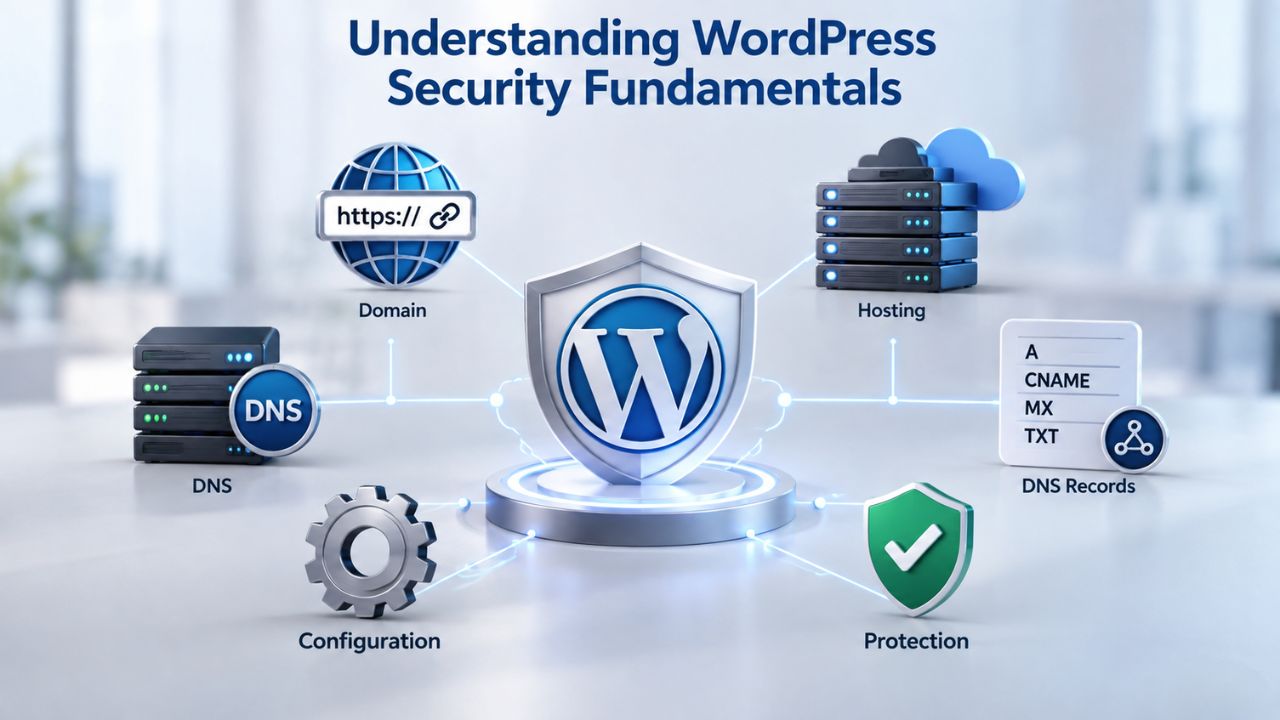
WordPress security isn’t a product you buy; it’s a layered practice involving your hosting environment, your site configuration, and your ongoing discipline. The good news: WordPress core is secure. WordPress.org’s official stance emphasizes that the most important action is keeping WordPress, plugins, and themes up to date. The challenge: this shared responsibility means no single party owns all the risk.
Why WordPress Attracts Attacks
WordPress’s dominance creates a gravity well for attackers. With 41.2% market share, a vulnerability in a popular plugin can instantly affect millions of sites. In 2025, researchers discovered 11,334 new vulnerabilities across the WordPress ecosystem, a 42% increase over 2024. However, only 2 of those originated in WordPress core; 91% lived in plugins and themes. This distinction matters because it clarifies where responsibility lies: the platform is sound, but the ecosystem requires vigilance.
Attackers don’t wait for you to discover vulnerabilities on your own. The median time from vulnerability disclosure to active exploitation is just 5 hours. By the time you read about a flaw in an industry newsletter, automated scanners are already probing for unpatched installations worldwide. Outdated plugins cause 52% of all WordPress infections, which means update discipline isn’t optional; it’s foundational. No other security measure replaces the need to keep your software current.
The Layered Defense Model
No single tool stops all attacks. Instead, security depends on multiple layers working together. Your hosting environment is your first line of defense, filtering threats before they reach your WordPress installation. Above that sits application-level protection: strong credentials, user role limits, file permissions, and monitoring. This layering matters because it lets your site withstand a breach in one layer if others hold up.
A hosting provider with a robust firewall can’t prevent a hacked admin account; a secure password can’t stop a server-level DDoS attack. Both matter equally, and both are necessary. Think of it like a bank: security doesn’t depend on a single lock, but on cameras, alarms, vaults, guards, access controls, and monitoring systems working together. Similarly, WordPress security relies on network-level protection, server-level protections, application-level controls, user-level safeguards, and ongoing monitoring all reinforcing each other.
Website Security Plans & Pricing
Protect your website with flexible security plans designed to safeguard your data, prevent threats, and maintain reliable online performance. Choose the right level of protection for your business needs, with essential security features that help keep your website secure, available, and trusted by visitors.
Website Security Essential
Detect and remove malware. Malware scan and removal.
- Protection for unlimited pages within a single website
- 12-hour response time
- Unlimited malware removal
- Blacklist monitoring & removal*
- Multiple site protection available
Website Security Deluxe
Proactively secure your site. Malware scan and removal + ongoing protection.
- Protection for unlimited pages within a single website
- 12-hour response time
- Unlimited malware removal
- Blacklist monitoring & removal*
- WAF malware prevention**
- CDN performance accelerator***
- Multiple site protection available
Website Security Express
Fix my hacked site now. Expedited malware removal + ongoing protection.
- Protect one site
- 30-minute response time
- Unlimited malware removal
- Blacklist monitoring & removal*
- WAF malware prevention**
- CDN performance accelerator***
Assessing Your Hosting Provider’s Role in Security
WordPress security is a shared responsibility between your hosting provider and your site. Understanding who owns what prevents gaps and reduces confusion when incidents occur. Your hosting provider controls infrastructure: the network, servers, isolation between accounts, automatic patches, backups, and scanning. You control your site: plugin/theme selections, update timing, credentials, user management, and monitoring discipline. Clear accountability on both sides keeps sites secure.
What Shared Hosting Provides (and Its Limits)
Shared hosting places your site on a server with many others. If one account is compromised, the isolation between accounts determines whether your site is affected. The best shared hosts use operating-system-level account isolation technologies to prevent cross-contamination between customer accounts. They also deploy web application firewalls (WAFs) to block malicious requests before they reach any hosted site. However, 87.8% of WordPress-specific exploits bypass standard hosting firewalls, which underscores that infrastructure alone isn’t enough.
Your site hardening becomes critical when the hosting firewall has gaps, which it always does at some point. Shared hosting typically includes automatic PHP patching, malware scanning, and SSL certificates as baseline features. What it often lacks: the ability to enforce two-factor authentication at the platform level, the dedicated resources for WordPress-specific threat response, and fine-grained control over your security configuration. Many site owners mistakenly believe a host’s “daily backups” are sufficient recovery insurance. Fewer than 5% of WordPress users have ever tested a complete site restore, so untested backups provide false confidence. They can fail exactly when you need them most.
Managed and Cloud Hosting: Different Trade-offs
Managed WordPress hosting providers handle technical aspects including automatic updates, security monitoring, malware scanning, backups, and WordPress-specific support. This reduces your operational burden significantly but typically costs more than shared hosting. You’re paying for someone else to handle WordPress-specific maintenance and security tasks while you focus on content and business logic. Cloud hosting (VPS or dedicated) offers greater control and isolation but requires you to manage patches, backups, and security monitoring yourself, which demands technical expertise.
Enterprise-grade cloud infrastructure partners offer the most sophisticated isolation and compliance tooling, providing the highest level of security for organizations with strict requirements or complex security needs. Niya Digital delivers its hosting plans in partnership with an enterprise-grade cloud infrastructure partner, ensuring your site runs on a foundation built for performance and security. Your choice of plan type determines what Niya Digital’s team handles versus what remains your responsibility, but security is fundamentally shared either way. The right choice depends on your technical capacity, budget, and security requirements.
| Hosting Type | Responsibility Split | Best For |
|---|---|---|
| Shared Hosting | Host: infrastructure, patches, scanning. You: plugins, updates, credentials, monitoring. | Small sites, beginners, budget-conscious teams |
| Managed WordPress Hosting | Host: infrastructure, patches, updates, monitoring, backups. You: content, user access, plugin vetting. | Growing sites, agencies, small-to-medium businesses |
| Cloud Hosting (VPS/Dedicated) | Host: infrastructure. You: OS patches, WordPress config, updates, backups, monitoring. | Large sites, enterprises, developers |
| Security Control Level | Low (host-managed; features auto-enabled). | High (you configure everything). |
| Operational Effort | Minimal. | Medium to high. |
| Cost Range | Low. | Medium to high. |
Securing Your Login & Admin Access
Your WordPress admin panel is the most valuable target on your site. Attackers know the default login URL (/wp-login.php) and have massive lists of compromised credentials from breaches at other services. One security plugin alone blocked over 100 billion credential-stuffing attacks in 2023, showing the scale of automated attack volume. Your first two defenses: strong, unique credentials and two-factor authentication. Neither is sufficient alone; together, they create a meaningful barrier against the most common attack methods.
Strong Passwords and Credential Discipline
A strong password is long, random, and unique to your WordPress admin account. Many site owners reuse the same password across platforms, so a breach at an unrelated service (a forum, an old shopping site, a social network) can expose your WordPress login. Use a password manager to generate and store a unique admin password; modern password managers like Bitwarden, 1Password, or Dashlane make this frictionless. Never use predictable patterns like “Password123,” dictionary words, or information tied to your business or personal life.
Your hosting provider can help by supporting password-protected environments and enforcing security policies, but only you can enforce discipline in choosing and storing credentials. Next, audit your user accounts immediately: Delete any unused admin accounts; every active account is an attack surface. WordPress’s default user roles exist for a reason: limit administrator privileges to users who genuinely need them. If your WordPress site has editors, contributors, and subscribers, each role should have only the permissions it needs to do its job. This principle, called least privilege, reduces the damage if any single account is compromised.
Enabling Two-Factor Authentication and Limiting Brute-Force Attacks
Two-factor authentication requires both a password and a second form of identity verification, such as an app code or SMS. Even if an attacker steals your password through phishing, credential-stuffing, or a breach elsewhere, they cannot log in without that second factor. WordPress core does not include native two-factor authentication, so you’ll need a security plugin to enable it. Enforcing 2FA on all administrative accounts is a single highest-impact action you can take.
In 2025, AI-powered botnets increased brute-force attacks by 45%, but two-factor authentication defeats brute-force attacks entirely; the second factor cannot be guessed in parallel with the password. For teams managing multiple client sites or large organizations, 2FA should be mandatory, not optional. Automated password-guessing attempts constantly target /wp-login.php. Hosting providers can mitigate this at the server level by rate-limiting connections (restricting how many login attempts come from a single IP per minute). Together with two-factor authentication, these reduce brute-force attack success from possible to virtually impossible.
Keeping Core, Plugins & Themes Updated
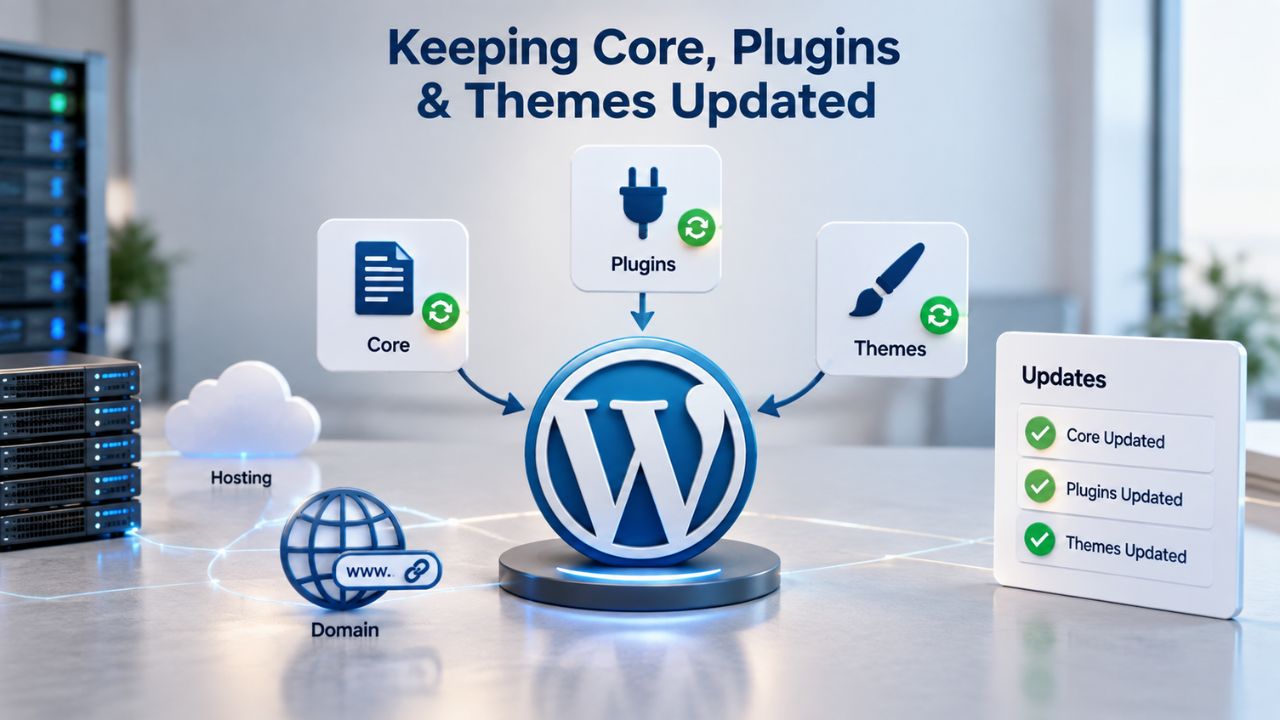
Plugin updates aren’t bureaucratic overhead; they’re security patches that close attack doors. 60% of WordPress infections exploit vulnerabilities that already had a patch available, meaning most breaches are preventable by staying current. The challenge is scale: the average WordPress site runs 20–30 plugins. Managing updates across that many moving pieces requires either discipline or automation, ideally both working in concert.
Update Cadence and Automation
WordPress core updates arrive regularly and predictably. Major version updates (6.0 → 7.0) come annually; security updates and bug fixes arrive more frequently when vulnerabilities are discovered. Plugins have their own release schedules, often tied to developers’ availability rather than security urgency. WordPress.org guidance emphasizes choosing themes and plugins that are actively updated; if a plugin hasn’t been updated in 12 months, it’s a liability with no benefits.
Enable automatic updates where possible. For plugins and themes, most hosts and security plugins now let you auto-update minor versions (patches) while holding major updates for manual testing in a staging environment. This reduces the gap between a vulnerability and its fix from potentially months to hours. Before updates, maintain a clean backup so you can roll back if an update breaks something critical. Test major updates in a staging environment before deploying to production whenever possible.
Identifying and Removing Abandoned Plugins
Every plugin installed on your site is a potential entry point for attackers. Delete unused plugins, especially those that haven’t been updated in over a year. You don’t need a “related posts” plugin if your theme already includes that feature; you don’t need an outdated SEO plugin if you’ve migrated to another solution. Audit your plugins monthly: Is it actively maintained? When was the last update? Is it actually used? If “no” to any of these questions, remove it.
A minimal, current plugin roster is more secure than a large, neglected collection. Only install plugins from the WordPress.org repository or from well-known companies. The WordPress.org plugin directory vets plugins before publishing. Paid plugins from established vendors undergo similar review. Downloaded plugins from unknown marketplaces carry malware risk and should be avoided entirely. A free plugin from an abandoned marketplace account isn’t worth the compromised site.
Configuring SSL/TLS & HTTPS
HTTPS is no longer optional; search engines use it as a ranking signal, and modern browsers mark non-HTTPS sites as insecure. HTTPS encrypts communication between your visitor’s browser and your server, preventing eavesdropping and tampering. The underlying protocol is TLS (Transport Layer Security), though the term “SSL certificate” persists in common usage from legacy terminology. Understanding this distinction helps clarify technical documentation and support conversations.
Understanding Certificate Types and Installation
Certificates come in three types: Domain Validated (DV), Organization Validated (OV), and Extended Validation (EV). For most WordPress sites, DV certificates (which verify only domain ownership) are sufficient and provide full encryption. Free certificates are DV and work well for WordPress. Most hosting providers include free SSL as standard in their hosting plans. If your host doesn’t offer automatic SSL, third-party plugins can generate and manage certificates for you without manual intervention.
Once installed, enforce HTTPS sitewide by redirecting all HTTP traffic to HTTPS. Many sites still serve some content over HTTP- images, scripts, stylesheets- creating security warnings in browsers and degrading the encryption. Configure your WordPress URL settings to use HTTPS, set a redirect from HTTP to HTTPS in your server configuration, and verify all embedded resources load over HTTPS. This is called “enforcing mixed content” prevention and requires a complete audit of your site’s assets.
Certificate Renewal and Auto-Renewal Configuration
Free SSL certificates expire every 90 days and must be auto-renewed to prevent unexpected downtime. Most hosting providers enable auto-renewal by default, but verify in your control panel; some hosts require manual activation before auto-renewal takes effect. If you use a third-party SSL solution, confirm auto-renewal is enabled and that renewal notifications reach your email. A lapsed certificate breaks HTTPS, which can hurt SEO rankings and erode visitor trust.
Set up email alerts for certificate expiration as a backup safety net. Even with auto-renewal enabled, notifications give you visibility into the process and alert you if something goes wrong. Check your certificate status monthly using free online tools. If auto-renewal fails and you miss renewal, your site loses HTTPS and browsers show security warnings. This creates business impacts beyond security: visitors bounce, email deliverability suffers, and SEO rankings drop. Automation plus monitoring is the right approach.
Ready to Strengthen Your WordPress Security?
A secure hosting foundation simplifies the hardening work you do on your site. Niya Digital’s best managed WordPress hosting plans include automatic SSL, security monitoring, and enterprise-grade infrastructure partnerships that back every deployment. Whether you’re on shared, managed, or cloud hosting, provider-side security controls mean your hardening efforts have greater impact.
Implementing Regular Backups & Restore Testing
Backups are your last line of defense when everything else fails. If your site is hacked, a clean backup from before the breach is the fastest path to recovery. Backups aren’t optional; they are mandatory for any site handling business data or customer information. However, most site owners stop at having backups and never test a restore. A backup is only valuable if you can successfully restore it when needed. Without a tested restore, you won’t know if your backup is corrupted until disaster strikes.
Host-Level Backups vs. Off-Site Plugin Backups
Many hosts offer automatic daily backups as part of their plans. This is a start, but it has a critical flaw: if the host’s server is breached and all backups are stored locally, attackers can corrupt or delete them too. The safest approach combines two backup strategies: rely on your host’s backups as your first recovery option, but also maintain an independent off-site backup via a backup plugin. Off-site backups store copies on external services (cloud storage, separate servers), ensuring a backup survives even if your entire hosting account is compromised.
A full WordPress backup includes three components: files (themes, plugins, uploads folder), the database (posts, users, settings, comments), and any custom configurations. Lightweight backup solutions that export only the database aren’t enough for a complete recovery. You need all three to restore full site functionality. Verify your backup solution includes all three components before you need them in an emergency.
Testing Your Restore Process
Testing backup restoration reveals problems while you still have time to fix them. Monthly, restore your latest backup to a staging environment (a clone of your live site) and verify the restoration is complete and functional. Check that posts display correctly, plugins activate without errors, media loads from the right URLs, and user logins work with correct permissions. This test costs an hour monthly but prevents the panic of discovering mid-breach that your backups are unusable or corrupted.
Document the restore steps so you or your team can execute them under pressure if needed. Many backup solutions alert you immediately if a backup fails, so missed alerts can mean missed backups. Set a calendar reminder to check backup status if your solution doesn’t send notifications. Monitor your backup logs or email notifications to confirm successful backups. A backup schedule without verification is just wishful thinking; you only know your backup works when you’ve tested it.
Monitoring & Malware Scanning
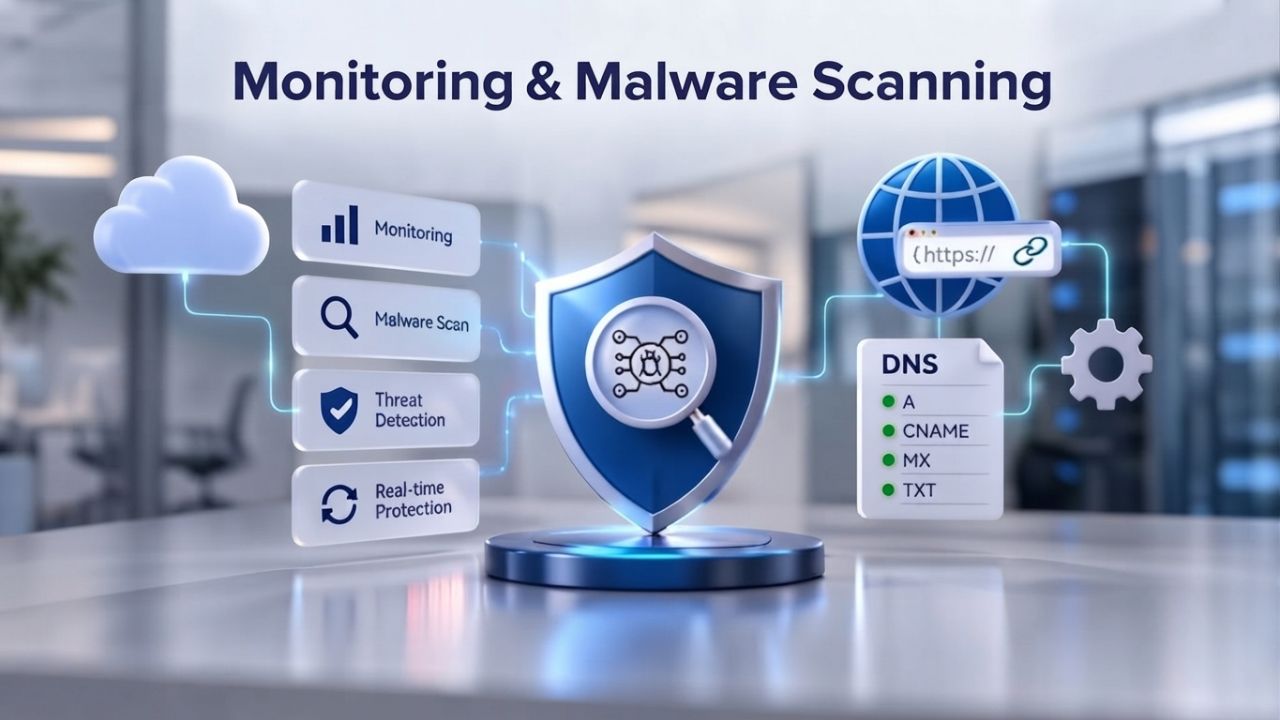
Active monitoring catches problems early, before they spread. Malware on a WordPress site often goes undetected for weeks or months, during which it steals data, injects spam into search results, or redirects traffic to scam sites. Real-time threat blocking via hosting-level firewalls can intercept attacks before they reach WordPress. File integrity monitoring alerts you when files change unexpectedly, which is a malware hallmark that indicates compromise.
Automated Malware Scanning
Security plugins perform regular malware scans, checking your files and database against known threat signatures and suspicious patterns. Many hosting providers include malware scanning as a standard feature. Weekly or daily scans are common; more frequent scans cost more but catch infections faster. When a scan finds malware, you have a decision: attempt cleanup or restore from a clean backup. Cleanup is risky because malware can hide in unexpected places, such as database comments or modified core files.
Restoration is safer but requires a known-good backup from before the infection. Hosting-level monitoring complements plugin-level scanning; together, they catch most threats before they cause severe damage. Wordfence blocks 55 million exploit attempts and 6.4 billion brute-force attacks every month across its network of protected sites, showing the volume of threat activity targeting WordPress. This volume is not a spike or anomaly; it’s the permanent baseline of attack activity.
Incident Response Signals
Know what to look for when incidents may be occurring. A sudden spike in CPU usage, unexpected database growth, or a flood of login failures can signal an active attack. Monitoring dashboards from your host or security plugins can alert you when these patterns emerge. Establish a response plan: if you suspect a compromise, take the site offline so visitors aren’t exposed to malware, restore from backup, and investigate the cause of the breach. Don’t attempt to patch your way out of an active infection; restoration is faster and safer.
Contact your hosting support team immediately and notify them of suspected compromise. While the site is down, update all passwords, enable two-factor authentication, remove suspicious plugins and user accounts, and identify the entry point. Have your host scan server logs for how the attacker got in. Once you understand the cause and harden your site, bring it back online with protections in place to prevent recurrence.
Hardening File Permissions & Configuration
WordPress requires specific file and directory permissions to function properly and securely. However, overly permissive settings (like 777, which allows any user on the server to read, write, and execute files) expose your installation to unnecessary risk. Proper file permissions and disabling dangerous features like XML-RPC and the file editor reduce the attack surface. These are foundational hardening steps that work even when other defenses fail.
Setting Correct File Permissions
WordPress files should typically be readable by the web server but writable only by the server process. Directories should be 755 (read and execute for others, full access for owner); files should be 644 (read-only for others). Your wp-config.php file deserves stricter permissions (600 if your host allows it) because it contains database credentials and authentication salts. If you’re unsure how to adjust permissions. ask your hosting provider; On shared hosting, the host may handle this automatically or restrict your ability to change it.
Disable directory listing (the ability to see a folder’s contents in a browser) and disable XML-RPC in wp-config.php if you’re not using it. Most WordPress sites don’t use XML-RPC, so disabling it reduces the attack surface. Disable the WordPress file editor in wp-config.php to prevent code editing from the admin panel, which an attacker could abuse if they compromise an admin account. These configuration changes take minutes but have outsized security value.
Securing wp-config.php
Your wp-config.php file contains your database username, password, and authentication salts. Protect it with strict permissions, and consider monitoring it for unexpected changes. Some security plugins offer file-change alerts; enable these for critical files like wp-config.php, .htaccess, and your robots.txt. If you suspect a breach, regenerate the security salts in wp-config.php to invalidate existing sessions and prevent unauthorized access. This action doesn’t fix the core vulnerability but prevents attackers from maintaining persistence.
Keep a backup copy of your original wp-config.php settings so you can restore them if needed. Document any custom configuration you add beyond the defaults. If you migrate your site to a new host, preserving wp-config.php settings is critical; misconfigured database connections can disable your entire site.
Managing User Roles & Capabilities
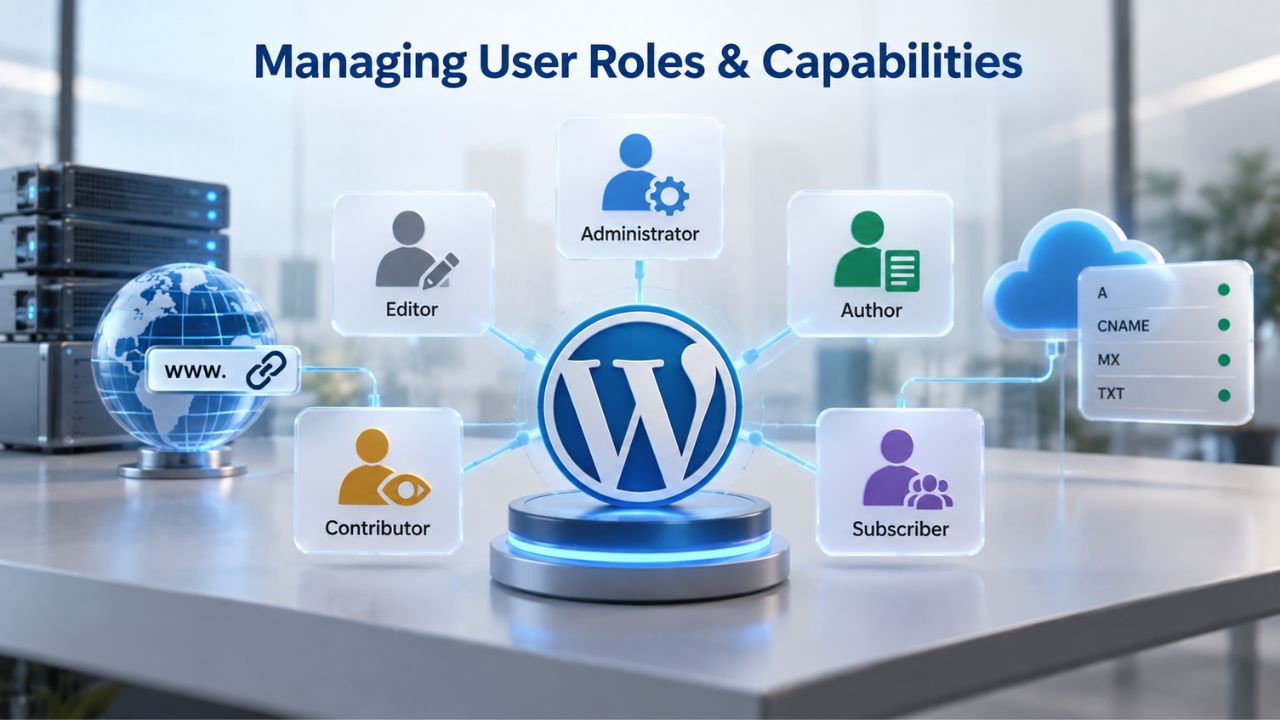
WordPress ships with default user roles: Subscriber, Contributor, Author, Editor, and Administrator. Each has predefined capabilities. However, you can customize roles and create new ones to match your organization’s structure. Assign users only the minimum permissions they need for their work; this principle of least privilege reduces damage if any account is compromised. A compromised contributor account is far less dangerous than a compromised administrator account.
Auditing and Cleaning Up Users
Regularly audit your user list at least quarterly. Delete any accounts no longer in use immediately. Employees who left the company should lose WordPress access the day they depart, not months later when you think about it. Contractors and consultants should have time-limited access that expires automatically. For shared WordPress environments (agencies managing client sites, multi-author publications), document who has which role and why they need it. This audit isn’t busywork; compromised or forgotten accounts are common breach entry points attackers use to maintain site access.
Avoid assigning administrator privileges unless the role truly needs them. Editors with proper capabilities can usually handle publishing tasks without full admin access. Contributors and Authors have even narrower permissions focused on content creation. A site with three administrators, two editors, and twenty contributors is less secure than a site with one administrator and editors with content-focused permissions. The more administrators you have, the more entry points attackers have.
Custom Roles and Capability Control
For complex organizations, custom roles allow fine-grained control over capabilities. You might create a “SEO Manager” role that can edit post metadata and view analytics but can’t modify site settings or delete content. You might create a “Support” role that can read posts and comments but can’t publish or modify anything. This granularity sounds excessive until you’ve seen a support staffer accidentally publish a draft post or delete a critical page. Plugins can simplify custom role creation without requiring code.
When you delegate specific responsibilities, granular permissions reduce mistakes and limit damage from compromised accounts. A social media manager doesn’t need to modify site settings; an author doesn’t need to access the user list; a support agent doesn’t need to publish content. Each role should map to specific job functions with matching permissions.
Building a Security-First Hosting Environment
The hosting plan you choose, shared, managed, or cloud, shapes what security your site has “for free” versus what you must build yourself. All three can be secure with thoughtful configuration. The difference is in where responsibility lies and how much friction you face building security. Your infrastructure choice is foundational; everything else builds on top of it.
Isolation and Contamination Prevention
On shared hosting, account isolation is non-negotiable. One compromised site on a shared server can potentially affect neighboring sites if isolation is weak. Look for hosting providers that implement isolation technologies at the operating system level (like CloudLinux) or containerization. Managed WordPress hosts typically offer isolation by design because they specialize in WordPress. Cloud hosting (VPS or dedicated) offers complete isolation; your site runs on resources dedicated to you, not shared with strangers whose sites may be compromised.
The isolation strategy determines your blast radius if an attack occurs. Weak isolation means an attacker could theoretically jump from a neighboring site to yours. Strong isolation means a neighbor’s compromise affects only their site. Ask about this when evaluating hosting providers and reviewing their technical architecture documentation.
Firewalls, PHP Versions, and Support Quality
Web application firewalls (WAFs) at the hosting level filter malicious requests before they reach WordPress. A good WAF doesn’t just block known attack signatures; it understands WordPress architecture and can detect suspicious patterns like SQL injection attempts or cross-site scripting payloads. Your hosting provider controls this layer. On shared hosting, the provider’s platform-wide WAF protects you. On cloud hosting, you may choose or configure your own WAF, or rely on your hosting partner’s built-in protection.
Ensure your hosting plan runs a current PHP version. WordPress requires PHP 7.4 minimum, but PHP 8.2 or higher is recommended. Older PHP versions have known vulnerabilities that will never be patched because they’re end-of-life. If your host runs PHP 7.2 or earlier on your plan, upgrade immediately or switch hosts. Newer PHP versions are also faster, improving both performance and user experience.
A site that goes down under a DDoS attack or during a database failure is temporarily unreachable; that’s different from being hacked, but the business impact is similar. Look for hosting providers offering transparent uptime commitments, redundancy (automatic failover if a server fails), and documented incident response procedures. When you call support with a suspected breach, the team should know WordPress and should have a clear playbook for containment and recovery.
WordPress Hosting Security Checklist
| Action | Priority | Frequency | Owner |
|---|---|---|---|
| Update WordPress, plugins, themes | CRITICAL | Weekly review, patch immediately upon release | You |
| Enable 2FA on admin accounts | CRITICAL | One-time setup, verify quarterly | You |
| Test backup restoration | CRITICAL | Monthly (minimum) | You |
| Audit user accounts for unused access | HIGH | Quarterly | You / Host |
| Monitor security scan alerts | HIGH | Daily review of alerts | You / Host |
| Review login attempts and failed logins | HIGH | Weekly | You |
| Check SSL certificate status and renewal | HIGH | Monthly verification | Host (auto) / You (verify) |
| Update file permissions and config | MEDIUM | Annually or after migration | Host / You |
| Review active plugins for abandonment | MEDIUM | Monthly audit | You |
| Change security salts if breach suspected | EMERGENCY | As-needed during incident | You |
Security Starts Here: Get Expert Support on Your Side
Security isn’t a solo effort; it requires infrastructure, tools, monitoring, and expertise working together. The best hosting environments combine infrastructure controls, proactive monitoring, and expert support to minimize your attack surface. Niya Digital’s infrastructure partnership and security-focused plans mean you’re not just getting a server; you’re getting a platform designed to reduce your security burden while protecting what matters.
Frequently Asked Questions
What is the single most important thing I can do to secure my WordPress site?
Keep WordPress, your plugins, and your themes updated. Outdated software causes 52% of WordPress infections. New vulnerabilities are discovered constantly, and attackers exploit unpatched versions within hours of disclosure. Enable automatic updates where possible, and audit your plugins monthly to remove unused ones. Update discipline is foundational to secure hosting and the most reliable way to prevent compromise.
Do I need a security plugin if my hosting provider already scans for malware?
Both are worthwhile and complement each other. Your hosting provider’s scanning catches most threats, but security plugins add application-level protection: two-factor authentication, brute-force limiting, login monitoring, and file integrity checking. A plugin can detect and sometimes block attacks before they reach the filesystem. Together, host-level and plugin-level security provide layered defense. Neither replaces the other; both together provide comprehensive protection.
Is two-factor authentication really necessary?
Yes, especially for admin accounts. Two-factor authentication defeats brute-force attacks and credential-stuffing attacks entirely. Your password might be guessed or stolen from another breach, but a second factor (usually a code from your phone) cannot be guessed in parallel. For solo site owners, 2FA on your admin account is the single highest-impact security improvement after keeping software updated. For teams, it should be mandatory.
How often should I test my backups?
At least monthly for any site handling important data. Fewer than 5% of WordPress users have ever tested a complete restore, leaving the majority with untested backups that may be corrupted or incomplete. Spend an hour monthly cloning your backup to a staging environment and verifying everything works. This test will save you hours of panic if disaster strikes and your backup is unusable.
Can shared hosting be as secure as managed WordPress hosting?
Yes, if the shared host invests in isolation, scanning, and WAF technology. The difference is operational: managed hosts handle updates and patching for you; on shared hosting, you own those responsibilities. Both can achieve strong security. The question is whether you prefer automation (managed, higher operational cost) or control (shared, lower cost, more work). Neither is inherently insecure if configured properly.
What should I do if I think my site is hacked?
First, take the site offline so visitors aren’t exposed to malware. Contact your hosting support team immediately and notify them of suspected compromise. Restore your site from a clean backup from before the suspected breach date. While the site is down, investigate the breach: update all passwords, enable 2FA, remove suspicious plugins and users, identify how the attacker got in. Have your host scan server logs for entry methods and patterns.
How do I know if a plugin is abandoned?
Check the plugin’s WordPress.org page for the “Last Updated” date. If it hasn’t been updated in 12 months, it’s likely abandoned, especially if the description mentions older WordPress versions as maximum compatibility. Abandoned plugins don’t receive security patches and are vulnerabilities waiting to be exploited. Delete them. If you need the functionality, find an actively maintained alternative that receives regular updates.
Is SSL certificate renewal automatic?
It should be. Free SSL certificates expire every 90 days and must be auto-renewed to prevent unexpected downtime. Most hosting providers enable auto-renewal by default, but check your control panel to be sure. Some hosts require manual activation before auto-renewal takes effect. If auto-renewal is disabled and you miss renewal, your site loses HTTPS and browsers show security warnings. Verify it’s enabled and set up email alerts.
What file permissions should WordPress use?
Directories should be 755 (read and execute for others, full access for owner). Files should be 644 (read-only for others). If possible, set wp-config.php to 600 (readable only by the owner). Your web server process must be able to read and write to the uploads and plugins directories. Ask your hosting provider for guidance; on shared hosting, the host may handle this automatically or restrict changes. Avoid 777 permissions; they’re too permissive.
Should I change the default wp-admin URL?
Changing the URL (e.g., from /wp-admin to /wp-admin-secret) adds minor security through obscurity. Server-level rate limiting and two-factor authentication are far more effective defenses against brute-force attacks. If you change the URL, document the change and communicate it to your team to prevent lockouts. The benefit is minimal compared to the administrative friction and risk of mistakes.
How many plugins is too many?
There’s no magic number, but each plugin is a potential vulnerability requiring maintenance. The average WordPress site runs 20–30 plugins. Audit regularly and remove any that are unused, outdated, or from untrusted sources. A minimal, current plugin roster is more secure than a large collection. Quality over quantity matters for site security and performance. Every plugin you delete removes one potential attack vector.
What should I do about unused user accounts?
Delete them immediately. Every active user account, even one that hasn’t logged in for months, is an attack surface. Former employees, contractors, and consultants should lose WordPress access the day they depart, not months later. If you manage multiple client sites, implement offboarding procedures that automatically remove departing users from all sites. Quarterly audits catch forgotten accounts before they become problems.
Does WordPress core ever need security updates?
Yes, occasionally. WordPress core received only 2 security vulnerabilities in all of 2025, but they happen. Most vulnerabilities affect plugins and themes, not core. Enable automatic core updates so you never miss a security patch. These updates are low-risk because WordPress is thoroughly tested before release and backward compatible.
Can I use shared hosting for an eCommerce site?
Yes, as long as the host implements strong account isolation, a WAF, and automatic scanning. eCommerce sites handling payment data benefit from PCI DSS compliance, but that’s a shared responsibility between your site’s security and your payment processor. Managed WordPress hosting or cloud hosting may be better if you process high transaction volumes, but shared hosting with strong security features works for many eCommerce operations.
What’s the difference between managed and unmanaged hosting?
Managed hosting handles updates, monitoring, and backups, reducing your operational burden. Unmanaged hosting (like a VPS) is yours to manage; you handle all updates, security configurations, and monitoring, which requires technical expertise. Managed hosting is simpler but less flexible and more expensive. Unmanaged hosting offers control but requires significant technical knowledge. For WordPress beginners, managed or shared hosting is recommended.
Glossary
- Web Application Firewall (WAF): A server-level filter that inspects incoming web requests and blocks malicious patterns before they reach your WordPress application. WAFs understand attack signatures and can detect suspicious behavior such as SQL injection attempts or cross-site scripting payloads.
- TLS/SSL Certificate: A digital credential that enables HTTPS encryption between a visitor’s browser and your server. TLS (Transport Layer Security) is the modern protocol; SSL is the older, deprecated protocol. The term “SSL certificate” persists in common usage even though modern sites use TLS.
- Brute Force Attack: An automated attack attempting to log in by trying many username and password combinations in rapid succession. With two-factor authentication and server-level rate limiting, brute-force attacks fail because the second factor and connection limits prevent them.
- Cross-Site Scripting (XSS): A vulnerability where an attacker injects malicious code into a web page. When a visitor loads the page, the code executes in their browser, potentially stealing cookies, redirecting traffic, or stealing data. XSS represents 47.7% of WordPress vulnerabilities.
- Malware: Malicious software installed on your site, such as backdoors for hacker access, redirects to scam sites, spam scrapers, or bots launching attacks on other sites. Malware can go undetected for weeks; regular scanning is necessary to catch it.
- Account Isolation: A hosting technology that separates each customer’s files and processes from others on the same server. Without isolation, a compromise in one account can spread to neighboring accounts. Operating system and containerization technologies provide isolation.
- Credential Stuffing: An automated attack using lists of username/password pairs (leaked from breaches at other services) to attempt login on WordPress sites. Attackers hope site owners reused passwords across platforms. Two-factor authentication stops credential-stuffing attacks completely.