
Professional Email Powered By Titan Email
Elevating any brand starts with professional email hosting. A secure, feature-rich inbox and seamless collaboration tools are tailored for growing businesses of every size.
- Your own domain
- Authenticated and filtered
- Guided migration support
Is Titan Email Right For Your Business Right Now?
Maybe your team still sends invoices from a free address. Maybe you’re leaving a provider that costs too much or does too little. Either way, a mailbox on your own domain changes how clients see your business. Three questions tell you if now is the right time.
How Much Mail Do You Need To Move?
If you’re switching providers, check your current mailbox’s total size, not just how many emails sit in the inbox. That figure tells you how much mail has to move before you can safely close the old account. Storage needs, covered in Choosing the right mailbox plan below, are the main driver of which tier fits. Knowing this number before you start avoids a stalled import partway through.
Do You Already Own Your Domain?
A custom-domain mailbox needs a domain to attach to, since your email address takes its second half directly from it. If you don’t already own one, registering a domain is a short, separate step, not a reason to delay. Most registrations complete the same day, and the domain becomes usable for a mailbox almost immediately after. Treat it as step zero, not an obstacle to the rest of the setup.
What Does Your Current Setup Look Like?
Your current setup might be a free address, a mailbox with a previous host, or no business email at all. Each starting point changes what happens next: a free address means no migration, just a fresh setup; an existing mailbox means planning a move; no email at all means starting from zero. Knowing which one applies to you now saves time once you reach the deployment steps below.
Connecting Your Domain And Migrating Your Mail
Deployment runs in a fixed order, and skipping ahead rarely saves time. Each step depends on the one before it: a domain must be verified before mail can flow, and a migration must finish before the domain fully switches over. Here’s what actually happens between signing up and sending your first email from your new address. Understanding the sequence up front makes it easier to tell whether something along the way needs attention.
Verifying Your Domain
With your domain in hand (explained above), the next step is proving you own it. Before mail can flow, you add a few records at your domain’s DNS settings, the control panel where your domain’s technical settings live. These records prove ownership to receiving mail servers. An unverified domain can’t send or receive mail, which is why this step comes first.
Importing Your Existing Mail
If you’re moving from another provider, Titan Email’s import tool connects to your old mailbox over IMAP. IMAP is a standard protocol that lets one mail service read another mailbox’s contents. The tool then copies your messages across. Your new mailbox needs enough free storage to hold everything first.
What Doesn't Get Imported
Your Spam and Trash folders don’t come across in the import, by design, since they usually hold unwanted or already-deleted mail nobody wants copied over. If something you actually need is sitting in either folder, move it into your inbox or another folder in your old mailbox first. Then run the import again, and that message comes across with everything else. This small step avoids the most common source of “missing” mail after a migration.
Completing The Cutover
Once your mail has imported, updating your domain’s records finishes the switch from your old provider to Titan Email. Your old mailbox keeps working right up until that update takes effect, so there’s no forced gap where mail goes nowhere. New messages start arriving at your Titan Email mailbox only once the switch is complete, and the two don’t run side by side for long. Ready to begin?

Authenticating Your Domain
Anyone can type your business name into an email’s “from” field, with nothing to stop them. Domain authentication is what lets a receiving mail server check whether a message claiming to be from your domain actually came from your mailbox. Without it, a scammer could send mail that looks like it’s from your business, and most recipients would have no way to tell. Three records, set up in a specific order, close that gap.
SPF: Who's Allowed To Send
SPF stands for Sender Policy Framework. It’s a record published at your domain that lists exactly which mail servers are allowed to send on your behalf. A receiving server checks this list before it decides whether to trust an incoming message. If a message arrives from a server not on that list, it looks suspicious by default, even before anyone reads the content.
DKIM: Proving The Message Wasn't Altered
DKIM stands for DomainKeys Identified Mail. It attaches a digital signature to outgoing mail. The receiving server uses it to confirm the message wasn’t changed in transit. Titan Email applies a default signature automatically. A custom one is a separate, optional step.
DMARC: What Happens When A Check Fails
DMARC stands for Domain-based Message Authentication, Reporting and Conformance. It tells receiving servers what to do when SPF or DKIM checks fail. It also sends you reports when that happens. DMARC needs SPF and DKIM working first. Set it up before either one, and it won’t do much.
Why The Order Matters
Skip a step, and the ones after it can’t do their job properly. An unfinished SPF record weakens DKIM’s value. An unfinished DKIM record weakens DMARC’s. Getting the order right the first time saves a second pass later.
Spam And Phishing Protection, Day To Day
Authentication proves where a message came from. Filtering is a separate layer. It screens what actually lands in your inbox once mail arrives. It catches spam, bad attachments, and phishing attempts before you see them.
How Incoming Mail Gets Screened
Antispam and antivirus filtering checks every incoming message against known spam patterns and malware signatures before it reaches your inbox. This happens automatically in the background, with no action needed from you or your team. A message that matches a known threat gets flagged or blocked before delivery, rather than landing in your inbox for someone to open by mistake. This first layer catches a meaningful share of unwanted mail before anyone has to make a judgment call.
Mailbox-Level Sign-In Protections
Filtering isn’t the only layer worth having. Titan Email also supports two-factor authentication, which asks for a second confirmation, typically a code sent to your phone, beyond just your password when you sign in. This matters because a stolen or guessed password alone isn’t enough to get into the mailbox once two-factor authentication is turned on. Enabling it is a small extra step at sign-in that meaningfully raises the bar for anyone trying to access an account that isn’t theirs.
What Filtering Catches
Filtering catches known and suspected threats by comparing incoming mail against constantly updated spam and malware patterns. It substantially cuts down what reaches your inbox, so your team spends less time sorting junk from genuine messages. It doesn’t remove every risk, though, since new attack patterns emerge faster than any filter can catch up. Treating filtering as a strong first layer, not a complete guarantee, sets the right expectation.
What It Doesn't Replace
No filter replaces a team that knows what phishing looks like in practice. Filtering and authentication lower your overall risk considerably, but they work automatically and can’t judge context the way a person can. They don’t remove the need for basic caution with an unexpected attachment, an urgent-sounding request for sensitive data, or a message that otherwise feels slightly off. A quick habit of double-checking anything unusual, even after it clears filtering, closes the gap no automated system fully covers.
What Can Go Wrong With A Titan Email Deployment?
Three things matter most once a Titan Email mailbox is live: a plan sized correctly for how your team actually uses email, a migration that finishes cleanly without leaving mail behind, and domain records that stay current as your setup changes. Each of these holds for as long as your mailboxes remain active, not just in the first week after setup. Treating any one of them as a one-time task, rather than something to revisit, is where most avoidable problems start. The sections below walk through each failure point and what typically causes it.
Domain Records Left Unfinished
Authentication only works once every required record is in place, not partially. If SPF is set up correctly but DKIM is still missing, outgoing mail can start bouncing or landing in recipients’ spam folders, often with no obvious cause from your side. This kind of half-finished setup is one of the harder problems to diagnose later, since the mailbox appears to work normally from the inside. Checking that all three records are confirmed, not just attempted, closes this gap before it causes a problem.
An Undersized Mailbox Plan
A plan chosen on mailbox count alone, without checking the storage needs covered in Choosing the right mailbox plan above, often runs short within months, usually noticed only once a client’s email starts bouncing back.
An Incomplete Migration
A stalled migration usually means a wrong server address, port, or password for your old mailbox, or the old mailbox going offline mid-transfer; see Connecting your domain and migrating your mail, above, for how the sequence is supposed to run. “Missing” mail afterward is usually just mail left in Spam or Trash, which the import skips by design.
Mailboxes Left Unmanaged
A mailbox nobody checks after someone leaves still counts against your plan and still costs money every month, even though no one is reading it. A plan never revisited as the team grows also quietly protects less than it should, since storage and feature needs change as headcount and email volume increase. Reviewing active mailboxes against your current team, on a regular schedule, catches both problems before they compound. This is ongoing housekeeping, not a one-time task to finish and forget.
Managing Mailboxes And Users After Deployment
Setting up your first mailboxes is one task, usually handled once during deployment. Keeping them aligned with your team as people join, move roles, and leave is a separate, ongoing task that doesn’t end once setup is complete. Businesses that treat mailbox management as finished after launch tend to accumulate unused accounts and outdated access over time. The sections below cover the day-to-day decisions that keep mailboxes aligned with your actual team.

Adding And Removing Mailboxes
You can add mailboxes as you hire and remove them when someone leaves, both through your account dashboard rather than requiring a fresh setup each time. Adding a mailbox for a new employee takes only a few minutes once you know the process. Removing one when someone departs is just as straightforward, though it’s worth deciding what happens to their mail first. Our team can walk you through either change if you’d rather not handle it alone the first time.
Shared And Group Mailboxes
A shared mailbox, where more than one person reads and replies from the same address, suits something like a general support inbox or a sales team’s shared line. It lets several people cover the same address without forwarding every message individually or losing track of who answered what. This setup works well once a team grows beyond one or two people handling customer-facing email. Ask our team whether a shared mailbox is included on your plan, since availability can depend on the tier you’ve chosen.
Forwarding And Aliases
Titan Email includes internal forwarding accounts and catch-all routing as standard features. Catch-all routing sends mail aimed at any address on your domain, even one that’s mistyped or no longer exists, to a single mailbox you choose, instead of bouncing it back to the sender. This matters because a mistyped address or an old contact’s outdated email can otherwise cause a genuine message to disappear silently. Internal forwarding, separately, lets you redirect mail from one address to another entirely, useful when a role changes but the old address still needs covering.
Offboarding A Mailbox
When someone leaves the company, their mailbox needs a deliberate plan, not indefinite neglect. The usual options are forwarding their mail to a colleague, giving a manager full access to maintain continuity on open conversations, or closing the mailbox outright once nothing further is needed from it. The right option depends on the role and how much ongoing correspondence that address still receives. Deciding this when someone departs, rather than months later, keeps both cost and access under control.
Working Across Your Browser, Phone, And Desktop
A mailbox tied to a single device doesn’t fit how most teams actually work today, moving between a desk, a phone, and sometimes a second computer within the same day. Titan Email mailboxes are built to follow you across a browser, a phone, and a desktop mail program, with the same mail, calendar, and contacts visible on all three. Switching between them doesn’t mean switching mailboxes or losing track of a conversation. The sections below cover each way of accessing your mailbox.
Webmail In The Browser
The Mobile App
Desktop Mail Client Access
Calendar And Contacts Across Devices


When Your Team Needs More Than A Mailbox
Titan Email is a focused service: a custom-domain inbox, calendar, and contacts, with no wider suite attached. Some teams also need shared documents, spreadsheets, video meetings, or installed office apps across several devices. Microsoft 365 email bundles professional email with that broader suite from the start.
Email Essentials and Email Plus give you professional email on your own domain, with up to 400 email aliases. Online Business Essentials adds web-based office apps and large-scale online storage. Business Professional adds installed office apps across several devices. Worth weighing now, since switching from a mailbox-only setup to a full suite later means moving your mail twice.
Growing Your Mailbox Plan As Your Team Grows
A mailbox plan isn’t a ceiling fixed at the moment you sign up. As your team grows, moving to a plan with more storage or more mailboxes is usually a change to your existing setup, handled through the same account, rather than a new deployment built from scratch. Your existing mailboxes, mail, and configuration typically carry over without needing to be set up again. See the full range of tiers in Choosing the right mailbox plan, above.
Professional Email, Deployed And Managed For You
Niya Digital provides access to, setup support for, and ongoing administration of Professional Email powered by Titan. It does not own, develop, or operate the underlying service. Your mailbox and account data remain your own. This distinction matters because it means you’re never locked into a single vendor for your email: you’re buying deployment and support on top of a service built and run independently.
The Partnership In Plain Terms
Freelancers And Sole Operators
Small And Growing Teams
Teams Already Managing Multiple Mailboxes.
What Email Hosting Actually Means
A mailbox is your own inbox, the place where your mail actually lives and where you read and send messages. Email hosting is the dedicated service that runs your mailboxes on your domain (explained above), kept separate from whatever runs your website, even though both sit on the same domain name. Understanding these pieces separately makes setup and management easier to follow.
Where Uptime Fits In
How This Differs From A Free Email Account
Where Mailbox Storage Fits In
Mailbox And Domain, In Plain Terms
Start Your Titan Email deployment.
Choosing a mailbox plan is the next step toward a working, professional inbox on your own domain. If your team also needs a fuller productivity suite, Microsoft 365 email is one click away. That decision doesn’t have to happen today, but it’s worth knowing the option exists as your needs grow. Start with the mailbox plan that fits now, and add to it later as the business does.
Professional Email Powered By Titan Email Blogs
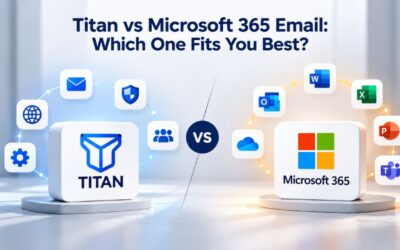
Titan vs Microsoft 365 Email: Which One Fits You Best?
Titan vs Microsoft 365 compared on price, apps, storage, and security, helping small teams choose a business email service that matches your budget and needs.
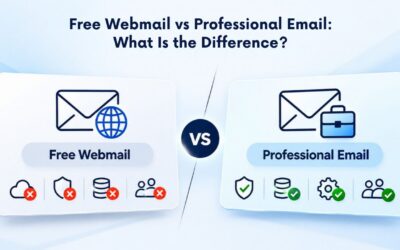
Free Webmail vs Professional Email: What Is the Difference?
Free webmail is fine for personal usage, but is it enough for work? See how it compares with professional email on branding, security, storage, and support.

Best Zoho Mail Alternatives for Business Email Today
Explore top Zoho Mail alternatives with better pricing, storage, support, and security, and find the right business email provider for your growing company.