Cybercriminals actively target small business websites not because they’re large, but because they’re easier to breach. Forty-three percent of all cyberattacks target small businesses, and 61% of small businesses experienced a breach in the past year. Most attacks are preventable with a systematic security audit and ongoing monitoring. Niya Digital is an authorized reseller of Sucuri website security services, offering guided plan selection, onboarding support, and hands-on incident response.
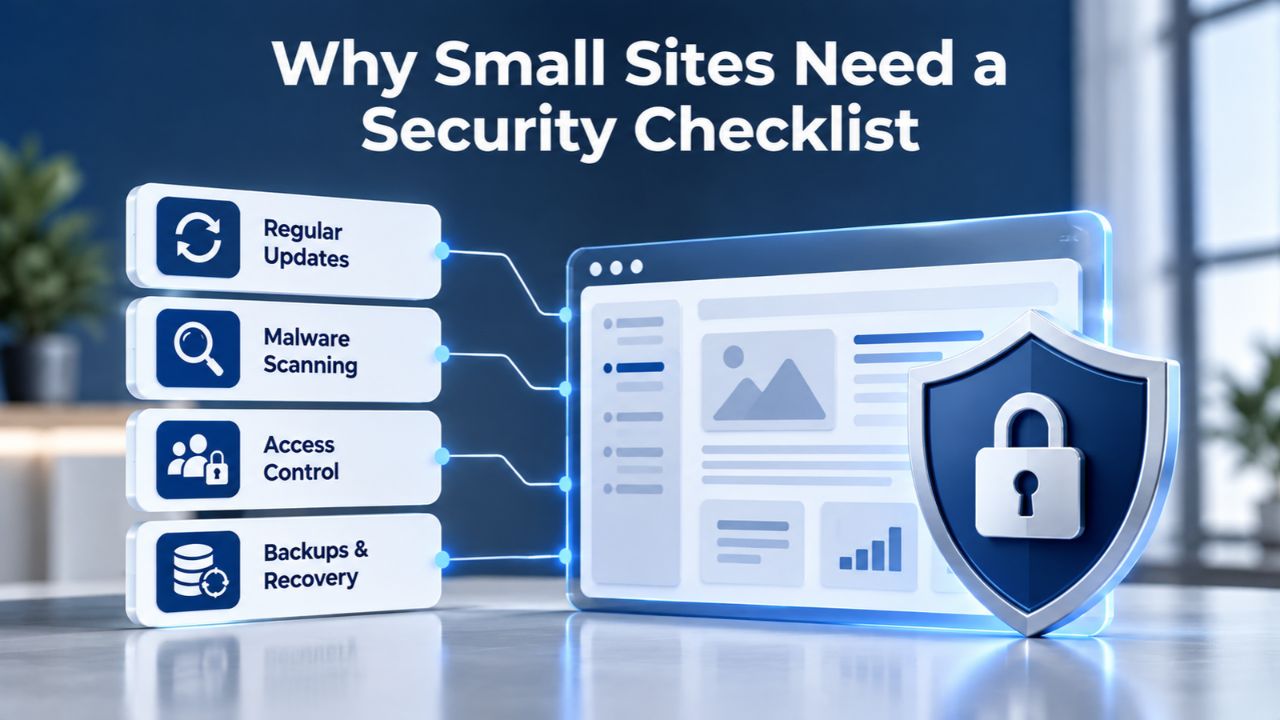
Why Small Sites Need a Security Checklist
Small business owners often assume their sites are too small to attract sophisticated attackers. This assumption is dangerously wrong. Cybercriminals use automated scanning tools that don’t discriminate by business size; bots work around the clock, looking for outdated software, weak credentials, and unpatched plugins. The moment a vulnerability is discovered, attackers attempt exploitation regardless of who owns the site. Understanding this threat reality is the first step toward building genuine protection.
The Real Cost of Inaction
The average cost of a small business data breach in 2025 is $120,000 USD, including lost sales, legal expenses, system repairs, and customer notification. Beyond immediate financial loss, 29% of small businesses that suffer a data breach lose customers permanently because trust is damaged. Many never recover: 80% of small businesses that get breached close within six months. These aren’t theoretical risks; they’re documented outcomes affecting real business owners across industries.
Website downtime following an attack extends the damage. Fifty-one percent of small businesses reported 8 to 24 hours of website downtime after an attack, while 50% needed more than 24 hours to recover and restore full functionality. Every hour offline costs lost revenue, reduces customer trust, damages search engine rankings, and creates cascading operational problems. A security audit now prevents this scenario entirely; recovery after a breach requires exponentially more time, money, and stress than prevention.
Why Attackers Target Small Businesses
Cybercriminals specifically target small businesses because they often lack robust security defenses while still processing valuable customer data, payment information, and proprietary business intelligence. This asymmetry makes small sites attractive: high reward, low barrier to entry. Attackers deploy bots that scan the internet continuously, identifying vulnerable sites by checking for outdated WordPress versions, unpatched plugins, exposed admin panels, weak SSL configurations, and other telltale signs of neglected security.
Security attacks on small businesses occur every 11 seconds. This isn’t a judgment about small business competence; it’s a reality of limited IT resources. Most small business owners wear multiple hats; dedicating time to security audits feels like a luxury, not a necessity, until a breach happens. The checklist approach lets you focus on the highest-impact steps first, making security manageable without requiring a full-time security specialist.
| Threat Vector | Annual Impact | Prevention Difficulty |
|---|---|---|
| Malware infection via email | 92% of incidents | Medium: Requires email filtering + scanning |
| Brute-force login attacks | 30% of breaches | Low: Requires 2FA + password policy |
| Outdated plugin exploitation | 60% of vulnerabilities | Low: Requires update automation |
| DDoS attacks | 20% of small businesses annually | Medium: Requires WAF + mitigation service |
| Weak credentials/reuse | 63% of employees reuse passwords | Low: Requires password manager + audit |
| SQL injection / XSS attacks | Common in web applications | Medium: Requires WAF + input validation |
Website Security Plans & Pricing
Protect your website with flexible security plans designed to safeguard your data, prevent threats, and maintain reliable online performance. Choose the right level of protection for your business needs, with essential security features that help keep your website secure, available, and trusted by visitors.
Website Security Essential
Detect and remove malware. Malware scan and removal.
- Protection for unlimited pages within a single website
- 12-hour response time
- Unlimited malware removal
- Blacklist monitoring & removal*
- Multiple site protection available
Website Security Deluxe
Proactively secure your site. Malware scan and removal + ongoing protection.
- Protection for unlimited pages within a single website
- 12-hour response time
- Unlimited malware removal
- Blacklist monitoring & removal*
- WAF malware prevention**
- CDN performance accelerator***
- Multiple site protection available
Website Security Express
Fix my hacked site now. Expedited malware removal + ongoing protection.
- Protect one site
- 30-minute response time
- Unlimited malware removal
- Blacklist monitoring & removal*
- WAF malware prevention**
- CDN performance accelerator***
Understanding the Key Threat Layers
Website attacks come in distinct forms, each exploiting different vulnerabilities. Understanding each threat layer helps you prioritize the protections that matter most for your business. A comprehensive security strategy addresses all major threat categories, recognizing that attackers often combine multiple vectors to achieve their objectives. Knowing what you’re defending against helps you make informed decisions about resource allocation and protection priorities.
Malware and Compromised Code
Malware is malicious software that infects a website, steals data, redirects visitors, injects advertisements, or serves spam content. Website malware often originates from compromised plugins, themes, hosting accounts, or vulnerable code left by attackers. Once installed, malware can hide in legitimate-looking files and spread to visitors’ devices when they interact with your site. The danger extends beyond your site; infected visitors may report your site as dangerous to Google and browsers, triggering security warnings that tank traffic.
Ninety-two percent of malware infections occur via email, though many also spread through outdated plugins and themes that attackers exploit systematically. Outdated plugins and libraries represent one of the most reliable ways into a small business site because developers stop maintaining older versions, leaving known vulnerabilities unfixed. An attacker finding an unpatched plugin can install malware remotely without ever touching your server directly. Continuous malware scanning catches infections early, before data is stolen or your site is flagged by search engines.
DDoS Attacks and Availability
A Distributed Denial of Service (DDoS) attack overwhelms a website with traffic from many sources, making it unavailable to legitimate visitors. Unlike malware, DDoS doesn’t infect your site; it simply floods it with requests until servers crash or become unresponsive. The business impact is immediate and severe: every minute offline means lost revenue, customer frustration, and search engine ranking penalties that persist after the attack ends.
Twenty percent of small businesses fall victim to DDoS attacks annually, which attempt to overload and shut down a business’s website or service. These attacks range from simple, unsophisticated floods to sophisticated, multi-layered assaults that bypass basic defenses. Small sites often underestimate DDoS risk because they assume only large targets are worth attacking. In reality, attackers use automated tools that target anything vulnerable, regardless of size. A Web Application Firewall provides real-time DDoS mitigation by filtering attack traffic before it reaches your server.
Brute-Force Attacks and Weak Credentials
Attackers use automated tools to guess passwords, trying thousands of combinations until one works. Brute-force attacks target login pages, attempting common passwords and combinations based on publicly available data breaches. Thirty percent of small business data breaches result from stolen credentials, often reused across multiple platforms. Sixty-three percent of small business employees reuse passwords across multiple platforms, creating a domino effect: if one service is compromised, all linked accounts become vulnerable.
Requiring two-factor authentication (2FA) for all team members with website access is one of the simplest and highest-impact defenses available. 2FA means that even if an attacker guesses or steals a password, they cannot access the account without the second factor, typically a code from a mobile app or SMS message. This single step blocks most automated attacks and requires significantly more effort to overcome.
Application-Level Vulnerabilities
Web applications have well-known vulnerability types documented by the Open Web Application Security Project (OWASP). SQL injection occurs when attackers insert malicious database commands into input fields, potentially accessing or modifying sensitive data. Cross-Site Scripting (XSS) involves injecting malicious scripts into web pages that execute in visitors’ browsers, allowing attackers to hijack sessions, steal cookies, or redirect users. These vulnerabilities are common because they exploit how web applications handle user input without proper validation or encoding.
A Web Application Firewall (WAF) blocks these attack patterns before they reach your site by inspecting incoming traffic and comparing it against known attack signatures. The WAF acts as an intelligent filter, allowing legitimate requests through while stopping attempts to exploit known vulnerabilities. This protection layer is especially important for small sites that may lack the resources for security code review and testing that larger organizations perform.
Website Software and Updates Assessment
Every website runs on software, a content management system like WordPress, plus plugins, themes, and server software. Each component receives security updates when vulnerabilities are discovered. Keeping this software current is your most important security task because outdated code is the #1 attack vector hackers exploit. An outdated WordPress installation, unpatched plugins, or old themes are essentially open doors inviting attack. Your first audit step is understanding what software you’re running and what updates are available.
Audit Your CMS Core, Plugins, and Themes
Begin your audit with an inventory: What content management system are you using (WordPress, Drupal, Joomla, etc.)? Which plugins are installed and active? Which theme is running? Are they all current? WordPress core is regularly audited and checked for security vulnerabilities by a global community of developers. When security flaws and bugs are detected, core developers release maintenance updates, sometimes within days of discovering critical issues. Attackers monitor these updates to understand what vulnerabilities were fixed, then attempt to exploit those same vulnerabilities on sites that haven’t updated yet. This race condition means staying current is essential.
Compromised plugins and themes often hide backdoors, hidden access points that allow attackers to maintain control even after an initial breach is discovered and cleaned. An outdated WordPress theme might seem harmless, but an attacker who finds a vulnerability in that theme can install malware that persists across multiple cleanup attempts. For WordPress sites, check Dashboard > Updates to see everything that’s available. Write down each outdated component, its current version, and the available update version. This inventory becomes your audit checklist. For other CMSs, look for an updates section in your dashboard or contact your hosting provider to confirm what software and versions are running.
Establish a Regular Update Routine
Create an update schedule and stick to it. Critical security updates should be applied within 48 hours, not when you get around to it, not next month, but within two days. Minor updates can go out immediately upon release. For major version upgrades (e.g., WordPress 6.4 to 6.5), always back up your site before updating and test on a staging site first to catch compatibility issues before they affect your live site. This testing step adds a few hours to the process but prevents the nightmare scenario of an update breaking your site for customers.
Enable automatic updates for minor WordPress core releases; handle major versions manually so you can test. Many security plugins allow you to disable XML-RPC (a feature that enables remote access but also gets exploited for brute-force attacks) and restrict who can edit WordPress files from the admin panel, both valuable hardening steps between updates. Document your update process: who is responsible, what day of the week updates happen, how long they typically take, and what to do if something breaks. This documentation ensures updates happen consistently rather than getting postponed indefinitely when the person responsible is busy.
Evaluate Plugin Security Before Installation
Before installing any new plugin, evaluate its security profile. Check the author’s reputation: is this a well-known developer with a track record? How recently was it updated, and how often does the developer release updates? Read user reviews for mentions of security issues or problems. Does the plugin match your WordPress version and have many active installations? Plugins from unknown developers, or those that haven’t been updated in over a year, represent significant risk. New plugin vulnerabilities (CVEs) show up constantly; a quarterly plugin security audit is worth the time invested.
Document which plugins you have and why you have them. Sometimes sites accumulate plugins over time, with old ones forgotten but still active, consuming server resources and creating security holes. Create a simple list: plugin name, version, last update date, and what it does. Remove any plugins you don’t actively use. Deactivating isn’t enough; actually delete unused plugins to remove their code from your server. Each plugin you remove eliminates one potential attack vector and, as a bonus, improves site performance.
Access Control and Credential Audit
Weak or stolen credentials cause a significant portion of breaches. An attacker with legitimate login credentials can access your entire site without triggering any security alerts; they look like a normal user. Your user account audit identifies which accounts are truly necessary, removes unnecessary access, and hardens the remaining accounts with strong passwords and two-factor authentication. This layer prevents attackers from moving laterally through your organization after they compromise one employee’s credentials.
Perform a User Account Audit
Log in to your hosting control panel or CMS. List all active user accounts. How many admin accounts exist? Do all users need admin access, or can some be downgraded to editor, author, or contributor roles? Audit user accounts quarterly and remove inactive accounts. Unused accounts with old passwords are open doors for attackers. For each active account, verify it’s associated with a real person on your team. Delete test accounts, ex-employee accounts, and unused generic logins (e.g., “admin,” “test,” “demo”). Each account should have a unique email address tied to a real user, so you know who owns that login.
Create a spreadsheet listing every user account: username, associated email, role (admin/editor/author/etc.), last login date, and when the account was created. This information helps you identify which accounts are truly active. An account that hasn’t logged in for six months but still exists is a liability. For employees who’ve left the company, delete their accounts completely; don’t just disable them. Keeping inactive accounts around creates confusion and potential security risks if the person’s personal email is hacked and their account credentials are recovered.
Enforce Strong Passwords and Two-Factor Authentication
All admin accounts should use passwords with uppercase letters, lowercase letters, numbers, and symbols, at least 12 characters long. Better yet, use a password manager to generate and store strong, unique passwords so you don’t need to remember them. Password managers like Bitwarden, 1Password, or LastPass create genuinely random passwords that attackers cannot guess. They also enforce different passwords for different services, so if one service is compromised, attackers cannot immediately access your other accounts. Plugins like Wordfence improve login security by enforcing password standards and automatically blocking brute-force attempts.
Two-factor authentication (2FA) is the single strongest step you can take to prevent account compromise. 2FA means that even if an attacker has your password, they cannot access your account without a second factor, typically a time-based code from an authenticator app or an SMS message. Require 2FA for all admin accounts; make it mandatory for any account that touches customer data, payment processing, or sensitive business information—plugins like Wordfence and iThemes Security offer built-in 2FA options that are easy to enable. Yes, 2FA adds a few seconds to the login process, but it blocks most automated attacks and credential-based breaches.
Limit Login Attempts and Monitor Access
Attackers use automated tools to guess passwords by trying thousands of combinations. Configure your security plugin to lock out accounts after several failed login attempts (e.g., 5 attempts in 15 minutes), creating a delay that makes automated attacks ineffective. Review login logs monthly; if you see repeated failed attempts from the same IP address, investigate whether this is a legitimate user with a forgotten password or a brute-force attack. Most security plugins provide dashboard widgets showing login activity, making this review simple.
Document your login policy and share it with your team. Everyone with a site login should know that they need a strong password, 2FA enabled, and that sharing login credentials is forbidden. Never share passwords via email or write them on sticky notes. If an employee leaves the company, delete their account immediately rather than letting it sit disabled indefinitely. A strong login policy, combined with 2FA and account lockouts, creates a credential layer that is extremely difficult to break.
Hosting Environment and Server Configuration
Your hosting provider is a foundational security layer. The right host provides automatic backups, malware scanning, regular software updates, and responsive support when problems arise. The wrong host leaves you vulnerable to server-level attacks, poor recovery options, and slow support response times. Evaluate your current hosting against industry standards: Do they scan for malware? Do they offer automatic daily backups? Can they restore quickly if needed? What’s their response time for security incidents? These questions reveal whether your host is security-conscious.

Choose a Security-Conscious Host
Quality WordPress hosting includes automatic WordPress updates, regular server software updates, and 24/7 security monitoring as baseline features. Some hosts offer free SSL certificates; others charge monthly. Compare hosts specifically on their security offerings; this isn’t an area to cut costs. Paying a few dollars more per month for better security infrastructure pays dividends over years of operation. Contact your host directly and ask detailed questions: Do they scan for malware? How frequently? Do they charge for cleanup if malware is found? What’s their backup schedule? Can you restore from any point in time, or only recent backups? Can you access backups directly, or do you need to request a restore?
Ask your host about their incident response process. If your site is hacked or flagged by Google, what steps do they take? Do they have security specialists available? What’s the typical response time? These questions reveal how seriously the host takes security. A host that treats hacks as routine business and has streamlined response procedures is far better than one that seems uncertain or unprepared. Small site owners often choose hosting based purely on price, but this decision has security implications worth considering.
Implement HTTPS and SSL Certificates
An SSL certificate encrypts data in transit between your site and visitors’ browsers, preventing eavesdropping and ensuring that sensitive information (passwords, credit cards, personal data) is protected from interception. Nowadays, many WordPress hosting companies offer free SSL certificates from setup, and for good reason: SSL is no longer optional. An SSL certificate is mandatory, not optional, for any site that handles user data or processes payments. Every major browser and search engine now expect websites to use HTTPS; sites without SSL are flagged as insecure.
Fortunately, SSL installation is easier than ever. Most control panels (cPanel, Plesk, etc.) have one-click SSL installation using free Let’s Encrypt certificates. If your host offers Let’s Encrypt, renewals are automatic, so you never need to renew manually. Verify your site loads at https:// and check that mixed content warnings don’t appear (all resources should load over HTTPS, not HTTP). An SSL warning in browsers signals to visitors that your site is not secure, damaging trust immediately.
Configure Security Headers
Security headers are HTTP response headers that tell browsers how to handle your site. The most important ones are: Content-Security-Policy (prevents XSS attacks), Strict-Transport-Security (enforces HTTPS), and X-Frame-Options (prevents clickjacking). These headers cost nothing to implement but provide significant protection against common attacks. Many security plugins add these automatically; verify they’re present by checking your site’s HTTP response headers using a free online tool like Security Headers or by using browser developer tools (F12, Network tab, check response headers).
If headers are missing, ask your host to add them via server configuration, or enable them through your security plugin. This quick win provides real protection. A site with security headers in place has tangible proof it’s taking security seriously; search engines and security tools recognize these headers as a positive signal.
Scanning and Detection Setup
Continuous monitoring catches problems early, before attackers can cause damage. A monitoring system that scans for malware, checks for vulnerabilities, and alerts you to suspicious activity is your early warning system. The goal is to detect threats before they spread, allowing you to respond quickly and minimize damage. Without monitoring, you might not discover a breach for weeks or months, by which time attackers have stolen data, installed backdoors, and spread malware.
Choose a Malware Scanning Approach
You have several options for malware scanning. Some hosting providers include malware scanning in their plans; security plugins offer client-side scanning you control; managed security services like Niya Digital’s Website Security Service provide server-side scanning with professional cleanup if needed. Choose based on your site’s criticality and how comfortable you are managing security. E-commerce sites and those handling payments need faster scanning (12 hours or better); informational sites can scan daily. Website Security tools let you set your site’s security scanning frequency, install SSL certificates, and monitor for malware and online security threats all from one dashboard, centralizing security management.
Automated scanning removes the burden of manual checks and alerts you immediately if threats are detected. Set up email alerts so you’re notified the moment anything suspicious is found. Don’t wait for quarterly reviews; active monitoring means threats are caught before they spread to customer devices or get picked up by Google’s security crawlers.
Run Vulnerability Scans
Scan your site periodically for known vulnerabilities. Free options include Sucuri SiteCheck (basic web scan) or your security plugin’s built-in scanner. These tools identify outdated software, misconfigurations, and potential entry points. A vulnerability scan is diagnostic work; it tells you what’s vulnerable but doesn’t fix it. Use scan results to prioritize your hardening tasks: if a scan reveals an outdated plugin with a known public exploit, that’s your priority to update.
Run vulnerability scans quarterly at minimum, or more often if you’re making site changes. Document your scan history so you can see whether vulnerabilities are being addressed or piling up. If you consistently find the same vulnerabilities in repeated scans, it signals that your update process isn’t working properly or needs improvement.
Set Up Automated Alerts
Configure your monitoring tool to send email alerts if malware is detected, backups fail, SSL certificates expire, or suspicious activity occurs. These real-time alerts let you respond immediately instead of discovering problems weeks later during a manual check. Check your monitoring dashboard at least weekly, even without alerts, to stay aware of your site’s security posture. Create a simple calendar reminder if needed; security awareness should be routine, not something that happens only after a crisis.
Protecting Your Website: Take Action Today
Small site owners often feel overwhelmed by security choices and the technical complexity involved. The good news: you don’t need to be a security expert to protect your site. Niya Digital’s Website Security Service, powered by Sucuri’s proven malware scanning and Web Application Firewall technology, handles the technical heavy lifting: continuous monitoring, automated scanning, and professional cleanup if needed, so you can focus on running your business. Explore plans designed specifically for small sites that need straightforward, effective protection without unnecessary complexity.
Firewall and Attack Prevention Layer
A Web Application Firewall (WAF) sits between your site and the internet, acting as an intelligent gatekeeper that blocks attacks before they reach your server. While malware scanning and monitoring detect threats after they’ve already infiltrated your site, a WAF prevents most threats from ever touching your site in the first place. These two layers work together: the WAF blocks attacks proactively, while monitoring catches anything that slips through. For small sites, this combination provides comprehensive protection that’s manageable operationally.
Understanding Web Application Firewalls
A Web Application Firewall effectively stops attacks by intercepting and inspecting incoming website traffic before it reaches the server. When a user accesses a website protected by a WAF, their request first goes through the firewall, which analyzes the request against known attack patterns. Legitimate requests are passed through to your server; suspicious or malicious requests are blocked before they can cause harm. By filtering traffic before it reaches your server, a WAF prevents SQL injection, XSS, and brute-force attacks from ever executing on your site.
WAF rules block common attack patterns: SQL injection attempts, XSS payloads, brute-force login floods, malicious bots, and known exploit code. Some hosts include WAF as part of their hosting package; others require a third-party service. WAF can be deployed on your server, in the cloud, or as a hybrid approach. Cloud-based WAF (the most common for small sites) routes traffic through a security provider’s infrastructure before it reaches your server, so no complex server configuration is needed. Compare options during your hosting evaluation and factor this into your overall security strategy.
Blacklist Monitoring and Removal
Search engines and browsers maintain lists of compromised or malware-hosting websites. If your site is flagged, it may appear in search results with a scary warning label, which can devastate traffic and customer trust. Continuous blacklist monitoring alerts you immediately if your site is added to a list, allowing you to respond quickly. If flagged, removal typically involves cleanup (removing malware or security issues) and requesting that Google and other vendors re-review your site.
The delisting process can take days or weeks, during which your site appears unsafe to visitors. Professional cleanup services handle both technical removal and delisting requests, speeding recovery. If your site has ever been flagged, you know how frightening this experience is; one moment of vulnerability can tank traffic overnight. Prevention through monitoring is far less stressful than crisis management after getting flagged.
DDoS Mitigation Strategy
For sites that can’t afford downtime (e-commerce, SaaS, payment processors), DDoS mitigation is worth evaluating. Plans with DDoS protection capabilities include multiple layers of mitigation: Layer 3 and Layer 4 protect against volumetric attacks (traffic floods). In contrast, Layer 7 (application layer) protection handles more sophisticated attacks that mimic legitimate traffic. Not all small sites need DDoS protection; if your site can tolerate occasional downtime, basic WAF is often sufficient. But high-traffic sites and those processing payments should include it in their security tier.
DDoS attacks are increasing in frequency and sophistication and are no longer limited to large targets. Twenty percent of small businesses fall victim to DDoS attacks annually. If your business depends on constant availability, the investment in DDoS protection is cheap insurance against this threat.
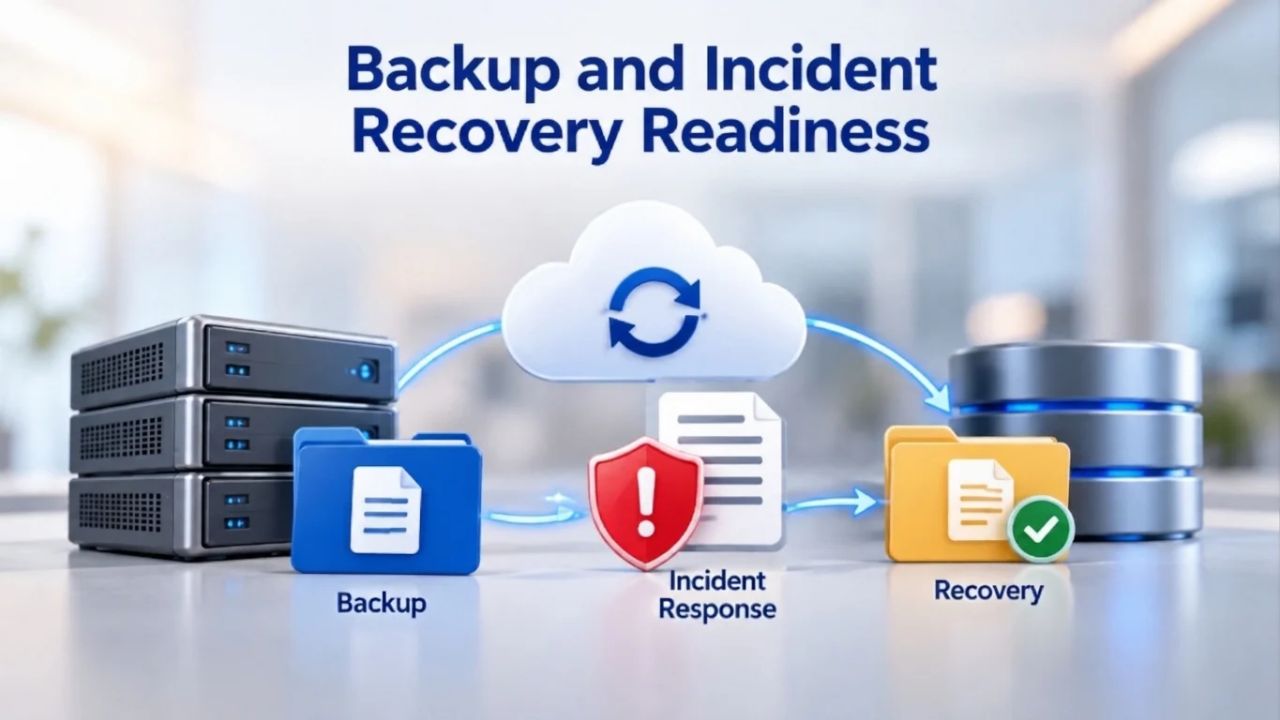
Backup and Incident Recovery Readiness
A backup is your recovery insurance policy; if something goes wrong, a clean backup lets you restore your site to a pre-attack state. Without backups, a breach is potentially catastrophic and unrecoverable. With backups, recovery becomes a technical process rather than a business-ending crisis. Yet many small sites lack proper backup strategies and discover this gap only after an incident. Establishing backup and recovery procedures before you need them transforms a potential disaster into a manageable problem.
Establish a Backup Schedule
Backups are your recovery insurance. Store backups in a different location from your website; if your hosting account is compromised, local backups are vulnerable too. Cloud storage (AWS, Google Cloud, Backblaze, etc.) provides geographic redundancy and protects against server-level disasters. Daily backups are standard; high-traffic e-commerce sites should back up multiple times daily to minimize data loss. Weekly backups are acceptable for sites that update infrequently.
Test your recovery process; practice actually restoring a backup to a test environment. Can you restore a backup if needed? Do you know which backup to restore to (the point before the breach)? How long does a restore take? How much data do you lose if you restore from a backup that’s several days old? These questions must be answered before a crisis, not during one. Document the entire process: who is responsible, what tools are used, how long it typically takes, and what to verify after restoration.
Create an Incident Response Plan
Even with all precautions, breaches happen. An incident response plan outlines who to contact (hosting provider, security service, customers, legal counsel) and what steps to take first. The plan should include:
(1) Identify the breach: how do you know something’s wrong?
(2) Contain it: take the site offline if necessary to stop spreading malware.
(3) Clean/restore: use backups or professional cleanup services.
(4) Notify affected users; if customer data was exposed, people need to know.
(5) Review logs and understand how the breach happened.
(6) Implement hardening to prevent recurrence. A plan reduces panic-driven mistakes and speeds recovery.
Assign roles and responsibilities before a crisis. Who is the incident commander? Who contacts your host? Who communicates with customers? Who manages technical cleanup? Document phone numbers, email addresses, and contact procedures so you can act immediately instead of spending hours finding numbers while panicking. A one-page incident response plan taped to your office monitor is valuable insurance.
Understand Recovery Time Expectations
Different protection services offer different response times. Managed security services offer cleanup response times ranging from 12 hours to 30 minutes depending on the service level. Know what to expect so you can set customer expectations and prioritize accordingly. Even with professional help, recovery typically takes 24–72 hours from detection to full cleanup and delisting from search engine blacklists.
Recovery time varies based on breach complexity: a simple malware infection might be cleaned in hours, while a sophisticated breach involving multiple backdoors could take days. Document your expected recovery time based on your service level and communicate this to customers and stakeholders so everyone understands the timeline and what to expect.
Security Headers and Data Protection
Encryption and configuration hardening protect data in transit and at rest. An SSL certificate alone is insufficient; security headers guide browser behavior and prevent common attacks that try to bypass encryption. Together, SSL and security headers create a robust encryption and configuration layer that protects against attacks ranging from simple eavesdropping to sophisticated manipulation. This layer is often overlooked by small sites but provides genuine protection against real threats.
SSL Certificates and HTTPS Configuration
An SSL certificate encrypts data between your site and visitors’ browsers. Getting an SSL certificate for your website is straightforward; most hosting providers offer free Let’s Encrypt certificates with automatic renewals. Verify your site uses HTTPS everywhere, not just on login pages. Check that all subdomains and resources also load over HTTPS. Mixed content (some resources over HTTP, others HTTPS) weakens encryption and triggers browser warnings.
An SSL certificate doesn’t need to be expensive. Free certificates are cryptographically just as secure as paid certificates; the only differences are branding, warranty, and validation level (domain validation vs. organization validation). For most small sites, a free certificate is perfectly adequate. Ensure automatic renewal is enabled so you never accidentally let a certificate expire, which would make your site appear unsafe to browsers.
Security Headers and Encryption Basics
Security headers guide browser behavior and protect against specific attack types. Strict-Transport-Security forces HTTPS on all connections, ensuring browsers never attempt to load your site over unencrypted HTTP. Content-Security-Policy prevents inline scripts from running (blocking many XSS attacks by restricting where scripts can load from). X-Frame-Options prevents your site from being embedded in an attacker’s page (preventing clickjacking attacks). These headers have no visible impact on users but provide invisible protection against attacks that would otherwise succeed.
Most security plugins and modern hosting platforms add these automatically if you enable them. Verify they’re present by checking your site’s HTTP headers using a free online tool. If headers are missing, ask your host to add them via server configuration, or enable them through your security plugin. This quick win takes minutes to implement but protects for years.
Key Security Metrics and Decision Framework
| Security Layer | Threat Addressed | Implementation Method | Maintenance Frequency | Priority Level |
|---|---|---|---|---|
| Software Updates | Exploited vulnerabilities | Automatic + manual major updates | Weekly | Critical |
| Access Control (2FA + Passwords) | Credential theft/brute-force | Login policy + security plugin | Quarterly audit | Critical |
| SSL/HTTPS | Data interception | SSL certificate + automatic renewal | Annual renewal check | Critical |
| Malware Scanning | Infected files/backdoors | Automated scanner | Daily–12 hours | Important |
| WAF + Security Headers | Injection/XSS/DDoS | Cloud firewall + server config | Quarterly verification | Important |
| Backups & Recovery | Data loss/ransomware | Automated cloud backups | Restore test quarterly | Important |
| Monitoring & Alerts | Early threat detection | Real-time alerts + log review | Weekly review | Important |
| Incident Response Plan | Breach management | Documented process + team training | Annual review/test | Important |
Compliance Considerations
Depending on your business, you may face compliance requirements. PCI DSS (Payment Card Industry Data Security Standard) applies if you process credit card payments; GDPR (General Data Protection Regulation) applies if you collect data from European Union residents; HIPAA applies to healthcare organizations. Compliance requirements vary by industry and jurisdiction. Confirm which standards apply to your business with legal advisors; don’t guess. A security audit helps you identify gaps against relevant compliance standards and documents your security practices, which is often required for compliance verification.
Compliance is often misunderstood as “security” when it’s actually “documented evidence of security practices.” You might be implementing security correctly, but if you can’t demonstrate it with documentation, compliance audits will flag you. A security audit creates this documentation naturally, as you assess each layer, you document what you did and why.
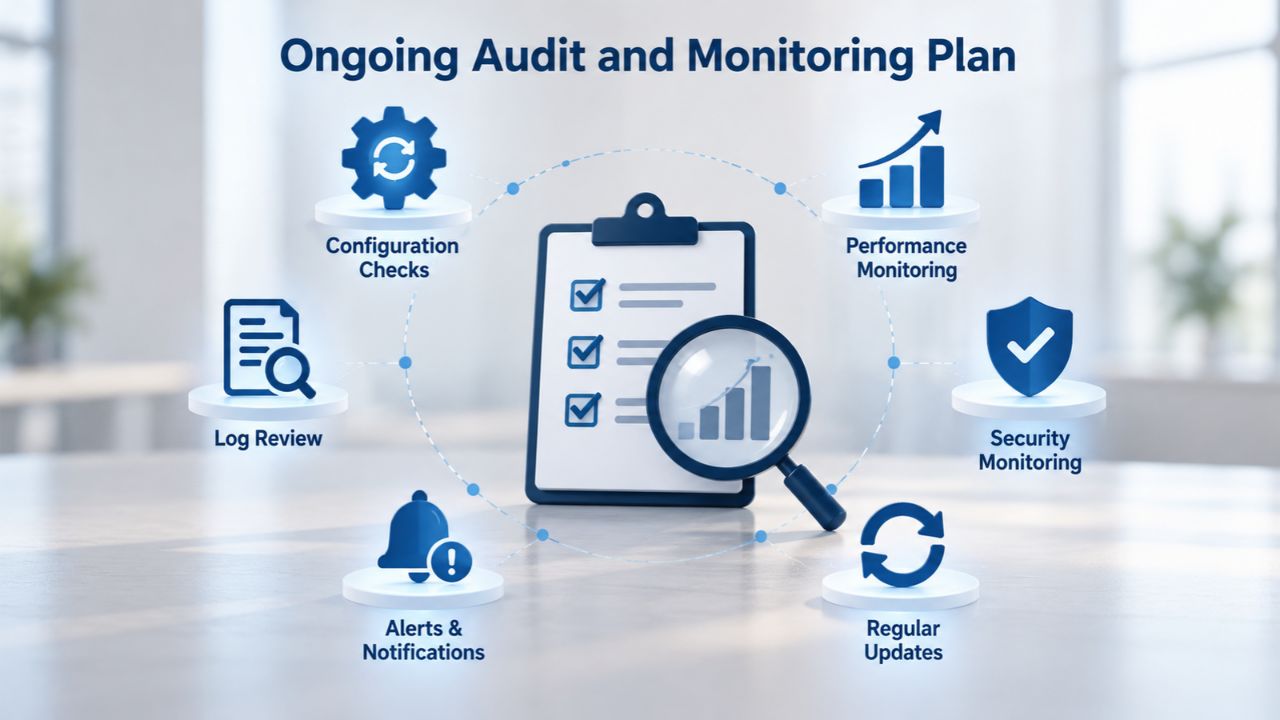
Ongoing Audit and Monitoring Plan
Security is not a one-time project; it’s an ongoing practice. Initial hardening gets you to a reasonable baseline, but threats evolve continuously. New vulnerabilities are discovered daily. New attack techniques emerge. Monitoring must be continuous, and periodic audits must verify that security practices haven’t degraded. Without ongoing attention, even well-hardened sites drift over time: plugins go out of date, credentials accumulate, backups stop working, and monitoring alerts get ignored. A structured schedule prevents this drift.
Schedule Quarterly Re-audits
Schedule quarterly re-audits and quick spot checks after every major website update. A quarterly checklist revisits each section: Are all plugins updated? Are inactive user accounts removed? Are backups being taken daily? Has the malware scan detected anything? Has the WAF blocked suspicious traffic? Are security headers present? Are SSL certificates valid? Are team members still following password practices? A 30-minute quarterly review catches drift and keeps security top of mind. Mark calendar reminders so this review happens consistently, not just when you remember.
Major updates to your site (new plugins, hosting changes, theme updates, WordPress core updates) warrant a quick re-audit sooner than three months. After adding a new plugin, for instance, scan for vulnerabilities and verify no conflicts or performance issues were introduced. After major hosting changes, verify that security configurations didn’t get lost in migration. These spot checks take 15 minutes but often catch problems that would otherwise persist for months.
Implement Continuous Monitoring
Don’t wait for quarterly audits to check for problems. Automated monitoring runs 24/7 and alerts you to malware, DDoS attempts, failed backups, SSL expiration, or suspicious login activity. Continuous monitoring shifts security from reactive (responding after problems are discovered) to proactive (detecting problems immediately). Set up email alerts for critical findings and review logs at least weekly, even without alerts, to stay aware of your site’s security posture.
Create a simple security dashboard that you check weekly; it takes five minutes and provides peace of mind. Document what you find in your weekly review. If patterns emerge (repeated DDoS attempts from the same source, regular failed login attempts from a particular country), document them and look for trends. Patterns often reveal attempts at persistent compromise rather than random attacks.
When to Escalate to Managed Security
As your site grows or handles sensitive data, consider moving from self-service security (checklist + plugins) to managed security (professional monitoring and incident response). If you lack time for in-house monitoring or your site processes payments or customer data, professional security becomes cost-effective. Managed security services handle detection, response, cleanup, and delisting, shifting the operational burden to professionals. This is worth evaluating honestly: if you’ve created this checklist but know you won’t consistently maintain it, professional services are a better investment than partial implementation.
Professional Security Support Available Now
Security monitoring and incident response require specialized skills and dedicated attention. If this checklist revealed gaps in your current setup, or you don’t have time for ongoing security management, professional monitoring can fill the gap effectively. Niya Digital’s Website Security Service, powered by Sucuri’s malware scanning, Web Application Firewall, and DDoS mitigation, combines automated detection with professional cleanup and incident response. Start with a plan that matches your site’s size and traffic, then scale as you grow. Professional security transforms security from a constant worry into a managed service you can rely on.
Frequently Asked Questions
How often should I run a malware scan?
Scanning frequency depends on your site’s update schedule and industry. If you update plugins weekly, scan at least every 12 hours to daily. For sites that update less frequently, daily scans are still recommended, as new malware appears constantly. Continuous monitoring catches threats faster than weekly scans. Website Security tools let you set scanning frequency based on your risk tolerance and budget, so you can choose a frequency that provides peace of mind without consuming excessive resources. Most e-commerce and payment processing sites benefit from hourly or 12-hour scanning; informational sites can scan daily.
Is SSL enough to protect my site?
No. SSL encrypts data in transit between your browser and server, but doesn’t protect against malware, DDoS attacks, brute-force attacks, or vulnerabilities in your application code. SSL is one essential layer of a multi-layer security strategy. You also need strong credentials, updated software, a firewall, continuous monitoring, and regular backups. Think of SSL like a lock on your front door, essential, but it doesn’t protect against break-ins through windows or back doors. Multiple layers of protection ensure that if one defense fails, others remain active.
What should I do if my site is flagged by Google for malware?
First, don’t panic; it’s recoverable. Take your site offline (or disable it) to stop the malware from spreading to visitors. Scan for malware using your security plugin or professional service. Clean and verify removal, or restore from a clean backup from before the infection. Submit a cleanup request in Google Search Console. Once Google re-scans and verifies your site is clean, the warning should disappear. Professional cleanup services like Niya Digital handle both the technical cleanup and the Google re-review, speeding recovery significantly.
Can I audit my site myself, or do I need a professional?
Many small sites can be audited following a checklist like this. Check your CMS for updates, audit user accounts, enable 2FA, and set up monitoring. If you’re comfortable with technical steps, this is absolutely doable. If you’re uncomfortable with technical aspects, lack time, or want deeper vulnerability scanning, professional services are worth the investment. Starting with a checklist is free and educational; scaling to managed security as you grow is a natural progression.
How much does website security cost?
Security solutions range from free (basic security plugins) to enterprise-level managed services. Professional monitoring services vary significantly in cost and features, so compare what you’re getting, scanning frequency, cleanup inclusions, WAF, DDoS protection, and support response time. Check providers’ current plans to understand pricing options. Whatever you spend on security is far less than recovering from a breach, which averages tens of thousands of dollars.
Do I need both a security plugin and a WAF?
Not necessarily; they serve different functions. A security plugin runs on your server and enforces login hardening, scanning, and updates. A WAF filters traffic before it reaches your server, blocking attacks at the edge. Many small sites use a plugin; e-commerce or high-traffic sites benefit from both. Your hosting provider or managed security service may include a WAF as part of the package. Evaluate your needs and resources.
What’s the difference between malware removal and malware prevention?
Prevention stops malware from being installed (firewalls, secure configuration, plugin security, regular updates). Removal cleans malware after it’s been detected (professional cleanup, file restoration, backdoor removal). Both matter. A security strategy combines prevention with detection so that if malware slips through prevention, monitoring catches it fast and removal happens before data is stolen.
How do I know if my site has been hacked?
Signs include: Google’s “This site may be hacked” warning appearing in search results; visitors reporting redirects to spam sites; unexplained new admin accounts; sudden performance drops; malware scanner alerts; or unexpected changes to your files. Automated monitoring alerts you to suspicious activity immediately. If you suspect a breach, run a scan immediately and contact your hosting provider. Professional services can do forensic analysis to determine what happened.
Should I disable XML-RPC on WordPress?
XML-RPC lets remote access to WordPress, which is useful for mobile apps but is exploited for brute-force attacks. If you don’t use mobile apps or remote publishing, disabling it removes an attack vector. Many security plugins offer one-click disabling. This is a minor hardening step with minimal downside; disabling XML-RPC won’t affect normal site operation.
What’s the most important security step I can take today?
Enable two-factor authentication (2FA) on all admin accounts; this blocks most credential-based breaches. Then update WordPress core, plugins, and themes immediately; outdated software is the #1 attack vector. Finally, set up automated backups to cloud storage outside your hosting account. These three steps dramatically improve security posture and take less than an hour to implement.
How long does malware cleanup take?
Detection to full cleanup typically takes 24–72 hours depending on severity and the service’s response time. Faster services (30-minute response times) clean faster; slower services (12+ hour response) take longer. During cleanup, your site may be offline to prevent further spread. Professional services expedite the process; DIY cleanup takes longer if you’re learning as you go.
Do I need DDoS protection if I’m a small business?
Most small informational sites don’t need dedicated DDoS protection; a basic WAF blocks most attacks. E-commerce sites, payment processors, or services that can’t afford downtime should evaluate DDoS protection. Twenty percent of small businesses experience DDoS attacks annually. If you’re in that category or your business depends on constant availability, DDoS protection is worth considering.
Can I recover from a ransomware attack?
Yes, if you have clean backups. If you have a recent, clean backup, restore your site to a pre-attack state. Ransomware often impacts your ability to access backups, so keeping backups in a separate location (cloud storage with restricted access) is critical. Avoid paying ransoms if possible; restore from backup instead. Professional incident response helps determine if backups are clean before restoring.
How do I keep up with new security threats?
Subscribe to your CMS’s security mailing list, follow your security plugin’s blog, and enable automatic alerts on your monitoring tool. You don’t need to be an expert; automated tools catch most threats. Quarterly audits keep you informed of major changes. Security threats evolve constantly, but your layered approach (updates, monitoring, firewall) adapts automatically.
Is a website security audit required by law?
Not universally, but many compliance standards require it. PCI DSS (payment processing) requires regular audits and vulnerability scans. GDPR (European data) requires privacy impact assessments. HIPAA (healthcare) requires security risk assessments. Check which standards apply to your business. Even if not legally required, audits are good practice for any business handling customer data.
Glossary
- Blacklist / Blocklist: A database of websites flagged by Google, browsers (Chrome, Firefox, Safari), or security vendors as containing malware, phishing content, or unsafe material. Sites on a blocklist show warnings to visitors in search results and browsers, devastating traffic and customer trust. Removal requires proving the site is clean and requesting re-review.
- Brute Force Attack: Automated attempts to guess passwords by rapidly trying many combinations. Attackers target login pages using dictionaries of common passwords, previously breached credentials, or randomly generated strings. Rate limiting and login lockouts slow these attacks by imposing delays after multiple failures.
- Cross-Site Scripting (XSS): An attack that injects malicious scripts into web pages. When victims visit the page, the scripts run in their browser, potentially stealing session cookies, personal data, or redirecting users to malicious sites. Input validation and security headers prevent XSS attacks.
- Distributed Denial of Service (DDoS): An attack that overwhelms a website with traffic from many sources simultaneously, making it unavailable to legitimate visitors. Unlike malware, DDoS doesn’t infect; it simply floods servers until they crash or become unresponsive. Firewalls and traffic filtering detect and block DDoS patterns.
- Malware: Malicious software (viruses, trojans, ransomware, spyware, worms) that infects a website or device. Website malware often steals data, redirects visitors to malicious sites, injects advertisements, or serves spam content. Scanning and removal tools detect and clean malware infections.
- SQL Injection: A technique where attackers insert malicious database commands into input fields (login forms, search boxes). If the site doesn’t validate input properly, the malicious commands execute, potentially exposing or modifying sensitive database records. Web Application Firewalls and proper input validation prevent SQL injection.
- Web Application Firewall (WAF): A cloud-based or server-based filter that inspects HTTP/HTTPS traffic and blocks malicious requests before they reach your website. A WAF sits between visitors and your server, filtering out attack patterns, malicious bots, and suspicious traffic in real time.
- Zero-Day Vulnerability: A security flaw unknown to the software developer, actively exploited by attackers before any patch is available. Zero-days are rare and valuable to attackers because defenders have no fix. Security patches and regular updates reduce your exposure to known vulnerabilities; zero-days require rapid patching once discovered.