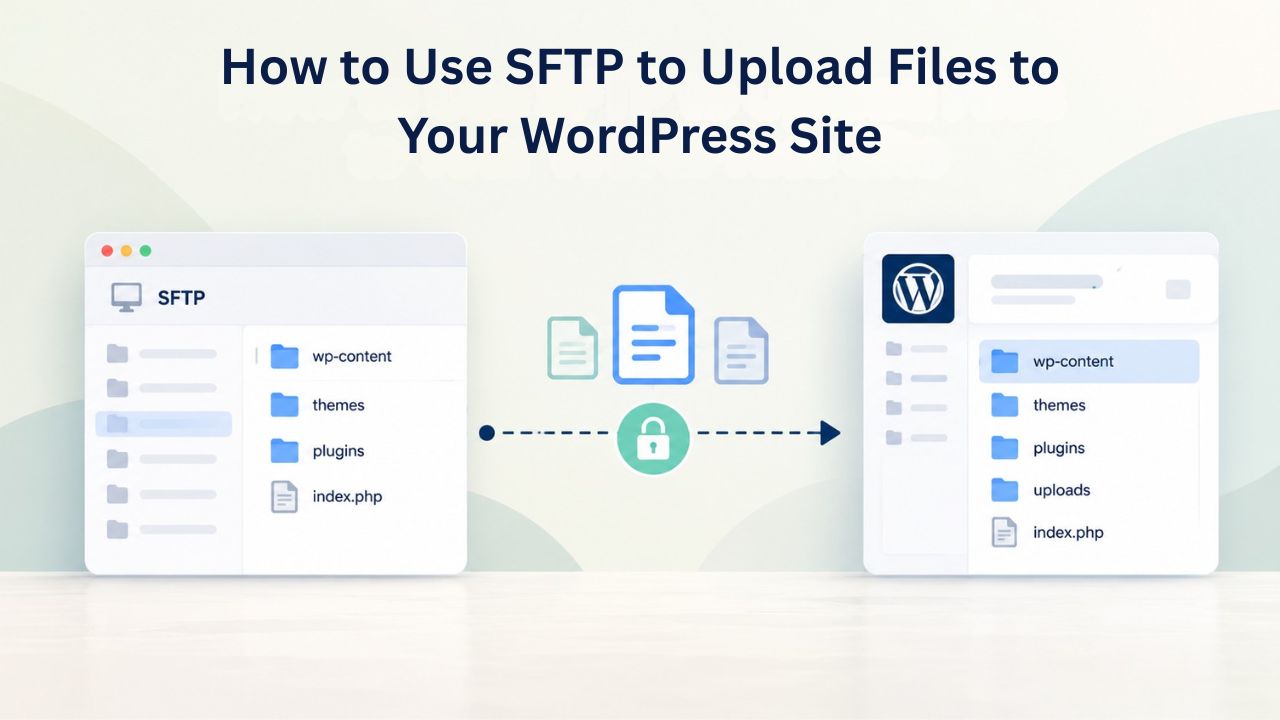
WordPress powers over 43% of websites globally, yet most site owners rely solely on the dashboard uploader, which enforces size limits and becomes inaccessible during critical errors. SFTP (Secure File Transfer Protocol) provides direct, encrypted access to your server’s file system, enabling bulk uploads, recovery from plugin conflicts, and advanced file management that the dashboard cannot support. Niya Digital delivers managed WordPress hosting in partnership with an enterprise-grade cloud infrastructure partner, and we’ve found that SFTP access resolves some of the most common and most urgent WordPress troubleshooting scenarios our customers face, from plugin-induced white screens to database migration needs.
Understanding SFTP and Why It Replaces Traditional FTP
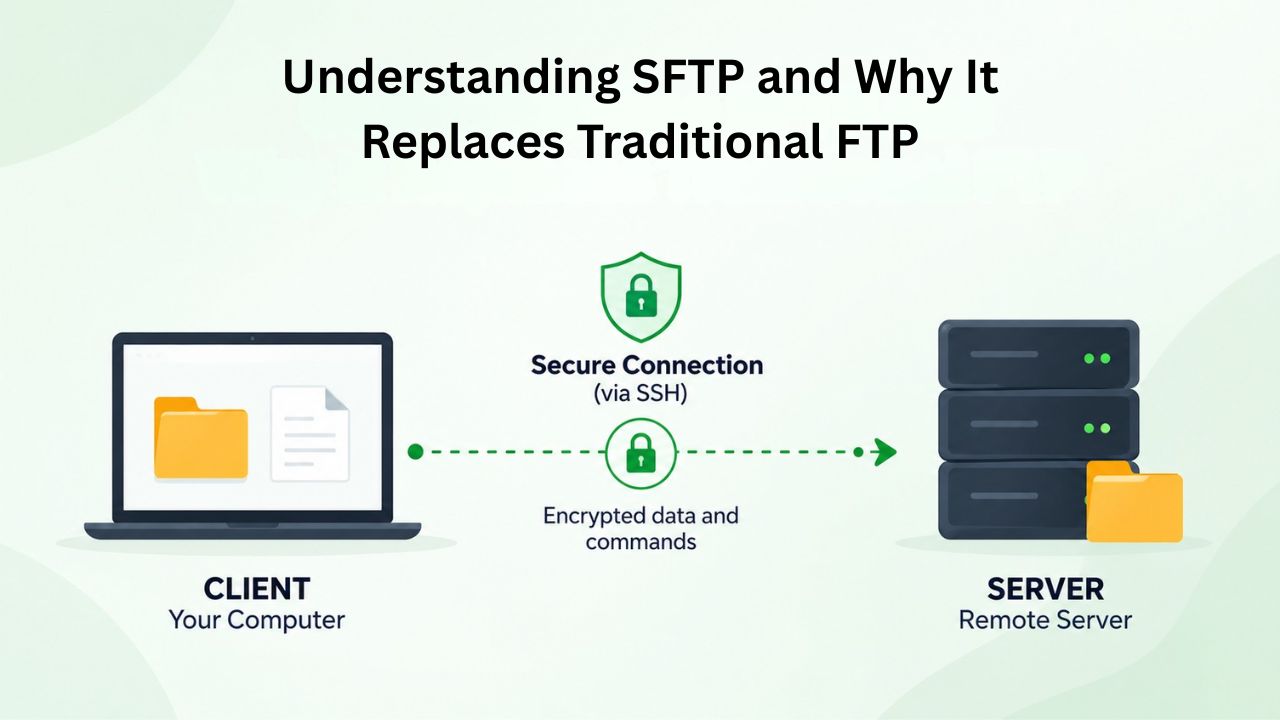
SFTP stands for Secure File Transfer Protocol, and it represents a fundamental shift in how WordPress professionals manage server files. It encrypts all file transfers between your computer and your website’s server, protecting both your login credentials and the files themselves from interception.
The Security Gap Between FTP and SFTP
Standard FTP sends login credentials and file contents in plain text across the network, creating a window of vulnerability for attackers on public WiFi networks, compromised routers, or shared internet infrastructure to capture your username, password, and files during transmission. This vulnerability is especially acute in corporate environments where network traffic is monitored or in developing regions where internet infrastructure may not meet security standards. SFTP uses SSH encryption to secure every packet of data, from the moment you authenticate through the final file transfer, ensuring that even if an attacker captures network traffic, they obtain only encrypted gibberish rather than plaintext credentials and files.
This is why WordPress.org explicitly recommends SFTP over FTP as the standard method for accessing your server whenever your hosting provider supports it. The technical overhead is minimal; SFTP works on port 22 by default (or alternate ports your host specifies) and requires no additional server configuration beyond what reputable hosting providers have already deployed. Most importantly, the speed difference between FTP and SFTP is negligible for typical file transfers; modern computers and internet connections handle the encryption/decryption overhead transparently, often with no perceptible performance impact compared to unencrypted FTP.
When Standard Dashboard Upload Isn’t Enough
The WordPress media uploader and plugin/theme installers work well for routine tasks like uploading images, installing pre-packaged themes, and managing individual files. However, these interfaces enforce strict upload size limits set by your server’s PHP configuration (often 128 MB or less), which can be frustrating when migrating large media libraries, backing up site files, or transferring custom theme packages. SFTP bypasses these limits by connecting directly to your server’s file system, letting you transfer large media libraries, complete theme backups, or migrate bulk content without “file too large” errors that can interrupt your workflow or block critical recovery operations.
Beyond size limitations, SFTP provides the only reliable access path when the WordPress dashboard itself becomes unavailable, a scenario that occurs more frequently than many site owners realize. Plugin conflicts, database connection failures, incompatible updates, or security incidents can render the WordPress admin panel completely inaccessible, leaving you unable to deactivate plugins, access settings, or even view error messages through the dashboard. In these critical moments, SFTP is often the only method to access and repair essential files like wp-config.php (which holds your database connection credentials) or manually deactivate a problematic plugin by renaming its folder. In these scenarios, SFTP access can mean the difference between a 5-minute recovery and hours of downtime.
WordPress Pricing Plans
Choose the WordPress hosting plan that fits your website needs, with reliable performance, security, storage, backups, and tools to help your site grow.
WordPress Basic
A great way to get started.
- 1 website
- 10 GB NVMe storage
- Unmetered bandwidth
- Free SSL Certificate *
- WordPress pre-installed
- Weekly backups
- Web Application Firewall
- Daily malware scans
- One-time malware removal

WordPress Deluxe
Improve your site performance with Cloudflare CDN.
- 1 website
- 20 GB NVMe storage
- Unmetered bandwidth
- Free SSL Certificate *
- WordPress pre-installed
- Daily backups
- Web Application Firewall
- Daily malware scans
- One-time malware removal
- Up to 2x faster performance with global Cloudflare CDN **
- Enhanced security with DDoS protection
- Staging site
WordPress Ultimate
Add online marketing with more sites, storage and security.
- 1 website
- 30 GB NVMe storage
- Unmetered bandwidth
- Free SSL Certificate *
- WordPress pre-installed
- Daily + on-demand backups
- Web Application Firewall
- Daily malware scans
- Unlimited malware removal
- Up to 2x faster performance with global Cloudflare CDN **
- Enhanced security with DDoS protection
- Staging site
- WordPress code optimizer
- Smart WordPress plugin manager
- Sell online with WooCommerce
Getting SFTP Credentials from Your Hosting Provider
Before you can connect to your server via SFTP and begin transferring files, you need three essential pieces of information: your SFTP username, password, and the server hostname (address). These credentials are distinct and separate from your WordPress admin login, your cPanel or hosting control panel credentials, and any FTP accounts you may have created previously. Understanding where to locate this information and how to generate it if needed is the critical first step that many new users overlook, leading to failed connection attempts.
Where to Find Your SFTP Details
Log into your hosting control panel, the administrative interface your hosting provider provides to manage your account, email, domains, and server settings. This interface might be called “cPanel,” “Plesk,” “DirectAdmin,” “InterWorx,” or your provider’s custom dashboard. Within this control panel, look for a section explicitly labeled “FTP,” “SFTP,” “File Access,” “Users and SFTP,” or sometimes “Remote Access.” Most reputable hosting providers display your SFTP hostname, username, and port number prominently in this section, often with a copy button.
Once you locate your SFTP details, note the exact hostname (often formatted as something like sftp.example.com, your-domain.sftp.yourhost.com, or sftp.yourhost.com:2222) and the port number, which is typically port 22 for standard SFTP but may vary by hosting provider. If you cannot find this information readily displayed, consult your hosting provider’s knowledge base or support documentation; they can confirm the correct hostname, port, and whether you need to take any additional steps to enable SFTP access. Many providers require a simple one-click activation in the control panel, while others have SFTP enabled automatically with no additional action needed.
Creating an SFTP User (If Needed)
If your hosting provider allows it, you can create multiple independent SFTP users with different access permissions and credentials, a feature particularly valuable for agencies managing multiple client sites or development teams collaborating on WordPress projects. When creating a new SFTP user, follow these best practices: choose a strong, unique password (avoid simple passwords, dictionary words, or reused passwords from other sites), assign the user access to the correct root directory (usually your WordPress root folder or public_html), and consider limiting their permissions to only the necessary folders if your host supports fine-grained access control.
Some hosting environments automatically tie SFTP credentials to your main account login (meaning your SFTP username and password are identical to your cPanel or control panel login). In contrast, others let you set SFTP credentials independently for better security compartmentalization. Confirm with your hosting provider whether SFTP credentials match your main account login or whether you need to set up a separate SFTP user. This distinction is important for understanding your security posture and for sharing limited access with team members without exposing your primary account credentials.
Choosing and Installing an SFTP Client
An SFTP client is desktop software that runs on your computer (Windows, Mac, or Linux) and connects to your server via SFTP, letting you browse the remote file system as if it were a local folder. You then drag and drop files between your computer and the server, manage permissions, edit files directly, and perform all file operations through an intuitive graphical interface, no command line knowledge required.
Recommended SFTP Clients
FileZilla is a free, open-source SFTP client for Windows, Mac, and Linux and has become the de facto standard for WordPress professionals worldwide. It offers a split-panel interface: your local computer’s folder structure on the left and the remote server’s files and folders on the right, making drag-and-drop uploads and downloads intuitive even for users new to SFTP. FileZilla supports SFTP natively and is widely recommended across WordPress hosting documentation, community forums, and professional development workflows. Its reliability, active community support, and regular security updates make it an excellent choice for beginners and experienced developers who need features like file synchronization, batch permission changes, and connection profiles.
Cyberduck is another excellent free, open-source option for Mac and Windows, offering a simpler, more streamlined interface than FileZilla that many Mac users find more intuitive and better integrated with macOS. Like FileZilla, Cyberduck supports SFTP fully and is trusted by thousands of WordPress professionals for routine file management, theme development, and site maintenance. For developers comfortable with the command line, tools like scp (Secure Copy) or sftp command-line utilities offer advanced control and automation capabilities. However, they require familiarity with terminal navigation and scripting, a barrier for most WordPress users but invaluable for developers managing many sites or automating deployments.
Installation Steps
Visit FileZilla-project.org or Cyberduck.io in your web browser, go to the download section, and select the installer for your operating system (Windows, Mac, or Linux). Download the installer file to your computer and double-click it to launch the installation wizard. Follow the standard installation prompts; both applications are lightweight, add no bloatware or unwanted toolbar additions, and integrate cleanly with your operating system’s native file explorer. After installation, you’ll find FileZilla or Cyberduck ready to launch from your Applications folder (Mac) or Start menu (Windows); the first time you launch it, the application will prompt you to create a new connection profile.
Setting Up Your First SFTP Connection
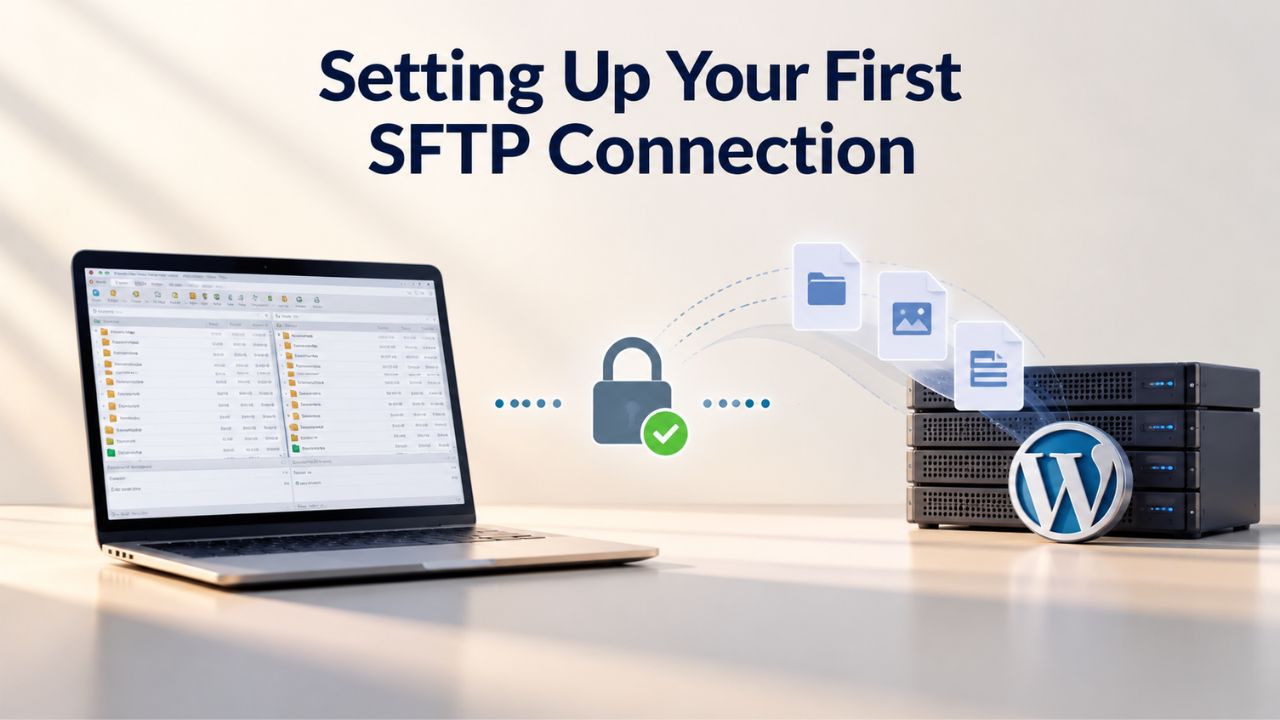
Once your SFTP client is installed and you have your connection details from your hosting provider’s control panel, creating your first connection is straightforward, takes just a few minutes, and follows the same basic steps across nearly all SFTP clients. Enter your server address, username, password, and port number in the client’s connection dialog, then click Connect to establish a secure, encrypted session.
Configuring Your Connection in FileZilla
Open FileZilla and click on File > Site Manager from the menu bar (or use the keyboard shortcut, typically Ctrl+S on Windows or Cmd+S on Mac). In the Site Manager window that opens, click the New Site button and give your connection a memorable name that identifies your site, such as “My WordPress Site,” “Client Site – Acme Corp,” or any name that helps you quickly identify this connection when you have multiple profiles saved. From the Protocol dropdown menu, select SFTP – SSH File Transfer Protocol (it’s crucial to select SFTP here, not plain FTP or FTPS, to ensure encryption).
Now fill in the connection details from your hosting provider: enter your Host (the SFTP address like sftp.example.com or mysite.sftp.yourhost.com), your Username, your Password, and the Port number (usually 22, but verify with your host). Leave all other settings at their defaults unless your hosting provider’s documentation specifically tells you to change them; most providers’ SFTP implementations work seamlessly with FileZilla’s standard settings. After you enter all the information, click Connect. If your credentials are correct, FileZilla will establish a secure, encrypted connection and display your server’s complete file system on the right side of the screen, showing all your WordPress folders and files ready for management.
Navigating and Troubleshooting Your First Connection
The FileZilla interface is divided into distinct panels: the left panel displays your local computer’s folder structure (the files on your own computer). In contrast, the right panel displays your remote server’s files and folders (everything on your WordPress hosting account). Use the left panel to navigate to files on your computer that you want to upload, for example, a custom theme you’ve downloaded or a plugin package. Use the right panel to navigate to the destination folder on your server where those files should go. Your WordPress files are typically located in the root directory or a folder named public_html or www, and you’ll see standard WordPress folders like wp-admin, wp-content, wp-includes, plus files like wp-config.php and index.php.
If FileZilla displays an “authentication failed,” “connection refused,” or “connection timeout” error, the problem typically falls into one of a few categories with straightforward fixes. First, verify that you copied your credentials exactly as shown and double-check for accidental spaces, extra characters, or capitalization mismatches common when manually typing credentials. Second, make sure SFTP (not FTP or FTPS) is selected in the Protocol dropdown, since the wrong protocol will fail even if the credentials are correct.
Third, if the connection times out after several seconds, your hosting provider may use a non-standard port (common alternatives include 2222, 3333, or others); confirm the exact port in your hosting provider’s documentation or with their support team. Some hosting providers also require you to explicitly enable SSH access in your control panel before SFTP connections will work; check your host’s settings if other troubleshooting steps don’t resolve connection failures.
Uploading Files to Your WordPress Site via SFTP
Once you have successfully connected to your server via SFTP and the remote file browser is displaying your server’s files, uploading files is remarkably straightforward: navigate to the destination folder on your server (the right panel), then drag files from your computer’s folder (visible in the left panel or in Windows Explorer/Finder) and drop them onto the SFTP client window.
Navigating WordPress Directories
The /wp-content/themes folder holds all your site’s installed themes, both the currently active theme and any inactive themes you maintain as backups. To upload a new theme, first download the theme’s ZIP file from WordPress.org or a commercial marketplace, extract the ZIP file on your computer to reveal the theme’s folder, then drag the entire theme folder to the /wp-content/themes directory on your server via SFTP.
The final result should be a path like /wp-content/themes/mytheme/, where “mytheme” is the theme’s folder name. Once the theme folder appears in the remote browser, you can immediately activate it from your WordPress dashboard’s Appearance > Themes section, or if the dashboard is unavailable, you can modify it directly via SFTP by editing the wp_options table through a database tool.
The /wp-content/plugins folder operates similarly and holds all your site’s installed plugins. To manually install a plugin, download it from WordPress.org’s plugin directory or a commercial marketplace, extract the ZIP file on your computer, and drag the plugin folder to /wp-content/plugins on your server. The /wp-content/uploads folder contains all media files you’ve uploaded through WordPress, images, PDFs, videos, and any other content visitors can download. This folder grows significantly as you accumulate media over time, and SFTP’s ability to transfer multiple files simultaneously makes it invaluable for bulk media migrations, backup restoration, or transferring media libraries when changing hosting providers.
Best Practices During Upload
Before beginning any upload, set your SFTP client’s file transfer mode to Auto (the default in most clients, but verify in your settings), not ASCII or Binary mode. Auto mode intelligently detects the file type and transfers it using the appropriate protocol, preventing corruption that can occur when image files, theme folders, or plugin code are transferred in the wrong mode.
If you’re replacing an existing file on your server (uploading a new version of a theme or plugin), most SFTP clients display a dialog prompting you to confirm the overwrite action. Accept this prompt to ensure your new file replaces the old version; if you skip or cancel, the old file remains unchanged, and your updates won’t take effect on your live site.
For large files or bulk transfers, avoid interrupting the connection until the transfer completes. Incomplete uploads can cause broken themes that won’t activate, non-functional plugins that display errors, or corrupted media files that don’t display properly. Keep your internet connection stable during transfers by avoiding heavy downloads, streaming, or other bandwidth-intensive activities. If you’re uploading over a wireless connection, make sure you have a strong signal. Most SFTP clients support resuming interrupted transfers if your connection drops unexpectedly, but resuming requires the remote file to remain partially uploaded. If you delete the partial file or start a fresh connection, you’ll need to restart the entire upload from the beginning.
Start Managing Your WordPress Files Securely Today
SFTP puts complete control of your WordPress site’s file system in your hands, letting you upload custom themes, install plugins manually, recover from errors, and manage files without relying on the WordPress dashboard. Niya Digital’s managed WordPress hosting includes SFTP credentials, expert support, and guidance to help you upload, manage, and troubleshoot files with confidence and security. Our team ensures your SFTP access is properly configured from day one and remains available even if your site experiences dashboard-level issues.
Fixing Common Upload Errors and Permission Issues
Even after successful file transfers, several issues can prevent your uploads from functioning properly on your live site. Understanding these common problems and their solutions saves hours of troubleshooting and helps you quickly resolve issues when they arise.
| Symptom | Likely Cause | Diagnostic Step | Resolution |
|---|---|---|---|
| “Connection refused” or “Authentication failed” error | Incorrect credentials or protocol selection | Verify username, password, and that SFTP (not FTP) protocol is selected | Re-enter credentials carefully; copy-paste from control panel to avoid typos |
| Connection times out after several seconds | Non-standard port or firewall blocking connection | Check hosting provider documentation for correct port number | Use correct port (default 22, but varies by host); contact support if blocked |
| File uploaded successfully but not visible on site | Incorrect file permissions or server-side caching | Check file permissions in SFTP client; clear site cache | Set files to 644 and directories to 755; purge cache from dashboard |
| “Permission denied” error when uploading or modifying | Account lacks write privileges to that directory | Verify connecting with correct SFTP user account | Confirm account has write access to target directory; contact host for elevation |
| Large file upload interrupted mid-transfer | Connection timeout or buffer exceeded | Adjust timeout settings in SFTP client to 60+ seconds | Increase timeout; delete partial file on server; retry upload |
| Uploaded plugin/theme won’t activate after upload | Incorrect file permissions or corrupted transfer | Check file permissions; verify remote file matches original | Adjust to 755 for directories/644 for files; re-download original and upload fresh |
Files Upload Successfully but Don’t Display on Your Site
If your file transferred to the server without errors but doesn’t appear on your site or in the WordPress dashboard, two common culprits are responsible: either the file permissions are incorrect, preventing the web server from reading the file, or your site’s cache is serving an older version of the page that doesn’t reflect the change.
Uploaded files must have readable permissions for the web server process to access them, and directories must have executable permissions to allow the web server to traverse them. WordPress core files should have 755 permissions for directories (allowing the owner and web server to access them) and 644 for files (allowing reading by both owner and web server, but only the owner to modify).
After uploading, right-click the file in your SFTP client and select File Attributes or Permissions to view its current permission settings. If the permissions show anything other than 644 for files or 755 for directories, select the file and adjust the permissions to the correct values; most SFTP clients provide a simple dialog for this. Once permissions are corrected, clear your site’s cache completely: if you’re using a caching plugin like WP Super Cache or W3 Total Cache, log into WordPress and purge the cache manually.
Your hosting provider may also implement server-level caching; check your control panel for a cache-clear button or contact support to flush the server cache. Within a few seconds of clearing the cache, refresh your website in your browser, and you should see your uploaded file or changes displayed correctly.
Connection Drops and Permission-Related Errors
If your SFTP connection closes mid-transfer for large files, the most likely cause is your SFTP client’s timeout setting, the maximum number of seconds the client will wait for server response before closing the connection. By default, most SFTP clients use a 30-second timeout, which may be too brief for very large files or slow internet connections. Before retrying the upload, adjust the timeout settings in your SFTP client: in FileZilla, this is found under Edit > Settings > Connection, or check your client’s preferences menu for a “Timeout” or “Transfer” section, and increase the value to 60 or 120 seconds to accommodate larger files or slower connections.
If you receive a “permission denied” error when uploading or modifying files, you don’t have write access to that directory with your current SFTP user account. Verify that you’re connecting with the correct SFTP username and password, and confirm with your hosting provider that your SFTP account has write permissions to the target directory.
Some shared-hosting directories may have restrictive permissions for security; if permission errors persist despite correct credentials, contact your hosting provider and request elevated access to the specific folder you need to modify. Similarly, if a file transfers partially and then stops, delete the incomplete remote file in your SFTP client before retrying the upload; resuming partially uploaded files can result in corrupted files that won’t function properly.
Security and Best Practices After Upload
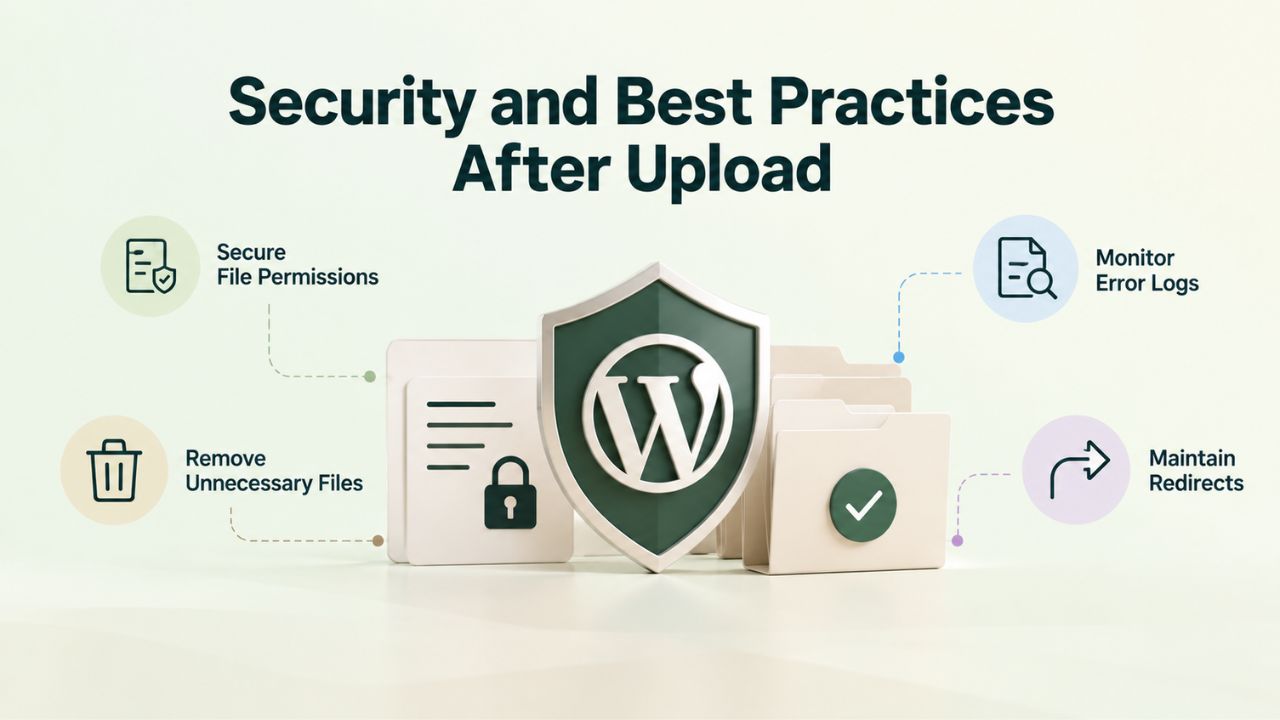
While SFTP itself is secure, the steps you take after uploading files directly impact your site’s security and functionality. Correct file permissions are critical; improper permissions are one of the most common ways hackers exploit WordPress sites, allowing them to modify files, inject malicious code, or escalate access to sensitive configuration files.
Setting Proper File Permissions
Set WordPress directories to 755 and individual files to 644, a standard configuration that follows the principle of least privilege. In this configuration, you (the file owner) retain full read/write/execute permissions; the web server and your hosting provider’s support team can read and execute files as needed for your site to function; but untrusted users and potential attackers cannot write to or modify your files without explicitly being given those permissions. This balanced approach lets WordPress function properly while maximizing protection against unauthorized modification.
The wp-config.php file deserves special attention because it stores your database password, database name, authentication keys, and other sensitive configuration data. Ensure this file is set to 644 permissions and located outside publicly accessible directories if possible (some hosting environments support placing wp-config.php above the public_html folder for added security).
Never try to “fix” upload or activation issues by setting permissions to 777, a common amateur mistake that grants read/write/execute permissions to everyone on the server; this is one of the most dangerous permission settings and a primary vector for WordPress site compromises. If a plugin or theme demands 777 permissions to function, that plugin or theme is poorly coded and poses a security liability; find an alternative product instead of compromising your site’s security to accommodate bad code.
Clearing Cache After Uploads
After uploading a new theme, updating an existing plugin, or modifying WordPress core files through SFTP, your site may continue serving cached versions of the old files to visitors if you have caching enabled. Clear your site’s cache immediately after any file changes to ensure all visitors receive the updated version.
If you’re using a caching plugin like WP Super Cache, W3 Total Cache, or WP Fastest Cache, log into your WordPress dashboard’s Plugins page or the plugin’s settings area and locate the “Purge Cache” or “Clear Cache” button; clicking it removes all cached files, forcing the server to regenerate them from your updated source files. If your hosting provider implements server-level caching (which most managed hosts do), look in your hosting control panel for a “Cache” or “Purge Cache” option, or contact your provider’s support to flush the server cache immediately after your changes.
Some caching systems cache content for a specific duration (e.g., 12 hours) and automatically refresh after that period expires; if purging the cache manually doesn’t immediately show your changes, wait a few minutes and refresh your browser (use Ctrl+Shift+R or Cmd+Shift+R to bypass the browser cache as well as the site cache).
Once the cache is cleared, WordPress regenerates pages using your updated files, and visitors immediately see your new theme, updated plugins, or modified content instead of outdated cached versions. This cache-clearing step is often overlooked by users transferring files via SFTP for the first time, leading to frustration when changes don’t appear; making it a habit to clear cache immediately after file uploads prevents this common problem entirely.
SFTP vs. Alternatives: When to Use Each Method
WordPress provides multiple file access methods, each suited to different use cases and user skill levels. Understanding when to use SFTP versus alternatives like the dashboard uploader, control panel file manager, or file management plugins helps you choose the most efficient tool for each task.
Comparing File Transfer Methods
| Method | Best For | Limitations | Suitable For |
|---|---|---|---|
| Dashboard Uploader | Individual images, documents, routine media | Enforces upload size limits (usually 128 MB max) | Beginners, one-off uploads, small files |
| Control Panel File Manager | Quick file edits, small uploads, visual browsing | Clunky browser interface, poor for bulk operations | Users unfamiliar with SFTP, occasional management |
| SFTP Client (FileZilla/Cyberduck) | Bulk uploads, direct editing, troubleshooting, recovery | Requires client software installation and learning curve | Professionals, developers, site migrations, backups |
| File Manager Plugin | Dashboard convenience, bulk uploads, no learning curve | Adds server overhead, potential security risks if poorly coded | Users wanting convenience without leaving WordPress |
| Command-Line SCP/rsync | Developers, automation, massive migrations, deployments | Requires terminal knowledge and scripting ability | Linux/Mac developers, enterprise deployments |
| Managed WordPress Hosting | Automatic backups, staging, support-assisted migrations | Limited manual control, managed provider handles details | Non-technical users seeking hands-off management |
For most WordPress users, SFTP is the optimal general-purpose choice: it’s free, secure, reliable, doesn’t depend on WordPress functionality or plugins, and handles any file transfer scenario efficiently. For one-off image uploads or routine media management, the built-in dashboard uploader is perfectly adequate and requires no additional software. For agencies or businesses that want professionals to handle file management, managed WordPress hosting abstracts this complexity entirely, providing automatic backups and expert support without requiring you to understand SFTP.
Choosing Your File Management Approach
The right file management method depends on your technical comfort, how often you use it, and the scale of your WordPress operations. If you upload images and documents occasionally through the WordPress media library, the built-in dashboard uploader is sufficient and requires no additional learning. If you’re managing multiple WordPress sites, deploying custom code, recovering from errors, or performing bulk migrations, SFTP’s flexibility, speed, and reliability justify the minor setup overhead of installing a client and learning basic connection procedures. For agencies managing many client sites or teams collaborating on WordPress projects, the investment in SFTP skills pays dividends through dramatically reduced support time and faster site management workflows.
When Dashboard Upload Restrictions Become a Problem
While the WordPress dashboard’s file uploader handles routine operations well, it enforces upload size limits based on the server’s PHP configuration rather than the server’s actual capabilities. These limits, often set to 128 MB, 256 MB, or sometimes as low as 64 MB, protect server resources by preventing individual uploads from consuming excessive memory or processing power.
Overcoming Upload Limits and Bulk Transfers
The WordPress dashboard’s upload limit reflects a conscious design decision to balance user flexibility with server resource protection. SFTP bypasses these limits entirely by connecting directly to your server’s file system at a level beneath the WordPress application, allowing you to transfer files of any size limited only by your available storage space and internet connection speed.
If you’re migrating a WordPress site from one host to another and your media library totals 2 GB, attempting to upload it through the dashboard would require breaking it into many small uploads and managing each one individually, a process taking hours. Via SFTP, the same migration completes in minutes because FileZilla or Cyberduck handles all the file organization automatically and can transfer many files in parallel.
If you’re migrating a site and need to transfer hundreds of files at once- themes, plugins, media, uploads, and custom code- SFTP is exponentially faster than uploading each file individually through the dashboard. The time savings compound significantly as your media library grows, and after experiencing bulk uploads via SFTP, most users never return to dashboard uploading for anything larger than occasional images. For agencies managing WordPress sites for multiple clients or e-commerce sites with extensive media libraries, SFTP becomes indispensable for efficiency and should be a core part of your service delivery skillset.
Bulk Updates Across Multiple Sites
Agencies and site managers maintaining multiple WordPress installations benefit enormously from SFTP’s ability to push updates across multiple sites simultaneously without accessing each site’s dashboard individually. Instead of logging into each client site’s WordPress admin panel and managing updates manually, you can connect via SFTP and update themes or plugins across all installations in parallel using FileZilla’s synchronization features or simple batch operations. This capability becomes mission-critical when a security vulnerability is announced and requires immediate patching across your entire client portfolio; manually updating 20 sites one by one through the dashboard could take hours, while SFTP-based bulk updates can finish in minutes.
Advanced SFTP Use Cases for WordPress
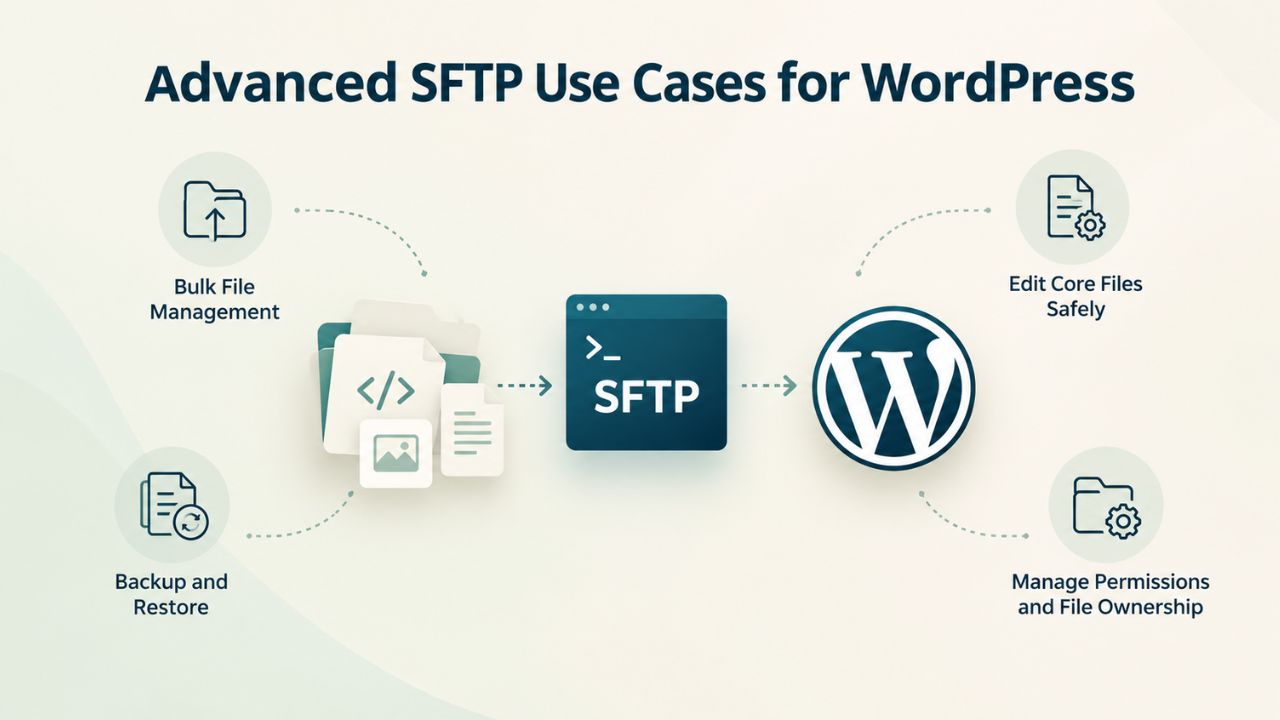
Beyond basic theme and plugin uploads, SFTP enables sophisticated recovery and development scenarios that distinguish professional WordPress management from casual site administration. These advanced use cases demonstrate why SFTP remains indispensable to experienced WordPress professionals even as the WordPress platform continues evolving with better built-in features.
Recovery and Troubleshooting
If a plugin conflict or incompatible update disables your WordPress admin interface and makes the dashboard completely inaccessible, SFTP provides the only reliable recovery path without command-line access or support intervention. You can use SFTP to navigate to /wp-content/plugins, identify the problematic plugin, and rename its folder (e.g., from “problematic-plugin” to “problematic-plugin-disabled”), which immediately deactivates it without requiring any dashboard access. Once you turn off the conflicting plugin and regain dashboard access, you can investigate the issue, find an alternative plugin, or contact the plugin developer for a fix before reactivating it.
Similarly, if you need to edit wp-config.php, the critical configuration file that stores your database name, username, password, and authentication keys, the WordPress dashboard provides no built-in interface for this because the file is far too sensitive to expose through the web interface. Via SFTP, you can download wp-config.php to your computer, edit it in a text editor like Notepad++, VS Code, or even Sublime Text, then re-upload the modified version. This capability becomes essential when migrating databases, troubleshooting database connection errors, enabling WordPress debugging, or configuring multisite installations. These operations would be impossible or extremely difficult without direct file access via SFTP.
Development and Automation
Professional WordPress developers use SFTP in sophisticated development workflows that integrate with version control systems like Git and deployment automation tools. Instead of manually uploading files for each update, experienced developers configure their local Git repository to automatically deploy changes to the production server via SFTP whenever code is committed and pushed to the main branch. Tools like GitHub Actions, GitLab CI, or CircleCI can be configured to use SFTP (via SSH) to automatically transfer updated files, run database migrations, and restart services without any manual intervention.
Version control combined with SFTP-based deployment creates a professional development pipeline essential for agencies and teams managing WordPress at scale. This approach maintains a complete history of every code change, allows multiple developers to collaborate safely, and enables quick rollback if a deployment introduces bugs or breaks functionality. For individual developers managing multiple client sites or agencies handling dozens of projects, this automated SFTP deployment approach saves dozens of hours monthly. It reduces manual errors that lead to downtime or data loss.
Ready to Simplify Your WordPress File Management?
If SFTP configuration and management feels overwhelming, or you’d rather focus on growing your WordPress site than managing server infrastructure, Niya Digital’s managed WordPress hosting includes built-in SFTP support, expert technical guidance, and professional administration. Our team configures SFTP credentials properly from day one, provides prompt support when issues arise, and keeps your site secure and accessible, even during critical recovery scenarios. With managed hosting, all file management complexity is handled by professionals, and you retain full SFTP access whenever you need direct file control.
Frequently Asked Questions
What’s the difference between SFTP and FTPS, and can I use FTPS instead of SFTP?
SFTP (SSH File Transfer Protocol) and FTPS (FTP over TLS/SSL) both encrypt data during transfer, but they use fundamentally different protocols and encryption approaches. SFTP uses SSH (Secure Shell) to create an encrypted tunnel for all communication, including authentication and data transfer, making it a single unified encryption protocol. FTPS, by contrast, adds SSL/TLS encryption on top of the older FTP protocol, creating two separate encryption layers. WordPress.org recommends SFTP when available because it’s more widely supported by modern hosting providers, particularly within the WordPress ecosystem, where SSH is nearly universal. If your host offers both, choose SFTP for better compatibility, simpler troubleshooting, and more consistent security across platforms.
Can I use SFTP to transfer files on my phone or tablet?
Most professional SFTP clients like FileZilla and Cyberduck are designed for desktop operating systems and aren’t available on iOS or Android. However, several mobile SFTP apps do exist for both platforms; examples include Yolos (iOS/Android), Working Copy (iOS for developers), and FTP Disc (Android). Mobile SFTP is useful for quick file edits, checking remote files while traveling, or emergency access to your site when you don’t have a desktop. However, for uploading large files or managing complex folder structures and permissions, a desktop SFTP client provides a much better user experience. Also, consider security carefully before storing SFTP credentials on a mobile device; make sure the device has a strong PIN, encryption enabled, and trusted security software installed.
Do I need to change file permissions after every SFTP upload?
Adjust file permissions only if they’re incorrect after upload; you don’t need to change permissions on every upload. If you’re uploading themes or plugins downloaded directly from WordPress.org or major commercial sources, they typically arrive with correct permissions already set, and no adjustment is needed. If permissions are wrong, WordPress will display errors, themes won’t activate, or plugins will fail to load with permission-related error messages. If you see these errors, check the permissions in your SFTP client, select the affected files or folders, and adjust them to the correct values (755 for directories, 644 for files). Most modern SFTP clients let you select multiple files and change permissions in bulk, making fixes quick and painless.
My hosting provider says I need to enable SSH access before I can use SFTP. What does that mean?
SSH (Secure Shell) is the underlying encryption and authentication protocol that SFTP runs on top of; SFTP cannot function without SSH. Some hosting providers disable SSH access by default for security reasons and require you to explicitly enable it in your control panel before SFTP connections will work. If your host requires this, log into your control panel, look for settings labeled “SSH Access,” “Secure Shell,” or “Remote Access,” and click an “Enable SSH” or similar button.
This change usually takes effect immediately, and SFTP connections should work right away. If enabling SSH doesn’t resolve connection issues, verify that SSH uses port 22 on your host (some hosts use alternate ports like 2222), and if problems persist, contact your hosting provider’s support team for assistance.
Is it safe to save my SFTP password in FileZilla or my SFTP client?
FileZilla stores passwords locally in a configuration file on your computer when you save connection profiles in Site Manager. This is reasonably safe if your computer is password-protected, regularly updated with security patches, and protected by reputable antivirus software. However, storing passwords on computers that other people access, shared family computers, workplace machines, or public environments, introduces security risk because other users could potentially access your saved credentials. For maximum security, don’t save passwords on shared or public computers. On a personal computer that only you access, saving the SFTP password is convenient and generally safe; retyping your password for every connection becomes tedious and may lead to mistakes or security shortcuts.
What happens if my internet connection drops while uploading a large file via SFTP?
Most modern SFTP clients, including FileZilla, pause the transfer when the connection drops and automatically resume from where they left off when the connection restores. The remote server keeps the partial file intact, so the client can continue where it left off instead of restarting the entire upload. If the connection is gone for more than a few minutes, or if your client is configured with a timeout setting, the connection may close permanently and the client won’t auto-resume; in that case, you can manually restart the transfer from where it was interrupted.
If automatic resume fails or the partial file becomes corrupted, delete the incomplete remote file in your SFTP client and restart the upload. Large file transfers are more reliable on stable, higher-speed internet connections; if possible, upload during times when your internet isn’t being used for streaming, downloads, or other bandwidth-intensive activities.
Can I use SFTP to edit PHP files directly on my server, like wp-config.php?
Yes, you can download wp-config.php via SFTP, edit it on your computer using any text editor (even simple editors like Notepad, or better yet, code editors like VS Code, Sublime Text, or Notepad++), and re-upload the modified version to your server.
This is one of SFTP’s most powerful capabilities for WordPress professionals. However, editing critical configuration files requires technical knowledge; syntax errors in wp-config.php can completely break your WordPress site, causing database connection failures or fatal errors. Always back up wp-config.php before editing it (download a copy and save it separately), and if your site breaks after changes, you can quickly restore the backup. When editing configuration files, use a text editor that supports PHP syntax highlighting to help you spot errors before uploading.
My SFTP client shows many hidden files and folders starting with dots, like .htaccess and .htpasswd. What are these?
Hidden files (those starting with a dot in their name) control server behavior and configuration in ways the WordPress interface doesn’t expose. .htaccess is especially important; it handles URL rewriting, password protection, compression settings, and security rules that help your WordPress site work properly. .git and .gitignore are version control files if your site uses Git for development.
Most WordPress users should never modify these hidden files unless they know what they do, as incorrect configuration can break your site entirely. If your SFTP client doesn’t show hidden files by default, you can usually enable this in the View menu or Preferences, but most users are fine leaving hidden files hidden and untouched. Only experienced developers should edit these files, and only when they understand exactly what changes they’re making and why.
Is SFTP slower than other WordPress file upload methods?
SFTP is typically as fast as or significantly faster than dashboard uploads, especially when transferring multiple files. The encryption overhead that SFTP adds is minimal on modern computers and internet connections; it usually adds no perceptible latency compared to unencrypted FTP. For bulk migrations or transferring dozens of files, SFTP is much faster than uploading each file individually through the WordPress dashboard because FileZilla and Cyberduck can upload many files in parallel and handle file organization automatically.
A bulk migration that might take hours one file at a time through the dashboard completes in minutes via SFTP. The apparent speed difference often comes from the convenience and automation SFTP provides, not from any technical speed advantage of the protocol itself.
Can I grant SFTP access to multiple team members without sharing my primary password?
Most hosting providers let you create multiple independent SFTP users, each with a unique username and password, giving different team members separate access to your WordPress site. This is far better than sharing a single SFTP account with everyone because you can revoke access for individual team members without changing passwords for everyone else, and you can audit who made specific changes by reviewing file timestamps and modification history.
To create additional SFTP users, log into your hosting control panel, navigate to the FTP or Users section, and click “Create SFTP User” or similar. Each new user gets their own credentials that work independently. Some hosting plans limit the number of SFTP users you can create; check your plan details or contact support to confirm how many users your account allows.
What does “port 2222” mean, and why would my host use a non-standard port instead of the default port 22?
Ports are numbered communication endpoints on your server; think of them as different “channels” for different types of communication. SFTP normally uses port 22, which is the standard across virtually all servers and SFTP clients. Some hosting providers use alternate ports like 2222, 3333, or others for security through obscurity, meaning attackers usually probe port 22, and a non-standard port makes your server less likely to be discovered through automated scanning.
While obscurity alone doesn’t provide real security, it does reduce the frequency of automated attack attempts. Always use the exact port your hosting provider specifies in your SFTP client’s configuration; if your host specifies port 2222, you must enter 2222 in your client’s port field, not the default port 22, or the connection will fail.
I accidentally deleted an important file via SFTP. Can I recover it?
SFTP doesn’t maintain a local recycle bin or trash folder; once you delete a file through SFTP, it’s gone from your SFTP view immediately. However, your hosting provider almost certainly maintains regular automated backups of your entire site and account. Log into your hosting control panel and look for a “Backups,” “Restore,” or “File Manager” section where you can browse previous backups and restore deleted files from a specific point in time.
Most hosting providers maintain daily backups for at least a week, and many for several weeks. If you can’t find a restore option in your control panel, contact your hosting provider’s support team and explain that you accidentally deleted a file via SFTP; they can usually recover it from their backup systems within hours. In the future, always back up important files before making changes or deletions.
What’s the difference between SFTP and SSH? Can I use SSH to upload files?
SSH (Secure Shell) is the underlying encryption and tunneling protocol that SFTP uses to transfer files securely. SSH alone provides command-line terminal access to your server; you log in via SSH. You can execute commands, navigate directories, edit files with command-line editors, and manage your server through typed commands. SFTP, built on top of SSH, provides file transfer over that same secure channel with a graphical interface instead of command-line complexity.
Developers can use SSH with command-line tools like scp (Secure Copy) or rsync to transfer files programmatically or as part of automated deployment scripts. Most WordPress users use SFTP clients for a graphical interface and don’t need SSH’s command-line access; both are secure, but they serve different purposes and user profiles.
How do I know if my hosting provider supports SFTP?
Check your hosting provider’s official feature list or knowledge base; they almost always mention SFTP support explicitly if it’s available. If you’re unsure, contact your hosting provider’s support team directly and ask whether SFTP is available for your account. Nearly all reputable modern hosting providers offer SFTP; it’s rare to find a host that blocks SFTP entirely. If yours doesn’t offer SFTP, that’s a serious red flag about that provider’s commitment to security. Most hosts that don’t offer SFTP also don’t support SSH or other secure remote access methods, which is unacceptable by modern security standards. If your current host doesn’t offer SFTP, consider it a compelling reason to migrate to a provider that prioritizes security.
Can I use SFTP to back up my entire WordPress site?
Yes, you can use SFTP to download your entire WordPress site to your computer as a backup; specifically, you can download your /wp-content folder (containing all your themes, plugins, and media uploads) plus your wp-config.php file. However, this download-based backup only backs up your files, not your WordPress database, which contains all your posts, pages, comments, users, settings, and other WordPress data stored in MySQL. A complete WordPress backup requires backing up both your files and your database separately.
Download your files via SFTP, then export your database using phpMyAdmin (accessible from your hosting control panel) or a plugin like All-in-One WP Migration. Managed WordPress hosting automates this process completely; your provider maintains full daily backups of both files and database, allowing one-click restoration of your entire site to any previous point in time without any manual backup procedures on your part.
Glossary
- SSH (Secure Shell): An encryption protocol that creates a secure, encrypted connection between your computer and a remote server, protecting all communications from eavesdropping. SFTP runs on top of SSH to transfer files safely.
- Encryption: The process of converting readable data into an unreadable coded format using mathematical algorithms, ensuring that only authorized parties with the correct decryption key can understand the information. Encryption protects sensitive data, such as passwords and files, from interception during transmission.
- Port: A numbered communication endpoint on a server that handles specific types of network traffic, similar to how a physical mail facility has different windows for different services. SFTP typically uses port 22, though some hosting providers use alternate ports like 2222 for security purposes.
- File Permissions: Access control rules that determine whether different users and processes can read, write, or execute files on a server. WordPress files typically use 644 for individual files (readable by everyone, writable only by the owner) and 755 for directories (accessible by everyone, but only the owner can modify contents).
- wp-config.php: The critical WordPress configuration file that stores sensitive information, including your database connection details (hostname, username, password), database table prefix, authentication keys, and security salts. This file is not editable through the WordPress dashboard for security reasons and requires SFTP access to modify.