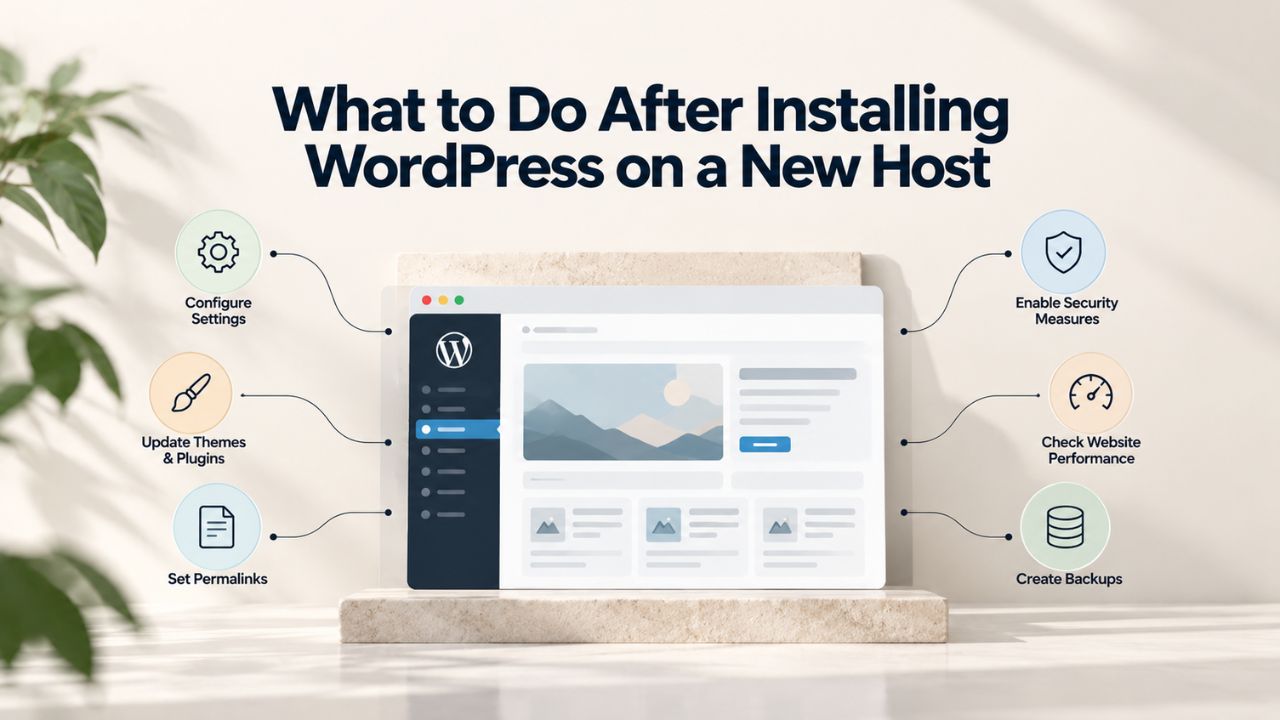
After installing WordPress on your new hosting account, your site exists, but it isn’t yet optimized, secure, or monitored. The default WordPress installation works for developers and provides a functional dashboard, but it exposes visitors and their data to unnecessary risk and leaves performance on the table. The work immediately after installation- configuring security layers, enabling HTTPS, setting up backups, and testing your setup- separates a site that merely works from one that works safely, reliably, and fast. Niya Digital delivers WordPress hosting in partnership with an enterprise-grade cloud infrastructure partner, and every recommendation here reflects industry best practices and our experience with thousands of WordPress deployments.
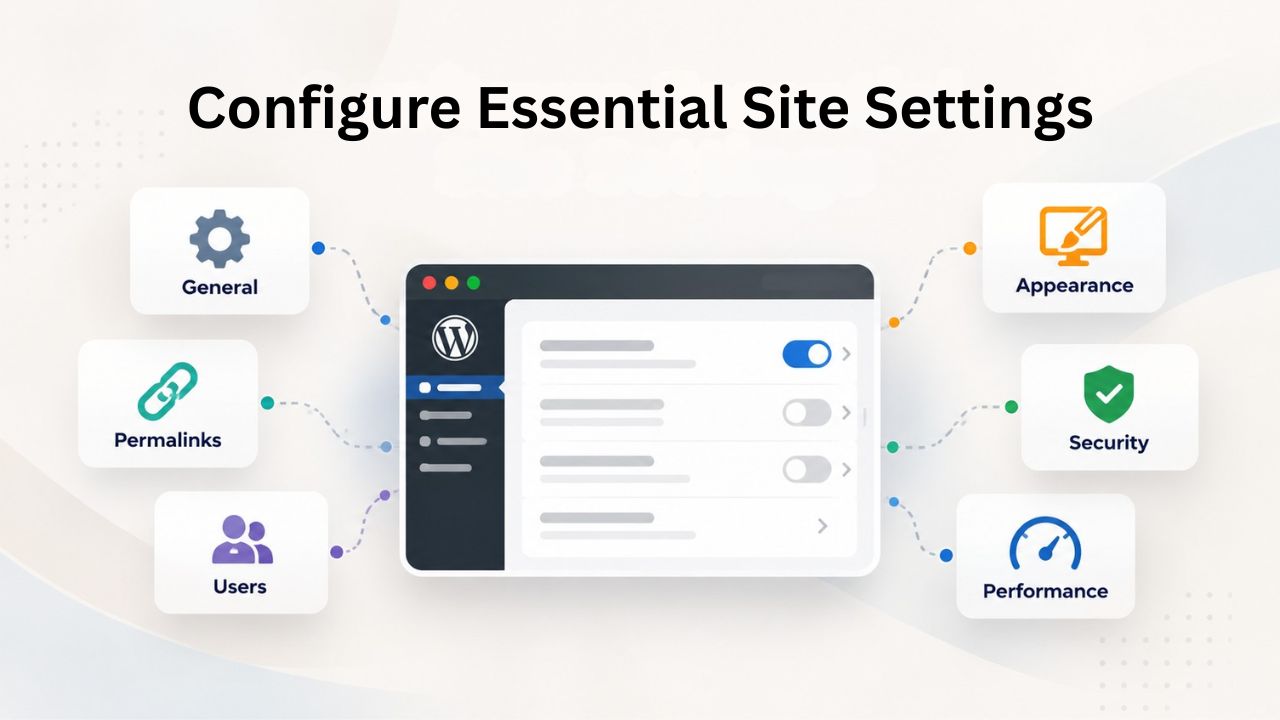
Configure Essential Site Settings
Your WordPress installation begins with generic placeholder settings designed for development, not production. Configuring these settings correctly ensures your site presents an accurate identity to visitors and search engines, establishes proper URL structure, and prevents costly SEO mistakes. These first configuration steps take minutes but establish the foundation for all future work on your site.
Post-Installation Setup Checklist & Timeline
| Setup Task | Why It Matters | Typical Timeframe |
|---|---|---|
| Configure Site Title, Tagline, Timezone | Affects SEO, user experience, and post scheduling accuracy | 5–10 minutes |
| Change WordPress Address & Site URL to HTTPS | Encrypts all data transmission; required by payment processors and search engines | 15–30 minutes |
| Enable HTTPS in wp-config.php (FORCE_SSL_ADMIN) | Guarantees admin sessions and logins are always encrypted | 5 minutes |
| Change Admin Username & Enable 2FA | Blocks automated attacks and requires secondary authentication | 15–30 minutes |
| Set Up Automated Backups | Enables rapid recovery from data loss, malware, or hosting failure | 15–30 minutes |
| Create Staging Environment | Allows safe testing of updates before production deployment | 20–45 minutes |
| Enable Site Health Monitoring | Catches configuration problems, security gaps, and compatibility issues | 10 minutes initial, 5 min weekly |
| Configure Uptime & Performance Monitoring | Detects outages and slowdowns before visitors report them | 10–20 minutes |
Update Site Title, Tagline, and Core URLs
Log in to your WordPress admin dashboard (typically at yoursite.com/wp-admin/) and navigate to Settings → General. This page contains your site’s most critical metadata. In the “Site Title” field, enter your business or blog name exactly as you want it to appear in browser tabs, search engine results, and your site header. The site title is one of the first things search engines read about your site, and visitors use it to verify they’re on the correct website. Add a brief, descriptive tagline that communicates your site’s purpose, for example, “Expert WordPress Hosting & Support” or “WordPress Tips for Beginners.” The tagline appears in many themes beneath the site title and helps users and search engines understand what your site offers.
Below these, you’ll find “WordPress Address (URL)” and “Site Address (URL).” In most cases, these are already correct from your host’s installation script, and changing them incorrectly can break your entire site and make it inaccessible. Only modify these fields if your hosting provider gave you explicit instructions to do so. If your domain uses HTTPS (which it should), verify both URLs begin with https:// rather than http://. After updating these critical fields, scroll to the bottom and click “Save Changes,” then log out and log back in to confirm the changes took effect and that you can still access the dashboard.
Set Language, Timezone, and Search Visibility
In the same Settings → General page, set your site language to match your audience and content. This controls the language of your WordPress dashboard interface and affects how dates and numbers are displayed. Set your timezone to your local time or your primary audience’s region. WordPress uses this setting to schedule posts correctly and display accurate times for comments and site activity. An incorrect timezone can cause published posts to appear at the wrong time or scheduled posts to publish several hours off from when you intended.
Scroll down and locate the “Search engine visibility” section. You’ll find a checkbox labeled “Discourage search engines from indexing this site.” Verify this checkbox is unchecked before your site goes live. If this box remains checked, WordPress signals search engines not to index your content, making your site essentially invisible in search results and defeating any SEO effort. This setting is useful during development but must be disabled once you’re ready for visitors. After confirming this setting, click “Save Changes” and log out and back in to confirm everything persisted correctly.
WordPress Pricing Plans
Choose the WordPress hosting plan that fits your website needs, with reliable performance, security, storage, backups, and tools to help your site grow.
WordPress Basic
A great way to get started.
- 1 website
- 10 GB NVMe storage
- Unmetered bandwidth
- Free SSL Certificate *
- WordPress pre-installed
- Weekly backups
- Web Application Firewall
- Daily malware scans
- One-time malware removal

WordPress Deluxe
Improve your site performance with Cloudflare CDN.
- 1 website
- 20 GB NVMe storage
- Unmetered bandwidth
- Free SSL Certificate *
- WordPress pre-installed
- Daily backups
- Web Application Firewall
- Daily malware scans
- One-time malware removal
- Up to 2x faster performance with global Cloudflare CDN **
- Enhanced security with DDoS protection
- Staging site
WordPress Ultimate
Add online marketing with more sites, storage and security.
- 1 website
- 30 GB NVMe storage
- Unmetered bandwidth
- Free SSL Certificate *
- WordPress pre-installed
- Daily + on-demand backups
- Web Application Firewall
- Daily malware scans
- Unlimited malware removal
- Up to 2x faster performance with global Cloudflare CDN **
- Enhanced security with DDoS protection
- Staging site
- WordPress code optimizer
- Smart WordPress plugin manager
- Sell online with WooCommerce
WordPress Security Hardening: Foundation First
Security isn’t a single action; it’s a layered approach built during initial setup and reinforced through ongoing maintenance. A systematic approach to WordPress hardening can eliminate about 90% of the attack surface by making your site a less attractive target than less-secured alternatives. The goal of hardening is not to achieve absolute invulnerability; no system is truly unhackable, but to implement practical protections that deter automated attackers and reduce your exposure to common WordPress vulnerabilities. Every hardening step you take immediately after installation compounds, creating defense-in-depth that protects your site, visitors, and data.
Security Hardening Implementation Roadmap
| Priority Level | Task | Rationale | Implementation Time |
|---|---|---|---|
| Critical (First 24 Hours) | Create strong, unique admin password; enable two-factor authentication | Blocks 90% of automated attacks; requires secondary verification | 15 minutes |
| Critical | Verify SSL certificate is installed; force HTTPS globally | Prevents credential interception; required for payment processors | 10–15 minutes |
| Critical | Disable XML-RPC if unused | Closes known attack vector exploited by compromised websites | 5 minutes |
| High (First Week) | Review and delete unnecessary plugins, themes, default posts | Reduces attack surface; removes unused code liability | 20–30 minutes |
| High | Enable WordPress core automatic minor updates | Closes security patches without manual intervention required | 2 minutes (verify enabled) |
| High | Set up off-site automated backups; test restore | Ensures recovery is possible when worst-case scenarios occur | 25–45 minutes |
| Medium (First 30 Days) | Review WordPress Site Health; address all critical flags | Catches configuration issues, REST API errors, outdated PHP versions | 15–30 minutes |
| Medium | Enable debug logging; schedule weekly log review | Catches early warning signs of attacks or errors before escalation | 10 min setup, 10 min weekly |
| Ongoing | Create staging environment; test all major updates before production | Prevents live-site breaks affecting real visitors | 30 min setup, 15–30 min per update |
Change Admin Username and Enable Two-Factor Authentication
Your WordPress installation creates a default admin account during setup with a username and password you provided. First, change the admin username from “admin” to something unique and hard to guess. Automated brute-force attacks try “admin” first because it’s the default, so using a different username closes one of the easiest entry points. Log in to Users → Your Profile, look for the “Username” field (or “Login name”), and change it to something unique like “alex_site_owner” or “content_manager_2025.” If the username field appears grayed out on your profile page, access it through the database using your hosting control panel’s phpMyAdmin tool, or contact your host’s support team to change it for you.
Next, enable two-factor authentication (2FA) immediately for your admin account. WordPress.org now requires 2FA for all accounts with publishing capabilities, recognizing that a password alone is insufficient protection. Install the “Two Factor” plugin from the WordPress Plugin Directory by navigating to Plugins → Add New, searching for “Two Factor,” and clicking “Install Now,” then “Activate.”
Configure it to use an authenticator app; Google Authenticator, Authy, and Microsoft Authenticator are industry-standard options available free on iOS and Android. Install one on your phone, scan the QR code the Two-Factor plugin provides, and keep your recovery codes in a secure place. Two-factor authentication ensures that even if someone obtains your password through a data breach, they cannot log in without also having your phone.
Use Strong Passwords and Disable Unnecessary Access
Create a strong, unique password for your admin account, at least 16 characters combining uppercase letters, lowercase letters, numbers, and symbols. Use a password manager like Bitwarden, 1Password, or KeePass to generate and securely store this password rather than writing it down or using a weak password you can remember easily. WordPress has a built-in password strength indicator when you set a new password; aim for “Very Strong.”
If you have additional users on your site (editors, contributors, or support staff), make sure they also use strong passwords and assign them only the minimum user role they need. A contributor should be able to write and edit their own posts but should never have access to plugin settings or user management. An editor might publish posts and moderate comments but should not install themes or plugins.
Disable XML-RPC if you don’t use it, as this feature is a known attack vector that hackers exploit to compromise sites. XML-RPC allows remote applications to interact with WordPress, but most site owners have no legitimate use for it.
Add this line to your wp-config.php file (the critical configuration file in your WordPress root directory, accessible via File Manager or FTP through your hosting control panel) above the line that says “That’s all, stop editing!”: define(‘XMLRPC_REQUEST_METHODS_ALLOWED’, false); Alternatively, install a security plugin to toggle this off with a checkbox. Additionally, restrict public access to sensitive WordPress files like wp-config.php and .htaccess by configuring your web server. Ask your hosting provider how to do this on your specific hosting setup, or use a security plugin that handles file permissions automatically.
Enable HTTPS/SSL Encryption
HTTPS encrypts the communication between your visitors’ browsers and your web server using SSL (Secure Sockets Layer) or TLS (Transport Layer Security) certificates. This encryption protects login credentials, payment information, personal data, and any other information transmitted through your site from being intercepted or read by unauthorized parties. HTTPS is strongly recommended by WordPress.org to maintain the security of WordPress logins and site visitors, and it actually makes your site faster due to efficiency improvements available only when using HTTPS. Modern browsers display a green padlock icon next to URLs using HTTPS, signaling to visitors that the connection is secure. Search engines also prioritize HTTPS sites in rankings, making encryption essential for both security and SEO.
Verify Your SSL Certificate and Update WordPress URLs
Your hosting provider should have installed a free SSL/TLS certificate for your domain during signup; most providers now include SSL certificates automatically at no additional cost. Verify that the certificate is active and working by opening your site in a web browser (type your domain into the address bar) and checking the left side of the address bar for a padlock icon. If you see a padlock icon with no warnings, the certificate is working correctly.
If you see a warning triangle or an “x” mark, the certificate may not be installed, may not cover your domain, or may have expired. Contact your hosting provider’s support team immediately if you see any warning sign. Once you confirm the padlock is present and secure, return to WordPress and update your site URLs to use HTTPS.
Navigate to Settings → General and change both the “WordPress Address (URL)” and “Site Address (URL)” fields to begin with https:// instead of http://. For example, change http://yoursite.com to https://yoursite.com. Click “Save Changes.” WordPress will log you out as a security measure; log back in using HTTPS (you can now type just your domain and WordPress redirects you to the admin area). If you encounter redirect loops (the page keeps reloading) or see an error after logging in, proceed to the next section, where we’ll configure additional settings to prevent these issues. If login works smoothly, visit a few pages of your site to confirm everything loads normally.
Force HTTPS in wp-config.php and Fix Mixed Content
To ensure your WordPress admin area, login page, and all user actions use HTTPS encryption, configure two settings in your wp-config.php file. This file is the master configuration for your entire WordPress installation and should be edited carefully. Access it through your hosting control panel’s File Manager or via FTP (ask your host for FTP credentials if you need them). Find the line that says “That’s all, stop editing!” and add these two lines immediately above it:
define(‘FORCE_SSL’, true);
Save the file. These settings force WordPress to load the admin area over HTTPS and redirect any plain HTTP requests to HTTPS. Log out and log back in to verify that login works. If you encounter a redirect loop after adding these lines, comment them out by adding // at the beginning of each line, save, and consult your hosting provider; your server configuration may need adjustment first.
After enforcing HTTPS, you may see warnings in your browser console (right-click on any page → Inspect → Console tab) about “mixed content”; this occurs when your site tries to load images, JavaScript, or stylesheets over plain HTTP while the page itself uses HTTPS. Update your theme and plugins to use HTTPS URLs. Most modern themes and plugins automatically respect your HTTPS setting, but if warnings persist, you may need to update or replace the problematic plugin. Test your site on multiple pages and in different browsers to confirm the padlock icon remains visible on every page and no warnings appear.
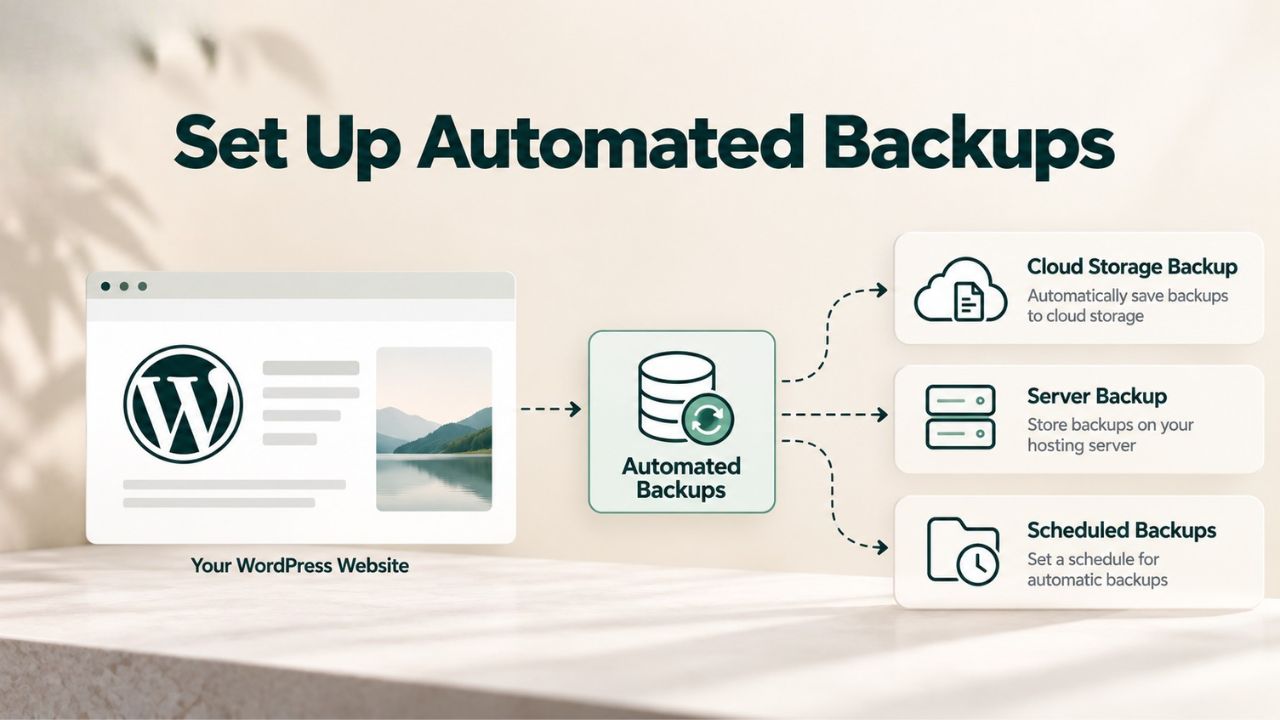
Set Up Automated Backups
A backup is a complete snapshot of your site that allows recovery if something goes wrong, malware infection, accidental deletion, server failure, or a broken plugin that you cannot easily fix. Complete WordPress backups must include WordPress core files (stored in directories like wp-admin, wp-includes, and wp-content), the database (which stores all posts, pages, users, comments, and site settings), and media uploads; good backups are automated, frequent enough for how often your site changes, stored in more than one location, and verified through a test restore.
The industry standard for backup resilience is the 3-2-1 rule: keep 3 copies of your data, store them on 2 different media types, and keep 1 copy off-site in a geographically distant location. This approach ensures that even if your hosting server is compromised or a data center fails catastrophically, you can restore your site.
Choose a Backup Solution and Configure Frequency
First, check whether your hosting provider includes automated backups in your plan. Many managed WordPress hosting providers automatically create daily or weekly backups and store them on their infrastructure. If yours does, document exactly how to restore from these backups (usually through a control panel or support request) and test the restore procedure in a staging environment before you ever need to rely on it. If your host doesn’t offer backups or only offers them infrequently, install a backup plugin like UpdraftPlus or BackWPup from the WordPress Plugin Directory. Both plugins are widely used (UpdraftPlus has over 4 million active installations) and integrate seamlessly with WordPress.
After installing a backup plugin, configure it to run automatically on a regular schedule. For active sites with frequent updates, configure daily backups; for less active sites, weekly backups are sufficient. The key is to match your backup frequency to how often your site content changes. Configure the plugin to back up both WordPress files and the database, as both are required for a complete restore. Set it to store backups in at least two separate locations; for example, keep one or two copies on your hosting account and send automatic copies to cloud storage. Most backup plugins integrate with cloud services and can upload backups automatically after they’re created, removing the need for manual oversight.
Document Restore Procedures and Perform a Test Restore
A backup is only valuable if you can actually restore it when needed. After your backup plugin uploads its first backup, download a copy to your personal computer as an additional safety measure. Read your backup plugin’s documentation and your hosting provider’s knowledge base to document exactly how to restore from a backup. Write down the steps in a text file or keep them in a password-protected note. Keep this documentation accessible but secure; store it somewhere you can find it quickly in an emergency. A backup you can’t restore within minutes when a crisis hits is worse than useless; it creates false confidence.
Before relying on backups during an actual emergency, test the restore process on a staging environment or local installation first. Create a staging site on a subdomain (your host can help) and practice restoring a backup there. This confirms the backup is actually recoverable, the restore process works as documented, and you understand all the steps. Perform a test restore at least twice per year, or anytime you make significant changes to your site structure. This practice run means that when a real emergency occurs, you can restore your site quickly and confidently.
Plan Your Updates and Maintenance Cadence
Keeping WordPress core, themes, and plugins updated is one of a site owner’s most important security and performance responsibilities. WordPress automatically deploys minor security and maintenance releases (such as updates from 6.5.1 to 6.5.2) by default since WordPress version 5.6, fixing security vulnerabilities, closing attack vectors, and ensuring compatibility with current PHP versions and third-party software. However, major WordPress updates and significant plugin updates often need manual testing before deployment to production to ensure they don’t introduce incompatibilities or break site functionality. A proactive update strategy balances security (staying current) with stability (thorough testing).
Enable Automatic Minor Updates and Schedule Manual Reviews
Leave automatic minor updates enabled; this is the default setting in WordPress 5.6 and later. To confirm they’re working, log in to your Dashboard and look for a notification banner that says “WordPress has successfully finished installing automatic security and maintenance releases.” If you don’t see this message or if your hosting environment has disabled automatic updates, contact your hosting provider to have them enabled. Minor updates are safe because they address only security patches and routine maintenance; they virtually never cause compatibility problems. Enabling them installs security updates automatically, keeping your site protected even if you forget about maintenance for a few weeks.
Create a monthly calendar reminder to review major updates. On the first Tuesday of each month, log in to Dashboard → Updates and check for WordPress major version updates (like 6.4 → 6.5) and significant plugin updates. Before installing major updates on your live site, test them on a staging environment so you can see if anything breaks. Document which plugins are critical to your site’s core functionality (e-commerce, payment processing, forms) and which are nice-to-have (analytics, social sharing). Critical plugins should be tested more thoroughly than optional ones. After successful staging tests, you can install updates on your live site with confidence.
Uninstall Unused Themes, Plugins, and Default Content
Before updating anything, audit your installed themes and plugins to remove unnecessary code. Go to Appearance → Themes, deactivate all themes except the one you’re using, then permanently delete them. Inactive themes are a security liability; vulnerabilities in unused code can be exploited even if the theme isn’t active, and they waste storage space on your hosting account. Navigate to Plugins and review each one. If you’re not actively using a plugin, deactivate it, then delete it. Test your site after each deletion to confirm nothing breaks; most of the time there’s no impact, but occasionally a plugin has dependencies you weren’t aware of.
Delete WordPress’s default placeholder content before launch. Navigate to Posts, find and delete the “Hello World” post, and permanently remove any sample pages. Navigate to Comments and delete any default or spam comments. Go to Plugins and deactivate and delete the “Hello Dolly” plugin, which serves no purpose on a production site. Run through your site one final time to confirm you don’t see placeholder text or demo content. This cleanup ensures visitors only see your actual content and establishes a clean, professional foundation for your live site.
Create a Staging Environment
A staging environment is a complete replica of your live site running on a separate URL where you can test updates, theme changes, plugin configurations, and design modifications without affecting real visitors. Staging sites enable risk-free testing of updates, help you identify and fix bugs before they reach visitors, and let you verify functionality across different browsers and devices before any changes go live. If an update or configuration change breaks something in staging, you discover it privately, diagnose the problem, and fix it before the issue ever touches your production site. A staging environment turns updates from risky to routine.
Clone Your Site to a Staging Subdomain
Ask your hosting provider to create a staging environment for your site. Many managed WordPress hosts offer this as a one-click feature in their control panel. If your provider offers it, use it immediately; staging sites run in the same hosting account on the same infrastructure as your production site, so performance and behavior match production closely and give you accurate test results.
Name the staging site something clear like staging.yoursite.com and password-protect it so search engines don’t crawl it (WordPress should include a setting that tells search engines not to index the staging site). Your hosting control panel should have clear documentation on how to enable staging; if not, email their support team asking for help setting up a staging environment.
If your hosting provider doesn’t offer built-in staging, you can create a staging site manually using a staging plugin like WP STAGING (free version available) or BlogVault. These plugins clone your entire site to a subdomain or separate WordPress installation, keeping everything in sync with your production site. The plugin handles the technical complexity of copying files and the database, so you don’t have to download and restore backups manually. Whether you use host-provided staging or a plugin, the outcome is the same: you need an exact copy of your live site running on a test URL.
Test Updates and Design Changes Before Going Live
Once you have staging in place, make it your standard workflow to test every significant change there first. When a new WordPress major version is available, install it on staging before production. Visit multiple pages of your staging site, fill out forms, upload test images, test any custom functionality, and review the WordPress changelog for compatibility notes with your plugins. Check your Site Health score on staging and address any new warnings. Only after confirming everything still works should you install the update on your live site. This adds 30–60 minutes to the update process but eliminates the risk of live-site breakage that could disrupt your business.
Similarly, if you’re changing themes, installing a new plugin, modifying custom code, or making design changes, do them on staging first. This workflow means you catch incompatibilities and test breakage in private, not on your live site where visitors might see errors. The time you invest in staging testing saves exponentially more time when you avoid a broken plugin or theme conflict that requires emergency troubleshooting during business hours. After a few cycles of this workflow, testing on staging becomes second nature and feels like the obvious safe way to manage your site.
Ready to Launch Your Site With Expert Support Behind You
Once your WordPress site is live and optimized, maintaining security, performance, and reliability requires ongoing attention. Niya Digital delivers managed WordPress hosting that handles routine maintenance, automated backups, security monitoring, and 24/7 expert support so that you can focus on content and business growth instead of technical overhead.
Optimize Performance for Core Web Vitals
Core Web Vitals are specific technical performance metrics- Largest Contentful Paint (LCP), First Input Delay (FID), and Cumulative Layout Shift (CLS)- that search engines use to measure user experience and directly impact your rankings. Performance affects both user satisfaction and SEO; slow sites frustrate visitors, increase bounce rates, and rank lower in search results. As of 2024, only about 41% of WordPress sites pass Core Web Vitals; the most effective approach combines page caching with asset optimization, JavaScript deferral, image optimization, and efficient delivery through content delivery networks. Optimizing Core Web Vitals is an investment that immediately improves user experience and SEO visibility.
Enable Caching and Measure Time to First Byte
Install a caching plugin from the WordPress Plugin Directory; popular options include WP Super Cache, W3 Total Cache, or LiteSpeed Cache (if your host supports LiteSpeed servers). Caching stores pre-rendered copies of your pages in server memory, so when the next visitor requests the same page, the server delivers the cached copy instantly instead of rebuilding the page from scratch. This dramatically reduces page load time and server resource usage. Activate your chosen caching plugin, review its basic settings (most work well with default configuration), and enable caching with one click. Most caching plugins automatically purge the cache when you publish new content, so cached pages stay up to date.
After activating caching, measure your site’s performance using Google PageSpeed Insights. Visit the tool, enter your site’s URL, and run a performance audit. PageSpeed Insights provides two reports, one for mobile and one for desktop, and scores your site from 0 to 100. More importantly, it shows you your Time to First Byte (TTFB), Largest Contentful Paint (LCP), Cumulative Layout Shift (CLS), and First Input Delay (FID).
TTFB measures how long the server takes to respond to a request, ideally under 600 milliseconds. If your TTFB is high even after enabling caching, your hosting infrastructure or server configuration may need optimization. Niya Digital’s managed hosting plans are specifically optimized for WordPress performance and configured with server-level caching, database optimization, and modern infrastructure partners that prioritize fast response times.
Optimize Images and Remove Plugin Bloat
Large, unoptimized images are the most common performance bottleneck on WordPress sites. Every unoptimized image wastes bandwidth and slows your site for visitors on mobile connections. Install an image optimization plugin from the WordPress Plugin Directory to automatically compress images as you upload them. These plugins reduce file size without visible quality loss through modern compression algorithms. WordPress also includes native lazy loading: images below the fold (content that requires scrolling to see) load only when a visitor scrolls near them, reducing initial page load time. Most modern themes enable lazy loading by default; check your theme documentation to confirm it’s active.
Review your installed plugins for performance impact. Each plugin adds code, database queries, and HTTP requests that can slow your site. Go through your Plugins page and honestly evaluate each one: is it actively used, or could it be removed? Check your installed plugin ratings in the WordPress Plugin Directory; uninstall plugins with poor ratings or long-standing bug reports. Use your caching plugin’s performance tools (many include features to defer non-critical JavaScript or minify CSS) to reduce file sizes. After making performance optimizations, re-run PageSpeed Insights and watch your scores improve. You should see measurable gains in TTFB, LCP, and Core Web Vitals metrics.
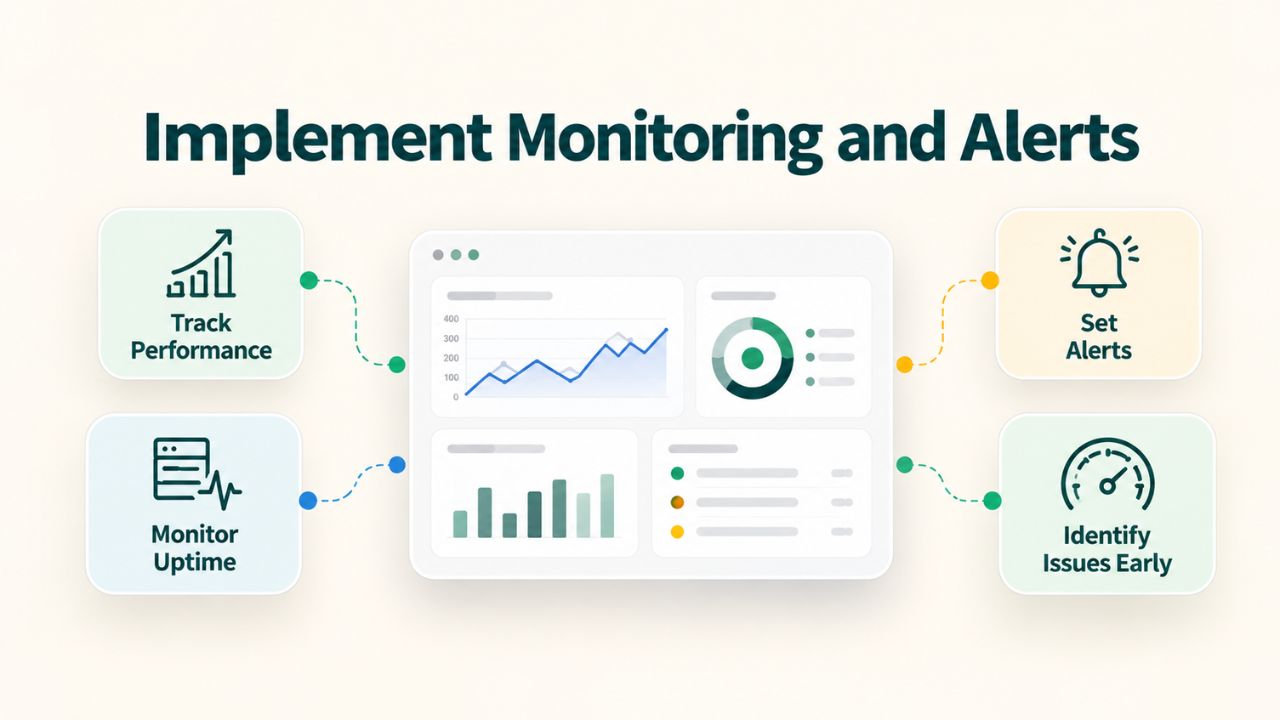
Implement Monitoring and Alerts
After your site goes live, you need real-time visibility into uptime and performance so problems are detected and diagnosed before visitors report them. External uptime monitoring services like UptimeRobot and Pingdom detect outages and slowdowns automatically; critical performance metrics include page load time, Time to First Byte (TTFB), server CPU/memory usage, and database query performance. Pairing multiple monitoring approaches with proactive alerts keeps you aware of your site’s health. Monitoring shifts you from reactive troubleshooting (waiting for complaints) to proactive prevention (catching issues before they impact users).
Use WordPress Site Health and External Uptime Monitors
WordPress includes a Site Health dashboard as a built-in diagnostic tool. Access it by navigating to Tools → Site Health in your admin dashboard. The Site Health report shows critical issues (red), recommended improvements (blue), and overall system status. Visit Site Health weekly and address every “Critical” issue immediately; these represent actual security or functionality problems. Common critical issues include missing HTTPS (a site security problem), failed scheduled events (which break automated tasks like publishing scheduled posts), REST API errors (which affect mobile apps and third-party integrations), and PHP version warnings (outdated PHP versions have security vulnerabilities). The Site Health page documents each issue and guides you toward a fix.
Set up external uptime monitoring using a free service like UptimeRobot, which checks whether your site is accessible every 5 minutes and alerts you via email if downtime is detected. Register for a free UptimeRobot account, add your site’s URL as a new monitor, and configure email alerts. Many managed WordPress hosting providers also include uptime monitoring in their control panel; check yours first to see if monitoring is already available. The small time investment to configure monitoring pays enormous dividends; an alert during downtime lets you fix the problem immediately instead of losing hours of traffic because you didn’t notice your site was down.
Monitor Security Alerts and Performance Trends
Enable WordPress debug logging to catch errors early before they affect visitors. Access your wp-config.php file (through File Manager or FTP) and add these three lines above the “That’s all, stop editing!” line:
define(‘WP_DEBUG_LOG’, true);
define(‘WP_DEBUG_DISPLAY’, false);
These settings enable error logging (WP_DEBUG_LOG) while preventing errors from displaying on your frontend (WP_DEBUG_DISPLAY false prevents visitors from seeing technical error messages). WordPress automatically creates a debug.log file in your wp-content directory where errors are recorded. Review this log weekly; errors indicate plugin conflicts, deprecated code, or hosting misconfigurations that should be fixed before they become serious problems. A sudden spike in warnings often precedes a plugin breaking your site, so regular log review lets you catch issues early.
Create a simple spreadsheet to track your site’s performance weekly: record page load time from PageSpeed Insights, your server’s TTFB, CPU/memory usage from your hosting control panel, and database query count. Trends matter more than individual data points; if your site is gradually slowing, you can identify the cause (new plugin, growing content, increased traffic) and fix it before performance becomes severe. Niya Digital’s experience shows that site owners who monitor performance trends weekly catch issues 80% earlier than those who wait for visitor complaints or search-engine notices. Set a recurring calendar reminder for the same day each week to maintain consistency.
Remove Unnecessary Default Content
Your WordPress installation includes placeholder content and optional features that serve no purpose on a production site. Removing this default content before launch eliminates confusion for visitors, reduces server clutter, and establishes a clean, professional foundation. These are quick tasks that should take less than 10 minutes total but significantly improve the impression visitors have of your site.
Delete Sample Posts, Pages, and Comments
Navigate to Posts in your WordPress admin sidebar and look for the “Hello World” post that comes with every WordPress installation. Click it to open the post editor, then look for the “Delete Permanently” link (or “Trash” if you want to keep it temporarily). Delete it permanently. Repeat for any sample pages by navigating to Pages and deleting any placeholder pages like “Sample Page.” Placeholder content looks unprofessional and makes visitors question whether your site is live and maintained. Navigate to Comments and review any default or spam comments left by the WordPress installer or spam bots, and delete these as well. This cleanup takes only a few minutes and significantly improves your site’s first impression.
Remove Inactive Themes and Plugins
Keep only the theme you’re actively using on your production site. Inactive themes pose a real security risk: vulnerabilities in unused code can be exploited even if the theme isn’t active, and attackers regularly probe outdated themes as entry points. Go to Appearance → Themes, deactivate all themes except your active theme, and delete each inactive theme by clicking “Delete.” Repeat for plugins: go to Plugins and review each installed plugin.
If you’re not actively using a plugin, deactivate it, then click “Delete.” The default “Hello Dolly” plugin that comes with WordPress provides only a random quote in the admin bar and serves no purpose. Deactivate and delete it immediately. After each deletion, test your site’s homepage and a few inner pages to confirm nothing breaks. In most cases, nothing is affected because you’re removing unused code.
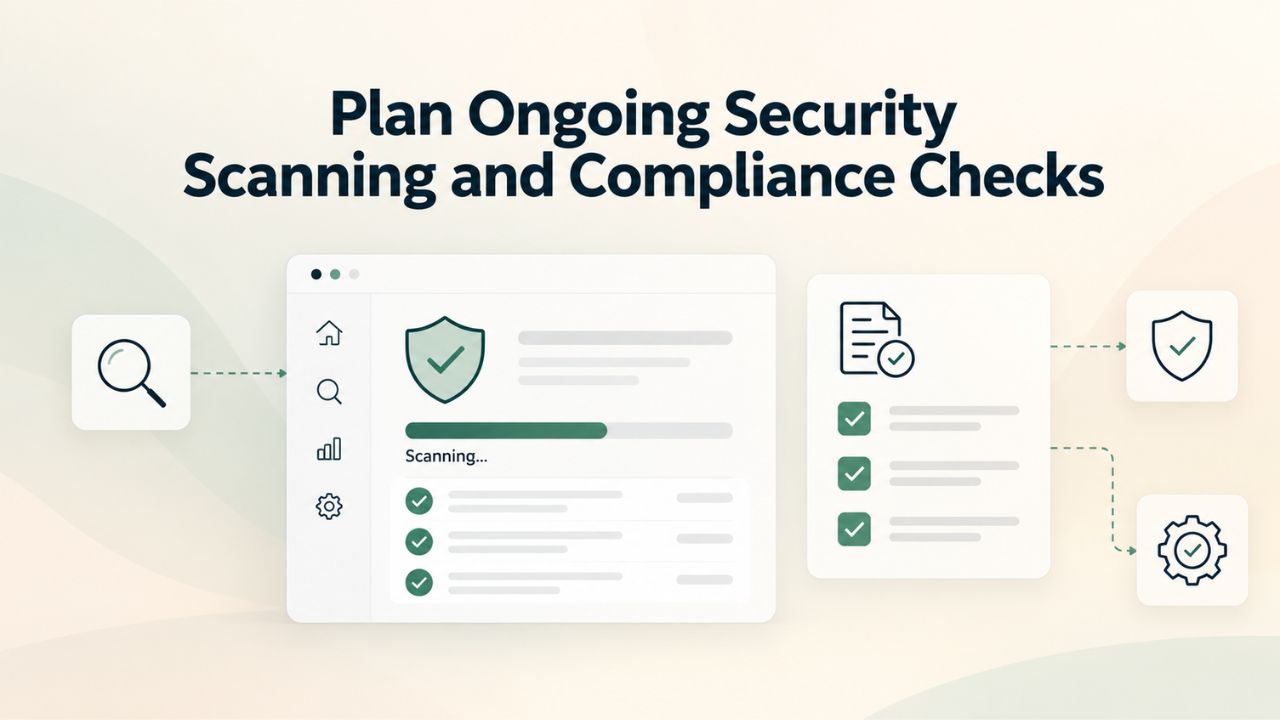
Plan Ongoing Security Scanning and Compliance Checks
Security isn’t a project to complete; it’s an ongoing process built into your routine site maintenance. A systematic approach to WordPress hardening can eliminate about 90% of the attack surface. Still, ongoing vigilance and regular audits maintain that protection level over time. Regular audits catch new vulnerabilities, verify backups are working correctly, and ensure your site remains compliant with security best practices. Documenting these audits shows clients or regulators that you take security seriously and provides a historical record of your site’s health.
Schedule Monthly Security Scans and Log Reviews
Enable a WordPress security monitoring solution from the WordPress Plugin Directory to run regular automated malware scans. Most free versions scan weekly; paid versions scan daily. Configure the tool to email you scan results so you’re notified immediately of any issues. If malware is detected, isolate the affected files or plugin, follow the scanning tool’s remediation steps, or contact your hosting provider’s security team for assistance. Most managed WordPress hosts include malware removal services and can clean infected sites quickly. Review your debug.log file every week (created in section 8.2) to spot any PHP warnings, errors, or suspicious activity. Review your hosting provider’s firewall or security logs monthly to see if attacks have been detected and blocked.
Document these reviews in a spreadsheet or notebook. Record the date, what you checked, any issues found, and how you resolved them. This documentation demonstrates commitment to security and provides a helpful history if you need to investigate unusual site behavior. Set calendar reminders for these routine tasks, monthly for logs and scans, quarterly for firewall reviews. These small recurring tasks prevent major security incidents and give you early warning if something is wrong.
Audit Your Database and Backup Recovery Annually
Perform a comprehensive audit of your WordPress installation once per year. Check that you’re running the latest WordPress version by navigating to Dashboard → Updates. List all installed plugins and themes by visiting Plugins and Appearance → Themes, then verify each one has been updated recently (no plugins should show as untested with your current WordPress version). Confirm HTTPS is still active by returning to Settings → General and verifying both URLs begin with https://. Most importantly, test restoring a backup to your staging environment annually to confirm your backup and restore process still works. If you’ve never restored from a backup, you don’t really know it’s usable, and discovering corrupt backups during an emergency is catastrophic.
Review your database size using your hosting control panel’s phpMyAdmin tool or through your host’s administration interface. Compare the current size to previous months; if it’s growing unusually fast, you may have accumulated spam comments, excessive post revisions, or orphaned database tables. Install a database optimization plugin like WP-Sweep to clean out these accumulations and keep your database lean. A bloated database slows queries and increases backup size. Document the results of your annual audit in a simple report or email to yourself. This annual routine ensures you catch problems while they’re still manageable rather than discovering years of neglect during a crisis.
Take Your WordPress Site to the Next Level With Expert Hosting and Support
You’ve now hardened your WordPress site, optimized its performance, and established monitoring for ongoing health. The remaining work is keeping those systems functioning through regular maintenance and monitoring. Niya Digital’s managed WordPress hosting platform handles backups, security hardening, performance optimization, and 24/7 expert support, transforming WordPress maintenance from a technical burden into a hands-off service so you can focus on creating great content and growing your business.
Frequently Asked Questions
What is the most critical security task immediately after installing WordPress?
Enable HTTPS/SSL encryption first, before any other configuration. HTTPS protects login credentials and visitor data from interception, is required by payment processors for e-commerce, and search engines rank HTTPS sites higher than unencrypted sites. Verify your SSL certificate is installed by looking for a padlock icon in your browser’s address bar, then update your WordPress URLs in Settings → General to begin with https://. WordPress.org strongly recommends HTTPS for both security and performance. Your hosting provider should have installed a free SSL certificate during setup; if not, contact support immediately.
How frequently should I back up my WordPress site?
Backup frequency depends directly on how often your site content changes. High-traffic e-commerce or news sites that update multiple times daily should back up daily. Blogs or business sites with weekly updates can back up weekly. Personal blogs or brochure sites with monthly updates can back up monthly. The 3-2-1 backup rule- maintain 3 copies of data, 2 different storage media, 1 off-site backup- is the industry gold standard for protection. Use automated backup plugins or your hosting provider’s automated backups to ensure backups never get missed due to human forgetfulness. Test restoring a backup annually to confirm it actually works.
Should I install WordPress updates immediately when they’re released?
Install minor updates (like 6.5.1 to 6.5.2) immediately or let them auto-install; these are security fixes and maintenance patches that virtually never cause problems. Test major version updates (like 6.4 to 6.5) on a staging environment before deploying to production. Test plugin and theme updates individually on staging before production deployment. Automated minor updates should be enabled by default; major updates benefit from staging and manual testing to catch incompatibilities before your live site is affected. A few extra days of waiting for manual testing is far better than rolling back a broken major update.
What should I do if I don’t have access to a staging environment?
Ask your hosting provider to create one; most managed WordPress hosts offer staging as a standard feature. If yours doesn’t, create a local WordPress installation on your computer using a local development environment, then test updates locally before installing them on your live site. You can also hire a WordPress developer to set up and manage staging for you. Never test major updates directly on your production site; this is the quickest way to accidentally break your site during business hours and disrupt your visitors.
How can I tell if my WordPress site has been hacked or compromised?
Signs of compromise include unexpected slowness, new admin users appearing that you didn’t create, redirects to unfamiliar sites, content changes you didn’t make, file uploads in unusual folders, or alerts from your hosting provider or security plugin. Enable WordPress debug logging (add the three define lines to wp-config.php) and review logs for suspicious activity or repeated login attempts. If you suspect compromise, contact your hosting provider’s security team immediately; most provide malware removal services. A systematic hardening approach eliminates 90% of the attack surface, so compromises are rare when security fundamentals are implemented.
Can I change the WordPress admin username after my site is already live?
Yes, you can change it at any time. Navigate to Users → Your Profile and update the username field. If the username field appears grayed out, access the WordPress database using phpMyAdmin through your hosting control panel, find the wp_users table, and manually edit the username column. Alternatively, ask your hosting provider’s support team to change it for you. The default “admin” username is targeted by automated attacks first, so changing it closes an easy entry point, but don’t rely on changing the username alone; combine it with a strong password and two-factor authentication.
What should I do if I accidentally break my site with a bad plugin or update?
If a plugin you just installed caused the problem, access your hosting control panel’s File Manager or FTP client, navigate to the /wp-content/plugins/ directory, and rename the problematic plugin’s folder (add -old to the end of the folder name). This disables the plugin without deleting it. Log in to WordPress and verify your site works again.
Then either update the plugin to the latest version or replace it with an alternative plugin. Re-enable it by renaming the folder back to its original name once you’ve fixed the underlying issue. If you cannot identify which plugin caused the problem, disable all plugins by renaming the entire /wp-content/plugins/ directory to /wp-content/plugins-old/, then log in and re-enable plugins one by one to identify the culprit.
How should I monitor my site’s uptime and performance?
Use a free uptime monitor like UptimeRobot (checks your site every 5 minutes) or a paid service like Pingdom for detailed performance metrics and alerts. Use Google PageSpeed Insights weekly to measure Core Web Vitals and identify performance improvement opportunities. Review your WordPress Site Health dashboard weekly at Tools → Site Health for critical configuration issues. Combine multiple monitoring approaches: uptime monitoring catches outages, performance monitoring catches slowdowns, and Site Health catches security or compatibility issues. Set weekly calendar reminders to check these tools consistently.
What is a staging environment, and why do I need one?
A staging environment is a replica of your live WordPress site running on a test URL where you can safely test updates, plugins, design changes, and code modifications without affecting real visitors. Staging enables risk-free testing, lets you catch bugs before production, and lets you verify functionality across browsers and devices. If an update breaks something in staging, you discover and fix it privately; live visitors never see errors. Testing on staging adds time to the update process but saves exponentially more time by preventing live-site breakage.
How frequently should I perform security reviews and maintenance?
Review WordPress Site Health and security alerts weekly (takes about 5 minutes). Review server logs and database size monthly. Run full security audits, including backup testing, quarterly. Test backup restoration annually. Set calendar reminders for these recurring tasks. The time investment is minimal, perhaps 30 minutes monthly, but the protection is significant. Regular reviews catch small problems before they become big ones.
Should I install a security plugin on my WordPress site?
Yes. Security plugins like those from the WordPress Plugin Directory scan for malware, monitor login attempts, block brute-force attacks, and alert you to suspicious activity. They automate many security tasks but work alongside good hosting infrastructure and hardening practices (strong passwords, updates, backups, HTTPS). Security plugins are one layer of defense; they’re not a complete security solution on their own. They’re especially valuable for sites that are valuable targets (e-commerce, membership sites, sites with user data).
What user roles and permissions should I assign to other WordPress users?
Follow the principle of least privilege: give users only the specific permissions they need to do their job. Contributors can write posts but cannot publish them. Editors can publish posts and manage comments but cannot access plugin or theme settings. Authors can only manage their own posts. Administrators should only be assigned to people who need complete site control. Navigate to Users → Add New to create accounts, and select the appropriate role. Review user roles quarterly, and remove accounts immediately for people who no longer need access. Never give non-admin staff admin access unless absolutely required.
How do I fix mixed-content warnings on my HTTPS site?
Mixed-content warnings appear when your site loads some resources (images, scripts, stylesheets) over plain HTTP while the rest uses HTTPS. Add define(‘FORCE_SSL’, true); to wp-config.php, then review your active theme and plugins for hard-coded HTTP URLs. Most modern themes and plugins automatically respect your HTTPS setting, but if warnings persist, check your plugin settings or search plugin documentation for “HTTPS” configuration options. If a specific plugin keeps using HTTP, it may be outdated; update it, and if that doesn’t help, consider replacing it with an alternative.
What is the difference between shared hosting and managed WordPress hosting?
Shared hosting allocates server resources among many different websites, so performance suffers if other sites on the server experience traffic spikes or problems. Managed WordPress hosting reserves dedicated resources specifically for WordPress, handles routine updates and backups automatically, includes performance optimization, and provides expert WordPress support. Managed hosting costs more but offers significantly better performance, security, reliability, and peace of mind. Managed hosting is ideal if you want your site to work reliably without needing technical expertise.
How can I improve my Core Web Vitals score and rankings?
Install a caching plugin from the WordPress Plugin Directory, optimize images with built-in or plugin-based tools, remove unused plugins and bloated code, and measure with Google PageSpeed Insights. Address critical issues first in PageSpeed Insights reports. Only about 41% of WordPress sites pass Core Web Vitals; caching and optimization are the key improvements. Most sites see measurable score improvements within days of implementing caching and image optimization.
Glossary
- Core Web Vitals: Technical performance metrics that Google uses to measure user experience and affect search rankings. Largest Contentful Paint (LCP) measures load speed, First Input Delay (FID) measures interactivity, and Cumulative Layout Shift (CLS) measures visual stability. Improving Core Web Vitals improves both user experience and SEO visibility.
- HTTPS/SSL Certificate: A secure protocol that encrypts data transmitted between a visitor’s browser and your web server, protecting login credentials, payment information, and personal data from interception. SSL/TLS certificates are typically free from hosting providers and essential for security and trust.
- Staging Environment: A separate, complete replica of your live WordPress site running on a test URL where updates, plugins, and changes are tested before deploying to production. Staging prevents live-site breakage by catching problems in private first.
- Caching: A technique that stores copies of your site’s pages in server memory, so they can be served instantly to subsequent visitors instead of rebuilding pages on demand. Caching dramatically improves load speed and reduces server resource usage.
- Database Backup: A snapshot of all WordPress data, including posts, pages, users, comments, and settings, stored in your MySQL database. Complete backups include both database exports and file backups for full site recovery capability.
- Uptime Monitoring: Automated tools that check whether your website is accessible at regular intervals and alert you immediately if your site goes offline, so you can fix problems quickly and minimize disruption.
- Site Health Dashboard: A built-in WordPress diagnostic tool (Tools → Site Health) that reports critical security issues, recommended improvements, and system compatibility problems, guiding you toward fixes.