Your WordPress site’s destiny is shaped by hosting decisions made before you write your first post. Server architecture, resource allocation, caching strategy, backup discipline, and security posture determine how quickly pages load for visitors, how your site handles traffic surges, and whether you can recover from catastrophic failure. Niya Digital delivers WordPress hosting in partnership with an enterprise-grade cloud infrastructure provider, ensuring your site runs on infrastructure optimized for WordPress from the ground up.
Minimum Technical Requirements: Understanding WordPress.org Baseline Standards
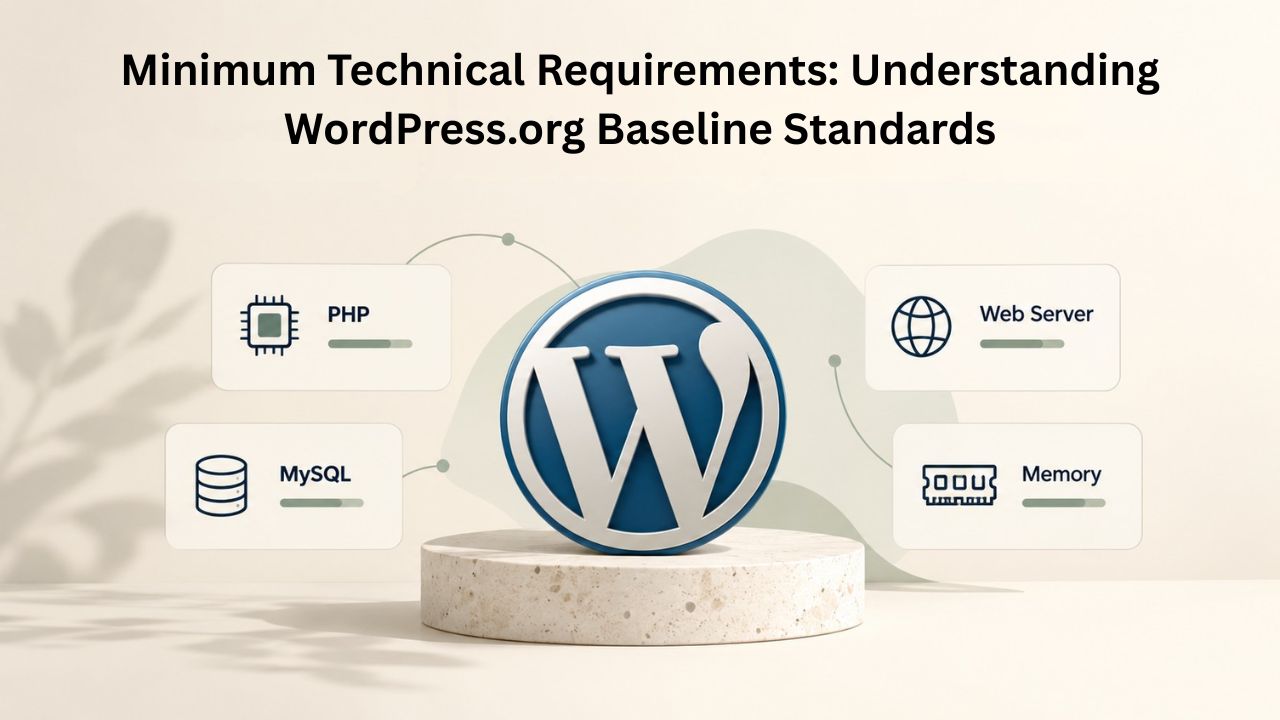
Every WordPress installation depends on a foundational technology stack. WordPress.org publishes specific requirements, and while WordPress can technically run on older technology, choosing legacy systems introduces security vulnerabilities and performance penalties that no plugin or optimization can fix. Understanding these baselines prevents you from selecting inadequate hosting that will eventually become a bottleneck.
PHP Version and Database Compatibility
WordPress officially recommends PHP 8.3 or greater as the baseline for security and performance. The database layer should be MariaDB 10.6+ or MySQL 8.0+. The web server platform can be Apache with mod_rewrite or Nginx, though technically any server supporting PHP and MySQL will execute WordPress code. However, these are minimum thresholds, not optimal configurations.
The performance implications are substantial. Each visitor request requires the server to process PHP code, query the database, and render HTML. Older PHP versions, particularly versions below PHP 8.0, execute code significantly more slowly than modern versions. A request that takes 150 milliseconds on PHP 8.3 might take 400+ milliseconds on PHP 7.4, directly affecting page load times and the visitor experience. This difference compounds across thousands of daily requests, degrading your Core Web Vitals metrics that Google uses for search ranking.
The security exposure is even more critical: PHP versions older than 8.0 have reached official End of Life, meaning they no longer receive security patches. If your hosting provider hasn’t upgraded to PHP 8.1 or later, newly discovered vulnerabilities in the PHP engine itself remain unpatched in your hosting environment. No security plugin running inside WordPress can patch the underlying PHP interpreter that executes all your code. This is an infrastructure-layer problem that requires action from your hosting vendor.
HTTPS and SSL/TLS Encryption Requirements
WordPress.org marks HTTPS as “required for every install,” elevating it from optional to mandatory. This means your hosting infrastructure must support SSL/TLS encryption, and your site must be accessible only over encrypted HTTPS connections. Without encryption, your WordPress login page transmits admin credentials in cleartext, making credential theft trivial for anyone monitoring network traffic. Visitor browsers flag non-HTTPS sites as “unsafe,” suppressing traffic from security-conscious users.
The good news: virtually every WordPress hosting provider now offers free SSL certificates through Let’s Encrypt, removing cost as a barrier. The configuration step is what matters. Your hosting control panel should include one-click SSL installation, and your WordPress settings must force all traffic through HTTPS. Verify that mixed-content errors don’t occur (when some page resources load over HTTPS while others use HTTP), as this undermines encryption and triggers browser security warnings.
WordPress Pricing Plans
Choose the WordPress hosting plan that fits your website needs, with reliable performance, security, storage, backups, and tools to help your site grow.
WordPress Basic
A great way to get started.
- 1 website
- 10 GB NVMe storage
- Unmetered bandwidth
- Free SSL Certificate *
- WordPress pre-installed
- Weekly backups
- Web Application Firewall
- Daily malware scans
- One-time malware removal

WordPress Deluxe
Improve your site performance with Cloudflare CDN.
- 1 website
- 20 GB NVMe storage
- Unmetered bandwidth
- Free SSL Certificate *
- WordPress pre-installed
- Daily backups
- Web Application Firewall
- Daily malware scans
- One-time malware removal
- Up to 2x faster performance with global Cloudflare CDN **
- Enhanced security with DDoS protection
- Staging site
WordPress Ultimate
Add online marketing with more sites, storage and security.
- 1 website
- 30 GB NVMe storage
- Unmetered bandwidth
- Free SSL Certificate *
- WordPress pre-installed
- Daily + on-demand backups
- Web Application Firewall
- Daily malware scans
- Unlimited malware removal
- Up to 2x faster performance with global Cloudflare CDN **
- Enhanced security with DDoS protection
- Staging site
- WordPress code optimizer
- Smart WordPress plugin manager
- Sell online with WooCommerce
Performance Benchmarks: Connecting Core Web Vitals to Hosting Decisions
Performance measurement has evolved from vague terms like “fast” to precise metrics that quantify user experience. Google’s Core Web Vitals represent three specific dimensions of how your site feels to visitors, and the hosting layer directly controls the server-side components that feed these metrics.
Core Web Vitals: The Three Performance Dimensions Google Measures
Google’s Core Web Vitals measure three distinct aspects of real-world user experience: Largest Contentful Paint (LCP) measures loading performance and marks the moment the page’s main content becomes visible to the visitor; Interaction to Next Paint (INP) measures responsiveness and quantifies the delay between a user’s action (click, keystroke) and the site’s response; and Cumulative Layout Shift (CLS) measures visual stability by quantifying how much page content unexpectedly shifts position during page load. These metrics aren’t theoretical; they’re derived from research into how users perceive performance and when they abandon sites.
A page “passes” Google’s assessment if 75% of page loads meet the “good” threshold for all three metrics. The good targets are: LCP ≤2.5 seconds (perceived load speed), INP ≤200 milliseconds (perceived responsiveness), and CLS ≤0.1 (visual stability on a scale from 0 to infinity). These thresholds aren’t arbitrary; they’re calibrated based on research into how humans perceive performance. LCP at 2.5 seconds feels snappy and responsive; at 4+ seconds, visitors perceive the site as sluggish and begin abandoning it. Your hosting environment directly controls two critical factors: server response time (which feeds into LCP) and whether your infrastructure has the horsepower to avoid visual layout thrashing (which contributes to CLS).
Time to First Byte: The Hosting Performance Foundation
Time to First Byte (TTFB) is the interval between when a visitor’s browser sends a request and when your server responds with the first byte of data. It’s the foundation of all page performance metrics; if TTFB is 3 seconds, your LCP can’t be 2.5 seconds because the server hasn’t even begun generating the page response. Google recommends TTFB under 800 milliseconds. High-performing WordPress sites typically achieve 100–300 milliseconds on properly optimized managed hosting.
TTFB is purely a hosting metric. It cannot be improved by WordPress plugins, theme optimization, or code changes; it reflects the raw processing speed of your server infrastructure. On shared hosting, where dozens of sites compete for the same server resources, TTFB often ranges from 800 milliseconds to 2+ seconds because the server juggles requests from multiple customers. When a neighbor’s site experiences traffic, your TTFB increases because shared CPU and memory pools are consumed. With managed WordPress hosting, proper infrastructure isolation, and server-level caching, TTFB typically runs 150–300 milliseconds, enabling the browser to fetch and render the page in seconds rather than minutes.
Security Architecture: Building Defense Beyond Plugins
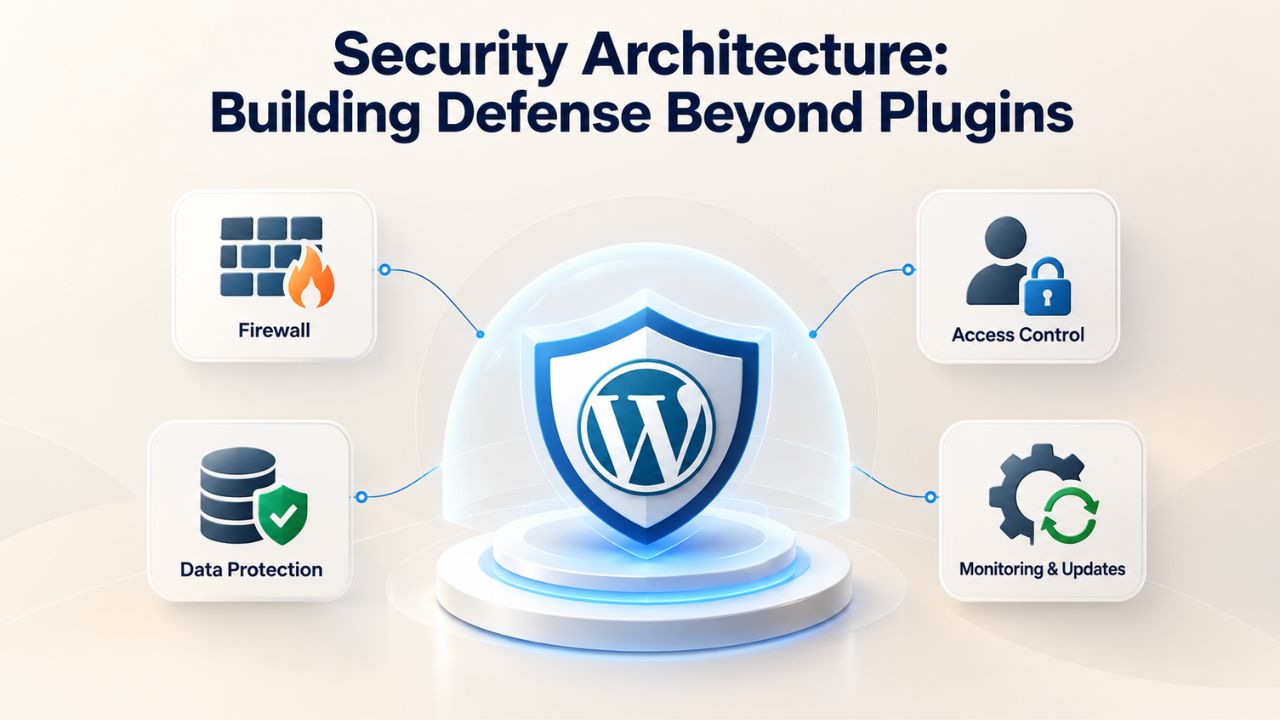
WordPress security depends on layered defenses operating at multiple levels. While security plugins are valuable, they operate within the constraints of your hosting environment and cannot remediate hosting-level vulnerabilities. Understanding what your host must handle versus what plugins can provide prevents expensive gaps in your protection strategy.
Brute Force Attack Prevention at the Infrastructure Level
The most common WordPress attack vector is brute-force login attempts, where automated bots script thousands of username and password combinations against your admin login page, trying to guess valid credentials. Traditional defenses include enforcing strong, unique admin passwords; implementing rate-limiting to lock out accounts after repeated failed attempts; and using HTTPS to encrypt credentials in transit so they cannot be captured by network-level eavesdropping.
The sophistication of these defenses varies dramatically between hosting tiers. Managed WordPress hosting typically implements brute force protection at the firewall level, blocking suspicious traffic patterns before requests even reach your WordPress installation. This means attack traffic is stopped at the infrastructure boundary, consuming zero resources from your WordPress database or PHP engine. Shared hosting lacks this luxury; you rely entirely on security plugins like Wordfence or iThemes Security running inside WordPress to limit login attempts. These plugins work well, but they still consume server resources with each blocked request, and sophisticated attackers can generate enough traffic to degrade performance for legitimate users.
SSL/TLS Encryption and Data Protection in Transit
Encryption isn’t optional for any website. WordPress.org requires HTTPS/SSL for every installation, encrypting the connection between your visitor’s browser and your web server so login credentials, form data, and sensitive information cannot be intercepted by anyone monitoring network traffic. Your hosting provider must support SSL certificates, and modern hosting includes free Let’s Encrypt certificates.
Ensure your host provides automatic SSL certificate renewal (certificates expire annually and must be refreshed), allows you to force all traffic to HTTPS through WordPress settings, and provides clear documentation for configuring HTTPS correctly. Misconfigured HTTPS, where some resources load over HTTPS and others over HTTP (mixed content), triggers browser security warnings and undermines the entire encryption layer. Verify that your WordPress Address and Site Address are set to HTTPS in WordPress settings, and that your hosting automatically redirects HTTP traffic to HTTPS.
Backup Strategy and Disaster Recovery Planning
Data loss is inevitable at some point in your WordPress journey. The only variable is whether you can recover. Plan your backup strategy before disaster strikes; waiting until after a loss makes recovery exponentially harder. Understanding backup frequency, scope, storage location, and verification discipline is essential to every hosting decision.
Backup Frequency Based on Site Activity and Risk Tolerance
Backup frequency should match your site’s rate of change and the business cost of data loss. A static portfolio or brochure site updated once or twice monthly can safely operate with weekly backups. An active blog posting 2–3 times per week should be backed up daily to ensure no more than 24 hours of content loss in a disaster scenario. An e-commerce store with customer orders processed throughout the day requires daily backups at minimum, and high-volume stores processing hundreds of transactions daily benefit from hourly or real-time backup systems.
The underlying principle is deceptively simple: if your site goes down today, how much work are you willing to lose? If you’ve written and published three blog posts since your last backup, and you lose the site, those three posts vanish permanently unless a backup exists. If you cannot afford to lose 24 hours of work, you need daily backups. If losing a week’s worth of content is acceptable, weekly backups may suffice. For business-critical sites and e-commerce operations, the math is more urgent: every hour of lost data represents lost orders, revenue, or customer relationships that cannot be recovered.
What Must Be Included in a Complete Backup
A complete WordPress backup requires two distinct components that must be captured together: the database (storing all content, posts, pages, comments, user accounts, options, settings, WooCommerce orders, plugin data) and the file system (WordPress core files, themes, plugins, media uploads, .htaccess configuration). Backing up only the database leaves you unable to restore plugins and themes; backups without the database mean all your content and settings are lost.
Best practice is to store backups off-site, not on the same server that hosts your live WordPress installation. If your server experiences catastrophic failure, hardware corruption, or a malicious attack that destroys the entire filesystem, an on-server backup is useless because the server no longer exists to retrieve it. Most managed WordPress hosting providers handle off-site backup storage automatically, maintaining snapshots on separate infrastructure outside your primary server. On shared hosting, you’ll typically configure this yourself using backup plugins (UpdraftPlus, BackupBuddy, BlogVault) and connect them to cloud storage services like Amazon S3, Google Drive, or Dropbox.
Backup Restoration Testing: Verifying Your Recovery Capability
Here’s an uncomfortable truth that most site owners learn only after disaster: a backup you’ve never tested is essentially a guess. You don’t know whether your backup works until you restore it to a test environment and verify functionality. Database corruption, incomplete file transfers, and plugin conflicts that prevent restoration are discovered only when you attempt to restore. Best practice is to schedule monthly restore tests by restoring your backup to a staging environment (a separate WordPress installation on a test domain or subdomain), confirming that all posts display correctly, testing form submissions to verify database connectivity, and confirming that all plugins and media function properly.
If your backup looks perfect but fails during restoration, you’ve found the issue in a low-stress testing environment rather than during an actual crisis when your live site is down and business is suffering. This monthly discipline transforms backups from theoretical protection into a verified recovery capability you can execute with confidence when needed.
Hosting Architecture: Understanding Shared, Managed, and VPS Tiers
WordPress hosting options exist along a spectrum from fully managed (where the provider handles everything) to completely unmanaged (where you manage everything). Each tier offers different balances of cost, control, performance, and responsibility. Selecting the wrong tier wastes money; selecting the right tier unlocks capabilities your current setup cannot deliver.
| Site Type | Typical Monthly Traffic | Security Requirements | Backup Frequency | Recommended Hosting Tier | Primary Consideration |
|---|---|---|---|---|---|
| Personal Blog (Low Traffic) | < 5,000 | Standard (HTTPS, plugin updates) | Weekly | Shared WordPress | Affordability and simplicity |
| Small Business Blog | 5,000 – 50,000 | Standard + SSL management | Weekly | Shared WordPress | Ease of management, WordPress-optimized support |
| Active Blog or Membership Site | 50,000 – 200,000 | Enhanced (2FA, monitoring) | Daily | Managed WordPress Hosting | Performance consistency, user experience |
| Small eCommerce Store | 200,000 – 1,000,000 | Strong (payment security, isolation) | Daily | Managed WordPress / VPS | Security isolation, caching for product pages |
| High-Volume eCommerce (Busy Store) | > 1,000,000 | Enterprise-grade (redundancy, DDoS mitigation) | Real-time / Hourly | VPS / Dedicated | Scalability, performance under peak load |
| Portfolio or Showcase Site | < 10,000 | Standard (HTTPS, basic updates) | Monthly | Shared WordPress | Speed, design flexibility, CDN-ready |
| Agency Managing Multiple Client Sites | Variable (per client) | Client isolation, individual security | Per-client policy | Multi-cPanel / Reseller Plans | Multi-tenancy, independent billing, white-label capability |
Shared WordPress Hosting: Accessibility and Entry-Level Viability
Shared hosting places your WordPress site on a server alongside dozens (or sometimes hundreds) of other websites. All sites share the same physical server hardware: CPU cores, RAM, disk I/O, and bandwidth. Your site uses its allocated portion, but if a neighbor’s site experiences an unexpected traffic spike or runs resource-intensive operations, it can consume the shared resource pool and degrade performance for all cohabiting sites.
Shared hosting is the most affordable option and works adequately for blogs and small business sites with predictable, moderate traffic. The significant limitation: you cannot control the PHP version, memory allocation, or caching configuration; these are set globally for the entire shared server. If the hosting provider hasn’t upgraded to PHP 8.3, your site runs on an older version. If the provider doesn’t enable server-level caching, your TTFB suffers. Shared WordPress hosting improves on generic shared hosting because the provider pre-optimizes the server for WordPress rather than generic PHP applications, but resource sharing remains the fundamental constraint.
Managed WordPress Hosting: Pre-Optimization for WordPress-Specific Workflows
Managed WordPress hosting is shared infrastructure specifically tuned for WordPress operations. The hosting provider installs a WordPress-aware technology stack with modern PHP versions, configures server-level caching (not plugin-based caching), allocates PHP worker processes optimally for WordPress, and handles routine maintenance including core updates, plugin scanning, security monitoring, and backup management. Many managed hosts implement resource isolation so that your site’s resource pool is somewhat protected from neighbor activity.
Your WordPress site still shares server hardware with other customers’ sites, but the resource isolation and optimization significantly improve performance and stability compared to generic shared hosting. TTFB typically runs 150–300 milliseconds (versus 800ms–2+ seconds on standard shared hosting). Backups are automated and stored off-site. Server-level caching serves prebuilt pages, reducing CPU load. The trade-off: managed WordPress hosting costs more than basic shared hosting because you’re paying for optimization, monitoring, and proactive maintenance.
VPS Hosting: Resource Allocation and Full Configuration Control
A Virtual Private Server allocates you a guaranteed slice of server resources: specific CPU cores, guaranteed RAM, disk I/O allocation. You are assigned a virtual machine running an operating system (typically Linux), and you have full administrative access and control. You can install any software, configure PHP versions and extensions, adjust memory limits, implement custom caching, and manage security at the operating system level. You own the environment completely.
The trade-off: VPS hosting requires technical knowledge or a managed service provider to manage it for you. You’re responsible for installing WordPress, maintaining updates, securing the operating system, configuring backups, and monitoring performance. If you don’t manage these tasks (or hire someone to), your VPS becomes a vulnerability. VPS costs more than shared or managed hosting because you get dedicated resources, but it costs less than dedicated servers. The performance ceiling is higher, and you can scale resources as your site grows.
Find the WordPress Hosting Tier Built for Your Site’s Future
Your site’s performance, security, and reliability depend on hosting infrastructure, not plugins or themes. Niya Digital offers WordPress hosting tailored specifically to your site type and growth trajectory, from optimized shared WordPress plans for blogs to isolated managed WordPress environments for e-commerce, with scaling paths to VPS for agencies and high-traffic operations. Explore our managed hosting options to see which tier aligns with your site’s requirements and growth roadmap.
Choosing the Right Tier Based on Site Purpose and Scale
Different WordPress implementations face radically different requirements. A blog and an e-commerce store are fundamentally different in their hosting demands, not just in scope but in the kind of infrastructure they require to operate reliably.
Blogs and Content-Focused Sites: Simplicity and Cost Efficiency
A blog’s primary demands are simplicity and affordability. Blogs generate predictable traffic patterns, don’t process payments or handle sensitive customer data, and don’t require sophisticated backend operations. Backup frequency can be weekly unless you post daily. Security is baseline: HTTPS enabled, core/plugin updates current, admin account hardened. Performance expectations are moderate; visitors tolerate page load times up to 3–4 seconds for content, though faster is always better. Recommended tier: Shared or Managed WordPress Hosting.
Blogs thrive on shared WordPress hosting because the resource requirements are modest and consistent. The risk of hitting resource limits is low. The main requirement from the hosting provider is reliable WordPress maintenance (keeping core, themes, and plugins updated), included automated backups, and responsive support when issues arise. For most blogs, shared WordPress hosting is the most financially sensible choice while still providing WordPress-optimized support.
Portfolio and Showcase Sites: Speed and Global Accessibility
Portfolio sites succeed or fail based on visual presentation and fast load times. Visitors expect gallery images and showcase content to load instantly; a 2-second LCP is table stakes in this category. Security is baseline (HTTPS, plugin updates). Backup frequency is monthly since portfolio content rarely changes after launch. The critical requirement is geographic performance: if your audience is international, visitors in different regions should experience consistent, fast load times. Recommended tier: Shared WordPress with CDN integration or Managed WordPress Hosting with included CDN.
The secret to portfolio site speed isn’t in WordPress optimization; it’s in content delivery strategy. A CDN positions copies of your static files (images, CSS, JavaScript) on edge servers distributed globally, allowing visitors to download from a server geographically close to them rather than your primary origin server. Managed WordPress hosting often includes CDN integration (or integrates easily with CDN providers like Cloudflare), solving the geographic latency problem automatically.
E-Commerce Stores: Security Isolation, Performance Under Load, and Payment Protection
E-commerce sites face fundamentally different requirements than blogs. Backup frequency: daily minimum for active stores, and real-time (hourly or on-demand snapshots) for high-volume operations, because each hour of downtime means lost transactions and revenue that cannot be recovered. Security requirements: enterprise-grade protections, including payment processor compliance, PCI DSS considerations, customer data encryption, and security isolation so compromises in neighbor accounts cannot expose customer payment information. Performance: critical; each 1-second increase in page load time measurably raises shopping cart abandonment rates.
Recommended tier: Managed WordPress Hosting or VPS. Shared hosting cannot reliably deliver the security isolation, consistent performance, or backup sophistication that e-commerce requires. A single resource-hungry neighbor site can degrade checkout page performance, increasing cart abandonment during peak sales windows. Managed WordPress or VPS hosting provides isolated resources, priority support for infrastructure emergencies, and the server sophistication to handle transactional load.
Agencies Managing Multiple Client Sites: Multi-Tenancy and White-Label Infrastructure
Agencies managing 5–40+ client sites need architecture that supports independent client accounts with separate billing, resource allocation, and maintenance policies. Each client should have their own account with dedicated backups, security policies, and support access, isolated so that a vulnerability in one client’s site doesn’t expose other clients. Recommended tier: Multi-cPanel Shared Hosting or Reseller Plans.
This architecture allows agencies to white-label hosting to clients (clients see the agency branding, not the underlying hosting provider), manage updates and security centrally across all client sites, and handle support tickets from a unified dashboard. Billing is typically per-account, so the agency can charge clients individually and manage invoicing at scale. This is cost-effective for agencies because they can split shared hosting infrastructure across clients while keeping accounts separate.
Recognizing Performance Bottlenecks: When Your Hosting Becomes the Ceiling
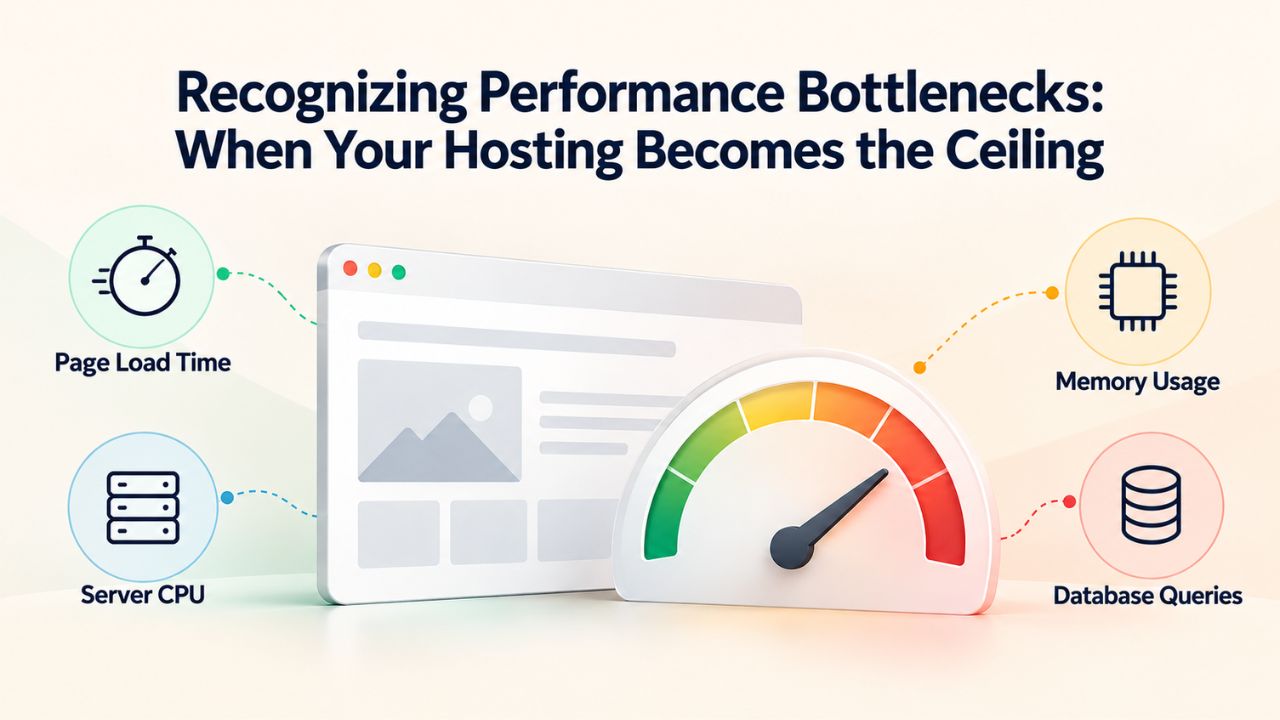
As your site grows, you’ll eventually encounter constraints. Understanding whether the constraint is your hosting, your code, or your content prevents expensive missteps and wasted optimization efforts.
Traffic Thresholds and When Shared Hosting Becomes Inadequate
Shared hosting reliably handles up to approximately 200,000 monthly visitors on a standard blog before resource limits become a constraint. This threshold assumes typical blog traffic patterns (mostly anonymous visitors reading posts), reasonable plugin selection, and standard content volume. When you exceed this threshold, shared server resources (CPU, RAM, database connections, PHP processes) can become exhausted during peak traffic hours, degrading response times and potentially timing out requests entirely.
E-commerce stores hit resource limits much earlier, typically at 50,000–100,000 monthly visitors, because transactional operations (order processing, inventory updates, payment processing) consume more server resources than simple page views. If you’re running a WooCommerce store and experiencing slower response times during peak hours or promotional events, you may have outgrown shared hosting regardless of total visitor count.
Database Performance as a Hidden Bottleneck
As your site accumulates content, database performance becomes critical. WordPress databases with hundreds of thousands of posts, thousands of comments, and complex plugin tables can noticeably slow query execution. On shared hosting, your database performance depends on shared server resources and shared database server performance. Database queries that normally execute in 50 milliseconds might take 500+ milliseconds when other customers’ sites run heavy database operations.
On shared hosting, backups happen alongside other customers’ backups, adding to server load. At scale, a VPS with dedicated database resources and isolated backup processes is more reliable. Large backup restoration processes can consume server resources for extended periods on shared hosting, temporarily slowing performance for other customers’ sites. Hosting providers may push back if your backups create friction with other customers.
Developer Control and Technical Requirements
As your team grows and your site becomes more sophisticated, you may need technical capabilities unavailable on shared hosting: custom staging environments for testing updates before production deployment, command-line access for Git integration and deployment automation, specific PHP extensions or PECL packages, or SSH/SFTP access for custom configuration. These capabilities are off-limits on shared hosting but standard on VPS. If your team includes developers, they’ll push for a VPS sooner than traffic metrics alone suggest because shared hosting’s technical constraints become a productivity bottleneck.
Migration Planning: Minimizing Downtime and Preventing Data Loss
Migrating a WordPress site to new hosting is one of the highest-risk procedures in site management. The rewards- better performance, improved security, and more reliable support- are substantial, but the risks demand meticulous planning and execution. Understanding common failure modes and proven mitigation strategies prevents your migration from becoming a disaster.
Common Migration Failure Modes and How to Prevent Them
The most frequent migration problems are: incomplete database transfers (database corruption or missing tables causing posts or customer data to vanish), DNS propagation delays (confusing where old and new servers both respond to requests from different regions), broken 301 redirects (sending visitors and search engines to 404 pages and losing SEO equity), and plugin or theme incompatibilities in the new environment (where functionality that worked in the old hosting breaks in the new environment). Each of these can go undetected until after the migration is live and affecting real visitors and revenue.
Prevent these failures with a proven sequence: Create a complete backup of your current site and verify it’s restorable before migration begins. Set up a staging environment on the new hosting provider (accessed via subdomain or temporary domain) where you can perform a test migration and thoroughly verify functionality. Perform a complete database export and file backup, then restore these to the staging environment and test exhaustively, verify all posts and pages display, confirm all plugins function, test form submissions, verify media uploads are accessible, and check that no database errors are logged. Only after staging confirms everything works should you migrate to production.
Minimizing Downtime Through Careful DNS Orchestration
“Zero downtime” is marketing language. Achieving true zero downtime is rare and expensive. What’s achievable is minimal downtime with careful planning and DNS orchestration. Here’s the proven sequence: Lower your site’s DNS TTL (time-to-live) value to 1 hour several days before migration, so DNS changes propagate faster. Prepare your new hosting with a complete site copy on a staging subdomain and verify thoroughly. Perform a final backup of your current site, scheduled just before the DNS switch.
During the migration window (schedule during your site’s lowest-traffic period, e.g., 2 AM on Tuesday for US audiences), perform a final incremental backup to capture any last-minute changes. Update your DNS records to point to the new hosting. During DNS propagation (typically 1–24 hours), some visitors’ requests will be routed to your old server, others to the new server. This period creates potential for confusion, but it’s managed by proper DNS configuration and server readiness. This approach typically results in 30 minutes to a few hours of potential issues during DNS propagation, which is acceptable for most sites compared to the 4–8 hours required for less careful migrations.
Preserving SEO During Migration
Migration can severely harm search rankings if URLs change without proper redirects or if search engines perceive the migration as a new site. Set up permanent 301 redirects from every old URL to its new equivalent before switching DNS, update WordPress Address and Site Address settings to the new domain in WordPress settings, and verify that no internal links are broken. After migration, monitor Google Search Console to verify that Google discovers the new site and properly consolidates rankings from old URLs.
Uptime Guarantees and SLA Reality: What “99.9%” Actually Means
Uptime percentages appear on every hosting provider’s homepage. Understanding what these promises mean, and what limitations apply, prevents disappointment and helps you choose the SLA level your site needs.
The Mathematics of “The Nines”
99.9% uptime (“three nines”) is the industry standard for quality hosting, allowing approximately 8.76 hours of downtime annually, or about 44 minutes per month. This sounds excellent until you consider the business impact: if your site goes down for 2 hours on a single critical day (a major promotion launch, a viral traffic event, a critical business process), you’ve consumed a quarter of your annual downtime allowance. 99.95% allows approximately 4.38 hours per year. 99.99% (“four nines,” common for VPS and dedicated hosting) allows approximately 52 minutes annually. 99.999% (“five nines,” enterprise standard) allows only about 5 minutes per year. Each additional nine represents an order-of-magnitude improvement in reliability.
For a personal blog or small business site, 99.9% uptime is generally acceptable. For revenue-generating sites and e-commerce operations, the math becomes urgent: 44 minutes of downtime per month could represent hundreds or thousands of dollars in lost sales, depending on your business model.
Understanding SLA Clauses and Compensation Structure
An SLA (Service Level Agreement) is a formal contract between the hosting provider and customer defining the guaranteed uptime percentage, what counts as downtime (scheduled maintenance is typically excluded), and what compensation you receive if the provider misses the target. Compensation is typically structured as a service credit, for example, “if we’re below 99.9% uptime in any month, you receive one month’s hosting free.” These credits rarely compensate for actual business losses. If your site was down for a critical period and you lost $5,000 in sales, a $50 monthly credit for free hosting is minimal recompense.
Read the fine print carefully. Confirm whether scheduled maintenance windows are excluded from uptime calculations (they typically are), how uptime is measured (response-time testing should be included, not just “technically online”), and whether the provider actually enforces the SLA with automatic credits or requires you to claim compensation manually. Some providers provide automatic credits; others require you to prove the outage and request compensation, a process that can be time-consuming and frustrating.
When Upgrading to Higher-Tier Uptime Is Justified
For small business blogs and informational sites, 99.9% uptime is acceptable because occasional brief outages don’t significantly impact the business. For revenue-generating sites, e-commerce stores, subscription services, lead-generation platforms, and sites where downtime interrupts critical business processes, 99.95% or 99.99% uptime is worth the additional cost. After all, even brief outages directly impact revenue. E-commerce sites in particular should target 99.95%+. After all, during high-traffic periods (seasonal sales, promotional events), even brief outages cause customer frustration and cart abandonment.
Caching Strategy and Server Response Time Optimization
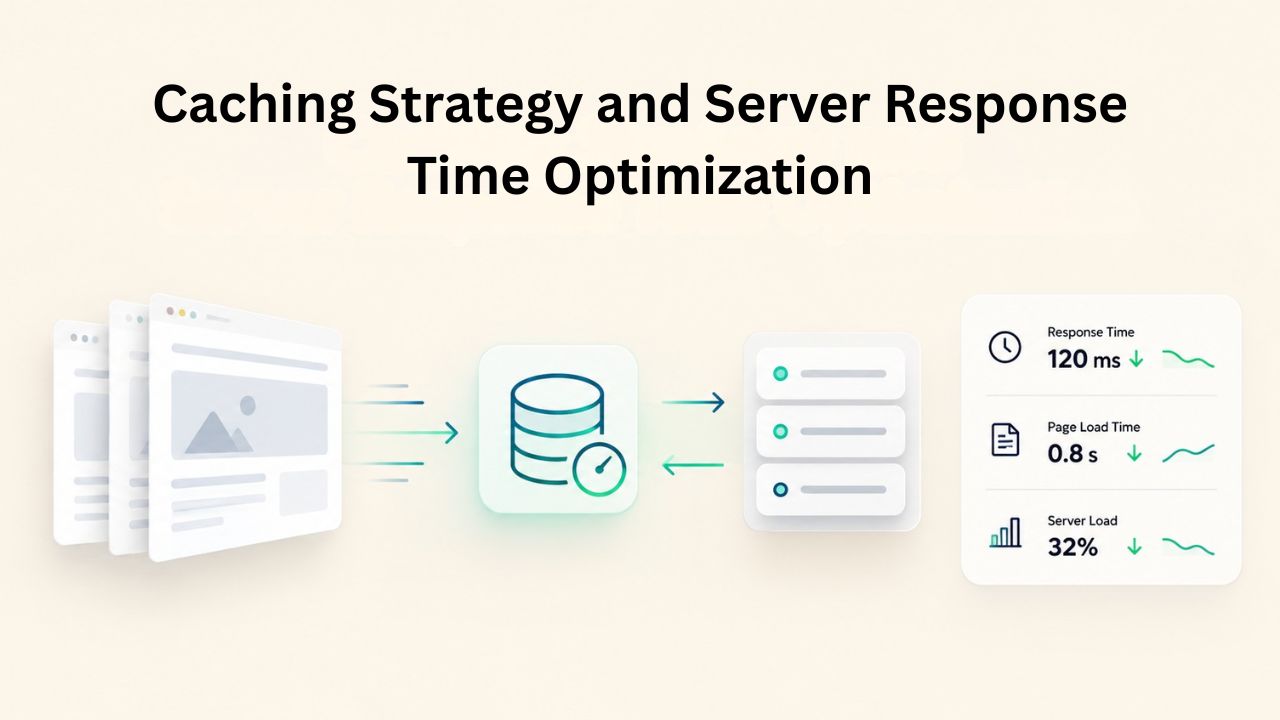
Caching is among the most misunderstood aspects of WordPress performance. Site owners often assume that plugin-based caching will solve speed problems, but caching exists at multiple architectural levels, and hosting-based caching cannot be replicated by plugins.
Server-Level Caching vs. Plugin-Based Caching
Server-level full-page caching, handled by the hosting infrastructure, eliminates 60–90% of WordPress response time for anonymous visitors by serving prebuilt static HTML instead of executing PHP for every request. No plugin can replicate this hosting feature because it operates before WordPress even starts executing. When a cached page is requested, the web server returns the prebuilt HTML immediately without invoking PHP, the database, or WordPress core. This is fundamentally faster than any plugin-based approach.
Plugin-level caching (WP Super Cache, W3 Total Cache, LiteSpeed Cache) works within whatever constraints your hosting environment provides. It’s valuable and better than no caching. Still, it cannot overcome fundamental hosting limitations. If your server baseline TTFB (Time to First Byte) is 1.5 seconds before any caching, even perfect plugin caching can only help dynamic/logged-in content. The uncached first hit still requires 1.5 seconds to reach the server. Server-level caching is a hosting-provided infrastructure capability that must come from your provider; no plugin can compensate for its absence.
Object Caching: Database Query Acceleration
Object caching (Redis or Memcached) stores database query results in RAM, so WordPress doesn’t re-run the same query for the same data. WordPress retrieves frequently accessed data (theme options, widget content, user metadata) from RAM in microseconds instead of querying the database in milliseconds, a 1,000x speed improvement. This is especially valuable for logged-in users and dynamic content where page caching doesn’t help because content varies per user.
Managed WordPress hosting often includes object caching support; shared hosting rarely does. Setting up object caching on shared hosting requires a backup plugin and manual configuration, and shared server memory is often insufficient for effective object caching when multiple customers’ sites are caching simultaneously.
PHP Version Impact and OPcache Optimization
Modern PHP versions (8.1 and later) process code measurably faster than older versions. OPcache (opcode caching) stores compiled PHP bytecode in server memory, eliminating the need to recompile PHP code on each request and reducing execution time by 30–40%. Together, modern PHP and OPcache are fundamental performance improvements that plugins can’t match.
On shared hosting, you have no control over PHP version or OPcache configuration; these are set globally for the entire server. If your hosting provider is running PHP 7.4 without OPcache, your site runs at a performance disadvantage regardless of theme and plugin choices. On managed WordPress hosting and VPS, modern PHP and OPcache are standard configurations.
Get Your Free WordPress Hosting Assessment
Unsure whether your current hosting is holding your site back? Niya Digital’s hosting assessment identifies performance bottlenecks, security gaps, and scaling constraints specific to your WordPress site. Our team reviews your current setup and recommends optimization opportunities- no obligation, just actionable insights to improve your hosting foundation.
Frequently Asked Questions
What’s the minimum PHP version I should run on my WordPress site?
WordPress.org officially recommends PHP 8.3 or greater as the baseline for security and performance. Older versions like PHP 7.4 have reached End of Life and no longer receive security patches. This creates a vulnerability because newly discovered PHP security issues go unfixed in old versions. Additionally, modern PHP versions execute WordPress code 20–40% faster than legacy versions. Ask your hosting provider to confirm which PHP version they support and whether they can upgrade you if you’re on an older version. If they cannot upgrade to modern PHP, it’s time to migrate to a provider with current technology.
Do I need HTTPS if my WordPress site doesn’t handle payments or collect customer data?
Yes, absolutely. WordPress.org marks HTTPS as required for every WordPress installation, regardless of site type. HTTPS encrypts the connection between visitors’ browsers and your server, protecting your admin login credentials (so attackers cannot capture your password even on untrusted networks), protecting visitor data and form submissions, and signaling to browsers and search engines that your site is trustworthy. Non-HTTPS sites appear as “unsafe” in modern browsers, suppressing traffic from security-conscious users. The good news: virtually every hosting provider now offers free HTTPS through Let’s Encrypt, removing cost as a barrier.
How frequently should I back up my WordPress site?
Backup frequency should match your site’s change rate and the cost of data loss. A static portfolio site updated monthly can be safely backed up weekly. A blog posting 2–3 times per week needs daily backups. An e-commerce store requires daily backups at minimum, and high-volume stores benefit from hourly or real-time backups. The underlying principle is: if you can’t afford to lose more than one backup interval’s worth of work, back up daily.
What’s the practical difference between “managed” and “unmanaged” WordPress hosting?
Managed WordPress hosting includes automated WordPress core and plugin updates, off-site backups, server-level monitoring, infrastructure maintenance, and 24/7 support for WordPress-specific issues, all handled by the provider. You focus on content and development; they handle operations. Unmanaged, or self-managed, hosting (VPS) gives you server infrastructure and root access. Still, you’re responsible for installing WordPress, updating everything, managing backups, configuring security, and responding to server issues. Managed hosting is easier; unmanaged hosting provides more control but requires more technical skill or hiring support.
Will moving to faster hosting actually improve my Google search rankings?
Core Web Vitals (including server response time / TTFB) are a confirmed Google ranking factor, though minor compared to content quality and backlinks. Improving your TTFB from 2 seconds to 300 milliseconds will improve your LCP metric, which can marginally help rankings. More importantly, faster hosting significantly improves user experience, visitor retention, and conversion rates, business metrics that matter far more than a marginal ranking boost. If your current hosting has a TTFB over 1 second, upgrading will likely improve both search performance and user experience.
Can a WordPress caching plugin replace server-level caching provided by hosting?
No, it cannot. Plugin-based caching works within the constraints of your hosting environment and cannot overcome hosting limitations. If your server baseline TTFB (before any caching) is 1.5 seconds, plugin caching cannot make uncached pages faster than 1.5 seconds; it can only cache certain content types to avoid that delay on subsequent requests. Server-level caching is a hosting infrastructure feature that must be provided by your host; no plugin can compensate for its absence.
What’s the practical difference between 99.9% and 99.99% uptime guarantees?
99.9% uptime allows approximately 44 minutes of downtime per month. 99.99% allows about 4.3 minutes of downtime per month. For a small blog, 99.9% uptime is generally acceptable. For e-commerce stores or revenue-generating sites, every minute of downtime potentially represents lost sales. If you cannot afford even occasional brief outages to interrupt business, the extra reliability of 99.99% uptime is worth investigating, though it typically comes with higher hosting costs.
Should I always migrate my WordPress site during a scheduled maintenance window?
Schedule migration during your site’s lowest-traffic window (e.g., 2 AM on Tuesday for a US-based audience) so any disruptions affect fewer visitors. Even with perfect planning, DNS propagation introduces 1–24 hours of uncertainty during which traffic might be routed to either the old or new server. This is manageable if traffic is low; it’s much riskier during peak traffic periods, when more concurrent visitors may experience routing confusion.
What’s the most common data loss scenario during WordPress migration, and how do I prevent it?
The most common issue is an incomplete database transfer, which can leave posts, pages, user accounts, or custom data tables missing and cause functionality failures or content to disappear in the new environment. Prevent this through rigorous staging: restore your backup to the new hosting’s staging environment and verify exhaustively. Check that all posts and pages display correctly, confirm all plugins function, test form submissions to verify database connectivity, verify that media uploads are accessible, and confirm no database errors appear. Only migrate to production after staging confirms everything works perfectly.
Do I need a CDN if my WordPress site has a regional audience?
If your primary audience is concentrated in one geographic region, a CDN provides minimal benefit. CDNs are most valuable for global audiences; they position static file copies on edge servers worldwide so visitors download from a server physically close to them. For a site primarily viewed in North America, a CDN helps primarily with international visitors. Most managed WordPress hosting integrates with CDN providers (Cloudflare, others) so you can enable it if needed.
How do I diagnose whether my hosting is actually my site’s bottleneck?
Install a clean WordPress site with no plugins, minimal theme, and no custom code on your current hosting. Measure its TTFB. That number is your server’s baseline performance, the absolute fastest any site can perform on that hosting regardless of optimization. If baseline TTFB is over 800 milliseconds, slow hosting is limiting your performance. If baseline TTFB is under 300 milliseconds but your actual site is slow, the bottleneck is likely plugin overhead, theme inefficiency, or unoptimized content, not hosting.
Can shared hosting support an e-commerce store?
Technically yes, but it’s not recommended for serious online retail. E-commerce requires strong security isolation (so a compromised neighbor’s site doesn’t expose customer payment data), consistent performance during traffic spikes (especially during promotions or seasonal peaks), and reliable backup capability for transaction records. Shared hosting struggles with all three. Managed WordPress hosting or a VPS is the better choice for e-commerce, ensuring security, reliability, and performance during high-traffic periods.
What specific details should I verify in an SLA before purchasing hosting?
Confirm:
(1) the specific uptime percentage guaranteed (99.9%, 99.95%, etc.),
(2) whether scheduled maintenance windows are excluded from uptime calculations (they typically are),
(3) how the provider measures uptime (response-time testing should be included, not just “technically online”),
(4) whether compensation is automatic or requires manual claims, and
(5) whether the compensation actually addresses your potential losses.
A 99.9% guarantee with automatic credits is more valuable than a 99.99% guarantee you have to fight to claim.
How long does a typical WordPress site migration take?
This varies dramatically by site size and migration method. Small sites (under 500 MB) with a quality migration plugin: 30 minutes to 2 hours. Medium sites (1–5 GB): 2–6 hours. Large sites (5+ GB with extensive databases): 6–12+ hours. Manual migrations (using phpMyAdmin and FTP) are slower. After the actual migration, DNS propagation adds 1–24 hours of uncertainty during which traffic may route to either server. Total time from start to complete stability: typically 24–48 hours for well-planned migrations.
Can I move my WordPress site from shared hosting to a VPS later without rebuilding it?
Yes. A WordPress site is a database plus a set of files, so you can move both to a VPS without rebuilding your content, theme, or plugins. Start with a complete backup of the database and the file system, then restore it on the new server in a test environment. Check that pages, forms, and plugins work before you point your domain to the VPS. Keep in mind that a VPS shifts more responsibility to you, since you manage the operating system, WordPress updates, security settings, and backups, or you hire someone to handle them. Migration steps and support vary by provider and plan, so confirm the details before you start.
Glossary
- TTFB (Time to First Byte) – The time interval between when a user’s browser sends a request to your server and when your server delivers the first byte of response data. TTFB is a pure hosting metric reflecting server processing power, database performance, and caching infrastructure. It’s the foundation of page load speed and heavily influences your LCP (Largest Contentful Paint) score.
- Core Web Vitals – Google’s three standardized performance metrics measuring real-world user experience: Largest Contentful Paint (LCP, measuring how quickly main content appears), Interaction to Next Paint (INP, measuring responsiveness to user actions), and Cumulative Layout Shift (CLS, measuring unexpected visual movement). These metrics influence Google search rankings and are available through Google Search Console and PageSpeed Insights.
- OPcache – A server-level PHP caching mechanism that stores compiled PHP bytecode in memory, eliminating the need to recompile PHP source code on each request. OPcache reduces PHP execution time by 30–40% and is standard on modern hosting but must be enabled by the hosting provider.
- Object Caching – In-memory caching systems (typically Redis or Memcached) that store database query results in RAM, allowing WordPress to retrieve frequently accessed data in microseconds instead of milliseconds. Object caching is especially valuable for logged-in users and dynamic content where page caching doesn’t apply.
- SLA (Service Level Agreement) – A formal contract between the hosting provider and the customer that defines guaranteed uptime percentage, what constitutes downtime, scheduled maintenance exclusions, and compensation if the provider fails to meet promised availability. The SLA defines the provider’s liability and your recourse if service falls below guarantees.
- DNS Propagation – The process by which DNS changes (such as pointing a domain to a new hosting provider’s servers) spread across the internet’s distributed DNS server network. Propagation typically takes 1–24 hours, during which different regions and ISPs may resolve your domain to different IP addresses (old and new servers), potentially creating brief confusion during migrations.
- Staging Environment – A separate, non-public WordPress installation accessed via a test domain or subdomain where you can thoroughly test changes, updates, and migrations before applying them to production. Staging lets you verify functionality without risking the live site, and most quality hosting providers include staging.