When your WordPress site goes down, every minute costs you money and credibility. Niya Digital delivers its hosting in partnership with an enterprise-grade cloud infrastructure partner, and we’ve found that methodical troubleshooting resolves most downtime issues quickly.
Distinguish Real From Perceived Downtime
Before assuming your site is truly down, verify whether the problem is global or specific to your connection. Many situations that feel like downtime are actually local access issues, browser caching, or temporary DNS delays, all fixable in minutes without hosting involvement.
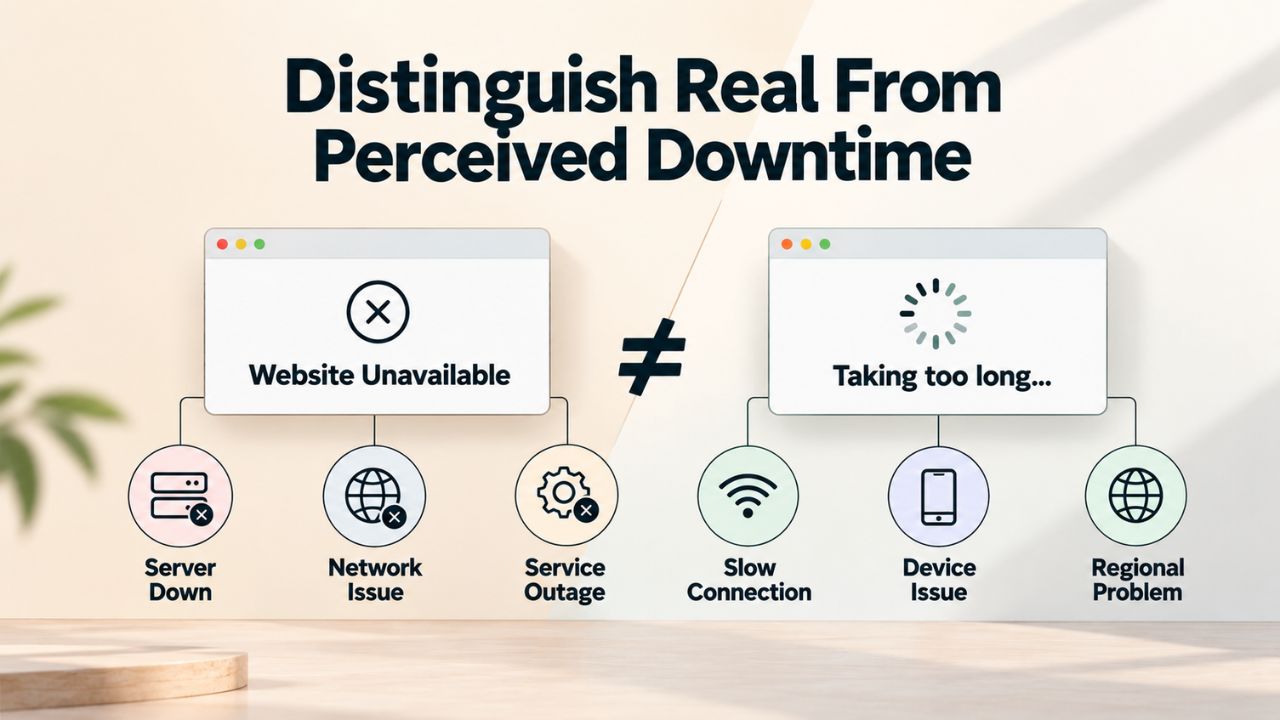
Your Connection vs. a Global Outage
Start with the simplest check: ask someone else to visit your site from a different device and network. If they can reach it, the problem is on your end. Clear your browser cache and cookies, then try again in an incognito or private window. Chrome’s developer tools (F12 → Network tab) let you disable caching entirely to rule out outdated cached versions of your site. If the site loads normally for others, restart your device and check your ISP status for outages affecting your area.
If others confirm the site is unreachable globally, proceed to the checks below. Open a new browser tab and note the exact error message or HTTP status code you see. If no error appears and the page hangs, check whether you can reach other websites normally. A complete network failure suggests a connection issue rather than a hosting problem.
Check Your Domain Registration Status
An expired domain is an easy-to-miss cause of downtime. Log in to your domain registrar account and confirm your domain is active and hasn’t expired. If it expired, renew it immediately; the site should come back online within 15 minutes to an hour, though DNS propagation for nameserver changes can take 2–24 hours in rare cases with longer caching delays. Note the renewal date and set calendar reminders three months before expiration to avoid this happening again.
WordPress Pricing Plans
Choose the WordPress hosting plan that fits your website needs, with reliable performance, security, storage, backups, and tools to help your site grow.
WordPress Basic
A great way to get started.
- 1 website
- 10 GB NVMe storage
- Unmetered bandwidth
- Free SSL Certificate *
- WordPress pre-installed
- Weekly backups
- Web Application Firewall
- Daily malware scans
- One-time malware removal

WordPress Deluxe
Improve your site performance with Cloudflare CDN.
- 1 website
- 20 GB NVMe storage
- Unmetered bandwidth
- Free SSL Certificate *
- WordPress pre-installed
- Daily backups
- Web Application Firewall
- Daily malware scans
- One-time malware removal
- Up to 2x faster performance with global Cloudflare CDN **
- Enhanced security with DDoS protection
- Staging site
WordPress Ultimate
Add online marketing with more sites, storage and security.
- 1 website
- 30 GB NVMe storage
- Unmetered bandwidth
- Free SSL Certificate *
- WordPress pre-installed
- Daily + on-demand backups
- Web Application Firewall
- Daily malware scans
- Unlimited malware removal
- Up to 2x faster performance with global Cloudflare CDN **
- Enhanced security with DDoS protection
- Staging site
- WordPress code optimizer
- Smart WordPress plugin manager
- Sell online with WooCommerce
HTTP Error Codes & What They Tell You
Every error message is a clue. The HTTP status code and error text point toward the layer where the problem occurred, whether it’s your hosting server, your database, or WordPress itself. Learning to read these codes turns confusion into a clear next step.
Decode the Error: 500, 502, 503, or Database Messages
The table below maps the error codes you’re most likely to see to their probable causes. Each row includes a first quick check to try before deeper troubleshooting.
| HTTP Code / Error Message | What It Means | Likely Cause(s) | First Quick Check |
|---|---|---|---|
| 500 Internal Server Error | The server encountered an unexpected condition that prevented it from fulfilling the request. | Plugin conflict, PHP memory exhausted, corrupt .htaccess, PHP version incompatibility | Disable all plugins via FTP or Health Check plugin; check error logs in wp-content/debug.log |
| 502 Bad Gateway | Request timed out or upstream server failed to respond in time. | PHP-FPM timeout, long-running database query, resource overload | Restart PHP-FPM via hosting control panel; increase PHP execution timeout; contact hosting support |
| 503 Service Unavailable | Server temporarily down or too overloaded to accept requests. | Server maintenance, DDoS attack, resource exhaustion, insufficient memory | Check hosting status page; wait 15 minutes; refresh; contact support if persistent over 1 hour |
| Error Establishing a Database Connection | WordPress cannot connect to the MySQL database where site content is stored. | Wrong credentials in wp-config.php, database server down, user permissions incorrect, connection limit exceeded | Verify DB_NAME, DB_USER, DB_PASSWORD, DB_HOST in wp-config.php; check database server status in control panel |
| White Screen of Death (WSOD) | Site shows a completely blank white page with no error message. | PHP fatal error or memory limit exceeded (error is hidden). | Enable WordPress debug mode to reveal the actual error; check wp-content/debug.log |
The distinction between these codes matters: a 500 error typically points to application-level failure (plugin, theme, or PHP configuration), while a 502 suggests a timeout or communication issue between server components. A 503 often signals hosting-level overload or maintenance. Once you’ve identified your specific error, you’ve narrowed the search space considerably.
Map Errors to Your Next Troubleshooting Step
If you see a 500 error, skip ahead to the plugin and theme conflict section. If you see a database connection message, go to the database troubleshooting section. If you see a 502 or 503, start with the hosting account status check. This targeted approach saves hours of random testing.
Check Hosting Account Status First
Before diving into WordPress-specific fixes, confirm your hosting account is active and not hitting resource limits. The hosting layer- server, disk space, bandwidth, and database resources- is the foundation. A down hosting account stops everything above it.
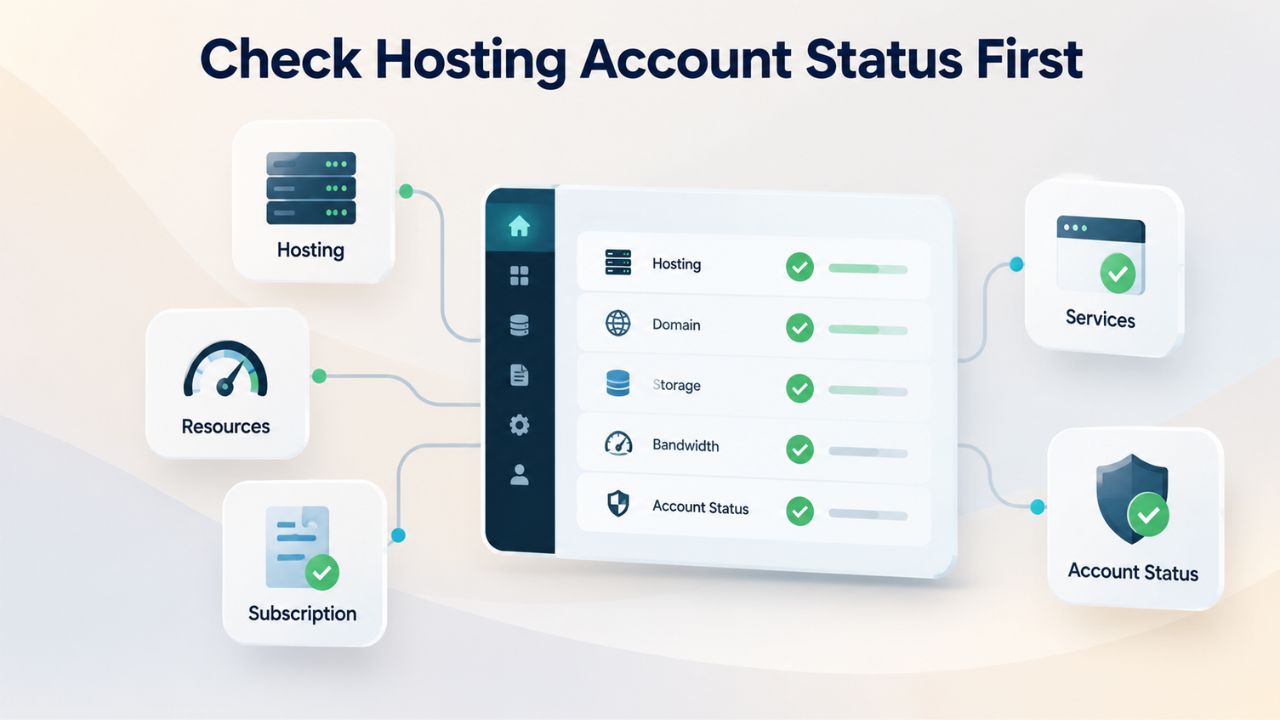
Verify Account Active, Server Running, Resources Available
Log in to your hosting control panel (cPanel, Plesk, or your host’s dashboard). Confirm your account status shows “Active.” Check the server status page; many hosts maintain a public status dashboard. Look for any alerts about scheduled maintenance, though maintenance usually announces itself beforehand. If you see a suspension notice, read the reason- overdue payment, resource overuse, or policy violation- and resolve it immediately; most hosts restore service within minutes of resolution.
Next, check your resource usage: disk space used, bandwidth consumed, and CPU/memory limits. On shared hosting, resource exhaustion can cause temporary suspensions to protect other users on the server. If you’re near the disk-space limit, delete old backups, clean up unused themes or plugins, and optimize images. If you’re consistently approaching bandwidth limits, contact your hosting provider about upgrading or implementing a Content Delivery Network (CDN) to offload traffic.
Understand Shared Hosting Resource Contention
On shared hosting plans, your site shares server resources (CPU, memory, disk I/O) with dozens or hundreds of other sites. If a neighboring site gets a traffic spike or runs an expensive database query, the shared server can slow down or even become temporarily unavailable for all sites on it; this is sometimes called the “noisy neighbor” problem. Many shared hosts implement per-account resource limits and temporary suspensions to enforce fairness. If this is happening repeatedly, consider upgrading to a managed WordPress hosting plan, which isolates resources and handles WordPress optimization automatically.
Verify Domain & DNS Setup
A working domain requires three things: active registration, correct nameserver records, and completed DNS propagation. If any of these is misconfigured, your site will be unreachable even though hosting and WordPress are fine.
Check Nameservers and DNS Records
Log in to your domain registrar (GoDaddy, Namecheap, etc.) and navigate to the DNS or nameserver settings. Confirm the nameservers point to your hosting provider’s servers, not to a previous host. Nameserver changes can take 2–24 hours to propagate globally; some DNS servers ignore TTL values shorter than 24 hours and cache updates longer. This delay is normal; if you just changed hosts or registrars, wait at least 24 hours before investigating further. Use a free DNS propagation checker (search “DNS propagation checker”) to verify your changes have spread globally.
If nameservers look correct but your site is still down, check the DNS records themselves: A record, CNAME, or MX records, depending on your setup. An A record should point to your hosting provider’s IP address. A misconfigured A record is a common cause of sudden downtime after a migration or nameserver update. If you’re unsure of the correct IP, contact your hosting provider for the exact values to enter.
TTL and Propagation Patience
The TTL (Time To Live) value for your DNS records tells DNS servers how long to cache the domain’s IP address before checking again. A lower TTL (like 300 seconds / 5 minutes) means changes propagate faster, but it increases DNS query load. A higher TTL (like 86400 seconds / 24 hours) means faster lookups but slower propagation of changes. When you change hosts or update DNS, consider lowering the TTL before the change so propagation happens quickly; then raise it again after everything settles.
PHP Memory Limits & Resource Constraints
WordPress runs on PHP, a server-side language that needs RAM to execute. Every request consumes some PHP memory. If a request consumes more than the allocated limit, often due to a poorly coded plugin, a massive database query, or a large file upload, PHP stops execution. It returns a fatal error or a 500 error.
Recognize Memory Exhaustion Errors
Look for errors containing “Allowed memory size of X bytes exhausted” or “Fatal error: out of memory.” These errors appear in your site front-end (if WP_DEBUG_DISPLAY is enabled, which is not recommended on live sites) or in the debug.log file. The default PHP memory limit for WordPress is often 40MB, which is too low for heavy plugins (page builders, WooCommerce with many products, backup plugins). If you see memory exhaustion errors, the first fix is increasing the limit.
To increase the PHP memory limit, add this line to wp-config.php, just before the line that says “That’s all, stop editing!”:
define( ‘WP_MAX_MEMORY_LIMIT’, ‘512M’ );
After making the change, test your site. If the error persists, check your hosting control panel to see whether a server-level PHP memory limit cap prevents your WordPress setting from going higher. Contact your hosting provider to request a temporary increase or an upgrade to a plan with higher limits. On shared hosting, there’s often a hard cap to prevent resource runaway; on managed WordPress hosting, limits are typically generous enough for most use cases.
When to Suspect Resource Exhaustion Beyond Memory
PHP memory is one resource; CPU and disk I/O are others. If your site is slow or intermittently unavailable but error logs show no memory exhaustion, check your database for bloat. A database with millions of post revisions, spam comments, or transients (temporary cached data) can consume disk space and slow queries. Plugins like WP-Optimize can clean these automatically. Managed WordPress hosting often includes regular database optimization.
Running Out of Resources? Upgrade Your Plan
Repeated memory errors and resource limits on shared hosting drain your time and frustrate visitors. Managed WordPress hosting removes these constraints with generous resource allocation and automatic optimization. Niya Digital’s plans include performance tuning and support, so your site stays fast and stable without constant firefighting.
Test Plugin & Theme Conflicts
Plugin and theme conflicts are among the top causes of WordPress downtime. A newly installed or updated plugin or theme can introduce a fatal error, incompatibility with another plugin, or excessive resource use that crashes the site. Systematic conflict testing quickly isolates the culprit.
Use the Health Check Plugin to Disable Everything Safely
The easiest method is the Health Check & Troubleshooting plugin. Install and activate it (you may need FTP access if admin is locked). Once activated, enable “Troubleshooting Mode” from the Health Check menu. This mode disables all plugins and switches to a default theme for your session only; other visitors see the live site normally. Test whether the problem persists. If it’s gone, you have a conflict. If it remains, the problem is elsewhere (hosting, database, or WordPress core).
Once you’ve confirmed a conflict exists, exit Troubleshooting Mode (plugins and theme reactivate automatically). Then reactivate plugins one by one, testing after each. When the problem reappears, you’ve found the culprit. Report the conflict to that plugin’s developer. In the meantime, replace it with an alternative or disable it until an update is released.
Manual Conflict Testing Via FTP or File Manager
If your admin panel is completely inaccessible, use FTP or your hosting control panel’s file manager to disable plugins manually. Rename the /wp-content/plugins/ folder to /wp-content/plugins-disabled/. If the site comes back online, rename it back and then selectively rename individual plugin folders one by one to isolate the problem. For theme conflicts, switch to a default WordPress theme like Twenty Twenty-Two by editing wp-config.php or using phpMyAdmin to change the template and stylesheet options in the wp_options table.
Database Connection Troubleshooting
The database stores posts, pages, comments, settings, and user accounts. If WordPress can’t connect, the site becomes completely inaccessible. Database connection errors have a clear set of causes, and they’re almost always fixable.
Verify wp-config.php Credentials
The file wp-config.php, in your WordPress root directory, contains four critical credentials: DB_NAME (database name), DB_USER (database username), DB_PASSWORD (database password), and DB_HOST (database server address, usually localhost on shared hosting or a specific hostname on cloud hosting). If any of these is wrong, even by a single character or space, WordPress returns “Error Establishing a Database Connection.”
Access wp-config.php via FTP or the file manager in your hosting control panel. Double-check each value against the database credentials your hosting provider provided (usually in an email during account setup or in the control panel’s database management section). A common mistake is copying credentials with trailing spaces or using the wrong host name. After verifying the credentials, save the file and refresh your site.
Check Database Server Status and User Permissions
Even with correct credentials, the database server itself might be down. In your hosting control panel, navigate to Databases or MySQL or your database management tool. Verify the database exists and the user has access to it. Check that the database user has the required permissions: SELECT, INSERT, UPDATE, DELETE, CREATE, ALTER, INDEX, and DROP. If the database is there but the user lacks permissions, use phpMyAdmin (if available in your control panel) or contact your hosting provider to grant the necessary permissions.
On managed WordPress hosting, database maintenance is handled automatically. If you’re on shared hosting and suspect a database issue, these manual checks resolve most problems. If the database server is truly down, only your hosting provider can restart it, so contact support immediately with the “Error Establishing a Database Connection” message.
Enable Debug Mode & Read Error Logs
When error messages don’t appear on screen, WordPress logs them to a file. Enabling WordPress debug mode captures these hidden errors and makes them visible in the debug log. The error log is your most powerful diagnostic tool; it often pinpoints the exact line of code causing the problem, saving hours of guessing.
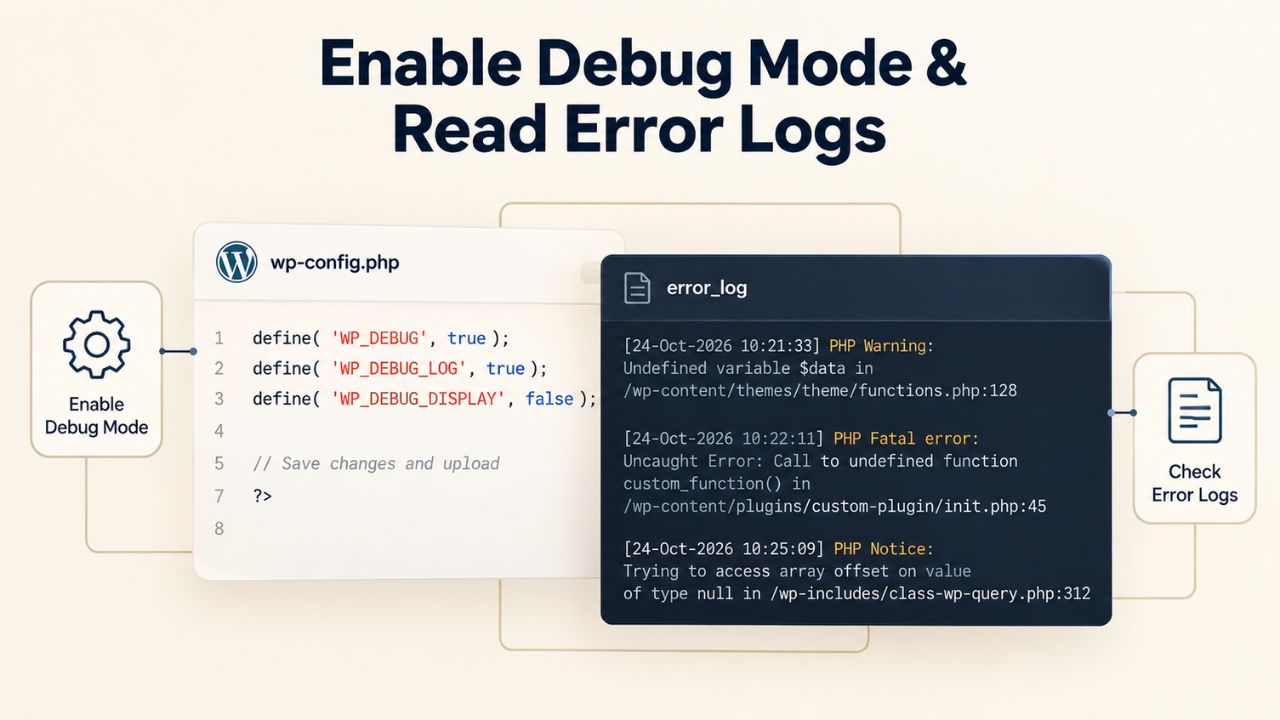
Turn On WP_DEBUG and WP_DEBUG_LOG
Edit wp-config.php and add these lines before the “That’s all, stop editing!” comment:
define( ‘WP_DEBUG_LOG’, true );
define( ‘WP_DEBUG_DISPLAY’, false );
WP_DEBUG enables error logging. WP_DEBUG_LOG writes errors to a file (wp-content/debug.log) instead of showing them on screen. Setting WP_DEBUG_DISPLAY to false prevents sensitive error details from showing to visitors. After adding these lines, save the file.
Now reproduce the error: try loading the front end, accessing admin, or performing the action that triggers downtime. Then, via FTP or file manager, open /wp-content/debug.log. The log will contain timestamped PHP errors, warnings, and notices. Look for “Fatal error” or “Parse error”; these are the real showstoppers. The error message usually names the plugin or file causing the problem and the line number. This is enough information to disable the plugin or contact its developer.
Interpret Common Error Messages
“Fatal error: Call to undefined function X” → A function is missing, or a plugin didn’t load properly; disable the plugin using the method from the plugin conflict section. “Parse error: syntax error, unexpected T_STRING” → Malformed PHP code (usually a typo or missing semicolon); revert the file or the recent update causing it. “Fatal error: Allowed memory size exhausted” → PHP memory limit too low; increase WP_MEMORY_LIMIT as described in the memory section. “Warning: Cannot modify header information” → A plugin or theme is outputting text before WordPress headers; disable plugins one-by-one to find it.
After troubleshooting and fixing the issue, disable debug mode by setting WP_DEBUG to false or removing the lines entirely. Debug mode can expose sensitive information if left enabled on a live site and may slow performance due to logging overhead.
Backup & Restore to a Recent Point
When diagnosis and targeted fixes aren’t working, restoring from a recent backup is often the fastest path to recovery. A backup captures your site’s files and database at a specific moment, before the error occurred. Restoring rolls your site back to that working state while you investigate the root cause separately.
Understand Your Backup Options
Most managed WordPress hosting plans include daily automated backups stored for 30–90 days, with one-click restore directly from the hosting control panel. On shared hosting, backups may be less frequent or require manual initiation. Check your hosting control panel for a Backups or Backup Manager section. Automated backups restore much faster and are less error-prone than manual backups, which is one reason managed WordPress hosting simplifies recovery.
If your hosting doesn’t offer backups, or backups aren’t available far enough back, consider installing a backup plugin like UpdraftPlus or BackWPup to set up daily automated backups. These plugins back up files and the database to cloud storage (Google Drive, Dropbox, Amazon S3), providing redundancy and easier recovery.
Restore and Minimize Downtime
When you’ve confirmed a backup point from before the downtime started, initiate a restore from your hosting control panel or backup plugin. A full restore typically takes 5–30 minutes, depending on site size and hosting resources. Your site will be offline during the restore; plan this during off-hours if possible. After the restore completes, test the site thoroughly: log in, check the front end, load a few pages, and verify forms work. If the site is working, you’re back online. Then investigate what went wrong with the version you restored from, check error logs, identify the problematic plugin or theme update, and fix it before re-uploading.
Escalate to Support With Clear Information
When you’ve completed the troubleshooting steps above and still can’t resolve downtime, it’s time to involve your hosting provider. Resolution speed depends on how clearly you describe the problem. Gather diagnostic information before contacting support so your provider can focus on the fix instead of gathering details.
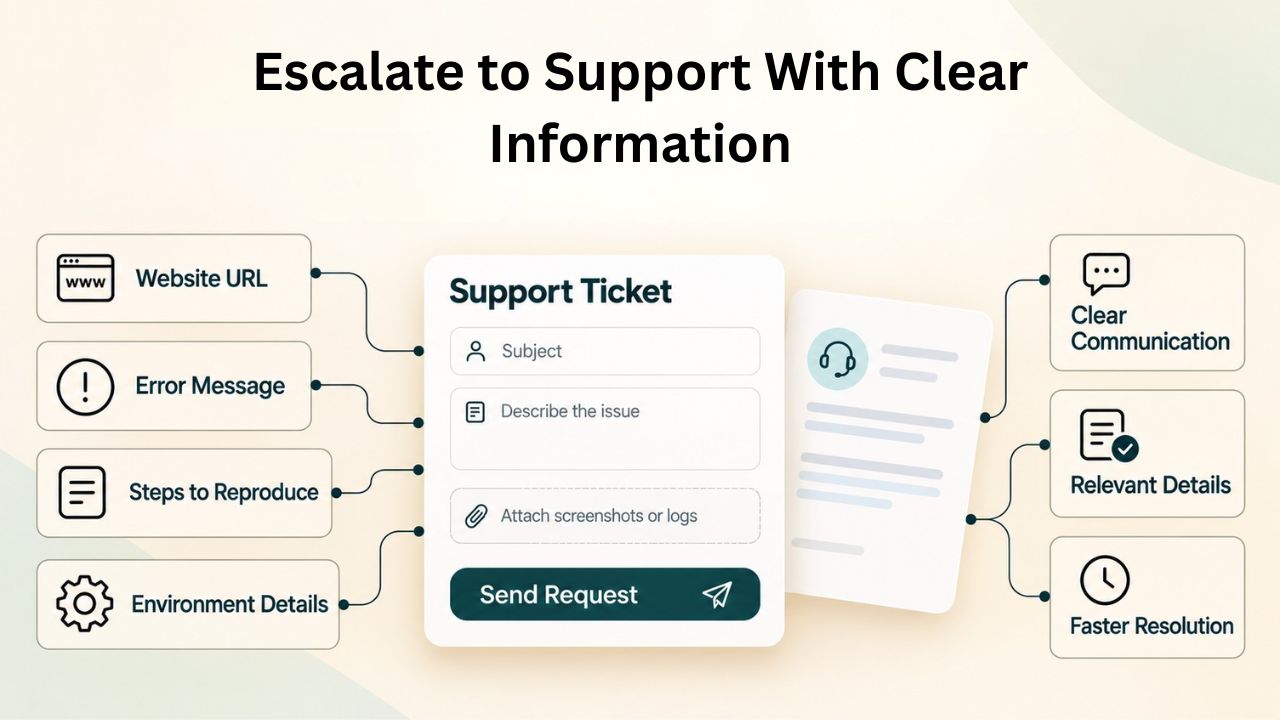
Prepare Evidence Before Opening a Ticket
Collect these details before contacting support:
(1) the exact error message or HTTP status code you see,
(2) the wp-content/debug.log file (disable debug mode after collecting it to avoid exposing sensitive data),
(3) the date and time the downtime started and whether it’s ongoing,
(4) a list of any plugins you installed or updated recently,
(5) hosting control panel screenshots showing account status, resource usage, and any alerts,
(6) confirmation that the site is unreachable globally, not just locally for you.
This evidence lets support skip basic questions and focus on root cause analysis. Attach files to your ticket and include timestamps showing when you observed each symptom.
Understand Support Channels and Response Times
Most managed WordPress hosting providers offer 24/7 support via chat, email, or phone. Response times typically range from 15 minutes to 2 hours for initial contact, though complex issues requiring system-level investigation may take 24 hours. On shared hosting, response times may be longer depending on your plan. If downtime costs you significant revenue or disrupts business operations, mention this explicitly in your ticket; many providers prioritize critical issues. If the first support agent can’t resolve it after thorough investigation, request escalation to a senior technician. Document each interaction with your ticket number.
Minimize Downtime With the Right Hosting
Every minute of downtime costs you visitors, revenue, and credibility. Managed WordPress hosting removes most causes of downtime through automatic updates, performance optimization, and expert support. Niya Digital’s infrastructure and team work 24/7 to keep your site online. If downtime is becoming routine, upgrading is often the best investment you can make.
Frequently Asked Questions
What’s the difference between 500 and 503 errors?
A 500 error means the server encountered an error it couldn’t recover from, usually a plugin, theme, or PHP misconfiguration. A 503 error means the server is temporarily unavailable, often due to overload, maintenance, or a restart. A 500 usually requires you to fix code or disable a plugin. A 503 usually resolves itself or requires your host to restart services.
Can a plugin cause downtime even if I didn’t just install it?
Yes. A plugin can cause downtime if
(1) you updated the plugin and the new version has a bug,
(2) another plugin you installed recently conflicts with it,
(3) your hosting changed PHP versions and the plugin isn’t compatible, or
(4) your site traffic increased, and the plugin’s resource use spiked.
If downtime started after a plugin update, disable that plugin first; if it started gradually, test for conflicts.
How long does DNS propagation take and can I speed it up?
DNS propagation typically takes 2–24 hours after a nameserver change or DNS record update. Some DNS servers ignore Time To Live (TTL) values and cache for 48 hours. You cannot speed this up, but you can plan: lower your TTL 24 hours before making DNS changes, so updates propagate faster. After the change is done and confirmed, raise the TTL back to normal to reduce server load.
My WordPress admin area is completely inaccessible, but the front-end sometimes loads. What do I do?
This pattern usually indicates a plugin conflict or memory limit issue affecting wp-admin. Use the Health Check plugin’s Troubleshooting Mode if you can reach the front-end at all (you may be able to access plugins/Health Check from there). If admin won’t load at all, use FTP to rename the plugins folder or disable all plugins by renaming them. Then try accessing wp-admin again.
Should I enable debug mode on my live site?
No. Debug mode logs errors to a file (good) but can expose sensitive information if WP_DEBUG_DISPLAY is true (bad). Always set WP_DEBUG_DISPLAY to false. Better yet, enable debug mode temporarily, reproduce the error, collect the log, then disable debug mode. This gives you information without leaving vulnerabilities exposed.
What if I restore from backup and the same error comes back?
This usually means the backup included the corrupted plugin or configuration that caused the problem. After restoring, immediately disable or update the problematic plugin or theme before the error returns. If the error does return after restore, the issue is likely deeper (database corruption or server-level problem), and you should contact hosting support.
How often should I back up my site?
If your site changes daily (new posts, comments, transactions), back up daily. If it’s static, weekly is sufficient. Managed hosting includes daily backups. If you’re on shared hosting without automatic backups, install a backup plugin and set it to daily. Keep at least 30 days of backup history in case you need to recover old versions.
Does downtime count against my hosting provider’s uptime guarantee?
Most providers’ uptime SLAs cover hosting infrastructure (server, network, database server) but not WordPress-level issues (plugin errors, site misconfiguration). Suppose your site is down because of a plugin conflict; that usually doesn’t trigger an SLA credit. If the host’s server is down, it does. Check your hosting plan’s SLA details for specifics.
My site is stuck in a loop or showing a blank page. What is this?
A blank page with no error message is often the “White Screen of Death” (WSOD). Enable WP_DEBUG and WP_DEBUG_LOG to reveal the hidden error. Most often it’s a fatal PHP error from a plugin or PHP memory exhaustion. The error log will tell you exactly which.
Can a DDoS attack look like a WordPress downtime issue?
Yes, if your site is under a distributed denial-of-service attack, it will be unreachable just like any other downtime. The difference: a DDoS attack typically shows up in hosting control panel alerts or status reports; your hosting provider will see the attack and may activate DDoS mitigation automatically. If you suspect a DDoS, contact your host immediately.
What does “Error Establishing a Database Connection” mean in plain English?
It means WordPress tried to read or write data to the MySQL database and failed. Common causes include incorrect credentials in wp-config.php, a down database server, or a database user without permission. It’s always a critical error; the site can’t function without database access. Verify wp-config.php credentials first; if those look right, contact hosting support.
Should I try plugins to fix errors, or should I disable them first?
Disable all plugins first to confirm a plugin isn’t causing the issue. Then, only if the error persists with all plugins disabled, try diagnostic plugins like Health Check. Installing more plugins when you’re already experiencing downtime can make diagnosis harder. Simplify first, then investigate.
How do I know if my issue is a hosting problem or a WordPress problem?
Hosting problems usually manifest as 502/503 errors, database connection errors, or account suspension notices. WordPress problems usually manifest as 500 errors, white screens, or admin panel failures after you’ve installed/updated a plugin or theme. The diagnostic section above walks you through distinguishing between them; start there.
Can I fix downtime by updating WordPress core?
Sometimes, but not often. If downtime started right after a WordPress core update, a bug in that version may be the culprit. In that case, downgrade or wait for a patch. More often, downtime is caused by plugins, themes, or hosting, not WordPress core itself. Don’t update WordPress to fix downtime; diagnose the actual cause first.
What’s a staging site and should I test changes there first?
A staging site is a clone of your live site used for testing updates and changes before applying them to the live version. Mistakes on staging don’t affect visitors. Managed WordPress hosting typically includes free staging sites. Always test plugin and theme updates on staging first; this prevents downtime on your live site. It costs time upfront but saves downtime costs later.
Glossary
- Database Connection: The established link between WordPress (running PHP on your server) and your MySQL database server. A failed connection blocks all access to site content, resulting in “Error Establishing a Database Connection.”
- Debug Mode: A WordPress feature that logs PHP errors and warnings to a file (wp-content/debug.log) for troubleshooting. Enabled via wp-config.php settings. Should be disabled on live sites to prevent exposing sensitive information.
- DNS Propagation: The process of DNS nameserver updates spreading across the internet to ISP servers and public DNS resolvers worldwide. Typically takes 2–24 hours; some DNS servers cache longer, delaying propagation up to 48 hours.
- PHP Memory Limit: The maximum RAM a single PHP script can use before execution stops. The default is often too low for WordPress with heavy plugins. Exhaustion triggers “Fatal error: Allowed memory size exhausted.”
- Plugin Conflict: Incompatibility between two or more plugins causing unexpected behavior, errors, or crashes when activated together. Resolved by identifying and disabling the problematic plugin.
- TTL (Time To Live): A numeric value (in seconds) that tells DNS servers how long to cache a domain’s IP address before querying again. A lower TTL means faster propagation of changes; a higher TTL reduces server queries but delays updates.
- .htaccess File: A server-level configuration file in your WordPress root directory that manages URL rewriting, redirects, and server behavior. Corruption causes 500 errors or site inaccessibility; regenerate via Settings > Permalinks > Save.