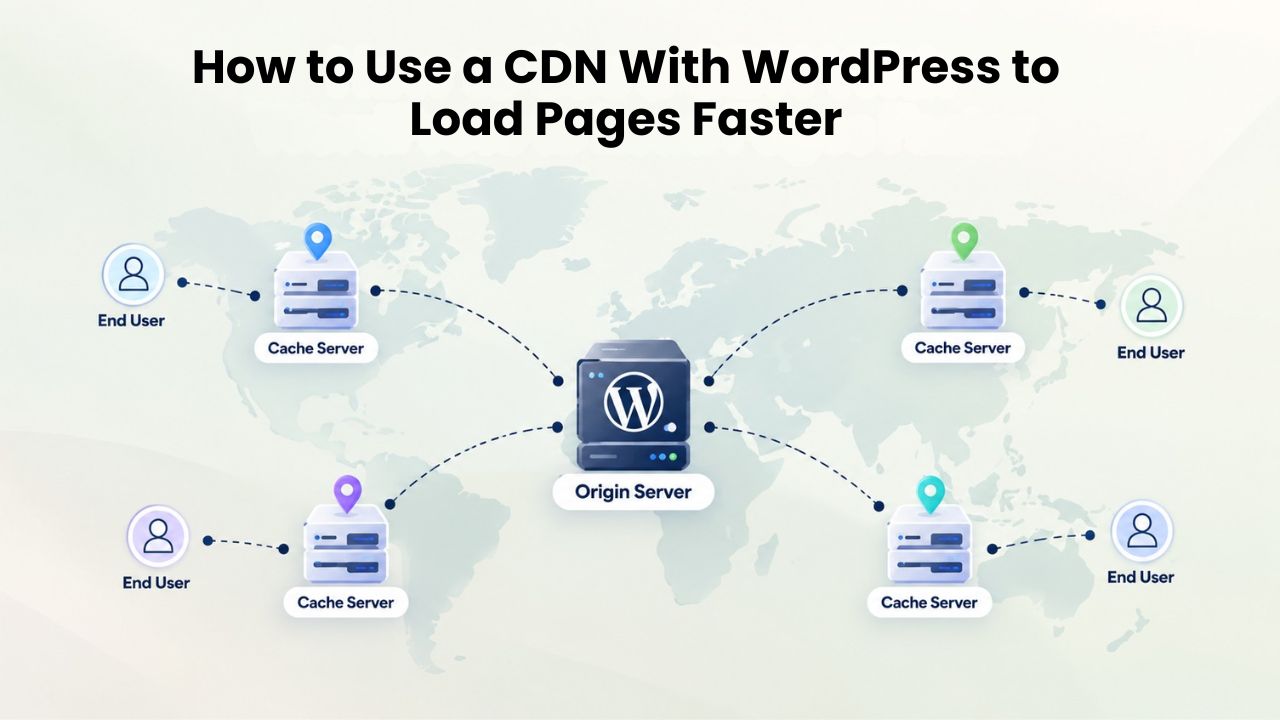
Your WordPress site’s performance directly determines whether visitors stay or leave. Research consistently shows that users abandon sites taking more than three seconds to load, and search engines penalize slow performance in rankings. A Content Delivery Network (CDN) is one of the most effective ways to reduce load times globally. By caching static files on servers distributed worldwide, a CDN ensures your images, stylesheets, and scripts load from locations closest to each visitor. Niya Digital delivers WordPress hosting in partnership with an enterprise-grade cloud infrastructure partner, giving us years of insight into how CDN configuration affects real-world performance across thousands of production sites.
What Is a CDN and How Does It Work with WordPress?
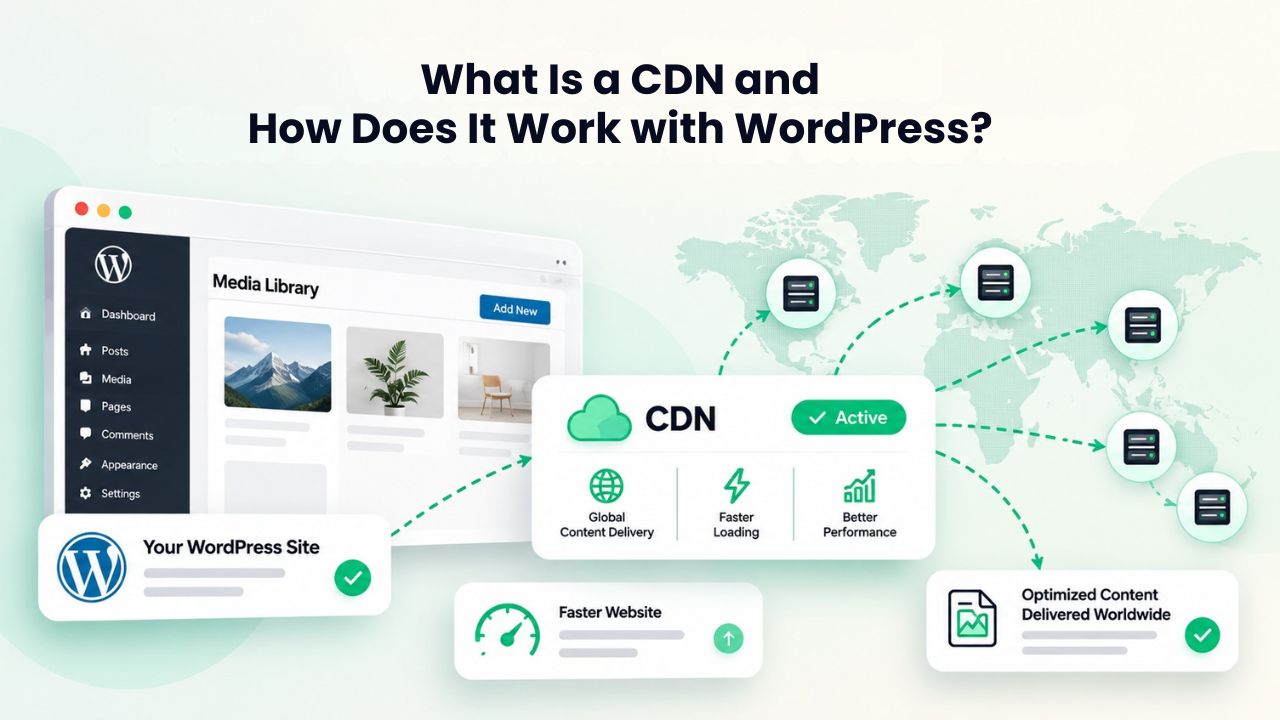
Understanding how a CDN operates is the foundation for implementing one effectively on your WordPress site. A CDN is fundamentally a network of geographically distributed servers, called edge servers or Points of Presence (PoPs), positioned strategically across continents and regions worldwide. When you integrate a CDN with WordPress, you’re not replacing your existing hosting server; you’re adding a layer of acceleration in front of it.
Understanding Content Delivery Networks and Their Architecture
A CDN is a geographically distributed network of servers that stores cached copies of a website’s static content, images, stylesheets, JavaScript files, and videos. It delivers that content to visitors from the server geographically closest to them. A modern CDN’s architecture reflects decades of optimization: each edge server includes RAM-based caches, compression algorithms, and intelligent routing protocols designed to maximize throughput while minimizing latency. When you deploy a CDN in front of WordPress, you tap into infrastructure that handles petabytes of traffic daily and is engineered for extreme reliability and speed.
This architecture has a substantial real-world impact. Without a CDN, every asset request from every visitor hits your single origin server, no matter where the visitor is located. Your server must handle the I/O (input/output) operations of serving files, consuming CPU and memory resources, and introducing network latency for distant users. With a CDN, your origin server handles only dynamic requests, generating pages, querying the database, and processing form submissions, while the CDN handles the bulk of static asset delivery. This separation of concerns is crucial: it allows your origin server to be smaller, more efficient, and more resilient to traffic spikes.
How Edge Servers Accelerate Static Content Delivery Globally
Edge servers cache your static files the first time a visitor requests them, then serve those cached copies to subsequent visitors without returning to your origin server. This “cache-once, serve-many” model can transform performance. When a visitor in Singapore requests an image from your WordPress site, the CDN checks its edge server in Singapore (or the nearest available location). If that image is already cached, it delivers it instantly with minimal latency. If it’s not yet cached, the CDN fetches it from your origin server once, stores it in the Singapore edge cache, and serves it immediately. The next visitor from Singapore gets the cached copy, and your origin server is consulted only once instead of twice.
This reduces the distance data travels and significantly speeds up the delivery of your website’s content. However, not all content can be delivered via a CDN. The key insight is understanding which files are CDN-eligible and how to configure your CDN to handle each type appropriately. Static assets like theme CSS files, plugin JavaScript, jQuery libraries, image files in your media library, web fonts, and downloadable PDFs are perfect CDN candidates because they’re identical for every visitor. Your WordPress installation, dynamic HTML pages, and user-specific content aren’t candidates for edge caching; they must always route through your origin server.
WordPress Pricing Plans
Choose the WordPress hosting plan that fits your website needs, with reliable performance, security, storage, backups, and tools to help your site grow.
WordPress Basic
A great way to get started.
- 1 website
- 10 GB NVMe storage
- Unmetered bandwidth
- Free SSL Certificate *
- WordPress pre-installed
- Weekly backups
- Web Application Firewall
- Daily malware scans
- One-time malware removal

WordPress Deluxe
Improve your site performance with Cloudflare CDN.
- 1 website
- 20 GB NVMe storage
- Unmetered bandwidth
- Free SSL Certificate *
- WordPress pre-installed
- Daily backups
- Web Application Firewall
- Daily malware scans
- One-time malware removal
- Up to 2x faster performance with global Cloudflare CDN **
- Enhanced security with DDoS protection
- Staging site
WordPress Ultimate
Add online marketing with more sites, storage and security.
- 1 website
- 30 GB NVMe storage
- Unmetered bandwidth
- Free SSL Certificate *
- WordPress pre-installed
- Daily + on-demand backups
- Web Application Firewall
- Daily malware scans
- Unlimited malware removal
- Up to 2x faster performance with global Cloudflare CDN **
- Enhanced security with DDoS protection
- Staging site
- WordPress code optimizer
- Smart WordPress plugin manager
- Sell online with WooCommerce
Why CDNs Improve Time-to-First-Byte and Core Web Vitals Scores
Time-to-First-Byte (TTFB) is often misunderstood, but it’s one of the most critical web performance metrics. TTFB measures the time from when a browser requests a page until it receives the first byte of the server’s response. It includes several distinct phases: DNS lookup (translating your domain name to an IP address), TCP connection (establishing a communication channel with the server), TLS negotiation (if using HTTPS, which you should), and then server processing time and first-byte transmission.
Measuring TTFB and Its Impact on Page Load Performance
Google recommends ≤800 milliseconds as a good TTFB threshold; 800–1800ms needs improvement; >1800ms is poor. But for sites with global audiences, TTFB becomes a significant challenge without a CDN. A user in Sydney requesting a server in New York faces 150–250 milliseconds of pure network latency before your server even begins processing the request. Add server processing time, database queries, and PHP execution, and you easily hit 800ms–2000ms+ TTFB for international visitors.
The connection between TTFB and Google’s Core Web Vitals metrics is direct and quantifiable. Sites with poor LCP have an average TTFB of 2,270ms, consuming almost the entire 2.5-second LCP budget before any meaningful content is painted to the screen. This is why CDN implementation is often the single highest-impact optimization available to WordPress site owners. You can optimize images, minify CSS, defer JavaScript, and implement caching plugins, all valuable steps. Still, if your TTFB is slow due to geographic distance, your Core Web Vitals will never be competitive.
Geographic Latency: The Problem That CDNs Solve
Geographic distance imposes a hard, physical limit on performance without a CDN. The speed of light through fiber-optic cables is about 200,000 kilometers per second, but real-world routing adds significant overhead. Data doesn’t travel in a straight line; it hops through multiple routers, switches, and network paths. A request from London to a server in Sydney must travel roughly 17,000 kilometers. Even at the speed of light, that’s at least 85 milliseconds of propagation latency alone, before accounting for router hops and network congestion.
Without a CDN, every request travels from the user’s browser to your origin server, which may be geographically distant. A user in Tokyo hitting a server in Frankfurt adds 200–300ms of network latency alone. This latency affects static assets as much as dynamic content, meaning your images and stylesheets travel halfway around the world on every page view. A CDN solves this fundamental problem by placing copies of your static files at the edge, near users. A visitor in Tokyo now retrieves images from an Asia-Pacific edge server with only 10–50ms of latency, a reduction of 150–250ms compared to origin retrieval.
Static vs. Dynamic Content: What Your CDN Can and Cannot Cache
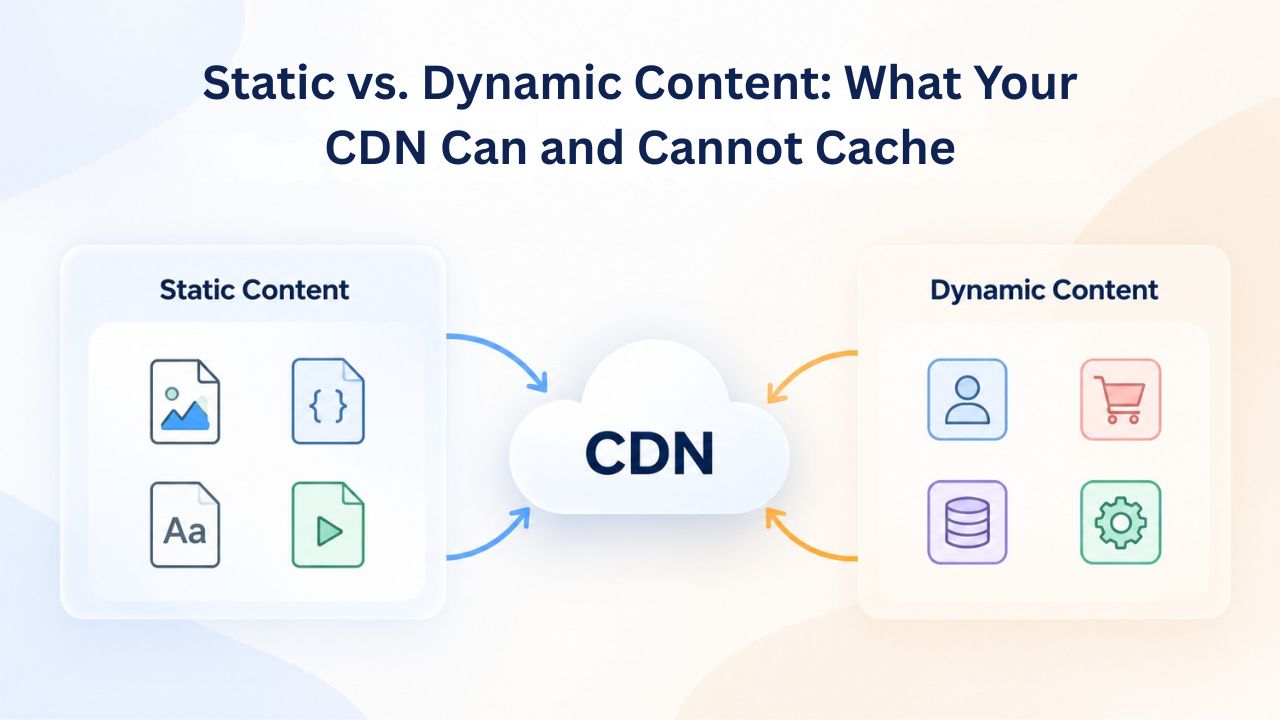
One of the most common sources of CDN misconfiguration is misunderstanding the difference between static and dynamic content, and what each type can cache effectively. Static content is the foundation of web performance optimization; it remains identical for every visitor and doesn’t change often.
Files a CDN Can Cache Effectively and Performance Impact
CDNs excel at caching the visible static elements that make up most page load time. Images are typically the largest assets on a page; a single high-resolution product photo can exceed 5 megabytes. By serving images from a CDN edge server, you save both bandwidth on your origin server and significant latency for the user. The CDN caches or stores these files, making them readily available whenever a user requests them. CSS stylesheets define your site’s visual presentation; serving them from a CDN edge eliminates render-blocking delays for distant users. JavaScript files, including jQuery and plugin dependencies, can be 1–3 megabytes per page; edge delivery speeds up script loading.
Common WordPress static assets that should always be cached by your CDN include theme stylesheets (all CSS files in /wp-content/themes/), plugin JavaScript files and libraries (jQuery, Bootstrap, custom plugin JS in /wp-content/plugins/), images from the media library (all files in /wp-content/uploads/), web fonts (Google Fonts or self-hosted fonts), header and footer graphics, favicon files, and any downloadable resources (PDFs, eBooks, software downloads). When properly configured, your CDN will cache these file types automatically and serve them from edge locations. When you update an image in the WordPress media library or upload a new file, your CDN plugin should automatically purge that file from the cache, ensuring the next request fetches and caches the updated content.
Dynamic Content Requiring Origin Server Processing
The key distinction is that dynamic content must never be cached at the CDN edge, even accidentally. The WordPress admin dashboard should never be served from the CDN cache, as it requires dynamic, logged-in content. Caching the admin area would slow site maintenance for administrators and could expose sensitive information. The same principle applies to user account pages, membership-protected content, and any page that displays personalized information. When properly configured, your CDN excludes these paths entirely so requests always route directly to your origin server.
Pages that display real-time data also require careful exclusion from edge caching. WooCommerce product pages with live inventory counts, real estate sites displaying up-to-the-minute listings, reservation systems with available slots, and news sites with breaking updates all generate different HTML based on current database state. Exclude dynamic content, such as login pages, shopping carts, and user-specific data, from the CDN cache to prevent conflicts with WordPress object cache and keep dynamic content up to date. Misconfiguring this exclusion is one of the most damaging CDN mistakes: users see stale product prices, outdated inventory counts, or old information because the CDN is serving cached versions of pages that should be generated fresh.
How to Set Up a CDN with WordPress: Step-by-Step Integration
Setting up a CDN with WordPress is more straightforward than many site owners expect, but the approach varies by hosting setup and technical comfort level. The two primary integration methods are plugin-based setup (where a WordPress plugin handles configuration and URL rewriting) and full-site CDN setup (where your CDN provider acts as a reverse proxy in front of your entire domain).
Choosing Your CDN Integration Method and Approach
The plugin-based approach is recommended for most WordPress sites because it balances simplicity and control. Many CDN providers offer official WordPress plugins. For instance, some providers offer a dedicated plugin you can install from the WordPress plugin directory. The plugin stores your CDN credentials securely and automates URL rewriting. You don’t need to change any WordPress configuration files or manually manage DNS records. The tradeoff is that you’re using a pull CDN model: the CDN pulls content from your origin on demand, caches it, and serves it. This means your origin server is still exposed to direct requests for dynamic content and must handle cache miss requests.
Full-site CDN setup is more complex but offers deeper integration and advanced features. With a full-site CDN, you change your domain’s DNS configuration to point to the CDN provider instead of your hosting provider. The CDN becomes the authoritative entry point for all traffic, routes dynamic requests back to your origin server, and serves static content from edges. This model offers better DDoS protection (attacks hit the CDN network rather than your origin directly), more granular caching control, and support for advanced features like image optimization and request routing based on geography or device type. The complexity lies in DNS configuration, but most CDN providers offer clear documentation.
Configuring Your CDN and Defining Cache Rules
Plugin-based configuration typically involves four main steps. First, you authenticate the plugin with your CDN provider using API keys obtained from your CDN account dashboard. Second, you specify which file types should be cached; a sensible default usually includes images (.jpg, .jpeg, .png, .gif, .webp), stylesheets (.css), JavaScript (.js), fonts (.woff, .woff2, .ttf), and videos (.mp4, .webm). Third, you define exclusion patterns to prevent dynamic content from being cached. At minimum, exclude /wp-admin/ (WordPress admin area) and /wp-login.php (login page). More conservative setups also exclude /cart/, /checkout/, /my-account/, and any custom dynamic paths specific to your site.
Fourth, you set cache time-to-live (TTL) values that determine how long content remains cached before the CDN fetches a fresh copy from your origin. Static assets like images and fonts can use long TTLs (30 days to 1 year) because they rarely change. CSS and JavaScript files should use moderate TTLs (1–7 days) to balance performance with update frequency. HTML content (if using a full-site CDN) should use shorter TTLs (30 minutes to 6 hours) to ensure updated posts and pages are reflected within a reasonable timeframe. After configuration, test thoroughly by loading your site and using browser developer tools to verify that static assets are being served from your CDN domain (not your origin domain).
| Integration Method | Setup Complexity | Control Level | Maintenance Load | Best For |
|---|---|---|---|---|
| Plugin-based (pull CDN) | Low, install plugin, enter credentials | High, granular caching rules per file type | Low, plugin automates updates | Most WordPress sites, conservative security approach |
| Full-site CDN (reverse proxy) | Medium, requires DNS configuration | Very high, control entire domain routing, advanced features | Medium, DNS management, potential DNS propagation issues | High-traffic sites, global audiences, advanced security needs |
| Hosting provider built-in | Very low, often one-click activation | Medium, limited to hosting provider’s preset options | Very low, hosting provider manages everything | Managed WordPress hosting customers |
| Static asset only (manual URL rewriting) | High, requires manual file changes | Low, only selected files cached | High, manual maintenance on updates | Development/testing environments |
Combining Page Caching and CDN for Maximum Speed and Core Web Vitals Impact
Understanding that a CDN alone isn’t sufficient for optimal WordPress performance is crucial. A CDN solves the geographic delivery problem, ensuring static assets reach distant users quickly, but it doesn’t solve the server-side processing problem. Your WordPress site must still execute PHP code, query the database, run plugins, and assemble pages on every request for dynamic content.
Understanding How WordPress Caching Layers Work Together
WordPress caching significantly improves site speed by storing static versions of your pages and reducing server load. The architecture involves multiple independent layers, each solving a different bottleneck. Page caching handles full-page HTML; object caching handles database query results and expensive PHP calculations; browser caching handles client-side storage of assets; and opcode caching (typically handled by your hosting environment) caches compiled PHP bytecode. When properly configured, caching and CDNs reduce the work your server must do, speed up load times, and improve responsiveness. They create the foundation for better Core Web Vitals performance.
The stacking effect is powerful: when a repeat anonymous visitor returns to your site, their browser cache serves static assets downloaded earlier (images, CSS, JS that haven’t changed). Your page cache serves the HTML without running any PHP. The CDN never even gets involved because the file was already in the browser cache. For a new visitor in Europe, their browser downloads static assets for the first time, fetching them from your CDN’s European edge server rather than your origin server across the ocean. The page HTML loads from your page cache (if using full-site CDN or server-level caching) or is generated fresh but quickly because the lightweight PHP execution needed isn’t blocked by static asset delivery.
Performance Improvements From Combining Server Caching and CDN Delivery
Page caching skips both PHP execution and database queries for cached pages, reducing TTFB by 80–95% for anonymous visitors on typical informational sites. A CDN then takes those cached pages, or serves the static assets within them, from edge locations nearest to each visitor. For a blog publishing breaking news, this combined approach allows content to be published once, cached immediately, and delivered globally in seconds with near-optimal TTFB from every region.
Server-side caching (page caching, object caching) reduces origin server load; the CDN reduces delivery distance. Both work together for optimal performance. The synergy is clear: without page caching, your origin server regenerates every page on every request, even for repeat visitors. Your server becomes overloaded, TTFB increases, and the CDN’s static asset delivery alone can’t fix the problem. Without a CDN, local visitors experience reasonable performance, but international visitors wait for static assets to traverse the globe, no matter how well-cached your pages are. Combining both layers addresses both problems, creating redundancy and resilience.
| Performance Layer | What It Does | Benefits for Visitors | Limitations Without It |
|---|---|---|---|
| Page Caching | Stores full HTML so PHP/database execution is skipped | Dramatically reduced TTFB for cached pages; bypasses 80–95% of server work | Anonymous visitors experience full PHP execution cost; server overwhelmed under traffic |
| Object Caching | Stores database query results in fast memory (Redis/Memcached) | Logged-in users get reasonable performance; expensive queries run once instead of repeatedly | Without it, dynamic pages require full database queries on every request |
| CDN (Edge Caching) | Delivers static files from the nearest geographic location | Global visitors get low-latency asset delivery; reduces origin server bandwidth by 80–90% | International visitors experience 150–300ms+ extra latency; origin server handles all asset I/O |
| Opcode Caching | PHP bytecode compiled once and reused per request | Baseline PHP execution is faster; reduces CPU overhead | Every request requires PHP recompilation; inefficient resource usage |
Ready to Accelerate Your WordPress Performance?
Our team has guided thousands of WordPress sites through CDN implementation and found that most performance gains come from proper configuration from day one. The most common slowdowns we see stem from misconfigured caching layers, overly aggressive CDN exclusion rules that block legitimate static content, or cache purge mistakes that break recent updates. Let Niya Digital handle the technical setup and ongoing optimization, freeing you to focus on content and business growth.
Measuring TTFB and Monitoring CDN Performance Across Regions
Once your CDN is live, measurement becomes critical to validating that the investment is delivering results. Performance testing tools provide objective data showing whether your Core Web Vitals have improved and which regions show the biggest gains. Google’s PageSpeed Insights, Lighthouse, and GTmetrix let you test site speed from various locations and receive detailed breakdowns of TTFB, First Contentful Paint (FCP), Largest Contentful Paint (LCP), Interaction to Next Paint (INP), and Cumulative Layout Shift (CLS).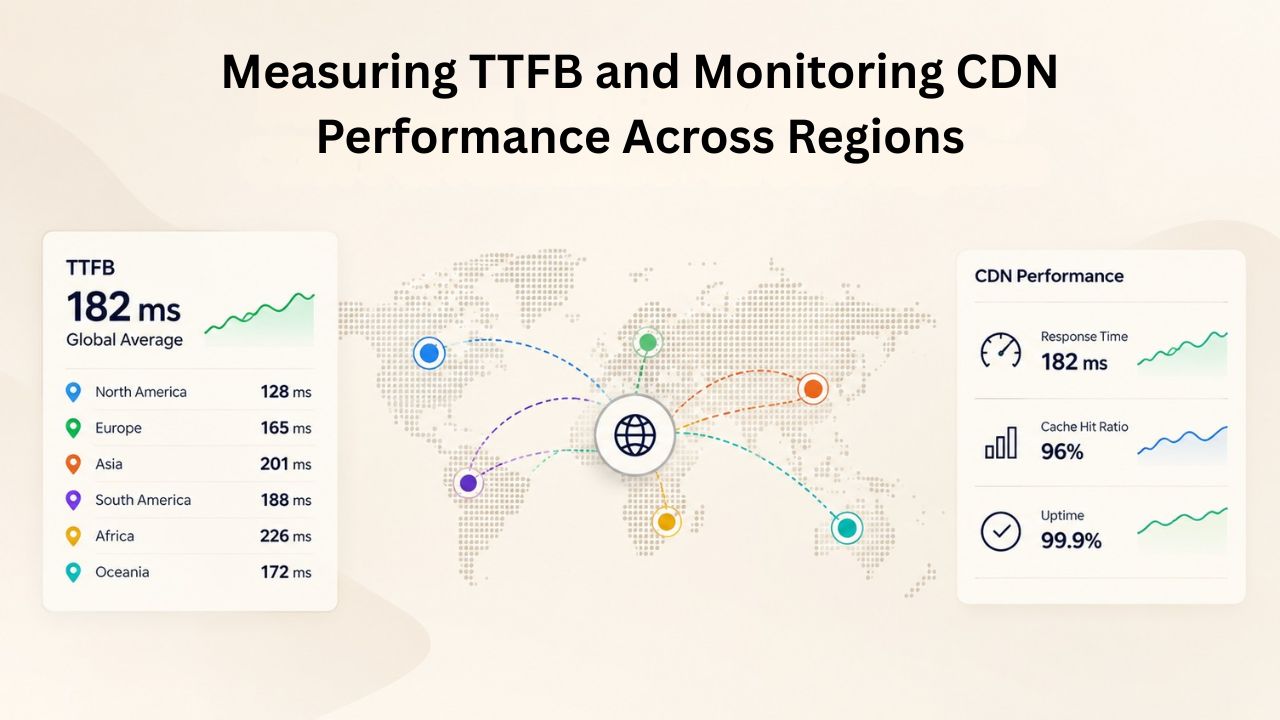
Testing Tools, Methodologies, and Interpreting Results
Enter any URL to see your LCP, INP, and CLS scores alongside actionable recommendations. Google PageSpeed Insights is free, accessible, and shows data from Google’s real-world Chrome User Experience (CrUX) dataset, making it authoritative for understanding how your site actually performs for real users. Load your site from different geographic regions, using tools that allow multi-region testing, to see how TTFB varies. A good baseline test should capture: TTFB (measured in milliseconds), First Contentful Paint (time when any content is visible), Largest Contentful Paint (time when the main content is visible), Interaction to Next Paint (responsiveness to user input), and Cumulative Layout Shift (visual stability).
Most WordPress sites should target TTFB ≤800ms globally. If your baseline TTFB for distant visitors is 2,000–2,500ms (common for unoptimized sites with global audiences), a well-configured CDN combined with page caching can reduce that to 800ms–1,200ms, a reduction of 50–70%. Record these baseline scores, implement your CDN, and retest after 48–72 hours to allow caching to stabilize. Document the improvement in a shared location so you can reference it when justifying continued investment in performance optimization to stakeholders.
Analyzing Cache Hit Ratios and Geographic Performance Breakdown
Your CDN provider’s dashboard is a treasure trove of performance data. Cache hit ratios show the percentage of requests served from edge caches versus requests that required a fresh fetch from your origin server. A healthy cache hit ratio is 90% or higher; anything below 80% indicates misconfiguration or content types that aren’t being cached effectively. Track cache hit ratios by file type (images vs. CSS vs. JavaScript) and by region to identify patterns. If images have a 95% cache hit ratio but CSS has a 60% hit ratio, CSS files might be expiring too quickly or have problematic Cache-Control headers set by a plugin.
Geographic performance breakdown is equally important. Your CDN dashboard should show TTFB broken down by region: North America, Europe, Asia, Australia, and so on. If visitors from one region consistently show higher TTFB despite using your CDN, it may indicate that an edge server location is missing in that region or that the CDN’s routing algorithm isn’t optimal for that geography. Modern CDN providers operate hundreds of edge server locations worldwide, but some regions may have more limited presence. If you have significant traffic from a particular region with poor performance, contact your CDN provider to request edge location expansion in that area.
Global Audiences and Reducing Geographic Latency: Why Distance Matters
For WordPress sites serving truly global audiences, geographic latency is a permanent performance penalty without a CDN. The physics of network transmission can’t be violated: data cannot travel faster than the medium through which it passes. A user in Tokyo hitting a server in Frankfurt experiences 200–300ms of network latency alone, even before server processing.
Understanding Network Latency and the Speed of Light Constraint
Every request from a user’s device to your server must travel through multiple network hops: from the device to the local ISP, through regional backbone networks, across international cables (often submarine fiber optic cables for intercontinental traffic), and finally to your server. The speed of light through fiber optic cables is about 200,000 kilometers per second, but this is an absolute floor; real-world performance is slower because of physical routing constraints and network congestion.
For a user in Australia requesting content from a server in the United States, baseline latency is 150–250 milliseconds minimum, depending on the exact routing path and network congestion. With a CDN edge server in Australia or nearby (Singapore, New Zealand), that same request could complete in 10–50 milliseconds. The perceptual difference is profound: at 150ms latency, visitors notice the delay, pages feel sluggish, and engagement drops. At 20ms latency, the page feels instant and responsive. For every 100ms of latency saved, conversion rates improve measurably.
CDN Edge Locations, Regional Coverage, and Performance Implications
Reputable CDNs operate hundreds of edge server locations worldwide, strategically positioned to minimize latency for end users in every region. When evaluating a CDN provider or assessing whether your current CDN is adequate, check its edge-location coverage. Providers with robust presence in North America and Europe serve most developed-nation websites, but if your audience includes significant traffic from Asia, Africa, or South America, verify that edge locations exist in those regions.
Some CDNs offer better regional coverage than others, and coverage gaps have real performance consequences. If your CDN has edges in North America and Europe but not in Asia, Asian visitors will experience significantly higher latency than North American visitors. This creates a bifurcated user experience where some visitors see excellent performance while others suffer. For global WordPress sites, coverage across all major regions- North America, Europe, Asia-Pacific, South America, and Africa- is important for consistent, competitive performance worldwide.
Cache Invalidation: Keeping Your CDN Content Fresh and Current
When you update your WordPress site, the CDN doesn’t automatically know that content has changed. Edge servers continue serving cached versions until you explicitly tell them to refresh. This cache invalidation step is critical: without it, visitors see outdated content, broken CSS layouts, non-functional JavaScript, or old product information.
Understanding Purge Strategies and Cache Expiration
Most WordPress CDN plugins include automatic cache purging functionality. When you publish a new post in WordPress, the plugin automatically sends a purge request to your CDN for that post’s URL. When you update an image in the media library, it purges that specific image. When you update a plugin or activate a new plugin, some advanced plugins automatically purge relevant CSS and JavaScript. This automatic approach is ideal because it requires no manual intervention and reduces the likelihood of serving stale content.
Manual purging is also available for edge cases. Your CDN dashboard typically offers options to purge by URL pattern (all images within a specific folder), by tag (all assets associated with a particular page), or to do a full purge of all cached content. Full purges should be rare, only after major site redesigns, plugin incompatibility fixes, or if you suspect widespread cache corruption. Plan full purges for low-traffic hours (outside your peak traffic windows) to minimize the impact on origin server load during the refresh.
Selective Cache Clearing Workflows After Updates
A best-practice workflow for updates is: make your changes, publish your updates, selectively purge only the affected content, and then verify that visitors see the updated version. When you update a plugin or theme, purge only the CSS and JavaScript files that changed, not HTML pages. When you change your site’s navigation menu, purge your header file and homepage. When you update a product image in WooCommerce, purge that specific image and the product page HTML. This granular approach preserves cache for unrelated content.
Knowing how to clear the cache in WordPress is key; use the CDN dashboard or plugin settings to clear the cache or purge content as needed. Most WordPress CDN plugins provide a “Clear Cache” button in the WordPress admin toolbar for quick purging. For bulk purges, the CDN dashboard provides more advanced options. After initiating a purge, allow time for the CDN to refresh, typically seconds to minutes, then verify in your browser that you see the new content. If you see old content despite purging, clear your browser cache (Ctrl+Shift+Delete) and try again; sometimes browser cache masks CDN issues.
Security Benefits Beyond Speed: DDoS Mitigation and Infrastructure Protection
CDNs provide substantial security benefits that extend far beyond performance optimization. By positioning themselves between your visitors and your origin server, CDNs create a protective layer that filters malicious traffic, mitigates distributed denial-of-service (DDoS) attacks, and shields your origin server’s infrastructure from direct exposure.
DDoS Mitigation at the Edge and Protecting Your Origin Infrastructure
A DDoS attack floods your server with requests from many sources simultaneously, overwhelming its capacity and causing downtime. Traditional hosting without a CDN is vulnerable: a relatively small DDoS attack (tens of thousands of requests per second) can saturate a typical web server’s network connection or exhaust its processing capacity. A CDN reduces DDoS impact by distributing attack traffic across a globally distributed network of edge servers, absorbing attack traffic at multiple locations before it reaches your origin.
Edge servers are specifically designed to handle extreme traffic volumes. A CDN edge server can process millions of requests per second while remaining responsive to legitimate traffic. Advanced CDN providers use machine learning algorithms to detect and block malicious request patterns in real timereal time. Geographic filtering can block requests from regions where your business doesn’t operate. Rate limiting can cap requests from a single IP address. Layer 7 (application layer) WAF (Web Application Firewall) rules can block SQL injection attempts, cross-site scripting attacks, and other application-level threats. These protections operate at the edge, before malicious requests even reach your origin server.
Protecting Your WordPress Site From Traffic Spikes
Traffic spikes, whether from viral content, legitimate seasonal surges, or DDoS attacks, can overwhelm an unprotected origin server. A single viral blog post can generate 100x your normal traffic, more than any origin server can handle. During peak traffic moments, you want every request served as efficiently as possible. When a CDN handles most file requests, your origin spends less time serving static files, leaving more capacity to process dynamic requests. Static assets hit the edge cache at massive scale; dynamic requests are distributed to your origin at manageable volume.
This buffer also provides time to respond to traffic spikes. If a spike overwhelms your origin despite the CDN, you have minutes to add server resources, implement additional caching layers, or contact support for emergency scaling. The CDN continues serving cached content while you stabilize the origin, preventing complete service degradation. For e-commerce sites, this resilience is critical. During Black Friday sales or seasonal surges, you cannot afford downtime, and a CDN provides the foundation for handling extreme traffic volumes without breaking.
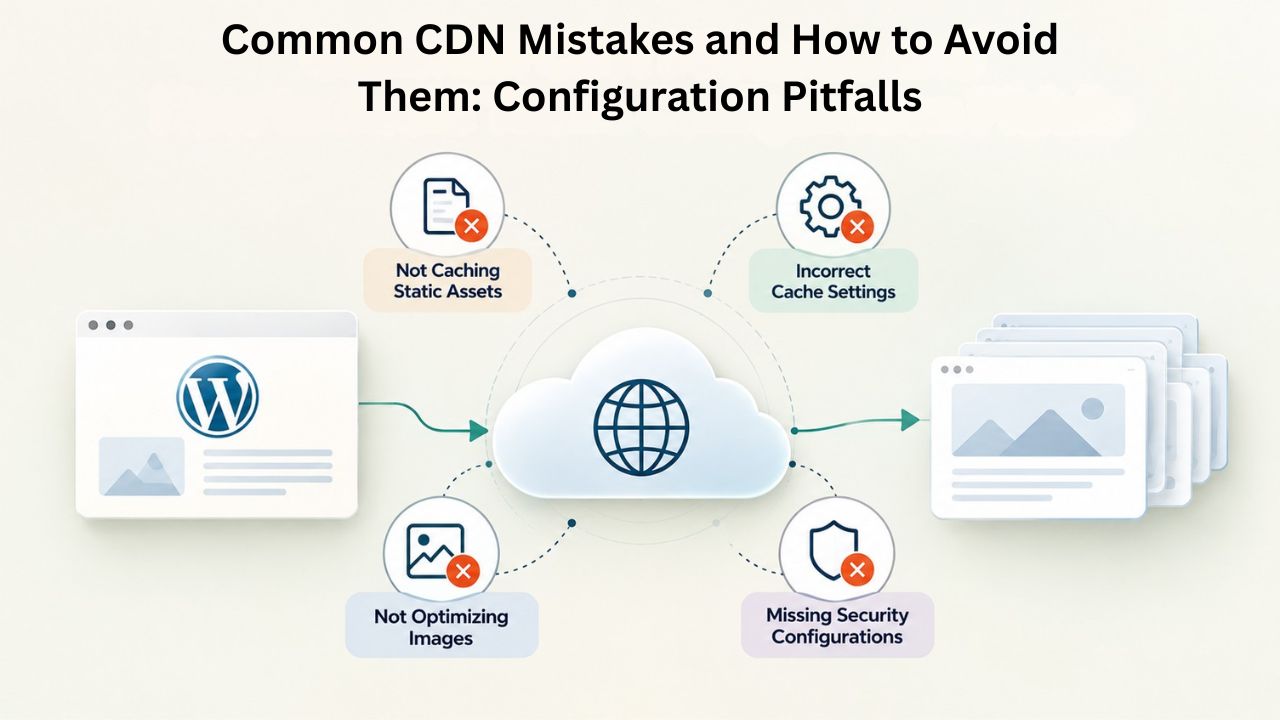
Common CDN Mistakes and How to Avoid Them: Configuration Pitfalls
The most frequent CDN misconfigurations stem from misconfigured caching rules, inappropriate exclusion patterns, or incomplete understanding of what can and cannot be cached. Sites accidentally cache the WordPress admin area, login pages, or dynamic user-specific content, causing visitors to see stale or incorrect information.
Caching Dynamic or Logged-In Content: The Most Damaging Mistake
The most critical and damaging CDN mistake is caching pages that should be dynamic. If a logged-in user’s account page gets cached and served to the next anonymous visitor, that visitor sees private account information, email addresses, transaction history, and personal preferences. This is a data exposure vulnerability. If your e-commerce product page shows an outdated price or stock count because it’s incorrectly cached by the CDN, customers make purchase decisions based on incorrect information, leading to fulfillment confusion and customer dissatisfaction.
Ensure your CDN plugin’s exclusion rules cover all dynamic paths: /wp-admin/ (WordPress administration area), /wp-login.php (login page), /cart/ (shopping cart), /checkout/ (checkout process), /my-account/ (user accounts), /search/ (search results), /wp-json/ (REST API for dynamic data), or any custom paths where content changes per-user or per-request. Test by logging in, performing an action (add an item to cart, post a comment, update account information), logging out, and verifying that an anonymous visitor does not see your logged-in data or cart contents. If they do, your CDN exclusions are misconfigured.
Improper Exclusion Rules and Configuration Errors
Overly broad exclusion rules can accidentally prevent legitimate static content from being cached, defeating the purpose of a CDN. If you exclude /images/, all images fail to cache at the CDN, and every image request returns to your origin server. If you exclude /wp-content/, all plugin and theme assets are excluded. These mistakes can actually worsen performance compared to having no CDN at all. Keep exclusion rules precise and targeted.
After configuration, test URLs directly in your browser to verify they’re being served by the CDN. Open your browser’s Network tab in developer tools, load your homepage, and check the URLs of images and CSS files. They should show a CDN domain (like d12345.cloudfront.net or your CDN provider’s domain), not your origin domain. If they show your origin domain, the CDN is not rewriting those URLs correctly. Use the performance testing tools mentioned earlier to verify that static assets are being cached and delivered from edge locations, not repeatedly fetched from origin.
| Common CDN Mistake | Consequence | Solution | Prevention |
|---|---|---|---|
| Caching WordPress admin pages (`/wp-admin/`) | Visitors see incorrect admin content, security issues, functionality breaks | Exclude `/wp-admin/` from CDN cache entirely | Use allowlist/exclude list carefully; test admin access after CDN setup |
| Caching user-specific or logged-in content | Private data exposed to anonymous visitors, PCI compliance violations | Exclude `/my-account/`, `/cart/`, `/profile/`, user-specific dynamic paths | Test by logging in, then logging out and verifying data isn’t visible |
| Cache TTL too high | Updated content doesn’t refresh for hours or days | Set HTML cache TTL to 30–60 minutes; static assets 1–30 days | Use short TTL for dynamic content, longer for truly static files |
| Missing automatic cache invalidation | Old CSS/JS causes visual or functional breakage after updates | Configure automatic purge on post publish, image upload, plugin activation | Use CDN plugin that provides automatic purging; test after every update |
| Forgetting to exclude dynamic content | Site functionality breaks, users see stale information | Systematically review all paths and exclude anything dynamic | Maintain documentation of all dynamic paths; update as site grows |
Start Optimizing Your WordPress Performance With a CDN Today
The setup process is straightforward for most WordPress sites, and performance gains are immediate and measurable. Niya Digital’s managed WordPress hosting includes comprehensive CDN integration support and ongoing performance optimization, so you don’t have to navigate these technical complexities alone. Our infrastructure team has guided thousands of WordPress sites through CDN implementation and optimization, and we’ve learned exactly which configuration decisions matter most for real-world performance.
Frequently Asked Questions
What is a Content Delivery Network (CDN) and how does it improve WordPress performance?
A Content Delivery Network is a global network of servers distributed across geographic regions that cache and deliver your website’s static content (images, CSS, JavaScript, videos) from locations closest to your visitors. CDNs reduce latency by eliminating geographic distance between users and content, directly improving Time-to-First-Byte (TTFB), Largest Contentful Paint (LCP), and other Core Web Vitals metrics. For international visitors, CDN integration can reduce TTFB by 50–70% compared to serving all content from a single origin server.
How much faster will my WordPress site be with a CDN, and how quickly will I see results?
Performance improvements vary based on your current setup, geographic distribution of visitors, and existing caching configuration. Sites serving primarily local audiences typically see 10–20% improvement in TTFB. Sites with significant international traffic commonly see 30–70% improvement in TTFB and LCP for distant visitors. Results are usually visible within hours of enabling a CDN, with full benefit achieved after 24–48 hours as content is cached on edge servers. You can measure impact using Google PageSpeed Insights, GTmetrix, or your CDN provider’s dashboard.
Do I need both page caching and a CDN, or can I choose one?
Both page caching and a CDN serve critical but different purposes and work best together. Page caching reduces server load by bypassing PHP execution and database queries; a CDN reduces delivery distance by serving static files from geographically distributed edge servers. Without page caching, your origin server must regenerate every page on every request, even for repeat visitors, making it vulnerable to traffic spikes. Without a CDN, local visitors experience reasonable performance, but international visitors wait for static assets to traverse the globe. Combining both layers addresses both problems and creates redundancy and resilience.
Will a CDN speed up my WordPress admin area, or does it help only with frontend performance?
A CDN should not cache your WordPress admin area, and properly configured CDNs automatically exclude /wp-admin/ from caching. Admin performance depends entirely on your origin server’s speed and server-side processing power. If your WordPress admin is slow, the dashboard takes seconds to load, and the post editor feels sluggish, the issue is server-side processing and database performance, not the CDN. CDN benefits apply only to frontend visitor experience and public-facing content, not administrative interfaces.
How do I know if my CDN is working correctly, and what should I measure?
Use Google PageSpeed Insights or GTmetrix to test your site from multiple geographic regions before and after enabling your CDN. Compare TTFB and LCP scores; improvements should be visible within hours. Check your CDN provider’s dashboard for cache hit ratios (aim for 90%+ for static assets) and performance by geographic region. Verify in browser developer tools that static assets load from your CDN domain (not your origin domain). Baseline measurements before CDN activation are essential; without them, you cannot definitively measure improvement.
What content should I exclude from my CDN cache to avoid breaking my site?
Exclude all dynamic content: WordPress admin (/wp-admin/), login pages (/wp-login.php), user accounts (/my-account/, /profile/), shopping carts and checkout (/cart/, /checkout/), search results (/search/, /?s=), and any page that changes per-user or per-request. Include everything else: images, stylesheets, JavaScript, fonts, and PDFs. Most WordPress CDN plugins provide sensible default exclusions, but review them carefully to ensure they match your site’s structure. If your site has custom dynamic functionality, add those paths to the exclusion list.
How often should I purge or clear my CDN cache, and what triggers a purge?
Set up automatic cache purging so purges happen on triggers rather than on a schedule. Automatic purges should trigger when you publish or update a post, upload or replace images, activate or update a plugin, or switch themes. Manual purges should be rare, reserved for debugging or after major changes. Selective purging (clearing specific files or pages) is the standard practice; full purges should occur only after comprehensive site changes and ideally during low-traffic periods to minimize origin server load.
Does a CDN protect my WordPress site from hackers, or is it purely a performance tool?
A CDN provides meaningful security benefits beyond performance. By hiding your origin server’s IP address, CDNs prevent attackers from targeting your server directly. CDNs filter and block malicious traffic at the edge before it reaches your origin, reducing DDoS impact. However, a CDN does not replace WordPress security fundamentals like keeping WordPress core and plugins updated, using strong passwords and 2FA, or implementing security headers. Use a CDN for performance and DDoS resilience, plus implement core WordPress security practices for comprehensive protection.
What is TTFB (Time-to-First-Byte) and why is it the most important performance metric?
Time-to-First-Byte is the time from when a browser requests a page until it receives the first byte of data from the server. TTFB measures both server processing time and network latency combined. It matters more than other metrics because no other performance metric- not First Contentful Paint, not Largest Contentful Paint, not Interaction to Next Paint- can begin until the first byte arrives. A high TTFB acts as a ceiling that limits how fast your page can load. Google recommends ≤800ms for TTFB; sites with TTFB >1800ms need urgent optimization.
Can a CDN fix a slow WordPress database or problematic plugin performance?
No, a CDN only accelerates static-file delivery and cannot fix database slowness or plugin performance issues. If your WordPress database is slow and pages take 3–5 seconds to generate even without any asset download, the issue is server-side. It may require database optimization, query tuning, or upgrading to faster hosting. A CDN handles the delivery layer; database and plugin optimization are separate concerns. For sites with database or plugin performance issues, address those before or alongside CDN implementation.
How do I choose the right CDN provider for my WordPress site, and what features matter most?
Key factors include: geographic coverage (does the provider have edge servers in regions where your visitors are located?), ease of WordPress integration (is there an official plugin?), cache hit ratio performance (what percentage of requests are served from edge vs. origin?), price (free tiers for low-traffic sites, reasonable scaling), and customer support quality. For most WordPress sites, mainstream CDN providers with good WordPress integration and reasonable pricing are appropriate. Verify that the provider has edge servers in your visitors’ regions; coverage gaps create performance problems for those regions.
What is cache invalidation, and why is it important for CDN performance?
Cache invalidation is the process of purging (clearing) outdated cached content from CDN edge servers so fresh versions are fetched from your origin. Without it, visitors see stale pages, old CSS causing visual breaks, outdated images, or incorrect information. Proper cache invalidation ensures that when you publish updates, change your site’s design, or fix bugs, those changes reach visitors immediately. Selective invalidation (purging only changed files) is preferred to full purges because it reduces load on your origin server during the refresh.
Can I use a CDN with shared WordPress hosting, or do I need managed/VPS hosting?
CDN plugins work with any WordPress hosting, shared, managed, or VPS. The plugin handles URL rewriting and purge signals independent of your hosting provider. Managed WordPress hosting often includes built-in CDN integration as a premium feature, while shared hosting requires plugin-based setup. The choice of CDN provider and plugin integration method matters more than your hosting type. Even budget shared hosting can benefit from a CDN; performance improvements from geographically distributed delivery go beyond the hosting tier.
How does a CDN impact WordPress SEO and search rankings?
Faster page load times improve SEO because Google uses Core Web Vitals (TTFB, LCP, INP, CLS) as ranking factors. CDNs reduce TTFB and LCP, directly improving your Core Web Vitals scores. Additionally, faster-loading pages have lower bounce rates and higher time on page, both positive ranking signals. Mobile performance matters most, and CDNs especially benefit mobile users on slower connections. Indirect SEO benefits include reduced crawl time for search engine bots and better page indexation.
Is there a cost to implementing a CDN, and does page indexing pay off?
Most CDN providers offer free tiers for low-traffic sites (typically <1TB/month bandwidth) and paid plans scaling with usage. Entry-level plans may be $5–20/month; high-traffic sites may pay more. Many managed WordPress hosting providers include CDN access at no extra charge. For e-commerce or high-traffic sites, a CDN investment typically pays for itself through improved conversion rates from faster load times. For any site with global audiences, a CDN is worth the investment.
Glossary
- Edge Server (Point of Presence / PoP): A server located in a geographic region that caches and delivers your website’s content to visitors in that region. CDNs operate hundreds of edge servers worldwide, typically in major cities and regions to minimize latency for end users.
- Cache Hit Ratio: The percentage of requests served from cached content stored on edge servers versus requests that required a fresh fetch from your origin server. A healthy cache hit ratio is 90% or higher; ratios below 80% indicate misconfiguration or content types that aren’t caching effectively.
- Time-to-First-Byte (TTFB): The time between when a browser sends a request for a page and when it receives the first byte of data from the server. TTFB measures the combined delay of server processing time and network latency. Google recommends ≤800 milliseconds; this metric sets a floor for how fast other metrics can be.
- Largest Contentful Paint (LCP): A Core Web Vitals metric measuring how long it takes for the largest visible element on a page (image, video, or text block) to render in the viewport. Google’s good threshold is ≤2.5 seconds. LCP is critical for perceived page performance and affects user engagement and search rankings.
- Cache Invalidation (Cache Purge): The process of clearing outdated cached content from CDN edge servers so fresh content is fetched from the origin server. Can be selective (purge specific files or paths) or comprehensive (purge all cached content). Selective invalidation is preferred to minimize origin server load.
- Static Content: Files that remain identical for every visitor and don’t change frequently, including images, CSS stylesheets, JavaScript files, fonts, videos, and PDFs. CDNs excel at caching static content because files can be served to thousands of visitors without modification.
- Dynamic Content: Content that changes based on user interaction, authentication status, request parameters, or real-time data, including WordPress admin pages, login pages, shopping carts, user accounts, and search results. Dynamic content cannot be cached at CDN edges and must always route through your origin server for generation.