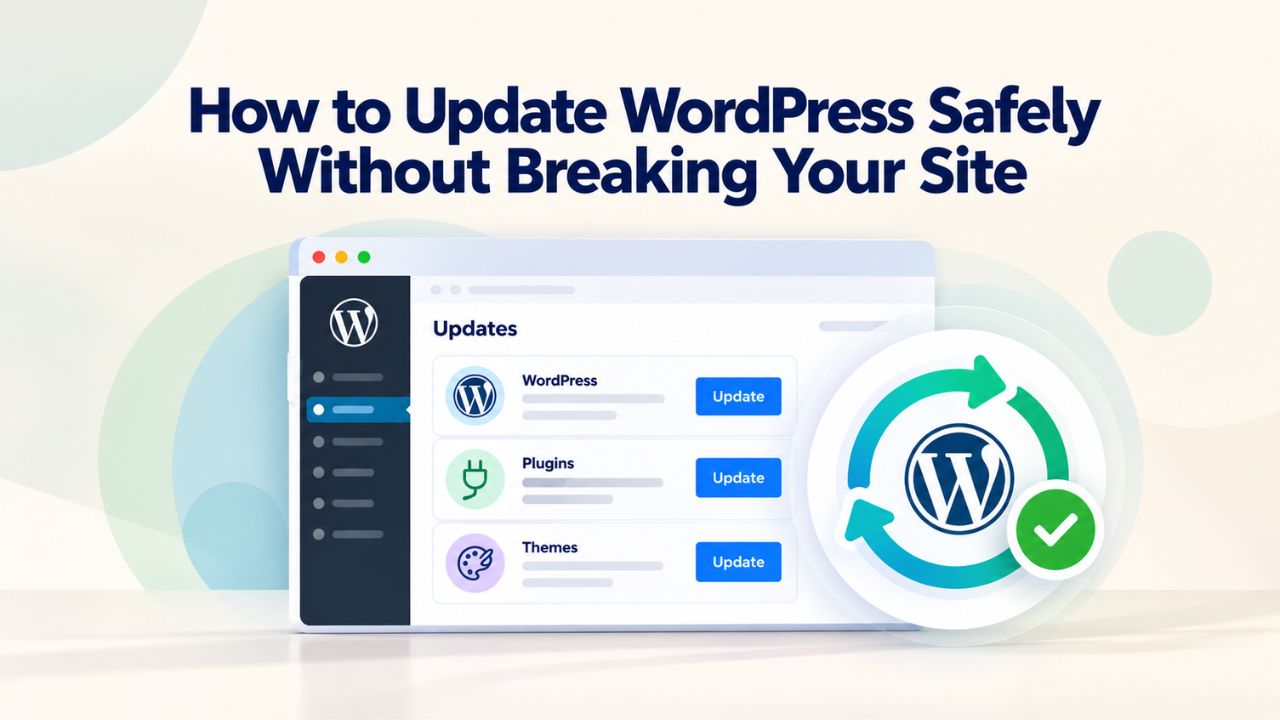
WordPress updates are essential for security, performance, and access to features. Without them, your site becomes vulnerable to attacks, incompatible with modern plugins, and slower. Yet thousands of site owners delay or skip updates because they fear breakage. The reality: with proper preparation and verification, WordPress updates are routine, and you can prevent breakage.
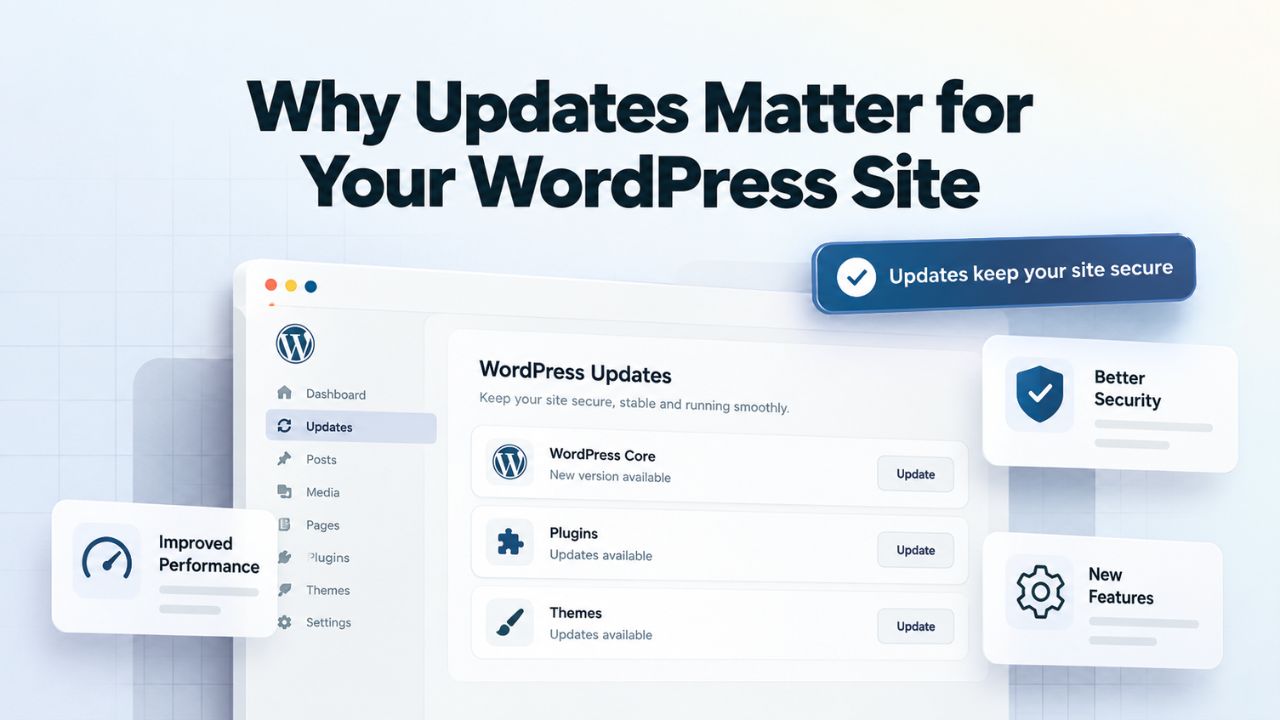
Why Updates Matter for Your WordPress Site
The scope of update activity is staggering. Weekly vulnerability reports document 40 or more new security flaws in WordPress plugins alone, affecting millions of active installations. A single outdated plugin with a known vulnerability exposes your entire site to compromise. Yet update delays are universal. The average WordPress site runs several minor releases behind. This delay multiplies risk: each skipped security patch is another known attack vector left open.
Security Vulnerabilities Leave Attack Doors Open
Unpatched security vulnerabilities are the primary attack vector on WordPress sites. When a vulnerability is disclosed, especially one affecting a popular plugin with millions of installations, attackers activate. They scan the web for sites running the vulnerable version and exploit them automatically. By the time you manually apply the update a week later, automated attacks have already scanned your site dozens of times.
Attack mechanics are often invisible. A vulnerable plugin might allow an attacker to upload malicious code, inject a redirect that steals visitor data, or create an administrator account for persistent access. By the time you notice something is wrong (slow performance, spam in comments, unauthorized admin users), the attacker has been inside your site for weeks. Recovery then requires professional incident response, malware removal, and extensive security hardening.
Delaying updates creates compounding technical debt. A site that skipped updates for two years might run WordPress 5.0 with plugins written for WordPress 4.9. Upgrading such a site to WordPress 6.9 isn’t a single step; it’s a cascade of compatibility issues. Each update layer can introduce incompatibilities, making testing complex. Staying current with regular updates keeps compatibility problems manageable and prevents this debt from accumulating.
Performance Improvements and Ecosystem Compatibility
WordPress updates frequently include performance optimization. WordPress substantially refined the block editor across dozens of minor releases in 5.8+. Database queries were optimized in 6.1. Core Web Vitals improvements landed in multiple versions. Staying current keeps your site leaner and faster, directly improving user experience and search engine rankings.
Beyond WordPress core, plugins and themes built for modern versions assume you’re running a reasonably current WordPress. A plugin developer writing for WordPress 6.5+ won’t test against WordPress 5.0; if you’re on that old version and install a modern plugin, it might break silently or loudly. Over time, your site becomes isolated from the modern WordPress ecosystem, can’t access new tools, is restricted to outdated plugins, and is forced into workarounds. This isolation compounds costs: support becomes harder to find, security gets worse, and performance degrades.
WordPress Pricing Plans
Choose the WordPress hosting plan that fits your website needs, with reliable performance, security, storage, backups, and tools to help your site grow.
WordPress Basic
A great way to get started.
- 1 website
- 10 GB NVMe storage
- Unmetered bandwidth
- Free SSL Certificate *
- WordPress pre-installed
- Weekly backups
- Web Application Firewall
- Daily malware scans
- One-time malware removal

WordPress Deluxe
Improve your site performance with Cloudflare CDN.
- 1 website
- 20 GB NVMe storage
- Unmetered bandwidth
- Free SSL Certificate *
- WordPress pre-installed
- Daily backups
- Web Application Firewall
- Daily malware scans
- One-time malware removal
- Up to 2x faster performance with global Cloudflare CDN **
- Enhanced security with DDoS protection
- Staging site
WordPress Ultimate
Add online marketing with more sites, storage and security.
- 1 website
- 30 GB NVMe storage
- Unmetered bandwidth
- Free SSL Certificate *
- WordPress pre-installed
- Daily + on-demand backups
- Web Application Firewall
- Daily malware scans
- Unlimited malware removal
- Up to 2x faster performance with global Cloudflare CDN **
- Enhanced security with DDoS protection
- Staging site
- WordPress code optimizer
- Smart WordPress plugin manager
- Sell online with WooCommerce
Preparing Your Site for Updates
Successful updates are built on preparation. Before clicking any update button, spend 10–15 minutes backing up, staging, and verifying compatibility. This preparation prevents 95% of update problems and ensures that if something unexpected happens, you recover in minutes instead of hours or days.
Creating and Verifying Complete Backups
A backup is your insurance policy and your undo button. It must include two components: every WordPress file on your server and a complete database dump. A backup missing either component is incomplete and won’t restore your site.
Your hosting environment provides multiple backup methods, each with different trade-offs. Hosting control panels (cPanel, Plesk, DirectAdmin, etc.) typically include automated backup functionality. You can often download backups directly or restore them with a single click. Control panel backups are reliable and straightforward but can consume significant server storage space if your site is large or you keep long backup histories.
Backup plugins like UpdraftPlus, BackupBuddy, and BackWPup automate the entire process. These plugins schedule regular backups (daily, weekly, or on-demand), create compressed archives of files and the database, and store them offsite in Google Drive, Amazon S3, Dropbox, or other cloud storage. This approach keeps backups off your server, freeing storage space, and provides offsite redundancy. Backup plugins range from free (with basic features) to commercial offerings with advanced options like encrypted backups, selective file restoration, and staging site management.
Manual backups via FTP and phpMyAdmin offer maximum control but require technical knowledge. Download all files from your server via FTP using software like FileZilla. Export your database via phpMyAdmin (accessible through hosting control panels) as an SQL file. Store both files on your local computer. This method is labor-intensive and easy to forget, but it works universally and requires no plugins or hosting-specific features.
Never skip backup. Test your backup restoration procedure at least once per quarter by actually restoring to a staging environment, not just assuming it works. An untested backup is theoretical; a tested backup is proven insurance.
Setting Up a Staging Environment for Safe Testing
A staging environment is a complete, functional clone of your live website running on the same server or a separate one. Visitors never see the staging site; only you can access it. The power of staging is this: if an update breaks everything on staging, you delete the staging site and your live site remains untouched. If updates work perfectly on staging, you merge changes back to live with confidence.
Staging allows you to test not just that your site loads, but that every feature works correctly. You can test forms, confirm WooCommerce checkout processes, verify custom post types display correctly, and confirm third-party integrations still sync data. You can test in the same environment as live, with the same plugins, theme, database structure, and WordPress version, without impacting visitors.
Many managed WordPress hosting providers, including those on enterprise-grade cloud infrastructure, offer one-click staging. You click a button, a clone appears within minutes, and when testing is complete, you merge staging back to live, overwriting old code with tested new code. This process is instantaneous for most sites and eliminates the risk of deploying untested updates to production.
For hosts without built-in staging, local development tools like Local by Flywheel or MAMP let you run a copy of your site on your computer. The learning curve is steeper, and the environment isn’t identical to live (different PHP extensions, different MySQL versions, different server configurations), but it’s better than testing directly on live.
Reading Changelog and Compatibility Information
Before any update, read what’s changing. In the WordPress dashboard, navigate to Plugins > Installed Plugins or Appearance > Themes, find the plugin or theme with an update available, and click the “View details” link. The modal that opens includes a “Changelog” tab listing what was fixed, added, or changed.
Look specifically for lines like “Requires PHP 8.0+”, “Dropped support for PHP 7.2”, or “Breaking Changes” sections. If a plugin changelog says “Minimum PHP version is now 8.0,” and your server runs PHP 7.4, the update won’t install, and WordPress will show an error. Knowing this in advance lets you plan a PHP upgrade alongside the plugin update, with staging testing to confirm everything works on the new PHP version.
Breaking changes are rare in minor updates but common in major versions. A breaking change means existing functionality changed in a way that could affect sites using that plugin. The changelog entry usually explains the change and any migration steps required. Read these carefully; they often point to configuration changes you must make after updating.
Verifying PHP Version Compatibility
PHP is the server-side programming language that powers WordPress. Your hosting server runs a specific PHP version, currently ranging from PHP 7.2 (outdated, no longer receiving security updates) to PHP 8.3 (current as of 2026). WordPress core supports PHP 7.4 through PHP 8.3, though WordPress.org recommends PHP 8.1 or higher for optimal security and performance.
When plugins or themes update, they sometimes require a newer PHP version than your server currently has. WordPress won’t install the update if your PHP is incompatible; it fails with an error message. However, knowing your current PHP version before updating lets you plan proactively.
Check your PHP version in the WordPress dashboard: go to Tools > Site Health, and the “Status” tab prominently displays your PHP version. If an update changelog lists a higher PHP requirement than what you see here, contact your hosting provider to upgrade your server’s PHP. Test this PHP upgrade on a staging site first; some older plugins and custom code break on newer PHP versions because deprecated functions are removed. Once you’ve confirmed everything works on staging on the new PHP, upgrade live, then apply plugin or theme updates that require the newer PHP version.
Choosing the Right Time for Updates
Update during your site’s lowest-traffic period. If an update causes a temporary issue, a brief white screen, or a loading delay, fewer people experience it if you update at 2 AM in your timezone rather than noon. For local business sites, midnight to 6 AM is typically safest. For global SaaS platforms with 24/7 users, coordinate with stakeholders and schedule updates during the lowest-traffic hour you can identify from your analytics.
Avoid updating multiple major systems simultaneously. Don’t update WordPress core and switch PHP versions on the same day. Don’t update WordPress and deploy a custom code change on the same day. If multiple changes happen at once and something breaks, you end up guessing which one caused it. Stagger them: upgrade PHP on Monday, test for a week, then update WordPress on the following Monday.
Understanding WordPress Update Types and Timing
WordPress version numbers follow a pattern that tells you what kind of update you’re getting and how to handle it. Understanding this system removes confusion and helps you prioritize.
Update Types and Risk Assessment
| Update Type | Example Versions | Typical Contents | Compatibility Risk | Recommended Action | Deployment Timeline |
|---|---|---|---|---|---|
| Security Patch (Minor) | 6.9.0 → 6.9.1 | Vulnerability patches, bug fixes | Very Low | Apply immediately; auto-apply is enabled by default | Same-day release |
| Feature Release (Major) | 6.9 → 7.0 | New features, editor improvements, database changes | Low–Medium | Test on staging for 2–4 hours; deploy within 1–2 weeks | 1–14 days post-release |
| Plugin Update (Minor) | Plugin 1.2 → 1.2.1 | Bug fix or security patch | Very Low | Apply immediately | Same day available |
| Plugin Update (Major) | Plugin 1.2 → 2.0 | Major feature changes, potential breaking changes | Medium–High | Test on staging; review changelog for breaking changes | 3–7 days post-release |
| Theme Update (Minor) | Theme 1.0 → 1.0.1 | Bug fix or design refinement | Low | Apply within 24 hours | Same day available |
| Theme Update (Major) | Theme 1.0 → 2.0 | Major design changes, new features | Medium (with child theme); High (without) | Use child theme; test on staging; apply within 1 week | 3–7 days post-release |
Major Releases Bring New Features and Require Attention
A major release moves from WordPress 6.9 to 7.0, or 7.0 to 7.1. Major releases happen roughly every four to six months and introduce new features, editor improvements, and sometimes database schema changes. WordPress doesn’t apply major updates automatically; you must apply them manually.
Compatibility risk with major updates is moderate. WordPress changes core behavior, and plugins built around the old behavior might conflict with new functionality. For instance, when WordPress 5.0 introduced the block editor, themes and page builders that didn’t anticipate this change broke. When WordPress 6.3 introduced automatic font downloading, sites using custom fonts changed unexpectedly. These aren’t catastrophic breaks; they’re usually fixable with plugin or theme updates, but they warrant testing before deploying to a live site.
The recommended timing for major releases is within one to two weeks of their public announcement. This delay does two things: it gives plugin and theme developers time to test compatibility and release updates if needed, and it lets early adopters surface unexpected issues (reported to developers) before you update. Waiting too long, for instance, leaves you running an old version without the latest performance improvements and security patches. When you finally update, you’ll face more compatibility issues because the ecosystem has moved forward in the interim.
Minor Releases Patch Security and Fix Bugs
A minor release moves from WordPress 6.9 to 6.9.1, or 6.9.1 to 6.9.2. These releases contain security patches and bug fixes, no new features, no database changes, no major structural shifts. Compatibility risk is very low because minor releases patch existing code; they don’t restructure it.
WordPress applies minor security updates automatically in the background by default, a behavior enabled since WordPress 3.7. This automation is deliberate and recommended. Security vulnerabilities don’t wait for your convenience; attackers exploit them immediately after disclosure. Automatic minor updates mean your site is protected within hours of a fix being released, with no manual intervention required.
For plugins and themes, minor updates are just as safe and deserve immediate application. Update plugins and themes the same day you notice updates are available, typically the same day they’re released. Security patches should never sit in your update queue waiting for convenient timing.
The Correct Sequence for Safe, Predictable Updates
The order in which you update different components matters significantly. Updating in the wrong order can mask compatibility issues and make troubleshooting harder. The safe sequence is: backup, plugins, theme, WordPress core. This order isolates variables: if plugins update successfully, you know they are compatible with the current WordPress version.
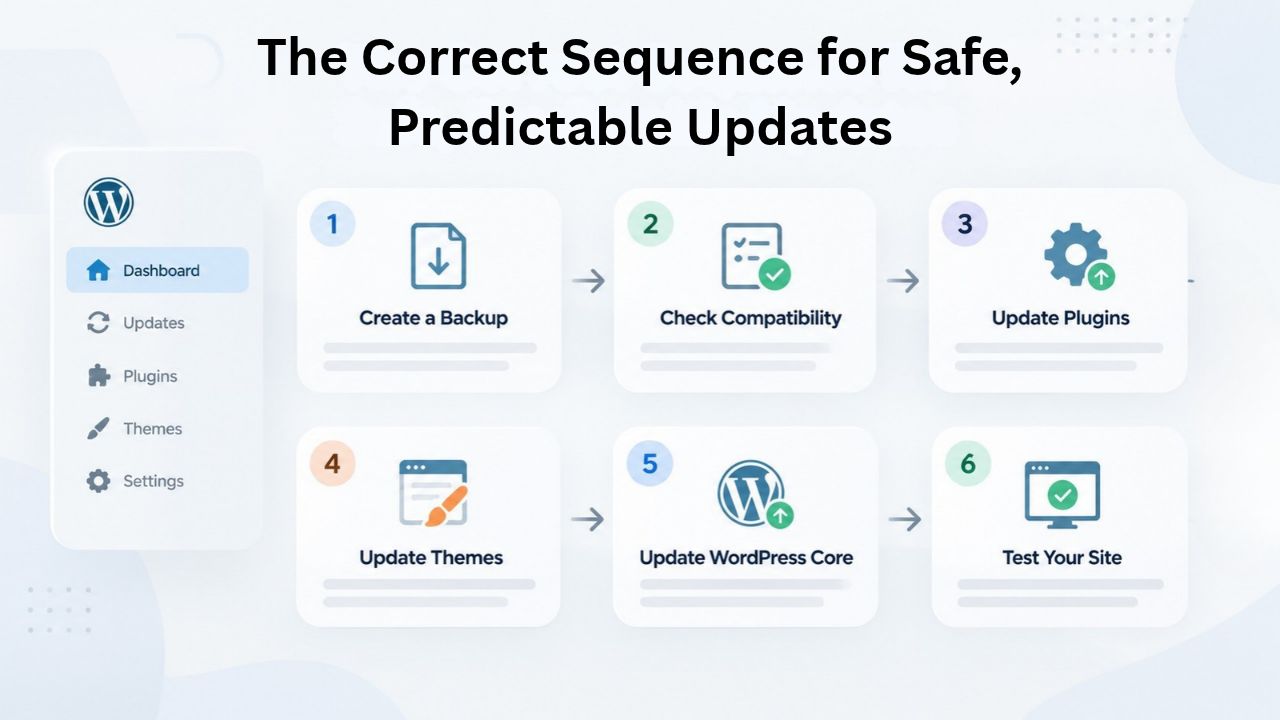
Step 1: Create and Verify Your Backup
Before any update, create a backup or confirm your automated backup service completed one today. Go to your hosting control panel’s backup section, run a manual backup with your backup plugin, or download your files and database via FTP and phpMyAdmin. Don’t move past this step until you have a backup dated today.
After creating the backup, document where it is and how to restore it. If your backup is on your server, note the backup folder path. If it’s in cloud storage, note the storage service and confirm you can access it. If you’re using a backup plugin, test the restore button on a staging site to confirm it works. This seems redundant, but testing recovery is how you find an incomplete or corrupted backup; discovering this during an actual emergency is unacceptable.
Step 2: Update Plugins One at a Time
Go to your WordPress dashboard and navigate to Plugins > Installed Plugins. Scroll through the list and identify any plugin showing an “update available” notification. Click “Update Now” on the first plugin. Wait for the update to complete; you’ll see a success message when it’s done.
After the update completes, immediately visit your site’s front end in a new browser tab. Load your homepage, navigate to a few other pages, and perform a basic functional check. If you have a contact form, send a test message; if you have an e-commerce store, visit a product page. Reload the site in your browser using Ctrl+F5 (or Cmd+Shift+R on Mac) to bypass the browser cache. Does everything load? Does it look normal? If yes, move to the next plugin.
Updating one plugin at a time is essential. If you update five plugins at once and the site breaks, you won’t know which of the five caused it. You’ll spend an hour deactivating them one by one, reactivating, reloading, and testing. If you update one plugin and the site breaks, you immediately know the culprit and can roll back by deactivating it.
If a plugin update breaks something, you can disable the plugin and find an alternative, or wait for the developer to release a fix. Check the plugin’s support forum on WordPress.org or the developer’s website to see if others reported the same issue and if a fix is in progress. If the plugin is widely used, a fix typically arrives within days.
Step 3: Update Your Theme
Navigate to Appearance > Themes in your WordPress dashboard. If your active theme has an update available, click “Update” or “Update Now” next to it. Wait for the update to complete. Then visit your site’s front end and navigate through multiple pages, checking that the design looks correct, that navigation works, and that page layouts haven’t shifted unexpectedly. Load your admin dashboard and confirm it’s still accessible.
If you’ve customized your theme directly, editing CSS in the theme’s style.css file, modifying template files, or adding custom PHP to functions.php, those customizations will be overwritten by the update. This loss of customizations is the single most disruptive aspect of theme updates. The solution is a child theme.
A child theme is a folder inside /wp-content/themes/ that inherits all functionality and design from a parent theme but stores your customizations separately. When you update the parent theme, your child theme files remain untouched. Creating a child theme means creating a new folder with a style.css file that declares the parent theme, then adding your custom CSS or PHP in that child folder. Many WordPress theme builders and plugins automate this process; with a single click, they generate a child theme, and you can add customizations safely.
Step 4: Update WordPress Core
This is the most significant update. Navigate to Dashboard > Updates. If a major version is available, you’ll see a blue button labeled “Update to version X.X” along with release notes. If only minor updates are available, WordPress has likely applied them automatically in the background.
For a manual major update, click the update button. WordPress will download the latest files, replace core files, apply any necessary database structure changes, and show a success message. The entire process typically takes two to five minutes. Then reload your WordPress dashboard and visit your site’s front end. Everything should work normally.
Protecting Custom Code and Customizations
If you’ve invested time customizing your WordPress theme or adding custom functionality, protecting those changes from being overwritten during updates is critical. Several proven methods suit different types of customizations.
Child Themes Preserve Theme Customizations Safely
A child theme is a best practice for protecting theme customizations. It creates a layer of inheritance: your child theme inherits all design and functionality from the parent theme, but when the parent updates, the child remains untouched.
Creating a child theme requires creating a directory inside /wp-content/themes/ and adding a single file: style.css. This file contains a header comment declaring the parent theme. Here’s an example for a parent theme named “Twenty Twenty-Four”:
Theme Name: Twenty Twenty-Four Child
Template: twentytwentyfour
*/
@import url(“../twentytwentyfour/style.css”);
After creating this file and folder, the child theme appears in Appearance > Themes. Activate it. Now, any CSS you add to the child’s style.css file overrides the parent’s CSS. Any template files you copy from the parent to the child override the parent’s templates when WordPress loads them.
WordPress’s template hierarchy prioritizes child theme files over parent theme files. When WordPress loads a template (like front-page.php), it checks the child theme first; if the file exists there, it uses it; if not, it falls back to the parent. This system lets you customize extensively without ever touching parent theme files.
Code Snippet Plugins for PHP Customizations
For custom PHP code, like functions you add to customize site behavior, a child theme works, but a code snippet plugin is simpler and safer. Plugins like WPCode (free, with premium options) provide a dashboard where you paste PHP snippets. The plugin stores them in the database, not in theme files, so they survive all updates.
The advantage over child theme functions.php edits is simplicity and safety. You don’t need to understand file paths or theme structure; you paste code into a form and enable it. If the code breaks something, you disable the snippet without editing files. If you need to test a code change, you can do so without affecting the live site.
What Customizations Survive Updates Automatically
Not all customizations are lost during updates. Knowing what survives helps you distinguish what needs protection from what’s already safe.
Changes made through the WordPress Customizer — colors, fonts, widget placements, custom menus, and other appearance settings — are stored in the database. Theme updates don’t touch these database records; they remain intact. CSS added via the Customizer’s “Custom CSS” box is also database-stored and survives updates. Plugin changes are stored in the database and survive updates because they’re not part of theme or plugin files.
Only direct file edits, opening and modifying theme files via FTP or file manager, or editing plugin files, are at risk during updates. Protect these customizations with child themes or code snippet plugins.
Ready to Scale Your WordPress Site Safely?
Niya Digital delivers managed WordPress hosting on enterprise-grade cloud infrastructure, with automated daily backups, one-click staging environments, and team-managed updates. Our infrastructure partner ensures your site runs on proven, scalable servers while you focus on your business. We handle update management, security monitoring, and emergency support 24/7, when you need it.
When Updates Break Your Site: Common Symptoms and Solutions
Even with best practices, updates can still cause issues. The good news is that when breakage happens, it follows predictable patterns. Recognizing the pattern helps you diagnose and fix problems quickly.
The White Screen of Death: Diagnosing and Fixing
The White Screen of Death (WSOD) is a completely blank page, no content, no error message, just white. It appears after an update and may affect your entire site (front end and admin dashboard) or just the front end while the admin still loads.
A WSOD indicates a PHP fatal error, exhausted server memory, or a plugin/theme conflict so severe that the page can’t render. The error happened, and WordPress stays silent because the production setting disables error display by default (which is correct for security but makes debugging harder).
The cause is usually one of three things: a recently updated plugin conflicting with another plugin or the theme, a theme incompatible with the new WordPress or PHP version, or the PHP memory limit exhausted (a plugin or feature is using more RAM than allowed).
Fortunately, WSOD is recoverable. The site didn’t delete itself; something is preventing it from loading. With methodical troubleshooting, you’ll identify and fix the issue in minutes to hours.
White Screen on Front End Only, Admin Loads Fine
If your admin dashboard is accessible but visitors see a blank front end, a front-end-specific plugin or your theme is the culprit. This scenario is easier to troubleshoot because you can access the dashboard.
Navigate to Plugins > Installed Plugins. Look for plugins you updated recently; check their “Last Updated” date if visible. Deactivate any recently updated plugins one by one, reloading your front end after each deactivation. When the site starts displaying normally, you’ve found the culprit. Either the plugin needs an update from its developer to fix compatibility, or you’ll need to find an alternative plugin.
Errors and Warnings in Site Health
Your WordPress dashboard includes a built-in diagnostic tool: Tools > Site Health. Click the “Status” tab. This page displays critical issues, warnings, and informational notices about your site’s health.
After an update, if something is broken, Site Health usually shows a “critical issue” warning. This warning often includes a specific error message mentioning a plugin or theme by name. The error message is your roadmap. If it says “Fatal error in plugin ‘my-plugin’ on line 42”, you know exactly which plugin is the problem.
Troubleshooting Live Site Issues Step by Step
If your site breaks after an update and you need to restore it quickly, follow this flowchart. Each step narrows down the culprit and moves you toward a solution.
Troubleshooting Decision Tree
| Symptom | Likely Cause | Primary Diagnostic Step | Recovery Action |
|---|---|---|---|
| Completely blank white page (front and back) | Plugin fatal error, theme conflict, or memory exhaustion | Try deactivating all plugins via FTP (rename `/wp-content/plugins/` to `/wp-content/plugins-off/`) | If site loads with plugins disabled, re-enable individually to identify culprit. If still blank, try default theme. |
| Blank front end only; admin dashboard loads | Front-end plugin or theme conflict | Dashboard > Plugins > Installed Plugins; deactivate recently updated plugins one at a time | Re-activate each plugin incrementally; when the site breaks again, you’ve found the culprit. |
| Specific error message mentioning a plugin/theme | Identified component conflict or incompatibility | Navigate to Tools > Site Health for full error details | Update the identified component, or switch to an alternative if an update is unavailable. Restore backup if error persists. |
| Site stuck in “Briefly unavailable for scheduled maintenance” | Interrupted update; `.maintenance` file not cleared | Access `/wp-content/` via FTP; look for `.maintenance` file | Delete the `.maintenance` file. Site should become available immediately. |
| Updated plugin works, but site is slower | Performance regression or conflicting optimization | Check Tools > Site Health for warnings; review plugin settings | Disable the plugin, test performance, then re-enable with different settings. Contact the developer if no workaround. |
Step 1: Deactivate Recently Updated Plugins from the Dashboard
If your admin dashboard loads, this is your fastest path to resolution. Navigate to Plugins > Installed Plugins and look for any plugin you updated in the last hour or two. Click the “Deactivate” link below the plugin name. Reload your site’s front end in a new browser tab.
Does it work now? If yes, the deactivated plugin is your culprit. You have three options: leave it deactivated and find an alternative, contact the plugin developer to report the issue and request a fix, or wait and watch the plugin’s support forum to see if others reported the same issue and if a fix is coming.
If deactivating the first plugin doesn’t help, re-activate it (by clicking “Activate”) and move to the next recently updated plugin. Work through them methodically. As soon as your site starts working normally, you’ve identified the problem plugin.
Step 2: Disable All Plugins via FTP (If Admin Dashboard Is Inaccessible)
If the admin dashboard doesn’t load, is completely blank, or shows an error, you can’t deactivate plugins via the dashboard. Instead, use FTP or your hosting’s file manager to access your server.
Navigate to the /wp-content/ directory and locate the plugins folder. Rename it from plugins to plugins-off (or plugins-disabled). WordPress will no longer see any plugins; they’re all effectively deactivated. Reload your site. Does it load now?
If yes, plugins are the problem. Navigate back to the file manager and rename the folder back to plugins. Then, inside the plugins folder, rename individual plugin folders one by one; for instance, rename /wp-content/plugins/my-plugin/ to /wp-content/plugins/my-plugin-off/. After each rename, reload your site and test. Once you rename the problematic plugin folder, the site should work normally again. That’s your culprit.
Step 3: Switch to a Default WordPress Theme
If disabling plugins doesn’t resolve the issue, your theme might be the problem. Switch to a default, built-in WordPress theme that definitely works. Themes like “Twenty Twenty-Four” or “Twenty Twenty-Three” ship with WordPress and rarely cause issues.
If the dashboard is accessible, switch themes via Appearance > Themes and activate a default theme. If the dashboard is inaccessible, you’ll need to make the change via the database or use WP-CLI from your hosting’s command line (if available). Contact your hosting support if you need assistance.
After switching to a default theme, reload your site. Does it load and display correctly? If yes, your custom theme is the problem; it’s incompatible with the WordPress or PHP version you just updated to. You’ll need to update the theme, wait for the developer to release a fix, or switch to a different theme.
Step 4: Resolve Stuck Maintenance Mode
After major WordPress core updates, WordPress enters maintenance mode and shows a “Briefly unavailable for scheduled maintenance” message to visitors while letting admins access the dashboard. This state is temporary; WordPress should clear it automatically within a few minutes.
If your site remains in maintenance mode longer than 15 minutes after an update completes, WordPress is stuck. The cause is usually a file permission issue or a process that didn’t finish. You can manually clear maintenance mode by deleting the .maintenance file.
Access your hosting’s file manager or connect via FTP. Navigate to your WordPress root directory (the folder where wp-config.php resides). Look for a file named .maintenance (note the leading period; it’s a hidden file). Delete it. Reload your site; maintenance mode should clear immediately.
Recovering from a Failed Update
If troubleshooting takes too long or doesn’t identify the issue, restore your pre-update backup. This is your emergency recovery plan, and this is why you created the backup in the first place.
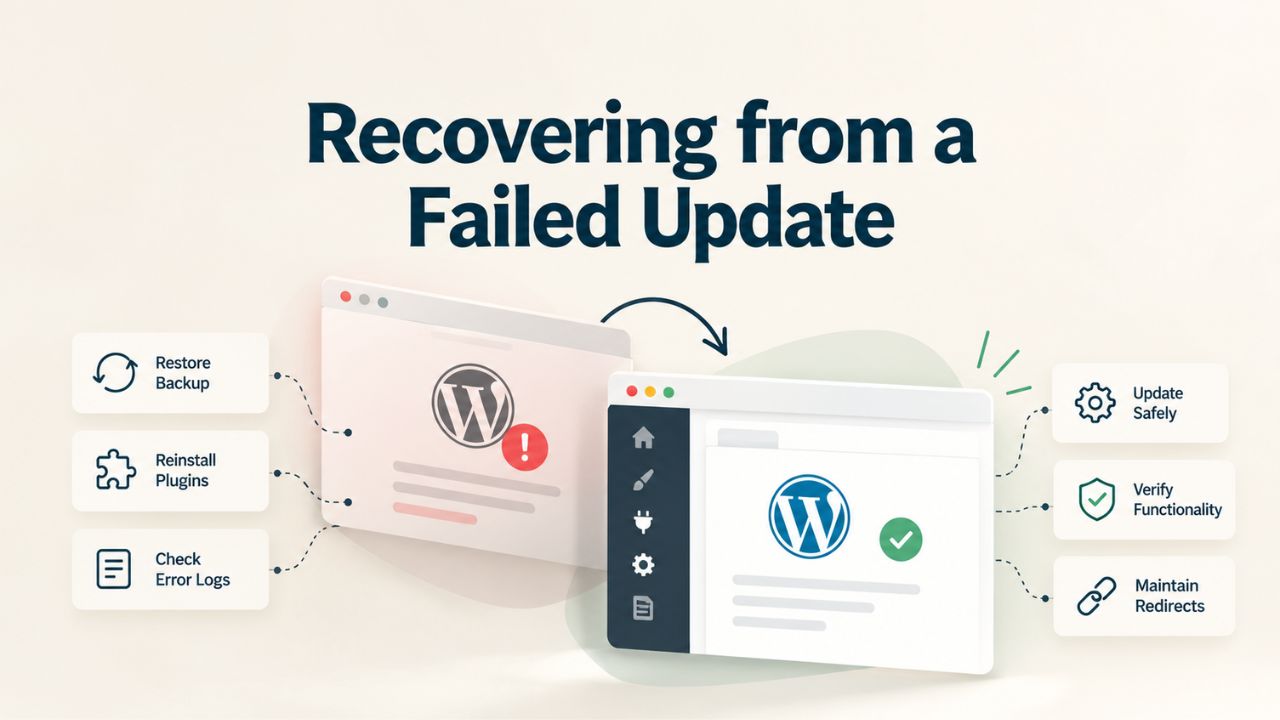
Restoring from Backup
Most backup plugins include a “Restore” button or link in the WordPress dashboard, usually in a Backups menu or under the plugin’s settings. Click it, select the backup created before the update (backup timestamps help you choose the right one), and initiate the restore. The plugin will replace your current files and database with the backed-up versions. Your site will revert to how it was before the update, and everything will work again.
If your backup is stored outside WordPress, files downloaded via FTP, database exported to your computer, or backups stored in cloud storage like Google Drive or Amazon S3, your hosting support team can often restore it, or you can restore it manually by re-uploading files via FTP and re-importing the database via phpMyAdmin or hosting control panel tools.
The restoration process typically takes five to fifteen minutes depending on your site’s size. During restoration, your site won’t be accessible to visitors (it’s in recovery mode). After restoration, reload your site; it should work exactly as it did before the update.
Testing the Restored Site
After restoring, don’t assume everything is fixed. Test your site thoroughly: visit multiple pages, test forms, verify that e-commerce checkouts work (if applicable), check that logins work, and confirm that any custom functionality is operational. Browse the admin dashboard and verify that all settings are intact.
Once you’ve confirmed that the restored site works perfectly, take a moment to analyze what went wrong with the update. Did a specific plugin cause the issue? Was it a PHP compatibility problem? Did you miss a changelog note indicating a breaking change?
Document what happened. Then, plan to try the update again, but this time with isolation: update only the problematic plugin on a staging site first, confirm it works there, then apply it to live. Or upgrade your server’s PHP on staging, test everything, and confirm it works before upgrading live.
When to Call Professional Support
If you’ve followed troubleshooting steps and can’t identify the issue, or if a critical plugin isn’t compatible with the new WordPress version and the developer hasn’t released an update yet, professional support is valuable. Contact your hosting support team. Managed WordPress hosts often have developers on staff who can diagnose issues, patch problems, or find workarounds.
Niya Digital’s support team is available 24/7 for emergency issues. If your site breaks after an update, you can reach our team immediately; we’ll diagnose the problem, restore your site, and keep you updated on progress and resolution.
Automating Updates Safely
Manual updates are effective, but automation is simpler and more reliable over time. WordPress has built-in automatic update capabilities that you can configure to match your risk tolerance and maintenance preferences.
Automatic Security Updates: The Recommended Approach
WordPress core automatically applies minor version security updates (6.9 to 6.9.1) by default. This automation is recommended and should remain enabled. Security patches that close known vulnerabilities should not wait for manual action; your site is protected immediately when patches are available.
To confirm automatic security updates are enabled, navigate to Dashboard > Updates. The page should state that minor updates are automatic. If you see text indicating that automatic updates are disabled, you can re-enable them by adding this line to your wp-config.php:
If you prefer only security updates without major feature releases auto-updating, use:
This configuration allows security patches (6.9.0 to 6.9.1) to auto-update while requiring manual action for major releases (6.9 to 7.0).
Selective Auto-Updates for Plugins and Themes
WordPress 5.6+ allows you to enable auto-updates for individual plugins and themes. Navigate to Plugins > Installed Plugins or Appearance > Themes, and next to each item, you’ll see an “Enable auto-updates” link. Click it to turn on auto-updates for just that plugin or theme.
Best practice: enable auto-updates only for plugins and themes from active, frequently-updated developers. If a developer releases updates monthly or more frequently, they’re actively maintaining the code and catching compatibility issues quickly. Auto-update these. For less-maintained plugins (updates every six months or longer), update manually so you can test first.
Monitoring Auto-Updates and Responding to Issues
Even with auto-updates enabled, don’t set it and forget it. Check your site weekly. Navigate to Tools > Site Health and review the status. If a critical warning appears, it often means an auto-update broke something. Check your hosting’s error logs (via cPanel > Error logs or similar) for PHP fatal errors. These logs tell you exactly which file and line number triggered an error.
If an auto-update breaks something, restore your backup (this is why you maintain one), and contact the plugin or theme developer to report the issue. Auto-updates are convenient, but they’re not a substitute for monitoring.
Staying Informed and Proactive About Updates
Updates won’t stop. WordPress releases regularly, vulnerabilities are disclosed weekly, and the ecosystem evolves constantly. Staying informed and maintaining a regular update routine prevents crises and keeps your site resilient.
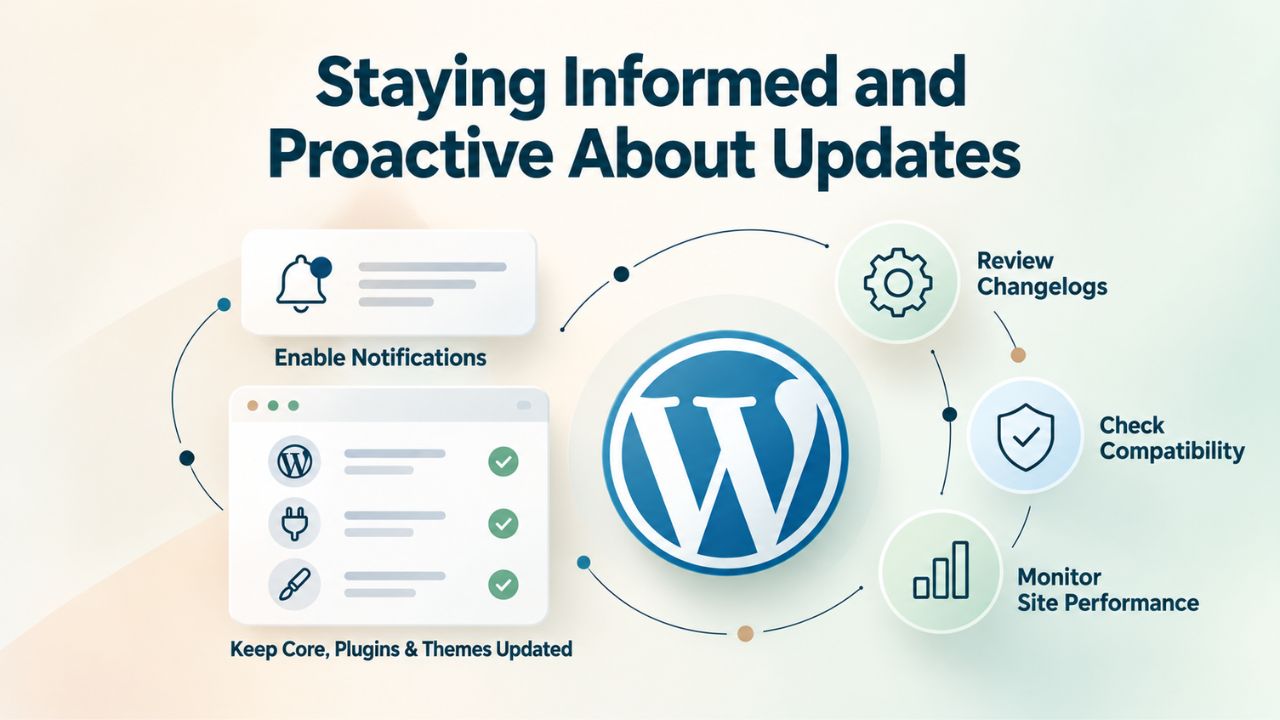
Subscribe to Security Alert Services
WordPress.org publishes a news blog announcing major releases and security vulnerabilities. You can visit WordPress.org/news/ regularly or subscribe to their RSS feed for notifications. Many managed hosting providers send email alerts when security updates are available; Niya Digital includes automated security alerts in all plans, notifying you of critical patches that require immediate attention.
Plugin developers often post on their WordPress.org page or email you when they discover critical vulnerabilities. If you use mission-critical plugins (e-commerce, security, membership plugins), consider joining their mailing lists or following their blogs for urgent notifications.
Check Your Dashboard Weekly
Make checking your WordPress dashboard a weekly routine, five minutes every Monday morning. Navigate to Dashboard > Updates and glance at what’s pending. A single glance tells you if critical security updates are waiting. If updates have been pending for more than a week, you’re falling behind, and the risk is accumulating.
This five-minute check is your early warning system. It’s not about acting immediately (you schedule updates for low-traffic times), but about staying aware of what’s pending so you don’t accidentally fall months behind.
Audit Installed Plugins and Themes Quarterly
Every quarter, review your plugins and themes for maintenance status and relevance. Navigate to Plugins > Installed Plugins and note which plugins haven’t been updated in six months or longer. Plugins abandoned by their developers pose security risks; they won’t receive updates for newly discovered vulnerabilities and may break without warning as WordPress and PHP evolve.
Deactivate and delete abandoned plugins. Use the WordPress.org plugin directory to find actively maintained alternatives. For themes, the same logic applies: if your theme hasn’t been updated in a year, it’s likely abandoned, and you should consider switching to an actively maintained theme.
This quarterly review prevents technical debt from accumulating and reduces your site’s attack surface.
Plan Major Updates on a Calendar
When WordPress announces a major release, mark it on your calendar. Give it one week for early adopters to surface unexpected issues and for developers to release plugin and theme compatibility fixes. Then, within the first two weeks of the major release, update your staging site, test thoroughly, and deploy to live.
Sticking to a schedule prevents procrastination. Sites that wait six months to update major versions face far more compatibility issues than sites that update regularly.
Get Expert Update Management for Peace of Mind
WordPress updates are routine when handled correctly, but complexity grows with a site’s criticality. If your WordPress site is central to your business, outsourcing update management to experts eliminates risk. Niya Digital’s managed WordPress hosting includes managed updates, staging environment testing, and 24/7 emergency support. Our team updates your site on a schedule you approve, thoroughly tests updates before deployment, and rolls back immediately if anything unexpected happens. You stay focused on your business while we keep your site secure, stable, and up to date.
Frequently Asked Questions
What’s the difference between major and minor WordPress updates?
Major updates (like WordPress 6.9 to 7.0) add new features, improve the editor, and change the database. They require manual action and happen every four to six months. Minor updates (like 6.9 to 6.9.1) patch security vulnerabilities and fix bugs without structural changes. WordPress applies minor updates automatically by default. Major updates carry higher compatibility risk with plugins and themes; minor updates are very safe and should be applied immediately.
Will updating WordPress delete my posts, pages, or settings?
No. WordPress updates replace only core software files and may modify the database structure to support new features. Your posts, pages, comments, user accounts, custom post types, settings, and media all remain intact. The database upgrade process that sometimes runs after major updates modifies the structure but never deletes data. That is why backups are insurance, not a recovery plan for data loss, though they’re invaluable if something unexpected happens.
How long does a WordPress update take?
Minor security updates take thirty seconds to a few minutes. Major updates typically take two to ten minutes, depending on your site’s size and database. After the update completes, WordPress may run a database upgrade (transforming your database structure to support new features), which can take longer on very large sites but still typically completes within ten minutes. The update process itself is fast; verification afterward (testing that your site works correctly) takes longer but is essential.
What if an update fails halfway through?
WordPress has built-in recovery mechanisms. If an update process is interrupted, WordPress enters maintenance mode and either completes the update on the next page load or rolls back incomplete changes. If it stays in maintenance mode longer than fifteen minutes, you can manually clear it by deleting the .maintenance file via FTP or a file manager. Your data is safe; the worst case is temporary unavailability, not data loss.
Should I auto-update all plugins and themes?
Auto-update WordPress core minor releases (security patches) absolutely; this is strongly recommended. For plugins and themes, auto-update only those from active, frequently-updated developers (updates at least monthly). For less-maintained plugins, update manually so you can test on staging first. This balance prevents security gaps while avoiding unexpected compatibility issues from untested updates.
How do I identify if a plugin is abandoned?
Check the plugin’s page on WordPress.org. The “Last Update” line shows when the developer last touched the plugin. If it says “2+ years ago”, the plugin is likely abandoned. Abandoned plugins are security risks because they don’t receive updates for newly discovered vulnerabilities. Search the WordPress.org plugin directory for actively maintained alternatives and switch to one. Make this check quarterly as part of your maintenance routine.
What if a plugin won’t update because my PHP version is too old?
WordPress will block the update and display an error saying the required PHP version is higher than your current version. Contact your hosting provider to request a PHP upgrade. Before upgrading live, test the upgrade on a staging site first; older plugins and custom code sometimes break on new PHP because deprecated functions are removed. If something breaks, update or replace the affected plugins before upgrading live.
Can I roll back a WordPress update if something breaks?
Yes. Restore from your pre-update backup, and your site reverts instantly. Most backup plugins offer one-click restore. If your backup is external (files on your computer, cloud storage), your hosting support team can restore it, or you can restore it manually by re-uploading files and re-importing the database. Always keep a backup from before today for this reason.
How do I test an update without affecting my live site?
Use a staging environment. Clone your live site to staging with one click (if your host offers it), update everything on staging, test thoroughly, then merge back to live when confident. For hosts without built-in staging, local development tools like Local by Flywheel work, though with less accuracy because your local environment may differ from live. Staging testing is the gold standard for preventing breakage.
Do I need a child theme to customize my WordPress theme?
Only if you’re editing theme files directly. If you use the Customizer to change colors, fonts, and widgets, or use plugins to add custom CSS or PHP, you don’t need a child theme; those changes are stored in the database and survive updates. If you’re directly editing theme files (style.css, functions.php, template files), create a child theme to protect your customizations from being overwritten during updates.
What’s the best time to update WordPress?
Update security patches within 24 hours of release. Major releases can wait 1–2 weeks to let plugins and themes catch up. Choose a low-traffic window (early morning, late night) to minimize visitor impact if issues occur. Mark major release dates on your calendar and plan updates in advance instead of reacting.
Should I hire someone to update my WordPress site?
For small sites, you can update yourself by following this guide. For mission-critical business sites, professional management is valuable. Managed WordPress hosting includes update management, staging testing, and emergency response. Niya Digital’s managed plans handle all updates; our team manages the entire process, tests thoroughly, and rolls back if needed.
How often are WordPress updates released?
WordPress releases minor security patches as needed, often weekly. Major releases happen every four to six months. Plugin and theme updates vary by developer but often appear monthly or more frequently. Check your WordPress dashboard weekly for pending updates; most can wait a few days, but apply security patches immediately.
Can updating WordPress cause downtime?
Updates usually take minutes and happen with minimal disruption. Compatibility issues after updates (white screen of death, broken pages) can cause temporary downtime if you don’t have a backup to restore. That is why backups and staging testing are critical: they let you restore or roll back quickly if something breaks, minimizing impact on visitors.
What if my site still breaks after restoring the backup?
First, confirm your backup itself is valid by testing a restore on a staging site. If the backup is good and the restored site still has issues, the original problem may be unrelated to the update (server misconfiguration, disk space, etc.). Contact your hosting support. Our team can diagnose whether the issue is update-related or environmental and help resolve it.
Glossary
- Backup: A complete copy of your WordPress site including all files and the database, created before updates. If something breaks after an update, restore the backup to revert your site to how it was before the update.
- Child Theme: A separate WordPress theme folder inside /wp-content/themes/ that inherits design and functions from a parent theme. Customizations you add to a child theme survive parent theme updates because they’re stored separately from parent theme files.
- Database Schema: The structure of your WordPress database, how tables, fields, and relationships are organized. Major WordPress updates sometimes modify the schema to support new features. These changes preserve your data while reorganizing it.
- One-Click Update: WordPress’s automatic background update process that applies minor security updates without manual action. Enabled by default since WordPress 3.7.
- PHP Version: The server-side programming language version running on your hosting server. WordPress requires a minimum PHP version; plugins may require higher versions. Newer PHP versions offer better security and performance but may break older code.
- Plugin Conflict: A situation where two plugins’ code interferes with each other (hooks, filters, or functions clash), usually triggered or revealed by an update that changes how one plugin’s code executes.
- Staging Environment: A private, exact copy of your live site used for safely testing updates and changes. Visitors can’t access it; only you can. Changes tested on staging can be merged to live after confirmation.
- White Screen of Death (WSOD): A completely blank white page appearing when WordPress encounters a fatal PHP error. Usually caused by a plugin/theme conflict, an incompatible PHP version, or exhausted memory after an update.