Logging into your WordPress admin should feel responsive and immediate. When every click takes seconds to register, pages lag during editing, or you’re stuck waiting for backend screens to load, content creation becomes frustrating, and team productivity suffers. The WordPress admin dashboard operates under different performance constraints than your public website; it cannot be cached the same way, making slowness a common but solvable problem.
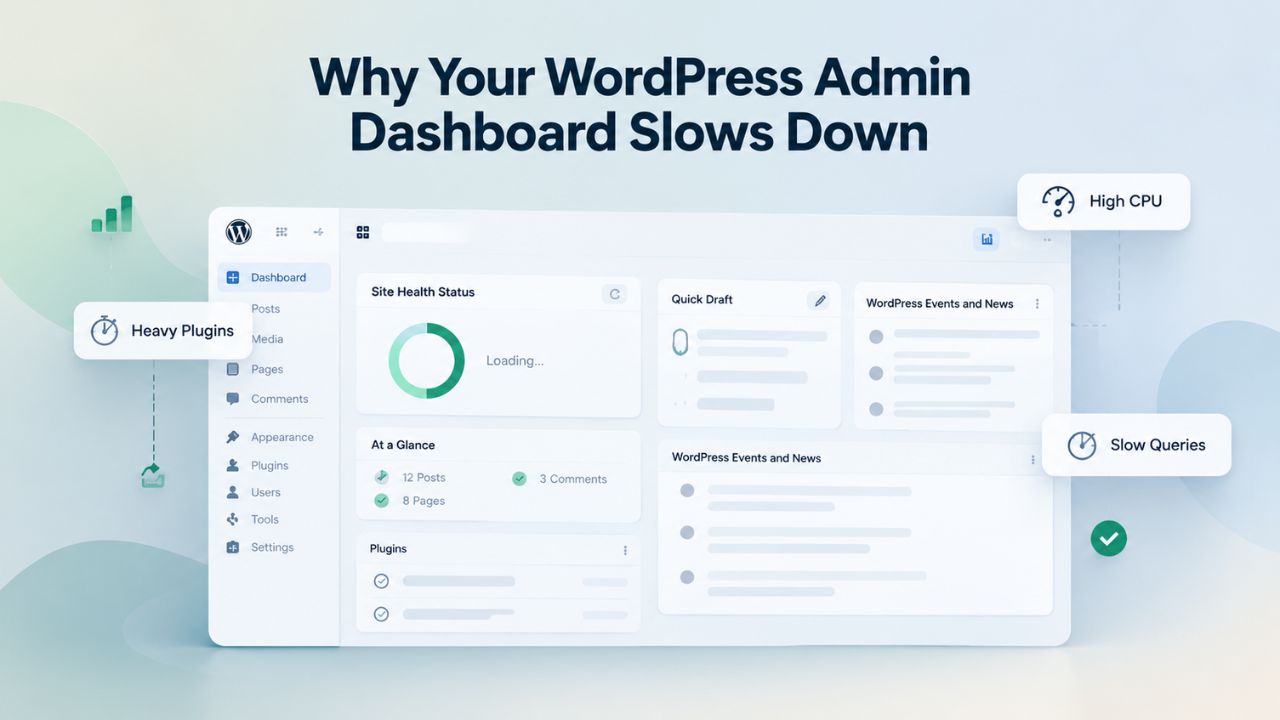
Why Your WordPress Admin Dashboard Slows Down
Understanding the root causes of admin slowness is essential before you start troubleshooting. The WordPress admin environment is fundamentally different from your public-facing website, which shapes how performance issues arise and which fixes actually work. Your website visitors see cached content served from memory or disk, bypassing the database and WordPress engine. Your admin area is always dynamic, interactive, and resource-intensive because every click hits the database and runs PHP code.
The Architecture of Admin vs. Frontend Performance
Your public website can cache pages, images, and CSS files, serving them instantly without running WordPress each time a visitor arrives. The WordPress admin dashboard cannot use the same caching strategy because it displays live data: draft counts, pending comments, user information, and plugin notices that change constantly. According to WordPress.org’s performance documentation, admin pages load WordPress core, all active plugins’ admin code, dashboard widgets, menu systems, and background processes at the same time.
This architectural requirement means a fast homepage does not guarantee a fast admin area. Many site owners are surprised to discover their website loads in under two seconds while their dashboard takes five to ten seconds. The reason is simple: frontend pages are optimized with caching; admin pages cannot be.
Each admin interaction- viewing your posts list, editing a page, checking plugin updates- generates multiple database queries and PHP processing. Unlike a cached homepage, these queries execute fresh every time. Adding widgets, plugins, or unnecessary admin columns compounds the load. If your site has thousands of posts or complex post metadata, admin queries slow down even more because they must filter and aggregate larger datasets. Understanding this fundamental difference helps you target fixes effectively instead of applying irrelevant frontend optimization to a backend problem.
Resource Constraints on Shared Hosting vs. Managed Hosting
On budget shared hosting, your WordPress site shares server resources- CPU, RAM, disk I/O- with dozens or hundreds of other websites on the same server. When a neighbor’s site spikes in traffic, runs resource-intensive plugins, or performs backups, your admin area slows down even if your own site’s traffic is light. Your hosting provider allocates a small slice of server resources to each account, with no isolation or priority system. If the server becomes constrained, every site suffers equally. Many shared hosting plans restrict admin memory to 256 MB and PHP execution time to 30 seconds, adequate for small sites but quickly exhausted by complex operations.
Managed WordPress hosting addresses this through resource isolation and predictable allocation. Your site runs on dedicated or semi-dedicated infrastructure with guaranteed CPU, RAM, and I/O allocations. The hosting provider pre-optimizes the server stack for WordPress, tuning PHP versions, database settings, and caching layers. Support teams can monitor resource usage in real time and help diagnose whether slowness originates from your own plugins and database or from infrastructure constraints. This difference between shared and managed hosting often explains why admin speed improves dramatically when sites upgrade, not because the WordPress code changed, but because the server environment became more stable and predictable.
WordPress Pricing Plans
Choose the WordPress hosting plan that fits your website needs, with reliable performance, security, storage, backups, and tools to help your site grow.
WordPress Basic
A great way to get started.
- 1 website
- 10 GB NVMe storage
- Unmetered bandwidth
- Free SSL Certificate *
- WordPress pre-installed
- Weekly backups
- Web Application Firewall
- Daily malware scans
- One-time malware removal

WordPress Deluxe
Improve your site performance with Cloudflare CDN.
- 1 website
- 20 GB NVMe storage
- Unmetered bandwidth
- Free SSL Certificate *
- WordPress pre-installed
- Daily backups
- Web Application Firewall
- Daily malware scans
- One-time malware removal
- Up to 2x faster performance with global Cloudflare CDN **
- Enhanced security with DDoS protection
- Staging site
WordPress Ultimate
Add online marketing with more sites, storage and security.
- 1 website
- 30 GB NVMe storage
- Unmetered bandwidth
- Free SSL Certificate *
- WordPress pre-installed
- Daily + on-demand backups
- Web Application Firewall
- Daily malware scans
- Unlimited malware removal
- Up to 2x faster performance with global Cloudflare CDN **
- Enhanced security with DDoS protection
- Staging site
- WordPress code optimizer
- Smart WordPress plugin manager
- Sell online with WooCommerce
Diagnose Plugin Conflicts Using Safe Troubleshooting Mode
Plugins are the number one cause of WordPress performance issues overall, and they amplify problems in the admin area because every active plugin’s admin code loads on every admin page. A plugin that runs slow database queries, makes external HTTP requests to license servers, or hooks into early WordPress actions like admin_init can single-handedly cripple dashboard responsiveness. Diagnosing which plugin is responsible is the critical first step, and WordPress provides a native tool to do it safely.
Use the Health Check & Troubleshooting Plugin for Isolation Testing
WordPress.org offers the Health Check & Troubleshooting plugin as an official diagnostic tool. Install it and navigate to Tools → Site Health → Troubleshooting, then enable troubleshooting mode. In this mode, all plugins are disabled, and the default WordPress theme activates for your logged-in session only. Your website visitors see the normal site with all plugins active; only your admin experience changes.
This isolation lets you test whether plugins cause slowness without affecting your live site. Reload the slow admin page and measure the difference. If the page now loads instantly, a plugin is definitely involved. If it still feels slow, the bottleneck is elsewhere: database bloat, insufficient memory, or hosting resources. This single test answers a critical question and points your troubleshooting in the right direction.
The beauty of troubleshooting mode is that it is temporary and user-specific. Other logged-in editors and administrators see their normal dashboard with all plugins active. You are testing in isolation without disrupting anyone else’s work. Once you disable troubleshooting mode, your session returns to normal. This low-risk approach lets you diagnose admin slowness during business hours without worrying about affecting your team or visitors. Take screenshots or notes of load times before and after enabling troubleshooting mode; concrete numbers help you evaluate whether the improvement is significant enough to warrant further investigation.
Identify the Culprit Plugin and Evaluate Alternatives
Once you’ve confirmed a plugin is involved, disable plugins one by one and retest the same admin page after each change. Use a staging environment, if possible, to avoid risking your live site. Track which plugin restores slowness when you re-enable it. Common performance culprits include SEO plugins that display metadata columns on post lists (each column adds extra database queries), WooCommerce analytics plugins on high-order sites, page builders with heavy admin interfaces, and plugins that check for updates or licensing by making external HTTP requests to vendor servers.
Once you’ve identified the problematic plugin, decide whether you need it. If it is, evaluate lighter alternatives or configure it to disable on non-critical admin screens. If it’s not essential, uninstall it. If it’s occasionally needed, disable it permanently and activate it only when you need it.
Some plugins offer settings to reduce their admin overhead. For example, many SEO plugins let you disable post analysis columns on admin screens, or WooCommerce can defer heavy reports to a background process instead of loading them on every admin page. Review the plugin’s settings before uninstalling. Documentation often mentions performance considerations. If the plugin developer provides no optimization settings and the plugin isn’t critical, removal is often the cleanest solution. Remember that each active plugin consumes memory and processing time, so fewer plugins means faster admin pages, all else equal.
Clean and Optimize Your Database
Database bloat accumulates silently over years of posting, editing, and plugin use. WordPress saves every revision of every post by default, spam comments pile up despite moderation, transients expire but linger, and plugins store large amounts of configuration data with the autoload flag enabled, meaning WordPress loads this data into memory on every page request. Each of these issues compounds slowness. Cleaning your database is one of the fastest, lowest-risk performance wins available, and the improvement is often dramatic.
Limit and Delete Excess Post Revisions
Post revisions are automatic save points created every time you edit a post or page. By default, WordPress stores these revisions indefinitely. A post edited 30 times has 30 revisions stored in your database, consuming space and slowing queries that touch the wp_posts table. Admin screens like “All Posts” and “All Pages” query the posts table and must filter through revisions as part of their queries. WordPress database optimization best practices recommend limiting revisions to 2–5 copies. Add this line to your wp-config.php file to limit future revisions:
To delete existing revisions, use a database optimization plugin like WP-Optimize or Advanced Database Cleaner. These plugins show you exactly how many revisions will be deleted and how much space you’ll save before you confirm, eliminating guesswork and risk. Most hosts also offer database optimization through their control panels. Always back up your database before running any cleanup operation. After deletion, you’ll likely notice improved performance on admin list screens, a smaller posts table, and faster queries.
Reduce Autoloaded Options Below 800 KB
Autoloaded options are WordPress settings stored in the wp_options table and automatically loaded into memory on every single page request. Over time, plugins accumulate large amounts of data, caching records, API responses, and settings snapshots, with the autoload flag enabled. If total autoloaded data exceeds approximately 800 KB, WordPress spends hundreds of milliseconds loading unnecessary data on every page. WordPress 6.6+ automatically disables autoloading for data beyond a certain size threshold.
Still, older sites may carry legacy autoload bloat. Database optimization plugins let you inspect autoloaded data visually and disable autoloading for specific options. SQL-savvy users can query the wp_options table directly and identify large entries. The fix is straightforward: update the autoload flag from ‘yes’ to ‘no’ for unnecessary data. WordPress will still load these settings when needed, but not on every request.
Create a Database Diagnostics Table
| Database Issue | Source | Admin Impact | Solution | Expected Improvement |
|---|---|---|---|---|
| Excessive post revisions | WordPress default (unlimited saves) | Slows post/page list screens; larger table sizes | Limit to 2–5 via WP_POST_REVISIONS; delete old ones | 10–20% faster list screens |
| Spam comments & trackbacks | Accumulated moderation over years | Larger comments table; slower moderation screens | Delete via plugin; enable spam deletion auto-schedule | 5–10% faster comment queries |
| Bloated autoloaded options | Plugins storing large data with autoload=yes | Adds 100–500ms to every page load | Inspect & disable autoload for unused options | 10–30% faster overall page loads |
| Unused transients | Expired temporary cached data | Database bloat; slower table queries | Delete via plugin; enable auto-cleanup scheduling | 5–10% improvement in query time |
| Unoptimized database indexes | Poor schema design or missing indexes | Slow meta queries; slow filtering operations | Add indexes via plugin or SQL (advanced) | 20–50% faster filtered queries |
Update Your PHP Version for Immediate Performance Gains
PHP is the server language that executes all WordPress code. Your hosting provider runs one of several PHP versions, and older versions are significantly slower than newer ones. Each major PHP release includes performance optimizations that compound: PHP 8.0 is faster than PHP 7.4, which is faster than PHP 7.3, which is faster than PHP 7.2. An outdated PHP version is one of the easiest, highest-impact performance bottlenecks to fix, often requiring only a single click in your hosting control panel.
Check Your Current PHP Version and Compatibility
Log in to your WordPress admin dashboard and navigate to Tools → Site Health → Info. Scroll to the Server section and find the PHP version. If your version is below 8.0 and your hosting provider supports a newer version, upgrading is usually a one-click operation. Before upgrading on your live site, test on a staging environment to verify compatibility. Rare compatibility breaks exist; a theme or plugin developed years ago might not work with PHP 8.x, but you can manage these issues if you catch them before going live.
Most modern themes and plugins declare PHP 8.x compatibility explicitly. Review your most critical plugins and themes to confirm support before upgrading. If your hosting provider offers built-in staging, clone your live site to staging, upgrade PHP, and run your normal workflows for a few days to catch any issues.
Expect 20–40% Performance Improvement from PHP Upgrades.
Upgrading from PHP 7.x to PHP 8.x typically improves admin page load times by 20–40%, depending on your site’s workload. The improvement is immediate and requires no additional optimization. Your WordPress code doesn’t change; the PHP interpreter executes it faster. If you’re running PHP 7.0 or earlier, the gain is even more dramatic. This single change, tested and deployed, often produces the most noticeable speed improvement you’ll experience from any optimization step. Contact your hosting provider if you’re unsure which PHP versions your plan supports, or check your control panel directly. Most managed WordPress hosts default to PHP 8.x; many shared hosts still default to older versions, even when newer versions are available.
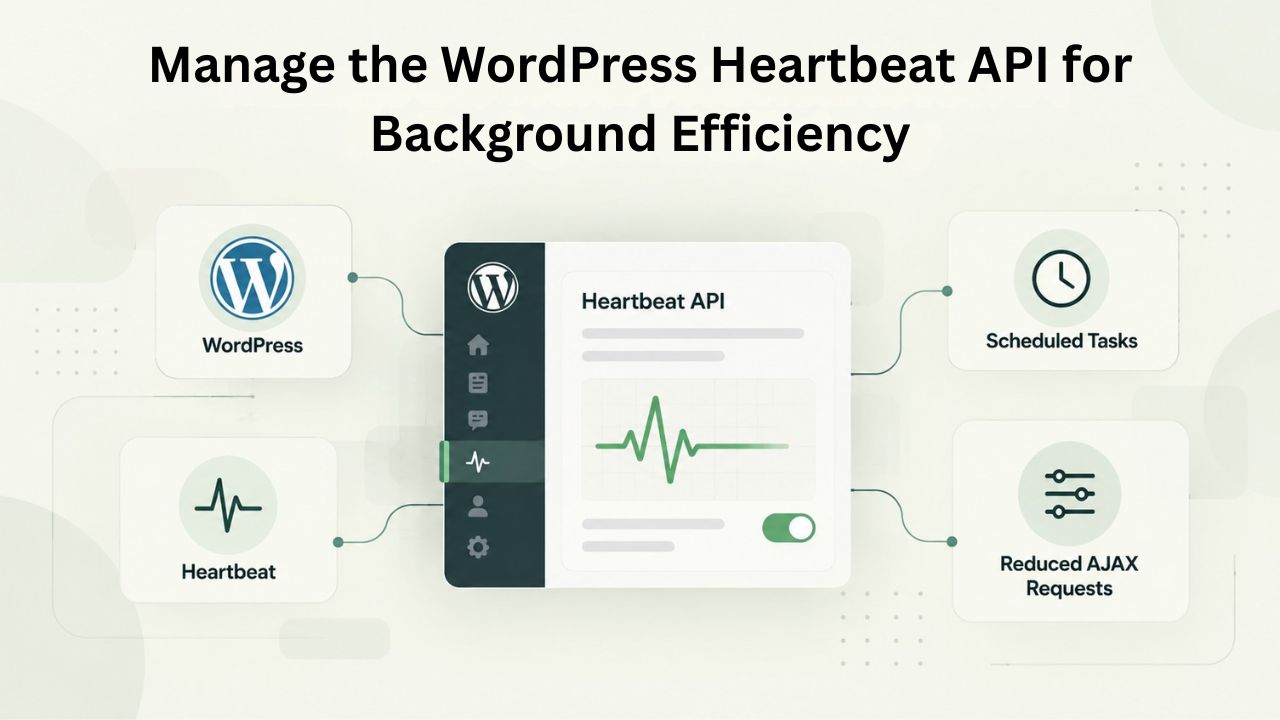
Manage the WordPress Heartbeat API for Background Efficiency
The WordPress Heartbeat API maintains a persistent browser-to-server connection via periodic AJAX requests. It was introduced in WordPress 3.6 and powers autosave, post locking (preventing edit conflicts), session management, and real-time dashboard updates. By default, Heartbeat pulses every 15 seconds on editor screens and every 60 seconds on the general dashboard. Each pulse is uncacheable and sends a request directly to your server. On a site with multiple editors or numerous admin tabs open, these requests accumulate and create unnecessary server load.
Why Heartbeat Adds Up on Multi-Editor Sites
Imagine a team of five editors each with two admin tabs open, one for their current draft, one for browsing posts. That’s 10 Heartbeat connections. At 15-second intervals on editor screens, you’re generating one server request every 1.5 seconds during active editing. Over an eight-hour workday, that’s thousands of requests to the server and database, all for features that are only valuable during active editing. On the general dashboard, where autosave is not needed, Heartbeat provides no user-facing benefit, yet still fires every 60 seconds.
Adjusting Heartbeat frequency or disabling it on less critical screens recovers server resources without sacrificing functionality. According to WordPress.org’s Heartbeat Manager plugin, recommended settings are: disable Heartbeat on the general dashboard, reduce editor frequency to 30–60 seconds, and disable on the frontend. This targeted approach preserves autosave during active writing while preventing wasted background resources.
Adjust Heartbeat Frequency with Heartbeat Manager
Install the free Heartbeat Manager plugin from WordPress.org and configure it via Settings → Heartbeat Manager. You’ll see separate controls for three zones: Dashboard (general admin area), Editor (post/page editing), and Frontend (public site). For most sites, disable Heartbeat entirely on Dashboard and Frontend, set Editor to 60 seconds, and test. Autosave still works; it just checks less frequently.
Re-enable Heartbeat on Dashboard if you rely on real-time notifications or need to coordinate multiple editors on the same screen. After adjusting, monitor your server load for a few days. You should see reduced database queries and CPU usage during editing sessions. If autosave feels less responsive or you miss important notifications, increase the Editor frequency back to 30 seconds and retest.
Get Expert Support for Team-Based WordPress Performance
Niya Digital’s team offers direct support and consultation for WordPress hosting questions, ensuring your setup matches your team’s size and traffic profile. Whether you need help planning a migration from shared hosting, configuring staging environments, or coordinating team access, our experts can guide your decisions and implementation.
Disable Unnecessary Dashboard Widgets and Admin Clutter
Your WordPress dashboard displays widgets by default: WordPress Updates, At a Glance, Activity, Quick Draft, and any custom widgets added by plugins. Each widget loads on the dashboard and may run its own database queries or make external HTTP requests. Dashboard widgets that display analytics, real-time updates, or remote data can significantly slow page load, especially when multiple widgets are active. Hiding unused widgets recovers resources and simplifies your workspace.
Hide Widgets Using Screen Options
On your dashboard, look for the Screen Options button in the top-right corner. Click it to open a dropdown panel with checkboxes for each widget. Uncheck any widget you don’t actively use; for example, if you never review WordPress Updates on the dashboard, uncheck it. This hides the widget for your user only; other logged-in users still see their own screen options. The dashboard loads faster because it skips rendering and querying unnecessary widgets.
To hide widgets for all users, use a plugin like WP Widget Disable, which removes them from the entire site’s dashboard. Review the plugins list for admin-specific plugins you installed but no longer use and deactivate them. Each active plugin loads on every admin page; fewer plugins means faster pages.
Reduce Admin Notices and Clean Up Admin Interface
Plugins often add admin notices, notifications in the header area of admin screens. Excessive notices can accumulate, creating visual clutter and processing overhead. Some database optimization plugins include features to hide unnecessary admin notices per screen. If a notice is not actionable or relevant to your current task, hide it. Similarly, custom admin columns on post/page lists (added by plugins for SEO scores, stock status, etc.) perform extra database queries per row. Review and disable custom columns on screens where they’re not essential. A cleaner admin interface isn’t just more pleasant; it’s faster because it requires fewer database queries and HTTP requests.
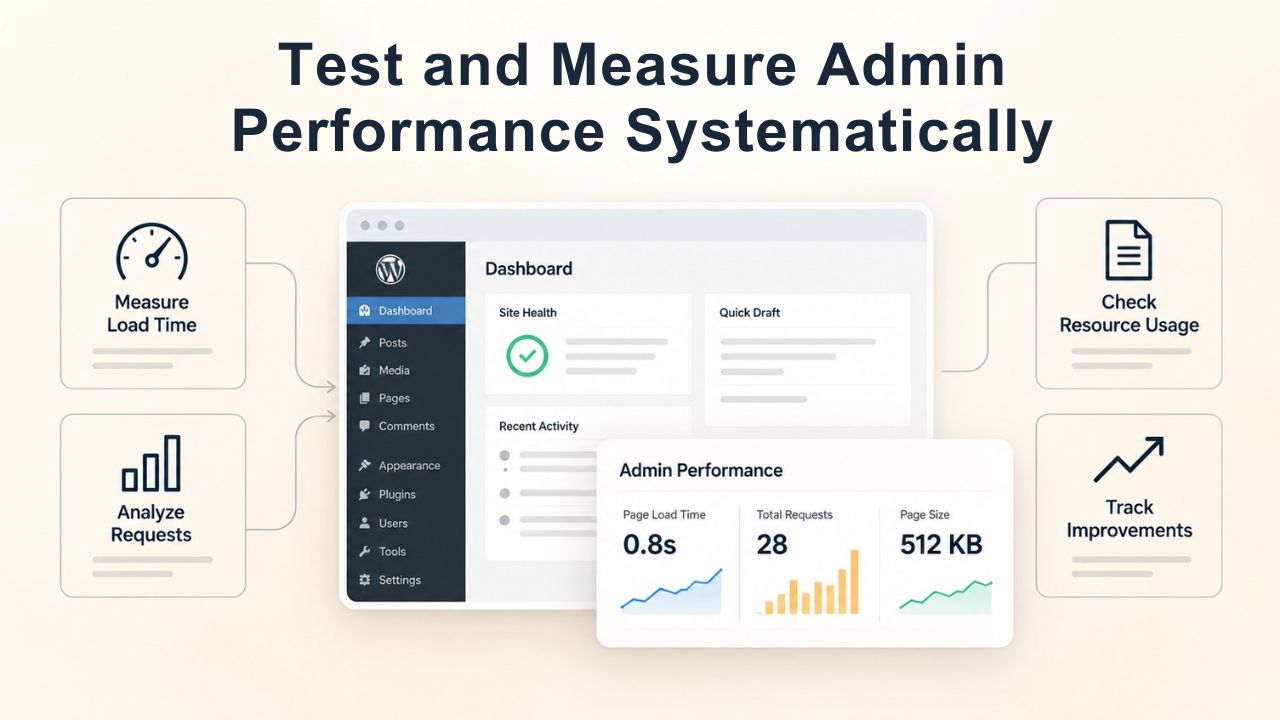
Test and Measure Admin Performance Systematically
Effective troubleshooting requires measurement. Without a baseline, you can’t determine whether your fixes actually worked. Test before and after each optimization, and use consistent metrics to track progress.
Measure Time to First Byte (TTFB) as a Hosting Indicator
Time to First Byte (TTFB) is the elapsed time from when your browser sends a request to when the server sends the first response byte. High TTFB (over 1000 milliseconds) on admin requests usually indicates slow server response, often due to hosting resource constraints or slow database queries. Tools like GTMetrix can measure TTFB for a public page, but they can’t access the admin area behind a login.
Your hosting control panel often shows real-time resource-usage graphs (CPU, RAM, I/O). Monitor these while performing admin tasks. If CPU or RAM spikes when you load a slow admin page, your hosting plan may not have enough resources. If hosting graphs show normal usage but TTFB is high, slow database queries or plugins are the culprit. This diagnostic step tells you whether to focus on code-level optimization or infrastructure upgrade.
Compare Baseline Performance Across Environments
If your hosting provider offers a staging environment, clone your live site there. Perform the same admin task on both live and staging. If staging feels noticeably faster, the performance difference is data-specific; your live database has more posts, comments, or plugin data that slows queries. If both are equally slow, the issue is code-related (plugins, theme, WordPress configuration). If staging is fast but live is slow, the live hosting plan is constrained. This comparison is one of the most informative diagnostic tests available. It definitively answers: “Is this a code problem or a data/hosting problem?” Once you know the root cause, your fix is targeted and effective.
Create a Performance Testing Workflow
| Testing Focus | Tool/Method | Target Metric | Interpretation |
|---|---|---|---|
| Admin page load time | Browser Dev Tools, browser timer, GTMetrix | <2 seconds for typical admin screen | Good; users won’t experience frustration |
| Time to First Byte (TTFB) | GTMetrix, hosting resource graphs | <500 milliseconds | Server is responsive; not a hosting bottleneck |
| Database query performance | Query Monitor plugin, slow query log (MySQL) | Individual queries <100ms, total <500ms per page | Queries are optimized; database is not bottleneck |
| Memory usage during admin tasks | Site Health, hosting control panel | <80% of WP_MAX_MEMORY_LIMIT | Adequate headroom; not hitting ceiling |
| CPU usage during admin activity | Hosting resource graphs | <70% during normal editing | Hosting plan adequate; not constrained |
| Heartbeat request frequency | Browser Network tab (Dev Tools, filter admin-ajax.php) | 1 request per 60 seconds on dashboard | Background polling not excessive |
Understand Hosting Infrastructure Constraints
If you’ve applied all the above fixes and the admin area still feels slow, your hosting infrastructure may be the constraint. Budget shared hosting allocates minimal resources and provides no isolation from neighboring sites’ resource consumption. When a neighbor’s site experiences traffic spikes or runs backups, your admin area slows down even if your own traffic is light. Managed WordPress hosting addresses this through resource isolation, predictable allocation, and infrastructure optimization.
How Shared Hosting Constrains Admin Performance
Shared hosting crams hundreds of websites onto a single server, each competing for the same CPU, RAM, and disk I/O. Your hosting provider sets strict per-account limits, often 256 MB of PHP memory, a 30-second execution limit, and low CPU allocation. These limits work for small sites but are quickly exhausted by sites with thousands of posts, complex plugins, or multiple concurrent editors.
If your account hits the resource limit, PHP terminates the script or the admin page request times out. You’ll see “Allowed memory size exhausted” errors or admin pages that stop loading partway through. Beyond these hard limits, there’s the soft problem of neighbors: if another site on the server runs an unoptimized database query or has a traffic spike, shared server resources become contended. Your admin area slows down through no fault of your own.
How Managed Hosting Improves Admin Performance
Managed WordPress hosting allocates resources predictably and isolates sites from each other. Your site runs on dedicated or semi-dedicated infrastructure with guaranteed CPU, RAM, and I/O allocations. If you need more resources, you upgrade your plan; you don’t share the consequences of neighbors’ resource usage. The hosting provider pre-optimizes the server stack specifically for WordPress: PHP versions are current, database indexes are tuned, caching layers are configured, and automatic backups run during low-traffic hours.
Support teams can monitor your resource usage in real time and help diagnose whether slowness originates from your code and data or from infrastructure. This difference- predictability, isolation, and expert optimization- often explains the dramatic speed improvement when sites upgrade from shared to managed hosting. Niya Digital’s team has observed that admin performance issues are often misdiagnosed as WordPress problems when they actually stem from shared-hosting resource constraints or neighboring sites’ resource contention.
Monitor Admin Performance Over Time and Prevent Future Slowness
Admin performance doesn’t degrade overnight. It creeps up gradually as post revisions accumulate, plugins add data, and WordPress updates introduce new features. Rather than waiting for users to complain, proactive monitoring catches slowness early and prevents it from becoming critical. Automated maintenance routines and performance tracking help keep your admin dashboard fast as your site grows.
Set Up Automated Database Maintenance Schedules
Manual database cleanup works well for a one-time fix, but ongoing maintenance keeps performance stable long-term. Most database optimization plugins let you schedule automatic cleanup to run during low-traffic hours, typically 2–4 AM in your site’s timezone. These scheduled tasks delete old revisions, clean spam comments, remove expired transients, and optimize tables without requiring your intervention. Set revision limits in wp-config.php, enable auto-cleanup in your optimization plugin, and keep your database lean indefinitely.
Create a maintenance calendar in your team’s project management system noting when database cleanups run. Schedule a quarterly review, perhaps on the first of each quarter, to check database size, confirm cleanup is running, and verify admin performance hasn’t degraded. If performance slips, run an immediate cleanup and review for new plugins or theme changes that may have increased database load. Most sites see stable, predictable admin performance when automated maintenance runs consistently. The effort is minimal, usually a single configuration per plugin, and the payoff is sustained speed.
Track Performance Metrics and Create Alerts for Degradation
Measure admin performance regularly so you notice degradation early. Set up a simple tracking system: monthly or quarterly, load the same admin page (e.g., Posts list) and note the load time using your browser’s developer tools or a free tool like GTMetrix. Create a spreadsheet with dates and metrics: load time, database size, and active plugin count. Over time, you’ll spot trends: Is load time creeping up month by month? Did adding a new plugin cause a noticeable dip in performance? Did the last WordPress update improve or worsen speed? This data guides decisions about whether to optimize further or upgrade hosting.
Some hosting providers offer built-in performance monitoring or alert systems. Configure alerts to notify you if admin CPU usage exceeds 80% or admin pages take longer than 5 seconds to load. Early warnings let you investigate before users experience severe slowness. If alerts fire frequently, you may need to upgrade your hosting plan. If alerts rarely fire, your current optimization is working. This data-driven approach removes guesswork and helps you make hosting decisions backed by real metrics rather than assumptions.
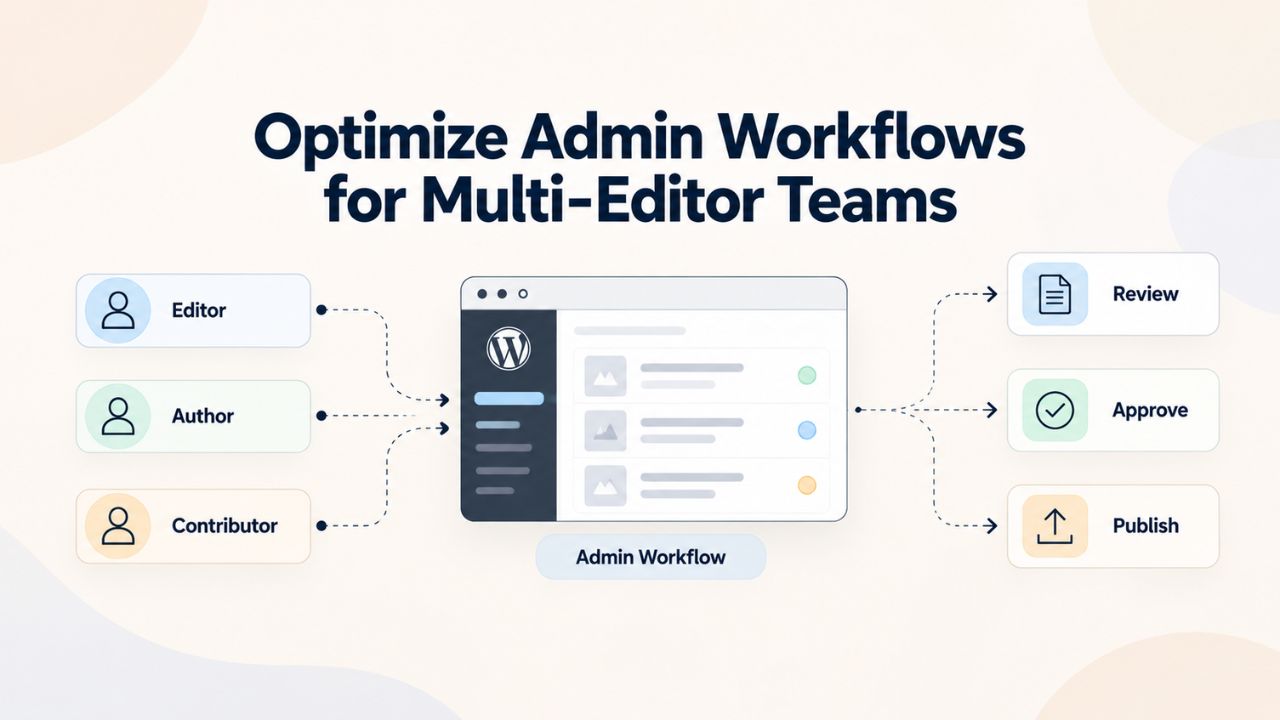
Optimize Admin Workflows for Multi-Editor Teams
Sites with multiple editors face different admin performance challenges than single-author blogs. When several editors are simultaneously accessing the dashboard, viewing posts, making edits, uploading media, server load multiplies. Conflicting changes between editors can also degrade performance and the user experience. Configuring your site for team editing and implementing safeguards ensures smooth collaboration without sacrificing speed.
Configure User Roles and Capabilities to Reduce Admin Load
WordPress user roles (Administrator, Editor, Author, Contributor) control who sees which admin screens and features. Unnecessary capabilities and admin screens slow everyone down. Review your team’s roles and grant only the capabilities each person actually needs. For example, if a contributor should only publish posts (not manage plugins or settings), set their role as Editor, not Administrator. Administrators see the most admin screens and load the most features; limit this role to necessary personnel. Similarly, remove dashboard widgets that aren’t relevant to specific user roles. Some plugins offer role-based dashboard customization, hiding widgets and admin menus based on user role.
Create clear documentation of which roles your team uses and who should have which role. This reduces confusion and prevents over-permissioning. When a new team member joins, assign them the minimal role needed for their job. A writer should be an Author or Editor, not an Administrator. A client reviewing their site shouldn’t have access to plugin or theme settings. This principle, least privilege, improves performance by reducing the amount of code and features that load on every admin page for every user. It also improves security by limiting who can make sensitive changes.
Implement Staging Environments for Safe Testing Without Live Site Risk
Teams making frequent changes need a safe place to test without affecting the live site. A staging environment is a clone of your live site where changes can be tested, debugged, and previewed before deployment. When multiple editors are testing new plugins, theme changes, or WordPress updates simultaneously, staging prevents conflicts and maintains live site stability.
Many managed WordPress hosts include staging environments; some hosting control panels offer one-click staging clones. Test your next plugin install, database cleanup, or WordPress upgrade on staging first. Run your actual workflows, create drafts, upload images, and moderate comments to ensure nothing breaks. Once satisfied, clone the configuration back to live. This approach eliminates surprise failures on the live site that could affect users or require urgent rollback.
Staging also provides a performance testing ground. Measure admin speed on staging before and after optimizations, compare it to live, and verify improvements before deploying. If you’re considering a hosting upgrade, test the new plan on a staging clone and confirm admin performance improves. Staging environments are one of the most valuable tools for team-based WordPress management; they reduce risk, enable safe testing, and maintain admin quality across multiple editors and frequent changes.
Choose a Performance-Optimized Hosting Platform
Niya Digital provides managed WordPress hosting built on enterprise-grade cloud infrastructure, delivering predictable resources, automatic optimization, and expert support. Our hosting plans include database tuning, PHP version management, automatic backups, and staging environments for safe testing. Whether you’re outgrowing shared hosting or seeking faster admin workflows for your editorial team, managed WordPress hosting removes the infrastructure constraints that slow down budget hosting solutions.
Frequently Asked Questions
Why is my WordPress admin slow when my website frontend loads quickly?
The admin area is fundamentally different from your public website. Frontend pages can be cached, served from memory or disk without running WordPress or database queries. Admin pages are dynamic and interactive, so they can’t use the same caching strategy. Every click must hit the database and run PHP code. Additionally, admin pages load all active plugins’ code simultaneously, multiplying resource demand. This architectural difference means a fast homepage does not guarantee a fast admin area. Many sites load their homepage in under two seconds while the dashboard takes five to ten seconds, despite sharing the same server and resources.
What is the single most common cause of slow WordPress admin dashboards?
Plugins are the number one cause of WordPress performance issues overall. In the admin area specifically, plugin conflicts and resource-heavy plugin code amplify the problem because every active plugin’s admin code loads on every admin page. Use the Health Check & Troubleshooting plugin to isolate the culprit. Database bloat and hosting resource constraints are the next most common causes. The good news is that plugins are usually the easiest to diagnose and fix; use troubleshooting mode to narrow down the culprit, then disable or replace the offending plugin.
Is it safe to delete old post revisions from my database?
Yes, absolutely, provided you back up your database first. Deleting old revisions frees up storage space and speeds up database queries on admin screens. WordPress stores unlimited revisions by default; keeping the last 2 to 5 copies is more than enough for most sites. Use a database optimization plugin like WP-Optimize or Advanced Database Cleaner; these plugins show you exactly what will be deleted before you confirm, eliminating guesswork and risk. Always back up before any database operation, but revision cleanup is one of the safest and most effective optimizations available.
How much does increasing WordPress memory limits cost me?
No additional cost. Your hosting plan already allocates PHP memory to your account. Increasing WordPress’s share of that allocated memory is a configuration change, not a new service. You’re simply telling WordPress to use more of the resources you already pay for. If your host doesn’t allow high enough memory allocation on your current plan, upgrading to a higher tier is a separate decision, but increasing memory within your current plan’s limits is free.
Can I test admin performance without risking my live site?
Yes, multiple safe ways exist. The Health Check & Troubleshooting plugin lets you disable plugins and activate the default theme for your session only; visitors see your normal site. Staging environments are even better; clone your live site to staging, make changes, test thoroughly, then deploy to live when satisfied. Both methods isolate testing from your live site. Many hosting providers include free staging with WordPress hosting plans. Use staging to safely test database cleanups, PHP upgrades, and plugin changes before deploying to live.
What does TTFB mean and why should I care about it for admin speed?
TTFB stands for Time to First Byte, the elapsed time from your browser sending a request to the server sending its first response byte. High TTFB (over 1000 milliseconds) on admin requests indicates slow server response, usually caused by hosting resource constraints, slow database queries, or heavy plugin code running at page start. Tools like GTMetrix show TTFB for public pages. Your hosting control panel usually displays real-time resource usage (CPU, RAM, I/O) for admin tasks. If TTFB is consistently high while hosting resources show normal usage, database queries or plugins are the bottleneck. If hosting resources spike high when TTFB is high, your hosting plan may lack sufficient resources.
Should I update WordPress, my theme, and plugins if my admin is slow?
Yes, but test on staging first. WordPress updates include performance improvements and bug fixes. Newer theme and plugin versions often fix performance issues in older versions. However, rare compatibility breaks exist. Test updates on a staging environment first, run your normal workflows for a few days, confirm nothing is broken, then deploy to live. This safe testing approach lets you gain performance benefits while minimizing risk of introducing new issues.
Does reducing the Heartbeat API frequency affect autosave functionality?
No. Autosave relies on Heartbeat, but reducing frequency from every 15 seconds to 60 seconds still saves your work regularly. Saving every minute is adequate for most workflows. Disable Heartbeat entirely only on screens where autosave is unnecessary, like the general dashboard or plugins list. On editor screens, keep Heartbeat enabled but reduce frequency to 30–60 seconds. This preserves autosave functionality while reducing unnecessary server load.
How do I know if my hosting provider is the bottleneck causing admin slowness?
Watch your hosting provider’s resource usage graphs (CPU, RAM, I/O) while performing slow admin tasks. If these spike above 80% when your admin page loads slowly, your hosting plan doesn’t have enough resources. If graphs show normal usage but admin is still slow, the problem is code-related (plugins, database, WordPress configuration). Clone your live site to staging and perform the same admin task there. If staging is much faster, the performance difference is live-site specific (more data, live hosting constraints). If both are equally slow, it’s a code problem. If staging is faster but live is slow, hosting resources are the limiting factor.
Does my theme choice affect admin dashboard speed?
A: Yes, sometimes. Most themes don’t load on admin screens, but some custom themes include admin CSS and JavaScript that load on every admin page. Use Health Check & Troubleshooting mode to test with the default WordPress theme. If admin feels significantly faster with the default theme, your custom theme is adding overhead. Check your theme developer’s documentation for performance settings, or consider switching to a lightweight theme. Most modern, well-maintained themes have minimal admin impact.
What’s the difference between WP_MEMORY_LIMIT and WP_MAX_MEMORY_LIMIT?
WP_MEMORY_LIMIT controls memory allocated to front-end page requests (default 40 MB). WP_MAX_MEMORY_LIMIT controls memory allocated to admin area operations (default 256 MB). Admin tasks like plugin installation, media uploads, bulk edits, and page builder usage often need more headroom because they process larger datasets and run more plugins simultaneously. It’s common to set WP_MAX_MEMORY_LIMIT higher than WP_MEMORY_LIMIT. You can set each independently in wp-config.php. Higher values don’t slow WordPress; they prevent memory exhaustion during heavy operations.
How often should I clean up my WordPress database?
Monthly or quarterly cleanup is typical, depending on how frequently you publish posts and receive comments. If you publish daily, clean monthly. If you publish weekly, quarterly is adequate. Enable automatic cleanup in database optimization plugins to keep bloat from returning. Most plugins offer scheduled cleanup options that run during low-traffic hours. After cleanup, your database stays smaller and queries run faster. Set cleanup to run automatically, and you’ll maintain performance without manual maintenance.
Is a slow admin dashboard a sign I’ve outgrown my hosting plan?
A: Not necessarily. First, rule out plugins, database bloat, and an outdated PHP version with the troubleshooting steps above. These are often the real culprits. If you’ve applied all fixes and hosting resource graphs show normal usage, your plan is adequate. If resource graphs consistently spike above 80% during normal admin usage, you’ve likely outgrown your plan. If you’re considering upgrading, managed WordPress hosting specifically addresses admin performance through resource isolation and optimization. It’s often worth a trial upgrade to staging to experience the difference.
What performance improvement should I realistically expect after optimizing my database?
20–40% improvement in admin page load times is typical after removing revisions, cleaning autoload data, and optimizing tables. Exact gains depend on how bloated your database was. A site with thousands of posts and five years of unmanaged revisions sees bigger gains than a newer site with modest data volume. Measure performance before cleanup (use browser dev tools or GTMetrix), run the optimization, then measure again to quantify your improvement. Backup your database first; while cleanup is safe with good plugins, data protection is essential.
Does a large media library slow down my WordPress admin?
Yes, it can. The Media Library screen queries every attachment record in your database. Each uploaded image also generates several resized copies, so a library with many files means more records and more files for WordPress to manage. Switching the Media Library to list view and using search and date filters reduces how much the screen loads at once. Removing unused images also helps, but check that no pages or posts still use an image before you delete it. Cleanup plugins can find unused media, so test them on a staging environment before running them on your live site.
Glossary
- AJAX (Asynchronous JavaScript and XML) – A web technique that lets browsers send data to servers in the background without a full page reload. WordPress uses AJAX extensively in the admin area for real-time updates, autosave, and the Heartbeat API.
- Autoloaded Options – WordPress settings and data stored in the wp_options table and automatically loaded into memory on every page request. Large autoloaded data can slow every admin and frontend page. WordPress 6.6+ automatically disables autoloading for oversized options.
- Heartbeat API – A WordPress background communication mechanism that sends periodic AJAX requests to maintain sessions, trigger autosave, prevent editing conflicts between multiple users, and sync real-time dashboard updates. Default intervals are 15 seconds on editor screens and 60 seconds on the dashboard.
- PHP Version – The version of the PHP scripting language your server uses to execute WordPress. Newer versions (PHP 8.x) are significantly faster than older versions (PHP 7.x and earlier). Each major release includes performance optimizations that compound significantly over multiple versions.
- Post Revisions – Automatic save points created every time a post or page is edited in WordPress. By default, the system stores unlimited revisions, which accumulate database bloat over time and slow admin queries on post/page lists.
- TTFB (Time to First Byte) – The elapsed time between a browser sending a request to a server and receiving the first response byte. High TTFB indicates slow server response, typically caused by hosting resource constraints, slow database queries, or heavy plugin code loading at request start.
- WP_MEMORY_LIMIT – A WordPress configuration constant set in wp-config.php that defines maximum RAM allocated to front-end page requests (default 40 MB). Controls memory available for visitors loading public-facing pages.
- WP_MAX_MEMORY_LIMIT – A WordPress configuration constant set in wp-config.php that defines the maximum RAM allocated to admin area operations (default 256 MB). Admin tasks often need more memory than front-end pages, so this limit is typically set higher than WP_MEMORY_LIMIT.