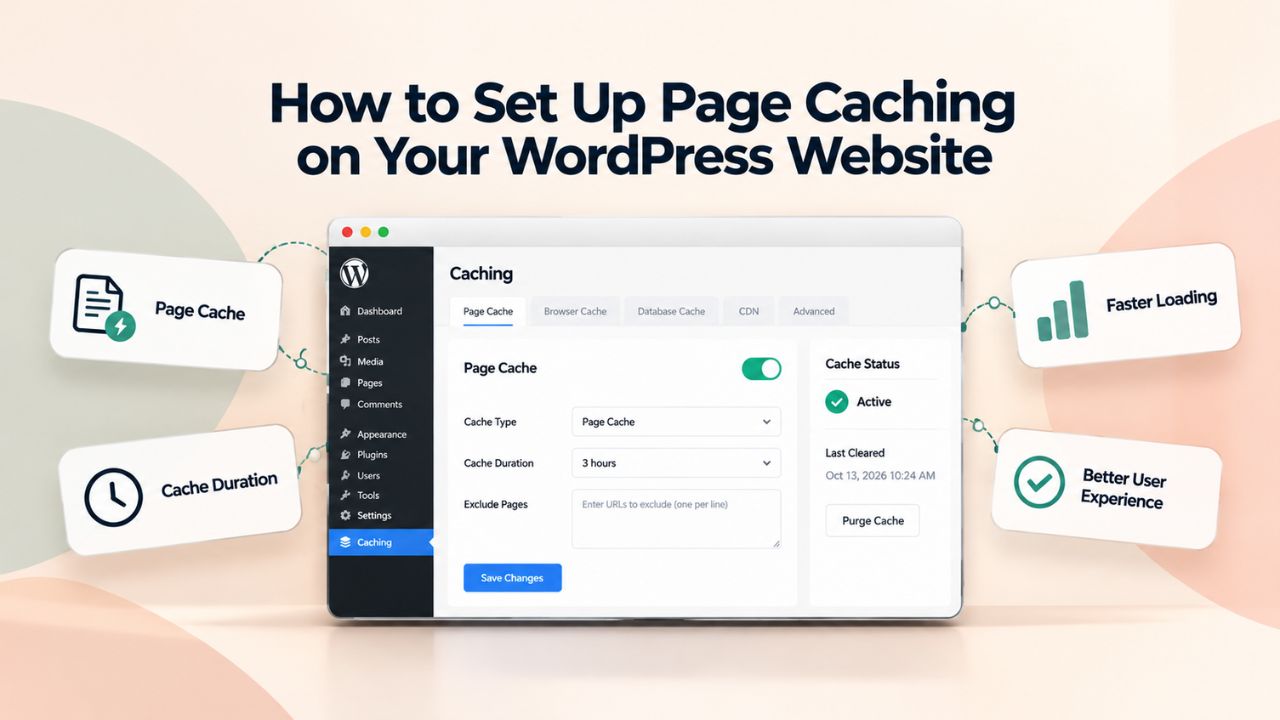
Your WordPress site loads slowly. Visitors wait. Bounce rates climb. Search rankings stagnate. The culprit is often missing caching. When you enable page caching, your server stops rebuilding pages from scratch on every request and instead serves pre-built copies instantly. This single change can reduce load times by half or more and dramatically improve Core Web Vitals for SEO. Niya Digital delivers WordPress hosting in partnership with an enterprise-grade cloud infrastructure partner, enabling built-in caching optimization for managed customers.
What Is Page Caching & Why It Matters for WordPress
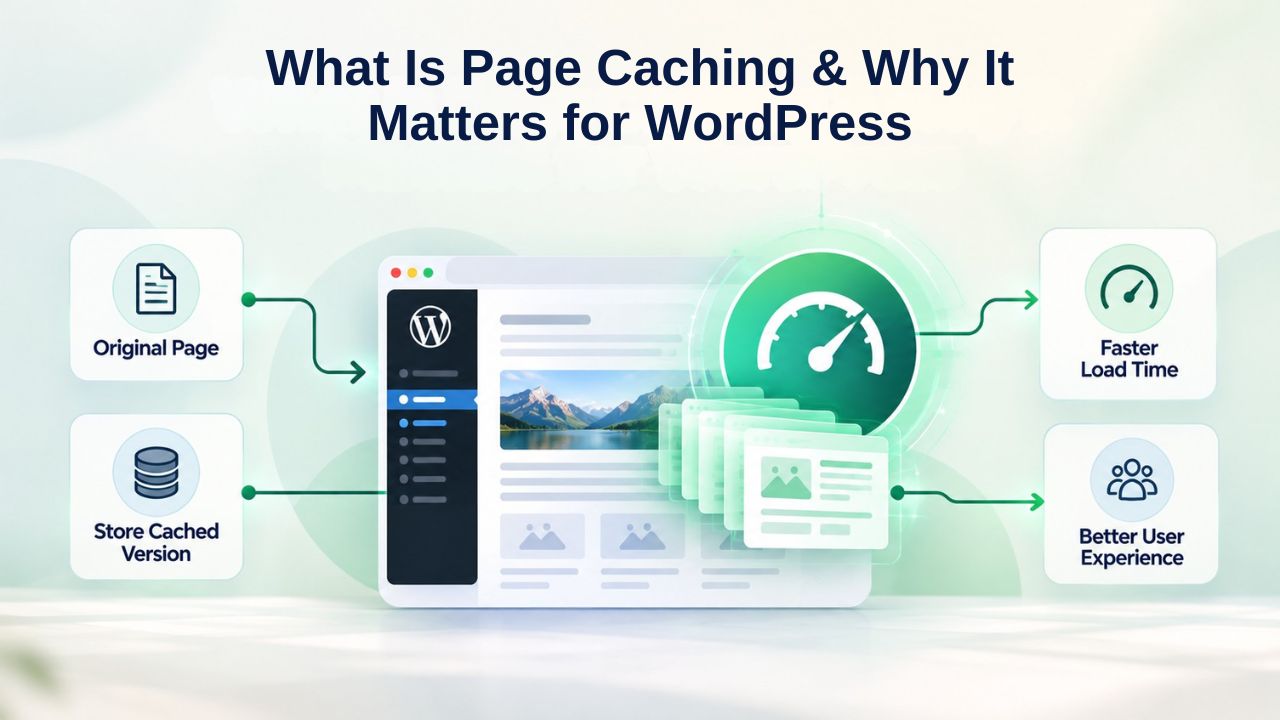
Page caching stores a complete HTML snapshot of your WordPress pages. Instead of asking the server to run PHP, load WordPress, query the database, and render the page every single time a visitor arrives, your server skips that work and delivers the pre-built copy instantly. The visitor gets the same page content, but far faster, because static file delivery is orders of magnitude quicker than dynamic generation.
The Core Performance Problem Page Caching Solves
Every WordPress request without caching triggers an expensive, repeating cycle. The server boots WordPress, loads all active plugins, queries the database for posts, pages, settings, menu items, and sidebar widgets, renders the theme template with that data, assembles the complete HTML, and sends it to the browser. On a moderately loaded server, this entire process takes 500 milliseconds to 2 seconds. When 100 visitors arrive simultaneously without caching, the server runs this full cycle 100 times in parallel, draining CPU resources, consuming memory, and exhausting database connections.
With page caching enabled, those same 100 requests retrieve the same cached HTML file from disk or memory. The resource consumption drops dramatically. Instead of 100 expensive operations, the server performs one generation (on cache miss) and 99 fast retrievals (on cache hits). This is why caching is recognized as the fastest way to improve WordPress performance. The difference isn’t incremental; it’s transformative.
Cache files are fundamentally different from dynamic pages. They are static files stored on disk or in memory. Serving them requires no PHP execution, plugin loading, or database queries. The server reads the file and transmits it to the browser. This streamlined process is orders of magnitude faster than the full WordPress bootstrap cycle. For mostly static content sites, blogs, informational websites, landing pages, and documentation, page caching can improve performance hundreds of times over, especially during traffic spikes.
Why Speed Matters Beyond User Experience
Fast page load times improve user experience, reduce bounce rates, and increase conversions. These business outcomes matter. But there’s another layer: search engine performance. Google’s Core Web Vitals, a set of metrics that directly influence search rankings, are fundamentally shaped by page load performance. Specifically, how quickly your server responds affects Largest Contentful Paint (LCP, the time when the largest visible element renders on screen) and Time to First Byte (TTFB, the time until your server sends the first data to the browser).
Page caching cuts TTFB dramatically by eliminating server-side processing time. Instead of waiting for PHP to execute and the database to return results, the server sends a static file immediately. When TTFB improves, Largest Contentful Paint improves as a direct consequence; the browser can’t render anything until the first byte arrives. When Core Web Vitals improve, your search rankings improve. Beyond SEO, faster pages reduce server load, which means search engine crawlers can crawl more pages faster, improving crawl efficiency and indexing speed. The compounding effect is significant: caching is simultaneously a user experience optimization, an SEO strategy, and a server resource management tool.
WordPress Pricing Plans
Choose the WordPress hosting plan that fits your website needs, with reliable performance, security, storage, backups, and tools to help your site grow.
WordPress Basic
A great way to get started.
- 1 website
- 10 GB NVMe storage
- Unmetered bandwidth
- Free SSL Certificate *
- WordPress pre-installed
- Weekly backups
- Web Application Firewall
- Daily malware scans
- One-time malware removal

WordPress Deluxe
Improve your site performance with Cloudflare CDN.
- 1 website
- 20 GB NVMe storage
- Unmetered bandwidth
- Free SSL Certificate *
- WordPress pre-installed
- Daily backups
- Web Application Firewall
- Daily malware scans
- One-time malware removal
- Up to 2x faster performance with global Cloudflare CDN **
- Enhanced security with DDoS protection
- Staging site
WordPress Ultimate
Add online marketing with more sites, storage and security.
- 1 website
- 30 GB NVMe storage
- Unmetered bandwidth
- Free SSL Certificate *
- WordPress pre-installed
- Daily + on-demand backups
- Web Application Firewall
- Daily malware scans
- Unlimited malware removal
- Up to 2x faster performance with global Cloudflare CDN **
- Enhanced security with DDoS protection
- Staging site
- WordPress code optimizer
- Smart WordPress plugin manager
- Sell online with WooCommerce
Page Caching & Core Web Vitals: The Performance Connection
Google’s approach to measuring page quality has evolved beyond simple speed metrics into something more nuanced. Google’s Core Web Vitals are three metrics that directly measure how users experience your site: Largest Contentful Paint (LCP, measuring how quickly the main content element renders), Interaction to Next Paint (INP, measuring how quickly the page responds when users interact with it), and Cumulative Layout Shift (CLS, measuring whether elements move around unexpectedly as the page loads). Google officially uses these metrics as direct ranking signals. A slow site ranks lower in search results, no matter how relevant, well-written, or authoritative its content is. This makes performance optimization not optional, but foundational to SEO strategy.
TTFB: The Hidden Foundation for All Other Performance Metrics
Time to First Byte is often overlooked by site owners. Yet, it functions as the hidden foundation that constrains all other performance improvements. TTFB measures the time between when your browser sends an HTTP request and when the server begins sending data back. This measurement encompasses several distinct stages: network latency to reach the server, server processing time to generate the response, and the time to start transmitting that first byte back to the browser.
The constraint is absolute and mathematical: if your TTFB is 2 seconds, your Largest Contentful Paint cannot possibly be faster than 2 seconds, because the browser cannot render anything until that first byte of data arrives from the server. As a practical matter, LCP will be slower, perhaps 3 to 4 seconds, because additional time is required to download the full page content after receiving the first byte.
Page caching addresses TTFB directly by eliminating server-side processing. Without caching, WordPress must execute PHP code and query the database on every request, which causes response times to balloon. With page caching enabled, the server skips all that processing and sends a static file, reducing TTFB from the typical 500–2000 milliseconds down to 50–200 milliseconds for cached requests, a 75–90% reduction for most sites.
Measurable, Verifiable SEO Impact
The connection between caching, Core Web Vitals, and search rankings isn’t theoretical. When caching reduces page load time and improves Core Web Vitals, sites often see measurable gains in search rankings and organic traffic. Because WordPress powers 43.5% of all websites globally, and because page speed is an official Google ranking factor affecting millions of sites daily, caching is foundational to SEO strategy, not peripheral.
Site owners who implement caching see faster pages, improved search visibility, more organic traffic, and better conversion rates. This is why high-performance WordPress hosting providers prioritize caching optimization; the ROI is immediate and measurable.
How Page Caching Reduces Server Load & TTFB
The mechanism behind page caching is elegantly simple in concept, though powerful in execution. Without caching, every request rebuilds the page from scratch. With caching, the server asks a single question: “Do I have a cached version of this page already?” If yes, serve it immediately. If no, generate it once, store it in cache, and serve it. The next visitor requesting the same page gets the cached version, and the server performs a fraction of the work.
The Request Flow: Cached vs. Uncached Side by Side
An uncached request follows this complete sequence: visitor clicks a link → browser sends an HTTP request to your server → server boots WordPress → WordPress loads all active plugins and processes → database is queried for post content, settings, menu structure, sidebar widget data → theme template is rendered with all that retrieved data → HTML output is assembled → complete response is sent back to the browser → browser downloads and processes CSS, JavaScript, and images. This full cycle typically consumes 500 milliseconds to 2 seconds on a shared or standard server. When the server is busy serving other sites or experiencing traffic spikes, this time extends further.
A cached request, by contrast, follows an abbreviated path: visitor clicks a link → browser sends HTTP request → server checks cache storage → server finds and retrieves the cached HTML file → server sends it immediately (5–50 milliseconds total). No PHP execution. No database queries. No plugin processing. No theme rendering. The cached file is served as a static asset. For most page requests on a blog, informational website, or content-focused site, this approach is perfectly valid; the page content hasn’t changed since the cache was created, so serving the cached version provides an identical user experience at a tiny fraction of the processing cost.
Resource Efficiency at Scale: The Business Impact
Niya Digital’s support team has observed a consistent pattern across managed hosting customers: sites that enable page caching often see immediate reductions in server CPU utilization and database load, enabling them to handle 3–5× more simultaneous visitors without degradation. This multiplier effect matters because shared servers host many sites. When one site caches aggressively and efficiently, it uses fewer resources, leaving more server capacity available for other hosted sites.
On managed WordPress hosting, the provider can optimize caching infrastructure site-wide, configuring automatic cache invalidation, preloading, and multi-layer strategies. On shared hosting, you rely on plugin-level caching, which is more limited in scope but still delivers substantial performance gains. The difference is one of degree, not kind; both approaches provide measurable improvement over no caching.
Handling Dynamic Content: What You Should & Shouldn’t Cache
Not every page on a WordPress site is static or semi-static. Many WordPress installations include e-commerce features, membership functionality, user accounts, search results, forms, and real-time content that changes frequently or displays different data to different visitors. Caching is powerful, but it requires discipline: don’t cache pages that change frequently or show user-specific data.

What You Must Exclude from Caching
Certain pages show different content to different visitors, or change too quickly to cache safely. Treat this list as a critical configuration requirement, not a suggestion. WooCommerce cart, checkout, and account pages should never be cached because they show personalized data; your shopping cart is different from another visitor’s. If you cache the cart page, visitor A might later see visitor B’s cart, complete with items and prices intended for someone else. Similarly, pages where users enter data, contact forms, login pages, comment submission forms, and user registration pages should always be excluded from caching because form submissions must be processed fresh on each request.
Exclude search results pages because they change based on the visitor’s search query. Caching a search results page would serve the same results for every search query, completely breaking search functionality. Comment sections, notification areas, dynamic widgets, and any content that updates in real-time (live chat, inventory counters, dynamic pricing) should not be served from cache. Additionally, pages that display personalized user data, order history, saved preferences, and account settings must always be excluded.
Most modern caching plugins and hosting solutions provide straightforward methods to exclude pages from caching by URL pattern. For example, you might exclude /checkout/* (all checkout variations), /my-account/* (all account pages and subpages), /cart/ (the cart page), and /wp-admin/* (WordPress admin area). You can also exclude entire WordPress post types: exclude all WooCommerce products if they display frequently-changing inventory or dynamic pricing, or exclude the WordPress search archive by type. The guiding principle is simple: cache what’s stable and regenerate what changes. When in doubt, exclude the page from caching; the performance penalty is minimal compared to the risk of serving stale or incorrect data.
Partial Caching: Keep Parts Dynamic While Caching Most of the Page
Not all dynamic content requires abandoning caching for the entire page. Fragment caching, a more sophisticated approach, lets you cache most of a page- header, footer, sidebar, static content- while keeping specific sections dynamic and regenerated on every request. Consider a blog post: the post content itself rarely changes after publication, the header and footer are identical across all pages, and the sidebar navigation is static. But a “related posts” widget displays different posts based on the current post’s category, or a “visitor comment count” widget shows live data. You can cache the entire post page and sidebar, but exclude the related posts section and comment count from caching.
An alternative approach is to use AJAX (Asynchronous JavaScript and XML) or JavaScript to fetch dynamic content after the cached page loads. The visitor receives the cached page immediately, which loads fast. After the page is rendered in the browser, JavaScript code runs and requests the dynamic content from the server, which is fetched and inserted into the page. To the visitor, the page loads quickly and the dynamic section appears shortly after. Meanwhile, the server serves the cached page (very fast) and handles only one additional request for the dynamic data.
This approach works well for publishers, e-commerce sites, or community platforms where most of the page structure is stable but one section changes frequently. You get the speed benefit of caching (fast initial load) plus the freshness benefit of dynamic content (always current data). The result: faster page load, fresh data, and reduced server load. This is a best-practice architecture for complex WordPress installations.
| Page Type | Should Cache? | Why or Why Not | Exclusion Notes |
|---|---|---|---|
| Blog Post / Article | Yes | Post content is static after publication | Exclude if comments are live or real-time updates shown |
| Homepage | Conditionally | Structure is stable; featured content may be curated | Exclude if homepage displays latest posts or real-time data |
| Product Page (WooCommerce) | Conditionally | Product descriptions are stable; pricing/inventory changes | Exclude if price or stock quantity updates in real-time |
| Shopping Cart | No | Shows personalized data per individual user | Always exclude; every user needs their own cart view |
| Checkout Page | No | Highly sensitive financial and personal data | Always exclude; never cache checkout under any circumstance |
| User Account Page | No | Shows private account data, orders, preferences | Always exclude; never cache logged-in user pages |
| Search Results | No | Results change based on user’s search query | Always exclude; each search query needs fresh results |
| Contact Form Page | No | Form processing and submission are user-specific | Always exclude; never cache pages with forms |
| Category / Archive Page | Conditionally | Structure is stable; new posts are added over time | Exclude paginated archives if content changes frequently |
Choosing a Page Caching Approach for Your WordPress Site
Several distinct ways to implement page caching for WordPress each has trade-offs. The right approach depends on your hosting environment, technical comfort level, traffic scale, and specific needs. Understanding each option helps you decide.
Plugin-Based Page Caching: Accessible and Flexible
On shared hosting or self-managed WordPress installations, the standard approach is to install a caching plugin. The plugin stores a copy of each page as a static HTML file on disk. When a visitor lands on that page, the server checks for the cached file, finds it, and serves it directly.
The plugin also handles cache invalidation: when you publish a new post, update an existing page, or change a setting, the plugin automatically clears the old cache so the new version is generated and cached on the next visit. Setup typically takes 10–15 minutes and requires no server access or technical knowledge. Most plugins offer a straightforward interface: enable page cache, choose a storage method (disk-based or memory-based), configure which pages to exclude, set cache expiration time, and save settings.
The advantage of plugin-based caching is accessibility and flexibility. These plugins work on almost any WordPress hosting environment, are portable (you can move them to different hosts), and give you direct control over settings without involving your hosting provider. The disadvantage is overhead: the plugin still runs PHP code on each request to check whether a cached version exists, adding a small latency penalty compared to server-level caching. For most small to medium sites, this trade-off is perfectly acceptable. On a typical shared server, plugin-based page caching reduces TTFB and page load time enough to justify the minimal overhead.
Server-Level Caching: Performance Optimization at the Infrastructure Level
Managed WordPress hosting platforms often include server-level page caching, which intercepts requests before WordPress is even booted. The cache lives at the web server layer, implemented as a “reverse proxy” that sits between visitors and your WordPress server. When a visitor requests a page, the reverse proxy first checks for a cached version. If it finds one, it serves the cached page directly without passing the request to WordPress, PHP, or the database. The result is dramatically faster responses; the entire cycle happens at the server level, bypassing WordPress entirely.
Server-level caching is faster than plugin-level caching for two reasons. First, it intercepts requests earlier in the stack, before any PHP code runs. Second, it’s usually implemented with in-memory caching (using Redis or similar fast storage) rather than disk-based caching, making retrieval nearly instantaneous. The trade-off is that you lose some direct control: the hosting provider configures and manages the server-level cache, and you cannot customize it the way you can with a plugin. However, most managed hosts handle cache configuration and invalidation automatically and correctly, so this trade-off is usually worthwhile.
Niya Digital’s managed WordPress hosting plans include server-level caching and pre-optimization. You don’t install a plugin or configure settings; the infrastructure handles performance automatically. Your role is to create content and run your business; the hosting layer handles caching, invalidation, and performance optimization.
Hybrid Strategies: Layering Multiple Caching Approaches
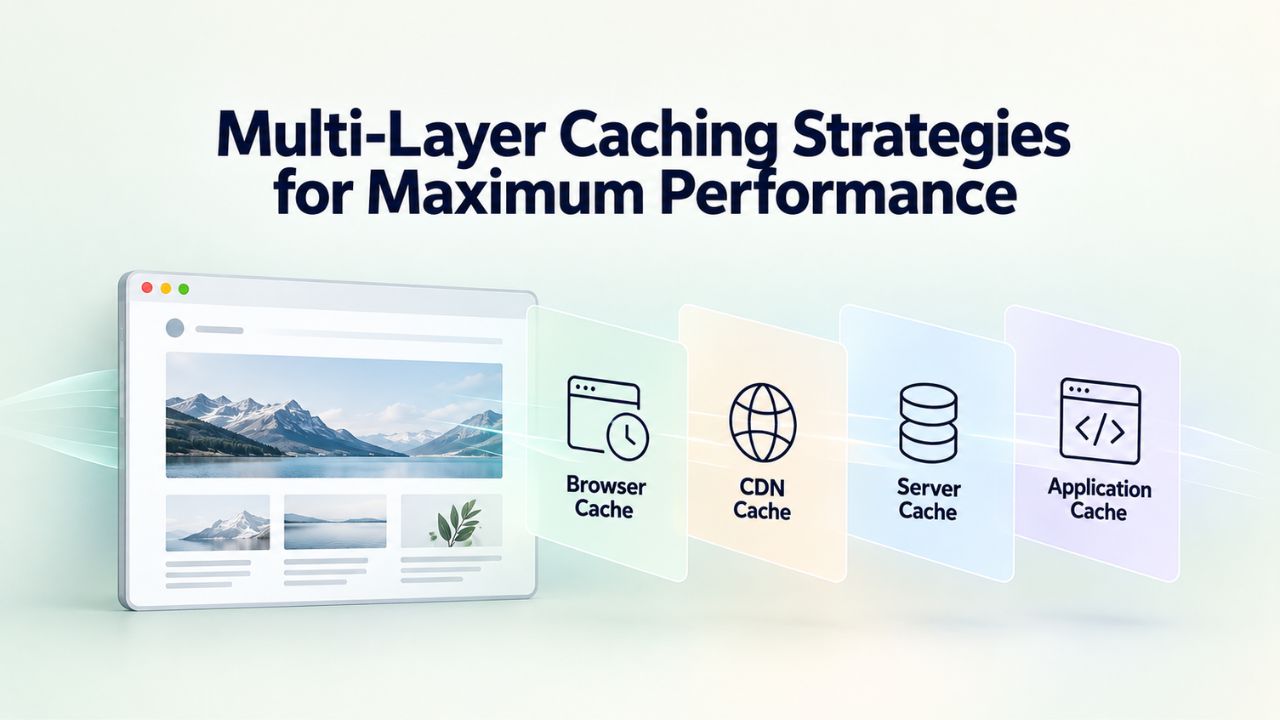
The most powerful strategy combines multiple caching layers, each working at a different level of the system. Server-level page caching handles full-page responses. Browser caching uses HTTP headers to tell browsers to store images, CSS, and JavaScript files locally. Object caching (using Redis or Memcached) stores expensive database query results in memory. CDN edge caching (if you use a content delivery network) stores copies of content on servers worldwide. Each layer reduces work at the next layer down. This layered approach requires more sophisticated configuration but delivers the best performance and scalability. Managed WordPress hosts often implement this strategy automatically.
Ready to Optimize Your WordPress Site’s Performance?
Whether you’re running shared hosting and need an immediate speed improvement, or you’re ready to upgrade to a managed solution with built-in caching and infrastructure support, Niya Digital can help you optimize for speed. Explore our managed WordPress hosting plans; caching is pre-configured, fully optimized, and automatically managed, so you never have to think about cache configuration again.
Cache Invalidation: Keeping Content Fresh Without Sacrificing Speed
Caching creates a new challenge: when you update a page, edit a post, or change a setting, how does the server know to serve the new version instead of the old cached copy? The answer is cache invalidation, the process of clearing or refreshing cached copies when underlying content changes. A proper cache invalidation strategy is the difference between a fast site that serves stale content and one that always serves current content.
Automatic Invalidation: The Modern Standard
Automatic cache invalidation is the standard approach in modern caching systems: when you publish a new post, update an existing page, or change a site setting, the caching system automatically clears the relevant cache files. When you click “Publish,” the system doesn’t just publish your new post; it also clears the cache for the homepage (since the latest posts section changed), category pages (since posts in that category changed), the blog archive, and any other pages affected by the new content. The next visitor to those pages triggers a fresh page generation, and the new cache is stored. This approach keeps content fresh while maintaining speed; automatic invalidation handles the complexity you’d otherwise manage manually.
Manual cache clearing is rarely necessary in modern systems but remains useful for troubleshooting. When you need to ensure all cache is cleared immediately (perhaps after updating plugin code or changing theme files), most caching systems provide a button to clear the entire cache manually. Some sites also use cron jobs to clear cache on a schedule, every hour, every 12 hours, or daily, useful for sites where content updates are unpredictable or where you want to guarantee freshness at regular intervals without relying on change detection.
Smart Invalidation: Precision Clearing for Maximum Hit Rates
Clearing the entire cache on every content update is wasteful and counterproductive. If a visitor leaves one comment on one blog post, there’s no logical reason to clear cache for every archived post, every product page, every category page, and every other page on your site. Smart invalidation, by contrast, purges only the URLs and cache regions affected by the specific change, keeping most of the cache intact.
When you publish a new blog post, clear cache for the homepage, blog archive, and relevant category pages, but leave product pages, other categories, and older archive pages untouched. When you update a sidebar widget, clear only pages displaying that widget. When you change a plugin, optionally clear everything (safest), or clear only pages affected by that plugin if you know which ones those are.
This precision reduces the time the cache is “cold” (freshly generated and uncached), keeping your site fast while keeping content fresh. The trade-off is configuration complexity; smart invalidation requires you to map which content changes affect which URLs. However, most modern plugins and managed hosts handle this mapping automatically. The benefit is substantial: sites with smart invalidation maintain cache hit rates above 80%, meaning four of every five page requests are served from cache. Sites with poorly-configured invalidation see hit rates drop to 30–40%, defeating the purpose of caching. Proactive cache management is an often-overlooked key to sustained performance.
Multi-Layer Caching Strategies for Maximum Performance
Page caching is powerful on its own, but combining it with other caching layers creates a genuinely fast and scalable WordPress site. These complementary layers work at different levels of the system, each reducing load and latency in distinct ways. Understanding how they interact helps you build an effective overall strategy.
Browser Caching: Cache on the Visitor’s Computer
When you visit a website, your browser downloads images, stylesheets, JavaScript files, fonts, and other static assets. Browser caching tells the browser to save these files locally. When you visit the site again, your browser checks whether it already has a local copy before downloading it again. This is controlled via HTTP response headers (Cache-Control, Expires, ETags) that the server sends with each response. The server might tell the browser: “Store this CSS file for 30 days” or “Store this image for 7 days” or “Check if this file changed before reusing your local copy.”
Page caching and browser caching complement each other. Page caching reduces server load and improves first-visit speed. Browser caching reduces repeat-visit load time and improves perceived performance for returning visitors. Configure them together: set images and CSS to cache for 30 days locally (they change rarely), but set HTML pages to cache for 24 hours or less (content might update daily). This combination means first-time visitors get a fast page load from page caching, and returning visitors get an even faster load from browser cache retrieval. The compound effect is significant.
Object Caching: Accelerate Database Queries
WordPress stores posts, pages, comments, settings, menu structure, user data, and plugin options in a database. Every page request runs multiple queries to fetch this data. Object caching stores the results of expensive queries in memory (using tools like Redis or Memcached), so repeated queries return the cached result instantly instead of querying the database again. Without object caching, a complex page might run 50–200 database queries per request, each taking 10–100 milliseconds. With object caching, the first request runs the queries (and caches results), but subsequent requests retrieve cached results in 1–5 milliseconds, a 10–100× speedup per query.
This is especially powerful for dynamic pages that can’t be fully cached (user accounts, WooCommerce cart, personalized content). These pages must be regenerated on every request (because content is user-specific), but the database queries can be cached. The page is generated fresh, but with cached query results, dramatically cutting server processing time. Object caching also reduces database load, which is often the bottleneck on high-traffic WordPress sites. Managed WordPress hosts usually include Object caching as part of their infrastructure.
CDN & Edge Caching: Cache Closer to Your Visitors
A Content Delivery Network (CDN) stores copies of your pages and assets on servers worldwide, positioned geographically closer to your visitors. When a visitor requests your site, the nearest CDN server sends the content. This reduces network latency and TTFB, especially for international sites where network distance matters. Some CDNs can cache entire pages at the edge, not just static assets, creating a powerful combination with origin-server caching. An international visitor might receive your page from a CDN edge server in their region in 20–50 milliseconds, instead of 300–800 milliseconds from your origin server thousands of miles away.
| Caching Layer | What It Caches | Where Cache Stored | TTFB Impact | Setup Difficulty | Best For |
|---|---|---|---|---|---|
| Page Cache (Plugin) | Complete HTML pages | Server disk or plugin memory | Moderate (50–200ms TTFB) | Low; plugin installation | Shared hosting, self-managed servers |
| Page Cache (Server) | Complete HTML pages | Reverse proxy memory or disk | High (5–50ms TTFB at edge; 50–150ms at origin) | Medium; hosting manages | Managed WordPress hosting |
| Browser Cache | Images, CSS, JavaScript, fonts | Visitor’s computer | High on repeat visits (cached locally, 0–10ms) | Low; HTTP headers control | All sites; especially effective for returning visitors |
| Object Cache | Database query results | Server memory (Redis, Memcached) | Medium (10–100ms per query vs. 100–500ms uncached) | Medium; requires backend setup | Dynamic pages, high-traffic sites |
| Fragment Caching | Specific page sections | Server memory or disk | Medium (cached sections fast, dynamic sections fresh) | Medium; requires configuration | Pages with mostly-static content and small dynamic sections |
| CDN Edge Cache | Pages and assets | CDN edge servers worldwide | Very High if edge-cached (5–50ms globally) | Medium; CDN service, configuration | International sites, high-traffic sites, media-heavy sites |
Common Page Caching Mistakes & How to Avoid Them
Misconfigured caching can cause more problems than not caching at all. Understanding common mistakes helps you configure caching correctly from the start. We see these issues repeatedly in support inquiries and troubleshooting.
Caching Dynamic Content: Serving Stale Data to Wrong Users
The most damaging mistake is caching pages that show user-specific or frequently-changing data. If you accidentally cache the shopping cart page, visitor A logs in hours later and sees visitor B’s cart, complete with items and prices never intended for them. If you cache a real-time stock price page, investors make financial decisions based on outdated information. If you cache a contact form and the form validation logic is broken, visitors see the old broken form on every page load, and submissions fail silently without error messages. If you cache user account pages, one visitor might see another visitor’s order history or private information.
The solution is ruthless and systematic exclusion: audit every page type on your site, identify every page that changes per-user or per-request, and exclude it from cache. Create a detailed exclusion list and document your reasoning. When in doubt, exclude the page from caching; the performance penalty is minimal compared to the risk of data exposure or broken functionality.
Cache Conflicts Between Plugins and Themes
Some WordPress plugins modify page output after caching, and these changes are lost if cached output is served. For example, a security plugin might inject hidden security headers or metadata, an analytics plugin might add tracking code, or an optimization plugin might modify HTML structure. If caching happens before this injection, the cached page doesn’t contain these modifications, and the plugin’s intended effect is lost. Similarly, themes with dynamic template logic might display differently when cached versus fresh.
The solution is thorough testing: after enabling caching, visit the site in an incognito browser (to see cached content, not logged-in variations), check that everything displays correctly, and monitor behavior for 24 hours. If problems appear- missing elements, broken functionality, inconsistent styling- disable the caching plugin temporarily, identify the conflicting plugin or theme, and reconfigure one or both. Most modern plugins are cache-aware and document their compatibility.
Wrong Cache TTL: Too Short or Too Long
Setting the cache to expire too quickly makes caching ineffective; pages expire and regenerate constantly, defeating the purpose and consuming server resources. Setting it too long means stale content gets served for extended periods. The right TTL depends on how often content changes. For a blog where you publish a few posts per week, a 24-hour TTL is often right; new posts are cached immediately upon publish, and older posts stay cached.
For a news site with multiple daily updates, consider 1–6 hours. For a landing page that never changes, 7 days or more is fine. For WooCommerce product pages, 12–24 hours is typical if price and inventory update daily. For dynamic pages (cart, account), don’t cache at all. Monitor cache hit rates (the percentage of requests served from cache) and adjust TTL based on what you observe. If hit rates are too low or content staleness is a problem, adjust settings.
Neglecting Cache Health Monitoring
“I installed a caching plugin and forgot about it” is a common approach that often backfires. Cache hits, cache misses, invalidation logs, performance metrics, and cache size should be checked periodically. Some caching systems provide debugging info via HTTP headers or an admin panel showing cache status. Review this data monthly. If cache hit rate drops suddenly (e.g., from 80% to 20%), something is wrong, a plugin is misconfigured, site changes are invalidating too much cache, or a visitor is accessing pages that trigger cache bypass. Proactive monitoring catches issues early. Set a calendar reminder to review cache health monthly, especially after installing new plugins or making significant site changes.
Measuring Caching Impact: Testing & Monitoring
How do you know if caching is actually working? How much faster is your site? Measurement is critical; it provides evidence of improvement, helps you optimize configuration, and alerts you to problems. Without measurement, you’re flying blind.
Measuring TTFB & Page Load Time with Real Tools
Google’s PageSpeed Insights is a free tool that breaks down TTFB and other Core Web Vitals metrics for your site. Enter your site URL, and PageSpeed Insights measures your site from multiple geographic locations, shows TTFB, Largest Contentful Paint (LCP), Interaction to Next Paint (INP), Cumulative Layout Shift (CLS), and provides actionable recommendations.
Other professional tools include GTmetrix (detailed performance analysis with video playback), WebPageTest (extensive network and rendering analysis), and Lighthouse (built into Chrome browser DevTools for quick testing). Run a test before enabling caching, note the TTFB and page load time baselines, then run the same test after caching is enabled and configured. The difference is typically dramatic; a 50–75% improvement in TTFB for static pages is common.
A simple command-line approach is to use curl to check TTFB directly, without the overhead of a GUI tool. Run this command: curl -s -w ‘TTFB: %{time_starttransfer}s\n’ https://yoursite.com, and it returns the time in seconds until the first byte arrives from your server. Run this before and after enabling caching to confirm improvement. Repeat the test multiple times for statistical confidence.
Inspecting Cache Status via HTTP Headers
Most caching systems expose cache status via HTTP response headers, which you can inspect in your browser. Open your browser’s developer tools (Ctrl+Shift+J on Windows/Linux, Cmd+Option+J on Mac), navigate to the Network tab, reload a page, click on the main page request (usually at the top), and look at the Response Headers section. Search for headers like X-Cache: HIT (cached), X-Cache: MISS (not cached), Cache-Status: hit, or CF-Cache-Status: HIT (depending on your caching system). If you repeatedly visit the same page, you should see “HIT” on the second and subsequent visits. If you consistently see “MISS,” the cache is not being created or served correctly; troubleshoot by testing with plugins disabled or contacting hosting support.
Ongoing Performance Monitoring & Health Checks
Set up periodic monitoring using PageSpeed Insights, GTmetrix, or a dedicated monitoring service. Track TTFB, LCP, and overall page load time over time, at minimum, monthly. A healthy caching setup keeps TTFB low and consistent week over week. If TTFB suddenly climbs, investigate immediately: it’s a sign of cache problems (misconfiguration, invalidation issues), increased traffic overwhelming your server, or server resource exhaustion. Additionally, track cache size to ensure cached files aren’t consuming excessive disk space, and monitor CPU/memory usage to ensure the caching system isn’t introducing overhead. A well-tuned caching setup improves both speed and resource efficiency.
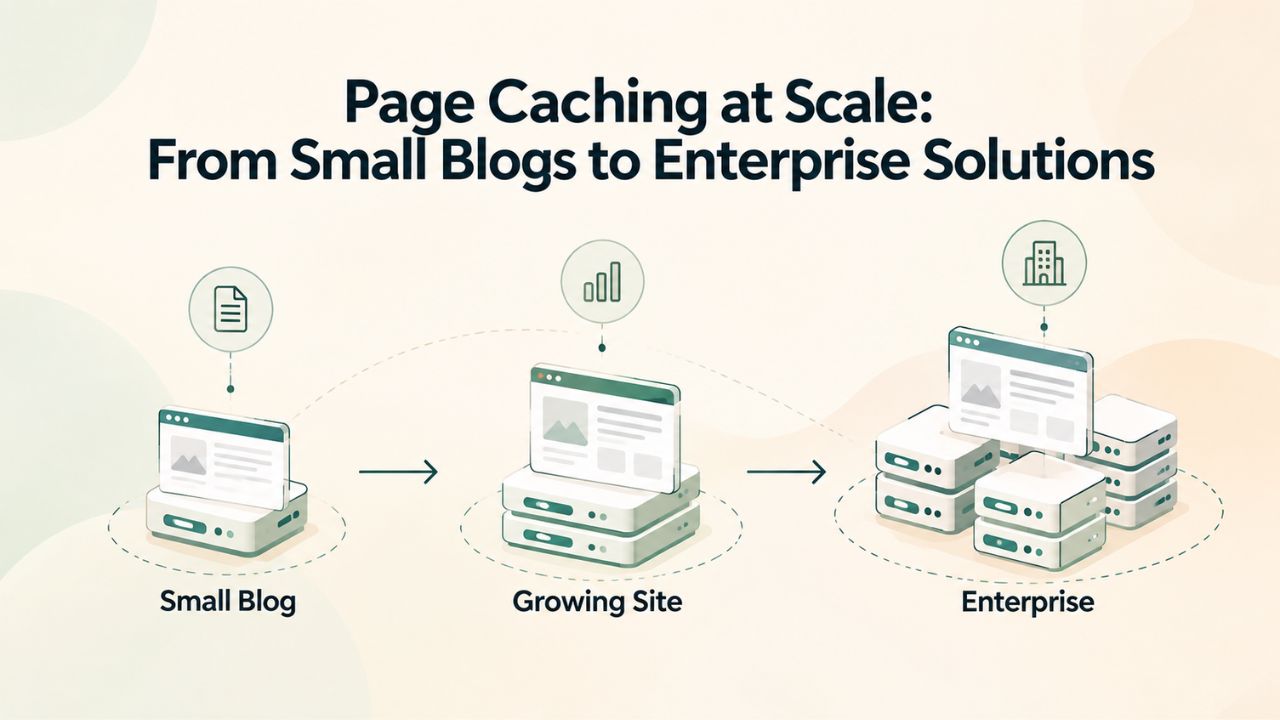
Page Caching at Scale: From Small Blogs to Enterprise Solutions
Page caching is valuable for sites of all sizes and traffic levels, but the implementation approach changes as your site grows. Start small and scale your caching strategy with your site’s needs.
Small Blogs & Informational Sites on Shared Hosting
If you run a small blog or informational site on shared hosting, a plugin-based caching solution is the right place to start. Setup takes 15 minutes, requires no server access or technical expertise, and delivers immediate, measurable speed improvements. Most shared-hosting environments have limited resources, so caching is essential for maintaining acceptable performance.
Most plugin-based caching systems use disk-based page caching (storing cached pages as HTML files on disk), which is sufficient for traffic under 1,000 visitors per day. For blogs and content sites where new content is published daily but older content rarely changes, even a simple 24-hour cache TTL delivers excellent results. The simplicity of plugin-based caching is an advantage; it works everywhere, requires no server configuration, and is portable if you ever switch hosts.
Growing Sites & E-Commerce on VPS or Managed Hosting
As your site traffic grows beyond 1,000–5,000 daily visitors, shared-hosting environments start to strain under the load, and plugin-based caching reaches its performance ceiling. At this traffic level, upgrade to a virtual private server (VPS) or managed WordPress hosting. Managed hosting includes server-level caching (typically a reverse proxy), which is faster than plugin caching because it intercepts requests before PHP executes.
Managed hosts also often include automatic cache management, cache preloading (generating cache before visitors arrive so first visitors don’t wait for generation), and integrated staging environments for safe testing. For WooCommerce stores or membership sites, managed hosting caching is smarter about handling mixed content: cache the product page, exclude the dynamic cart, cache the homepage, and object-cache critical database queries.
High-Traffic & Enterprise Optimization
Sites handling 10,000+ daily visitors require multi-layer caching orchestrated at the infrastructure level. Managed WordPress hosting providers at enterprise scale optimize the interaction between page cache, object cache, browser caching, CDN edge cache, and sometimes additional custom caching layers. These providers have deep expertise in cache configuration, automatic invalidation strategies, performance monitoring, and optimization. They handle this infrastructure work completely; you never configure a cache setting, worry about cache invalidation, or monitor cache health. Your role is to create content and run your business; the hosting infrastructure handles all performance optimization automatically. This division of responsibility is why enterprise-level sites choose managed hosting over self-managed infrastructure.
Start Caching Your WordPress Site Today
Your decision tree is simple: if you’re on shared hosting, install a caching plugin today; it takes 15 minutes, and you’ll see results immediately. If you’re ready for deeper performance optimization, automatic management, and professional-grade infrastructure, managed WordPress hosting provides enterprise caching with zero configuration or ongoing management.
Frequently Asked Questions
How much faster will my site load after enabling page caching?
Speed improvements depend on your site’s current performance and content type. For a typical blog, page caching reduces Time to First Byte (TTFB) by 50–75% and overall page load time by 40–60%. For a WooCommerce store, static product pages may load twice as fast, while dynamic pages (cart, checkout) see smaller gains because they can’t be fully cached. Use PageSpeed Insights or GTmetrix to measure before and after; the improvement is usually substantial and immediately obvious. Most sites report client-visible speed improvements within hours of enabling caching.
Can I cache a WooCommerce store without breaking cart functionality?
Yes, with proper exclusion rules. Product pages, category pages, and shop pages can be cached safely if product descriptions, prices, and inventory quantities don’t change hour-by-hour. However, the cart, checkout, and user account pages must never be cached; they show personalized data. Configure your caching system to exclude those pages by URL pattern (e.g., exclude /cart/, /checkout/, /my-account/, and /wp-admin/). With proper exclusions, your store gets most of the speed benefit of caching while keeping sensitive pages fresh and functional. Test thoroughly before going live.
How do I verify that my cache is actually working?
Check HTTP response headers in your browser’s developer tools. Open the Network tab, reload a page, click the main page request, and look for headers like X-Cache: HIT, Cache-Status: hit, or similar. If you see “HIT” on repeat visits to the same page, caching is working. You can also use Google’s PageSpeed Insights to confirm that TTFB has improved before and after caching. If TTFB remains unchanged after enabling caching, troubleshoot by disabling conflicting plugins one by one to identify the culprit.
What’s the practical difference between page caching and object caching?
Page caching stores complete, rendered HTML pages and serves them without PHP execution or database queries. It’s most effective for static or mostly-static pages. Object caching stores database query results in memory (using Redis or Memcached) so repeated queries return cached data instantly instead of hitting the database. It’s most effective for dynamic pages that regenerate on every request but use the same data repeatedly. For best performance, enable both: page caching speeds up static pages, and object caching speeds up dynamic pages.
Should I manually clear my cache every time I publish a new post?
No. Modern caching systems automatically invalidate and regenerate relevant cache when you publish or update content. When you click “Publish,” the caching system automatically clears cache for the homepage, blog archive, relevant category pages, and the new post itself. Then the next visitor to those pages triggers fresh generation, and new cache is stored. Manual clearing is rarely necessary unless you’re troubleshooting a specific problem; in that case, you might clear all cache as a diagnostic step.
Why does my site sometimes show old content even though caching is enabled?
Several causes are possible. Cache invalidation might be too slow: if you update a page and the old cached version persists, adjust the cache TTL to be shorter, or manually clear the cache immediately after updating. You might have accidentally excluded pages from caching: check your exclusion configuration to ensure pages you want cached are not on the exclusion list. If both a caching plugin and a CDN are enabled, they might be misconfigured to work together; test with one disabled to identify the culprit. Stale content is always a sign of misconfiguration, not a fundamental limitation of caching.
Does page caching help or hurt SEO?
It helps substantially. Because page caching reduces load time and improves Core Web Vitals scores, it positively influences search rankings. Google rewards fast, responsive sites with higher rankings. Additionally, caching reduces server load, which means search engine crawlers can crawl more pages faster, improving crawl efficiency and indexing speed. As long as you properly exclude dynamic and personalized pages from caching, your SEO improves. Caching is an SEO best practice.
What cache TTL (Time to Live) should I set?
It depends on how often your content changes. For a blog publishing a few posts per week, 24 hours is reasonable; new posts are cached immediately, and older posts stay cached. For a news site with multiple daily updates, consider 1–6 hours. For a landing page that never changes, 7 days or more is fine. For WooCommerce product pages where price or inventory updates daily, 12–24 hours is typical. For dynamic pages (cart, account, search), don’t cache at all. Monitor cache hit rate and adjust based on performance and content staleness. There’s no universal “best” TTL; it’s contextual to your content.
Can caching cause security vulnerabilities?
Caching itself is secure when configured correctly. The main risk is accidentally caching sensitive data (user accounts, payment information, login forms, CSRF tokens). Ensure your exclusion list includes all pages with dynamic or personalized content. Additionally, some security plugins inject headers or metadata into responses after page generation. If caching happens before this injection, the security measure is lost. Test thoroughly after enabling caching, and contact your security plugin vendor if caching causes conflicts; they can usually provide cache-aware configurations.
Is plugin-based caching slower than server-level caching?
Yes, but still valuable. Plugin-based caching stores pages on disk and runs PHP to check the cache on each request, so TTFB is improved but not optimally, typically 50–200ms. Server-level caching (reverse proxy) intercepts requests before WordPress runs, so cached requests bypass PHP entirely and achieve very low TTFB, typically 5–50ms for edge cache and 50–150ms for origin cache. Server-level caching is faster but typically available only on VPS, dedicated servers, or managed WordPress hosting. Plugin caching works on any hosting. For shared hosting, plugin caching is the standard and effective solution.
Will adding too many caching layers slow down my site instead of speeding it up?
No. Caching layers work independently and additively. Page caching at one layer doesn’t interfere with browser caching at another layer. However, excessive or conflicting configuration can cause issues, for example, if cache TTLs conflict or if invalidation rules don’t coordinate across layers. The solution is clear documentation of your caching strategy and regular monitoring. Most managed hosts handle multi-layer caching transparently, so you don’t have to worry about layer conflicts.
Can I use caching with a staging environment for testing?
Yes. Most caching plugins and hosting environments allow you to disable caching for specific subdomains or environments. In your hosting admin panel or plugin settings, you can specify that caching is disabled for staging.example.com or for a specific environment variable. This is important: on staging, you want to see changes immediately without cache delays. Disable caching in staging; enable it in production.
How does caching affect sites with user-generated content?
User-generated content creates caching challenges. Comment sections, forum posts, and user-submitted content change frequently. Some sites exclude these pages from caching entirely, which is safer but sacrifices speed. Others cache the page but exclude the dynamic section (comments or forum posts) and regenerate that section on each request. Some use JavaScript to load user-generated content asynchronously after the cached page loads. Choose the approach that matches your content update frequency and user expectations; highly active comment sections might warrant excluding caching, while low-volume comments might be cached with a 1-hour TTL.
What monitoring should I do to keep cache working well?
Check cache health monthly. Review cache hit rates (aim for 60–80%+), TTFB trends, and cache size. If cache hit rate drops suddenly, something is wrong; investigate immediately. Monitor CPU and memory usage to ensure the cache system isn’t introducing overhead. Set a calendar reminder for monthly reviews. Use PageSpeed Insights or GTmetrix quarterly to track trends. Most importantly, disable plugins one by one if you see strange behavior; plugin conflicts are the most common cause of caching problems.
What happens if my cache becomes corrupted?
Clear all cache immediately; this is a safe, low-risk troubleshooting step. In almost every caching plugin or hosting panel, there’s a “clear cache” button. Click it, and the cache is wiped. Fresh cache is generated on the next visitor request. Corrupted cache is rare in modern systems, but if you see garbled content, missing elements, or strange display issues, clearing cache should be your first troubleshooting step. If problems persist after clearing the cache, disable the caching plugin and test whether the problem is cache-related.
Glossary
- Page Cache: A cached, complete copy of a rendered HTML page stored on disk or in server memory. On each visitor request, if a cached copy exists, the server serves it immediately without regenerating the page via PHP or database queries.
- TTFB (Time to First Byte): The time measured from when a browser sends an HTTP request to the server to when the server begins sending data back. Page caching improves TTFB dramatically by serving static files instead of generating pages dynamically.
- Cache Invalidation: The process of clearing or refreshing a cached copy when underlying content changes. Modern caching systems automatically invalidate affected pages when you publish, update, or delete content.
- Core Web Vitals: Google’s three performance metrics that directly influence search rankings: Largest Contentful Paint (LCP, measuring loading speed), Interaction to Next Paint (INP, measuring interactivity), and Cumulative Layout Shift (CLS, measuring visual stability).
- Cache Hit: An occurrence where the server finds and serves a cached copy of the requested page. Cache hits are fast and consume minimal server resources.
- Cache Miss: An occurrence where no cached copy exists, requiring the server to generate the page fresh. Cache misses are slower but are necessary when content has changed.
- Object Cache: A caching layer that stores expensive database query results in memory (using tools like Redis or Memcached) so repeated queries return cached results instantly instead of querying the database repeatedly.
- Fragment Caching: A technique that caches most of a page (header, footer, sidebar, static sections) while keeping specific sections dynamic and regenerated on every request. Useful for pages that are mostly stable but contain some frequently-changing content.
- Reverse Proxy: A server component that sits between website visitors and your WordPress server, intercepting requests and serving cached content without passing requests to WordPress. Typically used for server-level page caching on managed hosting.