A slow WordPress site costs you traffic, conversions, and rankings every day your pages underperform. If your site takes three seconds or longer to load, your hosting infrastructure is likely the constraint, not your plugins or theme. Niya Digital delivers its WordPress hosting in partnership with an enterprise-grade cloud infrastructure partner. This means the underlying servers and data centers are built to handle variable traffic spikes and resource demands that outpace shared hosting environments, allowing your site to maintain consistent performance even during peak traffic periods.
Why Hosting Sets Your WordPress Performance Ceiling
Your hosting environment establishes the baseline performance that no amount of plugin optimization can overcome. Even a perfectly configured WordPress site with ideal caching, optimized images, and lean code will struggle if the underlying hosting infrastructure can’t handle concurrent requests or database queries efficiently. Understanding this foundation is the first step to meaningful, lasting speed improvements. Hosting doesn’t just affect raw speed numbers; it determines whether your site scales gracefully under load or collapses during traffic spikes.
How Server Hardware Impacts Load Times
WordPress hardware capability- processors, processor speed, RAM, disk space, and storage medium- fundamentally affects how quickly your site responds to requests. A shared hosting server distributes these limited resources across hundreds of websites, often competing for the same CPU cycles and memory. When your neighbor’s site runs a traffic campaign or a plugin malfunctions, your site’s processing time climbs because CPU and memory are diverted to handle their load. A properly resourced hosting environment isolates your site’s resources or dedicates them outright, ensuring consistent, predictable performance regardless of neighboring traffic patterns or external spikes.
Time To First Byte (TTFB), the delay between a browser request and the server’s first response, directly reflects server hardware capability and resource availability. Google recommends keeping TTFB under 200 milliseconds to provide a good user experience. Real-world measurements demonstrate the stark difference between hosting tiers: WordPress sites on shared hosting average a 75th-percentile TTFB of 900ms to 1,400ms, while the same sites moved to managed hosting with server-level caching drop to 120ms to 250ms. This isn’t a 10 percent improvement; it’s a 7–10× faster response time from the same codebase, caused entirely by infrastructure.
Storage Speed as a Performance Multiplier
The type of disk storage on your host matters far more than many site owners realize. NVMe (Non-Volatile Memory Express) storage communicates directly with your server’s CPU through a faster PCIe interface, while older SATA SSDs use a considerably slower protocol designed for older hardware. WordPress constantly reads many small, scattered files from disk: PHP source files, configuration data, cached object keys, theme template fragments, and database pages. This random-access pattern is exactly where NVMe excels.
NVMe delivers 3–10× improvement in random I/O performance compared to SATA SSD, which translates directly into faster database queries and lower TTFB under uncached load. Under peak concurrent load, the difference becomes even starker: SATA SSD TTFB can climb from 150ms at low traffic to 500–1,500ms at peak load, while NVMe stays consistent at 100–250ms through the same traffic spike. For WooCommerce stores, media-heavy sites, or any installation serving hundreds of concurrent requests, NVMe storage fundamentally changes how your site scales.
WordPress Pricing Plans
Choose the WordPress hosting plan that fits your website needs, with reliable performance, security, storage, backups, and tools to help your site grow.
WordPress Basic
A great way to get started.
- 1 website
- 10 GB NVMe storage
- Unmetered bandwidth
- Free SSL Certificate *
- WordPress pre-installed
- Weekly backups
- Web Application Firewall
- Daily malware scans
- One-time malware removal

WordPress Deluxe
Improve your site performance with Cloudflare CDN.
- 1 website
- 20 GB NVMe storage
- Unmetered bandwidth
- Free SSL Certificate *
- WordPress pre-installed
- Daily backups
- Web Application Firewall
- Daily malware scans
- One-time malware removal
- Up to 2x faster performance with global Cloudflare CDN **
- Enhanced security with DDoS protection
- Staging site
WordPress Ultimate
Add online marketing with more sites, storage and security.
- 1 website
- 30 GB NVMe storage
- Unmetered bandwidth
- Free SSL Certificate *
- WordPress pre-installed
- Daily + on-demand backups
- Web Application Firewall
- Daily malware scans
- Unlimited malware removal
- Up to 2x faster performance with global Cloudflare CDN **
- Enhanced security with DDoS protection
- Staging site
- WordPress code optimizer
- Smart WordPress plugin manager
- Sell online with WooCommerce
How Server-Level Caching Accelerates Page Delivery
Caching is the single highest-impact WordPress optimization available to site owners. Without caching, WordPress generates every page from scratch by executing PHP code, querying your database multiple times, assembling HTML, and sending it to the browser, a process that repeats identically for every visitor. Server-level caching eliminates this overhead by storing pre-built pages in memory and serving them instantly, skipping all computation. A well-configured caching strategy can reduce TTFB from 800ms to under 100ms for the same page.
Page Caching and Full-Page Performance Gains
Page caching stores complete, ready-to-serve HTML pages on the server, so when a visitor arrives, the server delivers cached HTML directly without executing PHP code or running database queries. The speed improvement is dramatic because the server skips all processing steps. WordPress.org documentation shows that plugins like WP Super Cache and W3 Total Cache can improve performance several hundred times over for fairly static pages by converting dynamic generation into instant file serving. For a blog with thousands of published posts, the difference between serving fresh HTML every time and serving cached HTML is the difference between a 4-second load time and a 0.5-second load time.
Managed WordPress hosting typically includes server-level page caching built into the hosting environment itself, rather than relying on a plugin running on your application server. This architectural difference means caching is optimized for the infrastructure and requires zero configuration from you; it works automatically as soon as you publish content. The trade-off is that dynamic content, logged-in user data, WooCommerce shopping carts, membership site restricted content, and personalized elements require more sophisticated cache invalidation. Quality managed hosts handle this automatically, clearing relevant caches the moment you update content.
When Browser Caching and CDN Caching Compound the Benefit
Static assets, images, CSS files, JavaScript, and fonts benefit enormously from multiple independent caching layers working in parallel. Browser caching stores these files locally on visitors’ devices, so repeat visitors load them instantly from local disk without requesting them from your server. A Content Delivery Network (CDN) works independently: it distributes copies of your images and static files across geographically dispersed servers worldwide, serving each visitor from the nearest location. Together, page caching (for HTML), object caching (for database results), browser caching (for repeat visitors), and CDN caching (for global distribution) create a powerful multi-layer system where most traffic never touches your origin server.
| Caching Layer | What It Caches | Primary Benefit | Requires Configuration |
|---|---|---|---|
| Page caching (server-level) | Full HTML pages | First-time visitor speed; low TTFB | Managed hosts include it; plugin-based hosts require setup |
| Object caching (persistent) | Database query results | Dynamic content speed; logged-in performance | Yes, Redis or Memcached backend needed |
| Browser caching | Static files (images, CSS, JS) | Repeat visitor speed; reduced bandwidth | HTTP headers; many hosts set automatically |
| CDN caching | Static files across global locations | Geographic load distribution; reduced latency | Yes, CDN service required |
Object Caching and Database Query Optimization
While page caching handles static content beautifully, many WordPress sites generate inherently dynamic pages, such as WooCommerce product pages with stock levels and user reviews, member-only content with personalized data, membership sites with user-specific information, and custom post type archives. For these scenarios, object caching becomes essential rather than optional. It stores database query results in memory instead of requiring fresh database lookups on every page load, dramatically reducing server load and response time.
How Object Caching Reduces Database Load
WordPress makes between 20 and 100 database queries per page load, with WooCommerce product pages sometimes executing over 200 queries. Each query reads data from disk, which is slow compared to memory access- the difference between milliseconds and microseconds. Object caching stores these query results in a persistent cache backend (Redis or Memcached) so that subsequent requests retrieve the data instantly from memory instead of the database. WordPress includes a built-in object cache called WP_Object_Cache. Still, it only persists for a single page load, meaning the same query gets re-executed on the next visitor’s page load. Persistent external caching is where real performance gains appear.
For WordPress sites running WooCommerce stores, learning management systems, or membership plugins- all database-write-heavy and database-read-intensive workloads- persistent object caching is essential if you want to scale beyond a few hundred concurrent visitors. Without persistent object caching, your site’s performance slows down as traffic, content complexity, and database size increase. With proper configuration, even a moderately sized hosting plan can handle surprising levels of concurrency because the database isn’t overwhelmed by repeated identical queries. A single infrastructure decision, adding Redis object caching, instantly improves performance for dozens of plugins without requiring any code changes.
Redis vs. Memcached: Which Backend Matters
Both Redis and Memcached serve as persistent object cache backends. Still, Redis is generally preferred for WordPress installations due to its superior data structure support and architecture. Redis is multithreaded, meaning it can handle many operations concurrently. It supports more complex data structures than Memcached’s simple key-value pairs. For WordPress, this architectural difference means Redis automatically speeds up every plugin that uses the Transients API correctly, because WordPress detects a persistent object cache and stores transient data there instead of in the database. A single infrastructure decision, adding Redis, instantly improves dozens of plugins without touching any code or requiring plugin updates.
Most managed WordPress hosts include Redis object caching as a standard feature or offer it as a simple one-click addition. Setting up Redis on shared hosting is difficult or impossible because it requires direct access to backend services that hosts deliberately restrict. This is one of the clearest architectural differences between shared and managed hosting: managed hosts assume you need object caching and build it in; shared hosts assume you won’t, leaving you to fight with plugin-based alternatives that are significantly slower and more fragile.
Choosing the Right PHP Version for Speed
WordPress runs on PHP, the server-side scripting language that powers the application logic. The PHP version directly affects execution speed, and older versions create a measurable bottleneck on every page request. The difference between PHP 7 and PHP 8 is not a minor optimization; it’s a fundamental architectural improvement that affects every request.
The Performance Jump From PHP 7 to PHP 8
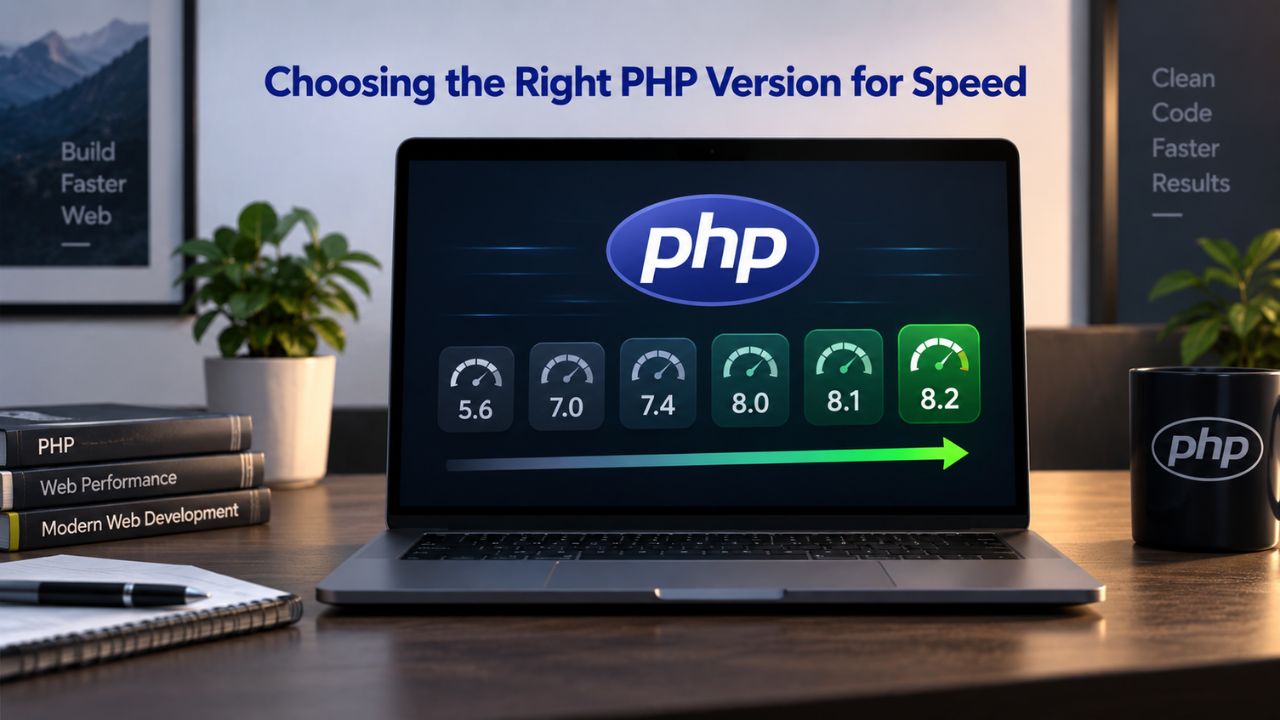
Upgrading from PHP 7.x to PHP 8.0 delivers significant speed improvements, typically 20–40% in real-world benchmarks, due to fundamental improvements in how the PHP engine compiles and executes code. This isn’t a minor optimization that shaves off milliseconds; it’s a structural improvement to the language that affects every line of WordPress code your server runs. TTFB improvements from PHP 8 upgrades are so large that if you’re still running PHP 7.4 or earlier, upgrading PHP alone often produces noticeable improvements before any other optimization is attempted.
Unfortunately, many WordPress sites still run PHP 7.x as of early 2026, even though PHP 7.4 reached end-of-life years ago and no longer receives security patches. This creates a compounding problem: outdated PHP means no security patches (creating real vulnerability risk), slower execution on every request (costing you conversions), and compatibility issues with modern plugins that no longer support legacy PHP. Shared hosts sometimes default to older PHP versions to maintain compatibility with legacy sites, so you may need to request an upgrade and wait for support to apply the change.
Why Minor PHP Version Bumps Matter Less Than You’d Think
Upgrading from PHP 8.3 to 8.5 delivers marginal speed improvements, less than 1–3% between minor versions, because most of the large performance gains were already captured in the 8.0 jump. Most visitors won’t notice the difference between these minor versions. The reason is revealing: WordPress is I/O-bound, meaning most execution time is spent waiting for database queries and file reads, not running CPU-intensive PHP logic. Minor PHP optimizations are essentially invisible compared with larger bottlenecks like unoptimized queries or slow disk access. That said, OPcache compiles PHP bytecode into memory to avoid recompilation on every request, so it’s critical for performance; without it, the performance gain from PHP upgrades is minimal. Most quality hosts enable OPcache by default, but verify it’s active on your specific plan.
| PHP Version | Real-World TTFB Impact | Security Status | Recommendation |
|---|---|---|---|
| PHP 7.4 or older | Significantly slower (baseline for comparison) | End-of-life; no patches | Upgrade immediately |
| PHP 8.0–8.2 | 20–30% faster than 7.x; solid baseline | Receiving patches | Safe and current |
| PHP 8.3–8.5 | 1–3% faster than 8.0–8.2; minimal difference | Current; long-term support | Recommended for future-proofing |
NVMe Storage vs. SATA: Impact on Load Times
Storage speed acts as a force multiplier on TTFB, especially for uncached requests, dynamic pages, and traffic spikes. The difference between NVMe and SATA becomes acute when your site experiences cache misses, sudden traffic increases, or unoptimized database queries that can’t avoid disk access. For performance-sensitive applications, storage is often the overlooked constraint.
Why Random Read Speed Dominates WordPress Performance
WordPress doesn’t read files sequentially from the beginning to the end; instead, it scatters thousands of small random reads across your entire filesystem: PHP source files, configuration snippets, theme template fragments, database index pages, and cached object metadata. This random-access pattern is exactly the scenario where storage speed becomes visible. NVMe latency is under 20 microseconds versus 50–150 microseconds for SATA SSDs, which sounds trivial in absolute terms. But when a single page load involves hundreds of these scattered reads, the microsecond differences compound into milliseconds of additional TTFB. For database-heavy workloads like WooCommerce checkouts with hundreds of product variations or live search functionality, NVMe’s superior random I/O performance means MySQL queries complete faster, reducing the time the server spends idle waiting for disk reads.
The practical takeaway for most site owners: if your TTFB is already under 200ms and your site uses aggressive page caching, upgrading from SATA to NVMe is optional. If your uncached TTFB exceeds 400ms or your WooCommerce checkout feels sluggish during traffic spikes, NVMe storage is often more impactful than installing another caching plugin. Base the decision on your actual performance data and workload, not marketing claims.
When Caching Hides Storage Speed Differences
When page caching works correctly and serves pre-built HTML from server memory, both NVMe and SATA perform equally fast because the disk is rarely accessed after the initial page generation. Storage type matters only when requests bypass the cache: uncached pages for logged-in users, dynamic content that can’t be cached, admin operations in wp-admin, or traffic spikes during cache warm-up. For a blog with aggressive page caching for public content, NVMe provides marginal benefit beyond what shared caching already provides. For a WooCommerce store with hundreds of product variations, user accounts, and shopping carts, NVMe pays for itself through lower checkout latency and less support burden from frustrated customers.
Optimize Your WordPress Performance with the Right Infrastructure
Understanding how hosting infrastructure, caching, and database tuning interact is the key to sustainable WordPress performance. Most site owners blame their WordPress installation or theme when hosting is the real constraint. This guide gives you the knowledge to diagnose where your performance bottleneck lies and make informed decisions about which optimizations move the needle. Niya Digital’s managed WordPress hosting handles infrastructure optimization so you can focus on your site’s content and business goals.
Database Tuning for WordPress Performance
After you configure hosting infrastructure and caching layers, the database becomes the next critical performance lever. Unindexed queries on wp_posts and wp_postmeta tables are a top performance killer at scale, and 68% of WordPress performance issues trace directly to unoptimized database queries, missing indexes, and table bloat from years of accumulated data. The good news: most of these issues are fixable without hiring an expensive DBA, and the improvements are often dramatic.
Identifying and Fixing Slow Queries
WordPress repeats many queries on every request; simple changes to query cache settings or InnoDB tuning can dramatically affect performance because database queries run thousands of times daily. The first step is visibility: enable slow query logging on your server (queries taking over 2 seconds are recorded), then analyze the logs to find repeated or expensive queries that execute on every page load. Custom fields, managed by plugins like Advanced Custom Fields or Yoast SEO, are stored as serialized values in wp_postmeta. Querying “all posts where custom field X equals Y” requires expensive JOINs through wp_postmeta, and at scale these queries become incredibly slow without proper composite indexes.
Once you’ve identified slow queries using Query Monitor or MySQL logs, the fix often involves adding a composite index to wp_postmeta or cleaning up unused post revisions and expired transients that bloat the database. After large data deletions, running OPTIMIZE TABLE and ANALYZE TABLE reclaims space and updates index statistics, improving query performance significantly. Test these changes in a staging environment before applying them to production, since database changes are harder to reverse than code changes.
Autoload Bloat: The Hidden Performance Drain
WordPress loads certain data on every single request: site URL, active plugin list, theme settings, and custom options, called autoloaded data, stored in the wp_options table. Keep total autoloaded data below 800 KB for optimal performance. Over time, plugins add options to wp_options without cleaning them up when uninstalled; some poorly coded plugins serialize entire configuration arrays into a single autoloaded option, which means every page load must parse and deserialize that entire structure. This invisible overhead doesn’t show up in obvious speed tests, but it compounds across thousands of page loads every day.
Audit autoloaded options with a database query or a debugging tool like Query Monitor. Remove unnecessary autoloaded entries by setting their autoload flag to ‘no’ if they don’t need to load on every request, for example, options that only load during admin operations. Plugins that accumulate old transients in wp_options compound the problem, forcing your database to carry stale data indefinitely. A simple cleanup, removing expired transients and unused autoloaded options, often yields 50–100ms TTFB improvements on sites that never addressed this issue, with zero performance downside.
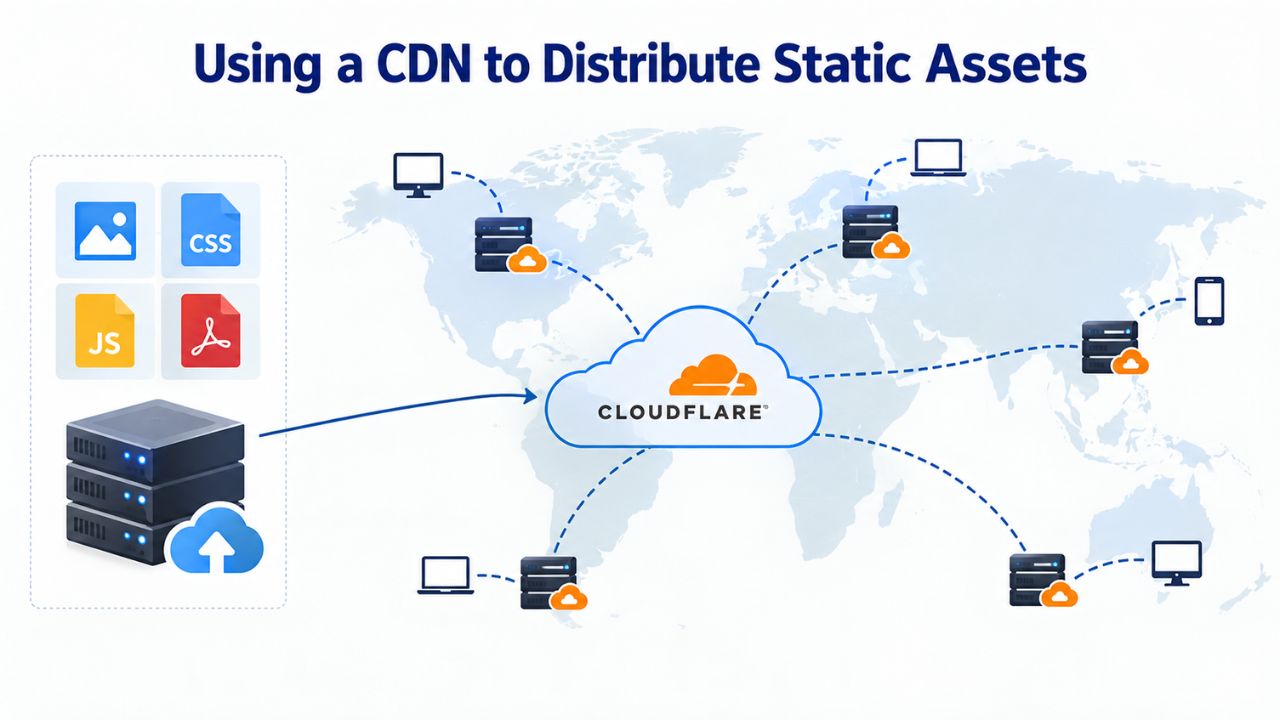
Using a CDN to Distribute Static Assets
A Content Delivery Network (CDN) caches your images, CSS files, JavaScript, and fonts on servers worldwide, serving each visitor from the nearest location. This reduces latency dramatically and takes significant load off your origin server. For global audiences, a CDN is essential; for local audiences, it’s a nice-to-have optimization that compounds with other improvements.
How CDN Latency Affects Perceived Speed
A CDN mirrors static files across geographic regions. As a result, visitors get better performance because the content travels a shorter distance over the internet. For a visitor in Southeast Asia, a CDN serves the image from servers in that region rather than making a 200ms+ round trip across the Pacific Ocean for every image on the page. For sites with truly global audiences, e-commerce stores selling worldwide, SaaS applications, and digital media sites, this compounds into measurable improvements in Largest Contentful Paint and overall perceived load time.
The secondary benefit is dramatically reduced server load. If your site serves 1GB of images per day, a CDN absorbs that traffic, freeing your hosting server’s bandwidth and CPU for dynamic requests and database queries. Even small sites benefit because CDNs cache aggressively, reducing the number of requests your origin server handles. Most managed WordPress hosts include or integrate a CDN by default, making setup effortless and automatic.
Configuring CDN Cache Invalidation Without Breaking Updates
The main friction point with CDN setup is cache invalidation: when you update an image or CSS file, the CDN edge servers must refresh their copies before visitors see the new version. A poorly configured CDN means visitors see outdated assets for hours after a publish, which looks like a bug. A properly configured CDN uses version hashing (renaming the CSS file to include a content hash) or intelligent cache headers that automatically bust when files change. Most WordPress caching plugins coordinate with major CDN services to handle invalidation automatically, so you don’t need to manually clear cache every time you publish.
Testing Changes Safely in Staging Environments
Before applying optimizations to your live site, database changes, PHP version upgrades, caching plugin configuration, or infrastructure changes, test them thoroughly in a staging environment that mirrors production exactly. This prevents costly mistakes and gives you a safe space to measure actual performance impact before committing to production.
Setting Up an Effective Staging Workflow
A staging environment is a separate, complete clone of your production site where you can test changes without affecting live visitors or performance. Testing changes on staging or development environments before deploying to live is standard practice to avoid disruption and prevent broken deploys. Most managed WordPress hosts include staging as a standard feature: one-click site cloning, automated database sync between staging and production, and the ability to preview changes before pushing live. This dramatically reduces risk.
When you upgrade PHP, enable Redis object caching, deploy aggressive caching rules, or optimize the database, do it on staging first. Measure TTFB using multiple tools and run through your site’s critical workflows, checkout flow if you sell, login if you have members, search functionality if you have lots of content. Once you’ve confirmed the changes work correctly and perform better than before, push to production with confidence. This extra day of testing prevents launching broken features or caching configurations that take hours to debug while live visitors experience slowdowns.
Measuring Real Impact Without False Positives
Lab tests like Lighthouse and PageSpeed Insights measure performance in an isolated laboratory environment and don’t always reflect real-world behavior on diverse devices and networks. After applying an optimization, monitor your actual site performance using field data from Google Search Console, Google Analytics 4, or your hosting provider’s performance monitoring tools. Allow 4–6 weeks for changes to fully reflect in real-user data and potentially impact rankings, because Google uses 28-day rolling field data from the Chrome User Experience Report. This patience prevents premature decisions based on small sample sizes or statistical noise.
Managed WordPress Hosting vs. Shared Hosting
The fundamental performance difference between managed WordPress hosting and shared hosting comes down to architecture, optimization focus, and infrastructure capabilities. Managed WordPress hosting optimizes performance with built-in WordPress-specific caching and CDN integration, while shared hosting risks performance dips during high traffic because resources are shared with hundreds of other sites.
What “Managed” Actually Means for Performance
Managed WordPress hosting is built specifically for WordPress. The server environment is tuned for WordPress’s actual request patterns: PHP version selection, caching layers, database tuning, and security are all pre-optimized at the infrastructure level rather than generic. You don’t configure caching; it’s on by default. You don’t manually update WordPress; it happens automatically as soon as updates are released. Niya Digital’s team has found that sites migrating from shared hosting to managed environments typically see TTFB drop by 60–70% without any code changes, simply because the infrastructure is optimized for WordPress’s actual workload instead of generic web applications.
Shared hosting, by contrast, is generic web hosting that supports WordPress but doesn’t optimize for it. No WordPress-specific tuning; you handle all performance configuration. Hundreds of unrelated sites share resources on the same servers. When a neighbor launches a traffic campaign or runs a resource-intensive plugin, your site slows because they’re consuming shared CPU and memory pools. Shared hosting is cheap upfront, but trades your time and expertise for the savings.
The Time vs. Money Trade-off
Shared hosting saves money upfront, but that savings evaporates if you spend five hours a year troubleshooting slowdowns or lose conversions because of poor performance and high abandonment rates. Niya Digital’s managed plans cost more but include automatic updates, daily backups with one-click restore, security monitoring, and built-in performance tuning, tasks that would otherwise fall on you personally or require hiring help at consulting rates. For growing sites or businesses where speed directly affects revenue, managed hosting pays for itself quickly through improved conversions and reduced support burden.
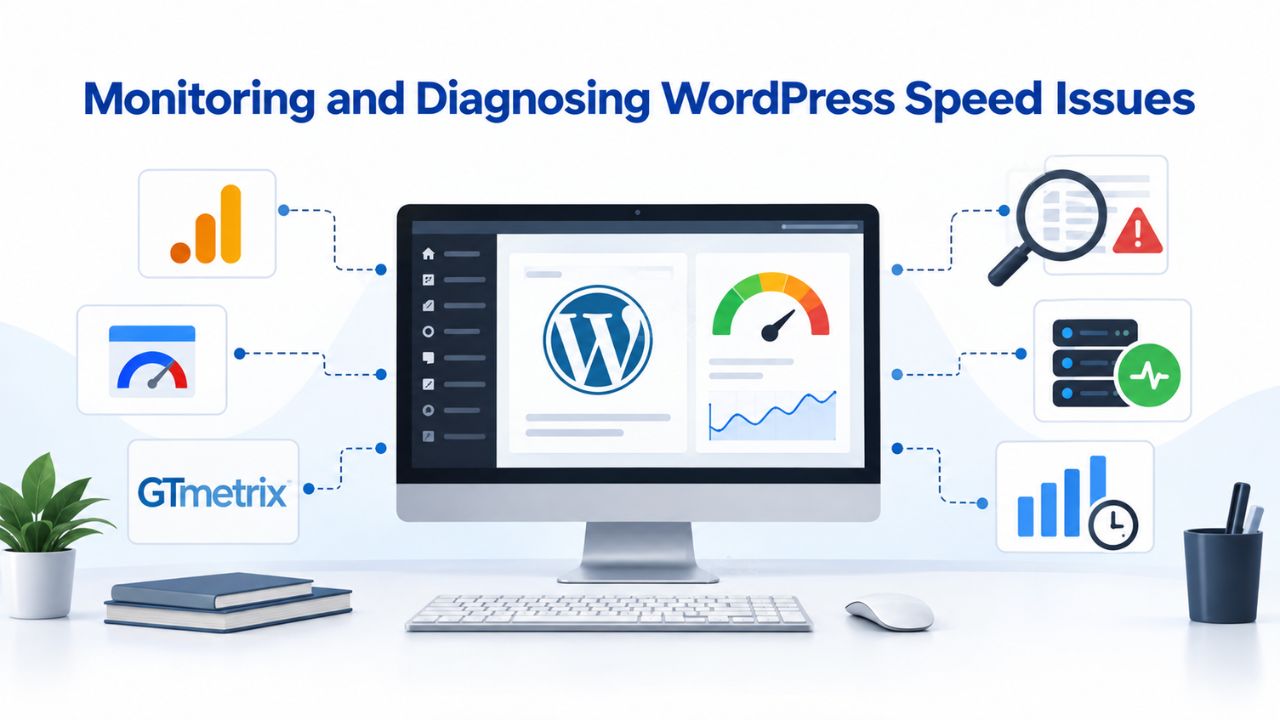
Monitoring and Diagnosing WordPress Speed Issues
Once you understand the performance levers, hosting infrastructure, caching layers, database optimization, and PHP version, the final critical step is ongoing monitoring to catch performance regressions early and validate that your changes actually moved the needle.
Using Tools to Identify Real Bottlenecks
Every WordPress site should establish a monitoring baseline: enable the slow query log on your production server, install Query Monitor on your staging environment, and measure your current TTFB before applying optimizations. Query Monitor shows you which plugins or theme components are making the most database queries and which queries are slowest. This granular visibility prevents wasted effort optimizing the wrong bottleneck; you fix the actual problem, not the symptom you think is the problem.
For measuring real-user performance, Google Search Console’s Core Web Vitals report shows how your site performs for actual visitors, measured at the 75th percentile of real-user data, which gives you the experience of your slowest users. Lab tools like PageSpeed Insights help diagnose and identify specific issues. Still, they don’t capture the variation real users experience across different devices and networks. Check your Console data weekly and investigate any drops in LCP, INP, or CLS scores before they impact rankings.
Creating an Ongoing Maintenance Schedule
Performance isn’t a one-time project; it’s an ongoing discipline. Database tables fragment over time. Plugins accumulate cruft and expired data. Traffic patterns change. Set up a monthly maintenance routine: review slow query logs, clean expired transients from wp_options, verify that caching is working (check your cache hit rate in logs), and monitor Core Web Vitals trends. For sites with significant traffic or revenue impact, quarterly professional audits (checking for unindexed queries, missing database optimizations, caching misconfigurations) prevent silent performance degradation that creeps up over months.
Ready to Optimize Your WordPress Performance?
If your site is still on shared hosting or running outdated PHP versions, the fastest path to meaningful speed improvements is upgrading your hosting, not installing another caching plugin. Explore Niya Digital’s managed WordPress hosting plans, which include NVMe storage, server-level caching, persistent object caching support, automatic updates, daily backups, and 24/7 expert support. Each plan is designed to handle different traffic levels and feature needs.
Frequently Asked Questions
What is TTFB and why does it matter for WordPress performance?
TTFB (Time To First Byte) is the delay between a browser’s request and the server’s first response, measured from the browser’s perspective. Google recommends keeping it under 200 milliseconds to provide a good user experience. TTFB reflects server speed, database efficiency, caching effectiveness, and hosting infrastructure quality. A high TTFB delays the start of page rendering, so visitors see a blank screen longer before content appears. Unlike image optimization or JavaScript minification, which affect only specific assets, TTFB improvements benefit every single page request on your site.
Does page caching slow down content updates?
Page caching stores complete HTML files, so fresh content requires cache invalidation, clearing the stored pages so new versions can be generated and cached. Well-configured caching systems, both plugins and managed hosting, handle this automatically when you publish a post or update settings. You click Publish, the cache clears for that page, and visitors immediately see the new content on their next visit. Poor configuration means visitors see outdated content until the cache expires, which is frustrating but fixable through proper cache headers and invalidation rules.
Can I use object caching on shared hosting?
Object caching (Redis or Memcached) requires dedicated backend services that most shared hosting plans intentionally don’t provide. Shared hosts keep costs low by restricting server access and limiting third-party services. If your host supports it, you might add Redis via a paid add-on, but quality is often questionable. Managed WordPress hosting typically includes object caching by default or offers it as a one-click add-on. If you need object caching and your current host doesn’t support it, upgrading to managed hosting is the most practical solution.
Which PHP version should I use for WordPress?
Upgrade to at least PHP 8.0 if you’re still on PHP 7.x, as the performance gain is significant and security is critical. PHP 8.3 or 8.4 is current and offers solid long-term support. PHP 8.5 is the latest (released November 2025) but offers marginal performance gains over 8.3. Verify that your plugins support your chosen version before upgrading; most actively maintained plugins work on current PHP versions, but older plugins may have compatibility issues.
How much faster is NVMe storage than SATA SSD?
NVMe delivers 3–10× better random I/O performance than a SATA SSD, which translates directly to faster database queries and lower TTFB under uncached load. The exact speed depends on workload: static blogs see smaller improvements, while WooCommerce stores see larger gains. If your TTFB is already under 200ms with page caching enabled, the upgrade is optional. If TTFB exceeds 400ms or your checkout is sluggish during spikes, NVMe is worth the investment.
How do I audit my WordPress database for slow queries?
Enable slow query logging on your server (ask your host or enable it in my.cnf), then analyze logs to find queries taking over 2 seconds. Use the Query Monitor plugin on staging or WP-CLI commands on production. Look for queries without indexes (especially on wp_postmeta), then add composite indexes to improve speed. Test changes in staging first, then apply to production during low-traffic windows. Most improvements involve adding a single index, which takes minutes but can significantly reduce TTFB.
Do I need a CDN if I have server-level caching?
Server-level caching (page cache, object cache) optimizes your origin server. A CDN distributes static assets geographically, reducing latency for visitors far from your server. They work in parallel: caching reduces server load, CDN reduces latency. For sites with global audiences, a CDN is valuable. For geographically concentrated traffic, caching alone may suffice. Many managed hosts bundle both, so you get the benefit of both layers automatically.
How long does it take to see performance improvements after optimizations?
Lab tools show changes within minutes of deploying code or caching changes. Real-user data in Google Search Console updates more slowly: it captures 28 days of rolling data, so meaningful changes take 2–4 weeks to appear. Wait 4–6 weeks before judging whether an optimization moved your Core Web Vitals score, since short-term fluctuations are normal.
What’s the difference between staging and production?
Production is your live site that real visitors see. Staging is a cloned copy where you test changes safely. Staging mirrors production exactly: same WordPress version, plugins, theme, database (cloned snapshot). You test PHP upgrades, database optimizations, or caching configurations on staging, measure impact, and push to production only when confident. Most managed hosts include staging; on shared hosting, you may need to set it up manually.
Should I remove unused plugins to improve WordPress performance?
Yes, targeting the right ones. Each plugin adds code and database overhead, but the real cost comes from plugins executing on every page load or making unoptimized queries. Disabling unused plugins is safe; removing them via the admin deletes their data. Before removing one, confirm you won’t need it later. A plugin running once monthly has minimal impact; a plugin hooked into every page load without caching can add 100+ ms to TTFB.
Can I improve WordPress speed without upgrading hosting?
You can improve dramatically: enable caching, optimize the database, update PHP, compress images. But hosting infrastructure sets a performance ceiling. A well-optimized site on slow shared hosting still underperforms a basic site on managed hosting. If you’ve addressed caching, the database, and the PHP version, and TTFB remains above 400ms, hosting is likely the constraint, and an upgrade will yield bigger gains.
What does “managed” WordPress hosting include?
Managed WordPress hosting includes automatic WordPress updates, daily backups with one-click restore, built-in caching, automatic security scanning and malware cleanup, brute-force attack prevention, expert WordPress support, and staging environments. You don’t manage servers, configure PHP, or worry about patches. In exchange, you get less server control, and some providers restrict plugins that conflict with optimization. The trade-off is convenience and performance for flexibility.
How often should I optimize my WordPress database?
Set up a monthly routine: run OPTIMIZE TABLE on wp_options and wp_postmeta, remove expired transients, clean post revisions beyond what you need. High-traffic sites benefit from weekly optimization. Test in staging first to prevent data loss. Query Monitor and slow logs help prioritize which tables need work. Most sites see noticeable improvements after first cleanup.
Does WordPress 6.x perform better than WordPress 5.x?
WordPress core itself is lean and well-optimized; version differences have minimal speed impact. Performance comes from PHP version, hosting infrastructure, and caching, not WordPress version. Update regularly for security and features, but expect speed from infrastructure, not software version. If your site got faster after a WordPress update, the real cause was likely a plugin fix or hosting change.
What’s the fastest way to improve Core Web Vitals scores?
For TTFB (affects LCP): upgrade PHP version or hosting infrastructure. For LCP: ensure the largest visible content loads quickly; preload the LCP image. For INP: reduce JavaScript execution by deferring non-critical scripts. For CLS: add width/height to images and iframes. The single highest-impact change is usually hosting infrastructure if you haven’t optimized that layer. After hosting is solid, focus on images and JavaScript.
Glossary
- TTFB (Time To First Byte): The time between when a browser sends a request to your server and receives the first byte of response. It reflects server speed, database performance, and caching effectiveness. A fast TTFB under 200ms means a quick server response; a high TTFB over 400ms indicates server bottlenecks or unoptimized queries.
- LCP (Largest Contentful Paint): A Core Web Vitals metric measuring how long it takes for the largest visible element on a page (typically a hero image or headline) to render fully. Google rates LCP as Good when it occurs within 2.5 seconds of page load start.
- INP (Interaction to Next Paint): A Core Web Vitals metric measuring responsiveness, how quickly the page reacts to user clicks, taps, and keyboard input. INP should be 200 milliseconds or less for a good user experience.
- Object caching: Storing database query results in memory (Redis or Memcached) so that repeated queries return cached data instantly rather than hitting the database every time. Persistent object caching retains data between page loads, dramatically improving performance for dynamic sites.
- NVMe (Non-Volatile Memory Express): A high-speed storage protocol that connects directly to the CPU via PCIe, delivering much faster random read/write operations than older SATA SSD technology. WordPress benefits because it accesses many small, scattered files on every page request.
- Managed WordPress hosting: Hosting optimized specifically for WordPress, including automatic updates, backups, caching, security monitoring, and expert support. The host manages server maintenance; you focus on content and business logic.
- CDN (Content Delivery Network): A geographically distributed network of servers that cache and serve static files from locations nearest to each visitor, reducing latency and server load.