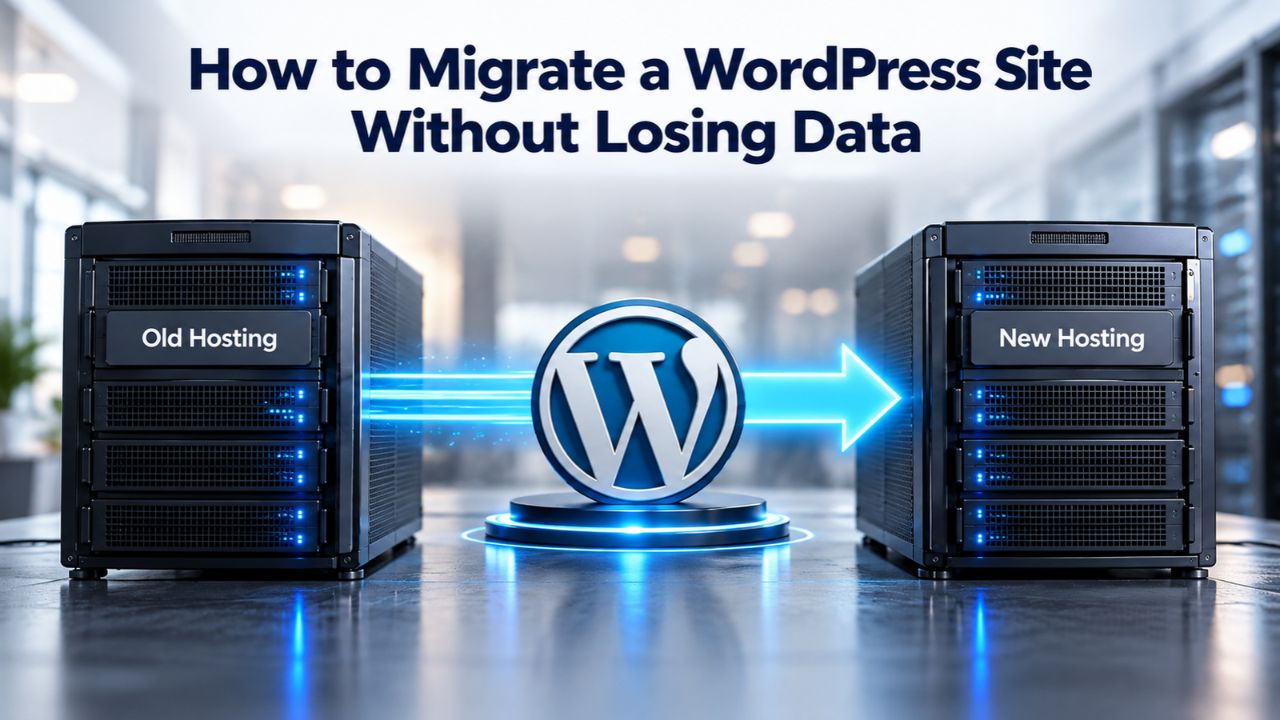
Moving a WordPress site to a new host or domain shouldn’t risk your data. A battle-tested process to transfer your site safely, with a complete backup fallback at every step. Whether you’re upgrading hosting providers or switching domains entirely, these methods protect your content and minimize downtime.
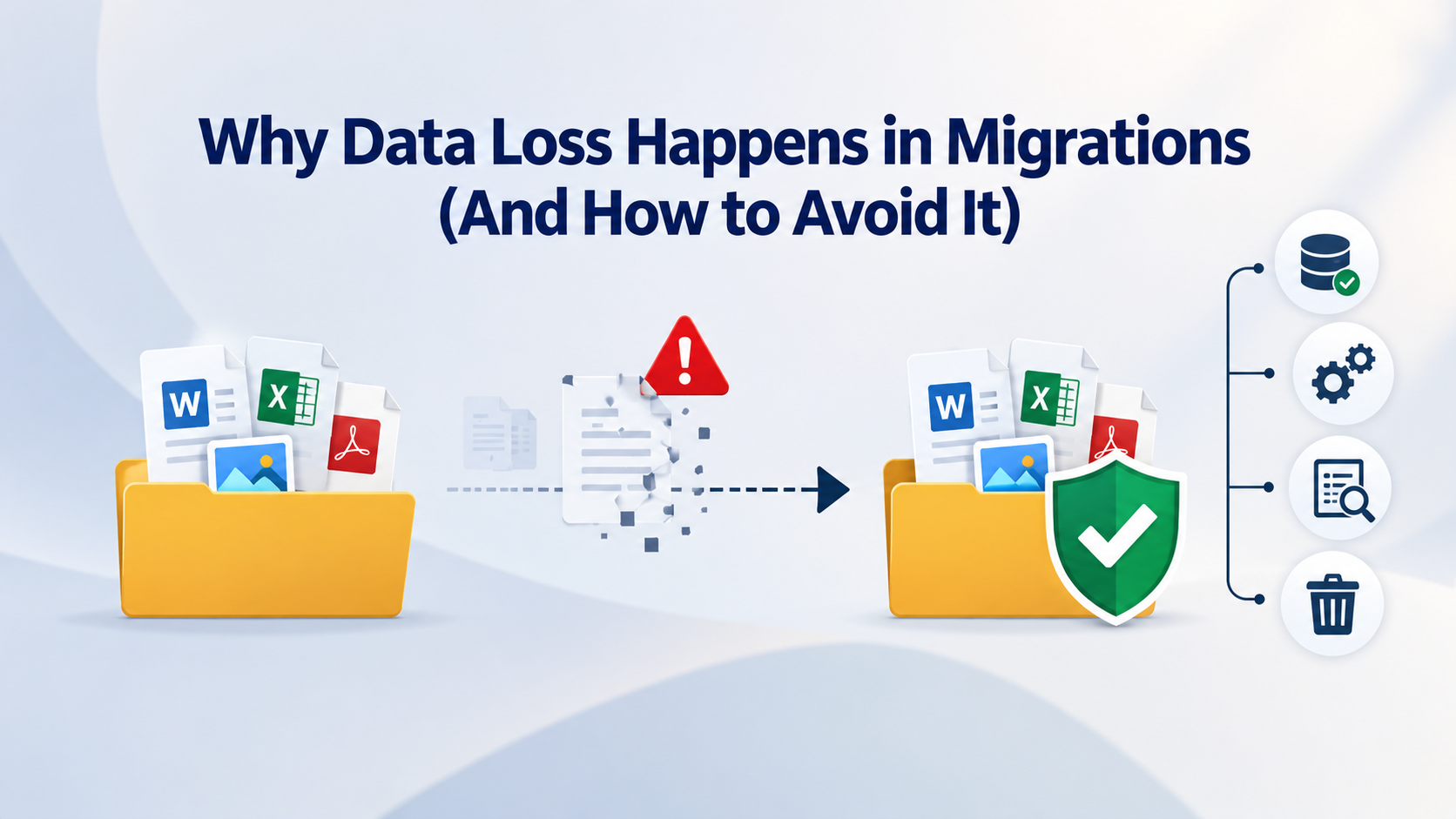
Why Data Loss Happens in Migrations (And How to Avoid It)
Migrations fail when site owners skip backups, assume plugins handle everything, or don’t test on a staging environment before switching DNS. Understanding these failure modes is the first step to preventing them. WordPress.org documentation on backups emphasizes that even hosts with server-wide backups should maintain independent site backups, because restoring from a host takes time, and relying solely on host backups means losing control of your recovery timeline.
Missing Backups: The Most Costly Mistake
No backup means no recovery option if the migration fails or data gets corrupted. Niya Digital’s team has found that site owners who migrate without a backup face 10–15 times longer recovery periods if something goes wrong, and some never fully recover lost content. A complete backup includes both the database (posts, pages, comments, settings) and files (themes, plugins, uploads, configuration files). Without both, the site is only partially recoverable.
Most hosts provide server-level backups, but these are point-in-time snapshots you must request to restore, and restores can take hours. A personal backup, one you create and download before migration, gives you immediate, independent recovery control. It’s the difference between “my host might restore in 24 hours” and “I have a working copy right now.”
Incomplete Testing: Undetected Broken Links and Missing Files
Launching a migrated site without testing means broken image links, missing functionality, and database connection errors go live for your visitors. Learn WordPress guidance recommends testing the migration on a staging environment, a private copy of the live site, before switching DNS. Staging catches broken plugin integrations, missing images, and misconfigured database URLs before they affect traffic or SEO.
Common pre-launch oversights include forgetting to update internal links after a domain change, leaving database connection credentials pointing to the old server, not clearing caching plugins after migration, or leaving plugin settings that reference old domain URLs. Each of these breaks on the live site but is trivial to fix on staging.
WordPress Pricing Plans
Choose the WordPress hosting plan that fits your website needs, with reliable performance, security, storage, backups, and tools to help your site grow.
WordPress Basic
A great way to get started.
- 1 website
- 10 GB NVMe storage
- Unmetered bandwidth
- Free SSL Certificate *
- WordPress pre-installed
- Weekly backups
- Web Application Firewall
- Daily malware scans
- One-time malware removal

WordPress Deluxe
Improve your site performance with Cloudflare CDN.
- 1 website
- 20 GB NVMe storage
- Unmetered bandwidth
- Free SSL Certificate *
- WordPress pre-installed
- Daily backups
- Web Application Firewall
- Daily malware scans
- One-time malware removal
- Up to 2x faster performance with global Cloudflare CDN **
- Enhanced security with DDoS protection
- Staging site
WordPress Ultimate
Add online marketing with more sites, storage and security.
- 1 website
- 30 GB NVMe storage
- Unmetered bandwidth
- Free SSL Certificate *
- WordPress pre-installed
- Daily + on-demand backups
- Web Application Firewall
- Daily malware scans
- Unlimited malware removal
- Up to 2x faster performance with global Cloudflare CDN **
- Enhanced security with DDoS protection
- Staging site
- WordPress code optimizer
- Smart WordPress plugin manager
- Sell online with WooCommerce
Prepare: Backup Your Database and Files
Backing up your site is a two-step process because the database and files live in separate locations. WordPress.org backup documentation clarifies that downloading your WordPress directory does not include the database; you must export it separately. Back up the database first, then the files, and optionally store both in the same folder so they stay together as a matched set.
Export Your Database
Your WordPress database holds every post, page, comment, user account, and plugin setting. It’s stored in MySQL or MariaDB, separate from your web server files. To export it, go to your hosting control panel (cPanel, Plesk, or similar), open phpMyAdmin, select your WordPress database, and click “Export.” Choose “Quick” export and a compression format (gzip or zip) to reduce file size. Save this file to your computer.
Learn WordPress backup lesson notes: database exports are typically 10–100 MB depending on site size and content volume. This export file is your complete content backup; you’ll import it into the new host’s database during migration. Keep it in a secure location; you may need it for recovery.
Download All WordPress Files via FTP
WordPress files include the core application, your themes, plugins, media uploads, and .htaccess. These live in your web server directory and must be downloaded separately from the database. Use an FTP client (FileZilla, Cyberduck, or similar) to connect to your host and download the entire WordPress directory to your computer. This includes hidden files like .htaccess and wp-config.php.
Developer.WordPress.org file backup guidance stresses that “everything that has anything to do with the look and feel of your site is in a file somewhere and needs to be backed up.” Your uploads folder alone can be several gigabytes if you have years of media. Depending on file count and size, this backup step typically takes 15–60 minutes. Once complete, store the backup on an external drive or cloud storage separate from your web server; this protects it if your host experiences hardware failure.
Pre-Migration Preparation Timeline
| Pre-Migration Step | Why It Matters | Typical Timeframe |
|---|---|---|
| Create a full database backup (export) | Ensures you have a recoverable copy if something goes wrong; the database is separate from files and must be exported explicitly | 10–30 minutes (depending on site size) |
| Back up all WordPress files via FTP | Captures themes, plugins, uploads, .htaccess, wp-config.php, all elements that create the look and functionality of the site | 15–60 minutes (depends on file count and size) |
| Set up a staging environment on new host | Allows testing the full migrated site before DNS points to the new server; prevents live-site disruption | 30 minutes to 1 hour |
| Test migration on staging | Run through a full test migration to catch issues (broken links, plugins failing, images not displaying) before the final move | 1–2 hours |
| Record pre-migration performance metrics | Baseline load times, Google PageSpeed Insights scores, and traffic to compare post-migration | 30 minutes |
| Document all logins and credentials | Gather WordPress admin, hosting control panel, FTP, domain registrar, and database credentials in one secure location | 15 minutes |
| Create and test a full backup restore | Run through one practice restore from your backup to confirm it works before the actual migration | 30–60 minutes |
Understand Your Site’s Two Components
A functioning WordPress site requires the database and the files to work together. Many migration problems stem from confusion about what each component does, where it lives, and why both must migrate successfully. The database is never part of your web directory; it lives on a separate database server your host manages.
The Database: Posts, Settings, and Dynamic Content
WordPress.org’s backup documentation defines the database as the system storing “posts and a lot of data generated on your site.” Specifically, it holds all posts, pages, custom post types, comments, user accounts, plugin settings, theme options, and WordPress configuration data. The database does not store your theme or plugin code (those are files), but it does store the settings for those plugins and themes.
When you export the database as a .sql or .gz file, you’re creating a text dump that can be re-imported into any MySQL/MariaDB server. This file is portable and can be moved to any hosting environment. If your site’s database is 100 MB, the export file is roughly the same size (compressed gzip versions are smaller). During migration, you import this file into a fresh database on the new host.
The Files: Themes, Plugins, Uploads, and Configuration
WordPress files stored on the web server include: WordPress core (wp-admin, wp-includes directories), your active and inactive themes, all plugins, the uploads folder (images, videos, PDFs), .htaccess (URL rewrite rules), and wp-config.php (database connection credentials). These files are what make your site look and function the way it does. They don’t include the content (posts), but they define how content is displayed and processed.
When you migrate, both the files and database go to the new server. If either component is incomplete, the site breaks. Missing plugins mean lost functionality; missing theme files mean a broken layout; a database without imported data means no content. WordPress staging guidance emphasizes treating “the files + database as one backup set” because they’re interdependent.
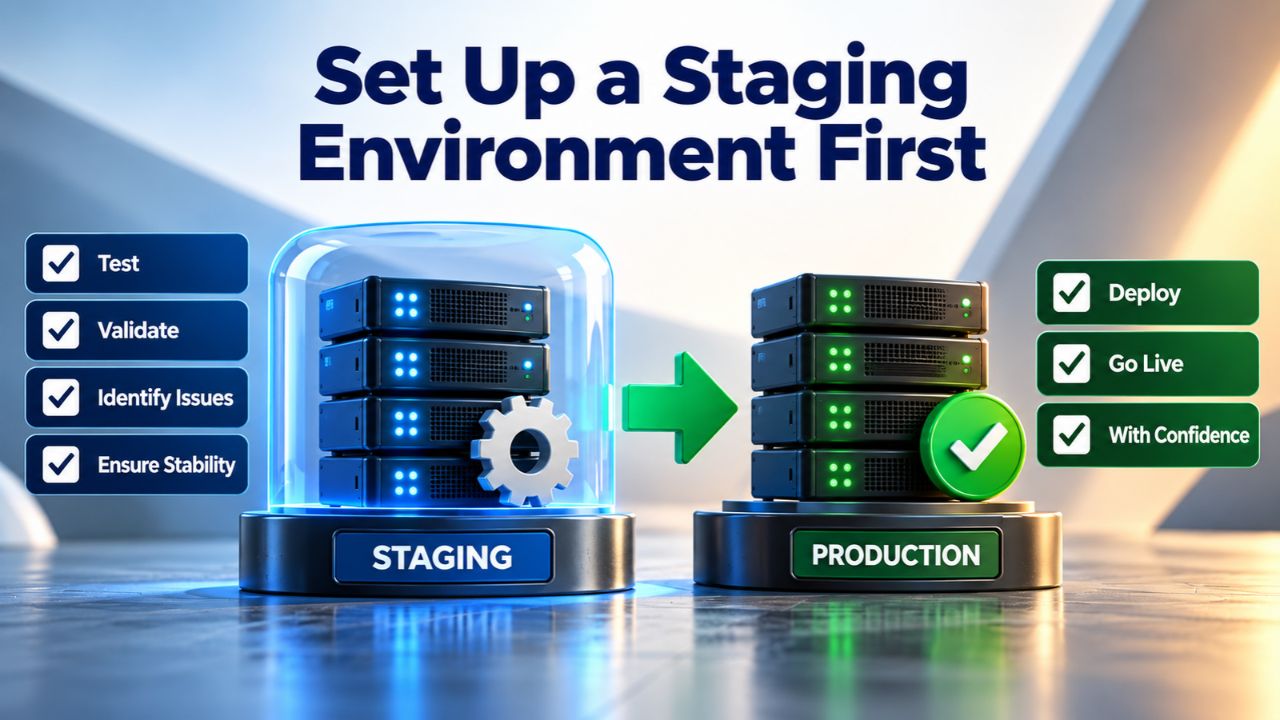
Set Up a Staging Environment First
A staging environment is a private, internet-accessible copy of your live site where you can test the full migration before updating DNS. Professional hosting providers often offer a staging URL (e.g., staging.yourdomain.com) or temporary domain. Testing on staging prevents 99% of live-site issues- broken links, plugin failures, missing images, and database errors- from happening, as they get caught and fixed before visitors see them.
Create a Staging Site on Your New Host
Most hosting providers allow you to set up a temporary staging site using a subdomain or temporary domain before you point your main domain to the new server. Learn WordPress lesson on staging explains that a staging site is “a copy of the live site that is accessible via the internet, but usually only to the site owner or the developer.” Set up this staging site on your new host using a temporary URL (the new host usually provides one, like “tempstaging-12345.newhost.com” or a staging subdomain).
Once you set up the staging site with a fresh WordPress installation and an empty database, you’ll restore your backed-up files and database into it. This gives you an exact copy of your live site on the new host, but still inaccessible to the public because the domain hasn’t been switched yet.
Import Your Database and Files into Staging
Use an FTP client to upload your backed-up WordPress files to the staging site’s web directory. Then import your database export file (.sql or .gz) into the staging site’s database using phpMyAdmin (available in the new host’s control panel). After both are in place, the staging site mirrors your live site. Developer.WordPress.org migration guidance confirms that “staging catches issues before they affect your public-facing site,” preventing most failures from ever reaching live traffic.
Transfer Files and Database to New Host
Migrating your site means moving both components to the new host. The process varies slightly depending on whether you’re keeping the same domain or switching to a new one, and whether you use a migration plugin or manual methods. Learn WordPress migration lesson outlines three common approaches: manual migration (full control, more technical), plugin-assisted (simpler, beginner-friendly), and host-provided migration services (convenience, if available).
Manual Migration: Full Control, Technical Approach
Manual migration means using FTP to upload files and phpMyAdmin to import the database yourself. This gives maximum control and works when plugin-based tools aren’t an option. Download your files via FTP, upload them to the new host via FTP, export your database, log into the new host’s phpMyAdmin, create a new database, and import your export file. Then update wp-config.php on the new server with the new database credentials (username, password, database name), and update the Site Address and Home URL in WordPress Settings if the domain is changing.
This method is straightforward but time-consuming for large sites with thousands of files. Advantages: you see exactly what’s moving, you have complete control, and no third-party service is involved. Disadvantages: it’s slower for large sites, carries a higher risk of file upload errors, and requires comfort with FTP and phpMyAdmin.
Plugin-Assisted Migration: Simpler for Most Users
WordPress.org maintains a directory of migration plugins like All-in-One WP Migration, Duplicator, and Migrate Guru. These handle the export, transfer, and import in one workflow. Install the plugin on your current host, export your entire site (it creates one file containing the database and files), then download that file and import it on the new host. The plugin automatically handles database updates and file placement.
Plugin-based migration typically takes 30 minutes to 2 hours, depending on site size. Advantages: much faster than manual migration, fewer technical steps, lower risk of misconfiguration. Disadvantages: relies on plugin reliability, some large sites hit plugin memory limits, and troubleshooting is limited if something fails mid-process. For sites under 500 MB, plugin migration is usually the fastest, most reliable option.
Ready to Simplify Your Migration?
Migrating a WordPress site safely requires preparation, testing, and a solid backup plan. Niya Digital delivers its managed WordPress hosting in partnership with an enterprise-grade cloud infrastructure partner, providing migration support and staging environments so you can test thoroughly before your domain switches. Get started with secure WordPress hosting designed for smooth migrations.
Update WordPress Site and Home URLs
When you move a WordPress site to a new domain or host, the database contains references to the old domain in hundreds of places: post content, image URLs, plugin settings, theme options, widget data. Updating these automatically requires a search-and-replace tool that handles WordPress’s serialized data correctly. Developer.WordPress.org migration documentation warns that improper search-and-replace breaks serialized data where URL length is stored as metadata.
Update via WordPress Settings (Same Domain)
If you’re keeping the same domain but moving hosts, the simplest step is updating the Site Address (WordPress Address) and Home URL in WordPress Settings > General. Change both from the old server’s temporary/staging URL to your real domain name. Make this change before you switch DNS to the new host; changing it after DNS points to the new server locks you out of the WordPress admin until it resolves.
WordPress.org support documentation notes that mismatched Site Address and Home URL values cause navigation and access issues. Both must point to the same domain. If you accidentally lock yourself out, Developer.WordPress.org recovery guidance shows how to regain access by editing wp-config.php directly.
Search and Replace for Domain Changes
When changing domains (e.g., old-domain.com → new-domain.com), use a search-and-replace tool to update all database references safely. WordPress.org recommends the Better Search Replace plugin or the Search and Replace for WordPress Databases Script if you prefer command-line tools. These handle serialized data correctly, preventing the corruption that happens with raw SQL find-and-replace operations.
The process: install Better Search Replace, enter the old domain URL in the “Find” field and the new domain in the “Replace” field, optionally run a dry run first to see what will change, then run the replacement. The tool scans the entire database and updates all references. For safety, always run a dry run first, review the changes, then execute the actual replacement. This step takes 5–10 minutes and is essential for keeping internal links, image URLs, and plugin settings correct after a domain change.
Migration Method Decision Matrix
| Situation | Site Profile | Migration Approach | Best For |
|---|---|---|---|
| Small blog, simple setup, high technical comfort | <5 posts, <10 plugins, minimal customization | Manual migration via FTP + phpMyAdmin | Complete control; educational value; small sites only |
| Small–medium business site, moderate plugins | 50–200 posts, 20–50 plugins, basic customization | Plugin-assisted migration (Duplicator, All-in-One WP Migration) | Speed; ease of use; sites under 1 GB |
| Large site with WooCommerce or custom functionality | 500+ posts, 50+ plugins, heavy customization | Plugin-assisted + hosting provider migration support | Minimized downtime; reduced risk; large or complex sites |
| Mission-critical site (e-commerce, news, membership) | Any size + revenue dependency | Professional migration service with staging and rollback plan | Expertise; minimal disruption; zero risk tolerance |
| WordPress Multisite or complex custom database | Multiple sites, custom database tables, external integrations | Server-level migration (contact your hosting provider) | Full expertise; complex architecture; enterprise needs |
| Any site; want simplicity and zero risk | Any size or complexity | Hosting provider’s free or assisted migration service | No technical burden; guaranteed compatibility; peace of mind |
Test Everything Before Switching DNS
Before you point your domain to the new host, verify that the migrated site works completely on staging. Test all critical functionality: homepage loads, navigation menus work, images display, contact forms submit correctly, e-commerce checkout (if applicable) processes, plugins function as expected, and login/logout works. Learn WordPress testing guidance emphasizes testing by browsing the staging site as if it were live: click all major sections, submit forms, and trigger plugin functionality.
Pre-Launch Verification Checklist
Before DNS switch: verify the staging site’s database connection works, run a full site backup of staging (backup the backup), test SSL certificate installation (if moving to HTTPS), check that all plugins are activated and functioning, verify that theme settings applied correctly, confirm that media library populated from the backup, test form submissions, e-commerce cart (if applicable), and user login/logout. Use Google PageSpeed Insights to check performance on the new host and compare it to your pre-migration baseline.
A common pre-launch oversight: forgetting to verify that email forms still work after migration. If your site has contact forms, test submission on staging to ensure the mail server configuration transferred correctly. Plugins like WPForms and Contact Form 7 typically survive migration, but their mail settings sometimes don’t. Catch this on staging, not after DNS switches.
Record Performance Metrics for Comparison
Before switching DNS, document your current site’s load time, Core Web Vitals score (use Google PageSpeed Insights), and top-ranking pages in Google Search Console. After the DNS switch and 24–48 hours of propagation, check these metrics again to confirm the new host performs as expected or better. Developer.WordPress.org guidance on Core Web Vitals notes that hosting infrastructure plays the most significant role in performance, so a quality host should show measurable improvement.
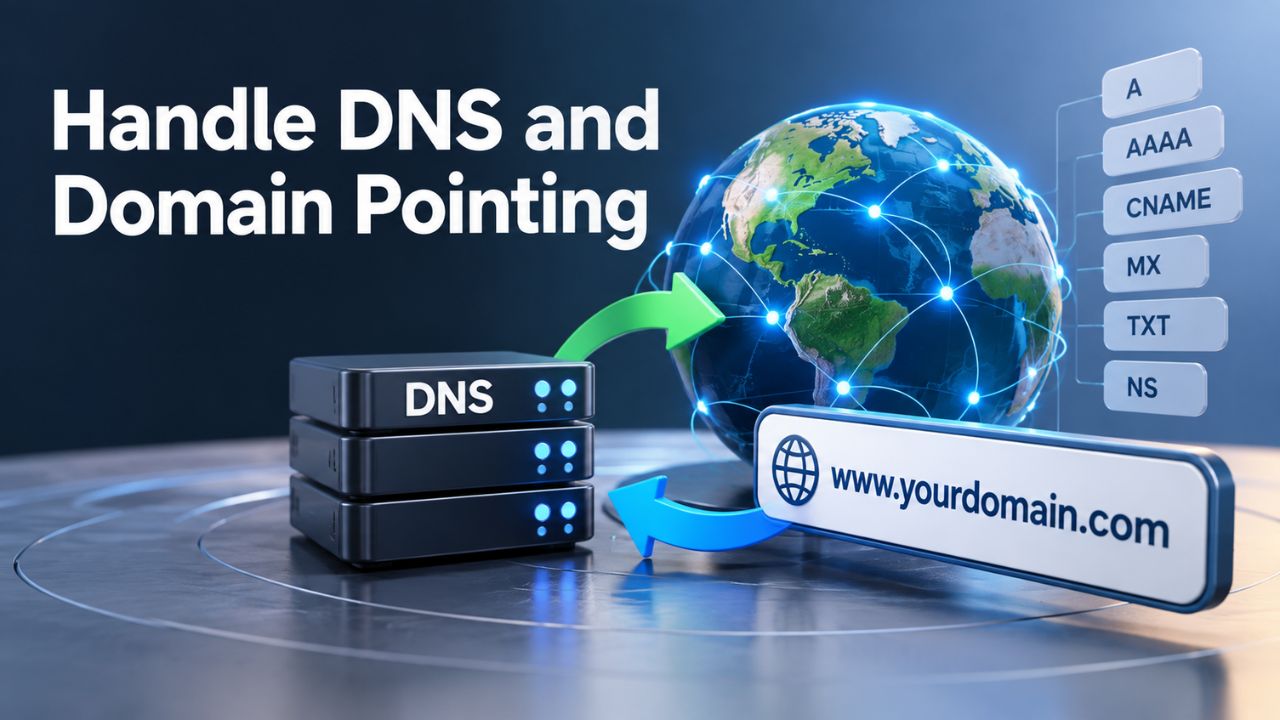
Handle DNS and Domain Pointing
Once staging is verified and ready, update your domain’s DNS records to point to the new host’s servers. This is the moment when visitors start seeing your site on the new host. Learn WordPress lesson on DNS explains that the Domain Name System pairs domain names with Internet Protocol addresses; when you update the DNS records at your domain registrar (GoDaddy, Namecheap, etc.), you’re telling the internet which server IP address to use for your domain.
Update Nameservers or A Records
Your domain registrar provides instructions for updating DNS. Some hosts give you new nameservers to enter (e.g., ns1.newhost.com, ns2.newhost.com); others give you an IP address to enter in the A record. Log into your registrar, find the DNS or nameserver settings, and update them according to your new host’s instructions. The change takes effect immediately in your registrar’s system, but propagates across the internet over 24–48 hours.
WordPress.org support on domain migration warns that DNS propagation can take up to 48 hours, so some visitors may briefly see the old site. This is normal. Avoid making changes to the live site during propagation; if you do, some visitors will see one version and others will see another, which is confusing.
Verify DNS Propagation
After updating DNS, check propagation using a free tool like What’s My DNS (enter your domain, choose “A record” or “CNAME,” and it shows which server different locations see). Once your new host’s IP address appears globally, DNS propagation is complete, and all visitors see the new site. Check your live site by visiting it directly in a browser, clearing your cache if needed (Ctrl+Shift+Delete or Cmd+Shift+Delete), and verifying that everything loads correctly.
Set Up 301 Redirects (If Changing Domains)
If you moved to a new domain, set up 301 redirects from old URLs to new ones. A 301 redirect tells search engines that a page has permanently moved and passes the old URL’s search authority to the new one. Learn WordPress SEO guidance stresses that without 301 redirects, “you lose your website’s search engine rankings, traffic, and conversions.” Setting up redirects protects your SEO.
Install a Redirect Manager Plugin
WordPress.org’s redirect plugin options include Simple 301 Redirects, 404 to 301, and Redirection. Install your chosen plugin, then create redirect rules: for each old URL, specify where it should redirect to. For bulk redirects, export a CSV file with old URLs in one column and new URLs in the other, then import it into the plugin. This is much faster than creating redirects one by one.
A basic redirect: old-domain.com/my-post → new-domain.com/my-post. If your URL structure changed (e.g., /blog/my-post → /posts/my-post), create individual redirects. For wholesale domain changes where most paths stay the same, use wildcard redirects: old-domain.com/(.*) → new-domain.com, which redirects any old URL to the equivalent new one.
Monitor 404 Errors Post-Migration
After you set up redirects, monitor 404 errors in Google Search Console and your redirect plugin’s logs. Broken redirect rules or missed URL mappings show up as 404 errors. Fix these within the first week; the longer broken links persist, the more SEO impact. Developer.WordPress.org guidance confirms that fixing broken links quickly after migration preserves most of your search rankings.
Post-Migration Verification and Cleanup
After DNS propagates and visitors see the new site, verify that everything works correctly on the live server. Clear all caches (hosting, plugin, and browser), disable any maintenance-mode plugins, re-enable monitoring and security plugins, and run a final full-site backup. The live site should now be fully functional on the new host.
Clear Caches and Re-Enable Monitoring
Disable any caching plugins during the migration (they can cause inconsistent behavior during transfer). Once live, re-enable them and clear all cached content. If you use a CDN or server-level caching, purge those caches as well. Check that analytics tracking (Google Analytics, etc.) is still firing correctly; sometimes tracking pixels break during migration if they have hard-coded absolute URLs.
Re-enable security monitoring, malware scanning, and backup plugins. Make sure your new host’s automatic backup system is running (most managed hosting enables this by default). Run a full backup immediately after the migration is complete, so you have a complete backup of the new site if you ever need to recover.
Verify Forms, Checkout, and Third-Party Integrations
Test every form, e-commerce checkout (if applicable), and third-party integrations (payment processors, email service providers, analytics). Forms occasionally fail if their mail server configuration didn’t migrate cleanly. E-commerce checkouts need to confirm that payment processors still have the correct webhook URLs (some payment gateways require you to update URLs explicitly during migrations). These issues take 5–10 minutes to find and fix on a staging site, but hours to troubleshoot if discovered after migration.
Protect Your Site With Ongoing Backups and Support
Now that your migration is complete, your post-migration responsibilities include maintaining regular backups and monitoring site health. A WordPress hosting provider with built-in backup systems and 24/7 support removes the ongoing burden of manual backups and troubleshooting. Niya Digital’s managed WordPress hosting includes automatic daily backups, one-click restore, and award-winning support to keep your site secure and fast long after migration.
Frequently Asked Questions
What happens if I migrate without backing up first?
If the migration fails or data gets corrupted, you have no recovery option. A backup is your only insurance against data loss. Without one, you risk losing years of content, customer data, and configuration. Always back up before migrating, even if your host provides server backups.
Can I migrate my site while it’s still getting traffic?
Yes, if you use a staging environment. Build and test the entire migration on a staging site while your live site continues running normally. Once testing is complete and verified, point DNS to the new host. Your live site never goes down because the staging environment is separate from the live site until the DNS switch.
How long does DNS propagation take?
DNS propagation typically completes within 24–48 hours, but can take up to 72 hours in rare cases. During propagation, some visitors worldwide see the old site and others see the new site. This is normal. Monitor using What’s My DNS to see when your region has propagated.
Will my SEO rankings drop after migration?
If you migrate correctly, maintain the same domain, set up 301 redirects for any URL changes, and verify that content loads identically on the new host, you should see no SEO drop. Google processes 301 redirects and domain moves, and your rankings typically stabilize within 2–4 weeks post-migration.
What’s the difference between migration and backup?
A backup is a copy of your site stored separately, used for recovery if needed. A migration moves your live site to a new host. Backups are preventive; migrations are operational. You should have backups before, during, and after migration.
Do I need to update anything in WordPress after migration?
If you kept the same domain, you’ll need minimal changes. If you changed domains, update the Site Address and Home URL in WordPress Settings > General, use search-and-replace to update database URLs, and set up 301 redirects from old URLs to new ones.
Can migration plugins handle large sites?
Most migration plugins work well up to 500 MB–1 GB. Very large sites (2+ GB) may hit memory limits; for those, manual migration or professional migration services are recommended. Check your plugin’s documentation for size limits.
What if something goes wrong after the DNS switch?
If the live site breaks after DNS switches, immediately revert DNS to point back to the old host. This restores visitor access to the old site while you troubleshoot the new host. Keep your old host active for 24–48 hours post-migration as a safety net.
Do I need to update my SSL certificate when migrating?
If you’re moving domains, you need a new SSL certificate for the new domain. Most hosts provide free SSL certificates (e.g., Let’s Encrypt). Set this up on the new host before switching DNS. If you’re keeping the same domain, your existing SSL certificate typically transfers automatically if your host manages it.
How do I handle email forwarding during migration?
Email is often separate from hosting. If your email is hosted with your domain registrar or a separate email provider, update the MX records (mail records) in DNS to point to your email provider’s servers, not your host. Don’t rely on your web host for email unless your plan explicitly includes it.
Should I update my backup strategy after migration?
Yes. Verify that your new host’s automatic backup system is running and configured correctly. Test restoring from a backup to confirm it works. Consider a different backup schedule if your site’s content volume has changed. Set a reminder to test backups monthly.
Can I migrate partial content, or do I need everything?
You need everything for a complete, functioning site. The database contains all posts and settings; the files contain all themes and plugins. Moving only the database leaves themes and plugins missing; moving only files leaves no content. Always migrate both together.
How do I know if my hosting provider offers free migration?
Many WordPress hosting providers include free or assisted migration as part of their service. Check their website’s migration policy or contact support directly. Providers with robust migration offerings typically emphasize this as a service benefit. Some charge for professional migration services only for complex or very large sites; smaller sites often migrate for free.
What if my site has custom code or modifications?
Custom code and modifications are included in your WordPress files and database. FTP backup captures all custom code files; a database backup captures any custom post types or settings. Plugin-based and manual migrations handle custom code automatically. The only caution: if you have custom modifications that reference old domain URLs, you may need additional search-and-replace after migration to fix hardcoded absolute URLs.
How can I minimize downtime during migration?
Use a staging environment and switch DNS only after you’ve fully tested and verified staging. This approach moves the live site in minutes, not hours. Actual downtime is typically just the DNS propagation period (24–48 hours), during which some visitors may briefly see the old site. This is normal. Keep your old host active for 24–48 hours after the DNS switch as a safety net in case you need to revert.
Glossary
- Database: The server system storing all WordPress content, including posts, pages, comments, user accounts, and settings. Stored separately from website files; accessed via MySQL or MariaDB.
- DNS (Domain Name System): The internet system pairing human-readable domain names (e.g., yourdomain.com) to numeric IP addresses. Updating DNS records tells the internet which server your domain points to.
- Staging Environment: A private, internet-accessible copy of your live site used for testing changes and migrations before they affect the public site.
- 301 Redirect: An HTTP status code indicating a webpage has permanently moved to a new URL. Search engines recognize 301 redirects and transfer the old URL’s search authority to the new one.
- Serialized Data: A PHP data format that encodes object information, including metadata like URL length. Search-and-replace operations that change URL length can break serialized data if WordPress-aware tools don’t handle it.
- Core Web Vitals: Google’s three metrics measuring page user experience: Largest Contentful Paint (load speed), Cumulative Layout Shift (visual stability), and Interaction to Next Paint (responsiveness).
- FTP (File Transfer Protocol): A standard protocol for uploading and downloading files to a web server. Used to transfer WordPress files during manual migration.
- phpMyAdmin: A web-based tool for managing MySQL/MariaDB databases, included with most hosting control panels. Used to export and import database backups.