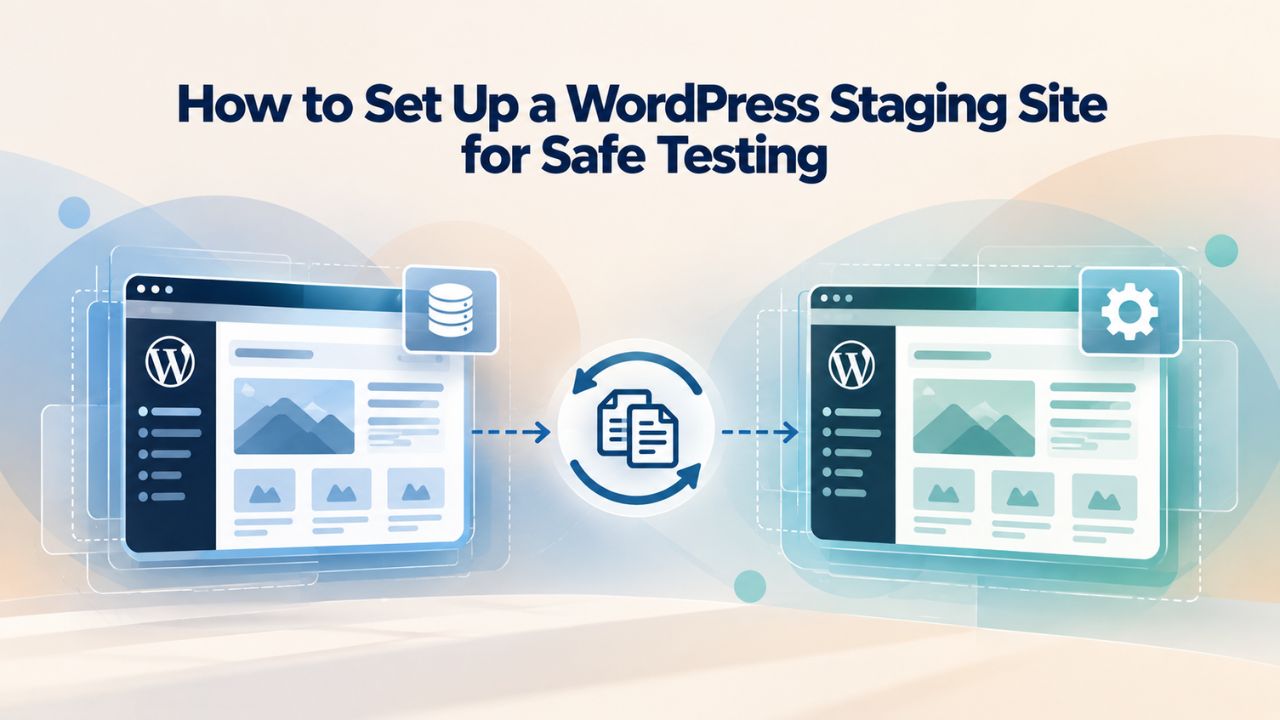
A staging environment is your private test space for WordPress updates, plugins, themes, and code changes. Before you push any change to your live site, test in staging to catch compatibility issues, prevent broken pages, and keep your visitors safe. Learn the essential setup steps, best practices, and deployment workflows to test with confidence. Niya Digital is a WordPress hosting provider that delivers its plans in partnership with an enterprise-grade cloud infrastructure partner.
Why a Staging Environment Matters
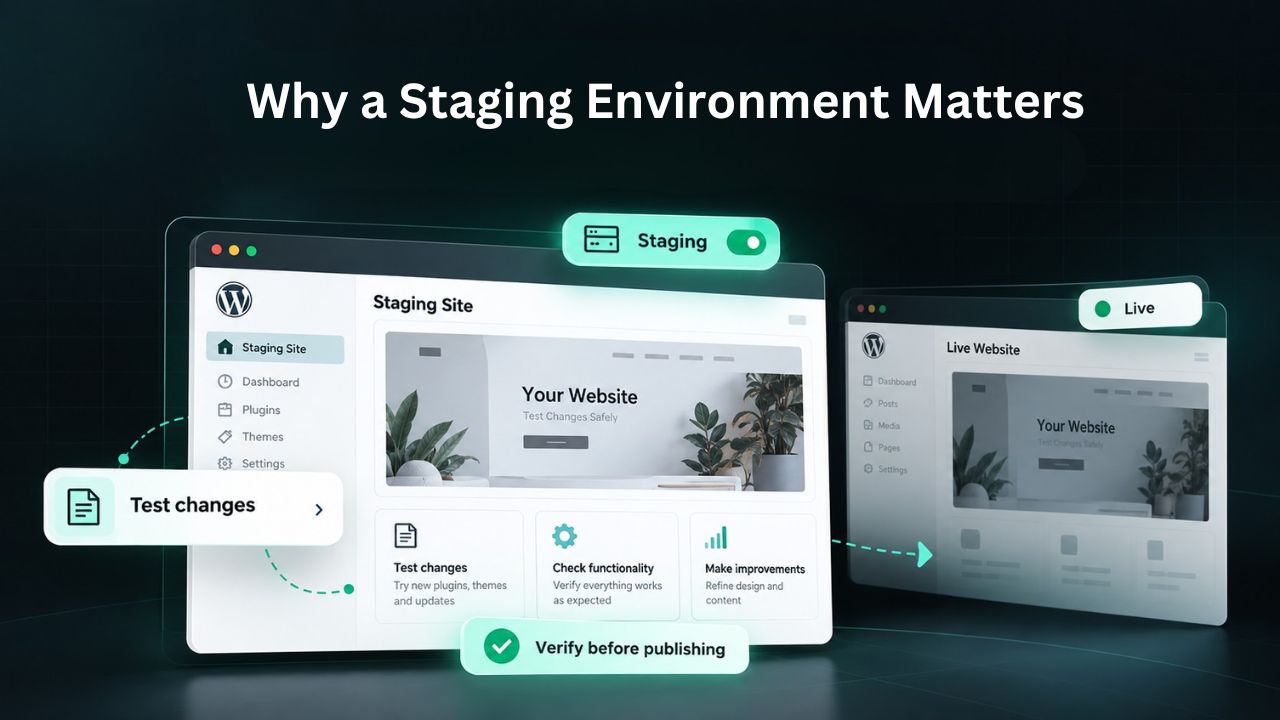
A staging environment isolates testing from production risk. Before exploring setup methods, understand what staging protects you from and why professional WordPress management demands it.
Production Risks of Testing Live
Testing plugin updates, theme changes, or custom code directly on your live site is a high-stakes gamble that many WordPress site owners don’t fully appreciate until something breaks. Updates can introduce compatibility issues with your existing theme, plugins, or WordPress core itself, breaking functionality or rendering your site unusable. Each change carries cascading risk: a failed plugin update can trigger database errors that spread across your site, a theme change can corrupt page layouts and damage your brand presentation, and custom code can create fatal PHP errors that show white screens to visitors.
When these breakdowns happen on production, your visitors see error pages instead of your content, broken functionality that frustrates users, or a completely offline site. The result is lost sales, support tickets, emergency troubleshooting, and damage to your brand reputation. No safety net exists; the entire weight of the mistake falls directly on your business. For e-commerce sites, broken checkout flows mean lost orders. For service businesses, site downtime means missed client inquiries. For blogs, it means reduced traffic and SEO impact during downtime.
What Staging Prevents
A WordPress staging environment is a complete, private copy of your production site that runs at a separate URL with its own database. Every update, plugin test, theme experiment, and custom code change happens here first, visible only to your team. If something breaks on staging, and it often does during testing, no customer sees it, no SEO ranking suffers, and no revenue is lost. You fix the issue, confirm the solution works correctly, and then, and only then, deploy the change to production with confidence.
This separation underpins professional WordPress management and separates successful site owners from those who suffer frequent outages. The best managed WordPress hosting providers include built-in staging so teams can test confidently without maintaining complex technical infrastructure. Niya Digital’s managed WordPress hosting plans include one-click staging, removing the friction that makes manual staging difficult and encouraging teams to use it before deploying changes.
WordPress Pricing Plans
Choose the WordPress hosting plan that fits your website needs, with reliable performance, security, storage, backups, and tools to help your site grow.
WordPress Basic
A great way to get started.
- 1 website
- 10 GB NVMe storage
- Unmetered bandwidth
- Free SSL Certificate *
- WordPress pre-installed
- Weekly backups
- Web Application Firewall
- Daily malware scans
- One-time malware removal

WordPress Deluxe
Improve your site performance with Cloudflare CDN.
- 1 website
- 20 GB NVMe storage
- Unmetered bandwidth
- Free SSL Certificate *
- WordPress pre-installed
- Daily backups
- Web Application Firewall
- Daily malware scans
- One-time malware removal
- Up to 2x faster performance with global Cloudflare CDN **
- Enhanced security with DDoS protection
- Staging site
WordPress Ultimate
Add online marketing with more sites, storage and security.
- 1 website
- 30 GB NVMe storage
- Unmetered bandwidth
- Free SSL Certificate *
- WordPress pre-installed
- Daily + on-demand backups
- Web Application Firewall
- Daily malware scans
- Unlimited malware removal
- Up to 2x faster performance with global Cloudflare CDN **
- Enhanced security with DDoS protection
- Staging site
- WordPress code optimizer
- Smart WordPress plugin manager
- Sell online with WooCommerce
Understanding Staging vs. Development vs. Production Environments
WordPress distinguishes three deployment environments, each serving a distinct purpose in the development lifecycle. Knowing when to use each one shapes your entire workflow and prevents costly mistakes.
The Three Environments Defined
WordPress 5.5+ introduced the WP_ENVIRONMENT_TYPE constant, allowing plugins and themes to detect which environment they’re running in and adjust their behavior accordingly. This matters because production needs active features (scheduled jobs, payment processing, email notifications, analytics tracking) that would cause chaos if triggered on a test copy. A staging environment with payment processing enabled might charge test transactions to real customer credit cards. A staging environment with email active might send test messages to your entire customer list, damaging your reputation and violating CAN-SPAM regulations.
The four supported types are: production (your live site visible to the public and generating revenue), staging (a replica used for final testing before deployment), development (typically a remote environment for code building and experimentation), and local (a developer’s computer for isolated work on new features). Most WordPress site owners focus primarily on staging and production, using these two environments to maintain a safe testing workflow without risking their live business.
Why Environment Detection Matters for Plugin Safety
When you set define( ‘WP_ENVIRONMENT_TYPE’, ‘staging’ ); in wp-config.php, WordPress-aware plugins receive a clear signal: “This is a staging environment, disable behavior that belongs only on production.” Without this constant, a WooCommerce plugin might still process test orders through payment gateways, a booking plugin might send confirmation emails to real customers, or a scheduled event might process real user data. With environment type properly configured, staging becomes a true sandbox where nothing you do affects production systems or customer data.
Niya Digital’s team has found that organizations that enforce staging environment types through wp-config.php catch twice as many plugin conflicts before they reach production, because plugins that respect this setting automatically disable dangerous features in non-production environments. This simple configuration change has prevented countless disasters for teams managing WordPress sites at scale. When developers and plugin authors recognize the environment type, they can provide feedback about breaking changes during testing rather than after deployment to production.
Staging Setup Method 1: Managed Hosting Staging (The Fastest Path)
If your WordPress hosting provider includes built-in staging, as managed WordPress hosting does, this is the fastest and most reliable path forward: no technical configuration, no command-line access, and no risk of misconfiguration.
One-Click Staging from Your Hosting Dashboard
Managed WordPress hosting providers offer hosting control panels with dedicated staging tools that automate the entire cloning process. With a single click, you create a complete copy of your production site. The hosting platform handles all the technical complexity behind the scenes: files are copied to a staging subdomain, the database is cloned with new credentials, the SSL certificate is provisioned automatically, and the hosting environment is configured identically to production so behavior and performance match exactly.
This automation eliminates the technical friction that makes manual staging difficult and error-prone. The host provisions a subdomain (typically staging.yourdomain.com or staging-yourdomain.com), hides it from search engines with noindex meta tags and robots.txt configuration, sets up database credentials and user accounts, and configures the environment. Hence, you’re ready to test immediately. The entire process usually completes in minutes. You’ll receive a dashboard notification when staging is ready, and you can log in and start testing immediately.
Advantages of Managed Hosting Staging
Managed staging handles the most error-prone, technically complex step: correctly replacing the database URL across all serialized data and plugin settings. WordPress stores absolute URLs throughout the database in dozens of locations: in the wp_options table (siteurl and home options), in post content (internal links and image URLs), in meta fields (custom data stored by plugins), in serialized arrays (plugin settings stored as text), and in navigation menus. Incorrect search-replace breaks menu structures, orphans images, corrupts plugin settings, and makes staging unusable.
A managed host’s one-click approach avoids this hazard entirely by handling URL replacement automatically during the cloning process. The host knows exactly where URLs are stored and uses WordPress-aware tools to replace them correctly without corrupting serialized data. Managed hosting also simplifies the push back to production. After testing and confirming changes work correctly, you can move approved changes to your live site in a single workflow, with the host managing database merges, preventing you from accidentally overwriting live customer data, orders, or comments. This push-to-production workflow is where many teams introduce catastrophic errors, and managed hosting’s safeguards prevent most of them.
Staging Setup Method 2: Staging Plugins (The Portable Solution)
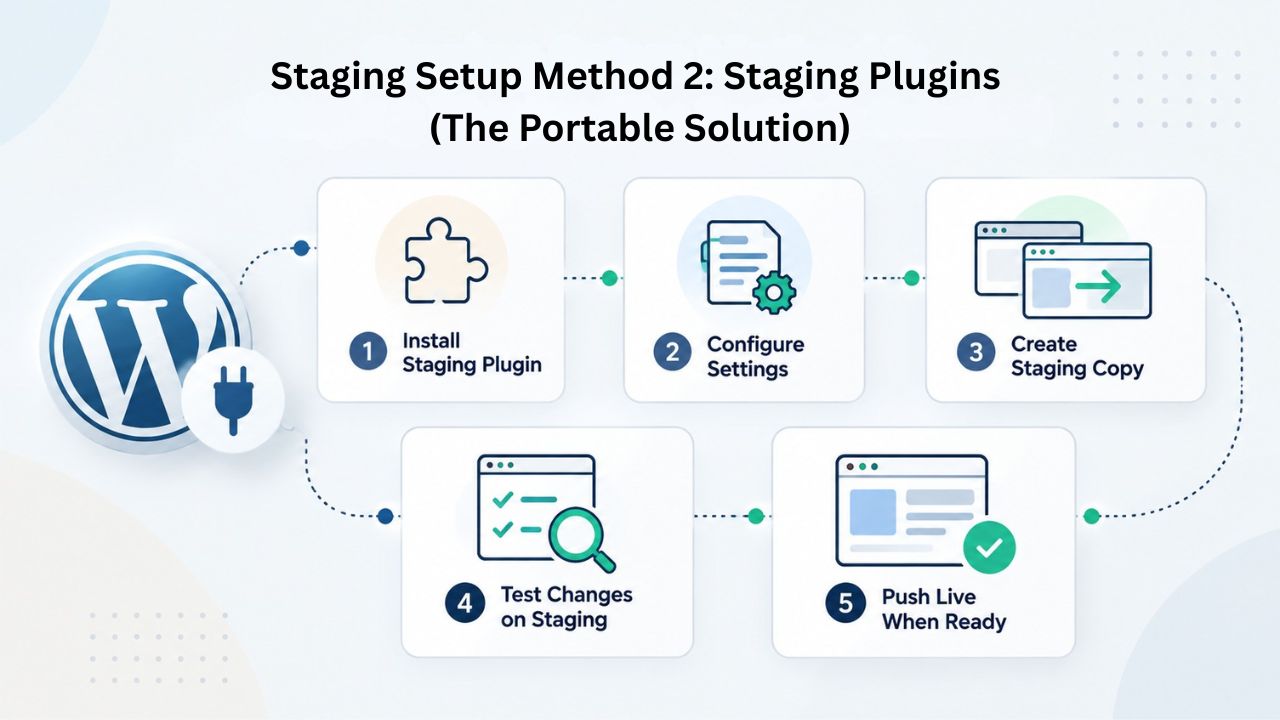
For sites on shared hosting or self-hosted WordPress without native staging tools, plugins provide powerful application-level automation. They’re independent of your host, portable during migration, and suitable for any hosting environment.
How Staging Plugins Work
Plugins like WP STAGING and Duplicator create staging copies entirely through the WordPress admin interface, making them accessible to non-technical users. No server access required, no FTP client needed, no command-line tools to learn. Install the plugin, open its screen in the admin, and click “Clone” to duplicate your site to a staging subdirectory or subdomain. The plugin automatically detects your site structure, copies all files to the staging location, exports your database, imports it to a staging database, and runs URL replacement.
Staging plugins handle files and database copying, then run the search-and-replace automatically to ensure all internal links point to the staging domain rather than production. The free versions provide basic cloning; Professional versions add advanced features like push-to-production workflows (moving changes back to live), selective table synchronization (syncing only specific database tables), and scheduling (automating weekly staging refreshes from production). Plugin-based staging gives you significant control over the process and works on any hosting environment that supports WordPress.
When to Choose Plugin-Based Staging
Staging plugins excel when your hosting provider doesn’t include native staging features, or when you need portability and don’t want to be locked into a specific host’s proprietary staging system. They’re especially valuable for developers and agencies managing multiple client sites who want a consistent staging toolset across hosting providers. If you’re on budget shared hosting, a plugin is often your only option for automated staging.
One limitation to consider: plugin-based staging runs on the same server as production and shares server resources during the cloning process. For very large sites (databases over 500MB, thousands of media files) or high-traffic scenarios, this can cause temporary performance issues during cloning or testing, as the cloning process consumes server CPU and I/O. For very large sites, managed WordPress hosting staging that isolates environments at the infrastructure level provides better performance and more predictable resource availability during testing.
Manual Staging Setup: Subdomain or Subdirectory Clone (Full Control)
For maximum control, complete transparency over every step, or specific technical requirements, you can manually create and configure a staging copy. This approach requires technical knowledge but gives you complete control over the process.
The Manual Cloning Process Step-by-Step
A manual staging clone involves three core steps: create a subdomain or subdirectory on your hosting account for staging, copy all production WordPress files to it via SFTP or FTP, and export/import the production database into a separate staging database. This approach requires SFTP/SSH access to your hosting account, a command-line interface for database operations, and is time-intensive, but gives you complete transparency over every step and allows customization for specific scenarios.
After files and database are in place, you must configure wp-config.php with new database credentials specific to staging, then run WP-CLI search-replace to update all staging URLs in the database. WP-CLI is critical here because it correctly handles serialized data and encoded URLs; manual find-and-replace often corrupts plugin settings, breaks image galleries, and creates orphaned data. The command wp search-replace “https://yoursite.com” “https://staging.yoursite.com” –all-tables –precise handles both plain URLs and encoded/serialized versions correctly.
When Manual Staging Makes Sense
Manual cloning is most practical for developers who are comfortable with command-line tools, SSH access, and database operations, and who need staging on hosting that doesn’t support plugins or native tools. It’s also useful for learning how staging works under the hood, since you control and understand every step. If you have specific security requirements or network configurations, manual staging gives you precise control.
However, manual staging introduces human error at each step. If you forget to run search-and-replace, staging URLs will point to production URLs, breaking page rendering and accidentally letting you test against production instead of staging. If you misconfigure wp-config.php, staging won’t connect to the database. If you miss updating the staging URL in the site domain table, forms and redirects won’t work. Most site owners and small teams find managed or plugin-based staging less error-prone and more maintainable over time.
Preventing Your Staging Site from Being Indexed by Search Engines
A critical oversight many teams make: if Google and other search engines index your staging site, you’ll face duplicate-content penalties, conflicting rankings with production, confusion in your search console, and potential user confusion. Prevent this catastrophe with multiple protective layers working together.
Setting noindex and robots.txt
The first defense is WordPress’s own search-engine visibility setting. Navigate to Settings > Reading in your WordPress admin and check the box “Discourage search engines from indexing this site.” This adds a noindex meta tag to every staging page, signaling to search engines: “Don’t crawl or index this page, and remove it from search results if you’ve already indexed it.” WordPress notes, “it is up to search engines to honor this request”; noindex is a guideline that responsible search engines respect, not an absolute block.
Combine noindex with a robots.txt file containing the directives to prevent crawling entirely:
Disallow: /
This tells search engine bots not to crawl your staging site at all. Place this file in your staging site’s root directory (where wp-config.php sits). If you use an SEO plugin like Rank Math or Yoast, you can edit robots.txt through the plugin’s settings without touching the file directly. Together, noindex and robots.txt provide strong protection. While neither is foolproof on its own, combined they prevent nearly all legitimate search engine indexing.
Password Protection and IP Restriction
For maximum security and to eliminate indexing risk, add password protection to your entire staging site with plugins like Password Protected. This requires login credentials to view any page on staging, preventing accidental public access and removing the possibility of search engines indexing content. When a website requires authentication, search engines respect that barrier and don’t attempt to index password-protected content.
Some managed WordPress hosts also support IP whitelisting, restricting staging access to known team IP addresses only. This adds another layer: even if someone discovers a staging URL, they can’t access it without being on an approved network. Combined with password protection, IP restrictions virtually eliminate the risk of unauthorized access. This multi-layered approach to staging security is best practice for teams handling customer data or operating in regulated industries.
Get Expert Guidance on Staging Workflows for Your Team
Niya Digital provides staging training resources, documentation, and technical support to help your team adopt best practices immediately. Whether you need help configuring your first staging environment, training on deployment workflows, or optimization for large-scale testing, our team can guide you every step of the way.
Disabling Email and Caching on Staging (Preventing Accidental Impact)
A staging database contains real customer data and live system integrations. Without proper configuration, testing can accidentally send emails to customers or display cached results, creating professional disasters and potential legal consequences.
Email Blocking to Prevent Accidental Notifications
Your staging database contains real customer email addresses and active SMTP credentials for email marketing, payment notifications, booking confirmations, and CRM services. If you test a form submission, trigger a scheduled event, or run a cron task on staging, WordPress might send actual emails to real customers, a professional and compliance disaster. A customer receives an unexpected password reset email for an account that doesn’t need resetting. An admin receives an accidental order confirmation that was just a test. Your email marketing list receives test messages. Compliance regulators see GDPR or CAN-SPAM violations in your email logs.
Use plugins like Disable Emails or Local Email Blocker to intercept and block all emails on staging before they’re sent. These plugins hook into WordPress’s email system at the lowest level and prevent emails from being sent, even when SMTP plugins (WP Mail SMTP, FluentSMTP, Post SMTP) are active and configured. Deactivate SMTP plugins directly on staging as an additional safeguard. This combination ensures that no email escapes staging under any circumstances, and you can test email functionality safely knowing nothing will reach real people.
Disabling Page Cache for Accurate Testing
Page caching speeds up production by storing rendered HTML and serving it from cache instead of regenerating pages on every request. On staging, page cache becomes your enemy. You change a page template, refresh the browser, and see the old cached version instead of your updates. You modify plugin settings, refresh, and the old settings still appear. This makes testing misleading and frustrating, and it can lead to false confidence before you deploy changes that don’t work correctly.
Plugins like Staging Superpowers detect when they’re running on staging and automatically disable caching from popular cache plugins (WP Rocket, W3 Total Cache, LiteSpeed Cache, WP Super Cache, Cache Enabler, and others). You see your changes instantly, so you get accurate feedback on what you’ve actually changed. This also applies to host-level caching and CDN caching that might be active on your hosting. When caching is disabled, staging operates exactly like production would if caching were turned off, ensuring your test environment behaves predictably.
Correct Database Setup: URL Replacement and Environment Configuration
Cloning files and database is only half the work. Staging must be properly configured to function as a true replica without exposing production data or creating inconsistencies between environments.
The Critical Search-Replace Step
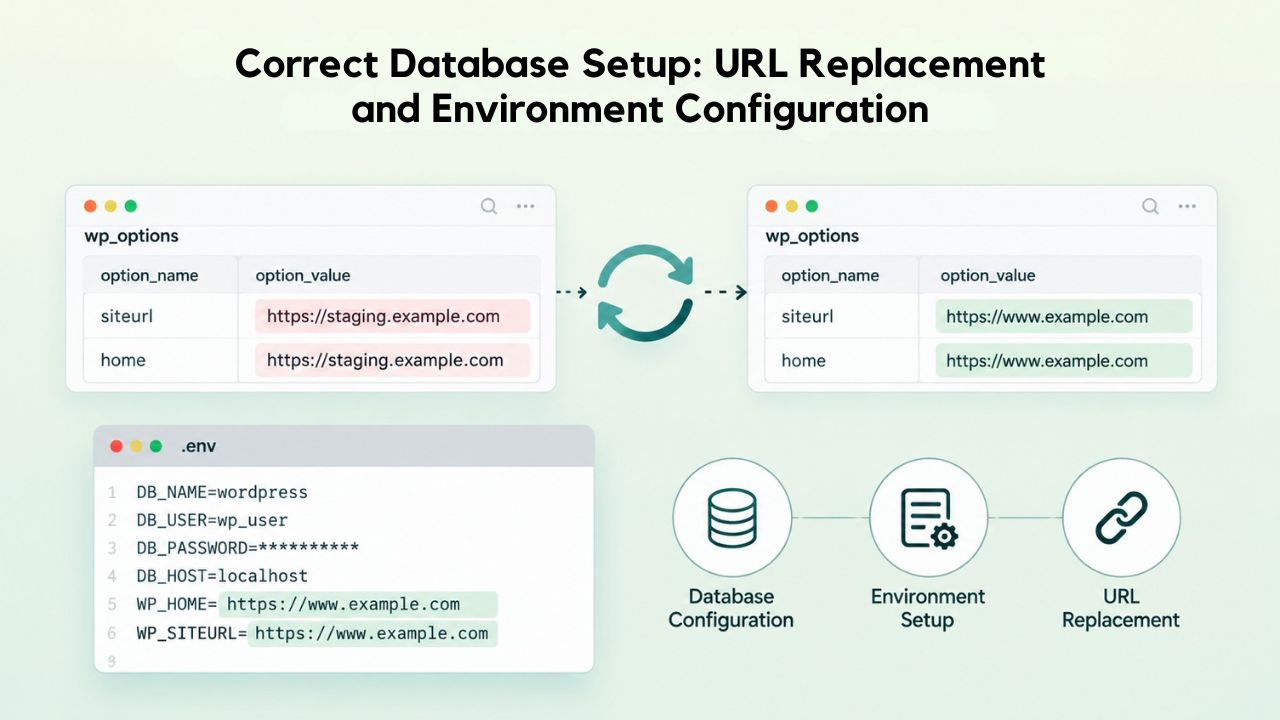
When you export production’s database and import it to staging, every internal URL still points to production. WordPress stores URLs throughout the database in dozens of locations: in wp_options (siteurl and home options that set your site’s canonical domain), in post content (internal links embedded in articles and pages, image URLs from the media library), in meta fields (custom data stored by plugins like page builders and SEO plugins), in serialized plugin settings (settings stored as PHP serialized arrays that look like gibberish), and in navigation menus and custom link configurations.
This must be corrected immediately after import or staging will be broken. Use WP-CLI to run wp search-replace “https://yoursite.com” “https://staging.yoursite.com” –all-tables –precise. This command correctly handles encoded URLs (URLs with special characters encoded), serialized data (plugin settings stored as text), and URLs nested inside complex data structures. If you prefer a GUI approach, plugins like Velvet Blues Update URLs or Better Search Replace provide the same safety without command-line access. Simple find-and-replace tools often corrupt serialized data, break image galleries, and create broken references.
Setting wp-config.php for Staging
Update staging’s wp-config.php file with its own database credentials separate from production. Locate the lines defining DB_NAME, DB_USER, DB_PASSWORD, and DB_HOST, and update them to point to your staging database instead of production. Then add define( ‘WP_ENVIRONMENT_TYPE’, ‘staging’ ); to signal to WordPress and plugins that this is a test environment. This constant tells WordPress-aware plugins to disable features that belong only on production.
Optionally, set define( ‘WP_DEBUG’, true ); on staging to log errors to wp-content/debug.log. This catches PHP warnings, notices, and deprecations that production might suppress. These logged messages often reveal problems in plugins or theme code that don’t show as visible errors but still indicate code quality issues. Keep WP_DEBUG off on production to avoid exposing sensitive information through error logs that might be accessible to the public if logs are accidentally exposed in backups or through misconfigured servers.
Keeping Staging in Sync with Production (The Refresh Cycle)
Over time, your production site accumulates new content, customer orders, user registrations, comments, and plugin settings. Meanwhile, staging remains frozen at the point you cloned it. This “database drift” makes your staging environment less representative of production.
The Database Drift Problem and Refresh Schedule
Hours or days after you clone production to staging, your live site keeps changing. New customers register and create accounts, orders come in, and orders are fulfilled, blog posts publish and generate comments, plugin settings are updated, and media is uploaded. Your staging database is now a snapshot of the past, so you’re testing against a different version of your site than what’s live. This database drift makes test results unreliable. You might test a plugin update on staging and find it works fine, then deploy to production and discover it conflicts with customer data that exists on production but not on your week-old staging database.
Establish a refresh schedule to keep staging current: for most sites, weekly or before major updates is sufficient. For very active sites receiving frequent orders (e-commerce, booking, membership sites), refresh staging before every deployment to production. Managed hosts let you reset staging from production in one click, completing in minutes. Plugin-based staging tools let you schedule syncs automatically. The goal is to keep staging a current replica of production, not a months-old clone that no longer represents your actual business state.
The Dangerous Push-to-Production Mistake
Never push staging’s entire database to production. This overwrites all live content, customer orders, user registrations, comments, and live plugin settings with old staging copies. For e-commerce sites, this erases order history and transaction records. For membership sites, this removes member accounts and access permissions. For booking sites, this deletes reservations. For any site, this destroys data that was created on production after you cloned staging.
Instead, push only code changes (themes, plugins, custom files, template changes) from staging to production. If you need to move database changes (custom post types, option updates, setting modifications), push only those specific tables using selective table sync if your host or plugin supports it. Always maintain separate code and data workflows: code flows from staging to production, but data flows from production to staging during refresh cycles. This prevents the catastrophe of overwriting production data with stale copies.
Pre-Deployment Testing Checklist and Verification Process
| Test Category | What to Check | Expected Outcome |
|---|---|---|
| Form Submission | Submit contact form, newsletter signup, and checkout form if applicable; verify form processes and checks for errors | Form processes cleanly with no errors; confirmation message displays; no accidental emails sent |
| Plugin Conflicts | Activate all plugins, browse site functionality, check admin dashboard, test plugin-specific features | All pages load without fatal errors; no PHP warnings in debug log; admin dashboard functions normally |
| Page Performance | Run Google PageSpeed Insights on key pages; compare to production baseline | Desktop score meets baseline (typically 90+); mobile score meets baseline (typically 80+) |
| User Authentication | Test login, logout, and role-based page access; verify different user roles see correct content | All roles load correct dashboard; access restrictions work; role-specific content displays correctly |
| Media and Image Uploads | Upload test image, verify display, check image links and download functionality | Image appears correctly; links resolve; no 404 errors; images load quickly |
| Custom Post Types | Browse custom post type archives and individual posts if applicable; verify all custom data displays | All custom posts render correctly; no missing data; custom taxonomies display properly |
| Internal Links and Redirects | Click internal navigation links, check for 404 errors or incorrect redirects | All internal links resolve to correct pages; redirects work as intended; no redirect loops |
| Database Functionality | Test database-dependent features like search, filtering, and user data queries | Search returns correct results; filters function; user data displays accurately |
Common Staging Mistakes to Avoid (Learning from Others’ Failures)
Even with the best intentions, teams sometimes introduce errors that undermine staging’s safety and effectiveness. Understanding these pitfalls helps you sidestep them.
Database Drift and Stale Staging Environments
A staging database that hasn’t synced with production in weeks or months tests against outdated data that no longer reflects your actual business. New products don’t exist in staging, customer registrations and accounts are missing, order workflows have changed, and content is stale. Your test results become unreliable guides for what will happen in production. You might approve a plugin update on a week-old staging database, deploy to production, and discover it doesn’t work with newly introduced data structures or customer workflows.
Refresh staging before every major update, and weekly for active sites. Set a calendar reminder or use scheduling features built into managed hosting or staging plugins. A 30-minute sync is a small investment that brings real confidence. Think of staging refreshes like an athlete checking their equipment before a game; it takes minutes but prevents failure during the actual event.
Skipping Search-Replace After Database Import
You clone production to staging but skip or incomplete the URL search-replace step, leaving staging with production URLs in the database. Staging links break, images don’t load, and you test against a partially broken environment. Worse, any data you change on staging via API calls or scripts silently updates production because the URLs point there. Your plugin test turns into accidental data loss on the live site.
Make search-replace the first step after import, even before you log in to staging. Use managed hosting one-click staging, which handles it automatically, or a plugin that includes search-replace in the clone workflow. If using manual cloning, run WP-CLI search-replace immediately after database import and before doing anything else. Don’t skip this step, and don’t test functionality until you confirm search-replace completed successfully.
Applying All Updates Simultaneously
Teams often update all plugins at once to save time, hitting “Update All” and hoping everything works. Niya Digital’s team has found that organizations applying all updates simultaneously often encounter cascade failures where multiple plugins interact and break the site. When multiple plugins update and introduce breaking changes, it becomes nearly impossible to identify which update caused the problem. Did Plugin A break, or is it an interaction between Plugin A’s update and Plugin B’s update?
Test each update separately in staging: update one plugin, verify functionality, run your test checklist, then move to the next. If one update breaks something, you’ve immediately identified the culprit. If all updates pass individually, they’ll almost certainly work together on production. This methodical approach takes longer per step but saves hours of troubleshooting when something breaks.
Migrating Changes from Staging to Production: Deployment Strategies
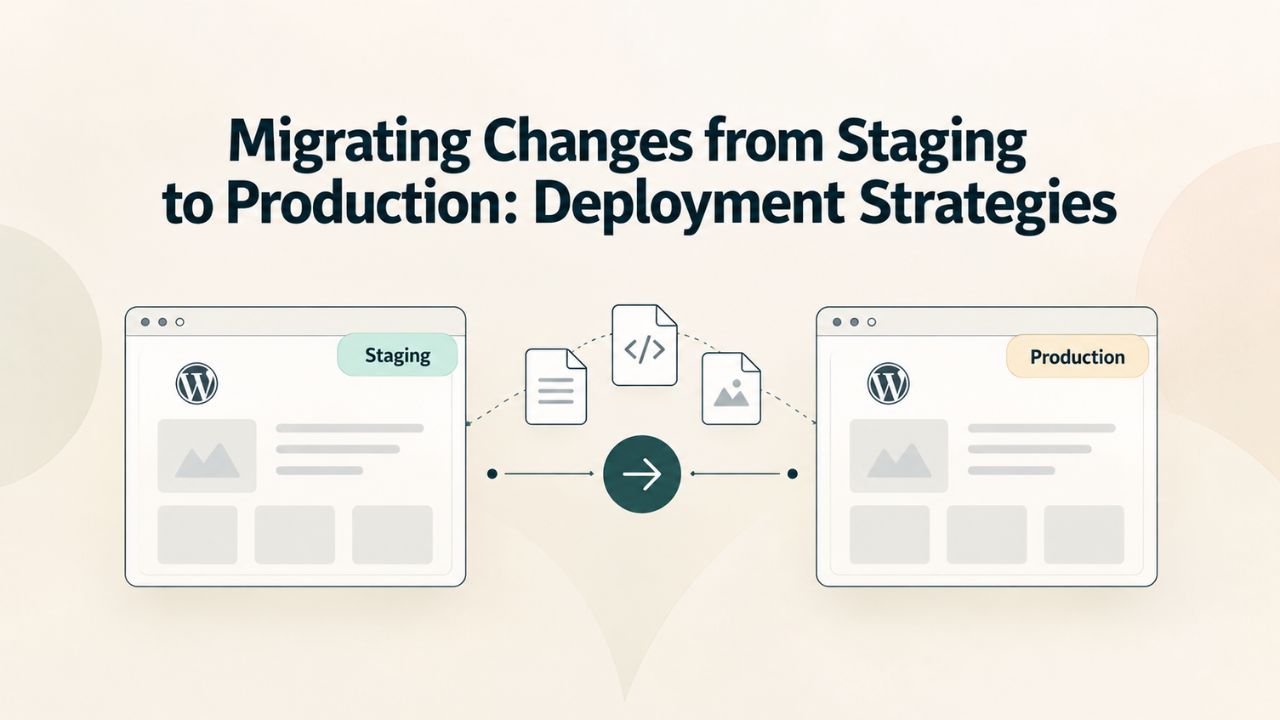
Once testing is complete and you’ve verified everything works correctly on staging, the deployment process must be handled carefully to ensure changes reach production safely without data loss or unintended consequences.
Safe Deployment Methods and Safeguards
Use your managed host’s push-to-live feature if available; it handles database merges, file synchronization, and URL replacement automatically while preventing you from overwriting live data. If using manual deployment, upload theme and plugin changes via SFTP, run any database migrations using WP-CLI, and never push the entire staging database. Always back up production immediately before pushing changes, and keep the backup for at least 48 hours. If something breaks on live, restore from backup, diagnose the issue in staging, fix it, and redeploy.
For code-only deployments (theme updates, plugin updates, custom code), you can safely push files only. For deployments involving database changes (custom post types, settings modifications, options updates), push only the specific changed tables. Use your host’s selective table sync or WP-CLI to apply specific changes without touching tables that shouldn’t change. This surgical approach prevents data loss while ensuring code changes deploy correctly.
Deployment Verification and Rollback Readiness
After deployment, immediately test your live site in a new browser tab; don’t test in the same browser tab where you’re logged in, as local caching might hide changes. Check key functionality, verify forms work, test user login, and confirm payment processing if applicable. If you find a problem, don’t troubleshoot on live; restore from backup, diagnose in staging, fix, and redeploy. This rapid rollback approach keeps downtime minimal.
Keep deployment documentation for each change: what changed, when it deployed, the expected outcome, and the verification steps that confirmed success. This record helps you diagnose issues if something goes wrong later and helps your team understand the change history if you need to roll back or redeploy changes months later.
Explore Niya Digital’s Staging-Ready Managed WordPress Plans
Niya Digital’s managed plans include one-click staging, automatic database cloning, preconfigured email blocking, and single-click production deployment with safeguards against data loss. Your team can test confidently, knowing production stays protected, and customer data remains safe. Start your staging workflow with hosting designed for professional WordPress management.
Frequently Asked Questions
What is the difference between staging, development, and production?
Production is your live site visible to customers and generating revenue. Staging is a replica used to test updates, plugins, and code before deployment. Development is where developers build new features, typically on a local computer or remote development server. Most site owners focus on staging and production; development is optional for organizations with internal development teams.
How often should I refresh my staging environment from production?
Refresh before major plugin or theme updates, and at least weekly for active sites. Stale staging databases test against outdated data and miss real-world scenarios. E-commerce and membership sites should refresh before every deployment. Managed hosting refreshes are usually one-click operations completing in minutes. Set calendar reminders to make refreshes automatic habits.
Can I test a plugin on staging without activating it on production?
Yes, that’s exactly staging’s purpose. Install and activate the plugin on staging, test its functionality, verify it doesn’t conflict with your theme or other plugins, run your complete test checklist, and only then decide whether to activate it on production. Never test new plugins directly on live sites where customers could see errors or broken functionality.
What happens if I forget to disable email on staging?
Emails sent from staging will reach real customers: contact form submissions, password resets, order confirmations- everything. Customers receive unexpected emails, your brand reputation suffers, and you might violate CAN-SPAM regulations. Use email-blocking plugins (Disable Emails, Local Email Blocker) to prevent this automatically. Always use a test email address when testing email functionality.
How do I push changes from staging to production safely?
Use your managed host’s push-to-live feature, which handles database merges, file synchronization, and safeguards against overwriting live data. Never push the entire staging database; push code only or use selective table sync. Always back up production before pushing, and keep the backup for 48 hours. Test your live site immediately after deployment by opening it in a new browser tab.
Why is robots.txt not enough to hide my staging site?
Robots.txt is a guideline that search engines respect but aren’t legally required to follow. Some bots ignore it, and if staging is already indexed, removing it from robots.txt doesn’t automatically remove it from results. Combine robots.txt with noindex meta tags and password protection for layered security preventing any staging content from ranking in results.
Can I access staging from my phone or on a public network?
Yes, if staging is hosted online rather than locally. Password protection ensures only authorized users can access it. IP whitelisting adds another layer if your host supports it, restricting access to known team networks. Use strong, unique passwords and consider two-factor authentication for admin access.
What does WP_ENVIRONMENT_TYPE do?
It signals to WordPress and plugins whether the site is in a production, staging, development, or local environment. Plugins respecting this setting disable production-only features, scheduled cron tasks, payment processing, and customer emails, ensuring safer testing. This configuration change alone has prevented countless disasters for teams managing WordPress at scale.
If I mess up staging, can I delete it and start over?
Yes, that’s staging’s entire purpose: to be disposable and risk-free. If you break something, delete the staging copy and clone production again. The workflow is: mess up staging, delete, refresh, try again. No consequences, no impact to production, no data loss on live site.
Do I really need staging if I manually back up before updates?
Backups are essential recovery tools, but staging is prevention. A backup is insurance after failure; staging prevents failure in the first place. Use both together: test in staging (prevention), back up production (recovery insurance), then deploy. Most production disasters could have been prevented with staging testing.
Can staging handle large databases with millions of rows?
Yes, but cloning large databases takes time, potentially 30 minutes to an hour for databases over 1GB. Managed hosts optimize this process. Plugin-based staging may be slower for very large sites. For massive databases, schedule clones during off-peak hours. Consider excluding large tables of historical data if cloning speed is problematic.
What if my staging URL accidentally gets indexed by Google?
Use Google Search Console to request removal of staging URLs from Google’s index. Then prevent future indexing: enable noindex in WordPress Settings, add robots.txt with disallow rules, and implement password protection. Monitor Search Console to catch any future indexing of staging URLs.
Is staging necessary for small personal blogs?
For content-only sites with minimal plugins, staging is less critical. But once you install plugins, customize themes, or run regular updates, staging becomes essential insurance. Even small blogs benefit from staging when testing new themes or making design changes.
How do I test plugin compatibility before updating on production?
Update the plugin on staging first, run your test checklist, verify functionality, check for errors in debug logs, then test with sample data. If the update breaks something, you’ve caught it before production. If it works, deploy with confidence. Testing one at a time reveals which specific plugin causes issues.
Can I use staging for performance testing?
Yes, but if staging runs on the same server as production (typical with plugin-based staging), performance results may not match production. Managed WordPress hosting staging isolates environments at the infrastructure level, providing accurate performance data. For performance testing, use managed hosting staging or load-test tools that simulate real user load.
Glossary
- Staging Environment: A private, separate, exact copy of your live WordPress site used for testing updates, plugins, themes, code changes, and configurations without affecting the production site or your visitors.
- Database Drift: The growing difference between staging and production databases over time as your live site accumulates new content, customer orders, user activity, comments, and settings while staging remains a static snapshot.
- Serialized Data: A database format WordPress uses to store complex data structures (like arrays of plugin settings) as text; URL replacement must handle this carefully to avoid corrupting plugin functionality.
- Search-Replace: The process of finding every instance of a URL in the database and replacing it with a different URL; essential after cloning production to staging to ensure links, images, and references work correctly.
- WP_ENVIRONMENT_TYPE: A WordPress configuration constant that signals to the platform and plugins whether the site is production, staging, development, or local; enables environment-specific feature toggling and safety measures.
- Noindex Meta Tag: An HTML meta tag that signals to search engines “do not index this page”; prevents search engines from including staging site pages in search results and conflicting with production rankings.
- WP-CLI: WordPress Command Line Interface; enables faster, more reliable bulk operations like URL replacement, plugin management, and database operations without using the WordPress admin panel.