A WordPress site struck by a failed update, corrupted plugin, or accidental deletion can be recovered, but only if the restore is executed correctly. Restoring a backup involves two separate components, multiple restoration methods, and specific verification steps that most site owners overlook until crisis hits.
Why Backups Fail (And How to Prevent It)
A backup sitting on your server provides false confidence if it’s never been tested. Most backup failures stem from incomplete backup files or a lack of restore testing, leaving site owners with corrupted data or partial recovery when they need a full restore. Understanding what makes a backup actually restorable starts with knowing exactly what it should contain and why both components matter.
What’s Actually Inside a WordPress Backup
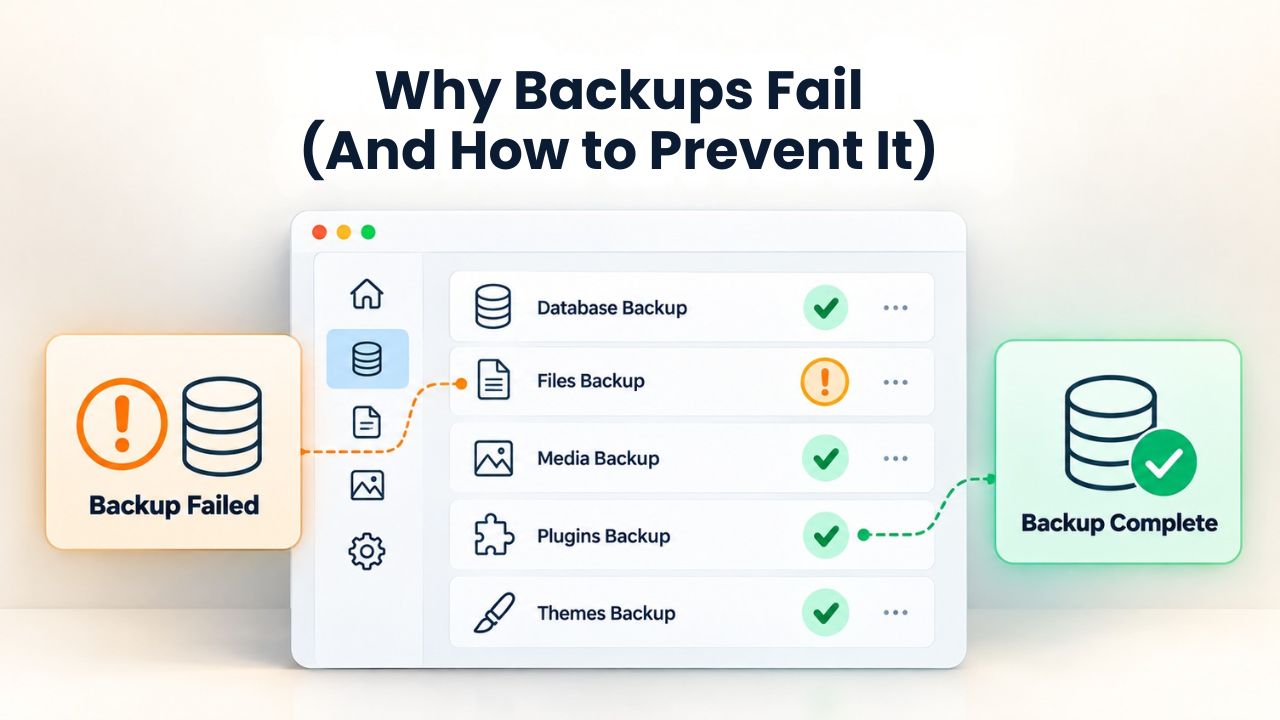
A complete WordPress backup contains two separate systems that must work together seamlessly. According to WordPress.org’s developer documentation, the database stores all dynamic content: your posts, pages, comments, user accounts, plugin settings, and site configuration. The files include your WordPress core installation, all themes, all plugins, the uploads folder with images and media, and the critical wp-config.php file that connects everything.
When site owners create backups, they often assume downloading their WordPress folder to their computer captures everything. This fundamental misunderstanding causes restore failures. The WordPress.org documentation is explicit: the database lives in a separate system (typically MySQL or MariaDB) outside your web directory. Downloading files alone leaves the database untouched. A backup missing either component will fail partway through restoration, leaving you with a partially recovered site, broken admin login, or missing content.
The Hidden Cost of Never Testing Your Restore
A backup you’ve never restored is a hypothesis, not a safety plan. This distinction becomes painfully clear the moment a real crisis forces you to restore; often, only then do site owners discover their backups don’t work. Niya Digital’s team has observed that sites relying solely on plugin-based backups frequently discover mid-crisis that the backup never completed because of PHP timeout limits, conflicting plugins, or insufficient server resources- not because the backup process failed, but because it was never tested when there was time to fix problems.
Testing your backups at least monthly by restoring them to a staging environment (never production) confirms three critical outcomes:
(a) the backup file itself is not corrupted and can be read,
(b) the database import succeeds without errors or data loss, and
(c) files extract without permission issues that would prevent WordPress from running.
For high-traffic sites or those handling sensitive data, quarterly testing is even better. Document the exact time from restore start to a fully functional site; that’s your Recovery Time Objective (RTO), and it’s the only restoration metric that matters when you’re racing to get a site back online.
Breaking the Backup Myths
Many site owners operate under dangerous assumptions about their backups. Some believe automatic backups from their hosting provider are stored and retrievable indefinitely; in reality, most hosts keep backups for 30 to 90 days before deleting them to save storage. Others assume a “full backup” means their entire website is backed up; in some contexts, “full” refers to all database content but not all files, or vice versa.
Still others skip restore testing because they believe their backup tool’s documentation means the backup will work; documentation is not a test result. The only way to break these myths is to restore once before you need to, so you know for sure what will and won’t work when a real emergency strikes.
WordPress Pricing Plans
Choose the WordPress hosting plan that fits your website needs, with reliable performance, security, storage, backups, and tools to help your site grow.
WordPress Basic
A great way to get started.
- 1 website
- 10 GB NVMe storage
- Unmetered bandwidth
- Free SSL Certificate *
- WordPress pre-installed
- Weekly backups
- Web Application Firewall
- Daily malware scans
- One-time malware removal

WordPress Deluxe
Improve your site performance with Cloudflare CDN.
- 1 website
- 20 GB NVMe storage
- Unmetered bandwidth
- Free SSL Certificate *
- WordPress pre-installed
- Daily backups
- Web Application Firewall
- Daily malware scans
- One-time malware removal
- Up to 2x faster performance with global Cloudflare CDN **
- Enhanced security with DDoS protection
- Staging site
WordPress Ultimate
Add online marketing with more sites, storage and security.
- 1 website
- 30 GB NVMe storage
- Unmetered bandwidth
- Free SSL Certificate *
- WordPress pre-installed
- Daily + on-demand backups
- Web Application Firewall
- Daily malware scans
- Unlimited malware removal
- Up to 2x faster performance with global Cloudflare CDN **
- Enhanced security with DDoS protection
- Staging site
- WordPress code optimizer
- Smart WordPress plugin manager
- Sell online with WooCommerce
Choosing Your Restoration Method
Three distinct paths exist to restore a WordPress site, and each comes with different trade-offs depending on where your backup was created, your technical comfort level, and your hosting environment. Understanding these trade-offs before a crisis means you can choose the fastest, safest path when time matters most.
Hosting Control Panel Restore (Easiest, Most Common)
Many managed WordPress hosting providers include automatic daily or weekly backups as part of their service. If your host provides backups accessible via cPanel, Plesk, a custom dashboard, or a dedicated backup section, this is almost always your fastest and safest restoration path. You log into your hosting account, navigate to the backup section, select a backup date, initiate a restore, and wait. The hosting platform automatically handles database credentials, file permissions, and directory deployment; you don’t manually touch the database or file system.
The main tradeoff is that you’re limited to backups your host creates and retains. If your host retains backups for 30 days, you cannot restore a backup from 60 days ago. Most managed hosts clearly document their backup retention policy in your account dashboard or in the feature comparison on their hosting plans page. Niya Digital’s WordPress hosting plans include regular automated backups, so all customers can use this method without extra setup or plugins. Always review your hosting provider’s backup documentation before an emergency, so you understand exactly what you can restore and how far back your backups go.
Backup Plugin Restore (Most Flexible, Works Anywhere)
If your backup was created by a plugin like UpdraftPlus, Jetpack Backup, All-in-One WP Migration, or WP STAGING, you have a restore button directly within WordPress admin. Log into WordPress, navigate to your backup plugin’s section, select the backup file you want to restore, and click Restore. The plugin orchestrates the entire process- database import, file extraction, permission fixes- because it created the backup in the first place and knows exactly how to reverse the process.
This method works on any hosting environment: shared hosting, VPS, cloud hosting, or managed WordPress hosting, because the plugin doesn’t depend on hosting-specific tools or interfaces. The tradeoff is that restoring large sites can exceed PHP execution time limits, causing the restore to hang or fail partway through. If you’re restoring a site with a database over 500MB or thousands of files, timeouts become likely.
If a restore hangs midway, you’ll need to troubleshoot the failure, which might involve requesting your host to increase PHP timeout limits or splitting the restore into smaller components (database only first, then files separately). Always ensure the same version of your backup plugin is installed before attempting a restore; version mismatches can cause incompatibility errors.
Manual Restoration (Most Control, Highest Technical Risk)
If you have a direct database export file (.sql, .sql.gz, or .sql.bz2) and your WordPress files as a .zip or .tar.gz archive, you can restore manually using phpMyAdmin (for the database) and File Manager or FTP (for files). This path gives you full visibility into each step, but it also puts you closest to accidentally breaking something. Developers who need granular control, or sites so large that plugin-based restores consistently time out, typically choose manual restoration.
The process requires importing your database dump into phpMyAdmin, extracting your file archive to the correct directory, and verifying that wp-config.php contains the correct database credentials. If you choose this path, follow the detailed steps in the “Manual Database Restoration” section below, and absolutely restore to staging first to verify every step succeeds before attempting a production restore. This method is powerful for experienced users but requires understanding database credentials, file permissions, and WordPress architecture.
Setting Up Staging Before You Restore
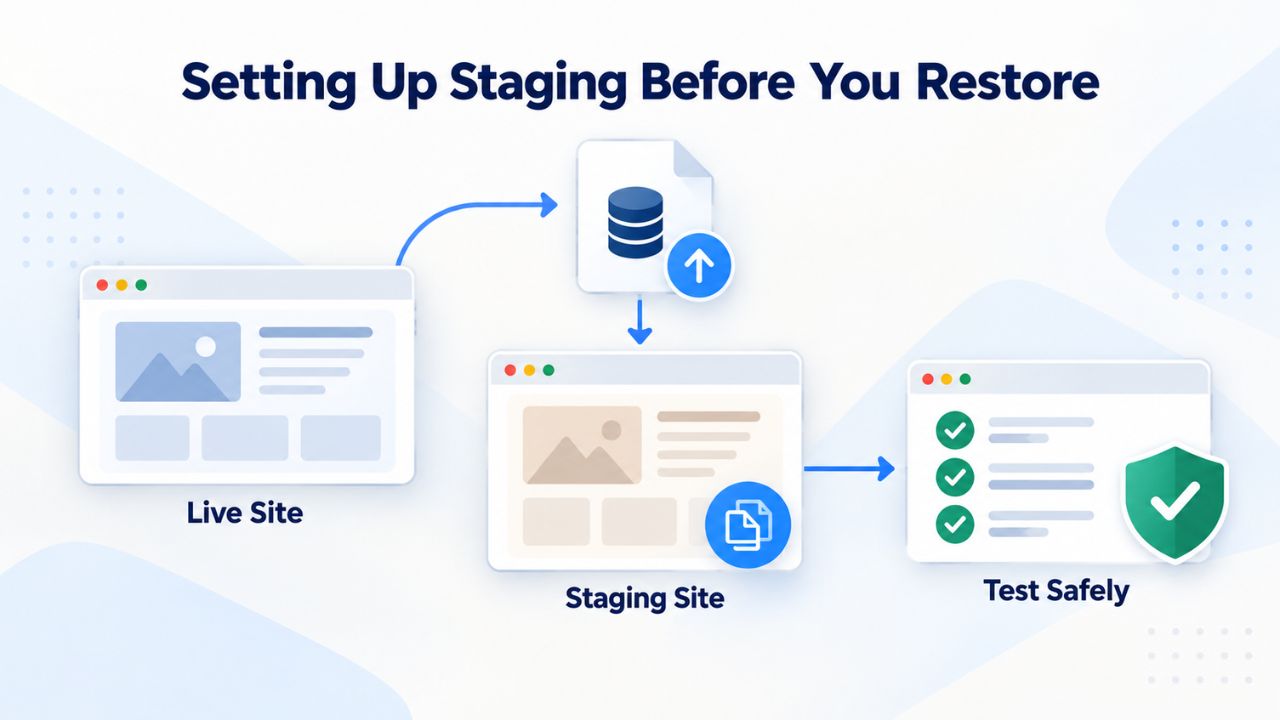
A staging environment is a private, exact duplicate of your live WordPress site. It includes your database, files, plugins, themes, and all content, on a separate domain or subdomain that visitors can’t access. Staging is your safety net: restore here first, verify everything works, and only then restore to production. This single step prevents the catastrophic scenario where a restore fails mid-process and breaks your live site for hours.
Why Staging Prevents Restoration Disasters
Restoring directly to production is the fastest path and the most dangerous. If something goes wrong during the restore- a corrupted file, mismatched database credentials, a timeout that leaves things partially restored- your live site breaks immediately, and visitors see errors. Staging lets you discover and fix problems in complete privacy. After a successful staging restore where you’ve verified every element works, you can confidently restore to production using the same steps you’ve already tested. This eliminates surprises.
Many managed WordPress hosting providers include staging as a built-in feature. Niya Digital’s plans include staging environments, accessible through one click in your hosting dashboard. If you’re on shared hosting without built-in staging, you can create a staging site manually by requesting a subdomain, creating a new database, and using a migration plugin or manual export/import to copy your site there. Your staging URL won’t be your real domain; it might be staging.example.com or test.example.com, but that’s the entire point: it’s completely invisible to search engines and actual visitors.
Database URLs Change When Cloning to Staging
WordPress stores all URLs as absolute database values, not relative paths. When you restore a backup of yoursite.com to staging.yoursite.com, the database still contains database values pointing to yoursite.com. This creates two immediate problems: when you try to log in, WordPress redirects to your production domain, and internal links within posts point to production instead of staging. After the restore, you must run a search-and-replace operation on the database to update all those URLs to match your staging domain.
WordPress.org’s documentation on database operations recommends using a search-and-replace tool. Many backup plugins include this feature built-in. Alternatively, if you’re comfortable with command-line tools, WP-CLI provides powerful search-and-replace capability. The operation is straightforward: search for your old domain (example.com), replace with your staging domain (staging.example.com), and apply. This typically completes in under a minute, but it’s an essential step that people often skip, then spend hours wondering why the staging site won’t let them log in or why links are broken.
Restoring Via Your Hosting Control Panel
If your backup was made by your hosting provider, control panel restoration is your fastest recovery path. Your host creates and stores these backups, so the restore process is built into your hosting account and requires no extra tools or plugins.
Step-by-Step Control Panel Restore Process
Step 1: Access your hosting account. Log in to your hosting control panel using your account credentials. Look for a “Backups,” “Backup Manager,” “Restore,” or “Recovery” section; the exact name varies by hosting platform. Most providers place this near the top-level menu or under “Advanced Features” or “Server Management.” If you cannot find it, check your host’s help documentation or contact support to confirm the exact location.
Step 2: Locate and select a backup. The backup manager displays a list of available backups sorted by date. Select the backup from the date before your site broke; if your site went wrong on Tuesday, select a backup from Monday. Most backups are labeled with their creation date and may include metadata about what was included (full backup, database only, files only). Carefully verify you’re selecting a backup from the correct date.
Step 3: Choose what to restore. Some hosting platforms let you restore the entire site (database plus files) with one option, while others present separate choices. If you have the choice, select “Full Site Restore” to recover everything at once. If you only see “Database” and “Files” separately, restore the database first, then files. The order matters: the database should be restored first so that WordPress can immediately connect when the files are restored. If you’re deliberately restoring to a staging environment rather than production, make certain you’re pointing the restore to staging, not production.
Step 4: Confirm and wait for completion. Your hosting platform will ask you to confirm the restore. This is your final chance to double-check you’re restoring from the correct backup date and to the correct environment (staging versus production). Restores typically take 15 to 60 minutes depending on your site size, database size, and current server load. Your site will be in maintenance mode during this time; visitors will see a “Site Under Maintenance” message, which is normal.
Step 5: Verify the restore succeeded. After the progress indicator shows completion, test your site immediately. Visit the homepage in a new browser window; can you reach it without errors? Try logging into wp-admin with your credentials; does the login work? Browse through a few posts and pages; do they load with correct content and images? If all these work, the restore succeeded. If you see a blank page, a “database connection error,” or a 500 server error, proceed to the “Common Restoration Errors & Fixes” section.
Restoring Via a Backup Plugin
If your backup was created by a plugin, UpdraftPlus, Jetpack Backup, All-in-One WP Migration, or WP STAGING, you have a built-in restore interface directly in WordPress admin. This method works on any hosting provider and gives you more control over which components to restore than hosting-provided backups.
Restore Steps Using UpdraftPlus (Most Common)
UpdraftPlus is the most widely used WordPress backup plugin, with over 4 million active installations on WordPress.org, so these steps represent the typical plugin restoration workflow. Other backup plugins follow similar patterns.
Step 1: Install and activate the backup plugin. If you’re restoring to a newly installed WordPress site or if your original site is severely broken, install UpdraftPlus fresh from Plugins > Add New. Search for “UpdraftPlus,” click Install Now, then Activate. If your broken site is still running, UpdraftPlus may already be installed; check Plugins > Installed Plugins. If it’s there but deactivated, activate it.
Step 2: Navigate to the backup section. Go to Settings > UpdraftPlus Backups. You’ll see your backup history organized by date, including where each backup is stored (local server, Google Drive, Dropbox, email, etc.). Each backup listing shows the creation date and usually indicates which components are included.
Step 3: Select the backup to restore. Find the backup created before your site problems began. Click the backup date to expand it; this shows the component breakdown (database, files, plugins, themes, uploads). Verify that all components you need are present. If a component is missing, you cannot do a full restore; you may need to try a different backup or restore only the components available.
Step 4: Click Restore and choose components. A “Restore” button appears next to your selected backup. Click it. UpdraftPlus will ask what you want to restore: database, files, plugins, themes, uploads, or all. You can restore everything at once or selectively restore just the database if you want to keep your current plugin configuration, for example. For most situations, select all components for a complete recovery.
Step 5: Wait for the restore and do not interrupt it. The plugin displays a progress indicator as the restore runs. Depending on site size, this typically takes 5 to 30 minutes. If the page times out or appears to hang, do not refresh the page; the restore may still be running on the server. Wait at least 15 minutes, then refresh once to check status. If the restore genuinely failed, the plugin will show an error message.
Step 6: Verify the restored site. After completion, clear your browser cache and visit your homepage. Verify you can log into wp-admin with your original credentials, and browse several posts to confirm content and images loaded. If you’re restoring to staging, test the search-and-replace step to update URLs to your staging domain before proceeding.
Manual Database Restoration
This method is for developers who prefer direct database access, or for sites whose size consistently causes timeouts. You’ll use phpMyAdmin (a web-based database tool) to import your database backup and File Manager or FTP to restore files.
Restoring the Database via phpMyAdmin
Step 1: Access phpMyAdmin. phpMyAdmin is usually accessible from your hosting control panel. In cPanel, look under “Databases” for phpMyAdmin. In Plesk, it’s under “Databases.” Some hosts provide a direct link in their main dashboard. Log in if prompted with your database credentials (check your hosting account if you’re unsure).
Step 2: Select the WordPress database. phpMyAdmin shows a list of databases on the left sidebar. Click the database name that corresponds to your WordPress site. (If unsure which one, open your wp-config.php file and look for the DB_NAME value, or ask your hosting support.) Once selected, you’ll see all the tables in that database listed on the main panel.
Step 3: Navigate to the Import tab. At the top of phpMyAdmin, you’ll see several tabs: Browse, Structure, SQL, Search, Export, Import. Click the Import tab.
Step 4: Upload and import your backup file. Click “Choose File” and select your database backup file (.sql, .sql.gz, or .sql.bz2). phpMyAdmin auto-detects the file format. At the bottom of the page, click “Go” to begin the import. For large databases (over 100MB), this can take several minutes. Do not close the page or navigate away while the import is running.
Step 5: Confirm successful import. After the import completes, phpMyAdmin will display “Import has been completed successfully” or show an error message. If successful, your database tables have been restored to the state captured in your backup. If you see an error, check the following:
(a) the backup file is not corrupted,
(b) you selected the correct database, and
(c) your hosting account has sufficient disk space for the database.
Restoring Files via File Manager or FTP
Step 1: Prepare your file backup. You need a .zip or .tar.gz archive containing your WordPress files (core, plugins, themes, wp-config.php, and uploads). If your backup is compressed, leave it that way for uploading.
Step 2: Access File Manager or FTP. Log into your hosting control panel and open File Manager (typically in cPanel), or connect via an FTP client (FileZilla, WinSCP, or similar). Navigate to your public_html or www directory; this is where WordPress lives.
Step 3: Upload your backup archive. In File Manager, click Upload and select your WordPress backup archive. If using FTP, drag and drop the file to the public_html directory. Large backups may take several minutes to upload.
Step 4: Extract the archive. In File Manager, right-click the archive and select Extract. It will decompress all your WordPress files into that directory. If you’re using FTP, your client may not support extraction; in that case, extract locally on your computer, then upload individual files, or ask your hosting support to extract it server-side.
Step 5: Delete the archive and verify permissions. After extraction, delete the .zip or .tar.gz file to reclaim disk space. Then verify file permissions: WordPress files need 644 for regular files and 755 for directories. In File Manager, select all files/folders, right-click, choose “Change Permissions,” set to 755, check “Recursive,” and apply. Then select only .php files and change to 644 to follow WordPress security best practices.
Explore Secure Backup Solutions for Your WordPress Site
A backup is only valuable if you know it works. Regularly testing restores proves your backups work before a crisis forces you to rely on them. Niya Digital’s WordPress hosting includes daily automated backups and built-in staging environments so that you can test restores safely on staging before production. A comprehensive backup strategy, combined with reliable hosting, gives you confidence your site can be recovered quickly if anything goes wrong.
Updating Database Credentials and URLs After Restore
After a restore completes, take two critical steps to prevent broken sites: verify database credentials in wp-config.php and update any URLs that changed during the restoration.
Checking and Fixing wp-config.php
wp-config.php is the configuration file in your WordPress root directory that stores database connection details. If your database host, username, password, or name changed during the restore, wp-config.php must be updated to match, or WordPress won’t connect to the database. You’ll see a “database connection error.”
Open wp-config.php via File Manager or FTP. Look for these critical lines near the top:
define(‘DB_USER’, ‘your_database_username’);
define(‘DB_PASSWORD’, ‘your_database_password’);
define(‘DB_HOST’, ‘localhost’);
Verify each value matches your restored database. If you don’t know your current database details, ask your hosting support; they’re listed in your hosting control panel. If any values are incorrect, edit wp-config.php and update them. Save and upload the corrected file.
Running Search-and-Replace for Staging URLs
If you restored to a staging environment, the WordPress database still contains absolute links pointing to your production domain. You must run a search-and-replace to fix this. Most backup plugins include a search-and-replace tool. In UpdraftPlus, go to Settings > UpdraftPlus Backups > Tools > Search and Replace. Enter your production domain (example.com) in the search field, your staging domain (staging.example.com) in the replace field, and run the operation. This updates all database URLs in one operation.
If your plugin lacks this feature, use WP-CLI if you’re comfortable with command-line tools, or manually go to WordPress Settings > General and update the “Site URL” and “WordPress Address” to your staging domain. The manual method is slower for large sites but effective for quick fixes.
Common Restoration Errors and Fixes
Most restoration failures follow predictable patterns. Knowing what went wrong and how to fix it eliminates hours of guesswork.
Database Connection Error (“Error Establishing Database Connection”)
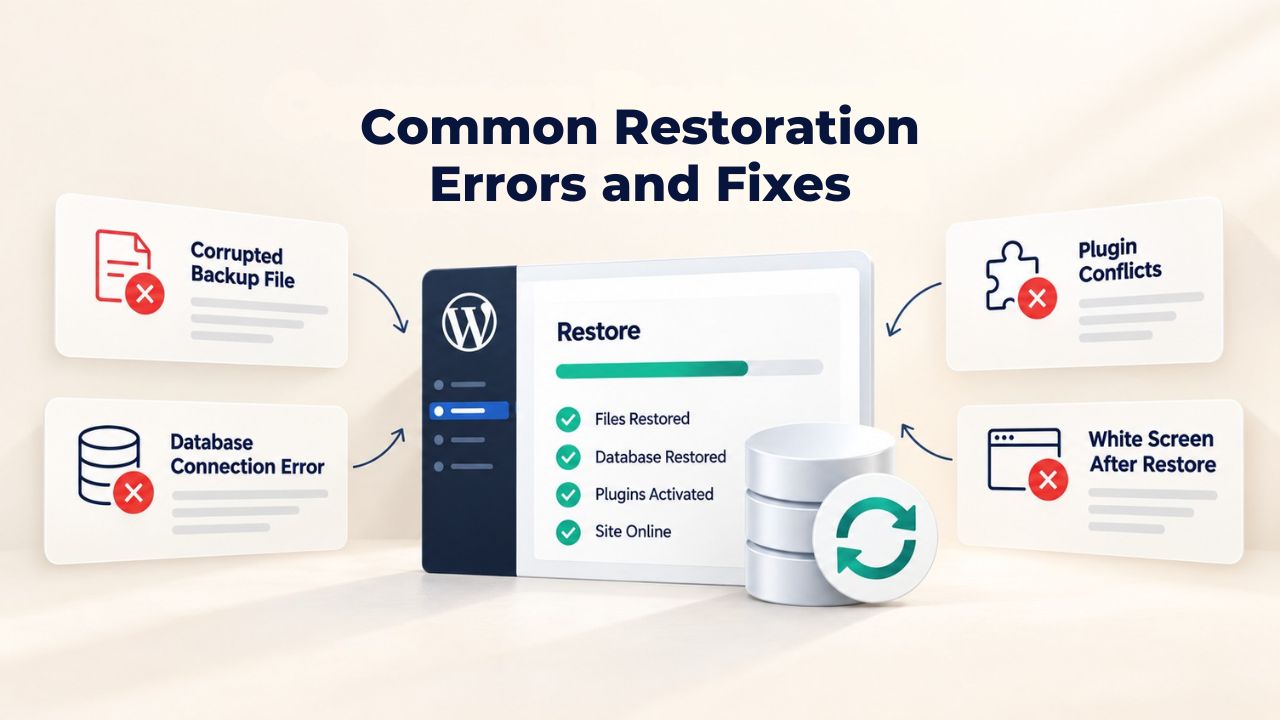
This error appears when WordPress cannot connect to the database. The three most common causes:
Mismatched credentials in wp-config.php: The database name, username, or password in wp-config.php doesn’t match what you actually restored. Verify the correct credentials in your hosting control panel, then update wp-config.php. Double-check spacing and exact spelling; database credentials are case-sensitive.
Wrong database host: Most sites use localhost, but some hosts use a different address (like db.example.com or mysql.example.net). Check your hosting documentation or control panel to confirm the correct DB_HOST, then update wp-config.php.
Database user lacks permissions: The database user exists but isn’t granted permission to access that specific database. In your hosting control panel (usually under Databases > MySQL Users or similar), verify the user is assigned to the correct database. If not, click the user, check the database checkbox, and save.
Restore Hangs or Times Out Midway
This occurs on large sites when the restore process exceeds PHP’s execution time limit (typically 300–600 seconds).
For plugin-based restores: The restore may still be running on the server even though the page timed out. Wait 15 minutes, then refresh and check status. If still hanging after 20 minutes, contact your host to request a temporary increase in PHP timeout limits. Some hosts allow temporary adjustments without cost. Alternatively, try restoring in smaller components: the database alone, then files, rather than all at once.
For manual restores: Restart the import, and if phpMyAdmin times out again, contact your hosting support to request a server-side import via the command line, which bypasses browser timeouts.
Insufficient Disk Space Blocks Restore
The restore fails because the server has no room to extract files or import the database.
Solution: Check your hosting account’s disk usage in the control panel. If you’re over quota, delete unnecessary old backups, unused plugins, or large media files you don’t need. Contact your hosting support to see if they can temporarily increase your disk allocation, or upgrade your hosting plan to get more space. Some hosts provide cleanup assistance before the restore.
Site Files Restored But Posts Don’t Display (Blank Homepage)
This usually means the database restore succeeded, but WordPress is pointing to the wrong settings or the database didn’t fully import.
Solution: Verify wp-config.php has the correct database credentials. Clear all caches: WordPress cache (via Plugins), browser cache (Ctrl+Shift+Delete), and any CDN cache if applicable. Go to Settings > General and verify that the Site URL and WordPress URL match your domain. If you restored to staging, run search-and-replace to update URLs. If the database imported but shows no posts, try importing the backup again from a fresh database copy.
Verifying Your Restore Worked
After restoration completes, a brief verification checklist confirms everything functions before returning the site to visitors (if production) or completing your test (if staging).
Post-Restore Verification Checklist
| Verification Step | What to Check | How to Test | Result |
|---|---|---|---|
| Homepage loads | Site renders without a blank page or error | Visit yourdomain.com in a browser; look for content and layout | ✓ Pass / ✗ Fail |
| Posts and pages display | Content is visible, text readable, images appear | Click through 2–3 posts and pages | ✓ Pass / ✗ Fail |
| Admin login works | Credentials from backup are valid | Log into wp-admin with original username/password | ✓ Pass / ✗ Fail |
| Plugins installed and active | Plugins list shows restored plugins; no fatal errors | Go to Plugins, verify list matches pre-backup state | ✓ Pass / ✗ Fail |
| Database connection valid | wp-config.php credentials match database | Check wp-config.php file; verify admin loads without errors | ✓ Pass / ✗ Fail |
| Caches cleared | No stale cached pages showing | Clear WordPress cache, browser cache, CDN cache | ✓ Pass / ✗ Fail |
| Third-party integrations | APIs, webhooks, payment gateways are connected | Test a form, payment button, or API call if applicable | ✓ Pass / ✗ Fail |
Complete this checklist after every restore. If any item fails, refer to “Common Restoration Errors & Fixes” for solutions specific to that problem. Once all items show “Pass,” the restore is verified successful.
Organizing Backup Documentation and Records
Backup testing becomes exponentially more valuable when you keep organized records of each restore test. Many site owners run quarterly restore tests but never document the results, so each test becomes a standalone event with no institutional memory. When a genuine emergency strikes months later, you’re flying blind again; you don’t remember how long the last restore took, what errors you encountered, or what solutions worked. A simple backup testing log captures this critical information for future reference.
Create a simple spreadsheet or document that records: backup date tested, restoration environment (staging or test server), start time and end time (giving you your actual RTO), any errors encountered, solutions applied, and final verification status (pass/fail). Include notes about any host resource requests (PHP timeout increases, temporary disk space expansion) that you needed. After running quarterly tests for a year, you’ll have baseline data showing your typical restoration time, common problems your setup encounters, and the most reliable backup dates. This data becomes invaluable when you’re stressed during a real emergency; you can reference your historical records to know exactly what to expect and what problems to prepare for.
Testing Your Backup Regularly
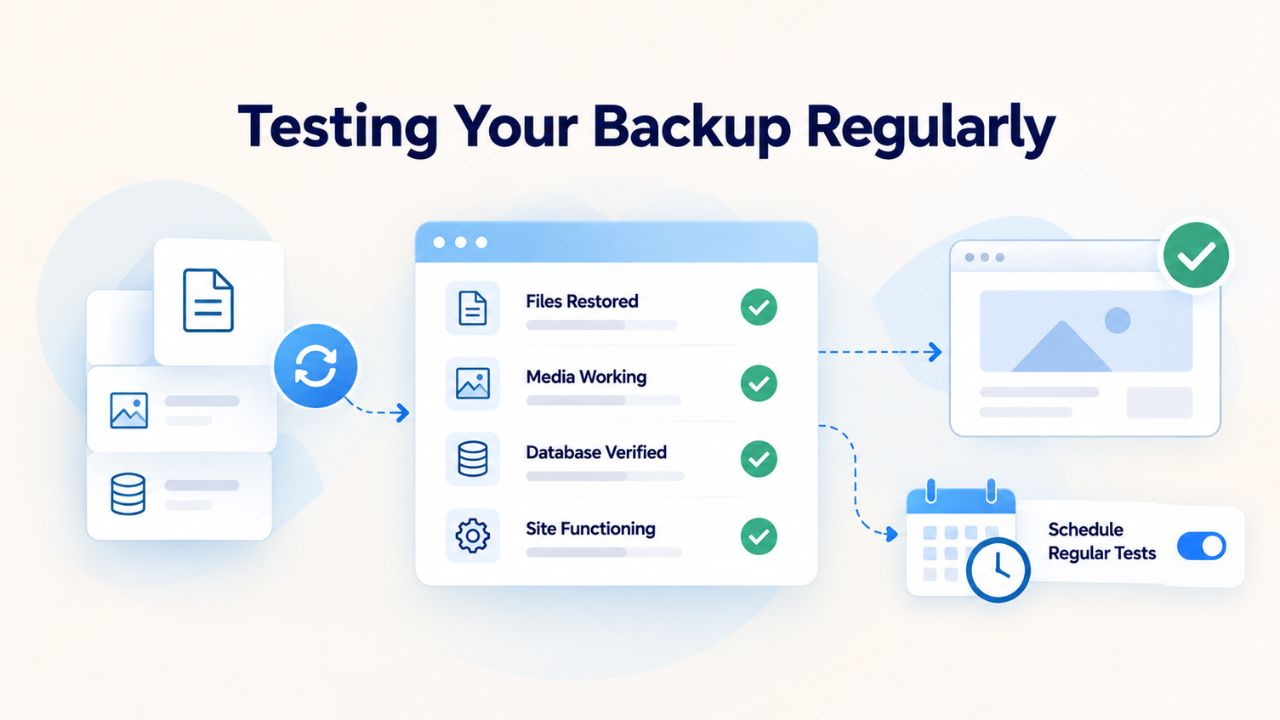
A backup is only as valuable as your confidence in it. Most site owners never test whether their backups actually work until an emergency forces them to find out, usually the worst possible time. Monthly or quarterly restore tests take 20–30 minutes and eliminate that uncertainty permanently.
Why Regular Restore Tests Matter
Industry best practice recommends testing backups at least monthly, or weekly for high-traffic sites or those handling sensitive data. These aren’t full production restores; they’re test restores on staging or a separate test environment. A single test restore answers three essential questions:
(a) Is the backup file intact and readable?
(b) Does the database import without errors?
(c) Do the files extract and restore permissions correctly?
If any answer is no, you discover the problem before a real crisis, when you still have time to fix it.
Document the exact time from restore start to a fully functional site. That’s your Recovery Time Objective (RTO). If a restore takes 45 minutes, you know your site will be down roughly 45 minutes if disaster strikes. That number is far more useful than marketing claims like “instant restore”; it’s the reality you’ll experience.
Setting Up a Quarterly Restore Drill
Choose a quiet time: Pick early morning or late evening when traffic is low, so if something goes wrong, fewer visitors are affected. Never restore tests during peak business hours.
Restore to a test or staging environment: Restore to a separate WordPress installation on a different subdomain or server, never production. This isolates any problems from live traffic.
Restore from your oldest available backup: Start with a backup from several weeks ago. This tests both your backup retention (do you still have it?) and whether older backups remain usable.
Document everything: Record the start time, the backup date being restored, any errors encountered, and the completion time. Keep these records. After several quarters, you’ll have baseline data on restoration time and reliability.
Verify the restored site: Run through the verification checklist above. Test login, browse posts, test any forms, verify plugins load correctly.
Clean up afterward: Delete the test restore to save disk space on your server.
If you hit an error, troubleshoot it now while there’s no emergency and document the solution. When that error occurs for real, you’ll know exactly how to fix it.
How to Prepare Your Site for Reliable Restoration
Beyond testing backups themselves, the most valuable preparation is ensuring your site’s architecture supports quick, reliable restores. A site built on unstable foundations, outdated WordPress versions, unsupported plugins, or hosting environments with tight resource limits will take longer to restore and have higher failure rates. Proactive site maintenance reduces restoration complexity and improves your chances of successful recovery.
Keeping WordPress and Plugins Updated
WordPress core updates, plugin updates, and theme updates aren’t just about new features or security patches; they also affect backup and restore compatibility. Older versions of WordPress or deprecated plugins can cause restore failures, incompatibility errors, or data corruption during database import. WordPress.org recommends keeping WordPress core updated before backups to ensure compatibility, and this extends to all plugins and themes as well.
When you perform your monthly or quarterly backup tests, use sites running current versions of WordPress and all plugins. If a restore test fails on an older WordPress version, upgrading WordPress itself often resolves the issue. Conversely, if you’re running an old WordPress version, your restore process may fail because backup plugins or hosting tools no longer support that version. Staying current with updates isn’t just a security best practice; it’s a reliability best practice that makes restoration faster and more predictable.
Monitoring Backup and Server Resources
WordPress backups and restores are resource-intensive operations; they require CPU, RAM, disk space, and execution time. Sites running on hosting plans with tight resource limits will experience longer backup times, timeout errors, and failed restores. Before a crisis forces you to test restoration, proactively check your hosting account’s resource allocation and usage patterns.
Log into your hosting control panel and review: current disk space usage (what percentage of your allocated space are you using?), typical RAM allocation for your plan, PHP execution time limits (usually visible in your plan details), and any resource warnings your host has issued. If you’re consistently using 80%+ of your allocated disk space, a restore that temporarily needs extra space could fail. If your PHP timeout is set to 300 seconds and your backup takes 250 seconds, a restore hangs at 95% completion. Contact your hosting support to understand your current resource allocation and ask what temporary adjustments they can make during a restore if needed.
Restore Your Site with Confidence Using Managed Backups
Backup and restoration confidence comes from testing, preparation, and reliable hosting infrastructure. Regular backup testing proves your backups work before you need them. Proper site maintenance ensures restores complete quickly and reliably. And hosting support that understands your specific backup and restore requirements means you’re never alone when an emergency hits. Niya Digital’s WordPress hosting combines daily automated backups, staging environments for testing, and expert support to ensure your site can be recovered quickly and safely whenever you need it.
Frequently Asked Questions
What’s the difference between backing up files and backing up the database?
Files include your WordPress theme, plugins, uploads folder (images and media), and core WordPress code- the visible, structural parts. The database stores posts, pages, comments, user accounts, plugin settings, and site configuration- the content and rules. Both are required for a complete restore. A file-only backup can’t restore your posts; a database-only backup can’t restore layout or functionality.
How often should I back up my site?
Backup frequency depends on how often your site changes. A blog posting daily should back up at least daily. A site updating weekly can back up weekly. WordPress.org recommends regular backups and always backing up before any upgrade. Many hosting providers include daily backups automatically. If your site processes transactions or handles sensitive data, daily or more frequent backups are significantly safer.
Can I restore a backup to a different domain or server?
Yes, absolutely. However, WordPress stores absolute domain URLs throughout the database. After restoring to a new domain, you must run a search-and-replace operation to update all those URLs from the old domain to the new one. Without this step, logins and internal links redirect to the old domain. Use your backup plugin’s search-and-replace tool or WP-CLI to swap the old domain for the new domain.
What if my hosting provider deleted my old backups before I could restore them?
Most hosts retain backups for 30–90 days before deleting them to save storage costs. If you need a backup older than your host’s retention window, you’ll need backups you downloaded separately or stored in cloud storage. That is why maintaining your own backups via a plugin or manual download matters; you’re not limited by host retention policies.
Is it safer to restore to staging first, or can I restore directly to production?
Always restore to staging first if possible. Staging lets you catch and fix problems before visitors see them. Restoring directly to production is faster but risky; if something goes wrong during restore, your site breaks for everyone. For mission-critical sites, never restore to production without testing on staging first.
How long does a typical WordPress restore take?
Restoration typically takes 15–60 minutes depending on site size, database size, server speed, and backup method. A small site might restore in 10 minutes; a large site with a massive database and thousands of media files could take 2+ hours. Test your restore on staging so you know your actual restoration time before a real emergency.
My restore shows a blank page or 500 error. What went wrong?
Most often, one of four issues:
(a) wp-config.php has the wrong database credentials,
(b) the database didn’t fully import,
(c) file permissions are wrong (should be 644 for files, 755 for directories), or
(d) a plugin is throwing a fatal error.
Check wp-config.php first, verify the database imported in phpMyAdmin, then set file permissions correctly. If a plugin is the problem, temporarily rename your plugins directory to deactivate all plugins, reload the site, then reactivate them one by one to identify the culprit.
Can I restore just the database or just the files, not both?
Yes. Some restores need only the database if the files aren’t damaged, or only the files if the settings are correct but the code is corrupted. Most backup tools let you choose what to restore. Database-only restores are faster and useful for content recovery without changing your current plugins or theme.
What is the 3-2-1 backup rule?
Keep three copies of your data on two different storage media with one copy stored off-site. For WordPress, this might mean:
(1) your hosting provider’s automatic backups,
(2) plugin-based backups stored to the cloud (Dropbox, Google Drive, OneDrive), and
(3) a manual backup downloaded to your local computer.
The goal is redundancy; if one backup fails, you still have others.
Should I restore immediately after disaster or investigate the problem first?
If your site is down and visitors are affected, restore immediately to get the site back online. Restores bring sites back online quickly. After you restore and the site is live, investigate what caused the problem (plugin conflict, security issue, server problem) so you can prevent it next time. While the site is down is not the time for investigation, restoring first is the priority.
How do I know if my backup file is corrupted?
The only way to be certain is to test a restore. A corrupted backup will fail during import or extraction with an error message. Many backup plugins include a “test restore” or “verify backup” feature that runs a dry run, simulating a restore without applying changes, to confirm the backup is readable and complete. Use this feature regularly.
Can I restore a backup from one hosting provider to a different host?
Yes. You’ll need to manually restore by exporting the database and downloading files from your old host, then uploading them to your new host and importing. Some hosting providers offer free migrations with new plans. Niya Digital provides site migration support to help move sites while minimizing downtime.
What if the restored site works on staging but breaks when pushed to production?
This usually means database credentials or URLs are correct for staging but wrong for production. Verify wp-config.php on production has production database credentials. Verify Settings > General shows your production domain. Run search-and-replace again to swap staging URLs for production URLs. Clear all caches: WordPress, browser, and CDN.
How do I restore if I cannot access WordPress admin?
If your site is completely broken and wp-admin won’t load, you cannot use backup plugins. Use hosting control panel restore (easiest) or manual restore via phpMyAdmin and File Manager. If you cannot access those either, contact hosting support; they can restore it for you.
Can I restore only posts and media, leaving plugins and theme unchanged?
Some plugins let you restore specific components. In UpdraftPlus, uncheck “Plugins” and “Themes” and restore only the database and uploads. This keeps your current plugins/theme and brings back your content. Be careful: if a theme update broke your site, restoring only the database won’t fix it; you’d need to restore the old theme files too.
Glossary
- Database (MySQL/MariaDB): The structured storage system that holds all WordPress dynamic content: posts, pages, comments, user accounts, plugin settings, and site configuration. Stored separately from WordPress files; must be backed up independently.
- Staging Environment: A private, exact duplicate of your live WordPress site used for testing changes, updates, and restores without affecting visitors. Typically on a separate subdomain or test domain completely invisible to search engines.
- phpMyAdmin: A web-based administration tool for managing MySQL databases. Usually accessible through hosting control panels; used to import database backups, run queries, and manage database operations.
- wp-config.php: The WordPress configuration file in your site root directory storing database connection details (name, username, password, host) and security keys. It must have the correct credentials for WordPress to connect to the database.
- Search-and-Replace: A database operation that finds all instances of one string (typically a domain name) and replaces them with another throughout the entire database. Essential after restoring to a different domain to update all WordPress URLs.
- Maintenance Mode: A temporary state where WordPress blocks public access and displays a “Site Under Maintenance” message to visitors. It activates automatically during restores and updates to prevent visitors from accessing incomplete or broken sites.
- Recovery Time Objective (RTO): The documented time required to fully restore a site from backup to an operational state, measured from the start of restoration until the site is live and responsive. The most meaningful metric for understanding restore impact.