Discovering malware on your WordPress site can cause immediate anxiety, but systematic removal is well within your reach. Detect, contain, restore files, clean the database, rotate passwords, and harden the site to eliminate the infection and prevent reinfection. Whether you choose full backup restoration or manual removal, the hardening phase that follows is non-negotiable; without it, attackers typically regain access within 15–30 minutes.
Signs Your Site Is Hacked
Malware symptoms vary dramatically by infection type, and many remain invisible to site administrators while still showing up for visitors. Knowing what to look for helps you respond quickly and confidently, not with hesitation.
Visible Warnings and Traffic Anomalies
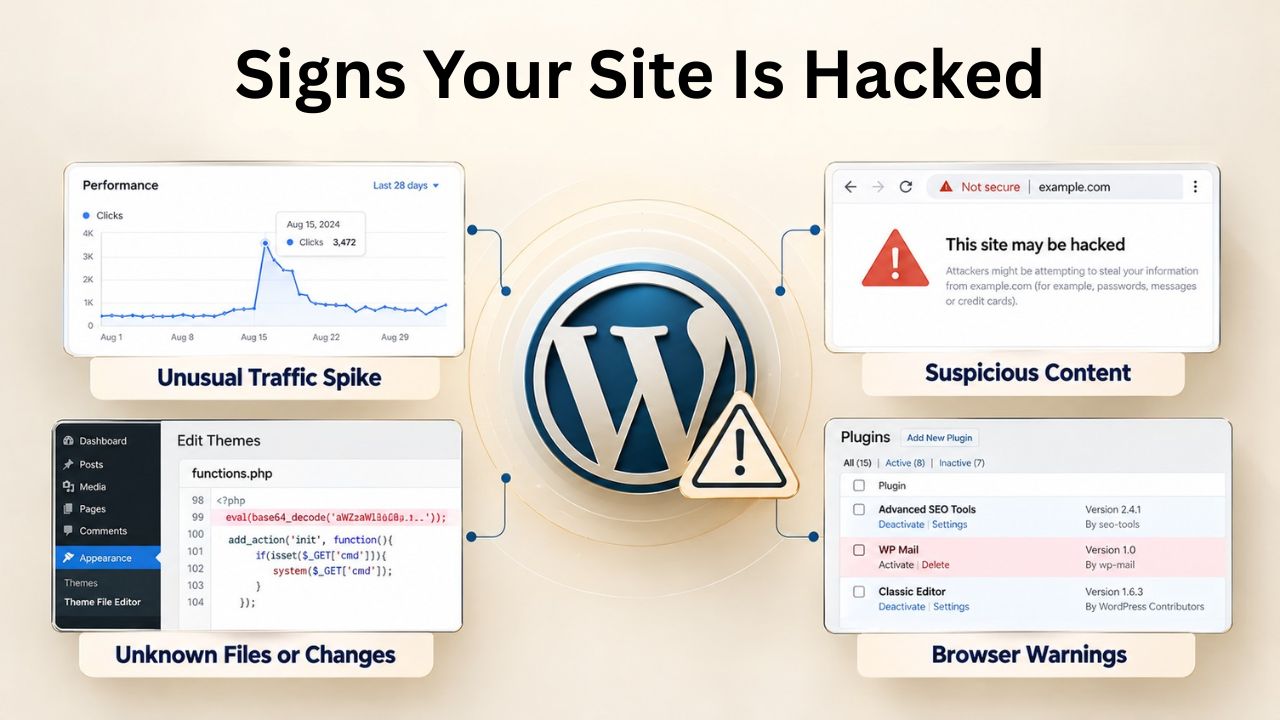
Google Safe Browsing sends alerts when your WordPress site is flagged as potentially malicious. These notifications appear prominently in Google Search Console, display on search results pages, and alert visitors at the browser level before they even land on your domain. Simultaneously, you may observe sudden and unexplained traffic drops, dramatic performance slowdowns affecting page load times, or complaints from visitors describing pop-ups, redirects, or phishing pages they encounter, none of which appear when you log in as the site administrator.
The main reason for this discrepancy is how modern malware operates. Sophisticated malware checks user roles before executing malicious payloads, showing normal content to administrators while serving redirects and phishing content to public visitors. This cloaking technique can keep site owners unaware for weeks. To bypass this evasion, check your site in an incognito window (where WordPress doesn’t load your authentication cookies), test on mobile devices, and regularly monitor Google Search Console for manual action warnings or security issues.
Admin Panel Red Flags and File Integrity Issues
Unknown user accounts appearing in your WordPress Users dashboard represent one of the clearest signs of compromise. Malware-created accounts often feature randomized names, unusual email addresses, and registration dates that predate your awareness of the infection. These accounts are backdoors, fallback access methods the attacker creates so that even if the primary malware is removed, they retain control. If you’re completely locked out of the WordPress admin dashboard and can’t log in despite correct credentials, attackers have likely seized control and changed authentication details.
File modification timestamps provide forensic evidence of compromise. WordPress core files and themes should remain unchanged between official updates; a core file showing a modification date that doesn’t match a recent update or action you took signals malware injection. Additionally, unexpected rules in your .htaccess file or suspicious database options encoding unusually long strings of code suggest attackers injected redirect scripts or backdoor code.
| Red Flag / Symptom | Typical Cause | Immediate Action Required | Urgency Level |
|---|---|---|---|
| Google Safe Browsing security warning in Search Console or search results | Automated malware detection by Google’s security scanning systems | Check your site in an incognito browser window; run an external malware scan from a reputable security service | CRITICAL |
| Unknown admin user account in WordPress Users dashboard | Attacker created a backup admin account for persistent access | Delete the unknown account using wp user delete command to avoid database orphaning; change your legitimate admin password | CRITICAL |
| Site redirects to spam, phishing, or adult content (observed by visitors, not administrators) | Cloaked redirect malware filtering content based on user role | Place site in maintenance mode immediately; restore from clean backup or perform comprehensive database scanning | CRITICAL |
| Sudden, unexplained traffic drop or massive increase in 404 errors | Search engines delisted your site due to malware; malware consuming server resources | Check Search Console for manual action warnings; check server logs for errors; restore if traffic decline is severe | HIGH |
| Site loading extremely slowly, frequent timeouts, or server errors | Malware actively consuming server CPU/memory; malware code executing on every page load | Check server resource usage; identify and terminate resource-heavy processes; restore if performance doesn’t improve | HIGH |
| Locked out of WordPress admin dashboard despite correct credentials | Attacker changed admin password or disabled logins | Contact hosting provider for emergency credential reset; restore from backup if password reset unavailable | CRITICAL |
| Unexpected PHP files in /uploads/ or plugin/theme folders with recent timestamps | Attacker uploaded malicious PHP files as backdoors or additional malware | Delete suspicious files immediately; compare legitimate plugins/themes to WordPress.org versions to verify authenticity | HIGH |
| Spam keywords or hidden links injected into post content without your knowledge | Database malware or template file modification injecting content programmatically | Restore from clean backup or manually audit and remove injected content from all posts via database | MEDIUM |
WordPress Pricing Plans
Choose the WordPress hosting plan that fits your website needs, with reliable performance, security, storage, backups, and tools to help your site grow.
WordPress Basic
A great way to get started.
- 1 website
- 10 GB NVMe storage
- Unmetered bandwidth
- Free SSL Certificate *
- WordPress pre-installed
- Weekly backups
- Web Application Firewall
- Daily malware scans
- One-time malware removal

WordPress Deluxe
Improve your site performance with Cloudflare CDN.
- 1 website
- 20 GB NVMe storage
- Unmetered bandwidth
- Free SSL Certificate *
- WordPress pre-installed
- Daily backups
- Web Application Firewall
- Daily malware scans
- One-time malware removal
- Up to 2x faster performance with global Cloudflare CDN **
- Enhanced security with DDoS protection
- Staging site
WordPress Ultimate
Add online marketing with more sites, storage and security.
- 1 website
- 30 GB NVMe storage
- Unmetered bandwidth
- Free SSL Certificate *
- WordPress pre-installed
- Daily + on-demand backups
- Web Application Firewall
- Daily malware scans
- Unlimited malware removal
- Up to 2x faster performance with global Cloudflare CDN **
- Enhanced security with DDoS protection
- Staging site
- WordPress code optimizer
- Smart WordPress plugin manager
- Sell online with WooCommerce
Immediate Containment and Assessment
Once you suspect malware, your immediate priority is to stop the spread and gather evidence without corrupting the forensic record. Premature deletion destroys valuable information that could reveal how the attack succeeded.
Put Your Site in Maintenance Mode Without Delay
Placing your site in maintenance mode immediately stops the malware from spreading to visitor devices and prevents attackers from making further changes. Meanwhile, you work. This buys precious time and shows visitors you’re aware of the issue and actively responding. Most security plugins and many hosting control panels offer one-click maintenance mode activation. If yours doesn’t, create a simple maintenance.html file in your website root directory with a professional message such as “We are currently performing critical security updates and will be back online shortly. I appreciate your patience.”
This step serves dual purposes: it contains the active malware footprint and protects visitors from exposure to the compromised site. Some malware variants serve drive-by downloads or phishing redirects that can harm visitor devices, compromise their credentials, or install secondary infections. Taking the site offline immediately reduces this risk exposure.
Create a Complete Infected Backup for Forensic Analysis
Before beginning any removal or cleanup procedure, create a complete backup of your infected site, both files and database, and store it offline in a secure location separate from your hosting account. This backup serves two essential functions. First, it preserves forensic evidence you may need to understand exactly how the attack succeeded, which vulnerabilities were exploited, what malware signatures were used, and how long the infection persisted. Second, it provides an emergency fallback if something breaks during cleanup.
Contact your hosting provider immediately and ask about their automatic backup retention. Many managed hosting environments maintain daily or weekly automated backups that may predate your infection, providing a reliable restore point for full site recovery. Even if you plan to clean manually, knowing whether your host has clean backups available gives you options if the process becomes too complex or your site becomes unstable.
Restoring From a Clean Backup
Full site restoration from a clean, pre-infection backup represents the fastest, most reliable, and safest malware removal approach when such a backup exists.
Identify a Verified Pre-Infection Backup with Absolute Certainty
Only restore from a backup you can definitively confirm was created before the malware infection began. This distinction is critical: restoring from an infected backup reintroduces the malware into your site, defeating the purpose of cleanup and restarting the infection cycle. If you cannot determine when your site was first compromised, if all your recent backups are recent and you suspect a weeks-long infection window, or if every backup you can access is potentially contaminated, you should skip to the manual cleanup section.
If your hosting provider offers older backups, contact them directly and request the oldest clean backup they maintain in their archive. Many managed hosting environments preserve daily backups for 30–90 days or longer. Their monitoring systems often mark the exact dates when malware was first detected. This detailed timeline helps you identify the oldest backup you can safely use. Additionally, ask your hosting provider whether they offer automated malware detection and whether they flagged the infection on a specific date; any backup older than that date should be clean.
Restore to a Staging Environment First for Safety Testing
Before restoring directly to your live site, where visitors might encounter errors or broken functionality, restore your backup to a staging or test environment and verify that the site works perfectly with no malware. This intermediate step catches problems early. It lets you test critical functionality, contact forms, checkout pages, user login systems, and payment processing integrations before taking your site live.
Staging environments are temporary copies of your live site running on the same hosting infrastructure but on a different URL inaccessible to the public. If your hosting provider doesn’t offer built-in staging, ask before restoring a live site. Some hosts charge nominal fees for staging. Still, the cost is minimal compared to the risk of restoring malware-containing backups or breaking critical functionality in front of your audience. Once you’ve verified the staged site is fully functional and malware-free, you can confidently restore to production.
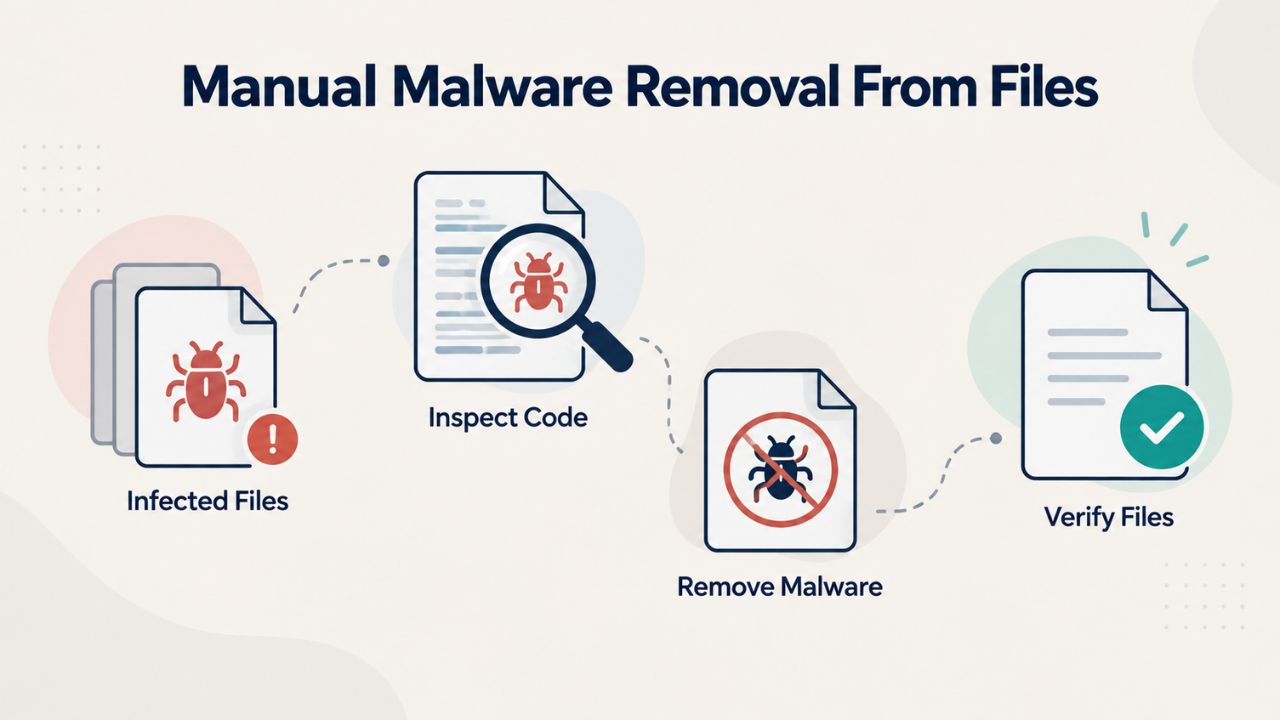
Manual Malware Removal From Files
For sites without clean backups, or for those preferring granular control over the removal process, manual file-based cleanup removes malware from WordPress core, plugins, and themes while preserving your content and settings.
Download and Replace WordPress Core Files with Official Copies
Download a fresh copy of WordPress that matches your current version from wordpress.org, extract it locally, then use SFTP/FTP or your hosting control panel’s file manager to delete and replace the core directories on your server. Specifically, delete these directories entirely and upload fresh copies: /wp-admin and /wp-includes. These core directories should never be modified by normal site operation or maintenance; replacing them completely removes the vast majority of malware signatures and backdoors that attackers inject into core files.
Beyond these two directories, also replace every file in your root directory (the folder containing wp-config.php) except wp-config.php itself. Core files in this location include index.php, wp-load.php, wp-login.php, and several others. Compare your current files against those in the fresh WordPress.org download to confirm they match byte-for-byte, using either a file comparison tool or manual review. Never manually edit core files using text editors or code editors; always use only official fresh downloads from WordPress.org. Manually edited core files can break WordPress functionality or reintroduce security vulnerabilities.
Reinstall Plugins and Themes From Clean Sources
Delete the /wp-content/plugins/ and /wp-content/themes/ directories entirely, then upload fresh copies of each plugin and theme directly from WordPress.org or your original commercial vendors. This complete replacement is essential because malware often hides in plugin and theme files, and partial updates often miss compromised code. Do not restore plugins and themes from your infected backup; this reintroduces malware and negates your core file-cleanup effort.
For custom plugins developed specifically for your site that aren’t available in the WordPress.org directory, contact the original developer and request a clean, malware-free copy. If custom plugins are deployed via version control systems like Git, redeploy directly from your repository. If neither option is available and you cannot verify the plugin’s safety, consider whether the plugin is truly necessary for core site functionality, or whether the risk justifies retaining it.
Cleaning Your Database and Removing Rogue Users
Malware removal focusing solely on files is incomplete and ultimately ineffective because malware routinely injects code directly into your WordPress database that recreates backdoors and resets malware after file deletion.
Scan and Remove Unauthorized Admin Accounts
Log in to your WordPress Users dashboard and audit every administrator account. Delete any users you don’t recognize or remember creating; attackers often create backup admin accounts with randomized or innocuous-sounding usernames to retain access. To safely remove a compromised admin account and reassign all their content to your legitimate administrator account, use the WP-CLI command: wp user delete USER_ID –reassign=1. This approach prevents orphaned database rows that break site functionality.
If you lack command-line access, contact your hosting provider and request they either run this WP-CLI command for you or provide phpMyAdmin access. Using phpMyAdmin, you can manually delete rows from wp_users (the main user table) and wp_usermeta (the user metadata table) linked to the malicious user ID. After deletion, verify your legitimate administrator account remains and has full administrator capabilities.
Hunt for Injected Code in the wp_options Database Table
The wp_options table stores all site-wide settings and is a high-value target where malware embeds persistent backdoor code. Use phpMyAdmin (accessible through your hosting control panel) or command-line tools to search for suspicious option values: malware-injected serialized PHP objects, base64-encoded strings, or raw PHP code snippets in this table. Search for keys like siteurl, home, admin_email, and scan for any custom options with unusual names you don’t recognize.
If you find injected code, document it for security auditing, then either delete the suspicious option or restore it to a known-good value from before the infection. Many security plugins scan wp_options automatically, but manual review provides additional confidence. This is one of the most critical cleanup steps because wp_options code runs on every page load, giving attackers persistent, automatic re-infection capability.
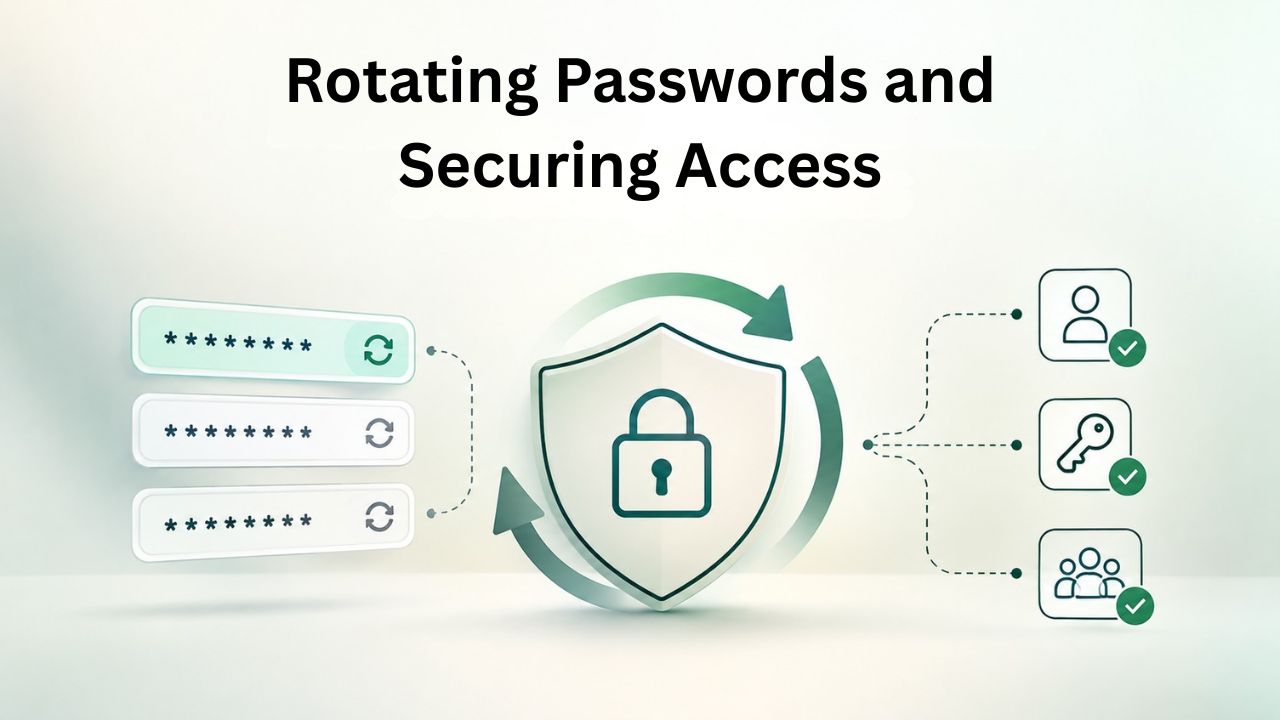
Rotating Passwords and Securing Access
After removing visible malware, reset every credential associated with your site at the same time. Malware may have recorded credentials or left open communication channels for access.
Change All Passwords and Credentials at the Same Time
Reset your WordPress administrator password, the database user password stored in wp-config.php, all FTP/SFTP credentials, your hosting control panel login password, and the email account associated with your site administrator account, all within the same 15-minute window. This synchronized approach is crucial because it closes the window of opportunity an attacker might exploit if they try to regain access during your cleanup using old credentials they captured. Use genuinely strong passwords: at least 16 characters, mixing uppercase letters, lowercase letters, numbers, and special symbols.
Store these new passwords securely in a dedicated password manager application, never in plain text files, notebooks, or browser password managers. Password managers encrypt your credentials at rest and protect against keylogging and interception attacks. After resetting all passwords, verify you can successfully log back into WordPress, your hosting control panel, and your email account using the new credentials.
Regenerate WordPress Secret Keys and Salts in wp-config.php
Open your wp-config.php file and locate the authentication unique keys and salts section containing: AUTH_KEY, SECURE_AUTH_KEY, LOGGED_IN_KEY, LOGGED_IN_SALT, NONCE_KEY, and NONCE_SALT. Visit https://api.wordpress.org/secret-key/1.1/salt/, which is the official WordPress random key generation service, copy the complete set of new random values, and paste them into your wp-config.php file, replacing the old values entirely. These cryptographic keys encrypt your WordPress cookies and session tokens; changing them invalidates all existing sessions, forces complete re-authentication, and blocks attackers from using stolen session tokens or cookies to regain access.
This step is particularly important if you suspect attackers have been accessing your site for an extended period. Attackers may have captured and stored valid session tokens; regenerating secret keys invalidates every token they possess, immediately breaking their active sessions even if they have other backdoor access methods.
Secure Your WordPress Site From the Ground Up
Manual malware removal is intensive work, but a hosting provider with built-in security monitoring, automated scanning, and daily backups reduces risk from the start. Niya Digital delivers managed WordPress hosting in partnership with an enterprise-grade cloud infrastructure partner, featuring automated malware detection, regular security scanning, and comprehensive backup protection included in every plan. Instead of managing cleanup yourself, start with built-in security, so malware never takes hold.
Fixing Configuration Files and Restricting File Permissions
Attackers often modify wp-config.php and .htaccess files to establish persistent backdoors or re-inject malware code after you clean up files. These configuration files execute automatically on every page load, making them high-leverage targets.
Review wp-config.php and Remove Injected Code.
Carefully examine your wp-config.php file for any code or functions outside the normal define() statements and database configuration lines. Malware injected near the top or bottom of this file can create hidden admin users, disable security plugins, disable automatic updates, or fetch fresh malware from remote servers. Use a fresh wp-config.php from your latest WordPress download as a clean template for comparison. Keep only your genuine database credentials, your intended table prefix, and the newly regenerated secret keys.
If you discover suspicious code, remove it carefully. If the file appears heavily modified or compromised throughout, replace it with a clean version and manually reconfigure it with your database connection details. After any changes, test WordPress functionality thoroughly to ensure the site loads, the admin dashboard opens, and settings remain intact.
Clean Your .htaccess File to Remove Malicious Redirects.
Compare your .htaccess file to a default WordPress version and remove any rules or directives you don’t recognize or didn’t intentionally add. Attackers add .htaccess rules to serve malicious content, redirect traffic to external sites, or filter searches to block malware detection. Delete any rules not relating to your own caching configuration, permalink structure, or security hardening. If you’re uncertain about any rule, temporarily delete the entire .htaccess file; WordPress will revert to default behavior, and you can recreate any custom rules afterward once the site is verified clean.
Restrict File Permissions to Prevent Unauthorized Modifications
WordPress files should have restricted permissions: 755 for directories and 644 for files, as specified in the official WordPress hardening documentation. These permissions prevent the web server process from modifying core files, making it much harder for malware to inject code. Use your hosting control panel’s File Manager or SSH access to apply these permissions:
find /PATH/TO/WORDPRESS -type f -exec chmod 644 {} ;
If your site stops functioning after tightening permissions, this can happen on some hosting configurations; contact your hosting provider and ask what permissions they require rather than broadly relaxing permissions to 777. Your host’s system architecture and PHP handler (suPHP, FPM, FastCGI) affect permission requirements, and your host can guide you to the correct balance.
Updating and Locking Down WordPress Core, Plugins, and Themes
After removal and configuration cleanup, update every piece of WordPress software. The vulnerability malware originally exploited is likely still present in your outdated code; updating closes the door the attacker used.
Apply All Pending WordPress, Plugin, and Theme Updates
Update WordPress core to the latest stable version via the WordPress dashboard (go to Dashboard → Updates). Then systematically update every installed plugin and theme. Delete any plugins or themes you no longer use; each piece of software adds an attack surface and potential vulnerability vector. When installing new plugins or themes, use only official WordPress.org options or established commercial vendors you trust. Always check the “Last Updated” date before installation; if a plugin hasn’t been updated in more than 2 years, it’s likely abandoned by its developer and carries significant risk.
Configure Automatic Updates to Patch Vulnerabilities Immediately
Configure WordPress to automatically update core, plugins, and themes so critical security patches are applied immediately without manual intervention. Add these lines to wp-config.php:
define( ‘AUTOMATIC_UPDATER_DISABLED’, false );
Many hosting providers enable automatic updates by default; confirm this with your host. Automatic updates are essential because vulnerability disclosures and exploit code are published publicly; attackers scan the internet for vulnerable sites daily. Every hour your site runs unpatched is an hour attackers are actively attempting to compromise it.
Hardening Core Configuration Through Authentication and Access Control
Beyond malware removal, harden your login surface and access controls to make re-infection much harder for attackers.
Enable Two-Factor Authentication to Block Credential-Based Attacks
Install and activate a two-factor authentication plugin from the WordPress.org plugin directory to require a second authentication factor in addition to your password. Two-factor authentication options include time-based one-time passwords (TOTP) from authenticator apps like Google Authenticator, SMS-based codes, or email-based verification links. This requirement means attackers cannot regain access through password compromise alone; they also need physical access to your authentication device or email account.
Two-factor authentication is one of the most effective security measures against re-infection because most WordPress malware relies on password compromise or session hijacking to regain access. Requiring a second factor breaks this attack chain.
Restrict Admin Access by IP Address and Implement Login Rate Limiting
Use a WordPress security plugin to restrict access to /wp-admin/ and /wp-login.php/ to your IP address or a whitelist of trusted IP addresses. This prevents brute-force login attacks from unknown locations. Many security plugins also provide login rate limiting, enforcing a maximum of 5 login attempts per 15-minute period, which throttles automated password-guessing attacks. Additionally, disable XML-RPC if you don’t actively use it, as it’s a common brute-force attack vector.
These access controls require minimal configuration but provide substantial protection against the re-exploitation attempts that commonly follow incomplete malware removal.
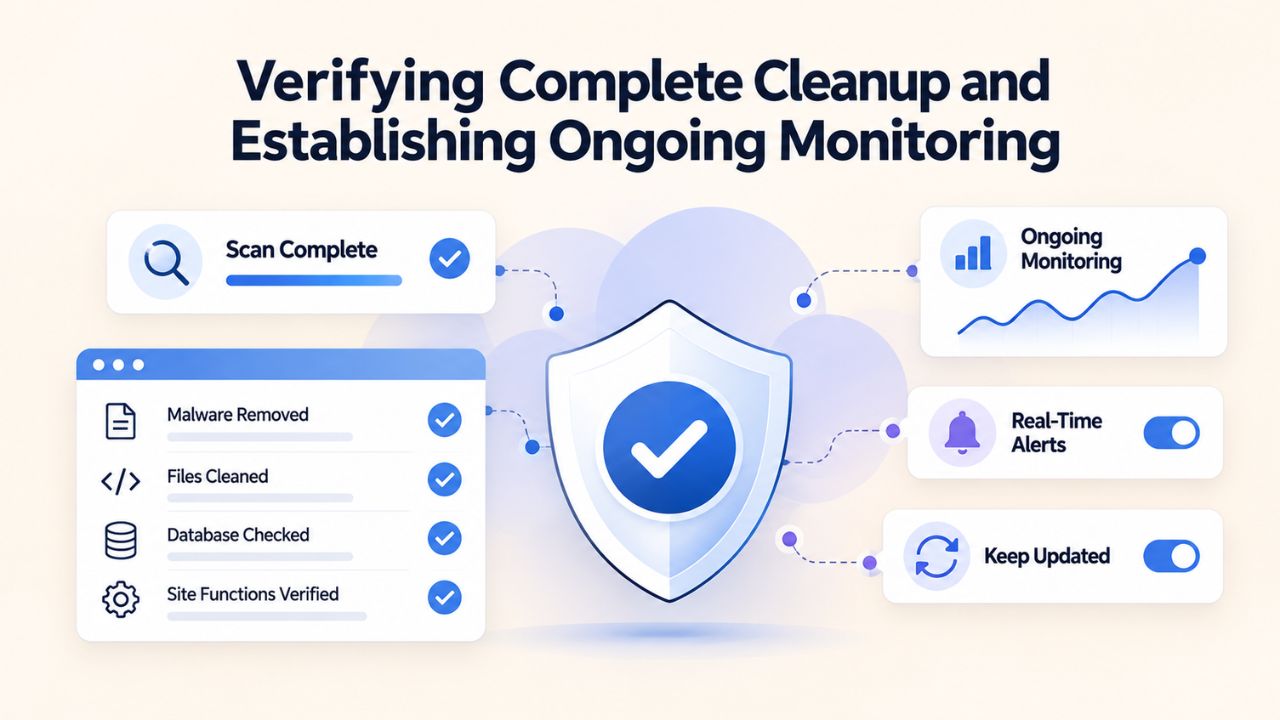
Verifying Complete Cleanup and Establishing Ongoing Monitoring
After completing the steps above, verify the infection is eliminated and establish ongoing monitoring to catch any re-infection attempts immediately.
Run External Malware Scans Post-Cleanup
After cleanup, run an external malware scan using a reputable security scanning service to independently verify that no malware remains on your site. These services scan your site from outside your network and flag suspicious files or patterns that internal tools might miss. Repeat scanning weekly for the first month after cleanup; if threats reappear, a backdoor file or database entry likely remained hidden during your initial cleanup, so contact your hosting provider or a professional cleanup service immediately.
Niya Digital’s team has consistently observed that sites re-infect within 48 hours if even a single backdoor file or database entry is missed during cleanup. Comprehensive post-cleanup verification through external scans is critical to confirming complete removal.
Monitor Google Search Console, Error Logs, and Server Resources Regularly
Establish a monitoring routine: check Google Search Console weekly for manual action warnings or security issues; review server error logs for suspicious activity; monitor server CPU and memory utilization for spikes suggesting active malware; and set up email alerts for new user accounts, unusual file uploads, or unexpected database changes. Schedule a formal monthly security audit: review user accounts, check file modification dates against known update dates, and verify your backup system runs and produces valid backups.
Establish and maintain a regular automated backup routine, daily or weekly backups stored offsite from your hosting account, so that recovery from malware recurrence or future security incidents happens quickly and reliably. A tested backup system is often the difference between an incident that takes hours to resolve and one that takes weeks.
| Hardening Task | Why Critical for Prevention | Typical Time Required | One-Time or Recurring |
|---|---|---|---|
| Update WordPress core to latest stable version | Patches known vulnerabilities that malware exploited to gain initial entry to your site | 10–30 minutes depending on site complexity | Ongoing, automatic or weekly depending on configuration |
| Update all plugins and themes to latest versions | Outdated plugins/themes are primary vulnerability vectors; missing patches enable re-infection through known exploits | 15–45 minutes depending on quantity and complexity | Ongoing, automatic or weekly depending on configuration |
| Delete all unused plugins and themes | Each piece of software represents an attack surface; more code means more potential vulnerabilities for attackers | 5–10 minutes for audit and deletion | Ongoing, audit quarterly for unused software |
| Rotate all passwords: WordPress admin, database, FTP/SFTP, hosting control panel | Blocks attackers from regaining access using credentials they may have captured during the compromise | 10–15 minutes to generate and update credentials | One-time immediately after malware removal |
| Regenerate secret keys and salts in wp-config.php | Invalidates all existing sessions and cookies; forces complete re-authentication; blocks token-based re-entry | 5–10 minutes | One-time immediately after malware removal |
| Enable and configure two-factor authentication for all admin accounts | Prevents password-based attacks and credential compromise from granting full access; requires a second authentication factor | 10–15 minutes setup; ongoing 30-second use per login | One-time setup; ongoing use with every login |
| Restrict /wp-admin/ and /wp-login.php/ to whitelisted IP addresses | Eliminates brute-force attacks from unknown locations; limits login attempts to your known locations | 5–10 minutes configuration | Ongoing, update whitelist if travel changes your IP |
| Enable automatic WordPress, plugin, and theme updates | Ensures critical security patches deploy immediately without manual delay; closes vulnerability windows before exploits exist | 5 minutes configuration | Ongoing, automatic thereafter |
| Establish automated daily or weekly backup routine with offsite storage | Enables fast recovery if malware returns or a new vulnerability is exploited; tested backups reduce incident recovery from days to hours | 5–10 minutes to enable and test; ongoing monitoring | Ongoing, automatic; manual monthly verification that backups work |
| Run weekly or monthly external malware scans via security service | Early detection of re-infection before malware spreads to visitors; proactive identification of new threats | 10–20 minutes per scan (automated if plugin configured) | Ongoing, weekly for 1 month post-cleanup, then monthly |
Protect Your WordPress Site Against Future Attacks
Malware removal is time-intensive and disruptive, but proactive security, automatic updates, regular backups, and real-time monitoring can prevent infection entirely. Niya Digital’s managed WordPress hosting includes automated security updates, daily backups with point-in-time recovery, and 24/7 malware detection. Move from reactive cleanup to proactive protection so your site stays secure without constant manual effort.
Frequently Asked Questions
What are the first warning signs I should watch for?
Google Safe Browsing warnings, unknown admin users in your Users dashboard, unexpected redirects visible to visitors (but not to you when logged in), and sudden traffic drops are the most obvious signs. However, sophisticated malware remains completely invisible to site administrators. Check your site in an incognito browser window without your authentication cookies, test on mobile, and monitor Google Search Console weekly for manual action warnings. If any visitor emails you about pop-ups, strange behavior, or suspicious redirects, take it seriously and run an external malware scan immediately.
Can I clean my website myself if I lack technical experience?
Yes, if you have a clean backup dated before the infection, restoration via your hosting control panel is typically straightforward, often a single click. Manual cleanup (files plus database) requires FTP/SFTP access to your hosting account, familiarity with phpMyAdmin or WP-CLI for database operations, and comfort navigating file systems. If the process feels overwhelming, ask your hosting provider for assistance or consider hiring a professional cleanup service.
How much time does malware removal typically require?
Full backup restoration usually takes 5 minutes to 1 hour, depending on site size and hosting provider automation. Manual cleanup of files and the database can require 2–8 hours for thorough work, especially if you’re new to command-line tools or database management. Post-cleanup hardening, updating core/plugins/themes, changing passwords, and enabling two-factor authentication add another 45–90 minutes.
Should I hire professional malware removal, or can I handle it myself?
For straightforward infections or if you have a clean backup available, this guide provides sufficient detail to succeed independently. For persistent infections, complex database contamination, or if you’re uncomfortable with technical steps, a professional cleanup service (offered by most hosting providers) includes forensic analysis, deep database scanning, automated remediation, and post-cleanup verification, often worth the investment if re-infection would significantly impact your business.
Why does malware frequently come back even after removal?
Incomplete cleanup is the primary cause. If a backdoor file (often hidden with obscure names), a database entry, or a malicious cron job is missed, malware re-establishes itself within 15–30 minutes. If you skip the hardening phase, updates, password changes, 2FA, and file permissions, attackers re-enter through the same vulnerability that was exploited initially. Always combine removal with comprehensive hardening and ongoing monitoring.
What exactly is a backdoor in WordPress?
A backdoor is a hidden, persistent access method attackers install to regain control even after the primary malware is discovered and removed. Backdoors take several forms: unauthorized admin accounts with unusual usernames, hidden PHP files in /uploads/ directories, malicious entries in wp_options that survive cleanup, or cron jobs that periodically download fresh malware. Always audit your full user list after cleanup, and search for unexpected PHP files in unexpected locations.
How can I prevent malware infection before it happens?
Keep WordPress core, all plugins, and all themes updated automatically; enforce strong, unique passwords for all user accounts; install plugins exclusively from the WordPress.org official repository or established commercial vendors; restrict admin access via IP whitelisting and two-factor authentication; run daily automated backups stored offsite from your hosting account; and monitor your site weekly for unauthorized accounts, suspicious files, or unexpected changes. Managed hosting automates many of these tasks.
Can malware infect my visitors’ devices or steal their credentials?
Yes. Some malware serves drive-by downloads, phishing pages, or redirects that attempt to compromise visitor devices or steal login credentials and payment information. Malware can also deface your site or inject hidden spam content that damages your search rankings and business reputation. Fast removal protects both your site integrity and your visitors’ security.
If I only clean the files and skip database cleanup, will the malware stay?
Yes, almost certainly. Malware routinely injects code into the wp_options table, wp_usermeta table, or other database locations that survive file cleanup and recreate backdoors or re-download fresh malware. File-only cleanup is ineffective without corresponding database scanning and cleaning. If cleanup feels incomplete or complex, restoring from a full backup is safer than partial cleanup.
What should I do if I’ve been locked out of my WordPress admin dashboard?
Contact your hosting provider immediately. Most providers can reset administrator credentials, provide phpMyAdmin database access for manual user account restoration, or recover site access on your behalf within hours. If you regain access, immediately change all administrator passwords, regenerate secret keys, and enable two-factor authentication before malware locks you out again.
Is my hosting provider legally responsible if my site gets hacked?
Responsibility varies by hosting type and agreement terms. Shared hosting typically places security responsibility on the site owner; managed hosting providers often assist with cleanup and may cover costs if their infrastructure’s security failed. Review your hosting agreement carefully. Regardless of legal responsibility, you’re responsible for protecting your site through updates, strong passwords, and regular backups.
How do I recover data lost or corrupted during the malware infection?
A clean backup from before the infection is your only reliable source for lost data. If all your backups are also infected or you had no backups, lost data may be unrecoverable. This reality underscores the importance of regular, automated, offsite backups and monthly restore testing to ensure your backups work when you need them.
What ongoing monitoring and security measures should I implement after cleanup?
Set up Google Search Console security alerts; enable email notifications for new user account creation; monitor server CPU and memory for spikes that indicate active malware; review error and access logs weekly; run external malware scans monthly; and maintain a monthly security audit routine that checks user accounts and file modification dates. Install a WordPress security plugin from the WordPress.org repository for continuous automated scanning and threat alerts.
Does shared hosting increase malware risk compared to managed WordPress hosting?
Yes, significantly. Shared hosting environments carry inherent risk because compromised neighbor accounts can directly affect your site, and you have limited control over server configuration and security hardening. Managed WordPress hosting, VPS hosting, or dedicated hosting reduce risk substantially through isolated environments, automatic updates, comprehensive backups, and dedicated security monitoring. If your site is frequently targeted or needs maximum reliability, upgrading from shared hosting is worthwhile.
Can I prevent re-infection after malware removal?
Preventing re-infection requires layered defense: automatic updates that close vulnerability windows immediately; strong, unique passwords that prevent brute-force attacks; two-factor authentication that blocks credential-based access; file permission restrictions that prevent unauthorized modifications; regular backups that enable fast recovery; ongoing monitoring that detects new infections immediately; and security plugins that provide active threat detection. No single measure prevents all infections, but together, these steps make reinfection very difficult.
Glossary
- Backdoor: A hidden, persistent access method or unauthorized account installed by attackers that allows them to regain control of a compromised site even after the primary malware is discovered and removed.
- Malware: Malicious software or code specifically designed to harm website functionality, compromise visitor data, modify content, or enable unauthorized access to systems and information.
- wp-config.php: The core WordPress configuration file containing database connection credentials, secret keys, and fundamental site settings; a high-value target where attackers inject backdoor code or disable security features.
- Secret Keys and Salts: Cryptographic values (AUTH_KEY, SECURE_AUTH_KEY, LOGGED_IN_KEY, LOGGED_IN_SALT, NONCE_KEY, NONCE_SALT) in wp-config.php that encrypt cookies and session tokens; changing them invalidates all existing sessions and forces re-authentication.
- wp_options Table: A WordPress database table storing all site-wide settings and plugin configuration options; malware injects serialized PHP code or base64-encoded scripts here to establish persistent, automatic re-infection capability.
- Two-Factor Authentication (2FA): A security method requiring two distinct forms of identification, password plus an additional factor like a time-based code, SMS message, or biometric, to log in successfully.
- Cloaked Redirect: Malware that detects visitor type (administrator versus public visitor) and serves legitimate content to admins while redirecting public visitors to spam, phishing, or malware-hosting sites.