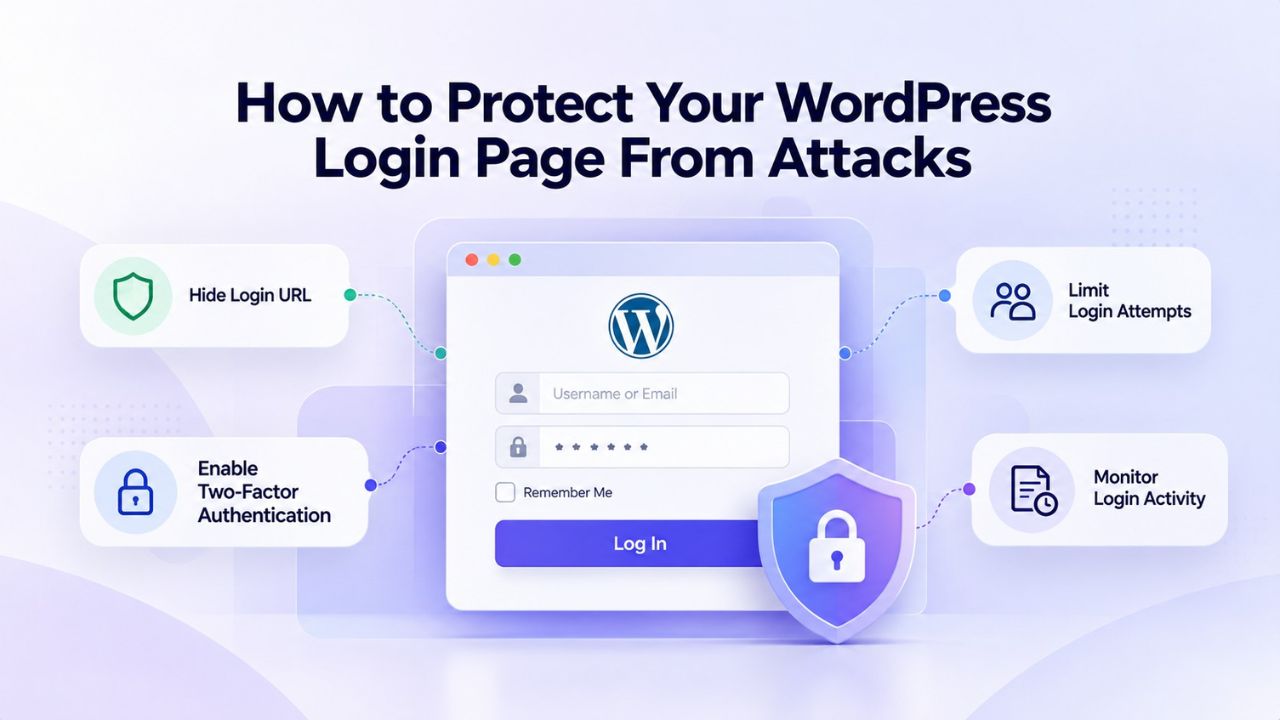
WordPress powers over 43% of all websites globally, which makes the platform an attractive and inevitable target for attackers. The login page is the most attacked surface on any WordPress installation; automated tools probe for weak credentials continuously, day and night, targeting millions of sites at once. Protecting your login page effectively doesn’t require advanced security knowledge or expensive solutions; it requires a strategic, layered approach. Niya Digital delivers WordPress hosting in partnership with an enterprise-grade cloud infrastructure provider, providing foundational protection at the hosting layer while your site implements additional hardening measures.
Why Your WordPress Login Page Is Under Constant, Relentless Attack
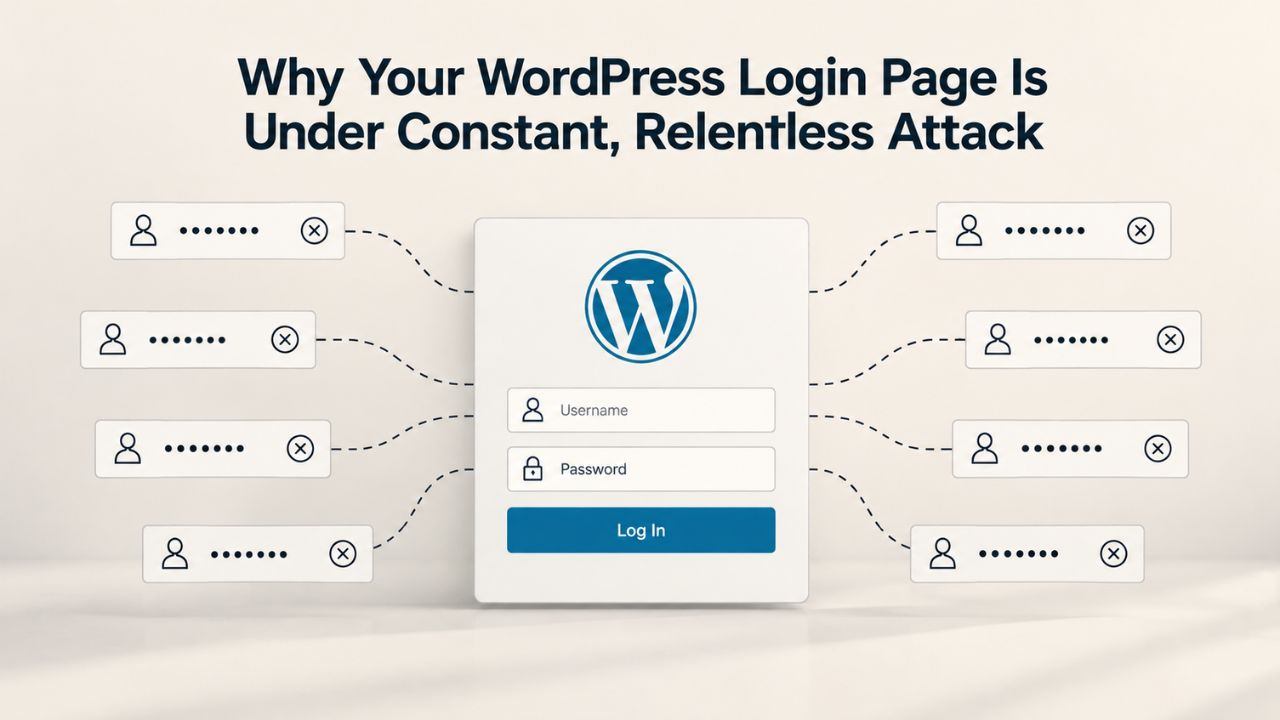
The reality of WordPress site ownership is this: your login page is being attacked right now. Brute-force login attacks, where automated tools try thousands of username and password combinations, represent 87% to 91% of all attacks on WordPress sites. These aren’t sophisticated, targeted attacks crafted specifically for your site. They’re automated, opportunistic probes launched against hundreds of thousands of domains by bots operating 24/7 across distributed networks.
The Default Login Surface: A Known, Predictable Target
Every WordPress site shares the same default login URLs by design. The login form lives at yourdomain.com/wp-login.php, and the admin dashboard redirects through yourdomain.com/wp-admin. Every WordPress administrator understands this standard configuration. Every attacker does, too. The default login page offers no rate limiting, so an attacker’s automated tools can try as many password guesses as their bandwidth allows, without any speed throttle or lockout mechanism.
Automated scanning tools probe for this specific URL pattern on hundreds of thousands of domains every single day. These scans are largely indiscriminate, casting wide nets to find vulnerable sites rather than targeting specific victims. If your site uses the default WordPress login URL, scanning infrastructure is already systematically targeting it. Even if no attack has succeeded yet, the attempts continue relentlessly, testing your defenses.
Attackers Operate at Scale Using Distributed Botnet Infrastructure
The attack landscape operates on a fundamentally different scale than most site owners realize. While your WordPress site may feel like a single, isolated target, attackers work in enormous volume across vast numbers of domains simultaneously. In just 48 hours in October 2025, 1.6 million attack attempts were recorded against WordPress sites. The vast majority of these originate from distributed botnets, networks of compromised devices under attacker control, making blocking by IP address alone nearly impossible.
This distributed attack infrastructure means that attackers don’t need to compromise your site; they benefit statistically by testing thousands of sites simultaneously. If your site’s defenses are weak, yours is the one that falls. This is why defense-in-depth matters profoundly. No single control eliminates all attacks. Instead, each control you add- SSL/TLS encryption, two-factor authentication, rate limiting, custom login URLs, monitoring- raises the cost and reduces the probability of successful compromise.
WordPress Pricing Plans
Choose the WordPress hosting plan that fits your website needs, with reliable performance, security, storage, backups, and tools to help your site grow.
WordPress Basic
A great way to get started.
- 1 website
- 10 GB NVMe storage
- Unmetered bandwidth
- Free SSL Certificate *
- WordPress pre-installed
- Weekly backups
- Web Application Firewall
- Daily malware scans
- One-time malware removal

WordPress Deluxe
Improve your site performance with Cloudflare CDN.
- 1 website
- 20 GB NVMe storage
- Unmetered bandwidth
- Free SSL Certificate *
- WordPress pre-installed
- Daily backups
- Web Application Firewall
- Daily malware scans
- One-time malware removal
- Up to 2x faster performance with global Cloudflare CDN **
- Enhanced security with DDoS protection
- Staging site
WordPress Ultimate
Add online marketing with more sites, storage and security.
- 1 website
- 30 GB NVMe storage
- Unmetered bandwidth
- Free SSL Certificate *
- WordPress pre-installed
- Daily + on-demand backups
- Web Application Firewall
- Daily malware scans
- Unlimited malware removal
- Up to 2x faster performance with global Cloudflare CDN **
- Enhanced security with DDoS protection
- Staging site
- WordPress code optimizer
- Smart WordPress plugin manager
- Sell online with WooCommerce
Encrypt Your Login Connection With Strong SSL/TLS
Encrypting login traffic is absolutely non-negotiable for any WordPress site serving real users. SSL/TLS encryption (TLS v1.2 or later) protects login credentials and session cookies during transmission between your visitor’s browser and your web server. Without encryption, a hacker operating on the same network, or intercepting traffic at any point along the connection path, could capture your plaintext password as it travels across the internet.
Enable HTTPS Across Your Entire Site Infrastructure
Your login form should never transmit credentials over unencrypted HTTP. Browsers now mark non-HTTPS sites as insecure, creating friction for legitimate users and signaling untrustworthiness to both humans and search engines. Implement a server-level redirect that automatically forces all incoming HTTP requests to HTTPS. This catches accidental unencrypted access attempts and ensures every visitor connects securely.
For most WordPress sites, this process is straightforward. If you’re using a managed WordPress hosting provider, they typically handle SSL setup, configuration, and automatic annual renewal transparently. On self-hosted installations, free SSL certificates from Let’s Encrypt can be installed and maintained using Certbot, and the process is well-documented for both Apache and Nginx web servers. Once configured, SSL/TLS requires minimal ongoing maintenance.
Force SSL Encryption Specifically for Login and Admin Pages
WordPress supports a powerful configuration option: forcing SSL/TLS encryption specifically for your login and admin pages, providing an extra layer of assurance even if you haven’t yet enabled HTTPS site-wide. Add these two lines to your wp-config.php configuration file to enforce this requirement:
define( ‘FORCE_SSL_ADMIN’, true );
These constants ensure that if a user somehow reaches your login form or WordPress admin dashboard via unencrypted HTTP, WordPress automatically redirects them to the HTTPS version before accepting any credentials or sensitive data. This creates a fail-safe mechanism that protects login security even if your broader site configuration isn’t fully migrated to HTTPS yet. The redirection happens transparently and adds negligible performance overhead.
Move Your Login URL Away From the Predictable Default
Changing your login URL from the well-known wp-login.php to a custom, unique address, yourdomain.com/my-secret-login, for example, removes your site from automated scanning and discovery tools. Attackers and their bots rely entirely on predictable, standard URLs. If your login page isn’t where they expect it, their automated tools and scripts can’t find it. This is a speed bump, not a wall, but it’s remarkably effective at stopping opportunistic attacks.
How Changing Your Login URL Eliminates Automated Discovery
When you customize your login URL, you achieve two critical security objectives at once. First, you remove your site from the millions of automated discovery scans that botnets and attack scripts run constantly against random domains. These scans target the standard wp-login.php URL because it’s the same everywhere; changing it makes your site invisible to this scanning infrastructure. Second, you force any attacker who targets your site to either know your custom URL beforehand or spend significant time on reconnaissance to find it.
The volume of automated attacks is staggering, but the sophistication is typically low. Most attacks involve running scanning tools against domain lists, testing the default WordPress URLs, and attempting password guesses when a login page is found. Change your login URL, and you stop most of this opportunistic traffic immediately. Your server logs, which might normally show hundreds of failed login attempts daily, suddenly quiet down dramatically.
Bookmark Your Custom Login URL Immediately After Configuration
When you implement a custom login URL, the single most important step occurs immediately after setup: write down or bookmark your new login URL in a secure location. Logging out of WordPress and forgetting your custom login URL is the most common mistake site owners make after deploying this control. Without remembering or documenting the new address, you’ll lock yourself out of your own admin dashboard.
Fortunately, most plugins provide recovery mechanisms. If you forget your custom URL, you can temporarily deactivate the plugin via FTP or a file manager, which temporarily restores the default wp-login.php URL. Prevention is simpler: store the custom URL in your password manager, bookmark it in your browser, or write it down in a secure note. Once you’ve documented it, changing your login URL is a clean, low-risk security win.
Enable Two-Factor Authentication (2FA) for Multifactor Defense
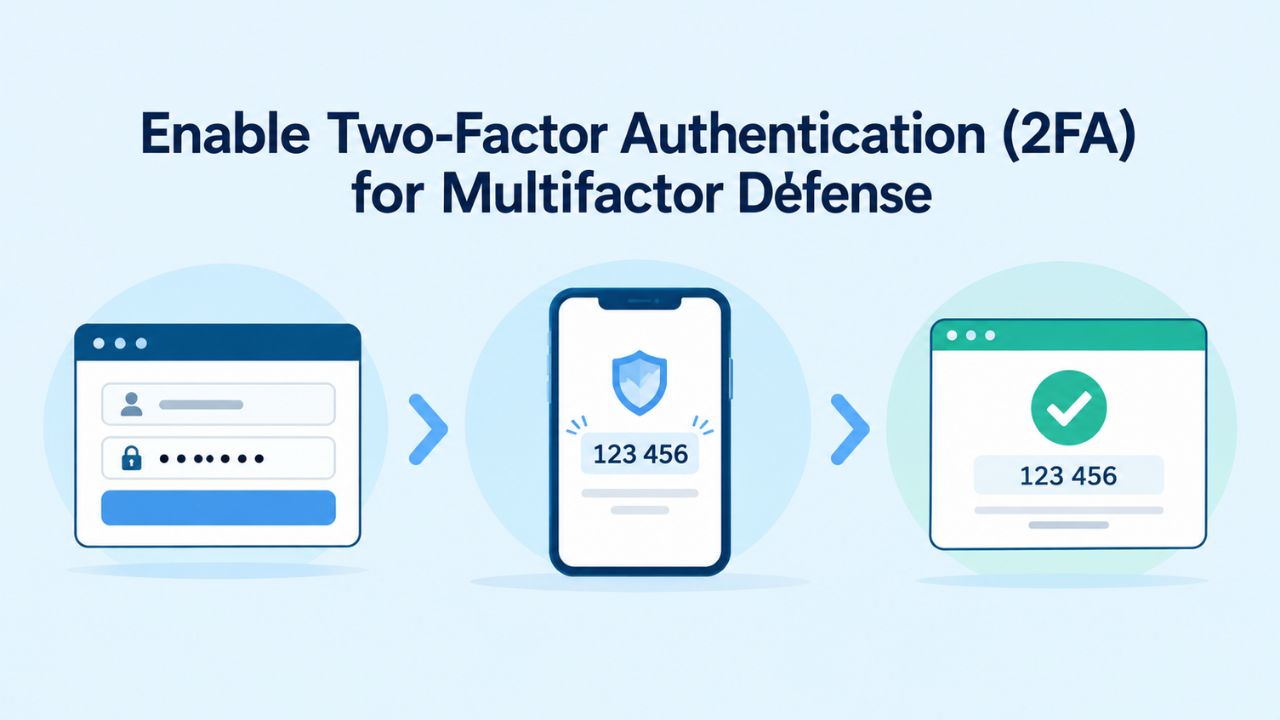
Two-factor authentication represents one of the single most effective login security controls available. 2FA requires two completely independent proofs of identity before granting access: something you know (your password) and something you have (a time-based code from your phone or an email code). Two-factor authentication is highly effective against brute-force attacks and credential-stuffing attacks because even if an attacker successfully guesses or obtains your password through other means, they cannot complete the login without the second factor.
TOTP App-Based Authentication: The Most Secure 2FA Method
TOTP (Time-Based One-Time Password) authenticator applications like Google Authenticator, Microsoft Authenticator, Authy, or 1Password generate a six-digit code that changes automatically every 30 seconds. When you enable 2FA using a TOTP app, your WordPress login plugin displays a QR code during setup. Scan this QR code once with your phone’s authenticator app, and from then on, the app generates fresh codes each time you log in. The codes are time-based and unique; your authenticator app generates different codes every 30 seconds using a shared secret.
TOTP is the most secure 2FA method because it doesn’t depend on email delivery, SMS messages, or external services. Email-based 2FA can be compromised if your email account is weak or breached. SMS 2FA can be intercepted or redirected through SIM swapping, a social engineering attack where an attacker convinces your phone carrier to transfer your phone number to their device. TOTP exists only on your phone as an app; it cannot be stolen remotely, intercepted in transit, or intercepted through email or SMS infrastructure.
Configuring 2FA Requirements for Team Members and Staff
If your WordPress site has multiple users with publishing or administrative roles, requiring 2FA for those users is essential for team security. Most 2FA plugins allow flexible configuration: you can make 2FA optional for basic contributors, required for editors and publishers, and mandatory for all administrators. This tiered approach provides strong protection where it matters most while remaining user-friendly for lower-privileged roles.
Generate and securely store backup codes for each user during 2FA setup. Backup codes are one-time-use recovery codes that allow login if a user loses access to their authenticator app (lost phone, reinstalled app without backup, etc.). Store these codes in your password manager or secure note-taking app; never leave them in plain-text emails or chat messages.
Implement Login Rate Limiting to Throttle Brute-Force Attacks
Rate limiting is a foundational control that stops brute-force attacks by blocking repeated login attempts from the same IP address after a defined failure threshold. WordPress does not implement rate limiting by default, meaning an attacker can attempt thousands of password guesses in minutes without any speed reduction or lockout. Rate limiting changes this dynamic entirely; a typical configuration blocks further login attempts for 15 minutes after 5 consecutive failed attempts from the same IP address.
How Rate Limiting Transforms the Economics of Brute-Force Attacks
Rate limiting makes brute-force attacks prohibitively expensive in time and resources. Without rate limiting, an attacker trying to guess 1,000 passwords can complete all attempts in minutes, testing many possible passwords rapidly. With rate limiting (5 attempts per 15 minutes from one IP), reaching 1,000 attempts would take about 50 hours, during which your hosting provider’s security infrastructure would likely identify and block the malicious IP address.
This timing matters because modern hosting environments continuously monitor for attack patterns. Once an IP address demonstrates obvious attack behavior (thousands of failed login attempts), hosting providers’ firewalls identify and block it automatically. Rate limiting gives your infrastructure time to recognize and respond to attacks before they succeed.
Pairing Rate Limiting With Active Login Monitoring and Alerts
Rate limiting alone is a passive defense; it works silently in the background without alerting you to attacks. Pairing rate limiting with active login monitoring and email alerts creates visibility into what’s happening on your site. Configure your security plugin to email you when specific thresholds are exceeded: 10 failed login attempts in one hour, repeated failed attempts on administrator accounts, or successful logins from unusual geographic locations.
These alerts don’t prevent attacks, but they transform you from unaware to informed. Email alerts let you spot patterns, identify which usernames are being targeted, and observe geographic origins of attacks. Over time, you develop intuition about what constitutes normal attack traffic for your site versus unusual patterns that might warrant extra investigation.
WordPress Login Security: Implementation Timeline and Control Effectiveness
| Security Control | Implementation Time | Difficulty Level | Attack Types Prevented | Compatibility Issues | Hosting-Level Alternative |
|---|---|---|---|---|---|
| Enable SSL/TLS HTTPS | 5–30 minutes | Very Low | Man-in-the-middle credential interception | None | Automatic (most providers) |
| Custom login URL | 10–15 minutes | Very Low | Automated bot discovery and scanning | None (modern plugins compatible) | Firewall rules (optional) |
| Two-Factor Authentication | 10 minutes setup + team rollout | Low | Credential theft, credential stuffing, password guessing | Very rare with modern plugins | Not available at hosting layer |
| Login rate limiting | 5–10 minutes | Very Low | Brute-force attacks on password guessing | None with modern rate-limiting plugins | Yes, firewall-level throttling |
| Generic login errors | 5 minutes | Very Low | Username enumeration via login form feedback | None | Not available at hosting layer |
| Hide REST API users | 5 minutes | Very Low | Username enumeration via /wp-json/wp/v2/users endpoint | None | Not available at hosting layer |
| Disable XML-RPC | 5 minutes | Very Low | Alternative login vector attacks via XML-RPC | Rare, only affects legacy tools | Yes, firewall blocking (common default) |
| Strong passwords + username change | 10–15 minutes | Low | Weak password guessing, default username attacks | None | Not applicable |
| Login monitoring setup | 10–15 minutes | Very Low | Early detection of breaches and unusual access | None | Hosting-level monitoring (premium plans) |
Get a Complimentary WordPress Security Assessment
Uncertain whether your current WordPress setup has the protections outlined in this guide? Niya Digital offers complimentary security assessments to evaluate your site’s login hardening, identify missing controls, and provide actionable recommendations tailored to your specific setup. Our WordPress specialists review your configuration, test your defenses, and deliver a detailed report showing exactly which protections are in place and which warrant immediate attention.
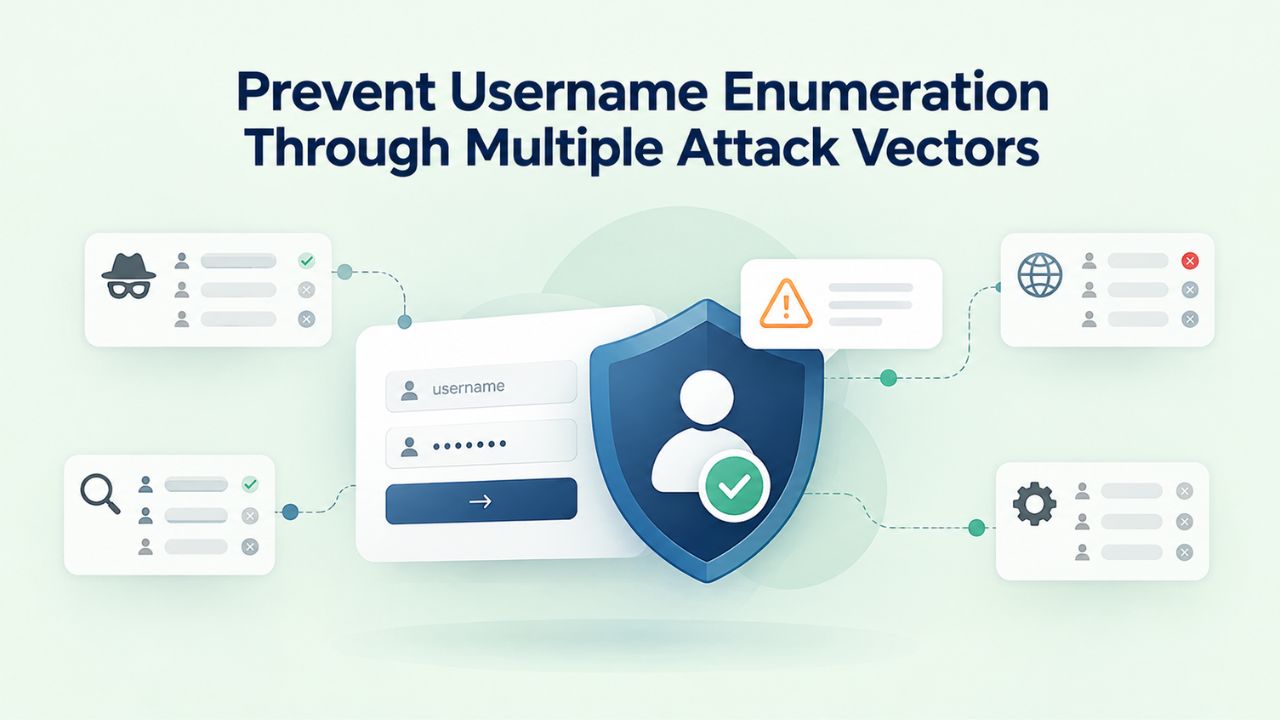
Prevent Username Enumeration Through Multiple Attack Vectors
Attackers often research target usernames before launching brute-force attacks. WordPress exposes usernames in multiple places by default: the REST API endpoint /wp-json/wp/v2/users displays a complete list of site usernames to anonymous visitors, author archive pages (yoursite.com/?author=1, ?author=2, etc.) reveal usernames, and login error messages can indicate whether a username exists or not.
Hide Usernames From the Public REST API Endpoint
The WordPress REST API includes a public endpoint (/wp-json/wp/v2/users) that, by default, exposes a complete list of all site usernames to any visitor. An attacker can visit this URL and receive JSON data listing every user account on your site, complete with metadata. Plugins like HSArticle Login Warden and Security Hardener block this endpoint for logged-out (anonymous) visitors, returning a 404 “Not Found” error that makes the endpoint appear non-existent.
This change has no negative impact on legitimate site functionality. Registered users and the WordPress block editor still access the REST API normally. Only the public-facing username enumeration endpoint is hidden. If you don’t actively use the public REST API for external integrations, blocking this endpoint is an obvious security win with no downside.
Implement Generic Login Error Messages Across All Failure Scenarios
By default, WordPress provides different error messages for different login failures: “User does not exist” versus “Incorrect password.” This distinction helps legitimate users know whether they’re using the wrong username or the wrong password. However, it also helps attackers: they can use this feedback to distinguish valid usernames from invalid ones. They know “admin” is valid (password wrong), but “fakeuser123” is invalid (username doesn’t exist).
Generic login error messages eliminate this information leak. Display an identical message for all login failures, “Invalid username or password”, regardless of whether the username exists or the password is wrong. Legitimate users still understand they made a login error. Attackers learn nothing from failed attempts, losing the ability to enumerate usernames through login form feedback.
Disable XML-RPC to Close a Legacy Authentication Backdoor
XML-RPC is a legacy remote-access protocol built into WordPress long before the modern REST API existed. XML-RPC was originally designed for mobile apps, third-party publishing tools, and other integrations that needed remote access to WordPress. XML-RPC provides an alternative login pathway and has been entirely superseded by the REST API, which is more secure, supports token-based authentication, and is the standard for modern WordPress integrations.
Understanding How XML-RPC Provides a Secondary Login Attack Vector
XML-RPC.php processes login requests through a different code path than wp-login.php, potentially bypassing certain security controls. Some rate-limiting plugins focus exclusively on wp-login.php requests, potentially leaving xmlrpc.php exposed to brute-force attacks. Additionally, XML-RPC provides multiple authentication methods and can be probed remotely without the overhead of initiating standard login flows. For an attacker, XML-RPC represents an alternative avenue for attacking WordPress authentication.
This is particularly concerning because xmlrpc.php isn’t password-protected or restricted by default. An attacker can probe it remotely to identify WordPress sites and can attempt brute-force attacks against the XML-RPC login endpoints. If you’re not actively using XML-RPC, removing it closes this alternative attack vector entirely.
Safely Disabling XML-RPC Through Plugin or Server Configuration
Disabling XML-RPC is safe for most modern WordPress sites. Most WordPress hosting providers, and all security-focused plugins, include a simple toggle to disable XML-RPC entirely. Once disabled, all requests to xmlrpc.php return an error, making the endpoint non-functional. Your site’s functionality remains completely normal; WordPress itself doesn’t use XML-RPC internally, so disabling it affects nothing else.
If you use an older app, tool, or custom integration that specifically requires XML-RPC, you face a risk-benefit decision. Weigh the specific value of that integration against the security risk of exposing an additional login surface. For most sites, the decision is straightforward: disable XML-RPC and gain meaningful security improvement.
Use Strong, Unique Passwords and Avoid Default Administrative Usernames
A strong password remains the foundation of all other login security controls. Passwords should be at least 12 characters long and include mixed case, digits, and special symbols; use a unique password for every account and service you operate.
Leverage Password Managers to Generate and Store Secure Credentials
Memorizing multiple 16+ character random passwords is cognitively impossible. Use a reputable password manager like Bitwarden, 1Password, KeePass, or LastPass to generate, store, and manage strong passwords. Password managers eliminate the temptation to reuse passwords across sites; generating a random 20-character password takes one second. Password managers also integrate directly into web browsers and mobile apps, so logging into WordPress is as simple as clicking the password manager icon and selecting the stored credential.
Password managers also provide an additional security benefit: they’re sensitive to domain names and won’t autofill credentials on fake phishing sites that misspell your domain. If you somehow end up on a phishing site pretending to be your WordPress admin, your password manager recognizes the domain doesn’t match and refuses to fill in credentials, protecting you from social engineering.
Changing or Deactivating Existing Default Administrator Accounts
If your WordPress site was installed years ago and still has an “admin” account, spend 10 minutes fixing this vulnerability today. Log in with the admin account, create a new user with your desired username, grant it administrator privileges, navigate to all existing posts and pages created by the admin account, and reassign them to your new user. Once all content ownership is transferred, delete the admin account (WordPress automatically reassigns ownership to your chosen new user).
If you encounter an older WordPress installation where the admin account cannot be deleted, you have two options: either keep the admin account with a complex, random password and don’t use it, or contact your hosting provider’s support team; they can often perform this change directly via your hosting control panel or database access.
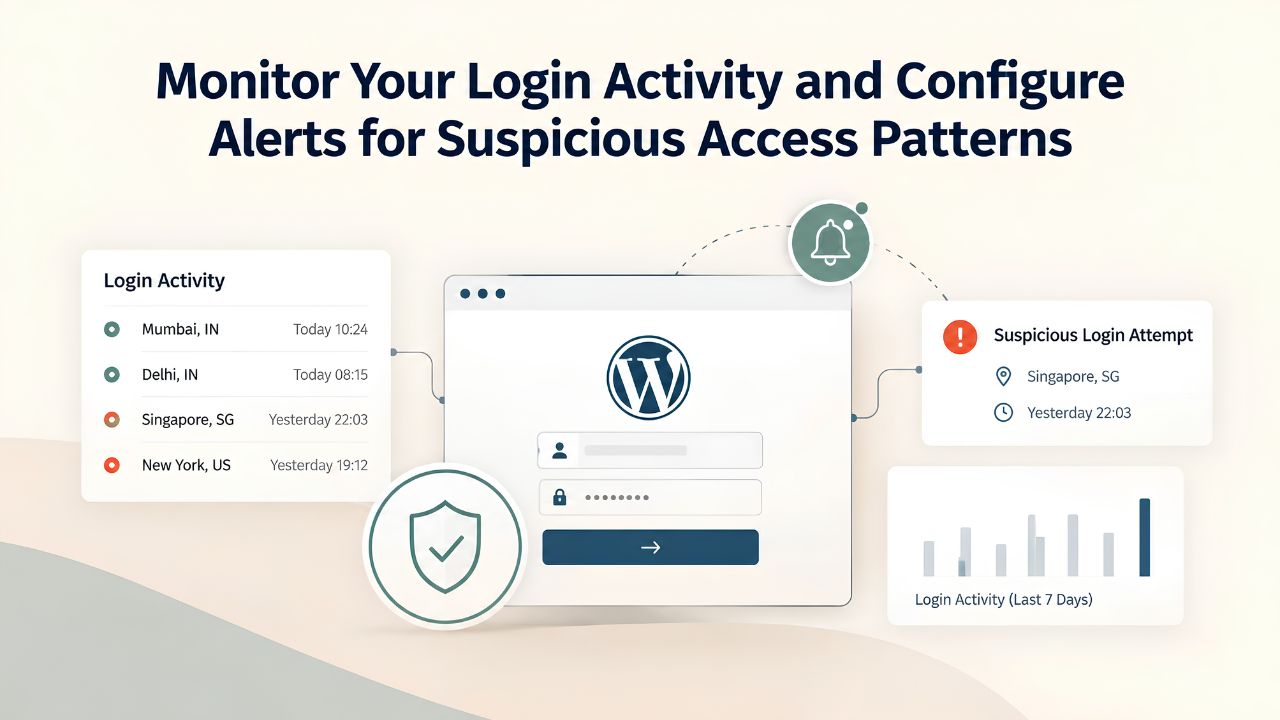
Monitor Your Login Activity and Configure Alerts for Suspicious Access Patterns
Login monitoring isn’t a preventive control like 2FA or rate limiting; it’s a detective control that helps you recognize attacks after they occur and respond quickly if an account is compromised. Most modern security plugins log detailed information about login attempts. They can send email alerts when specific patterns or thresholds are exceeded. These logs document failed attempts, successful logins, which usernames were targeted, which IP addresses originated the requests, and timestamps.
Setting Up Email Alerts for Repeated Failed Attempts and Suspicious Login Behavior
Configure your security plugin to send email notifications when specific attack indicators occur: 10 or more failed login attempts from a single IP address within one hour, repeated failed attempts against administrator accounts, successful logins from unusual geographic locations, or logins occurring at unusual times (3 AM when you never work). These alerts don’t prevent attacks directly, but they provide early warning of intrusion attempts.
Email alerts create a crucial feedback loop between your site’s security systems and your awareness. Without alerts, you might discover a breach weeks after the initial intrusion. With email alerts, you’re notified within minutes of abnormal activity. This time advantage is invaluable; you can immediately change passwords, revoke sessions, and investigate the incident while it’s fresh.
Reviewing Login Logs Regularly to Identify Patterns and Anomalies
Set a monthly reminder to review your WordPress login logs, even if you haven’t received alerts. You’ll develop an intuitive sense of what “normal” looks like for your site: typical login times and days, expected geographic locations of legitimate users, standard numbers of failed attempts from bots. When something breaks pattern- logins from countries where you’ve never had users, logins at 4 AM when you typically don’t work, a spike in failed attempts against multiple usernames simultaneously- you notice.
Niya Digital’s team has found that many security incidents go undiscovered for weeks or months simply because site owners never review logs or follow up on alerts. The attacks happen, but in the background, unnoticed. Regular log review creates accountability and awareness. You develop context about your site’s security posture and can make informed decisions about when to investigate further or escalate to your hosting provider’s security team.
Choose WordPress Hosting Infrastructure That Protects Your Login Page
Site-level hardening measures, SSL/TLS, 2FA, rate limiting, custom login URLs, and monitoring are essential. However, they represent only one part of comprehensive login protection. Your hosting provider represents the first line of defense, protecting your site at the infrastructure level before any traffic ever reaches your WordPress installation.
Server-Level Firewalls Block Known Malicious IP Addresses and Bot Networks
A hosting firewall, a network-level security tool, maintains continuously updated lists of known malicious IP addresses, IP ranges tied to specific botnets, and geographic regions known for particular types of attacks. When a request arrives at your hosting infrastructure from a known malicious IP, the firewall blocks it immediately, before your web server or WordPress installation ever processes it. Your site owner never sees these requests in logs; they’re prevented entirely.
Beyond blocking known malicious IPs, hosting firewalls can throttle (rate limit) traffic from IPs making suspiciously rapid requests or can block entire geographic regions if your site has no legitimate users there. Some hosting providers let you configure which countries can access your site, or create whitelist-based access policies that restrict logins to IPs from your office location only. These infrastructure-level controls are completely transparent; they work silently in the background without affecting legitimate visitors.
DDoS Mitigation and Sophisticated Bot Detection at the Hosting Layer
Distributed Denial-of-Service (DDoS) attacks try to overwhelm your site with traffic from thousands or millions of sources at once, making legitimate access impossible. Your hosting provider’s infrastructure can automatically detect DDoS attack patterns, sudden traffic spikes from numerous distinct IP addresses, requests with similar user-agent headers or request patterns, and traffic concentrations in specific geographic regions, and respond by rate-limiting or blocking suspicious traffic while allowing legitimate visitors through.
Bot detection systems at the hosting layer distinguish between legitimate automated traffic (Google’s web crawler, search engine bots, monitoring services) and malicious automated traffic (brute-force bots, vulnerability scanners, credential-stuffing tools). Advanced hosting firewalls can analyze request patterns: are these requests visiting normal pages and content, or are they probing for vulnerabilities and repeatedly attacking the login page? Based on this analysis, the firewall automatically allows or denies traffic accordingly.
WordPress Login Security: Comparative Protection Levels by Implementation Stage
| Implementation Stage | Brute-Force Resistance | Credential Theft Risk | Ease of Account Takeover | Operational Burden | Recommended For |
|---|---|---|---|---|---|
| Default WordPress (no hardening) | Very Low, unlimited attempts, standard URL, no 2FA | Very High, plaintext password if unencrypted, no monitoring | Very High, weak default security | Minimal (no management needed) | Development/testing sites only |
| Basic hardening (HTTPS + strong password + rate limiting) | Medium, rate limiting slows attacks, default URL still discoverable | Medium, encrypted login, but credential theft from phishing still possible | Medium, strong password needed, no 2FA | Low, plugin maintenance only | Small business websites, blogs |
| Comprehensive hardening (all above + 2FA + custom login URL + monitoring) | High, multiple overlapping defenses, custom URL prevents discovery | Low, encrypted login, 2FA stops credential stuffing, monitoring enables response | Low, 2FA required, strong password enforced, monitoring active | Medium, multiple plugins, log review routine | Business-critical WordPress sites |
| Enterprise hardening (comprehensive + managed hosting + advanced firewall + team policies) | Very High, infrastructure-level DDoS protection, bot filtering, geographic restrictions | Very Low, comprehensive controls, professional security team, audit trails | Very Low, 2FA enforced, password policies, infrastructure controls, continuous monitoring | Medium, outsourced to hosting provider | High-traffic WordPress sites, revenue-generating platforms |
Explore Managed WordPress Hosting for Comprehensive Site Security and Ongoing Support
Together, these services create a comprehensive security posture that most shared hosting providers cannot match. Niya Digital delivers managed WordPress hosting through an enterprise-grade cloud infrastructure partnership, providing hardened infrastructure, regular security audits, and immediate incident response capabilities so you can run your WordPress site with confidence.
Frequently Asked Questions
If I change my login URL to something custom, does that make my site unhackable?
No, changing your login URL is one valuable layer of defense, but it’s not a complete solution by itself. A custom login URL removes your site from automated bot discovery, stopping opportunistic attacks that scan for the standard wp-login.php URL. However, if an attacker specifically targets your site through research or social engineering, they might still discover your custom URL. Always pair a custom login URL with other controls like 2FA, strong passwords, rate limiting, and monitoring for comprehensive protection.
Is two-factor authentication worth the inconvenience of an extra login step?
Absolutely, yes. Two-factor authentication stops the most common WordPress breach scenario: someone obtains your password through a data breach, phishing attack, or by guessing a weak password, and then logs into your site. With 2FA enabled, even a compromised password doesn’t grant access without the second factor. The 5-second delay to generate and enter a code is negligible compared to the protection it provides against credential theft and account takeover.
Should I use both a custom login URL and rate limiting, or are they redundant?
Use both. A custom login URL and rate limiting accomplish different things and work together powerfully. A custom URL prevents automated discovery; bots can’t find your login page if it’s not where they expect it. Rate limiting throttles brute-force attacks that do find your login page, whether through research, guessing, or sharing the URL with team members. Using both controls creates defense-in-depth.
What happens if I forget my custom WordPress login URL after implementing it?
Most “hide login” plugins provide recovery mechanisms. You can temporarily deactivate the plugin via FTP or a file manager (if you have access), which restores wp-login.php temporarily so you can log in. Once logged in, you can re-enable the plugin or adjust settings. The best prevention is simple: write down your custom login URL or store it in your password manager immediately after setup.
Can I require two-factor authentication for administrator accounts but make it optional for other users?
Yes, absolutely. Most 2FA plugins support granular role-based configuration. You can require 2FA for administrators and editors (high-privilege roles), make it optional for contributors and subscribers, or require it for all users. This tiered approach provides strong security where it matters most while remaining user-friendly for lower-privilege roles who need login access less frequently.
Is an SSL/TLS certificate sufficient to protect my login page, or do I need additional controls?
SSL/TLS encryption is necessary but not sufficient on its own. HTTPS protects your password and session cookies during transmission; an attacker can’t intercept your plaintext password if it’s encrypted. However, HTTPS doesn’t stop brute-force attacks, doesn’t prevent credential stuffing if your password is weak, and doesn’t help if your account is compromised through phishing. Combine HTTPS with strong passwords, rate limiting, 2FA, and monitoring for comprehensive protection.
What’s the practical difference between TOTP app-based 2FA and SMS-based 2FA?
TOTP (app-based codes) is more secure because the codes are generated locally on your phone and never transmitted or stored on servers. SMS codes travel through the phone carrier’s infrastructure, making them vulnerable to interception and especially to SIM-swapping attacks, where someone tricks your carrier into transferring your number to their device. Use TOTP as your primary 2FA method; offer SMS only as a fallback for users without smartphone access.
If my hosting provider has a firewall protecting my site, do I still need to install security plugins?
Yes, both are necessary. Your hosting firewall protects at the network/infrastructure level, stopping many attacks before they reach WordPress. However, the firewall cannot enforce WordPress-specific controls like 2FA, access WordPress admin functions, or implement plugin-specific security rules. Security plugins like Wordfence operate inside WordPress and implement site-specific hardening. Use both layers: the hosting firewall for network-level defense, plus plugins for WordPress-specific security.
How often should I review my WordPress login logs?
Review logs monthly as a standard practice. Monthly reviews help you understand your site’s normal patterns and make abnormalities obvious when they occur. If you’ve configured email alerts (recommended), review alerts immediately when they arrive. Some sites warrant weekly review if they receive heavy attack traffic or if unusual patterns have been observed.
Do I absolutely need to disable XML-RPC, or is it fine to leave it enabled?
If you’re not actively using XML-RPC (and most modern WordPress sites don’t), disabling it is safe and recommended. XML-RPC provides an alternative authentication vector and represents unnecessary attack surface. However, if an older tool, app, or custom integration specifically requires XML-RPC, you face a judgment call: weigh the integration’s value against the security risk. For most modern WordPress sites, disabling XML-RPC is clearly the right choice.
Can I implement all of these login security controls at once, or should I introduce them gradually?
Most of these controls have no negative side effects and can be enabled simultaneously without breaking anything. That said, a gradual rollout might be more comfortable if you’re new to WordPress security: start with SSL/HTTPS, implement rate limiting next, then enable 2FA for your own account first before requiring it team-wide. A custom login URL and username enumeration blocking are both low-risk and can be added over a week. Choose whatever approach feels most manageable.
What’s the single most important login security control if I can only implement one?
Two-factor authentication, without question. If you implement only one control among all these options, make it 2FA. It directly stops the most common WordPress breach vector, stolen or guessed passwords, and is simple to set up. Every other control matters, but 2FA is uniquely powerful as a standalone defense.
Will hardening my WordPress login page cause any performance degradation on my site?
No, none of these controls cause meaningful performance problems. SSL/TLS, rate limiting, 2FA, custom login URLs, and username enumeration blocking all have negligible performance impact. If anything, stopping bot attacks through rate limiting reduces unnecessary server load, potentially making your site faster overall by preventing your servers from processing thousands of malicious login requests daily.
Is managed WordPress hosting worth the additional expense for login security and other protections?
Managed WordPress hosting costs more than shared hosting, but includes firewall protection, automatic updates, daily backups, 24/7 support, and security monitoring. If your WordPress site generates revenue or is critical to your business, the additional security, reliability, and peace of mind typically justify the cost. For hobby or low-traffic sites, shared hosting plus diligent security plugin management might suffice.
How long does it actually take to set up two-factor authentication for a WordPress user?
Roughly 10 minutes for a single user, including installing the plugin, enabling it for your account, scanning a QR code with an authenticator app, and testing. For additional users on your team, setup time is even faster if the plugin is already installed and configured. The initial plugin installation and your personal setup take the longest; subsequent users move quickly.
Will changing my WordPress login URL cause compatibility problems with plugins or themes?
Reputable plugins and themes work fine with custom login URLs. Page-caching plugins should exclude your custom login URL from caching (most do this automatically), and security plugins typically anticipate this change. Older, unmaintained plugins from years ago might have hardcoded assumptions about login URLs, but modern WordPress development avoids this. Test after implementing the change to verify everything works normally.
What should I do immediately if I see a sudden spike in login attempts in my logs?
First, check whether your rate limiting is working; you should see blocked requests following the initial failed attempts. Review where the traffic is coming from (check source IP addresses and geographic locations). If rate limiting is functioning properly, the attack is being mitigated automatically. If the spike persists for hours and you can’t identify a pattern, contact your hosting provider’s support team; they can investigate and potentially block malicious IP ranges at the firewall level.
Glossary
- Brute-Force Attack: An automated attack method that systematically attempts thousands of username and password combinations, trying to guess valid credentials through repetition rather than technical exploitation. Brute-force attacks are slow but effective against weak passwords and sites without rate limiting protections.
- Two-Factor Authentication (2FA): A security method that requires two independent proofs of identity before granting account access. Typically, this involves a password (something you know) plus a time-based code from an authenticator app or email (something you have). 2FA significantly reduces the risk of unauthorized access because attackers must compromise both factors at the same time.
- SSL/TLS Certificate: An encryption protocol that secures all data transmitted between a website visitor’s browser and the web server. HTTPS connections use SSL/TLS to encrypt login credentials, session cookies, and other sensitive information, preventing interception by attackers operating on shared networks.
- XML-RPC: A legacy remote-access protocol originally built into WordPress to support mobile apps, third-party publishing tools, and other integrations. XML-RPC provides an alternative login pathway that has been entirely superseded by the modern REST API; disabling XML-RPC eliminates an unnecessary attack vector for most sites.
- Username Enumeration: The practice of discovering valid usernames on a WordPress site through probing login forms, accessing REST API endpoints, visiting author archive pages, or analyzing login error messages. Attackers use enumerated usernames to target brute-force attacks efficiently, focusing computational resources on guessing passwords for known, valid accounts.
- Rate Limiting: A security control that blocks login attempts from an IP address temporarily after a set number of failures (typically 5 failed attempts within 15 minutes). Rate limiting makes brute-force attacks prohibitively slow and resource-intensive, turning attacks that would take minutes into attacks that take hours.
- Web Application Firewall (WAF): A security system deployed at the hosting infrastructure level that monitors and controls incoming network traffic before it reaches your WordPress installation. Firewalls block traffic from known malicious IP addresses, detect and block DDoS attacks, throttle suspicious traffic patterns, and apply geographic restrictions if configured.