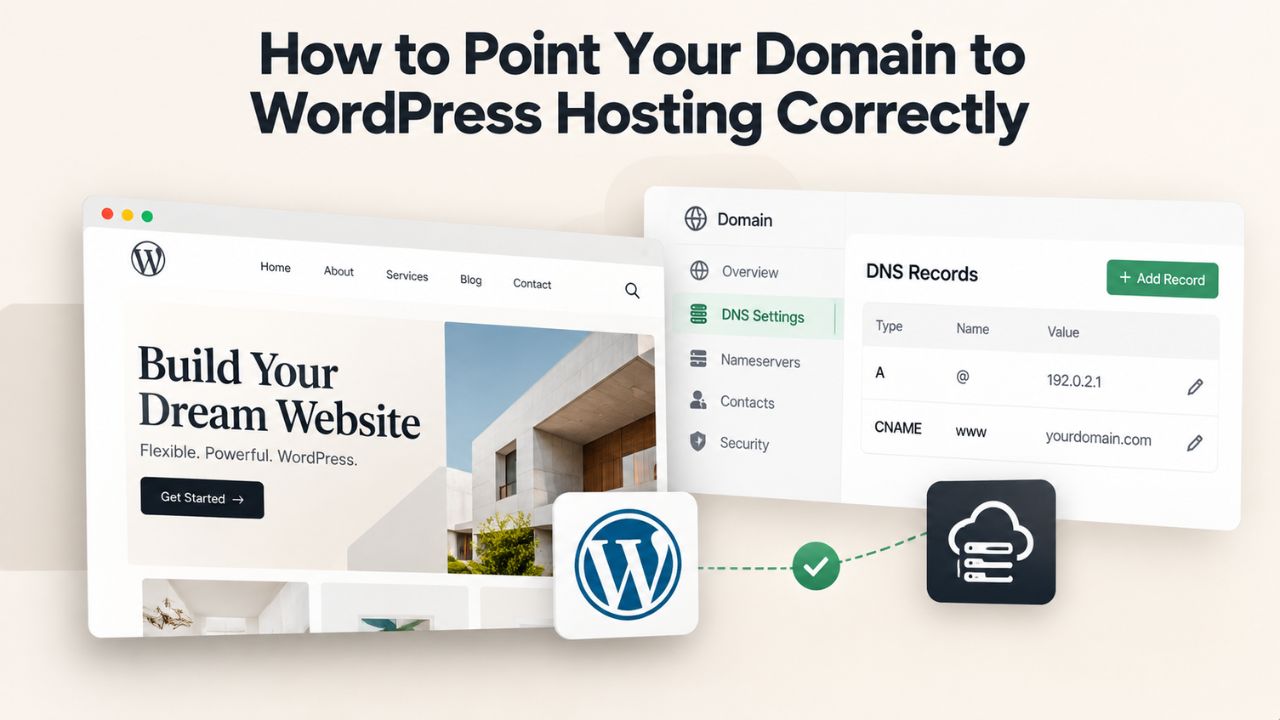
Pointing your domain to WordPress hosting is the critical bridge connecting your chosen domain name to your live website. Without correctly configured DNS records at your registrar, visitors who type your domain name will not reach your site, no matter how well your WordPress installation is set up. Niya Digital delivers its WordPress hosting plans in partnership with an enterprise-grade cloud infrastructure partner. Knowing how to point your domain correctly helps ensure your site launches smoothly and stays accessible to your audience.
How Domain Pointing Works & Why It Matters
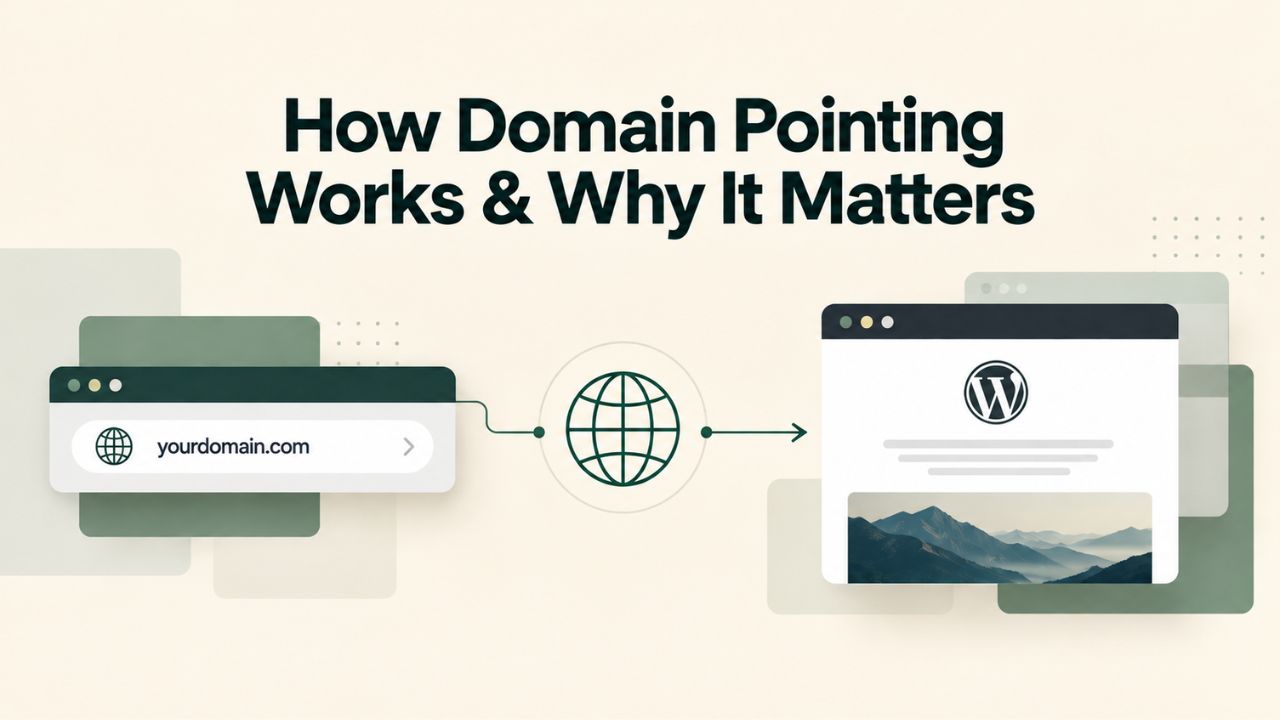
Your domain name, like example.com, is a human-readable address that customers remember far more easily than a numerical IP address. Behind the scenes, the Domain Name System (DNS) is the internet’s address book, translating domain names into numerical IP addresses so browsers can locate the server hosting your WordPress site. When a visitor enters your domain into their browser, a series of DNS lookups happen instantaneously in the background, ultimately directing them to the correct server IP address where your WordPress site lives.
Correct domain pointing is the essential first step after you register your domain name and select a managed WordPress hosting provider. If your DNS records do not point to your host’s infrastructure, your site will remain completely unreachable, even if WordPress is fully installed, configured, and working perfectly on your host’s server. Understanding this process removes confusion and helps you complete the setup efficiently, whether you’re launching a brand-new site or migrating from another host.
The DNS Lookup Chain: How Your Browser Finds Your Site
When a browser needs to display your website, it queries DNS servers in a hierarchical chain that spans the internet. First, the browser’s resolver contacts a root nameserver, which directs it to the TLD (top-level domain) nameserver responsible for your domain’s extension (.com, .org, .net, etc.). That TLD nameserver then points to your authoritative nameserver, the server that holds the definitive DNS records for your domain. Finally, the authoritative nameserver returns either an IP address (if you’re using an A record) or a hostname (if you’re using a CNAME record), and the browser establishes a connection to that address.
This distributed chain keeps DNS resilient, scalable, and secure: no single server holds all domain information globally. Understanding this hierarchical structure helps explain why DNS changes take time to propagate across the internet and why updating records at the correct location, your domain registrar, is essential. If you update DNS in the wrong place or with incorrect values, the propagation chain breaks, and your site becomes unreachable.
Why Correct Domain Pointing Prevents Site Downtime
A domain pointing error can render your site completely inaccessible to all visitors. If your DNS records point to an outdated IP address, a deleted hosting account, or the wrong server entirely, every visitor will encounter errors or see another site instead of yours. This often happens during hosting migrations: site owners move their WordPress installation to a new host but forget to update their domain’s DNS records, leaving the domain pointing to the old (now possibly deleted) hosting account. In contrast, their newly launched site sits invisible behind the new host.
Forgetting to update the A record when migrating to a new host is one of the most common causes of unexpected downtime. That is why verification after setup and periodic DNS audits are critical habits to build. By understanding how domain pointing works, you can troubleshoot issues quickly and maintain consistent uptime for your WordPress site.
WordPress Pricing Plans
Choose the WordPress hosting plan that fits your website needs, with reliable performance, security, storage, backups, and tools to help your site grow.
WordPress Basic
A great way to get started.
- 1 website
- 10 GB NVMe storage
- Unmetered bandwidth
- Free SSL Certificate *
- WordPress pre-installed
- Weekly backups
- Web Application Firewall
- Daily malware scans
- One-time malware removal

WordPress Deluxe
Improve your site performance with Cloudflare CDN.
- 1 website
- 20 GB NVMe storage
- Unmetered bandwidth
- Free SSL Certificate *
- WordPress pre-installed
- Daily backups
- Web Application Firewall
- Daily malware scans
- One-time malware removal
- Up to 2x faster performance with global Cloudflare CDN **
- Enhanced security with DDoS protection
- Staging site
WordPress Ultimate
Add online marketing with more sites, storage and security.
- 1 website
- 30 GB NVMe storage
- Unmetered bandwidth
- Free SSL Certificate *
- WordPress pre-installed
- Daily + on-demand backups
- Web Application Firewall
- Daily malware scans
- Unlimited malware removal
- Up to 2x faster performance with global Cloudflare CDN **
- Enhanced security with DDoS protection
- Staging site
- WordPress code optimizer
- Smart WordPress plugin manager
- Sell online with WooCommerce
Understanding DNS Records: A Records, CNAME Records, and Nameservers
DNS records include A records (which map a domain to an IPv4 address), CNAME records (which create an alias pointing one domain to another domain name), NS records (which specify authoritative nameservers), and MX records (which direct email traffic to mail servers). For WordPress hosting specifically, you’ll primarily work with A records, CNAME records, and sometimes nameserver records. Knowing the differences between these record types and when to use each is essential to set up your domain correctly the first time.
Each record type serves a specific purpose in the DNS system, and using the wrong type, or entering values incorrectly, will prevent your domain from resolving. Your WordPress hosting provider will specify which record type to create when you sign up; reading their setup documentation carefully before you make any changes at your registrar prevents costly mistakes.
A Records vs. CNAME Records: When to Use Each
An A record maps a domain directly to an IPv4 address (a numerical sequence like 192.0.2.1). In contrast, a CNAME record creates an alias, pointing one domain name to another domain name instead of directly to an IP address. If your WordPress hosting provider gives you an IP address and tells you to “point your domain to this IP,” you’ll create an A record. If your host provides a hostname or target address (like hosting.example-host.com) and says “point your domain here,” you’ll create a CNAME record.
A records are typically used for root domains (example.com without any subdomain prefix) because they point directly to a server. CNAME records are more flexible and are commonly used for subdomains like www.example.com or blog.example.com, where you want the Subdomain to point to your host’s target hostname rather than a specific IP. Most registrars do not allow CNAME records at the domain apex (the root domain itself), so for example.com you’ll almost always use an A record, while www.example.com can use either an A record or a CNAME depending on your host’s setup.
Nameserver Records: The Foundation of DNS Delegation
When you register a domain, the registrar collects the nameserver information the domain owner chooses and submits it to the registry; the authoritative nameserver holds the definitive DNS records for your domain. Your domain registrar, the company where you purchased your domain, hosts default nameservers. However, if you change your WordPress hosting provider, prefer to use a specialized DNS provider, or want more control over your DNS, you can update your nameserver settings to point to a different set of servers.
Changing nameservers is a separate (and less common) action than updating individual DNS records like A or CNAME entries. When you change nameservers, you transfer control of all your domain’s DNS records to a new provider; this is a more drastic change than updating one or two DNS records at your existing registrar. Most WordPress site owners keep their registrar’s default nameservers and update the A or CNAME records within them to point to their hosting provider.
Finding Your Host’s Nameserver & Connection Details
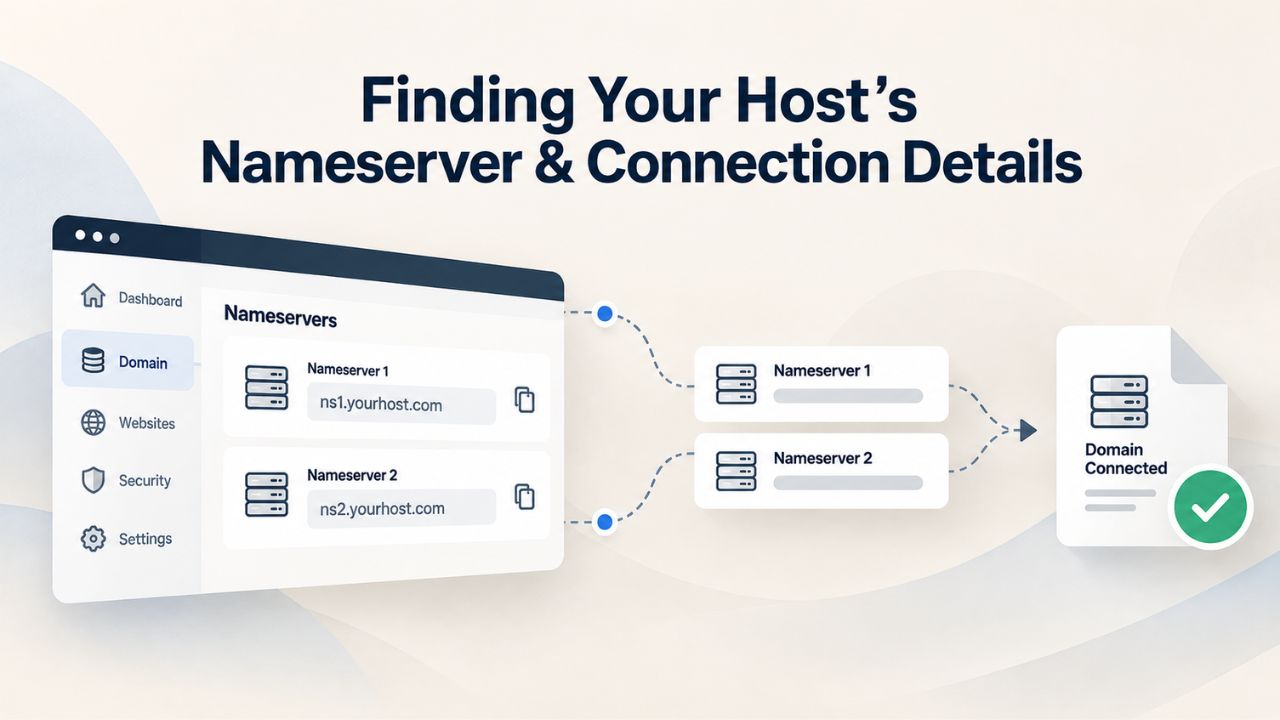
Before you can point your domain to WordPress hosting, you need the exact connection details from your hosting provider. Log into your hosting account dashboard (usually accessible via a control panel, admin interface, or customer portal) and look for a section labeled “Domain,” “DNS Settings,” “Nameservers,” “Connection Details,” or “Point Your Domain.” Your host should clearly provide one of the following: the IP address of the server hosting your WordPress site, the target hostname or address for a CNAME record, or a set of nameservers to configure at your registrar.
Gathering this information before you change your registrar’s settings prevents mistakes and ensures you enter the correct values. Write down the information word-for-word (including capitalization and punctuation) or take screenshots; you’ll reference this data when you update your registrar’s DNS editor.
Locating Connection Details in Your Hosting Control Panel
Most managed WordPress hosting providers display connection details prominently on a domain management page, setup wizard, or getting-started section of their control panel. If your WordPress site is already installed on your host’s server, you may see your current domain listed alongside the IP address or hostname assigned to it. Some hosts email these connection details when you sign up; others require you to navigate to a specific section of your control panel to find them.
If you cannot locate the connection details in your hosting control panel, check your host’s knowledge base or support documentation. Many hosts provide step-by-step “Point Your Domain” guides specific to popular registrars. If self-service resources don’t help, open a support ticket with your hosting provider’s support team; they can provide the exact DNS records you need to create and even walk you through the setup process.
Niya Digital’s managed WordPress hosting plans include clear, detailed setup guidance to help you quickly locate your host’s nameserver or IP address, minimizing confusion and reducing setup time. Many hosts also offer automated domain-connection wizards that can streamline the process.
Understanding IP Addresses vs. Hostnames
If your hosting provider gives you an IP address (a series of numbers separated by dots, like 192.0.2.1 or 203.0.113.42), you’ll create an A record in your registrar’s DNS editor and enter that IP address as the value. If your host provides a hostname (a domain-like address such as server.your-host.com or hosting.example-provider.com), you’ll create a CNAME record and enter that hostname as the value.
This distinction is critical: using an IP address in a CNAME field or a hostname in an A record will cause DNS resolution to fail, leaving your site unreachable. Always check your hosting provider’s documentation to confirm which record type they recommend and what value to enter. When in doubt, ask your host before making changes at your registrar.
Step-by-Step: Updating Your Registrar’s DNS Settings
Once you have your hosting provider’s IP address or target hostname, you’re ready to update your domain’s DNS settings at your registrar. Log in to your domain registrar’s website (the company where you purchased your domain) and navigate to the DNS zone editor or advanced DNS settings. This is the control center where all A records, CNAME records, MX records, and other DNS entries for your domain live.
The exact location and terminology vary slightly by registrar, but all registrars follow a similar workflow. You’ll navigate to your domain, select a DNS or zone file management option, and add or modify records. Take your time during this step; even a single typo in an IP address or hostname will prevent your domain from resolving correctly.
Accessing Your Registrar’s DNS Editor
Log into your domain registrar’s customer portal or control panel. The registrar is the company where you purchased your domain name registration; it may or may not be the same company hosting your WordPress site. Once logged in, look for menu options labeled “My Domains,” “Domain Settings,” “Manage Domain,” “DNS Management,” “Zone File,” or “Advanced DNS.” Different registrars use different terminology, but all provide access to a DNS editor or zone file manager.
You should see a list of existing DNS records for your domain. These default records are typically created automatically when you registered your domain and often include SOA (Start of Authority) records, NS (nameserver) records, and sometimes placeholder A records. Do not delete these default entries unless you fully understand what they do; most are harmless and necessary for proper DNS function. Some DNS records, particularly MX records for email delivery, are essential if you use email with your domain.
Adding an A Record for Your Root Domain
To point your root domain (example.com without any subdomain) to your WordPress hosting, create a new A record. In your registrar’s DNS editor, click the option to add a new record. For the record name, enter @ (which represents the domain root) or leave it blank, depending on your registrar’s format. Set the record type to A. Enter your hosting provider’s IP address in the value field exactly as your host provided it.
Some registrars prompt you to confirm before saving; others save the record immediately. Once saved, your A record has been submitted to the global DNS system. The registrar will typically show you a confirmation message or display the new record in your zone file list. At this point, you’ve completed the most critical step: your domain’s root is now configured to point to your WordPress hosting.
Adding a CNAME Record for the www Subdomain
Most modern WordPress sites should be accessible at both example.com and www.example.com. To ensure visitors can reach your site regardless of whether they type the domain with or without www, create a second DNS record for the www subdomain. You can do this in one of two ways: either create another A record with the name set to www and the same IP address as your root domain’s A record, or create a CNAME record for www pointing to your host’s target hostname.
Check your hosting provider’s documentation to see which approach they recommend. If your host provided only an IP address (not a hostname), create an A record for www. If your host provided a hostname, you can create a CNAME record for www pointing to that hostname. Either way, both example.com and www.example.com will resolve to your WordPress site.
Time to Live (TTL), DNS Propagation & How Long Changes Take
DNS changes do not take effect everywhere on the internet instantly. Time-to-Live (TTL) determines how long DNS records are cached by servers before they are refreshed; the typical recommended TTL is 3600 seconds, which equals one hour. After you update your DNS records at your registrar, those changes must propagate across the internet’s distributed network of DNS servers. The time this process takes depends on your TTL value, your ISP’s caching practices, and how quickly each DNS server worldwide refreshes its local cache.
Understanding TTL and DNS propagation helps set realistic expectations for when your domain will start working. Rather than expecting instant results, plan for changes to take anywhere from a few minutes to 48 hours to fully propagate globally. During this propagation period, some users will see your old site (or no site), while others will see your new WordPress site, depending on which DNS servers their ISPs are using.
Why DNS Propagation Takes Time
DNS changes don’t take effect everywhere immediately; they need time to spread across the internet, depending on TTL values and ISP caching behavior. When you update a DNS record at your registrar, you’re instructing the authoritative nameserver (the server hosted by your registrar that holds your domain’s official records) to serve a new value. Other DNS servers and ISPs around the world cache the old value based on your TTL setting; they will not check for an update until the TTL expires.
If your TTL is set to 86400 seconds (24 hours), for example, DNS servers may hold onto the old records for up to a full day before checking for updates. Once the TTL expires, the next DNS query will fetch the new record from your authoritative nameserver and cache the new value. This hierarchical caching system ensures DNS is efficient and reduces query load on authoritative servers, but it also means changes take time to propagate fully.
How to Speed Up Propagation for Domain Migrations
Before making a critical domain change, such as migrating to a new host, consider lowering your TTL to 300 or 600 seconds (5–10 minutes) a few hours in advance. This action doesn’t make the change take effect faster; it ensures that once your new DNS record is live, resolvers check for updates more frequently, reducing the propagation period. After you confirm your new records are working globally, you can raise the TTL back to 3600 or higher to reduce query load on your DNS infrastructure.
If TTL is set too high (such as 86400 seconds or higher), updates will take longer to propagate globally. This is why adjusting TTL before a migration is considered a best practice among WordPress administrators and hosting professionals. Plan at least a day if you’re migrating to a new host: lower your TTL, wait for it to take effect, then make your DNS change.
Checking Propagation with Online DNS Tools
After updating your DNS records, use online DNS propagation tools to verify that your new records are working in different geographic regions worldwide. Services like WhatsMyDNS.net query multiple major DNS servers and show you whether your new DNS records have reached them globally. You can see propagation progress by region, which helps you identify whether certain areas still show old records.
Complete DNS propagation usually takes 24–48 hours, though many regions update within hours or even minutes. If your WordPress site is still unreachable after 48 hours, verify that you entered your DNS records correctly, check for typos, and confirm that your host’s IP address or hostname is correct. If you find an error, correct it and allow another propagation period.
Verifying Your Domain Is Pointing Correctly
After updating your DNS records at your registrar, verify that your domain points to the correct WordPress hosting server and that your site is accessible to the world. The quickest check is to visit your domain in a web browser (ideally in a private or incognito window to bypass cached results from previous visits) and see if your WordPress site loads correctly. If you see a “site not found” error message, a different website, or a blank page, something is wrong with your DNS pointing.
Before concluding there’s a problem, remember that DNS propagation takes time. If you just updated your records minutes ago, wait at least a few hours (or up to 48 hours) before troubleshooting. However, if 48 hours have passed and your site still isn’t loading, it’s time to investigate further.
Using DNS Lookup Tools to Verify Records
Open a free DNS lookup tool (such as MXToolbox.com or DNSChecker.org) and search for your domain’s A or CNAME records. The tool will query your domain’s authoritative nameserver and display the current DNS record values. The result should show your WordPress hosting provider’s IP address or hostname, confirming your records are correctly configured.
If the DNS lookup returns a different IP address than what your host provided, your DNS records are still pointing to an old server, a wrong address, or you entered them incorrectly. Return to your registrar’s DNS editor and verify the record values match exactly what your host provided. If the lookup returns no result or shows an “NXDOMAIN” error, the DNS record doesn’t exist yet, propagation hasn’t completed, or you entered the domain name incorrectly in the lookup tool.
Verifying Ownership in Google Search Console
Add your domain to Google Search Console to track your site’s search performance and verify that Google can crawl your WordPress site. Google Search Console supports domain properties, which combine all protocol and subdomain variations (http, https, www, non-www) into a single property for simplified site management. When you add a domain property in Search Console, Google asks you to verify ownership; DNS verification is the quickest method for most site owners.
Google will provide a unique TXT DNS record for you to add to your domain’s zone file. Once you add this TXT record at your registrar and Google confirms it’s present, your domain ownership is verified. This verification proves to Google that you control the domain and grants you access to Search Console’s full feature set, including indexing reports, search traffic data, and crawl error alerts.
Common Domain Pointing Errors & Quick Fixes
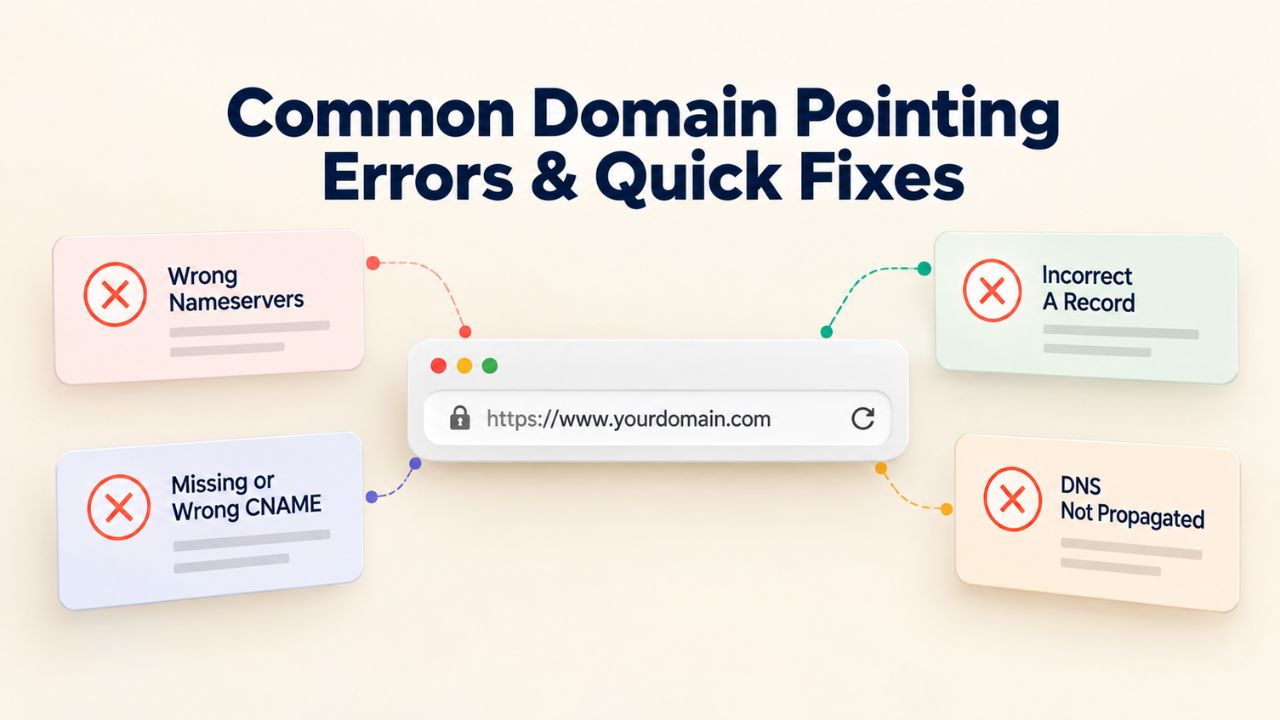
Most domain-pointing issues fall into a few predictable categories: typos in DNS record values, forgotten updates after a host migration, pointing to the wrong IP address, or impatience with propagation delays. Understanding these common problems and their solutions can save you hours of frustration and get your site live quickly.
Error: “Site Not Found” or Connection Timeout
If visitors see a “site not found” error or a connection timeout message when attempting to reach your domain, your DNS records likely point to the wrong IP address or don’t exist at all. Verify your DNS records using an online lookup tool as described in the previous section. If a domain points to an outdated or incorrect IP address, visitors will see an error or reach a completely different website.
Double-check the exact IP address or hostname your hosting provider gave you; even a single misplaced digit will cause a complete connection failure. Also verify you entered the record in your registrar’s DNS editor correctly and clicked save. If the records appear correct, wait 24–48 hours for full global propagation before concluding there’s a persistent problem. If the issue persists after two days, contact your hosting provider’s support team to confirm your site is actually installed and active on their server.
Error: A Different Website Appears When You Visit Your Domain
If your domain resolves to a different website than your WordPress site, your DNS records are pointing to another server’s IP address. This situation often occurs when domain registration and hosting are purchased from different companies, and the IP addresses get mixed up. Open your registrar’s DNS editor, locate the A record for your domain (the entry with @ or a blank name field), and verify that the value matches the IP address your current WordPress hosting provider gave you.
If you recently migrated hosts, you should have updated this A record to your new host’s IP address; if you didn’t, update it now. If the problem occurred without a recent migration, someone else may have accidentally accessed your registrar account. Consider changing your registrar password, enabling two-factor authentication, and contacting your registrar’s support team.
Error: “Too Many Redirects” or SSL Certificate Warnings
If your browser warns about too many redirects, connection insecurity, or SSL certificate errors, the problem is usually not DNS but WordPress URL settings or SSL certificate configuration. These issues are separate from domain pointing; DNS directs your domain to the server, but WordPress and the server must also be configured to respond properly. Log into your WordPress admin dashboard and verify that both “WordPress Address (URL)” and “Site Address (URL)” in Settings > General match your actual domain exactly (including http/https and www).
Also check that your site has a valid SSL certificate installed for your domain. Most modern hosting providers include free SSL certificates; your control panel should show the certificate’s status. If your certificate is missing, expired, or not configured for your domain, request a new one from your host.
| Error Symptom | Likely Cause | How to Verify | Solution | Expected Timeframe |
|---|---|---|---|---|
| “Site not found” or timeout | DNS records point to the wrong IP or don’t exist | DNS lookup tool shows wrong IP or no result | Correct the A record to match your host’s IP address; wait for propagation | 24–48 hours |
| Different website loads | Domain points to another server | DNS lookup + verify IP belongs to your host | Update A record to your current host’s IP | 24–48 hours |
| Domain resolves nowhere (NXDOMAIN) | DNS records missing or registrar nameservers incorrect | DNS lookup returns NXDOMAIN error | Create the A record; verify registrar nameservers are correct | 24–48 hours |
| Propagation delay on new setup | TTL not expired; ISP caching; global DNS lag | Propagation checker shows different IPs by region | Wait 24–48 hours; lower TTL next time before migration | 24–48 hours typical |
| SSL/certificate errors | Site accessible but browser shows insecurity | Inspect certificate in browser developer tools | Verify SSL certificate valid for your domain; update WordPress URL to https | Immediate once fixed |
| Site loads but pages show 404 errors | Site accessible but WordPress misconfigured | Check WordPress admin Settings > General URLs | Confirm WordPress Address and Site Address match your domain exactly | Immediate once fixed |
Google Search Console Domain Verification & SEO Impact
Adding your domain to Google Search Console is essential for monitoring how Google sees your WordPress site, tracking search traffic, and identifying any indexing issues that might affect your visibility. When you create a domain property in Search Console (rather than a URL-prefix property), you get unified data across all your domain variations: http, https, www, and non-www.
Setting Up Domain Properties in Google Search Console
Google Search Console supports domain properties, which combine all protocol and subdomain variations (http, https, www, non-www) into a single property for simplified site management. To use a domain property, select “Domain” as the property type during setup and enter your domain name (e.g., example.com without http/https or www prefixes). Google will provide a unique DNS TXT record to add to your domain’s zone file at your registrar.
After adding the TXT record and saving your DNS changes, return to Google Search Console and click Verify. Google will check for the TXT record; once it finds it, your domain is verified. This verification typically completes within minutes to a few hours after you add the DNS record, depending on propagation speed.
Why Domain Verification Matters for WordPress Visibility
Verifying your domain in Google Search Console tells Google that you own and have authority over the domain. Once verified, you unlock full access to Search Console’s features: monitor which search queries drive traffic to your WordPress site, identify crawl errors that prevent indexing, check mobile usability issues, submit XML sitemaps, and receive alerts about critical indexing problems.
Without verification, you cannot access Search Console’s data or act on its recommendations. This verification step is essential for understanding your WordPress site’s search visibility and making data-driven improvements to search engine rankings. Even if your domain is indexed and appears in Google’s search results, having verified ownership in Search Console ensures you can monitor and optimize your presence.
Managing Subdomains & Multi-Domain Setups
WordPress sites often use subdomains (like blog.example.com or shop.example.com) or host multiple independent domains on a single hosting account. Managing DNS records for multiple domains or subdomains requires clear organization and careful record management to prevent conflicts or accidental misconfigurations.
Setting Up Subdomains on Your WordPress Hosting
To add a subdomain to your WordPress hosting, create a new A or CNAME record in your registrar’s DNS zone with the subdomain name in the “Name” or “Hostname” field. For example, to set up blog.example.com, create an A record with blog in the name field and your host’s IP address in the value field. Some WordPress hosts automatically create subdomains when you add a new site to your hosting account; in that case, you only need to update the DNS record to point the subdomain to your host.
Check your hosting provider’s documentation to confirm whether subdomains are created automatically or require manual DNS setup. This varies by hosting provider and plan type. If your host supports automatic subdomains, you may need to add the subdomain name in your control panel; the DNS record updates automatically.
Multi-Domain & Reseller Hosting Considerations
If your managed WordPress hosting plan supports multiple domains (a common feature in small business and reseller hosting plans), each domain needs its own A or CNAME record pointing to your host’s IP address or target hostname. Your hosting provider should maintain separate installation directories for each domain so that each one displays its own independent WordPress site.
When adding a new domain to a multi-domain hosting account, follow the same DNS pointing steps for each domain independently. Create an A record at each domain’s registrar (or update an existing record) to point to your host’s IP. After propagation, each domain should display its own WordPress site. If you’re managing multiple domains, consider using a shared DNS provider for easier centralized management, though this is optional.
Security & Best Practices for Long-Term DNS Management
Your DNS records control traffic flow to your WordPress site and should be treated as a critical security asset. Unauthorized changes to DNS records can redirect your domain to malicious sites, intercept email intended for your domain, or cause unexpected downtime. Protecting your DNS from tampering and maintaining good records management practices are essential responsibilities.
Protecting Your DNS Records from Unauthorized Changes
Keep your domain registrar account password secure, and enable two-factor authentication if your registrar offers it. This is one of the most effective ways to prevent account takeover and unauthorized DNS changes. Some attackers specifically target domain registrar accounts because controlling DNS gives them complete control over where traffic is directed, allowing them to redirect your domain to phishing sites or malware.
DNSSEC (Domain Name System Security Extensions) is a set of protocols designed to protect DNS data from tampering and man-in-the-middle attacks. If your registrar supports DNSSEC, consider enabling it to add cryptographic verification to your DNS records. Additionally, monitor your DNS records periodically for unexpected entries, and enable change notifications if your registrar offers them.
Conducting Periodic DNS Audits and Maintenance
Review your DNS records regularly, at least quarterly, to ensure they match your current hosting setup and contain no unexpected entries that could indicate unauthorized access or configuration drift. Remove old or unused records (such as A records pointing to a previous host after you’ve migrated) to keep your DNS zone file clean and prevent confusion during future troubleshooting.
Document your DNS setup: note which records point to which servers and why each record exists. This documentation becomes invaluable during host migrations, troubleshooting sessions, or when handing off management to another person. A clear record of your DNS configuration reduces errors and speeds up problem resolution significantly.
Get Your WordPress Domain Setup Right the First Time
Correct domain pointing is the foundation of a successful WordPress site launch. Whether you’re setting up your first WordPress site or migrating to a new host, understanding DNS fundamentals and following this step-by-step guide ensures your domain resolves correctly and your site remains accessible to your audience. Niya Digital’s managed WordPress hosting plans include comprehensive setup guidance and responsive support to help you complete this critical step without confusion or delays.
Frequently Asked Questions
How long does it take for DNS changes to show up globally after I update my records?
DNS propagation typically takes 24–48 hours to distribute worldwide, though many regions update within hours. TTL (Time-to-Live) values and ISP caching behaviors influence propagation speed. Your TTL setting tells DNS servers how long to cache your records before checking for updates; a higher TTL delays propagation, while a lower TTL speeds it up. You can monitor progress using online DNS propagation checkers and verify your site is loading by visiting it in an incognito browser window to bypass local caching.
Can I point my domain to multiple WordPress hosts or servers for load balancing?
No. A domain can point to only one web host’s IP address at a time using standard DNS A records. If you want to distribute traffic across multiple servers for load balancing or redundancy, this is configured at the hosting infrastructure level by your provider, not in DNS. Your DNS A record points to a single IP or CNAME points to a single hostname; your host’s infrastructure then manages how traffic is distributed internally among multiple servers.
What’s the practical difference between changing nameservers and updating individual DNS records?
Pointing a domain means updating individual DNS records (A, CNAME, MX, TXT) within your registrar’s DNS zone editor. Changing nameservers means telling your registrar to use an entirely different set of DNS servers to host all your domain’s records. Updating individual DNS records is less invasive and more common; most WordPress site owners do this. Changing nameservers is more drastic and typically only necessary when switching to a specialized DNS provider or when your host requires it.
Can I use a CNAME record for my root domain, or does it have to be an A record?
Most domain registrars do not allow CNAME records at the domain apex (root domain without a subdomain). You must use an A record for the root domain (example.com). However, you can use a CNAME record for the www subdomain (www.example.com) if your host provides a target hostname. Some registrars offer ALIAS or ANAME records as a workaround for root domain aliases, but these are less common and may cost extra.
What should I do if my domain resolves correctly but shows the wrong WordPress site?
If your domain points to the correct IP address but displays a different WordPress site, the issue is likely a WordPress multisite configuration or how your host handles multiple sites on one IP. Log into your WordPress dashboard and check Settings > General to verify the WordPress Address (URL) and Site Address (URL) match your actual domain exactly. Also check your host’s control panel to confirm your domain is mapped to the correct WordPress installation.
Do I need to set up domain pointing if I’m using WordPress.com hosting instead of self-hosted WordPress?
WordPress.com offers free blog hosting on subdomains like yoursite.wordpress.com, or you can map a custom domain to your WordPress.com site. If using a free subdomain, no DNS setup is required. If you map a custom domain to WordPress.com, follow WordPress.com’s domain-mapping instructions; they typically require adding a CNAME record or changing nameservers, which differs from pointing a self-hosted WordPress domain.
What if my hosting provider gave me nameservers instead of an IP address to point to?
If your host provided a set of nameservers (like ns1.example-host.com and ns2.example-host.com) instead of an IP address, they want you to update your registrar’s nameserver settings to point to those servers rather than updating individual DNS records. This transfers all DNS management for your domain to your host. Follow your host’s instructions to see whether they recommend the nameserver method or updating individual records.
Can I point my domain before my WordPress site is fully installed and set up?
Yes. You can point your domain to your host’s server before installing or configuring WordPress. Once DNS propagates, visiting your domain may show a “site not found” error or your host’s default page until WordPress is installed and active. After your host confirms WordPress is ready, refresh your browser and your site should load normally. Pointing early doesn’t cause problems; it just means visitors will see an error until your site is ready.
How do I verify my domain is pointing correctly without waiting for full global propagation?
Use DNS lookup tools like MXToolbox or DNSChecker to query specific nameservers globally and see whether your records show the new values everywhere. Visit your domain in a private or incognito browser window to bypass your computer’s local DNS cache. If the DNS lookup shows your host’s IP in most regions but your site still isn’t loading in your browser, the issue may be WordPress configuration, or your site may not be fully installed on the host yet.
What are MX records, and do I need to update them when setting up WordPress hosting?
MX (Mail eXchange) records direct email traffic to your mail server; they’re separate from A or CNAME records that point your WordPress site. If you use email with your domain (@yourdomain.com addresses), never delete existing MX records unless you’re changing email providers. If you don’t use email with your domain, MX records aren’t necessary, though most registrars include default ones anyway.
Is it safe to update DNS records while my WordPress site is live and receiving traffic?
Yes, DNS changes are safe for live sites. Updating DNS records doesn’t affect a site that’s already running; it only changes how future visitors find your site. However, during migrations between hosts, plan your timing carefully. If you point your domain to a new host while the old host is still active, visitors will see the new site immediately (after propagation). In contrast, any ongoing services on the old host will become inaccessible. Coordinate the migration timing with your host to minimize disruption.
My domain registrar and hosting provider are different companies. Which one manages my DNS?
Your domain registrar (where you purchased the domain) manages your DNS by default. You update DNS records at the registrar, not at your hosting provider. However, some hosts allow you to change your registrar’s nameservers to point to the host’s DNS servers, transferring DNS management to the host. Check both your registrar’s and host’s documentation to understand who controls DNS in your specific setup.
Can I preview my WordPress site before DNS propagates to avoid surprises?
Yes. Ask your host for a temporary direct URL (something like server123.yourhost.com) or the server’s IP address, then access your site directly using that address. You can also modify your computer’s local hosts file to point your domain to your new host’s IP, so you can test the site locally before DNS propagates globally. This allows you to verify WordPress configuration, SSL certificates, and site functionality before your domain goes live.
What happens if I accidentally delete an important DNS record like an A or MX record?
If you delete an A record, your domain will stop resolving to your WordPress site immediately or after the TTL expires (usually within an hour). Recreate the record as quickly as possible with the correct IP address, and wait for propagation. If you delete MX records and use email with your domain, email delivery will fail until you restore the records. Always take screenshots of your DNS records before editing, so you can quickly restore them if needed.
Why isn’t my domain working after 48 hours, even though DNS lookup tools show the correct IP?
If DNS lookup shows your host’s IP correctly but your site won’t load after 48 hours, the issue likely isn’t DNS. Verify WordPress is installed and active on your hosting server by checking your control panel. Contact your host to confirm your domain maps to the correct installation. Clear your browser cache and try incognito mode. Often, the issue is a WordPress URL misconfiguration that isn’t pointing correctly.
Glossary
- A Record: A DNS record type that maps a domain name directly to an IPv4 address (a numerical sequence like 192.0.2.1). A records are used to point domains to specific web servers and are the most common record type for WordPress hosting.
- Authoritative Nameserver: The DNS server that holds the definitive, official DNS records for a domain and responds with authoritative answers to DNS queries about that domain. Your registrar typically hosts your authoritative nameserver by default.
- CNAME Record: A DNS record type that creates an alias, pointing one domain or subdomain to another domain name instead of directly to an IP address. CNAME records are useful for pointing subdomains to a hosting provider’s target hostname.
- DNS (Domain Name System): The internet’s address book and hierarchical naming system that translates human-readable domain names (like example.com) into numerical IP addresses (like 192.0.2.1), allowing browsers to locate web servers.
- Nameserver: A server that responds to Domain Name System queries and provides DNS record information for a domain. Nameservers store DNS records and answer queries from other DNS servers and clients.
- Propagation: The process by which DNS changes spread across the internet’s distributed network of DNS servers worldwide. Full propagation typically takes 24–48 hours but can vary based on TTL values and ISP caching practices.
- TTL (Time-to-Live): A value in DNS records (measured in seconds) that specifies how long other DNS servers should cache the record before checking for updates. Higher TTL values reduce query load but delay updates; lower values speed propagation but increase server load.