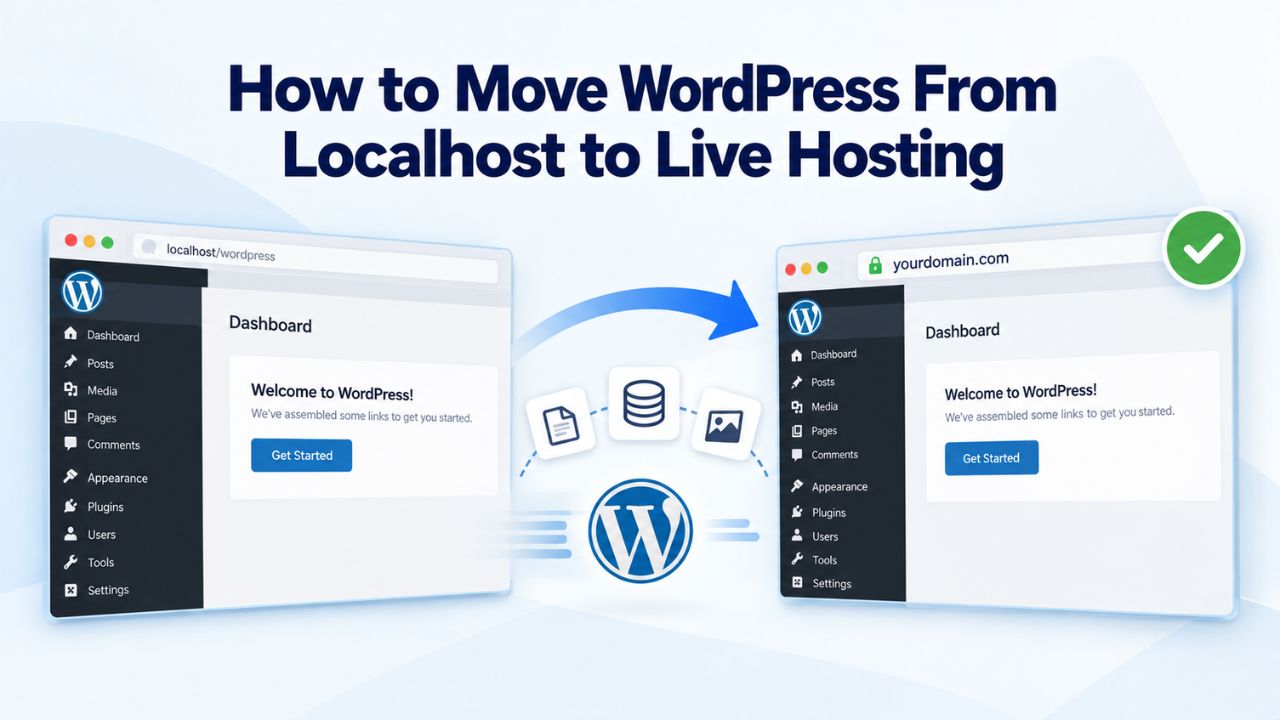
Building a WordPress site locally offers cost savings, complete safety, and freedom to experiment, but eventually, you’ll need to move it to live hosting to make it accessible online. Moving WordPress from localhost requires several critical steps to preserve your content, settings, and functionality without data loss or broken links. Niya Digital’s team has observed that incomplete database URL replacement is the most common post-migration issue, yet it’s entirely preventable with the right process. Niya Digital delivers managed WordPress hosting in partnership with an enterprise-grade cloud infrastructure partner to support your site’s growth.
Why Developers Work Locally First
Working on a WordPress site before it goes live protects both your data and your reputation. Localhost environments let you build, test, iterate, and experiment safely without affecting visitors or risking live downtime. This practice has become standard for professional WordPress development, from freelancers to large agencies.
Cost Savings and Risk Elimination
Local development eliminates hosting fees during the build phase. Most local development environments are free to use, so you avoid hosting fees. At the same time, you design, configure plugins, test content, and make architectural decisions. For a project that takes weeks or months to build, this can save hundreds or thousands of dollars compared to hosting on a live server from day one. Beyond immediate cost savings, working locally removes the risk of breaking a live site during development; you can test plugin updates, theme changes, code modifications, and new feature experiments without affecting real visitors or damaging your search rankings.
A localhost environment also functions as a sandbox where you’re free to fail and learn. If a plugin installation causes conflicts, a theme update breaks your layout, or a database query behaves unexpectedly, you can troubleshoot offline without pressure or consequences. You can revert changes instantly, test alternative approaches, and rebuild from backups without visitor impact. This freedom to experiment is invaluable for both new developers learning WordPress and experienced developers testing unfamiliar plugins or frameworks before deploying them to production.
Testing and Version Control Integration
Local environments integrate seamlessly with version control systems like Git, enabling you to track every change to your WordPress configuration, theme customizations, and custom code. A local WordPress development environment is the default for real-world teams because it enables distributed work, code reviews, collaborative debugging, and instant rollbacks to any previous version. You can commit your WordPress files, database exports, and configuration changes to a repository, push them to GitHub or another platform, and maintain a complete, auditable history of your site’s evolution from launch through updates and feature additions.
Testing offline also means you catch mistakes before they reach visitors and damage your reputation. You can verify that all plugins work together without conflicts, that your theme renders correctly across browsers and devices, that forms submit properly and email notifications work, that permalinks generate the correct URLs, and that your content is structured exactly as intended. Migrating to live hosting after thorough local testing dramatically reduces post-launch troubleshooting, support tickets, and the stress of discovering problems only after your site goes live and visitors start arriving.
WordPress Pricing Plans
Choose the WordPress hosting plan that fits your website needs, with reliable performance, security, storage, backups, and tools to help your site grow.
WordPress Basic
A great way to get started.
- 1 website
- 10 GB NVMe storage
- Unmetered bandwidth
- Free SSL Certificate *
- WordPress pre-installed
- Weekly backups
- Web Application Firewall
- Daily malware scans
- One-time malware removal

WordPress Deluxe
Improve your site performance with Cloudflare CDN.
- 1 website
- 20 GB NVMe storage
- Unmetered bandwidth
- Free SSL Certificate *
- WordPress pre-installed
- Daily backups
- Web Application Firewall
- Daily malware scans
- One-time malware removal
- Up to 2x faster performance with global Cloudflare CDN **
- Enhanced security with DDoS protection
- Staging site
WordPress Ultimate
Add online marketing with more sites, storage and security.
- 1 website
- 30 GB NVMe storage
- Unmetered bandwidth
- Free SSL Certificate *
- WordPress pre-installed
- Daily + on-demand backups
- Web Application Firewall
- Daily malware scans
- Unlimited malware removal
- Up to 2x faster performance with global Cloudflare CDN **
- Enhanced security with DDoS protection
- Staging site
- WordPress code optimizer
- Smart WordPress plugin manager
- Sell online with WooCommerce
Understanding Localhost Development Tools
Several free and low-cost tools bundle a web server, database engine, and PHP interpreter into a single package you install and run on your own computer. Each tool takes a different approach to simplifying local WordPress development, and the best choice depends on your technical comfort level, operating system, and workflow preferences.
XAMPP, MAMP, and General-Purpose Stacks
XAMPP is a free, open-source bundle that packages Apache, MariaDB, and PHP for Windows, Mac, and Linux. It’s one of the oldest and most widely used local development environments, with over two decades of refinement and a large community. Setup is straightforward: download the installer for your operating system, run it, extract WordPress files into XAMPP’s webroot folder (typically htdocs), create a new database via phpMyAdmin (included with XAMPP), and run the WordPress installer by navigating to http://localhost/sitename/wp-admin/setup-config.php in your browser. MAMP (for Mac and Windows) and WampServer (Windows-only) follow nearly identical workflows; they’re not WordPress-specific, but they provide the exact PHP and MySQL stack WordPress needs.
The trade-off is that these tools require more hands-on configuration than managed alternatives. You directly control PHP versions, MySQL settings, memory limits, and environment variables, which is powerful for developers who need granular control, but can feel overwhelming for users new to server administration. MAMP Pro and similar paid upgrades add convenience features like one-click WordPress installers and preconfigured development environments. Still, the free versions work perfectly for learning, building small projects, and developing client sites before migration. If you’re comfortable editing configuration files and don’t need a graphical interface, these tools are reliable workhorses.
WordPress-Specific Local Environments
Local by Flywheel, DevKinsta, and WordPress Studio are purpose-built specifically for WordPress development. They handle server configuration automatically behind the scenes, offering a graphical dashboard instead of requiring command-line setup or manual file editing. Local by Flywheel and DevKinsta provision a full WordPress stack, web server, database, PHP, and WordPress core, with the click of a button. WordPress Studio, created and maintained by the WordPress.com team, offers the officially endorsed development path and integrates deeply with WordPress.com services.
WordPress-specific tools offer speed and simplicity: you click “Create New Site,” name your project, select your PHP and database versions, and start building within minutes. The environments match production hosting more closely than generic stacks, reducing compatibility surprises when you eventually migrate. These tools are free (DevKinsta and WordPress Studio) or low-cost, making them accessible to freelancers, agencies, and solo developers who need repeatable, reliable local setups without managing server configuration details. If you value getting to development quickly over deep technical control, these are ideal.
Pre-Migration Hosting Verification Checklist
Before you commit to migrating, verify that your chosen live hosting provider can run your WordPress site reliably. Mismatched PHP versions, outdated MySQL, missing SSL support, or insufficient disk space cause errors, broken plugins, and performance problems post-migration- problems that are far easier to prevent upfront than to troubleshoot after going live.
Pre-Migration Hosting Compatibility Checklist
| Item | Action Required | Why It Matters |
|---|---|---|
| PHP Version | Verify host supports your WordPress’s PHP version (8.3+ recommended) | Code written for one PHP version may break on another; outdated versions create security vulnerabilities |
| MySQL/MariaDB Version | Confirm host offers MySQL 8.0+ or MariaDB 10.11+ | WordPress depends on specific database features; old versions lack security patches and optimization |
| SSL/HTTPS Support | Verify free SSL is included; confirm auto-renewal is enabled | Modern browsers require HTTPS; expired certificates trigger security warnings and hurt SEO |
| Disk Space | Confirm plan includes sufficient storage (1–5 GB minimum for typical sites) | Insufficient space causes upload failures and prevents site growth |
| FTP/SFTP Access | Obtain credentials and test connection with FileZilla or similar | Required to upload WordPress files; inability to access means inability to migrate |
| phpMyAdmin Access | Verify database management tool is available in control panel | Required for database export/import; unavailability blocks database migration |
| Database Creation | Create new, empty database; obtain credentials (name, user, password, host) | Database must exist and be accessible before importing localhost backup |
| DNS Configuration | Point domain registrar nameservers to new host (if using new domain) | DNS propagation takes 24–48 hours; must complete before or immediately after file upload |
PHP and Database Version Compatibility
WordPress.org recommends PHP 8.3 or greater and MySQL 8.0+ (or MariaDB 10.11+) as the current best practice for performance and security. Your first step: check your localhost environment’s PHP and database versions. In XAMPP or MAMP, this information appears prominently in the control panel, and you can verify it by opening phpMyAdmin and checking the version information at the bottom of the page. WordPress will also display these versions in Settings > System Health. Compare your local PHP version against what your prospective live hosting provider officially supports.
If your localhost site runs PHP 8.1 but the host you’re considering defaults to PHP 7.4, you may face compatibility issues with plugins and themes after migration. Contact your host’s support team directly; most modern hosting providers offer multiple PHP versions and can enable a newer version on your account at no extra cost, often within a few hours.
Ask them explicitly: “What PHP versions does my account support? Can you enable PHP 8.2 or 8.3?” Get their answer in writing so you have documentation. MariaDB, a free fork of MySQL maintained by MySQL’s original creators, is fully compatible with WordPress and often preferred by hosting companies. Both MariaDB and MySQL work equally well with WordPress; confirm the version number and that it meets WordPress’s minimum requirements.
SSL Support, Disk Space, and Access Methods
Every modern WordPress site must use HTTPS (SSL/TLS certificate encryption). HTTPS encrypts data transmitted between your site and visitors’ browsers, protecting passwords, personal information, and payment data from interception. Modern browsers warn visitors if your site doesn’t use HTTPS, which destroys trust. Most hosting providers include free SSL certificates via Let’s Encrypt; verify this is included in your plan before purchasing. Ask support: “Is SSL/HTTPS included at no extra cost? Will it auto-renew?” If your host charges separately for SSL or doesn’t offer it, that’s a red flag.
Check that your hosting account has enough disk space for your WordPress files, uploads folder, database, and future growth. A typical small WordPress site uses 1–3 GB of storage, but e-commerce sites with product photos or media-heavy sites with video embeds may need 10–50 GB or more. Review the plan’s storage limit and make sure it fits your site’s size, with room to grow.
Confirm you have FTP or SFTP access credentials; your host should supply the hostname, username, password, and port number in your welcome email or account dashboard. SFTP (Secure File Transfer Protocol) is more secure than FTP because it encrypts your credentials and file transfers; use SFTP if available. Verify you can access phpMyAdmin (the database management interface) for exporting and importing databases. Most hosts include it in the control panel; if yours doesn’t, ask whether they provide an alternative method or will handle database migration for you.
Preparing Your Local and Live Environments for Migration
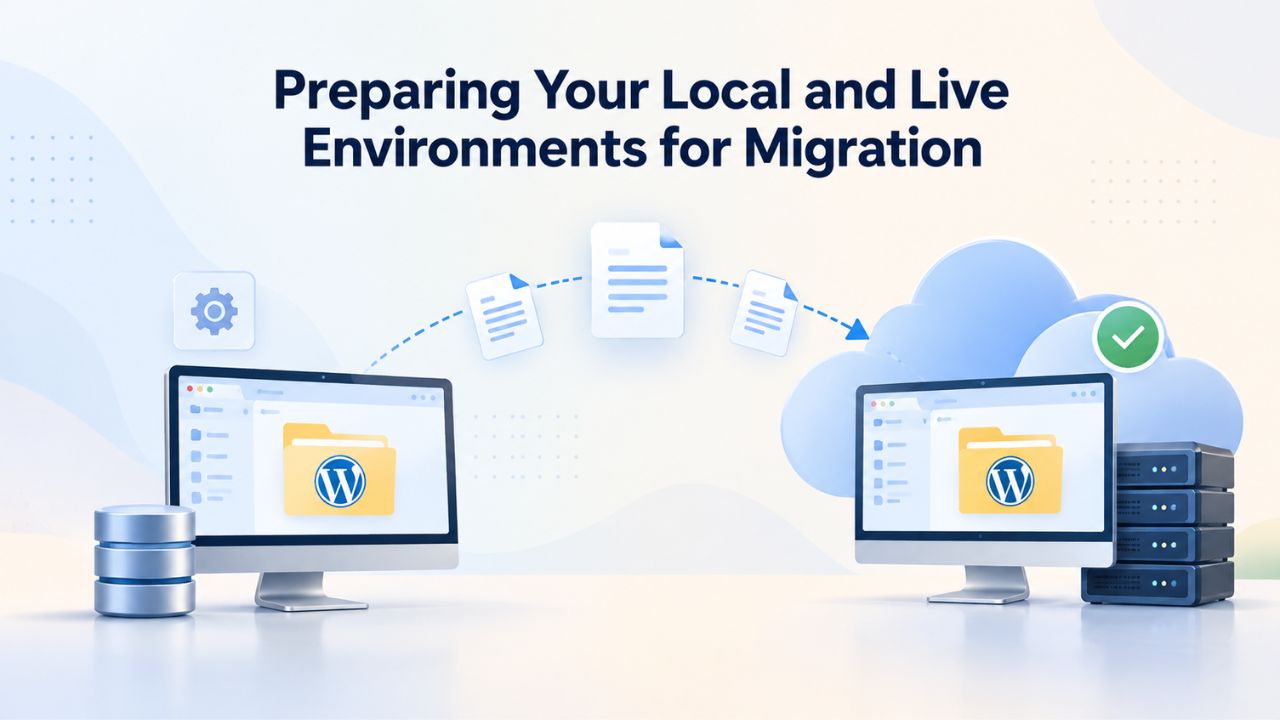
Migration success depends on thorough preparation before you transfer a single file. Backup your local site completely, verify your live hosting is ready to receive data, and triple-check all credentials before you begin.
Backing Up Your Entire Local WordPress Site
Always back up your entire WordPress site, both files and database, before attempting migration. This backup is your insurance policy. If anything goes wrong during migration, you can restore to this point and try again without losing any work. Use a backup plugin like Duplicator, All-in-One WP Migration, or UpdraftPlus to create a complete snapshot that includes your theme, plugins, uploads, posts, pages, comments, users, settings, and database. These plugins handle the complexity of capturing everything in the correct format for restoration.
Alternatively, you can manually download your WordPress files via FTP to your computer and export your database via phpMyAdmin (we’ll cover the database export process in detail below). Either way, store the backup file in at least two locations: on your computer’s primary drive and in cloud storage (Google Drive, Dropbox, OneDrive, or your cloud storage service of choice).
This redundancy protects against accidental file deletion, computer hard drive failure, or cloud service downtime. Name your backup file clearly with the date and site name, for example, mysite-backup-2025-01-15.zip, so you can identify it instantly if you need to restore. Before proceeding, verify the backup file is readable and contains your site files by checking its contents in your file explorer or compression utility.
Setting Up Your Live Hosting Account
Log into your new hosting provider’s control panel and create a new, empty MySQL or MariaDB database that will receive your WordPress content. Don’t reuse an existing database or assume one has been created; explicitly create a fresh, clean database through the control panel. Your host will provide the database name, username, password, and hostname; write these down immediately in a password manager or a secure note. You’ll need these credentials during migration, and you cannot proceed without them. Some hosts email these credentials to you; if you don’t receive them, contact support and explicitly request them.
Create or verify that FTP/SFTP credentials are active and accessible on your account. Request these from your host if they weren’t included in your welcome email. Test the connection with an FTP client like FileZilla (free, cross-platform) to verify you can actually connect before migration day arrives. Navigate to the public_html, www, or public folder; this is your web root where website files belong, and verify you have permission to create folders and upload files. Check that your domain is pointing to this hosting account via DNS.
If you’re using a new domain, update the domain registrar’s nameservers to point to your new host immediately; DNS changes can take 24–48 hours to propagate fully, so you want this done early. If you’re migrating an existing domain from another host, coordinate the timing carefully; you may want to keep the old host active as a backup until you’ve verified the new site is fully functional.
Exporting Your WordPress Database
Your database contains all your posts, pages, comments, user accounts, plugin settings, and site configuration. Exporting it correctly and completely ensures nothing is lost or corrupted during migration.
Using phpMyAdmin to Export Your Database
Access phpMyAdmin through your hosting control panel. On your localhost machine, look for “Database” or “phpMyAdmin” in your XAMPP or MAMP control panel menu, or access it directly at http://localhost/phpmyadmin. Log in using the credentials provided by your local environment (XAMPP typically uses no password by default; MAMP varies). In phpMyAdmin’s left sidebar, click on the database name associated with your WordPress site. This database often has a name like wordpress, wp_database, localhost_db, or your site’s name; you created it during your initial WordPress setup.
Once the database is selected, click the “Export” tab at the top of the phpMyAdmin window. The default settings- Quick export method, SQL format- are correct for nearly all WordPress migrations. SQL format is the universal standard for database backups and can be imported into any MySQL or MariaDB system. Click the “Go” button, and phpMyAdmin will download a .sql file to your computer, typically saved in your Downloads folder.
This single .sql file is a complete, compressed snapshot of your entire database structure and content: every table, every row, all your posts, pages, comments, user metadata, and settings. The file size depends on your content volume; small sites typically generate 1–10 MB files, while large sites might produce 50–500 MB files.
Alternative Export Methods and Secure Storage
WordPress backup plugins like UpdraftPlus, BackWPup, and All-in-One WP Migration automate the export process and handle database serialization, making them significantly simpler for users uncomfortable with phpMyAdmin. These plugins export your entire site- files, database, and configuration- into a single downloadable file, often with compression to reduce file size. The trade-off is that plugin-based exports are slower for very large sites and may hit server file-size limits on some hosting providers. Still, they’re much more beginner-friendly, and their automatic serialization handling prevents data corruption on sites with complex plugin setups.
Store your exported database file securely and redundantly. Upload it to cloud storage (Google Drive, Dropbox, Microsoft OneDrive, or iCloud) so you can access it from any computer, anywhere, at any time. If your local computer crashes before migration completes, or if you accidentally delete the backup file, you’ll still have your backup in the cloud. Label your backup files clearly with dates and site names, for example, localhost-wordpress-db-2025-01-15.sql and localhost-wordpress-files-2025-01-15.zip, so you can instantly identify which backup to use if you need to restore. A well-organized backup system with clear naming conventions saves hours of confusion and troubleshooting if you manage multiple WordPress sites or if months pass between migration and the need to restore.
Ready to Move Your WordPress Site to Live Hosting?
Migration doesn’t have to be stressful when you follow a clear, methodical process. Niya Digital supports WordPress site migrations and offers managed hosting plans specifically built for performance, security, and scalability. Whether you’re migrating a small personal blog or a mission-critical business site, our team can assist with technical guidance, handle the migration for you, or work alongside you through each step.
Uploading WordPress Files to Your Live Host
Your WordPress files, themes, plugins, uploads folder, wp-config.php, and core WordPress code must be transferred from your computer to your live hosting account’s public web root. This step makes your site accessible to the public via your domain name.
FTP and SFTP File Transfer Fundamentals
Download an FTP client like FileZilla (free, cross-platform, regularly updated) or use your hosting provider’s built-in file manager if available. FTP (File Transfer Protocol) is the traditional method, but SFTP (SSH File Transfer Protocol) is more secure because it encrypts your username, password, and file contents during transfer; use SFTP if your host offers it. In FileZilla, open the Site Manager (File > Site Manager or Ctrl+S), click “New Site,” and enter your host’s connection details: hostname (provided by your host), username, password, port (usually 21 for FTP or 22 for SFTP), and protocol (SFTP if available, otherwise FTP).
Click Connect, and FileZilla displays your server’s directory structure in the right panel and your computer’s file system in the left. Navigate to the public_html, www, or public folder on the remote side (your server); this is your web root where website files must go. Navigate to your WordPress folder on the local side (your computer). Select all WordPress files and folders: wp-admin, wp-content, wp-includes, wp-config.php, .htaccess, index.php, wp-load.php, wp-blog-header.php, wp-settings.php, and any custom files or folders you’ve created. Drag these files from the left panel to the remote public_html folder on the right, or right-click and select “Upload.” FileZilla transfers the files to your live server.
Verifying Directory Structure and File Placement After Upload
When the transfer completes, this may take minutes to hours depending on your site’s size and your internet connection speed. Verify that your live hosting account has the same folder structure as your localhost site. If you’re moving WordPress to the root domain (not a subfolder), all WordPress files go directly into public_html. If you’re placing it in a subfolder like /blog/, create a blog folder inside public_html first, then transfer WordPress files into it. Verify in FileZilla that you can see all your WordPress files on the remote server: wp-admin folder, wp-content folder with your themes and plugins, wp-includes folder, wp-config.php file, index.php, .htaccess file, and any custom files you created.
Note that .htaccess is a hidden file (starts with a period) and may not display by default in FileZilla. Enable “View > Show hidden files” (or equivalent in your FTP client) to see it. If the upload disconnects mid-transfer, FileZilla can resume from where it left off; you don’t have to restart from the beginning. After the transfer completes, verify the file count roughly matches on both sides (you may have additional files on your computer that don’t transfer, like README files or development notes, which is fine). Critical files that must be present on the server: wp-config.php, the wp-admin folder, the wp-content folder, the wp-includes folder, and index.php. These files indicate a successful, complete upload.
Importing Your Database and Configuring wp-config.php
Now upload your exported database to the live server and update WordPress’s configuration file with your live host’s database credentials so WordPress can connect to the new database.
Importing Your Database via phpMyAdmin
Log in to phpMyAdmin on your live hosting account via your control panel. Your host’s control panel (cPanel, Plesk, or a custom dashboard) includes a link to phpMyAdmin. Log in using your hosting account credentials. In phpMyAdmin’s left sidebar, select the empty database you created earlier for your WordPress site. Your host provided the database name and credentials during account setup; If you didn’t write them down, retrieve them from your host’s account dashboard or email them to yourself. Click the “Import” tab at the top of the phpMyAdmin window.
Click “Choose File” and select the .sql file you exported from localhost; navigate to your Downloads folder or wherever you saved it. Leave the format set to SQL. Scroll to the bottom of the page and click “Go.” phpMyAdmin processes your database file and imports all content into the live database. You’ll see a success message: “Imported X rows into table Y, Z more tables imported” or similar.
The import may take several seconds to several minutes depending on your site’s database size. During the import, don’t close your browser window, navigate away, or interrupt the process; let phpMyAdmin finish. Once complete, refresh the page to confirm all your database tables are present in the live database. Your posts, pages, comments, user accounts, settings, and plugin data are now on the live server.
Updating Database Connection Credentials in wp-config.php
Your wp-config.php file on the live server contains database connection settings. It currently has your localhost database credentials, which won’t work with your live database. Connect via FTP again, navigate to your WordPress root folder, find wp-config.php, and download it to your computer. Open it in a text editor like Notepad++, VS Code, or Sublime Text, not Microsoft Word, which will add formatting that breaks the file. Locate these lines:
define(‘DB_USER’, ‘localhost_database_user’);
define(‘DB_PASSWORD’, ‘localhost_database_password’);
define(‘DB_HOST’, ‘localhost’);
Replace them with your live host’s credentials, which your host provided:
define(‘DB_USER’, ‘live_database_user’);
define(‘DB_PASSWORD’, ‘live_database_password’);
define(‘DB_HOST’, ‘live_host_or_localhost’);
The DB_HOST value is often still localhost even on live servers if your database and web server are on the same machine, but some hosts use a different hostname, IP address, or port number. Your host’s documentation or welcome email specifies the correct value; if you’re unsure, contact support. Save the file, upload it back to your live server via FTP, and overwrite the old wp-config.php. WordPress can now communicate with your live database.
Replacing Old URLs in Your Database
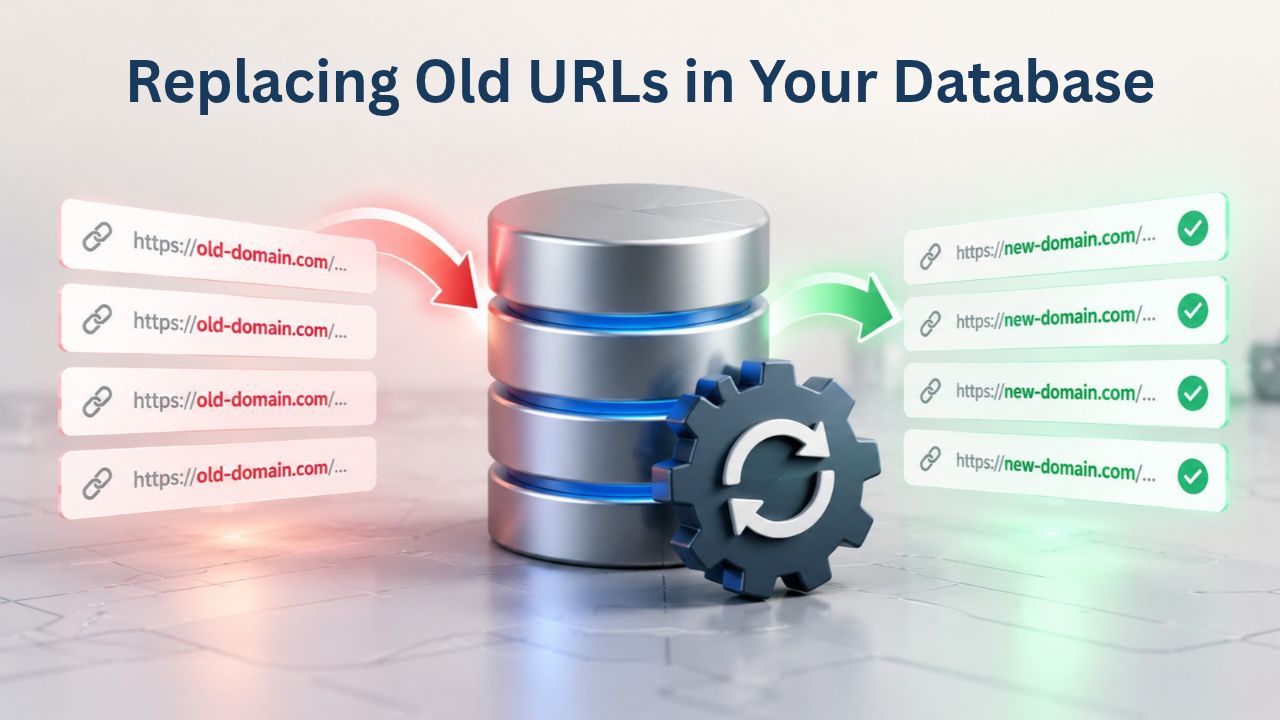
This is the single most critical, and most frequently overlooked, step in WordPress migration. WordPress stores full domain URLs throughout the database: in post content, image paths, widget settings, plugin data, and metadata. When you move from http://localhost/mysite to https://example.com, old URLs remain in the database, breaking images, internal links, redirects, and functionality.
The Critical Search-and-Replace Operation
Use a plugin like Better Search Replace or All-in-One WP Migration to automate URL replacement across your entire database. Install the plugin on your live WordPress site by logging in to wp-admin with your original localhost credentials (these work because the database now contains your user data). Navigate to Plugins > Add New, search for “Better Search Replace,” click Install Now, then Activate. Go to Tools > Better Search Replace. In the Search field, enter your old localhost URL: http://localhost/mysite. In the Replace with field, enter your new live domain: https://example.com.
Select “Replace only” (safer than replacing and saving on first run; you can preview changes first). The plugin searches every table, every field, every piece of data in your database, posts, pages, comments, user metadata, widgets, plugin settings, serialized data, everything, and replaces all instances. Click “Replace” and the operation runs. The plugin shows how many replacements were made: “X replacements made in table Y.” This single operation fixes broken images, broken internal links, redirects pointing to old URLs, widget settings, and plugin data all at once.
Alternative Approaches and Safety Considerations
Manual search-and-replace via phpMyAdmin is theoretically possible but risky; one typo in an SQL query can corrupt your database. If you’re comfortable with SQL and phpMyAdmin, you can export your database, edit the .sql file in a text editor with find-and-replace to change URLs, and re-import it. Most users benefit from using a plugin; it’s safer, handles edge cases automatically, and shows you exactly what it’s replacing before it commits changes. Some backup plugins, like All-in-One WP Migration, include built-in URL replacement during the import process, which handles replacement automatically without a separate plugin.
After running search-and-replace, test your site immediately. Visit your homepage and verify it loads without errors. Click on several posts and pages to confirm images display correctly. If images still show broken icons, the search-and-replace may have missed some instances (this occasionally happens with serialized data or plugin-specific URL storage). Scroll through a few posts to visually verify images are present. Click internal navigation links to ensure they work and point to https://example.com, not http://localhost/mysite. Some cached data may still display old URLs temporarily; clear your browser cache (Ctrl+Shift+Delete in most browsers) and clear your site’s page cache if you have a caching plugin installed (usually Settings > [Plugin Name] > Purge Cache or similar).
Testing Your Migrated Site and Fixing Common Post-Migration Issues
Before you consider migration complete, thoroughly test your site’s functionality and troubleshoot any errors that arise.
Post-Migration Testing and Troubleshooting Checklist
| Item to Test | Expected Result | If Failed, Likely Cause | Fix |
|---|---|---|---|
| Homepage loads at new domain | Page displays without errors, images show, navigation visible | Files not uploaded, domain DNS not pointing to host, database connection issue | Verify domain DNS, confirm files via FTP, check wp-config.php database credentials |
| Internal links work | Clicking navigation links, post links, category links works, and URL is correct | Database URLs not replaced, permalink rules missing, .htaccess not present | Run Better Search Replace for URL replacement, resave WordPress permalinks |
| Images display correctly | All images show (not broken-image icons), src attributes use HTTPS | Database contains old localhost image URLs; search-and-replace missed instances | Use Better Search Replace to find http://localhost and replace with https://yourdomain.com |
| Forms submit and work | Contact forms, comment forms, any custom forms submit without error | Form handler URLs incorrect, HTTPS mixed content blocking, database issue with form plugin | Use Better Search Replace for URLs, clear browser cache, check plugin settings |
| Admin login works | Can log in with localhost credentials, admin dashboard displays | Database import incomplete, user table corrupted, database connection issue | Check admin user exists in database, verify wp-config.php credentials |
| Backups run automatically | Backup plugin shows successful daily/weekly backups | Backup not configured, plugin not active, cron jobs disabled | Activate backup plugin, configure schedule, test manual backup |
| SSL certificate valid | Browser shows padlock icon, no security warnings | SSL not installed, certificate expired, mixed content (HTTP content on HTTPS page) | Verify SSL enabled in host control panel, run Better Search Replace for URLs |
| Core Web Vitals tracking | Data visible in Google Search Console > Experience > Core Web Vitals | Search Console not connected to site, domain not verified | Verify site in Search Console, confirm domain ownership, wait 24–48 hours for data |
Checking Broken Links, 404 Errors, and Functionality
Visit your site’s homepage and verify it loads without errors or warnings. The page should display your logo, navigation menu, recent posts or content, and any widgets you configured locally. Click through several posts and pages to verify they load correctly. Click on your main navigation menu items, footer links, and category links to ensure they work and point to the correct URLs. Check that any forms on your site, contact forms, subscription forms, comment forms, display and function correctly. If you have a WooCommerce store, add an item to the cart, go through checkout, and verify the payment form appears.
Use tools like Google Search Console’s URL Inspection tool or the Broken Link Checker WordPress plugin to automatically scan your entire site for broken links. These tools crawl your site, test every link, and report any that return 404 (not found) or other error codes. If you find broken links, run Better Search Replace again to catch missed URL instances; this can happen with complex plugin data or serialized settings. 404 errors on pages that existed locally indicate incomplete URL replacement or permalink rewrite rule issues (see next section). 404 errors on specific post types (e.g., all products in WooCommerce but posts work fine) point to plugin-specific URL handling that needs additional correction.
Resolving SSL/HTTPS, Permalink, and Database Connection Problems
If your site shows a “mixed content” warning (browser console shows HTTP content loaded on an HTTPS page), some URLs in the database are still pointing to http:// instead of https://. Use Better Search Replace to find all instances of http://yourdomain.com and replace them with https://yourdomain.com. Go to Settings > General in WordPress admin, verify both “WordPress Address (URL)” and “Site Address (URL)” begin with https://, and save changes.
404 errors on pages that should exist, especially when they worked fine locally, often result from incomplete permalink rewrite rules after migration. WordPress uses .htaccess files (on Apache servers) or Nginx configuration (on Nginx servers) to rewrite URLs. These rules sometimes don’t transfer cleanly during migration, or they get corrupted. Fix this by going to Settings > Permalinks in WordPress admin and clicking “Save Changes” without actually modifying anything. This regenerates your .
htaccess file or Nginx configuration with fresh rules. Many 404 issues disappear after this single step. If 404s persist, verify that your .htaccess file actually uploaded to the server’s root directory during FTP transfer; some FTP clients hide files starting with a period by default. Enable “Show hidden files” in your FTP client (View menu or similar) and confirm .htaccess is present.
Database connection errors (“Error Establishing a Database Connection”) mean WordPress cannot connect to your database, almost always due to incorrect credentials in wp-config.php. Double-check that DB_NAME, DB_USER, DB_PASSWORD, and DB_HOST exactly match what your host provided in your account setup. Contact your host’s support team and ask them to confirm the correct values; they can access your account and verify them. Some hosts require a specific port number for database connections (sometimes 3306, sometimes custom). If credentials are correct and errors persist, ask support whether you need to add a port number to DB_HOST or whether any database server restrictions apply to your account.
Monitoring Performance and Ongoing Security After Going Live
Your site is now live and accessible to the public, but the migration process doesn’t truly end until your site is stable, secure, and performing well. Plan for ongoing monitoring and maintenance.
Verifying Core Web Vitals and Page Speed Performance
Google’s Core Web Vitals measure three essential user experience metrics: Largest Contentful Paint (LCP, loading speed), First Input Delay (FID, responsiveness), and Cumulative Layout Shift (CLS, visual stability). These metrics are official Google ranking factors; sites with poor Core Web Vitals score lower in search results and experience higher bounce rates. Log in to Google Search Console and navigate to Experience > Core Web Vitals. You’ll see separate reports for mobile and desktop users. Aim for “green” (good) performance on all three metrics.
If Core Web Vitals scores have dropped significantly post-migration- your localhost site was fast, but your live site is slow- the hosting environment itself is likely the issue, not the migration process. Shared hosting with thousands of sites on one server may have slower response times than your localhost development environment. Use Google PageSpeed Insights and GTmetrix to diagnose specific slowdowns. These tools identify unoptimized images, render-blocking JavaScript, missing caching, insufficient server resources, and other performance bottlenecks. Most slowdowns come from plugin conflicts, unoptimized images, poorly configured caching, or insufficient server resources, not the migration itself. If your host is underperforming, contact their support team about optimization or upgrade to a higher-tier plan with better resources.
Ensuring Backups Run Automatically and Security Updates Stay Current
Set up automatic backups immediately if your hosting provider doesn’t include them by default. Most WordPress hosting providers include backup tools or allow backup plugins like UpdraftPlus, BackWPup, or BlogVault. Configure daily or weekly backups and ensure they’re stored off-site, in cloud storage, your host’s backup service, or a third-party backup provider, so a server failure or security breach doesn’t lose your data. Verify backups are running by checking your backup plugin’s logs or your host’s backup history every week for the first month.
Confirm your SSL certificate is active, valid, and set to auto-renew. Modern browsers display security warnings if your SSL certificate is expired or invalid, which destroys user trust and damages SEO. Most hosts auto-renew free Let’s Encrypt certificates, but confirm this is set up for your account. Check Settings > System Health in WordPress admin to see your SSL certificate’s expiration date.
Update WordPress core, plugins, and themes immediately if updates are pending; new code often patches security vulnerabilities, and staying current protects your site from attacks. Enable two-factor authentication on your admin account: go to Settings > Users, install a two-factor plugin like Wordfence or iThemes Security, and configure it for your admin user. This dramatically reduces the risk of account compromise even if your password is weak or stolen.
Optimizing Your WordPress Hosting for Long-Term Success
As your site grows and attracts more visitors, your hosting environment must scale with your needs. Planning prevents performance degradation and ensures your site remains fast and reliable.
Scaling Your Hosting as Traffic Grows
Your site’s performance and reliability depend on the resources in your hosting plan. Shared hosting, where thousands of sites share a single server, works fine for small blogs and development sites, but struggles under heavy traffic because resources are divided among all sites. If your site attracts significant traffic (thousands of daily visitors), you may have chosen the wrong hosting type. Managed WordPress hosting dedicates resources to your site and includes automatic scaling, superior caching, and performance optimization, keeping your site fast and responsive even during traffic spikes.
Monitor your site’s traffic with Google Analytics and your hosting provider’s server metrics (CPU usage, memory, disk I/O). If you see consistently high resource usage, contact your host about upgrading to a higher-tier plan or switching to a hosting type better suited to your traffic level. Performance degradation is often a hosting limitation, not a WordPress issue. If your current host can’t scale to meet your needs or charges too much for upgrades, that is a valid reason to migrate to a different provider. Keep your hosting provider’s contact information handy so you can reach support quickly if issues come up.
Planning for Future Migrations and Data Portability
As you maintain and grow your WordPress site, you may eventually need to migrate again, perhaps to a faster host, a different hosting type (shared to managed, managed to dedicated), or a different provider entirely. Keep regular backups of your entire site (files plus database) in cloud storage for years. These backups enable quick recovery if your current hosting fails, and they give you options if you decide to migrate in the future. Document your site’s configuration, plugins, themes, and customizations so future you (or whoever handles migration next time) understands what you’ve built.
Avoid hosting providers that make data portability difficult or charge exorbitant migration fees. Your site is your asset; you should be able to back it up, download it, and move it to another host at any time. WordPress is open-source software, not proprietary; your data should be portable. If a host claims you can’t download your WordPress files or database, or charges hundreds of dollars to export your data, that’s a red flag for vendor lock-in. Choose hosting providers that respect data portability and make backups and migration straightforward.
Optimize Your WordPress Site for Maximum Growth and Security
Migration is just the beginning. Your WordPress site’s long-term success depends on choosing hosting that grows with you and maintains performance as your site scales. Niya Digital provides managed WordPress hosting built specifically for performance, security, and reliability. Our infrastructure handles traffic spikes automatically, our team monitors your site 24/7, and our support team assists with optimization, troubleshooting, and future migrations, all included with your hosting plan.
Frequently Asked Questions
What’s the difference between localhost and live hosting?
Localhost is a WordPress installation running only on your computer, accessible at http://localhost or 127.0.0.1, completely isolated from the internet. Live hosting is a server connected to the internet, accessible via your domain name to anyone worldwide, 24/7. Localhost is free and ideal for development and testing; live hosting costs monthly or annually but makes your site publicly available, indexable by search engines, and accessible to your audience.
Can I migrate WordPress directly to live hosting without a local backup?
Technically, yes, but it’s extremely risky and not recommended. Without a backup, if anything goes wrong, database import fails, files upload incompletely, URL replacement corrupts content, or server credentials are incorrect, you have no way to restore your work. You’d lose months of effort and content. Always back up both files and database before moving anything to live hosting. A backup takes 15–30 minutes but saves hours of recovery time if problems occur.
How long does the entire WordPress migration process typically take?
Migration speed depends on your site’s size and your internet connection speed. A small site (under 1 GB) typically completes in 15–30 minutes. Medium sites (1–5 GB) take 30–90 minutes. Large sites (5–20 GB or more) may take 2–4 hours. Database export and import are usually fast (seconds to minutes), but FTP file uploads are slower. Plan 2–3 hours for comfortable completion with testing, or hire your hosting provider for assisted migration to speed things up.
What if my live hosting provider doesn’t support the PHP version my localhost runs?
Contact your host and ask them to enable a newer PHP version on your account; most hosts can do this within hours at no extra cost. Alternatively, downgrade your local WordPress installation to match your host’s PHP version, test it thoroughly locally to ensure all plugins and themes work, then migrate. WordPress supports several PHP versions simultaneously, so compatibility is usually achievable. Never force a migration with mismatched PHP versions; incompatibility creates mysterious errors.
Why are all my images broken after migration to live hosting?
Broken images almost always mean the database still contains old localhost URLs (http://localhost/mysite/wp-content/uploads/image.jpg) instead of your new domain URLs (https://yourdomain.com/wp-content/uploads/image.jpg). WordPress stores complete image URLs in the database, and when you move domains, those URLs no longer point to valid locations. Use Better Search Replace to find all localhost URLs and replace them with your new live domain. After replacing, clear your browser cache to see updated images immediately.
Can I migrate back to localhost if my live site doesn’t work correctly?
Yes, if you created and kept a backup of your local site before migration. If you backed up your localhost WordPress files and database, you can restore that backup to localhost and start the migration over. You can also contact your hosting provider and ask whether they maintain server-side backups you can restore from. Never delete your local WordPress files and database until you’ve verified your live site works perfectly for at least a week.
Do I need to change my WordPress address and site URL after migration?
Yes, absolutely. After migration, log into your live WordPress admin panel and go to Settings > General. Update “WordPress Address (URL)” from http://localhost/mysite to https://yourdomain.com. Update “Site Address (URL)” the same way. These settings tell WordPress where it’s installed and control how internal links are generated. Mismatched or incorrect URLs cause broken navigation, redirect loops, and functionality issues. Click Save after updating.
What’s the wp-config.php file and why is it so important?
The wp-config.php file is WordPress’s core configuration file containing database connection credentials (database name, username, password, hostname), security keys, and debugging settings. WordPress reads this file every time someone visits your site to connect to the database. If credentials are wrong, WordPress cannot connect to the database and displays “Error Establishing a Database Connection.” During migration, you must update this file’s database credentials to match your live host’s database. This file is critical; keep it secure, never share it, and never edit it unless you’re certain of the changes.
Can I migrate WordPress without using FTP?
Yes, many alternatives exist. Your host’s control panel may include a built-in file manager for uploading files, or they may provide cPanel’s File Manager. Some modern WordPress hosting providers offer one-click migration tools or plugins that handle file and database migration automatically without manual FTP. Ask your host which upload methods they support and recommend. Managed WordPress hosting often provides migration assistance or automated migration tools, eliminating the need for manual FTP.
What should I do immediately after my live site goes live?
After verification:
(1) Set up automatic backups (daily or weekly) with off-site storage;
(2) Verify the SSL certificate is active and auto-renewing;
(3) Update WordPress core, all plugins, and your theme to the latest versions;
(4) Enable two-factor authentication on your admin account;
(5) Monitor Core Web Vitals in Google Search Console;
(6) Verify your domain’s DNS is pointing to the new host;
(7) Test forms, checkout, and critical functionality weekly. These steps help keep your site secure and perform well long term.
Is WordPress localhost-to-live-hosting migration risky?
Migration carries some risk if steps are skipped or credentials are wrong, but following a methodical process (backup, verify hosting, export database, upload files, import database, replace URLs, test thoroughly) makes it safe. Millions of WordPress sites migrate successfully every year. The key is to back up before you start and test thoroughly before declaring the migration complete. Most problems are preventable with planning.
Can my hosting provider assist with migration?
Many hosting providers offer free or assisted migration, especially for new customers. Contact your host and ask: “Do you offer migration assistance or one-click migration tools?” Even if you handle technical steps yourself, their support team can verify your database credentials, confirm file placement, troubleshoot issues, and provide guidance. Assisted migration is often included with managed hosting plans at no extra cost.
How do I know my migration is truly complete and successful?
Your migration is complete when:
(1) your site loads at the new domain without errors;
(2) images display correctly;
(3) internal navigation links work;
(4) all forms submit and function;
(5) your admin login and dashboard work;
(6) Core Web Vitals are tracking in Google Search Console;
(7) automatic backups are running;
(8) SSL certificate displays as valid; and
(9) the site has been stable for 5–7 days without issues.
Test all features and monitor daily before declaring migration done.
What if I’m not comfortable performing migration myself?
Niya Digital and other managed WordPress hosting providers offer migration services and expert support. Your hosting provider can walk you through each step, verify your work, assist with troubleshooting, or handle the entire migration for you. Many managed hosting plans include migration assistance at no extra cost. Contact your host’s support team and explain your situation; they can advise on options and assist as needed.
Should I delete my localhost files after going live?
Keep your localhost files and backups as a safety net for at least 2–3 weeks after going live. If you discover an issue post-migration, you can troubleshoot or restore from local backups quickly. After your live site has been stable and problem-free for several weeks, you can archive or delete the localhost files to free up space on your computer. Keep at least one full backup (files plus database) in cloud storage permanently.
Glossary
- Localhost: A WordPress installation running only on your personal computer, not accessible via the internet; typically accessed at http://localhost or 127.0.0.1 and used for development, testing, and building WordPress sites before moving them to live hosting.
- phpMyAdmin: A free, web-based tool for managing MySQL and MariaDB databases; included in most hosting control panels and used to export, import, back up, and administer WordPress databases during migration and routine maintenance.
- SQL (Structured Query Language): The standard programming language for managing relational databases. When you export a WordPress database, you receive a .sql file containing the database structure and all content in SQL format, which can be imported into any compatible database system.
- FTP/SFTP (File Transfer Protocol / Secure File Transfer Protocol): Network protocols for transferring files between your computer and a web server. FTP is older and unencrypted; SFTP encrypts credentials and files in transit and is more secure. Used to upload WordPress files to your hosting account during migration.
- wp-config.php: The core WordPress configuration file containing database credentials (database name, username, password, hostname), authentication keys, and debugging settings. Must be updated with your live host’s database information during migration for WordPress to function.
- TTFB (Time to First Byte): The time elapsed between a browser sending a request to your server and receiving the first byte of response data. Measured in milliseconds; directly impacts perceived page loading speed and is a component of Core Web Vitals performance.
- .htaccess: A configuration file used by Apache web servers to control URL rewriting, redirects, caching rules, and server behavior. Regenerated during WordPress migration; often causes 404 errors if missing or corrupted, but resaving WordPress permalinks rebuilds it.
- Core Web Vitals: Three Google-defined metrics that measure real user experience: Largest Contentful Paint (LCP) measures loading performance, First Input Delay (FID) measures responsiveness, and Cumulative Layout Shift (CLS) measures visual stability. Google uses these as official ranking factors that affect SEO and user experience.