Plan Structure and Capability Tiers
Understanding how each platform is organized helps you see which one aligns with your team’s needs. Microsoft 365 offers fixed tiers with progressively more powerful features; Zoho Workplace uses flexible assignment so that different users can have different plan levels within one organization. This structural difference shapes both total cost and user experience.
Microsoft 365 Business Plans: Capability Progression
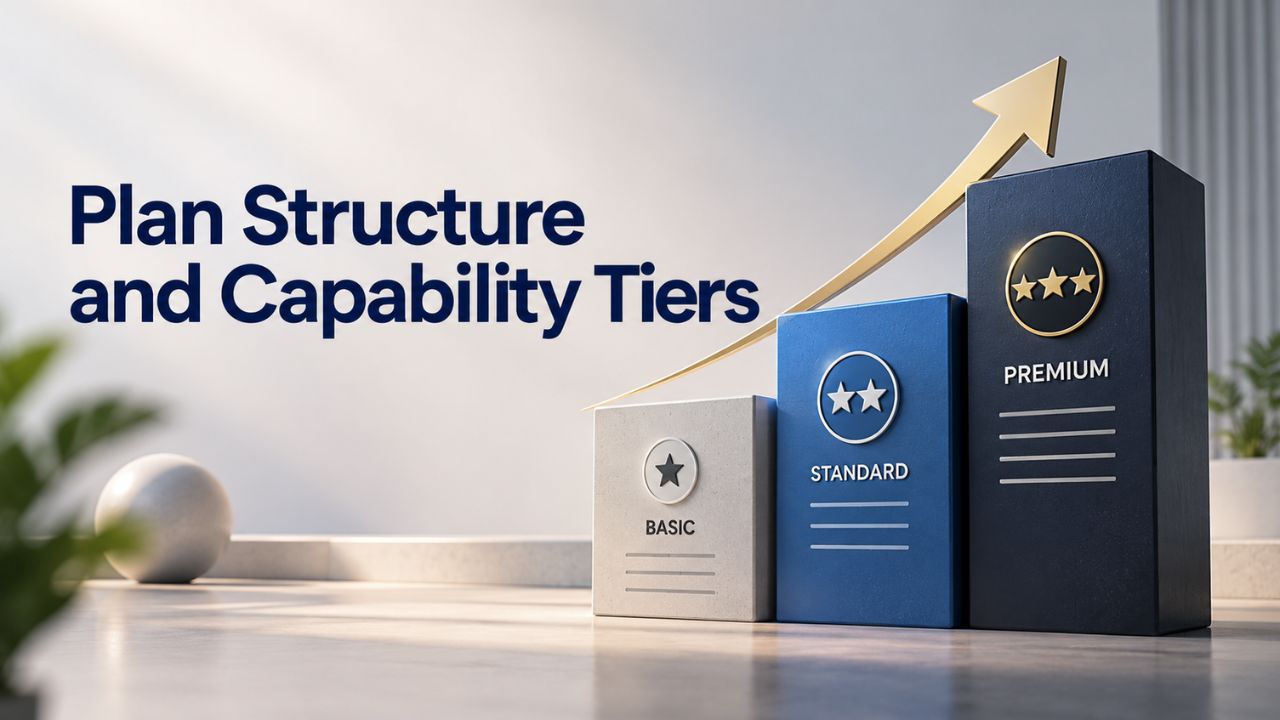
Microsoft 365 Business Basic includes web and mobile versions of Word, Excel, PowerPoint, and Outlook; custom business email via Exchange Online; 1 TB OneDrive storage per user; Teams with chat and calling; and core identity management. This entry-level plan suits small businesses and startups that don’t need desktop apps or advanced security. It’s cloud-first, so users work in browsers and mobile apps, making it fast to deploy and simple for always-online teams.
Microsoft 365 Business Standard adds desktop versions of all Office apps (Word, Excel, PowerPoint, Outlook), more advanced identity management, and AI assistance via Copilot Chat. Desktop apps work offline, so users can draft documents on a flight or in locations without internet, then sync when online. This is critical for field sales, remote teams, and professionals in industries with intermittent connectivity. Standard bridges the gap between lightweight web-only access and enterprise-grade management.
Microsoft 365 Business Premium extends Standard with advanced threat protection, device security via Microsoft Defender for Business, data loss prevention, and conditional access policies. These enterprise-grade security features reduce breach risk by automatically detecting threats, encrypting sensitive data, and blocking risky login attempts. All three business plans include 24/7 technical support via phone, chat, and email, a significant advantage for organizations with limited IT staff who need immediate help.
Zoho Workplace Plans: Flexible Role-Based Assignment
Zoho Workplace’s Mail Lite tier is email and calendar only, designed for team members who need just custom domain email. This ultra-lightweight tier is ideal for contractors, external partners, or employees who don’t collaborate on documents. Zoho Workplace Standard adds Zoho Writer (word processor), Sheet (spreadsheet), Show (presentations), Cliq (messaging), WorkDrive (file storage), and Vault (password manager). Standard covers the bases for most teams, bundling email, office productivity, chat, and file storage in one integrated suite.
Zoho Workplace Professional includes all Standard features plus higher storage limits, Zoho Connect (social intranet for employee engagement), white-labeling for resellers, and S/MIME email encryption for regulated industries. Professional is best for leadership teams, client-facing roles, or organizations handling sensitive data. Zoho’s core strength is role-based flexibility: within a single organization, you assign Mail Lite to contractors, Standard to most staff, and Professional to leadership, each tier scaled to actual job requirements rather than forcing everyone into one mold.
Scaling: When Team Size Demands Grow
Both platforms handle growth, but differently. Microsoft 365 grows linearly: add more users at the same plan tier, or upgrade users to higher tiers as their roles expand. Zoho’s mix-and-match model scales by assigning different plans to different roles, often keeping per-user cost lower as teams grow.
For a startup growing from 5 to 50 employees, Zoho’s flexibility can mean significant efficiency gains. For enterprises with 500+ employees, Microsoft’s standardized tiers simplify administration and compliance tracking. Neither approach is universally “better”; it depends on whether your organization values uniform feature access or targeted role-based capability.
Microsoft 365 Plans & Pricing
Find the Microsoft 365 plan that fits your needs, whether you're using it at home, with your family, or for your business. With a range of plans designed for different budgets and requirements, you can enjoy the tools you need to stay productive, connected, and protected.
Microsoft 365 Email Essentials
Professional email with 10GB of email storage.
- Professional email using your domain name
- 10GB storage for email, contacts & calendar
- Sync across all devices
- Shared online calendars
- Up to 400 email aliases

Microsoft 365 Email Plus
Professional email with 50GB of email storage.
- Professional email using your domain name
- 50GB storage for email, contacts & calendar
- Sync across all devices
- Shared online calendars
- Up to 400 email aliases
Microsoft 365 Online Business Essentials
Office web apps & professional email.
- Office apps (online only)
- 1TB OneDrive storage
- Unlimited online meetings & HD video
- Professional email using your domain
- 50GB email storage
- Sync across all devices
Microsoft 365 Business Professional
Office apps on 5 devices, web apps & professional email.
- Office apps installed on up to 5 devices
- Office web apps
- 1TB OneDrive storage
- Business apps included
- Professional email using your domain
- 50GB email storage
Business Email and Custom Domain Setup
Custom domain email is non-negotiable in business. Having your own domain (name@yourcompany.com instead of name@gmail.com) establishes professionalism, brand consistency, and control over your email if you ever leave a vendor. Both platforms handle it, but the setup process and ongoing management differ.
Microsoft 365 Email: Exchange Online with Automatic Sync
Microsoft 365’s Exchange Online provides business-class email with custom domain support. Setting up requires updating your domain’s DNS records (MX, SPF, DKIM, DMARC), a one-time configuration that typically takes 1–3 days once DNS access is available. All plans include anti-phishing, anti-spam, and anti-malware filtering; Business Premium adds advanced threat protection that learns from your organization’s email patterns to block sophisticated attacks.
Email features across all tiers include forwarding, group distribution lists, and folder delegation, critical for team workflows where administrative assistants manage executives’ calendars and email. Microsoft 365 Business Premium adds S/MIME encryption for digitally signed and encrypted emails, essential for healthcare, finance, and legal industries. Mobile clients (Outlook for iOS/Android) sync seamlessly with desktop Outlook via Exchange ActiveSync so that team members can access their full mailbox history, calendar, and contacts on any device.
Retention policies automatically archive or delete emails per your compliance schedule, removing manual housekeeping and reducing legal hold costs. Niya Digital’s team has found that most Microsoft 365 migrations succeed when DNS access and domain ownership verification happen before user provisioning, preventing delays and email delivery failures that can cripple early adoption.
Zoho Workplace Email: Simpler Setup, Manual Client Config
Zoho Mail (bundled with all Zoho Workplace plans) supports custom domains and includes webmail, mobile apps (iOS/Android), and third-party client access via POP3/IMAP. DNS setup mirrors Microsoft’s: administrators configure MX, SPF, and DKIM records, but Zoho’s in-platform wizard walks admins through each step, which many find more intuitive than external DNS management. The Standard plan includes 30 GB of mailbox storage; Professional includes 100 GB plus S/MIME encryption, email retention, and eDiscovery (the ability to search and recover deleted emails within a time window).
Attachment size limits are 30 MB standard, 40 MB with premium, and up to 1 GB via the huge attachment feature, matching Microsoft’s range. Zoho Mail offers email forwarding, aliases, and group sharing, enabling team workflows. One genuine strength of Zoho is unified administration: mail, calendar, and files are all managed through the same admin console, reducing the number of separate control panels, a significant benefit for small IT teams juggling multiple tools. However, Zoho’s third-party client support (Outlook desktop) requires manual configuration rather than automatic sync like Microsoft’s Exchange Active Sync, which can frustrate users expecting Outlook to “just work.”
| Feature | Microsoft 365 (Basic/Standard) | Microsoft 365 (Premium) | Zoho Workplace (Standard) | Zoho Workplace (Professional) |
|---|---|---|---|---|
| Custom domain email | Yes | Yes | Yes | Yes |
| Mailbox storage | 100 GB | 100 GB + 1.5 TB archive | 30 GB | 100 GB |
| Attachment size (standard) | 30–40 MB | 40 MB | 30–40 MB | 40 MB |
| Huge attachment support | Up to 1 GB | Up to 1 GB | Up to 1 GB | Up to 1 GB |
| Anti-phishing / anti-spam | Yes (basic) | Yes (advanced ATP) | Yes | Yes |
| S/MIME encryption | No (Basic/Standard) | Yes | No (Standard) | Yes |
| Email retention / archival | Retention policies (Standard+) | Yes | Retention (Professional only) | Yes (100 GB) |
| Mobile sync (native) | Exchange Active Sync (auto-sync) | Yes (auto-sync) | IMAP/POP (manual config) | IMAP/POP (manual config) |
| Third-party clients (Outlook desktop) | Yes, automatic | Yes, automatic | Manual setup required | Manual setup required |
| Admin console unified with files/chat | No (separate Exchange admin) | No | Yes | Yes |
Cloud Storage and File Collaboration
Cloud storage is the backbone of modern teamwork. How your team shares documents, manages versions, and collaborates determines whether the platform accelerates decision-making or creates friction. Both platforms include storage, but their allocation models and collaboration experiences differ.
Microsoft 365: OneDrive and SharePoint for Structured Workflows
All Microsoft 365 plans include 1 TB per user in OneDrive, plus SharePoint Plan 1 for team sites. OneDrive supports real-time co-authoring in web browsers and desktop Office apps; multiple users can edit the same Word document, Excel spreadsheet, or PowerPoint presentation simultaneously, with changes syncing live. Version history is automatic and unlimited; users can restore any prior version at any time without emailing files back and forth or managing confusing “final_FINAL_v2” naming conventions.
OneDrive’s folder sharing is granular: owners can set “view only” or “edit” permissions per person or group, and IT admins (in Business Premium) can restrict external sharing via conditional access policies. SharePoint Plan 1 (included with all business plans) provides team sites where departments organize files by project, create document libraries with custom metadata, and control access by role. Teams channels automatically create associated SharePoint sites, so file collaboration in Teams is seamless, users don’t manage separate folders in multiple places.
Desktop sync apps (Windows and Mac) let users sync folders locally, edit offline, and re-sync when online. For businesses with complex document management, compliance auditing, or large teams with deep folder hierarchies, this integration provides significant advantages over siloed email attachments or generic file sharing. However, managing SharePoint permissions at scale requires IT expertise and planning.
Zoho Workplace: WorkDrive with Simpler Interfaces
Zoho Workplace includes WorkDrive, Zoho’s file storage solution, with 10 GB team storage per user on Standard and 100 GB per user on Professional. Unlike OneDrive’s per-user quota, WorkDrive allocates a shared team pool: 3–10 users get 100 GB total, then +10 GB per additional user. This is efficient for small teams but can create negotiation needs if one heavy file user exceeds their share of the pool. WorkDrive supports real-time collaboration in Zoho Writer (documents), Sheet (spreadsheets), and Show (presentations), all in-browser only, with no offline desktop editing like Microsoft Office.
WorkDrive includes unlimited external file links with password protection and expiry dates, which are useful for client collaboration. Folder sharing supports granular, role-based access (viewer, editor, owner), and shared folders can be restricted by IP address. Team folder permissions cascade to subfolders, simplifying large-scale access control. One limitation: Zoho’s mobile apps for Sheet and Show offer read-only or limited editing, whereas Microsoft’s Office mobile apps support full editing. For teams doing heavy spreadsheet or presentation work on phones or tablets, this gap matters.
Security, Compliance, and Data Protection
Security isn’t just about encryption; it’s identity management, threat detection, audit trails, and the ability to recover from breaches. Both platforms offer security, but the depth and automation differ based on plan tier and organizational complexity. Understanding what each platform protects and how it does so is critical for regulated industries.

Microsoft 365: Defense-in-Depth with Automated Threat Detection
All Microsoft 365 business plans include multi-factor authentication (MFA) enabled by default via security defaults. MFA requires users to verify their identity with a second factor (phone, authenticator app, or security key) before signing in, blocking attackers who steal passwords. This single feature prevents most account compromises.
Business Premium includes Microsoft Entra ID P1, which adds Conditional Access, policies that require MFA, device compliance checks, or other verification before granting access to sensitive data. For example, a policy might require MFA only when users sign in from outside your office network, or block access from unmanaged devices. All plans include encryption at rest (256-bit AES) and in transit (TLS 1.2+).
Business Premium adds Microsoft Defender for Business, which uses AI to detect ransomware, malware, and phishing before they reach users or devices. Hence, protection improves without IT intervention. Microsoft Purview Data Loss Prevention (DLP) scans emails and files for regulated data (credit card numbers, social security numbers, health information) and blocks accidental sharing or enforces encryption. For GDPR compliance, Microsoft 365 includes audit logging, data subject request workflows, and compliance manager tools that guide organizations through assessment and remediation. HIPAA-ready features include encryption, access controls, and audit trails; organizations can sign a Business Associate Agreement (BAA) with Microsoft.
Zoho Workplace: Privacy-First with Manual Configuration
Zoho Workplace supports MFA via OneAuth (Zoho’s authenticator app), SMS, or email verification. MFA is available on all plans but not enabled by default; administrators must activate it. Encryption at rest uses 256-bit AES; encryption in transit uses TLS 1.2. Unlike Microsoft’s defense-in-depth automatic threat detection, Zoho’s security relies more on manual admin configuration and user discipline.
Zoho Workplace is GDPR compliant; organizations can choose data residency (US, EU, India, or other Zoho data centers) to meet localization rules. HIPAA compliance is available; Zoho offers a Business Associate Agreement, and certain features (S/MIME encryption, audit logging, field-level ePHI marking) support HIPAA-ready configurations. However, HIPAA features are only available on Professional tiers. Some Zoho applications are not HIPAA-covered, so they require careful configuration.
One genuine strength of Zoho is its privacy-first approach: Zoho does not mine user data for advertising or secondary use. Audit logging and compliance reporting are available across plans, and Zoho publishes ISO 27001 certification, demonstrating independent security assessment. However, Zoho lacks Microsoft’s AI-powered automated threat detection, so security depends more on timely patches and admin vigilance than on machine-learning-driven anomaly detection.
Desktop Applications vs. Web-First Architecture
Whether your team works offline or always connected shapes which platform reduces friction; Microsoft’s strength is powerful desktop applications that work offline and sync when online. Zoho is web-first, optimized for browsers and mobile, and convenient for cloud-native teams, but it can fall short for field users or locations with unreliable internet.
Microsoft 365: Desktop Office with Offline Capability
Microsoft 365 Business Standard and Premium include desktop versions of Word, Excel, PowerPoint, Outlook, OneNote, and Access (Windows only). Hence, users edit locally, then sync to the cloud. Users can work offline on a flight, in a meeting room, or during an internet outage; drafts save locally, then reconnect and merge changes when online. This offline capability is critical for field sales, remote teams, and professionals in industries with intermittent connectivity, such as construction, utilities, or transportation.
Business Basic is web and mobile only, with no offline editing; users must be online to access Word, Excel, or PowerPoint via browser. For lightweight users or those always connected, this keeps deployment simple and reduces device storage needs. Outlook desktop (included in Standard/Premium) syncs with Exchange Online via Exchange Active Sync, so users can search their entire email history locally and work offline, a productivity boost for users managing high email volume.
Zoho Workplace: Web-First with Read-Only Mobile
Zoho Workplace Writer, Sheet, and Show are web-based; editing happens in a browser tab. A desktop sync client exists (Windows, Mac) but only synchronizes files to local folders; actual editing still requires the browser or mobile app. Zoho Cliq (messaging) has mobile apps for iOS and Android with full messaging and call support, but Zoho Writer/Sheet/Show mobile apps offer read-only or limited editing, not the full desktop-level feature set that Microsoft’s Office mobile apps provide.
For teams distributed across time zones or working in coffee shops and coworking spaces with reliable Wi-Fi, Zoho’s web-first design is fast and familiar. It requires no installation, versioning headaches, or local storage concerns. Users access the same version from any device, eliminating “I edited on my laptop but saved to my desktop” confusion. But for users working offline (planes, remote sites, poor connectivity), the lack of true offline editing is a gap. Zoho Vault (password manager) includes offline access via an encrypted HTML download, giving some offline capability, but documents and spreadsheets cannot be edited offline.
Explore Microsoft 365 Solutions with Niya Digital
Microsoft 365 powers modern collaboration, but successful implementation requires planning, proper setup, and ongoing support. Niya Digital’s team specializes in Microsoft 365 implementations for small and mid-market organizations, from custom domain setup to user training to ongoing management. Whether you’re migrating from a legacy system or starting fresh, we help you choose the right plan, avoid common pitfalls, and accelerate time-to-productivity. Connect with us today to discuss your organization’s specific requirements.
Communication and Collaboration Tools
Modern work is conversation-driven. Email alone doesn’t cut it; teams need real-time chat, video calls, screen sharing, and meeting recordings. Both platforms include these, but scale limits, features, and integration with other tools differ in ways that affect daily usability.
Microsoft 365: Teams as Unified Collaboration Hub
Microsoft Teams (included in all plans with Teams) supports chat, audio calls, video calls with screen sharing, meeting recordings with transcripts, and team channels. Teams integrates with OneDrive, SharePoint, Outlook calendar, and third-party apps (Salesforce, Jira, Slack-like integrations). Meetings can include up to 300 participants (web) or 10,000 viewers for live events. Recordings auto-save to OneDrive or SharePoint, so they’re searchable and discoverable across your organization. Chat threads preserve context, and @mentions surface urgent messages in noisy channels.
Teams also powers app integration: organizations can build custom bots via Power Automate (low-code workflow tool included with Business Standard/Premium), run Power BI dashboards in Teams tabs, or embed Copilot Chat for AI-assisted writing and research. For enterprises, Teams connects to Outlook calendar, so meetings scheduled in Outlook automatically appear in Teams, reducing calendar fragmentation and missed meetings. Teams channels create associated SharePoint sites, so file collaboration happens in one place without users wondering, “Where did we save that?”
Zoho Workplace: Cliq for Messaging and Separate Meeting Tools
Zoho Cliq is Zoho’s messaging platform (included with Workplace plans), supporting real-time chat, group channels, and message threads. Audio and video calls are supported; meeting duration is 24 hours (unlimited) for Standard and Professional. Cliq includes screen sharing, read receipts, and mobile apps (iOS/Android). Standard supports up to 100 participants in video meetings; Professional supports up to 250. Meeting recordings can be saved locally.
Zoho Meeting (Zoho’s video conferencing tool) provides separate meeting links. It can be launched from Cliq or used standalone. Unlike Microsoft Teams, which centralizes chat, video, files, and calendar in one interface, Zoho separates email (Zoho Mail), chat (Cliq), and meetings (Zoho Meeting), requiring users to switch contexts between applications. For organizations already using Zoho CRM or Zoho Projects, this integration is seamless; Zoho products work together natively. But for teams bringing in Google Sheets, Asana, Salesforce, or other non-Zoho tools, the app ecosystem is smaller, and integrations require manual setup via Zapier or APIs.
| Feature | Microsoft Teams (All plans with Teams) | Zoho Cliq (Standard) | Zoho Cliq (Professional) |
|---|---|---|---|
| Real-time chat | Yes | Yes | Yes |
| Channels & threads | Yes | Yes | Yes |
| Audio calls | Yes | Yes | Yes |
| Video calls | Yes (up to 300 participants) | Yes (up to 100) | Yes (up to 250) |
| Screen sharing | Yes | Yes | Yes |
| Meeting recordings | Yes, with transcripts | Yes, local save | Yes, local save |
| Maximum meeting duration | 60 minutes (free tier); unlimited (paid) | 24 hours | 24 hours |
| Calendar integration | Outlook calendar (native) | Separate calendar (not integrated) | Separate calendar (not integrated) |
| App ecosystem | 1000+ integrations | Zoho apps native; third-party via Zapier | Zoho apps native; third-party via Zapier |
| External guest access | Yes (Teams External Access) | Limited (Zoho account or SSO required) | Limited (Zoho account or SSO required) |
AI Assistance and Productivity Features
Artificial intelligence is reshaping workplace productivity by reducing busywork and accelerating decision-making. Microsoft’s Copilot and Zoho’s AI chat both offer assistance, but availability, features, and capability differ by plan and use case.
Microsoft 365: Copilot Integrated Into Every App
Microsoft 365 Copilot Business is available with Business Standard and Premium plans. Copilot integrates directly into Word, Excel, PowerPoint, Outlook, and Teams, providing AI assistance inline: draft a document outline, Copilot fills in sections based on your writing style; ask Excel to analyze a column, Copilot suggests formulas; in Outlook, Copilot suggests email replies based on context; in Teams, Copilot can summarize long threads. Copilot Chat (web-based) offers broader assistance with writing, data analysis, research, and reasoning across work content and the web.
Business Premium also includes Microsoft 365 Copilot with Work IQ, which grounds Copilot in your organization’s data, documents, emails, and chat history, enabling prompts like “summarize Q3 revenue trends from our sales emails” without copying data manually. All Copilot features operate within your organization’s security boundaries; data is encrypted and not used to train public models. Copilot’s integration into familiar apps means users don’t need to learn a new tool; they use Word as usual, with AI assistance available when helpful.
Zoho Workplace: AI Chat with Simpler Integration
Zoho Workplace includes an AI chat feature with web grounding (search the web for current information) and writing assistance. Still, it isn’t as deeply integrated into every app as Microsoft’s Copilot. Instead, Zoho offers a separate Chat interface where users prompt the AI for help with drafting, analysis, and research. The AI chat is included with all plans but operates within the browser, not embedded in Writer, Sheet, or Show like Microsoft’s approach.
For organizations already using Zoho CRM or Zoho Books (accounting), Zoho’s AI can leverage that data context (e.g., “summarize recent sales” in the CRM). But standalone Zoho Workplace users don’t get the same depth of organizational grounding as Microsoft 365 Premium users with Copilot’s Work IQ. Zoho AI does not currently offer the range of agent-based automation (scheduled tasks, multi-step workflows) that Microsoft’s Copilot agents provide. For teams doing routine, repetitive work, this gap means more manual effort instead of delegating to AI automation.
Support, Training, and Migration Assistance
Choosing a platform is one decision; implementing it smoothly is another. Support availability, training resources, and migration assistance directly impact your time-to-productivity and the cost of mistakes. Both vendors offer support, but channels and response times differ in meaningful ways.
Microsoft 365: Global Support with Transparent Wait Times
Microsoft 365 technical support is available 24/7 in English; billing support is Monday–Friday 9 AM–5 PM in most regions. You can reach support by phone (country-specific numbers), web chat, or email through the Microsoft 365 admin center. Expected wait times appear before you submit a request so that you can plan around support availability. Microsoft provides comprehensive training resources: certification paths, product documentation, video tutorials, and hands-on labs via Microsoft Learn. The training library is extensive, with courses ranging from beginner onboarding to advanced security administration.
Microsoft supports migration from on-premises Exchange or another cloud provider via FastTrack (Microsoft’s migration service) and third-party tools. Gartner’s 2025 research found that 40% of enterprise migrations experience disruption without proper planning. Microsoft 365’s built-in migration tools and partner ecosystem significantly reduce this risk. Organizations can work with Niya Digital or other Microsoft partners for hands-on setup, training, and ongoing management, reducing the probability of costly mistakes during the migration.
Zoho Workplace: 24/7 Support on All Plans
Zoho Workplace offers 24/7 support via email, chat, and phone on all plans, with a stated 99.9% uptime guarantee. Support is included with all plans, with no separate premium support tier, so even small teams with Mail Lite subscriptions get access to human assistance. Zoho’s knowledge base is extensive, and the platform includes an in-app migration tool for moving emails and files from other providers (Google Workspace, Microsoft 365, on-premises). Webinars, documentation, and video tutorials are available, though Zoho’s training library is smaller than Microsoft’s.
One advantage of Zoho’s 24/7 support on all plans is that even resource-constrained teams can get human help when they need it most. However, Zoho doesn’t guarantee response times (no published SLA), whereas Microsoft publishes expected wait times upfront. For regulated industries requiring contractual SLAs, Microsoft’s approach is more transparent and predictable. Zoho’s per-incident support is excellent for ad-hoc questions, but organizations planning large implementations (50+ user migrations) often hire a partner or consultant to reduce implementation risk.
Making Your Choice: A Real-World Framework
Selecting between Microsoft 365 and Zoho Workplace comes down to your organization’s size, IT resources, security requirements, and existing technology ecosystem. Here’s a practical framework to guide your decision.
Choose Microsoft 365 If You Need:
You’re building infrastructure that will scale to 100+ employees, require advanced security (conditional access, advanced threat detection, device management), or operate in regulated industries (healthcare, finance, legal services). You want powerful offline-capable desktop apps (Word, Excel, Outlook) for field teams or locations with unreliable connectivity.
Your team already uses Windows, Outlook, or other Microsoft tools and would benefit from seamless ecosystem integration. You need extensive training resources, certification paths, and dedicated partner support. You’re migrating from an existing Microsoft environment and want continuity. You prioritize centralized collaboration (Teams as a hub) and want all communication, files, and meetings in one place.
Choose Zoho Workplace If You Need:
Maximum simplicity and ease of adoption: Zoho’s interface is straightforward, with minimal configuration. Your organization values privacy and ad-free operations (Zoho doesn’t mine user data for advertising). You’re already using Zoho CRM, Zoho Books, or other Zoho products and want unified admin controls.
You need role-based flexibility to assign different plans to different users (Mail Lite for contractors, Standard for most staff, Professional for leadership). You want 24/7 support on all plans without premium tiers. Your team is always online (cloud-native, stable internet) and doesn’t need offline editing. You’re building a lean, cost-efficient IT infrastructure without the overhead of managing complex security policies.
Integration and Ecosystem: Connecting to Tools You Already Use
No platform exists in isolation. You likely use project management software (Asana, Monday.com), CRM (Salesforce), accounting (QuickBooks), or other specialized tools. How well each platform integrates with your existing tech stack shapes workflow efficiency.
Microsoft 365 Ecosystem Integration
Microsoft 365, through Teams, connects to 1,000+ third-party applications via the Microsoft App Store. Major integrations include Salesforce, Jira, Adobe Creative Cloud, Slack, and countless others. Power Automate (low-code workflow automation included with Business Standard/Premium) lets you build custom workflows that connect Microsoft apps to non-Microsoft tools, trigger alerts, sync data, and create records without coding.
For organizations standardized on Microsoft (Windows, Outlook, Azure, Power BI), the ecosystem is seamless. For mixed-tech stacks, integrations work well but require setup and occasional maintenance.
Zoho Ecosystem Integration
Zoho CRM, Zoho Books, Zoho Projects, and Zoho Workplace integrate natively; data flows automatically between apps. If you’re a Zoho customer across multiple products, Zoho Workplace is the natural extension, eliminating data silos and setup complexity.
For non-Zoho tools, Zoho supports integration via Zapier (a third-party automation platform), but this requires manual workflow setup and incurs per-task costs. Organizations using Google Workspace, Asana, Trello, or other non-Zoho tools will find that integrations take more effort than with Microsoft 365’s built-in connectors.
Data Privacy and Compliance Across Regions
If your organization operates internationally or handles personal data from multiple regions, compliance complexity matters. GDPR (EU data protection), CCPA (California privacy), and other regional laws impose specific requirements on where and how you store and process data.

Microsoft 365 and Global Compliance
Microsoft 365 offers data residency options: organizations can choose to keep EU personal data within Europe (EU data boundary), meeting strict GDPR localization rules. For healthcare, Microsoft 365 includes HIPAA-ready features and offers a Business Associate Agreement (BAA), which US healthcare regulations require. Microsoft regularly publishes a mapping of regulations (GDPR, HIPAA, SOC 2, CCPA) to Microsoft 365 features, helping organizations understand exactly what controls support compliance.
Zoho Workplace and Regional Data Storage
Zoho Workplace allows organizations to choose data residency (US, EU, India, or other Zoho data centers) to meet localization rules. This flexibility supports GDPR compliance by giving you control over where your data lives. Zoho offers a Business Associate Agreement (BAA) for healthcare organizations, and HIPAA-ready configurations are available on Professional tiers. Zoho publishes compliance certifications (ISO 27001) and updates documentation when regulations change.
Get Expert Help with Your Microsoft 365 Implementation
Choosing the right productivity platform matters. Implementing it successfully is critical. Niya Digital specializes in Microsoft 365 implementations for small and mid-market organizations, from planning through deployment to ongoing support. Our team helps you evaluate plans, migrate from legacy systems, configure security, train users, and optimize adoption. Let’s discuss whether Microsoft 365 is the right fit for your organization and what an implementation would look like.
Frequently Asked Questions
What’s the real difference between Microsoft 365 Business Basic and Business Standard beyond features?
Basic is web- and mobile-only; users access Word, Excel, and PowerPoint through a browser or phone app. Standard adds desktop applications that work offline, store files locally, and sync to the cloud when online. If your team works in coffee shops with spotty wifi, travels frequently, or works in areas with intermittent internet, Standard’s offline capability is worth considering. For always-connected teams, Basic’s simplicity and lower deployment overhead can be sufficient.
Can I use Zoho Workplace email with Outlook desktop?
Technically yes, but with limitations. Zoho Workplace’s mail syncs with third-party email clients (Outlook, Thunderbird, Apple Mail) via IMAP/POP3, but it requires manual server configuration. Unlike Microsoft’s Exchange Active Sync (which auto-syncs Outlook with Microsoft 365 seamlessly), Zoho doesn’t offer automatic synchronization. You’ll need to enter server settings manually, and some advanced features (like shared calendars) may not work. Many Zoho Workplace users find it simpler to use Zoho Mail’s webmail instead of managing Outlook configuration.
Is Zoho Workplace HIPAA compliant for healthcare organizations?
Zoho Workplace can be used in a HIPAA-compliant manner on Professional plans or higher. Still, it requires a Business Associate Agreement (BAA) and careful configuration of security settings (encryption, audit logging, field-level ePHI marking on sensitive fields). Some Zoho apps (Contacts, RouteIQ) are not HIPAA-covered, so you’d need to disable them. Microsoft 365 Premium also requires a BAA but includes more automated compliance safeguards, making HIPAA implementation smoother for healthcare organizations with limited IT resources.
How long does a migration from another email platform take?
Plan 2–4 weeks total: 1 week for planning and DNS configuration, 1–2 weeks for data migration (depends on email volume and archival needs), a few days for user testing and final provisioning, and ongoing training as users adopt new workflows. Gartner research shows 40% of migrations experience disruption when planning isn’t thorough. Both Microsoft 365 and Zoho Workplace include migration tools; working with a partner like Niya Digital prevents common mistakes and keeps your team productive during the transition.
Does Zoho Workplace support offline editing for documents and spreadsheets?
No. Zoho Workplace’s Writer and Sheet are web-only; editing requires an active internet connection. Microsoft 365 Standard and Premium include desktop Word and Excel with offline editing, syncing changes when you reconnect. If your team needs reliable offline work (airplanes, remote job sites, poor connectivity areas), Microsoft 365 Standard is worth the additional investment; Zoho is best for always-online teams.
What support is available outside normal business hours?
Microsoft 365 offers 24/7 technical support (phone, chat, email), but billing support is only available Monday–Friday, 9 AM–5 PM, in most regions. Zoho Workplace offers 24/7 support (email, chat, phone) on all plans, so even small teams with Mail Lite subscriptions can reach support at 2 AM if needed. Neither vendor guarantees a specific response time; Microsoft shows estimated wait times before you submit a request, while Zoho states 24/7 availability without published SLAs. For mission-critical issues, consider whether you need an SLA (a contractual response-time guarantee).
Can I start with Zoho and migrate to Microsoft 365 later if we outgrow it?
Yes, though migration involves some downtime or parallel operation. Both platforms can export your emails, contacts, and files. Zoho Workplace includes a migration tool that can export to Microsoft 365 format. Plan for 1–2 weeks to test the migration, verify nothing was lost, and reconfigure calendar sharing, shared mailboxes, and email rules on the new platform. Data usually migrates cleanly, but custom workflows and third-party integrations may need adjustment.
Which platform is better for teams in the EU subject to GDPR?
Both are GDPR compliant. Microsoft 365 offers the EU data boundary, ensuring data stays within Europe. Zoho Workplace allows you to choose your data residency (US, EU, India, etc.). For strict EU-only requirements, both work equally well. The main difference: Microsoft’s approach is more mature (years of GDPR implementation) with extensive compliance documentation. Zoho’s flexibility allows fine-grained data residency control. Consult your legal team on your specific regional requirements; both are viable options for GDPR-regulated organizations.
Is custom domain email the same process in both platforms?
Essentially yes. You update your domain’s DNS records (MX, SPF, DKIM, DMARC) to point to the vendor’s mail servers. Microsoft’s setup is well-documented with extensive Microsoft Learn articles. Zoho’s in-platform wizard guides you through each step, which many find more intuitive than managing DNS externally. Once configured, both work identically from the user’s perspective. The main difference: Microsoft uses Exchange ActiveSync for automatic Outlook sync; Zoho uses IMAP/POP, which requires manual configuration in Outlook desktop.
Can I try both platforms before committing?
Yes. Microsoft 365 offers free trials (usually 30 days) for Business plans; Zoho Workplace offers a free tier and free trials. Use trial time to test email setup, file sharing, team chat, mobile sync, and, if relevant to your team, offline document editing. Invite a few team members to use the platform in realistic conditions during the trial. That’s the best way to discover whether integration gaps (Outlook sync, third-party app support) or architectural differences (web-first vs. desktop-first) will affect your team’s actual workflow.
What happens if I outgrow my current platform?
Microsoft 365 scales: Business plans grow to Enterprise E3 and E5 for 10,000+ employees. Zoho Workplace scales through mix-and-match plan assignments and its broader Zoho suite (CRM, HR, Projects, Books). If you start with Zoho Mail Lite and grow, you can upgrade individual users to Standard/Professional without re-platforming. Migrations to a new platform are possible but disruptive (weeks of setup, potential data loss if not done carefully, user retraining). Starting with the right platform reduces future migration risk and saves months of disruption later.
How do I manage multiple business units or brands within each platform?
Microsoft 365 Business plans support multiple custom domains (mail, calendar, Teams) under one tenant (subscription). You can brand different SharePoint sites by business unit or geography. Zoho Workplace also supports multiple domains, but domain separation is less granular than Microsoft’s (no separate tenant model for different brands). For complex multi-brand or multi-subsidiary structures with strict data separation, Microsoft 365 Enterprise E3+ is more flexible and secure.
Glossary
- Business Associate Agreement (BAA): A legal contract required under HIPAA (US healthcare law) in which a cloud provider commits to protecting health information according to HIPAA’s security and privacy rules. Both Microsoft 365 and Zoho Workplace offer BAAs; you must sign one before using the platform for patient data.
- Conditional Access: A security feature that enforces policies before granting access, for example, requiring multi-factor authentication when users sign in from outside your office network, or blocking access from unmanaged devices. Included in Microsoft 365 Business Premium.
- Custom Domain Email: Using your own company domain (e.g., name@yourcompany.com) instead of a generic provider domain (e.g., name@gmail.com). Both platforms support this; setup requires updating your domain’s DNS records.
- Encryption at Rest: Data stored on servers is scrambled via an algorithm (typically 256-bit AES) so that even if hardware is stolen, the data is unreadable without the decryption key.
- GDPR (General Data Protection Regulation): EU law governing how personal data of EU residents is collected, stored, processed, and used; requires consent, transparency, and the right to erasure.
- HIPAA (Health Insurance Portability and Accountability Act): US law governing how healthcare organizations and their business partners protect patient health information; requires access controls, encryption, audit logging, and breach notification.
- MFA (Multi-Factor Authentication): A security method requiring two or more forms of verification (e.g., password + code from a phone app or SMS) to sign in, preventing attackers who steal passwords from accessing accounts.