What Is cPanel and Why It Simplifies WordPress Installation
cPanel is a web-based hosting control panel that transforms server management into a visual, point-and-click interface. For WordPress installation specifically, this shift matters enormously: instead of uploading files via FTP and manually creating databases, you deploy a complete WordPress installation in a single workflow.
A Graphical Control Panel for Website Owners
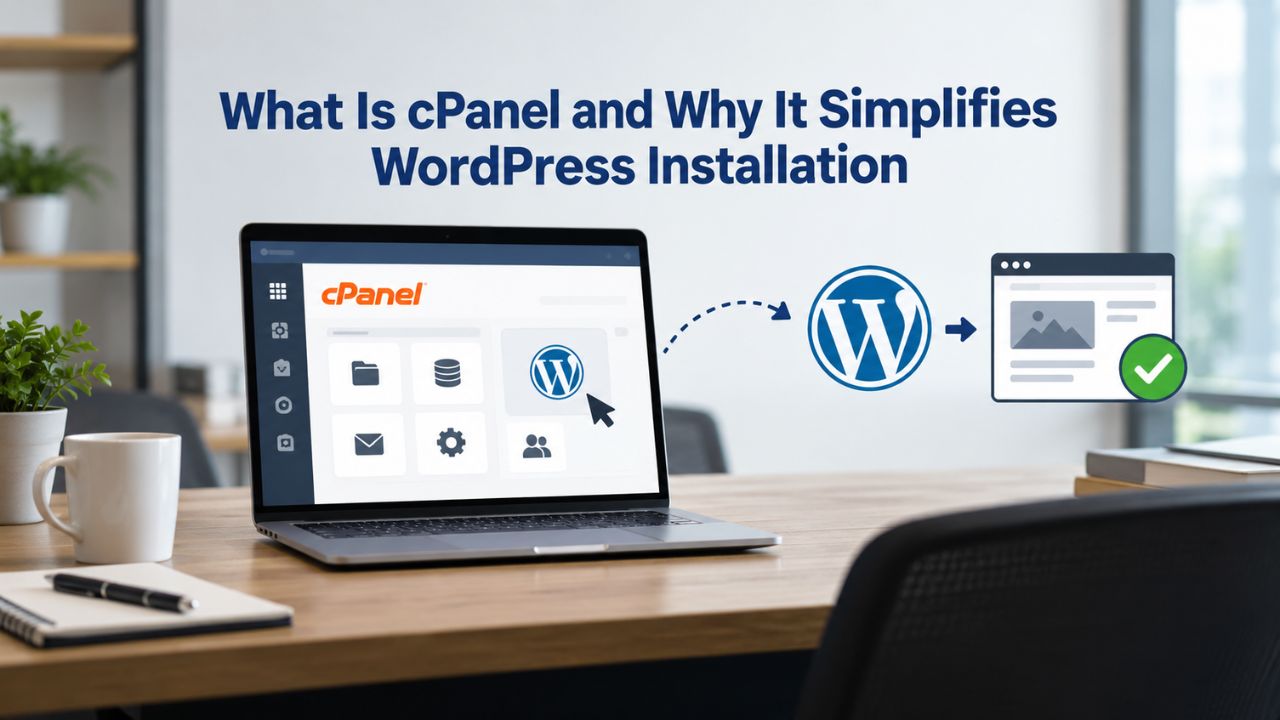
cPanel runs on Linux servers and lets you manage your entire hosting account from a browser dashboard. Think of it as mission control for your website. From one interface, you can upload files, create email accounts, manage your domain, configure security settings, and access database tools. Most importantly, cPanel integrates with Softaculous, a one-click application installer that automates WordPress deployment.
Without cPanel, installing WordPress requires FTP (File Transfer Protocol) knowledge, an FTP client on your computer, an understanding of databases, and manual configuration file edits. With cPanel and Softaculous, you fill out a form, click install, and your WordPress installation is ready. The difference is like assembling flat-pack furniture with a diagram versus hiring someone to deliver it assembled.
Why cPanel Reduces Technical Barriers for Beginners
cPanel’s visual approach eliminates guesswork. Every hosting task- creating a database, setting file permissions, installing SSL certificates- uses dropdown menus and checkboxes instead of command-line syntax. For WordPress specifically, this simplification is profound. You never need to open an FTP client or edit a configuration file by hand. Softaculous automatically handles database creation, file placement, and permission settings.
Niya Digital’s team has found that users deploying WordPress via cPanel complete their setup and publish content within hours, whereas manual installation often stalls at the database creation step. This speed means you spend less time troubleshooting and more time building your site.
WordPress Pricing Plans
Choose the WordPress hosting plan that fits your website needs, with reliable performance, security, storage, backups, and tools to help your site grow.
WordPress Basic
A great way to get started.
- 1 website
- 10 GB NVMe storage
- Unmetered bandwidth
- Free SSL Certificate *
- WordPress pre-installed
- Weekly backups
- Web Application Firewall
- Daily malware scans
- One-time malware removal

WordPress Deluxe
Improve your site performance with Cloudflare CDN.
- 1 website
- 20 GB NVMe storage
- Unmetered bandwidth
- Free SSL Certificate *
- WordPress pre-installed
- Daily backups
- Web Application Firewall
- Daily malware scans
- One-time malware removal
- Up to 2x faster performance with global Cloudflare CDN **
- Enhanced security with DDoS protection
- Staging site
WordPress Ultimate
Add online marketing with more sites, storage and security.
- 1 website
- 30 GB NVMe storage
- Unmetered bandwidth
- Free SSL Certificate *
- WordPress pre-installed
- Daily + on-demand backups
- Web Application Firewall
- Daily malware scans
- Unlimited malware removal
- Up to 2x faster performance with global Cloudflare CDN **
- Enhanced security with DDoS protection
- Staging site
- WordPress code optimizer
- Smart WordPress plugin manager
- Sell online with WooCommerce
Pre-Installation Checklist: Verify Your Hosting Meets WordPress Requirements
Before clicking install, confirm your hosting account supports WordPress. WordPress.org officially recommends PHP 8.3 or greater, MariaDB 10.6+ or MySQL 8.0+, and HTTPS support. Most modern hosting providers meet these standards, but a quick verification saves hours of debugging later.
Hosting Technical Requirements and What to Verify
| Requirement | Minimum Spec | Why It Matters |
|---|---|---|
| PHP Version | 8.3 or greater | Powers WordPress; older versions expose security vulnerabilities and lose plugin support |
| Database Engine | MySQL 8.0+ or MariaDB 10.6+ | Stores all WordPress posts, pages, users, and settings securely |
| HTTPS Support | Free or paid SSL available | Encrypts data in transit; WordPress.org requires it; browsers flag non-HTTPS sites as “Not Secure” |
| Disk Space | Minimum 500 MB (5+ GB recommended for growth) | WordPress core files + uploads + themes + plugins grow over time |
| Email Capability | cPanel email accounts included | For WordPress admin notifications and account recovery |
| Domain Access | Domain pointed to hosting nameservers | Your WordPress installation must be accessible via your custom domain |
Your hosting provider’s welcome email or cPanel dashboard displays your PHP version and database type. If you’re unsure, most hosting providers offer pre-sales chat or support tickets; ask them to confirm these specs before you buy.
Domain Setup and DNS Pointing
Before installing WordPress, make sure your domain’s DNS records point to your hosting provider’s nameservers. cPanel doesn’t handle DNS for most users; your domain registrar (the company where you purchased the domain name) controls this. Log into your registrar’s dashboard, locate the nameserver settings, and enter the two or three nameservers your hosting provider gave you. DNS propagation takes 24–48 hours, though it’s often faster.
Once DNS points correctly, your domain is ready for WordPress. Test this by visiting your domain in a browser; you should see a generic “coming soon” or default holding page from your hosting account. This confirms the domain is live on your server.
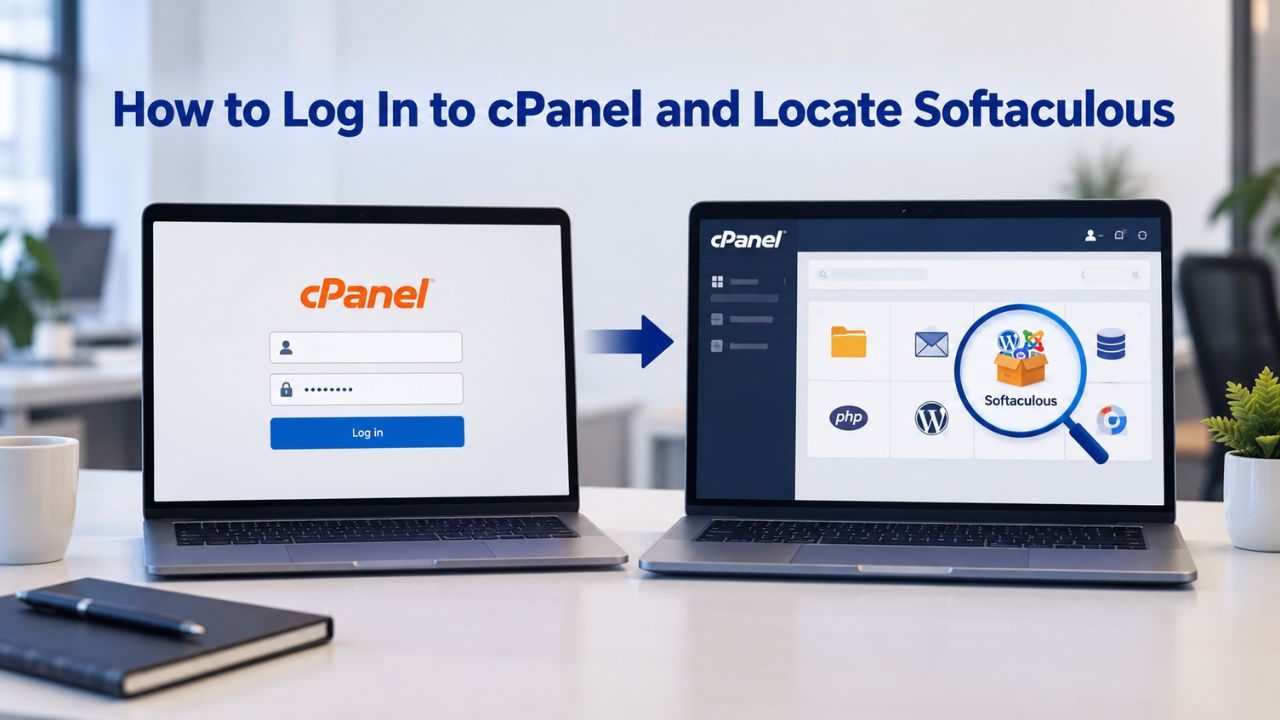
How to Log In to cPanel and Locate Softaculous
Accessing cPanel is straightforward. Your hosting provider sends you login credentials via email when you sign up. Typically, the URL follows the pattern https://yourdomain.com:2083 or points to a dedicated cPanel login portal. Bookmark this link and keep the credentials safe; cPanel is where you’ll manage everything about your hosting account.
Accessing cPanel From Your Welcome Email
Open the welcome email from your hosting provider. It includes three critical pieces of information:
(1) your cPanel username,
(2) your cPanel password, and
(3) the cPanel login URL.
Copy the URL into your browser’s address bar, then enter your username and password. Most hosting providers also allow you to reset your cPanel password from a client portal, so if you forget it, you’re not locked out.
After you log in, you’ll see the cPanel dashboard: a grid of icons organized by category (File Manager, Databases, Security, Software, and so on). The interface varies slightly between hosting providers because of custom themes, but the core layout stays consistent. Take a moment to explore: you’ll see icons for Email, MySQL Databases, File Manager, and the all-important Softaculous Apps Installer.
Finding the Softaculous Apps Installer
Softaculous is usually located in the Software section or under Applications. Look for an icon labeled “Softaculous Apps Installer” or simply “Softaculous.” If you can’t find it right away, use cPanel’s search bar (the magnifying glass icon at the top of the dashboard) and type “Softaculous.” Clicking the result takes you directly to the Softaculous interface, a separate page showing available applications, including WordPress.
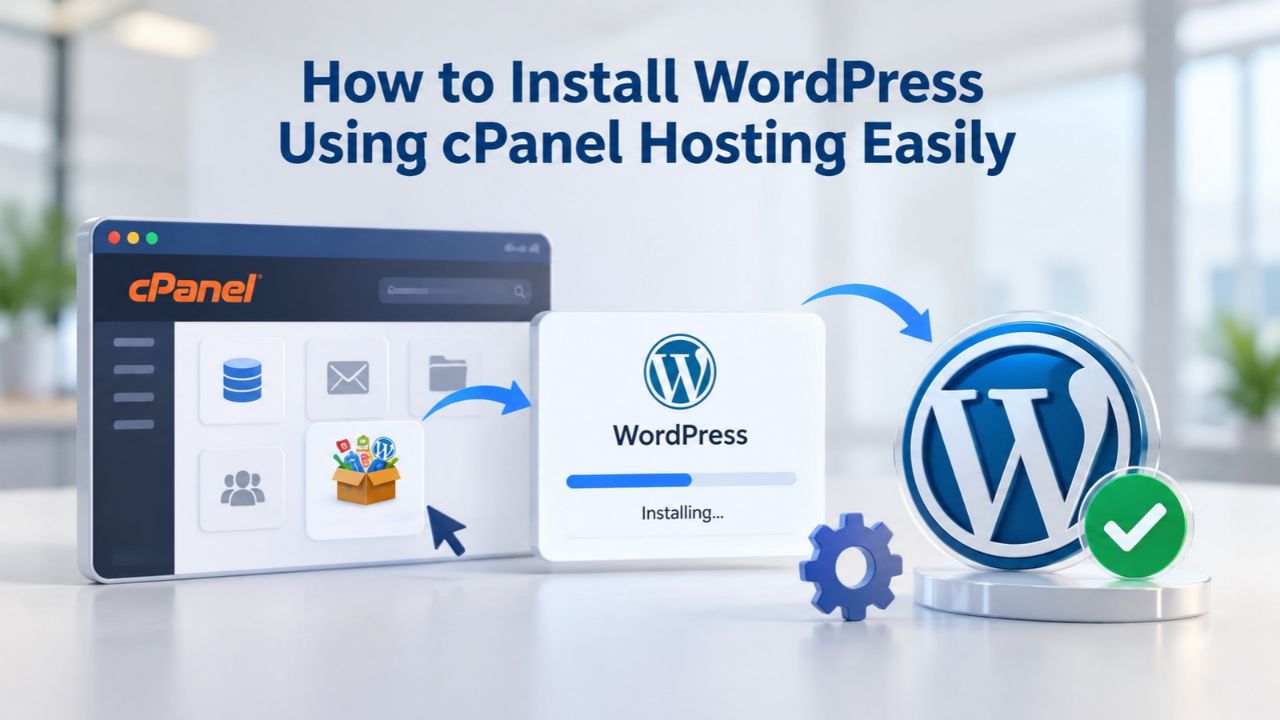
On the Softaculous home page, you’ll see a grid of application logos. WordPress appears prominently. Click on the WordPress icon or use the search bar to find it. You’ll see an “Install” button. Click it to begin the installation wizard.
Configuring Your WordPress Installation Details
The installation form requests several pieces of information. Take your time filling this out; most fields are straightforward, but a few choices have long-term consequences for your WordPress hosting setup.
Choosing Your Installation URL and Directory
The first critical choice is where to install WordPress. You have two options:
Option 1: Install at your domain root. Leave the “In Directory” field blank. WordPress installs at yourdomain.com, and visitors see your WordPress site when they type your domain. This is the most common choice for a primary website.
Option 2: Install in a subdirectory. If you want WordPress in a folder, for example, yourdomain.com/blog, type the folder name (e.g., blog) in the “In Directory” field. This approach keeps WordPress separated from other content on your domain. Most beginners install at the root.
You’ll also choose a protocol: http:// or https://. Always choose https:// if your hosting account supports SSL (which modern plans do by default). HTTPS encrypts data between your visitors’ browsers and your server, protecting passwords and personal information. WordPress and browsers increasingly treat non-HTTPS sites as insecure.
Creating Your Admin Account With Strong Credentials
Next, you’ll enter details for your WordPress admin account, the account you use to log in and manage your site. This is critical for security:
Admin Username: Choose something other than “admin” or “administrator.” Attackers use brute-force tools that try these common usernames first. Pick something unique like “siteowner” or “maineditor.” You’ll use this to log in to your WordPress admin panel (yourdomain.com/wp-admin).
Admin Password: Use a strong password with at least 16 characters, mixing uppercase, lowercase, numbers, and symbols. Avoid dictionary words, birthdates, or personal information. Softaculous includes a password generator (a key icon); use it. Write down your username and password (or store them in a password manager like Bitwarden) because you’ll need them to log in after installation completes.
Admin Email: Enter a valid email address. WordPress sends notifications about security updates, new comments, and password resets to this address. It becomes your lifeline if you’re ever locked out of the site.
The form also offers optional choices: WordPress language, plugin pre-installation, and advanced database settings. Leave these at defaults unless you have a specific reason to change them. Beginners should skip optional sections.
Completing the Installation: What Happens Behind the Scenes
Once you’ve filled the form and clicked “Install,” Softaculous takes over. What happens next is largely automatic, but understanding the process builds confidence.
Softaculous Database Creation and File Placement
When you submit the installation form, Softaculous performs several actions in sequence:
- Database Creation: Softaculous creates a new MySQL database for your WordPress site and a database user with all necessary permissions. This database stores your posts, pages, comments, user accounts, and all settings. Softaculous uses the values you specified (or generates safe defaults).
- File Upload: Softaculous downloads the latest WordPress core files and places them in your chosen directory (either the domain root or a subdirectory). These files form the backbone of your WordPress installation, the code that runs your site.
- Configuration: Softaculous creates a wp-config.php file (WordPress’s main configuration file) and inserts your database credentials, security keys, and other settings. This file connects WordPress to your database.
- Permissions: Softaculous sets file permissions correctly so WordPress can read files and write to the uploads folder (where images and media are stored) without exposing your site to security risks.
- Database Tables: Softaculous creates WordPress database tables for posts, pages, users, options, and more. These tables are empty until you start creating content.
The entire process typically takes 2–5 minutes. Softaculous displays a progress bar or status messages as it works.
Confirming Installation Success
When Softaculous finishes, you see a success message. This page includes several important details:
- Installation URL: The address where your WordPress site now lives (e.g., https://yourdomain.com).
- Admin Login URL: The WordPress admin panel address (typically https://yourdomain.com/wp-admin or https://yourdomain.com/wp-login.php).
- Admin Username & Temporary Credentials: Your login details.
- Option to Email Installation Details: Semail youculous can email them to you for safekeeping.
Copy or screenshot these details. Bookmark your admin URL. You’ll visit it next to log in and start configuring your site.
Get Expert Support With Niya Digital’s Managed WordPress Hosting Plans
If you’re choosing a WordPress hosting provider, Niya Digital offers a simple setup process with managed WordPress hosting that includes cPanel access, one-click installation via Softaculous, and expert support if you need help. Our plans are optimized for performance and security from day one.
Installing an SSL Certificate and Enabling HTTPS
After WordPress installs successfully, your site is live but not yet secure. WordPress displays correctly at http://yourdomain.com, but browsers flag it as insecure. Next, install and configure WordPress to use HTTPS.
Using cPanel’s AutoSSL for Free HTTPS
Modern hosting accounts include free SSL certificates via AutoSSL, which uses Let’s Encrypt. AutoSSL runs automatically for each domain on your account through cPanel’s system automation, but you’ll likely want to verify or install it manually for speed.
In cPanel, navigate to Security → SSL/TLS Status. You’ll see a list of domains and subdomains on your account, each with a status indicator. If your domain shows a green lock, AutoSSL has already installed a certificate; skip to the next section. If it shows red or is missing, click on your domain and select Run AutoSSL or Issue. cPanel contacts Let’s Encrypt, validates domain ownership (automatic if your nameservers point correctly), and installs the certificate within minutes.
Let’s Encrypt certificates renew automatically through cPanel’s automation, so you don’t need to renew them manually. Your hosting provider’s system handles this. Free SSL certificates offer the same encryption level as paid certificates; the main difference is the validation level (Let’s Encrypt validates domain ownership, while commercial CAs might validate your business identity). For most websites, free AutoSSL is sufficient and industry-standard.
Configuring WordPress to Use HTTPS
Simply installing an SSL certificate doesn’t automatically make WordPress use it. You must configure WordPress to redirect all traffic to HTTPS and update its internal URLs.
Log in to your WordPress admin panel at https://yourdomain.com/wp-admin (or the address shown in your Softaculous installation email). Navigate to Settings → General. You’ll see two URL fields:
- WordPress Address (URL): Change http://yourdomain.com to https://yourdomain.com (add the “s”).
- Site Address (URL): Do the same.
Scroll to the bottom and click Save Changes. WordPress will redirect you to log in again using the HTTPS address. After you log back in, your site will use HTTPS. Visitors can trust they’re communicating securely with your server, and search engines (particularly Google) prioritize HTTPS sites in rankings.
Post-Installation Security Hardening
Installation is done, but security is ongoing. A fresh WordPress installation includes default security practices, but additional hardening steps significantly reduce your attack surface.
Securing Your WordPress Admin Account
Your admin account is the key to your entire site. If an attacker gains access, they can modify content, install malware, or delete everything. Protect it fiercely:
- Change the Default Admin User: During installation, Softaculous created an admin user with the username you chose. WordPress also creates a “User ID 1” account. Some automated attacks target the username “admin.” To be safe, create a second admin user with a different name, then delete the original (if you used “admin” as a backup). This forces attackers to guess your actual admin username.
- Use a Unique, Strong Password: Your admin password is your primary defense. Make it long (20+ characters), random, and stored in a password manager, not on a sticky note or your phone’s notes app. Use WordPress’s password generator (Users → Your Profile → Generate Password) to create a strong one if you ever reset it.
- Enable Two-Factor Authentication (2FA): Two-factor authentication requires a second verification step (usually a code from your phone) when logging in. Even if someone guesses your password, they can’t access your account without your phone. Install a security plugin like Wordfence Security (free version included), which includes 2FA setup capabilities.
Running WordPress Updates and Installing Security Plugins
WordPress, themes, and plugins receive regular security updates. Updates fix known vulnerabilities that hackers actively exploit.
Enable Automatic Updates: Log into WordPress and go to Dashboard → Updates. Enable automatic updates for WordPress core (at minimum). Most hosting providers, including Niya Digital’s managed WordPress hosting plans, handle this automatically.
Install a Security Plugin: A security plugin monitors your site for malware, blocks brute-force login attempts, and hardens WordPress. Wordfence (free) is widely used for security scanning. Install it by going to Plugins → Add New, searching “Wordfence,” and clicking Install Now. Once activated, run a full security scan. Wordfence will flag issues and guide you through fixing them.
Remove Unused Plugins and Themes: Each plugin and theme is a potential attack vector. Keep only what you use. If you installed plugins during the Softaculous wizard that you don’t need, deactivate and delete them.
Accessing Your WordPress Site and Admin Dashboard
Your WordPress site is now live and secure. Now log in and start building.
Logging In for the First Time
Visit your WordPress admin panel by navigating to https://yourdomain.com/wp-admin or https://yourdomain.com/wp-login.php in your browser. You’ll see a simple login form. Enter the admin username and password you created during installation. If you used Softaculous, you have these credentials in the success email it sent you.
Upon successful login, you’re inside the WordPress dashboard, the control center for your entire site. The dashboard is split into sections: the main menu on the left (Posts, Pages, Plugins, Settings, etc.) and the dashboard overview on the right (showing recent posts, comments, site health, and quick-start links).
The first time you log in, you may see a “Welcome” modal or setup wizard. You can dismiss it and explore on your own, or follow the wizard if you prefer guided setup.
Initial Configuration and Dashboard Orientation
Before creating content, configure basic site settings:
- Site Title and Tagline: Go to Settings → General. Your “Site Title” appears at the top of every page and in browser tabs. Your “Tagline” is a short description (often shown in theme headers). Set these to reflect your site’s purpose.
- Permalinks (URL Structure): Go to Settings → Permalinks. By default, WordPress uses URLs like yourdomain.com/?p=123, which aren’t user-friendly or search-engine optimized. Change the permalink structure to “Post name,” so URLs become yourdomain.com/your-post-title/, which is cleaner and better for SEO.
- Timezone and Language: Go to Settings → General and set your timezone so scheduled posts publish at the right time. Set the language to your preference (English by default).
- Choose and Activate a Theme: Go to Appearance → Themes. WordPress comes with a default theme, but thousands of free and premium themes are available. A good theme affects your site’s appearance, loading speed, and mobile responsiveness. Install a theme by clicking Add New, searching, and clicking Install, then Activate.
- Install Essential Plugins: Beyond security plugins, consider a few essential plugins: Jetpack (backup and performance), Yoast SEO (search optimization), WPForms (contact forms). Install them from Plugins → Add New.
These initial steps take an hour and establish the foundation for your site. After this, you’re ready to create your first page or post.
Common Installation Challenges and Troubleshooting
Even straightforward installations sometimes encounter hiccups. Here’s how to resolve the most common issues.
Database Connection Errors
If you see the error message “Error establishing a database connection,” WordPress can’t reach your database. This usually happens immediately after installation and indicates a misconfiguration.
Cause 1: Incorrect Database Credentials in wp-config.php. Softaculous should set these correctly, but occasionally the database host name is wrong. In cPanel, go to Databases → MySQL Databases, find your database, and note its exact name and the host name listed (often localhost or 127.0.0.1). If you have FTP access, download the wp-config.php file from your site’s root directory, open it in a text editor, and verify the lines:
define(‘DB_NAME’, ‘yourdatabase’);
define(‘DB_USER’, ‘your_database_user’);
define(‘DB_PASSWORD’, ‘your_password’);
define(‘DB_HOST’, ‘localhost’);
Match these exactly to your cPanel database settings. Re-upload the file and refresh your site in the browser.
Cause 2: Database User Lacks Permissions. In cPanel’s MySQL Databases section, click “Manage Privileges” for your database user. Ensure the user has “All Privileges” checked. Save changes and try accessing WordPress again.
Permission and File Issues
If images don’t upload or plugins fail to install, file permissions are often the culprit. WordPress needs write access to the /wp-content/ directory.
In cPanel File Manager:
- Navigate to the directory where WordPress is installed.
- Right-click the /wp-content/ folder and select Change Permissions.
- Set permissions to 755 (or 775 if uploads still fail).
- Check Recursive to apply permissions to all subdirectories.
- Click Change.
If the issue persists, contact your hosting provider’s support; some server configurations require specific permission setups. Niya Digital’s support team can assist with permission issues on our WordPress hosting plans.
When Manual Installation Makes Sense
Softaculous is ideal for beginners and most users, but some scenarios favor manual installation.
Understanding the FTP/SSH Manual Method
Manual installation requires downloading WordPress from wordpress.org, uploading files via FTP (File Transfer Protocol), creating a database manually in cPanel, and configuring WordPress by editing the wp-config.php file. It’s more involved but offers more control.
FTP Method:
- Download the latest WordPress from wordpress.org and unzip it on your computer.
- Use an FTP client (like FileZilla, free) to upload the WordPress files to your hosting account’s public_html directory.
- In cPanel’s MySQL Databases section, create a new database, database user, and assign all privileges.
- Rename wp-config-sample.php to wp-config.php (via FTP or cPanel File Manager) and edit it with your database credentials.
- Visit yourdomain.com/wp-admin/install.php in your browser and complete the WordPress setup wizard.
SSH Method (for advanced users): SSH (Secure Shell) is command-line access to your server. If your hosting provides SSH, you can download, extract, and configure WordPress entirely via terminal commands, which is faster for experienced developers.
Comparing One-Click vs. Manual Installation
The table below contrasts the two installation approaches so you can decide which fits your technical comfort level and timeline:
| Aspect | One-Click (Softaculous) | Manual Installation |
|---|---|---|
| Time to Completion | 5 minutes | 30–60 minutes |
| Technical Knowledge Required | Minimal (form-filling) | Intermediate (FTP, databases, file editing) |
| Database Setup | Automatic; user permissions handled | Manual; must verify permissions |
| Configuration File Editing | Automatic | Manual; must edit wp-config.php |
| Error Recovery | Softaculous provides support; reinstall if needed | Self-troubleshooting; harder to undo mistakes |
| Control Over Settings | Pre-configured; limited customization during install | Full control; can customize before first launch |
| Best For | Beginners, most small/medium sites | Developers, advanced users, specific configurations |
For most users, especially first-time WordPress builders, Softaculous is the clear choice. It’s faster, less error-prone, and gets you to content creation quickly. Manual installation is valuable if you’re migrating an existing WordPress site or need specific server configurations that Softaculous doesn’t accommodate.
Get Support for WordPress Hosting Setup and Beyond
Your WordPress installation is live and configured. Now comes the rewarding part: building your site, creating content, and growing your audience. But along the way, questions arise, whether about WordPress features, hosting performance, or migrating an existing site to your new WordPress hosting account.
Niya Digital’s WordPress hosting includes 24/7 support from experts familiar with both cPanel and WordPress. If you run into issues beyond this guide or need help optimizing your WordPress setup, our team is ready to assist.
Frequently Asked Questions
Can I install WordPress on a shared hosting account with cPanel?
Yes. cPanel is most common on shared hosting, where many websites share one server. Softaculous works the same way on shared, managed WordPress, and dedicated hosting accounts running cPanel. Shared hosting is budget-friendly for small sites; if you outgrow it later, upgrading to managed WordPress hosting or VPS hosting is straightforward, and many providers assist with the transition.
Do I need to know FTP to use cPanel’s one-click WordPress installation?
No. Softaculous handles all file uploads and server configuration automatically. You never need to open an FTP client. cPanel’s File Manager (a visual file browser within the control panel) is sufficient if you ever need to access files directly, and it requires no FTP knowledge or command-line experience.
What’s the difference between Softaculous, Fantastico, and other one-click installers?
They’re similar tools with different names and features. Softaculous is the most widely used. Some hosting providers use proprietary installers or WordPress-specific installation methods. All achieve the same goal: automated WordPress deployment. Check your cPanel to see which one is available.
Can I change my WordPress installation directory after installing?
Not easily. You’d need to move all files manually via FTP and update database settings. It’s simpler to install in the correct location from the start. If you realized you chose the wrong location, contact your hosting provider’s support; they may help or recommend reinstalling in the correct location.
Is it safe to leave the default WordPress theme active?
Yes, modern default themes (like Twenty Twenty-Three) are lightweight and secure. Custom themes often offer better design customization and performance optimization for your specific needs. Choose based on your site’s purpose, aesthetics, and functionality.
How often should I update WordPress, themes, and plugins?
Update as soon as updates are available, ideally within a week. Updates patch security vulnerabilities that attackers actively exploit. Enable automatic updates for WordPress core; manually review and update themes and plugins to check for compatibility issues first. Regular updates are critical for maintaining WordPress security.
What’s the difference between WordPress.org and WordPress.com?
WordPress.org is the free, open-source software you install on your hosting account (what this guide covers). WordPress.com is a hosted service where you build sites on their servers without managing hosting. WordPress.org offers full control; WordPress.com is simpler but less flexible and has limits on plugins and customization options.
How do I move an existing WordPress site to a cPanel hosting account?
This is a migration. You’ll export your current site’s database and files, then import them into your new hosting account. Many hosting providers (including Niya Digital) offer migration services to simplify this process. If you do it yourself, plugins like All-in-One WP Migration can automate the process.
Can I install multiple WordPress sites on one cPanel account?
Yes. Each site gets its own database and directory. You can install one site at yourdomain.com and another at yourdomain.com/blog or at a separate domain like anothersite.com. cPanel accommodates multiple WordPress installations.
Do I need to keep my hosting provider’s default login username and password?
Your hosting/cPanel login is separate from your WordPress admin login. Change your cPanel password to something strong and unique. WordPress admin credentials are different; change these too. Both should be strong and stored securely in a password manager.
What’s the difference between Managed WordPress Hosting and shared cPanel hosting?
Managed WordPress hosting is optimized specifically for WordPress: automatic updates, regular backups, performance caching, and WordPress-focused support are included. Shared cPanel hosting is more generic and may require you to handle updates and backups manually. Managed plans cost more but save time and reduce technical burden for growing sites.
Is cPanel hosting suitable for high-traffic sites?
Shared hosting (with cPanel) works for low- to medium-traffic sites. If your site grows substantially, consider upgrading to managed WordPress hosting or VPS hosting, both of which provide more server resources and better performance. Your hosting provider can advise based on your traffic patterns and resource usage.
Can I use a custom domain name with cPanel hosting?
Yes. Point your domain’s nameservers to your hosting provider, then add the domain in cPanel’s Addon Domains section. Softaculous installs WordPress on your custom domain seamlessly during installation.
What should I do if I forget my WordPress admin password?
Log into cPanel’s File Manager, navigate to your WordPress installation directory, and download the wp-config.php file. Locate the line with define(‘DB_HOST’… and follow WordPress’s password-reset instructions using a tool like WP-CLI (requires command-line access) or a WordPress recovery plugin. Alternatively, contact your hosting support for assistance.
How does WordPress hosting on Niya Digital differ from generic cPanel hosting?
Niya Digital’s managed WordPress hosting combines our platform, delivered through an enterprise-grade cloud infrastructure partner, with WordPress expertise. We offer automatic daily backups, one-click WordPress installation, security hardening, and dedicated WordPress support, simplifying setup and ongoing management compared to basic shared hosting with cPanel.
Glossary
- cPanel: A web-based hosting control panel that provides a graphical interface for managing domains, files, databases, email, and security settings without requiring command-line access. Common on Linux hosting accounts.
- Softaculous: A third-party one-click application installer integrated into cPanel that automates the deployment of WordPress and other web applications, handling database creation, file placement, and configuration in minutes.
- Document Root (Web Root): The top-level directory on your hosting server where a domain’s website files are stored, typically named public_html. When you visit yourdomain.com, the server serves files from this directory.
- SSL Certificate: A digital certificate that encrypts data transmitted between a visitor’s browser and your server, indicated by HTTPS in the URL and a lock icon in the browser. Let’s Encrypt provides free SSL certificates via AutoSSL in cPanel.
- Database: A structured repository (MySQL or MariaDB) where WordPress stores posts, pages, users, comments, settings, and other site data. Each WordPress installation connects to a dedicated database via credentials configured in wp-config.php.
- Admin Panel (wp-admin): WordPress’s backend administrative interface where you manage content, users, plugins, themes, and settings. Accessed at yourdomain.com/wp-admin or yourdomain.com/wp-login.php using your admin credentials.
- HTTPS: The secure version of HTTP (Hypertext Transfer Protocol), encrypting all data between your site and visitors’ browsers. WordPress.org requires HTTPS for new installations; browsers flag non-HTTPS sites as “Not Secure.”