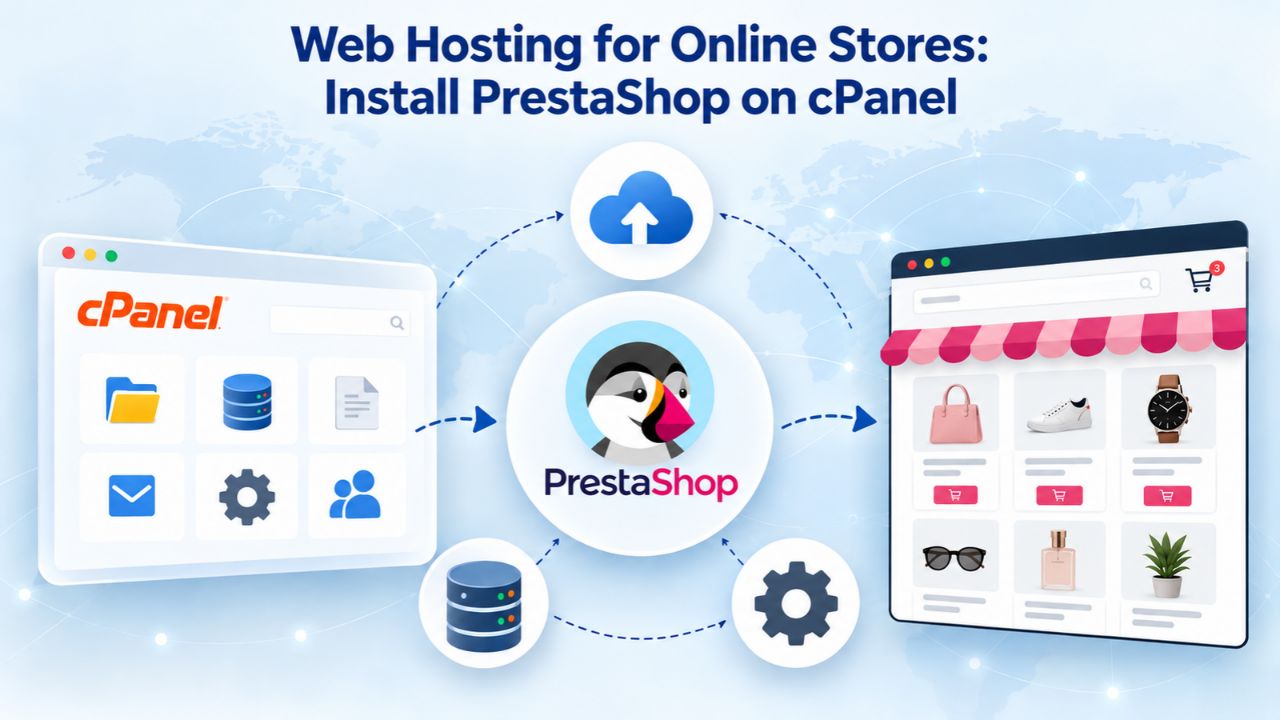
An online store’s success depends on reliable infrastructure, responsive tools, and speed that converts browsers into buyers. Many small business owners start with shared web hosting paired with PrestaShop, a flexible, open-source e-commerce platform, because it offers affordability without sacrificing functionality. Niya Digital is an authorized reseller of GoDaddy-powered web hosting infrastructure, not an operator of its own independent data centers; GoDaddy operates the underlying servers, network, and data-center technology. Overall website performance, uptime, and security depend on many factors outside any single provider’s control, including site configuration, application code, traffic patterns, and your own security practices.
Why Online Stores Choose PrestaShop and Shared Hosting
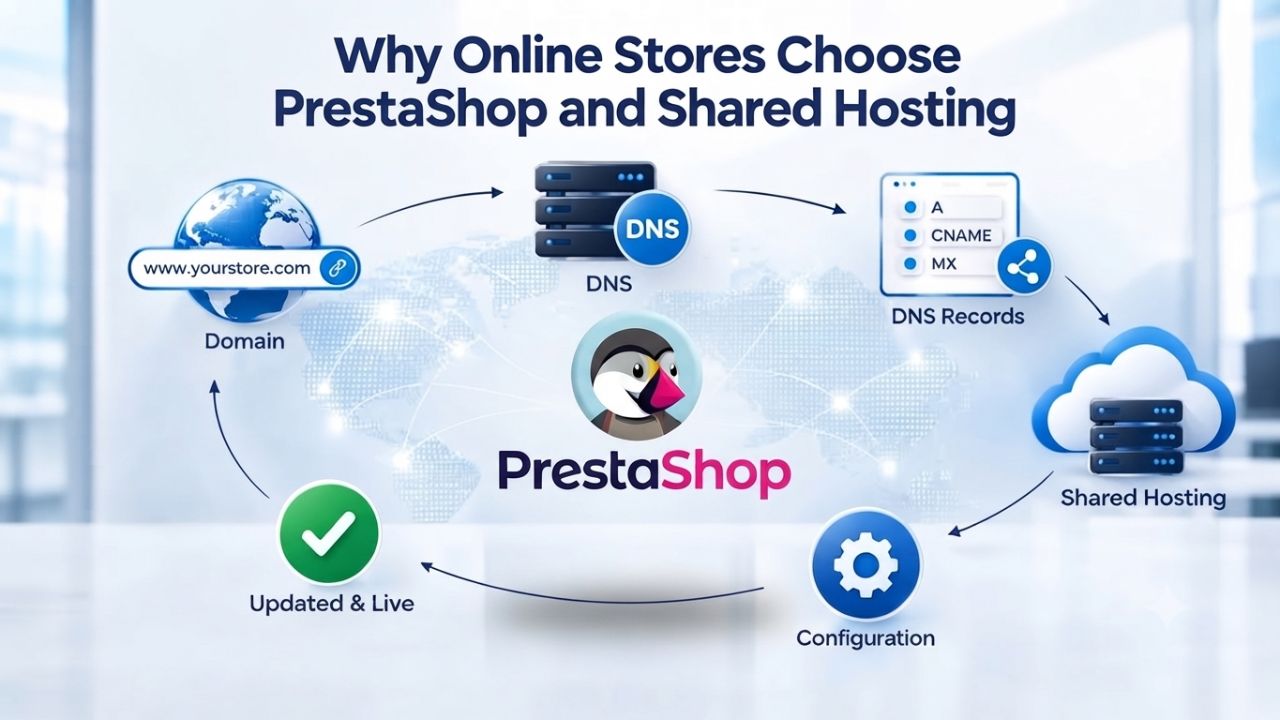
PrestaShop is a free, open-source e-commerce platform trusted by retailers for its flexibility and accessibility. Shared hosting offers an affordable entry point for small stores that don’t yet justify dedicated server investment. This section explores the business case for starting lean and why PrestaShop remains a powerful choice for independent retailers.
The Business Case for Starting with Shared Hosting
PrestaShop runs on modest server resources when traffic is predictable, and inventory is manageable. A small-to-medium online store, say, 50 to 200 products with steady daily traffic, works well on shared web hosting that costs a fraction of dedicated servers. The trade-off is straightforward: you share server resources (CPU, RAM, storage, and bandwidth) with other accounts on the same physical machine, which keeps costs low but means your performance depends partly on other sites’ activity. For startups testing a market or established small businesses with predictable sales, that trade-off often makes business sense.
PrestaShop itself is written to run efficiently on shared infrastructure. It doesn’t require exotic server setups or proprietary software. It stores data in a standard MySQL or MariaDB database, uses common PHP language extensions, and works with Apache or Nginx web servers, all standard offerings on nearly every shared hosting provider. This wide compatibility means you’re not locked into a single vendor and can migrate your store later if growth demands it. The platform’s flexibility also means you can scale from a few products to hundreds as your business grows, without outgrowing the platform itself.
Why PrestaShop Over Other E-Commerce Platforms
PrestaShop appeals to retailers because no hosting company or SaaS vendor owns it or extracts transaction fees. You own your store’s code, data, and customer relationships outright. Themes, modules, and plugins extend functionality without requiring a developer for every change. The community maintains comprehensive documentation, and professional PrestaShop agencies exist worldwide if you need custom development work. Compared to website builders that lock you into their ecosystem, PrestaShop on managed web hosting gives you independence and strong support.
PrestaShop’s open-source nature also means the platform benefits from continuous improvement driven by thousands of developers worldwide. Security patches are released promptly when vulnerabilities are discovered. Feature updates happen regularly, and the community actively maintains compatibility with the latest PHP versions and database systems. This ongoing development keeps your store modern and secure without vendor lock-in or dependence on a single company’s roadmap.
Business Web Hosting Plans & Pricing
Choose the hosting plan that fits your website, WordPress site, or growing business. Compare features, storage, performance, security, and website capacity to find the right hosting environment for your needs.
cPanel Starter
cPanel Hosting that's easy, reliable and lightning-fast.
- 1 website
- 30 GB storage
- Unmetered bandwidth*

cPanel Economy
cPanel Hosting that's easy, reliable and lightning-fast.
- 1 website
- 100 GB space
- Unlimited bandwidth*
- 100 email accounts**
- 10 MySQL databases (1 GB ea.)
cPanel Deluxe
cPanel Hosting that's easy, reliable and lightning-fast.
- Unlimited websites
- Unlimited space
- Unlimited bandwidth*
- 500 email accounts
- 25 MySQL databases (1 GB ea.)
cPanel Ultimate
cPanel Hosting that's easy, reliable and lightning-fast.
- Unlimited websites
- Unlimited space
- Unlimited bandwidth*
- 1000 email accounts
- Unlimited MySQL databases (1 GB ea.)
- 2X Processing power & memory (available for Linux/cPanel only)
- Premium DNS
- 1-year SSL certificate to secure customer data and increase search rankings
*We don't limit the amount of storage and bandwidth your site can use as long as it complies with our Hosting Agreement. Should your website bandwidth or storage usage present a risk to the stability, performance or uptime of our servers, we will notify you via email and may be required to upgrade, or we may restrict the resources your website is using.
**Email account storage is limited to 100 email accounts with 100 MB of total storage.
WordPress Basic
A great way to get started.
- 1 website
- 10 GB NVMe storage
- Unmetered bandwidth
- Free SSL Certificate *
- WordPress pre-installed
- Weekly backups
- Web Application Firewall
- Daily malware scans
- One-time malware removal

WordPress Deluxe
Improve your site performance with Cloudflare CDN.
- 1 website
- 20 GB NVMe storage
- Unmetered bandwidth
- Free SSL Certificate *
- WordPress pre-installed
- Daily backups
- Web Application Firewall
- Daily malware scans
- One-time malware removal
- Up to 2x faster performance with global Cloudflare CDN **
- Enhanced security with DDoS protection
- Staging site
WordPress Ultimate
Add online marketing with more sites, storage and security.
- 1 website
- 30 GB NVMe storage
- Unmetered bandwidth
- Free SSL Certificate *
- WordPress pre-installed
- Daily + on-demand backups
- Web Application Firewall
- Daily malware scans
- Unlimited malware removal
- Up to 2x faster performance with global Cloudflare CDN **
- Enhanced security with DDoS protection
- Staging site
- WordPress code optimizer
- Smart WordPress plugin manager
- Sell online with WooCommerce
*An SSL certificate is included with every site and free for the life of the hosting plan. Certificates are automatically installed, validated and renewed.
Web Hosting Plus Launch
For multiple basic sites.
- 100 GB storage*
- 4 GB RAM
- 2 CPUs
- Unmetered traffic
- 50 websites & databases
- Free, unlimited SSL for all your websites**

Web Hosting Plus Enhance
For high-traffic WordPress, Joomla, and other sites.
- 200 GB storage*
- 8 GB RAM
- 4 CPUs
- Unmetered traffic
- 100 websites & databases
- Free, unlimited SSL for all your websites**
Web Hosting Plus Grow
For advanced eCommerce sites like Magento.
- 300 GB storage*
- 16 GB RAM
- 8 CPUs
- Unmetered traffic
- 150 websites & databases
- Free, unlimited SSL for all your websites**
Web Hosting Plus Expand
For multiple basic sites.
- 400 GB storage*
- 32 GB RAM
- 16 CPUs
- Unmetered traffic
- 200 websites & databases
- Free, unlimited SSL for all your websites**
*The total amount of usable storage capacity for your particular Hosting Service(s) may differ from the represented capacity as there is required space for the operating system(s), system file(s) and other supporting file(s).
**If you cancel the Web Hosting Plus product, you will lose the associated SSL certificate as well.
Understanding Online Store Resource Needs
Resource requirements vary dramatically based on store size, traffic volume, and operational complexity. Not every online retailer needs the same infrastructure. Understanding your actual needs prevents overpaying for unused resources and building too much before it’s necessary.
How Store Size Determines Resource Consumption
A store with 50 products generating 200 daily visits operates in a different resource realm than a store with 500 products and 1,000 daily visits. According to e-commerce hosting analysis, a small online store under 100 products with fewer than 500 visitors per day runs smoothly on a shared hosting plan with 1 to 2 GB of RAM, 1 to 2 CPU cores (shared), 20 to 50 GB of SSD storage, and 100 to 300 GB of monthly bandwidth.
Each additional 100 products and doubling of traffic typically requires stepping up to the next resource tier. Shared hosting plans scale in steps; a provider might offer 10 GB storage on the entry tier and 50 GB on the next, so you match the tier to your anticipated store size, not the other way around.
Storage holds not just product images and descriptions but also customer order history, shipping records, and PrestaShop’s own system files. A typical PrestaShop installation occupies 300 MB to 1 GB of storage before you add a single product. High-resolution product images (3–5 MB each) add up quickly if you stock hundreds of items. Bandwidth reflects data transferred to customer browsers; large images, video demos, and high traffic all consume it. When choosing a plan, estimate conservatively: a 50-product store with standard product images might use 5 to 10 GB of storage and 50 to 100 GB of monthly bandwidth. If you go beyond those figures, it’s time to upgrade or migrate to a VPS.
Resource Limits and Real-World Performance
Shared hosting providers limit CPU, RAM, disk I/O, and PHP workers to prevent one runaway site from starving others. These limits are expressed differently across providers; some cite “unlimited bandwidth” (with fine print), others list explicit monthly caps, but the practical effect is the same: your store gets a fair share, not a guarantee of exclusive resources. An online store depends more heavily on CPU and RAM than a static blog because PrestaShop calculates product availability, applies discount rules, and queries the database for every customer action. If your plan caps CPU at 100% of one core, complex product searches or checkout processing might slow during peak hours.
Shared hosting typically supports 100,000 to 300,000 monthly visitors before resource contention becomes a regular problem. That’s roughly 3,000 to 10,000 daily visitors, enough for many small retailers. Niya Digital’s team has found that online stores migrating from slower platforms to optimized shared hosting often see immediate improvements in checkout speed, even without upgrading plan resources, because the underlying infrastructure is fresher and better maintained. Monitoring your site’s load time and error logs (both available in cPanel) helps you spot when you’ve outgrown the plan.
Resource Requirements by Online Store Size
| Store Type | Product Count | Daily Visitors | Storage Needed | Bandwidth (Monthly) | Recommended RAM | CPU Allocation |
|---|---|---|---|---|---|---|
| Starter Store | 0–50 | 100–300 | 5–10 GB | 50–100 GB | 512 MB–1 GB | Shared (1 core) |
| Small Store | 50–200 | 300–500 | 10–20 GB | 100–200 GB | 1–2 GB | Shared (1–2 cores) |
| Growing Store | 200–500 | 500–1,000 | 20–40 GB | 200–500 GB | 2–3 GB | Shared (2–3 cores) |
| Medium Store | 500–1,000 | 1,000–2,000 | 40–80 GB | 500 GB–1 TB | 3–4 GB | Dedicated or VPS recommended |
| Large Store | 1,000+ | 2,000+ | 80+ GB | 1+ TB | 4+ GB | VPS or Dedicated Server |
Is Shared Hosting Enough for PrestaShop Stores?
Shared hosting works well for many online stores, but deciding whether it’s right for yours requires honest assessment of your traffic, growth plans, and security expectations. Understanding these tradeoffs helps you make an informed choice at each stage of your business.
When Shared Hosting Is a Perfect Fit
Shared hosting suits online retailers who prioritize ease of setup, predictable monthly costs, and hands-off server management. If you have fewer than 500 daily visitors, 200 or fewer products, and steady (not volatile) traffic patterns, shared hosting removes technical barriers. You get one-click app installation, automated daily backups, free SSL certificates, email hosting, and phone or chat support, all included in one straightforward monthly plan. You don’t need to understand server OS administration, PHP configuration, or database tuning. cPanel’s graphical interface lets you manage everything: upload product images, set up email accounts for customer inquiries, monitor site statistics, and adjust SSL certificate settings, all without touching a command line.
Shared hosting also suits businesses testing an e-commerce market. If you’re unsure whether online sales will justify dedicated infrastructure investment, shared hosting lets you launch, gather customer feedback, and prove the business model before scaling up. Your data and store configuration don’t disappear if you later upgrade to VPS hosting or dedicated hosting; most providers (including Niya Digital) offer one-click or assisted migration tools to move your store without downtime. This flexibility means you can start lean and grow as revenue justifies the investment.
Limits You Should Expect and Plan Around
Shared hosting on a tight resource budget can feel slow during traffic spikes. Black Friday sales, a viral social media post, or a successful ad campaign can overwhelm a plan sized for routine traffic. Research shows that conversion rates can decrease by up to 17% for each additional second of page load time on e-commerce sites, so a traffic spike that slows your store by a second or two can cost real revenue. Shared hosting isn’t the place to skimp on resources if seasonal traffic swings are predictable. If you know your peak month will generate 2,000 daily visitors, choose a plan built for that, not for your average month.
Security on shared hosting is a shared responsibility. The hosting provider manages server firewalls, applies security patches, monitors for intrusions, and isolates website files. Still, if another account on your server is compromised, attackers sometimes can access neighboring accounts if isolation fails. Quality shared hosting providers (like Niya Digital, running GoDaddy infrastructure) implement strict file isolation and continuous monitoring to prevent this. You still bear responsibility for strong PrestaShop admin passwords, regular software updates, and careful vetting of third-party modules; a malicious module can expose your store regardless of server-level security.
PrestaShop System Requirements and cPanel Compatibility
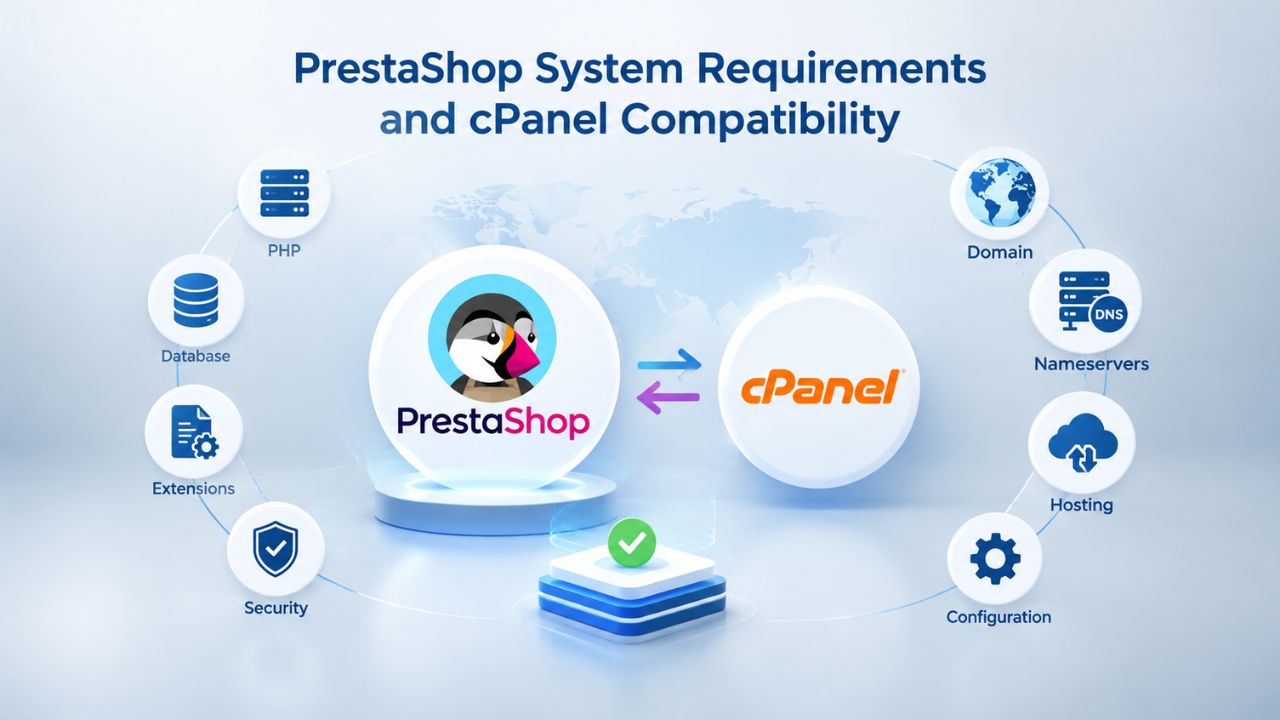
PrestaShop has modest system requirements; most shared hosting plans meet them without special configuration, but checking compatibility before signup avoids surprises. Knowing what your server must provide ensures smooth installation and operation.
What Your Server Must Provide
PrestaShop 8 and 9 (the current stable versions) require PHP 8.1 or later, with a memory limit of at least 256 MB per script. Older versions of PrestaShop can run on PHP 7.2 and up, but security updates for PHP 7 ended in late 2024, so starting fresh with PHP 8.1+ future-proofs your store.
The required PHP extensions are standard on any reputable hosting provider: CURL (to fetch remote resources like payment gateway updates), DOM (to parse configuration files), Fileinfo (to validate uploaded images), JSON (to handle data formats), Mbstring (for character encoding), SimpleXML and SOAP (for payment and shipping integrations), ZipArchive (to extract module and theme files), and PDO_MySQL (to communicate with the database). If a hosting provider lists these extensions, you’re good to go.
PrestaShop requires MySQL 5.7 or later, or MariaDB 10.2 or later. Both are open-source relational databases; MariaDB is MySQL’s maintained fork after Oracle acquired MySQL’s original creator. Most shared hosting providers offer one or both on standard plans. A typical shared hosting account lets you create multiple databases, so you can host multiple PrestaShop stores or test a staging store on the same account. cPanel includes phpMyAdmin, a web-based tool for managing databases, creating backups, and running SQL queries without command-line access.
How cPanel Simplifies Version Management
cPanel includes a feature called “Select PHP Version” that lets you choose between available PHP versions (usually 7.4, 8.0, 8.1, 8.2, and 8.3 on modern hosting) without restarting the server or contacting support. You can set one version for your entire account or, if you host multiple sites on a single account, override the version for a specific folder or domain. This flexibility means you can upgrade PrestaShop without worrying about whether your hosting provider has updated PHP; you can do it yourself in seconds. If a security update requires a PHP upgrade, cPanel’s version selector lets you test the new PHP on a staging folder before applying it to your live store.
cPanel also surfaces the memory_limit and upload_max_filesize settings (which control how large a file PrestaShop can process during installation or when importing a product CSV). Most shared hosting plans pre-configure these to safe defaults (memory_limit = 256 MB, upload_max_filesize = 20 MB or higher), but if you need to adjust them, cPanel’s PHP Configuration tool lets you change them without editing server config files. This graphical approach removes barriers for non-technical retailers and eliminates the need for technical support to adjust common settings.
Installing PrestaShop via cPanel Softaculous
Softaculous is a one-click application installer built into cPanel that deploys PrestaShop in 2 to 5 minutes and automatically creates the database and handles initial configuration. This section walks through the process step by step, from login to first admin access.
The One-Click Installation Process
Log into your cPanel dashboard (your hosting provider sends you the cPanel URL and login credentials via email after account signup). In the Software section, locate and click “Softaculous Apps Installer” or search for it using cPanel’s search bar. Inside Softaculous, search for “PrestaShop” or browse the E-commerce category. Click “Install Now” next to PrestaShop. The installer opens a form with installation options: choose your domain (if you have multiple domains on the account, select the one for your store), decide whether to install at the root (so PrestaShop loads at yourdomain.com) or in a subfolder (yourdomain.com/shop), and set the protocol to HTTPS (always use HTTPS for an online store to secure customer payment data).
Scroll down to configure your store name, set an admin folder URL (e.g., /admin123 instead of the default /admin to obscure the admin login from attackers), and create a strong admin password. PrestaShop requires PHP 8.1 or later; if cPanel is running an older version, switch to a compatible version before clicking Install. Softaculous creates a new database, assigns credentials, and runs the PrestaShop installer in the background. After 2 to 3 minutes, you’ll see a “Congratulations, the software was installed successfully” message. Log in to your admin panel using the admin folder URL and credentials, and your store is ready to add products.
What Softaculous Creates for You
Softaculous handles several critical setup steps automatically, saving hours of technical work. It creates a MySQL database with a unique name (e.g., dbuser_prestashop1), sets a random password, and saves these credentials in PrestaShop’s configuration file so the platform can connect without manual intervention. It generates a unique database prefix to reduce collisions if you install multiple stores on one account.
It configures basic PrestaShop settings: store name, admin contact email, and front-office language. It creates the initial admin user with the credentials you supplied and generates an admin folder name so the admin panel isn’t at the predictable /admin URL. It applies file permissions and folder structure so PrestaShop can read configuration and write to cache, logs, and upload directories.
All of this happens without command-line access or FTP file transfers; Softaculous uploads PrestaShop’s files directly from its repository and orchestrates setup through the server API. The one-click method is ideal for retailers unfamiliar with databases or server file structures. If you prefer a manual installation (downloading PrestaShop from prestashop.com, uploading files via FTP or cPanel’s File Manager, and running the web installer yourself), cPanel supports that too. Still, manual installation takes longer and requires understanding FTP and how to create a database through cPanel’s MySQL Databases interface. For most small business owners, Softaculous saves hours of setup time.
Start Your PrestaShop Store Today
Ready to launch your online store? Niya Digital makes it simple with one-click PrestaShop installation, managed cPanel access, and expert support every step of the way. Whether you’re testing a new market or scaling an existing business, our shared hosting plans provide the infrastructure and tools you need to succeed. Your first store is just minutes away.
Setting Up PrestaShop Database and Email on cPanel
After installation, configure email for customer notifications and back up your database regularly, both managed through cPanel’s graphical tools. This section covers essential post-installation configuration that keeps your store running smoothly.
Configuring Email Accounts for Your Store
PrestaShop needs at least two email addresses: a “from” address for order confirmations and shipping notifications sent to customers (e.g., orders@yourdomain.com), and an admin notification address where you receive alerts about new orders, customer messages, and system events. cPanel includes an Email Accounts tool where you create new mailboxes for your domain. Set up orders@yourdomain.com and admin@yourdomain.com, assign passwords, and PrestaShop will use these addresses to send transactional email. Customers receive order confirmations from orders@yourdomain.com, so a branded domain address (yourdomain.com) builds trust better than a generic host-provided address.
PrestaShop’s email settings are configured in its admin panel under Settings > Email > Email Templates and Settings > Contact > Contacts. Enter your “from” address and make sure PrestaShop is set to use SMTP (Simple Mail Transfer Protocol) or PHP’s mail() function to send email. Most shared hosting providers use SMTP with your hosting account’s credentials; cPanel’s email system relays outgoing mail to the internet. If email isn’t working after installation, the most common cause is a mismatch between PrestaShop’s email configuration and your hosting provider’s SMTP settings. Niya Digital’s support team can help verify SMTP credentials if you’re stuck.
Database Backups and Disaster Recovery
Your PrestaShop database holds every order, customer, and product record; it’s the most valuable part of your store. cPanel’s Backup Wizard lets you create a full backup of your account (files and database) with one click; most shared hosting plans include automated daily or weekly backups. But relying solely on your hosting provider’s backups is risky; if the provider suffers data loss or goes out of business, your backups disappear too. Create manual backups regularly using Backup Wizard, download them to your computer, and keep copies in cloud storage (Google Drive, Dropbox, etc.).
For database-only backups, cPanel’s phpMyAdmin tool lets you export your PrestaShop database as an SQL file. This is faster than a full account backup if you only need to back upback up data without re-downloading all site files. Schedule a manual database backup before major PrestaShop updates, large product imports, or theme changes. If something goes wrong, you can restore from backup and retry. Restoring from backup takes a few minutes via phpMyAdmin or by requesting your hosting provider to restore from their automated backups.
Site Performance Optimization for Online Stores
A fast online store converts more browsers into buyers. PrestaShop and cPanel include tools to monitor and improve load time, the single biggest factor in online retail success. This section covers why performance matters and what you can do to optimize.

Why Page Load Time Drives Revenue
Research shows that conversion rates can decrease by up to 17% for each additional second of page load time on an online store. A store loading in 1 second sees conversion rates near 3%, while the same store loading in 4 seconds sees conversions around 0.6%, a 5x difference. Google factors page load speed into search rankings. Hence, a slow store ranks lower, receives less organic traffic, and makes fewer sales. Mobile performance is even more critical: 53% of users abandon sites that take over 3 seconds to load on mobile devices. For online retailers, site speed isn’t a nice-to-have; it’s a conversion lever and a competitive necessity.
Shared hosting performance varies depending on server hardware, caching layers, and server load. Plans with SSD storage load product images faster than plans with traditional hard drives. Plans with Redis or Memcached caching speed up PrestaShop by storing frequently accessed data in memory instead of repeatedly querying the database. Hosting providers increasingly bundle caching and content delivery networks (CDN) into shared plans to level the performance playing field. When comparing shared web hosting providers, ask whether the plan includes caching, which PHP version is available (newer PHP versions run code faster), and whether automatic backups are stored on separate servers (a common performance drain if they’re stored locally).
Monitoring and Improving Load Time in cPanel
cPanel includes site performance monitoring tools. The “Site Performance Metrics” or “Performance Metrics” section (varies by hosting provider) shows your store’s load time, error rate, and resource usage. Google’s PageSpeed Insights (pagespeedinsights.com) is free and identifies specific optimization opportunities: compress images, defer JavaScript, enable browser caching, reduce CSS and JavaScript file sizes. PrestaShop’s built-in settings handle many optimization tasks; cPanel makes them accessible without editing code. PrestaShop includes options to enable Smarty template caching, combine and compress CSS and JavaScript, and resample product images to standard sizes. Enabling these in PrestaShop’s admin panel (Settings > Performance) often shaves 0.5 to 1.5 seconds off page load time with zero technical work.
Image optimization is the quickest win. Most retailers upload high-resolution product photos (3–5 MB each) directly- massive files that download slowly on mobile. Resize images to 800–1200 pixels wide (large enough to look professional on desktop and mobile) and compress them to 100–300 KB before uploading to PrestaShop. Free tools like TinyPNG.com or Squoosh.app do this in seconds. Caching means PrestaShop stores frequently accessed data (product lists, customer sessions) in memory, so returning visitors load the store instantly instead of re-querying the database. If your hosting plan includes caching (e.g., LiteSpeed Cache), enable it in PrestaShop’s Performance settings.
Security Considerations for PrestaShop on Shared Hosting
Security is a shared responsibility. Your hosting provider secures the server; you secure PrestaShop and your store’s data. This section covers both sides of security and what you should prioritize.
Server-Level and Application-Level Security
Your hosting provider’s role is to keep the server patched, firewalls active, and intrusions monitored. Niya Digital, as a reseller of GoDaddy infrastructure, includes around-the-clock network security and DDoS protection at the data-center level, as well as automated daily backups and free SSL certificates on all hosting plans. SSL encrypts the connection between customer browsers and your store so payment data, passwords, and customer addresses travel securely; never deploy a PrestaShop store without SSL enabled. Your role is to keep PrestaShop and its modules updated, use strong admin passwords, regularly scan for malware, and carefully vet any third-party modules or themes.
Shared hosting carries inherent security risk because multiple websites share one server. If a neighboring account is compromised, attackers may gain access to shared server resources, potentially affecting your store if security isolation fails. Reputable hosting providers isolate accounts strictly and monitor for suspicious activity, but the risk is nonzero. For stores processing a high volume of sensitive transactions or storing extensive customer data, consider upgrading to VPS hosting for better isolation, or implement additional security tools like Wordfence (a popular WordPress security plugin) or PrestaShop’s native security modules.
Essential Security Practices
Start with a strong admin password: at least 16 characters mixing uppercase, lowercase, numbers, and symbols. Change it immediately after first login, before you configure any products. If you ever suspect compromise, change your admin password immediately. PrestaShop’s admin folder is configurable (Softaculous sets it to something obscure, not /admin), which deters casual attacks targeting the standard /admin URL. Enable two-factor authentication if PrestaShop or your hosting provider offers it; it requires a second verification step (usually a code from your phone) before admin login succeeds, making password theft useless without that second factor.
Keep PrestaShop updated. Updates fix security vulnerabilities and bugs. cPanel includes an “Update Manager” or similar tool that alerts you to available updates; PrestaShop’s admin panel also shows update notifications. Schedule updates during low-traffic periods, and back up your database first. Scan third-party modules and themes before installation; PrestaShop’s ecosystem includes community-contributed modules, some of which contain vulnerabilities. Use only modules from the official PrestaShop marketplace or from reputable developers with active support. Finally, educate yourself on phishing: if you receive an email claiming to be from your hosting provider asking for your cPanel password, don’t reply. Hosting providers never ask for passwords via email. Forward suspicious email to your hosting provider’s support team.
Scaling Your Store Beyond Shared Hosting
As your store grows, shared hosting will eventually reach limits. Knowing when to upgrade and what to expect ensures a smooth migration. This section covers the signals that it’s time to scale and what options exist.

Signs It’s Time to Migrate to VPS or Dedicated Hosting
If your daily visitor count consistently exceeds 1,000, your product catalog grows beyond 500 items, or you see regular performance warnings in cPanel, shared hosting is holding you back. VPS (Virtual Private Server) hosting allocates dedicated RAM and CPU cores to your account, eliminating the “noisy neighbor” problem where other sites’ traffic spikes slow your store. You still share a physical server with other VPS accounts, but resource guarantees make performance predictable. Dedicated hosting rents an entire physical server for your exclusive use, the most expensive option, but necessary for stores processing thousands of orders daily or handling sensitive data at enterprise scale.
Another trigger is customization. Shared hosting restricts root access; you can’t install custom software, configure the web server at a low level, or optimize settings beyond what cPanel exposes. If you need to install custom middleware, use a specialized caching system, or run background processes, VPS or dedicated hosting gives you that control. Similarly, if your store becomes a target for attacks and shared hosting’s baseline security feels inadequate, VPS hosting lets you apply stricter firewall rules and isolate your infrastructure from shared neighbors.
Migration Without Downtime
Most hosting providers, including Niya Digital, offer one-click or assisted migration from shared to VPS hosting. The process: your provider’s team backs up your PrestaShop files and database, restores them to the new VPS, updates your domain’s DNS records to point to the new server, and verifies that the store is working. Total downtime is usually measured in minutes; your domain goes offline briefly while DNS propagates, then your store comes back online on the faster VPS. You don’t lose data, customer records, or orders. After migration, maintain the same backup and security practices, but you’ll have more resources and flexibility available if you need them.
Moving to VPS increases operational costs, but performance and reliability often justify it. If your store is thriving, the investment pays for itself through improved conversion rates and reduced cart abandonment. Weigh the decision based on projected traffic, product volume, and the cost of downtime or lost sales due to slowness. Niya Digital’s support team can help you right-size a VPS plan if you’re unsure.
Installation & Setup Verification Checklist
| Step | Action | What to Verify | Typical Time |
|---|---|---|---|
| 1 | Access cPanel | You can log in with provided credentials | 2 minutes |
| 2 | Locate Softaculous | Find “Softaculous Apps Installer” in Software section | 1 minute |
| 3 | Select PrestaShop | Find and click “Install Now” next to PrestaShop | 1 minute |
| 4 | Configure Domain | Choose domain and installation folder (root or subdomain) | 2 minutes |
| 5 | Set Admin Folder | Create unique admin URL (e.g., /admin123) | 1 minute |
| 6 | Create Admin User | Set strong password for initial admin account | 2 minutes |
| 7 | Verify PHP Version | Confirm PHP 8.1+ is selected before installation | 1 minute |
| 8 | Complete Installation | Click Install and wait for success message | 3–5 minutes |
| 9 | Log In to Admin | Access admin panel with credentials and admin folder URL | 1 minute |
| 10 | Verify Installation | Check that store loads and admin panel is functional | 2 minutes |
Managing and Maintaining Your PrestaShop Store on cPanel
After launch, ongoing management, updates, backups, and monitoring keep your store secure and performing. cPanel tools automate much of this work, but regular attention prevents small issues from becoming costly problems.
Regular Updates and Security Patches
PrestaShop releases security patches and feature updates regularly. Check for updates in PrestaShop’s admin panel (System > System Updates) at least monthly. Before updating, back up your database via cPanel’s Backup Wizard or phpMyAdmin. If possible, test the update on a staging installation; many hosting accounts let you create a staging copy of your store for testing. After verifying everything works, apply the update to your live store. Updating is essential: outdated software is the most common entry point for attackers. If you skip updates, your store’s security erodes incrementally.
Similarly, update any third-party modules and themes. Module developers release updates for bug fixes and security patches; unpatched modules are a common vulnerability. PrestaShop’s admin panel shows which modules have available updates. If a module hasn’t been updated in over a year and is no longer actively supported, consider replacing it. PrestaShop’s marketplace and GitHub host actively maintained alternatives for nearly every function. Staying current with updates takes minimal effort but delivers outsized security benefits.
Tracking Performance and Errors
cPanel’s Error Logs (under Logs) show PHP errors, warnings, and crashes. If customers report checkout problems or missing product images, check the error log for clues. Common errors include PHP memory exhaustion (increase memory_limit in cPanel’s PHP Configuration), database connection failures (verify database credentials in PrestaShop’s config file), or file permission issues (cPanel can fix permissions with one click). Most hosting providers, including Niya Digital, include email alerts for critical errors or resource overages, so you’re notified before an issue becomes severe.
Monitor disk usage (how much storage you’re using) via cPanel’s Disk Usage tool. As you add products and customer records, your store grows. If you approach your plan’s storage limit, download backups to your computer and consider upgrading your hosting plan. Similarly, watch bandwidth usage if your plan includes a monthly cap. Hosting providers reset bandwidth counters monthly; if you consistently exceed your limit, upgrade to an unlimited or higher-cap plan. Regular monitoring prevents surprises and keeps your store running smoothly.
Getting Started with Niya Digital’s Web Hosting
Niya Digital’s Web Hosting service provides everything you need to launch and run a PrestaShop store on a modern, managed shared hosting platform. Plans include cPanel access, one-click PrestaShop installation via Softaculous, free SSL certificates, automated daily backups, email hosting, and 24/7 customer support.
Frequently Asked Questions
What’s the difference between Softaculous and manual PrestaShop installation?
Softaculous is a one-click installer that automates the entire setup process, database creation, file upload, and configuration in 2 to 5 minutes. Manual installation means downloading PrestaShop from prestashop.com, uploading files via FTP or cPanel’s File Manager, creating a database through cPanel’s MySQL Databases interface, and running PrestaShop’s web installer yourself. Softaculous is faster and easier for non-technical users; manual installation gives you slightly more control if you need customization before launch. For most retailers, Softaculous is the clear choice.
Do I need a dedicated server for my online store?
No. Dedicated servers are for very high-traffic stores (10,000+ daily visitors) or specialized workloads. Small-to-medium stores under 1,000 daily visitors run fine on shared hosting with proper resource planning. If you outgrow shared hosting, VPS hosting scales with your growth without the cost of a dedicated server. Monitor your store’s performance and upgrade when you hit shared hosting limits; most stores don’t need a dedicated server.
Can I install PrestaShop manually instead of using Softaculous?
Yes, but Softaculous is easier. Manual installation requires FTP access, a MySQL database created through cPanel, and understanding how to configure database credentials in PrestaShop’s install script. If Softaculous is available on your account (it is on nearly all shared hosting plans), use it. Manual installation is useful only if Softaculous isn’t available or you need custom pre-installation configuration, which is rare for first-time online retailers.
What PHP version should I choose for PrestaShop?
PrestaShop 8 and 9 require PHP 8.1 or later. Select PHP 8.1, 8.2, or 8.3 through cPanel’s “Select PHP Version” tool; the newest stable version is generally best for performance and security. Older PrestaShop versions (1.7) support PHP 7.1+, but security updates for PHP 7 ended in late 2024, so upgrading to PHP 8 is strongly recommended. If you’re starting fresh, skip older versions and use the current PrestaShop with PHP 8.1+.
How often should I back up my PrestaShop store?
Back up at least weekly, or daily if your store processes significant orders or content changes. Use cPanel’s Backup Wizard for automated daily backups (included on most plans), and manually download backups to your computer weekly or after major changes. Store backup copies in cloud storage (Google Drive, Dropbox) separate from your hosting account; if your hosting provider fails, you still have backups. Never rely on hosting provider backups alone.
Is shared hosting secure enough for collecting customer payment data?
Yes, if you use SSL/TLS encryption (free with most hosting plans) and a reputable payment gateway (Stripe, Square, PayPal) that processes payments off your server. Customers’ payment card details never touch your PrestaShop database; the payment gateway handles that. Your role is keeping your PrestaShop database (which stores customer addresses and order history) secure through strong passwords, updates, and backups. Shared hosting is secure enough for most online stores.
What email settings do I need to configure for PrestaShop?
Create at least two email addresses in cPanel’s Email Accounts: one for customer notifications (e.g., orders@yourdomain.com) and one for admin alerts (admin@yourdomain.com). In PrestaShop’s admin panel (Settings > Email), enter these addresses as the “from” address for order confirmations and notifications. PrestaShop uses SMTP or PHP’s mail() function to send email; your hosting provider’s SMTP settings are usually pre-configured, but your hosting support team can verify if email isn’t working.
How do I know if my online store is outgrowing shared hosting?
Signs include: daily visitors consistently exceeding 1,000, product catalog growing beyond 500 items, performance warnings in cPanel, checkout speed noticeably slowing during peak hours, or security concerns from hosting on shared servers. Use cPanel’s Performance Metrics or Google PageSpeed Insights to measure load time. If optimization tips (caching, image compression) don’t improve speed enough, consider upgrading to VPS hosting for dedicated resources and better performance.
Can I host multiple stores on one shared hosting account?
Yes, most shared hosting plans let you create multiple databases and point multiple domains to different PrestaShop installations on the same account. Each store gets its own database and folder. However, stores share server resources; if one store experiences a traffic spike, it can impact the other’s performance. If you run multiple stores generating significant traffic each, consider separate hosting accounts or a VPS to isolate resources.
What happens if I exceed my bandwidth limit on a shared hosting plan?
It depends on your hosting provider’s policy. Some hosts slow your site once you exceed the monthly limit; others charge overage fees; others temporarily shut off service. Most shared hosting plans offer generous bandwidth to prevent this issue for typical stores. If you regularly exceed your limit, upgrade to an unlimited or higher-cap plan. Track your bandwidth in cPanel’s Bandwidth tool to stay aware.
Can I migrate from a different hosting provider to Niya Digital’s Web Hosting?
Yes. Niya Digital offers migration assistance for existing PrestaShop stores. You provide access to your current hosting account; the migration team backs up your store, restores it to Niya Digital’s servers, and verifies everything works. The process typically takes a few hours to a day, and total downtime is minimal (usually under an hour). Contact Niya Digital’s support team to discuss your specific store and migration timeline.
What’s the difference between an add-on domain and a subdomain in cPanel?
An add-on domain is a completely separate domain (e.g., store2.com) that points to a separate folder on your account and can run its own PrestaShop installation. A subdomain (e.g., shop.yourdomain.com) is a branch of your primary domain. Both are managed in cPanel’s Domains tool. Most retailers use add-on domains to run multiple independent stores; subdomains for staging stores or store sections. Both work with PrestaShop via one-click installation.
What security modules or plugins should I install in PrestaShop?
PrestaShop’s native security features (strong admin passwords, two-factor authentication, regular updates) cover most needs for typical stores. Popular optional modules include security-scanning tools and backup managers, available in the PrestaShop marketplace. Avoid installing modules from untrusted sources. Your hosting provider’s baseline security (firewall, DDoS protection, malware scanning) handles server-level threats; focus on keeping PrestaShop and its modules updated. Overly aggressive security configurations can slow your store.
Can I use cPanel to monitor my PrestaShop database size?
Yes. In cPanel, go to MySQL Databases > Database Information and view your database’s size. PrestaShop stores all product, order, and customer data in one or more databases; monitor size monthly. As orders accumulate and you add products, your database grows. If it approaches your plan’s storage limit, back up the database, archive old orders to a separate database or export, and delete archived data to reclaim space.
What’s the best way to handle product image uploads to avoid performance problems?
Resize images to 800–1200 pixels wide and compress them to 100–300 KB using free tools like TinyPNG.com or Squoosh.app before uploading to PrestaShop. Large, high-resolution images slow your store and consume storage. PrestaShop automatically resizes images for thumbnails and category views, but uploading oversized originals wastes server processing. Enable PrestaShop’s image optimization in Settings > Performance. Consider enabling lazy loading (images load only when visible on screen) to improve page speed.
Glossary
- Web Hosting: The service of storing your website’s files on a server connected to the internet, making your site accessible to visitors 24/7. Hosting providers manage the servers and infrastructure; you manage your content.
- cPanel: A web-based control panel that simplifies hosting account management. Through cPanel’s graphical interface, you manage files, email, databases, domains, and install applications without command-line access.
- Softaculous: An automated application installer built into cPanel that deploys PrestaShop, WordPress, and hundreds of other platforms in one click, handling database creation and initial configuration.
- One-Click Installer: A feature that deploys software (like PrestaShop) automatically with minimal user input. The installer downloads files, creates a database, configures settings, and verifies installation, all in 2–5 minutes.
- Shared Hosting: A web hosting service where multiple websites share one physical server’s resources (CPU, RAM, storage, bandwidth). Shared hosting is affordable but limits performance during high traffic.
- SSL Certificate: A digital security certificate that encrypts data between your customer’s browser and your PrestaShop store, protecting payment information and passwords during transmission.
- Database: A structured repository (MySQL or MariaDB) where PrestaShop stores all store data: products, orders, customer information, inventory, and settings.
- Backup: A complete copy of your website’s files and database. Backups protect against data loss and allow restoration after accidental deletion, hacking, or server failure.
- PHP: A server-side programming language that PrestaShop runs on. PHP code executes on the server and sends results to the customer’s browser. PHP version affects performance and feature availability.