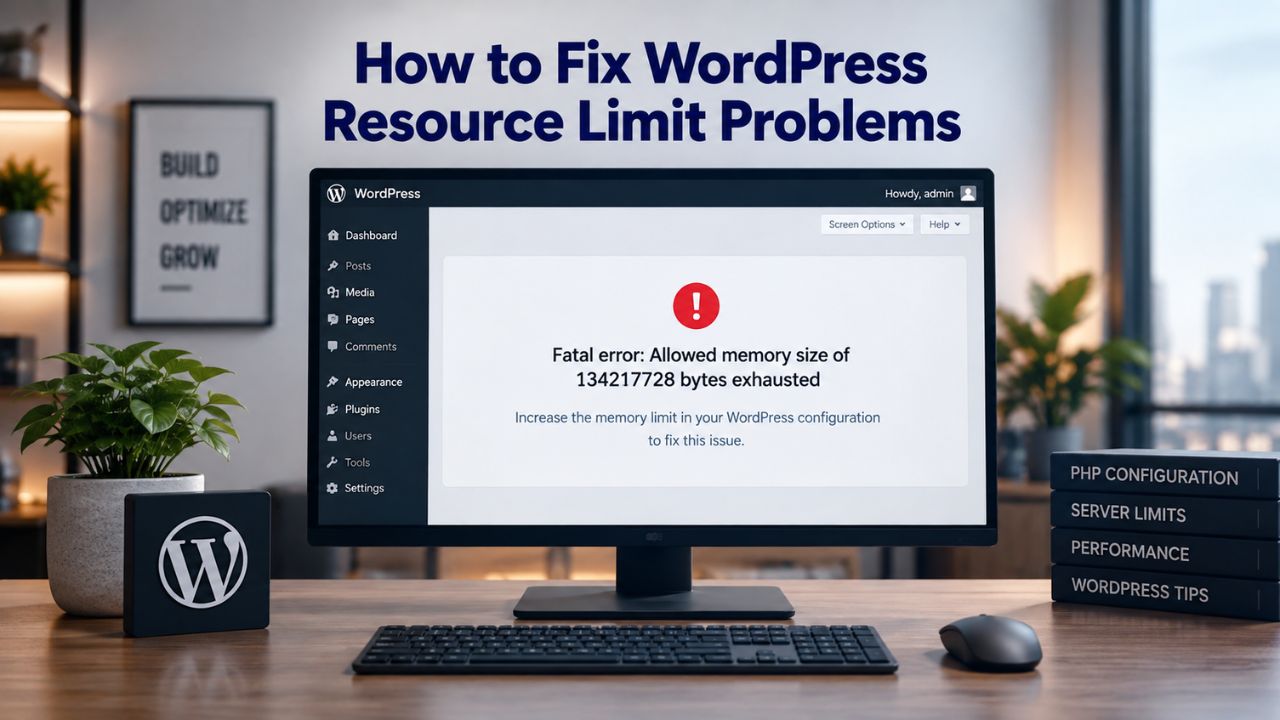
When your WordPress site suddenly displays a fatal error, fails to upload files, or becomes completely inaccessible during peak traffic, a resource limit is often to blame. These limits exist by design; server administrators set thresholds to protect shared infrastructure and prevent any single site from consuming all available resources. The problem is that when your site outgrows those boundaries, you need to know which limit has been hit, why it matters, and whether to increase it, optimize your site, or upgrade your hosting tier. Niya Digital delivers WordPress hosting plans on enterprise-grade cloud infrastructure via our infrastructure partner, ensuring your site has the resources it needs to perform without friction. Niya Digital’s team has found that most resource-limit issues stem from plugin bloat or inefficient database queries, not inadequate server allocation.
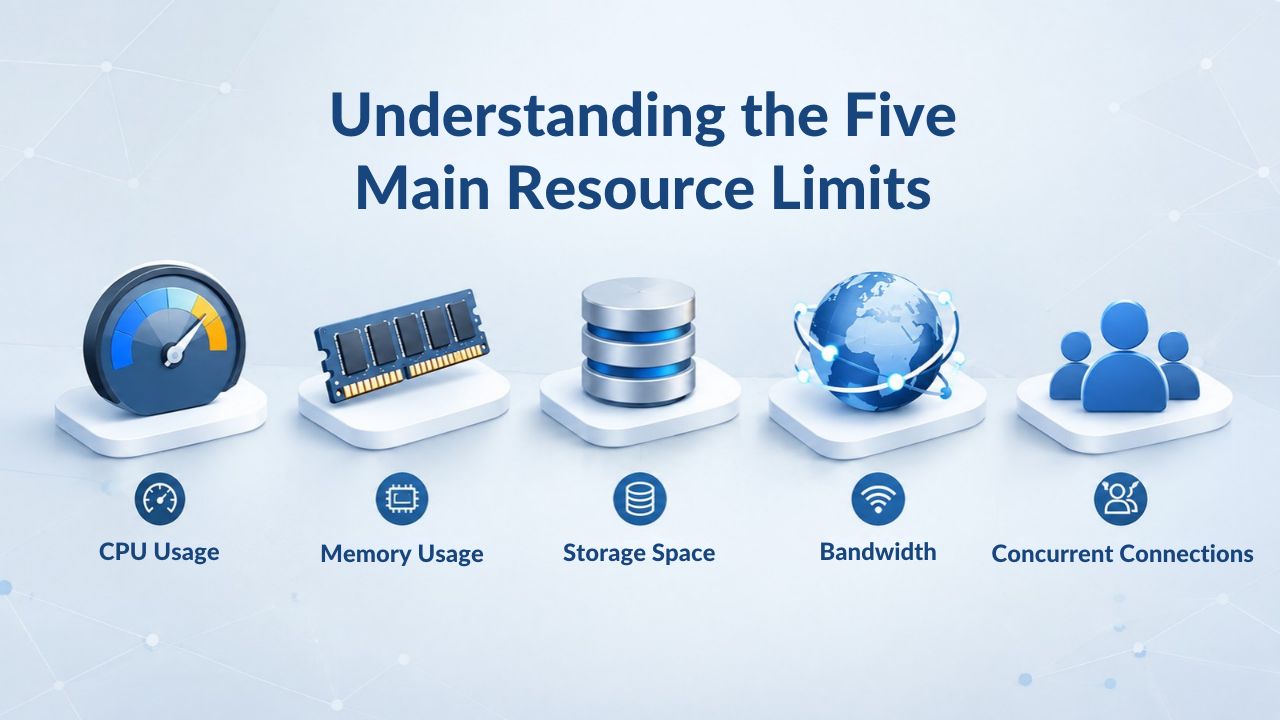
Understanding the Five Main Resource Limits
When you host a WordPress website, your site operates within several boundaries set by the hosting provider and the server’s PHP configuration. These limits protect the stability of shared environments and prevent resource exhaustion, but they can also become bottlenecks as your site grows. Understanding what each limit does and why it matters is the first step toward diagnosing and fixing the problems that arise when you hit them.
PHP Memory Limit: The Foundation of WordPress Execution
PHP memory limit is the maximum amount of RAM a single PHP process can allocate during execution. WordPress itself needs a baseline amount of memory to function, but plugins, themes, and active database queries consume additional memory on top of that foundation. When the limit is exceeded, WordPress displays a fatal error: “Allowed memory size of X bytes exhausted.” This is typically the first resource limit that new site owners encounter.
Shared hosting often defaults to 64MB, which is rarely sufficient for modern WordPress sites running multiple plugins. WordPress.org documentation recommends a minimum of 128MB. However, 256MB is more realistic for sites running page builders, WooCommerce, or complex caching plugins. WordPress also sets a separate, higher limit for admin operations (WP_MAX_MEMORY_LIMIT), which defaults to 256MB. The rationale is that admin tasks, like importing, backing up, or activating plugins, often require more memory than standard frontend operations.
Max Input Vars: Guarding Against Excessively Complex Forms
The PHP directive max_input_vars limits the number of variables PHP accepts from form submissions, GET parameters, and cookies. Page builders like Elementor and WPBakery Page Builder, complex custom menus, and theme customizers send hundreds or thousands of variables at once when you save changes. When the total exceeds the limit, PHP silently truncates the submission, so your changes appear to save but don’t actually persist to the database.
The default max_input_vars is 1,000 on most shared hosting environments. For sites using advanced page builders or managing large menu structures with nested items, increasing this to 3,000–5,000 is standard practice. The symptom of hitting this limit is frustrating: you make changes in the page builder, click save, see no error message, but the changes are gone when you refresh the page.
Max Execution Time: Allowing Long-Running Tasks to Complete
max_execution_time controls how many seconds a PHP script can run before the server terminates it. This timeout protects against runaway processes and infinite loops, but it also affects legitimate operations that naturally take time. Backups, bulk imports, WooCommerce mass product updates, and media library regeneration often take longer than 30–60 seconds and will be cut short if the execution time is too low. When a process times out mid-operation, it halts before completion, leaving your site in an inconsistent or corrupted state.
The default is typically 30 seconds on shared hosting. For sites running backups, migrations, or bulk operations, 300–600 seconds (5–10 minutes) is more appropriate. Some hosting providers set the default even lower, at 15–20 seconds, which can cause issues on any site with even modest traffic or plugin complexity.
Upload and Post Size Limits: Controlling File and Form Data
Two directives work together: upload_max_filesize sets the maximum size of a single file you can upload, and post_max_size sets the maximum total size of a POST request, which includes the file plus all form metadata and headers. Shared hosting often caps uploads at 10–20MB; managed WordPress hosting typically allows 64MB–512MB. If post_max_size is smaller than upload_max_filesize, uploads will fail even if the individual file is under the upload limit, because the POST request as a whole exceeds the post size limit.
Symptom: A large image or video is rejected, or a WooCommerce bulk product import stops partway through. You may also see form submissions from plugins or themes fail silently if the total form data exceeds the post limit.
Database Connection Limits: Preventing Connection Exhaustion
MySQL/MariaDB has a max_connections limit, the total number of simultaneous connections allowed to the database server. Shared hosting typically allocates 30–100 concurrent connections per site; managed WordPress hosting offers 200–500+. When this limit is exceeded, WordPress displays “Error Establishing a Database Connection,” and the entire site becomes inaccessible until a connection is freed.
Database connection issues are more subtle than memory errors because a single user action rarely spikes connections all at once. Instead, slow queries, unclosed connections from poorly written plugins, database overhead, and comment spam gradually consume available connections until new requests have nowhere to go. Database connection exhaustion happens when queries take longer than expected, keeping connections open longer than necessary, and if multiple queries back up, the pool empties fast.
| PHP/Server Directive | Typical Shared Hosting Default | Recommended for WordPress | Impact When Too Low |
|---|---|---|---|
| PHP Memory Limit (memory_limit) | 64M | 128M–256M | Fatal error; plugins fail to load; updates blocked |
| Max Input Vars (max_input_vars) | 1,000 | 3,000–5,000 | Page builder saves fail; theme options truncated; menus incomplete |
| Max Execution Time (max_execution_time) | 30s | 300–600s | Backup/import processes timeout; batch operations fail |
| Upload Max Filesize (upload_max_filesize) | 10–20M | 64M–512M | Large image/video uploads rejected; imports incomplete |
| Post Max Size (post_max_size) | 8M | 20M–512M | Form submissions truncated; WooCommerce bulk actions fail |
| Database Max Connections (MySQL max_connections) | 30–50 | 100–300+ | “Error Establishing a Database Connection” when limit exceeded |
WordPress Pricing Plans
Choose the WordPress hosting plan that fits your website needs, with reliable performance, security, storage, backups, and tools to help your site grow.
WordPress Basic
A great way to get started.
- 1 website
- 10 GB NVMe storage
- Unmetered bandwidth
- Free SSL Certificate *
- WordPress pre-installed
- Weekly backups
- Web Application Firewall
- Daily malware scans
- One-time malware removal

WordPress Deluxe
Improve your site performance with Cloudflare CDN.
- 1 website
- 20 GB NVMe storage
- Unmetered bandwidth
- Free SSL Certificate *
- WordPress pre-installed
- Daily backups
- Web Application Firewall
- Daily malware scans
- One-time malware removal
- Up to 2x faster performance with global Cloudflare CDN **
- Enhanced security with DDoS protection
- Staging site
WordPress Ultimate
Add online marketing with more sites, storage and security.
- 1 website
- 30 GB NVMe storage
- Unmetered bandwidth
- Free SSL Certificate *
- WordPress pre-installed
- Daily + on-demand backups
- Web Application Firewall
- Daily malware scans
- Unlimited malware removal
- Up to 2x faster performance with global Cloudflare CDN **
- Enhanced security with DDoS protection
- Staging site
- WordPress code optimizer
- Smart WordPress plugin manager
- Sell online with WooCommerce
How Resource Limits Manifest as Errors
Understanding what you see on screen helps you pinpoint the real problem. WordPress and PHP errors can be cryptic or missing entirely, but each resource limit produces a recognizable symptom pattern that guides diagnosis.
Fatal Memory Errors and Admin Slowness
When WordPress approaches or exceeds the PHP memory limit, the first sign is often a blank page, followed by the fatal error message in the browser or error log. On the admin side, tasks like importing content, activating plugins, or uploading media stall and eventually fail. The error log (usually /wp-content/debug.log if debugging is enabled) shows: “Allowed memory size of X bytes exhausted.” In some cases, you won’t see an explicit error message; instead, the admin area becomes sluggish, specific operations time out, or certain features mysteriously fail.
Elementor and WooCommerce are particularly susceptible to memory pressure because they load heavy libraries and data structures into memory when rendering the page builder interface or processing large product catalogs. If you notice the WordPress admin dashboard taking 10–20 seconds to load, or if certain admin pages fail to load at all, memory pressure is often the underlying cause.
Silent Failures in Page Builders and Forms
If you use Elementor, WPBakery, or a custom theme with many customization options, and changes you make in the editor refuse to save, even though the interface doesn’t show an error message, the max_input_vars limit is likely the culprit. PHP silently discards the form submission because it contains more variables than it will accept. You’ll notice this most with complex page layouts or large menu structures with many nested items.
Timeout Errors and Incomplete Operations
Long-running processes, backups, imports, media regeneration, and bulk WooCommerce operations fail with a timeout message or stop abruptly without completing. The error typically says something like “504 Gateway Timeout” or displays “Maximum execution time exceeded.” The operation may complete partially, leaving your database in an inconsistent state that requires manual cleanup.
Upload Rejections and Form Truncation
Files you try to upload are rejected, even though they seem small enough. Or a WooCommerce product import process halts halfway through, or a form submission from a complex plugin seems to work, but the data is incomplete. These symptoms point to upload_max_filesize or post_max_size being too low.
Site Becomes Completely Inaccessible, Database Connection Error
The most severe symptom is when visitors see “Error Establishing a Database Connection,” and your site is completely down. Unlike memory errors, which typically affect only the triggering action, connection exhaustion affects the entire site immediately. Every request needs a database connection, so when the pool is exhausted, nothing works.
Diagnosing Which Limit You’ve Hit
Before you fix anything, pinpoint the exact limit causing the problem. WordPress provides built-in tools and manual checks that reveal what’s happening under the hood.
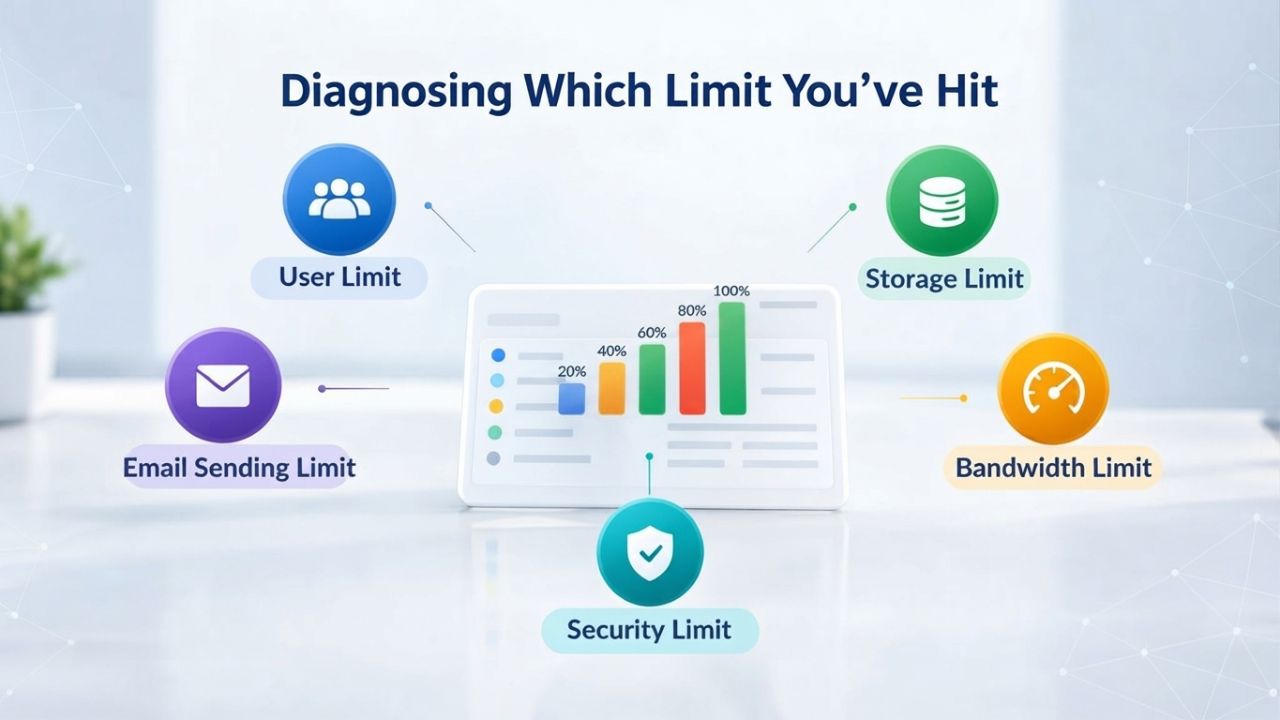
Using WordPress Site Health
WordPress 5.2 and newer include a built-in Site Health tool that reports your server’s resource allocation. Go to Tools → Site Health → Info, then scroll to the Server section. You’ll see your PHP memory limit, max execution time, upload limits, and other configuration values. The WordPress Site Health Tutorial explains how to read and interpret these values. If a value is flagged as a “critical issue” or “recommended improvement,” Site Health tells you what to do. This is the fastest way to rule out some limits.
Look for any settings highlighted in red (critical) or yellow (recommended improvement). Site Health compares your current settings against WordPress’s known best practices and flags anything below the recommended threshold.
Checking Error Logs
Enable WordPress debugging if you haven’t already. Add these lines to your wp-config.php file:
define( ‘WP_DEBUG’, true );
define( ‘WP_DEBUG_LOG’, true );
define( ‘WP_DEBUG_DISPLAY’, false );
Then trigger the problematic action: upload a file, save theme options, run a backup, or perform whatever task fails. WordPress logs errors to /wp-content/debug.log. Open that file and search for keywords that point to the specific limit: “Allowed memory size” indicates PHP memory limit; “max input time” or “max_input_vars” indicates input limit exceeded; “Maximum execution time” indicates execution timeout; “upload_max_filesize” or “post size” indicates upload limit; “MySQL has gone away” or “Too many connections” indicates database connection limit.
Manual Checks: Creating a Phpinfo File
If you have FTP or file manager access, create a simple PHP file to display your server’s current configuration. Save this as phpinfo.php in your website’s root directory:
<?php
phpinfo();
?>
Visit yourdomain.com/phpinfo.php in your browser. Search for the directive you suspect (e.g., “memory_limit,” “max_input_vars,” “max_execution_time”). This file shows the live, active configuration- what the server is actually using, not what a control panel says. This method is especially useful if your hosting control panel hasn’t been updated or shows incorrect values.
Important: Delete phpinfo.php after you’re done, as it exposes sensitive server information.
Checking Database Connections
If you suspect database connection issues, check how many connections are currently open. In your hosting control panel (cPanel, Plesk, etc.), look for a database management tool like phpMyAdmin. Log in and run this query:
SHOW PROCESSLIST;
This displays all active database connections. If the number approaches your limit, you’ve found your problem. Look at the time (in seconds) each connection has been open. Long-running queries are usually the culprit; if a query has been open for 300+ seconds, it’s likely waiting on something or processing slowly.
Immediate Fixes: Safe Adjustments Without Server Access
Once you’ve diagnosed the problem, you can often increase the limit without contacting your host or accessing the server directly. The safest method is editing your wp-config.php file, which sits in your WordPress root directory and is readable by anyone with FTP or file manager access.
Increasing PHP Memory via wp-config.php
Open wp-config.php (via FTP or file manager) and find the line that says “That’s all, stop editing! Happy publishing.” Just above it, add the following lines:
define( ‘WP_MEMORY_LIMIT’, ‘256M’ );
define( ‘WP_MAX_MEMORY_LIMIT’, ‘512M’ );
The first constant controls memory for the frontend and regular WordPress operations; the second controls memory for the WordPress admin area, which often needs more. Save the file and test your site. You can verify the change by running phpinfo.php again or checking Site Health. Most sites will see improved performance and fewer memory-related errors immediately.
Caveat: If your hosting provider restricts PHP-level configuration changes, these settings may be ignored. This is common on cheaper shared hosts that don’t allow ini_set() at runtime.
Increasing Execution Time and Upload Limits
Add these lines to wp-config.php:
@ini_set( ‘upload_max_filesize’ , ‘256M’ );
@ini_set( ‘post_max_size’ , ‘256M’ );
@ini_set( ‘max_execution_time’ , ‘600’ );
@ini_set( ‘max_input_vars’ , ‘5000’ );
The @ symbol suppresses errors if ini_set() is blocked on your host. This method works on many hosts but not all. Test after making changes to see if operations that were timing out now complete.
Using .htaccess as an Alternative
If you can’t edit wp-config.php or changes have no effect, try adding directives to your .htaccess file (located in your WordPress root directory, next to wp-config.php). Add these lines:
php_value memory_limit 256M
php_value max_execution_time 600
php_value upload_max_filesize 256M
php_value post_max_size 256M
php_value max_input_vars 5000
Save and test. Not all hosts allow .htaccess overrides for PHP configuration, so this may not work on restrictive shared hosts.
When Adjustments Are Blocked
If neither wp-config.php nor .htaccess work, your host likely restricts per-directory PHP configuration changes. At this point, you have two options: contact your hosting provider’s support and ask them to increase the limits, or upgrade to a higher hosting tier (managed WordPress or VPS), which typically offers more configuration flexibility and higher defaults.
Fixing Database Connection Limits
Database connection exhaustion is trickier than other resource limits because the issue often isn’t a single limit that’s too low, but slow queries or unoptimized tables that keep connections open longer than needed.
Clearing Database Overhead and Optimizing Tables
Over time, as WordPress inserts, updates, and deletes posts, pages, and comments, the database accumulates fragmentation called overhead. This overhead slows down queries, which in turn keeps database connections open longer. To clear it, optimize your database tables. The safest option is a plugin like WP-Optimize or Advanced Database Cleaner, which offers one-click cleanup without requiring SQL knowledge.
If you prefer manual control, access phpMyAdmin from your hosting control panel and select your WordPress database. At the bottom of the page, there’s a checkbox to select all tables. From the dropdown menu, choose “Optimize Table,” then execute the operation. This can reclaim significant space and speed up queries, freeing database connections much faster.
Removing Comment Spam
Comment spam doesn’t just clutter your database; it increases query complexity and slows down the database engine. If your database has thousands of spam comments, even simple searches slow down, and queries that should take milliseconds instead take seconds. Use a spam-blocking plugin like Akismet to prevent new spam, then clean up existing spam.
Go to Comments, filter by spam, select all spam comments, and delete them. This alone can dramatically reduce database load and free up connections. A healthy database with minimal spam comments responds faster to queries.
Identifying Slow Queries
Slow queries hold database connections open while they process. To find them, enable WordPress query logging by adding this to wp-config.php:
define( ‘SAVEQUERIES’, true );
Then, in the footer of your site, when you’re logged in as an admin, WordPress displays all queries run on the page along with their execution time. Queries taking more than 0.1 seconds are candidates for optimization. Often, a poorly written plugin or a missing database index is the culprit.
For more detailed logging, ask your hosting provider to enable the MySQL slow query log. This shows queries taking longer than a configurable threshold (e.g., 1 second). With this data, you can pinpoint exactly which operations are bogging down your database.
Scale Your Site Without the Guesswork
If you’ve optimized your site, identified your resource bottlenecks, and are ready to upgrade to hosting with more headroom, Niya Digital’s managed WordPress hosting delivers enterprise-grade infrastructure with the resource allocation your site deserves. Our plans scale with your traffic and include everything you need to grow without hitting limits. Explore our plans to see which tier aligns with your current traffic and growth trajectory.
Identifying the Problematic Plugin or Theme
Resource spikes often come from a single plugin or theme, not your site’s inherent design. Before upgrading hosting, isolate the culprit.
Deactivation Testing
Disable all plugins except essential ones (like a backup plugin or security plugin), then test whether the resource issue persists. If it does, re-enable plugins one at a time and test after each activation. When the problem returns, you’ve found the offender. This method is tedious but reliable.
Note: Don’t delete plugins; deactivate. Back up your database first in case something goes wrong during testing.
Theme Dependency
Themes can also be memory-intensive. If deactivating all plugins doesn’t solve the issue, switch temporarily to a lightweight theme like Twenty Twenty-Three and test. If the resource issue goes away, your current theme is the problem. Contact the theme developer to report the issue.
Contacting Plugin or Theme Support
Once you’ve identified the problematic plugin or theme, check with the developer. The issue may be a bug, like an infinite loop or missing database index, and the next update might fix it. Alternatively, the plugin may have settings that cause excessive resource use, such as aggressive caching, verbose logging, or a misconfiguration that hammers the database with unnecessary queries.
Preventive Maintenance: Keeping Resource Use in Check
The best fix is to prevent resource issues from happening in the first place. Regular maintenance keeps your site lean, responsive, and well-behaved.
Regular Database Cleanup and Optimization
Run database optimization monthly, not just when disaster strikes. Delete spam comments, clean up old post revisions (WordPress saves them by default), and remove unused plugin data. A lean database runs faster and uses fewer connections. The performance improvement is often noticeable immediately after cleanup.
You can automate some of this. Add this to wp-config.php to limit post revisions:
define( ‘WP_POST_REVISIONS’, 5 );
This stores only the last 5 revisions of each post, not every change. For high-traffic blogs, limiting revisions to 3–5 is standard.
Audit and Remove Unnecessary Plugins
Every plugin consumes memory and executes database queries. Audit your installed plugins quarterly. If you don’t actively use a plugin, delete it. If you use it for a single feature you need only once a month, consider replacing it with a manual solution or a lightweight alternative.
Many sites accumulate 50+ plugins over time but use only 15–20. Removing the unnecessary 30 can dramatically improve performance.
Monitor Site Health Regularly
Check Site Health (Tools → Site Health) every few weeks, not just when something breaks. This gives you early warning when limits approach or configuration issues emerge. WordPress flags many issues before they become critical, giving you time to act.
Implement Caching
Caching reduces database queries by storing computed results in memory. WordPress-specific caching, page caching, and object caching can cut database load in half or more. Most managed WordPress hosting includes caching built-in; on shared hosting, you may need a plugin like WP Super Cache or W3 Total Cache.
When Hosting Capacity Is the Real Problem
Sometimes increasing limits isn’t enough. If you’ve optimized your database, removed unnecessary plugins, and still hit limits during normal traffic, your hosting tier may not meet your site’s needs.
Recognizing When Optimization Won’t Help
Indicators that you’ve outgrown your current hosting: You consistently hit resource limits even after optimization and limit increases. Shared hosting caps are so low that even reasonable increases (to 256M memory or 5,000 input vars) don’t help. Your site routinely receives traffic spikes that overwhelm the server, causing slowdowns or timeouts. You have multiple WordPress sites and want separate resource pools instead of all competing for shared allocations.
At this point, hosting itself is the constraint, not configuration or site design. Your options narrow to upgrading your hosting tier.
Shared Hosting vs. Managed WordPress Hosting Resource Allocation
Shared hosting pools resources across hundreds of accounts. A typical shared server might allocate 1–2GB total RAM for 500+ sites, with individual site limits of 64MB memory and 30 database connections. Even if you increase your personal limit, you’re still competing for the physical server’s total capacity. When another site on the same server gets a traffic spike or runs an expensive operation, your site slows down.
Managed WordPress hosting allocates dedicated resources per site. A managed plan might give you 2–4GB RAM, 200+ database connections, and automatic scaling during traffic spikes. This eliminates the “noisy neighbor” effect where another site’s traffic spike affects your performance. Your site has its own resource pool, guaranteed and uncontended.
The trade-off: managed hosting costs more than shared, but it provides predictability and eliminates most resource-limit headaches. For growing businesses and agencies, the reliability improvement is worth the investment.
| Symptom / Error | Likely Resource Limit | Where to Check | First Fix to Try |
|---|---|---|---|
| “Fatal error: Allowed memory size of X bytes exhausted” | PHP Memory Limit | Site Health → Server → PHP memory_limit | Increase WP_MEMORY_LIMIT in wp-config.php to 256M |
| Plugin or theme activation fails silently | PHP Memory Limit or Max Input Vars | Site Health; check active plugins count | Deactivate least-essential plugins; increase memory limit |
| Page builder changes won’t save; custom menu options lost | Max Input Vars | Site Health → WordPress Constants | Increase max_input_vars to 5,000+ via wp-config.php |
| Backup, import, or WooCommerce bulk edit times out | Max Execution Time | Site Health; error log | Increase max_execution_time to 300+ seconds |
| Large file or image upload rejected or incomplete | Upload Max Filesize or Post Max Size | Site Health; error log | Increase both upload_max_filesize and post_max_size to 64M+ |
| “Error Establishing a Database Connection” or “MySQL has gone away” | Database Connection Limit or slow queries | MySQL error log; check concurrent connections | Run database optimization; remove comment spam; identify slow queries |
| Site randomly goes down or becomes inaccessible; returns after a few minutes | Database Connection Pool Exhaustion or PHP Memory Spike | Database connection log; Site Health history | Check for unclosed connections or database overhead; consider database cleanup |
Understanding Shared Hosting vs. Managed WordPress Resource Allocation
The difference between shared hosting and managed WordPress hosting is not just cost; it’s architecture. Shared hosting distributes resources across many accounts, while managed WordPress hosting dedicates resources to WordPress-specific needs.
Architecture and Resource Pooling
Shared hosting pools resources across hundreds of accounts on a single server. A typical shared server might have 32GB of physical RAM, but that’s divided among 500+ sites. Your allocation might be 64MB, and you’re limited to 30 database connections. When another site’s traffic spikes or a plugin runs wild on a neighboring account, your performance suffers because you’re both competing for the same limited physical resources.
Managed WordPress hosting allocates resources per site and optimizes the entire stack for WordPress. Your site gets its own dedicated portion of CPU, RAM, and database connections. If you have a traffic spike, the infrastructure scales automatically, and your neighbors aren’t affected. The server is tuned for WordPress, PHP settings, caching layers, and database tuning, all optimized for how WordPress actually behaves.
Scalability and Growth Accommodation
Shared hosting has a ceiling. Once you hit the limits, you’re stuck unless you upgrade to a higher-tier shared plan or switch to a different hosting model entirely. There’s no automatic scaling, no flexibility. You increase a limit, and if the physical server’s total capacity still constrains you, you’re out of luck.
Managed WordPress hosting scales with your site. Most providers include automatic scaling or offer easy upgrade paths to higher tiers. As your traffic grows, you don’t hit a ceiling; instead, resources expand to accommodate. This is especially valuable for growing sites or seasonal traffic patterns.
Cost and Value Proposition
Shared hosting is cheaper, sometimes $2–5 per month. You get simplicity and affordability, but you sacrifice performance and reliability. Managed WordPress hosting costs more, but it gives you dedicated resources, expert support, automated updates, backups, and security. For a business or agency that depends on site uptime, the added cost is an investment in reliability, not an expense.
For hobbyists and small blogs with minimal traffic, shared hosting is fine. For anything with revenue or mission-critical importance, managed WordPress hosting makes sense.
Building a Scalable Site: Planning Resource Needs as Growth Happens
The most successful WordPress sites don’t reach resource limits by surprise. They anticipate growth and plan accordingly, upgrading before crisis forces a decision.
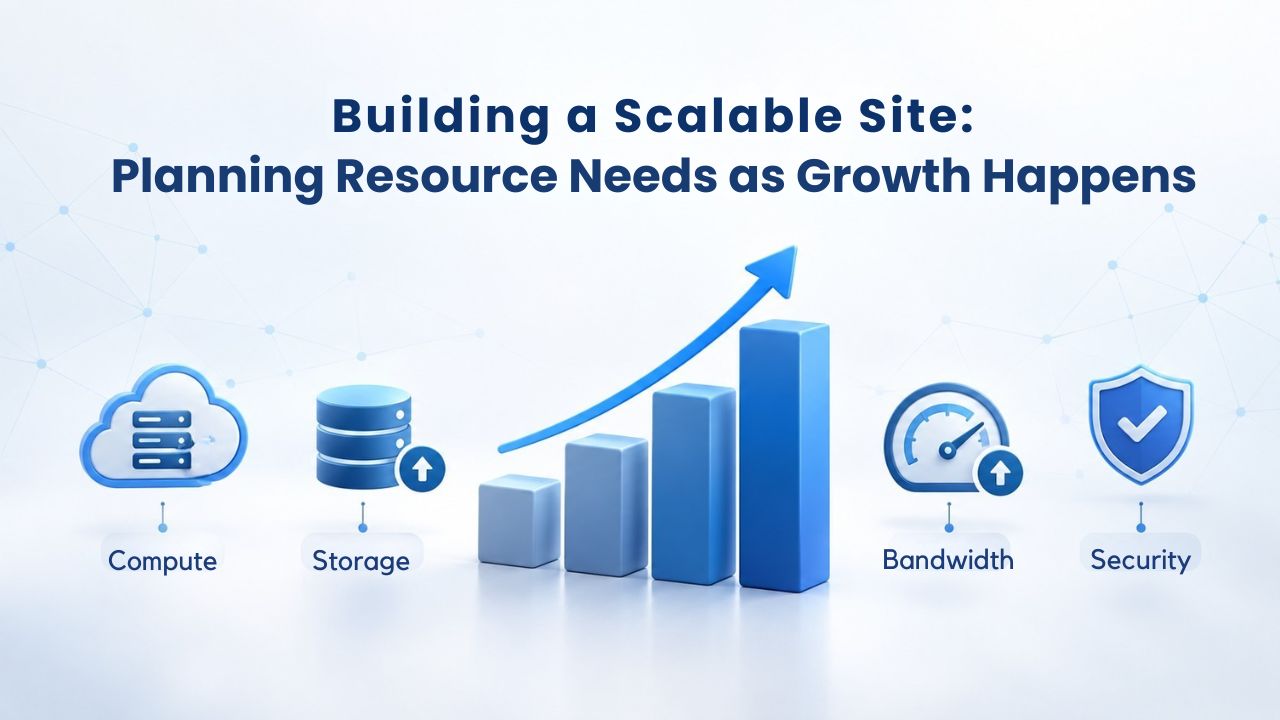
Monitoring Resource Trends Over Time
Track your resource usage month to month. Check Site Health regularly and note the trends. If you used 60% of your memory limit three months ago, 75% now, and the site is still growing, you know you need an upgrade before a crisis hits. Trend monitoring gives you foresight instead of panic.
Many hosting control panels include resource usage graphs. Review these monthly to see if you’re trending upward. An upward trend signals it’s time to plan an upgrade.
Setting Upgrade Milestones
Define in advance when you’ll upgrade: when you consistently use 80% of any resource limit; when you add a major plugin or feature that doubles memory use; when traffic projections show a 50% increase within the next quarter. By upgrading proactively, you avoid emergency troubleshooting at 2 AM when your site goes down during a traffic spike.
Choosing Your Next Tier Strategically
If you’re on shared hosting and hitting limits, the natural upgrade is managed WordPress hosting. It’s a seamless middle ground: you get more resources without managing the server. If managed hosting becomes limiting (e.g., you’re running 10+ sites), cloud VPS gives you the flexibility to scale infinitely. Niya Digital’s managed WordPress hosting supports sites from small blogs to high-traffic agencies, with built-in support and scaling.
Ready to Grow Without Resource Constraints?
Resource limits don’t have to derail your growth. If you’ve optimized everything you can and your hosting is the constraint, it’s time to scale. Niya Digital’s managed WordPress hosting removes resource guesswork by delivering enterprise-grade infrastructure, automatic scaling, and expert support so you can focus on your business instead of server limitations.
Frequently Asked Questions
What’s the difference between PHP memory limit and server RAM?
PHP memory limit is per process, the amount one PHP script can use at a time. Server RAM is the machine’s total physical memory. A server might have 32GB of physical RAM but allocate only 256MB per WordPress site. You can’t increase the PHP memory limit beyond the server’s available free RAM.
Can I increase my limits without restarting my site?
Yes. Changes to wp-config.php take effect immediately on the next page load; no restart is needed. Changes to .htaccess also take effect immediately. Changes to php.ini on shared hosting usually require a host restart, but edits via the control panel (cPanel) often take effect immediately.
Why does my site get slow before it becomes inaccessible?
Slowness usually precedes unavailability. As you approach a resource limit, performance degrades; the server has to work harder to allocate increasingly scarce resources. When the limit is finally exceeded, the site becomes inaccessible. Monitoring for slowness is an early-warning system.
If I increase my limits, will my service cost more?
On shared hosting, increasing the PHP memory limit via wp-config.php shouldn’t cost extra; you’re just using your allocated resources more efficiently. However, if your host restricts limit increases or charges for high-resource usage, check with them first. Upgrading to managed WordPress hosting will change your plan tier and offer more resources across the board.
Is it safe to set memory limit to unlimited?
No. Setting memory_limit to -1 (unlimited) removes the safety net and can allow runaway processes to consume all server RAM, crashing the entire server. Always set a reasonable upper limit, like 512M or 1GB, even on managed hosting.
Can a plugin be causing high memory use without obvious symptoms?
Yes. A plugin might consume significant memory only during specific operations like backups, imports, or bulk edits. You may not notice until you trigger that operation and hit the limit. Deactivation testing is how you identify memory-hungry plugins.
What should I do if my host won’t increase limits?
If your host refuses limit increases even on a higher-tier shared plan, it’s a sign the host is overselling its infrastructure. Consider switching hosts. Managed WordPress hosting providers are generally more generous with limits and more transparent about what you get.
How often should I optimize my database?
Monthly optimization is reasonable for an active site. If your site has thousands of posts and comments, optimize weekly. A simple rule: optimize whenever Site Health flags database performance issues.
Can I have too high a resource limit?
Not practically. Setting the memory limit to 512M on a site that uses only 100M causes no harm; the extra allocation goes unused. The only downside is reduced headroom on a shared server if all sites max out their allocations at the same time.
What’s the difference between WP_MEMORY_LIMIT and WP_MAX_MEMORY_LIMIT?
WP_MEMORY_LIMIT controls memory available for frontend and normal WordPress operations. WP_MAX_MEMORY_LIMIT controls memory available in the WordPress admin area and during specific admin operations. Admin operations often need more memory, so the max limit is typically higher.
Does a hosting upgrade require migrating my site?
Not with managed WordPress hosting. Most providers handle seamless migrations from your current host, moving your site with zero downtime. Some even offer free migration as part of the upgrade process.
Why do page builder saves fail silently?
Page builders send complex form submissions with hundreds of variables when you save changes. If max_input_vars is too low, PHP discards excess variables without warning. The form submission “succeeds” from the interface’s perspective, but the data is incomplete.
What’s database overhead, and why does it matter?
Overhead is fragmentation that accumulates in MySQL tables from insert, update, and delete operations. Over time, queries take longer to execute because the data is scattered. Longer queries keep database connections open longer, which can exhaust the connection pool.
How do I know if a plugin is causing resource problems?
Use deactivation testing. Disable all plugins except essentials, test, then re-enable one at a time until you find the culprit. Alternatively, enable query logging to see which queries are slow, which often points to the problematic plugin.
Should I hire a developer to optimize my site before upgrading hosting?
It depends. If you have obvious problems (a backup plugin timing out, page builder saves failing), fixing those is cheaper than upgrading hosting. If you’ve already optimized and still hit limits, upgrading is the right move.
Glossary
- Database Connection: A session between WordPress and the MySQL database server. Each active query uses one connection. Shared hosting typically has a per-site limit of 30–100 connections; managed hosting 200+.
- Database Overhead: Fragmentation in MySQL table structure that accumulates from insert, update, and delete operations over time. This overhead slows queries and keeps database connections open longer than necessary.
- Managed WordPress Hosting: A hosting service optimized specifically for WordPress, where the provider handles server-level caching, automatic updates, security patches, and scaling. Typically offers higher resource ceilings and more flexibility than shared hosting.
- Max Input Vars: The PHP directive limiting the number of form fields, array elements, or variables a script can process. Exceeded when complex page builders or menus attempt to save too many options.
- PHP Memory Limit: The maximum amount of RAM a single PHP process can allocate during execution. When exceeded, WordPress displays “Fatal error: Allowed memory size exhausted.”
- TTFB (Time to First Byte): The time elapsed from when a user requests a page until the server sends the first byte of response. Primarily affected by server resource availability and response-time efficiency.