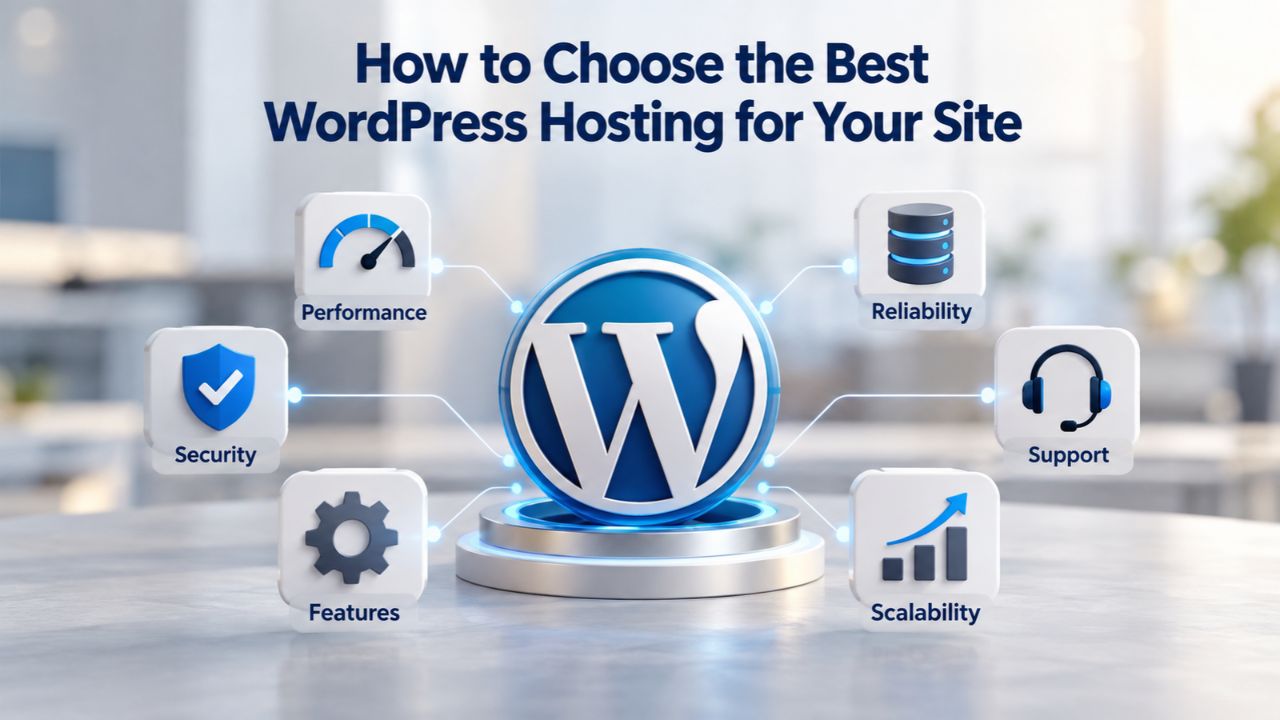
Choosing WordPress hosting can feel overwhelming when plans promise speed, security, and support but rarely explain what matters. The truth is simpler: your hosting foundation determines whether your site feels responsive or sluggish, whether your data stays backed up, and whether you can scale when traffic grows. Niya Digital delivers its WordPress hosting plans in partnership with an enterprise-grade cloud infrastructure partner, built on proven cloud architecture, never a single-provider lock-in.
Understanding Hosting Architecture Fundamentals
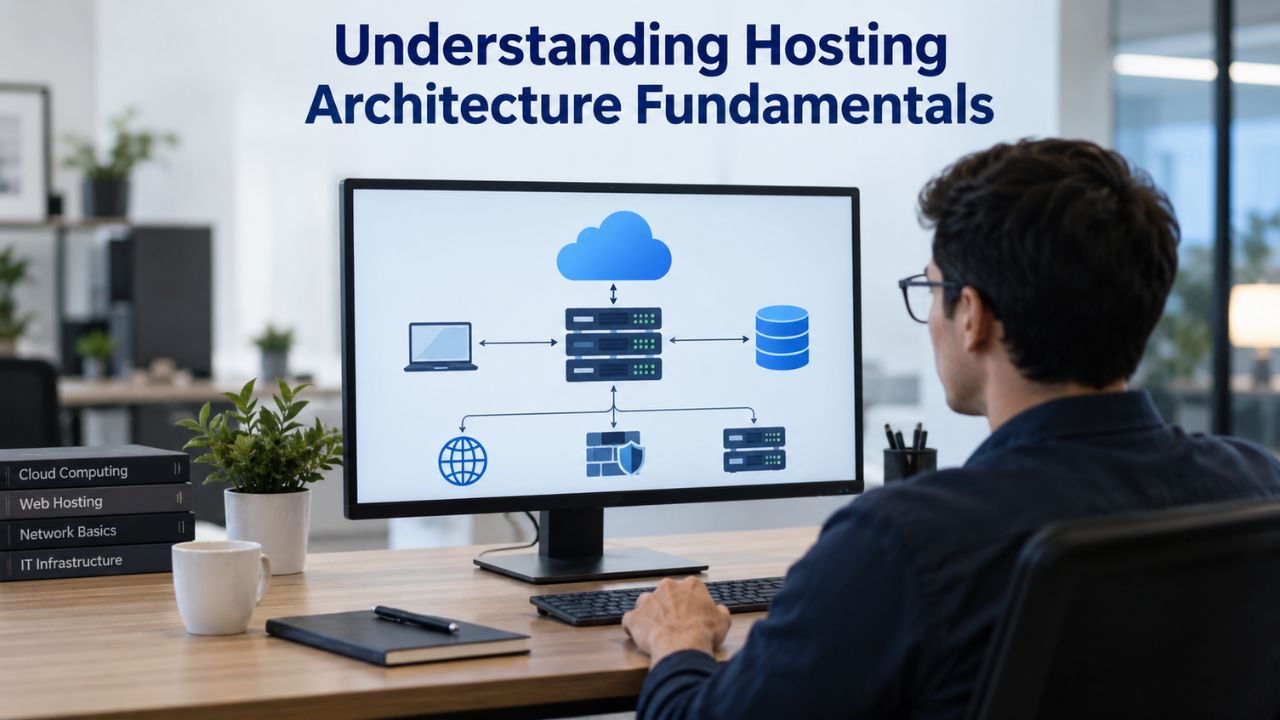
Your hosting architecture is the structural choice that shapes everything else. It determines how many sites share your server resources, who manages security and updates, and what happens when traffic spikes. Different architecture tiers serve different site sizes and complexity levels, and the right choice depends on your actual needs, not on marketing hype or lowest-cost options.
Shared Hosting vs. VPS: The Performance Trade-Off
Shared hosting houses hundreds or thousands of websites on a single physical server, each competing for CPU, RAM, and database connections. This model works for small blogs with consistent, modest traffic because resource pooling dramatically lowers costs. However, performance degrades under any sustained load or during traffic spikes on neighboring sites. When traffic on other sites spikes, your site’s server response time (TTFB) ranges from 400–1,200 milliseconds, compared to 120–250ms on managed WordPress hosting. That difference, 600ms to 1 second per request, is not marginal; it’s the gap between a site that feels responsive and one that feels broken.
A VPS (Virtual Private Server) partitions a physical server into isolated virtual machines, each with dedicated CPU cores, RAM, and storage. This offers significantly better performance than shared hosting: VPS typically delivers 200–500ms TTFB, fast enough for most growing business sites. The trade-off is clear: you or your team must handle server configuration, security patching, PHP version management, and manual caching setup. For developers comfortable with server access and system administration, this flexibility is powerful. For site owners without technical staff, the maintenance burden quickly outweighs the cost savings, consuming hours each month that could go to business priorities.
Managed WordPress and Dedicated Hosting: Optimization vs. Control
Managed WordPress hosting takes a VPS or cloud infrastructure and optimizes every layer specifically for WordPress. The provider handles automatic updates, security patches, backup strategy, staging environments, and server-level caching; you focus on content and business growth, not infrastructure. TTFB on managed WordPress typically ranges from 120–250ms, competitive with well-tuned VPS but achieved without manual configuration.
The provider includes built-in full-page caching, object caching, and OPcache, which reduce server load and improve responsiveness. Support is WordPress-specific: engineers understand plugin conflicts, staging workflows, and migration challenges, not generic server issues. Niya Digital’s team has found that sites migrating from shared to managed WordPress hosting consistently report faster page loads without changing a single line of code, because the infrastructure itself is optimized for WordPress’s resource patterns.
Dedicated hosting assigns an entire physical server to one client, eliminating hardware contention and offering TTFB of 50–200ms. This level of performance and control is necessary for very high-traffic sites (multi-site networks, heavy e-commerce with millions of daily transactions). Still, it is overkill for most WordPress projects. Dedicated hosting also demands advanced server administration, system patching, firewall rules, database tuning, load balancing, or hiring a full-time infrastructure team. For businesses without those resources, managed WordPress delivers the performance boost needed without the complexity and staffing costs of dedicated hosting.
WordPress Pricing Plans
Choose the WordPress hosting plan that fits your website needs, with reliable performance, security, storage, backups, and tools to help your site grow.
WordPress Basic
A great way to get started.
- 1 website
- 10 GB NVMe storage
- Unmetered bandwidth
- Free SSL Certificate *
- WordPress pre-installed
- Weekly backups
- Web Application Firewall
- Daily malware scans
- One-time malware removal

WordPress Deluxe
Improve your site performance with Cloudflare CDN.
- 1 website
- 20 GB NVMe storage
- Unmetered bandwidth
- Free SSL Certificate *
- WordPress pre-installed
- Daily backups
- Web Application Firewall
- Daily malware scans
- One-time malware removal
- Up to 2x faster performance with global Cloudflare CDN **
- Enhanced security with DDoS protection
- Staging site
WordPress Ultimate
Add online marketing with more sites, storage and security.
- 1 website
- 30 GB NVMe storage
- Unmetered bandwidth
- Free SSL Certificate *
- WordPress pre-installed
- Daily + on-demand backups
- Web Application Firewall
- Daily malware scans
- Unlimited malware removal
- Up to 2x faster performance with global Cloudflare CDN **
- Enhanced security with DDoS protection
- Staging site
- WordPress code optimizer
- Smart WordPress plugin manager
- Sell online with WooCommerce
Performance Foundations: Server Response Time and Core Web Vitals
Page speed is not one thing; it’s several distinct user experiences stacked together. Google separates these into Core Web Vitals, three metrics that measure real visitor experience and directly influence search rankings. Understanding how server performance impacts these metrics helps you prioritize the right hosting tier for your site’s goals.
Server Response Time (TTFB) Sets the Hard Floor
Server response time, measured as Time to First Byte (TTFB), sets a hard floor under your page load speed. If your server takes 800 milliseconds to process a request, your page cannot load faster than 800ms, period. Plugin optimization, image compression, and CDN caching happen after the server responds; they cannot fix a slow origin server, no matter how optimized your front-end code is. This is why hosting infrastructure is the foundational decision: everything else you build depends on it.
A slow host creates a 500–1,500ms TTFB gap compared to quality hosting. This gap compounds across every page load, adding seconds to every visitor’s experience. Page speed directly affects user retention: visitors expect pages to load in under 2.5 seconds, and each millisecond of delay increases bounce rates and reduces conversions. Poor TTFB is the single most common reason WordPress sites fail Core Web Vitals, not because of unoptimized images or excessive plugins, but because the hosting foundation cannot handle the demand. No amount of code optimization can compensate for infrastructure that is inherently slow or oversold.
Core Web Vitals: Google’s User Experience Standard
Google measures three metrics at the 75th percentile of real visitor data: Largest Contentful Paint (LCP, measuring loading speed with a “good” threshold under 2.5 seconds), Interaction to Next Paint (INP, measuring responsiveness under 200 milliseconds), and Cumulative Layout Shift (CLS, measuring visual stability under 0.1). A page passes only when all three hit “good” simultaneously, based on field data from real users, not simulated lab tests. This means your site must consistently perform well for most visitors, not just fast-internet users or desktop browsers.
Only 48% of mobile and 56% of desktop websites achieve a “good” score across all three metrics. The metric most sites fail is mobile LCP, often because slow TTFB prevents the hero image from rendering quickly enough. This isn’t a front-end problem; it’s a hosting problem. Managed WordPress hosting, with optimized server configuration and built-in caching, directly addresses TTFB. WordPress-specialized hosting providers automatically optimize Core Web Vitals through advanced caching and CDN delivery, closing the performance gap that shared hosting creates by design.
| Performance Metric | Shared Hosting | VPS | Managed WordPress | Good CWV Target |
|---|---|---|---|---|
| TTFB Range | 400–1,200ms | 200–500ms | 120–250ms | Enables LCP <2.5s |
| Full-Page Caching | No | Manual setup | Included | Reduces TTFB |
| Object Caching | No | Manual setup | Included | Speeds queries |
| Concurrent Logged-In Users | Fails quickly | Limited | Scales smoothly | Critical for e-commerce |
| LCP Pass Rate | Low (shared overload) | Medium | High | 75th percentile <2.5s |
| PHP Version Support | Outdated (5.x–7.x) | Your choice | Modern (8.x) | Improves performance |
Security: A Shared Responsibility Between Host and Owner
WordPress security rests on two layers: hosting-level (server configuration, firewalls, backups) and application-level (plugins, passwords, updates). Neither layer alone is sufficient; both must be active and maintained. Understanding which responsibilities belong to your host and which belong to you prevents security gaps and ensures consistent protection.
Hosting-Level Security: What Your Host Provides
Your hosting provider controls the server and its perimeter. A secure WordPress hosting environment includes automatic core updates, daily backups, SSL certificates, a web application firewall (WAF), and malware scanning. These aren’t optional features or nice-to-have add-ons; they are the foundation everything else rests on. Without them, your site remains vulnerable to common attacks, no matter how secure your plugins and passwords are.
SSL encrypts data between your browser and the server, protecting login credentials and sensitive user information from interception. Most hosting providers offer free SSL certificates through trusted certificate authorities; confirm renewal is automatic and won’t lapse. Backups are your last resort and only real recovery option. If a security breach occurs, a clean backup is often the fastest way to recover your site. A hosting provider should perform automatic daily backups and maintain a retention policy (daily backups for 7–14 days, weekly for 4–8 weeks, monthly for 6–12 months). Crucially, test backups; a backup you’ve never restored is a hypothesis, not a guarantee.
Application-Level Security: Your Responsibility
Most WordPress vulnerabilities originate in plugins and themes, not core WordPress. Hackers often exploit known vulnerabilities in outdated plugin and theme versions, so updates are your first defense. Enable auto-updates for WordPress core, trusted plugins, and themes. Remove unused or inactive plugins and themes immediately; abandoned components are unpatched and represent active attack vectors. Use strong passwords and two-factor authentication (2FA) for all admin accounts to prevent brute-force access.
A secure WordPress site starts with proper server configuration and access controls, but it also depends on consistent updates and application-level monitoring. Security reduces risk, but doesn’t eliminate it. No hosting provider can guarantee 100% protection; their role is to reduce attack surface and provide recovery options when incidents occur. Your role is to stay current with updates and follow application-level security best practices. Together, these two layers create a robust defense posture.
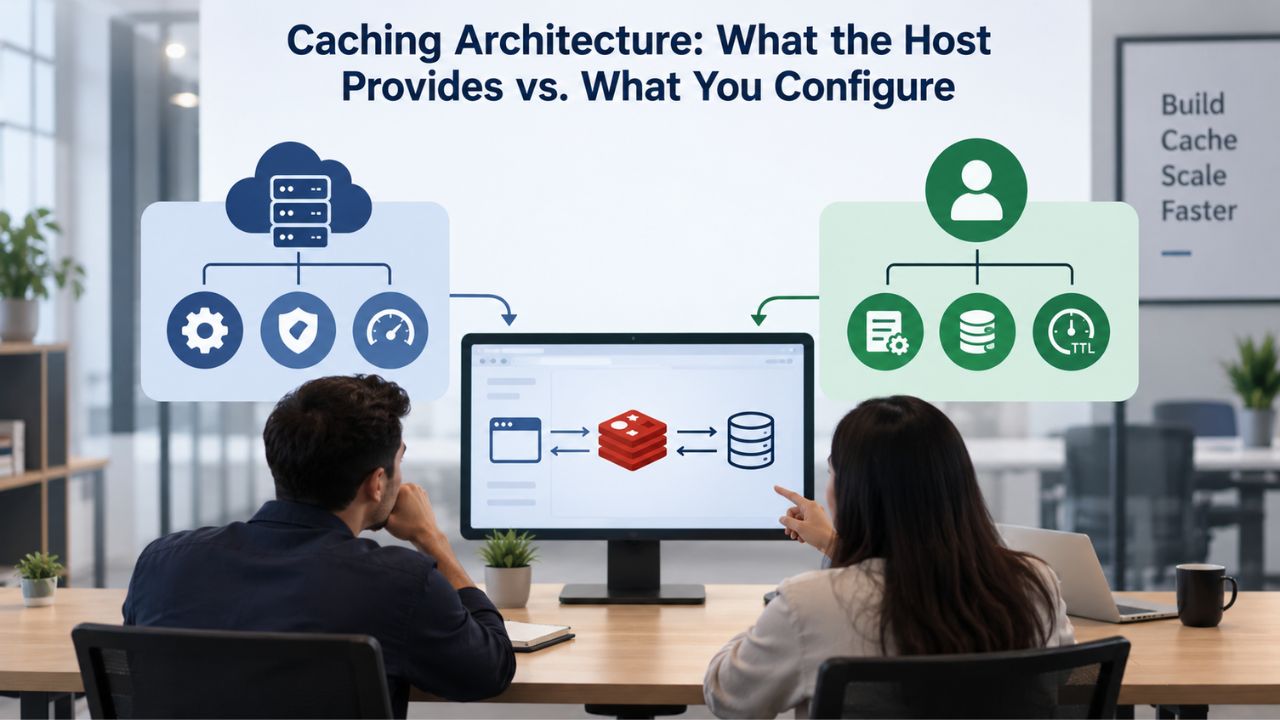
Caching Architecture: What the Host Provides vs. What You Configure
WordPress caching operates in layers: some is provided by your hosting infrastructure, and you configure other layers through plugins or settings. Understanding which layer handles which optimization prevents you from optimizing away problems that no plugin can fix. Server-level performance is the foundation; everything else builds on top.
Server-Level Caching: The Host’s Role
Full-page caching stores an entire rendered page in server memory and serves that copy to the next visitor, skipping database queries and PHP execution entirely. This is transformative for static content (blog posts, sales pages, product pages) but requires server configuration. Shared hosting typically doesn’t offer it; managed WordPress hosts include it by default. The impact is immediate: repeat visitors see pages load in milliseconds instead of seconds.
Object caching stores database query results in fast memory, so repeated queries hit memory instead of the database. This dramatically reduces server load, especially on sites with concurrent logged-in users (e-commerce, membership sites). Shared hosting lacks this feature; VPS requires manual setup; managed WordPress provides it as standard. OPcache compiles PHP code to bytecode on the server, reducing interpretation overhead and speeding PHP execution. Managed WordPress hosts run modern PHP 8.x by default with OPcache pre-configured. In contrast, shared hosting often runs outdated PHP versions that lack these optimizations.
Plugin-Level Caching: What You Configure
After the host provides server-level caching, you can layer additional optimization. Browser caching tells visitors’ browsers to cache static assets (CSS, JS, images) locally, avoiding re-downloads on repeat visits. Most hosting providers set this via HTTP headers; you verify it, not configure it from scratch. CDN (Content Delivery Network) caching distributes static content across geographically distributed servers, reducing latency for distant visitors. Managed WordPress hosts often include CDN integration; VPS and shared hosting require plugin setup or third-party configuration.
Image optimization, compression, lazy loading, and modern formats are plugin or theme functions, not hosting features. But no amount of image optimization fixes a slow server: start with hosting performance first, then optimize on top of that.
The hierarchy is clear:
(1) Host infrastructure speed,
(2) Server-level caching,
(3) Front-end optimization.
Reversing this order wastes effort and money on optimizations that cannot compensate for inadequate hosting.
WordPress-Specific Features That Reduce Maintenance Friction
Beyond raw performance, managed WordPress hosting includes features that prevent common WordPress headaches without requiring technical expertise. These features save time, reduce risk, and let non-technical site owners focus on their business instead of server maintenance.
Automatic Updates, Staging Environments, and Backup Automation
Managed WordPress hosts handle automatic core updates, keeping WordPress core, themes, and plugins up to date without your intervention. This isn’t a cosmetic convenience; it closes security vulnerabilities as soon as patches are released. Without automatic updates, your site accumulates outdated software, each piece representing a potential attack vector that hackers actively exploit.
A staging environment is a copy of your live site where you test changes before applying them to visitors. Managed WordPress hosts include staging as standard, letting you test plugin updates, theme changes, or WordPress upgrades without downtime risk. Shared hosting rarely offers staging; VPS requires manual setup and ongoing maintenance. Staging eliminates the most common cause of WordPress site crashes: accidentally testing plugin updates on the live site. With staging included, you can experiment safely, verify that everything works, then promote to live with confidence.
One-Click Restore and WordPress-Optimized Support
A complete WordPress backup must capture both the database (all posts, pages, comments, users, settings) and the file system (themes, plugins, uploads, core files). Missing either piece leaves you unable to restore fully. Managed WordPress hosts automate this. Daily backups run on a schedule; if something breaks, you can restore to yesterday’s clean backup in minutes, not hours. Quarterly backup tests ensure they work; the first restore test often reveals gaps in your backup configuration.
When your WordPress site breaks, you don’t need generic hosting support; you need engineers who understand WordPress architecture. Managed WordPress hosts employ WordPress-specific support teams familiar with plugin conflicts, theme customization, and staging workflows, not just server administration. They know that “site is slow” might mean a poorly written plugin, not a server problem. They know which plugins conflict with each other. They can diagnose issues faster because they speak WordPress, not just Linux.
Explore Managed WordPress Hosting Plans
Understanding your site’s architecture and performance requirements is the first step toward faster, more reliable hosting. Whether you’re running a blog, an e-commerce store, or a membership site, matching your hosting tier to your actual needs prevents costly mistakes and unnecessary expenses.
Migration Planning: Managing Risk and Downtime
Moving an existing WordPress site to new hosting sounds risky because many site owners have experienced migrations gone wrong. The actual risk is smaller than most assume, if you plan carefully and understand where downtime really happens. Most migration problems are preventable with the right process and the right tools.
The Two Core Components and DNS Propagation Risk
Migrating WordPress involves transferring two core parts: the file system (themes, plugins, media, core files) and the database (content, settings, users, posts). Both must be complete for the site to function. Large databases (>10GB) can time out during transfer on shared hosting, so you may need to export manually via hosting tools or use host-assisted migration instead of plugin-based approaches. File transfer is usually quick; the database export is the bottleneck.
Downtime is not caused by file or database transfer speed, but by DNS propagation during the domain switchover. When you repoint your domain to the new host, DNS takes 24–48 hours to fully propagate globally. During this window, traffic splits: some visitors hit the old site, others the new one. If the new site has issues, you’re serving broken pages to a fraction of your traffic. The solution: lower your domain’s DNS TTL (Time to Live) to 300 seconds a day before migration, then repoint your domain and monitor for 24–48 hours. If problems arise, you can revert quickly.
Tool Selection and Pre-Migration Testing
Small sites (under 5GB) migrate cleanly using migration plugins with no command-line access needed. Medium sites (5–50GB) benefit from manual database export via hosting tools, which gives you more control and avoids plugin timeout issues. Always test the new server staging environment first using a hosts file entry to catch PHP mismatches, SSL issues, and broken integrations before DNS propagates. Large sites or revenue-critical services should use host-assisted migration; this removes both plugin timeout risk and manual-error risk, and many managed hosts include free migration with every plan.
Pre-migration testing also includes verifying that your current PHP version, database version, and critical plugins are compatible with the new host. Environment mismatches are the most common source of post-migration errors. Keep your old site online during the DNS propagation window so that, if the new site has issues, visitors aren’t left stranded. Many managed hosts maintain a temporary URL for your old site during the switchover period, adding an extra layer of safety.
Support Quality and Response Expectations
“24/7 support” is marketing language every hosting provider throws around. What matters is what support actually means: documented response time, engineer expertise, and whether live people are available after business hours to fix actual problems, not just acknowledge tickets.
What “24/7” Actually Means: SLAs and After-Hours Coverage
Without a documented Service Level Agreement (SLA), “24/7 support” is a marketing phrase, not an operational commitment. A real SLA specifies response windows, for example, “critical tickets acknowledged within 10 minutes, resolved within 60 minutes.” Standard tickets often have a 24-hour response window, while priority queues for emergencies may offer 1–4-hour SLAs. But response time is not the same as resolution time; an engineer acknowledging your ticket in 10 minutes still needs hours to debug and fix the issue.
Automated uptime monitoring detects when your site goes offline and fires an alert; it does not fix the problem. Many providers bundle monitoring into “24/7 support” claims to inflate their support offerings. But monitoring and support are distinct functions: monitoring tells you something broke; support fixes it. Real after-hours support means live engineers available outside business hours to diagnose application-level issues (plugin conflicts, PHP errors, broken checkouts, security incidents), not just automated alerting that wakes you up with a page notification.
Support Channels, Monitoring vs. Support, and Expertise
Live chat offers immediate acknowledgment and real-time troubleshooting, reducing back-and-forth delays inherent in ticketing systems. Ticketing systems work for non-urgent issues but introduce wait times and asynchronous communication. Phone support is rare and usually reserved for enterprise plans or critical incidents. Managed WordPress hosts employ WordPress-specific engineers, not generic hosting support, reducing troubleshooting time and improving solution quality. A WordPress expert can diagnose “my site is throwing a white screen of death” in minutes; a generic hosting agent will ask you to check error logs and escalate.
When evaluating support, ask about engineer availability during your timezone and business hours. A host with 24/7 monitoring but support engineers only in US business hours is useless if you’re in Europe or Asia. Ask about typical first-response time for critical issues. Ask whether support can access your site and replicate problems or if they provide guidance. Ask whether the support team has fixed WordPress sites before or if they’re learning on your dime.
| Support Metric | Standard Shared Hosting | Managed WordPress |
|---|---|---|
| Response SLA | Typically 24 hours (documented or not) | 15 min–1 hour for critical, 4–8 hours for standard |
| Available Channels | Email/ticket, sometimes live chat | Live chat + ticket + phone on higher tiers |
| Engineer Expertise | Generic server administration | WordPress-specific troubleshooting |
| After-Hours Coverage | Monitoring only (not support) | Real engineers on rotation (managed plans) |
| Ticket Response Guarantee | Often 24 hours or no guarantee | Published SLA with compensation if missed |
| Escalation Path | Limited | Direct to senior engineers, not gatekept |
Backup and Disaster Recovery Strategy
Backups are not “nice to have”; they are your only defense against data loss from security breaches, plugin conflicts, failed updates, or hardware failure. A backup strategy has three components: what to back up, how often, and how to verify restoration. Without a solid strategy across all three, backups become theater, the appearance of protection without actual safety.
Complete Scope, Automated Cadence, and Retention Policy
A backup is only complete if it captures both the database (all content, settings, users) and the file system (themes, plugins, uploads, core files). A database-only backup lets you restore content but not your site’s functionality. A files-only backup leaves you without your posts, comments, and user data. Both parts are equally critical.
Managed WordPress hosts provide platform-level backups independent of WordPress itself, ensuring reliable recovery even if the WordPress application encounters issues. These backups are separate from backup plugins and run on the host’s infrastructure, not your server. Managed hosting typically includes daily automated backups. A practical retention policy for most sites: keep daily backups for 7–14 days, weekly for 4–8 weeks, and monthly for 6–12 months. This lets you recover from recent mistakes without using excessive storage. Retention policy is critical: if you need to recover from a breach discovered a month later, you need monthly backups going back at least 6 months.
Testing, Verification, and Multi-Location Backups
A backup you’ve never tested is a hypothesis, not a guarantee. Most site owners discover gaps in their backup strategy during a crisis, when they need restoration immediately. Quarterly restoration testing- restoring a backup to a staging environment and verifying all features work- catches these gaps before disaster strikes. Restoration testing should include:
(1) Can you actually restore the backup?
(2) Does the site load without errors?
(3) Do login and checkout functions work?
(4) Are all images and media present?
The 3-2-1 backup rule recommends 3 copies of your data, on 2 different storage types, with 1 copy stored offsite. Your host provides one copy on their infrastructure; this is your primary safety net. Use a backup plugin to send a second copy to cloud storage services (file storage or object storage options), so you’re not dependent on a single provider’s retention policy. You can download a third copy and store it locally if your data is highly sensitive or regulatory compliance requires it. This approach ensures you can recover even if your hosting provider suffers a complete data loss.
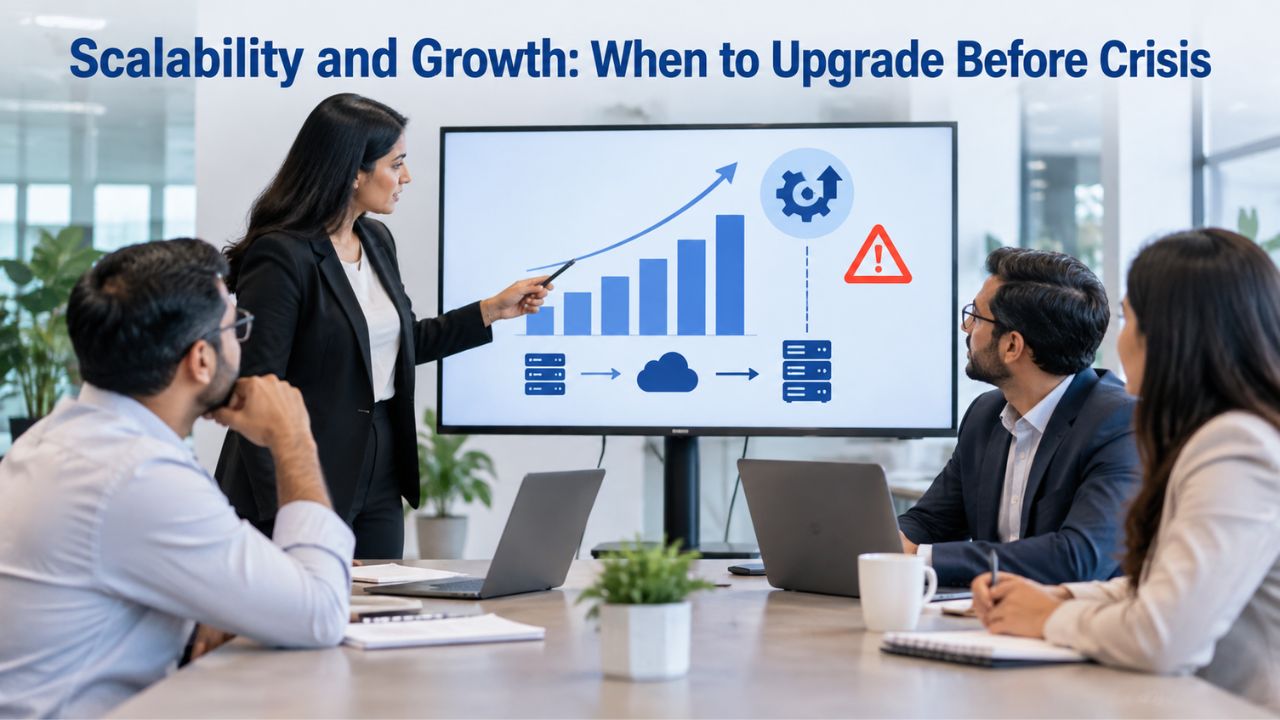
Scalability and Growth: When to Upgrade Before Crisis
Sites grow in predictable ways: more traffic, more content, more concurrent users. Scaling does not require migration if you choose your initial host carefully, but it does require planned upgrades, not reactive scrambling. The difference between proactive scaling and emergency migration is the difference between a smooth business transition and a crisis.
Growth Patterns, Upgrade Triggers, and Proactive Monitoring
Shared hosting becomes a bottleneck when your site experiences consistent traffic growth, regular traffic spikes, or concurrent logged-in users. E-commerce and membership sites hit this ceiling regardless of traffic, because shared hosting cannot handle the concurrent logins and checkout processes that generate revenue. Upgrading to scalable WordPress hosting before problems appear costs less than emergency migration during a traffic spike or downtime. Waiting until your site crashes forces rushed decisions, downtime, and panic, far more expensive than a planned upgrade in both money and reputation damage.
Three signals indicate it’s time to upgrade: consistent monthly traffic growth (30%+ month-over-month), regular traffic spikes (seasonal, marketing campaigns, product launches, viral content), or any period where your site slows during peak times. Analyze website traffic patterns to forecast growth trends and recommend the right hosting solution. Don’t wait for crashes; upgrade when growth indicators appear. Slow page loads and server errors during high-traffic moments damage user experience and search rankings immediately, costing you visitors and revenue in real time.
Database Maintenance and Long-Term Performance
As your WordPress site expands, your database and media library slow down unless you maintain them. Database bloat, unused data, fragmented tables, and unoptimized queries make it harder for servers to retrieve information quickly, creating performance slowdowns that may look like hosting problems but are actually site maintenance issues.
Regular database cleanup and media optimization prevent slowdowns. Running updates directly on the live site without staging is risky; as your plugin stack grows, one incompatible update can break your entire site. Managed WordPress hosts include staging environments specifically for this reason, letting you test before risking downtime.
Compliance, Reliability and Long-Term Considerations
Your hosting choice today will either enable or restrict your site’s future. Reliability, uptime guarantees, data residency, and provider stability all affect your site’s long-term resilience. A cheap host that goes out of business or experiences repeated outages is far more expensive than a reliable host in the long run.
Uptime SLAs, Redundancy, and Data Resilience
An SLA (Service Level Agreement) specifies a host’s uptime guarantee and compensation if they fall short. Common SLAs are 99% (8.7 hours downtime/month), 99.5% (3.6 hours/month), or 99.9% (43 minutes/month). The difference between 99% and 99.9% is substantial: that extra 0.9% prevents enough outages to matter for revenue-generating sites. Verify that the hosting provider documents an SLA in its terms, not just in marketing copy. Undocumented claims aren’t enforceable and offer no recourse if downtime occurs.
Managed WordPress hosts often use geographic redundancy: your site is mirrored across multiple data centers, so if one facility goes down, your site continues on another. This costs more than single-location hosting but provides insurance against regional outages and natural disasters. Data residency varies by jurisdiction. If your site serves customers in specific countries or operates under local regulations, check whether the host can store your data in compliant data centers. Global-scale hosts typically support multiple regions; smaller providers may not.
Backup Retention, Recovery, and Provider Stability
Your hosting provider’s backup retention policy determines how far back you can restore. If a backup is deleted, corrupted, or lost, you have no recourse. Choose a host with a documented retention policy. Monthly backups retained for 12 months give you recovery depth if you need to restore older content; weekly backups retained for 8 weeks provide fast recovery from recent incidents.
Ask your potential host about their backup disaster recovery procedure:
(1) If their entire data center is destroyed, can they restore from offsite backups?
(2) How long would that take? Provider stability matters.
(3) Has the host been in business for multiple years?
(4) Do they have a steady customer base, or are they constantly acquiring and losing customers?
Read recent customer reviews specifically about downtime and support quality. Ask about their financial stability; hosting companies that go bankrupt often give little warning, leaving customers scrambling to migrate. A host with a documented track record, transparent SLAs, and multi-year customer retention is a safer choice than a flashy newcomer with aggressive marketing.
| Reliability Factor | Shared Hosting | Managed WordPress |
|---|---|---|
| Uptime SLA | Often 99% or undocumented | Typically 99.5–99.9%, documented |
| Redundancy | Single data center, no failover | Geographic redundancy (many providers) |
| Backup Retention | Often 7–14 days | Typically 7–14 days + monthly archive |
| Disaster Recovery | Limited or not included | Included for managed plans |
| Data Center Locations | Single region | Multiple regions available |
| SLA Enforcement | No compensation clause | Published compensation if missed |
Check Migration Support Today
The right hosting eliminates performance guesswork, reduces security anxiety, and lets you scale without panic. Managed WordPress hosting handles the technical layers you’d otherwise configure yourself so that you can focus on content, audience growth, and business development instead of server maintenance.
Frequently Asked Questions
What’s the difference between shared hosting and managed WordPress hosting?
Shared hosting divides one physical server among hundreds of websites competing for resources; managed WordPress hosting provides a provider-optimized environment specifically for WordPress, with dedicated resources, automatic caching, security updates, and WordPress-expert support.
Managed WordPress sites typically load 3–5x faster than shared hosting due to infrastructure optimization alone, without any site changes. The difference shows up immediately for visitors: shared hosting feels sluggish; managed WordPress feels responsive.
Will my site experience downtime during migration?
No, not if you plan correctly. Downtime risk comes from DNS propagation and new-site issues, not from file transfer speed. Lower DNS TTL a day before migration, test the new server staging environment thoroughly using a hosts file entry, then switch DNS and monitor for 24–48 hours.
Many managed hosts include free migration with monitoring and support, reducing risk to near-zero if you follow their process. The key is planning: don’t migrate during high-traffic times, and keep your old site online during propagation for fallback.
How often should I back up my WordPress site?
Daily automated backups are the standard on managed hosting. A practical retention policy: keep daily backups for 7–14 days, weekly for 4–8 weeks, and monthly for 6–12 months. Quarterly restoration testing ensures backups actually work; the first test often reveals gaps that monthly full backups would have masked. Test restoration by recovering a backup to a staging environment and verifying that all site functions work correctly before declaring your backup strategy reliable.
Can I run my e-commerce store on shared hosting?
Technically yes, but it will struggle. E-commerce sites require concurrent logged-in users, consistent payment processing, and immediate checkout performance, all areas where shared hosting fails under load. Cart abandonment from slow checkout is real-time revenue loss. E-commerce stores should start on managed WordPress hosting or VPS to avoid performance-related payment failures during peak sales. The cost of managed hosting is recovered through improved conversion rates on the first high-traffic day.
What does “24/7 support” actually mean?
“24/7 support” without an SLA (Service Level Agreement) is marketing language. A real SLA specifies response windows and engineer expertise. Look for documented response times (critical: under 1 hour, standard: within 24 hours) and confirmation that after-hours engineers can fix application-level issues, not just alert monitoring. Generic hosting support won’t help with plugin conflicts; WordPress-specific engineers will. Ask potential hosts about their support engineer availability in your timezone before signing up.
How do I know when to upgrade from shared to managed hosting?
Three signals indicate time to upgrade: consistent monthly traffic growth (30%+ month-over-month), regular traffic spikes from seasonality or marketing campaigns, or any period where your site slows during peak times. Don’t wait for crashes; upgrade proactively when growth signals appear, as emergency migrations are far more expensive than planned upgrades. A site that’s slow for even one day loses visitors and damages your reputation.
What’s the difference between a CDN and caching?
Caching stores content in server memory to avoid repeating work on every request; a CDN (Content Delivery Network) distributes static content (images, CSS, JavaScript) across geographically distributed servers so users download from a nearby server, reducing latency. Both reduce load times, but they work at different layers. Caching is primarily a hosting function; a CDN is often a hosting add-on or plugin you can enable separately.
Can I switch hosts without losing my domain?
Yes. Your domain and hosting are separate services. When you migrate, you repoint your domain’s DNS to the new host, which takes 24–48 hours to propagate globally. Your domain registration stays with your registrar; only hosting moves. Many domain registrars allow you to manage DNS records directly, giving you full control over this process without contacting your hosting provider.
Will automatic updates break my WordPress site?
Rarely. Most updates are bug fixes and security patches that run smoothly. The risk comes from incompatible plugins or custom code, reasons to test updates in staging before applying to live. Managed WordPress hosts include staging environments specifically for this, letting you test updates risk-free before pushing to production. Without staging, you’re testing on live, a risky practice that causes most WordPress crashes.
How much storage and bandwidth should my WordPress hosting include?
For most sites, 100GB of storage and unlimited bandwidth are sufficient; check that they’re included at your tier, not upsell options. For media-heavy sites (photography, video, downloads), confirm storage is scalable without surprise overage fees. Managed WordPress plans often offer more generous allocations than shared hosting, reducing the urgency to upgrade. Ask your host what happens if you exceed your allocated storage: Do charges apply? Is an upgrade automatic? Can you expand instantly?
Is WordPress.org recommended hosting actually better than other options?
WordPress.org officially recommends a handful of hosts that meet its basic standards (automatic updates, daily backups, SSL, support). These providers are typically reliable and WordPress-focused, but “recommended” is not an exhaustive list. Evaluate any host, recommended or not, on uptime, support expertise, and transparency, not on official endorsement alone. Some excellent hosts aren’t on the WordPress.org list because they don’t apply; some recommended hosts may not be the best fit for your specific needs.
What technical knowledge do I need to manage WordPress hosting?
It depends on the hosting type. Shared hosting and managed WordPress hosting handle the technical details for you; you only need to know how to upload content and manage WordPress through the admin dashboard. VPS hosting requires comfort with server administration (SSH access, file management, package installation) or hiring a sysadmin. Dedicated hosting requires either deep technical expertise or a full-time infrastructure team. Most small businesses choose managed WordPress because it requires no server knowledge, letting you focus on content and business growth.
Should I use multiple backups to multiple locations?
Yes. The 3-2-1 backup rule recommends 3 copies of your data, on 2 different storage types, with 1 copy stored offsite. Your host provides one copy on their infrastructure; use a backup plugin to send a second copy to cloud storage services so you’re not dependent on one provider’s retention policy. You can download a third copy and store it locally if your data is highly sensitive or regulatory compliance requires it. This approach ensures you can recover even if your hosting provider suffers complete data loss.
What should I check when evaluating a hosting provider?
Priority factors: uptime SLA (documented, 99.5% or higher), support response time (live chat or under 1-hour response for critical issues), WordPress-specific engineers (not generic hosting support), automatic daily backups with test restoration capability, staging environment included, included security features (SSL, WAF, malware scanning), and transparent terms (no hidden renewal fees or surprise charges). Compare these across providers; they determine whether hosting enables your growth or becomes a bottleneck.
What’s the connection between hosting and WordPress security?
Hosting security is the foundation: your host provides firewalls, SSL, regular updates, and backups. You provide application security: keep plugins updated, use strong passwords, enable 2FA, remove unused plugins, and follow best practices. If either layer fails, your site is vulnerable. A perfectly configured hosting setup cannot protect you from a backdoored plugin; perfect plugin security is useless with poor hosting security. Both layers are equally important.
Glossary
- TTFB (Time to First Byte): The time elapsed from when a browser requests a page until the first data byte arrives from the server. TTFB sets a hard floor under page load speed; if TTFB is 800ms, the page cannot load faster than 800ms regardless of front-end optimization.
- Core Web Vitals: Three field-measured Google metrics that assess real user experience: Largest Contentful Paint (LCP, loading speed), Interaction to Next Paint (INP, responsiveness), and Cumulative Layout Shift (CLS, visual stability), used as a ranking signal in search results.
- Object Caching: A server-side technique that stores database query results in fast memory so repeated queries retrieve the cached result instead of hitting the database repeatedly, reducing server load and improving responsiveness.
- CDN (Content Delivery Network): A geographically distributed network of servers that cache static assets (images, CSS, JavaScript) and serve them from locations near end users, reducing latency and improving load times globally.
- DNS Propagation: The process during which a domain name change (such as repointing to a new host) replicates across the internet’s distributed DNS infrastructure, typically taking 24–48 hours for full global propagation.