Plan Overview & Available Tiers
Both platforms use per-user, per-month subscription models and offer tiered plans designed for small to medium-sized teams (up to 300 users per tier). Understanding feature progression across tiers prevents costly surprises and helps you choose the plan that fits your team’s needs, rather than over- or under-provisioning.
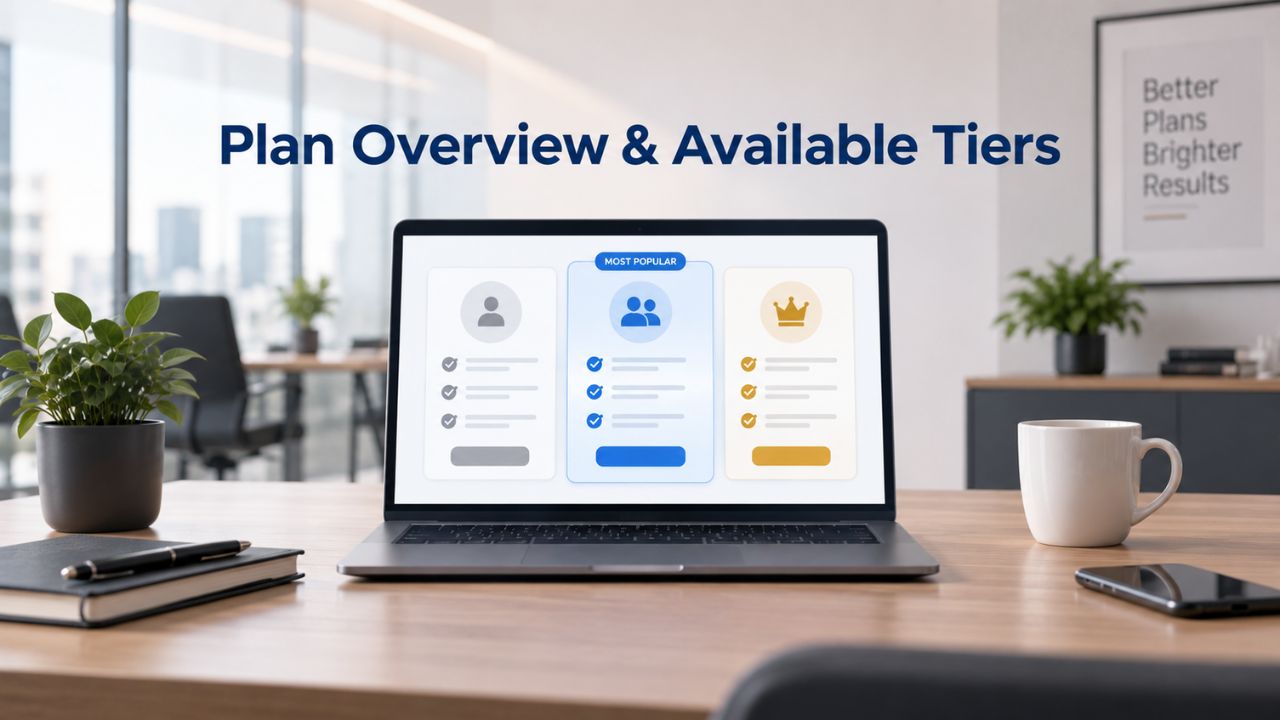
Plan Architecture & Tier Structure
Microsoft 365 offers three main business plans that build upon each other in capability: Business Basic provides lightweight web and mobile access to core apps; Business Standard adds desktop applications and enhanced collaboration features; and Business Premium combines all Standard features with advanced security, device management, and AI integration. Each tier unlocks progressively more powerful functionality, from foundational email and storage to enterprise-grade threat protection and machine learning capabilities. All Microsoft 365 business plans support up to 300 users per organization, with annual commitment options that provide flexibility in billing and payment schedules.
Google Workspace’s four plans, Business Starter, Business Standard, Business Plus, and Enterprise, follow a similar stacking approach where each tier adds storage, advanced features, and compliance capabilities. The progression is clear: Starter covers foundational email and collaboration; Standard adds enhanced security and productivity features; Plus brings advanced compliance and discovery tools; and Enterprise is custom-configured for large organizations with specialized requirements. All plans below Enterprise support up to 300 users, and Google offers both annual and flexible monthly billing options to match different organizational planning cycles.
Feature Scope by Tier
Microsoft 365 Business Basic includes web and mobile versions of Word, Excel, PowerPoint, and Outlook, along with Teams integration, custom domain email, and cloud storage. This tier suits organizations that need email and basic collaboration but don’t require desktop app installation or advanced security features. The tier serves cost-conscious small teams and organizations where users work primarily through browser-based interfaces and mobile devices.
Business Standard and Premium tiers introduce full desktop versions of Microsoft Office applications (Word, Excel, PowerPoint, Outlook, and Access for Windows), advanced collaboration tools like Clipchamp for video editing, and enhanced administrative controls. Microsoft 365 Business Premium with Copilot includes AI-powered productivity features, advanced threat protection, and device management capabilities, positioning it for organizations with security-conscious compliance requirements or teams that depend on Excel and Word power-user capabilities.
Microsoft 365 Plans & Pricing
Find the Microsoft 365 plan that fits your needs, whether you're using it at home, with your family, or for your business. With a range of plans designed for different budgets and requirements, you can enjoy the tools you need to stay productive, connected, and protected.
Microsoft 365 Email Essentials
Professional email with 10GB of email storage.
- Professional email using your domain name
- 10GB storage for email, contacts & calendar
- Sync across all devices
- Shared online calendars
- Up to 400 email aliases

Microsoft 365 Email Plus
Professional email with 50GB of email storage.
- Professional email using your domain name
- 50GB storage for email, contacts & calendar
- Sync across all devices
- Shared online calendars
- Up to 400 email aliases
Microsoft 365 Online Business Essentials
Office web apps & professional email.
- Office apps (online only)
- 1TB OneDrive storage
- Unlimited online meetings & HD video
- Professional email using your domain
- 50GB email storage
- Sync across all devices
Microsoft 365 Business Professional
Office apps on 5 devices, web apps & professional email.
- Office apps installed on up to 5 devices
- Office web apps
- 1TB OneDrive storage
- Business apps included
- Professional email using your domain
- 50GB email storage
Detailed Comparison Tables
| Feature Category | Microsoft 365 Basic | Microsoft 365 Standard | Microsoft 365 Premium | Google Workspace Starter | Google Workspace Standard | Google Workspace Plus |
|---|---|---|---|---|---|---|
| Email & Calendar | Exchange Online, custom domain email, 100 GB mailbox + 50 GB archive | Exchange Online, custom domain email, 100 GB mailbox + 50 GB archive | Exchange Online, custom domain email, 100 GB mailbox + 1.5 TB archive | Gmail, custom domain email, 30 GB pooled storage | Gmail, custom domain email, 2 TB pooled storage | Gmail, custom domain email, 5 TB pooled storage |
| Office Applications | Web & mobile apps (Word, Excel, PowerPoint, Outlook) | Desktop + web & mobile apps (Word, Excel, PowerPoint, Outlook, Access) | Desktop + web & mobile apps (Word, Excel, PowerPoint, Outlook, Access) | Web & mobile apps (Docs, Sheets, Slides) | Web & mobile apps (Docs, Sheets, Slides) | Web & mobile apps (Docs, Sheets, Slides) |
| Cloud Storage | 1 TB OneDrive per user | 1 TB OneDrive per user | 1 TB OneDrive per user | 30 GB pooled storage per user | 2 TB pooled storage per user | 5 TB pooled storage per user |
| Video Meetings (Teams / Meet) | 100 participants, no recording | 150 participants, recording & transcription | 150 participants, recording, transcription & live captions | 100 participants, no recording | 150 participants, recording & transcription | 500 participants, recording & transcription |
| AI Assistant | Copilot Chat (basic, web-grounded) | Copilot Chat (basic, web-grounded) | Copilot integrated across Office applications | Gemini (limited access) | Gemini (full access across Workspace apps) | Gemini (full access across Workspace apps) |
| Advanced Security | Not included | Not included | Microsoft Defender for Business, Intune device management | Not included | Not included | Advanced DLP, Google Vault, advanced audit logging |
| Multi-Factor Authentication (MFA) | Yes (Microsoft Entra ID) | Yes (Microsoft Entra ID) | Yes (Microsoft Entra ID + advanced identity protection) | Yes (optional) | Yes (optional) | Yes (optional) |
| Data Loss Prevention (DLP) | No | No | Yes (email & file protection) | No | Basic DLP rules | Advanced DLP policies |
| Support | 24/7 phone & web | 24/7 phone & web | 24/7 phone & web | 24/7 phone & web | 24/7 phone & web | 24/7 phone & web |
Storage Allocation & Data Management Philosophy
Storage capacity and how you allocate it across your organization becomes critical as teams grow and file systems accumulate months or years of email, documents, and collaborative work. Both platforms approach storage differently, and understanding that difference shapes which platform best fits your data management philosophy.
Per-User Allocation vs. Pooled Shared Capacity
Microsoft 365 provides a fixed storage allocation per user: each user receives 1 TB of cloud storage across OneDrive (personal files) and Exchange Online mailbox (email and archive). This model is consistent across Business Basic, Standard, and Premium tiers; storage allocation does not increase with plan tier. Instead, storage remains stable while features and security tools scale. This fixed-per-user approach simplifies budgeting: administrators know precisely how much storage each employee receives and can forecast capacity requirements based on headcount.
Google Workspace uses a pooled storage model where all users in an organization share a collective storage quota that varies by plan tier. Business Starter includes 30 GB of pooled storage per user (so ten users receive 300 GB total); Business Standard provides 2 TB of pooled storage per user; and Business Plus allocates 5 TB per user to the shared pool. Under this model, if one department has exceptionally heavy file storage needs, they can consume more of the shared quota. In contrast, lighter users consume less, and the organization’s total storage adjusts dynamically. Administrators can set per-user limits if needed, but the underlying architecture rewards flexible, uneven usage patterns by sharing total storage rather than siloed quotas.
Implications for Team Scaling
For a homogeneous team where every employee has similar file storage needs, roughly the same email archive size, comparable file sharing patterns, and aligned cloud storage usage, Microsoft 365’s per-user model is straightforward. Each person gets 1 TB; you can predict total consumption (user count × 1 TB), and scaling is linear and transparent. Adding a new employee increases storage by 1 TB; removing an employee decreases it by the same amount. This predictability reduces administrative surprises and makes capacity planning a matter of multiplication.
Niya Digital’s team has found that organizations migrating from free Gmail often underestimate email archive growth, particularly when retention policies are initially loose. Pooled storage forces earlier conversations about retention policies and archival strategy, which actually reduces surprise limit violations and promotes better data governance across the organization. Google Workspace’s pooled model requires more active monitoring and policy management but rewards teams that embrace structured data governance early. For unevenly distributed usage (a 50-person team with 40 light users and 10 power users), pooled storage under Google Workspace typically allows significantly lower total allocation than per-user fixed models, potentially making it more cost-effective and reducing overall infrastructure waste.
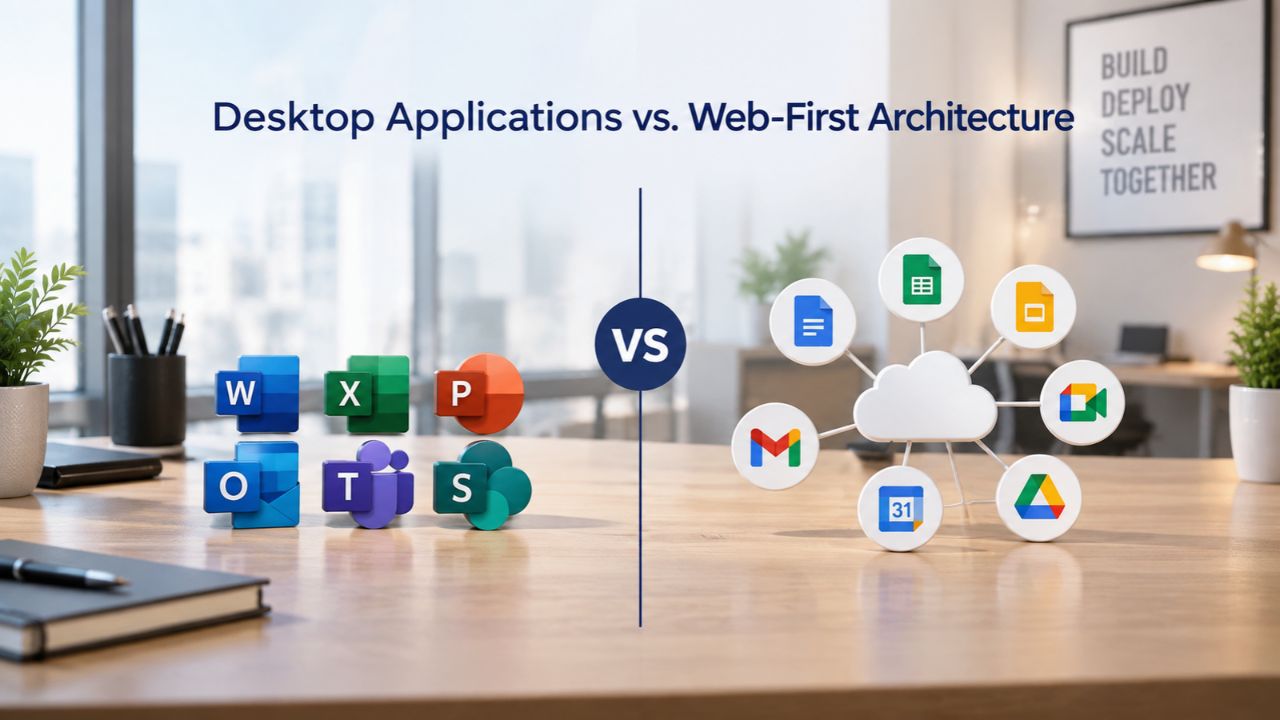
Desktop Applications vs. Web-First Architecture
This decision point most visibly separates the platforms and often becomes the deciding factor for organizations deeply invested in Microsoft Office workflows or those prioritizing cloud-native collaboration. The choice between native desktop applications and browser-based productivity tools shapes daily user experience and workflow power.
Native Office Applications & Desktop Capabilities
Microsoft 365 Business Standard and Premium include full-featured desktop versions of Word, Excel, PowerPoint, and Outlook for Windows and Mac. These are the same applications millions of organizations have relied on for decades: they work offline, support advanced features like Excel macros and Word VBA scripting, maintain complete compatibility with legacy .doc, .xls, and .ppt file formats, and integrate seamlessly with local file systems. Niya Digital’s team frequently encounters organizations where financial modeling, complex data analysis, or document automation depends entirely on Excel macros or Word field codes, capabilities that are unavailable in web-based environments.
Business Basic users receive only web and mobile versions of productivity applications, which is a significant limitation if your workflow depends on desktop Office features. The web versions of Word, Excel, and PowerPoint offer core functionality for creating, editing, and sharing documents through any browser. Still, they lack the advanced feature set and offline capability of desktop applications. Users cannot store files locally, use add-ins beyond basic browser extensions, or run macros or custom VBA code. For organizations where some users require advanced Office capabilities while others need only basic access, this tier mismatch can create frustration and support overhead.
Cloud-Native Collaboration Philosophy
Google Workspace is architected as a browser-first, cloud-native platform where all core productivity applications (Docs, Sheets, Slides, Forms, and Sites) run natively in the web browser or mobile application. No native desktop applications to download or install, no files to sync manually, and no local versions to manage. Every edit is automatically saved to the cloud, version-tracked with editor attribution, and accessible to collaborators in real-time from any device or location. This philosophy eliminates version-control friction: no “save before sharing” step, no email attachments with conflicting copies, and no risk of users opening stale local files.
Simultaneous editing across multiple users in Google Workspace is smooth and responsive because the platform was built from the ground up for real-time collaboration. Teams report noticeably faster responsiveness when five or more people edit the same Sheets document or Slides presentation simultaneously, compared to Microsoft 365’s co-authoring feature, which layers real-time editing onto desktop-app architecture. For organizations where collaboration speed and reducing file version confusion are paramount, product teams, creative agencies, and rapidly evolving startups, Google Workspace’s cloud-native design often feels faster and simpler than Microsoft 365’s hybrid desktop-plus-cloud approach.
Email, Custom Domain Setup & Migration Paths
Professional business email tied to your own domain is non-negotiable for any organization that wants to appear professional and credible. Both platforms handle custom domain email, but setup complexity, migration friction, and ongoing email governance differ in ways that compound over time.
Custom Domain Email Configuration
Both Microsoft 365 and Google Workspace require you to verify ownership of your custom domain during initial setup via DNS records (TXT, CNAME, or HTML file upload). Microsoft 365 routes email through Exchange Online, Google Workspace routes through Gmail infrastructure, and both provide step-by-step DNS setup guidance within their respective admin centers. Verification typically completes within 10 minutes to 48 hours depending on your domain registrar’s DNS update speed. Once verified, email addressed to your domain automatically routes to your organization’s mailbox system.
Microsoft 365 mailboxes provide substantial email storage: 100 GB primary mailbox plus 50 GB archive storage per user, with the ability to retain years of email archive without hitting limits for most organizations. Email governance is robust; administrators can set up shared mailboxes (team email addresses), delegate mailbox access, establish detailed inbox rules, and implement retention policies that automatically archive or delete messages based on age or classification. Google Workspace email lives within the organization’s pooled storage quota, with similar governance capabilities but a simpler rule engine and less granular delegation options. For organizations with complex email governance needs, multiple team mailboxes, extensive auto-forwarding, compliance-mandated retention policies, Microsoft 365’s Exchange Online provides more powerful control.
Migration Path & Data Preservation During Transition
Migrating from Google Workspace to Microsoft 365 involves several coordinated steps: all Google Workspace account owners must create app passwords because Google prohibits direct password-based access to Outlook, which is a security measure that complicates migration tooling. Microsoft supports IMAP migration (email only), batch migration (email, contacts, and calendar), and staged coexistence where automatic forwarding captures new messages during transition. Contacts and calendars migrate successfully, but shared calendars and external sharing relationships do not carry forward automatically; you must re-establish those manually after migration.
Migrating in the opposite direction (Microsoft 365 to Google Workspace) follows a similar pattern, with its own constraints. External sharing links and document ownership do not migrate; teams must manually update document hyperlinks and re-share content originally owned by external parties. Both platforms support staged migration with coexistence, where the old and new platforms run in parallel for one to two weeks, reducing disruption and allowing validation of email routing before the organization fully commits. Plan for one to two weeks of parallel running to confirm email delivery, validate user adoption, and catch any migration exceptions before decommissioning the old system.
Real-Time Collaboration & Simultaneous Editing
Modern business increasingly runs on real-time collaboration rather than email and file attachment workflows. The ability for multiple team members to edit a single document simultaneously, see each other’s changes instantly, and maintain version history with editor attribution is now central to how knowledge work actually happens.
Concurrent Document Editing Performance
Google Docs, Sheets, and Slides are optimized from the ground up for concurrent editing: multiple users can open the same document and see each other’s cursors, text insertions, and formatting changes appear instantly. Comment threads enable focused discussion on specific passages or data points; suggestion mode (similar to Track Changes in Word) lets reviewers propose changes that the document owner accepts or rejects; and the change history maintains a complete timeline of all edits with timestamps and editor attribution. Teams report noticeably faster performance in Google Workspace when five or more people edit the same file simultaneously, particularly for Sheets (spreadsheets) where real-time formula updates and cell changes need to sync across all concurrent users without lag.
Microsoft 365 supports co-authoring through OneDrive and SharePoint for Word, Excel, and PowerPoint. Still, the experience is layered on top of desktop-app architecture rather than built into the platform’s foundation. Co-authoring works and changes do sync, but users often report perceptible delays between one user’s edit and other users seeing the change, particularly when multiple concurrent edits affect the same cells or paragraphs. Organizations with heavy real-time collaboration requirements, product teams doing daily standups around shared spreadsheets, design teams co-editing presentation decks, and content teams drafting documents together often report preferring Google Workspace’s speed and responsiveness. Microsoft 365’s advantage emerges in specialized workflows where desktop-app power (Excel’s advanced formulas, Word’s intricate formatting and embedded content) outweighs collaborative speed.
Version Control & Recovery Workflows
Google Workspace maintains unlimited version history by default for all documents stored in Drive: you can revert to any prior version, see who made which changes, and track exactly when each edit occurred. This is built-in with no configuration required; older versions are retained indefinitely and can be recovered with a single click. Files deleted from Drive go to Trash (retained for 30 days) and can be restored anytime during that window. This streamlined recovery process means accidental deletions are rarely permanent, and recovering an important document requires no administrator intervention.
Microsoft 365 supports version history through OneDrive and SharePoint, but the interface is less prominent than Google’s and requires more steps to navigate. Deleted files go to Trash (retained for 93 days, longer than Google’s 30-day window), and users can recover earlier versions through the “Restore previous version” option in the file menu. Recovery works, but it requires users to remember the feature exists and know where to find it, whereas Google’s version history and trash appear as primary features when you open a file. For organizations where document recovery needs to be simple enough for non-technical staff (administrative teams, small business owners), Google’s interface reduces support overhead and increases user self-sufficiency.
Ready to Evaluate Your Best Fit?
You’ve now explored how these platforms compare on storage, applications, email, and collaboration. The sections ahead cover security, meetings, AI, and support, each one likely to influence your final decision. Niya Digital can help you assess your organization’s specific needs, design a deployment strategy, and guide setup and user adoption.
Security Features & Compliance Capabilities
Both platforms invest heavily in security infrastructure: encryption, multi-factor authentication, and regulatory compliance certifications are foundational across their offerings. The meaningful differences lie in which features come standard at each tier, how granular administrative controls are, and which compliance frameworks are supported natively versus requiring additional configuration.
Authentication, Access Control & Identity Management
Microsoft 365 enforces multi-factor authentication (MFA) for all administrator accounts accessing the Microsoft 365 admin center; this requirement became mandatory starting in February 2026. All Microsoft 365 business plans include MFA and conditional access policies through Microsoft Entra ID, allowing administrators to require MFA for user sign-in, restrict access based on geographic location or device type, and enforce passwordless authentication for maximum security. Business Premium tiers add advanced identity protection capabilities that use machine learning to detect suspicious sign-in patterns and anomalous behavior, automatically blocking or challenging potentially compromised accounts before they can access sensitive data.
Google Workspace supports MFA across all plans through authenticator apps, SMS-based codes, security keys, and passkeys, but MFA is not mandatory by default; administrators must explicitly enable and enforce MFA in their Admin Console. Research shows that MFA blocks approximately 99% of account compromise attempts regardless of platform, meaning that the protection offered by both platforms is equivalent when enabled. Google’s approach is more flexible (organizations can choose whether and when to enforce MFA), while Microsoft’s approach is more prescriptive (admin access requires MFA by default). Both achieve the same protective outcome; the difference is in the enforcement model.
Encryption, Data Loss Prevention & Advanced Threat Protection
Both Microsoft 365 and Google Workspace encrypt data at-rest using AES-256 and encrypt data in-transit using TLS, providing equivalent protection against interception or unauthorized access to your stored information. Microsoft 365 includes Data Loss Prevention (DLP) policies that scan emails and files for sensitive data patterns, credit card numbers, social security numbers, confidential document classifications, and automatically block or warn when users attempt to share matching content outside the organization. Business Premium tiers add Microsoft Defender for Business, which provides AI-powered ransomware and malware protection at the device level, scanning incoming threats and disrupting malicious activity before it can encrypt or damage files.
Google Workspace includes built-in Data Loss Prevention rules across all tiers and Context-Aware Access policies that restrict access based on user location, device compliance, and other risk factors; Business Plus tiers add Vault (a specialized tool for legal hold, email discovery, and eDiscovery workflows) and enhanced DLP capabilities. Google Workspace can also be configured with Client-Side Encryption (CSE) for organizations with stricter regulatory requirements, allowing organizations to manage their own encryption keys rather than relying on Google-managed keys. Security maturity is comparable across platforms; Microsoft edges ahead at higher tiers with dedicated ransomware protection, while Google bundles compliance and discovery tools earlier in the tier progression.
Video Meetings & Team Communication Infrastructure
Meetings are no longer a supplementary communication channel; they have become the primary mode of team interaction and decision-making. Both platforms include meeting and chat tools; scope, participant capacity, and feature richness vary significantly by plan tier.

Video Conferencing Capacity & Recording Features
Microsoft Teams (included in Business Standard and Premium, or available as an add-on for Basic users) supports 150-participant video meetings in Standard and Premium tiers, with automatic meeting recording, real-time transcription, and live captions for accessibility. Business Basic includes Teams but limits meetings to 100 participants, a meaningful constraint for organizations that conduct large all-hands meetings or training sessions. Meeting recordings are automatically saved to OneDrive (for personal meetings) or SharePoint (for team meetings), providing organized storage and easy access for those who missed the call.
Google Meet (included in all Workspace plans) supports 100 participants in Starter, 150 in Standard, and 500 in Plus tiers, with recording available in Standard and Plus (Starter users cannot record meetings). Google Meet’s recording and automatic meeting transcription are powered by Gemini AI at the Standard tier and above, providing note-taking and summarization without requiring separate add-ons or manual transcription services. Recordings save directly to Google Drive and are automatically organized into a dedicated folder, making them easy to find and share within the organization.
Chat, Messaging & Workspace Communication
Microsoft Teams (or alternative third-party chat integration for Basic) provides direct messaging, channel-based group conversations, and file sharing within a unified interface. Teams threads integrate tightly with SharePoint document libraries and OneDrive, letting team members reference, preview, and edit shared files directly in conversation threads without switching applications. For organizations standardizing on Microsoft technologies, Teams provides a natural hub for email, files, video meetings, and instant communication in a single application.
Google Chat (included in all Workspace plans) supports direct messages between individuals, group chats, and threaded conversations organized by topic or project. Chat integrates seamlessly with Google Drive for file sharing, and both services sync instantaneously; a file shared in Drive automatically appears accessible in Chat threads. Google Chat is intentionally lighter and simpler than Teams; some organizations see this simplicity as an advantage (fewer features to learn, less cognitive overhead), while others prefer Teams for more feature-rich, complex collaboration scenarios. Organizations already using Slack often find that Google Workspace’s simpler chat integrates more cleanly with their existing Slack workspace than layering Teams on top of Slack and OneDrive.
AI Assistants & Automation Capabilities
Artificial intelligence is now baked into both platforms as a core productivity feature, not an optional add-on. The differences are in what AI capabilities are included at each tier, which features require separate licensing, and how tightly AI integrates into your everyday workflow.
Copilot (Microsoft) vs. Gemini (Google)
Microsoft 365 includes Copilot Chat (web-grounded search, writing assistance, data analysis) in all business plans at no additional cost, providing access to an AI assistant for research, drafting, and problem-solving. Full Microsoft 365 Copilot, AI integrated into Word, Excel, PowerPoint, Outlook, Teams, and custom agent creation, is available as a separate add-on subscription or bundled into Business Premium with Copilot. The Premium Copilot tier includes Work IQ (advanced reasoning AI for complex data analysis and research), agent creation tools for building custom automation, and guaranteed priority inference capacity to prevent throttling during high-demand periods.
Google Workspace includes Gemini AI in all plans with tiered access: Starter provides limited access (draft assistance, basic meeting summaries), while Standard unlocks full Gemini features (AI co-authoring in Docs, data analysis in Sheets, presentation design suggestions in Slides, Drive file summarization, Gmail smart reply and composition). Gemini was bundled into Google Workspace pricing as of January 2025, eliminating separate AI licensing costs and making AI capabilities universally available rather than a premium feature reserved for higher tiers. Google’s approach assumes that all users benefit from AI assistance; Microsoft’s approach treats advanced AI as a premium capability worth separate investment.
Integration Depth & Feature Availability
Microsoft Copilot integrates deeply with desktop Office applications for users on Standard and Premium plans: in Word, Copilot can draft sections, refine tone, and summarize long documents; in Excel, it can explain complex formulas, generate insights from data, and create visualizations; in PowerPoint, it can suggest design improvements and generate speaker notes. The AI integration is tightly coupled with application features, allowing Copilot to reference specific cells, paragraphs, or formatting decisions and provide contextual suggestions.
Google’s Gemini integration is similarly comprehensive but lighter: in Docs, Gemini can help draft content and refine writing; in Sheets, it can explain formulas and surface insights; in Slides, it can suggest layouts and design improvements. The main difference is that Google includes these features across all tiers (with feature depth scaling by tier). In contrast, Microsoft separates Copilot into an add-on tier, making the cost impact more visible and creating a purchasing decision point. For organizations just beginning their AI journey or unsure about adoption rates, Google’s bundled approach reduces decision paralysis; for organizations willing to invest in AI-first productivity, Microsoft’s Copilot tier offers more advanced reasoning and automation capabilities.
Setup, Support & Onboarding Experience
First-time experience with a new platform shapes long-term adoption and user satisfaction. A complex setup process delays productivity; effective support and training smooth the transition.

Initial Domain Verification & First-User Experience
Both platforms require DNS verification of your custom domain (TXT record, CNAME, or HTML file upload) during initial setup. Microsoft 365’s admin center setup is wizard-driven with clear step-by-step guidance; DNS propagation typically completes within 10 minutes to 48 hours depending on your domain registrar. Google Workspace’s Admin Console follows a similarly structured setup flow with equivalent guidance. Both support domain-connect integrations for major registrars (GoDaddy, Namecheap, Bluehost), which automate DNS record insertion and reduce manual configuration errors.
First-user experience differs noticeably: Microsoft 365 requires users to sign in to Outlook, download and install Microsoft Office applications (for Standard and Premium tiers), and configure OneDrive client sync for offline file access. These setup steps are necessary for desktop-app functionality but add friction to onboarding, particularly for non-technical users unfamiliar with application installers or file synchronization. Google Workspace users sign in to Gmail and immediately see their inbox; all core applications (Docs, Sheets, Drive, Meet, Chat) are web-accessible with zero download or installation required. For tech-savvy teams, the difference is negligible; for small businesses with less technical staff, Google’s “sign in and go” approach reduces onboarding time and support overhead.
Support Channels & Migration Assistance
Both platforms include 24/7 phone and web support in all business plans. Microsoft 365 support extends to deployment guidance and migration planning through its authorized partner ecosystem, meaning that organizations implementing Microsoft 365 through partners like Niya Digital benefit from expert guidance on setup, security configuration, and migration strategy. Google Workspace provides setup support and limited migration guidance through its Admin Help Center, with more extensive migration support available through third-party migration specialists.
For organizations migrating from a competing platform, migration complexity and support availability differ. Microsoft 365 officially supports Google Workspace-to-Microsoft 365 migration through IMAP, batch, or staged forwarding; organizations benefit from established migration playbooks and widespread partner experience. Google Workspace provides guides for the reverse direction (Microsoft 365 to Google Workspace) but relies more heavily on third-party migration tools (MigrationWiz, CloudM) for large deployments. If hands-on migration support and rapid cutover are critical, Microsoft’s authorized partner ecosystem (including Niya Digital) often brings deeper operational experience than Google-certified partners.
Decision Framework & Implementation Approach
Comparing the platforms feature by feature can be overwhelming. The right choice depends fundamentally on whether your team works best with desktop applications and structured email governance or prefers cloud-native collaboration and flexible, AI-powered workflows. This section synthesizes the key trade-offs into a practical decision framework.
When to Choose Microsoft 365
Microsoft 365 is the clear choice for organizations deeply invested in Excel and Word workflows: financial modeling, complex data analysis with macros, intricate document templates, and mail merge operations require desktop Office functionality that web-based alternatives cannot replicate. Teams that need advanced email governance (shared mailboxes, complex forwarding rules, retention policies, compliance holds) benefit from Exchange Online’s granular controls. Organizations with stringent security requirements, compliance mandates (HIPAA, PCI-DSS, FedRAMP), or devices that require offline access find Microsoft 365’s combination of security tools and desktop-app capability essential. For teams already comfortable with Microsoft products and preferring continuity, or organizations with IT teams with strong Microsoft expertise, Microsoft 365 is a natural extension of existing infrastructure and skillsets.
Organizations scaling from small teams to 50+ employees often find that Microsoft 365’s per-user storage model and defined feature tiers make capacity planning and budgeting straightforward. The combination of desktop apps, Teams integration, and comprehensive admin controls provides a complete ecosystem for growing businesses that value depth over simplicity. Niya Digital’s support can accelerate your implementation, from initial setup and domain configuration through user enablement and ongoing optimization.
When to Choose Google Workspace
Google Workspace is the right choice for organizations prioritizing real-time collaboration, fast deployment, and minimal user training. Teams that collaborate heavily on spreadsheets and presentations, or where simultaneous editing of shared documents is a daily workflow, consistently report faster performance and fewer frustrations with Google’s cloud-native platform. Startup-stage organizations and nonprofits benefit from Google Workspace’s simpler onboarding (no applications to download, instant browser access), lower support burden, and included AI capabilities (Gemini) that don’t require separate licensing decisions. Organizations already using Google Drive or Gmail for business recognize Google Workspace as a natural upgrade path without learning new tools.
Teams with uneven storage needs, some users storing terabytes of files while others use minimal storage, find pooled storage more efficient and fair than per-user fixed allocations. Organizations in non-English-speaking regions or with high remote-work populations often report that Google’s simpler interface and universal browser access reduce support overhead and localization complexity. For businesses that have explicitly chosen away from Microsoft products or want to avoid vendor lock-in, Google Workspace represents a genuine alternative that avoids architectural dependence on any single company’s ecosystem.
Key Capability Dimensions & Suitability Matrix
| Decision Dimension | Capability Need | Microsoft 365 Strength | Google Workspace Strength | Primary Consideration |
|---|---|---|---|---|
| Desktop Office Power | Heavy Excel and Word workflows, VBA macros, advanced formatting, and complex document automation | Excellent desktop applications with the complete Office feature set and macro support | Primarily web-based productivity apps with limited support for advanced Office features and scripting | Organizations dependent on advanced Excel models or Word automation will generally benefit more from Microsoft 365. |
| Real-Time Collaboration | Simultaneous document editing, rapid synchronization, and responsive collaboration | Strong co-authoring across desktop, web, and mobile Office applications | Native real-time collaboration designed around cloud-first document editing | Teams that frequently edit the same document simultaneously may experience smoother collaboration in Google Workspace. |
| Onboarding Simplicity | Quick deployment for non-technical users with minimal configuration | Moderate setup involving desktop applications, account configuration, and synchronization | Simple browser-based access with minimal installation and configuration | Organizations with limited IT resources may find Google Workspace faster to deploy and easier for new users. |
| Email Governance | Shared mailboxes, forwarding rules, retention policies, and compliance controls | Exchange Online provides extensive administrative controls, transport rules, and compliance capabilities | Provides core email administration with a simpler management experience | Businesses with complex email workflows or regulatory requirements typically benefit from Microsoft’s advanced governance features. |
| Migration Experience | Low-downtime migration while preserving existing data and user settings | Mature migration ecosystem with extensive Microsoft tools and partner support | Migration commonly relies on Google’s utilities and third-party migration tools | Organizations requiring structured migration assistance often find Microsoft’s ecosystem more comprehensive. |
| Security & Compliance | Support for HIPAA, PCI DSS, SOC 2, audit logging, DLP, and advanced security controls | Advanced protection through Defender, Intune, Microsoft Purview, and enterprise compliance features | Strong security with Vault, Context-Aware Access, advanced DLP, and comprehensive audit capabilities | Both platforms provide enterprise-grade security, although available features depend on the selected licensing tier. |
| AI Integration | AI-assisted writing, document creation, meeting summaries, and workflow automation | Copilot Chat included, with full Microsoft 365 Copilot available as an additional licensed service | Gemini integrated across Workspace applications on eligible plans | Organizations prioritizing built-in AI capabilities should compare licensing costs and included features before choosing a platform. |
| Storage Efficiency | Cost-effective storage allocation for organizations with varying user requirements | Fixed per-user OneDrive storage allocation simplifies planning | Pooled storage allows flexible allocation across users based on actual usage | Organizations with uneven storage consumption may benefit from Google’s pooled storage model, while Microsoft’s per-user allocation provides predictable capacity. |
Ready to Move Forward?
You now have a complete picture of how these platforms trade off functionality, complexity, and collaboration philosophy. The right choice depends on your team’s workflows, geographic distribution, technical sophistication, and long-term business direction. Niya Digital specializes in Microsoft 365 deployment, secure configuration, and ongoing support. We can help you design a transition plan, establish security policies aligned with your compliance needs, and train your team for rapid adoption. Contact Niya Digital to start your Microsoft 365 journey today.
Frequently Asked Questions
Which platform is easier to set up for a first-time business?
Google Workspace has a lower barrier to entry for non-technical teams. Users sign in to Gmail and immediately access all applications without downloading software or configuring file sync. Microsoft 365 requires more setup: choosing the tier that fits your team’s needs (Basic vs. Standard vs. Premium), deciding whether to install desktop apps, and configuring OneDrive sync for file access. For small businesses without dedicated IT staff, Google Workspace typically means faster deployment and lower support overhead during onboarding.
Can I migrate between platforms without losing email or files?
Yes. Both platforms support staged migration, where the old and new platforms run in parallel for one to two weeks. Email is synced from your old provider to the new one; new incoming mail is automatically forwarded during the transition. Once users are fully transitioned, you can decommission the old platform. The process requires planning and coordination, but data loss isn’t inherent if you follow a structured migration plan.
Do both platforms work well with existing tools like Slack?
Yes, though differently. Google Workspace integrates with Slack more seamlessly because its simpler chat tool doesn’t compete with Slack; organizations can use Google Chat and Slack side by side without confusion. Microsoft 365 includes Teams, a full-featured chat and collaboration platform; some organizations run Teams and Slack in parallel, but this creates tool redundancy. If you’re already committed to Slack, Google Workspace feels like a more natural complement.
Which platform is better for industries with strict compliance requirements?
Both platforms support GDPR, HIPAA, SOC 2, ISO 27001, and other compliance frameworks, but available features depend on plan tier. Microsoft 365 Business Premium includes more advanced compliance tools (DLP, audit logging, advanced threat protection); Google Workspace Business Plus includes Vault and enhanced eDiscovery capabilities. Discuss your specific compliance requirements with your legal team, then confirm that your chosen plan tier supports those requirements in your chosen platform.
What happens if I delete a file or email by accident?
Google Workspace retains deleted files in Trash for 30 days and maintains unlimited version history on all documents. Microsoft 365 retains deleted files in Trash for 93 days (longer than Google) and maintains version history through OneDrive and SharePoint. In both platforms, accidental deletion is rarely permanent if you act within the retention window. Neither platform should be your primary backup mechanism, but both provide reasonable recovery grace periods.
Do I need to hire IT staff to manage either platform?
For small teams (under 50 users), a non-technical business owner can manage both platforms using documentation and support resources. Google Workspace is generally simpler to manage (less configuration, fewer security options), while Microsoft 365 requires more admin oversight if you’re using advanced security features. As your organization grows beyond 50 users, dedicated IT support becomes increasingly valuable for both platforms.
Can I use features like video recording without upgrading to a higher tier?
Microsoft Teams video recording is available in Standard and Premium tiers; Basic users cannot record meetings. Google Meet recording is available in Standard and Premium tiers; Starter users cannot record. If regular meeting recording is essential to your workflows, plan accordingly when selecting your plan tier or budget for tier upgrades as your needs evolve.
How important is real-time collaboration to my decision?
If your team regularly works simultaneously on spreadsheets or presentations, real-time collaboration speed matters more than you might expect. Google Workspace is noticeably faster for concurrent editing, especially when multiple users change the same cells or slides. If your team works asynchronously (users take turns editing) or collaboration is infrequent, the difference is negligible.
Can both platforms integrate with my existing business applications?
Yes, both offer API access and integration marketplaces where hundreds of third-party applications connect to your productivity suite. Google Workspace integrations tend to be easier to set up (simpler OAuth flow, documentation-friendly); Microsoft 365 integrations are often more feature-rich (deeper app integration, custom workflows). For specific business applications you depend on, check each platform’s marketplace or documentation for compatibility and integration depth.
What is the difference between annual and monthly billing?
Both platforms offer discounts for annual commitment; you save money by committing to a year of service and paying upfront or on a monthly schedule for that year. Monthly-only billing (no annual commitment) costs more per unit because you can cancel anytime. Choose annual commitment if your team is stable and you’re confident in your platform selection; choose monthly billing if you’re uncertain or expect significant changes.
Can I try the platform before fully committing?
Yes. Microsoft 365 Business Standard offers a one-month free trial (credit card required). Google Workspace offers a 14-day free trial (credit card required for some regions). Use the trial period to test email setup, file sharing, and team collaboration with your actual workflows before signing a long-term contract.
Which platform has better mobile apps?
Both have excellent mobile apps for iOS and Android. Microsoft 365 mobile apps (Outlook, Word, Excel, PowerPoint) replicate desktop functionality where possible; Google’s mobile apps (Gmail, Drive, Docs, Sheets, Slides) are optimized for touch and smaller screens. For heavy mobile users, try the free mobile apps for both platforms to see which interface you prefer; most users report roughly equivalent capability.
What happens to my data if I cancel my subscription?
Both platforms provide a grace period (typically 30 days) to download your data after cancellation. Google Workspace users can export Drive files and Gmail through Google’s data export tools; Microsoft 365 users can download OneDrive and Outlook files through the admin center. After the grace period, the service deletes files. Back up critical data before canceling if you need content to persist beyond the grace period.
How do I export my data if I switch platforms later?
Both platforms provide data export tools: Google Takeout (for Google Workspace) and the Microsoft 365 admin center (for Microsoft 365) allow bulk download of email (MBOX format for Google, PST for Microsoft), files, and contacts. Export size can be large (gigabytes or terabytes), so plan for download time and local storage before initiating. The export process is straightforward and does not require platform assistance for most organizations.
Is there a platform that costs significantly less than the other?
Without pricing details, comparison is impossible, but both platforms offer entry-level plans with similar monthly costs. The gap widens if you need advanced security features (which Microsoft emphasizes at higher tiers) or desktop Office applications (Microsoft only). For organizations that want to minimize cost while maintaining productivity, entry-level plans from both vendors offer similar value. For cost-conscious teams, requesting a formal quote from your chosen vendor or authorized reseller often reveals volume discounts or promotional terms not advertised publicly.
Glossary
- Custom Domain Email: Professional business email using your organization’s own domain (e.g., name@yourbusiness.com) instead of a public provider domain. Both Microsoft 365 and Google Workspace support custom domain email across all plan tiers.
- Multi-Factor Authentication (MFA): Security method requiring two or more forms of identity verification (e.g., password plus authenticator app code) before account access is granted. MFA blocks approximately 99% of account compromise attempts and is supported natively by both platforms.
- Pooled Storage: Shared cloud storage quota across an entire organization (Google Workspace model). One user’s unused storage can extend the organization’s total available capacity, allowing flexible allocation instead of fixed per-user limits.
- Data Loss Prevention (DLP): Policies and tools that scan emails, documents, and files for sensitive information patterns (credit card numbers, Social Security numbers, confidential classifications) and automatically block or warn when users attempt unauthorized sharing.
- Encryption at-Rest and In-Transit: Data stored on company servers is protected with cryptographic algorithms (at-rest); data moving between user devices and servers is similarly protected (in-transit), preventing unauthorized access even if intercepted.
- MX Record: Domain Name System configuration that directs incoming email to the correct mail server when someone sends a message to your custom domain. Both Microsoft 365 and Google Workspace require MX record configuration during domain setup.
- Real-Time Co-Authoring: Simultaneous editing of a single document by multiple users, with all changes visible instantly to all participants and permanent version history maintained automatically.
- Coexistence: Period during platform migration when both the old and new email systems operate in parallel. New messages flow to the new platform; automatic forwarding or syncing captures messages sent to old addresses, minimizing disruption.