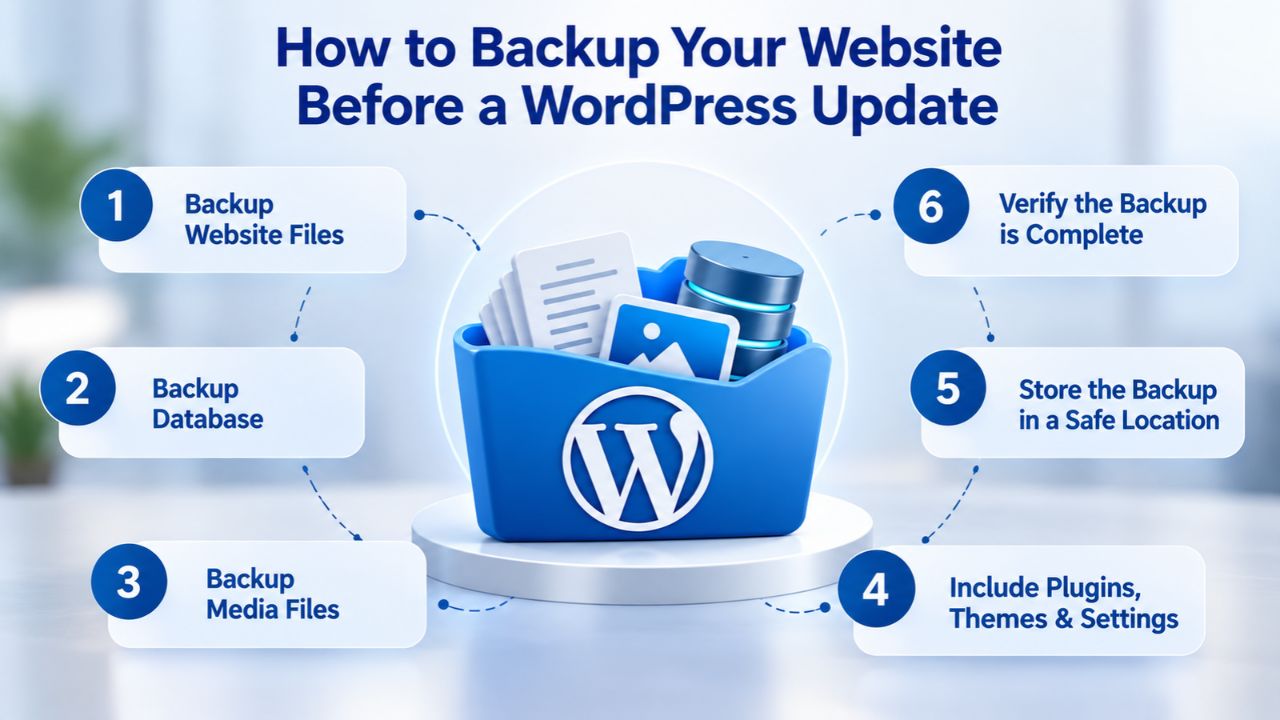
WordPress updates are essential for security and performance, but they’re also a common point of failure. Plugin incompatibilities, theme conflicts, or database corruption can break your site in seconds. A single WordPress update gone wrong can mean hours of downtime, lost revenue, and customer frustration. The difference between a crisis and quick recovery is a tested backup taken before you update.
Niya Digital is an authorized reseller of CodeGuard website backup services rather than operating its own independent backup infrastructure; the automated backup capture, off-site storage, and one-click restore technology are operated by CodeGuard (GoDaddy Website Backup). Overall data safety depends on many factors outside any single provider’s control, including backup frequency, how quickly issues are noticed, hosting conditions, and credential security practices so no backup solution can guarantee zero data loss or ranking outcomes.
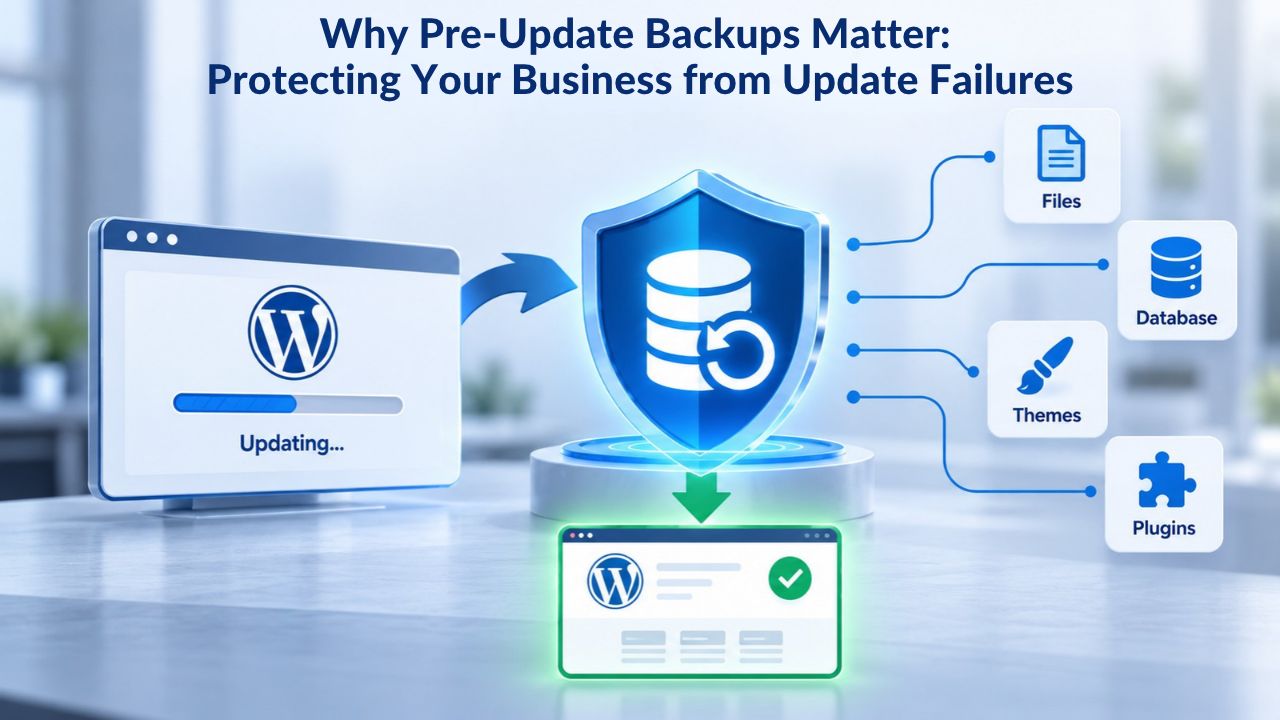
Why Pre-Update Backups Matter: Protecting Your Business from Update Failures
WordPress updates are designed to make your site better, adding features, fixing vulnerabilities, and improving performance. But updates also create risk. When WordPress core updates, plugins and themes must adapt to new code, APIs, and structures. If a plugin was written for an older version of WordPress or hasn’t been tested against the latest release, the update can cause conflicts. Your site might display a blank white screen, throw fatal PHP errors, refuse to load the admin panel, or lose database connectivity entirely. Without a backup taken immediately before the update, recovery means hours of troubleshooting, hiring a developer at emergency rates, or rebuilding your content from scratch.
Understanding the Real Business Impact of Failed Updates
Outdated or incompatible plugins are the single largest cause of broken WordPress sites after updates. Over 93% of WordPress security issues start with plugins, and when you update WordPress core, a plugin coded for an older API or built without testing against the new version can crash your entire site. The risk is real because 39.1% of hacked WordPress sites were running outdated versions, creating a difficult choice: update for security or risk a broken update.
The financial impact is impossible to ignore. For small and midsize businesses, one hour of downtime costs between $127 and $427 per minute. If your website goes down during business hours because of a failed update, that’s $7,620 to $25,620 per hour in lost sales, customer frustration, and lost team productivity. A bakery loses lunch-hour online orders. An e-commerce business loses sales traffic. A service business can’t send quotes or invoices. A single failed update at the wrong time can erase a day’s revenue, entirely preventable with a simple pre-update backup.
Why Data Loss Without a Backup is Catastrophic
When an update breaks your site, and you have no backup, your options are extremely limited. You can attempt to fix it yourself if you understand WordPress administration, hire a developer at emergency rates, or, in the worst case, start over with a fresh WordPress install and manually rebuild your content. According to a Gartner study of companies experiencing a major data loss event, 43% of companies were immediately put out of business, and another 51% permanently closed their doors within two years.
While that statistic reflects catastrophic data loss broadly, it underscores the critical importance of having a backup you can trust. A Retrospect survey found that 52% of small businesses have suffered data loss through accident, loss, failure, theft, or disaster. Data loss isn’t a rare edge case; it’s a routine risk every site owner must prepare for. A tested backup taken before your update is the difference between recovery and catastrophe.
Website Backup Plans & Pricing
Select the Website Backup package that best fits the size and peace of mind requirements of your website. Your data is safeguarded without going over budget thanks to our adaptable choices.
Website Backup 5 GB
Recommended for documents and files.
- Automatic daily backups
- Built-in daily malware scanning
- Back up a file, folder or an entire database
- Continuous security monitoring
- Downloads to local storage
- Easy one-click restore
- Secure cloud storage
- Expert 24/7 customer support
- One website per account

Website Backup 25 GB
Recommended for photos and music.
- Automatic daily backups
- Built-in daily malware scanning
- Back up a file, folder or an entire database
- Continuous security monitoring
- Downloads to local storage
- Easy one-click restore
- Secure cloud storage
- Expert 24/7 customer support
- One website per account
Website Backup 50 GB
Recommended for videos and multimedia.
- Automatic daily backups
- Built-in daily malware scanning
- Back up a file, folder or an entire database
- Continuous security monitoring
- Downloads to local storage
- Easy one-click restore
- Secure cloud storage
- Expert 24/7 customer support
- One website per account
What Every Complete WordPress Backup Must Include
WordPress is not a single monolithic file. It’s an interconnected system made up of database tables, PHP code files, theme files, plugin files, configuration files, and uploaded media. A complete backup must include all of these elements; missing even one component leaves your site unrecoverable or partially broken.
The Database: Where Your Content and Configuration Live
Your WordPress database contains every post, comment, and link on your blog. But it contains far more than that. The database stores your user accounts with their roles and capabilities, every page revision and draft, all your custom field data, plugin settings and configurations, theme customization options, and the entire structure of your site’s taxonomy. WordPress supports MySQL and MariaDB as databases, and this database is created when you install WordPress and given a name, username, and password that WordPress reads from the wp-config.php file every time someone visits your site.
When you update WordPress or install a new plugin, changes to the database structure are applied, new tables might be created, existing tables might be modified, or data might be migrated to a new format. If an update corrupts the database, deletes rows, or fails midway through a migration, the damage is often irreversible without a backup. You could lose posts, comments, user accounts, shop orders, customer data, or entire sections of your site’s configuration. Manual database recovery is virtually impossible; a backup is your only reliable safety net.
WordPress Files: The Code, Design, and Extensions
WordPress files include the WordPress Core installation, WordPress plugins, WordPress themes, and the wp-content directory containing uploaded images and media. Beyond those main directories, WordPress also uses the wp-config.php file (which contains database credentials and security keys), .htaccess files (which control server rewrite rules for pretty permalinks), and potentially custom code modifications. When you update WordPress core, the system updates the WordPress installation files, overwriting old versions with new ones. If an update fails partway through, or if a theme or plugin conflicts with the new core version, the WordPress installation can be left in an inconsistent state where some files are updated, and others are not.
A backup of files alone (without the database) leaves you with the structure of your site but none of its content. You’d have your themes and plugins installed, but your posts, pages, comments, and user accounts would be gone. A database backup alone (without files) leaves you with content but no way to display it; the theme code wouldn’t exist, plugins wouldn’t run, and the site wouldn’t function. A complete Website Backup and Restore must include both the database and files, captured at the same moment in time, so that when you restore, you bring back your entire site as it was then.
Backup Completeness: Understanding What Gets Backed Up
| Component | What It Contains | Data Loss Impact | Backup Method |
|---|---|---|---|
| WordPress Database (MySQL/MariaDB) | Posts, pages, comments, users, settings, plugin/theme data, custom fields | Complete loss of all content, user accounts, site configuration; site cannot display any pages or load admin | mysqldump command, cPanel MySQL backup, phpMyAdmin export, automated backup plugin with database support |
| WordPress Core Files (wp-admin, wp-includes, wp-content/plugins, wp-content/themes, root files) | WordPress core software, installed plugins, active themes, media library | Site displays errors, pages don’t load, admin panel inaccessible; core functionality broken | FTP/SFTP backup, file-based backup service, automated managed backup with file inclusion |
| wp-config.php Configuration File | Database name, database user credentials, encryption keys, authentication salts | Database connection fails, site cannot authenticate requests, admin cannot log in | Included in WordPress Core Files backup |
| .htaccess and Server Configuration | URL rewrite rules (for pretty permalinks), redirect rules, security headers | Permalinks broken, URLs return 404 errors, redirects fail, security rules lost | Included in WordPress Core Files backup |
| Uploads and Media Directory | All uploaded images, media files, documents, customer files | Images don’t display, media broken, downloadable products unavailable, customer files lost | Included in WordPress Core Files backup |
| Complete Integrated Backup | Database + all files + configuration + media in one unified package | Complete site loss; full rebuild required from scratch or partial recovery only | Managed backup service with integrated database and file backup, automated scheduling, off-site storage |
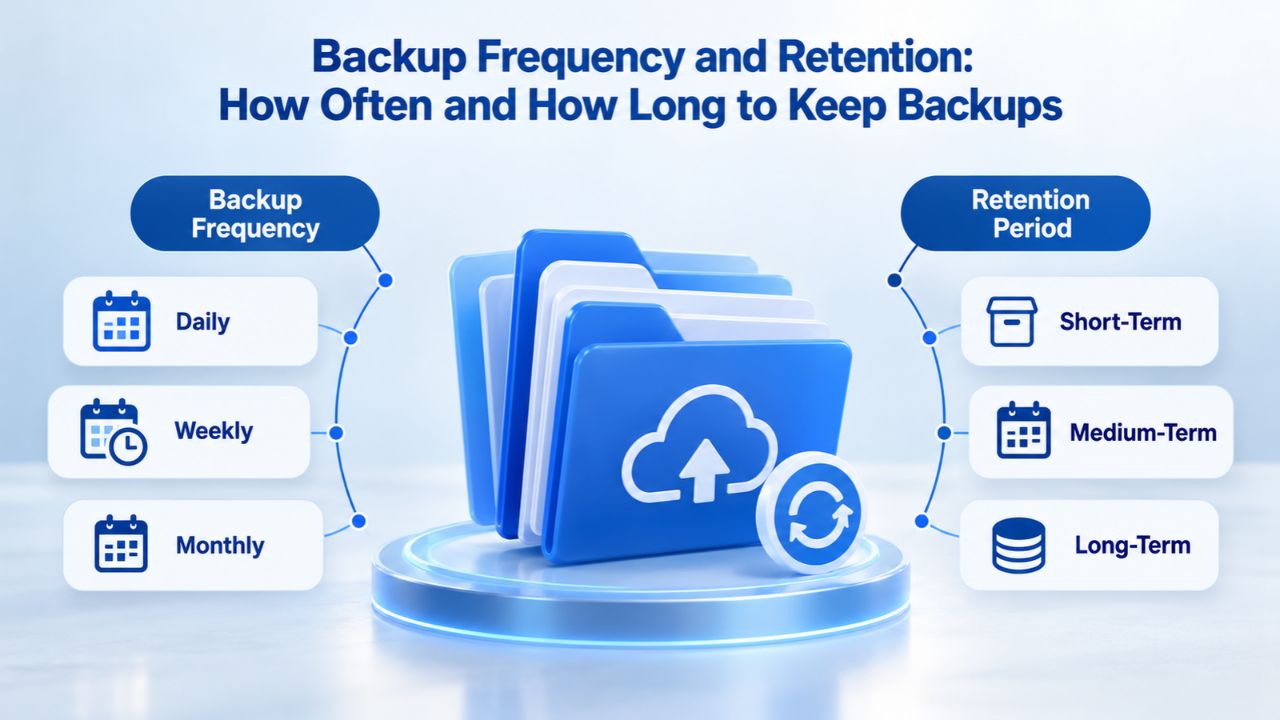
Backup Frequency and Retention: How Often and How Long to Keep Backups
How frequently you back up your site and how long you retain old backups determine how much data you can lose and how far back in time you can recover. These decisions involve trade-offs between storage space, cost, and recovery flexibility.
Daily Automated Backups as the Standard Practice
The backup-before-update best practice begins with routine daily automated backups. CodeGuard performs daily automated backups of websites, capturing website files and database changes; backups can also be triggered on-demand. Daily backups mean that even if a critical issue occurs, you have a snapshot from the previous day; at most, you lose 24 hours of work. For most WordPress sites, daily backups represent a reasonable balance between safety and storage costs.
Automated daily backups remove the manual step entirely. You don’t have to remember to back up before each update; the system does it for you on a fixed schedule. CodeGuard handles automatic backups without requiring cron job configuration, which means you don’t need to understand Linux commands or server configuration; it just happens automatically. This automation is critical because relying on manual backups means you’ll eventually forget to back up before a risky update, and that’s the moment when something will go wrong.
On-Demand Backups for Critical Moments
Beyond automated daily backups, take a manual on-demand backup immediately before any risky operation: a major WordPress core update, a significant plugin update (major version change), a theme change or update, a new plugin installation, or a site migration. An on-demand backup taken five minutes before an update ensures you have a restore point that’s as current as possible. If the update fails, you restore from a backup taken within minutes, so you lose almost no data.
Many backup services and plugins allow you to trigger an on-demand backup from a dashboard or admin panel with a single click. CodeGuard’s on-demand backup feature is available across all plan tiers, so you can create a backup on your schedule, not just the system’s. The combined strategy of daily automated backups plus on-demand backups before major changes gives you routine protection plus point-in-time safety for high-risk moments.
Understanding Backup Retention Windows
By default, CodeGuard retains backup files for 90 days so that you can restore from any backup from the past 90 days; after that, old backups are automatically deleted to free up storage. For most WordPress sites, 90-day retention is adequate; it gives you three months of restore points. If you discover a problem on day 91 that was actually created 120 days ago, you won’t be able to restore to that point; however, most issues are discovered much sooner.
Users can choose how long to keep website backups, with options for standard retention periods or infinite retention. Longer retention windows (180 days, one year, or infinite) provide more history but require more storage space. Some industries have compliance requirements that mandate keeping data backups for years. Conversely, shorter retention (30 days) saves storage costs but limits your recovery options. Most small and medium businesses find 90-day retention to be the optimal balance.
Comprehensive Backup Strategy Reference Table
| Site Type | Update Frequency | Recommended Backup Frequency | Recommended Retention | Best For | Restoration Timeline |
|---|---|---|---|---|---|
| Small Blog (< 1 GB, low traffic) | Monthly | Daily automated + on-demand before major updates | 30-90 days | Hobby sites, personal blogs, low-traffic sites | Restore within 24 hours acceptable |
| Small Business Site (1-5 GB, moderate traffic) | Weekly | Daily automated + on-demand before each update | 90 days | Service providers, small retail, agencies | Restore within 6-12 hours critical |
| E-Commerce Store (2-10 GB, high traffic, customer data) | Twice weekly | Daily automated + on-demand before any update | 90-180 days | Online stores, order processing, customer data | Restore within 1-4 hours critical |
| Content Publisher (5-20 GB, daily updates) | Daily | Daily automated + on-demand before major updates | 90-180 days | News sites, media, frequently updated content | Restore within 2-6 hours critical |
| High-Traffic SaaS (10+ GB, critical data) | Continuous | Multiple daily + on-demand before deployments | 180+ days or infinite | Applications, platforms, customer accounts | Restore within 30 minutes critical |
Full Backups vs. Incremental Backups: Understanding Storage and Speed Trade-offs
Two primary backup methodologies exist: full backups (complete copy every time) and incremental backups (only changes). Understanding the differences helps you choose the right approach for your site’s size and update frequency.
How Full Backups Work and When to Use Them
A full backup creates a complete copy of your entire WordPress site, database, and all files each time it runs. If your WordPress installation is 5 GB total (database + theme + plugins + media), each full backup is approximately 5 GB before compression, and perhaps 1-2 GB after compression with modern algorithms. During the initial backup, CodeGuard analyzes your website’s structure, verifies your credentials, creates a git repository, encrypts all your data, and transfers it to a cloud server. Each subsequent full backup is another complete snapshot.
The advantage of full backups is simplicity: to restore from any backup, you restore that one full backup and your site is instantly back to that point in time. You don’t need to chain multiple incremental backups together or worry about sequence dependencies. The disadvantage is storage: if you take a full backup every day for 90 days and your site is 5 GB, you need 450 GB of storage (5 GB × 90 days). For sites with large media libraries, this storage cost can add up quickly.
How Incremental Backups Work and Their Advantages
After the initial full backup, CodeGuard uses incremental backups, copying only data that has changed or been modified since the last backup. If your WordPress site changes by 500 MB per day, each incremental backup is roughly 500 MB. Over 90 days, that’s 45 GB of storage instead of 450 GB, a 90% reduction in storage space. This efficiency is especially valuable for sites that don’t change dramatically day to day but accumulate significant changes over time.
The potential complexity of incremental backups is that to restore to a specific point, you technically need the original full backup plus all incremental backups from that point back to the full backup, and they must be restored in sequence. However, CodeGuard automatically scans your website, creates backups, and deletes old backup files as scheduled, meaning the system handles the incremental chain management automatically. You click “restore to day 45” in your dashboard, and behind the scenes, the backup service assembles and restores the full backup plus all necessary incremental backups. The complexity is hidden from you; the user experience is the same as restoring a full backup.
Off-Site Backup Storage: Why Physical Distance From Your Hosting Server Matters
Where your backup is stored is as important as the fact that it exists. A backup stored on the same physical server as your live site is vulnerable to the same failure that took down the live site.
The Critical Importance of Off-Site Infrastructure
CodeGuard stores backup data on Amazon Web Services’ Simple Storage Service (S3), a massive, globally distributed cloud storage platform maintained by Amazon. AWS S3 uses data centers in multiple geographic regions with redundant infrastructure; if one data center fails catastrophically, your data is automatically replicated to other locations. When your backup is stored on AWS S3, it’s physically separate from your hosting provider’s data center. If your host’s data center catches fire, loses power permanently, suffers a complete hardware failure, or is hit by a natural disaster, your backups are untouched because they exist on completely different infrastructure, potentially thousands of miles away.
This independence is the foundational principle of disaster recovery. CodeGuard provides safe, offsite backups that are 100% independent of your hosting provider; moreover, hosting companies provide only the latest backup, while CodeGuard uses versioning and lets you restore to an earlier backup. A hosting provider’s backup stored on its own infrastructure offers no protection if the provider goes offline or suffers an infrastructure failure. An off-site backup stored independently is your true safety net.
Encryption and Security of Off-Site Backups
CodeGuard automatically encrypts backup files using 256-bit AES encryption, the same military-grade standard used by governments and financial institutions. Encryption means that even if someone gained unauthorized access to the storage system, the backup files would be completely unreadable without the decryption key. This encryption protects your content, database structure, customer data, and site configuration both in transit (while being uploaded) and at rest (while stored).
The combination of off-site infrastructure plus encryption provides defense in depth. Your backups are stored in a geographically isolated location beyond your hosting provider’s control, and they’re encrypted so that even the storage provider can’t read your data without authorization. This dual protection means you’re defended against hosting provider failures, data center disasters, and unauthorized access attempts.
Automated vs. Manual Backups: Why You Need Both Strategies
You have two backup strategies: automated backups on a set schedule (hands-off) and manual, on-demand backups you trigger yourself (hands-on). The most robust approach combines both strategies.
Why Purely Automated Backups Aren’t Sufficient
If you rely entirely on automated backups, you face a timing problem. Suppose your automated daily backup runs at 2:00 AM. An update fails at 2:00 PM the same day, breaking your site. Your most recent backup is 12 hours old. You’ve lost 12 hours of new content, customer orders, comments, or other changes. If you’re in a time-sensitive business (an e-commerce site during a sale, a booking service during business hours), 12 hours of downtime is unacceptable.
Purely automated backups also require you to trust that the system will run successfully every day without failure or intervention. If you set up a backup schedule and forget about it, you might not notice if backups stop working due to a server issue, a quota being reached, or a configuration problem. Automation is valuable precisely because it’s hands-off, but that hands-off nature means you might not catch problems until you need the backup and it’s gone.
Why On-Demand Backups Provide Point-in-Time Safety
On-demand (manual) backups let you back up at exactly the moment you need to. Taking an on-demand backup immediately before any risky operation, an update, a plugin installation, a theme change, or a site migration, ensures you have a restore point taken within minutes of the change. If the update fails, you restore from a backup taken 5 or 10 minutes earlier, so you lose almost no data. CodeGuard’s on-demand backup feature is available across all plan tiers, so you can trigger a backup from your dashboard whenever you need it.
The ideal strategy combines both approaches: daily automated backups ensure routine protection, even if you forget to think about backups. On-demand backups triggered before major updates or changes provide point-in-time safety for high-risk operations. Together, these give you both peace of mind (backups run daily without your intervention) and precision (you have current backups for the moments that matter most).
Testing Your Backup: Verification and Restore Testing Before You Need It
A backup that has never been tested isn’t a backup; it’s a hope. Untested backups fail in emergencies because backup software reports success (backup file created) even when the backup is corrupted, incomplete, or incompatible with your site’s configuration.
The Critical Difference Between Backup Verification and Restore Testing
Backup verification is usually an automated process the backup software runs immediately after a job; restore testing, however, means taking that file and restoring it to a server to see if it actually works. These are two very different things. Backup verification checks that the backup file was created successfully, that the file is not corrupted, and that the file structure is valid. Verification confirms the backup exists and has integrity. Restore testing actually restores the backup to a test environment and verifies that your site functions correctly after the restore.
Consider this scenario: backup software reports a successful backup every day for six months. The backup files exist and pass integrity checks. But when you finally need to restore due to a site failure, you discover the backup cannot actually be restored: it’s missing a critical database table, it’s incompatible with your current hosting configuration, or the files were never actually copied.
This isn’t hypothetical; it happens to site owners who skip restore testing. Niya Digital’s team has found that site owners who skip restore testing are the ones who discover, in a crisis, that their backup software reported success but the backup cannot be restored, often due to database incompatibility, missing files, or hosting configuration mismatches. By that point, you’re in an emergency with no safety net.
How to Restore-Test Your Backup in a Staging Environment
Restore the backup to a staging environment or temporary URL first, check the site actually works there, then restore it to the live site; never restore an unverified backup directly onto a live, working site. A staging environment is a complete copy of your live site running on separate infrastructure (either on your hosting account or on a separate test server). It looks and behaves like your live site, but changes you make don’t affect your live visitors.
The restore-testing process is straightforward:
(1) Create a staging copy of your live site (most hosting providers offer one-click staging from the control panel).
(2) Access your backup dashboard and trigger a restore to the staging environment.
(3) Wait for the restore to complete (this can take minutes to hours depending on site size).
(4) Visit the staging site in a web browser.
(5) Log in as an admin user and verify the admin panel works.
(6) Click through key pages and verify they display correctly.
(7) If you have e-commerce, test the checkout process. If you have contact forms, submit a test form.
(8) If everything works in staging, you’ve confirmed the backup is restorable and functional.
(9) If something fails in staging, you’ve caught the problem before it affects your live site.
Start Protecting Your Website Today
WordPress updates are unavoidable, but update failures aren’t. A tested backup taken before your update is the difference between a minor inconvenience and a business-threatening emergency. Niya Digital’s Website Backup Service handles daily automated backups, off-site storage, and one-click restore so you can update with confidence, not anxiety.
The WordPress Update Sequence: Core, Plugins, Themes, and When to Back Up Each
The order in which you update WordPress core, plugins, and themes matters significantly. Updating in the wrong sequence can introduce incompatibilities that wouldn’t have occurred in a different order.
WordPress Core First: The Recommended Update Sequence
In most cases, it’s recommended to update WordPress core first. WordPress core is the foundational software layer; plugins and themes build on it and depend on the APIs and functions it provides. When you update WordPress core, the system makes changes to the database schema (structure), updates PHP functions, introduces new APIs, and sometimes removes deprecated functions. If you update plugins before updating core, a plugin might rely on a feature or function that the core update removes, causing it to break. Updating core first ensures the foundation is stable before you update the layers that depend on it.
Before updating WordPress core: take both a daily automated backup and a manual on-demand backup to ensure you have a restore point. Update WordPress core through the admin dashboard (Dashboard > Updates, or follow the core update notice). Wait for the update to complete and then visit your site to confirm it displays and the admin panel loads. Only after verifying that core updated successfully should you proceed to plugins and themes.
Plugins and Themes After Core, One at a Time
Once WordPress core is updated and verified working, update plugins next. Rarely, updating a plugin before WordPress core is advisable, only if a plugin developer explicitly recommends it in their release notes. Update one plugin at a time, not all plugins at once. After each plugin update, visit your site and verify it still works. If a plugin update breaks your site, you’ll know which plugin caused it and can downgrade that specific plugin while you investigate the issue.
After you update and verify plugins, update your themes. The sequence is core → plugins → themes. This sequence minimizes incompatibility because you update from the foundation up, ensuring each layer is compatible with the one below it before adding new layers on top.
Backup Before Each Major Operation
Before updating WordPress core: take an on-demand backup. Before updating each major plugin (version 1.x to 2.x): take an on-demand backup. Before changing or updating your active theme: take an on-demand backup. For routine minor updates (2.0.1 to 2.0.2), your daily automated backup is sufficient. For major changes, take an on-demand backup immediately beforehand. This strategy ensures you have a restore point taken within minutes of each risky operation.
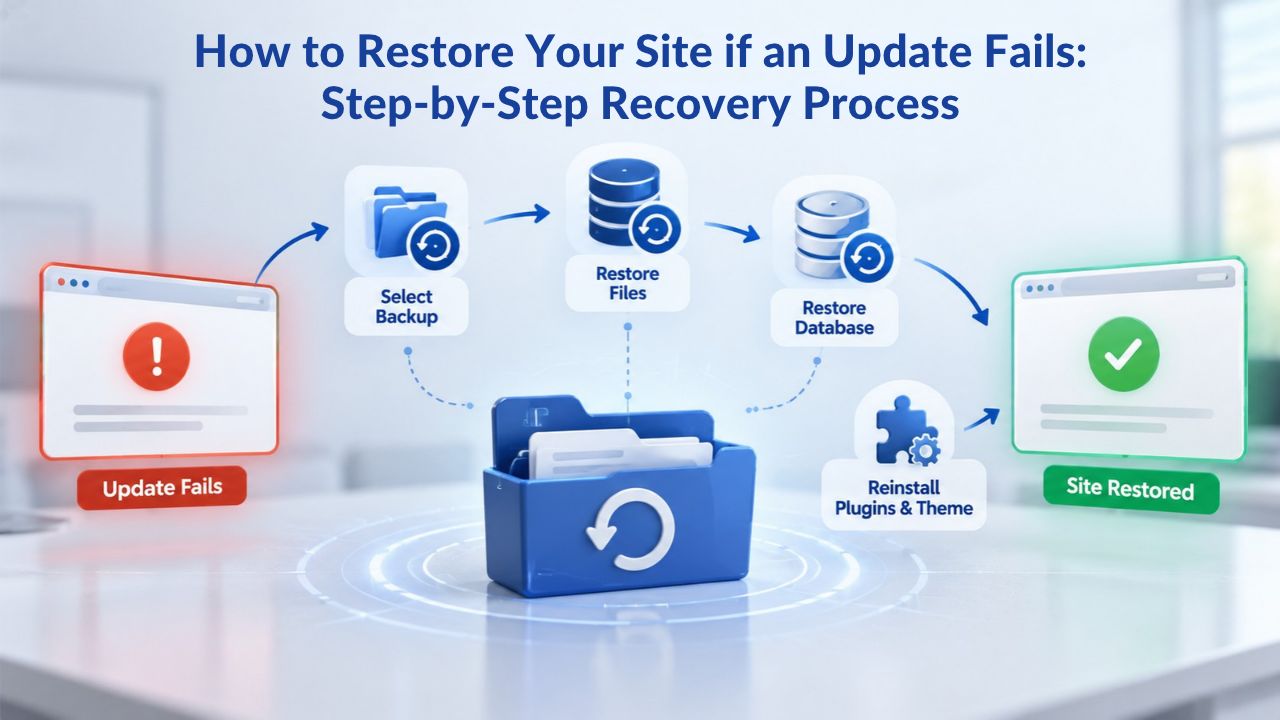
How to Restore Your Site if an Update Fails: Step-by-Step Recovery Process
If an update breaks your site and leaves a blank screen, fatal error, or offline status, a tested backup and a clear restoration plan are your immediate solutions. The restoration process is straightforward if you have a good backup and follow the steps in order.
Identify the Correct Backup to Restore From
The first critical decision is choosing which backup to restore from. Pick the most recent backup taken before the problem appeared, not simply the most recent backup overall, since the latest backup may already contain the fault if it happened before that backup ran. If a WordPress core update failed on Wednesday at 3:00 PM, your most recent backup might be from Wednesday 2:00 AM (your daily automated backup). You want to restore to the Tuesday automated backup or, better yet, to an on-demand backup you took Wednesday morning before the update.
The key principle: identify when the problem first occurred, then find the most recent backup taken before that time. If a hack happened three weeks ago but you didn’t notice it until today, you need a backup from before the hack occurred, not your most recent backup, which contains the hack. Similarly, if an update caused a problem, restore to the backup from immediately before the update. Open your backup dashboard, review your backup history (usually listed chronologically), and locate the right restore point. Write down the date and time.
Always Restore to Staging First, Never Directly to Live
The cardinal rule: never restore an unverified backup directly to your live site. Restore the backup there first, click through the key pages, log in as admin, check the shop or contact form if there is one, and only then move to the live site. Restoring directly to live is risky because
(a) if the restore process has issues, you’re compounding your problem,
(b) if the backup has issues, you’ve made your live site worse,
(c) if something goes wrong mid-restore, you may further corrupt your live site.
The safe restoration process is:
(1) Ensure you have a staging environment (a copy of your live site).
(2) Log into your backup dashboard.
(3) Trigger a restore and specify the staging environment as the restore destination.
(4) Wait for the restore to complete.
(5) Visit your staging site in a browser.
(6) Verify core functionality works (pages load, admin logs in, forms submit).
(7) If staging looks good, trigger the same restore to your live site.
(8) Monitor your live site after restore to ensure everything is functioning.
Contact Support if Restore Fails or Errors Occur
If a restore fails in the staging environment or produces errors, stop and contact your backup provider’s support team before attempting another restore to live. A failed restore might indicate
(a) the backup is corrupted or incomplete,
(b) your staging or live hosting environment has a configuration issue,
(c) database version incompatibility, or
(d) a hosting-level problem.
CodeGuard offers concierge restore support on its professional-tier plans, and many resellers, including Niya Digital, offer restore support as part of their service, providing expert assistance when you need it most.
Backup Retention: How Long to Keep Your Backups and Why It Matters
Backup retention is how long you keep backup copies before the backup system automatically deletes old ones to manage storage space. Retention decisions involve trade-offs between recovery flexibility and storage costs.
Default Retention Windows and Why 90 Days Is Standard
By default, CodeGuard retains backup files for 90 days. This means you can restore to any backup point within the past 90 days. Backups older than 90 days are automatically deleted to free up storage space and manage costs. For most WordPress sites, 90-day retention is adequate. If you discover a problem within three months, you can restore to a point before the problem occurred. If you discover an issue 120 days after it occurred, you won’t have a backup from before it, but most problems are noticed much sooner.
90 days is a common standard because it represents a reasonable balance for small and medium businesses. Three months of backup history is enough to recover from most disasters (failed updates, hacks discovered a week or two later, accidental deletions caught within days). Longer retention requires more storage; shorter retention (30 days) saves storage but limits your recovery options if a problem is discovered late.
Custom Retention Policies for Different Industries
Users can choose how long to keep website backups, with options for standard retention periods or infinite retention. Some industries have compliance requirements that dictate how long you must retain data backups. E-commerce sites subject to PCI DSS compliance may need to retain backups longer. Healthcare sites subject to HIPAA may need specific retention and audit procedures. Law firms may need to retain client data backups for years. Financial services firms may have similar long-term retention requirements. Requirements vary by jurisdiction and industry; businesses should confirm rules that apply to them.
If your business has regulatory requirements, configure retention to match them. If you have no regulatory requirements, 90-day retention is a sensible default. Infinite retention (keeping all backups indefinitely) provides maximum recovery flexibility but incurs ongoing storage costs.
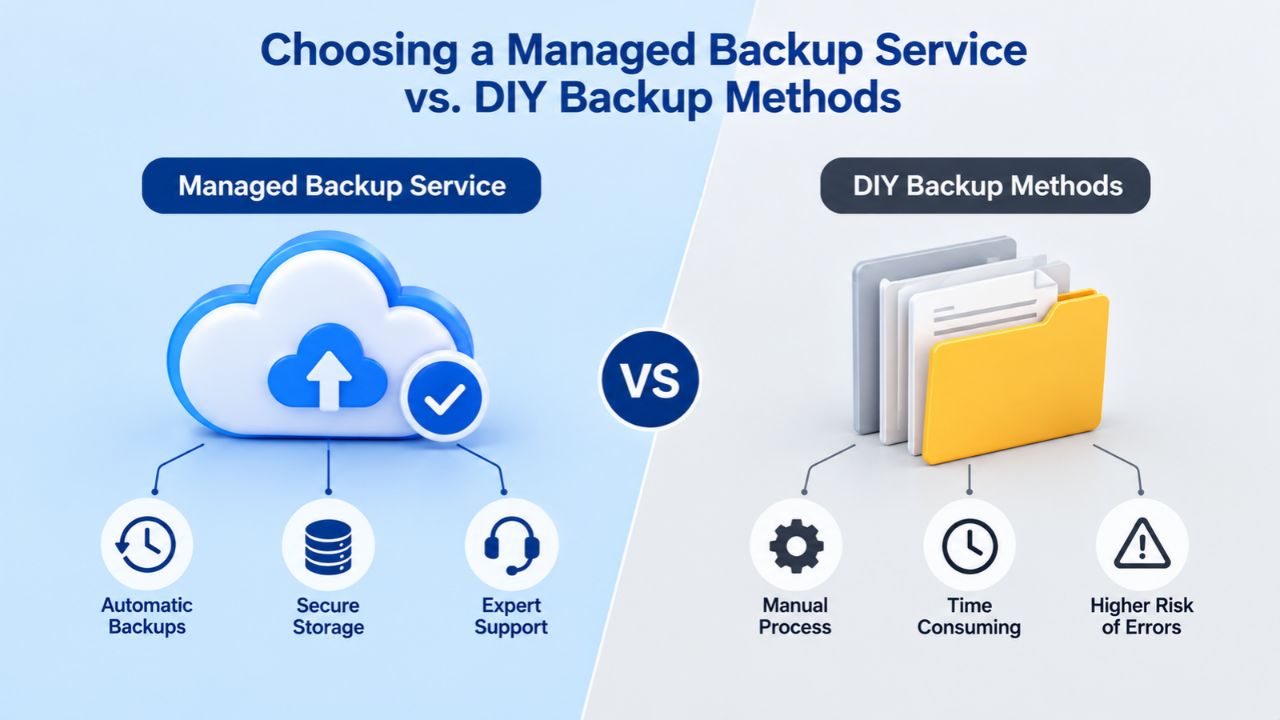
Choosing a Managed Backup Service vs. DIY Backup Methods
You can back up WordPress manually using command-line tools, hosting control panel backups, or backup plugins. Managed backup services automate the entire process and handle many technical complexities automatically.
Automation Without Technical Configuration
CodeGuard handles automatic updates and works with all WordPress website updates without requiring cron job configuration. If you’ve ever tried to configure a cron job to run a backup script, you know it requires server access, understanding of Linux commands, ability to write or modify scripts, and knowledge of how to schedule tasks on your server. Many hosting providers restrict cron job usage or make configuration difficult. Managed backup services eliminate this friction. You choose a backup schedule (daily, weekly, etc.) from a dashboard, and the service handles execution automatically without you needing to understand or configure server-level tools.
Hosting control panel backups are slightly easier than cron jobs but still require manual action or careful configuration. DIY backup plugins require sufficient disk space on your hosting account, enough PHP memory, and a clear understanding of where to store backups and how to retrieve them if needed. Managed services handle all of this automatically without placing demands on your hosting account resources.
Built-In Monitoring, Testing, and Professional Support
CodeGuard monitors and notifies users by email when the website changes, alerting users to new threats and malware. This change monitoring is valuable for security. If your site is hacked and files are maliciously modified, you’re notified immediately so you can restore from a pre-hack backup and stop the attack in progress. DIY backup methods don’t include monitoring; you’re responsible for noticing when something is wrong.
Managed backup services automatically test backups to confirm they’re restorable. Every backup is automatically restore-tested nightly: a real restore to a separate test server, not a quick file check, ensuring the backup is valid before you need it in an emergency. This removes the risk of discovering (in a crisis) that your backup doesn’t actually restore. You know every night that your backups work because the service tests them.
CodeGuard offers concierge restore support on professional-tier plans. If you’re panicked during a downtime emergency and need to restore immediately, Niya Digital’s support team can walk you through the restore process step by step or, in some cases, restore on your behalf. For most site owners, this combination of automation, testing, and support is worth the cost of a managed service.
Protect Your WordPress Site with Professional Backups
You can’t prevent every update failure, but you can ensure you’re ready for one. Niya Digital’s Website Backup Service provides daily automated backups, off-site cloud storage, one-click restore, and professional support. Hence, you’re never more than a click away from recovery. Update WordPress with confidence knowing your site is protected.
Frequently Asked Questions
What’s the difference between my hosting provider’s backup and a separate backup service?
Hosting providers typically back up their entire server, which holds your site plus hundreds or thousands of others. If the data center fails, all those backups can fail at the same time because they’re on the same infrastructure. A separate backup service stores copies off-site on independent infrastructure; if your host’s data center goes down, your backups stay safe elsewhere. Additionally, hosting backups are often overwritten daily and may not provide the granular restore options you need. Separate backup services give you point-in-time restore (restore to any specific date) and better retention policies.
Can I use a free backup plugin like UpdraftPlus instead of a paid backup service?
Free backup plugins can work, but they require your hosting account to have sufficient storage and resources, and they depend on you manually triggering backups or correctly configuring scheduling, which requires technical knowledge. Free plugins don’t automatically test backups for restorability, and they don’t provide off-site storage unless you manually configure integration with Dropbox, Amazon S3, or Google Drive. Paid managed services automate all of this, include off-site storage, test backups nightly, and provide professional support, eliminating technical complexity.
How long does a restore actually take in practice?
Restore time depends on your site size and your hosting infrastructure speed. A small site (under 500 MB) typically restores in minutes. A medium site (1-5 GB) usually takes 10-20 minutes. A large site (5+ GB or larger) might take 30 minutes to an hour. Niya Digital’s one-click restore handles the technical unpacking and restoration automatically through your dashboard, so you don’t need to upload files or run commands manually; the service does it for you.
Will restoring from a backup undo all changes I made after the backup was taken?
Yes, that’s exactly what happens. If you take a backup on Monday and restore it on Friday, you revert the entire site to how it was on Monday. Everything created or modified Tuesday through Friday (new posts, comments, customer orders, theme changes) is lost. This is why choosing the right restore point is critical: you want the most recent backup taken before the problem started, not the most recent backup overall, which might contain the problem you’re trying to fix.
Do I need to back up before every single plugin update?
Minor plugin updates (e.g., version 2.0.1 to 2.0.2) are generally low-risk and don’t require a separate on-demand backup; your daily automated backup is sufficient. Back up with on-demand backups before major plugin updates (version 1.x to 2.0, or any major version jump), before WordPress core updates, before theme changes, and before installing new plugins. This strategy balances safety with practicality.
What if my backup file is too large to download or restore manually?
Niya Digital’s managed backup service restores via the dashboard; you don’t download a giant file to your computer and upload it to your host. The service retrieves your backup from off-site cloud storage and restores it directly to your hosting account through their infrastructure. This means site size doesn’t affect restore complexity or speed; the backup service handles the heavy lifting.
Can I restore just a single file or single database table instead of the entire site?
Yes, absolutely. CodeGuard lets you restore individual files and databases, not just full website restores. If you accidentally deleted a single media file or a specific post, you can restore just that file or that post’s database entry without touching the rest of the site. This granular restore capability is valuable when you catch a mistake quickly and want to fix only what’s broken without reverting the entire site.
What happens if I skip backing up before an update and the update breaks my site?
Your options become extremely limited and expensive:
(1) Hire a WordPress developer to troubleshoot and manually fix the problem (expensive, time-consuming).
(2) Attempt to downgrade WordPress or plugins manually (risky, requires technical knowledge, might not work).
(3) Start over with a fresh WordPress install and manually rebuild your site’s content (worst option, extremely time-consuming).
This is why pre-update backups are non-negotiable; without one, recovery is painful and costly.
Is a backup stored on the same hosting server as my live site actually secure?
A backup on your hosting provider’s same server is technically a “copy,” not a true backup. If the server is hacked, the copy can be hacked too. If the server’s hard drive fails, both the live site and the copy fail at the same time. If the data center is destroyed, both are lost. For security and disaster recovery, store backups off-site on completely independent infrastructure like AWS S3, which is what CodeGuard uses.
How do I know if my backup actually works before I need it in an emergency?
Test it. Restore the backup to a staging environment, click through your site’s key pages, log in as an admin, test any transaction systems or forms, and verify everything works. This testing takes 15 minutes but is absolutely worth the time. Many site owners skip testing and later discover (in a crisis) that their backup software reported success, but the backup doesn’t actually restore or functions incorrectly.
Can I transfer my backup to a new hosting provider when migrating my site?
Yes, backups are portable. You can download a backup file and restore it on a completely different hosting provider. When uploading to a new host, you will need to recreate the database user along with the matching password, but the backup file itself works across hosting providers. This makes backups valuable not just for disaster recovery but for planned site migrations too.
Do I still need to back up if I test updates on a staging site first?
Yes, absolutely. Testing updates on a staging site before pushing to live is a best practice, but backups are still essential. Staging tests help catch obvious incompatibilities before they hit live, but unexpected issues can still occur even after successful staging tests. Off-site backups should always be your final safety net, regardless of other precautions.
What compliance or legal requirements apply to website backups in my industry?
This depends on your specific industry and geographic location. E-commerce sites processing credit cards may need to comply with PCI DSS, which has specific backup retention and testing requirements. Healthcare providers need to comply with HIPAA, which mandates backup procedures. Sites handling EU customer data must comply with GDPR, which requires appropriate data protection, including backups. Requirements vary by jurisdiction and industry; businesses should confirm rules that apply to them. Consult with a compliance specialist or legal advisor if you’re unsure about your obligations.
If I use a backup service, can I still use my hosting provider’s built-in backups?
Absolutely, and it’s recommended. Multiple independent backups provide belt-and-braces redundancy: your hosting provider’s backups are a safety net, and a separate backup service is another. If one backup system fails or becomes unavailable, you have another. Most best-practice disaster recovery plans include multiple backup sources for exactly this reason.
Glossary
- Backup: A complete or partial copy of your website’s files and database, captured and stored at a specific point in time, that can be restored if the original is damaged, lost, or corrupted.
- Database: The MySQL or MariaDB database engine that stores all WordPress content, posts, pages, comments, user accounts, plugin settings, theme options, and custom field data, separate from the WordPress code files themselves.
- Incremental Backup: A backup method that captures only files and database changes since the previous backup, reducing storage requirements; it requires the initial full backup plus all subsequent incremental backups in sequence to restore completely.
- Off-Site Storage: A backup storage location physically separate from your hosting server, typically on cloud infrastructure (such as Amazon AWS S3) maintained by an independent provider, protecting against simultaneous failure of both your live site and backup.
- One-Click Restore: A simplified restoration process where a single click in a dashboard triggers the backup service to restore your site from a selected backup; contrasts with manual restoration requiring FTP access, command-line tools, or database administration skills.
- Restore Testing: Periodically restoring a backup to a staging environment and verifying your site works correctly after restoration, confirming the backup is valid and complete before relying on it in an actual emergency.
- WordPress Core: The foundational WordPress software and framework; core updates provide security patches, bug fixes, and new features separate from plugin or theme updates.