Two Problems Hidden Inside “My Backup Is Slow”
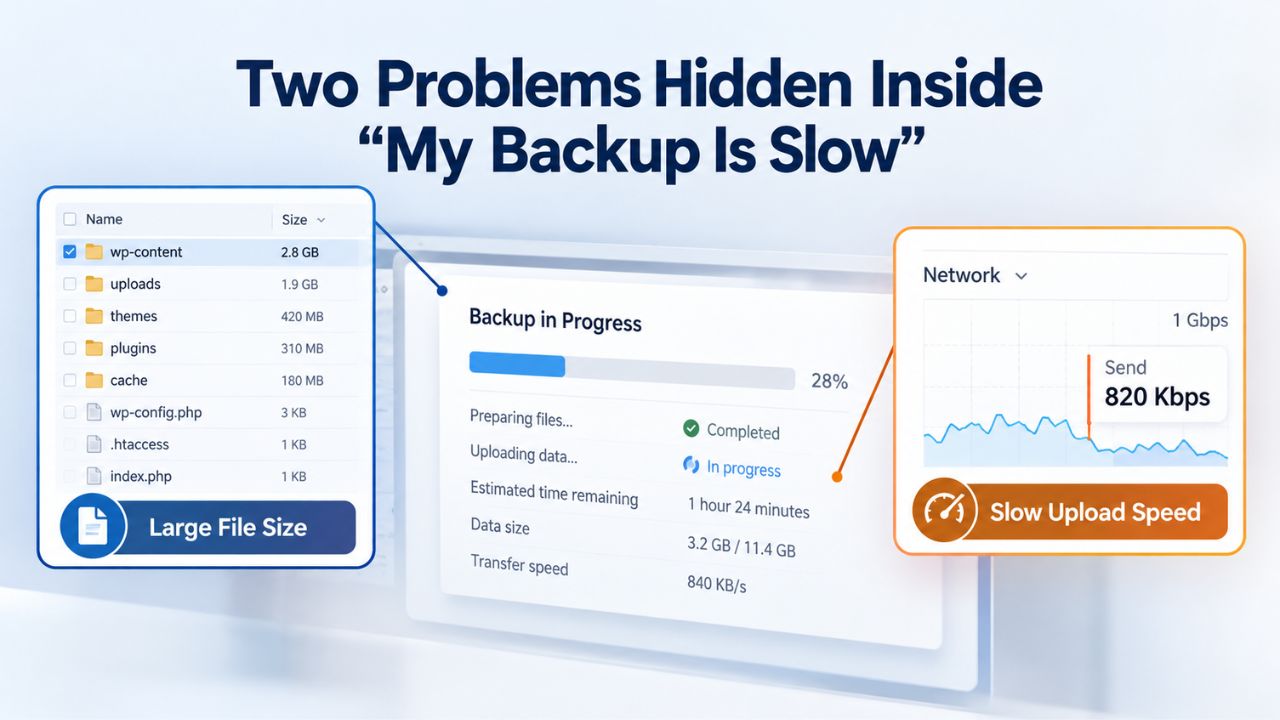
When someone tells you their backup is slow, they could mean one of two entirely different problems, and fixing one won’t solve the other. The first problem is that the backup process itself is slow or stuck, taking far longer than it should to capture and transfer your site’s data. The second problem is that your backup, while technically working, slows your live website during the backup window and confuses these two issues, leading to wasted troubleshooting time and fixes that don’t address the real problem.
The Backup Process Itself Is Slow or Stuck
Your backup might take hours to complete, or it might appear to freeze at a specific percentage and never progress. Common signs include builds that take 20+ minutes on small sites, progress bars that freeze and never advance, or backups marked “complete” that actually fail when you try to restore them later. These symptoms point to a backup process that isn’t finishing properly, or one that finishes after an unexpectedly long delay, suggesting something is wrong with your backup infrastructure.
A well-configured site with decent hosting should complete a full backup in two to ten minutes. Large sites on shared hosting can take 30 to 45 minutes, sometimes longer, which is still generally acceptable. If your backup takes substantially longer than those benchmarks, especially on a small or medium site, the problem isn’t the size of your data; it’s the backup infrastructure or the server resources available to it. This distinction matters because it shapes your troubleshooting approach.
Your Live Site Slows Down During Backups
Your backup process completes successfully, but during the backup window, your visitors report sluggish page loads, forms take longer to submit, or the site feels generally unresponsive. You might notice this happens at the same time every day when your backup runs, which is a strong diagnostic clue. This is fundamentally different from the backup itself stalling; the backup finishes, but your site’s performance drops significantly during the backup period. This signals a resource-contention issue: the backup consumes enough server CPU, memory, or disk I/O that your site’s response time increases and the user experience suffers.
Resource-limiting backups, which automatically pause if your website becomes busy, are designed to prevent this exact problem. These tools monitor your site’s load in real time and pause backups when traffic spikes, resuming when things quiet down. If your current backup tool doesn’t support this feature, or your hosting doesn’t allow it, scheduling backups during off-peak hours (3–5 AM, weekends, or late evening) becomes your primary workaround to ensure visitors aren’t affected.
Website Backup Plans & Pricing
Select the Website Backup package that best fits the size and peace of mind requirements of your website. Your data is safeguarded without going over budget thanks to our adaptable choices.
Website Backup 5 GB
Recommended for documents and files.
- Automatic daily backups
- Built-in daily malware scanning
- Back up a file, folder or an entire database
- Continuous security monitoring
- Downloads to local storage
- Easy one-click restore
- Secure cloud storage
- Expert 24/7 customer support
- One website per account

Website Backup 25 GB
Recommended for photos and music.
- Automatic daily backups
- Built-in daily malware scanning
- Back up a file, folder or an entire database
- Continuous security monitoring
- Downloads to local storage
- Easy one-click restore
- Secure cloud storage
- Expert 24/7 customer support
- One website per account
Website Backup 50 GB
Recommended for videos and multimedia.
- Automatic daily backups
- Built-in daily malware scanning
- Back up a file, folder or an entire database
- Continuous security monitoring
- Downloads to local storage
- Easy one-click restore
- Secure cloud storage
- Expert 24/7 customer support
- One website per account
How Long Should a Website Backup Actually Take?
Knowing what a normal backup duration looks like helps you separate real performance problems from unavoidable constraints. Backup duration depends on three primary factors: your site’s size, your hosting provider’s disk I/O speed (how fast the server can read and write data), and the backup method you’re using (full backup versus incremental backup).
Expected Durations by Site Size and Hosting Quality
For sites up to 5 GB with solid hosting infrastructure, backups typically complete in under 30 minutes. Most standard website backups across the industry finish within 5–15 minutes, with larger sites taking up to 30 minutes. However, on shared hosting with many other sites, the same website might take 45 minutes or longer because the server’s resources are divided among many users. The difference between fast and slow backups often isn’t the backup tool itself; it’s the hosting provider’s disk I/O capacity and how much server resources are available to your site.
If your backup consistently finishes quickly, under 5 minutes for a 500 MB site, your hosting is performing well, and you have good disk I/O. If it regularly takes 30+ minutes for a small site that shouldn’t be resource-intensive, your hosting’s disk I/O is likely the constraint. Many shared hosting providers run disk I/O as low as 1 MB/sec, meaning a 100 MB site theoretically requires at least 300 seconds (5 minutes) just to read and transmit the data. Faster hosting with better disk I/O can cut this dramatically, sometimes by half or more.
Incremental Backups Are Significantly Faster
The initial backup is always slow because it’s a full backup that captures everything on your site for the first time, including all files, databases, and configurations. After the first backup completes, subsequent backups run much faster because they capture only what changed since the last backup. CodeGuard uses an incremental approach, identifying and saving only changes made since the last backup, which significantly reduces the amount of data processed and stored daily. This efficiency is why incremental backups are so much faster than full backups.
This is why your first backup always takes longer than your second. If your second or third backup is still taking 30+ minutes, something else is wrong, likely a server resource constraint, a backup setting that forces a full scan every time, or a hosting issue that affects all backups equally. Understanding this pattern helps you diagnose whether the problem is inherent to backups or specific to your setup.
Disk I/O, Memory, and PHP Limits: The Real Culprits
Most slow backups aren’t caused by bad backup software or poor backup tool design. Hosting server limitations slow down any backup process, regardless of the tool you use. Understanding these constraints is the first step to fixing performance problems at the root.

Disk I/O Speed Is the Primary Bottleneck
Disk I/O, the speed at which your hosting server can read and write files, is one of the most common causes of slow backups. A hosting provider with poor I/O capacity is like a one-lane highway: even fast cars can’t go anywhere fast. The backup process has to read every file on your site, compress or prepare it, and transfer it to storage, all constrained by how quickly the server’s disk can perform these operations.
If your host’s disk I/O runs at only 1 MB/sec, backing up a 100 MB website would theoretically take at least 300 seconds- 5 minutes just to read the data. You can ask your hosting provider directly to check your disk I/O speed, or you can test it yourself via cPanel (look for “Disk I/O” in the performance or system information section, or contact support). If it’s under 2 MB/sec, your hosting is the clear bottleneck. Your options are to request an upgrade to a plan with better I/O or move to a different hosting provider that prioritizes server performance.
PHP Memory Limit Stops Backups Mid-Process
Low PHP memory_limit settings cause backups to fail or freeze at specific percentages (commonly 17%, 79%, or others) because the backup process runs out of available memory partway through. When a backup gets stuck at the same percentage every single time, memory exhaustion is almost always the culprit. The backup process processes the same amount of data until it hits that limit, then fails.
The solution is to increase memory_limit via your hosting control panel. If you have cPanel access, use the MultiPHP INI Editor to increase memory_limit to a value greater than your backup size, at minimum 256 MB, but ideally 512 MB or higher for larger sites. After you make the change, save it and test a backup to see whether the issue is resolved. If you can’t access PHP settings directly, contact your hosting provider and request both memory_limit and max_execution_time increases. This is a standard, low-risk adjustment that hosting providers make regularly for customers.
PHP Execution Timeout Cuts Off Long Backups
Most shared hosts set PHP max_execution_time limits between 30 and 60 seconds. If your backup takes longer than that limit, the server forcibly stops the backup mid-run, which usually appears as a backup that “completes” but never actually finishes transferring files or finalizing the database dump. The result is a corrupted or incomplete backup that would fail if you tried to restore it.
Check your hosting’s max_execution_time setting and request an increase to at least 300 seconds (5 minutes), or even higher for large sites. Some hosting companies don’t allow direct changes to this setting; in those cases, switch to a backup tool that uses a queue system to work around execution time limits, or consider a managed backup service that runs entirely off your server and handles this problem automatically. The idea is that backups should keep running even after normal PHP script execution time limits.
Common Backup Mistakes That Slow or Break Backups
Even with good hosting infrastructure, backup settings can accidentally slow backups down or cause them to fail silently, which is often worse than knowing about the problem immediately. These settings-based issues are usually easy to fix once you understand what to look for.
Backing Up Too Much Unnecessarily
Every extra megabyte in a backup extends build time. If your backup includes temporary files, cache directories, old backup archives, or third-party plugins you no longer use, you’re spending time and server resources on data you don’t need to recover. Audit what your backup includes, and think carefully about what’s essential to restore your site to full functionality.
For most WordPress sites, the essentials are: the WordPress core files, active themes, active plugins, your uploads directory (media and images), and the database. Everything else- cache files, temporary folders, log files, old backup archives- is noise that slows the backup process down. Configure your backup tool to exclude unnecessary directories. For WordPress, you can safely exclude /wp-content/cache, /wp-content/backup*, /tmp, and similar directories without losing restore capability. This single change often cuts daily backup time in half.
Using Full Backups Every Single Day
Full backups compress everything from scratch every time, which is slower than incremental backups. If your backup tool is set to run a full backup every single day, you’re paying the speed penalty every time, without any of the efficiency benefits of incremental backups. A common setup mistake is not configuring incremental backups to run after an initial full backup.
A common best-practice strategy is to perform incremental backups daily and full backups weekly. This cuts daily backup time dramatically, sometimes from 30+ minutes down to just a few minutes for incremental backups, while keeping restore coverage complete. You still get a fresh full backup weekly to reset the backup chain, but you avoid the performance penalty on days 2–6
Backup Optimization Modes Intentionally Slow Things Down
Some backup tools offer “optimization modes” or “resource-friendly” settings for limited hosting resources. These modes are designed to improve success on weak hosting by spreading the backup load over time and reducing server impact. But if your hosting is decent and can handle a normal backup, these modes make backups unnecessarily slower.
Check your backup tool’s settings and disable any “resource-friendly,” “server optimization,” “shared hosting mode,” or similar setting unless your hosting provider specifically requires it for stability. These settings are a last resort, not the default.
Quick Fixes: Server Settings & Scheduling
Before calling your hosting provider or diving into complex troubleshooting, try these immediate fixes yourself. Most take less than 10 minutes and resolve common slow-backup issues.
Increase PHP Memory Limit and Execution Time
Log into cPanel (or your hosting control panel) and locate the PHP settings editor. Increase memory_limit to at least 512 MB (or higher if your backup is larger) and max_execution_time to at least 300 seconds. Save the changes and test a backup. For most sites, this single adjustment resolves the “stuck at X%” issue immediately.
If you can’t access PHP settings directly through cPanel, contact your hosting provider and request both increases. Provide your backup size so they can set memory_limit appropriately. This is a standard, low-risk adjustment that hosting companies make regularly and should be handled quickly. Document the changes they make, so you remember what was adjusted if you need to troubleshoot other issues later.
Schedule Backups During Off-Peak Hours
Move your backup to a time when your site gets minimal traffic: 3–5 AM or Sunday mornings are common choices. This change doesn’t make the backup faster; your host still takes the same time to read files, but it helps ensure visitors don’t experience slowdowns or disruptions. Website backup scheduling is usually straightforward in any backup tool: look for “Schedule Backup,” “Backup Frequency Settings,” or similar options in your backup tool’s settings.
Timing is important here. If you run an international site, 3 AM in one timezone might be peak hours in another. Choose a time that’s consistently quiet for your specific audience. If you’re not sure when your traffic is lowest, check your hosting’s analytics or traffic dashboard to identify the quietest hours.
Reduce Backup Scope for Daily Runs
Instead of backing up the entire site daily, run a daily database-only backup (which typically takes 30 seconds) and a weekly full-site backup. The database changes frequently and is critical to restore; your theme and plugin files rarely change and can be reinstalled if needed. This strategy cuts daily server load to nearly zero while preserving restore capability for critical data.
Your database contains all your content, user accounts, settings, and dynamic data, the hardest things to recreate. You can restore your theme and plugin files from the original files if needed, though you’d lose customizations. By backing up the database daily and the full site weekly, you balance speed, resource usage, and restore capability perfectly.
Ready to Stop Troubleshooting Slow Backups?
Optimizing DIY backups requires continuous attention to server settings, backup scope, and scheduling. A managed backup service removes this burden and gives you confidence your backups work when you need them. Niya Digital’s Website Backup Service, powered by CodeGuard (GoDaddy Website Backup)’s infrastructure, automatically handles speed optimization, testing, and restoration.
Testing Backups So You Actually Know They Work
The most overlooked and critical aspect of backup management is testing. An untested backup isn’t infrastructure; it’s hope. Many sites have backups marked “successful” that would fail to restore if an actual emergency happened tomorrow. Testing reveals these failures before disaster strikes.
Backup Verification vs. Restore Testing Are Different
Backup verification is usually an automated process performed by the backup software: the backup tool confirms the file isn’t corrupted and is complete. Backup restore testing, however, restores the file to a test environment to see whether it works. A file can pass verification and still fail to restore, or restore but break key functionality. Only restore testing catches these failures.
For example, a backup might pass verification but have a corrupted database dump that errors halfway through restoration. Or it might restore successfully but be missing your site’s uploads folder or environment configuration files. Verification can’t catch these problems; only a real restore test can. This is why verification and testing serve different purposes, and both are necessary.
The 30-Minute Backup Restore Drill
Pick a random backup from a week or month ago, not yesterday’s. Restore it to a staging environment or local virtual machine (never production). Watch for three failure modes: the archive won’t extract (indicating corruption), the database errors partway through (indicating an incomplete or corrupted database dump), or something essential is missing (uploads folder, SSL certificate, environment file, cron job configuration, etc.). Finally, boot the restored site and log in to confirm it actually works and that all functionality is present.
This process takes 30 minutes and catches most backup failures before they become emergencies. By testing a random old backup, you’re confirming that any backup from that period would work, not just today’s. This is more realistic than testing yesterday’s backup, which is obviously recent, and recent backups are more likely to work than old ones.
Testing Frequency Depends on How Often Your Site Changes
For daily backups, test at least quarterly; pick a random backup and do a full restore test. For weekly or monthly backups, test quarterly. For sites that change constantly (e-commerce, membership sites), test monthly. The principle is simple: if any backup might be needed in an emergency, it has to work. Regular testing is how you know for certain whether your backups will actually save you.
If your site undergoes major changes (major plugin updates, theme changes, migration to new hosting), test after the change. A backup that worked flawlessly three months ago might fail today if your site architecture changed. Testing gives you confidence that your current backup strategy is working, not just that backups are being created.
Incremental Backups: The Speed Advantage
Incremental backups are one of the most misunderstood backup features, yet they’re the key to fast, sustainable backup schedules. Understanding how they work and why they’re faster is essential to optimizing your backup performance.
How Incremental Backups Reduce Server Load
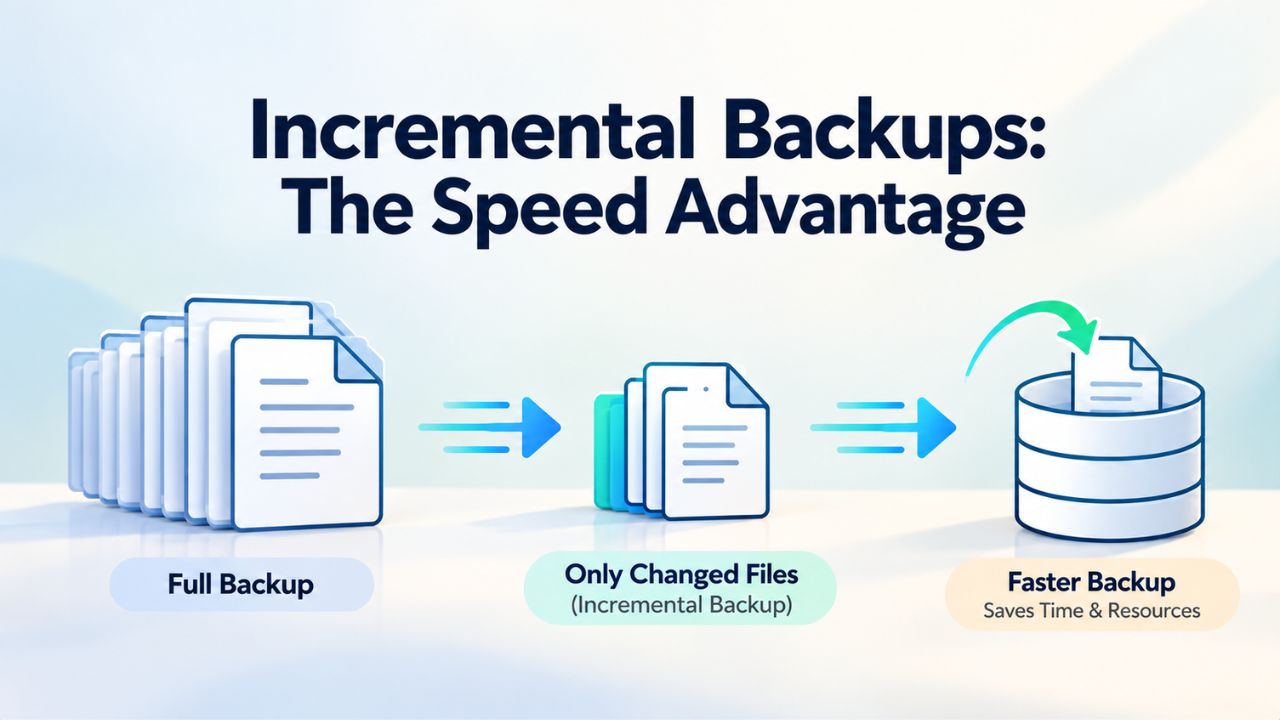
Incremental backups copy only the files that have changed since the previous backup. Instead of reading your entire site every day, the backup tool compares your current site to the previous day’s backup, identifies what’s new or different, and backs up only those changes. This uses far less server resources, far less storage space, and finishes in a fraction of the time.
For example, if your site is 2 GB and only 50 MB changes daily, the incremental backup needs only 50 MB of work, not 2 GB. Daily full backups, by contrast, require reading and processing all 2 GB every single day. Over a week, incremental backups might total 300 MB of data (50 MB × 6 days plus one full backup), while daily full backups would be 14 GB. The efficiency difference is dramatic.
Full Backups Still Matter
Incremental backups alone can’t stand alone indefinitely. A long chain of incremental backups without a fresh full backup increases restore time because the system must replay every incremental change on top of the last full backup. Additionally, if any backup in the chain is corrupted, the entire chain from that point forward becomes unreliable. A common best-practice strategy is daily incremental backups combined with weekly full backups. This balances speed, server load, storage usage, and restore time perfectly.
Here’s how the strategy works in practice: Run a full backup every Sunday (or your lowest-traffic day). Monday through Saturday, run incremental backups that capture only changes since Saturday. To restore, pull the most recent full backup and the incremental backups after it, then replay them in order. This gives you restore capability to any day while avoiding the daily performance penalty of full backups.
| Backup Strategy | Best For | Server Impact | Restore Time | Storage Use |
|---|---|---|---|---|
| Daily full backups | Small sites (under 1 GB) with hourly data changes | High server load daily | Instant (single file) | Grows quickly; requires purging |
| Daily incremental + weekly full | Most websites (1–10 GB) with moderate updates | Low server load; higher only on weekly full | 5–20 minutes (chains incrementals) | Balanced; sustainable long-term |
| Daily database-only + weekly full-site | High-traffic sites with frequent content updates | Minimal daily load; moderate on weekly full | 1–3 minutes (DB) + 15 min (full) | Efficient; essential data daily |
| Hourly backups (e-commerce/SaaS) | Mission-critical with active transactions | High daily server load; mitigated by cloud backup | Immediate (single backup) | Large; requires cleanup policies |
| Weekly full backups only | Small static sites, quarterly updates | Single large load weekly | 20+ minutes (entire chain required) | Minimal; suitable for low-change sites |
| Monthly full + quarterly incremental | Archive/compliance use; infrequent changes | Rare, predictable peaks | 30+ minutes; longer chains | Very low; archive-focused |
| On-demand only (manual backups) | Tiny static sites, development/testing | No scheduled load; user-initiated | Manual restore time | Minimal; non-recurring |
When Your Hosting Can’t Keep Up: Upgrade vs. Switch
At some point, you may need to accept that your current hosting can’t deliver fast backups because its infrastructure is fundamentally constrained. Knowing when to upgrade or switch hosting can save months of frustration with slow backups and poor performance.
Signs Your Hosting Is the Problem
If your site is small (under 1 GB), backup should take 2–5 minutes on any reasonable hosting. If yours consistently takes 30+ minutes, your hosting’s disk I/O or server resources are severely constrained.
If you share hosting with many other sites, performance naturally varies by server load; times when lots of sites are active simultaneously will be slower. If backups fail after hours of running, or finish but restore fails, your hosting’s stability or resource limits are the issue. If you’ve adjusted PHP settings and reduced backup scope and it’s still slow, the hosting itself is the limiting factor.
Upgrading vs. Switching
Contact your hosting provider first and request higher resource allocations: better PHP limits, higher memory, increased execution time, and disk I/O testing. Some providers will upgrade you within your current plan tier or to a better plan at minimal cost. If not, the incremental cost of better hosting, often $5–15 more per month, is trivial compared to the cost of a single hour of downtime, which can cost hundreds to thousands of dollars depending on your business.
For most sites, switching to a managed backup service eliminates this problem by running backup infrastructure on the provider’s powerful servers, not on your shared hosting. The backup process happens off your server, so your hosting’s resources are never strained, and backup speed is determined by the backup service’s infrastructure, not your hosting.
Automated Managed Backups: Skip the DIY Headaches
At this point, you’ve learned what causes slow backups and how to fix them yourself. But you can choose a simpler option: let a managed backup service handle optimization, monitoring, and testing so you don’t have to.
How Managed Backups Handle Performance
Niya Digital’s Website Backup Service, powered by CodeGuard (GoDaddy Website Backup)’s infrastructure, runs backups on the service’s own cloud servers, not on your hosting. This means backup speed doesn’t depend on your hosting provider’s disk I/O or resource limits. The backup process is optimized, monitored, and tested automatically, with no manual scheduling, PHP tweaking, or DIY testing required.
CodeGuard uses an incremental approach with daily automatic backups and on-demand backup capability, storing backups in encrypted off-site cloud storage. Your site’s data is never at risk if your hosting server fails, because backups live on entirely separate infrastructure. Niya Digital’s team has found that customers who switch from DIY backups to managed services often discover their previous backups had never been tested and likely would have failed in a real emergency. This discovery should happen in a managed setting, not at 2 AM during an actual crisis.
One-Click Restore and Hands-On Support
Managed services also handle the restore process. With CodeGuard’s one-click restore, you can recover your entire site to a previous point in time without downloading files, extracting archives, or coordinating with your hosting provider.
The restore happens on the service’s infrastructure and is delivered back to your hosting; you don’t have to do the technical work. If something goes wrong during a restore, Niya Digital’s support team can guide you through it or handle it hands-on, which is often faster than wrestling with cPanel at 3 AM during an actual emergency.
Monitoring & Alerts So Slow Backups Don’t Go Unnoticed
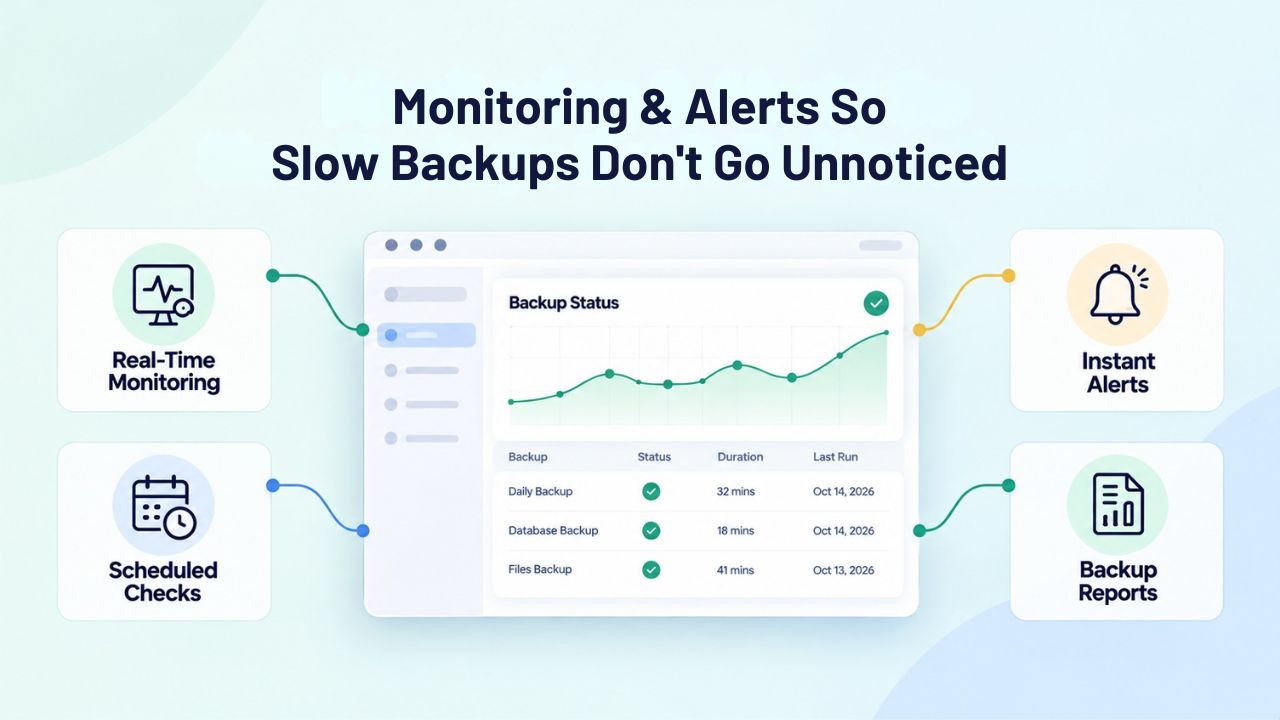
The final critical piece of backup health is knowing when something goes wrong. Silent failures, backups marked complete that never actually finished, or backups that complete but would fail during restore, are the most dangerous because you don’t know about the problem until an emergency strikes and you need that backup.
Setting Up Backup Status Notifications
Most backup tools can email you when a backup completes, fails, or takes longer than expected. Enable these notifications immediately. If your backup consistently arrives later than usual, or if you get a “backup failed” email, something has changed: either your site grew significantly, your hosting resources tightened, or a new plugin is slowing backup performance. Early notification means you can fix the problem before it becomes critical.
Review the notification settings and make sure they’re tuned to alert you to real problems without overwhelming you with noise. Configure alerts for backup failures, backups that take longer than usual, and backup files that are suspiciously smaller than expected (which might indicate incomplete backups).
Logging and Backup History
Review your backup logs regularly, not obsessively, but monthly. Look for patterns: backups that finish at consistent times (healthy), backups that gradually take longer over weeks (indicating site growth; you should adjust settings), or backups that sometimes fail (indicating hosting stability issues). Backup logs provide the diagnostic information you need to understand what’s happening and when problems started occurring.
Keep logs for at least three to six months so you can identify trends. If backups started getting slower three months ago, what changed in your site or hosting around that time? Did you add a large plugin? Did your hosting add more sites to your shared server? Did you change backup settings? Historical logs help you correlate changes with performance shifts.
| Backup Performance Issue | Typical Cause | Recommended Fix |
|---|---|---|
| Backup takes 45+ minutes (small site) | Low disk I/O (under 2 MB/sec) | Contact hosting; request I/O upgrade or switch to higher-performance provider |
| Backup stuck at 17–79% (never completes) | PHP memory_limit too low | Increase memory_limit via cPanel to at least 256 MB above backup size; test |
| Backup completes but restore fails | Corruption or incomplete capture | Test a backup on staging environment; check backup logs for errors during capture |
| Live site slows during backup window | Backup consuming server resources | Schedule backups during off-peak hours; enable resource-limiting if available |
| Backup succeeds, but database corrupted | Database lock during backup | Enable on-site database-lock bypass; use incremental-only for frequent database changes |
| Backup size unexpectedly large | Excluded files not configured; temp files included | Audit backup scope; exclude logs, caches, and unnecessary directories |
| Restore to staging works; to production fails | Hosting environment differences | Confirm memory and PHP settings match between staging and production environments |
Staging and Test Restores on a Schedule
Beyond notifications and logs, schedule a restore test quarterly on your calendar. This is the gold standard for catching backup failures early before they matter. Pick a random backup from three weeks ago (not yesterday), restore it to a staging environment, verify the site works, then delete the staging copy. Do this on your calendar as a recurring task, like a fire drill. It takes 30 minutes and catches 95% of backup failures before they become emergencies.
The quarterly schedule gives you regular confidence that your backups work without requiring constant testing. If your site changes dramatically (major plugin update, theme change, database migration), test after the change. The key is that any significant change to your site’s structure warrants a test restore to confirm backups still work correctly with your new configuration.
Protect Your Backups with Professional Monitoring
Testing backups quarterly is essential, but wouldn’t it be easier if your backups were monitored, tested, and verified automatically, every single time? Niya Digital’s Website Backup Service handles the optimization, testing, and restoration so you can focus on running your business instead of troubleshooting slow backups at 3 AM.
Frequently Asked Questions
Why does my backup fail at the same percentage every time (like 17%)?
This symptom typically indicates a PHP memory_limit issue. The backup process runs out of memory at that exact point every time because the same amount of data is being processed before hitting the limit. Increase your PHP memory_limit (via cPanel MultiPHP INI Editor) to at least 256 MB more than your backup size, then test again. If you can’t access the settings, contact hosting support to adjust.
Is there a difference between a slow backup and a backup that’s stuck?
Yes, they’re different problems. A slow backup that takes 2 hours but eventually completes is working, just inefficiently, likely due to disk I/O or server load. A stuck backup freezes at one percentage and never moves; it’s usually caused by memory limits, execution timeouts, or network interruptions. Check error logs and backup reports to tell the difference.
Can I test a backup without restoring it to a full staging environment?
Partially, but it’s not as reliable. You can download a backup, unzip it locally, and inspect the file structure to confirm files are present and the archive isn’t corrupted. But this doesn’t test whether the database would actually restore or whether your site would function after restoration. True backup testing requires a full restore in an isolated environment.
How often do I need to test backups?
For daily backups, test at least quarterly by picking a random backup and doing a full restore test. For weekly or monthly backups, test quarterly. For e-commerce or sites with critical data, test monthly. If your site changes dramatically (major updates, new functionality), test after the change. A backup that worked three months ago might fail today if your site architecture changed.
Will switching to a managed backup service make my site slower?
No. Managed backups run entirely off your server on the service provider’s infrastructure. Your site experiences zero performance impact during the backup window. This is the opposite of on-site backup tools, which do consume server resources and can slow your site during backups.
What should I do if a backup restore test fails?
Contact your backup provider’s support immediately. Provide the backup log, the error message from the restore attempt, and your site’s details (CMS, size, number of plugins). Most providers can diagnose the failure quickly (corruption, missing files, database issues) and help you restore a different backup or recover the failed one.
If my first backup is huge, does every future backup have to be?
No. Only the first backup needs to capture everything because it’s a full backup. Subsequent backups are incremental and capture only changes, which typically represent 1–5% of your full site size. This is why incremental backups are dramatically faster than full backups.
Can I exclude certain files from my backup to speed it up?
Yes. Exclude cache directories, temporary folders, old backup archives, and any large files you don’t need for recovery. For WordPress sites, safely exclude: /wp-content/cache, /wp-content/backup*, /tmp, and log directories. Audit your exclusion list to speed things up without compromising restore capability. Removing just cache can cut backup size by 10–20%.
How do I know if my hosting provider’s disk I/O is the problem?
Ask your hosting provider to check your disk I/O speed. If it’s under 2 MB/sec, it’s a bottleneck. If they can’t or won’t check, that’s a sign they don’t prioritize performance. Switching hosting providers often solves slow backup problems permanently by giving you faster I/O capacity.
What’s the minimum backup frequency I should use?
For most sites, daily backups are standard. If your site changes monthly or less, weekly backups might be acceptable. For e-commerce, membership sites, or content that changes constantly, daily is the minimum; hourly is better if available. Backup frequency should match how much data loss you can tolerate (your Recovery Point Objective or RPO).
If a backup is large, how much storage space do I need?
Off-site cloud backup storage through managed services is typically unlimited or plan-based, so you don’t manage this yourself. If storing backups locally, keep at least 3–4× your site size to maintain multiple versions (daily for a week, weekly for a month, monthly for a year).
Does backing up during off-peak hours make backups faster, or just less disruptive?
Off-peak scheduling doesn’t make the backup process itself faster; your hosting still takes the same time to read files. But because fewer users are on your site, the backup doesn’t compete for server resources, so your live site doesn’t slow down. Backups complete unnoticed rather than disrupting visitors.
Should I back up my WordPress plugins, or can I restore them from the repository?
Back up everything. Your plugin settings, customizations, and configurations live in the database and plugin directories. Restoring from the repository would lose all your setup. Back up your entire site to restore everything exactly as it was, not just the plugin files.
What’s the actual cost of a slow backup in lost productivity?
For a team of five, spending 30 minutes waiting for a stuck backup or troubleshooting it costs $150–250 in salary time. For a team of 20, that’s $600–1,000. Multiply that across dozens of slow backup incidents each year, and managed backups often pay for themselves in troubleshooting time alone, without even counting the risk of data loss.
Can I automate backup testing so I don’t have to do it manually?
Yes. Some backup services, including managed providers, offer automated restore testing on a schedule. This is a premium option but eliminates the quarterly manual drill. For DIY backups, you can write scripts to restore to a test database, but this requires technical expertise and infrastructure.
Glossary
- Backup: A complete or partial copy of your website’s files, database, and configurations stored separately from the original server. Backups allow recovery if the original is corrupted, deleted, hacked, or lost to server failure.
- Incremental Backup: A backup that captures only files or database records that changed since the previous backup, rather than copying the entire site. Incremental backups are faster and use less storage than full backups because they process only new or modified data.
- Full Backup (or Full Site Backup): A complete backup of all files, databases, configurations, and settings on your website. The initial backup is always full; subsequent backups can be incremental to save time and resources.
- Off-Site Storage (or Cloud Backup Storage): Backup data stored on remote servers owned and managed by the backup provider, not on your hosting server. Off-site storage protects against server failure, data center disasters, or hosting provider outages.
- Restore Point: A specific point-in-time snapshot of your website (e.g., backup from Tuesday, Thursday, etc.) that you can restore to if needed. Multiple restore points let you choose an exact moment before a problem occurred or an unwanted change was made.
- Retention Period (or Backup Retention): How long backups are kept before being deleted or archived. A 30-day retention means you can restore to any point in the last 30 days; a 90-day retention extends this to 3 months.
- Database Backup: A backup of only your website’s database (where all content, users, posts, and settings live), separate from file backups. Database backups are typically smaller and faster than full backups but restore only data, not files, themes, or plugins.
- Disk I/O: How fast your hosting server can read and write data to its storage drives. Disk I/O is often the primary bottleneck for backup performance on shared hosting. Faster I/O means faster backups.