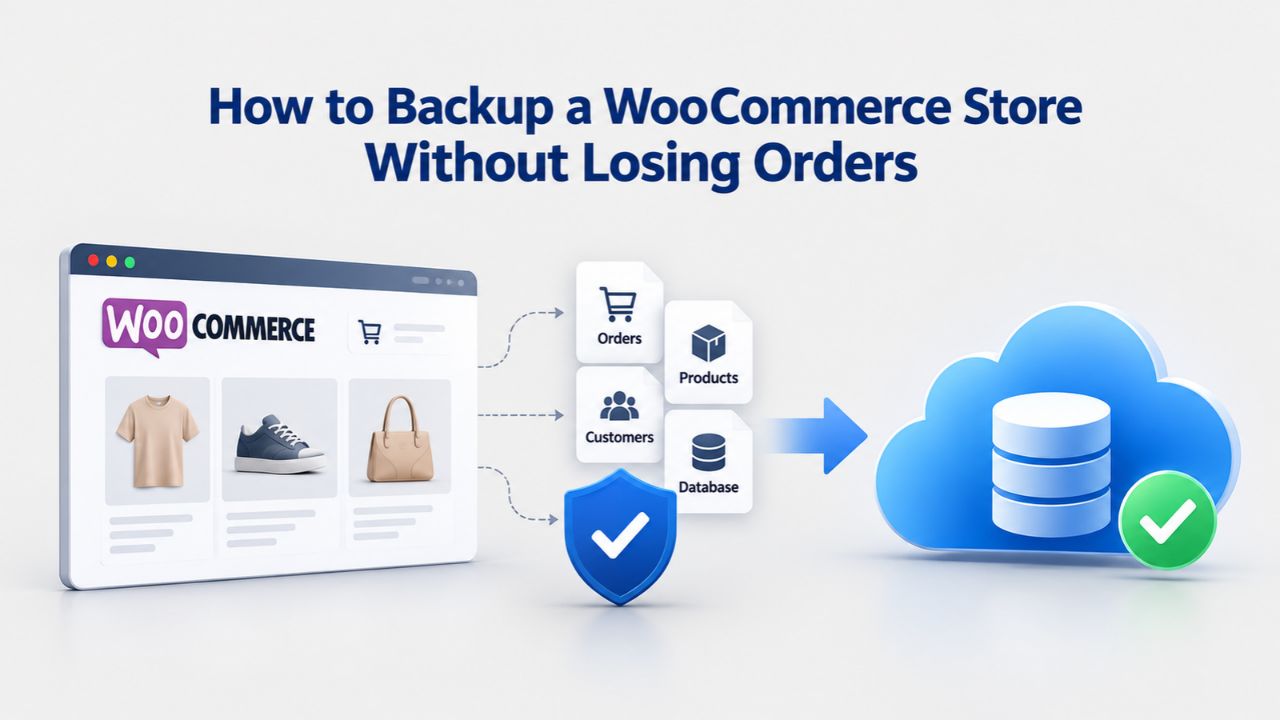
Your checkout process runs smoothly until a routine plugin update breaks everything. You reach for yesterday’s backup, restore it, and realize your orders and customer data have vanished. WooCommerce backups differ fundamentally from regular WordPress sites because orders live in your database, not your files. Understanding this critical distinction and implementing a proper backup strategy protects your entire sales history and customer trust.
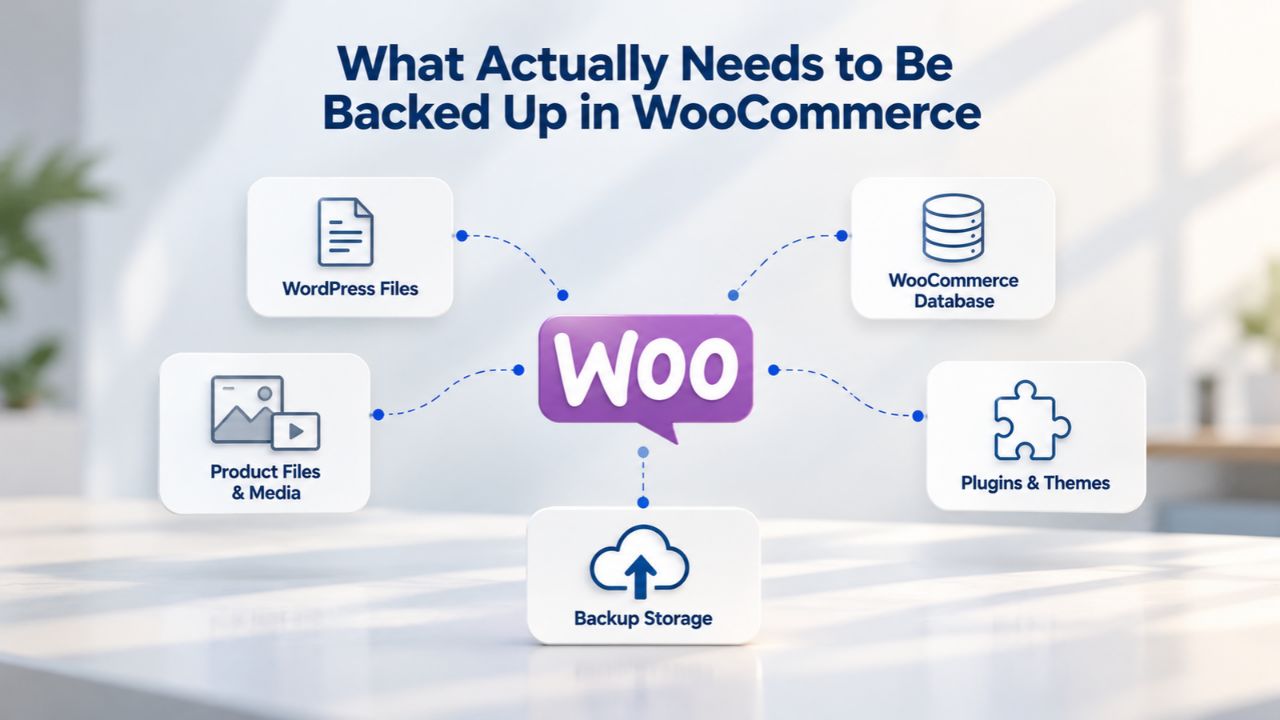
What Actually Needs to Be Backed Up in WooCommerce
WooCommerce stores comprise two separate, equally critical layers that must be protected together. Backing up only one leaves you catastrophically vulnerable, even if the process appears to have succeeded.
Your Website Files vs. Your Customer Data
Your website’s files, themes, plugins, images, and configurations live in your web server’s file system. These are the visible components your customers see: product pages, checkout forms, your branding, navigation menus, and media galleries. Most website backup services capture these files without difficulty. However, here’s where confusion strikes: your orders, customers, products, and settings live in your database, not in those files.
A backup solution that copies only your files and ignores your database is functionally useless for true recovery. When you restore such a backup, your store appears intact, pages load normally, images display correctly, the site structure looks perfect, yet every order, every customer record, every transaction detail is gone. This creates a dangerous false sense of security. Store owners believe they’re protected when they’re not.
A genuine, complete Website Data Backup for WooCommerce means capturing both your website files AND your entire database together, captured at the same precise moment in time. This synchronization is critical. If one component is backed up at noon and the other at 1 p.m., you end up with mismatched data that cannot be reliably restored. Your restored store might claim to have orders that don’t actually exist in the database, or your product inventory counts won’t match what the system thinks is in stock. Payment records might reference transactions that disappeared from the database. This data inconsistency can corrupt your store far worse than having no backup at all.
Why WooCommerce’s Database Structure Demands Complete Backups
Modern WooCommerce installations use a feature called High-Performance Order Storage (HPOS), which became the default for new stores starting with WooCommerce version 8.2. HPOS fundamentally changed where order information lives in the database. Instead of storing orders in the general-purpose WordPress post tables (as in earlier versions), HPOS keeps order data in dedicated, specialized database tables optimized for high-volume transactional stores. This architectural redesign provides significant performance benefits, faster queries, and better reliability for stores processing many orders daily.
However, this architectural shift means a partial or incomplete database backup can catastrophically miss your entire order history. If your backup solution doesn’t understand HPOS structure, or if you’re running an older backup plugin that only backs up traditional WordPress database tables while skipping the HPOS-specific tables, you’ll restore your store only to discover your entire order history vanished- every order, every customer payment, every transaction detail erased.
Niya Digital’s team has found through countless restore situations that store owners frequently don’t realize they’re missing orders until they try to restore, and by then it’s too late to go back and fix the backup strategy. Automated website backups that include your complete database structure, including HPOS tables, eliminate this catastrophic risk by capturing everything WooCommerce needs to function properly.
Website Backup Plans & Pricing
Select the Website Backup package that best fits the size and peace of mind requirements of your website. Your data is safeguarded without going over budget thanks to our adaptable choices.
Website Backup 5 GB
Recommended for documents and files.
- Automatic daily backups
- Built-in daily malware scanning
- Back up a file, folder or an entire database
- Continuous security monitoring
- Downloads to local storage
- Easy one-click restore
- Secure cloud storage
- Expert 24/7 customer support
- One website per account

Website Backup 25 GB
Recommended for photos and music.
- Automatic daily backups
- Built-in daily malware scanning
- Back up a file, folder or an entire database
- Continuous security monitoring
- Downloads to local storage
- Easy one-click restore
- Secure cloud storage
- Expert 24/7 customer support
- One website per account
Website Backup 50 GB
Recommended for videos and multimedia.
- Automatic daily backups
- Built-in daily malware scanning
- Back up a file, folder or an entire database
- Continuous security monitoring
- Downloads to local storage
- Easy one-click restore
- Secure cloud storage
- Expert 24/7 customer support
- One website per account
How Often Should You Back Up Your WooCommerce Store
The ideal backup frequency for your store isn’t determined by a one-size-fits-all rule that applies equally to everyone. Instead, it’s determined by a single, fundamental business question: How much order data can you afford to lose between backups?
Matching Your Backup Frequency to Your Store’s Order Volume
A WooCommerce store processing fifty orders a day operates under completely different circumstances than a store selling a few items monthly. Industry guidance suggests e-commerce sites need at least daily backups as a baseline, and many high-volume stores benefit dramatically from multiple backups per day to minimize potential data loss. The principle is straightforward: the more frequently orders flow through your store, the more often you need to capture snapshots. E-commerce businesses processing dozens of orders per hour benefit from up to four daily backups, which shrinks the worst-case data-loss window from a full 24 hours to about six hours.
Think about this scenario concretely: imagine your server crashes at 2 p.m. tomorrow. With a daily backup taken at midnight, you’ve lost up to 14 hours of orders, stock updates, customer registrations, and payment information. For stores processing orders constantly throughout the day, that represents significant lost revenue and customer data that’s simply unrecoverable. For stores with only occasional orders, this might be acceptable. But for any store with steady transaction flow, 14 hours of data loss becomes increasingly painful. The table below outlines typical backup frequency recommendations based on store activity level and order volume:
| Store Activity Level | Daily Order Volume | Recommended Backup Frequency | Worst-Case Data Loss Window | Why This Matters for Your Business |
|---|---|---|---|---|
| Low activity (occasional sales) | Fewer than 5 orders/day | Daily backups | Up to 24 hours | Lost orders inconvenient but manageable for slow-moving or seasonal stores |
| Medium activity (regular orders) | 5 to 50 orders/day | Daily to twice-daily backups | 6 to 24 hours | Balances strong protection against data loss with reasonable storage and processing costs |
| High-volume (dozens of orders hourly) | 50+ orders/day | 3 to 4 daily backups | 1 to 6 hours | Every hour of lost data has direct revenue impact and affects customer satisfaction metrics |
| Seasonal or campaign periods | Highly variable | Increase frequency temporarily during peak periods | Variable by campaign | Sales events and product launches see dramatically higher activity; adjust backup frequency accordingly |
Calculating Your Optimal Backup Schedule
Backup frequency should match how often your store’s data changes, not a generic rule everyone follows regardless of circumstances. The practical test is straightforward: if losing orders between your last backup and a server crash would have a significant financial impact or require extensive manual recovery and customer outreach, you’re not backing up often enough. For most actively selling stores, that means at minimum a daily backup. For high-volume stores where every hour of lost orders represents measurable revenue loss, it means multiple daily backups. Consider your store’s peak sales periods, typical transaction volume, and the cost of losing a day’s orders; that calculation determines your optimal frequency.
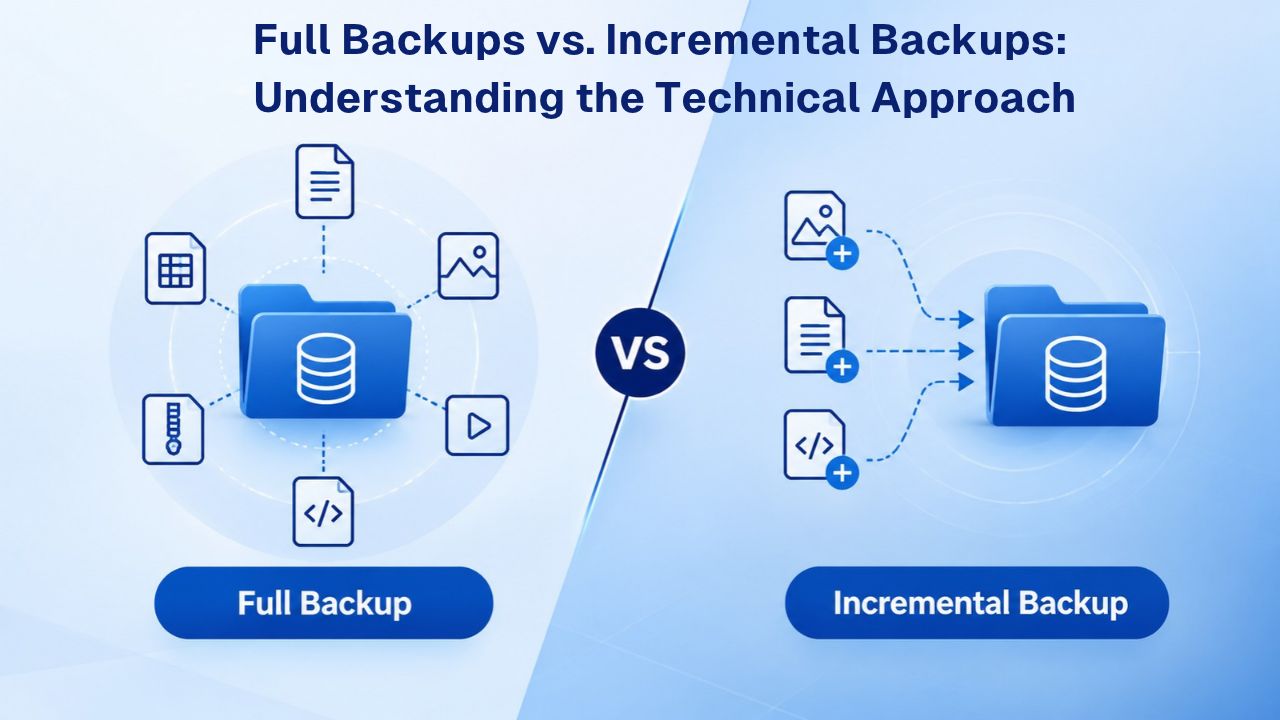
Full Backups vs. Incremental Backups: Understanding the Technical Approach
Once you’ve determined how often your store needs protection, the next critical decision is which backup methodology best fits your situation and technical environment.
How Full Backups Function and Their Trade-Offs
A full backup creates a complete snapshot that captures every file and every database record at that moment. Full backups are conceptually simple to restore; you select that one backup point, restore it, and your entire store returns to that moment. Full backups make restoration uncomplicated because you’re working with a single, self-contained package rather than a chain of dependent incremental pieces.
However, full backups come with significant trade-offs that become increasingly problematic for larger stores. Full backups run slowly because they must copy every file and every database record, regardless of whether anything changed since the last backup. Full backups consume enormous storage space, particularly for established stores with years of accumulated orders, thousands of product images, and massive databases. If your WooCommerce store has grown to several gigabytes of data, running a full backup every day might take hours and consume prohibitive backup storage space. For stores storing months or years of backups for compliance or recovery purposes, full backups multiply the storage burden exponentially.
How Incremental Backups Optimize Resources
An incremental backup captures only the data that has changed since the last full or incremental backup. Practically speaking, if your WooCommerce database is 500 GB but only 50 GB of new orders, updated product listings, customer registrations, and configuration changes occurred since your last backup, the incremental backup captures only those 50 GB of changes rather than re-copying the entire 500 GB database. This approach runs exponentially faster and uses vastly less storage space, which becomes increasingly valuable for stores running multiple daily backups.
The trade-off during restore operations is that incremental backups require more complexity. To restore from an incremental backup, you must first apply the original full backup to your store, then layer on every incremental backup that occurred between that full backup and your target restore point, in sequence. This sequential application takes longer than restoring a single full backup file, but for most WooCommerce emergencies, the recovery time is still fast enough to matter.
For high-churn stores like WooCommerce sites with constant order flow, incremental backups are often the better strategic choice because they enable you to capture multiple backups daily without overwhelming your server resources or storage infrastructure. CodeGuard (GoDaddy Website Backup), which powers Niya Digital’s Website Backup Service, uses incremental backup methodology to let stores maintain daily or even more frequent backups efficiently and sustainably.
Where Your Backups Should Live: The Critical Case for Off-Site Storage
A backup stored on the same server as your live website isn’t actually a backup in any meaningful sense. It’s simply a copy that disappears the moment your server fails, and it’s vulnerable to the same threats as your live site.
Why Hosting-Server-Local Backups Fail You
Imagine your hosting provider’s data center catches fire, suffers a major power grid failure, gets hit by a targeted ransomware attack, or experiences a catastrophic hardware failure that brings down the entire facility. Every file on that server- your live website, your backup copies, your configuration files- is gone simultaneously. If you store your backup copies locally on that same server, you’ve lost both your live site and your recovery strategy at the same moment. You have nothing to restore from because the only copy of your backup was sitting on the server that just failed.
This scenario isn’t theoretical. Hosting facilities experience fires, power failures, ransomware attacks, and catastrophic hardware failures every year. The risk isn’t whether such events happen; they absolutely do, but whether your backup strategy accounts for this inevitability. Secure off-site backup storage, typically in the cloud, keeps your data in a separate geographic location with its own independent redundancy and security measures, protected by different infrastructure, power grids, and security systems than your primary hosting provider. This geographic and infrastructure separation is essential for genuine protection against hosting-level disasters.
How Cloud Redundancy Protects Your Recovery Options
CodeGuard (GoDaddy Website Backup) replicates backup data across secure cloud locations to protect against single points of failure. When your backup data is replicated across multiple independent geographic locations, even if one data center becomes unavailable, your backups still exist unaffected in other locations. When your hosting provider experiences downtime, your backups remain safe and accessible in completely separate infrastructure. This geographic redundancy and multi-location replication is precisely what distinguishes a genuine backup solution from a false sense of security.
This is why established backup services store copies offsite rather than locally. It’s not just convenient; it’s essential for recovery when disaster strikes. Local backups appear to work fine during normal operations, creating false confidence that you’re protected. But when hosting-level disasters occur, locally stored backups provide zero protection because they’re destroyed by the identical event that destroyed your live site.
Backup Retention: How Long Should You Keep Historical Copies
Maintaining backup copies requires ongoing storage and associated costs. Deleting copies too quickly leaves you vulnerable to problems you haven’t yet discovered. Finding the optimal retention window means balancing protection against storage costs.
Retention Windows by Business Scenario
Most WooCommerce stores benefit strategically from keeping 30 days of daily backup copies available. This retention window gives you approximately a month to notice a problem, whether a malware infection, data corruption, accidental deletion by team members, or plugin conflicts causing data issues, while still having a clean backup from before the problem occurred. If you don’t notice an issue for two weeks, you can restore from a backup taken 20 days ago, before the damage began. This 30-day retention window provides meaningful protection against most common disaster scenarios without excessive storage overhead.
Stores with higher transaction volumes or more complex operations sometimes maintain 60, 90, or even 180 days of backup retention, providing more historical depth and flexibility for recovery. This longer retention costs more in storage but buys significantly more flexibility when investigating historical data issues or recovering from problems that go unnoticed for extended periods. Seasonal stores might strategically keep longer retention during and immediately after peak seasons when order volume and transactions are highest, then reduce retention during slower periods. CodeGuard (GoDaddy Website Backup)-powered backup services typically offer configurable retention policies, allowing each store to keep as much historical backup data as its business needs without forced one-size-fits-all limitations.
Strategic Retention Planning by Store Type
The key principle underlying any retention strategy is matching retention period to your business cycle and risk tolerance. If you’re a retail store with significant seasonal variation, you might keep 90 days of backups during peak season when order volumes spike, then reduce to 30 days during slower periods. If you’re running product launches or major sales campaigns, temporarily increase your retention during those high-activity periods. This flexible, strategy-based approach to retention protects what matters most, your peak-season data and campaign data, while controlling costs during slower business periods.
Ready to Protect Your WooCommerce Store
A single failed backup or a day without successful protection could cost you orders, permanently damage customer trust, and cause irreversible revenue loss. Niya Digital’s Website Backup Service combines automated daily backups of your complete WooCommerce database and files with secure off-site cloud storage and hands-on technical support if you ever need to restore. Set up protection today and rest assured your store is covered.
Automated Backups vs. Manual Backups: Why Automation is Essential
Manual backup processes fail with predictable consistency. They fail because they depend on human discipline and memory. They fail because they’re easy to forget, easy to skip during busy periods when the store experiences peak activity, and easy to set up incorrectly without immediately obvious feedback.
The Fundamental Advantages of Automated Backup Systems
An automated Website Backup runs on a schedule you establish and configure- daily, multiple times per day, whatever your store’s protection needs demand- operating entirely hands-off without requiring manual intervention or memory. Automation doesn’t depend on you remembering to execute the backup manually on Friday evening before the weekend, doesn’t get skipped when you’re overwhelmed with customer orders, and doesn’t get delayed because you traveled or got distracted. Automated backups start, run, and complete whether you’re watching, paying attention, or even aware it’s happening.
Automation also provides critical feedback mechanisms that manual backups lack entirely. With automated backup services, you receive email notifications if a backup fails to complete successfully. This closed-loop feedback mechanism is essential for WooCommerce stores where a day without a successful backup is genuinely risky. A manual backup might fail silently, leaving you thinking you’re protected when you’re actually vulnerable. You might run a backup command, assume it completed successfully without ever verifying it actually worked, and discover weeks later that the backup never captured your data. Automated services eliminate these blind spots by alerting you immediately if anything goes wrong, so you can investigate and fix problems before they escalate into disasters.
Why Manual Backup Procedures Consistently Fail
Manual backup procedures require discipline, consistency, and follow-through from team members. In reality, they get postponed during busy periods when you’re processing peak order volumes. They get forgotten when you’re traveling or away from the office. They get skipped entirely when a team member who knew the process leaves your organization. Even when manual backups do run, they often lack monitoring and verification. You might create a backup, store it somewhere, and never actually verify it succeeded or contains usable data. An automated backup service with comprehensive failure notifications, monitoring, and testing removes these human-factor vulnerabilities, ensuring your store stays protected whether your team is focused on backups or managing customer orders.
Testing Your Backups Before You Need Them: The Step Most Stores Skip
Here’s the uncomfortable truth in countless WooCommerce support conversations: many store owners maintain backups they’ve never actually tested. They assume their backup plugin or service works based on success messages and completion notifications, until the moment they need to restore and discover it doesn’t actually work.
Why Restoration Testing is Mandatory, Not Optional
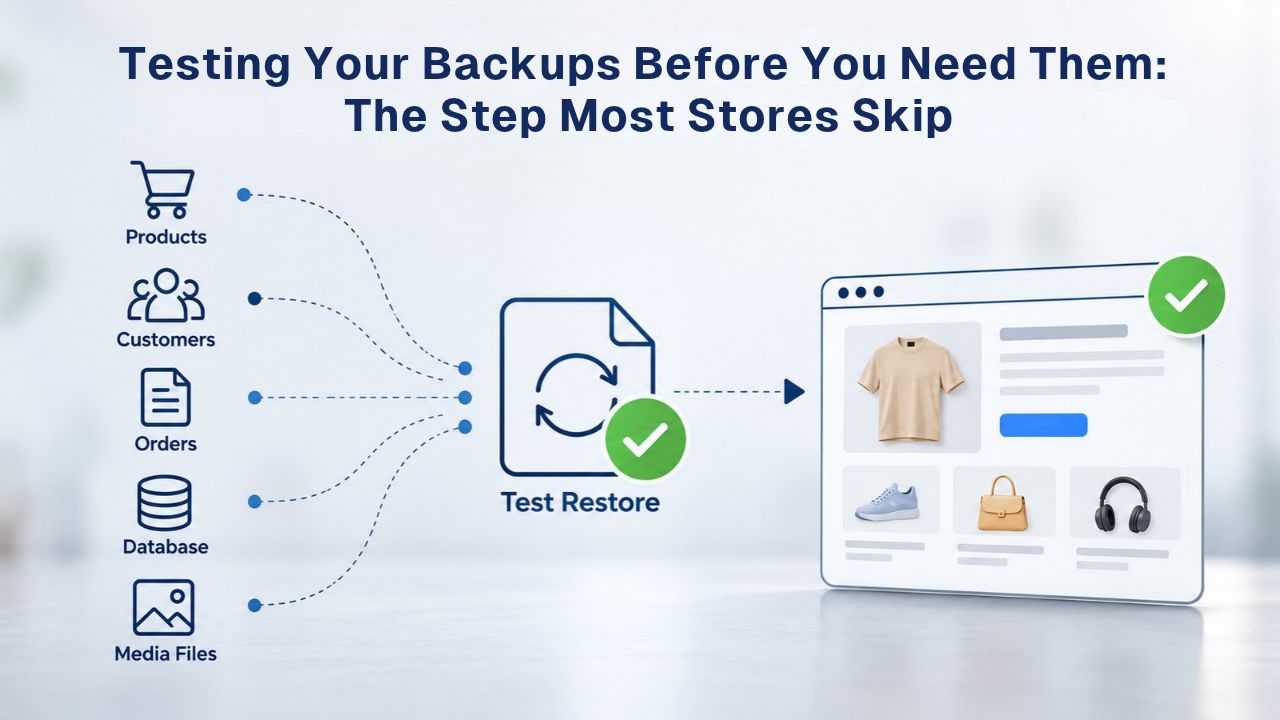
A backup is genuinely only as good as its last successful restore. You need to know your backup system works before your store is down, your customers can’t shop, and you’re under emergency pressure. Testing backups on your live website is dangerous and disruptive, and it can affect customers actively shopping. This is where staging environments become essential: a hidden test copy of your store that mirrors your live site but exists separately, so you can safely experiment, test restores, and verify everything works without affecting visitors or transactions.
Best practice for backup testing calls for testing a restore to your staging environment at least quarterly, and specifically within 48 hours of any major plugin update or WooCommerce version upgrade. When you perform a test restore, verify that products display correctly with proper pricing and descriptions, that payment gateways are configured properly and can process test transactions, and that you can actually place, process, and complete a test order from start to finish. If any of these critical functions fail during your test restore, your backup has underlying issues you need to diagnose and fix before you actually need emergency recovery.
How Staging-Based Testing Prevents Catastrophic Failures
CodeGuard (GoDaddy Website Backup) includes automated staging environment features that let you test a restore to your staging site before applying it to your live store, removing guesswork and manual effort from the testing process. This feature alone prevents most serious restore failures because you catch configuration issues, missing data, or compatibility problems in a safe staging environment rather than discovering them during a live emergency when your store is already down and customers can’t shop. Testing in staging transforms backup restoration from a risky gamble into a verified, rehearsed process.
Restoring a WooCommerce Backup: Understanding the Process
When disaster strikes and you need to restore from backup, understanding how the restoration process works reduces panic, speeds recovery, and helps you choose the right backup point.
The Complete Restore Process, Step by Step
First, you select which backup point you want to restore to, based on when you believe your store was last in a healthy state. If your store was hacked on Tuesday but you didn’t notice the compromise until Thursday, you’d restore to Monday’s backup, from before the attack occurred. If a plugin update on Wednesday broke your checkout functionality, you’d restore to Tuesday’s backup from before the update was applied. This decision determines how much data you’ll recover and how much recent activity you’ll lose.
Next, the backup service restores both your site files and your database to match that earlier point in time. Your entire store, all products, all orders, all customer data, all configuration settings, reverts to exactly how it was at that earlier moment. Any orders taken after that backup point are permanently lost (another compelling reason backup frequency matters), and any changes you made to products, prices, descriptions, or settings are undone.
This is why you always restore to the latest clean backup available, not to a point unnecessarily far in the past. The restoration process itself typically takes anywhere from minutes for small stores to several hours for large stores with multi-gigabyte databases. During restoration, your site is usually offline and inaccessible to customers.
Professional Support During Emergency Restoration
Some backup services offer concierge restore options where trained technicians handle the entire restoration process, significantly reducing your stress and eliminating the risk of human error during a crisis. Instead of navigating the technical restoration process yourself under emergency pressure, experienced technicians handle the details so you can focus on communicating with customers and managing business continuity. This hands-on support during restoration makes a meaningful difference, especially for store owners without deep technical expertise.
What Doesn’t Get Recovered and Why
It’s critical to understand that orders placed after your last backup are gone permanently; they don’t exist in any backup, so they cannot be recovered. This is yet another powerful argument for why backup frequency matters directly to your bottom line: if you’re only backing up weekly, a server failure on Friday means losing a full week’s worth of orders. If you’re backing up daily, you lose at most one day of orders. Plan your backup frequency around this straightforward principle: whatever data volume you lose between backups should be acceptable to your business. For most selling stores, losing a day of orders is painful but manageable. Losing a week of orders could be catastrophic.
Common Mistakes That Wipe Out Order Data in WooCommerce
Several consistently recurring patterns lead to WooCommerce backup failures. Understanding these mistakes helps you specifically avoid them when implementing your backup strategy.
Incomplete or Misconfigured Backups That Miss Critical Data
The most common failure mode affecting WooCommerce stores is this: a backup plugin backs up your WordPress website files but doesn’t include the database, or includes only part of it. When you restore this incomplete backup, your site looks visually fine after restoration, the pages load, images display, navigation functions correctly, but every order and every customer record vanishes. This happens when someone misconfigures their backup plugin, selects a “files only” backup option without understanding that orders live in the database, or runs an older backup solution incompatible with HPOS structures.
Large WooCommerce stores with years of accumulated data frequently encounter PHP memory limit errors and backup timeouts. The backup plugin starts, runs partway through capturing data, then exhausts the server’s available memory before finishing. The backup fails silently or partially, leaving you thinking you’re protected when you’re actually not. The backup status might show “failed,” but you might not notice the notification immediately. Managed backup services like CodeGuard (GoDaddy Website Backup) handle large stores far more reliably because they run outside your hosting account’s resource constraints.
Untested, Unmonitored, and Unprotected Backups
Your backup runs automatically every day, status notifications say it succeeded, but you’ve never actually restored one to verify it works. When you finally need it, something is broken: corrupted files, configuration mismatches, database inconsistencies, missing HPOS tables. Testing catches these issues before they become emergencies. All your backups are stored only on the same server as your live site. When ransomware or a catastrophic server failure hits, both your live site and your backups are destroyed simultaneously. You have nothing to restore from because you never had an off-site copy. Off-site backups eliminate this scenario.
Your store takes orders around the clock. If a backup runs while transactions are actively happening and orders are being placed, Inventory is being updated, the backup might capture an inconsistent snapshot- part of the database from 1 p.m. and part from 2 p.m., creating a corrupted backup. Incremental backups help by using change tracking rather than locking the database during the backup. However, they still work best when scheduled during lower-traffic periods, when fewer active transactions occur simultaneously.
Choosing a Website Backup Solution for Your WooCommerce Store
If you’re ready to implement a comprehensive backup strategy, here’s precisely what to evaluate when selecting a backup service or solution.
Key Evaluation Factors for WooCommerce Backup Services
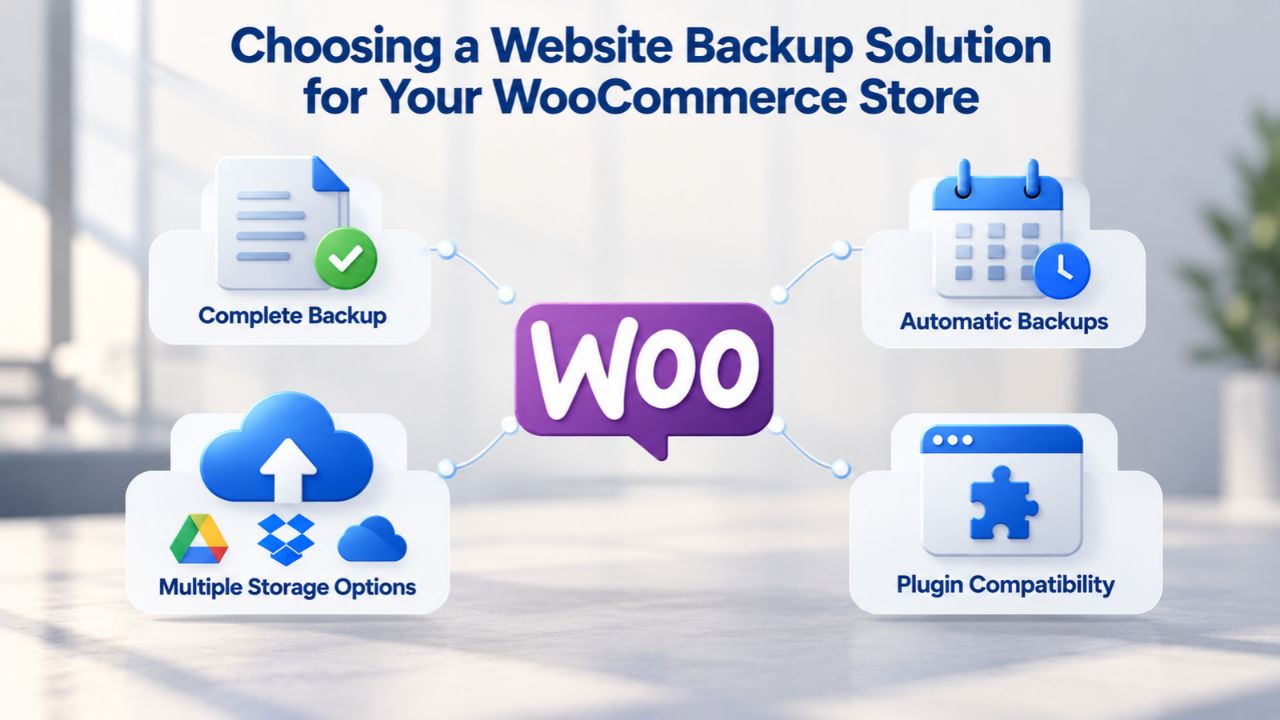
The right backup solution must handle WooCommerce’s unique data structure, automate consistently without constant human intervention, and provide genuine recovery options that work when you need them. Review the following table of key evaluation factors when comparing backup solutions:
| Decision Factor | What You Should Verify | Red Flag Warning Sign |
|---|---|---|
| Complete Database Coverage | Does the service back up your entire WooCommerce database, including HPOS-specific tables if running WooCommerce 8.2 or newer? | Service describes itself as “database-optional” or “primarily file-backup focused” |
| Fully Automated Scheduling | Can you configure backups to run daily or multiple times per day completely hands-off without manual creation each time? | Service requires you to manually create backups each time or run command-line scripts |
| Offsite Cloud Storage | Are backups stored on completely separate servers in different geographic locations from your hosting provider’s infrastructure? | Backups stored only locally on your hosting server with no geographic redundancy |
| Incremental Backup Methodology | Does the service support incremental backups that capture only changes, enabling frequent backups without massive storage overhead? | Service only supports full backups even for daily schedules, creating enormous storage requirements |
| Staging Restore Testing | Can you test restoring to a staging environment without affecting your live store before applying to production? | Service offers no staging environment or test restore capability |
| Published Restore Speed | Does the service clearly document typical restore timeframes, and can you restore individual files or must you restore everything? | Service responds with vague “depends” answers with no specific timeframe commitments |
| Support During Crisis Restoration | Is hands-on technical support available if something goes wrong during restoration, or must you handle restores completely alone? | Service offers only email support with no phone support or priority emergency assistance |
| Failure Notification Monitoring | Do you automatically receive alerts if a backup fails or if your site experiences unexpected changes? | Service runs backups silently with no failure notifications, leaving you potentially unaware of problems |
Making Your Selection Based on Your Store’s Needs
Use this comprehensive checklist whenever evaluating backup services. Niya Digital’s Website Backup Service addresses every single factor listed above: it handles WooCommerce’s complete database structure, including HPOS tables, automates your entire backup schedule with configurable frequency, stores copies off-site across multiple geographic locations with redundancy, uses incremental backups to handle frequent backup schedules efficiently, includes staging environment tools for safe testing, publishes typical restore timeframes, and provides hands-on technical support if you need restoration assistance. Compare this complete feature set against your evaluation criteria before making your final decision.
Get Started With Reliable WooCommerce Backups Today
Your store’s orders, customer data, and entire sales history deserve protection that actually works when you need it. Niya Digital’s Website Backup Service combines CodeGuard (GoDaddy Website Backup)’s proven automated backup infrastructure with hands-on onboarding and professional emergency support if you ever need to restore. Set up automated daily backups, test them safely on staging, and restore with confidence knowing your recovery plan actually works. Explore current plans and start your free trial today.
Frequently Asked Questions
If I back up daily, will I lose any orders at all?
If your store crashes on Tuesday afternoon and you restore Monday’s backup, you’ll lose all orders placed from Tuesday morning through the crash. The amount of lost orders depends on your store’s activity level during that period. That’s why high-volume stores use multiple backups per day: to minimize the data-loss window. The key principle is choosing a backup frequency so that the maximum data loss between backups is acceptable to your business operations and revenue expectations.
Do I need to back up my store if my hosting provider already does?
Hosting provider backups offer a safety net, but they’re frequently unreliable or difficult to access when you need them. Many hosting providers run backups infrequently, delete old backups automatically after short periods, or require the hosting company to perform the restore (a slow process that requires support tickets and isn’t under your direct control). An independent backup service that you control provides much better insurance and faster recovery options than depending on your host.
What happens if my backup file becomes corrupted?
This is exactly why testing matters. If you’ve already tested a backup restore and confirmed it works properly, you know the file is reliable and usable. If you haven’t tested and the backup turns out corrupted, you’ve lost that recovery point and must rely on older backups instead. Regular testing catches file corruption before you actually need the backup, preventing this scenario entirely.
Can I restore just one specific order or customer record, or do I have to restore the entire store?
It depends on your backup service’s restore capabilities. Most services allow selective file restoration. For database restores, it’s more complex; you typically restore the entire database to a staging site, extract the specific data you need, then apply those individual changes manually. Some backup services offer concierge restore options where technicians can extract specific records for you without requiring you to restore everything.
How long does a WooCommerce store restoration typically take?
The time required depends on your store’s size and what you’re restoring. Small stores under 1 GB typically restore in minutes. Larger stores with multiple gigabytes of data might require 30 minutes to several hours. Restoring to a staging environment usually happens faster than applying the backup directly to your live production server during business hours.
Will my Google SEO rankings suffer if my site is down during a restore?
Downtime can impact your SEO rankings slightly, but brief restores lasting under a few hours typically have minimal lasting impact. Longer outages do affect rankings more noticeably. This is another reason to maintain frequent backups and ensure fast restore times; the quicker you recover, the less damage to your rankings and customer experience.
Can I schedule backups to run automatically during off-peak hours only?
Yes, most backup services let you specify backup windows (for example, “run backups between 2 a.m. and 4 a.m. every night”). This ensures backups don’t compete with customer traffic for server resources during your peak selling hours, which can slow both the backup process and your store’s performance.
What’s the difference between a backup, a clone, and a migration?
A backup is a snapshot of your store at a specific point in time that you can restore to if something goes wrong. A clone or migration is a one-time copy of your entire store to move to new hosting. Backups are ongoing and frequent; migrations happen rarely. You need both: regular backups for recovery, and migrations when changing hosting providers.
How much does backup storage actually cost?
Backup storage costs vary significantly by provider and the amount of storage you need. General website backup services range from a few dollars per month for small sites to higher costs for larger stores with extended backup retention. Niya Digital’s backup service includes different storage options based on your store’s size and retention needs; compare options based on your specific requirements.
If my store gets hacked, will the backup include the malware?
If malware infected your site before the backup was taken, then yes, the backup includes the infection. If you restore that backup, you restore the malware too. That is why backup services that monitor site changes are valuable: they detect hacks quickly so you can restore from the last clean backup, before the infection occurred.
Do I need a separate backup service if I’m using a managed WooCommerce hosting provider?
Managed hosts often include backups, but review the details carefully. Do they truly back up your entire database? Can you access and restore backups yourself, or do you need to request them from the host? How long do they keep backups available? If any answers are unclear, a separate backup service adds crucial protection and gives you complete control.
What if a WooCommerce plugin update breaks my store and my backup is from before the update?
Restore to your pre-update backup, and your store returns to working condition. You’ll lose any orders or changes made between the backup and when the update broke things. This is why testing updates on staging first matters; you avoid needing to restore in the first place.
Can I restore to a specific date and time, or only to the dates when full backups occurred?
With incremental backup systems, you can restore to any backup point, the last full backup or any incremental backup after that. With files-only backups, you’re limited to the dates when full backups were created. This is another important advantage of comprehensive incremental backup strategies.
Do I need to worry about database character encoding or collation when restoring a WooCommerce backup?
Database collation (character encoding and sorting rules) should match between your original store and the backup. If your backup was created on a server with UTF-8 collation and you restore to a server with different collation, you might see garbled characters in product names, customer details, or orders. Most modern WooCommerce hosting uses UTF-8 consistently, but when migrating to different hosting during a restore, confirm that collation settings match. Testing a restore to staging catches these issues before they affect your live store.
Glossary
- Backup: A complete or partial copy of your website’s files, database, and configurations stored separately from your live site for recovery if the original becomes lost, corrupted, or compromised by security threats.
- Database: The organized collection of structured data underlying your WooCommerce store, including orders, customers, products, settings, and transaction records, that are not stored as individual files but in a structured database system.
- Full Backup: A complete snapshot capturing all website files and the entire database at a single point in time, requiring more storage space and processing time but providing simpler single-point restoration.
- Incremental Backup: A backup that captures only data changed since the last full or incremental backup, using far less storage and running faster, but requiring the full backup plus all intermediate incrementals to restore completely.
- Off-Site Storage: Backup data stored on servers in different geographic locations completely separate from your primary hosting infrastructure, protecting against hosting-provider failures, natural disasters, or security breaches.
- Restore Point: A previous snapshot of your website that you can revert to during an emergency, allowing recovery to a time before a particular problem occurred.
- One-Click Restore: The ability to revert your website to a previous backup state through a single action in a backup service’s interface, without requiring manual file or database manipulation.