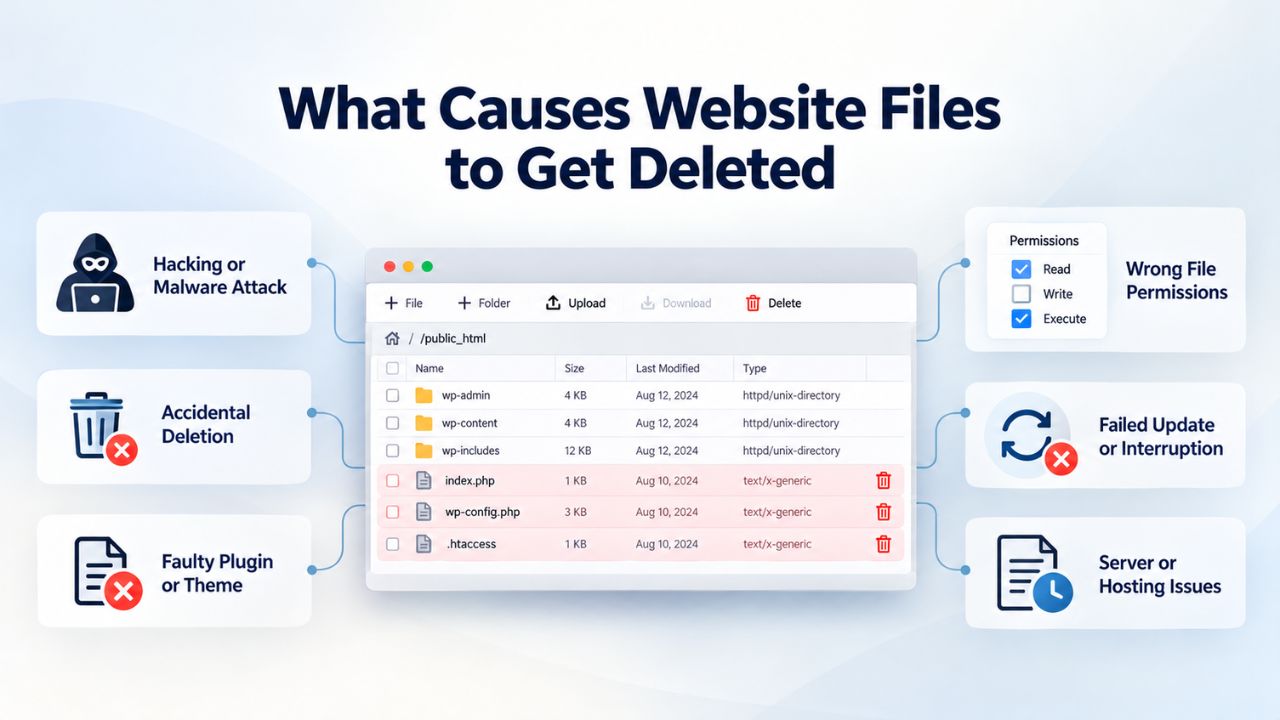
What Causes Website Files to Get Deleted
Website files disappear for predictable reasons that site owners can anticipate and prepare for. Understanding the most common deletion scenarios helps you choose backup strategies and retention windows that actually protect against your real risks. Off-site backups matter because local-only backups fail when the server itself fails.
Common Deletion Scenarios That Affect Websites
Website files disappear for predictable reasons. A plugin or theme update goes wrong and overwrites critical files with broken code. A team member with file-system access accidentally deletes a folder while moving files around. Malware or a hacked administrator account deletes content to extort the owner or destroy the site’s reputation. A hosting provider’s server fails and takes locally stored backups with it, leaving no recovery path. A migration to new hosting leaves old files behind with no way to access them. A database corruption event wipes transaction records or user data. Whether a deletion is recoverable depends entirely on when you notice it and whether a backup from before the incident exists.
The sooner deletion is discovered, the better your restore outcome. Accidental deletion causes 34% of data loss incidents, making it the single largest preventable loss category. This statistic underscores why backups aren’t optional for any business-critical website. Many site owners assume their hosting provider handles backups automatically, only to discover that those backups are stored on the same server as the live site. When the server fails, both the live site and the backups fail together.
Why Off-Site Backup Storage Protects Against Multiple Failure Types
Storing backups only on the same server as the live site offers zero protection against server-level failure, malware infiltration, or hosting-provider outages. Off-site backup storage, whether in a separate data center or cloud platform, ensures that even if the primary hosting account is compromised, the server dies, or the data center experiences an outage, you can recover a clean copy from a completely independent location. This geographic or logical separation underpins all reliable backup strategies.
CodeGuard (GoDaddy Website Backup)’s automated backup engine stores copies in secure off-site cloud infrastructure, completely separate from your primary hosting account. When Niya Digital resells CodeGuard (GoDaddy Website Backup)-powered website backup services, CodeGuard (GoDaddy Website Backup) owns the underlying storage infrastructure, not Niya Digital. This reseller arrangement means site owners get enterprise-grade backup infrastructure without managing their own storage systems. The off-site storage model protects against hosting failures, malware that compromises the primary server, ransomware attacks targeting the hosting account, and accidental deletion at the hosting level.
Website Backup Plans & Pricing
Select the Website Backup package that best fits the size and peace of mind requirements of your website. Your data is safeguarded without going over budget thanks to our adaptable choices.
Website Backup 5 GB
Recommended for documents and files.
- Automatic daily backups
- Built-in daily malware scanning
- Back up a file, folder or an entire database
- Continuous security monitoring
- Downloads to local storage
- Easy one-click restore
- Secure cloud storage
- Expert 24/7 customer support
- One website per account

Website Backup 25 GB
Recommended for photos and music.
- Automatic daily backups
- Built-in daily malware scanning
- Back up a file, folder or an entire database
- Continuous security monitoring
- Downloads to local storage
- Easy one-click restore
- Secure cloud storage
- Expert 24/7 customer support
- One website per account
Website Backup 50 GB
Recommended for videos and multimedia.
- Automatic daily backups
- Built-in daily malware scanning
- Back up a file, folder or an entire database
- Continuous security monitoring
- Downloads to local storage
- Easy one-click restore
- Secure cloud storage
- Expert 24/7 customer support
- One website per account
Understanding What a Website Restore Actually Does
A restore reverts your website to its exact state at a specific moment in time. Understanding what restoration actually changes, and what data will be lost, is critical to choosing the right restore method and timing. Full-site and selective restores offer different speed and disruption tradeoffs.
How Restores Revert Your Site to a Prior Point in Time
A restore reverts your website to the exact state it was in when the backup was created. Any changes made after that backup date are lost, completely and permanently. If you back up on Monday at midnight and restore on Wednesday at noon, any content added or modified on Tuesday or Wednesday vanishes when the restore completes. Any configuration changes, plugin updates, theme modifications, user-generated content, or database records created after the backup point are gone. This irreversibility makes backup timing and frequency critical decisions in your overall backup strategy.
Full-site restores replace all website files and database contents simultaneously with the backup version, resetting the entire site to its prior state. This approach is appropriate when malware has spread across multiple theme and plugin files, a catastrophic update broke the site so broadly that targeting specific files is impossible, or a hosting failure wiped everything. A clean-slate restore is simpler than selective recovery. The advantage is speed and simplicity; one operation fixes everything. The disadvantage is losing everything added or changed since the backup was taken.
Selective Restore Strategies and When They Outperform Full-Site Restore
Selective restore retrieves only specific files or a single database table, leaving the rest of the site running undisturbed. This approach is your first choice when the problem is isolated: one page deleted, one image removed, a single corrupted configuration file, or a specific database table affected by a failed query. You identify the specific file or component that needs recovery, request restoration of just that item, and the rest of the site continues operating normally. This method avoids the risk of overwriting stable, working parts of the site with potentially older or corrupted backup versions.
CodeGuard (GoDaddy Website Backup) lets you restore individual files without a full-site restore so that you can target deleted content with precision. When a single WordPress post is deleted, a product image is missing, or a specific configuration file is corrupted, selective file restore completes in minutes and preserves the rest of your site. This granular restoration capability is a hallmark of managed backup services; shared hosting control panels and basic backup features often lack it, forcing full-site restores even for tiny problems.
Step-by-Step Restore Procedure and Core Restore Methods
Restoration follows a consistent procedure across most backup services and hosting platforms. The critical first step is selecting the right backup point, one taken before corruption occurred. Different restore methods exist for different scenarios, each with different speed and complexity trade-offs.
Accessing Your Backup Portal and Selecting the Right Restore Point
Most backup-enabled hosting accounts and managed backup services follow a consistent restoration pattern. Log into your hosting control panel or backup service portal, navigate to the Backups or Recovery section, and browse the list of available backup dates. Each backup entry shows the date and time it was created, the backup size, and sometimes metadata about what changed since the previous backup. Select the most recent backup from before the deletion or corruption was introduced. This decision is critical; if you restore from a backup taken after corruption already occurred, you restore the corruption along with the data.
Once you’ve selected a backup date, review what it contains before starting the restore. Some backup services display file counts, database sizes, and detailed change summaries. If malware corrupted your site three days ago but wasn’t discovered until today, don’t restore from the most recent backup; it already contains the malicious code. Instead, scroll back through your backup history to find a clean restore point from before the infection began. CodeGuard (GoDaddy Website Backup) displays a ChangeAlert showing exactly which files were added, changed, or deleted since the previous backup, helping you pinpoint when corruption occurred so you can restore from a clean point beforehand.
Comparing Restore Methods: Automatic, Manual, and Selective Restoration
| Restore Method | Best Use Case | Typical Timeframe | Technical Skill Required | Site Downtime |
|---|---|---|---|---|
| Automatic Restore | Complete site failure, widespread corruption, total data loss | 15–60 minutes depending on site size | Minimal, one-click process | Brief (typically 15–60 min) |
| Download Backup as ZIP | Testing backups, offline archival, moving to new host, malware inspection | 10–30 minutes for download + manual upload | Intermediate, requires FTP/File Manager knowledge | Minimal if staged; brief if live restore |
| Selective File Restore | Single deleted file, isolated page corruption, specific database table loss | 5–15 minutes | Low, identify file(s), request restore | Minimal to none |
| Database-Only Restore | Database corruption, lost transaction records, malware modified settings only | 5–15 minutes | Intermediate, requires database understanding | Minimal if coordinated |
| Combined Files + Database Restore | Comprehensive site corruption, hacks affecting multiple layers | 20–60 minutes total | Intermediate, both must match dates | Brief (coordination needed) |
Three primary restore methods exist, each suited to different scenarios and urgency levels. Automatic restore fully replaces your live site with the backup version in one operation. This method requires shell/SSH access to your hosting account and typically takes 15–60 minutes, depending on your site’s size and server resources.
Download ZIP lets you download a backup as a compressed file, inspect it locally or offline, then manually upload it via FTP or your hosting file manager. This gives you maximum control and lets you verify backup integrity before restoration, but takes longer and requires technical knowledge of file transfer protocols. Selective restore targets individual files or folders without touching the rest of the site, fastest for a single deleted page and avoids the risk of disrupting stable site components.
Database and File Synchronization During Restoration
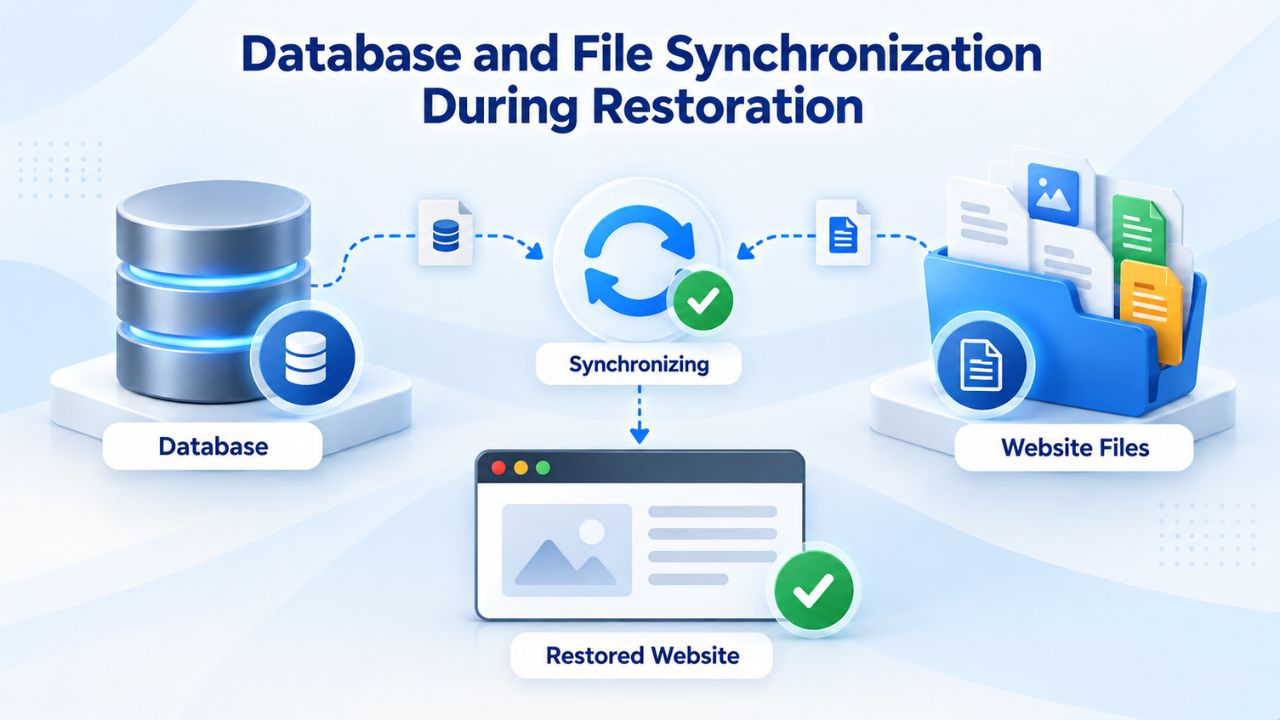
Restore both files and the database from matching backup dates to avoid mismatches and broken references. Synchronization errors are a top cause of post-restore dysfunction. Understanding how to coordinate database and file restoration prevents hours of troubleshooting after a restore completes.
Database and File Synchronization
If your site runs WordPress, Drupal, Joomla, or another database-backed CMS, you almost always need to restore both files and the database together. The critical rule: restore both from the same backup date, taken at the same time. Restoring files from Monday but the database from Wednesday creates a fundamental mismatch. File references in your theme or application no longer point to valid database records, causing 404 errors, broken images, and missing content. Posts reference images that don’t exist. Products reference category tables that have been deleted. This mismatch is subtle but devastating.
Before restoring the database, create a new empty database in your hosting account if your backup service requires a blank target. Then select the database backup from the same date as your file restore and run both restores. Most backup services handle database restoration through the same portal as file backups, which streamlines coordination. Some services offer “coordinated restore” options that automatically restore matching file and database backups simultaneously, eliminating the risk of date mismatch. Always verify your restore process includes both files and database before executing, especially if restoring a complex CMS site.
Database-Specific Corruption and Selective Database Restoration
Sometimes only the database is corrupted while files remain stable and current. A plugin wrote bad data to the database. A user accidentally deleted all product records from your e-commerce database. Malware modified site settings or user permissions. A database query failed and left records in an inconsistent state. In these cases, a database-only restore from the last clean backup recovers the data without disrupting files legitimately modified after the database backup. You preserve recent file updates while recovering data integrity.
Always verify file integrity before choosing database-only restore. Review your backup service’s ChangeAlert or change log to confirm that files were stable around the database corruption date. If both files and database show changes around the same time, restore both from matching dates. If files changed significantly after the database corruption, a database-only restore is appropriate and safer. Communicate with your backup service during emergency restoration to ensure you choose the right option: full, selective file, database-only, or coordinated restoration.
Backup Frequency and Its Direct Impact on Restore Outcome
Backup frequency determines how much recent data you might lose when you restore. Matching frequency to your site’s actual change rate ensures you’re protected against realistic data loss scenarios without excessive storage costs. The right frequency depends on your business model and how much revenue depends on website availability.
How Frequency Determines Your Maximum Data Loss Window
Backup frequency directly controls how much recent data you might lose when you restore. If you back up daily, the worst-case data loss is 24 hours of changes. If you back up weekly, it’s seven days. If you back up monthly, you could lose up to 30 days of data. For most business websites, daily backups are the practical standard because they balance protection against data loss with reasonable storage costs. Sites with high transaction volume or user-generated content should consider multiple backups per day, especially for databases.
Static informational sites updated infrequently, a brochure site that changes a few times per year, might safely use weekly or even monthly backups. Blogs and news sites benefit from weekly or more frequent backups tied directly to your publishing frequency. E-commerce sites, membership portals, SaaS applications, and any site handling transactions should default to daily backups at minimum, with database-specific backups potentially running multiple times daily to capture transaction records. The key principle is matching frequency to the actual change rate: frequent backups for sites with constant updates, and less frequent backups for stable, rarely changed sites.
Choosing Frequency Based on Your Site Type and Business Cost of Data Loss
Consider the cost of data loss when determining backup frequency. An e-commerce site losing even a few hours of order data represents lost transactions and potential refund disputes. A membership portal losing user uploads represents lost content and angry members. A SaaS application losing transaction records represents lost revenue visibility and compliance violations. For these sites, hourly or multiple-daily backups are justified. Conversely, a static portfolio site or informational resource losing a week of changes might be recoverable from memory or old versions without severe business impact.
| Site Type | Content Change Frequency | Recommended Backup Frequency | Typical Retention Window | Business Impact of Data Loss |
|---|---|---|---|---|
| Static Brochure/Portfolio | Few times per year | Weekly or monthly | 4 weeks minimum | Low, can be recovered from memory or old versions |
| Blog or News Site | Daily or several posts per week | Weekly or daily | 30 days | Medium, lost posts represent lost engagement and SEO value |
| E-Commerce Store | Constant (orders, inventory updates) | Daily or multiple times daily | 30–90 days | High, lost orders = lost revenue and customer disputes |
| Membership or User Portal | Frequent (user uploads, submissions) | Daily | 30–60 days | High, lost user content = customer churn and complaints |
| SaaS or Transaction-Heavy App | Continuous (database changes every minute) | Multiple times daily or hourly | 30–90 days | Critical, lost transactions = compliance violations and revenue loss |
| Blog with E-Commerce | Daily blog + constant transactions | Daily for files, multiple times daily for database | 30–90 days | Critical, must protect both content and revenue data |
Niya Digital’s team has found that many site owners discover their backup frequency is insufficient only after a data loss incident; they assumed weekly backups were adequate, then lost six days of critical content and couldn’t justify or afford the recovery cost. Defining frequency upfront, based on your actual content-change rate and business-impact analysis, prevents this painful discovery. Document your site’s change rate and your acceptable data loss window, then size your backup plan to match those real requirements.
Protect Your Site With Automated Daily Backups
Stop guessing about your backup frequency. Niya Digital’s Website Backup Service takes the guesswork out of backup scheduling by automating daily backups matched to your site type. Whether you run a blog, e-commerce store, or membership portal, we configure backups for your change rate and business needs. Start protecting your site today with automated backups you can trust.
Selective File Restore vs. Full-Site Restore: Strategic Considerations
Choosing between selective and full-site restore depends on whether the problem is isolated or widespread. Selective restore minimizes disruption to stable site components, while full-site restore is faster when damage is scattered across multiple systems. This section helps you make the right choice based on your specific corruption scenario.
When to Choose Selective File Restore for Minimal Disruption
Choose selective file restore when the problem is isolated and well understood. One page was deleted by a team member moving files. One image was removed accidentally. A single configuration file was corrupted by a bad setting. A database table affected by a specific malware injection. When you can identify exactly what needs recovery, selective restore is faster, safer, and less disruptive than a full-site restore. You identify the specific file or component, request restoration of just that item, and the rest of your site continues operating normally.
The advantage of selective restore extends beyond speed: it avoids the risk of overwriting stable, working parts of the site with potentially older or corrupted backup versions. If most of your site works perfectly and only one component is broken, why restore everything and potentially introduce old bugs or incompatibilities? Selective restore preserves site stability while fixing the specific problem. For sites with custom code, complex integrations, or significant changes since the last backup, selective restore is the safer choice that minimizes unintended side effects.
When Full-Site Restore Is the Right Strategic Choice
Full-site restore becomes necessary when damage is widespread, or the corruption is too deep to isolate. Malware injected code into dozens of files throughout your theme, plugins, and core WordPress installation; selectively restoring each file individually would take hours. A catastrophic hosting failure wiped the entire account, and you have no way to know exactly what was affected. A major update broke so many systems that targeting specific files becomes impossible and error-prone. A ransomware attack encrypted files across multiple directories.
In these scenarios, full-site restore is faster, more reliable, and more complete than manually restoring dozens of individual files. One operation fixes everything, rolls back to a known-good state, and eliminates uncertainty about what might have been partially restored or missed. The tradeoff is accepting data loss: a full-site restore reverts everything, including any legitimate work or content added since the backup was taken. Before executing a full-site restore, download a ZIP backup of your current site state if possible, so you can review what will be lost and potentially reintegrate legitimate recent work after restoration.
Testing Your Backup Before Disaster Strikes
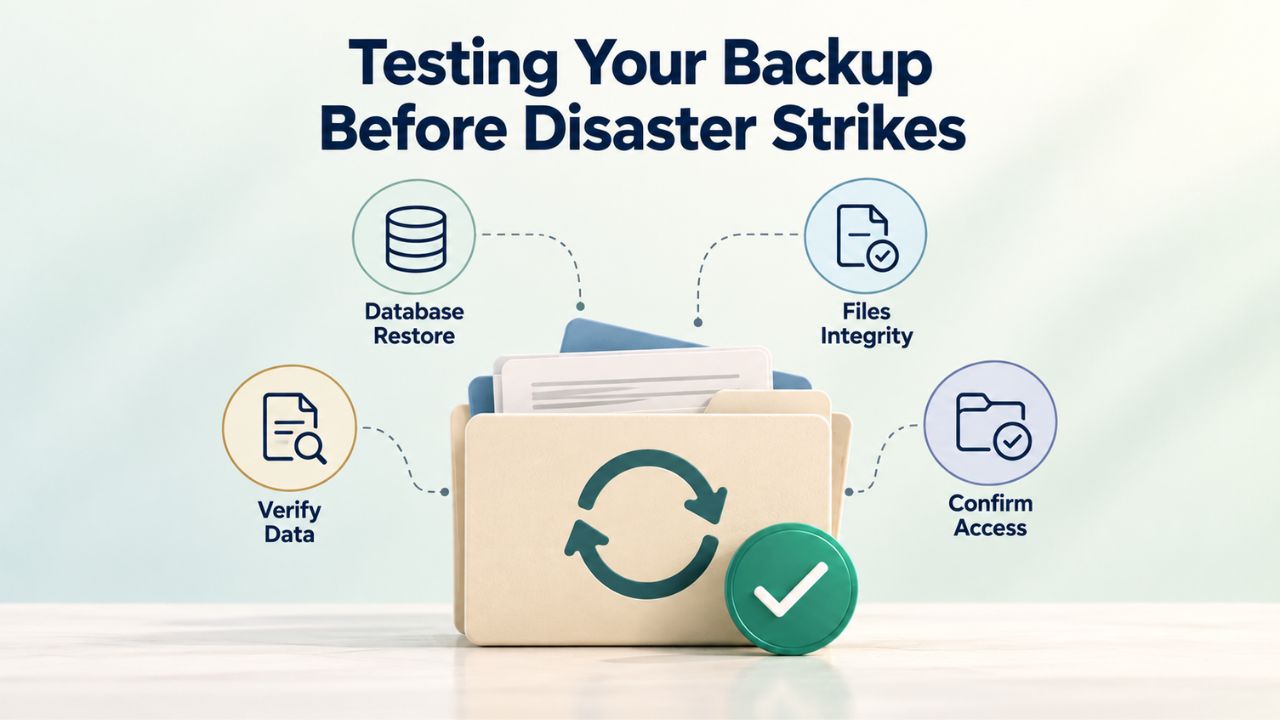
Backup testing is the most overlooked yet most valuable safeguard in any backup strategy. A backup that has never been tested is a risk, not a safeguard. Quarterly testing catches failures while you still have time to fix them, preventing the emergency discovery of backup corruption.
Why Restore Testing Is the Most Overlooked Critical Safeguard
A backup that has never been tested is a risk, not a safeguard. The most common and costly discovery is that a backup failed silently. When restoration was actually needed in an emergency, the backup was corrupt, incomplete, or incompatible with current server versions- happens at the absolute worst time. Learning that your backup doesn’t work while your site is down and business is suffering is far more expensive than discovering it during planned testing. Restore testing is critical to verify backup integrity and ensure a backup can be restored successfully when needed. Test at least quarterly for standard business websites. Revenue-critical sites should test monthly or more often.
Why is testing so consistently overlooked? Site owners assume their backup service is reliable and will work when needed. Backup service reliability is real and important, but it’s not a guarantee. Network glitches during backup uploads cause incomplete backups. Server resource limits interrupt long-running backups mid-process. Software version incompatibilities between when a backup was taken and when you attempt to restore it cause restore failures. Database structure changes break old restore files. Testing catches these problems while you still have time to fix them, in a calm environment, without emergency pressure. The cost of testing is minimal, a few minutes per quarter, while the cost of discovering backup failure during a real emergency is catastrophic.
How to Test a Restore Safely and Document Your Findings
Create a test subdomain or staging environment in your hosting account where you can safely restore a backup without affecting the live site. Production data stays live while you verify the restore in a separate space. Select a backup from a few days prior, not the most recent, but recent enough to ensure the backup system is working, and initiate the restore into the staging environment. Verify that the site loads correctly. Check that pages display properly, images load correctly, database queries execute without errors, admin functions work, and all core features operate as expected.
Restore testing should include both files and the database to confirm backup integrity. Check that login works, the admin panel loads without errors, database queries don’t time outtime out, and user-generated content displays correctly. Document what you check in each test, create a checklist, and keep records. This documentation creates an audit trail and ensures consistent testing methodology across your team. When restore testing uncovers an actual backup issue, you’ve prevented a far costlier emergency discovery. The same goes for successful tests; a record of successful quarterly restores gives you documented confidence in your backup strategy.
Backup Retention and Storage Location Best Practices
Retention policy defines your maximum recovery window and balances protection against storage costs. Off-site storage ensures backups survive hosting-account failures. This section covers practical retention strategies and the importance of encryption during storage and transit.
How Retention Policy Balances Recovery Options Against Storage Costs
Retention policy must balance recovery flexibility with storage cost and security considerations. Too short a retention window, keeping only the last backup or backups from the last few days, leaves no safety margin if malware or corruption goes undetected for a week. Your newest backup may already contain the malicious code because the infection wasn’t discovered until days after it occurred. Too long a retention window, keeping every daily backup for years, becomes expensive, creates unnecessary data-liability surface, and makes managing backups administratively complex.
A practical tiered retention schedule for most business websites includes daily backups kept for 7–14 days, weekly backups kept for 4 weeks, and monthly or yearly archives for compliance or historical recovery. This structure gives you multiple restore points across different time horizons without excessive storage sprawl. The tiered approach is efficient: you keep many recent backups for quick recovery of recent changes, fewer medium-term backups to detect issues that take days to surface, and occasional long-term archives for compliance or rare recovery scenarios. Calculate your storage cost, review your restore history, and match retention policy to your actual recovery needs.
Off-Site Backup Storage and Encryption Standards
Backups stored only within your hosting account offer no protection against hosting-account compromise, malicious insider attacks, or hosting provider data center failures. Off-site backup storage, separate from your primary hosting provider, protects against all of these scenarios. CodeGuard (GoDaddy Website Backup) stores backups in secure, off-site cloud infrastructure separate from primary hosting accounts, ensuring recoverability even if the hosting account itself is compromised. This separation is fundamental to a reliable backup strategy.
Encryption during storage and in transit ensures backup data remains confidential even if intercepted or accessed by unauthorized parties. Verify that your backup service encrypts backups at rest using strong algorithms (AES-256 or equivalent), encrypts data during download or restore operations, and uses secure transfer protocols (HTTPS/SFTP). Document these encryption standards in your backup service agreement or FAQ. If your site handles customer data, payment information, or regulated content, encryption isn’t optional; it’s a compliance requirement and a foundational security practice.
When Restore Goes Wrong: Diagnosis and Recovery
Restoration failures occur despite careful planning. Recognizing incomplete restores, diagnosing persistent problems, and knowing when to contact support are critical skills for any site owner. This section covers common failure scenarios and recovery procedures.
Incomplete Restores and Failed File Recovery
An incomplete restore occurs when some files restore successfully, but others fail, or when the database restore succeeds but file permissions remain incorrect. file permissions remain incorrect, leaving the site broken or partially functional. Missing core files cause blank pages. Half-restored plugins cause fatal errors. Mismatched database versions cause query failures. Admin functions break while the front-end remains visible. If a restore appears incomplete, stop using the partially-restored site immediately to avoid introducing new corruption or user-facing errors. Contact your backup service support team immediately with specifics: which files failed, what error messages appeared, and what is broken on the restored site.
If file restoration fails, CodeGuard (GoDaddy Website Backup) provides support during the restore process to diagnose and resolve the issue. Common causes include insufficient file permissions (files restored but set to read-only so the server can’t execute them), server resource limits (restore process hit CPU or memory limits and stopped mid-operation), conflicting active processes (a running backup or other operation interfering with restore), or incompatible file paths (backup taken on different hosting with different file structure). Your backup service support team can often resolve these issues in real time during an emergency by diagnosing the root cause and completing the restoration successfully.
Restored Site Still Shows Problems or Corruption
Sometimes a restore completes successfully without errors, but the site remains broken or shows the same corruption symptoms as before restoration. This typically means the backup itself contains the problem. If malware went undetected for three days before discovery, the last three days of backups also contain the malware. Restoring from any of those infected backups restores the infection along with your data. Solution: restore from an older backup point from before the corruption began, even if it means losing a few days of legitimate content changes.
Alternatively, if only specific files or components appear corrupted after a full restore, try a selective restore of just the problematic file or database table instead of a full restore. Start with the oldest restore point that shows signs of corruption, then methodically restore from progressively newer backup points until you find the last clean backup. Communicate with your backup service about the timeline: when your site was working correctly, when symptoms first appeared, and when corruption was discovered. This information helps your support team identify the last clean backup and the first corrupted backup, narrowing your options for clean restoration.
Build a Restore Plan Before You Need One
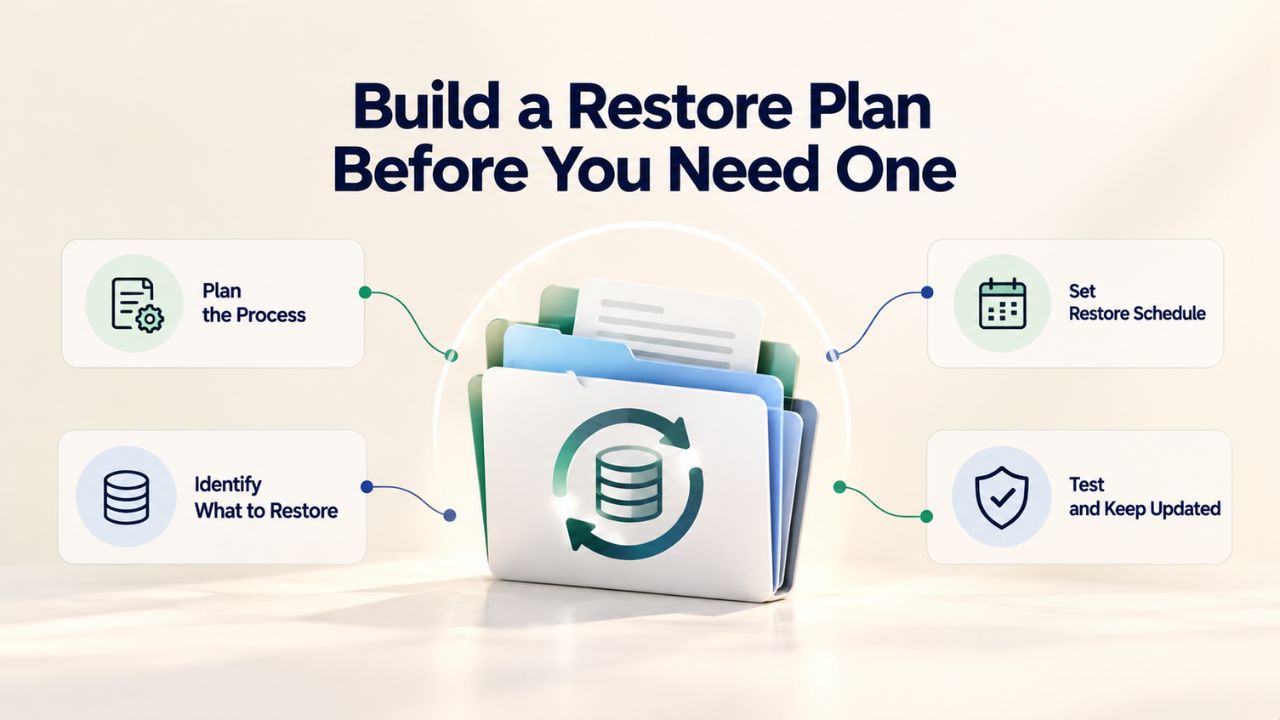
Every business should document its recovery procedures, define recovery objectives, and assign backup responsibilities before an emergency occurs. A written plan ensures consistent procedures, clarifies ownership, and dramatically speeds recovery when disaster strikes. This section covers the framework for building your own restore plan.
Defining Recovery Time Objective and Recovery Point Objective
Recovery Time Objective (RTO), how long your site can be down before it costs the business significantly, and Recovery Point Objective (RPO), how much recent data you can afford to lose, should drive your backup frequency and restore speed planning. A business losing $427 per minute of downtime needs RTO measured in minutes, not hours. A financial services firm needs RPO measured in minutes or seconds. A blog publishing daily content needs RPO measured in hours. An informational site changing weekly needs RPO measured in days. Your RTO and RPO aren’t generic; they depend on your business model, your revenue dependence on website availability, and your data sensitivity.
For e-commerce and transaction-heavy sites, a data loss longer than a few hours is unacceptable; RPO might be measured in minutes to hours, requiring multiple daily backups or even continuous data protection. For informational sites, an RPO of 24 hours might be acceptable with daily backups. Document your own RTO and RPO based on actual business impact, then size your backup plan and restore strategy accordingly. This analysis justifies your backup investment and guides your choice of backup frequency and restore methods.
Assemble a Restore Procedure Checklist for Your Team
Write down the exact steps for restoring your site: which backup service portal to log into, how to navigate to backups, which backup dates typically contain good restore points, which restore method works best for your site type (automatic, ZIP download, or selective), and who is authorized to execute a restore. In an emergency, a written procedure prevents panic decisions, ensures consistent, correct steps, and speeds recovery. Include contact information for your backup service support team, escalation procedures, and what information you need to gather before contacting support.
Include in your checklist: verify that file and database backup dates match before restoring both; check ChangeAlerts or corruption warnings before selecting a restore point; document the pre-restore site state (screenshot, content audit, or backup ZIP download) so you know what will be lost; and plan for post-restore verification and any legitimate content reintegration from after the backup date. Assign backup responsibilities to your team: who monitors backups, who tests them, who handles restoration, and who verifies success. A clear ownership structure ensures backups are maintained reliably rather than being neglected or forgotten.
Advanced Restoration Scenarios and Edge Cases
Beyond standard accidental deletion and failed updates, some restoration scenarios require specialized knowledge. Malware recovery demands identifying the exact infection date and restoring from before that point. Hosting provider failures require understanding which backups are affected. This section covers advanced scenarios site owners and agencies encounter.
Restoring After Malware: Choosing the Right Clean Backup Point
Malware restoration differs from accidental deletion because you must restore from a backup taken before the infection. The newest backup might contain the malware code. Yesterday’s backup might contain it. Only backups taken before the malware was introduced are truly clean. Identify the exact date the malware was introduced: when your site was first hacked, when you first noticed odd behavior, and when security scans first detected malware; then restore from the last backup taken before that date.
Use your backup service’s ChangeAlert or change logs to identify when files were first modified by malware. If a file suddenly changed on Thursday but backups show no changes from previous days, the infection likely occurred on Thursday. Restore from Wednesday’s backup or earlier. After restoration, implement security improvements: update all plugins and themes to the latest versions, strengthen administrative passwords, add security monitoring, and consider adding Web Application Firewall (WAF) protection to prevent similar infections.
Restore After Failed Update: Database Rollback and File Restoration
A plugin or theme update breaks your site, causing critical errors, a white screen of death, or database corruption. Restore both files and database from the last backup taken before the update was applied. Update failures often corrupt the database structure, so a database-only restore often solves the problem faster than a full-site restore. After restoring the database, manually reapply the failed update if needed, or wait for a patch release. Test the update in a staging environment before reapplying it to production.
After restoring from a failed update, document what went wrong so you can avoid repeating it. Was the plugin incompatible with your WordPress version? Did it have a known issue? Would staging-environment testing have caught the problem? Use these lessons to improve your update procedures: test major updates on staging first, keep detailed version records, maintain longer backup retention around update windows, and consider using update-delay plugins that defer automatic updates for a few days after release to catch widespread compatibility issues.
Restore Your Website With Confidence
Understanding backup restoration transforms it from an intimidating emergency procedure into a manageable, documented process. A well-designed backup strategy with clear procedures and regular testing means you can recover quickly and confidently from accidental deletion, failed updates, malware, or hosting failure. Niya Digital’s Website Backup Service, powered by CodeGuard (GoDaddy Website Backup) technology, provides automated backups, off-site storage, and multiple restore methods, with hands-on support during emergencies to guide you through restoration.
Build your restore plan today: define your RTO and RPO, choose a backup frequency matching your change rate, set up automated backups with off-site storage, and test restoration quarterly. When the next incident occurs- and incidents do occur for every website- you’ll restore in minutes instead of scrambling for hours. Regular testing, clear procedures, and managed backup services ensure recovery success.
Frequently Asked Questions
How long does a typical website restore actually take?
Restore time depends on site size, the restore method used, and server resources. Automatic full-site restores typically complete in 15–60 minutes depending on backup size and server capacity.
Selective file restores may take 5–15 minutes. Download-and-manual restores can take 10–30 minutes, depending on file transfer speed and manual upload time. Database restores typically take 5–15 minutes depending on database size. Contact your backup service for estimates based on your specific site backup size.
Can I restore just a single deleted page without restoring the entire database?
Yes, if that page is made up of only a few files and doesn’t require database changes. Use selective file restore to recover just the page template files and associated images.
However, if the page pulls content from the database (blog posts, product details, user comments), you likely need to restore the database as well to ensure consistency. Always restore files and database from matching backup dates to prevent mismatches and broken references.
What if my most recent backup still contains the problem I’m trying to fix?
This happens when corruption or malware went undetected for several days before discovery, so the most recent backup already contains the problem.
Solution: browse your backup history and restore from a backup dated before the problem started. This is why retaining multiple historical backups is critical; without several days of backup history, you’re forced to lose recent work to eliminate old corruption. Review your retention policy and extend it if necessary.
Does restoring from a backup erase all data added after the backup was taken?
Yes, a full-site restore reverts the entire site to the backup point in time. Any content, file changes, database records, or configuration changes made after that backup date are completely lost.
Before restoring, download a backup ZIP of your current site state if possible, so you can review what will be lost and potentially reintegrate legitimate work after restoration. Selective restore avoids this issue by only replacing specific files or the database.
Can I test a restore without affecting my live website?
Yes, absolutely, and you should test quarterly. Create a test subdomain or staging environment in your hosting account and restore a backup into that separate environment.
Verify the restored site works correctly before restoring into your live environment. This catches restoration issues, confirms backup integrity, and lets you plan for content reintegration before impacting your live site and users.
If my hosting provider offers backups, do I still need an independent backup service?
Hosting provider backups stored only within the hosting account offer limited protection; if the account is compromised or the hosting provider experiences data center failure, local backups may be lost too.
An independent off-site backup service provides additional protection and a separate restore pathway. Off-site backup storage protects against hosting-account compromise and data center failures, making it a recommended complement to hosting-provided backups, not a replacement.
What’s the difference between incremental backup and full backup?
A full backup copies all website files and database contents, regardless of whether they changed since the last backup. An incremental backup copies only files and data that have changed since the previous backup.
Incremental backups consume less storage and transfer time but require a chain of incremental backups plus the original full backup to restore completely. Full backups are simpler to restore because each is a standalone complete copy. Most backup services use incremental backups for efficiency, then periodically create new full backups.
How often should my website backup run?
Backup frequency should match your site’s actual change rate. For static brochure sites, weekly or monthly is adequate; for blogs and news sites, weekly or more often; for e-commerce and transaction-heavy sites, daily is the minimum standard. Consider how much data loss your business can accept and how quickly corruption might be discovered. When in doubt, daily backup is the safe choice for business-critical sites.
Can I restore my site to a different hosting provider using my backup?
Yes, most backup services provide backups in portable formats like ZIP files that you can extract and upload to new hosting. However, restoration to a different hosting environment may require configuration changes, database setup, file permissions, environment variables, and server software versions may differ between providers. Your backup service or new hosting provider can guide you through migration, and professional migration support is often available if complexity becomes an issue.
Why should I test backups if I have a backup service?
Backup services are reliable, but failures still happen: network glitches during uploads can cause incomplete backups, server resource limits can interrupt long-running backups, and software version incompatibilities can cause restore failures. Testing catches these problems in advance, when you can fix them without emergency pressure. Even a 5-minute quarterly test, restoring a backup to staging and checking that the site loads, prevents discovering backup failure during a real emergency. Testing is the most underutilized backup safeguard.
What happens if I need to restore a file older than my retention period?
If a file was deleted months ago and your retention policy keeps backups for only 30 days, you can’t recover that file because your oldest backup won’t include it. This is why retention policy matters: it defines your maximum recovery window. If you frequently need to recover very old content, extend your retention period or implement archived yearly backups. Discuss retention requirements with your backup service when setting up your plan.
Does restore require my website to go offline?
Full-site restores typically require brief downtime while restoration completes. Selective restores of individual files can often occur while the site remains live with minimal or no downtime. Some backup services offer “staged restore” capabilities that let you restore to a temporary location before switching over, eliminating downtime. Discuss downtime implications with your backup service when planning your restore procedure.
How do I know if my backup succeeded or failed?
Your backup service should send confirmation emails or show status indicators in your portal after each backup completes. Failed backups should trigger alerts or warnings. Check your backup portal regularly to verify backups are completing successfully; don’t assume they’re working without checking. Set up email notifications for failed backups so you can address issues before they become critical. Regular testing (at least quarterly) confirms backups not only complete but also restore successfully.
What backup service features are most important for reliable restoration?
Look for: multiple restore methods (automatic, selective file, ZIP download), off-site storage separate from your hosting, daily or frequent backups, multi-week retention, change alerts or modification tracking, backup encryption, and support access during emergencies. A service offering all these features provides comprehensive protection and fast recovery capability. Test the service in your environment before committing long-term, and ensure restoration works reliably for your specific site type.
Should I use my hosting provider’s backup or a separate backup service?
Ideally both: hosting provider backups for convenience and quick small-file recovery, plus a separate off-site backup service for comprehensive protection and emergency restore support. The layered approach ensures you have backup options even if one system fails. Hosting backups are often stored on the same infrastructure as your live site, limiting their protection against catastrophic hosting-level failures. A separate service provides geographic separation and independent restoration pathways.
Glossary
- Backup: A complete or partial copy of website files and database data stored in a separate location, used to restore a site to a prior state if data is lost or corrupted.
- Database Backup: A separate copy of website database contents such as WordPress posts, user accounts, settings, and transactions, stored independently from file backups and often restored alongside file restoration.
- Incremental Backup: A backup method that captures only files and database changes since the last backup, reducing storage use and transfer time compared to full backups that copy everything.
- Off-Site Backup Storage: Backup data stored on servers in a geographically or logically separate location from the primary hosting provider, protecting against hosting-account compromise and data center failures.
- Restoration: The process of recovering website files or database data from a backup, reverting the site to a specific prior point in time; also called “restore” or “recovery.”
- Retention Period: The length of time backup copies are kept before deletion; retention policies define how many backup versions are maintained and for how long.