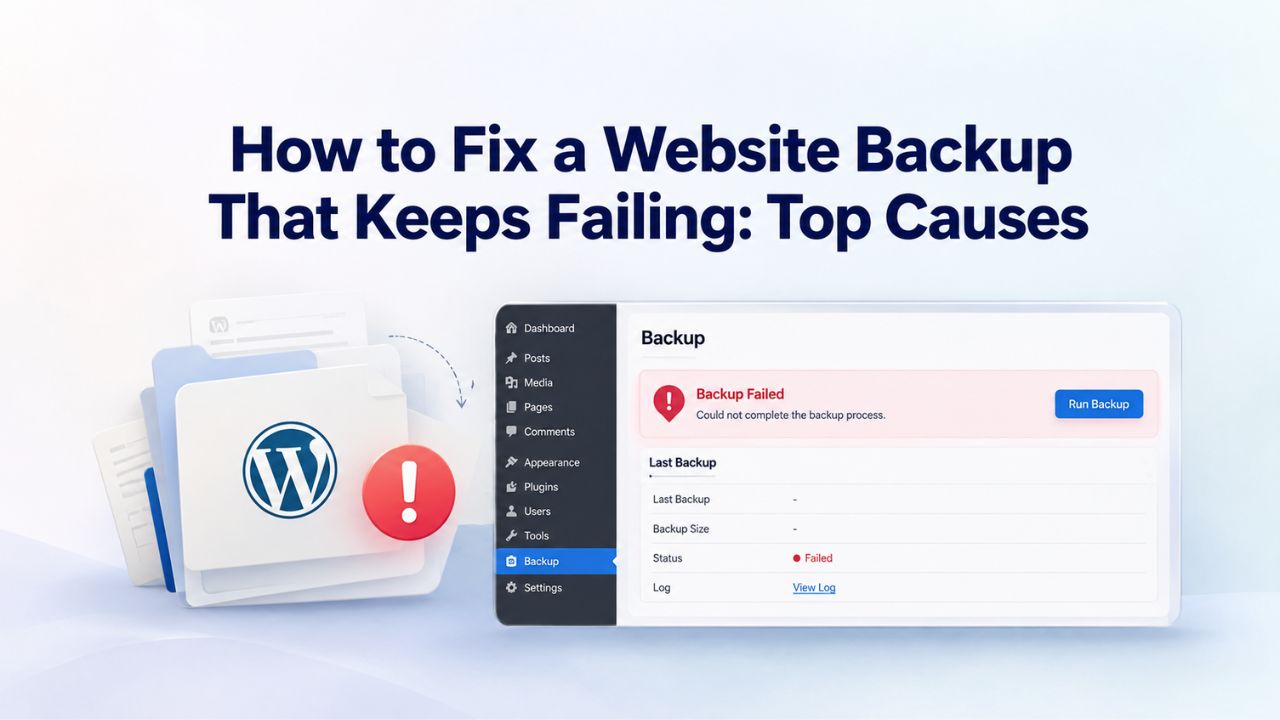
When you discover your website has been hacked, corrupted due to a failed plugin update, or someone accidentally deleted critical pages, you reach for your backup, only to find it failed weeks ago without warning. You had no idea backups stopped working. Now your site is down, recovery options are shrinking, and the pressure is mounting. Niya Digital’s Website Backup Service is powered by CodeGuard automated backup technology, off-site storage infrastructure, and one-click restore capabilities.
Niya Digital is an authorized reseller that provides plan selection guidance, onboarding support, ongoing account management, and hands-on support during restore incidents. Still, it does not operate the underlying backup infrastructure. Backup success depends on multiple factors beyond any single provider’s control: correct initial configuration, appropriate backup frequency aligned with your site’s update pace, proper storage connectivity and authentication, and regular verification that backups are actually running and capturing complete data.
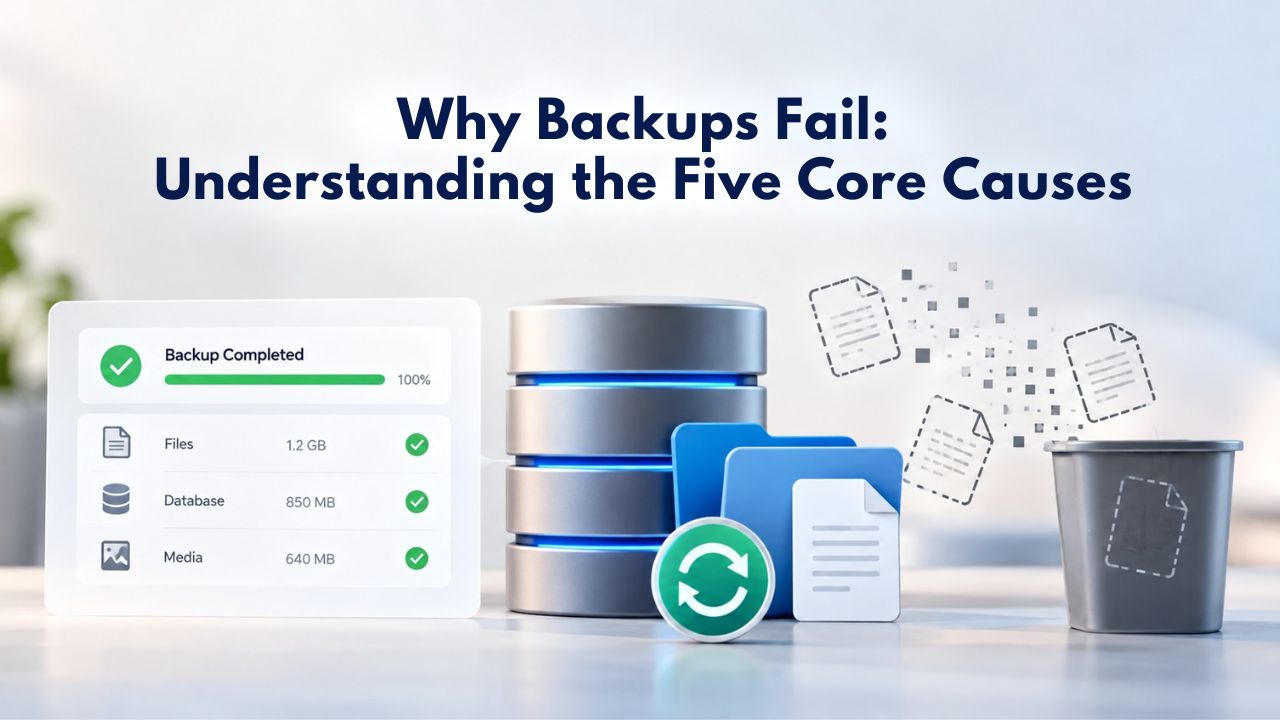
Why Backups Fail: Understanding the Five Core Causes
Most website backups don’t fail randomly. They fail because of preventable configuration mistakes, undetected access issues, or silent infrastructure problems that nobody monitors until disaster strikes and you need the backup urgently. Understanding these root causes is the foundation for building a reliable website backup solution that actually protects your business. The five core categories of backup failure- infrastructure issues, access and credential problems, scheduling misconfigurations, data integrity failures, and verification gaps- account for the vast majority of backup problems site owners encounter.
Backup Server and Storage Infrastructure Issues
Backup capture begins on your hosting server, and that’s frequently where the first failures originate. When your server runs low on disk space, the backup engine cannot write a complete backup file before transferring it to off-site storage. Similarly, when off-site storage authentication fails, whether due to expired API keys, misconfigured credentials, or network blocks between your server and the storage provider, the backup process cannot complete its journey from your server to safe storage. These infrastructure-level failures are dangerous because they often fail silently: your backup logs may show “backup initiated” and “backup completed” status. At the same time, only partial data actually reached off-site storage.
A backup that starts successfully is fundamentally different from a backup that completes successfully; the distinction between these two states is critical and easy to misunderstand. Some automatic website backup engines mark a job as “complete” even when data transfer is interrupted mid-process or storage rejects the incoming data due to an authentication failure. CodeGuard (GoDaddy Website Backup)’s backup monitoring documentation provides detailed guidance on how to distinguish between a backup that was merely initiated versus one that fully transferred all data to off-site storage through careful log-file review and storage-verification procedures.
Database Credential and Access Control Failures
Your website’s database, the living, dynamic core of WordPress sites, Drupal installations, e-commerce platforms, and custom-built applications, requires valid credentials to back up successfully. When database credentials change (during a migration, security password rotation, or hosting provider transition), the backup engine can no longer connect to and authenticate with the database server. The backup process then fails either silently (some backup systems skip the database and back up only files, leaving you with a false sense of completeness) or loudly but without automatic retries.
File and folder permissions create a parallel category of access problems that cause incomplete backups. After a hosting migration, server maintenance window, or security configuration change, file permissions may become too restrictive for the backup process to read certain directories, even though the directories exist on disk and contain valuable data.
The backup engine can see the folder structure but cannot read the file contents, resulting in a backup that appears complete in terms of file count but contains empty or unreadable files. Diagnosing this class of failure requires reviewing backup logs (which may report permission-denied errors) while simultaneously checking file-permission settings on the hosting server, a multi-step investigation that many site owners skip entirely, leading to undetected backup degradation over weeks.
Website Backup Plans & Pricing
Select the Website Backup package that best fits the size and peace of mind requirements of your website. Your data is safeguarded without going over budget thanks to our adaptable choices.
Website Backup 5 GB
Recommended for documents and files.
- Automatic daily backups
- Built-in daily malware scanning
- Back up a file, folder or an entire database
- Continuous security monitoring
- Downloads to local storage
- Easy one-click restore
- Secure cloud storage
- Expert 24/7 customer support
- One website per account

Website Backup 25 GB
Recommended for photos and music.
- Automatic daily backups
- Built-in daily malware scanning
- Back up a file, folder or an entire database
- Continuous security monitoring
- Downloads to local storage
- Easy one-click restore
- Secure cloud storage
- Expert 24/7 customer support
- One website per account
Website Backup 50 GB
Recommended for videos and multimedia.
- Automatic daily backups
- Built-in daily malware scanning
- Back up a file, folder or an entire database
- Continuous security monitoring
- Downloads to local storage
- Easy one-click restore
- Secure cloud storage
- Expert 24/7 customer support
- One website per account
How to Spot a Failing Backup Before Disaster Strikes
Early detection is the crucial difference between a minor backup configuration fix and a catastrophic data-loss scenario that may be unrecoverable. Automatic website backups should include monitoring and alerting, but notifications alone aren’t enough; you need multiple independent checkpoints to confirm backups work and capture complete data. Relying on a single detection mechanism creates a single point of failure; effective backup monitoring uses layered detection across email notifications, backup history review, storage-quota monitoring, and manual verification.
Notification Misconfigurations Hide Backup Failures
The first place where backup failures hide is inside your backup system’s email notification settings. If backup completion notifications aren’t configured, or if they’re routed to an inbox you don’t actively monitor, you’ll have no early warning when backups stop working. Even more dangerous, some hosting environments silently drop notification emails due to SMTP server issues, firewall rules, or spam-filter misconfiguration, creating the false impression of working backups while critical alerts never reach you.
Start by verifying your backup system’s notification settings: confirm that backup completion notifications are enabled, that email addresses are correctly configured and actively monitored, and that you’re receiving notifications on your expected schedule (daily or weekly, depending on your backup frequency). If you haven’t received a backup notification email in 2–3 weeks, your backup process may have stopped running entirely, and you won’t know until you need it. Test this immediately by logging into your backup provider’s dashboard and manually triggering a backup; confirm that you receive a completion notification within 5 minutes. If no notification arrives, contact your backup provider’s support team to diagnose why notifications aren’t being delivered.
Backup History Gaps Reveal Silent Failures
Your backup provider’s dashboard or control panel should display a complete, timestamped history of every backup attempt: dates, times, file sizes, and success/failure status for each backup. Review this backup history monthly; spend just 5 minutes scanning for patterns that indicate problems. A sudden gap in the history (a full week with no backups shown) indicates either a scheduling failure (the backup job stopped running) or an interruption in the monitoring system itself (logs weren’t recorded).
Even more revealing than gaps are changes in backup file sizes over time. If your last three backups show 500 MB, 450 MB, 200 MB, and then 50 MB, your backup is progressively degrading; the backup process is capturing less and less data with each run, approaching total failure. This pattern typically indicates that part of your site has become inaccessible to the backup engine (due to permission changes, moved files, or corrupted directories), causing it to skip increasing amounts of data. CodeGuard (GoDaddy Website Backup)’s backup history and diagnostic tools let you flag these patterns in the logs and trace them to specific error messages that identify the root cause.
Backup Failure Diagnosis Matrix
| Failure Symptom | Most Likely Cause | Diagnostic Step | Recovery Action |
|---|---|---|---|
| No backup completion email received | Notification disabled OR email delivery failing | Check backup settings for notification configuration; confirm email arrives within 5 min of manual backup trigger | Re-enable notifications; verify email address; test delivery; contact provider if emails still don’t arrive |
| Backup history shows gaps (1+ weeks missing) | Cron job failed OR backup schedule disabled | Review hosting control panel cron logs; confirm backup attempts logged at expected times; check backup system status dashboard | Re-enable or fix cron job; verify correct time zone; test schedule with manual backup; investigate if server maintenance was scheduled during backup window |
| Restore fails with “data not found” error | Partial backup captured OR storage quota exceeded | Check backup size trend in history (sudden drops indicate problems); verify storage utilization below quota; review logs for interruption messages | Increase storage quota; reduce retention window; verify permissions; check database credentials; perform test restore to staging server |
| Storage utilization rapidly approaching quota | Backup retention too long for storage quota OR site growing rapidly | Calculate: current backup size ÷ quota = % utilization; track trend over months; compare backup count to expected | Upgrade to higher quota; reduce retention window; implement incremental-backup strategy; optimize backup frequency |
| Test restore completes but files missing | Permissions prevented complete file backup | Compare file count in restored site to live site; check backup logs for “permission denied” errors; verify hosting file permissions match provider’s recommendations | Correct file permissions to 644 (files) / 755 (directories); re-run backup; test restore again; confirm restored file count matches original |
| Backup marked successful but restore unavailable days later | Retention policy auto-deleted backup OR misconfigured retention window | Confirm plan’s retention window (30, 60, 90, 365 days); verify backup date against retention window; check if older than window | Understand retention policy clearly; upgrade to longer retention if needed; implement quarterly manual exports for compliance backup requirements |
Testing Backups: Why It Matters and How to Do It
The most critical and most often skipped verification step in backup management is actually testing that your backup works, performing a real restore on a staging server, verifying that the restored database and files match your live site, and confirming the restored site loads and functions correctly. Many site owners skip this step because it feels redundant: “My backup provider says the backup completed successfully; why do I need to test it myself?” The answer is deceptively simple yet profound: backup system success logs prove only that the backup process ran without errors; they do not prove the backup data is complete, uncorrupted, or usable for restoration.
Performing a Proper Test Restore
A test restore involves selecting a recent backup from your history, restoring it to a staging or development server (absolutely never your live production site), and verifying that the restored site loads correctly in a web browser, the database responds to queries, and key pages render without errors. For a small-to-medium website, this entire process typically takes 15–30 minutes and costs nothing. Log in to your backup provider’s interface, select a backup from the past week, and choose the “restore to staging” option if available, or manually restore to a development environment.
Once the restore completes, navigate to the staging site in your browser and spot-check critical pages, user authentication, database-driven functionality, and any custom plugins or integrations. Pay special attention to pages that pull data from the database; if these pages don’t load or show errors, the database restore may have been incomplete or corrupted.
Automated website backup testing features offered by some providers (including through CodeGuard (GoDaddy Website Backup)’s verification options) automatically attempt test restores in the background without manual intervention, validating that backup data is intact and usable without consuming your time. If your backup provider offers automated verification, enable it immediately; if not, schedule a manual test-restore workflow at least monthly, and more frequently for high-transaction or frequently updated sites.
Frequency and Scheduling for Reliable Verification
Small-to-medium websites benefit from monthly test-restore verification; high-transaction sites (e-commerce, SaaS, membership platforms) should test quarterly or more frequently. High-traffic news, publishing, or community sites updated daily should test every two weeks. Create a simple log or calendar entry documenting each test restore: date performed, which backup was restored, any errors encountered, and time to completion.
Over time, this log becomes your historical record: if restore times suddenly spike from 10 minutes to 60 minutes, something has fundamentally changed in your site’s size, database complexity, or infrastructure. If you’ve never performed a test restore before, do one today before reading further. Many site owners discover critical issues, missing files, corrupted database tables, incomplete backups, only when they actually run a test restore, revealing problems that would have been catastrophic if discovered during a real emergency.
Backup Verification and Monitoring Checklist
| Verification Task | Recommended Frequency | What Success Looks Like | Early Warning Signs |
|---|---|---|---|
| Test restore on staging server | Monthly (minimum); weekly for high-traffic sites | Restored site loads in browser, database queries respond, all key pages render, functionality works correctly | Restore fails; restored site has errors; missing database tables; file count doesn’t match original |
| Review backup completion logs | Weekly | Backup process shows completed state without error messages; data transfer to storage confirmed; duration matches historical average | Error messages in logs; interrupted transfers; timeouts; permission-denied messages; database connection failures |
| Compare backup size to expected site size | With each backup (automated review) | Backup size matches approximate site size; consistent size between backups (allowing for site growth); upward trend is normal if site grows | Sudden size drops suggest data skipped; size plateaus while site grows; zero-byte backups indicate complete failure |
| Check storage utilization vs. quota | Monthly | Storage used is below 75% of quota limit; usage trend is stable or slowly upward (matching site growth); quota warning alerts not triggered | Utilization approaching or exceeding 75%; rapid growth in storage used; quota exceeded warnings; old backups disappearing |
| Verify backup notifications arriving | Weekly | Email notifications received after each backup; no missed backup windows; alert emails for any failures appear immediately and are actionable | No notifications received; notifications stopped arriving; emails going to spam; backup ran but no notification sent |
| Manual spot-check: key files and database | Quarterly | Critical files present in restored backup; database tables have expected record counts; no corruption detected; all key functionality works | Missing files; database errors; table record counts lower than expected; corrupted data when tested |
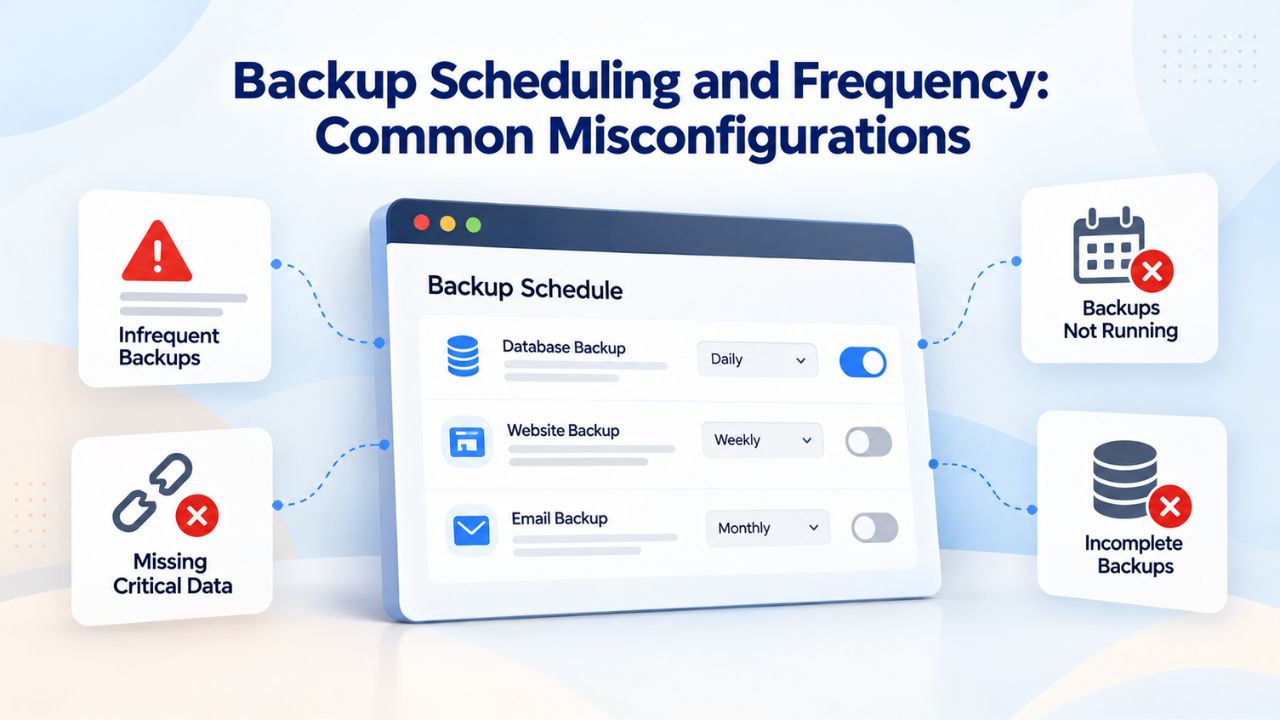
Backup Scheduling and Frequency: Common Misconfigurations
Automatic website backups only work if the backup process is scheduled to run regularly and predictably. Many backup failures don’t stem from infrastructure problems during a backup that did run; they stem from scheduling mistakes that prevent backups from ever starting in the first place. A backup that never starts because the scheduler is misconfigured will always fail, regardless of how robust the underlying infrastructure is.
Cron Job Misconfiguration and Timing Issues
Many website backup systems rely on cron jobs, automated scheduler tasks configured to run at specific times on your hosting server. A misconfigured cron job may never trigger, a cron job with syntax errors may fail silently, and a cron job scheduled for an inconvenient time (like 3 AM, when your server undergoes nightly maintenance) may be killed before it completes.
These scheduling failures are often invisible unless you actively monitor cron logs. Verify your backup cron job by accessing your hosting control panel and checking: the exact cron expression (is the timing actually set for daily, weekly, or your intended frequency?), that the cron logs show successful execution attempts at expected times, and that your backup system’s logs show backup processes actually starting at those times.
Time-zone mismatches are a frequent culprit in scheduling failures. Your hosting provider may run servers in UTC, but your cron job might be configured for local time, causing the scheduled job to miss its window or run hours off schedule. If you scheduled a 3 AM backup and your server runs on UTC, the backup actually runs at 3 AM UTC (which might be 10 PM your local time the previous day). Most hosting providers allow you to specify the time zone for scheduled tasks; confirm that your backup schedule and your server’s time zone are synchronized before considering scheduling setup complete.
Frequency Mismatch with Site Update Velocity
A backup schedule that made sense six months ago may no longer match your site’s current update frequency and data-loss tolerance. If your site receives constant content updates and customer transactions but backups run only weekly, you could potentially lose a week’s worth of data if a failure occurs. Conversely, if your site is mostly static, content-driven, and updated monthly, but you run backups every 4 hours, you’re unnecessarily consuming storage space and processing resources without proportional benefit.
Align your backup schedule with your site’s actual update rhythm and your tolerance for potential data loss. High-traffic e-commerce and SaaS platforms with constant customer transactions should back up daily or more frequently. Content sites updated once or twice weekly can manage effectively with weekly backups. Static informational sites or portfolios may be safe with monthly backups, but you must commit to running manual backups immediately before and after any significant updates, migrations, or configuration changes. The frequency question is fundamentally a business decision: how much data can you afford to lose if something goes wrong? That answer determines your minimum backup frequency.
Database Backups and Data Corruption: Avoiding Silent Data Loss
Your site’s database is the most critical data to protect; it holds customer records, transaction history, user-generated content, site configuration settings, and behavioral data that’s often irreplaceable. Database backup failures are particularly dangerous because they often fail silently: the backup process may complete without reporting errors while capturing corrupted data, incomplete tables, or partial records that wouldn’t be discovered until you attempted to restore and found the data unusable.
Detecting Database Credential Issues and Access Failures
Database backups require the backup engine to connect to your database server using valid credentials (typically a username and password, sometimes an API key or connection string). When these credentials are wrong, expired, or changed without updating the backup configuration, the backup fails immediately because the backup system cannot authenticate or read any database data. However, some backup systems don’t fail loudly; they skip the database and back up only file content, leaving you with what appears to be a complete backup but is actually incomplete, missing your entire database.
Test your database credentials immediately by attempting a manual connection using the same credentials your backup system uses; you can do this through your hosting control panel’s database tools or via SSH if you have command-line access. If the connection fails with your current credentials, fix the credentials immediately. Most importantly, change database credentials only during a planned maintenance window when you can also update your backup configuration first. Never change the database password before updating the backup system with the new credentials; otherwise, the next backup will fail.
Handling Partial Backups and Corruption Detection
A partial backup can look successful until you restore and discover missing or corrupted data; that’s when partial backups reveal their danger. The backup process may complete without reporting errors even if data transfer is interrupted or storage rejects corrupted data. Off-site backup storage providers like CodeGuard (GoDaddy Website Backup) include automated data-integrity checks that verify backup completeness before marking a backup as ready for restore. These integrity checks confirm that all expected data files transferred, that database records aren’t corrupted, and that the backup is restorable.
If your backup provider offers backup verification reports (detailed summaries of what was backed up and any issues detected), review them regularly, at minimum monthly. These reports detail: how much total data was backed up (compare this to your expected site size; if it’s suddenly much smaller, data capture was incomplete), which database tables were captured (confirm all your critical tables are present), whether any corruption was detected during the backup process, and whether any files were skipped due to access errors. Sudden, unexplained changes in reported data size warrant investigation; if your site grew 20% in a month but your backup size increased only 2%, something is wrong with data capture.
Secure Your Database with Verified Backups
Your database is your site’s most valuable asset: customer data, transactions, configurations, and content built over months or years. Don’t leave database protection to chance or assumptions. Niya Digital’s Website Backup Service includes automated database backup, integrity verification, and test-restore tools to confirm your database is genuinely protected and recoverable. Set up verified database backups today.
6File Permissions and Access Control Issues
After a hosting migration, server maintenance window, or security configuration change, file and folder permissions may shift in ways that prevent the backup engine from reading certain directories, even though the directories exist, contain valuable data, and would be readable with the correct permissions. This class of failure often goes undetected because the backup process completes without errors; only a test restore reveals that entire directory structures were backed up as empty folders because the backup engine lacked permission to read file contents.
Permission Errors During Backup Capture
The backup process runs under a specific system user account (typically the web server user, like “www-data” or “_www” depending on your hosting provider). If directories are owned by a different user or have restrictive permissions (like 600 permissions, readable only by the owner), the backup user cannot read file contents, only the existence of the directories. The backup may complete “successfully” without reporting errors, capturing only an empty directory structure, leaving you with a backup that looks complete but contains no actual file data.
Verify your file permissions using your hosting control panel’s file manager or via SSH access. WordPress core files and the uploads/media folder should typically have world-readable permissions: at minimum 644 for files (owner can read/write, group and others can read) and 755 for directories (everyone can list contents). Compare your current permissions against your hosting provider’s recommended permission settings; if they’ve changed since a recent migration or server update, correct them immediately and trigger a new backup to capture the corrected files. This often-overlooked step resolves many “backup failure” situations.
API Key and Third-Party Service Authentication
If your site uses cloud storage integration, content delivery networks, or third-party backup extensions (like backup plugins that replicate to Dropbox or Google Drive), each requires valid API keys or authentication tokens. When these expire or are revoked, off-site backup storage connections fail silently. Some backup systems continue running but fail to upload data to the secondary storage; others fail immediately but don’t alert the site owner that the backup is incomplete.
Check your API keys and authentication tokens monthly; most service providers email expiration warnings 30 days before expiration. When you receive a warning, prioritize updating that credential immediately, before it expires. If you miss an expiration warning, your next backup attempt to that service will fail. For third-party integrations (Dropbox, Google Drive, AWS, etc.), test the integration monthly by deliberately performing a manual backup to that service and confirming successful completion; don’t rely solely on automatic scheduled backups to discover credential issues.
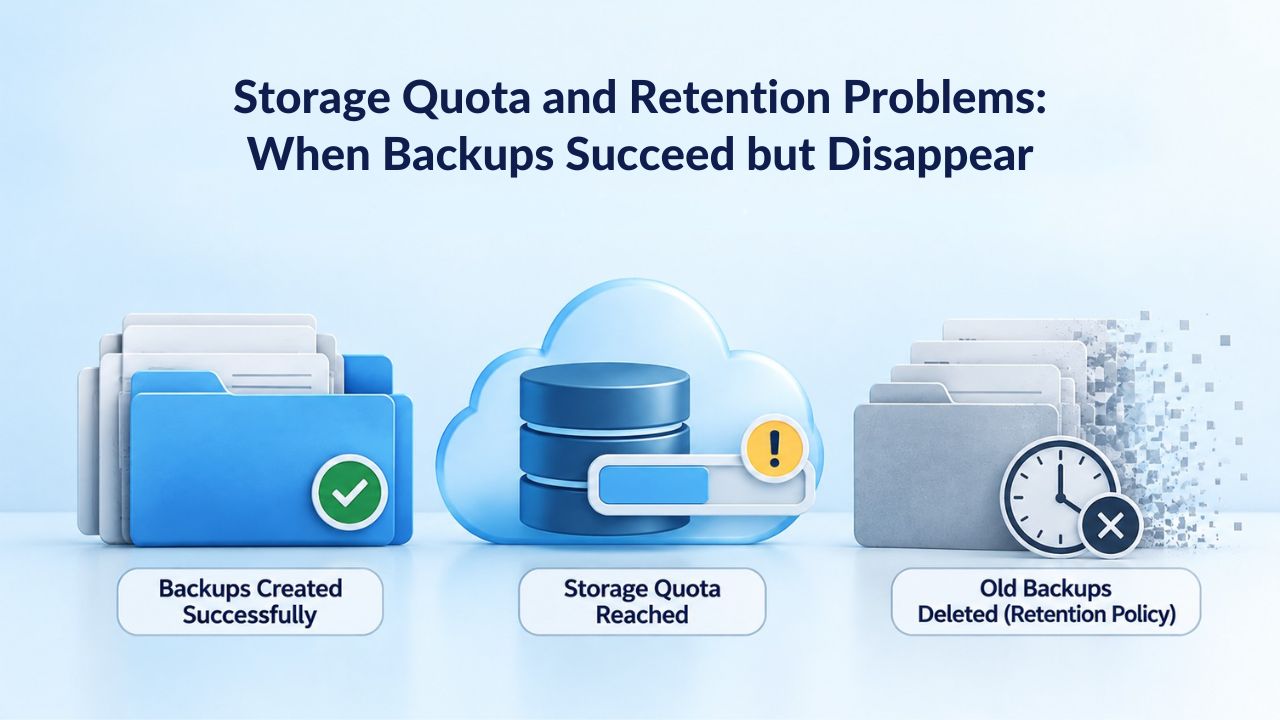
Storage Quota and Retention Problems: When Backups Succeed but Disappear
A backup can capture successfully and transfer to off-site storage, yet still vanish from your available restore points days or weeks later. Backup retention management and storage-quota exhaustion cause this scenario, and both are invisible unless you monitor them. A backup that existed yesterday may no longer be available for restore today if storage space was needed or if retention policies automatically deleted older backups.
Storage Quota Exhaustion and the Invisible Fill
Your backup plan includes a storage quota, a total maximum disk space allocated for all your backups combined. When this quota fills, new backup uploads fail, or older backups are automatically deleted to make room for new ones. Many site owners don’t discover this problem until they check their available backups and find fewer restore points than expected, or until they need to restore and discover the only available backup is from three months ago instead of the expected 30–90 day window.
Monitor your storage utilization regularly, at minimum monthly. If usage trends consistently upward and approaches your quota limit, you have three options: upgrade to a higher-quota plan, reduce your backup retention window (keep only the last 30 days instead of 90 days, for example), or implement a combination of full backups (weekly) plus incremental backups (daily) to reduce total storage consumption. Incremental backups capture only changed data since the previous backup, consuming far less storage than full backups while still providing complete restore capability when combined with a recent full backup.
Misunderstanding Backup Retention Policies
Backup retention typically works on a rolling schedule: your backup provider keeps all backups from the last 30 days (or whatever your plan specifies), then automatically deletes older backups. A plan with “30-day retention” means your oldest available restore point is about 30 days old; anything older is automatically discarded. Some site owners expect all backups to be kept forever and are shocked to discover old backups no longer exist after their retention window passes.
Understand your plan’s retention policy in detail before purchasing. If you need long-term backup archives for compliance reasons, certain regulations like PCI DSS (for payment-card data) or HIPAA (for healthcare data) may require 1–7 years of retained backups; confirm that your plan supports extended retention or implement a supplementary manual archive strategy (exporting backups to your own cloud storage or external drives on a quarterly or annual basis). This is especially critical for businesses in regulated industries where backup retention is legally mandated; generic retention policies don’t satisfy compliance requirements.
Off-Site Storage Failures: Connection and Authentication Issues
Your backups are only as reliable as the connection between your hosting server and your off-site backup storage provider. Network interruptions, API failures, authentication errors, and firewall misconfigurations can prevent backups from reaching storage, even if they’re captured successfully on your server. A backup that exists on your hosting server but never reached off-site storage is one server failure away from being lost.
Storage Service Authentication and API-Key Expiration
Off-site storage providers (major cloud platforms like Amazon S3, Azure, Google Cloud Storage, or dedicated backup vaults) require valid authentication to accept incoming backup data: API keys, access tokens, or login credentials that prove the request is authorized. When these credentials expire or are rotated (either intentionally for security or accidentally), the backup connection breaks immediately. The backup process may retry a few times but eventually fails silently, leaving you unaware that backups are no longer reaching off-site storage.
Set up calendar reminders or leverage your backup provider’s expiration-warning system for API-key and credential expiration dates. Most cloud providers issue warnings 30 days before expiration; act immediately when they arrive, and don’t postpone credential updates to “later.” If your backup system logs authentication errors (most do), review these logs weekly for any “authentication failed,” “API key invalid,” or “access denied” messages. These errors indicate that backup-to-storage connections are failing, and you need to update credentials immediately.
Network and Firewall Blocks Between Server and Storage
Some hosting environments implement strict firewall rules that block outbound connections to certain IP addresses or domain names. If your backup storage provider’s infrastructure falls outside your hosting provider’s whitelist of allowed outbound IPs, backup uploads fail silently. This is especially common when migrating between hosting providers or upgrading to a new server; firewall rules may not automatically whitelist the new infrastructure’s outbound routes.
Contact your hosting provider’s support team to confirm that outbound connections to your backup storage provider are permitted. If not, request whitelisting for the storage provider’s IP address ranges or fully qualified domain names (FQDN). After any hosting migration or server infrastructure change, test the backup-to-storage connection by running a manual backup and confirming it reached off-site storage without delays or errors. This validation step prevents weeks of “successful” backups that actually didn’t reach off-site storage.
Monitoring, Alerts, and Early Warning Signs
The most reliable backups are ones you monitor actively and regularly, not ones you trust will work perfectly until the moment you need them. Website backup monitoring should be automatic, but you cannot assume automatic systems are working without verification. A layered monitoring approach- email alerts, dashboard checks, storage utilization tracking, and backup history review- catches problems early.
Setting Up Email Alerts and Dashboard Checks
Configure your backup system to send email notifications in multiple scenarios: successful backup completion (to confirm the process is running as expected), any backup failures (even if the failure resolves itself later), and storage quota warnings (to alert you before quota fills). Test email delivery by manually triggering a test backup and confirming the completion notification arrives in your inbox within 5 minutes. If no notification arrives, contact your backup provider to diagnose why notifications aren’t being delivered.
Beyond email notifications, establish a weekly dashboard-check routine. Log into your backup provider’s control panel every Monday morning (or whatever day you choose) and spend two minutes reviewing: whether backups ran on schedule since your last check, whether backup file sizes are consistent with previous backups, whether any error messages appear in the backup logs, and what your current storage utilization is. Niya Digital’s team has found that most reported backup failures were actually due to incomplete backup scheduling: backups were configured once but never re-verified as running, or users didn’t know how to access the status dashboard. A 2-minute weekly dashboard check catches scheduling drift before it becomes a multi-week problem.
Establishing a Healthy Backup Process Baseline
A healthy backup should show consistent patterns: regular backup attempts at expected times (no gaps in the backup history), consistent backup sizes (sudden, small backups suggest partial data capture), and stable restore times (if test-restores suddenly take 3x longer than usual, site data size or database complexity has changed). Establish a baseline by reviewing 2–3 months of complete backup history and documenting typical backup size, backup duration, restore time, and restore-point count.
Once you have a baseline, flag any significant deviation. If your typical backup size drops suddenly from 500 MB to 100 MB, something changed: either site data was deleted, or the backup process is skipping data. If restore time jumps from 10 minutes to 40 minutes, your database size or complexity may have increased, or your hosting infrastructure performance may have changed. These deviations aren’t necessarily problems, but they warrant investigation and documentation so you understand your site’s data trajectory over time.
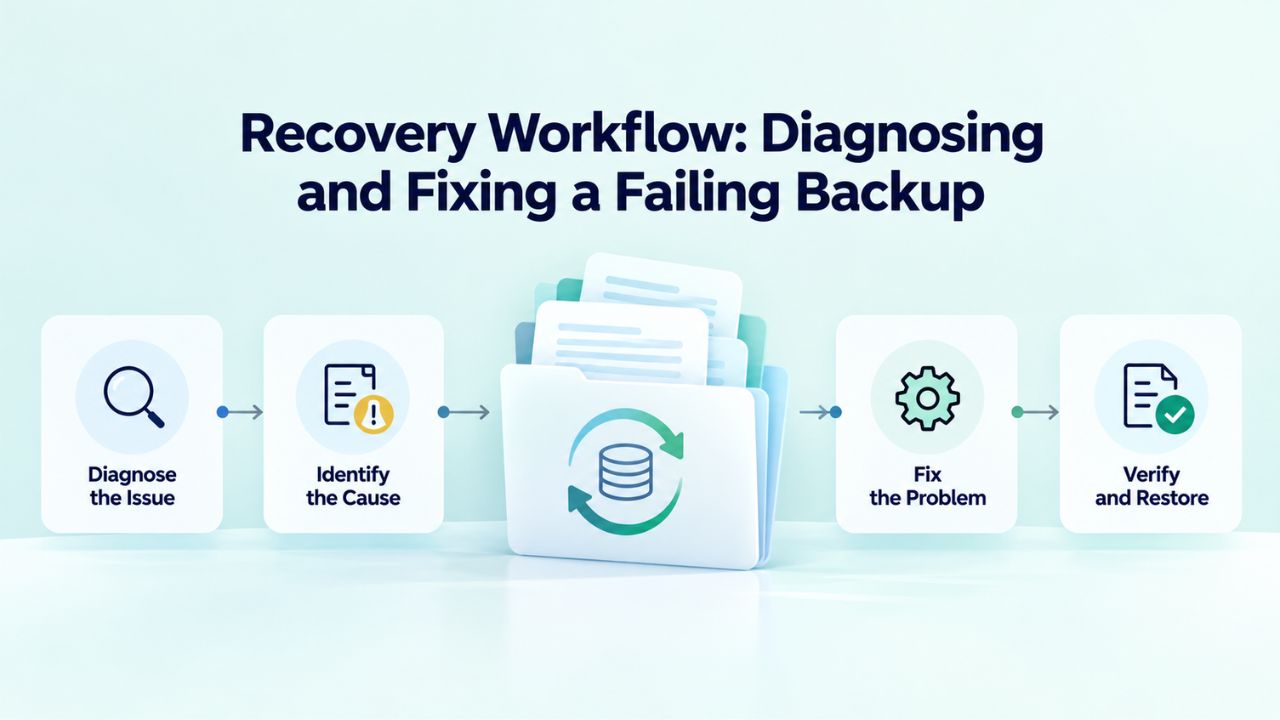
Recovery Workflow: Diagnosing and Fixing a Failing Backup
When you discover a backup has failed, or worse, when you need to restore and discover the backups are no longer available, a structured diagnostic workflow saves hours of troubleshooting and prevents panic-driven mistakes that compound the problem. Follow this systematic approach to identify the failure cause and implement the fix.
Step 1: Immediate Diagnostic Checklist
When you suspect a backup failure, check these items in order: Are backup email notifications enabled, and are emails arriving in your monitored inbox? Does the backup history dashboard show a recent backup marked as successful? Is your storage quota below its limit (not at or above quota)? Are database connection credentials current and valid? Are file permissions correct for the directories being backed up? Are API keys and authentication tokens for off-site storage current and unexpired? This checklist typically identifies the failure cause within 5–10 minutes.
Most backup failures fall into one of these categories, and this checklist systematically rules out each one. If you move through this checklist and all items check out, your failure may be a network or infrastructure issue that requires support from your backup provider; proceed to the next step.
Step 2: Checking Backup Logs and Identifying the Failure Point
Access your backup system’s detailed logs and review the most recent backup attempt, entry by entry. Logs typically show: exact start time of the backup, which files and database tables were captured, where the process stopped (if it was interrupted mid-process), file-count changes between backup start and finish, and which error message was reported (if any). Common log entries include “database connection failed” (credentials wrong), “storage authentication error” (API key expired), “disk full” (server out of space), “permissions denied” (access control issue), or “timeout” (process took too long).
CodeGuard (GoDaddy Website Backup)’s troubleshooting documentation provides detailed breakdowns of common error messages and the recommended fix for each scenario. If your log error matches one of their documented issues, follow the provided remediation steps. If your error message isn’t documented or seems ambiguous, save a screenshot and contact your backup provider’s support team with that information; support teams can usually identify the root cause within hours based on the specific error message.
Step 3: Testing the Fix and Verifying Recovery
After you’ve applied a fix (updated credentials, corrected file permissions, expanded storage quota, added firewall whitelisting, etc.), manually trigger a new backup immediately. Monitor the backup attempt in real time if your provider’s dashboard allows live job status, watching for error messages or unexpected delays. Once the backup completes, perform a test restore to a staging server to verify the backup now contains complete, recoverable data. Confirm that the restored site loads without errors and that database-driven functionality works correctly.
Don’t wait for the next scheduled automatic backup to verify that your fix worked. A manual test backup confirms whether the issue is resolved within 15–30 minutes rather than forcing you to wait 24 hours or more for the next scheduled backup to discover whether your fix failed. This immediate verification prevents the dangerous scenario where you believe the issue is fixed, but backups are still failing, leaving you unprotected while you assume everything is working.
Protect Your Website with Reliable Backup Strategy
Backup failures are preventable with the right monitoring, testing, and maintenance approach, and with a website backup solution designed for reliability and accountability. Niya Digital’s Website Backup Service includes automated scheduling, off-site storage infrastructure, integrated test-restore tools, backup verification features, and hands-on support to help you set up and maintain a backup strategy that actually works when you need it. Don’t discover your backup has failed during an emergency.
Frequently Asked Questions
How often should I test my website backup?
Test your backup monthly for small-to-medium sites, quarterly for low-traffic sites. High-transaction sites (e-commerce, SaaS, membership platforms) should test every two weeks or monthly. Each test involves selecting a recent backup, restoring it to a staging server, and confirming the restored site loads and functions correctly.
This process takes 15–30 minutes and is the only reliable way to verify a backup contains genuinely usable, recoverable data. Backup completion logs don’t prove recoverability; only a test restore does. CodeGuard (GoDaddy Website Backup)’s automated verification features can automate this testing in the background if manual testing isn’t feasible for your operation.
What does “backup retention” actually mean?
Backup retention is the length of time a backup is kept and available for restore before being automatically deleted. A plan with “30-day retention” means all backups from the past 30 days are available as restore points; backups older than 30 days are automatically discarded. Different plans offer different retention windows: 30, 60, 90, or 365+ days, and longer retention typically requires more storage space.
Understand your plan’s retention window clearly before purchasing. If you’re in a regulated industry requiring long-term backup archives (PCI DSS requires 1+ years, HIPAA requires 1–7 years depending on data type), choose a plan with extended retention or implement supplementary manual backup exports to your own storage.
Why does my backup appear successful but my restore fails?
Successful backup completion logs don’t guarantee the backup data is complete or usable; only a test restore proves that. Common causes of “successful” but unusable backups: partial data capture (transfer interrupted mid-process), corrupted backup metadata or database records (file structure present but contents damaged), storage quota silently exceeded during transfer (partial data stored but marked complete), or permissions preventing complete file capture.
If your test restore fails, enable automated backup verification (if available) to catch corrupted or incomplete backups before you need them for an actual emergency. Always test new backup systems with a test restore before relying on them for production data.
How do I know if my backup is genuinely failing or just running slowly?
Large sites naturally take longer to back up and restore; a 5 GB database may take 30–60 minutes to back up completely, while a 500 MB site backs up in minutes. Compare your current backup duration to your historical average over the past 2–3 months.
If today’s backup took 3x longer than your baseline, something has changed: your site grew, server performance degraded, or network congestion increased. Check your backup logs for interruptions or error messages; if none exist, the backup likely completed successfully despite taking longer than usual. Error messages in logs indicate real failures that require investigation and fixes.
What happens if I lose all my backups because storage was full?
If your storage quota fills and older backups are deleted before you notice, you may suddenly have no recent backups available for restore. This is a critical scenario emphasizing the importance of monthly storage utilization monitoring.
To prevent this: set up quota-warning alerts (most providers offer them at 75–80% utilization), review storage usage in your backup dashboard monthly, upgrade your plan if approaching quota, or reduce retention windows. If you’ve already lost backups due to quota fill, contact your backup provider immediately; some maintain temporary recovery windows for recently deleted backups, allowing emergency restoration. Prevention is far easier than recovery.
Can I restore just part of my website, like a single page or file?
Granular restore capability (restoring individual files, database tables, or specific records rather than full-site restore) is a valuable feature that depends on your provider. CodeGuard (GoDaddy Website Backup) supports granular restore, allowing precise recovery of specific components.
This is crucial when you’ve accidentally deleted a single critical page, need to recover a specific database table, or want to restore a single user’s data without affecting the rest of your site. Confirm your plan includes granular restore before purchasing. Without granular restore, you’re limited to a full-site restore, which is less efficient for single-item recovery and takes longer to perform and validate.
What’s the difference between incremental backup and full-site backup?
A full-site backup captures every file and every database record every time it runs; it is slower and more time-consuming, but simpler to manage and restore. An incremental backup captures only files and data that changed since the previous backup; it’s faster and more storage-efficient, but it requires a recent full backup as a base point for a complete restoration. Most website backup
solutions combine both strategies: weekly full backups plus daily incremental backups. This strategy balances speed (daily incremental backups run fast), storage efficiency (only changed data captured daily), and reliability (a complete full backup each week provides a clean restore point). Incremental backups alone are risky; always maintain at least one weekly full backup.
How long should a website restore take?
Restore time depends primarily on site size and database complexity. Small sites (under 1 GB total) typically restore in 5–30 minutes. Medium sites (1–5 GB) restore in 30 minutes to 2 hours. Large sites (5+ GB with complex databases) may take 2–8 hours.
CodeGuard (GoDaddy Website Backup)’s documentation provides more specific timeframe estimates based on database size and complexity. Your hosting provider’s server load and your connection bandwidth also affect restore time. Establish your site’s personal baseline by performing test restores quarterly and recording actual restore times; this baseline helps you identify problems if restore time suddenly doubles.
What should I do if my backup provider goes out of business?
While this is unlikely with established providers, it’s worth planning for. Before purchasing, verify provider business stability, read reviews, and ask: Can I export my backups if I leave? Are backups stored in third-party cloud infrastructure (surviving provider closure) or proprietary systems (potentially inaccessible if provider fails)? Maintain at least one manual backup (exported to your personal cloud storage or external drive) as a safety net.
Niya Digital’s Website Backup Service is powered by CodeGuard (GoDaddy Website Backup), a long-established provider backed by GoDaddy’s infrastructure, making provider failure extremely unlikely. Still, maintaining an independent backup copy is sound security practice.
Can a hacked or malware-infected site reinfect itself when you restore from backup?
Yes, if your backup was created after the hack or malware infection occurred, restoring will restore the malware along with your legitimate data. This is why maintaining multiple backup restore points spanning at least 30 days of history is critical. If your site is hacked, restore to a backup point from before the compromise occurred (check your backup history timeline to identify when the attack began).
If all available backups are compromised, you’ll need manual remediation: identify and remove malware from the live site, then create a clean backup before using that backup for future restores. This scenario underscores the value of frequent backups and regular test-restores to catch infections early.
Should I rely on my hosting provider’s built-in backups?
A: Hosting-provider backups are better than no backups, but carry significant risks: they’re often not tested regularly (you may not know if they actually work), they’re stored on the same hosting infrastructure (vulnerable to hosting-level failures), they may not be accessible if you change hosting providers, and a hosting provider outage can simultaneously eliminate both your live site and your backups. Best practice recommends an independent, separate website backup solution
stored off-site on different infrastructure, not on your hosting provider’s servers. Many businesses combine hosting-provider backups (fast local recovery if available) with independent off-site backups (long-term protection and portability across hosting providers).
What’s the best approach to backup storage and retention?
The ideal website backup and restore strategy balances cost with risk and compliance requirements. For most businesses: daily automated backups with 30-day retention for rapid recovery capability. For e-commerce and SaaS: daily or hourly backups with 90-day retention for extended recovery options.
For regulated industries: confirm backup retention meets compliance (PCI DSS 1+ year, HIPAA 1–7 years) and implement quarterly exports to separate long-term storage. For low-traffic sites: weekly backups with 30-day retention is sufficient. Document your chosen retention and frequency policy; review it annually to ensure it still matches your site’s value and risk profile.
How do I handle backup failures that keep repeating?
If you’ve fixed an issue once but the same backup failure keeps recurring, the root cause wasn’t actually resolved. Return to the systematic diagnostic workflow: review logs carefully for clues you may have missed the first time, contact your backup provider’s support team with complete log files, consider whether the issue is hosting-provider-related (firewall rules, resource limits, permission resets) rather than backup-system-related, and implement a preventive monitoring system.
Recurring failures often indicate an underlying infrastructure issue (like permission resets after server updates) that requires a systematic fix, not just one-time remediation.
Glossary
- Automatic Website Backup: A backup process configured to run on a predetermined schedule (daily, weekly, multiple times daily, etc.) without requiring manual intervention each time, capturing website files and database data at regular intervals.
- Backup Retention: How long a backup is kept and available for restore before it’s automatically deleted. A “30-day retention” plan means backups from the past 30 days remain available; older backups are automatically removed.
- Database Backup: A separate, distinct backup of your website’s database layer (the data core), distinct from file backups, capturing all database tables, records, settings, and configurations.
- Incremental Backup: A backup that captures only files and database data changed since the previous backup, reducing storage consumption and backup time compared to full-site backups, but requiring a recent full backup as a base for complete restoration.
- Off-Site Backup Storage: Backup data stored on servers physically located outside your primary hosting infrastructure, protecting against hosting-level failures, data-center outages, or server hardware failures affecting your primary site.
- One-Click Restore: A user-triggered restore operation that automatically replaces your live website with a chosen backup point via a simple interface action, without requiring manual file or database manipulation.
- Restore Point: A specific saved backup state identified by date and time, representing your website’s files and database at that specific moment, available to restore to if needed.
- Website Backup Testing: The process of selecting a backup, restoring it to a staging or development server, and verifying that the restored site loads correctly and contains complete, usable data- the only definitive way to confirm a backup actually works.