Your website crashes, and your hosting provider tells you their last backup is 30 days old; your recent work is gone. Without an independent backup connected to your account, you depend entirely on your host’s timeline and infrastructure. Niya Digital offers website backup services through an authorized reseller relationship with CodeGuard, whose automated backup capture, off-site storage, and one-click restore technology power the service. Data safety depends on the backup frequency chosen, how quickly issues are noticed, and your credential security. No backup service guarantees zero data loss or instant recovery, though automated off-site backups dramatically reduce both risk and recovery time.
What “Connecting” a Website Backup Really Means
Connecting a website backup service means giving it authenticated credentials for two separate systems on your hosting server so it can read and copy your data. Unlike uploading files to cloud storage, which you initiate manually, a backup connection is a standing authorization that lets a service access your hosting account automatically, repeatedly, and without intervention.
Understanding the Two-Part Connection
Your website lives in two distinct locations on your server: your file system (where WordPress code, themes, and images sit) and your database (where posts, pages, comments, and user data live). The backup service must connect to both separately because they use different authentication systems and different protocols. Providing only your FTP credentials backs up files but leaves your database unprotected. Providing only database credentials backs up content but leaves you without the code needed to display it.
Think of connection like giving a trusted external party two separate keys: one to unlock your filing cabinet (files), another to unlock your safe (database). The backup service uses these keys to create independent copies of everything in both locations and stores those copies in secure cloud infrastructure they operate, separate from your hosting provider’s data centers. This independence protects you from hosting-provider outages, data-center fires, billing disputes, or account suspensions that might cut off your server access. If your hosting company experiences any of these scenarios, your independent, off-site backup remains accessible and restorable.
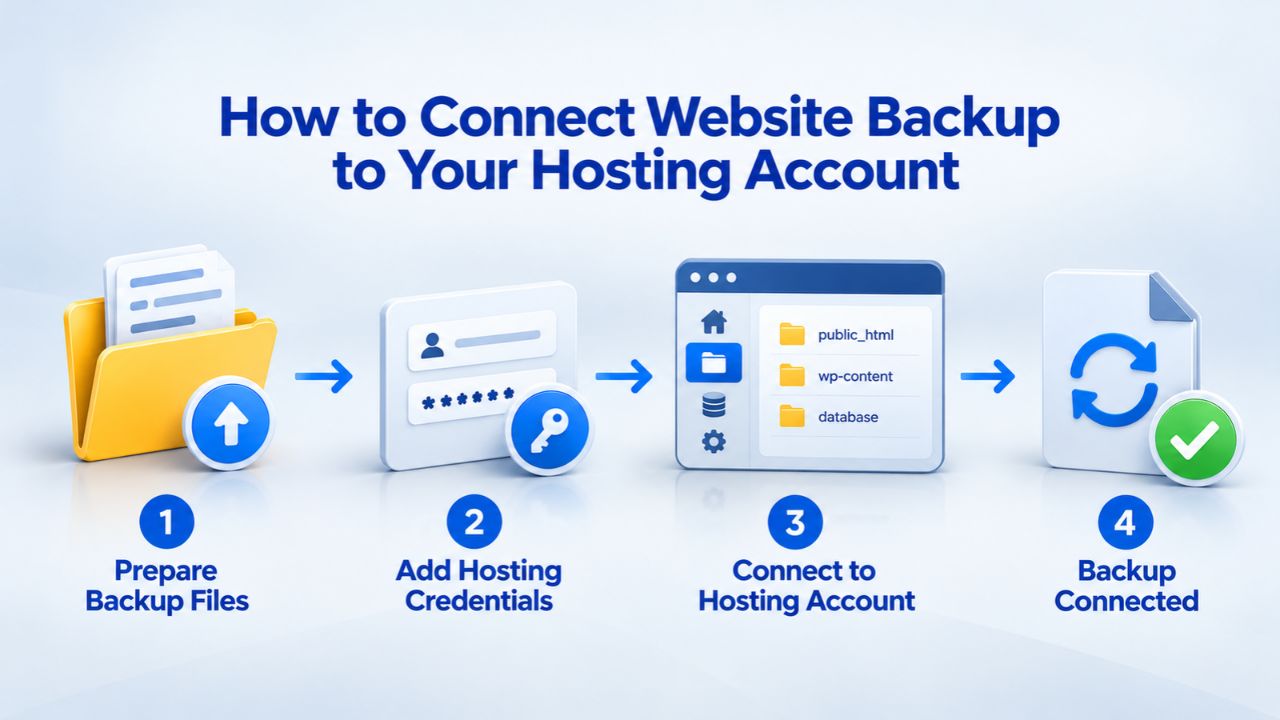
The actual connection process is straightforward: you log into your backup service’s dashboard, enter a few credential pairs, click “test connection” to verify they work, then select which files and databases to back up. After this one-time setup, backups run automatically on a schedule, typically daily, without any further action from you. The backup service monitors your website for changes and creates incremental backups capturing only what’s new or modified, reducing backup time and storage use.
Why Files and Database Must Both Be Backed Up
A complete website backup consists of two essential, inseparable components. WordPress.org documentation states clearly: “To fully restore a typical WordPress site, you need both” files and database. This is because WordPress (like most CMS platforms) splits its data between two systems. Your WordPress installation files, the core software, themes, plugins, configuration files, and images, live on your server’s disk. Your website’s dynamic content, every published post, page, comment, user account, and setting, lives in a separate MySQL database.
If you restore only your files, you get a WordPress installation with no content. Your site displays but shows no posts or pages because the database remains corrupted or old. If you restore only your database, you have your content but no code to run it; your site won’t load because the WordPress files are missing. For a working restoration after a hacking incident, server crash, or accidental deletion, both components must exist and be synchronized, created around the same time. Hence, they must match. Restoration requires restoring files first, then the database, and both must align for the site to function.
This is why connecting both to your backup service is critical. Most backup services recognize this and prompt you to add a database backup immediately after you connect your file system. Never skip the database step. A half-backup protects you only partially and may give you a false sense of security that evaporates the moment data loss strikes.
Website Backup Plans & Pricing
Select the Website Backup package that best fits the size and peace of mind requirements of your website. Your data is safeguarded without going over budget thanks to our adaptable choices.
Website Backup 5 GB
Recommended for documents and files.
- Automatic daily backups
- Built-in daily malware scanning
- Back up a file, folder or an entire database
- Continuous security monitoring
- Downloads to local storage
- Easy one-click restore
- Secure cloud storage
- Expert 24/7 customer support
- One website per account

Website Backup 25 GB
Recommended for photos and music.
- Automatic daily backups
- Built-in daily malware scanning
- Back up a file, folder or an entire database
- Continuous security monitoring
- Downloads to local storage
- Easy one-click restore
- Secure cloud storage
- Expert 24/7 customer support
- One website per account
Website Backup 50 GB
Recommended for videos and multimedia.
- Automatic daily backups
- Built-in daily malware scanning
- Back up a file, folder or an entire database
- Continuous security monitoring
- Downloads to local storage
- Easy one-click restore
- Secure cloud storage
- Expert 24/7 customer support
- One website per account
Locating Your FTP Hosting Credentials
Every hosting account includes FTP (File Transfer Protocol) access, a username and password pair that grants secure read and write access to your server’s file system. FTP credentials differ from your hosting control panel password, though some hosts link them. Before you can connect your backup service, you must collect your FTP username, hostname, and password from your hosting provider.
Finding FTP Info in cPanel
Most hosting accounts use cPanel, a standard hosting control panel interface where you manage files, databases, email, and other account features. Log into your hosting provider’s control panel by visiting your domain with /cpanel appended (e.g., yourdomain.com/cpanel) or by using the port specified in your hosting welcome email (usually 2083 for secure access). Enter your hosting username and password.
Once logged into cPanel, look for the “Files” section, typically grouped with account management tools on the main dashboard.
Inside, click on “FTP Accounts.” You’ll see a table listing your existing FTP accounts with three critical pieces of information you must write down: your FTP username (often the same as your hosting account username), your FTP hostname (typically ftp.yourdomain.com or your server’s IP address, visible in the table or at the top of the cPanel page), and the FTP port number (usually 21 for standard FTP, or 22 if you plan to use SFTP, which is more secure). If you’ve forgotten your FTP password, the FTP Accounts section provides a “Change Password” link; click it, enter a new strong password, and save it.
Open a text editor and paste your FTP hostname, username, and new password. Keep this information visible because you’ll need to enter it into your backup service dashboard within the next few minutes. Don’t close this window or navigate away until you’ve entered these credentials into your backup service and run a connection test.
Alternative Hosting Control Panels
Not all hosting providers use cPanel. Some use Plesk (common on Windows hosting), while others like Managed Hosting for WordPress or smaller boutique hosts use custom control panels. If you can’t find an “FTP Accounts” section in your control panel, contact your hosting provider’s support team and request your FTP credentials by email. Provide your domain name and hosting account username. Most providers respond within a few hours with an email containing your FTP hostname, username, and password.
If your host doesn’t provide an obvious way to view or reset FTP credentials, ask support specifically for your FTP hostname (or server IP address), your FTP username, and whether you can reset your FTP password through the control panel or if they must do it. Some hosts allow account owners to reset passwords directly; others handle resets through support only. Once you have these credentials, store them securely in a password manager or encrypted file. You’ll use them in your backup service’s connection setup wizard within the next few steps.
Gathering Your Database Connection Information
Your website’s database is a separate system, usually MySQL or MariaDB, that stores all dynamic website data. Unlike static files, which rarely change after being uploaded, your database receives constant updates every time you publish a post, receive a comment, or a visitor creates an account. To back up your database independently, you need separate credentials: database hostname, database name, MySQL username, and MySQL password.
Finding MySQL Credentials in Your Hosting Control Panel
Return to your hosting control panel and look for a section labeled “Databases,” “MySQL Databases,” or “Database Management,” usually grouped near the FTP Accounts section. Click it to open your database management interface. You’ll see a list of databases associated with your account, typically named something like username_wordpress, company_database, or similar. For each database, the control panel displays the database name, the hosting username it belongs to, and sometimes the MySQL users associated with it.
Write down the database hostname (often localhost on shared hosting, but could be an IP address on some managed or VPS hosting plans), the database name (e.g., yoursite_wordpress), and the MySQL username that has access to this database. Note that your MySQL username is different from your FTP username; MySQL usernames often look like yoursite_user or similar. If you see the database in the control panel but can’t find its password, you’ll create a new one in the next step. The default MySQL port is 3306; unless your hosting provider specified something different, use this port number when connecting.
Creating a Dedicated Backup User for Security
The strongest security practice is to create a new MySQL database user specifically for backups, rather than using an existing user or, worse, giving your backup service a primary account password. In your control panel’s database section, look for “Add MySQL User” or “Create Database User.” Create a user named something like backup_user with a strong, random password you haven’t used elsewhere. After creating the user, grant it backup and restore permissions on the specific database being backed up, but not admin permissions over all databases.
For WordPress sites, you can find existing database credentials directly in your site’s wp-config.php configuration file without using the control panel. Connect to your server via FTP using the credentials you gathered earlier, navigate to your website’s root directory (typically /public_html), and download the wp-config.php file to your computer. Open it in a text editor and search for these lines: define(‘DB_NAME’, define(‘DB_USER’, define(‘DB_PASSWORD’, and define(‘DB_HOST’.
The values on these lines show your database name, existing MySQL username, password, and hostname. Store this information securely. Whether you use an existing MySQL user’s credentials or create a new backup-specific user, keep this password separate from your FTP and cPanel passwords; if one account is compromised, it won’t expose your entire hosting account.
Connection Setup Reference Table
| Step | What You Need | Where to Find It | What to Do If Missing |
|---|---|---|---|
| 1. FTP Hostname | Server IP or domain | cPanel > FTP Accounts section; shown in table or at top of page | Contact hosting provider; ask for FTP hostname |
| 2. FTP Username | Account username | cPanel > FTP Accounts; listed in table | Use hosting account username or create new FTP account in cPanel |
| 3. FTP Password | Secure access password | Set in cPanel > FTP Accounts; click “Change Password” if unknown | Reset in cPanel immediately; use new password in backup setup |
| 4. Database Hostname | Server location (usually localhost) | cPanel > Databases > MySQL Databases, or wp-config.php file | Contact host to confirm; usually “localhost” on shared hosting |
| 5. Database Name | Your site’s database | cPanel > Databases; listed in table, or wp-config.php file | Contact hosting provider; ask which database corresponds to your domain |
| 6. MySQL Username | Database user account | cPanel > Databases; associated with database, or wp-config.php file | Create new database user in cPanel (recommended for backups) |
| 7. MySQL Password | Database access password | Reset in cPanel > Databases; click “Change Password” or create a new user | Create new database user with new password; don’t guess old passwords |
| 8. MySQL Port | Connection port (default 3306) | Rarely changed; default is 3306 unless host documented otherwise | Use 3306; contact host only if connection tests fail with port error |
| 9. Backup Service IP Address | Backup provider’s server address | Backup service dashboard > Server Info or About section | Contact backup service support; they provide this for whitelisting |
| 10. Whitelisting Confirmation | Host’s approval to connect | Request from hosting provider support; usually emailed within 24 hours | Contact host support; resubmit IP address if not whitelisted within 24 hours |
Testing Your FTP Connection Before Backup Starts
Before your backup service can access your website’s files, it must verify that your FTP credentials are correct and that a connection can be established between the backup service’s servers and your hosting provider. This verification step, called a connection test, is critical for ensuring your backups will actually run. If the test fails, backups won’t operate, and you’ll have no recovery option if disaster strikes.
Running the FTP Connection Test
Log into your backup service dashboard (accessible through Niya Digital’s Website Backup Service or directly through your hosting provider’s integrated backup feature). Most backup services display an “Add Website” or “Connect FTP Website” button. Click it to open the connection setup form. You’ll see fields for FTP hostname, FTP username, FTP password, and sometimes an optional port number and connection protocol selector. Enter the hostname, username, and password you gathered from your hosting control panel. If you see a dropdown for “Connection Protocol,” select SFTP if available (it’s encrypted and more secure than plain FTP). Leave the port field at its default unless your host specified a custom port.
After you enter all FTP information, look for a button labeled “Test Connection” or “Verify Credentials.” Click it. The backup service will attempt to connect to your server using the credentials you provided. If you see a green checkmark, a success message, or confirmation that the connection was established, your FTP credentials are correct, and you can proceed to the database connection step. This typically takes 5–10 seconds. If you see a red error message, stop here and troubleshoot before proceeding to the database connection.
Troubleshooting FTP Test Failures
The most common reasons for FTP connection test failures are: an incorrect password (maybe you mistyped it), an incorrect hostname (especially if your domain DNS recently changed), or the FTP port being blocked by your host’s firewall. First, reset your FTP password in your control panel again and re-enter it exactly as shown; FTP passwords are case-sensitive. If the error persists, try using your server’s IP address instead of your domain name in the hostname field. Some hosting configurations block FTP connections through domain names but allow them through IP addresses.
If you’re still seeing errors, try switching your connection protocol from FTP to SFTP. SFTP runs on port 22 instead of port 21, and port 21 (standard FTP) may be blocked by your host’s firewall while port 22 remains open. Most backup services let you select the connection protocol or port in an “Advanced Options” section. If switching to SFTP succeeds, you’ve found your answer: your host blocks standard FTP but allows SFTP. If all these attempts fail, contact your hosting provider’s support team and ask whether FTP access is enabled for your account. Some shared hosting plans disable FTP by default and require you to enable it explicitly. After your host enables FTP, try the connection test again.
Verifying Your Database Connection
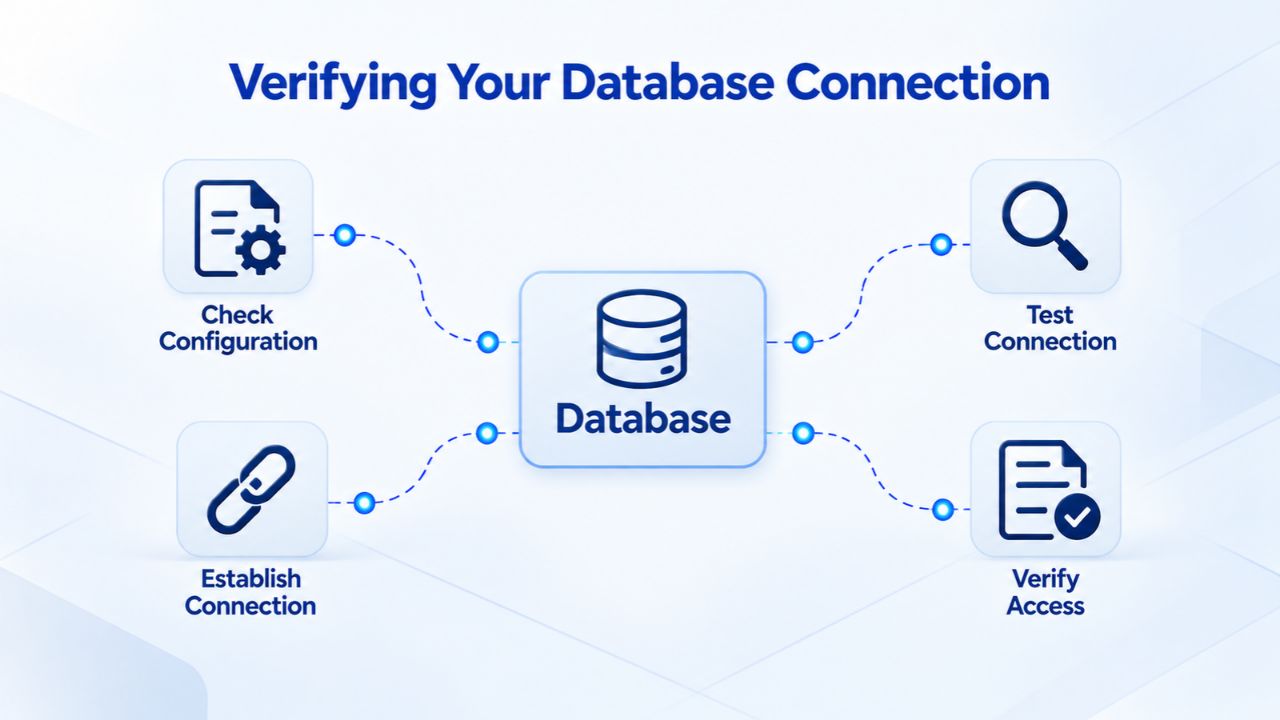
After your FTP connection test succeeds, the next critical step is connecting your backup service to your database. This connection test is equally important as the FTP test because without a successful database connection, your backup captures only your website files, not your posts, pages, comments, or any dynamic content. Most backup services prompt you for database credentials immediately after FTP is confirmed.
Testing Your MySQL Connection
In your backup service dashboard, after FTP succeeds, you should see an option to “Add Database” or “Configure Database.” Click it. You’ll see a form asking for database connection details: database hostname, database name, MySQL username, and MySQL password. Enter the values you gathered from your hosting control panel (or from your wp-config.php file). Enter the database hostname exactly as it appears in your control panel, usually localhost on shared hosting, but verify this against what your host specifies. Leave the port at 3306 unless your host documented a different port.
After entering all database information, click “Test Connection” or “Verify Database Access.” This test typically takes 5–10 seconds. If successful, you’ll see confirmation that the database was reached and the backup service can access it. The connection test may also show a list of available databases on your server; if so, select your WordPress database from that list on the next screen. If the test fails with a “connection refused,” “access denied,” or “timeout” error, stop here. Most database connection failures are caused by your hosting provider blocking external connections for security reasons, which is resolved through IP whitelisting (explained below).
Understanding IP Whitelisting Requirements
Many hosting providers block external database connections by default for security. This means database servers automatically reject connection attempts from unknown external IP addresses. If your database connection test failed with an error like “connection refused,” “timeout,” or “unable to reach database,” your host likely requires IP whitelisting, adding your backup service’s IP address to an approved list.
Your backup service’s dashboard shows the IP address(es) it uses to connect to databases. Look for a “Server Information,” “Connection Details,” or “About” section in your backup service, or contact support for the IP address. Once you have it, log into your hosting control panel and look for “Remote MySQL,” “Database Access,” “Manage Access,” or a similar option. Many cPanel hosts let account owners add IP addresses directly through this interface. If you can add it yourself, paste the backup service’s IP address and save.
If you don’t see this option, email your hosting provider’s support team with your domain name, the backup service name, and the IP address you want to whitelist. Ask them to add it to your database IP whitelist. Most hosts complete whitelisting within 24 hours. After whitelisting is confirmed, return to your backup service and run the database connection test again; it should now succeed.
Activate Automated Backup Protection
You’ve now mastered the hardest part, gathering and testing your credentials. The remaining setup takes just minutes. Niya Digital’s Website Backup Service handles the rest automatically. Choose your backup frequency, select your files and database, and let automated daily backups run without any further action from you.
Selecting What to Backup: Files and Database Together
After both FTP and database connection tests pass, your backup service displays options for selecting what to back up. This step determines which files and database tables are included in your automatic backups. Your selections directly affect backup size, backup duration, and whether you can fully recover your website if data loss occurs.
Choosing Your File Directories
When the backup service displays your file tree (your server’s directory structure), you’ll see folders starting at your account’s root directory and extending into subdirectories. You don’t need to back up everything; system directories, temporary files, and cache folders waste space and slow backups. Navigate the file tree to your website’s root directory, typically called /public_html or public_html depending on your hosting setup. Select this folder. The backup service then displays everything inside it and may let you choose individual subdirectories or back up the entire folder.
For WordPress sites, your backup must include: the WordPress core files, the /wp-content/ folder (which holds plugins, themes, and uploaded media), the wp-config.php configuration file, and the .htaccess file (if present). You can safely exclude folders like /wp-content/cache/, temporary upload directories, and system cache folders to reduce backup size and speed. Some hosting control panels show the total disk space your selected files will consume; confirm this fits within your backup plan’s storage limit before proceeding. Once you’ve confirmed your file selections, the backup service typically shows a “Begin First Backup” button. Click it to start capturing your website files to off-site storage.
Adding Your Database to the Backup Set
Immediately after file backup begins (or sometimes during the initial file selection), your backup service prompts you to add a database. This is the critical second step; files alone are incomplete. Click “Add Database” or navigate to the database configuration section. You’ll see a field asking which database to back up. From the list of available databases on your server, select the one corresponding to your WordPress site. For most sites, there’s only one database, making this selection obvious. If your account has multiple databases (for multiple websites), select the correct one carefully; backing up the wrong database defeats the purpose.
After selecting your database, the backup service begins adding it to your backup configuration. Most services now automatically schedule database backups on the same frequency as file backups, typically daily for active sites. CodeGuard (GoDaddy Website Backup) documentation states: “After file backup is initiated, you will be prompted to add a database. This completes the backup configuration for your website.” Verify that both file and database backups are active before closing your browser. Check your backup service’s dashboard the next day to confirm that both a file backup and a database backup were created. If either is missing, troubleshooting may be needed, but this initial verification ensures your setup is complete.
Why Your Backup Service Needs File and Database Credentials
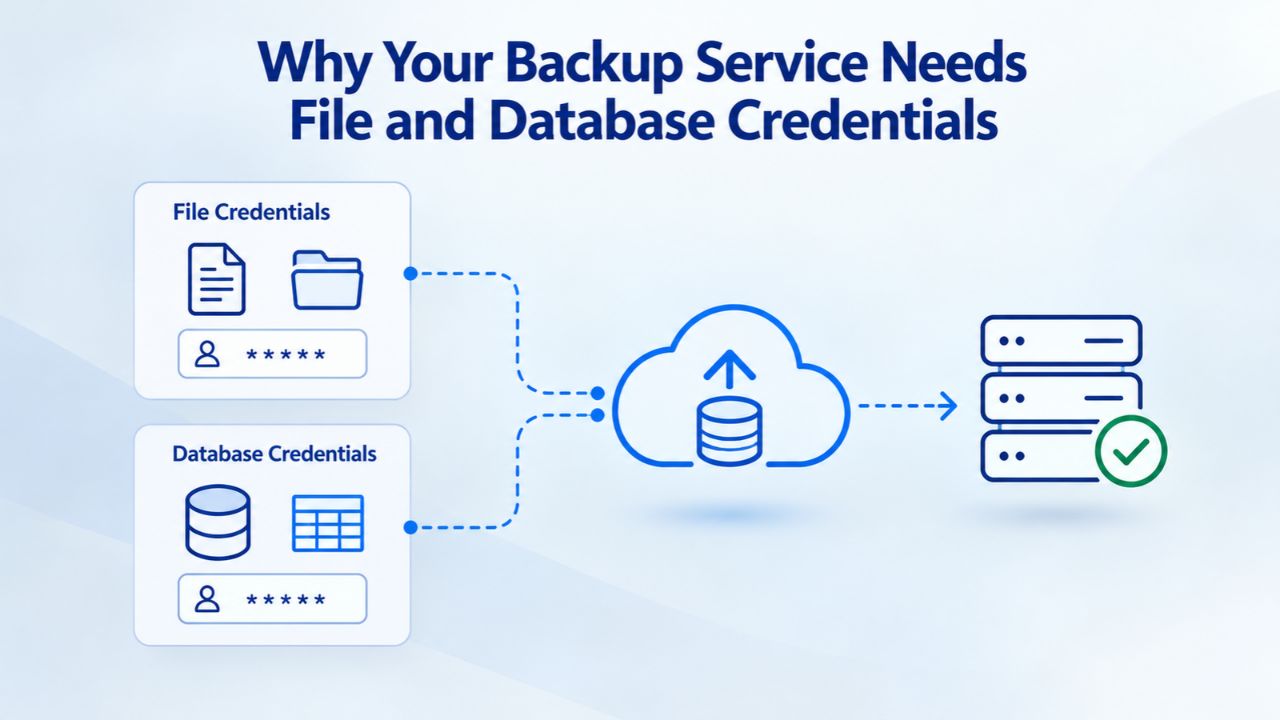
Understanding why backup services require access to both your file system and your database clarifies the importance of completing both connection steps and helps you troubleshoot if issues arise. The reasoning is simple: a complete website backup must include everything necessary to restore a fully functional website.
How Backup Services Capture Website Data
When you connect your FTP credentials to a backup service, it reads every file in your selected directories, WordPress core files, all plugins and themes, every uploaded image, and your site’s configuration. It copies these files to its off-site storage infrastructure, compresses them, and stores multiple versions so you can restore to different points in time. Simultaneously, when you connect database credentials, the backup service connects to your MySQL server, reads the database structure and all records (posts, pages, comments, users, settings), and exports the entire database as a SQL file that’s also stored off-site.
The backup service continuously monitors both file and database systems. Most services monitor for changes daily. If new files are uploaded, plugins are installed, or posts are published, the service detects these changes and backs them up. If no changes occurred since the last backup, it skips backup and saves time and resources. This change detection, called incremental backup, is what makes daily backups practical; if the service re-copied everything every day, backups would take hours and consume massive storage. Instead, incremental backups capture only what’s new or modified, making daily backups feasible and keeping storage requirements reasonable.
Maintaining Synchronized Backups of Both Components
For a restoration to succeed after data loss or a security incident, your file backup and database backup must be synchronized and created at approximately the same time. If you restore files from a backup taken on Monday but restore the database from a backup taken on Friday, there’s a mismatch: your files reference database tables and settings that changed between Monday and Friday, but your database is from before those changes. This mismatch can cause errors, missing data, or broken functionality after restoration.
For this reason, most backup services schedule file and database backups at the same time or very close to each other (within a few minutes). Some services let you customize backup schedules independently, but this is rarely advisable. Keep your file and database backups on the same schedule and at similar times. If your site updates multiple times daily with high-value data (e-commerce orders, booking systems, user-generated content), consider daily backups for both. If your site updates rarely, weekly backups may suffice. The key is consistency: back up both components at the same frequency so they stay synchronized.
Understanding Common Connection Failures
Even with clear instructions, backup setup sometimes encounters errors on the first attempt. Understanding the most common failures and their causes lets you resolve them quickly without needing support intervention. Most errors are simple to fix once you understand what went wrong.
FTP and Database Timeout Errors
A “timeout” error means the backup service tried to connect but received no response within the expected time window; the connection attempt took too long, or the server didn’t respond at all. For FTP, this typically indicates a network issue between your backup service’s servers and your hosting provider. For databases, timeouts often mean your host is blocking the connection or the database server is overloaded. First, wait a few hours and try again; temporary network glitches resolve on their own. If the timeout persists, check your hosting control panel to confirm your username, password, hostname, and port are correct. A typo in any field can cause timeouts.
For database timeouts specifically, the most likely cause is missing IP whitelisting. If your host requires whitelisting but the backup service’s IP isn’t on the list, the database server rejects the connection and the timeout occurs. Contact your host, provide the backup service’s IP address, and request whitelisting. After 24 hours (standard processing time), try the database connection test again. If it still fails, ask your host whether they support SSH tunneling as an alternative connection method. SSH tunneling creates an encrypted tunnel through which the backup service can reach the database, bypassing the need for direct database access and often working when whitelisting doesn’t.
Authentication and Whitelisting Problems
An “authentication failed” error for FTP means the backup service connected to your server but couldn’t log in with the credentials you provided. This is usually a simple password error. Return to your hosting control panel, verify your FTP password, reset it if you’re unsure, and try the connection test again using the new password. Remember that FTP passwords are case-sensitive. If the error persists after resetting the password, try switching from FTP to SFTP (port 22) in your backup service’s connection settings. Port 21 (standard FTP) may be blocked by your host’s firewall, while port 22 (SFTP) might be open.
For database “authentication failed” errors, double-check your MySQL username and password in your hosting control panel. If you created a new database user for backups, verify the username and password exactly match what you entered when creating the user. If you’re using an existing database user, make sure that user has permissions to access the specific database you’re trying to back up. Database users can have read access to some databases but not others. If whitelisting is required (a likely cause of database connection failures), contact your host immediately with the backup service’s IP address. Whitelisting is the most common reason database connections fail, and it’s the easiest to resolve once you understand the requirement.
Backup Failure Diagnosis
| Error Type | FTP or Database? | Most Likely Cause | First Action | Second Action |
|---|---|---|---|---|
| “Authentication Failed” | FTP | Incorrect password or username | Reset FTP password in cPanel; try again | Try switching from FTP to SFTP (port 22) |
| “Connection Timeout” | Both | Network delay, server overload, or port blocked | Wait 1–2 hours and retry; try a different time of day | Check with hosting provider if issue persists |
| “Connection Refused” | Database | Database connection blocked by firewall or missing whitelist | Request hosting provider whitelist backup service IP | Ask host if SSH tunneling is available as alternative |
| “Unable to Connect” | FTP | Wrong hostname, domain DNS changed, or firewall blocking | Try using server IP address instead of domain name | Try switching connection protocol (FTP vs SFTP) |
| “Database Not Found” | Database | Wrong database name or spelling | Verify database name in cPanel matches backup service entry | Create new database user; verify permissions granted to correct database |
| “Files Missing from Backup” | FTP | Website offline during backup or folder permission issue | Verify site loads in browser; check backup ran at correct time | Contact hosting provider to grant read permissions to backup directories |
| “Database Backup Failed” | Database | Connection succeeded but backup incomplete; insufficient permissions | Verify database user has backup permissions in cPanel | Retry backup after a few hours; database may have been briefly inaccessible |
What Happens After Your Backups Connect Successfully
After connection tests pass and you’ve selected your files and database for backup, the backup service takes over the entire operation. Understanding what happens next helps you monitor your backups and catch problems early, before they become emergencies.
Automatic Backup Scheduling and Monitoring
The first backup typically runs immediately after you complete setup, though it may take several hours depending on your website’s size. A small site with 1–5 GB of files and a modest database might complete in 1–4 hours. Larger sites take longer. Monitor your backup service’s dashboard to watch progress; most display a percentage bar, progress indicator, or status message. Once the first backup completes, your backup service runs automatically. Based on your plan’s schedule (typically daily for active sites), the service automatically captures updated files and database records without any action from you.
Your backup service sends you email summaries daily, weekly, or on a schedule you choose, showing how many backups were taken, how much storage you’re using, and whether any errors occurred. Read these emails carefully. They’re your early warning system. If an email reports that a backup failed, a database connection was lost, or storage is running low, address it immediately. A backup service that silently fails is worse than no backup at all because it gives you false confidence that you’re protected when you’re not. CodeGuard (GoDaddy Website Backup) provides backup tracking and daily monitoring so you know backups are running successfully.
Testing and Verifying Backup Integrity
A backup you haven’t tested is not a backup you can trust. After your first backup completes, many backup services offer a “backup test” feature that automatically simulates a restore to verify the backup is intact and actually recoverable. Some services let you restore to a staging server (a test copy of your site) to verify the full restoration process works before you ever need it in an emergency.
If your backup service offers these features, enable them. Spend 15 minutes quarterly verifying that recent backups contain your expected files and database tables. Look at the file count, the date of your most recent backup, and spot-check that your database tables exist. This verification gives you confidence that your backup will work when you need it.
Reconfiguring Your Backup When Migrating Hosting Providers
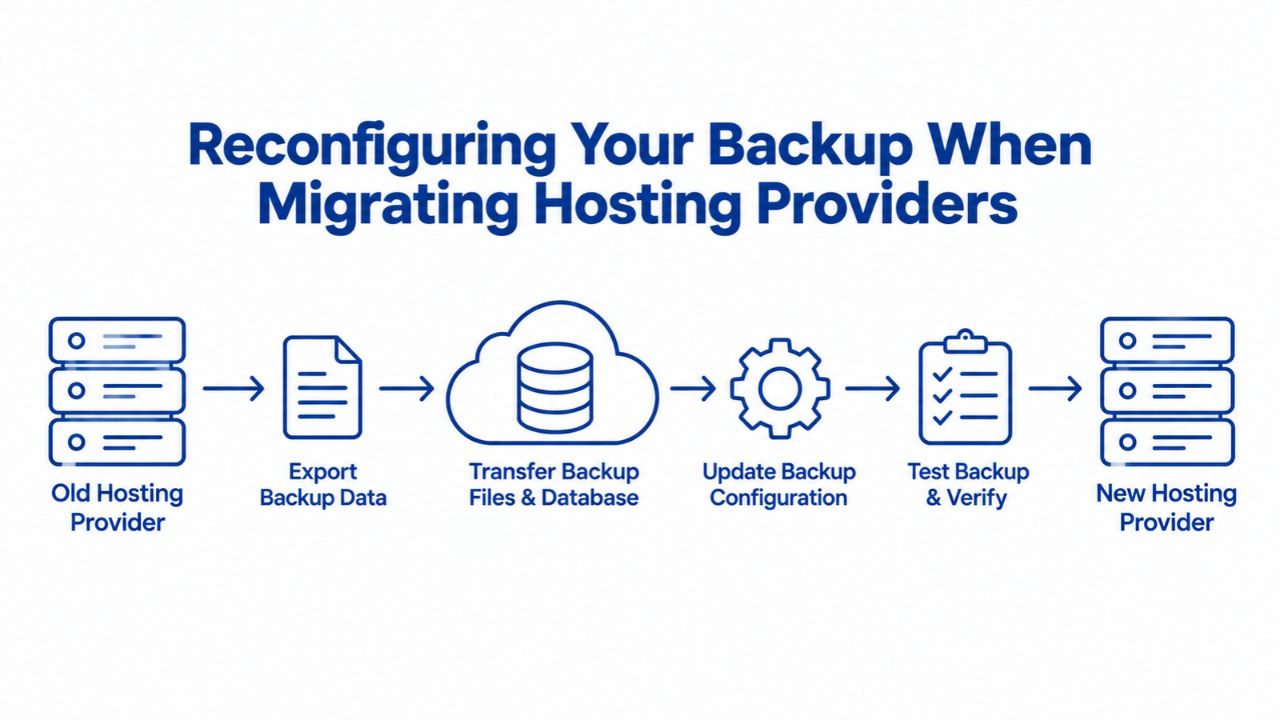
If you migrate your website to a new hosting provider, for better performance, cost savings, a platform upgrade, or any reason, your existing backup connection breaks. Your old FTP and database credentials no longer work on the new server, and the backup service can no longer access your website through the old host’s infrastructure.
Reconnecting During Server Migrations
As soon as your website is fully functional on your new hosting provider, log into your backup service and update your connection settings with your new host’s credentials. Don’t wait. Going even a few days without backups during a migration is risky; if something goes wrong on your new host and you don’t have recent backups, you have no recovery option. Navigate to your backup service’s settings, find the option to edit or reconfigure your website connection, and update the FTP hostname, username, and password to match your new hosting account. Similarly, update your database hostname, database name, and MySQL credentials to match your new host.
Test both connections before confirming the update. Your new host’s FTP might use a different hostname format, and your new database might use a different hostname or port than your old host. Once both connections test successfully, your backup service begins taking new backups from your new host. Your old backups from your previous host remain in an archive or version history. Most backup services let you download these as ZIP files for safekeeping, but they won’t restore directly to your new host because the new server’s database and file system are different. New backups must be taken from scratch on your new host.
Ensuring Backup Continuity After Moving Hosts
After your migration completes and your website is fully functional on the new host, monitor your backup service dashboard daily for at least a week to confirm new backups run successfully. You should see new backup entries each day, a successful database backup recorded, and no error messages in your email summaries. If backups aren’t running or errors appear, troubleshoot immediately. Your new host may have blocked FTP or database access by default; contact support and ask them to enable these features. Only after you’ve confirmed at least three successful new backups on your new host should you consider your migration complete and your backup strategy secure.
Protect Your Website Starting Today
Every day your website remains without backups is a day your business, reputation, and hard work are exposed to permanent loss. Don’t be one of these statistics. Connect your website backup today, verify the connection tests pass, and confirm your first backup completes successfully. Peace of mind is worth the hour of setup. Explore Niya Digital’s Website Backup Options to choose the backup frequency and storage that match your site’s update pace and recovery needs.
Frequently Asked Questions
Do I need both file and database backups, or can I choose just one?
You must back up both. Files contain your WordPress installation and code; the database contains your posts, pages, comments, user accounts, and settings. Without files, you have data but no code to display it. Without the database, you have code but no content. WordPress.org documentation confirms: “You need both to fully restore a typical WordPress site.” Never skip either component.
Is my hosting provider’s backup enough instead of a third-party backup service?
Hosting-provider backups are useful but shouldn’t be your only backup strategy. If your host faces a billing dispute, data-center outage, or business closure, their backups may become inaccessible. An independent, off-site backup ensures you always have recovery options regardless of your host’s situation. Best practice: maintain both.
What if I forgot my database password?
You can reset it directly in your hosting control panel’s Databases section. Look for “Change Password” next to the database username. Alternatively, create a new MySQL database user specifically for backups; this is actually the recommended approach. Never guess an old password; reset it or create a new user with a fresh password you know.
Can I test my backup to verify it actually works before I need it?
Yes. Many backup services offer a “backup test” feature that simulates a restore to verify your backup is intact and recoverable. Some let you restore to a staging server (a test copy of your site) to verify the restoration process. Use these features if available. A backup you haven’t tested is not a backup you can trust.
How long does the first backup take?
Duration depends on your site’s size. A small site with 1–5 GB of files and a modest database typically takes 1–4 hours. Larger sites take longer. Monitor your backup service’s dashboard to watch progress. After the first backup, subsequent backups run much faster because the service backs up only changes (incremental backups).
What if my connection test keeps failing?
Verify your credentials are correct by attempting to log in manually using FileZilla or another FTP client. If manual login succeeds, try a different connection protocol (FTP vs SFTP). For persistent failures, contact your hosting provider and ask whether FTP and database access are enabled for your account. Some hosting plans disable these by default and require you to enable them explicitly.
Can I restore a single file, or must I restore the entire website?
Most backup services offer both options. You can restore a single file or folder, or restore your entire website. CodeGuard (GoDaddy Website Backup) offers selective file restore and full-site automatic restore, depending on your plan. Check your service’s features to confirm both options are available.
Why does my host require IP whitelisting for database access?
Whitelisting is a security practice that protects your database from unauthorized external connections. By default, most hosts block database connections from unknown IP addresses. To connect your backup service, you must add its IP address to your host’s whitelist. Contact your hosting provider and provide the backup service’s IP address. Most hosts complete whitelisting within 24 hours.
What happens if I change hosting providers?
Your old backup connection stops working because credentials are tied to your previous server. Log into your backup service and update settings with your new host’s FTP and database credentials. Test both connections, then start fresh backups on the new host immediately. Your old backups remain in an archive for download but won’t restore directly to the new server.
How often should I back up my website?
Frequency depends on how often your content changes. Blogs and e-commerce sites updating daily should use daily backups. Static websites that change rarely can use weekly backups. The more frequent your backups, the less data you lose if something goes wrong. Choose a frequency that matchesthat matches your update pace.
Is my FTP password the same as my cPanel password?
Not necessarily. Your cPanel password controls your hosting account; your FTP password controls file access. Some hosts link them, but best practice is to keep them separate. Your FTP Accounts section in the control panel shows your actual FTP password. Reset it there if needed; don’t guess from your cPanel password.
What if I forget to set up the database backup?
Your files will be backed up, but your database won’t. If your site crashes or is hacked, you can restore files but will lose all dynamic content, posts, pages, comments, and user data, or you’ll have to revert to an old, incomplete database backup. Always complete both FTP file backup and database backup setup before considering your backups complete.
Do I need to run backups manually, or are they automatic?
After initial setup, backups run automatically on your plan’s schedule, typically daily. You don’t need to do anything. However, monitor your backup service’s dashboard weekly to ensure backups are running and no errors are reported.
Can I download my backups if my backup service closes?
Most backup services allow you to download backups as compressed files (ZIP or TAR archives). Before signing up, verify your service offers downloads. Store downloaded backups in cloud storage or external drives as a safeguard.
Do I need to exclude certain folders from backup to reduce size?
Yes. You can exclude cache folders like /wp-content/cache/, temporary upload directories, and system temporary folders. This reduces backup size and speeds up the backup process. Always include: WordPress core files, /wp-content/ (plugins, themes, uploads), wp-config.php, and .htaccess. Your backup service usually suggests what to exclude.
Glossary
- Backup: A complete copy of your website’s files and database stored in a separate location, used to restore your site if data loss occurs due to server failure, hacking, accidental deletion, or software errors.
- Database: A structured system (usually MySQL or MariaDB) storing dynamic website data, posts, pages, comments, user accounts, settings, and all content that changes regularly as visitors interact with your site.
- FTP (File Transfer Protocol): A standard protocol for uploading and downloading files to web servers. Largely replaced by SFTP for security, but still supported by most hosting providers.
- Incremental Backup: A backup method capturing only files and database records changed since the last backup, rather than re-copying everything. Significantly reduces backup time and storage use.
- Off-Site Backup Storage: Backup data stored on cloud servers geographically separate from your hosting provider, protecting against data-center outages, natural disasters, or hosting-company failures.
- Restore Point: A specific backup copy (typically timestamped) that you can restore your website to if data loss occurs. Multiple restore points let you choose the exact version you want.
- SFTP (SSH File Transfer Protocol): A secure, encrypted alternative to FTP for uploading and downloading files. Recommended for all backup connections because it protects credentials in transit.
- Whitelisting: A security practice where hosting providers maintain a list of approved IP addresses allowed to connect to database servers. Unlisted IPs are automatically rejected.