A tested backup plan can prevent data loss from a server failure, hack, or accidental deletion. Most site owners assume their hosting provider backs up automatically, yet without independent verification and off-site copies, that assumption fails when you need it most.
Why Backups Matter for Your WordPress Site
A WordPress backup is more than a safety net; it’s your protection against inevitable data loss. According to WB Designs research, 60% of small businesses that experience major data loss shut down within six months. Data loss strikes from server crashes, ransomware attacks, failed plugin updates, accidental deletions, and hosting provider outages, all without warning. Without a backup, your only options are rebuilding from scratch (costing weeks of work) or, in ransomware cases, paying a ransom with no guarantee of recovery. Backups solve this fundamental problem: instead of rebuilding or paying criminals, you restore your site to any previous working state in minutes.
The True Cost of Data Loss
Cyberattacks target 43% of small businesses, while hosting failures, human error, and software conflicts cause most remaining incidents. A single compromised plugin, careless update, or power failure at your data center can instantly wipe years of content, customer records, and site configuration. When disaster strikes without backups, recovery options narrow to three: invest weeks rebuilding everything from memory, start over with a new site, or, in ransomware scenarios, negotiate with attackers. Niya Digital’s team has observed that sites without tested backups face recovery times measured in weeks rather than hours, if recovery is possible at all. A backup changes the equation entirely: you regain control and restore your site on your timeline.
Backups provide confidence during necessary maintenance and updates. Before upgrading WordPress core, installing new plugins, or redesigning your site, a recent backup means you can proceed boldly, knowing you can roll back in seconds if something breaks. This confidence speeds up site improvements and removes the paralysis many site owners feel when facing important updates. Instead of spending hours researching whether an update is safe, you can test it, and if it causes problems, restore to your pre-update state.
Business Continuity and Legal Compliance
For sites handling customer data, transactions, or user-generated content, backups often meet legal compliance requirements that vary by jurisdiction and industry. Effective backup and recovery practices demonstrate data protection responsibility and help satisfy regulatory frameworks governing data privacy and security. Even for non-commercial sites, regular backups represent responsible website management, treating your site’s data with the same care you’d give any critical business asset. A documented backup strategy shows visitors and customers that you take their information seriously.
WordPress Pricing Plans
Choose the WordPress hosting plan that fits your website needs, with reliable performance, security, storage, backups, and tools to help your site grow.
WordPress Basic
A great way to get started.
- 1 website
- 10 GB NVMe storage
- Unmetered bandwidth
- Free SSL Certificate *
- WordPress pre-installed
- Weekly backups
- Web Application Firewall
- Daily malware scans
- One-time malware removal

WordPress Deluxe
Improve your site performance with Cloudflare CDN.
- 1 website
- 20 GB NVMe storage
- Unmetered bandwidth
- Free SSL Certificate *
- WordPress pre-installed
- Daily backups
- Web Application Firewall
- Daily malware scans
- One-time malware removal
- Up to 2x faster performance with global Cloudflare CDN **
- Enhanced security with DDoS protection
- Staging site
WordPress Ultimate
Add online marketing with more sites, storage and security.
- 1 website
- 30 GB NVMe storage
- Unmetered bandwidth
- Free SSL Certificate *
- WordPress pre-installed
- Daily + on-demand backups
- Web Application Firewall
- Daily malware scans
- Unlimited malware removal
- Up to 2x faster performance with global Cloudflare CDN **
- Enhanced security with DDoS protection
- Staging site
- WordPress code optimizer
- Smart WordPress plugin manager
- Sell online with WooCommerce
What to Back Up: Understanding Your Site’s Components
A complete WordPress backup requires two distinct components, and both are essential for full recovery. Without either database or files, your restoration is incomplete, and your site will not function.
The Database: Where All Your Content Lives
Your WordPress database contains every post, page, comment, and link on your site, along with user accounts, site settings, plugin configurations, and theme customizations. If the database is corrupted or deleted, your site becomes completely unusable, even if all your files remain intact and untouched. The database is typically a single MySQL file (often named something like wp_database.sql) that stores all this information in a structured format. Any WordPress backup solution, whether provided by your hosting company or through a plugin you install, must capture this database file exactly and completely to enable recovery.
When you write a blog post, add a new page, create a user account, change your site title, or configure a plugin setting, that change is stored in the database, not in the files. This is why the database is often the highest-priority component to protect. If you restore files but lose your database, your site will have no content, users, or settings. Database backups are the most critical element of your overall backup strategy because they represent the irreplaceable creative work and configuration you’ve built into your site.
The Site Files: Your Themes, Plugins, and Media
Your WordPress site also consists of the WordPress core installation, plugins, themes, images and uploads, JavaScript, PHP code files, and additional static pages. If these files disappear. Your database remains intact, but your site’s structure and functionality are gone; it will be completely non-functional, even though your content technically exists in the database. The site files include your wp-content folder (where plugins, themes, and media uploads live), the wp-config.php file that tells WordPress how to connect to your database, and ideally the WordPress core files themselves. Together, the database and files make a complete, fully restorable copy of your entire WordPress site that you can move to a new server or recover from disaster.
Backing up files is slightly less time-critical than backing up your database because you can re-download themes, plugins, and WordPress core from the internet if needed. However, if you’ve customized your theme with custom code, created custom plugins, or uploaded years of media files, those files are unique to your site and cannot be easily recreated. A complete backup must include both your database and your files to enable full, reliable recovery.
Backup Frequency: Aligning Your Schedule with Your Site’s Activity
The right backup schedule depends on how often your site changes; no universal frequency works for every WordPress site.
Understanding Activity-Based Backup Schedules
For e-commerce sites or active blogs updated daily, daily backups are recommended, while static portfolios updated occasionally can use weekly backups. The fundamental principle is simple: backup frequency should match your change frequency. If your site receives updates multiple times a day (new transactions, customer comments, content posts), back up hourly or in real time. If updates happen daily, daily backups suffice. If updates occur weekly, weekly backups protect your most recent week of work. If your site changes only monthly, monthly backups are reasonable, though a weekly backup still makes sense as a safety margin.
A practical approach many site owners use is daily database backups (since data changes most often) and weekly file backups (since themes and plugins change less often), which keeps your content current while reducing storage overhead and complexity. This incremental approach provides strong protection without excessive redundancy. The table below shows realistic frequency guidelines by site type, helping you choose a schedule that fits your situation.
| Site Type | Update Frequency | Database Backup | File Backup | Why This Schedule |
|---|---|---|---|---|
| Static Portfolio or Brochure Site | Updated monthly or less frequently | Weekly | Weekly | Minimal content changes; weekly protects against infrastructure issues |
| Standard Blog with Regular Posts | 1–2 blog posts per week | Daily | Weekly | Regular content updates; daily database captures all posts and reader comments |
| Active News Blog or Publication | Multiple posts daily | Daily | Daily | Constant content additions; both database and files update regularly |
| E-Commerce Site with Product Inventory | Continuous transactions and sales | Hourly or real-time | Daily | Transactions and inventory change constantly; near-current recovery is essential |
| Membership Site with User Signups | Daily user registrations and content changes | Daily | Daily | User data changes frequently; many compliance requirements demand frequent recovery points |
| B2B or Agency Site with Client Work | Multiple updates throughout each week | Daily | Weekly | Regular client updates and content changes; weekly files cover theme/plugin updates |
| Developer or Testing Site | Multiple changes per day during development | Before each deployment | Before each deployment | Frequent testing requires ability to quickly roll back to known working states |
Automation Eliminates Human Error and Forgotten Backups
Manual backups fail because they rely on memory and discipline; automation ensures backups run on schedule without human intervention. Forgetting to back up because you were busy, making errors during the export process, or storing backups insecurely all disappear when a plugin or hosting platform automates the entire backup process.
Every solid backup strategy must use automation as its foundation because humans are unreliable, not from lack of good intentions, but simply because automatic systems work even when people are sick, on vacation, or dealing with emergencies. Human-triggered backups can supplement your automated schedule (for example, creating an extra backup before a major WordPress update), but they should never be your only backup method.
Where to Store Backups: Why Off-Site Storage Matters
Storing backups on the same server as your live WordPress site defeats the primary purpose of backups. If attackers compromise your server, it fails due to hardware problems, or it becomes a ransomware target, both your live site and any backups stored on that same server are at risk at the same time.
Off-Site Storage Prevents Cascade Failures and Attacks
Backups stored on the same server face the same disasters that destroy your live site: server crashes, ransomware attacks, hardware failure, and physical disasters at the data center. Off-site storage means your backup lives on a completely separate server, typically in a different geographic location and controlled by a different company, placing it completely beyond the reach of an attack on your primary hosting account. When ransomware encrypts your server, an off-site backup remains unaffected because the malware can’t access it. When your data center experiences a fire, flood, or power failure, your off-site backup stored elsewhere survives intact.
Modern ransomware actors specifically target backup files, knowing that destroying backups removes the victim’s ability to recover without paying. This makes off-site storage not optional but rather essential. If you store backups on the same server as your live site, ransomware can encrypt them alongside everything else. But if you store backups off-site in a different cloud provider’s infrastructure or on external hardware in a separate physical location, ransomware targeting your server can’t reach them. This geographic and infrastructure separation is your primary defense against modern threats.
Choosing and Testing Off-Site Storage Locations
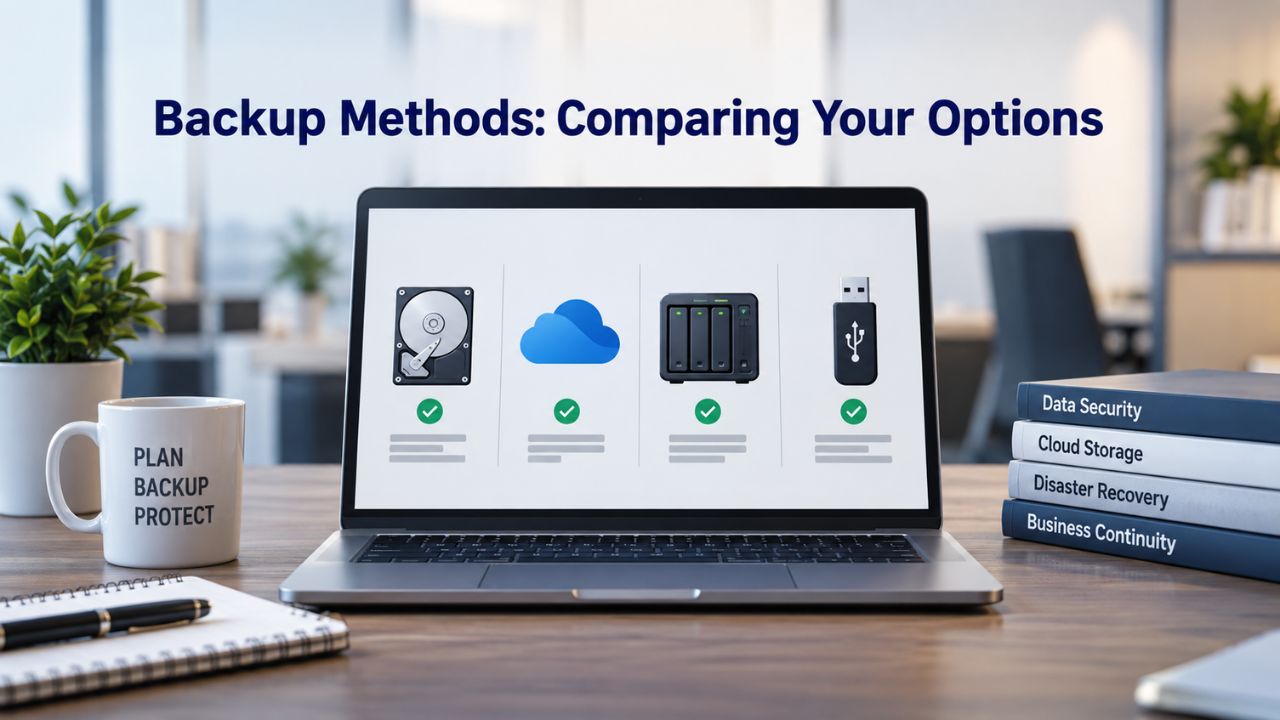
Cloud storage options like Google Drive, Dropbox, and Amazon S3 provide excellent off-site backup storage, as do external hard drives kept in separate physical locations away from your primary business location. Some hosting providers offer geographically redundant off-site backup storage as part of their managed service, storing your backups on infrastructure entirely separate from your live server. The essential requirement is simple but non-negotiable: your backup’s location must be completely independent of your server’s location, on separate infrastructure, and in different data centers. This means if your primary hosting experiences total failure, your backup is unaffected and available for recovery.
Test your off-site backup storage to verify it works. Periodically download a backup file from your cloud storage and verify it’s complete and uncorrupted. Check that you can access your cloud storage account and navigate to your backup files without difficulty. Confirm you understand the restoration process before you desperately need it. This simple testing often reveals problems, authentication issues, storage permissions, or corrupted uploads that are simple to fix when there’s no emergency, but catastrophic if discovered when your site is down.
Backup Methods: Comparing Your Options
Three primary approaches exist for backing up WordPress, each with different trade-offs between ease of use, automation, and control.
Plugin-Based Backups and Managed Hosting Solutions
Backup plugins installed directly in WordPress automate the backup process, schedule recurring backups according to your chosen frequency, manage off-site storage integration, and enable straightforward restoration from your WordPress dashboard. Most quality backup plugins are lightweight, well-documented, and offer free versions with paid tiers for additional features. T
he typical workflow is remarkably simple: install the plugin, configure your backup schedule (daily, weekly, or custom intervals), choose your backup destination (Google Drive, Dropbox, Amazon S3, or another cloud provider), authenticate the plugin to access your cloud account, and the plugin handles everything automatically from that point forward. Managed WordPress hosting providers often include automatic daily or weekly backups as a standard feature, so you don’t have to configure anything yourself. However, hosting-provided backups come with important limitations you should understand.
Relying solely on your hosting provider’s backups without independent verification leaves you exposed because you cannot guarantee the backups are complete, recent, or restorable without testing a restoration. Hosting backups are a useful supplementary safeguard but shouldn’t be your only backup defense. Many hosting companies store backups on the same infrastructure as your live site, creating shared-risk vulnerabilities; if the entire hosting environment fails, you lose both your site and your backup. The ideal strategy combines hosting provider backups as a convenient automated safeguard with an independent plugin-based backup strategy you control, giving you multiple layers of protection.
Manual Backups for Control and Supplementary Protection
Manual backup methods using FTP to download your site files and database tools to export your database give you complete control over the process but require hands-on intervention each time, are prone to human error, and are easy to forget when you’re busy. Manual backups are not recommended as your primary backup strategy for most WordPress users because the manual nature means they’re often skipped, forgotten, or done incorrectly.
However, manual backups are valuable as a supplement to your primary automated strategy, for example, creating a full manual backup right before a major WordPress core update or before installing a new plugin that might cause problems. Advanced site owners and developers sometimes use command-line tools and scripting to automate manual-style backups, but this approach requires technical skills beyond most WordPress users’ comfort level.
Protect Your Site with Professional Backup and Recovery Support
Building a WordPress site represents a significant investment in time, content, and business value. A reliable backup and recovery strategy protects that investment. Niya Digital’s managed WordPress hosting includes automated backups, off-site storage, and professional recovery support to keep your site protected. Combined with proper testing and monitoring, automated backups transform data protection from a worry into a solved problem. Start today; every day you delay is another day your site is at risk.
Setting Up Automated Backups: A Practical Guide
Automated backups require only initial setup and minimal ongoing attention once configured correctly.
Installation and Initial Configuration
Start by choosing a reputable backup solution, either a WordPress plugin or your hosting company’s backup features. If you’re installing a plugin, go to Plugins > Add New in your WordPress dashboard, search for your chosen plugin, click Install Now, then click Activate. The plugin will add a new menu item to your WordPress dashboard, typically located under Settings or as its own dedicated section in the sidebar. After activation, open the plugin’s settings page to configure backup frequency (daily, weekly, custom intervals, or real-time), choose what to include in each backup (database, plugins, themes, uploads, WordPress core files), and specify your backup destination.
Configure your database backup to run daily if your site updates regularly with posts, comments, or user activity, or weekly if changes are infrequent. File backups can run less frequently; weekly is typical for most sites, since themes and plugins change less often than content. This split approach keeps your content current while reducing storage needs and backup duration. After setting frequency and content, move to the critical next step: choosing where to store your backups off-site. Most plugins integrate with popular cloud storage providers, requiring you to authenticate and grant the plugin permission to upload backup files to your chosen cloud account.
Connecting Off-Site Storage and Running Your First Backup
The most critical configuration step is setting up off-site storage. Select a cloud provider, Google Drive, Dropbox, Amazon S3, or another service, and authenticate the plugin to access your cloud account. Follow the plugin’s prompts to grant permission for the backup plugin to create, upload, and manage files in your cloud storage. Confirm your backup destination has enough available space (a year of daily backups for a typical site consumes 5–50 GB, depending on your site size). After configuration, manually trigger a backup to verify the process works before relying on automation. Most plugins include a “Backup Now” button on their settings page.
Wait for the backup to complete; this typically takes 5–30 minutes depending on your site size, and then confirm the backup file appears in your cloud storage. This first manual backup is your critical verification that everything is configured correctly before the automated schedule takes over. If this test backup fails or you don’t see the file in cloud storage, troubleshoot the issue now while there’s no pressure. Once the first backup succeeds, you can trust your automated schedule to run without further intervention. Most backup plugins send an email notification after each scheduled backup completes, allowing you to verify that automation is working as expected.
Testing and Verification: The Essential Step Most Site Owners Skip
Here is an uncomfortable reality that should motivate you to act: 87% of website owners never test their backups. This means that when disaster strikes and they try to restore, they discover too late that their backups are corrupted, incomplete, or incompatible with their current WordPress version. A backup is only valuable if it works when you need it, so the only way to know your backup system is truly reliable is to test restoration before disaster strikes.
Why Backup Systems Fail Silently
Backup logs can display successful completion while actual backup files are corrupted, missing crucial database tables, or contain outdated data from before corruption was introduced. A backup plugin can create a file, successfully upload it to cloud storage, and display a green checkmark on your dashboard, all while the backup is completely unusable for actual recovery. The plugin has no way to verify the backup’s integrity unless it attempts a restore. Database export processes can appear successful but produce incomplete SQL files. File backups can lose permissions or fail to capture certain file types. The only way to catch these failures before they cost you your site is to attempt an actual restoration in a safe, non-production environment.
Creating and running a monthly restoration test- restoring your backup to a staging environment and verifying the restored site loads and functions correctly- catches failures before they become emergencies. Many professional WordPress managers run quarterly restoration tests at minimum, four times per year. The process is straightforward: download a backup file, set up a temporary WordPress installation in your staging environment, restore your backup into that installation, and verify the restored site loads correctly, displays all content, and functions as expected. Without this verification, you’re discovering the truth about your backup system only when you’re desperate, which is the worst possible time to learn it doesn’t work.
Creating Your Testing Schedule and Process
A staging environment is a separate WordPress installation, ideally on a different hosting account or subdomain, where you can safely test backups and updates without any risk to your live site. To test a backup: obtain your backup file from cloud storage, set up a fresh WordPress installation in your staging environment, restore your backup into that staging installation, and verify the restored site loads completely, displays all posts and pages with their content intact, shows all media files, and all functionality works correctly. This process typically takes 30–60 minutes and should be done at least quarterly (four times per year), or monthly for high-traffic sites where frequent backups mean you have many versions to verify.
If a restoration fails or reveals a problem, you have identified the issue while your live site is still functioning normally and while you have time to fix the problem. Your backup plugin may not capture certain files, your cloud storage authentication may have expired, or your backup files may be corrupted. These are all fixable problems when you discover them during testing. But discovering these issues during an actual emergency, when your site is hacked or down, means scrambling to find solutions while your business is offline. Schedule these testing sessions on your calendar like any other important meeting, because testing backups is one of the most important maintenance tasks you can do.
Encryption and Access Control: Securing Your Backup Files
An insecure backup is nearly as risky as having no backup at all. Access controls and encryption protect your backup from theft, tampering, unauthorized access, and accidental internet exposure.
Enabling Encryption and Protecting Credentials
Enable encryption in your backup plugin’s settings to scramble your backup files using AES-256 encryption or equivalent. Encryption makes your backup files unreadable without the encryption key, protecting your data if your cloud storage account is compromised, backups are intercepted during upload, or unauthorized users gain access.
For your cloud storage accounts themselves, enable two-factor authentication to add a second layer of protection against unauthorized login attempts. Store backup encryption keys, cloud storage passwords, and access credentials in a secure password manager, never in plain text documents, email messages, or shared spreadsheets where they could be exposed.
Table: Common Restoration Scenarios and Recovery Procedures
| Scenario | Data Loss Cause | Backup Needed | Recovery Steps | Recovery Timeline | Key Considerations |
|---|---|---|---|---|---|
| Accidental Post Deletion | Accidentally deleted important content | Any recent backup (within days) | Restore full backup to staging, copy deleted post content back to live site | 30–60 minutes | Identify exactly when content was deleted to choose the right backup version |
| Plugin Conflict or Failed Update | New plugin or WordPress update breaks the site | Backup from before the update | Restore database and files from pre-update backup | 15–45 minutes | Keep backup taken immediately before any major updates; test updates in staging first |
| Database Corruption | Database file becomes corrupted due to server issues | Most recent backup before corruption began | Restore database from clean backup; may keep current files if they’re intact | 20–60 minutes | Use older backup versions if recent ones are also corrupted; test staging first |
| Ransomware Attack | Malware encrypts all files and database | Off-site backup stored separately from server | Restore database and all files from clean, off-site backup; verify restoration in staging | 1–4 hours | Off-site storage is essential; never use backups stored on the same server |
| Hacking/Malware Injection | Site compromised; malicious code injected | Backup from before the hack was introduced | Restore from backup before breach; consider restoring to staging to analyze compromise | 30–90 minutes | May need forensic analysis to determine when compromise began; change all passwords after restore |
| Hosting Server Failure | Entire hosting server fails; data lost | Any recent backup in off-site storage | Download backup, set up hosting with new provider, restore database and files | 2–6 hours | Off-site backups are critical; choose new hosting that supports your restoration method |
| Accidental Database Wipe | All database tables accidentally deleted | Any recent backup | Restore full database from backup; confirm all posts, pages, and users return | 15–30 minutes | Very recoverable if you have recent backups; one of the easier restoration scenarios |
| Media File Loss | Accidentally deleted images or media files | Recent backup that includes uploads folder | Restore files from backup to replace deleted media; database should remain intact | 15–45 minutes | If only specific files are missing, may be able to restore just uploads folder instead of full site |
| Site Slow or Unresponsive | Site functions but appears corrupted or slow | Recent backup | Restore to staging to test if issue persists; if staging is fast, issue may be with current installation | 30–60 minutes | Helps distinguish between backup-resolvable issues and hosting/performance problems |
| Domain Migration | Need to move site to new domain name | Any recent backup | Restore to new domain using backup plugin’s migration features or manual domain replacement | 45–120 minutes | Test in staging first; domain changes affect many internal URLs and configurations |
Monitoring Access and Detecting Unauthorized Activity
Review your cloud storage access logs occasionally to detect unauthorized downloads, suspicious access attempts, or unusual activity patterns. Most cloud providers maintain access logs showing who accessed your account, when, and from which locations. If you notice access from locations you don’t recognize or at times you didn’t initiate access, your account may be compromised. Immediately change your password and rotate any API keys or authentication tokens your backup plugin uses. Verify your backups haven’t been tampered with and consider deleting older backup versions to prevent attackers from using them for extortion or to cover their tracks.
Document your entire backup configuration and security setup in a location authorized team members can access: where backups are stored, which cloud provider you use, backup frequency, encryption method, credential location, and how to restore from backup. If you become unavailable, someone must be able to access and restore your site without you, and they shouldn’t have to reverse-engineer your entire system. A simple written guide or documented configuration stored in your organization’s knowledge system ensures your site isn’t locked behind undocumented processes or dependent on one person’s memory.
Restoring Your WordPress Site from Backup
When disaster strikes, knowing how to restore from a backup transforms a potential catastrophe into a manageable recovery process.
Accessing Your Backup and Choosing the Right Version
Locate your most recent clean backup, ideally from before the incident that triggered the need to restore, or from a time you know the site was functioning correctly. If you’ve maintained multiple backup versions (which is why retention policies matter), choose the right one carefully. If your site was hacked three days ago but you didn’t notice until today, restoring yesterday’s backup won’t help because it’s already compromised. Look for a backup from before the incident began. If you’re using a backup plugin, navigate to its Restore or Manage Backups section in your WordPress dashboard and review available backup dates and times. If restoring manually, download your backup file from cloud storage and have it ready before proceeding.
Before restoring, create a fresh backup of your current site (even if corrupted or hacked) so you can analyze what went wrong if needed. This backup-before-restore approach means you have both the current state (for forensic analysis) and the restored state (for recovery). This is important if you’re investigating a security incident and need to understand how the site was compromised. It also lets you compare the current state with the restored state to identify what was lost or changed since the backup was created.
Database and File Restoration Process
Database restoration depends on your backup method. If you use a backup plugin, go to its Restore section, select your backup file, choose “Restore Database” (or select the backup to restore), and click Restore. The plugin handles the import automatically, replacing your current database with the backed-up version. For manual restoration in phpMyAdmin, access it through your hosting control panel, select your WordPress database, go to the Import tab, click Choose File to upload your .sql backup file, then click Go. The database import process will replace your current database with the backed-up version.
After restoring the database, restore your site files. If using a backup plugin, it typically handles file restoration automatically as part of the same process. For manual file restoration, download your backup file (usually a .zip archive of your entire site), extract it, and use FTP or SFTP to re-upload all extracted files to your web server’s root directory. The plugin or your host may ask whether to overwrite existing files; yes, you want the backed-up files to replace the current corrupted or compromised versions. This process may take 15–45 minutes depending on your site size and internet speed.
Post-Restoration Verification and Troubleshooting
After restoration completes, visit your site’s homepage in a web browser and confirm it loads completely. Check that your blog posts, pages, and media galleries are intact and displaying correctly. Log into your WordPress dashboard and verify that user accounts, plugin settings, theme customizations, and any custom configurations match what you expect. Test key functionality specific to your site: if you have a contact form, test it; if you have e-commerce capabilities, test checkout; if you have user registration, test that. If anything seems amiss or doesn’t work, you can still use your pre-restoration backup to retry.
If the issue persists, the problem may be your current hosting environment, not your backup. Check that the database credentials in wp-config.php match your current server. Verify that WordPress core files, plugins, and themes are all properly uploaded. If restoration is completed but your site still doesn’t work, contact your hosting provider’s support team with details about what you’ve verified and tried. Detailed restoration notes and knowing exactly what your backup contains make troubleshooting much easier.
Backup Monitoring and Retention: Keeping Backups Current and Useful
Backups are only valuable if you create them regularly, store them safely, and keep them long enough to serve their purpose when you need them.
Monitoring Backup Success and Maintaining Retention Policies
Enable email notifications from your backup plugin so that if a scheduled backup fails, you’re alerted immediately. A backup that didn’t run is worse than no backup strategy, because you might assume you’re protected when you’re not. Most backup plugins send a summary email after each backup; review these periodically to confirm backups complete on schedule, and note any errors or warnings. Store multiple backup versions to protect against corruption that spreads slowly over time before you notice it. If corruption exists for days before you discover it, your most recent backup might also be corrupted, making an older backup your only clean recovery point.
A common retention strategy keeps the most recent 30 daily backups, 12 weekly backups (about three months), and 12 monthly backups (about a year). This provides recovery options ranging from “restore to yesterday” for recent mistakes to “restore to six months ago” for issues that developed slowly. Manage storage costs by deleting very old backups (older than one year, for example) if costs become significant. Document your retention policy in writing so future you (or a replacement administrator) understands the strategy and doesn’t accidentally delete important backups.
Planning Storage Costs and Documentation
Cloud backup storage is inexpensive but accumulates quickly. A site with 5 GB of data, backed up daily, generates approximately 150 GB of backup storage per year. Most cloud providers offer free tiers (10–15 GB) for testing and small sites, with affordable paid tiers ranging from basic to premium options for 100+ GB or more. Plan for backup storage costs as part of your annual site maintenance budget, just as you would plan for hosting, domain renewal, or security tools. This helps you avoid unexpected bills and maintain consistent, long-term backup retention.
Document your complete backup configuration, where backups are stored, which cloud provider, backup frequency, backup retention policy, encryption method used, how to restore from backup, and where credentials are stored, in a place where a colleague or professional can find it if needed. If you become unavailable, someone else must be able to access and restore your backups without reverse-engineering your entire system. A simple written guide stored in your organization’s knowledge management system or shared drive ensures your site isn’t locked behind undocumented processes or dependent on one person’s memory and availability.
Get Your Backup Strategy in Place Today
A backup strategy is only truly effective before disaster strikes. Taking action now, selecting an approach, configuring your schedule, and testing restoration transforms backups from abstract worry into concrete protection. Niya Digital’s managed WordPress hosting includes integrated backup capabilities and recovery support to help you protect your site. Whether you implement backups independently or through a managed hosting service, the most important step is starting today. Every day you delay is another day your site risks unrecoverable data loss. Explore how backup and recovery features integrate into a complete managed WordPress hosting strategy.
Frequently Asked Questions
What is the difference between a backup and a restore?
A backup is the process of creating a copy of your WordPress site (database and files) and storing it safely in a separate location away from your live server. A restore recovers your site from that backup when needed, moving the backup data back into your live environment to recover from data loss. Think of it this way: backups create the safety net; restores are how you use that net when you fall. Together, they protect your site from permanent data loss.
How much storage space do WordPress backups require? A
typical small WordPress site with 5 GB of content generates approximately 5–50 GB of backup storage annually, depending on your site size and backup frequency. Cloud storage providers offer free tiers (10–15 GB) suitable for testing and small sites, with affordable paid tiers available for sites needing 100+ GB or more annually. If costs concern you, delete very old backups (older than one year) to control storage expenses while maintaining recent recovery points.
Can I back up only my database without site files?
Technically yes, but it’s not recommended as a complete strategy. A database-only backup lets you recover posts, pages, and content, but without files (plugins, themes, wp-config.php, uploads), your site cannot function. Always back up both database and files together for a complete, fully restorable copy of your entire WordPress site.
What should I do if my backup restoration fails?
Stop immediately and contact your hosting support or a WordPress professional. Do not retry restoration without understanding why it failed; you might overwrite a working site with corrupted data. Keep your current site intact while you diagnose the problem. Review restoration logs for error messages, verify your backup file is complete and uncorrupted, and consider restoring to a staging environment first before attempting a live restore.
Should I use both plugin backups and hosting provider backups?
Yes, ideally both. Plugin backups give you independent control over scheduling, storage location, and restoration process, and you can verify they work through testing. Hosting provider backups are convenient but sometimes incomplete or stored insecurely on the same infrastructure as your live site. Using both creates redundancy: if your plugin backup fails, your hosting backup exists as a safeguard, and vice versa.
How do I restore a backup to a different domain or hosting provider?
Most backup plugins include migration features that handle restoration to a new domain or host. During restoration, the plugin rewrites your site’s URL references so links, configurations, and integrations point to the new location rather than the old one. Always test this process in a staging environment first before doing it on your live site, since domain changes affect internal links and configurations.
What backup frequency is best for an e-commerce site?
E-commerce sites with frequent transactions should back up at least daily, and ideally hourly or in real time. Since transactions and inventory change constantly, older backups become less valuable; if you restore to yesterday’s backup, you lose today’s sales data and inventory changes. Real-time or hourly backup services (though more expensive) are worth the investment for high-volume stores where lost transactions are costly.
Can ransomware delete my off-site backups?
No, that’s the entire point of off-site storage. Ransomware affecting your server cannot reach backups stored in a separate cloud provider’s infrastructure or on an external hard drive in a different physical location. This geographic and infrastructure separation is why off-site backups are your primary defense against ransomware attacks. As long as backups are truly stored elsewhere, they remain available for recovery.
Should I encrypt my backup files?
Yes, absolutely. Enable encryption in your backup plugin’s settings to scramble backup files using AES-256 encryption or equivalent. Encryption protects your data if your cloud storage account is compromised, backups are intercepted during upload, or unauthorized access occurs. Encryption makes your backups useless to anyone without the encryption key.
How often should I test my backups?
At minimum, quarterly- four restoration tests per year. Ideally monthly for high-traffic or transaction-heavy sites. Each test takes 30–60 minutes (restore to a staging environment, verify the site loads and functions correctly) and catches failures before they become emergencies. Without testing, you’re flying blind; with quarterly testing, you know your backups actually work.
Can I automate backup testing?
Some tools can initiate automated restoration tests to a staging environment, but full verification (confirming your site loads correctly, displays content, and all functionality works) still requires hands-on review. Plan for quarterly hands-on testing as your primary verification method, even if some steps are partially automated through tools.
What happens if I accidentally delete a backup file?
Check your cloud provider’s trash or recycle bin (most providers have 30-day recovery windows). If it’s permanently gone, check whether your backup plugin maintains multiple backup versions or whether your hosting provider’s backup system has copies. Always maintain at least 30 days of backups to protect against accidental deletion or human error when managing your backups.
Is it safer to restore to a staging environment first before restoring to my live site?
Always restore to a staging environment first. A staging environment is a separate WordPress installation where you can safely test the restoration without risking your live site. Only after confirming the restored site works correctly should you restore over your live site if necessary. Live restoration carries risk: if the process fails partway through, your site could be left in an inconsistent, broken state.
What should I back up for a WordPress multisite network?
For WordPress multisite, back up the shared database and all site files, including files for every subsite in your network. Single-site backup plugins may not handle multisite correctly; verify your plugin supports multisite before relying on it as your primary backup method for a network installation.
How do I recover a single post or page instead of the entire site?
Most full-site backups require restoring the entire database and files. To recover a single post or page without restoring everything, restore your backup to a staging environment, manually copy the post content from staging, paste it into your live site, and then delete the staging copy. This approach is time-consuming but precise when you only need to recover one or two specific items.
Glossary
- Database: The MySQL or MariaDB component storing all your WordPress posts, pages, comments, users, site settings, and plugin configurations. It’s typically one file (such as wp_database.sql) and represents the highest-priority component to back up because it contains all your unique content and configuration.
- Off-site Storage: Backup copies saved on servers or cloud services in a different geographic region or on infrastructure separate from your primary hosting server, protecting against shared failure points such as data center outages, ransomware attacks, or hardware failure affecting your live server.
- Ransomware: Malicious software that encrypts your website files and databases, making them inaccessible, and demands payment (usually cryptocurrency) for a decryption key. Off-site backups remain inaccessible to ransomware targeting your server and are your primary recovery tool for ransomware incidents.
- Staging Environment: A separate, non-public copy of your WordPress site used for safely testing backups, updates, or configuration changes before applying them to your live site, eliminating risk to production data while allowing thorough verification.
- phpMyAdmin: A web-based tool for managing MySQL databases, typically accessible through your hosting control panel. It lets you manually export (backup) and import (restore) your WordPress database through a browser interface.
- Encryption: A security process that scrambles your backup files using a mathematical key (such as AES-256) so that even if someone gains access to your cloud storage, they cannot read the data without the encryption key, protecting the confidentiality of your backup.
- Restoration: The process of recovering your WordPress site from a backup file, restoring the database and site files to return your site to a previous working state after data loss, corruption, or other incidents.