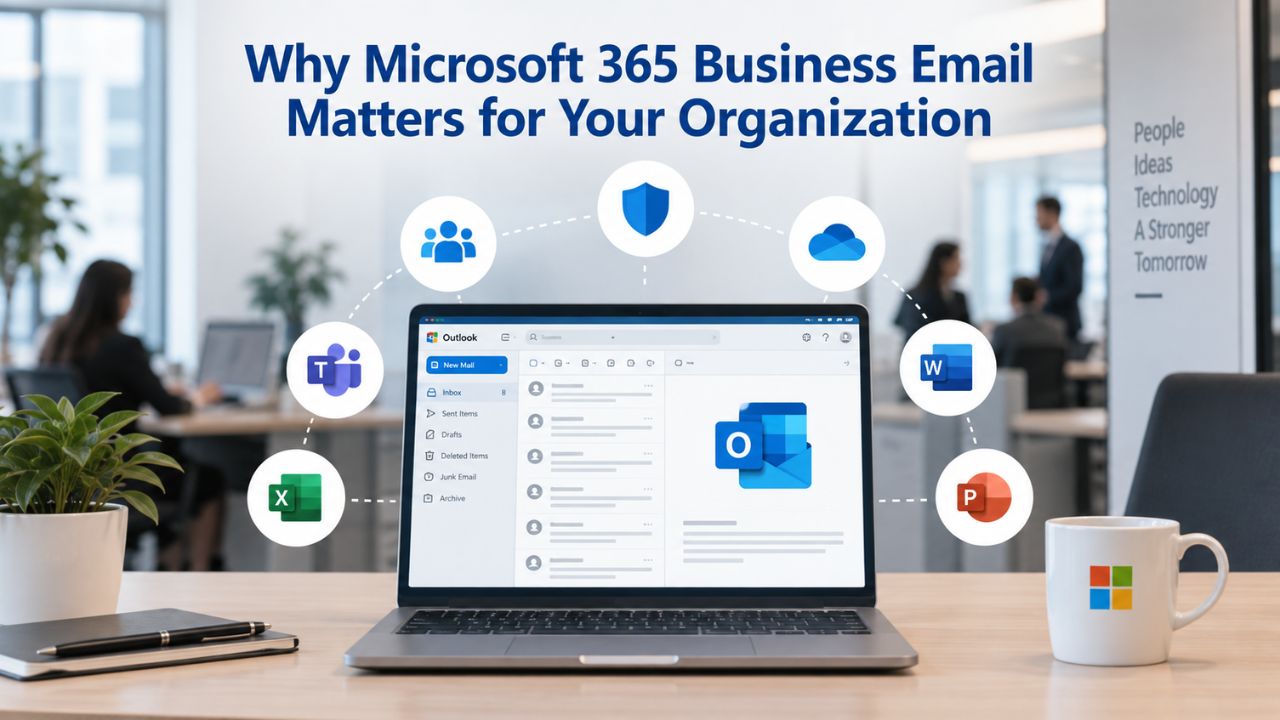
Why Microsoft 365 Business Email Matters for Your Organization
Business email is the backbone of daily operations, yet email downtime and security breaches carry disproportionate risk. Choosing the right platform and configuring it properly reduces operational friction, strengthens security posture, and ensures compliance with regulatory requirements. Understanding these stakes shapes every setup decision.
Email Reliability and Business Continuity
Email outages disrupt customer communication, stall sales cycles, halt internal coordination, and damage professional reputation. Microsoft 365 Business Email is built on enterprise-grade infrastructure with geographic redundancy and automated failover designed to minimize downtime. When you migrate from on-premises systems or shared hosting to Microsoft’s cloud platform, you shift from reactive emergency response to proactive, cloud-managed infrastructure that handles availability automatically.
A misconfigured custom domain, by contrast, can route email to the wrong server, trigger rejection by recipient systems, or send messages to spam folders. Proper Custom Domain Email Setup during the initial phase prevents this friction, builds user confidence in the new system, and prevents the support escalations that consume time when early reliability is fragile. Getting these technical details right upfront pays dividends in adoption and stability.
Security and Compliance as Foundation
Business email routinely carries sensitive information, customer records, financial data, intellectual property, and regulatory documents. A modern Microsoft 365 Hosting Provider includes built-in protections: multi-factor authentication (MFA) to prevent unauthorized access, encryption in transit and at rest to protect data, and threat detection to filter malware and phishing. These aren’t optional add-ons; they’re baseline security expectations for any organization handling regulated or sensitive data.
Getting security configuration right at setup time, before users start sending live messages, ensures protections are enforced consistently from day one. Retrofitting security controls after email is live invites shadow behavior (forwarding to personal accounts, using unsecured devices, bypassing policies) and creates audit risk. This is why planning security configuration before cutover, not after, defines competent email administration.
Microsoft 365 Plans & Pricing
Find the Microsoft 365 plan that fits your needs, whether you're using it at home, with your family, or for your business. With a range of plans designed for different budgets and requirements, you can enjoy the tools you need to stay productive, connected, and protected.
Microsoft 365 Email Essentials
Professional email with 10GB of email storage.
- Professional email using your domain name
- 10GB storage for email, contacts & calendar
- Sync across all devices
- Shared online calendars
- Up to 400 email aliases

Microsoft 365 Email Plus
Professional email with 50GB of email storage.
- Professional email using your domain name
- 50GB storage for email, contacts & calendar
- Sync across all devices
- Shared online calendars
- Up to 400 email aliases
Microsoft 365 Online Business Essentials
Office web apps & professional email.
- Office apps (online only)
- 1TB OneDrive storage
- Unlimited online meetings & HD video
- Professional email using your domain
- 50GB email storage
- Sync across all devices
Microsoft 365 Business Professional
Office apps on 5 devices, web apps & professional email.
- Office apps installed on up to 5 devices
- Office web apps
- 1TB OneDrive storage
- Business apps included
- Professional email using your domain
- 50GB email storage
Choosing the Right Microsoft 365 Plan for Your Email Needs
Microsoft 365 for Small Business comes in three distinct tiers, each bundling email with different collaboration and security capabilities. The choice depends on your organization’s size, security requirements, device management needs, and tolerance for setup complexity. This section breaks down each tier so you can match the plan to your business needs.
Feature and Security Differences Across Plans
Microsoft 365 Business Basic includes email with 50 GB mailbox storage, calendar and contact management, web-based Office apps, cloud storage via OneDrive (1 TB per user), and foundational threat protection via Defender for Office 365. This tier suits organizations that prioritize email and cloud collaboration without the overhead of device management or advanced compliance tools.
Microsoft 365 Business Standard adds desktop and mobile versions of Office applications (Word, Excel, PowerPoint, Outlook), Teams for chat, video conferencing, and file collaboration, plus expanded Defender for Office 365 threat detection with advanced malware and phishing protection. Email and storage capabilities remain the same as Basic. Standard is the most widely adopted tier for small to mid-sized teams because it bundles productivity tools, communication platforms, and email into one coherent package.
Microsoft 365 Business Premium builds on Standard by adding advanced security and device management: Intune enrollment and policy enforcement, Windows Autopatch for automatic OS updates, Defender for Business endpoint protection, and deeper compliance reporting. Premium is essential for organizations handling sensitive customer data, health information, or operating in regulated sectors like finance, healthcare, or legal services. The added security and management overhead justifies higher investment when data protection is non-negotiable.
| Feature | Business Basic | Business Standard | Business Premium |
|---|---|---|---|
| Email & Calendar (50 GB) | ✓ | ✓ | ✓ |
| OneDrive Cloud Storage (1 TB) | ✓ | ✓ | ✓ |
| Web-Based Office Apps | ✓ | ✓ | ✓ |
| Desktop Office Apps (Word, Excel, PowerPoint) | ✗ | ✓ | ✓ |
| Teams (Chat, Video, Meetings) | ✗ | ✓ | ✓ |
| Defender for Office 365 (Basic Protection) | ✓ | ✓ | ✓ |
| Defender for Office 365 (Advanced Protection) | ✗ | ✓ | ✓ |
| Intune Device Management & Policies | ✗ | ✗ | ✓ |
| Windows Autopatch for OS Updates | ✗ | ✗ | ✓ |
| Defender for Business (Endpoint Protection) | ✗ | ✗ | ✓ |
Plan details as of September 2026. Feature sets subject to change; visit Microsoft 365 Product Pages for current information.
How Plan Choice Affects Setup Complexity
Basic and Standard plans require minimal infrastructure: users activate email and Office apps with their credentials, and Microsoft manages the cloud backend. Premium plans, by contrast, demand Intune setup, device enrollment, and policy configuration, adding 2–4 weeks to your rollout timeline and requiring dedicated administrative expertise or reseller support.
If your organization has distributed remote teams, high staff turnover, or BYOD (bring-your-own-device) practices, Premium’s device management prevents compliance drift that typically affects smaller firms without governance. If your team operates from a controlled office environment and mainly needs reliable email and cloud storage, Basic or Standard delivers sufficient capability without management overhead. Niya Digital’s team has found that organizations frequently underestimate the administrative burden of Premium device management, so planning for this complexity upfront and budgeting reseller support if in-house expertise is limited prevents post-purchase surprises and rollout delays.
Domain Registration and Verification: What to Prepare Beforehand
Before you can use a custom business domain with Microsoft 365, you must own or control the domain and verify ownership to Microsoft’s systems. This phase sounds simple but trips up many organizations because domain registrars, DNS providers, and Microsoft’s verification processes operate on different timelines and require precise technical steps. Preparation prevents delays.
Securing Your Domain and Confirming Admin Access
Your business domain, for example, contoso.com, is the foundation of your professional email identity. If you don’t own one yet, register it with a major registrar (GoDaddy, Namecheap, Google Domains, Bluehost, or others). If you already own a domain used for a website or legacy email, confirm you have administrative access to the registrar’s control panel and can modify DNS records. You’ll need this access throughout setup.
Once you own the domain, add it to your Microsoft 365 admin center. Navigate to Settings > Domains > Add Domain and enter your domain name. Microsoft generates a unique verification token, a TXT record, or a similar DNS entry that you must add to your domain’s DNS configuration at your registrar to prove ownership. This step confirms to Microsoft that you control the domain and are authorized to use it for email.
Verification Timing and DNS Propagation Realities
After you add the verification record to your DNS provider, it typically takes 15 minutes to 48 hours to propagate globally. However, full propagation can take 24–72 hours depending on your registrar, ISP caching behavior, and DNS system load. Microsoft’s verification checker will confirm once the record is live. Patience during this window is essential; rushing verification or checking too early often leads to false failures and unnecessary support tickets.
If you use a DNS provider separate from your registrar, common with organizations using third-party DNS providers for performance or security reasons, coordinate access between both systems so you can update records in the correct location. Niya Digital’s team has observed that mistakes during this phase- updating DNS at the wrong provider, miscopying the verification record, or attempting verification before global propagation completes- account for a significant share of early-stage support friction, so double-check each step and allow full propagation time before troubleshooting.
Configuring DNS Records for Mail Delivery and Authentication
With your domain verified, you must configure DNS records that route email to Microsoft 365 and authenticate outbound messages. These records are the technical foundation of email deliverability and security. Misconfiguration can stop mail delivery entirely, trigger spam filtering, or make your domain vulnerable to spoofing attacks.
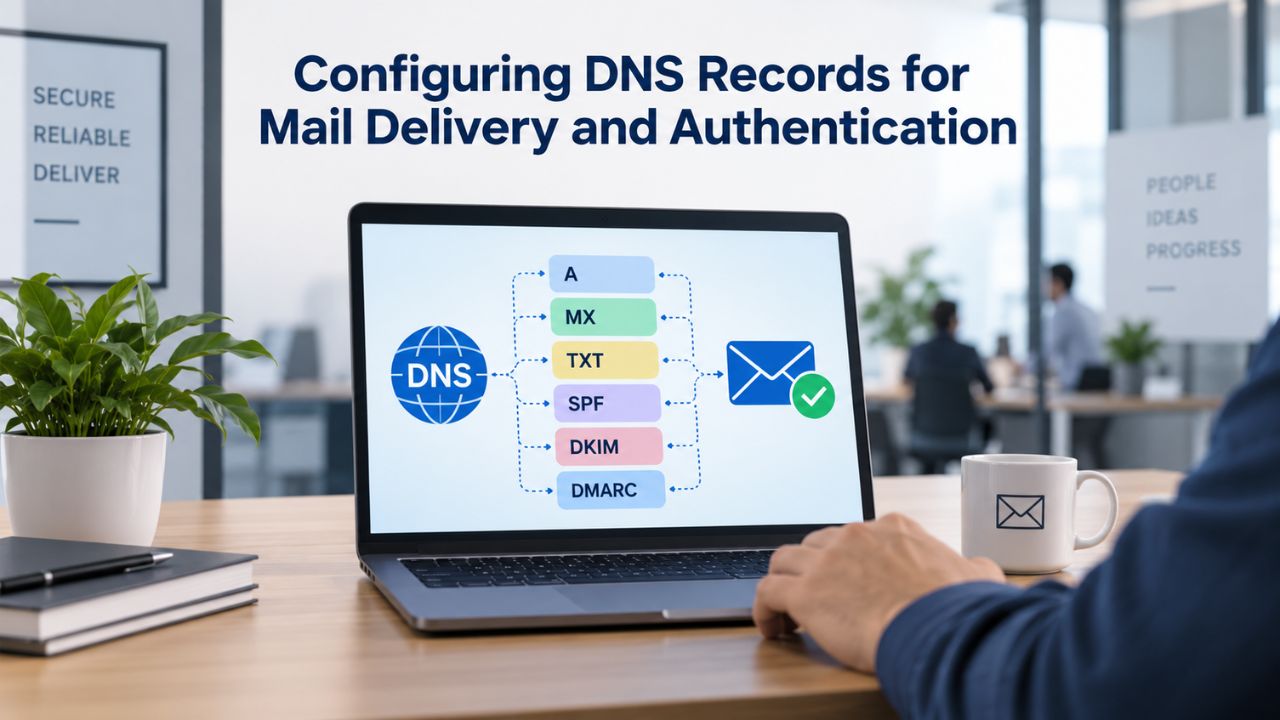
MX Records, SPF, and DKIM Explained
The MX (Mail Exchanger) record tells the internet’s mail infrastructure where to send email destined for your domain. When you add your domain to Microsoft 365, the admin center auto-generates the correct MX record values pointing to Microsoft’s Exchange servers (typically outlook.contoso-com.mail.protection.outlook.com or similar). You copy these exact values to your DNS provider’s control panel with the priority values Microsoft specifies; priority is critical because mail servers query multiple MX records and attempt delivery to the lowest-priority-number entry first. If you misconfigure priority, email may route to a legacy system or be rejected.
SPF (Sender Policy Framework) is a DNS-based authentication protocol that tells receiving mail servers which systems are authorized to send email on behalf of your domain. Your SPF record authorizes Microsoft 365 servers and lists any other services that send mail on your behalf. An SPF record might look like: v=spf1 include:outlook.com ~all. The include:outlook.com part authorizes Microsoft 365; the ~all is a soft fail that warns but doesn’t reject unauthorized senders. Many organizations start with soft fails and tighten to hard fails (-all) later after confirming no legitimate mail is blocked.
DKIM (DomainKeys Identified Mail) cryptographically signs outbound messages, proving they originated from your domain. Microsoft 365 automatically signs messages; you must publish the corresponding public key as a CNAME record so receiving servers can verify the signature. Enable DKIM in the admin center and copy the generated CNAME records to your DNS provider. Once live, typically within 24 hours, receiving mail servers can verify message authenticity, and major providers give signed mail higher deliverability scores.
Implementation Order and Validation
Configure DNS records in this order: MX records first (these route mail to Microsoft), then SPF (authorizes senders), then DKIM (signs messages). This sequence ensures each layer builds on the previous one without creating conflicts. Allow 24–48 hours for full global propagation between each step.
After adding each record, use online DNS validators to verify configuration. Search “MX record checker,” “SPF record validator,” or “DKIM checker” to confirm records are live and correctly formatted. This takes minutes but prevents delivery failures. If validation shows errors, compare your records to Microsoft’s documented values and fix discrepancies immediately. Once all three are live and verified, your domain is ready for mail delivery and basic authentication security.
Implementing DMARC to Prevent Spoofing and Monitor Email Traffic
Once you have SPF and DKIM in place, DMARC (Domain-based Message Authentication, Reporting and Conformance) acts as a policy layer and monitoring system. DMARC tells receiving mail servers what to do with unauthenticated messages and provides visibility into your email traffic through aggregate reports. This phase prevents spoofing and catches authentication misconfigurations early.
DMARC Policy Basics and Enforcement Levels
DMARC policy defines three enforcement actions: none (monitor only; no enforcement), quarantine (suspicious mail goes to spam folder), and reject (unauthenticated mail fails and bounces). Most organizations start with none to collect baseline data without disrupting legitimate mail, then graduate to quarantine or reject after 30–60 days of monitoring. A basic DMARC record looks like: v=DMARC1; p=none; rua=mailto:dmarc@contoso.com. This tells receiving servers to collect authentication failures and send aggregate reports to your mailbox.
Over time, DMARC reports reveal whether unauthorized systems are sending mail on your behalf, whether your SPF and DKIM alignment is correct, and whether attackers are attempting to spoof your domain. After a monitoring period confirms clean alignment, you can tighten the policy to p=quarantine or p=reject, instructing receiving servers to block unauthenticated mail and protect your domain from phishing attacks that impersonate your company.
Monitoring Reports and Refining Configuration
DMARC reports are technical and verbose, but patterns emerge: mail from your domain that failed SPF or DKIM is a red flag for spoofing or misconfiguration; sudden spikes in unauthenticated traffic signal attacks; mail from unrecognized systems indicates unauthorized services sending on your behalf. In the short term, configure reporting to your mailbox and scan reports weekly for anomalies.
If reports show legitimate mail failing authentication, troubleshoot the sender. For example, if a transactional email service sends notifications on your behalf, verify it’s included in your SPF record and has DKIM signing enabled. Small configuration tweaks often resolve alignment issues. Once alignment is clean for 30–60 days, move to quarantine or reject. This progression builds security incrementally while minimizing disruption to legitimate mail.
Strengthen Your Email Security with Expert MFA and Authentication Setup
Multi-factor authentication and domain authentication require precision and planning to avoid user friction while maximizing security. Niya Digital provides Microsoft 365 Security Services and Microsoft 365 Setup Services that guide you through phased MFA rollout, DMARC configuration, and security audits, ensuring protection from day one as your organization scales.
Rolling Out Multi-Factor Authentication Safely
Multi-Factor Authentication (MFA) dramatically reduces account compromise risk by requiring a second verification method, an authenticator app, a phone call, or a security key, in addition to password authentication. MFA is a foundational security control that protects against phishing, password theft, and credential reuse. However, rolling it out carelessly creates support chaos and user frustration.
MFA Implementation Tiers and User Impact
You can enforce MFA for all users immediately, but this typically triggers support chaos: forgotten phone numbers, lost authenticator apps, users locked out of critical systems. A phased rollout reduces friction significantly. Start by enabling MFA for admin accounts only; these are high-value targets for attackers, and admins are usually tech-savvy enough to handle setup. Document the process with screenshots or video, then monitor for issues for one week.
Next, enable MFA for security-sensitive roles: accounting, HR, legal, and anyone with access to sensitive data. Give these users 5–7 days’ notice, provide clear setup instructions, and staff support. Most will adopt within 48 hours. Finally, roll out MFA to the entire user base in waves: announce a date, distribute training materials, and prepare support for the predictable surge in help-desk tickets. This phased approach transforms MFA from a disruptive mandate into a supported, expected security practice.
Managing Lockouts and Recovery Procedures
Despite the best planning, users will lock themselves out due to forgotten PINs, lost phones, corrupted authenticator apps, or device resets. Designate clear admin procedures for account recovery before lockouts happen. Temporary bypass codes generated during MFA setup let users regain access without admin intervention; train users to store these codes in a secure personal location.
When lockouts occur, verify identity through a separate channel, employee ID badge, callback to a known phone number, manager confirmation, before resetting MFA. Document incidents so you can spot patterns: if one user is repeatedly locked out, they may need a different MFA method (SMS instead of app) or additional training. Treat lockouts as user support opportunities, not security violations. This approach builds trust and keeps MFA from becoming a source of frustration.
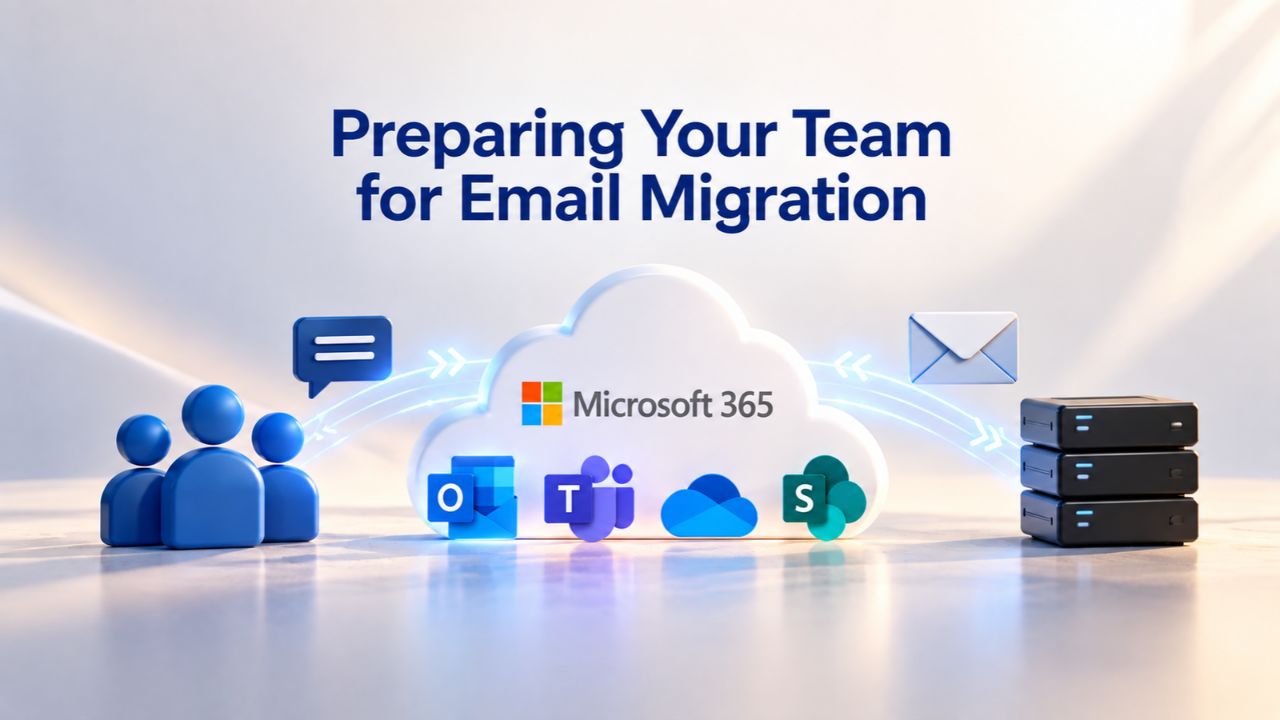
Preparing Your Team for Email Migration
Email migration is logistically straightforward but psychologically fraught: users fear losing messages, workflow disruption, learning new systems, and device incompatibility. This section covers pre-migration communication and readiness activities that make the transition feel smooth rather than chaotic or risky.
Communication Timeline and Expectation-Setting
Announce the migration 4–6 weeks in advance with specific details: “We’re migrating email to Microsoft 365 on November 15. You’ll have access to your new mailbox on November 14 for testing. Contact [helpdesk email] with questions.” Vague timelines create anxiety and spawn rumors; specific dates and support contacts build confidence and set clear expectations.
Two weeks before cutover, send training materials: how to set up email on phones, access cloud storage, join Teams meetings. Include screenshots, screen-recording videos, or links to tutorial content. Most users won’t engage until the last minute, but early availability prevents the helpdesk from being overwhelmed when cutover occurs. One week before, hold optional “office hours” where users can ask questions and test access to their new mailbox in a low-pressure setting. Attendance is usually light, but the offer signals that support is available and encourages testing.
Test Access and Mailbox Readiness
A week before cutover, provision test mailboxes for a small group of power users, people who use email intensively and can spot issues. Give them clear tasks: “Send test messages to external accounts. Try accessing mail on your phone. Open shared calendars. Download attachments.” Document their feedback and fix issues before the full rollout touches regular users.
For users with large mailboxes (5+ GB of legacy mail), discuss expectations upfront: large migrations take longer, old messages may need trimming or archival to stay within storage limits, and not every message will migrate if mailboxes are severely oversized. Frame this as a decluttering opportunity, not a loss. Address storage concerns early so users aren’t surprised by migration speed or incomplete history transfer during the cutover.
Managing the Email Transition and Cutover
The cutover phase is the highest-risk moment: a single mistake can route mail to the wrong server, delay critical messages, or trigger authentication failures. This section walks through the mechanics and timeline, so you can execute a smooth transition with minimal disruption and quick recovery if issues occur.
Coexistence Window and DNS Propagation
During the transition, both your legacy email system and Microsoft 365 must coexist briefly. Mail destined for your domain needs to route to the new system, but existing mail in the old system must remain accessible (or archived) so users don’t lose history. The sequence is:
(1) DNS records updated to point to Microsoft 365 (24–48 hours propagation),
(2) new mail routes to Microsoft 365,
(3) old system decommissioned once all mailboxes are migrated.
The coexistence window typically lasts 5–10 days. During this time, inbound mail goes to Microsoft 365, but outbound mail may originate from either system depending on which client users are using. This can create confusion (“why is my sent mail appearing in two places?”), so communicate proactively: “For the next week, sent mail may appear in both systems. Check both if needed. This normalizes once everyone is fully migrated.” For organizations migrating from on-premises Exchange or another hosted provider, the migration itself (moving mailbox data) is separate from the DNS cutover (rerouting new mail). Plan these as two distinct events: migration first (data moves, but mail still routes to the old system), then the DNS update (mail routes to the new system). This sequence minimizes lost messages during transit.
Monitoring Deliverability and Rollback Planning
After updating DNS, monitor deliverability closely for the first 24 hours. Send test mail to external accounts and verify arrival within seconds. Use online validators to check that MX, SPF, and DKIM records are live and correctly formatted. If any validation fails, investigate immediately; a misconfigured record stops all mail delivery.
Have a rollback plan in place before you need it: if something goes catastrophically wrong (mail isn’t being delivered, authentication is broken), can you revert DNS changes and restore mail flow to the old system? Ideally, you keep the legacy system running for 48 hours after cutover so reverting is just a DNS change, reducing downtime from hours to minutes. This contingency reduces cutover pressure and prevents panic-driven decisions that worsen problems.
Post-Setup Security and Compliance Verification
Once email is live, verify that security controls work and that the configuration aligns with industry-specific compliance requirements. This section covers post-migration checks that often get skipped but prevent compliance violations and security blind spots.

Configuration Audits and Permission Reviews
Within 48 hours of cutover, audit key settings in the Microsoft 365 admin center: confirm MFA is enabled for admin accounts, Defender for Office 365 threat policies are active, and mailbox retention policies are applied (if your organization has compliance requirements). Check permissions: do users have access to shared mailboxes they should, and are they correctly blocked from sensitive shared folders?
If your organization handles regulated data, health records, financial information, or personally identifiable information, verify that retention policies match compliance requirements. For example, healthcare organizations must retain email for specified periods; misconfigured retention can lead to compliance violations and uncontrolled data growth. Spend 30 minutes auditing these settings; it’s a worthwhile investment in preventing audit failures and security incidents.
Email Delivery Testing and Support Readiness
Send test mail to external accounts and verify delivery to the inbox, not the spam folder. Check that legitimate mail from third parties (vendors, partners, SaaS services) isn’t being filtered as spam. If filters catch any critical mail, whitelist the sender or adjust Defender for Office 365 rules. Enable mail flow reporting in the admin center to see delivery trends: volume, sender reputation issues, and malware and phishing detection rates.
In the first 7–10 days, review mail flow reports daily. Patterns often emerge, for example, “all mail from domain X is being rejected because DKIM alignment is missing,” that you can address quickly. Track support ticket volume; expect a spike, but it should decline as users adapt. Common early questions are: “Where’s my old mail?” “I can’t open Teams.” “MFA stopped working.” Document frequently asked questions and create FAQs to reduce repeated support work and help users self-serve.
Ongoing Support and Long-Term Email Management
Email isn’t a one-time setup project; it’s an operational system requiring ongoing attention. This section covers support channels, realistic expectations, and practices that keep email infrastructure healthy long-term.
Support Channels and Response Expectations
Microsoft provides support via the Microsoft 365 admin center (web portal), phone (availability varies by subscription tier), and community forums. Response times for non-critical issues typically range from 4–24 hours; critical issues (mail not being delivered) get prioritized. For organizations with fewer than 100 users, community forums and the admin center are often sufficient. Larger organizations benefit from Premier Support or reseller partnerships that provide dedicated account management and faster response.
Authorized Microsoft Partner resellers, including Niya Digital, offer implementation, migration, ongoing support, and proactive monitoring. Reseller support is often faster than Microsoft’s direct support because resellers know your specific setup and can troubleshoot in context. If email infrastructure management isn’t your team’s core strength, reseller support is a worthwhile investment that prevents crises and ensures your system evolves as your organization grows.
Monitoring, Maintenance, and Scaling
Schedule monthly reviews of mail flow reports, security alerts, and user access logs. Watch for unexpected spikes in mail volume, failed authentication attempts, or accounts that suddenly become active after dormancy; these are often early signals of account compromise or misconfiguration. Use the Microsoft 365 admin center’s built-in dashboards to stay informed without manual data gathering.
Update email retention and compliance policies annually as business requirements change. If your organization has grown from 10 users to 50, your security posture should evolve. What was acceptable device management for a tiny team may be inadequate for an organization handling more sensitive data. Revisit plan tier, security settings, and MFA enforcement periodically as you scale. Document your email infrastructure setup, which DNS records are configured, where they’re hosted, what MFA policies you’ve chosen, and who has admin access, so you can troubleshoot under pressure or respond to staff transitions.
Email Setup Checklist and Timeline
| Phase | Task | What to Prepare or Verify | Typical Timeframe |
|---|---|---|---|
| Pre-Migration | Domain registration and registrar access | Confirm domain ownership and ensure administrative access to the domain registrar and DNS management panel | 1–2 days |
| Pre-Migration | Microsoft 365 plan selection | Select Business Basic, Standard, or Premium based on business requirements and verify the required number of user licenses | 2–3 days |
| Pre-Migration | Admin account setup | Create the Microsoft 365 administrator account, enable multifactor authentication (MFA), and securely store administrator credentials | 1 day |
| Verification | Domain verification with Microsoft | Add the Microsoft-provided TXT record to DNS and confirm successful domain verification after propagation | 24–48 hours |
| DNS Configuration | MX records setup | Configure Microsoft’s MX records with the correct priority to route email to Microsoft 365 | 1 day + 24–48 hours propagation |
| DNS Configuration | SPF record setup | Create or update the SPF record to authorize Microsoft 365 as a legitimate email sender | 1 day + 24–48 hours propagation |
| DNS Configuration | DKIM configuration | Enable DKIM in the Microsoft 365 admin center and publish the required CNAME records in DNS | 1 day + 24 hours propagation |
| Security Setup | DMARC policy | Publish a DMARC record in monitoring mode (p=none), review reports, and gradually enforce stricter policies |
1–2 days + 30–60 days monitoring |
| Security Setup | Multi-factor authentication (MFA) | Enable MFA for administrators first, then expand enforcement to all users through a phased rollout | 1–2 weeks |
| User Preparation | Communication and training | Notify users about the migration schedule, provide documentation, and conduct training sessions before migration | 3–4 weeks |
| User Preparation | User test access | Provision pilot mailboxes for selected users and collect feedback before organization-wide migration | 1 week |
| Cutover | Email migration | Migrate mailbox data, calendars, contacts, and other supported content to Microsoft 365 | 24–72 hours |
| Cutover | DNS switch and mail rerouting | Update MX and related DNS records, then monitor inbound and outbound mail flow closely | 1–2 days |
| Cutover | Legacy system decommission | Confirm all email is flowing correctly through Microsoft 365 before retiring the previous email platform | 5–10 days |
| Post-Cutover | Security and compliance audit | Verify MFA, Microsoft Defender, retention policies, DKIM, DMARC, and other security controls are functioning correctly | 1–2 days |
| Post-Cutover | Support and monitoring | Monitor mail flow, resolve user issues, review service health, and address any migration-related problems | 1–2 weeks |
Ready to Migrate Your Business Email to Microsoft 365?
Email migration requires careful planning, but the payoff- reliable, secure, compliant infrastructure- justifies the effort. Niya Digital specializes in Microsoft 365 Migration Services and Microsoft 365 Setup Services, guiding organizations through every phase: domain setup, DNS configuration, security rollout, user adoption, and post-migration optimization. We help you avoid common pitfalls and land on a stable, secure email system from day one.
Frequently Asked Questions
What is the difference between Microsoft 365 Business Basic and Business Standard?
Business Basic includes email, calendar, web Office apps, 1 TB OneDrive storage, and foundational threat protection. Business Standard adds desktop Office apps, Teams collaboration, and expanded threat detection. Basic suits organizations that prioritize email and light collaboration; Standard suits teams that need rich document editing and video conferencing. Both include 50 GB mailbox storage and foundational security features.
How long does it take to set up a custom domain with Microsoft 365?
Domain verification typically takes 15 minutes to 48 hours, depending on DNS propagation. Adding DNS records (MX, SPF, DKIM) can take 24–48 hours to fully propagate globally. The complete setup, from domain registration to email working on all client devices, usually spans 5–10 days if you move methodically and allow for propagation delays. Rushing verification or record updates significantly increases the risk of misconfiguration.
Do I need multi-factor authentication if my team is small and uses strong passwords?
Yes. MFA dramatically reduces the risk of account compromise, regardless of team size. A compromised admin account can expose your entire email system, customer data, and cloud storage. Modern phishing attacks specifically target smaller organizations because they often lack MFA. Enable MFA for all users, particularly admins, as soon as feasible after cutover.
What happens to my old email after migration to Microsoft 365?
Your legacy email system can remain running for 5–10 days during the coexistence window, allowing users to access old mail if needed. After that, you can decommission it. To preserve email long-term, migrate all messages to Microsoft 365 or archive them to OneDrive before decommissioning the old system. Planning this preservation prevents data loss and user frustration.
Can I use Microsoft 365 email on my phone and desktop at the same time?
Yes. Once you set up your mailbox in Microsoft 365, you can configure email access on multiple devices using the same credentials. MFA will apply consistently across devices; each new device may require a secondary verification step initially, but after that, you send and receive normally. This flexibility is a core strength of cloud-based email.
What should I prepare before migrating to Microsoft 365?
Confirm you own your domain or have registrar access to modify DNS records; inventory your current email users and mailbox sizes. Decide which Microsoft 365 plan matches your security and collaboration needs. Plan your migration timeline and communication strategy. Prepare user training materials. Identify an admin to manage the technical setup. Consider whether you need reseller support or in-house expertise.
How often should I review my email security settings?
Review security configuration quarterly or whenever your organization grows or compliance requirements change. Check MFA enrollment rates, scan Defender for Office 365 alerts, and review mailbox audit logs monthly. Quarterly deep dives ensure policies align with business needs. Annual reviews of plan tier and device management confirm your subscription matches your security posture.
What if an employee leaves? How do I disable their email quickly?
In the Microsoft 365 admin center, you can disable an account, block sign-in, and reassign or archive their mailbox within minutes. This prevents unauthorized access and ensures business-critical mail remains accessible to the organization. Plan by designating manager or admin-delegate authority for mailbox access before staff transitions occur.
What happens if I misconfigure my MX records?
Misconfigured MX records route mail to the wrong server, causing delivery failures or bounces. You usually discover this immediately because external senders report delivery failures. If this happens, check your MX records at your DNS provider, compare them to Microsoft’s documented values, and fix discrepancies immediately. Allow 24–48 hours for corrected records to propagate globally.
Is Microsoft 365 email compliant with data protection regulations?
Microsoft 365 holds compliance certifications for multiple frameworks. Requirements vary by country and industry. GDPR applies to EU users; HIPAA applies to health data; other regulations apply regionally. Plan to review compliance certifications relevant to your jurisdiction during setup. Microsoft’s compliance documentation outlines available protections and where organizational responsibility begins.
Can I move back to my old email system if Microsoft 365 doesn’t work out?
Yes, email migration is reversible if you keep the legacy system running during coexistence and maintain mail backups. Update DNS records back to the old MX record, and new mail will reroute to the old system. However, mail sent to your domain during the Microsoft 365 period would be lost unless you retrieve it from Microsoft 365’s archive. Plan any reversal carefully to minimize data loss.
What level of support should I expect from a reseller?
Reseller support typically includes pre-migration planning, implementation, user training, and post-migration troubleshooting for 30–90 days. Define expectations upfront: response times, availability hours, escalation procedures, and included services. Quality resellers provide proactive monitoring and strategic advice; inadequate resellers respond only when you file tickets. Ask for references before committing to any reseller partnership.
How does cloud storage (OneDrive) work with Microsoft 365 Business Email?
Every Microsoft 365 user gets 1 TB of personal cloud storage via OneDrive for personal files, plus access to shared team storage via SharePoint. You can store email attachments in OneDrive instead of cluttering your mailbox, and teams can collaborate on shared documents without emailing files back and forth. Teach users to leverage cloud storage to keep mailbox size manageable and improve collaboration efficiency.
What is a retention policy and why do I need one?
A retention policy automatically deletes or archives email after a set period, for example, retaining mail for 3 years for compliance, then deleting older messages. This controls data growth, manages storage costs, and ensures compliance with legal hold requirements if your organization faces litigation. Most organizations should implement retention policies during email setup to prevent uncontrolled mailbox growth.
What should I do if I forget my admin password or lose access to my admin account?
Account recovery requires identity verification through Microsoft Support. This can take 24–48 hours, so prevent this situation by designating multiple admins and using recovery options (alternate email, phone number) when setting up accounts. Store admin credentials securely and use temporary bypass codes for MFA recovery. Plan admin account succession before an emergency occurs.
Glossary
- MX Record: A DNS record specifying which mail server receives email sent to your domain. Correct MX record configuration is essential for mail delivery; misconfigured MX records stop all inbound mail.
- SPF (Sender Policy Framework): A DNS-based email authentication method that authorizes specific mail servers to send email on behalf of your domain, preventing unauthorized senders from spoofing your domain address.
- DKIM (DomainKeys Identified Mail): An email authentication method that cryptographically signs outbound messages, allowing receiving servers to verify that messages claiming to come from your domain actually did, improving deliverability and spam filter performance.
- DMARC (Domain-based Message Authentication, Reporting and Conformance): An email security policy that defines how receiving servers should handle messages failing SPF or DKIM authentication, and provides aggregate reports on email traffic so you can monitor for spoofing attempts and misconfigurations.
- MFA (Multi-Factor Authentication): A security method requiring two or more verification methods, such as a password plus an authenticator app, phone call, or security key, to access an account, dramatically reducing account compromise risk from password theft or phishing.
- Exchange Online: Microsoft’s cloud-based email service included in Microsoft 365 subscriptions that hosts user mailboxes, handles email routing and delivery, and integrates with calendar, contacts, and collaboration features.
- Defender for Office 365: Microsoft’s threat protection service for email and collaboration, providing malware detection, phishing protection, advanced threat detection, and security reporting within Microsoft 365 subscri