Every website generates data, files, databases, customer records, and configurations. Without understanding how much backup storage your site actually needs, you risk either undersizing your backup plan and losing protection during critical moments, or overspending on storage capacity you’ll never use. Niya Digital offers a Website Backup Service powered by CodeGuard’s automated backup, storage, and restore infrastructure. Data safety depends on many factors outside any single provider’s control, including how quickly issues are noticed, how often backups run, and the backup frequency you select. We recommend testing backups before relying on them.
What Is Included in Your Current Website Data?
The first step in estimating backup storage is to understand what’s actually on your website right now. Website data isn’t just files; it includes everything your site needs to run and serve visitors. Clarifying this foundation prevents undersizing your backup plan later.
Files and file structure
Your website’s file system includes theme files, plugin code, images, CSS stylesheets, JavaScript, and any custom code. A simple business website with 20–30 pages might be 2–5 GB. A content-rich site with 100+ pages and a media library easily reaches 10–50 GB or more. The files themselves don’t change much day to day unless you upload new images or update code regularly. For backup storage, what matters is that your plan can store complete copies of these files across multiple snapshots.
The key insight here is that file-based data grows more slowly than database data in most cases. A site with static pages and occasional blog posts adds maybe 200 MB per month in files. But if your site includes photo galleries, video content, or downloadable resources, media files can add 1–5 GB monthly. This distinction matters when estimating your backup storage needs.
Database content and transactional data
Your database holds everything dynamic: customer accounts, e-commerce orders, form submissions, post metadata, user preferences, and plugin settings. A small blog’s database might be 500 MB to 2 GB. An e-commerce store processing daily orders can accumulate 5–20 GB or more in database data. Membership sites, SaaS platforms, and community forums accumulate user data continuously, driving faster database growth than file-based content.
Databases change constantly. Every new order, comment, or user registration adds to the database. This rapid change rate is why databases often consume more backup storage than static files on the same site. When planning backup storage, database size and growth are usually the limiting factors. Understanding your database footprint tells you whether a small backup plan will work or if you need more capacity.
Website Backup Plans & Pricing
Select the Website Backup package that best fits the size and peace of mind requirements of your website. Your data is safeguarded without going over budget thanks to our adaptable choices.
Website Backup 5 GB
Recommended for documents and files.
- Automatic daily backups
- Built-in daily malware scanning
- Back up a file, folder or an entire database
- Continuous security monitoring
- Downloads to local storage
- Easy one-click restore
- Secure cloud storage
- Expert 24/7 customer support
- One website per account

Website Backup 25 GB
Recommended for photos and music.
- Automatic daily backups
- Built-in daily malware scanning
- Back up a file, folder or an entire database
- Continuous security monitoring
- Downloads to local storage
- Easy one-click restore
- Secure cloud storage
- Expert 24/7 customer support
- One website per account
Website Backup 50 GB
Recommended for videos and multimedia.
- Automatic daily backups
- Built-in daily malware scanning
- Back up a file, folder or an entire database
- Continuous security monitoring
- Downloads to local storage
- Easy one-click restore
- Secure cloud storage
- Expert 24/7 customer support
- One website per account
How Fast Is Your Website Data Growing?
Most website owners don’t track how much new data their site accumulates each month. This is a critical oversight when planning backup storage, because growth compounds over time. A site that adds 1 GB per month doubles its size in a year, which means your backup storage needs will also double.
Measuring your site’s daily and monthly change rate
To estimate your backup storage accurately, you need to know your daily change rate, the amount of new, modified, or deleted data your site processes each day. A blog that publishes one post per week might add 500 MB per week (let’s say 70 MB daily on average). An e-commerce store processing 10–20 orders daily might accumulate 2–5 GB of new database entries, files, and logs every day. A SaaS application with active users can see 5–10 GB+ of daily change.
The best way to find this is to check your hosting control panel or file manager to see how much storage your site currently uses, then check the same metric two weeks later. Divide the difference by 14 days to get your average daily growth. Do this over 2–3 months to account for seasonal spikes (sales events, campaign traffic). OpenClassrooms Backup Planning Guide
Why media-heavy sites grow faster
If your site hosts video, high-resolution photography, or large downloadable files, your growth rate will be dramatically higher than a text-focused blog. A single high-resolution photo is 3–10 MB. A video clip is 100 MB to several GB. If you add 10 new photos daily, that’s 30–100 MB of new files per day. Add regular video uploads, and growth accelerates quickly. Sites with user-generated content (photo uploads, file submissions) grow even faster because you can’t control what users upload.
Knowing whether your site is text-heavy, media-rich, or database-driven helps you forecast backup storage. A text-based blog with 1% annual growth might need just 10–20 GB of backup storage for 90-day retention. A photography portfolio or e-commerce store with media and 10–15% annual growth could need 100–300 GB for the same retention window. This difference is why there’s no one-size-fits-all backup storage answer.
What Retention Period Makes Sense for Your Business?
Retention period, how long you keep backup copies, is one of the most misunderstood levers in backup planning. A longer retention period means more recovery options, but it also requires proportionally more storage. The right retention period depends on your business risk tolerance, compliance requirements, and how quickly you typically discover problems.
Short retention for fast-moving sites
If your site changes rapidly and you monitor it closely, a 30-day retention period may be sufficient. You’ll keep daily backup snapshots for the past 30 days, giving you 30 potential recovery points. If you discover a hack, broken update, or corrupted content within a few days, a 30-day window is plenty. This approach works well for sites where the team notices issues quickly, usually small business websites, blogs, and portfolios where the owner is actively managing content.
The trade-off is clear: 30-day retention uses significantly less backup storage than 90-day retention on the same site. A 50 GB website with 5% daily change might require ~37 GB of backup storage for 30-day retention but ~67 GB for 90-day retention. Jetpack VaultPress Storage Documentation. For cost-conscious site owners with low daily change rates, 30-day retention may be the sweet spot.
Longer retention for comprehensive recovery
A 90-day retention window covers a full quarter, giving you recovery points spanning weeks or even months back. This is valuable if you discover a problem late, for example, a subtle SEO spam injection that went unnoticed for three weeks, or a malware campaign that infected files gradually over a month. With 90-day retention, you can roll back past where the problem started and restore a genuinely clean version.
For e-commerce stores, SaaS platforms, and membership sites, 90-day retention is a common industry standard. CodeGuard FAQ: It provides enough historical depth to recover from most gradual degradation or compromise scenarios while remaining manageable in storage terms. Longer retention periods (6 months or more) are typically reserved for regulated industries, large organizations with archival requirements, or sites that rarely change and need deep historical access.
How Do Backup Frequency and Retention Interact?
Backup frequency (how often you back up) and retention period (how long you keep backups) combine to determine your total backup storage needs. This relationship is the math that ultimately drives your storage requirements, and understanding it prevents painful surprises.
The storage formula: frequency × retention × change rate
Here’s the core calculation: Total Backup Storage ≈ (Current Site Size) + (Daily Change Rate × Days in Retention Period).
Let’s work through an example. You have a 50 GB website that grows about 5% daily (so roughly 2.5 GB of incremental changes per day, on average). With daily backups and 90-day retention, your storage math looks like this:
- Original site: 50 GB
- Backup snapshots for 90 days: 90 × 2.5 GB (average daily change) = 225 GB
- Total: ~275 GB backup storage needed
With 30-day retention on the same site, it would be approximately 50 GB + (2.5 GB × 30) = 125 GB. The difference between 30-day and 90-day retention is 150 GB, substantial for many small business budgets. OpenClassrooms Backup Planning
Storage Impact of Backup Frequency & Retention Period
| Backup Frequency | Retention Period | Estimated Daily Change* | Total Snapshots Stored | Approximate Incremental Storage | Recovery Window Depth |
|---|---|---|---|---|---|
| Daily | 30 days | 1 GB/day | 30 snapshots | ~30 GB | Any day in past month |
| Daily | 60 days | 1 GB/day | 60 snapshots | ~60 GB | Any day in past 2 months |
| Daily | 90 days | 1 GB/day | 90 snapshots | ~90 GB | Any day in past 3 months |
| Daily | 180 days | 1 GB/day | 180 snapshots | ~180 GB | Any day in past 6 months |
| Every 2 days | 90 days | 2 GB/backup | 45 snapshots | ~90 GB | 45 recovery points over 90 days |
Why incremental backups make the math manageable
Without incremental backups, you’d need to store a complete copy of your entire 50 GB site every single day. Over 90 days, that’s 4,500 GB of raw storage. Incremental backups solve this by capturing only changes between snapshots. If your site changes 2.5 GB daily, you store just those 2.5 GB per day, not the entire 50 GB. This efficiency reduction is why backup storage remains feasible for most websites.
Understanding this trade-off helps you decide: Is a longer retention period worth the additional storage cost? For a site growing slowly (1% monthly), the incremental storage per retention day is tiny, so 90-day retention is reasonable. For a high-growth site (10%+ monthly), each additional day of retention compounds, and you may need to optimize retention or upgrade storage to avoid backup failures.
Does Your Site Type Have Special Storage Needs?
Different website types accumulate data at different rates. An online portfolio accumulates very different data than a multi-vendor e-commerce platform or a membership community. Your site type is one of the strongest predictors of whether a small or large backup plan makes sense.
Storage Needs by Website Type & Size
| Website Type | Typical Current Size | Typical Daily Change Rate | 90-Day Retention Storage Estimate | Recommended Plan Capacity |
|---|---|---|---|---|
| Small Business Blog (10–30 pages) | 2–5 GB | 100–500 MB | 10–25 GB | 25–50 GB |
| Growing Blog or Portfolio (50–100 pages, images) | 8–15 GB | 500 MB–1 GB | 40–75 GB | 75–125 GB |
| E-commerce Store (100–300 products) | 20–50 GB | 2–5 GB | 200–500 GB | 250–500+ GB |
| Content/Media Site (heavy galleries, video) | 50–150 GB | 3–8 GB | 400–900 GB | 500–1000+ GB |
| Membership/SaaS Platform (active users) | 30–200 GB | 5–15 GB | 500–1500 GB | 1000+ GB (custom) |
Blogs, portfolios, and simple business websites
A basic blog or portfolio site with 20–100 pages of text and occasional images rarely exceeds 10 GB, and daily change rates are usually 200 MB or less. If you publish one blog post per week and update a service page monthly, your daily average change is minimal. These sites work well with small backup storage plans and can often succeed with 30-day retention. A backup storage plan offering 5–25 GB is typically sufficient for most blogs and portfolio sites.
The limiting factor for these sites isn’t data volume; it’s often the database. WordPress blogs, in particular, accumulate post revisions, spam comments, plugin data, and user preferences. A five-year-old blog with thousands of posts and extensive plugins can grow to a 5–10 GB database, even though the posts themselves are only a few hundred MB. Cleaning up old revisions and removing unused plugins can significantly reduce database size, which in turn reduces backup storage needs. OpenClassrooms Course.
E-commerce stores and transactional platforms
E-commerce sites are storage-intensive because they combine files (product images), databases (order history, customer data, inventory), and logs (transaction records). A mid-sized store with 100–500 products might start at 20–50 GB, but daily growth can reach 2–5 GB once orders start accumulating. Every customer purchase, review, and cart abandonment adds database entries. Seasonal events like holiday sales can spike growth to 10+ GB in a single day.
For e-commerce, 90-day retention is strongly recommended because you need historical access to customer orders, payment records, and shipping data. Many store owners also generate quarterly reports from backup snapshots. The investment in larger backup storage (100+ GB for 90-day retention) is minimal compared to the cost of losing customer data or being unable to recover order history. Jetpack VaultPress Storage.
Media-heavy sites and membership platforms
Photo galleries, video libraries, and membership communities demand the most backup storage. A photography portfolio with 1,000 high-resolution images can easily be 50–100 GB. A video library with dozens of long-form content pieces can reach 500 GB+ quickly. Membership platforms accumulate user profiles, activity logs, forum posts, and uploaded files, creating rapid growth. A thriving membership community can add 5–10 GB monthly in member content and data alone.
For these sites, backup storage planning is critical because even a 20% undersize can cause backup failures. Niya Digital’s team has found that media-heavy site owners often discover mid-subscription that their chosen plan is running low on storage capacity right when growth accelerates. The solution is to audit these sites monthly and proactively upgrade storage before hitting quota limits. A conservative approach for media-heavy sites is to select a plan with 25–50% headroom beyond your current projected needs. Jetpack VaultPress Support
Protect Your Website with the Right Backup Plan
A website backup without adequate storage is like buying insurance with a deductible so high it’s worthless when disaster strikes. The right backup plan means you have enough storage to keep daily snapshots throughout your retention period, so when something goes wrong, you can restore to any day you need. Explore how Niya Digital’s Website Backup Service, powered by CodeGuard (GoDaddy Website Backup)’s automated backup and cloud storage infrastructure, helps you match your backup storage to your actual needs.
What Happens When Backup Storage Runs Out?
This is the scenario most site owners don’t think about until it’s too late: your backup storage quota fills up, and new backups fail silently. You think you’re protected, but you’re actually not. Understanding what happens when storage runs out is critical to preventing this disaster.
Silent backup failures and the false sense of security
When a backup plan reaches storage capacity, one of two things happens: the backup service either fails to complete the next backup, or it automatically deletes the oldest backups to make room. Either way, you lose coverage. If backups fail silently without notification, you might not realize you’re unprotected until the day you need to restore and discover the most recent backup is weeks old.
The danger is that most sites don’t monitor their backup status carefully. An owner might assume their automated backup is working perfectly because they haven’t received an error notification. But if storage filled up three weeks ago and the backup service has been failing since then, a hack or data loss occurring this week leaves you with no recent recovery point. This is why backup storage sizing isn’t something to guess at; it’s a critical planning task. OpenClassrooms Backup Planning.
Automatic cleanup and quota management
Some backup services, including those powered by CodeGuard (GoDaddy Website Backup), automatically delete the oldest backups when storage quota is reached, attempting to stay within your plan’s limits. This means your retention period might be shorter than you expect. If you purchased 90-day retention but your site grows faster than anticipated, the service might automatically prune backups to stay within quota, leaving you with only 60 or 45 days of actual coverage. CodeGuard Backup Retention Settings
To avoid this, plan for growth. Suppose your site grows 1% monthly; factor that into your storage calculation: a site that’s 50 GB today will be ~55 GB in 12 months. Your 90-day backup storage needs will grow accordingly. Choosing a plan with built-in headroom (20–30% extra capacity) prevents silent failures and automatic retention reduction. Regular backup status audits catch problems before they become critical.
How Incremental Backups Reduce Your Storage Footprint
Incremental backups make website backup storage affordable. Without them, backup storage requirements would be prohibitively expensive for most sites. Understanding how incremental backups work helps you see why your storage needs are reasonable.
Capturing only changes, not complete copies
A full backup copies your entire website, every file, every database entry, everything, to backup storage. A 50 GB full backup requires 50 GB of backup storage. If you took a full backup every single day for 90 days without using incremental backups, you’d need 4,500 GB of storage. That’s prohibitive.
Incremental backups solve this by comparing each day’s version of your site to the previous backup and storing only what changed. If 2.5 GB changed since yesterday’s backup, the incremental backup is just 2.5 GB, not 50 GB. Over 90 days, this approach stores approximately: one full backup (50 GB) + 89 incremental backups (averaging 2.5 GB each) = roughly 275 GB total. That’s a 94% reduction in storage compared to daily full backups. CodeGuard FAQ, OpenClassrooms Backup Strategy Guide.
How differential capture works in practice
CodeGuard (GoDaddy Website Backup) uses a differential backup approach, meaning it scans your site’s files and database, compares them to the previous backup snapshot, and stores only the differences. If a single product image changes and three database records are modified, it captures and stores only those items, not the entire 50 GB site. This efficiency is what keeps backup storage requirements within budget for most websites.
Compression further reduces storage. A text file compresses to about 10% of its original size. Database exports compress even more dramatically because databases are highly repetitive. Images and video already compressed in JPEG or H.264 format compress minimally, but text-heavy websites see major compression benefits. The combination of incremental capture plus compression typically reduces backup storage requirements by 60–70% compared to uncompressed full backups. CodeGuard Partner Documentation, IONOS Backup Strategy Guide.
Oversizing vs. Right-Sizing: The Cost/Benefit Trade-Off
It’s tempting to buy the largest backup plan available and never worry about storage. But oversizing creates waste, while undersizing creates risk. The goal is right-sizing: choosing a plan that covers your actual needs plus a reasonable safety margin.
The cost of oversizing
If you have a 20 GB website with 300 MB daily change and you choose a plan with 500 GB of storage, you’re paying for 480 GB you’ll never use. That’s waste. On a budget-conscious timeline, that unnecessary capacity costs real money. For a small business, oversizing by this much might not matter. But for an agency managing dozens of client sites, or an enterprise with multiple web properties, oversizing adds up quickly.
That said, some headroom has value. A 20–30% safety margin above your calculated needs prevents mid-subscription surprises when growth accelerates, or you underestimated your daily change rate. The sweet spot is usually: calculate your actual needs honestly, add 25% for growth and unexpected spikes, and choose the next plan tier up. This prevents silent failures while keeping costs reasonable. ServerMania Storage Growth Guide
The risk of undersizing
Undersizing is far worse than oversizing. When your backup storage runs out, your protection ends. You’ve paid for a backup plan that no longer protects you. Worse, you might not realize you’re unprotected until you need to restore. A 20 GB site growing at 5% monthly reaches 25 GB in a year. If you chose a 25 GB plan and didn’t account for growth, your backup storage fills up within months.
Rule of thumb: choose a plan that covers your current size plus 12 months of projected growth, plus a 20–30% safety buffer. For a 20 GB site growing 5% monthly, that’s: 20 GB (current) + 12 GB (year of growth at ~5%/month average) + 6 GB (30% buffer) = 38 GB minimum. Choose the next plan tier up that exceeds this number to ensure uninterrupted protection. OpenClassrooms Planning Guide
How to Audit Your Current Backup Setup
If you already have a backup plan in place, auditing it tells you whether your setup is adequate or if you need to upgrade before you run out of storage. Most site owners have never actually tested their backups or checked how much storage capacity they’re using, and this can be a dangerous oversight.
Verify you’re actually being backed up.
First, confirm your backups are running. Log into your backup service dashboard and check the status of recent backups. Look for completion timestamps, ideally, daily backup attempts with success status. If you see failed backups, incomplete backups, or warnings about reaching storage quota, these are red flags that your current plan isn’t working as intended.
Next, download or review a backup snapshot. If your backup service offers one-click restore or file download, actually try it. Open the downloaded backup file or test a restore in a staging/test environment. You want to confirm:
(1) the backup contains current data,
(2) the restore process works, and
(3) you can access the backed-up files.
Testing is the only way to be certain your backup plan will actually work when you need it. Many site owners discover mid-crisis that their backup files are corrupt, incomplete, or unusable. CodeGuard FAQ.
Calculate your current storage usage and growth trajectory.
Log into your backup dashboard and note how much storage space you’re currently using. Check the same stat two weeks later and calculate your weekly growth rate. Multiply by 26 to estimate annual growth. Compare this to your plan’s total capacity. If you’re using more than 50% of your plan’s storage, you’re halfway through your budget. If you’re over 70%, you’re approaching quota and should plan an upgrade.
Also check whether your retention period is being honored. If your plan offers 90-day retention, you should have backup snapshots dating back 90 days. If the oldest snapshot is only 45 days old, your backups are being pruned due to storage quota, meaning your actual retention is shorter than you paid for. This is a clear signal to upgrade. Jetpack VaultPress Storage Documentation
Choosing the Right Backup Plan for Your Site’s Size and Needs
Armed with your site size, growth rate, and retention preference, you can now choose the right backup plan. The goal is to find a plan that fits your actual needs without overspending or undersizing.
Matching plan tiers to your site profile
Backup plans typically come in tiered options, each offering different storage capacity and features. A small plan (5–25 GB) suits single websites under 10 GB that grow slowly. Medium plans (50–125 GB) work for mid-sized sites, growing e-commerce stores, and multiple smaller websites. Large plans (250+ GB) serve content-heavy sites, high-growth stores, and media platforms. CodeGuard FAQ
To choose, use your storage calculation: current site size + (daily change rate × retention days) + 25% buffer. If your calculation suggests 75 GB, choose a plan offering at least 75 GB. Don’t round down; choose the next tier up. If you’re between plan sizes, the extra cost of the larger plan is insurance against future growth. Many site owners pick a plan, then find it’s too small within 6–12 months. Choosing slightly larger from the start eliminates that painful mid-subscription upgrade. OpenClassrooms Planning Guide.
Planning for growth and seasonal spikes
Some sites have predictable growth patterns. An e-commerce store grows during holiday seasons but levels off afterward. A blog accumulates content gradually. A SaaS platform grows user accounts each month. Factor these into your choice. If you know your site grows 1% monthly, a 50 GB site will be 55 GB in a year and 60 GB in two years. Choose a plan that supports at least 18–24 months of growth before you need an upgrade.
Seasonal spikes matter too. If your store has a Black Friday event that triples traffic and order volume, your database might grow by 10 GB in a single week. Make sure your backup plan has enough spare capacity to handle these spikes without failing. A conservative approach: choose a plan where your typical usage stays below 50% of capacity, leaving room for both growth and seasonal surges. ServerMania Storage Growth Guide
Get Your Website Backup Storage Right the First Time
Choosing the right website backup storage is a one-time planning effort that protects your business for months or years. Undersizing creates risk; oversizing wastes money. Getting it right means understanding your site’s size, growth rate, and retention needs, then selecting a plan with a comfortable safety margin. Niya Digital’s Website Backup Service makes this easy by offering multiple plan tiers and giving you full control over backup frequency and retention settings. Start protecting your website today.
Frequently Asked Questions
What is the difference between full backup and incremental backup?
A full backup copies your entire website (all files and databases) to storage. An incremental backup captures only the data that changed since the previous backup. Full backups require more storage but are simpler; incremental backups use far less space but require the previous backup to restore. Most website backup services use a combination: one full backup per week or month, plus daily incremental backups. This balances storage efficiency with restore speed.
How often should I back up my website?
Daily backups are the industry standard for website backup and restore protection. Daily frequency means you lose at most one day of data or changes if something goes wrong. Weekly or monthly backups are less protective; if a hack or failure occurs on day six of your weekly backup cycle, you’ve lost six days of data. Daily backups provide granular recovery points without significantly impacting server performance or storage costs when using incremental backups.
What does “backup retention” mean, and how long should I keep backups?
Backup retention is how long you store backup copies. A 30-day retention means you keep backup snapshots from the past 30 days; after 30 days, old backups are deleted to save storage. A 90-day retention covers three months of recovery points. Most website backup solutions default to 90-day retention. The longer your retention, the more storage required, but you gain more recovery options. A 30-day retention works for fast-moving sites; 90-day retention is standard for e-commerce and critical business sites.
Can I reduce my backup storage needs?
Yes. Delete unnecessary files from your site (old images, unused plugins, orphaned media). Optimize images before uploading to reduce file size. Clean up old database entries (post revisions, spam comments, deleted user data). Remove plugins and themes you don’t use. For WordPress, use the built-in revision limit to prevent post revisions from bloating your database. These actions reduce your current site size, which in turn reduces your backup storage requirements. Even a 20% reduction in site size saves significant storage.
How do I know if my backup storage is enough?
Log into your backup service dashboard and check how much storage you’re using as a percentage of your plan’s capacity. If you’re using less than 50%, you’re in good shape. If you’re above 70%, plan to upgrade soon. Also verify that your retention period is being honored; you should have backup snapshots dating back to your full retention period. If old backups are missing, storage quota is forcing automatic deletion, meaning your actual retention is shorter than purchased.
What if my website grows faster than expected?
Monitor your site size monthly. If growth outpaces your plan’s capacity, upgrade before you run out of storage. Proactive backups are better than waiting until backup failures start. Also audit your site for unnecessary data: old media files, spam comments, failed transactions, and redundant copies. Cleaning up unused data slows growth and often eliminates the need for an immediate storage upgrade.
Does my backup plan include database backup?
Most website backup services, including those powered by CodeGuard (GoDaddy Website Backup), back up both files and databases automatically. When you restore, both are restored together. Some budget services back up files only; confirm whether databases are included before purchasing. For WordPress, e-commerce, and any dynamic site, database backup is essential. The database holds your posts, products, customers, and settings; losing it is catastrophic. Never choose a backup service that doesn’t explicitly include database backup.
What happens if I need to restore my entire website?
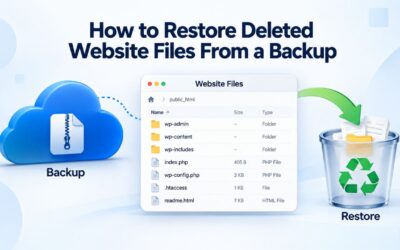
With a website backup and restore service, restoring typically involves selecting a backup snapshot from the past (any date within your retention period) and clicking a restore button. The service copies your backed-up files and database back to your hosting server, overwriting the current (broken, hacked, or outdated) version. Restore time varies: small sites often restore in minutes; large sites can take hours depending on size and server performance. Always test the restore process on a staging environment before relying on it in a crisis.
Can I restore just one file, or do I have to restore everything?
Most website backup services let you restore individual files, folders, or specific database tables. You don’t need a full-site restore unless you do. This matters if a single image is deleted or a database table is corrupted. You can download a backup file, extract just the file you need, and upload it manually. Or use the backup service’s file-level restore feature to replace just that one item. Full-site restore is fast and simple, but file-level restoration gives you surgical precision.
Does my hosted website have backup protection built in?
Many hosting providers include basic backups with hosting plans, but these are usually limited: maybe one backup every 7–14 days, stored on the same server as your site, with short retention (days to weeks). If the hosting server fails, the on-server backup fails with it. Off-site backup storage protects you against this. An independent website backup service stores copies on separate infrastructure (cloud storage) so that a hosting failure doesn’t destroy both your live site and your backup.
How does off-site backup storage protect my website?
Off-site backup storage means your backups are stored on servers physically separate from your hosting provider’s servers. If your hosting provider experiences server failure, hacking, or data loss, your backups are unaffected because they’re elsewhere. This independence is critical: an on-site backup is worthless if the entire server fails. Off-site storage, typically cloud-based (like Amazon S3), ensures you can always restore even if your hosting provider goes down.
How does backup security work, and are my backups encrypted?
Reputable website backup services encrypt backups during transfer (over the internet) and at rest (while stored). This means unauthorized parties can’t read your backup data. CodeGuard (GoDaddy Website Backup) stores backups on Amazon S3 with encryption enabled. Always confirm your backup service offers encryption; unencrypted backups could expose sensitive customer data if compromised. Encryption adds no noticeable cost or performance penalty; it’s a standard security feature.
Can I access my backups if the backup service shuts down?
This depends on the backup service. Some allow you to download backups as files before your subscription ends; others keep backups private. Before choosing a backup service, ask whether you can export and download your backup files. This protects you if the service ever closes or you decide to switch providers. Ideally, periodically download a backup file to your own storage as a final safety net.
What size backup storage plan should a small business website choose?
A small business website with 5–20 pages, a blog, and a contact form typically uses 2–8 GB and grows about 300 MB monthly. Using our formula: 5 GB (current) + (300 MB × 90 days) = ~32 GB for 90-day retention. Add a 25% safety buffer: 32 GB × 1.25 = 40 GB. Choose a plan offering 50–100 GB to stay well within a comfortable operating range. This plan works for five years of growth before requiring an upgrade.
How much backup storage does an e-commerce store need?
An e-commerce store with 100–300 products is typically 15–40 GB initially and grows 2–5 GB monthly (database transactions, order history, customer data). Using the formula: 30 GB (current) + (3 GB × 90 days) = ~300 GB for 90-day retention. Add a 25% buffer: 375 GB. Choose a plan with 500+ GB to accommodate product catalog expansion and seasonal sales spikes. E-commerce stores benefit from longer (90+ day) retention because order history and customer data are legally important.
Should I buy the largest backup plan to be safe?
Not necessarily. Buying the largest plan wastes money if your site doesn’t need it. The goal is right-sizing: calculate actual needs, add a 25–30% buffer, and choose the plan that fits. For a 20 GB blog, buying a 500 GB plan is wasteful. For a rapidly growing e-commerce store, it’s insurance. The real question is: can I afford to run out of backup storage mid-year? If not, choose slightly larger than you think you need. If money is tight, choose the minimum that fits today’s needs plus 6–12 months of projected growth.
Glossary
- Incremental Backup: A backup method that captures only the data that has changed since the previous backup, significantly reducing storage space compared to full backups.
- Retention Period: The length of time that backup snapshots are stored and kept available for restoration, for example, 30 days, 90 days, or indefinitely.
- Off-Site Backup Storage: Backup data stored on servers or cloud infrastructure physically separate from the primary website’s hosting location, protecting against hosting server failure or compromise.
- Differential Backup: A backup approach that compares the current version of files and data to the previous backup snapshot and stores only the differences, similar to incremental backup but with different technical mechanics.
- One-Click Restore: A simplified restoration process that allows an entire website (files and database) to be restored to a previous point-in-time snapshot with a single button click.
- Restore Point: A specific point-in-time snapshot of a website’s files and databases that you can select for restoration if data is lost, corrupted, or hacked.