Most website owners assume their free backup options will protect them until they actually need to restore. A plugin fails to launch when the site is hacked. A hosting provider’s latest backup includes the very malware the owner is trying to recover from. A DIY manual backup from six months ago sits forgotten on a local drive. Niya Digital is an authorized reseller of CodeGuard-powered website backup services, not an operator of independent backup infrastructure. Overall data safety depends on many factors outside any single provider’s control; backup frequency chosen, how quickly an issue is detected, hosting/server conditions, and credential practices all matter.
Free Hosting Provider Backups: Convenient but Limited
Hosting plans often advertise automatic backups as a core feature, and they do provide a baseline safety net for server-level infrastructure failures. Yet the limitations of these offerings emerge quickly once you understand how hosting provider backups actually work in practice. The convenience you see advertised masks significant gaps in protection for individual websites and their business-critical data.
How Hosting Backups Operate
Your hosting provider maintains server-level snapshots of all accounts running on shared or reseller hosting infrastructure. Backup frequency typically ranges from weekly to every 3–7 days, depending on your hosting tier. The backup covers the entire server, not individual websites. This approach is highly efficient for the hosting provider; one automated process backs up dozens of customer accounts simultaneously in a single batch operation. However, it becomes inefficient the moment you need to restore only your website from that server-wide backup, because the hosting provider’s backup is built for server recovery, not individual site restoration.
Restoring from a hosting backup requires contacting customer support, and you cannot initiate the restore yourself. The entire process is entirely hands-on and support-dependent. A support staff member must access the backup archive, identify your account’s data within that server-wide backup, extract your specific account data, and manually recover it to your server. This can take hours or even longer during support backlog periods, during which your website remains offline. For businesses relying on active traffic, customer transactions, or service availability, every hour offline translates directly to lost revenue, damaged customer relationships, and operational disruption.
Storage Limits and Retention Gaps
Many shared hosting providers cap automatic backups at a specific storage threshold, often around 10 GB per account. Once your website exceeds this storage limit, automatic backups stop entirely, and the responsibility for data protection shifts directly to you. Growth that should feel like business success becomes a backup liability. Website owners often don’t discover this limitation until they need a restore, at which point they realize their site has been unprotected for months.
Retention windows are equally constrained in most hosting environments. Hosting providers typically retain only the most recent backup, or at most the latest two weekly snapshots. If you discover a problem three weeks after it occurred, the clean backup you need may already be deleted by the hosting provider’s automatic retention system. You’re left with the choice to restore from a backup that includes the same corruption, malware infection, or data loss you’re trying to recover from. This creates a situation where a backup feels like protection, but it still contains the problem you’re trying to solve.
Website Backup Plans & Pricing
Select the Website Backup package that best fits the size and peace of mind requirements of your website. Your data is safeguarded without going over budget thanks to our adaptable choices.
Website Backup 5 GB
Recommended for documents and files.
- Automatic daily backups
- Built-in daily malware scanning
- Back up a file, folder or an entire database
- Continuous security monitoring
- Downloads to local storage
- Easy one-click restore
- Secure cloud storage
- Expert 24/7 customer support
- One website per account

Website Backup 25 GB
Recommended for photos and music.
- Automatic daily backups
- Built-in daily malware scanning
- Back up a file, folder or an entire database
- Continuous security monitoring
- Downloads to local storage
- Easy one-click restore
- Secure cloud storage
- Expert 24/7 customer support
- One website per account
Website Backup 50 GB
Recommended for videos and multimedia.
- Automatic daily backups
- Built-in daily malware scanning
- Back up a file, folder or an entire database
- Continuous security monitoring
- Downloads to local storage
- Easy one-click restore
- Secure cloud storage
- Expert 24/7 customer support
- One website per account
WordPress Backup Plugins: Freedom and Friction
Free WordPress backup plugins like UpdraftPlus, which has more than 3 million active installations, offer genuine flexibility and control that hosting provider backups cannot match. You control the backup schedule, decide what content gets backed up, and can initiate restore directly from your WordPress dashboard without contacting support. For many small site owners, this level of control feels like real protection, until they actually try to use it in a crisis.
What Free Plugins Actually Deliver
UpdraftPlus and similar free WordPress backup plugins create complete backups of your website’s files and database on a schedule you define and control. The free version includes one-click restore capability initiated directly from the WordPress admin panel, integration with major cloud storage providers like Dropbox and Amazon S3, and typically seven days of backup retention. You can restore your entire website or select individual files and database tables, giving you granular control. For small websites under 1 GB and for testing purposes, this functionality is genuinely useful and capable.
The critical catch is that UpdraftPlus relies entirely on WordPress cron jobs firing reliably and on schedule. If WordPress cron jobs don’t run, which happens due to low traffic on the site, plugin conflicts that disable cron functionality, or hosting provider restrictions on background processes, backups never happen. Site owners frequently discover this fundamental problem months later, when backups haven’t run since a theme update that broke something, or since a plugin conflict disabled the WordPress scheduler. The failure pattern behind almost every “I had UpdraftPlus installed, and the last backup was from two years ago” story is the same: WordPress cron never fired after a certain point, and the site owner didn’t discover this until an emergency occurred.
Real-World Restore Failure Scenarios
Backup plugins run entirely inside WordPress, which creates a fundamental architectural vulnerability. If WordPress cannot start because the database is corrupted from malware, a malware infection broke a core WordPress file, or a bad plugin update crashed the admin area, then the backup plugin cannot load to initiate a restore. The plugin must load, which means PHP must execute. The database connection has to be established well enough for WordPress to boot. You need to reach wp-admin to trigger the restore. If any of these prerequisites fail, the restore option becomes unavailable.
Forum discussions document this pattern repeatedly: shared hosting environments with PHP execution time limits of 30 seconds often experience backup and restore operations that time out mid-process, leaving the backup incomplete or the restore stuck. On low-resource shared hosting providers like Hostinger, HostGator, and SiteGround, plugins frequently fail to complete backups due to insufficient server resources, hitting memory limits or process timeouts. Additionally, BackWPup, another popular free plugin, offers no restore functionality in its free version. Creating a backup is only half of the solution; if the restore side is locked behind a paywall, the free option isn’t truly useful when an emergency forces you to recover.
Why Free Backups Fail When You Need Them Most
Industry data and real-world statistics reveal why relying solely on free backup options is risky for any website with business value. The stakes are high, and the failures are far more common than most website owners realize.
The Backup Hasn’t Run (Or It Never Worked)
According to recent industry research, 67.7% of businesses experience significant data loss in a 12-month period. Yet many of these businesses had backup tools in place, on paper. The backups weren’t running, hadn’t been tested, or worked differently than expected when the crisis came. The tools existed but failed silently until failure mattered. Studies show that 93% of organizations experiencing prolonged data loss lasting 10 days or more go bankrupt within the following year. This isn’t theoretical risk; it’s documented outcome data.
The risks driving data loss are escalating and evolving. Malware accounts for 31.2% of data loss incidents, while ransomware causes 36.7% of data loss events. Small businesses face real, material exposure to these risks. The average recovery cost from a malware attack reached $2.73 million in 2024, up nearly $1 million from the previous year. This cost includes remediation, downtime, lost business, and recovery efforts, and this assumes you have a clean backup to restore from.
The Backup Includes the Problem
When a hosting provider backs up your site, they’re backing up the current state of everything, including any infection, corruption, or malware present at the moment the backup runs. If your site is compromised on Tuesday, but the backup was created Monday, the Monday backup still contains the malicious code injected by the attacker. Restoring from that compromised backup doesn’t solve the problem; it simply reinstates the infection. You end up restoring from backup only to discover you’re infected again.
DIY manual backups face the same fundamental flaw. If you manually download your site files once a month via FTP and store them locally, a malware infection that goes unnoticed for weeks means your “backup” is already infected too. You’ve created multiple copies of the same corrupted state. The backup doesn’t protect you because you’ve backed up the problem along with everything else. This is why backup frequency matters so much: the longer the gap between backups, the higher the chance a backup captures an already compromised state.
Downtime Costs Exceed Backup Investment
The financial impact of backup failure and prolonged recovery is starkly quantified in business terms. Small businesses face an average downtime cost of $1,410 per minute. A four-hour outage, not unusual for manual restore processes involving support tickets and manual database imports, costs approximately $338,400 in lost productivity alone, before factoring in lost sales, customer trust damage, or search engine penalties.
When Google detects malware, spam injection, or malicious redirects on a hacked website, it applies a public warning. It removes the site from search results. Full ranking recovery after cleanup and submission of a reconsideration request takes 3–12 months, with organic traffic remaining 50–90% below pre-hack levels during the recovery period. A quick restore from a clean backup initiated before widespread indexing of malware content can prevent or severely reduce this long-term search visibility damage.
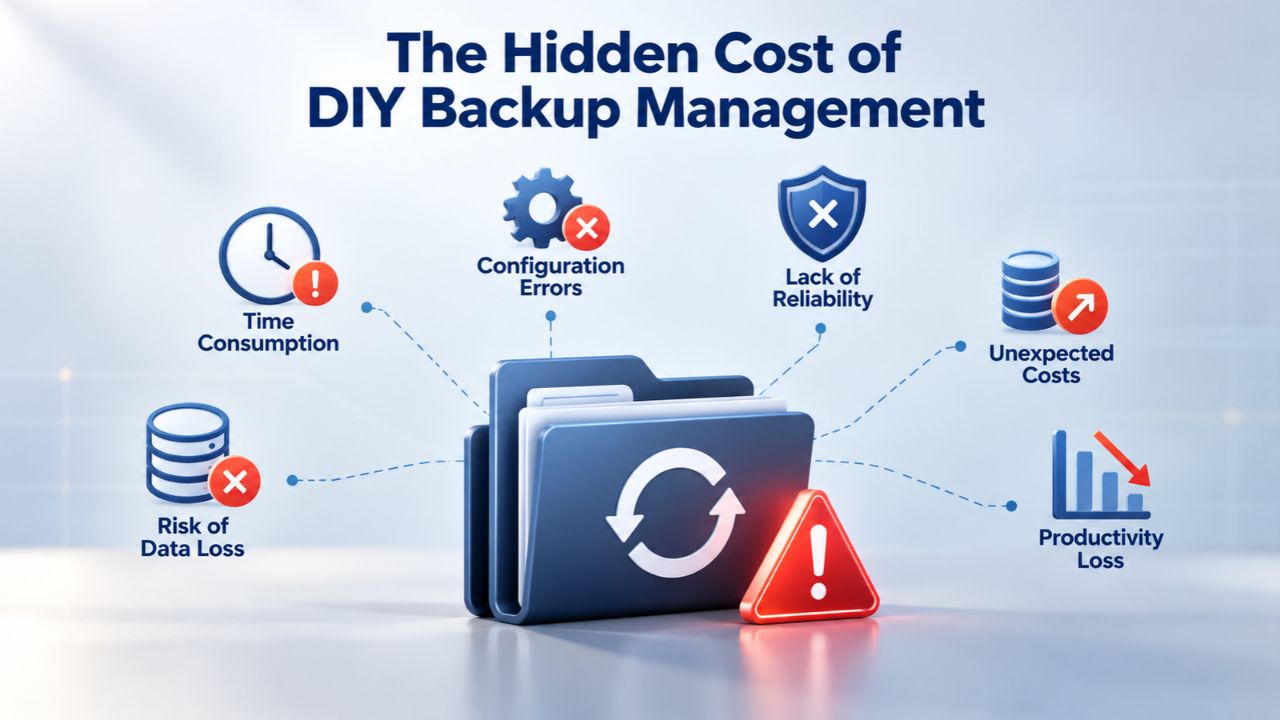
The Hidden Cost of DIY Backup Management
Free backup options may seem inexpensive on the surface, but when you factor in the time, technical work, and ongoing management needed to run them reliably, the true cost becomes clear.
Setup, Monitoring, and Troubleshooting Consume Time
Choosing a WordPress backup plugin requires research and decision-making, weighing UpdraftPlus, BackWPup, WPvivid, and others, each with different features and limitations. Installing and configuring the chosen plugin takes 20–30 minutes of focused work. Testing the backup to confirm it actually works takes another session of work. Scheduling it correctly so that WordPress cron actually fires requires checking hosting documentation or contacting support to understand your hosting environment’s cron configuration.
Monitoring adds ongoing management burden. You should verify weekly or at least monthly that backups are running successfully. Many site owners discover backup failure only when an emergency forces them to attempt a restore, often far too late, when the last clean backup may be weeks or months old. By then, the backup you need is gone. Troubleshooting failures is manual technical work: PHP timeout errors require investigation, cloud storage authentication failures must be diagnosed, disk-space issues need resolution. If a backup fails, you diagnose the cause, apply a fix, and manually trigger a new backup. This is technical work, and for non-technical site owners, it’s frustrating, error-prone, and time-consuming.
Testing a Backup Requires a Second Environment
A genuine test restore, necessary to confirm your backup actually works when you need it, requires a staging copy of your site. Most site owners never test their backups until an emergency forces them to try, discovering at that moment that the “backup” doesn’t work or can’t be accessed. By then, it’s too late; you’re in crisis mode with no working recovery option. A true test restore means cloning your production site, performing a full restore into it, and verifying that the restored version matches the original state. This is time-consuming, requires technical knowledge, and, again, is manual work.
Credential management and security add another layer of responsibility. If you’re storing backups on cloud storage (Dropbox, Google Drive, AWS S3), you’re managing credentials, API keys, authentication tokens, or login details. These credentials must stay private and secure. If they leak or are compromised, attackers can access all your backups and potentially delete them or corrupt them. You’re responsible for rotating these credentials periodically, storing them securely in a password manager, and ensuring no developer or contractor accidentally commits them to version control or leaves them in code comments.
Backup Frequency and Retention: Understanding the Gaps
Free backup options lock you into narrow backup frequency and retention windows that don’t match how modern websites actually operate and how quickly problems can develop.
Infrequent Backups Miss Changes Between Snapshots
A weekly hosting backup means your latest snapshot is always 0–7 days old. If your site is hacked or compromised on day three after a backup, the current version is corrupted for four full days before the next automatic backup runs. In those four days, malware may spread to additional files, database records may be corrupted further, and customers may experience service disruption or data compromise. You’re left with a large window of vulnerability.
Free WordPress plugin versions typically allow only one backup per day, if they work correctly. For a site that’s actively modified, blog posts published daily, customer data added to the database, and plugin updates applied, a single daily snapshot may miss hours of recent work or changes. If something breaks at 11 p.m. and you don’t notice until the next morning, the most recent backup may be 12+ hours old, and you’ve lost work or changes made in that window. For e-commerce sites or membership platforms where every hour can mean lost transactions or customer data, this gap is unacceptable.
Limited Retention Means Old Versions Disappear
Hosting backups typically retain only the most recent copy or perhaps 3–7 days of history. If an issue develops gradually- a plugin slowly breaking a feature, a malware infection spreading over several days, a database slowly corrupting- older backups you would need to recover to have already been deleted by the hosting provider’s automatic retention system. You’re forced to restore from the latest backup, which often includes the problem you’re trying to solve.
Free WordPress plugins retain backups for 7–30 days depending on the plan and storage allocation. For sites with large media libraries or databases, storage fills up quickly, and older backups auto-delete to make room for new ones. You’re forced to choose between keeping weeks of backup history or staying within storage limits; you cannot have both. This is a false choice; you should be able to keep both, but free solutions don’t offer that flexibility.
Make Your Website Recovery Inevitable
The choice between free and managed backups ultimately comes down to risk tolerance and business value. Free options cost nothing today but risk everything tomorrow if they fail when you need them. A managed website backup service costs each month predictably, eliminates guesswork, and removes the technical burden. Niya Digital’s Website Backup Service offers peace of mind backed by professional infrastructure and human support available during emergencies.
Getting Ahead of Backup Failures: Recognition and Prevention
Knowing when your backup strategy is insufficient lets you act proactively instead of discovering failures during an emergency.
Site Growth Outpaces Free Backup Capacity
As your website grows, more files, a larger database, more frequent updates, and higher traffic, free backup options start breaking under the load. A 10 GB storage limit means hosting backups stop once your site reaches that threshold. Plugin backups time out and fail on shared hosting. DIY manual backups become unmanageable, and you fall behind on creating them. Growth that should feel like business success becomes a backup liability.
Meanwhile, your site’s business value has grown too. That hobby blog is now generating customer revenue. That portfolio has transformed into a service business. The backup strategy that worked six months ago no longer fits your actual needs and risk profile, but few site owners proactively upgrade their backup infrastructure until something breaks. By then, the damage is already happening.
Testing Reveals Hidden Failures
The only way to know if a backup works is to actually restore from it in a non-emergency situation. Most site owners never test their backups until an emergency forces them to try, only to discover that the “backup” doesn’t work or can’t be accessed. By then, it’s too late. A proper backup strategy includes regular testing, quarterly, at minimum. For business-critical sites, monthly testing is standard practice. This testing should happen in a staging or testing environment, not production, to avoid disruptions. Free solutions lack staging support; managed backup services offer test restores as a standard feature.
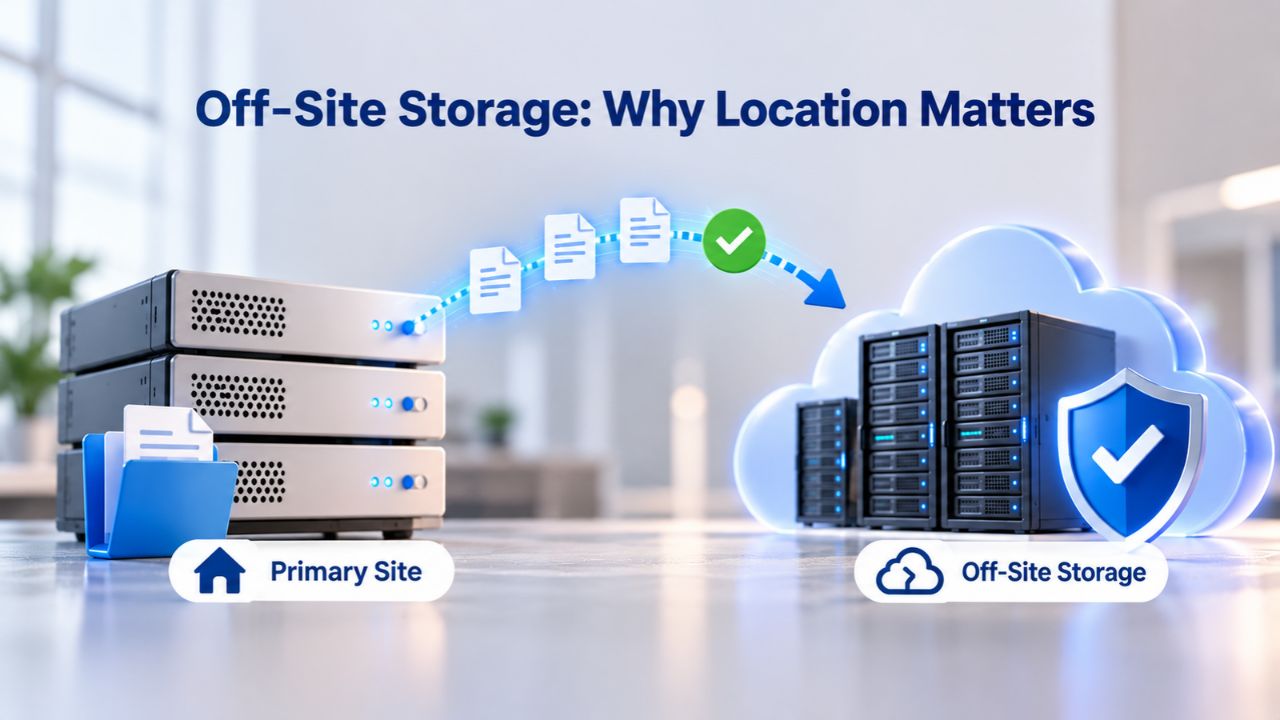
Off-Site Storage: Why Location Matters
Where your backup physically lives determines whether a server failure, data-center outage, or hosting provider compromise can destroy both your site and your backup simultaneously, defeating the entire purpose of having a backup.
On-Site Backups Fail When the Server Fails
Hosting provider backups live in the hosting provider’s own data center. If that data center experiences hardware failure, fire, flooding, network outage, or any infrastructure-level disaster, your production site and your backups all fail together. Yes, you have redundancy within the data center, multiple drives, RAID arrays, geographic distribution of data, but the backup is not independent of the infrastructure being protected. A catastrophic data-center failure affects everything stored there.
DIY backups stored locally on your computer or stored on your hosting account face the same fundamental risk. If your hosting account is compromised by an attacker, they can delete or corrupt both your live site and any backups stored on the same hosting account or server. The attacker gains access to everything. Backups stored on your local computer can be lost to hardware failure, theft, or accidental deletion. The backup provides no protection if it’s stored in the same place as what it’s supposed to protect.
Off-Site Storage Survives Infrastructure Failures
CodeGuard (GoDaddy Website Backup)’s backup infrastructure uses Amazon Web Services S3 to house website and database backup data, completely independent of your hosting provider’s infrastructure. A hosting outage, data-center fire, hosting provider bankruptcy, or any other hosting-level failure does not affect your backups stored in a separate location. Backup data is encrypted using AES-256-bit encryption, protecting it from unauthorized access. The backups are geographically distributed and redundant.
Off-site storage means your backup survives any single point of failure affecting your hosting. If your hosting provider goes down, you can restore your site to new hosting from your off-site backup. If your site is hacked, you restore from the off-site backup before the infection spreads widely. If your hosting provider is compromised by attackers, your backups stored elsewhere are unaffected. This independence underpins effective disaster recovery and business continuity.
One-Click Restore vs. Manual Workarounds: The Restore Experience
The friction and complexity of performing a restore separate free backup options from managed backup services in a crisis.
Free Plugins Require WordPress to Be Working
When you restore from a free WordPress plugin, the restore process runs inside WordPress itself and requires WordPress to be fully functional. You log into the WordPress admin dashboard, navigate to the backup plugin’s settings, select a backup version from a list, and click the restore button. This works smoothly if WordPress is running properly. But if the site is broken, hacked, the database is corrupted, or a plugin update failed, WordPress often won’t load at all. The backup plugin can’t launch. Your restore option disappears.
The workaround is entirely manual and technically complex: download the backup ZIP file, upload it via FTP using a separate FTP client, extract files from the compressed archive, manually import the database dump via phpMyAdmin or command-line MySQL. This requires FTP credentials, knowledge of FTP clients, understanding of file extraction, and knowledge of database import procedures. Most WordPress users don’t have FTP access configured or don’t understand database import procedures well enough to execute them under pressure during a crisis. The manual workaround creates a second layer of failure risk.
Managed Backup Services Restore Externally
CodeGuard initiates the restore process from an external dashboard, not from within WordPress itself. The restore engine runs on CodeGuard’s infrastructure, completely independent of your site’s health or functionality. Even if your site is completely broken, malware-infected, database-corrupted, or WordPress is completely unresponsive, CodeGuard can still restore it. You select a backup version, initiate the restore, and CodeGuard’s infrastructure writes the recovered files and database back to your hosting account, overwriting the broken versions.
For large sites or complex restores, this external approach eliminates timeout issues that plague plugin-based restores on shared hosting. CodeGuard’s infrastructure isn’t limited by your hosting’s PHP execution time limits or memory constraints. Testing a restore is also simpler: CodeGuard offers a staging or test-restore option before initiating a live restore, so you can verify the recovered site matches expectations. You can restore to a staging environment, verify everything works, and then restore to production with confidence.
Backup Restore Costs: Investment vs. Emergency Spending
Comparing the true cost of a backup service to the cost of not having one reveals the actual value proposition and risk math.
Backup Decision Matrix
| Site Type & Use Case | Data Criticality | Recommended Strategy | Why Free Options Fall Short | Downtime Impact |
|---|---|---|---|---|
| Hobby blog / personal portfolio | Low | Hosting backup + manual testing | Limited retention; manual restore | Minimal (non-commercial) |
| Small WordPress site (non-revenue) | Low-Medium | Free plugin + hosting backup combo | Cron dependency; timeout risks | Personal inconvenience |
| E-commerce / revenue-generating | High | Managed backup (daily+) + off-site | Needs frequent backups; can’t afford downtime | High revenue loss |
| Membership/SaaS platform | High | Managed backup (daily+) + compliance | Legal data retention & recovery obligations | Very high |
| Agency managing client sites | Very High | Managed backup per client + monitoring | Client trust; liability; scalability | Extreme (multiple sites) |
| Multi-site network | Very High | Centralized managed backup solution | Single tool; audit trail; recovery SLA | $1,410+ per minute |
Without a Clean Backup, Recovery Costs Multiply Rapidly
Professional malware removal for small-to-medium websites ranges from $2,000 to $15,000, depending on infection severity and cleanup complexity. This is only the remediation cost of cleaning up the infection. If your site is offline during recovery, lost sales and damage to customer trust add up. If Google penalizes your site for malware, you face 3–12 months of ranking recovery with traffic 50–90% below pre-hack levels during that period. The total cost of recovery far exceeds the initial cleanup bill.
A hosting provider’s manual restore, if it works, costs nothing directly to the customer, but the time waiting for support and the site downtime during recovery is costly. For a business generating $1,000 per day in revenue, six hours of downtime costs $250 in direct revenue loss, before customer goodwill damage, lost leads, or search engine ranking impacts. The math makes it clear: backup failure is expensive, and the cost grows with business size and revenue.
Managed Backup Service Costs Are Predictable
A managed website backup service costs money each month, with costs varying based on features, frequency, and storage needs. Niya Digital’s Website Backup Service offers multiple plan tiers with different backup frequencies and storage limits to match different site sizes and business needs. Costs are predictable, recurring, and small compared to emergency recovery. Niya Digital’s team has found that website owners who adopt automated, managed backup consistently report peace of mind worth far more than the subscription cost, especially those who’ve experienced an unplanned outage and needed their backup. That peace of mind has tangible value: it lets business owners focus on growth instead of worrying about data loss.
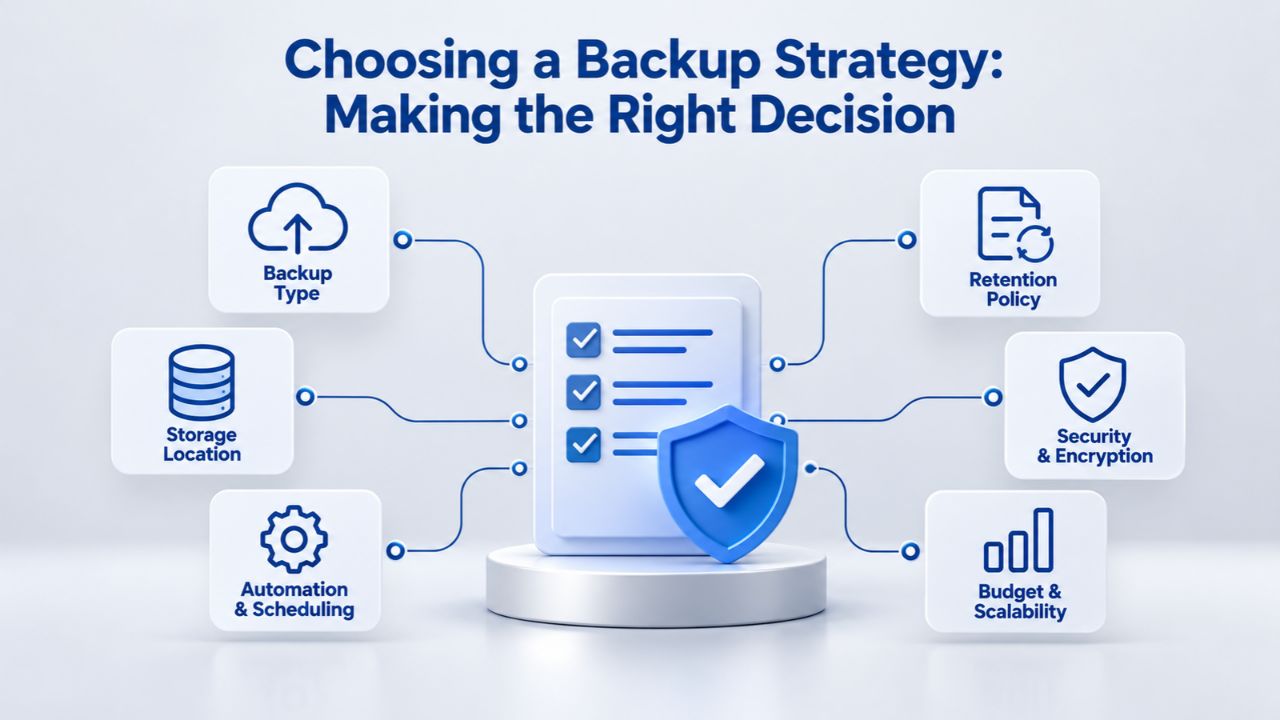
Choosing a Backup Strategy: Making the Right Decision
The right backup approach depends on your site’s size, change frequency, business model, and the financial cost of downtime.
When Free Options Are Appropriate
A free backup strategy works for small, non-critical websites: hobby blogs, personal portfolios, experimental sites, or projects with minimal business value. If the site goes down and backups haven’t run, the damage is limited to personal inconvenience. Setup and monitoring overhead is acceptable for this use case. A plugin-based backup can also work for WordPress sites under 1 GB with low traffic, managed by a technically competent owner, combined with a hosting provider backup. The redundancy (two backup sources) increases the odds that at least one will work.
Hobbyist bloggers, portfolio sites, and experimental projects don’t require the overhead of managed backup services. The risk-reward calculation changes when site loss doesn’t affect business revenue. For these use cases, free options are genuinely sufficient.
When Managed Backup Becomes Essential
For any site generating revenue, serving customers, or storing customer data, free backups are insufficient and create unacceptable risk. Website Backup Service should be automatic, off-site, and monitored by professionals, not dependent on manual work or hoping hosting providers’ backups work when you need them.
E-commerce sites, membership platforms, and content sites with regular updates need daily or more frequent backups. UpdraftPlus free allows one backup per day; you’re always 0–24 hours behind. For sites with customer orders, financial data, or user-generated content, a one-day gap is an unacceptable risk. Sites hosting customer data, forms, orders, member information, and payment history have legal obligations to maintain data integrity and availability. GDPR, PCI DSS, and other regulations require businesses to demonstrate they can recover data quickly after a failure or breach. Hosting provider backups and DIY methods often don’t meet these compliance standards. Managed backups with off-site storage, version history, and documented restore procedures do meet compliance requirements.
Backup Option Comparison
| Backup Option | Setup | Automation | Off-Site Storage | Restore Speed | Best For |
|---|---|---|---|---|---|
| Hosting Provider Backup | Automatic | Weekly/3-7 days | Host data center only | Manual support call (hours) | Server recovery only |
| WordPress Free Plugin | 30 min install | Cron-dependent | Optional (Dropbox/S3) | Slow/requires WP admin | Small sites, testing |
| DIY FTP/Manual | 1+ hour per backup | None (manual) | Local storage only | Manual process (hours) | Ad hoc backups |
| Free Plugin + Hosting Backup | 30 min | Hybrid | Limited | Depends which works | Redundancy increase |
| CodeGuard-Powered Service | Simple setup | Daily automated | AWS S3 | One-click (minutes) | Active sites, compliance |
| Niya Digital Website Backup | Simple setup | Daily automated | CodeGuard AWS S3 | One-click restore | Business-critical sites |
Protect Your Website Now
Free backup options seem to work until a crisis demands more. Automated daily backups, independent off-site storage, and one-click restore protect you without the ongoing manual work. Stop guessing whether your backup will work when you need it. Niya Digital’s Website Backup Service gives you the reliability and peace of mind that free options cannot match.
Frequently Asked Questions
What is Website Backup and Why Does It Matter?
Website Backup is a complete copy of all files, databases, and configurations that make up your website, saved at a specific point in time for recovery. It matters because websites fail for many reasons: server hardware breaks, hosting companies go out of business, malware infects sites, updates break functionality, accidents delete data, or ransomware encrypts everything. Without a backup, recovery is expensive, time-consuming, or completely impossible. With a backup, you restore your site to a working state in minutes instead of days or weeks of downtime and lost business.
How Often Should I Back Up My Website?
Backup frequency should match how often your site changes and how much you can afford to lose. A blog updated twice weekly can survive a weekly backup. An e-commerce site with orders and customer data should back up daily or more often. Active sites with regular updates are commonly backed up at least once a day. The goal is to minimize data loss if you need a restore. Consider how much work or data you can afford to lose; that determines your backup frequency.
Why Do Free Hosting Backups Fail When I Need Them?
Free hosting backups protect the host infrastructure, not individual site recovery. Backup frequency is infrequent (weekly or longer), retention is minimal (the latest copy only), and restore is manual and slow. If an issue develops gradually or is discovered days later, the clean backup you need may already be deleted. Hosting backups also store copies on host infrastructure so that a data-center failure can affect both your site and your backup at the same time.
Can I Rely Solely on a WordPress Backup Plugin?
WordPress backup plugins can work for small sites. Still, they have inherent limitations: they depend on WordPress to run (broken sites can’t restore themselves), they rely on WordPress cron jobs firing reliably (which often doesn’t happen), and restores time out on shared hosting with limited PHP execution time. For critical sites, a plugin should be combined with at least one other backup method, preferably a professional managed backup service.
What is Off-Site Backup Storage and Why Is It Important?
Off-site backup storage means your backup lives on infrastructure completely separate from your hosting provider. If your hosting fails due to hardware issues, data center outage, or provider bankruptcy, your off-site backup is unaffected and can be used to restore your site elsewhere. On-site backups stored with your hosting provider fail if the hosting infrastructure fails, defeating the backup’s purpose. Off-site storage is what makes backups actually protective.
What Happens During a Restore?
Restore is the process of recovering your website from a backup copy. A restore replaces your current website files and database with the versions from the backup you select. You can restore your entire site or individual files. For a managed backup service, you initiate a restore from an external dashboard, and it doesn’t require your site to be functional. For plugin backups, restore happens inside WordPress, which means WordPress must be working and reachable.
How Long Does a Website Restore Take?
Restore time depends on site size and the restore method. For a managed backup service with off-site storage, restoring a small site (under 500 MB) typically takes 15–30 minutes. Larger sites take longer. A one-click restore process initiated from an external dashboard doesn’t require waiting for support; you control the timing. Manual restores via FTP and database import can take hours or require support assistance.
Will a Backup Protect Me from Ransomware?
A backup protects you from ransomware only if it’s off-site and independent of your hosting. If ransomware encrypts your site and your backups are stored on the same server or hosting account, it encrypts both and renders them useless. Off-site backups stored on separate infrastructure survive ransomware and let you restore a clean, unencrypted copy. That is why backup location matters as much as backup frequency.
What Should I Look for in a Website Backup Service?
Look for:
(1) automated, frequent backups (daily minimum);
(2) off-site storage independent of your hosting;
(3) one-click or hands-free restore that doesn’t require WordPress to be working;
(4) version history so you can restore to any prior point;
(5) encryption for security;
(6) monitoring and alerts if backups fail;
(7) support available during emergencies.
Can I Test a Restore Without Restoring to Production?
Yes. Professional backup services, including Niya Digital’s Website Backup Service, offer staging or test-restore options that let you restore a copy of your site to a separate environment before restoring live. This allows you to verify the restored site is correct and fully functional before replacing your production site. Testing is essential; an untested backup is only a hypothesis, not proven protection.
What is Backup Retention and Why Does It Matter?
Backup retention is how long backup versions are kept before automatic deletion. A 90-day retention means you can restore to any point in the last 90 days; backups older than 90 days are deleted. Longer retention costs more because older backups take storage space. For compliance requirements or to recover from slow-developing issues, longer retention is valuable. For typical sites, 30–90 days of retention is sufficient.
Will Restoring from a Backup Remove Malware?
Yes, if your backup is from before the malware infection. Restoring replaces your current site with the backup version. If the backup predates the infection, the restored site is clean. This is why off-site, independent backups are critical for malware recovery: the malware can corrupt your live site and your on-site backups simultaneously, but it can’t reach off-site backups stored elsewhere.
Do Backups Protect Me from Human Error?
Yes. If someone accidentally deletes a page, a file, or customer data, a backup lets you restore that specific item from the point before the deletion. You can restore an individual file instead of your entire site, limiting disruption. For this reason, frequent backups and good version history are valuable; they let you recover from recent mistakes without losing work done after the deletion.
Can I Migrate to New Hosting Using a Backup?
Yes. A website backup contains all files and database data needed to run your site. When migrating hosting providers, you restore your backup to the new hosting. This is often faster and safer than manual migration. Managed backup services support site migration as a standard restore use case, and many services offer dedicated migration assistance to make the process smooth.
How Do I Know If My Backup Is Actually Working?
The only reliable way to know is to test it by actually performing a restore in a non-production environment. Test your backups at least quarterly. A test restore means restoring a backup to a staging copy of your site, verifying that the restored site loads correctly, that data is intact, and that functionality works as expected. An untested backup is a hypothesis, not proven protection.
Glossary
- Website Backup: A complete copy of all files, databases, and configurations that make up your website, preserved at a specific point in time for recovery and restoration purposes.
- Off-Site Backup Storage: Backup data stored on infrastructure completely separate from your hosting provider’s servers, ensuring backups survive hosting-level failures or disasters.
- Backup Retention: How long backup versions are kept before automatic deletion; typically 30–365 days, allowing recovery to any point within the retention window.
- Restore: The process of recovering your website to a previous state from a backup, either restoring the entire site or individual files and database tables.
- One-Click Restore: A backup feature that lets you recover with a single action from a backup dashboard or control panel, without requiring manual file or database operations.
- Incremental Backup: A backup method that stores only data that has changed since the previous backup, reducing storage space and backup time compared to full backups.
- Website Backup Service: A managed, professional backup solution that automates backup capture, off-site storage, and restore capabilities without requiring manual setup or ongoing user maintenance.
- Backup Frequency: How often backups are created- daily, multiple times per day, weekly, etc.- determining the maximum age of the most recent backup.