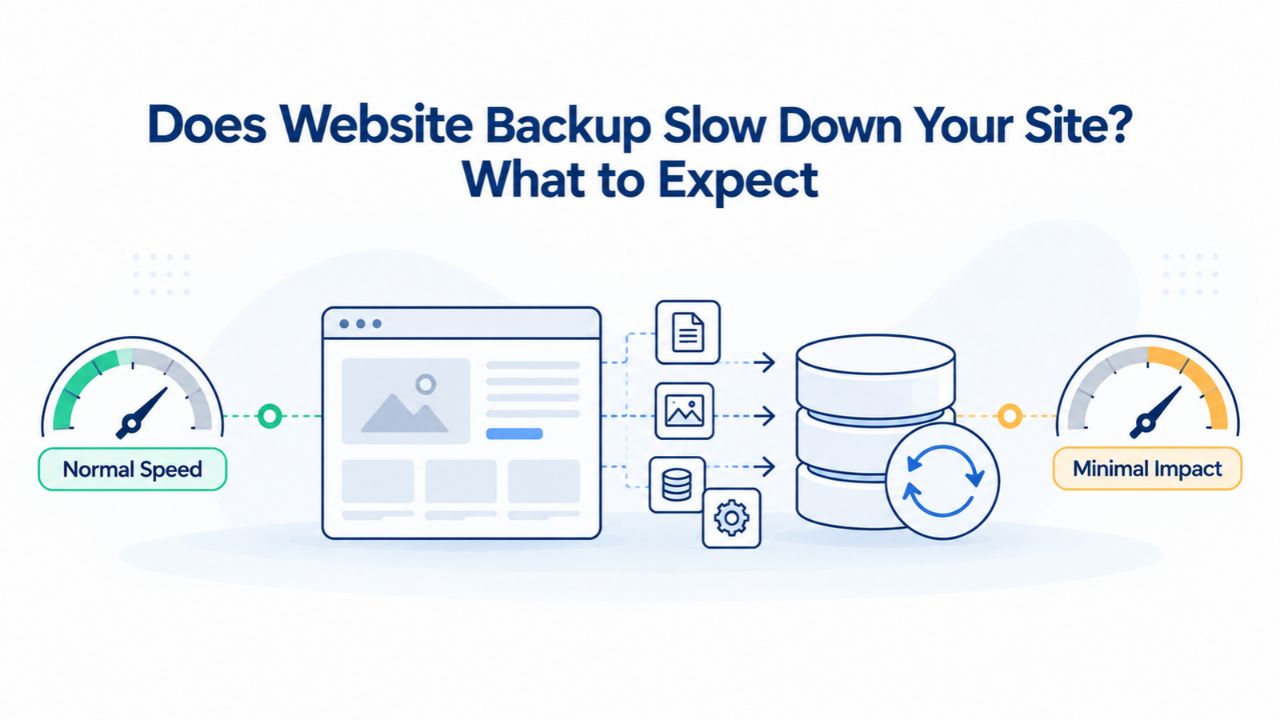
Your WordPress site broke after a plugin update went wrong. You called your hosting provider hoping for a quick fix, but they delivered bad news: they don’t keep backups. You spent the next three days rebuilding months of content from memory and client emails, lost revenue during the outage, and watched two clients switch to competitors who actually protect their data. That fear drives thousands of website owners to add backup services, but a new question emerges: will automated backups slow down my website?
What Happens During a Website Backup: Understanding the Mechanics
When a backup system runs, it performs a series of disk-intensive operations that require server resources. The backup engine connects to your hosting server, reads every file in your website’s file system, accesses your database, compresses all this data into an archive, and uploads the archive to off-site cloud storage. During this process, the backup system consumes CPU cycles (the server’s processing power), disk I/O bandwidth (how fast the server can read files), and network bandwidth (upload speed to cloud storage). These same resources would normally be available to serve your live website visitors.
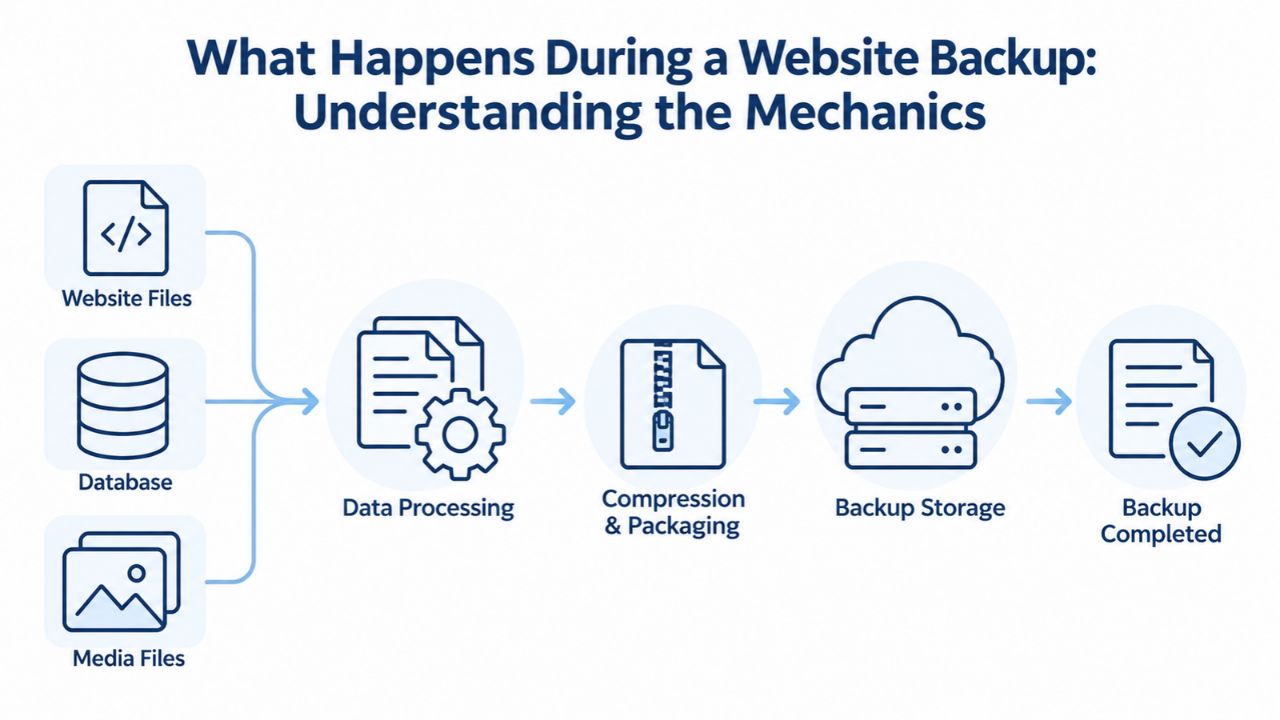
How Server Resources Get Divided During Backups
When a backup runs on a live website, the server must divide its limited resources between two competing demands: the backup process and active visitor requests. Think of it as CPU time, disk bandwidth, and network capacity being split between two jobs. If your site receives moderate traffic and the backup is properly scheduled during off-peak hours, the server has enough spare capacity to handle both tasks without visitors noticing any slowdown. The backup gets most of the available resources (because fewer visitors are online), and visitors who do browse your site experience response times nearly identical to normal.
However, if a backup runs during peak traffic hours on a budget shared hosting plan, the situation changes dramatically. The server then divides its limited resources between the backup process and hundreds of active visitor sessions. This forces the backup to slow down (the server throttles it to protect live traffic), and visitors may experience slightly slower page loads or longer server response times. This is why backup scheduling and your hosting tier make such a significant difference to the performance impact you’ll actually observe.
The Time-Limited Nature of Backup Performance Impact
A critical insight that reduces concern about backup impact: the performance effect is time-limited. A backup has a definite start and end. Once the backup completes and the archive finishes uploading to cloud storage, those server resources are completely freed. Every visitor browsing your site after the backup ends experiences normal performance, exactly as if no backup had run. The performance hit, if any, is confined to the specific window when the backup is actively running.
This time-limited window is fundamentally different from performance problems caused by, say, a slow plugin or poor hosting. Those issues persist continuously and affect every visitor all day long. A backup that runs for 10 minutes at 2 AM, by contrast, affects almost nobody. Even a backup running at midnight affects only the tiny percentage of visitors browsing a specific type of website (e-commerce checkout, customer support, etc.) during that window. Once the backup ends, performance returns to normal instantly.
Website Backup Plans & Pricing
Select the Website Backup package that best fits the size and peace of mind requirements of your website. Your data is safeguarded without going over budget thanks to our adaptable choices.
Website Backup 5 GB
Recommended for documents and files.
- Automatic daily backups
- Built-in daily malware scanning
- Back up a file, folder or an entire database
- Continuous security monitoring
- Downloads to local storage
- Easy one-click restore
- Secure cloud storage
- Expert 24/7 customer support
- One website per account

Website Backup 25 GB
Recommended for photos and music.
- Automatic daily backups
- Built-in daily malware scanning
- Back up a file, folder or an entire database
- Continuous security monitoring
- Downloads to local storage
- Easy one-click restore
- Secure cloud storage
- Expert 24/7 customer support
- One website per account
Website Backup 50 GB
Recommended for videos and multimedia.
- Automatic daily backups
- Built-in daily malware scanning
- Back up a file, folder or an entire database
- Continuous security monitoring
- Downloads to local storage
- Easy one-click restore
- Secure cloud storage
- Expert 24/7 customer support
- One website per account
Backup Scheduling: Why Timing Is Everything
The most effective way to prevent noticeable backup performance impact is to schedule backups during your website’s off-peak hours. Off-peak is when your site receives the least traffic. For most business-focused websites (e-commerce stores, SaaS platforms, professional service firms), traffic typically bottoms out between midnight and 6 AM. For consumer-focused websites (blogs, news sites, entertainment), off-peak often extends later into the evening because regular users are asleep. During these windows, your server has substantial spare capacity, meaning the backup system can process data quickly without competing with visitor requests.
Identifying Your Website’s True Off-Peak Window
Most website owners assume their off-peak hours are midnight to 6 AM, but traffic patterns vary dramatically by industry and audience. An international SaaS platform might receive consistent traffic around the clock. A retail store serving Australian and New Zealand customers may see peak traffic at night in US time zones. A blog targeting European professionals sees traffic patterns completely different from one targeting US-based readers. The only way to know your real off-peak window is to examine your actual traffic data, not guesses.
OneUptime’s backup window optimization guide recommends analyzing your website analytics over at least one full week to identify the hours with consistently lowest traffic. Google Analytics shows visitor count by hour; most hosting control panels display traffic patterns in real-time monitoring tools. Once you’ve identified a clear 2-4 hour window when traffic drops to its minimum, schedule backups to start 30 minutes after the traffic low begins. This buffer prevents backups from kicking off during the tail end of evening traffic and ensures maximum spare server capacity.
Scheduling Multiple Backups for Sites With High Uptime Needs
Websites running 24/7 with continuous traffic across all time zones face a different challenge: there is no true off-peak window. For these sites, off-peak scheduling alone doesn’t solve the problem. Instead, they rely on a combination of strategies including incremental backups (discussed later), resource throttling by backup software, and hybrid scheduling where backups happen more frequently but use less intensive methods. Some backup services let you define a “backup window” when backups won’t run, protecting critical business hours like a company’s peak sales time or an online service’s maintenance window.
Scheduling backups down to the minute is now standard. CodeGuard (GoDaddy Website Backup) and similar managed backup services let you choose exact start times. Many allow multiple backup windows throughout the week. This granular control lets you schedule database-only backups (which finish quickly) during semi-busy hours and reserve full-site backups for the deepest off-peak window. The flexibility lets you achieve a backup frequency that meets your recovery needs while minimizing performance impact.
Incremental Backups vs. Full Backups: The Performance Game-Changer
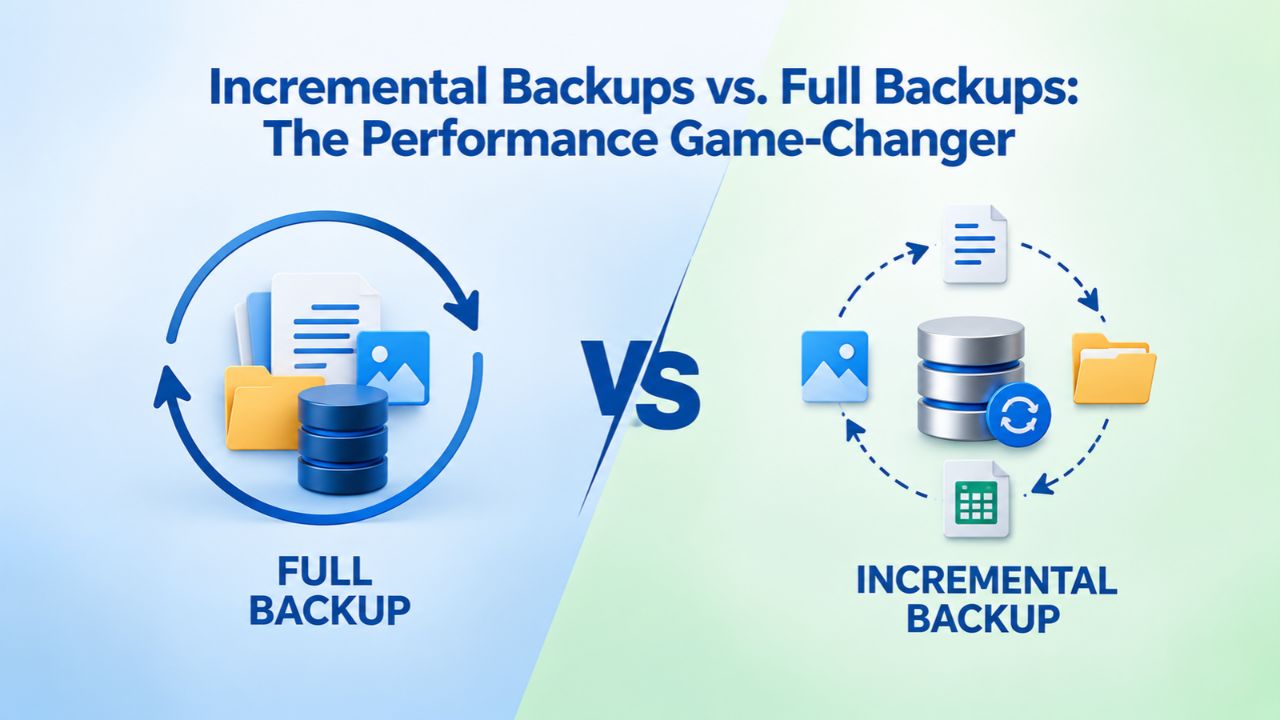
A full-site backup copies 100% of your website’s files and entire database from scratch every single time it runs. If your website is 5 GB in total size, a full backup must process all 5 GB every time, even though most of that data (your theme files, plugins, core media library) hasn’t changed since yesterday or even since last month. The backup engine reads every file, compresses them, and uploads all 5 GB to cloud storage. This is thorough protection, but it’s also resource-intensive. A large site’s full backup might require 15-30 minutes or longer, during which server resources are consumed.
Performance Impact Comparison: Full vs. Incremental
The performance difference between full and incremental backups is dramatic. A full backup of a 5 GB website running for 30 minutes consumes significant server resources. An incremental backup of the same website, capturing only 200 MB of changes, might finish in 2 minutes. From a performance impact perspective, a 2-minute backup window is almost negligible; far fewer visitors hit your site during 2 minutes than during 30. Even if the 2-minute window includes some performance degradation, the total number of visitors affected is tiny compared to a 30-minute full backup during busy hours.
The trade-off with incremental backups is slightly more complex restoration: you need the original full backup plus all subsequent incremental backups in sequence to restore your website. If you lose an incremental backup in the chain, you can’t restore past that point without recreating the chain.
However, proper backup retention policies make this limitation easy to manage and rarely cause real-world problems; backup services maintain backups reliably, and the ability to restore to any point within your retention window is what matters. WP Remote’s incremental backup infrastructure demonstrates this in practice: customers run daily database-only incremental backups that complete in under 2 minutes, combined with weekly full-site backups during off-peak hours. This hybrid approach delivers frequent recovery points without the performance penalty of daily full-site backups.
Hybrid Backup Strategies: Combining Full and Incremental
The optimal backup approach for most websites combines both methods. A typical hybrid strategy runs database-only backups (which capture only your content changes- posts, products, customer orders, comments- without duplicating static files) multiple times per day or daily, because databases are typically much smaller and change more frequently than static files. Database-only backups usually complete in 30 seconds to 2 minutes. Separately, the strategy includes a full-site backup once weekly during deep off-peak hours (2-4 AM), which captures everything and serves as a comprehensive recovery point. This approach gives you recovery points frequent enough to minimize data loss while avoiding the cumulative resource burden of daily full-site backups.
Off-Peak Scheduling Strategies: Making Time Work for Your Website
Identifying your website’s genuine off-peak hours requires analyzing actual traffic data, not making assumptions. For most small business websites, traffic tends to drop between 10 PM and 8 AM their local time. Retail can be different; your e-commerce store might see steady traffic from international customers 24/7. For SaaS, your service might be used by remote teams across multiple time zones. The data tells the real story. Once you’ve identified your off-peak window through analysis, you can confidently schedule backups knowing that minimal visitors will be affected.
Setting Up Your Backup Schedule: Practical Implementation
Once you’ve identified your off-peak window, set your backup to start 30 minutes after traffic bottoms out. If your analytics show traffic drops to minimum at 11 PM and stays low until 6 AM, schedule backups to start at 11:30 PM. This 30-minute buffer prevents starting a backup just as evening traffic winds down but before you’re truly in the quiet period. Most backup services, including CodeGuard (GoDaddy Website Backup), show traffic graphs and let you choose backup start times down to the minute.
For websites with split traffic patterns, say, heavy traffic from 8 AM-1 PM and again from 6 PM-10 PM, with quieter periods around 2-5 PM and 11 PM-7 AM, consider using multiple backup schedules. Run a quick database-only backup during the mid-afternoon quiet window (it’ll finish in 1-2 minutes, so minimal impact if traffic picks up slightly). Save your comprehensive full-site backup for the deepest off-peak window, like 2-4 AM. This multi-window approach lets you meet your data’s backup frequency needs (perhaps daily backups) while concentrating the most resource-intensive backups in the quietest window.
Communicating Backup Schedules Across Your Team
If your organization includes both web operations teams and customer-facing teams, make sure everyone understands when backups run and what to expect. Support teams should know that if a customer reports slowness at 2 AM, it might be backup-related and temporary, rather than a genuine site outage requiring immediate escalation. Operations teams should document the backup schedule clearly so that future team members maintain it correctly. Some organizations include backup scheduling information in their runbooks or status pages so team members can quickly reference it during maintenance or other scheduled, resource-intensive tasks.
Database Backups vs. Full-Site Backups: Speed Where It Counts
Your website consists of two main components: the database (containing all your content, posts, products, customer orders, user profiles, comments) and your file system (theme files, plugins, media files, configuration files). These two components change at completely different rates. Your database typically changes whenever someone publishes content or places an order, potentially many times a day. Your theme files, plugins, and most media change rarely, if ever, unless you update or upload. Recognizing this difference lets you optimize your backup strategy.
Optimal Backup Frequency Using Hybrid Strategies
The ideal backup approach uses this understanding of change rates. Schedule database-only backups to run frequently, daily or even multiple times daily if your site has high transaction volume, because they’re fast and your content does change regularly. You might run database backups at 2 AM, 8 AM, and 2 PM, and each finishes in under 2 minutes. Separately, schedule a comprehensive full-site backup once weekly or bi-weekly during your deepest off-peak window (say, 3-4 AM on Sunday). This gives you recovery points frequent enough that you never lose more than a few hours of work, while full backups run infrequently and during optimal times.
CodeGuard’s tiered backup plans reflect this exact understanding. Basic plans include one daily backup; the Professional tier allows up to 5 backups per day. The flexibility exists precisely because websites need different backup frequencies for databases versus full sites. Most organizations running e-commerce or SaaS platforms use this multi-frequency approach: they run daily or multiple-daily database backups to capture content changes, and weekly or bi-weekly full-site backups to capture system updates and ensure comprehensive recovery capability.
When You Need Full-Site Backups Specifically
Some scenarios require full-site backups, not just database backups. Before major plugin or theme updates, a full-site backup ensures you can revert everything if the update breaks your site. Before migrating to new hosting, a full-site backup is your insurance policy. Before adding significant custom code or modifying critical files, a full-site backup captures your complete working state. Schedule full-site backups during off-peak hours, or take them manually for major updates during a maintenance window after you’ve notified users the site may be unavailable.
Protect Your Website Without Sacrificing Performance
Niya Digital’s Website Backup Service handles all the complexity for you. Backups run automatically on your schedule; CodeGuard’s proven backup infrastructure manages resource throttling and safety features; your data is stored securely off-site; and if you ever need to restore, one-click recovery gets your site back online quickly. You get comprehensive data protection without the headache of configuring backup settings or worrying about performance impact.
Resource Throttling and Backup Pausing: The Modern Safety Net
Modern backup services employ intelligent resource management features specifically designed to prevent backups from degrading live site performance. Resource throttling means the backup process deliberately limits how much CPU and disk I/O it uses, deliberately running slower to reserve capacity for visitor requests. If your site normally uses 30% of available CPU during normal operation, a throttled backup might deliberately use only 10% additional CPU, ensuring visitors never experience slowdowns. This makes the backup take slightly longer, but guarantees your site’s performance stays completely normal.
Backup Strategy Matrix by Website Type & Business Need
| Website Type | Recommended Backup Frequency | Recommended Backup Types | Optimal Backup Schedule | Retention Period | Primary Risk Mitigated |
|---|---|---|---|---|---|
| E-Commerce Store | Daily or 2x daily | Daily DB backup + weekly full-site | DB: 8 AM, 8 PM / Full: 2 AM Sun | 60-90 days minimum | Customer order loss, inventory corruption |
| Blog/Content Site | 1-2x weekly | Weekly full-site | 3 AM Monday/Thursday | 30-60 days | Content loss, corrupted posts |
| SaaS Platform | Daily or 2x daily | Daily DB + weekly full-site | DB: 2 AM, 2 PM / Full: 3 AM Sunday | 90 days-1 year | Customer data loss, security incidents |
| Corporate Website | Weekly | Full-site weekly | 2 AM Monday | 30 days | Page defacement, content loss |
| API Service | Multiple daily | Database focus | Every 4-6 hours | 60 days | Transaction data loss |
| High-Traffic News Site | Multiple daily | Database + hourly incremental | Distributed overnight 12 AM-6 AM | 7-30 days | Publishing data loss, platform integrity |
How Managed Backup Services Protect Live Site Performance
This is a critical distinction between managed backup services and DIY backup approaches. A poorly configured DIY backup plugin can hog server resources and crash your site if it runs during traffic. Web60’s backup system pauses backups when your website becomes busy, ensuring live traffic never competes for resources. Niya Digital’s Website Backup Service, powered by CodeGuard, includes these safeguards as standard: backups run automatically without requiring manual configuration, resource throttling happens automatically, and if load spikes unexpectedly, the backup pauses and resumes safely.
This is what “backup that just works” means in practice: you configure the backup schedule once, and the backup system handles all the complexity of protecting your site’s live performance. The backup software monitors server health, throttles itself intelligently, pauses when necessary, and resumes when safe. You don’t have to manually watch backups or worry that a backup will degrade your site’s performance during an unexpected traffic surge.
Monitoring and Alerting: Knowing When Backups Run
Modern backup services provide dashboards that show exactly when backups ran, how long they took, how much data was backed up, and whether the backup completed successfully or encountered issues. Display real-time progress during backups and notify you via email when backups complete or if any issues arise. This transparency lets you confirm that your backup strategy is working as designed and catch problems immediately if they occur.
How Long Does a Website Backup Actually Take? Realistic Timeframes
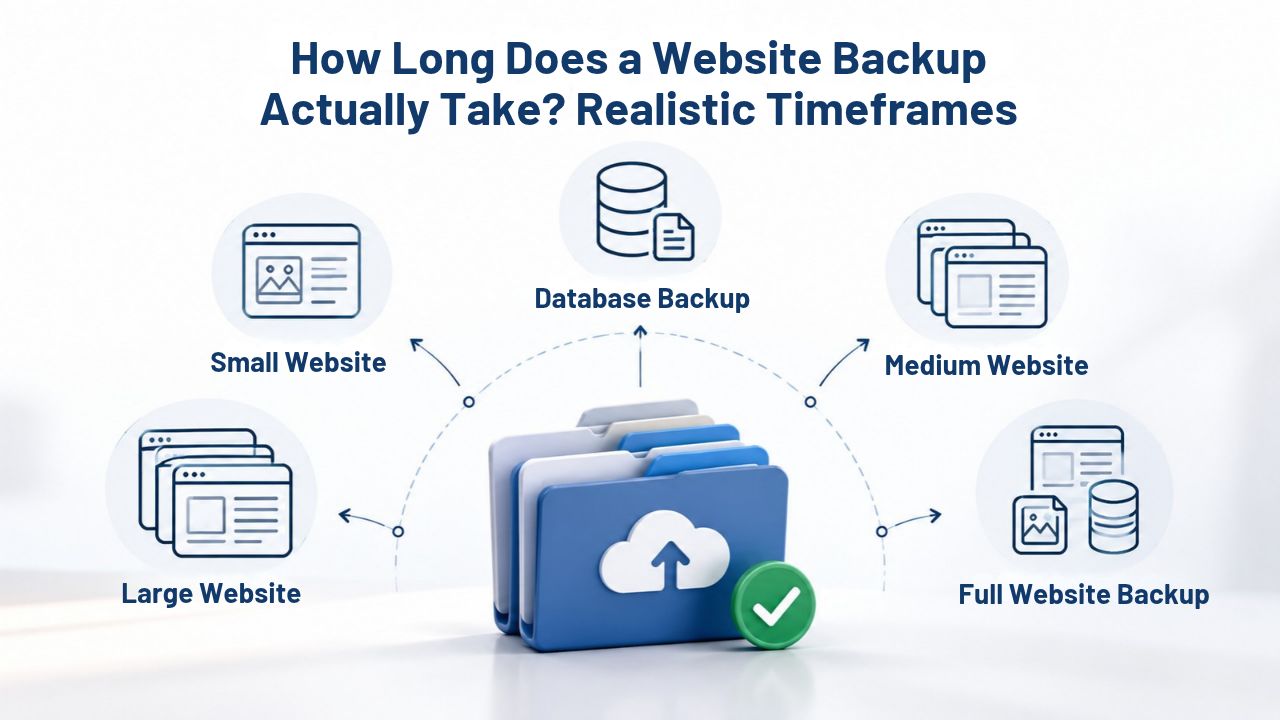
Backup duration depends primarily on three factors: your website’s total size, whether you’re running a full backup or incremental backup, and your hosting tier’s upload bandwidth. Understanding typical durations helps you set realistic expectations and choose appropriate backup scheduling. A small website with less than 500 MB of files typically completes a full backup in 2-5 minutes on quality hosting. A medium website of 500 MB to 5 GB completes full backups in 5-15 minutes. A large website of 5-20 GB might require 15-30 minutes for a full backup. These are rough estimates; your specific time depends on your specific setup.
Benchmarking Your Specific Backup Time
The timeframes above are industry averages, but your specific site might differ. Duplicator Pro’s benchmarks are based on WordPress sites with common configurations. Still, a site with massive amounts of media or custom code might take longer. BlogVault reports that recent optimizations cut backup times by 50-66% compared to older tools. Still, you’ll only benefit if you’re using modern backup software. The best way to know your actual backup duration is to monitor your first few backups and see how long they actually take on your specific hosting and site configuration.
How Upload Speed Affects Total Backup Time
Many website owners don’t realize that upload bandwidth is often the slowest component of the backup process. Creating the backup archive on your server might take 5 minutes, but uploading that 5 GB archive to cloud storage at a typical shared hosting upload speed (often much slower than download speed) might take 15-20 minutes. This is why AWS Well-Architected guidance recommends measuring your actual backup and upload time for your specific setup rather than relying on estimates. If upload is your bottleneck, you have options: upgrade to hosting with faster upload bandwidth, run smaller incremental backups more often instead of large full backups, or use backup software that employs compression or deduplication to reduce upload data size.
Testing Your Backups: The Hidden Performance Validator
Backup testing serves a dual purpose: it confirms your backups actually work (not theoretical, but tested), and it validates your backup frequency against your recovery needs. Too many organizations assume backups work without testing. A website owner discovers during an actual emergency that backups stopped working months ago, or that restore takes 4 hours when they needed to recover in 1 hour. Testing prevents this nightmare scenario. Periodic restore testing to a non-production environment (staging server, development machine, temporary recovery site) proves both that backups capture your data and that your recovery process actually works as planned.
Backup Duration and Performance Impact by Site Size & Type
| Website Size | Full Backup Duration | Incremental Backup Duration | Database-Only Duration | Typical Performance Impact (Off-Peak) | Typical Impact (Peak Hours) |
|---|---|---|---|---|---|
| Small (<500 MB) | 2-5 minutes | 30 sec-1 min | 15-30 seconds | Negligible | Minimal to none |
| Medium (500 MB-5 GB) | 5-15 minutes | 1-3 minutes | 30-60 seconds | Negligible to minimal | Noticeable (hosting dependent) |
| Large (5-20 GB) | 15-30 minutes | 3-5 minutes | 1-2 minutes | Minimal | Noticeable to significant |
| Very Large (20-50 GB) | 30-45+ minutes | 5-10 minutes | 2-3 minutes | Minimal | Significant (requires premium hosting) |
| Enterprise (50+ GB) | 45+ minutes | 10-15+ minutes | 3-5 minutes | Minimal (high-capacity hosting) | Significant (requires dedicated resources) |
What Monthly Testing Reveals About Backup Configuration
Niya Digital’s team has found that customers who perform monthly restore tests catch configuration problems well before a real emergency. A customer might discover that their backup retention period was accidentally set to only 7 days (so they can only restore to the last 7 days of backups, not a month ago as they thought). Another finds that their database isn’t being backed up at all because of a configuration error. Another realizes their restore takes 3 hours, which is unacceptable for their business needs. Monthly testing makes these issues apparent while you have time to fix them, rather than discovering them during an actual data loss event when you’re under pressure and stressed.
Testing also validates that your backup storage itself is secure and accessible. Simply knowing a backup file exists on your provider’s server doesn’t prove it’s readable, uncorrupted, or restorable. GitProtect’s guidance on restore verification explains that recovery verification constantly tests your data in the background, catching restore failures before they become disasters. Automated restore testing, offered by many modern backup services, performs monthly recovery tests automatically and notifies you if any issues are detected.
Setting Up Your Backup Testing Schedule
Establish a monthly testing schedule and make it part of your routine. Set a calendar reminder for the first Monday of each month: restore one backup to a staging environment, confirm the data is complete, and measure restoration time. Document the results. Over time, you build confidence that your backup strategy actually protects you. If restoration time is too long or backup retention too short for your needs, you adjust your strategy before a real emergency forces the issue. This proactive testing is the difference between backup protection that’s merely theoretical and backup protection that actually works.
The Business Case: Backup Performance Impact vs. Data Loss Risk
Put simply, the 2-15 minute performance dip during a backup is negligible compared to the cost of unplanned downtime. For mid-market companies, 54% report that their most recent significant outage cost over $100,000 in direct losses alone. For some companies, a major outage costs $1 million or more within just hours. These aren’t theoretical numbers; they’re what real organizations have reported from actual incidents.
How Downtime Costs Dwarf Backup-Related Slowdowns
The math is simple and compelling. Assume your website generates $10,000 daily in revenue (modest for e-commerce). A backup that runs for 15 minutes during off-peak hours might affect 5-10 people out of millions of monthly visitors, assuming any performance impact is even noticeable. The maximum revenue loss from that 15-minute window is trivial, perhaps a few dollars in abandoned shopping carts. Now compare that to the cost of actual downtime: if your site goes down for a day due to a hack, malware infection, or data loss, you lose $10,000 in revenue, plus recovery costs, plus reputation damage, plus potential legal liability if customer data was exposed.
Splunk’s 2024 research quantifies this across large enterprises: unplanned downtime costs Global 2000 companies $400 billion annually combined, representing 9% of total profits. Even a small, temporary reduction in downtime risk through regular backups saves more money than any minor performance impact from backups could ever cost. From a pure business perspective, regular off-peak backups are an investment that pays for itself thousands of times over.
Backup Performance Impact Is an Insurance Premium
Think of the temporary performance dip during backups as an insurance premium. You’re not paying cash; you’re paying with 15 minutes of slightly elevated server load once per week. In exchange, you get protection against catastrophic data loss. Insurance companies price premiums based on risk and potential loss. The “insurance premium” you pay with brief backup windows is extraordinarily cheap compared to the risk you’re protecting against. Any business owner or website operator would happily accept 15 minutes of slightly elevated server load once weekly in exchange for protection against losing their entire website.
Smart Backup Configurations for Specific Website Types
Different website types benefit from different backup configurations based on their typical usage patterns and data change rates. An e-commerce store handling customer transactions and inventory updates daily needs more frequent backups than a quarterly business blog. A SaaS platform storing customer data needs different backup strategies than a corporate website updated a few times yearly. Knowing your website type helps you configure backups for your needs.

E-Commerce Stores: Protecting Customer Orders and Inventory
E-commerce websites face constant data changes: customer orders, inventory adjustments, customer account information, and transaction records. Daily full-site backups are appropriate, but more frequent database-only backups (perhaps twice daily) provide even better protection for content changes. Performance impact is minimal because database backups complete in under 2 minutes. Storing multiple weeks or months of backups ensures you can restore to any point if order data becomes corrupted or if you discover an inventory error days after it occurred. Your customers’ order history and account information are critical assets; frequent backups protect them.
Blogs and Content Sites: Balancing Frequency and Performance
A blog publishing 3-5 posts per week needs less frequent backups than a live e-commerce store. A weekly full-site backup during off-peak hours, perhaps supplemented by a database-only backup every few days, typically provides sufficient protection. The archive of published posts should be recoverable to any point within 7-30 days depending on your update frequency and paranoia level. Performance impact is negligible because you’re only doing one or two backups weekly, likely during times nobody reads your blog anyway.
SaaS Platforms and Web Applications: Protecting Customer Data
Applications handling sensitive customer data, financial information, health records, and personally identifiable information should treat backups as a critical security measure, not an afterthought. More frequent backups (daily or even multiple times daily) are appropriate because customer data is your lifeblood. Longer retention periods (months or years) provide security against data corruption that might go unnoticed for weeks. Frequent, comprehensive backups are cheap insurance against catastrophic data loss or security breaches.
Common Backup Mistakes and How to Avoid Them
Understanding common backup mistakes helps you avoid them before they cause problems. Many organizations assume they’re protected by backups, but their backup strategy may contain critical flaws. Regularly reviewing and testing your backup approach prevents these issues.
Mistake 1: Never Testing Backups Until an Emergency Occurs
The first and most common mistake is assuming backups work without testing. Thousands of organizations have discovered during actual emergencies that their backups stopped working months ago, their restores take far longer than expected, or their backup retention was set too short. Testing reveals these issues while you have time to fix them. Set a calendar reminder for monthly restore testing in a non-production environment, taking 30 minutes to an hour. This single practice catches 90% of backup problems before they become real disasters.
Mistake 2: Storing All Backups in One Location
If your hosting provider keeps backups on the same server as your live website and that server is destroyed by a hardware failure or data center fire, your backups are destroyed with it. Off-site backup storage in geographically separate data centers is essential. CodeGuard’s off-site storage with geographic redundancy means your backups survive even if your primary hosting server fails catastrophically.
Mistake 3: Setting Backup Retention Too Short
Some organizations configure backups to keep only the most recent 7 days. If a problem goes unnoticed for a week- perhaps corrupted data caused by a plugin bug, or files accidentally deleted without immediate discovery- you have no backup old enough to restore a clean version. Setting retention to at least 30-90 days, depending on your business tolerance for reconstructing lost data, provides a safety margin for problems discovered after several days. Your backup service should let you adjust retention independently of backup frequency.
Stop Betting Your Business on Hope
The math is absolutely clear: backup protection costs you only minutes of off-peak performance but saves thousands in potential downtime losses and recovery costs. Niya Digital’s Website Backup Service delivers enterprise-grade protection with CodeGuard’s proven infrastructure, automated scheduling, and one-click restore capability. Get the backup protection your business actually needs.
Frequently Asked Questions
Will daily automatic backups slow down my website?
Not noticeably if backups are scheduled during genuine off-peak hours. Database-only backups complete in under 2 minutes with negligible performance impact. Full-site backups take longer (typically 5-15 minutes), so run them during your quietest window, usually late night or early morning. Off-peak scheduling keeps performance impact invisible to your actual visitors.
What’s the difference between full and incremental backups?
Full backups copy all website files and database each time, requiring 5-30+ minutes depending on site size. Incremental backups copy only files changed since the last backup (whether full or incremental), typically completing in under 5 minutes. Full backups are simpler for restoration but slower to create. Incremental backups are faster but require the original full backup plus all incremental backups to restore.
How do I know my backup isn’t slowing things down?
Monitor your site’s performance metrics during backup windows using Google PageSpeed Insights, GTmetrix, or your hosting’s performance monitoring tools. Compare page load times, server response times, and CPU usage during backup windows versus normal hours. With proper scheduling and incremental backups, metrics should be identical. If performance degrades noticeably during backups, your hosting may lack enough resources to handle both live traffic and backups simultaneously.
Should I schedule backups at night or during the day?
Schedule during your site’s off-peak hours, which for most sites means midnight to 6 AM. Review your analytics to find your true low-traffic window. Avoid scheduling during business hours when customers are most likely to visit. If your site has 24/7 traffic across all time zones, use incremental backups and resource-throttling features to minimize impact whenever backups run.
Can I run multiple backups per day without slowing my site?
Yes, using the right strategy. Run quick database-only backups (30 seconds to 2 minutes) multiple times daily: morning, afternoon, evening. Run comprehensive full-site backups less frequently (weekly or bi-weekly) during deep off-peak hours. This gives you frequent recovery points for content changes while limiting resource-intensive backups to optimal windows.
What’s a Recovery Point Objective (RPO)?
RPO is the maximum acceptable data loss, measured in time (e.g., 24 hours). If your RPO is 24 hours, you need backups at least daily, so you never lose more than one day’s work. If your RPO is 6 hours, schedule backups every 6 hours. Define your RPO based on how much work you could tolerate redoing if you had to restore from backup.
Do backup plugins slow down my site?
DIY backup plugins vary dramatically in quality and configuration. Poorly configured plugins can consume excessive resources and cause noticeable slowdowns or even crashes. Managed backup services include built-in resource management and throttling specifically designed to prevent performance problems. They’re generally safer than DIY plugins, though some well-maintained plugins can be acceptable.
Why would my backup fail or get interrupted?
Budget shared hosting with tight resource limits might kill long-running backups that exceed server thresholds. Incremental backups complete faster and are less likely to hit limits. Alternatively, the backup process itself might have issues, authentication problems, insufficient permissions, or configuration errors. Managed backup services handle these issues automatically and safely retry failed backups.
How large are backups and do they use my hosting storage?
Backups are stored off-site in cloud storage separate from your hosting account, so they don’t count against your hosting storage limits. A backup’s size roughly matches your website’s size (if your site is 5 GB, backups are about 5 GB, slightly compressed). Your backup service manages this storage separately from your website hosting.
How long does restore take if my site goes down?
Restore time depends on site size and how much needs to be restored. A 5 GB site full restore typically takes 15-30 minutes from initiating the restore. Database-only restores are much faster (just minutes). Managed services may provide hands-on support to expedite restores during incidents, potentially completing recovery faster than self-service restoration.
Do I need backups if my hosting provider offers them?
Hosting provider backups are helpful but shouldn’t be your only protection. They might not include all your site’s components (plugins, custom files), and if your hosting account is compromised, those backups might be inaccessible. Independent off-site backups from a separate service provide a critical second line of defense and ownership you control directly.
Can restore testing affect my live site?
No, if you test correctly. Restore testing should happen only in a non-production staging environment or development server, never on your live site. This confirms backups work without risking your live site or the visitor experience.
How often should I test my backups?
AWS best practices recommend quarterly testing at minimum, monthly for critical systems. Testing takes 30-60 minutes: download a backup, restore it to staging, confirm data integrity, measure restore time. Monthly testing catches issues early. Some backup services offer automated monthly testing that alerts you if problems are detected.
Is there a “perfect” backup frequency?
No universal answer; it depends on your business needs. Define your RPO (maximum acceptable data loss): if you handle customer orders constantly, daily or multiple-daily backups make sense. If you update infrequently, weekly might be sufficient. More frequent backups cost slightly more but provide better protection. Choose a frequency that matches your actual data change rate and your business tolerance for potential loss.
Will CodeGuard (GoDaddy Website Backup) slow down my site?
CodeGuard backups run off-site in cloud infrastructure separate from your hosting server. You choose the backup schedule; most customers run daily or multiple-daily backups. Backup impact depends on your hosting tier and scheduling; off-peak backups on quality hosting show negligible impact. Resource throttling and backup pausing are built in so live traffic never suffers.
Glossary
- Website Backup: A complete or partial copy of your website’s files and database, stored independently on cloud infrastructure separate from your hosting server, used to restore your site if data is lost, corrupted, hacked, or destroyed.
- Incremental Backup: A backup that captures only files and database records changed since the previous backup (whether full or incremental), reducing backup time and data volume compared to full backups, though requiring the baseline full backup plus all subsequent incremental backups for complete restoration.
- Full-Site Backup: A comprehensive backup that copies all website files, plugins, themes, media, and database from scratch each time, providing complete recovery capability but requiring more time and resources than incremental backups.
- Off-Site Backup Storage: Backup data stored in geographically separate secure data centers in cloud infrastructure, independent of your hosting server and protected against hosting-server failures, data center disasters, or regional incidents.
- Restore Point: A specific backup snapshot from a particular date and time that represents your complete website state (all files and database) as it existed at that moment, available for restoration if you need to recover your site.
- Recovery Point Objective (RPO): Your target maximum acceptable data loss, measured in time (e.g., “24 hours”), determining your minimum required backup frequency to protect against losing more than that amount of work.
- Recovery Time Objective (RTO): Your target maximum acceptable time to restore your website after an incident, measured in hours or minutes (e.g., “4 hours”), determining whether your restore procedure and backup method actually meet your recovery needs.
- Resource Throttling: Backup software deliberately limiting its own CPU and disk bandwidth usage to reserve server capacity for live visitor traffic, making backups run slightly longer but preventing site performance degradation.