When a plugin update breaks your site, malware wipes your files, or your hosting provider fails unexpectedly, your backup strategy determines whether you recover in minutes or days, and how much data you lose in the process. The right backup solution combines frequent snapshots, automated one-click restore, and expert support. Not all backup strategies deliver equal recovery speed when it matters most.
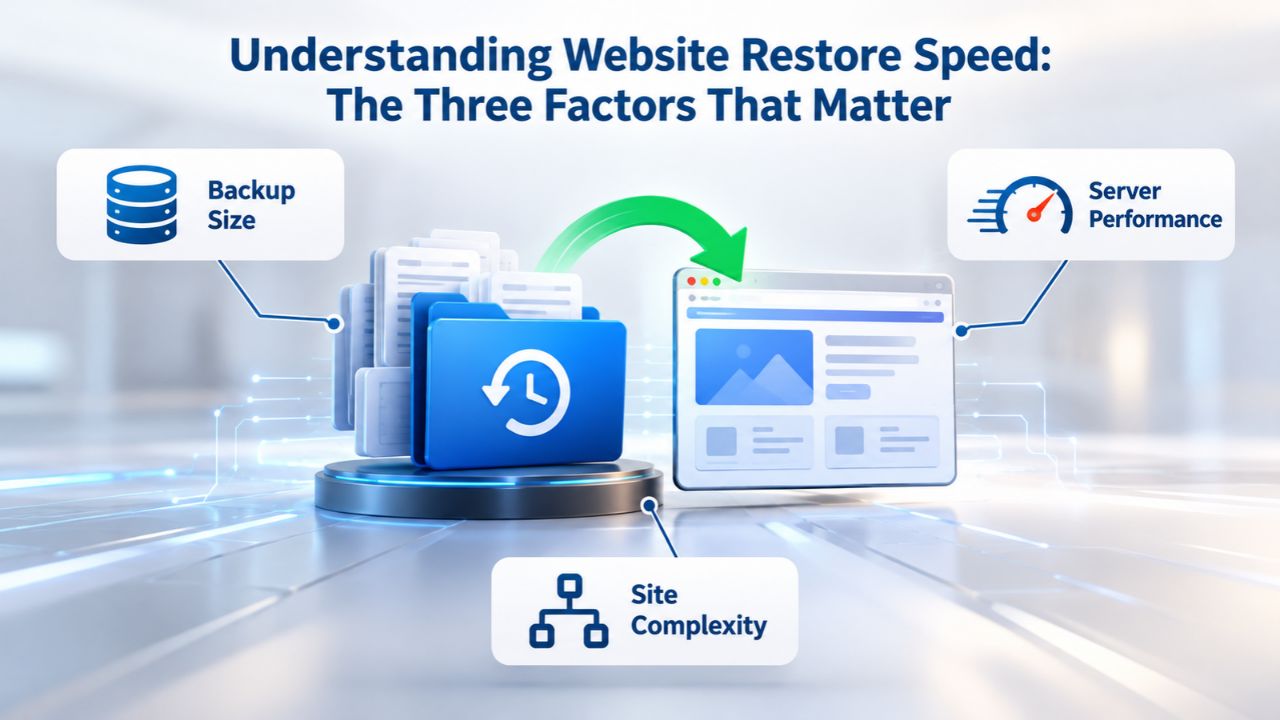
Understanding Website Restore Speed: The Three Factors That Matter
Website recovery speed isn’t determined by a single factor; it’s the intersection of three distinct components working together seamlessly. Backup recency tells you how current your recovery snapshot is. The restore mechanism determines whether recovery happens automatically or requires technical expertise. Recovery scope decides whether you’re restoring the entire site or only the corrupted data. Understanding how these three factors interact is the foundation for choosing a backup strategy that actually delivers fast recovery during a crisis.
Many site owners focus only on how quickly the restore process runs, ignoring the other two factors. A backup mechanism that can restore in 10 minutes still fails to deliver fast recovery if your most recent backup is a week old or if restoration requires you to SSH into a server and manually manage database imports. True recovery speed requires all three factors aligned: a recent backup, an automated restore mechanism, and the right scope for the incident type.
How Backup Recency Determines Your Recovery Window
The single biggest factor in determining how much data you lose after an incident is backup frequency, how often the backup system captures snapshots of your site. When backups are taken daily, your maximum data loss is limited to one day’s worth of changes. If your site is compromised on Wednesday at 2 PM and you don’t discover the breach until Thursday morning, you restore to Tuesday night’s daily snapshot and lose only Wednesday’s content.
CodeGuard (GoDaddy Website Backup) combines daily incremental backups with weekly full-site snapshots, which capture only what changed since the previous backup. This hybrid approach means backups complete quickly (incremental captures are lightweight) while still providing complete reset points (weekly full backups). For most small-to-medium websites, daily backup frequency is the industry baseline because it balances protection, cost, and storage efficiency. The backup process typically runs during off-peak hours, usually between midnight and 4 AM in your timezone, so it never impacts your site’s performance during business hours.
Backup frequency directly determines your Recovery Point Objective (RPO), the maximum acceptable data loss in any scenario. A daily backup schedule means your RPO is 24 hours. Hourly backups mean your RPO is 1 hour. E-commerce sites and data-critical applications often run hourly backups to minimize transaction loss, while blogs and informational sites rarely need more than weekly backups. Choose a frequency that matches how much data loss your business can tolerate and what your backup infrastructure costs.
Why Automated Restore Mechanisms Make Recovery Fast in Practice
One-click restore is the fully automated restore process initiated from your backup provider’s control panel. You log in, select the backup date you want to recover, click the restore button, and the backup provider’s infrastructure handles everything: downloading your backup from geographically redundant off-site storage, stopping your live site temporarily, deploying the backup files and database over your live site, restarting your web server and database services, and verifying your domain is routing to the restored version. No SSH access required. No FTP file transfers. No manual database import commands. From the user’s perspective, the entire process is hands-off.
This automation is what separates fast recovery from slow, error-prone DIY recovery paths. Manual restoration via SSH and FTP requires you to download backup files to your computer, upload them to the correct directory on your server, import your database backup using command-line tools (a process that often fails silently), restart services, and verify the site is functioning.
For someone without hosting and database experience, this takes 4–8 hours and introduces multiple points of failure. For a technical user, it takes 1–4 hours with risk of misconfigured permissions, incomplete file uploads, or database import timeouts. One-click restore typically completes in 5–30 minutes for sites under 500 MB, depending on hosting speed and backup size. The process is atomic: either the entire restore completes successfully, or it rolls back safely, preventing the half-restored state that often occurs with manual recovery attempts.
Website Backup Plans & Pricing
Select the Website Backup package that best fits the size and peace of mind requirements of your website. Your data is safeguarded without going over budget thanks to our adaptable choices.
Website Backup 5 GB
Recommended for documents and files.
- Automatic daily backups
- Built-in daily malware scanning
- Back up a file, folder or an entire database
- Continuous security monitoring
- Downloads to local storage
- Easy one-click restore
- Secure cloud storage
- Expert 24/7 customer support
- One website per account

Website Backup 25 GB
Recommended for photos and music.
- Automatic daily backups
- Built-in daily malware scanning
- Back up a file, folder or an entire database
- Continuous security monitoring
- Downloads to local storage
- Easy one-click restore
- Secure cloud storage
- Expert 24/7 customer support
- One website per account
Website Backup 50 GB
Recommended for videos and multimedia.
- Automatic daily backups
- Built-in daily malware scanning
- Back up a file, folder or an entire database
- Continuous security monitoring
- Downloads to local storage
- Easy one-click restore
- Secure cloud storage
- Expert 24/7 customer support
- One website per account
Backup Frequency and Data Recency: Protecting Against Different Risk Scenarios
Not every site faces the same incident risk, and backup frequency should match that risk. A personal blog updated once a month faces different data-loss exposure than an e-commerce store processing orders throughout the day. Matching backup frequency to your site’s actual risk and recovery needs prevents over-investing in unnecessary backups or under-protecting critical data.
Daily backup schedules represent the baseline protection for most websites because they’re cost-effective and sufficient for the most common incident types. Hourly and continuous backup options exist for high-risk sites where losing more than a few hours of data creates measurable business impact. The trade-off between frequency and cost is real: more frequent backups consume more storage and require more processing power, increasing monthly subscription costs.
Daily Backup Schedules: Standard Protection for Most Sites
Daily backups create one snapshot every 24 hours, typically scheduled for off-peak times (midnight or early morning). CodeGuard (GoDaddy Website Backup) combines daily incremental backups with weekly full backups, so each day captures only changes (fast, small). In contrast, weekly backups capture the entire site (comprehensive, larger). This hybrid approach suits most websites because incremental backups run quickly and cost less in storage. In contrast, weekly full backups provide a complete “reset” point if incremental recovery is needed.
A website updated with new content, plugin installations, or configuration changes gets daily incremental backups that are typically 1–5% of the full site size and complete in minutes. When a malicious actor hacks the site on day 5, and the hack is discovered on day 7, you restore to day 4’s backup (before the compromise). You lose only 3 days of content, and the full backup from day 1 or day 8 provides a clean reset point if needed. Managed backup providers typically include daily backups in Essential and Professional plans, which suit small business sites, blogs, membership sites, and organizations without 24/7 operations.
Hourly and Continuous Backups: For High-Risk, Data-Critical Sites
E-commerce stores, SaaS applications, online marketplaces, and mission-critical web applications often run hourly or continuous backups because losing even a few hours of transactions or user actions creates measurable business impact. Hourly backups mean that if something goes wrong at 2 PM, the oldest available recovery point is 1 PM; you lose at most one hour’s worth of orders, customer records, or application data. Continuous backup (also called “backup on every change”) provides near-instantaneous recovery points, ensuring no data loss even if an incident occurs during business hours.
The trade-off is significant: hourly backups consume 12+ times more storage than daily backups (12 snapshots per day vs. 1), which increases monthly costs. Hosting infrastructure also bears more load because the backup process runs frequently throughout the day. Continuous backup requires sophisticated backup infrastructure to monitor and capture changes without impacting site performance. These premium frequencies are justified only for sites where an hour’s worth of data loss costs thousands of dollars, typical for high-traffic e-commerce during peak seasons or SaaS platforms where downtime or data loss directly impacts customer revenue.
One-Click Restore vs. Manual Recovery Paths: The Speed and Complexity Trade-Off
Three different paths to website recovery exist, each with dramatically different speed, complexity, and reliability profiles. Understanding the trade-offs helps you choose a backup strategy you can actually execute during a crisis when you’re stressed and time-sensitive. Automated one-click restore reduces complexity and errors, but it comes at the cost of relying on a third-party provider. DIY recovery via FTP and SSH gives you complete control but requires technical expertise and introduces multiple failure points. Free backup plugins cost little but offer the slowest, most error-prone recovery path.
The faster and more reliable the backup solution, the more of the technical complexity it removes from your shoulders. This is especially valuable during a crisis when you’re under pressure, sleep-deprived, and prone to making mistakes. A backup solution that requires you to remember SSH commands and database import syntax during a data-loss emergency is almost guaranteed to fail or take much longer than necessary.
One-Click Restore: Zero Technical Overhead, Maximum Speed
One-click restore is initiated from your backup provider’s control panel: you log in, select a backup date, and click restore. The backup provider’s infrastructure handles downloading your backup from secure off-site storage, stopping the live site, deploying the backup files and database, restarting services, and verifying DNS routing. The process is typically hands-off: you initiate it and wait for an email confirmation that restoration is complete. No technical knowledge required. No SSH access. No FTP file uploads. No database command-line tools.
This level of automation prevents the most common manual-restore mistakes: uploading files to the wrong directory (leaving your site broken), corrupting a database during manual import by interrupting the process, forgetting to restart necessary services (leaving the old version running), or accidentally overwriting production files with an outdated backup. One-click restore makes recovery fast in practice, typically 5–30 minutes for small-to-medium sites. For larger sites or complex configurations, restoration may take 30 minutes to several hours. Still, the process is error-proof and hands-off.
DIY Restore via FTP/SSH: Manual Control, Significant Complexity
DIY recovery requires you to manually download your backup files from wherever they’re stored (Dropbox, Google Drive, or your hosting provider), extract the backup archive on your computer, SSH into your web server, place the files in the correct directory structure, manually import your database backup using MySQL command-line tools or equivalent, restart your web server and database services, and verify the site is responding correctly. For someone with hosting and database experience, this process takes 1–4 hours and requires correct knowledge of file permissions, database import syntax, and service management.
For a non-technical user, DIY recovery takes 8+ hours or fails, often leaving the site broken mid-recovery. Common failures include uploading files to the wrong directory (site shows old version or error pages), a database import interrupted by network timeout (database left inconsistent, site shows errors), forgetting to update the live site’s configuration file to point to the restored database (site still uses old, corrupted data), or restarting services in the wrong order (web server can’t connect to database). Each step is a chance for error, and troubleshooting errors during a crisis becomes the bottleneck that prevents actual recovery.
Free Backup Plugins: Cheapest Solution, Slowest Recovery
Free backup plugins (such as basic versions of popular WordPress backup tools) typically store backups on your hosting server (on-server backup) or upload to personal cloud storage like Dropbox. Recovery requires downloading the backup file to your computer, extracting it, and manually uploading the uncompressed files and database back to your server, essentially the full DIY recovery process. On-server backups are especially risky: if your server is hacked, your backup is stored on the same server as your live site, so you lose both simultaneously.
Free plugins cost nothing upfront but deliver the slowest, most error-prone recovery path and offer no support during a crisis. They’re appropriate only for low-risk sites where recovery can wait several hours, and the site owner is technical enough to troubleshoot DIY recovery failures. For any site where downtime costs money or where you lack technical expertise, free plugins leave you vulnerable to unrecoverable data loss.
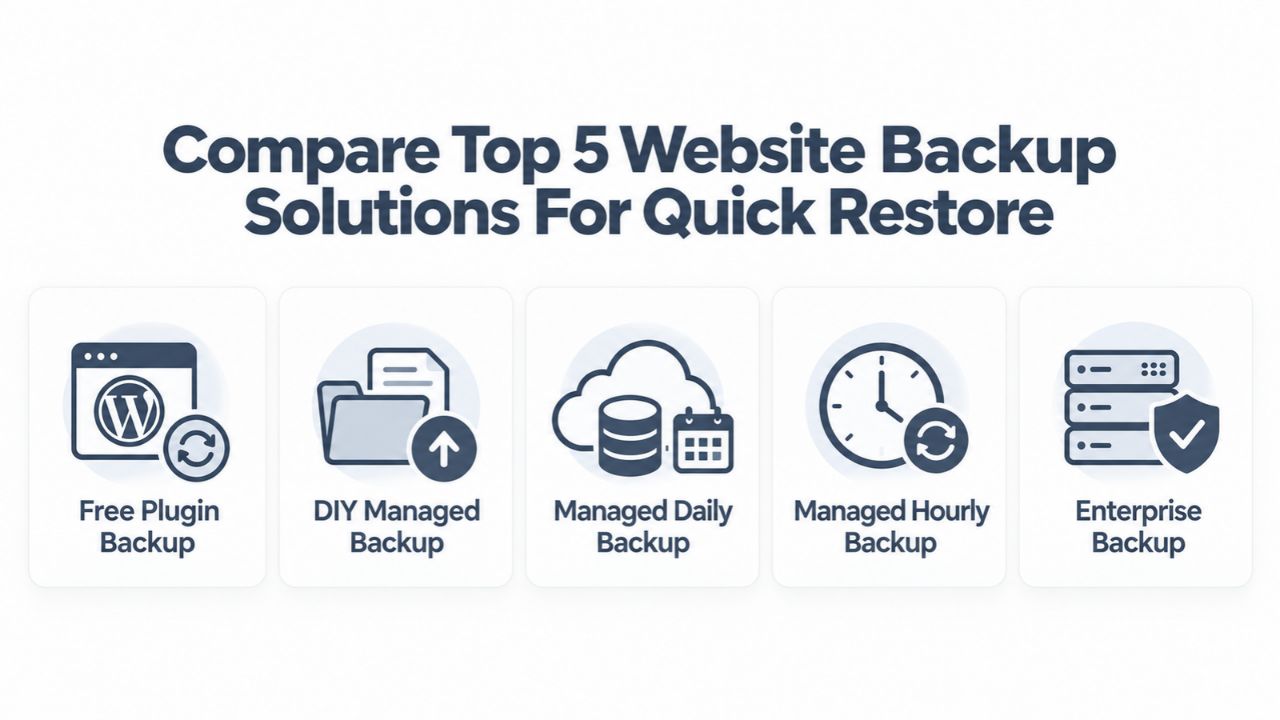
Website Backup Solution Comparison: Five Types With Speed and Complexity Trade-Offs
| Solution Type | Backup Frequency | Recovery Time (Small Site) | Technical Complexity | Support During Restore | Setup Time | Best For |
|---|---|---|---|---|---|---|
| Free Plugin (On-Server Backup) | Manual or daily (user-configured) | 30 min–4 hours (manual DIY) | High (requires SSH/FTP/database knowledge) | None | <1 hour | Testing, hobbyist blogs, completely free tier sites |
| DIY Managed (SFTP/SSH, Self-Stored) | Weekly to daily (user-configured cron job) | 1–4 hours (technical user doing manual steps) | Very High (requires hosting access, database knowledge) | Hosting provider only (slow) | 2–4 hours | Technical site owners wanting complete control, custom backup strategies |
| Managed Daily Backup + One-Click Restore | Daily incremental + weekly full | 5–30 minutes (automated one-click) | Low (click button, provider handles rest) | Standard email/chat support | <1 hour (automated) | Most small-to-medium business sites, e-commerce under $50K/year |
| Managed Hourly/Multi-Daily Backup + Verification | Hourly or 3–4x daily + automated testing | 5–30 minutes (automated one-click) | Low (click button, automated verification) | Priority support, faster response | <1 hour (automated) | E-commerce (50K–500K+/year), data-critical sites, SaaS platforms |
| Enterprise Backup + Monitoring + Dedicated Support | Continuous or hourly + automated testing + monitoring | 5–30 minutes (automated one-click) | Low (one-click, all complexity managed) | 24/7 dedicated support, on-call specialist | <2 hours (onboarding) | Agencies, high-traffic e-commerce, mission-critical operations, compliance-heavy sites |
Retention Windows and Recovery Flexibility: How Far Back Can You Go?
How long a backup provider keeps backups available determines how far back in time you can restore if needed. CodeGuard (GoDaddy Website Backup) retention windows vary by plan, typically 30 days (Essential), 60–90 days (Professional), or longer (Enterprise). Longer retention provides flexibility to restore to older snapshots if data corruption goes unnoticed for weeks, but it increases storage costs. Understanding retention windows and choosing the right one for your site’s risk profile is essential for protecting against slow-burn data corruption and extended undetected incidents.
Retention window decisions should account for how frequently your site is monitored for issues, how long it typically takes you to detect a problem, and whether your data is subject to compliance or audit requirements. A 30-day retention window is sufficient if you monitor your site daily and typically discover issues within 1–2 weeks. A 90-day or unlimited retention window is appropriate if you update your site infrequently, worry about slow-burn data corruption, or regulations require you to maintain historical backups for audit purposes.
The 30-Day Baseline: Sufficient for Most Rapid-Response Scenarios
A 30-day retention window means you can restore to any date within the past month. If your site is hacked on day 22 and the intrusion is detected on day 25, you restore to day 21 (before the compromise), losing only 3 days of content. If malware gradually corrupts files over two weeks before being detected, you can step back further to a clean, pre-corruption snapshot. For most small-to-medium websites that are monitored regularly, 30-day retention is sufficient because most data loss incidents (malware infections, plugin failures, accidental deletions) are discovered within 1–2 weeks of occurring.
30-day retention balances cost and protection: the backup provider maintains only 30 daily snapshots per site, which is manageable storage-wise. Backup costs remain lower than extended-retention plans. For organizations that update their sites frequently and monitor actively, 30-day retention catches nearly all real-world incidents before data loss becomes catastrophic. If your site’s update frequency or issue-detection time means problems go unnoticed longer than 30 days, you can always upgrade to a longer retention window when renewing your service.
Extended Retention: Protection Against Slow-Burn Corruption
90-day or unlimited retention protects against slow-burn data corruption, malware gradually modifying files over weeks, a plugin silently corrupting database records over a month, or scheduled tasks corrupting content periodically without immediate notice. With 30-day retention, by the time you detect subtle corruption (after 35 days), all available backups within the retention window may already contain the corrupted data. With 90-day retention, you can step back 60+ days and find a pre-corruption snapshot, even if the issue went unnoticed for weeks.
Unlimited retention, often available on Enterprise plans, gives you complete flexibility to restore to any point in your site’s history. This is valuable for agencies managing multiple client sites (you can audit historical content), websites that must maintain compliance or audit trails (you can verify what data existed at any point in the past), and organizations worried about persistent malware or slow-burn attacks. The trade-off is increased storage costs: 90-day retention means maintaining 90 daily snapshots per site (vs. 30 for Essential plans), and unlimited retention means indefinite storage responsibility.
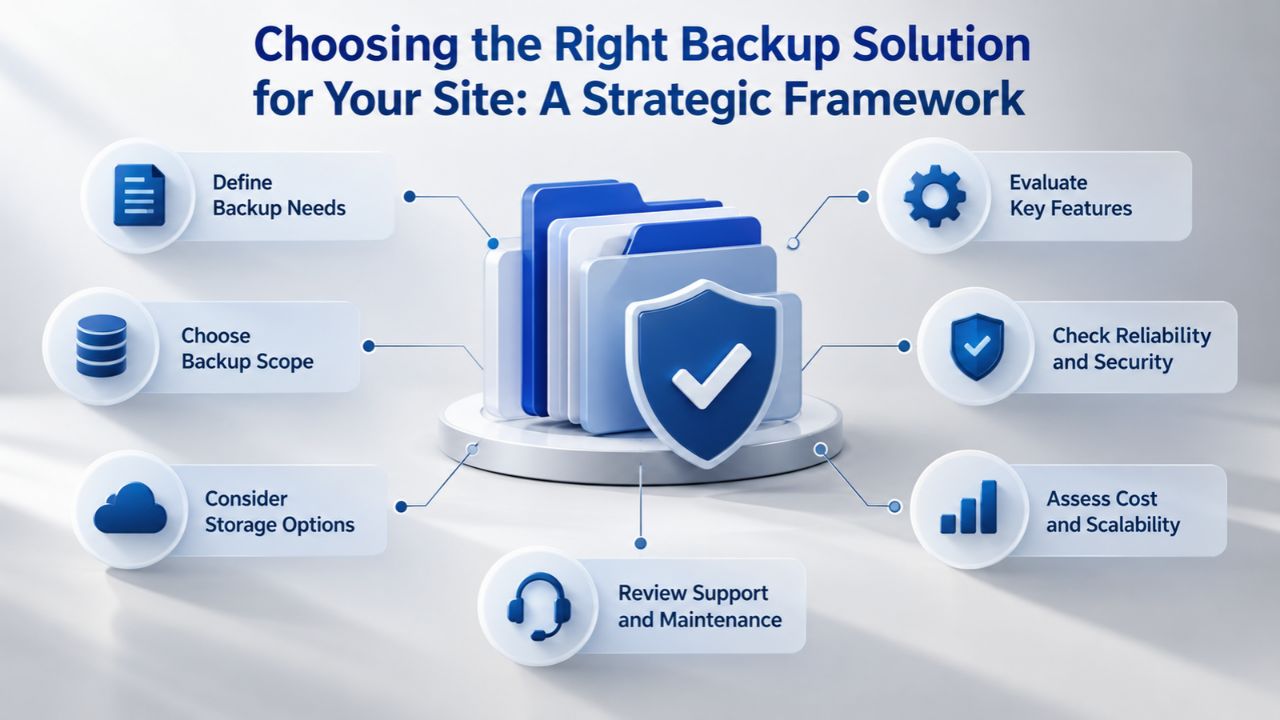
Choosing the Right Backup Solution for Your Site: A Strategic Framework
Not every site needs the same backup frequency, retention window, or solution type. The right choice depends on your site’s size, how critical its data is to your business, what downtime or data loss would cost, and how often you monitor your site for issues. A strategic approach to backup selection matches your site’s actual risk profile to the backup service’s features, preventing both under-protection (insufficient backups for your risk) and over-investment (paying for unnecessary features).
The framework for choosing the right backup solution starts with assessing your incident risk: How much money does your business lose if the site is down for 4 hours? If I lose yesterday’s data, can I recover it manually by re-entering it or asking customers? How frequently do I update my site, and how actively do I monitor for issues? The answers determine whether you need Essential, Professional, or Enterprise-level protection. Once you’ve assessed risk, map your site type to recommended frequency and retention, then choose a solution provider that offers that protection with quality support.
Strategic Site-Type Assessment and Backup Recommendations
| Site Type | Incident Risk Level | Recommended Backup Frequency | Recommended Retention Window | Recommended Solution Type | Primary Protection Need |
|---|---|---|---|---|---|
| Personal blog or portfolio site (hobby, updated 1–2x/month) | Low | Weekly | 30 days | Free plugin or basic managed backup | Low data-loss exposure; recovery speed less critical |
| Small business website (5–20 pages, updated 1–2x/week, no customer data) | Low-Medium | Daily | 30–60 days | Managed daily backup with standard support | Daily protects against plugin/theme update failures; standard support handles recovery |
| Small e-commerce or membership site (<100 products, <$50K/year revenue, active user/customer data) | Medium | Daily (minimum) | 60–90 days | Managed daily backup with priority support and automated testing | Daily frequency catches incidents quickly; extended retention protects against slow-burn corruption; priority support for urgent recovery |
| Medium e-commerce or SaaS platform (100–1,000 products/users, 50K–500K/year revenue, frequent transactions) | High | Daily or hourly | 90+ days | Managed daily or hourly backup with automated verification and 24/7 support | Hourly backup protects against transaction loss; extended retention for compliance; verification catches failed backups before crisis; 24/7 support for emergency recovery |
| High-traffic e-commerce or mission-critical data site ($500K+/year revenue, continuous operations, sensitive data) | Very High | Hourly or continuous | Unlimited | Enterprise managed backup with dedicated account management, monitoring, and on-call support | Continuous backup for near-zero data loss; unlimited retention for audit/legal requirements; dedicated support ensures fastest possible recovery; monitoring prevents silent failures |
Assessment process: First, determine your incident risk by estimating the cost of downtime. A small business losing 4 hours of website access during peak hours loses minimal sales; a medium e-commerce site loses significant daily revenue; a high-traffic SaaS platform loses thousands of dollars per hour.
Second, assess your detection time: how frequently do you or your team monitor your site for issues? Daily monitoring means you’ll detect most issues within 1–2 days; monthly monitoring means problems might go unnoticed for 2–4 weeks. Third, evaluate your manual-recovery capability: if you need to restore, can you do it yourself or will you need support? A technical site owner might handle DIY recovery; a non-technical small business owner absolutely needs provider support.
Small Business Sites: Essential Baseline Backup Strategy
For most small business websites, Niya Digital’s Website Backup Service at the Essential tier provides daily automated backups, one-click restore capability, 30-day retention, geographically redundant off-site storage, and standard email/chat support. Setup is fully automated: you select the plan, integrate with your hosting account, and backups begin immediately with no manual configuration. This Essential protection guards against the most common small business website incidents: plugin or theme update failures that break the site, accidental content deletion by team members, basic malware infections, and hosting-provider outages.
For sites that need faster incident detection or a longer backup history, Professional tiers add more frequent backups (multiple times daily or hourly), extended retention windows (60–90+ days), automated backup verification (periodic test-restores to confirm backups are restorable), and priority support (faster response times). Enterprise tiers add continuous monitoring (alerts if backups fail), dedicated account management, and 24/7 emergency support. Most small business websites find Essential or Professional plans sufficient; Enterprise protection is reserved for agencies managing multiple client sites or businesses where site downtime directly impacts revenue.
Quick-Restore Decision Matrix: Site Type to Recommended Backup Approach
| Site Type & Risk Profile | Typical Incident Risk | Recommended Backup Frequency | Recommended Retention | Recommended Restore Scope | Why This Combination |
|---|---|---|---|---|---|
| Personal blog or hobby site (1–2 updates/month, no customer data) | Low | Weekly or daily | 30 days | Full-site | Low data-loss exposure; weekly sufficient for hobbyist schedule; 30-day retention covers most scenarios; full-site is simplest |
| Small business website (5–20 pages, updated regularly, client information) | Low-Medium | Daily | 30–60 days | Full-site or database-only | Daily catches plugin/update issues quickly; 30-day baseline with option for 60-day for added safety; database-only for data-focused incidents |
| Small e-commerce (50–200 products, <$50K/year, active orders) | Medium-High | Daily (hourly preferred) | 60–90 days | Database-only (preferred) or full-site | Daily minimum catches order-processing issues; database-only fastest for transaction recovery; 60+ days protects against delayed corruption detection |
| Medium e-commerce or SaaS (500–2,000+ products/users, 50K–500K/year) | High | Hourly or 2–3x daily | 90+ days | Database-only (primary) or full-site | Hourly protects against hourly transaction loss; 90+ days for compliance and slow-corruption protection; database-only fastest for transaction data |
| High-traffic e-commerce or mission-critical (multiple millions annual revenue, continuous operations) | Very High | Continuous or hourly + automated testing + monitoring | Unlimited | Database-only (primary), full-site (backup) | Continuous/hourly minimizes transaction loss; unlimited retention for audit/legal; database-only handles most incidents fastest; full-site as fallback; monitoring ensures proactive failure detection |
Ready to Protect Your Website With Fast, Reliable Backups?
Explore Niya Digital’s Website Backup Service to find the backup frequency, retention window, and support level that matches your site’s actual risk and recovery needs. Setup takes minutes, and backups begin immediately.
Off-Site Storage and Geographic Redundancy: Protection Against Infrastructure Failure
Off-site storage means your backup files are stored on infrastructure geographically separate from your website’s hosting server. This fundamental principle protects against catastrophic scenarios where hosting providers experience outages, data centers fail, or servers are physically destroyed. If your website is hosted on a server in a Virginia data center and your backups are also stored on that same server, a data-center fire, power failure, or cyberattack can destroy both your live site and all your backups, leaving no recovery path.
CodeGuard (GoDaddy Website Backup) infrastructure stores backups across multiple geographic regions, not on your hosting server. This geographic separation ensures that even if your hosting provider experiences a catastrophic failure, your backups remain accessible and safe. After your hosting provider recovers (or if you switch hosts), you can restore your site from the off-site backup to any hosting environment. Off-site storage is especially critical for site migrations, host changes, or recoveries after a provider-level failure.
Why Off-Site Storage Prevents Total Business Loss
On-server backup (storing backups on the same server as your live site) creates a false sense of security. If a hacker gains access to your server, they can delete backups along with your live site. If your hosting server fails due to hardware issues, your backup fails too. If ransomware infects your server and encrypts everything on it, both your live site and your backups are encrypted simultaneously. The single point of failure, your hosting server, eliminates any recovery path.
Off-site storage separates backups from your live hosting infrastructure, creating independent recovery paths. A hosting provider outage doesn’t affect your backups; a server hack doesn’t affect your backups; ransomware on your server doesn’t encrypt your backups. After an incident, you restore from clean, untouched off-site backups rather than hoping to recover from a corrupted or compromised server. For any business where website downtime costs money or where data loss is unacceptable, off-site storage is non-negotiable. That is why managed backup providers (vs. free plugins that often store backups on the server) are so valuable for professional websites.
Geographic Redundancy: Multi-Region Protection Against Regional Outages
Some backup providers replicate backups across multiple geographic regions, for example, storing copies in US East, US West, and Europe. If one region goes down, backups remain accessible from other regions. Recovery speed is unaffected; data safety is enhanced because multiple independent copies exist. Geographic redundancy is especially valuable for internationally focused businesses or organizations concerned about regional infrastructure failures.
The backup provider’s geographic distribution strategy affects your recovery options during regional outages. A provider storing all backups in one region (e.g., US East only) means a regional outage could temporarily make restores unavailable. Providers with multi-region replication ensure you can always restore, even if one geographic region fails. Ask your backup provider about geographic distribution and redundancy before committing, especially if your site serves international audiences or if your business depends on 24/7 availability.
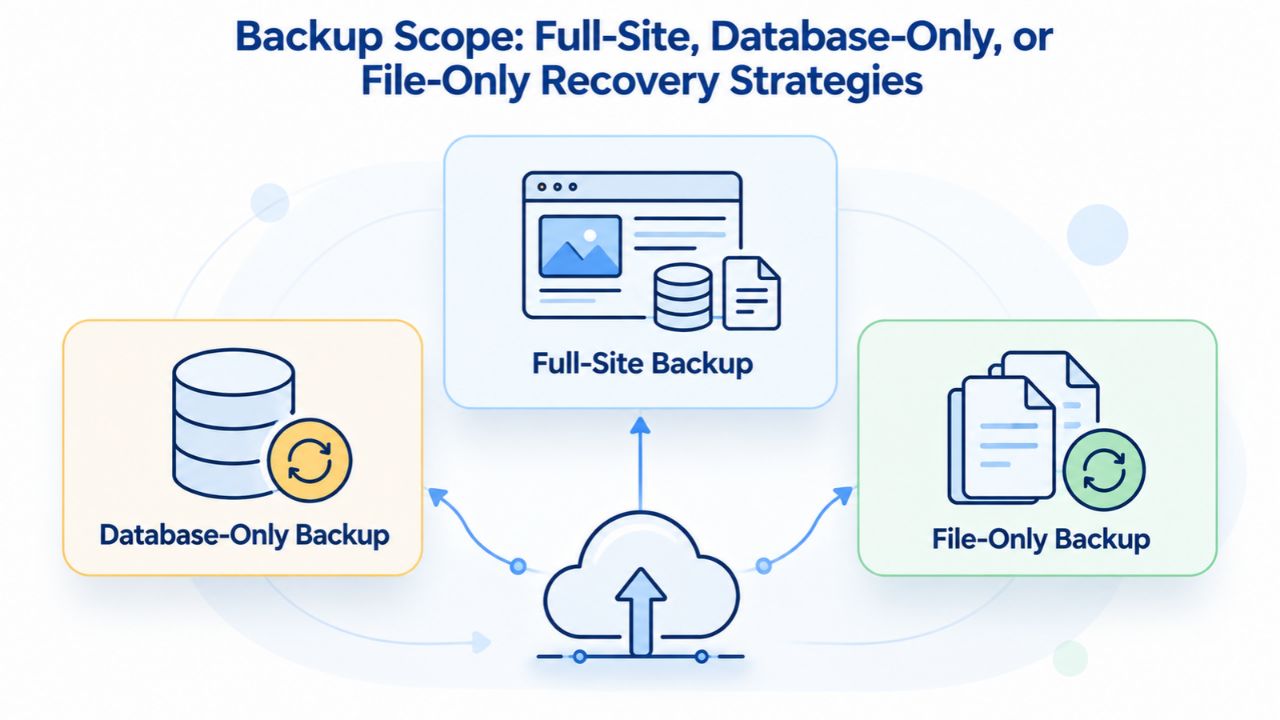
Backup Scope: Full-Site, Database-Only, or File-Only Recovery Strategies
Not every website incident requires a full-site restore. Choosing the appropriate backup scope for the incident type can significantly speed recovery and reduce unnecessary downtime. Understanding when to use full-site restoration versus targeted recovery (database-only or file-only) is essential for executing fast recovery during a crisis.
Different incident types require different recovery approaches: a malware infection threatening the entire site needs full restoration; a database corruption affecting only dynamic content can often be solved with database-only recovery; an accidental file deletion affecting just one image or document can be resolved with file-only restore. Managed backup providers that offer granular restore options enable faster, more surgical recovery when appropriate.
Full-Site Restore: Complete Reset for Comprehensive Compromise
A full-site restore replaces all website files and the database at the same time, providing a complete reset. This is the right choice for malware infections (where the entire site may be compromised), complete hosting failures, or major version updates that went wrong. A full-site restore is comprehensive and ensures no residual infection or corruption remains, but it also takes longer because more data is being transferred and deployed.
For sites under 500 MB, one-click full-site restore typically completes in 5–30 minutes, depending on hosting speed and backup size. Larger sites (500 MB–2 GB) take proportionally longer; very large sites (2 GB+) may take 1–2 hours. During the restore, your site is temporarily offline (usually 5–30 minutes depending on size). Full-site restore is the default choice when you’re unsure of the incident’s scope because it ensures complete recovery without needing to diagnose exactly what’s broken.
Database-Only Restore: Fastest Recovery for Data Corruption
If website files are intact but database content is corrupted or deleted (a common scenario with WordPress sites where hackers target the database specifically), a database-only restore replaces just the database while leaving files in place. This is the fastest recovery path when the incident is data loss (corrupted posts, deleted product listings, erased customer records) rather than file system compromise. Database-only restore typically completes faster than a full-site restore because less data is being transferred.
Database-only restoration is appropriate for incidents like: a WordPress plugin that corrupts post metadata, a malware variant that targets and modifies database records, an automated task that deletes old content but leaves files intact, or accidental deletion of important database content (customer records, order history, user accounts). After a database-only restore, you keep your current theme and plugins (which remain unchanged in the file system) but restore the database content from your backup. This approach minimizes downtime and risk of losing recent file-system changes while fully resolving the data-loss problem.
File-Only Restore: Targeted Recovery for File System Issues
File-only restore replaces just the website files while leaving the database untouched. This is rare but appropriate if file corruption or accidental deletion is the only issue and the database is clean. File-only restoration is useful for incidents like an accidentally deleted theme or plugin, configuration files corrupted by a failed update, media files accidentally removed, or file-permission corruption after a server migration. After a file-only restore, you recover the files from your backup but keep your current database (including all recent posts, comments, user data, etc.).
The fastest recovery path depends on correctly diagnosing the incident type. Most incidents are either a full-site compromise (requiring a full-site restore), database corruption (requiring a database-only restore), or file corruption (requiring a file-only restore). One-click restore providers typically let users select the scope before initiating, so you can choose the fastest appropriate recovery path based on what you know about the incident.
Testing Your Backups Before You Need Them: Backup Verification and Validation
A backup that has never been tested isn’t actually a backup; it’s untested software that may fail catastrophically when you need it most. Backup testing means verifying that a backup can actually be restored successfully in a sandbox or test environment before a real crisis occurs. Testing is the only way to confirm that backup files aren’t corrupted, the restore process works, and restored sites function correctly. Many small site owners skip testing because it requires manual effort, only to discover too late during an actual incident that their backups don’t work.
Backup systems can fail silently: a backup file can be corrupted, restore processes can have compatibility issues with your hosting setup, database imports can be incomplete, or file permissions can be incorrect after restoration. You won’t discover these failures until you need to restore and find the process fails halfway through, leaving your site in a broken half-restored state. Proactive testing catches these failures while you still have time to investigate and switch backup strategies, preventing the nightmare scenario of discovering a failed backup during an actual data-loss incident.
Why Backup Verification Matters: Catching Silent Failures
Backup systems may report “backup complete” in their logs but still contain corrupted data, incomplete file sets, or broken database exports that only fail when you try to restore. Discovering a corrupted backup file during a real incident means you’ve lost your recovery option and must resort to manual reconstruction, accepting data loss. A corrupted backup discovered during testing means you can still fix it while you have time: investigate what went wrong, switch backup providers, or add backup redundancy.
Testing also confirms that your restore process works with your current hosting environment. A backup created on shared hosting might fail to restore correctly if you’ve since upgraded to VPS or dedicated server hosting, or a backup from an older WordPress version might have compatibility issues after a theme/plugin update. Testing catches these compatibility issues before you need recovery. Testing also confirms that post-restore verification procedures (updating DNS if needed, restarting services, verifying functionality) are documented and practiced, so real recovery goes smoothly rather than discovering forgotten steps during a crisis.
Automated Testing: Discovering Failures Before Crisis
Niya Digital’s Professional and Enterprise plans include automated backup verification: the provider periodically restores one of your backups to a separate test environment, verifies that the site functions correctly, and reports whether the test passed or failed. Automated testing typically runs weekly or monthly on a schedule you don’t need to manage. If a test fails, you’re notified immediately so you can investigate and switch backup strategies while you still have options.
DIY testing requires you to download a backup file manually, set up a test server or staging environment, upload the backup, restore it, and verify the site works correctly- a time-consuming, error-prone process that most small site owners skip. Managed backup services with automated verification eliminate this friction: testing runs automatically on a schedule, catches failed backups proactively, and removes the barrier that keeps most people from testing. If you choose a backup provider, prioritize one offering automated verification, especially if you can’t commit to monthly manual testing.
Emergency Restore Support and Expert Guidance During Crisis
When a site goes down at 3 AM on a weekend or a malware infection is discovered during peak business hours, the restore process is stressful, time-sensitive, and potentially beyond your technical expertise. Many site owners lack the knowledge to navigate restore options quickly: Should I restore the full site or just the database? Which backup point should I restore to? Why is the restore taking longer than expected? These decisions and troubleshooting steps eat up time during a crisis, when speed is critical.
Managed backup providers offering 24/7 or emergency support provide a restore-support specialist who guides you through recovery: confirming which backup point matches your needs, initiating the restore on your behalf if needed, monitoring the restore in real time, and troubleshooting if the restore encounters issues (database compatibility problems, plugin conflicts after restoration, DNS propagation delays). That expert guidance typically reduces total recovery time by 30–50% in a crisis because the specialist eliminates guesswork and troubleshoots efficiently, rather than leaving you to fumble through technical steps you’re unfamiliar with.
The Value of Hands-On Support During Incident Response
Free backup plugins offer zero support; DIY backup strategies offer only hosting-provider support (which may be slow or unhelpful because the issue is outside their infrastructure); managed backup services with emergency support provide dedicated expertise focused specifically on backup and restore issues. During a crisis, having someone who’s handled hundreds of restore incidents take control of your recovery process dramatically reduces stress and errors.
Hands-on support is most valuable during complex incidents: a restore that partially fails and needs rollback, a malware infection where you need help determining the right backup point to restore to (before the infection started), a site using multiple databases or complex custom code where standard restore procedures need adjustment, or a hosting-provider failure where the restore needs to be deployed to a new host entirely. A support specialist walks through these complex scenarios, handles technical decisions, and ensures the restore completes correctly. For non-technical site owners, emergency support transforms a panic-inducing crisis into a managed incident with expert guidance.
Response Time and Support Availability Expectations
Support response time varies by backup provider: some offer 24/7 phone support (response within minutes), some offer chat support during business hours (response within hours), some offer email-only support (response within 24 hours). For a website incident occurring outside business hours, 24/7 support is irreplaceable. A phone-support specialist can begin recovery immediately at 3 AM rather than waiting for business hours. Chat support responds faster than email but is slower than phone. Email-only support is slow but better than no support.
When choosing a backup provider, confirm support availability matches your site’s operating hours. A site running business-only (9–5 M–F) might accept business-hours-only support. A site with 24/7 operations absolutely needs 24/7 support availability. Ask potential backup providers about their support response-time SLA (Service Level Agreement), their team’s expertise in backup and restore processes, and whether they’ve handled incidents similar to yours. Testing support responsiveness by opening a test ticket before committing long-term is wise.
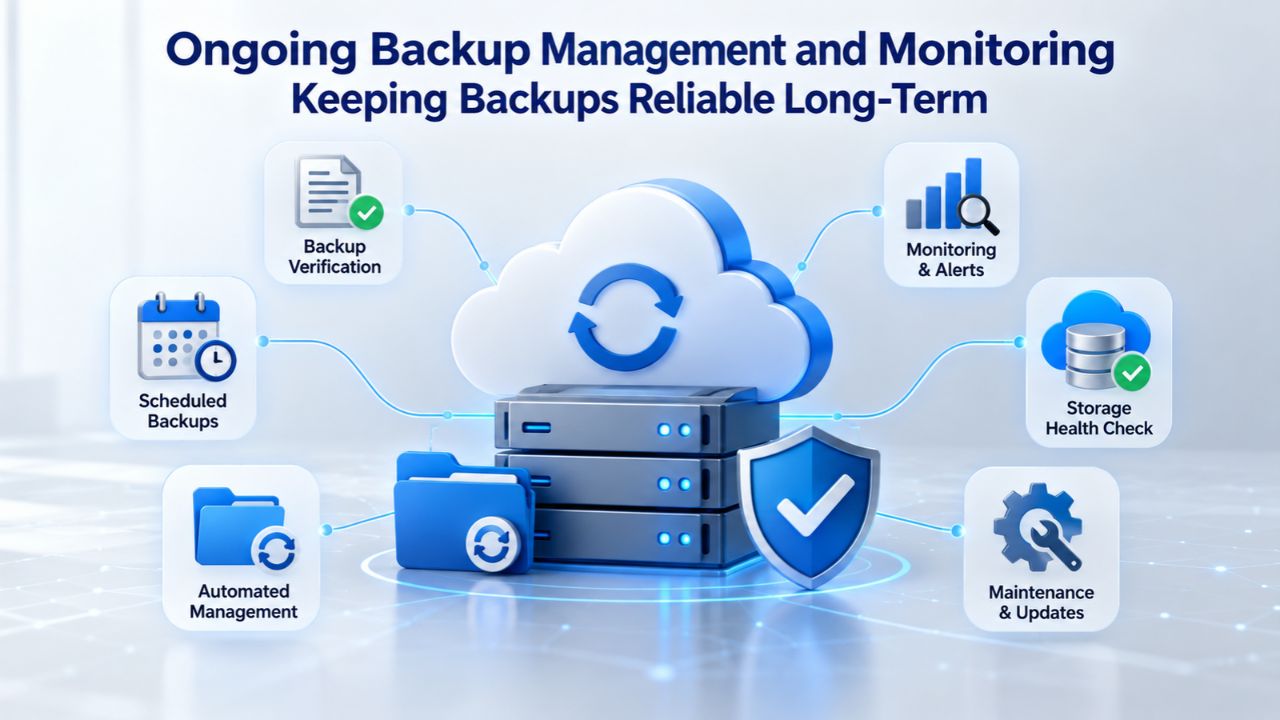
Ongoing Backup Management and Monitoring: Keeping Backups Reliable Long-Term
After choosing a backup solution and initial setup, backups require ongoing attention to stay reliable over time. Monitoring, storage management, and periodic verification ensure your backups don’t silently fail weeks or months into your subscription. Many site owners set up backups, then forget about them, only to discover during a real incident that backups stopped working months ago. Proactive management prevents this scenario.
Backup management responsibilities include: monitoring that backups complete successfully on schedule, confirming storage usage doesn’t exceed plan limits, verifying that older backups are being cleaned up appropriately, and periodically testing restore functionality. Managed backup services handle most of these tasks automatically, but you still need to monitor your backup system’s overall health. DIY backup approaches require you to manage these tasks manually, which is where most DIY strategies fail: monitoring and maintenance are tedious and easy to neglect until a problem develops.
Storage Management and Cleanup: Preventing Full-Backup Scenarios
Backup storage is not infinite, even on plans promising “unlimited” retention. Very large sites with significant media libraries or frequent updates can consume storage quickly. Managed backup services typically provide dashboards showing storage used, the remaining retention window, and alerts if you’re approaching limits. If you exceed storage limits, backups may stop running (automatic protection to prevent backup queue buildup), or new backups may fail while old backups continue consuming space.
DIY backup approaches require you to manage storage manually: deleting old backups to free space, upgrading storage capacity when needed, or implementing cleanup policies to automatically delete backups older than a certain age. This manual management is often where DIY backup strategies fail: the site owner forgets to monitor storage, backups stop running due to lack of space, and months pass without new backups being created. When an incident eventually occurs, only old backups are available (outside the retention window you intended), if any backups exist at all. Managed services eliminate this failure mode by automatically managing storage and alerting you if intervention is needed.
Automated Monitoring and Alerts: Catching Backup Failures Early
Managed backup services monitor backup jobs continuously: confirming backups completed successfully, detecting failures, and escalating if multiple backups fail in a row (indicating a systemic problem like storage exhaustion or connectivity issues). You typically receive automated email alerts when backups complete successfully and immediate alerts if a backup fails. This continuous monitoring is the safety net that catches backup failures early, before you discover the problem during an incident.
Without monitoring, a failed backup may go unnoticed for weeks or months. You might attempt to restore during an actual incident and discover backups haven’t been created for weeks, leaving you with no recent recovery points. DIY backup approaches rarely include automated monitoring; manual monitoring requires you to remember to check backup logs regularly (which most people don’t). Managed services with automated monitoring remove this burden and ensure you’re immediately notified if anything goes wrong with your backup system.
When to Review and Update Your Backup Strategy
Backup strategy should be reviewed annually or whenever the site’s risk profile changes. Common triggers for re-evaluation include: after experiencing a significant incident (you may decide to increase backup frequency), when adding sensitive customer data or e-commerce transactions (move from daily to hourly backups), when changing hosting providers (verify the new host’s policies don’t conflict with your backup schedule), when the site experiences significant growth (verify your retention/storage plan still covers your needs), or when regulatory requirements change. A backup plan that was appropriate for a new site may become insufficient as the site grows or its importance to your business increases.
Regular review ensures your backup strategy evolves with your business. A small hobby blog that grows into a side business generating significant revenue should upgrade from free plugins to managed backups. A personal portfolio that adds e-commerce functionality should increase from weekly to daily backups. An information website that becomes mission-critical for business operations should upgrade backup frequency and add automated verification. Intentional, periodic re-evaluation of your backup strategy prevents you from operating with outdated protection that doesn’t match your current risk profile.
Take Control of Website Recovery Today
Discover Niya Digital’s Website Backup Service plans to protect your website from malware, hosting failures, accidental deletion, and plugin update disasters. Get peace of mind knowing you can recover your site in minutes if anything goes wrong.
Frequently Asked Questions
What is the difference between incremental and full backups, and does it affect restore speed?
Incremental backups capture only changes made since the last backup (smaller files, faster creation), while full backups capture the entire site from scratch (larger files, slower creation). For restore speed, the difference matters less than you’d think: managed backup services with one-click restore handle both equally well, completing in similar timeframes (5–30 minutes). Full backups are simpler because they’re self-contained and require only the full backup to restore. Incremental backups are faster to create daily but require the most recent full backup plus all incremental backups since that full backup to restore completely. CodeGuard (GoDaddy Website Backup) combines daily incremental backups with weekly full backups for this reason, balancing speed during daily backups with simplicity through regular full resets.
Can I restore just one file or database table instead of the entire site?
Most managed backup services allow file-level or table-level restore by recovering a specific file or database section from a backup snapshot rather than restoring the entire site. This is much faster when only one file is corrupted, or one table contains bad data. However, if the issue is widespread database corruption or malware affecting multiple files, you typically need a full or database-only restore because recovering individual records is complicated and error-prone. Ask your backup provider about file-level and table-level restore capabilities before purchasing; this granular restore option significantly speeds recovery for targeted incidents.
How do I know if my backup is working without testing it?
You don’t, not reliably. Backups can fail silently; a backup that reports “success” in your provider’s logs may be corrupted or incomplete without you knowing. The only true verification is restoring to a sandbox environment and checking that the site functions correctly. Managed backup services that offer automated verification run this test on a schedule and immediately alert you if it fails, eliminating the need for manual testing. If your backup provider doesn’t offer automated verification, perform a manual test restore monthly: download a backup, restore it to a test subdomain or staging environment, and verify the site works correctly.
Is 30-day retention sufficient, or should I always upgrade to 90-day or unlimited retention?
For most small-to-medium sites with daily monitoring, 30-day retention is sufficient because most incidents (malware, plugin failures, accidental deletion) are detected within 2 weeks. Longer retention (90+ days) is beneficial if your site is updated infrequently (problems may go unnoticed for a month), if you need historical backups for compliance or audit purposes, or if you’ve experienced slow-burn data corruption in the past where issues take weeks to detect. If cost is a concern, start with 30-day retention and upgrade if you later find you need to restore from older backups. Check Niya Digital’s backup plans for retention included at each tier.
Do I need one-click restore if I’m technical and comfortable with SSH and FTP?
Yes, one-click restore is faster and eliminates human error even for technical users. Manual restoration via SSH takes a technical person 1–4 hours and introduces multiple points where mistakes happen: misconfigured file permissions, incomplete database imports, or incorrect file placements. One-click restore completes in 5–30 minutes and is error-proof. Unless you manage backups as a core job function (you have deep expertise and time to dedicate), one-click restore saves hours and stress during a crisis.
How much does website downtime actually cost, and does backup frequency justify the investment?
Downtime costs vary by business type: a blog loses nothing; a small online store loses roughly $100–500 per hour depending on traffic and average order value; a mid-market business loses $1,000–5,000 per hour; a large SaaS platform loses $10,000+ per hour. A daily backup reducing downtime from 4 hours (DIY manual recovery) to 30 minutes (one-click restore) saves thousands of dollars if your site is down during business hours. For e-commerce or data-critical sites, monthly backup costs are recovered in a single incident. Calculate your own downtime cost: if reducing downtime by 2 hours saves your business more than monthly backup costs, the backup is justified.
Can I use my hosting provider’s built-in backups instead of a separate backup service?
Hosting-provider backups are better than nothing but have significant limitations. Many providers store backups on the same server as your live site (not off-site), so if the server fails, backups fail too. Restore times are often slow (24+ hours) because hosting support handles restores manually. Retention may be short (7 days). Restores may be expensive or unavailable for certain situations. For these reasons, a dedicated backup service with off-site storage and one-click restore is safer and faster. If your host offers automated off-site backups, one-click restore, and reasonable retention for a competitive cost, that works. Always verify: Are backups stored geographically separate from your hosting server? How long can you retain backups? How quickly can you restore?
What should I do immediately after discovering a hack or malware on my website?
First, take the site offline or block search engines temporarily (via robots.txt) to prevent malware from spreading to visitors. Second, contact your backup provider or hosting support immediately; if you have one-click restore available, restore to the most recent backup from before the hack. Third, don’t try to clean the site manually while it’s live; the infection may persist or spread. Fourth, after restoring, run a security scan on the restored site to confirm the infection is gone. Finally, investigate how the hack occurred (weak password, unpatched plugin, outdated WordPress version) to prevent recurrence. One-click restore and emergency support are most valuable during this scenario because they enable fast recovery without manual intervention while you’re under stress.
How do I choose between daily and hourly backup frequency?
Daily backups are standard for most sites because they’re cost-effective and sufficient for most incident types. Hourly backups are appropriate if your site processes high-value transactions throughout the day (e-commerce during peak business hours) and losing even a few hours of transactions is costly, or if your site runs mission-critical operations (SaaS, marketplace, online service) where downtime or data loss costs thousands of dollars per hour. If you’re unsure, start with daily backups and upgrade to hourly only if you’ve experienced an incident where losing a full day’s worth of data cost significantly more than the backup upgrade would.
Can I move backups from one backup provider to another if I switch services later?
Yes, but it depends on the provider. Some backup services allow you to export or download backup files in standard formats (zip archives, MySQL database dumps) that you can import into another provider. Others lock backups into proprietary formats. Before signing up, ask whether you can export backups and migrate them if you switch providers later. Managed services like Niya Digital’s Website Backup Service typically provide export options, but confirm with your specific provider before committing to a long-term contract.
What’s the difference between off-site backup storage and consumer cloud storage like Dropbox or Google Drive?
Off-site backup storage from a dedicated backup provider means the provider manages redundant, secure storage infrastructure optimized for rapid restore. Backups are encrypted, distributed across regions, and integrated with one-click restore. Consumer cloud storage like Dropbox or Google Drive is unencrypted by default, not designed for automated site restoration, and still requires manual download-and-restore steps. Backups stored on Dropbox are easy to access but require you to download and restore them manually- the full DIY recovery process. Use cloud storage for file backup/sharing; use a dedicated backup service for fast website recovery.
Does my backup protect my search engine rankings if my site is hacked or goes down?
Partially. A fast restore within hours minimizes SEO impact because search engines don’t heavily penalize brief outages. Slow recovery (days offline) can cause ranking drops because Google crawlers repeatedly find your site unavailable. Additionally, a malware-compromised site can be de-indexed by Google (flagged as dangerous), which requires cleaning the malware and requesting re-indexing. A backup lets you quickly restore a clean, pre-compromise version, reducing the time your site is flagged as malicious in search results and minimizing ranking recovery time.
Should I keep backups of my backups (backup redundancy)?
For most sites, your backup provider’s off-site storage and multi-region replication are sufficient. Your backup provider already maintains multiple independent copies across regions; you don’t need to back up the backup. For mission-critical or compliance-heavy sites, some organizations download and archive periodic backup copies (monthly exports to external storage), but this is overkill for typical small-to-medium business sites. Trust your backup provider’s redundancy and focus instead on testing to verify your backups work when you need them.
Can I restore my backup to a different hosting provider, or am I locked into my current host?
Most backups (especially one-click restore systems) are hosting-provider agnostic; they can restore to any hosting provider that meets basic requirements (compatible operating system, PHP version, database engine). One-click restore from a managed backup service typically works seamlessly across hosts because the provider’s system handles deployment details automatically. Ask your current and prospective backup provider whether they support restores to a different host before purchasing, especially if you’re planning a hosting migration. Off-site backups enable this flexibility because they’re not tied to your current hosting infrastructure.
What’s the best time to schedule automated backups to avoid slowing my site during busy hours?
Schedule backups during off-peak hours: late night (midnight–4 AM) in your timezone, early morning before business hours, or weekend mornings if your site gets traffic on weekday evenings. Backup processes consume server resources (CPU, disk I/O, bandwidth), so running them during peak visitor traffic can slow your site for users. Most managed backup services let you configure the backup schedule; choose a window when your site receives minimal visitor traffic. For sites with global audiences, pick the time when traffic is lowest in your most important market; if traffic is relatively constant, any consistent time works as long as it’s outside your peak business hours.
Glossary
- Backup: A complete or partial copy of website files and database content stored separately from the live site and preserved at a specific point in time for recovery purposes.
- Incremental Backup: A backup that captures only the changes and new files created since the previous backup, rather than the entire site, resulting in faster backups and smaller file sizes.
- Full Backup: A complete snapshot of all website files, database content, configuration, and assets, captured from scratch without depending on previous backups.
- Off-Site Storage: Backup files stored on infrastructure geographically separate and independent from the website’s hosting server, protecting against hosting failures, data-center outages, or server destruction.
- Restore Point: A specific backup snapshot associated with a known date and time that can be selected and restored if data recovery or site recovery is needed.
- Retention Period: The length of time a backup provider keeps backup snapshots available for restore selection, typically measured in days (30, 60, 90, or more) or as unlimited/indefinite retention.
- One-Click Restore: A fully automated restore process initiated by clicking a button in a backup provider’s control panel; the provider’s system handles all technical steps, including backup download, site deployment, and service restart, without requiring user technical knowledge.
- Database: The backend system storing dynamic website content (blog posts, pages, customer records, product listings, user accounts, comments, order history) distinct from static files and themes.
- Disaster Recovery: The process and technology for rapidly restoring a website to full functionality and data integrity after total loss, compromise, data corruption, or catastrophic failure.