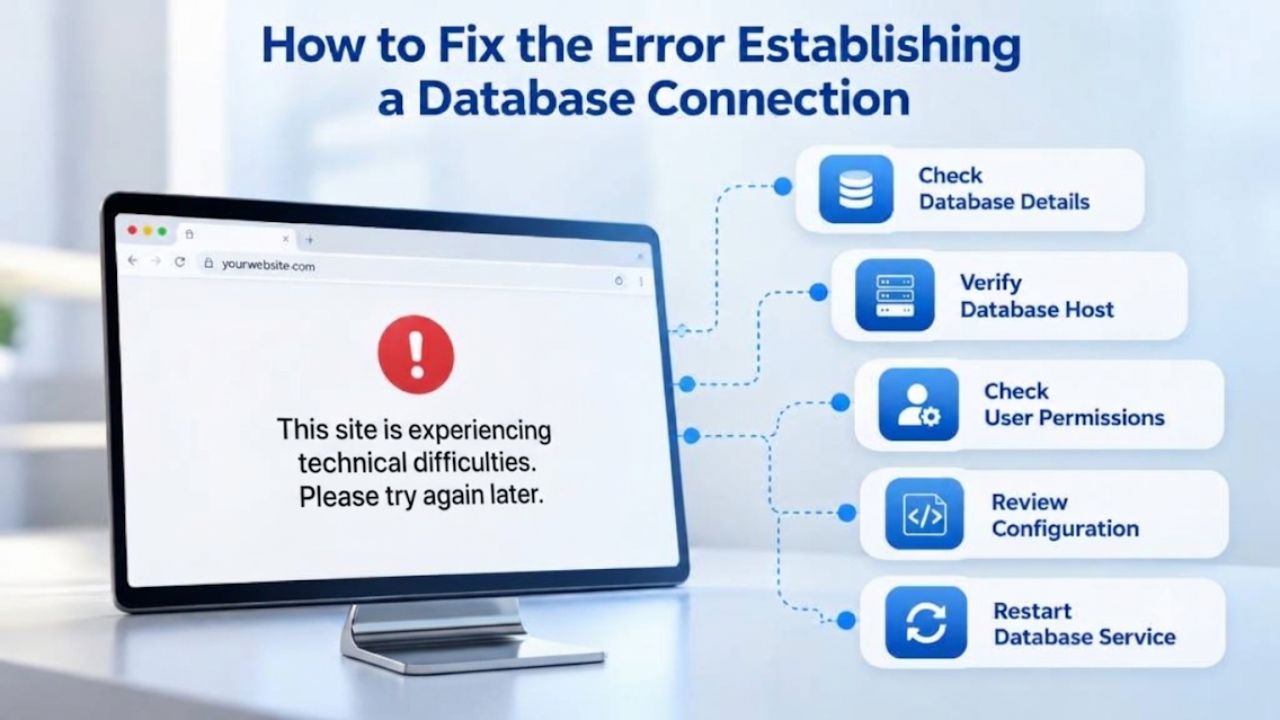
When your WordPress site shows the “Error Establishing a Database Connection” message, everything stops working. Your posts won’t load, your admin dashboard becomes inaccessible, and visitors see only an error message or a blank screen. This error signals that WordPress cannot communicate with its database, the central hub storing all your content, user accounts, settings, and plugin data. Niya Digital delivers WordPress hosting in partnership with an enterprise-grade cloud infrastructure partner, enabling rapid database diagnostics and automatic resource scaling when connection limits arise, a feature that significantly reduces the frequency and duration of these errors compared to shared hosting environments.
What the Error Actually Means and Why It Occurs
A WordPress database connection requires four critical pieces of information working in perfect harmony. The database hostname tells WordPress where the database server resides on your network (often “localhost” if the database runs on the same physical server, or an external hostname if it’s on a separate database cluster). The database name identifies the specific database on the server that contains your site’s data.
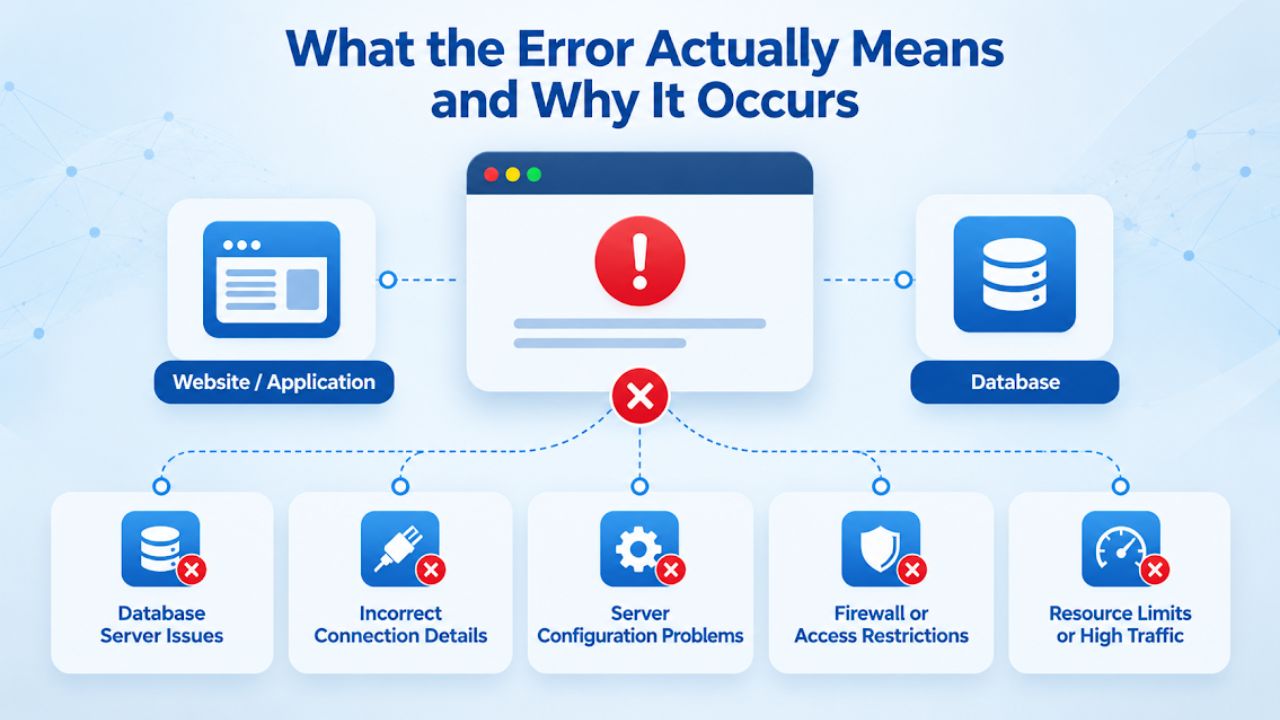
Anatomy of a Database Connection
The database connection process involves several layers of communication that must all function correctly. When WordPress boots, it reads your wp-config.php file to retrieve the four connection credentials. It then uses PHP’s MySQLi extension (or the older, deprecated mysql extension) to attempt a connection to the database server at the specified hostname. The database server receives this connection request and verifies the username and password against its user table.
If authentication succeeds, the database server checks whether the connection limit for your account or plan has been reached. If the connection pool has room, the database grants access and returns a connection handle to WordPress. WordPress then uses this connection to run SQL queries, fetch data, and render pages. If any step in this process fails- bad credentials, an offline server, a full connection pool, or a network interruption- the handshake breaks and the error appears.
The error looks the same regardless of which layer fails, so diagnosis requires testing each component separately. A misconfigured hostname produces the same error as a down server, which produces the same error as a connection pool at maximum capacity.
This is intentional security design: WordPress doesn’t reveal which part of the authentication chain failed. Your troubleshooting must therefore be methodical and eliminate possibilities one by one. This layered architecture also explains why some hosts’ support can resolve these errors in minutes: they have direct visibility into connection pool usage, server status, and database logs that you don’t have in shared hosting environments.
Why This Error Stops Your Entire Site
Unlike a missing plugin, a theme conflict, or a broken page template, all of which affect specific features, a database connection failure is site-wide and catastrophic. WordPress cannot retrieve a single piece of data from your database, which means it cannot load posts, pages, user roles, plugin settings, or theme options. The admin dashboard is equally broken because it also requires database access to display the management interface.
Comments, WooCommerce products, custom post types, user profiles, and any other database-dependent feature become completely inaccessible. This total site outage is why database connection errors rank among the highest-priority support issues across the hosting industry. A site with a broken plugin or theme may still display a homepage and allow some navigation; a site with a database connection error is completely non-functional. Recovery is therefore urgent, which is why understanding your hosting support’s availability and response time matters significantly.
Managed WordPress hosting prioritizes database availability through redundancy and failover mechanisms. If the primary database server has an issue, a secondary standby server automatically takes over, often without noticeable downtime. Shared hosting environments typically lack this redundancy and rely on manual intervention by hosting staff when database issues occur. This architectural difference directly correlates to your site’s downtime risk and recovery speed.
WordPress Pricing Plans
Choose the WordPress hosting plan that fits your website needs, with reliable performance, security, storage, backups, and tools to help your site grow.
WordPress Basic
A great way to get started.
- 1 website
- 10 GB NVMe storage
- Unmetered bandwidth
- Free SSL Certificate *
- WordPress pre-installed
- Weekly backups
- Web Application Firewall
- Daily malware scans
- One-time malware removal

WordPress Deluxe
Improve your site performance with Cloudflare CDN.
- 1 website
- 20 GB NVMe storage
- Unmetered bandwidth
- Free SSL Certificate *
- WordPress pre-installed
- Daily backups
- Web Application Firewall
- Daily malware scans
- One-time malware removal
- Up to 2x faster performance with global Cloudflare CDN **
- Enhanced security with DDoS protection
- Staging site
WordPress Ultimate
Add online marketing with more sites, storage and security.
- 1 website
- 30 GB NVMe storage
- Unmetered bandwidth
- Free SSL Certificate *
- WordPress pre-installed
- Daily + on-demand backups
- Web Application Firewall
- Daily malware scans
- Unlimited malware removal
- Up to 2x faster performance with global Cloudflare CDN **
- Enhanced security with DDoS protection
- Staging site
- WordPress code optimizer
- Smart WordPress plugin manager
- Sell online with WooCommerce
Checking Database Credentials and wp-config.php Configuration
The most common cause of “Error Establishing a Database Connection” during initial WordPress setup or after a site migration is a credential mismatch between the wp-config.php configuration file and the database credentials registered in your hosting control panel. During site setup, the hosting control panel creates a new database, a database user, and a password; you must enter these credentials in wp-config.php exactly as they were created.
Locating and Editing wp-config.php
The wp-config.php file is the master configuration file for your entire WordPress installation, containing sensitive credentials that should never be shared or exposed publicly. This file must reside in your WordPress root directory, typically called public_html, www, or httpdocs depending on your hosting provider’s naming convention.
You can access this file in three ways: via SFTP using a file transfer client, via SSH command line if your hosting plan includes shell access, or through your hosting control panel’s file manager (usually labeled Files, File Manager, or File Explorer). The WordPress.org guide to editing wp-config.php provides detailed instructions for each access method and emphasizes the critical importance of creating a backup before editing this file. If the file becomes corrupted during editing, your entire site will stop working.
Inside wp-config.php, locate the following four configuration constants (they’ll appear near the top of the file, typically within the first 50 lines):
define(‘DB_USER’, ‘your_database_user’);
define(‘DB_PASSWORD’, ‘your_database_password’);
define(‘DB_HOST’, ‘localhost’);
Carefully write down the exact values for each constant, character for character, including capitalization, underscores, hyphens, and numbers. Pay special attention to DB_HOST; this is frequently mistyped and is absolutely critical. In most shared and managed hosting environments, the host is ‘localhost’ (the database runs on the same server as WordPress files).
However, some hosting providers use external database hostnames like ‘db.yourdomain.com’ or ‘mysql.yourdomain.com’ or even IP addresses; your hosting provider’s setup documentation should specify which value to use. Once you’ve recorded these four values, navigate to your hosting control panel and open the database management section.
Verifying Credentials Against Your Host’s Database
In your hosting control panel, navigate to the database management section; this section may be labeled Databases, MySQL, MySQL Databases, Database Manager, or phpMyAdmin depending on your hosting provider’s control panel software (common options include cPanel, Plesk, or proprietary control panels). Locate the database you created and compare its name exactly to the DB_NAME value in wp-config.php.
Database names are case-sensitive in some database server configurations, though most commonly they aren’t; consistency is essential for troubleshooting. Next, find the database user associated with this database (usually listed under the database name or in a separate MySQL Users section). Verify that the username exactly matches the DB_USER value in wp-config.php. Check that this database user has been assigned “All Privileges,” “Full Permissions,” or the hosting provider’s equivalent to the database; insufficient permissions cause connection refusal even if credentials are correct.
If you recently changed the database password in the control panel, don’t assume the change was immediately reflected across all your database servers. Wait 15-30 minutes and then test your site again. If the connection still fails after the propagation window, verify that the new password was actually saved in wp-config.php; sometimes the hosting control panel shows an updated password, but the file on disk wasn’t modified.
Log back into the control panel, verify the password is still what you see, and manually update wp-config.php if needed. A common migration issue is that a password was set in the control panel, but the developer or site administrator never updated wp-config.php on the new host; the file still contains the old password from the previous host. Testing from the control panel’s database administration tool confirms whether the credentials are accepted by the database server, but WordPress may still fail if wp-config.php hasn’t been updated yet.
Database Credential Verification Checklist
| Step | What to Check | Expected Result | Troubleshooting Action |
|---|---|---|---|
| 1. Locate wp-config.php | Access via SFTP, SSH, or hosting file manager | File is found in WordPress root directory | Contact hosting support for file access guidance if needed |
| 2. Extract DB_NAME value | Read database name constant from wp-config.php | Database name is recorded exactly (case-sensitive check) | Verify no spaces or typos in the name |
| 3. Extract DB_USER value | Read the database user constant from wp-config.php | Username is recorded exactly as displayed | Confirm special characters or hyphens are not mistyped |
| 4. Extract DB_PASSWORD | Database password is recorded (keep confidential) | Password is copied exactly from control panel | Verify no extra spaces before/after password string |
| 5. Extract DB_HOST value | Read database hostname from wp-config.php | Hostname is typically ‘localhost’ or an external domain | Confirm with hosting provider if DB_HOST is correct for your setup |
| 6. Verify in control panel | Log into hosting and navigate to database management | Database name, user, permissions all match wp-config.php values | If a mismatch is found, update wp-config.php to match the control panel exactly |
| 7. Check permissions | Confirm database user has “All Privileges” to the database | User permissions grant full access, including CREATE/ALTER/DELETE | Contact support if permissions are restricted or incorrect |
| 8. Test database access | Use control panel’s database test tool if available | Test connection succeeds from control panel environment | If control panel test fails, credentials are definitely wrong; update them |
Verifying Database Server Status and Availability
Once you’ve confirmed that your database credentials are correct and have been updated in wp-config.php, the next diagnostic step is to verify that the database server itself is running and accepting connections. A database server can be offline for several reasons: scheduled maintenance, unexpected hardware failure, network connectivity issues, or resource exhaustion that makes the server unresponsive.
Using Hosting Control Panel Diagnostics and Status Pages
Most hosting control panels display a status overview of services running on your account. Log into your hosting control panel and look for a “Server Status,” “Services Status,” “System Status,” or “Health Check” section; exact naming varies by provider. These sections typically show whether MySQL, PHP, Apache/Nginx, and other core services are running. If the MySQL status shows “Offline,” “Stopped,” or “Inactive,” the database server is definitely down and you need to contact support immediately. If the status shows “Running” or “Online,” the database service is at least partially operational, though individual databases or specific database users could still be misconfigured.
Some hosting providers offer a “Test Database Connection” utility within the control panel; this tool lets you enter database credentials directly and attempts a connection from within the control panel’s environment. If this test succeeds but your WordPress site still shows the error, the issue is environment-specific: the control panel can reach the database server, but the WordPress server cannot.
This scenario suggests a network configuration issue, firewall rule, or IP whitelist that’s blocking the WordPress application server from reaching the database server. In shared hosting environments, this is rare but can occur if the hosting provider made recent infrastructure changes. Conversely, if the control panel’s database test fails, the credentials are definitely wrong, or the database is inaccessible.
Examine your hosting control panel’s resource usage graphs or monitoring dashboard. Some providers display real-time or recent connection-count metrics showing how many concurrent database connections are currently in use. If this metric consistently shows “20/20” or “10/10” (meaning the connection limit is maxed out), the connection pool exhaustion is occurring, and this becomes your diagnosis and the basis for your next action step.
What to Do If the Server Shows Offline
If your hosting control panel’s status page confirms the database server is offline, check your hosting provider’s status page or communications. Go to your hosting provider’s status page (or equivalent) and look for service alerts or outage notifications. If an outage is active, an estimated restoration time should be displayed.
Send a support ticket or contact support via phone or live chat; email may be too slow if your site is down. Most database server outages resolve within 15 minutes to a few hours as hosting staff diagnose and restart the service. During this time, your site will remain inaccessible, and you can only wait and check back periodically.
Once the database server comes back online, try loading your WordPress site immediately. If the error persists after the server has been restored and a reasonable recovery window has passed (typically 10-15 minutes), the database server may have encountered corruption during the failure, or connectivity may not be fully restored.
Contact support again and ask them to run a database integrity check using the MySQL REPAIR TABLE command or equivalent. Ask them to confirm the database is accessible and that your site’s database is accessible. If the corruption is severe, your hosting provider may need to restore the database from a backup taken before the failure.
Understanding Connection Pool Limits in Shared Hosting
A key difference between shared hosting and managed WordPress hosting is how they allocate and manage database connections. Shared hosting environments host dozens or even hundreds of websites on shared physical server infrastructure. To prevent any single site from monopolizing database resources, the hosting provider allocates a fixed number of concurrent database connections per account, typically 10, 15, or 20 connections depending on the hosting plan tier.
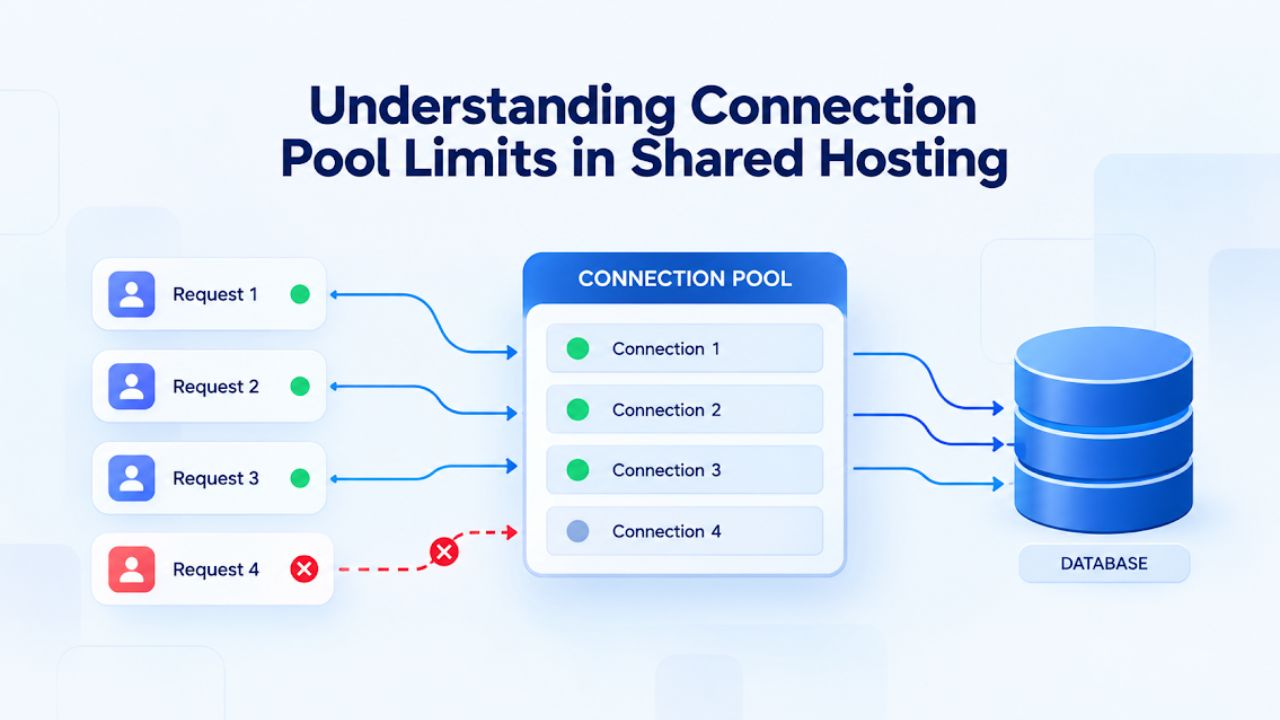
How Connection Pools Operate in Shared Hosting Environments
The connection pool functions as a queue-and-release system. When WordPress needs database data, it opens a connection from the available pool, executes its queries, and then closes the connection, returning it to the pool for the next process to use. Under normal traffic, this cycle happens hundreds of times per minute; connections open and close quickly, so the same 10-connection pool can serve far more than 10 concurrent users. However, the pool has a hard maximum.
If 10 connections are open simultaneously and an 11th process attempts to open a new connection, that attempt is refused immediately. The affected process returns an error to WordPress, which displays the database connection error to the affected user. On a busy e-commerce site, a high-traffic plugin, or a site with resource-heavy database queries, connection exhaustion can occur during peak traffic hours or during specific operations like backups or bulk edits.
The architectural problem with shared hosting connection limits is that they cannot scale with your site’s success. As your site grows in traffic and popularity, the fixed connection allocation becomes increasingly inadequate. What works fine at 1,000 monthly visitors creates errors at 10,000 monthly visitors.
Many site owners don’t realize they’ve outgrown their hosting tier until they experience errors during their busiest hours. Managed WordPress hosting addresses this by providing higher base allocations or automatically scaling connections with plan upgrades or traffic spikes.
Diagnosing Connection Exhaustion as Your Root Cause
If you notice that the database connection error occurs consistently during peak traffic hours but not during quiet periods, or if the error started immediately after you added a plugin that performs complex database operations (like a reporting tool, a real-time analytics system, or a bulk import utility), connection exhaustion is highly likely.
Similarly, if you get the error only during specific operations like backing up your site, running a security scan, or processing a large WooCommerce order batch, these operations are probably saturating the connection pool. To confirm this diagnosis, contact your hosting support and ask two specific questions: “What is the current database connection limit for my account?” and “How many connections are currently in use?”
Some hosting providers provide real-time dashboards that answer this; others require support staff to check the database server logs. If support reports that your connection usage is consistently near the limit, you’ve identified the problem. The solution is to either increase your connection allocation (if your hosting plan supports it) or migrate to a hosting plan with a higher baseline allocation. Managed WordPress hosting handles this scaling automatically, eliminating the need for manual upgrades.
Plugin and Theme Conflicts That Cause Connection Drain
While hosting-level resource limits cause many connection errors, application-level problems can also exhaust the connection pool prematurely. A plugin or theme with inefficient code can consume database connections faster than intended, potentially triggering connection-pool exhaustion even on a hosting plan with adequate baseline connections. Problematic code might include queries that run in loops without proper limits, persistent connections that aren’t closed properly, or poorly optimized functions that run on every page load and fire dozens of database queries.
Systematic Plugin Isolation and Testing
The fastest way to see whether a plugin is causing connection exhaustion is to temporarily deactivate all plugins. WordPress lets you deactivate every plugin at once and test whether the error persists. Access your hosting control panel’s file manager or connect via SFTP and navigate to /wp-content/. You’ll see a folder named plugins containing all your installed plugins.
Rename this folder to plugins-old (or any name other than “plugins”). When WordPress boots and looks for its plugins in the plugins folder, it won’t find any plugins to load because the folder has been renamed. WordPress will automatically deactivate all plugins without deleting them. Try accessing your WordPress site and performing basic actions like viewing the homepage and accessing the admin dashboard. If the database connection error disappears with all plugins disabled, a plugin was the culprit. Rename the plugins folder back to plugins, then re-enable plugins one at a time, testing after each activation.
When you reactivate each plugin individually and test, look for the single plugin that causes the connection error to reappear. Once you identify the problematic plugin, you have several options: contact the plugin developer with your findings and request a fix, replace the plugin with a more efficiently coded alternative that provides similar functionality, or revert to an older version if it was recently updated and the update introduced the problem.
Some plugins have multiple versions available, and developers sometimes introduce performance regressions in updates that are later fixed. Checking the plugin’s version history and support forum can reveal whether other users have reported connection issues after a specific update.
Theme-Level Database Query Optimization
The WordPress theme can also cause connection exhaustion if it includes custom PHP code in its functions.php file or custom template files that run poorly on large database queries. If you’ve recently activated a new theme or updated your current theme and the connection errors started immediately after, the theme is the likely culprit. Examine the theme’s functions.php file (accessible through your hosting file manager or via the WordPress Theme File Editor in the admin dashboard) for any custom code that performs database queries.
Look for loops that run database queries, get_posts() calls without proper limits on the number of posts retrieved, or meta_query operations without proper indexing. The WordPress.org guide to theme development best practices discusses query optimization techniques, including using WP_Query with the ‘posts_per_page’ parameter to limit result sets and using transients to cache query results temporarily.
If you’re running a custom theme developed specifically for your site, have your developer audit the code for what’s called “N+1 queries”, a performance antipattern where one query retrieves a set of items, and then the code loops through those items and executes an additional query for each item, resulting in exponentially multiplied queries.
This pattern is a leading cause of connection exhaustion. If you’re using a premium theme from a reputable developer, it’s unlikely to have severe optimization issues, but custom or older themes may need code review and optimization.
Get Expert Help Troubleshooting Your Database Error
Don’t waste hours troubleshooting database connection issues on your own. Niya Digital’s support team specializes in rapid database diagnostics and can often resolve connection errors in minutes. Whether your issue stems from misconfigured credentials, resource limits, or migration complications, our WordPress experts have seen and fixed every variation. Schedule a consultation with our team to discuss your specific situation and get a clear path to resolution.
Addressing Connection Errors During Site Migrations
Site migrations, moving your WordPress installation from one hosting provider to another, involve a precise sequence of steps that must all complete successfully for the site to function on the new host. Database connection errors often occur during migrations when one of these steps is incomplete or incorrect.
Database Propagation Timeline and DNS Timing
When your hosting provider creates a new database on the new server and populates it with your migrated data, the new database is live and contains your latest content. However, your WordPress site’s files and configuration may still point to the old server and old database credentials. Additionally, your domain’s DNS records may still direct visitors to the old server’s IP address. Until DNS propagates, a process that typically takes 24-48 hours but often completes within minutes, visitors who type your domain continue reaching the old server and the old site running on the old database.
You, however, can immediately test the new setup by accessing a temporary domain provided by the hosting provider (often something like new.domain.com.temp) or by editing your local computer’s hosts file to point your domain to the new server’s IP. This temporary access lets you verify that WordPress works correctly on the new host before DNS updates switch all visitors over.
If the database connection error occurs immediately after migration, check that wp-config.php on your new server has been updated with the new database credentials. Some migration tools handle this automatically; manual migrations require the database administrator to update this file. If the database name, username, or password changed during migration, wp-config.php must reflect those new values exactly.
Contact your hosting provider and ask them to confirm the database was fully copied; sometimes migrations copy the database schema (structure) but not the data, or vice versa. Confirm that the backup from the old host was fully restored to the new host. Test the database connection from the new host’s control panel using the new credentials; if this test passes but your WordPress site still shows the error, the issue may be environment-specific network connectivity between the WordPress application server and the database server, which is rare but can occur in some hosting configurations.
Verifying Migration Completeness Before Going Live
Before you update your DNS records to redirect your domain to the new server, thoroughly test the new host to ensure everything works correctly. Access the new site using the temporary domain and attempt multiple operations: load various pages, create a test post, check the admin dashboard, test form submissions if you have contact forms, and log in/out to verify authentication works.
These tests confirm that the database connection is solid and that all data was properly migrated. If any operation fails or shows the database connection error on the new temporary domain, the migration is incomplete, and you should not proceed with the DNS switch. Contact hosting support and ask them to investigate the database migration. Once DNS updates and all visitors are directed to the new server, any connection problems become site-wide and affect all users, so pre-migration testing is critical.
PHP Extensions, MySQL Versions, and Compatibility
WordPress communicates with its database through a PHP extension, specialized software running on your web server that handles database connections and queries. The older mysql extension has been deprecated and removed from modern PHP versions (7.0 and later), so modern WordPress sites must use the MySQLi extension, which stands for “MySQL Improved.”
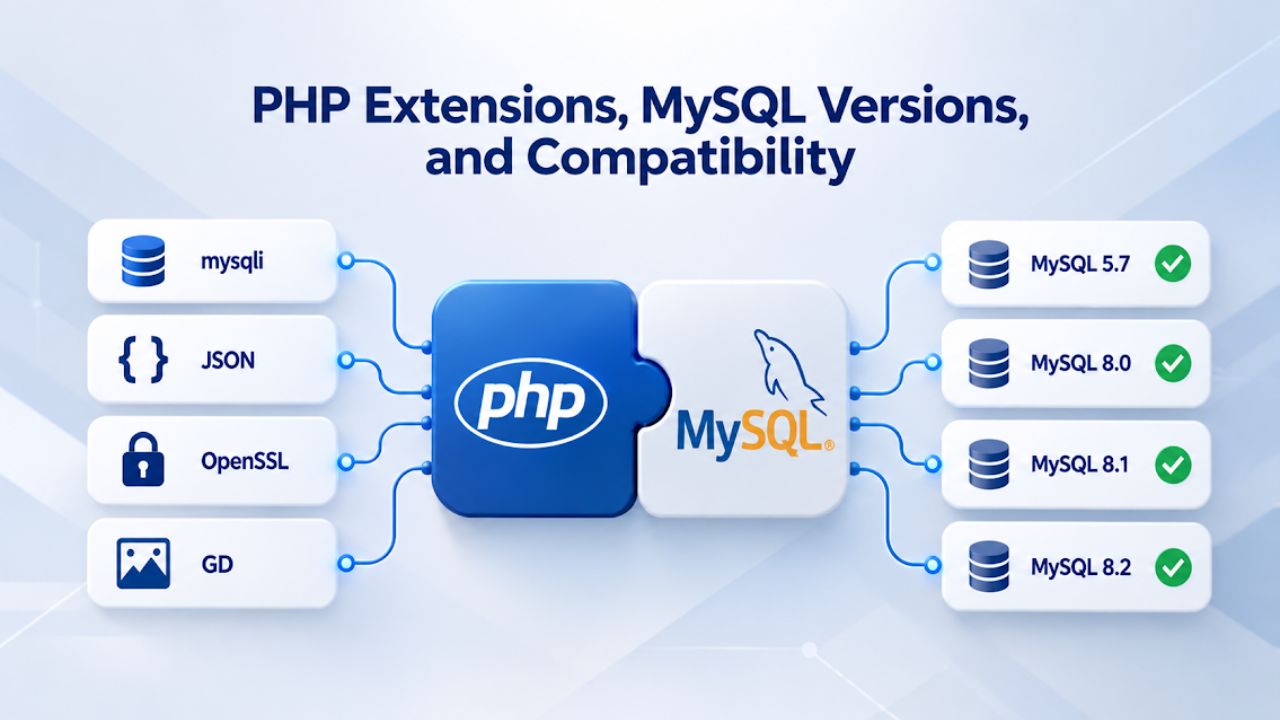
Checking Your PHP Version and MySQL Extensions
Access your hosting control panel and look for a “PHP Settings,” “PHP Configuration,” “PHP Selector,” or “Select PHP Version” option in the software or settings area. Confirm that your WordPress site is running PHP 7.4 or higher; WordPress recommends PHP 8.0 or higher for optimal performance and security.
In the PHP settings, find the list of active extensions. Verify that the “MySQLi” extension is enabled. You may see “mysqlnd” (MySQL native driver) listed as well, which is related to and works alongside MySQLi. If you see only the old mysql extension listed and MySQLi is not active, contact hosting support and request that MySQLi be enabled. If your hosting provider cannot enable MySQLi, that’s a strong signal that your hosting provider is outdated and limiting your WordPress functionality.
Alternatively, create a simple test file to check your PHP environment. Using your hosting file manager or SFTP, create a new file in your WordPress root directory (the same directory where wp-config.php is located) named phpinfo.php with the following content:
Access this file in your browser by visiting yourdomain.com/phpinfo.php (you can delete it afterward). A detailed page will display, showing your PHP version and all loaded extensions. Search for “MySQLi” on this page to confirm it’s enabled.
If MySQLi doesn’t appear, it’s not loaded. Look for “MySQL” to see if the deprecated old mysql extension is loaded (it shouldn’t be on a modern installation). The phpinfo page also displays your MySQL version; confirm it’s MySQL 5.7.33 or newer, or MariaDB 10.3.28 or newer.
Database Server Compatibility and Updates
Your database server version (MySQL or MariaDB) can often be found in your hosting control panel’s database management section or database administration tool (phpMyAdmin). The version typically appears at the top of the page or in a status section. If you’re running MySQL 5.6 (released in 2013) or MariaDB 10.0 (released in 2014), your database server is old by modern standards.
Older database servers lack performance optimizations for modern WordPress workloads and contain security vulnerabilities that have been addressed in newer versions. Contact your hosting provider and request a database server upgrade. On managed WordPress hosting, database servers are routinely updated; on shared hosting, you may need to request an upgrade or migrate to a newer hosting plan that includes current database software.
When upgrading PHP or MySQL versions, there’s always a small risk that older plugins or custom code written for earlier versions may have compatibility issues. Most modern, actively maintained plugins support multiple PHP versions (typically PHP 7.4 through 8.1 as of 2024), but very old plugins or custom code may require updates.
Before upgrading your PHP version, review your hosting provider’s release notes or contact their support to ask about known compatibility issues. If you’re using a custom theme or have hired developers to build custom functionality, ask them about Compatibility with newer PHP versions.
When and How to Escalate to Hosting Support
After you’ve systematically verified credentials, tested for plugin conflicts, checked server status, ruled out migration issues, and confirmed your PHP and MySQL versions are compatible, you may need to involve hosting support. Communicating effectively with support and providing specific, relevant information in your first ticket dramatically speeds resolution.
Preparing Diagnostic Information Before Contacting Support
Gather the following information before reaching out to support, and include all of it in your initial contact:
Error timeline: The exact date and time the error first appeared, and any actions you performed immediately before the error (new plugin installation, database password change, site migration, traffic spike, etc.)
Confirmation of self-testing: A brief statement that you’ve verified your database credentials match the control panel, tested for plugin conflicts by deactivating all plugins, and confirmed the database server shows as online in the control panel.
Database credentials (carefully): Include your database name and database username. Never include the password in an email or standard ticket; indicate that you have the password and will provide it only through secure channels (phone, secure message system, or your hosting control panel’s message system if available).
WordPress and PHP versions: Found in the WordPress admin dashboard under Settings > General (WordPress version) and from the phpinfo page discussed above (PHP version).
Any recent changes: List any new plugins, theme updates, WordPress core updates, or configuration changes made in the 48 hours before the error appeared.
Screenshots or error logs: If you have access to error logs (found in your hosting control panel or through your file manager under /wp-content/debug.log if you’ve enabled debugging), include relevant log entries. If possible, take a screenshot of your control panel’s database status page showing the database is online.
Your site’s traffic volume: Mention whether this is a small personal blog, a growing business site, or a high-traffic e-commerce site, as this context affects diagnosis (small blogs rarely hit connection limits; high-traffic sites frequently do).
With this information, support can begin investigating immediately without sending you a series of follow-up questions. Clear, well-organized information that demonstrates you’ve already done basic troubleshooting often elevates your ticket’s priority.
Support Channels and Realistic Response-Time Expectations
Different hosting tiers offer different support quality and availability.
Managed WordPress hosting typically provides multiple support channels: phone support (often 24/7 with response times under 10 minutes during business hours), live chat (15-30 minute wait), email/ticket (4-12 hour first response), and sometimes even Slack for higher-tier plans. These providers employ WordPress specialists who understand hosting architecture deeply and can diagnose connection issues rapidly.
Shared hosting usually offers email/ticket support as the primary channel (12-48 hour first response) and may offer live chat only during business hours. Phone support is rare in shared hosting. Some shared hosts offer premium support tiers with faster response times, but these come at an additional cost. If your site is down and cannot generate revenue or serve its purpose, that is a strong sign your shared hosting support model is no longer adequate.
Once you contact support, realistic resolution timeframes depend on the underlying cause. If support confirms the cause is bad credentials or a configuration issue, they can fix it in minutes. If the database server is down, resolution depends on how quickly hosting infrastructure teams can investigate and restore service, typically 15 minutes to a few hours for common issues.
If database corruption occurred, restoration from a backup may be necessary, which could take 1-4 hours depending on backup size and restoration procedure. In rare scenarios involving hardware failure or catastrophic data loss, resolution could take longer. The key is that support can often start reducing your downtime immediately if you provide comprehensive information upfront.
Proactive Prevention: Backups, Monitoring, and Resource Planning
Once you’ve resolved an immediate database connection error, preventive measures help ensure you’re not blindsided by the same issue again. Three pillars support ongoing stability: automated backups that let you recover quickly if data becomes corrupted, uptime monitoring that alerts you to problems before they significantly impact your business, and capacity planning that ensures your hosting resources match your site’s growth.
Implementing Automated Backups and Testing Recovery
Enable automatic daily backups on your hosting plan immediately, if not already active. Most managed WordPress hosts include automatic daily backups; shared hosting frequently offers backups as an optional add-on. The WordPress.org guide to backing up WordPress explains why regular, tested backups matter. However, a backup is only valuable if you can restore from it successfully. Many site owners discover after a catastrophic failure that their backups were corrupted or incomplete and cannot be restored.
Testing your backup restoration process monthly ensures that when you actually need to restore, the process works correctly. Create a staging copy of your site, delete a critical piece of data or intentionally corrupt a table, and then attempt to restore from your most recent backup. If the restoration succeeds and your staging site is fully functional, you can be confident in your backup system. If restoration fails, contact support immediately to diagnose the backup system before a real disaster occurs.
Additionally, maintain a retention policy for your backups. Keep at least 30 days of daily backups; this timeframe gives you sufficient history to identify and recover from subtle issues like a plugin malfunction that affected data over several days before you noticed. If you keep only the most recent daily backup, and that backup includes corrupted data from the same day, you have no fallback. With 30 days of historical backups, you can restore to a point before the corruption occurred.
Setting Up Monitoring and Alert Systems
Uptime monitoring detects site outages quickly, often before customers report the problem. Services like Uptime Robot (free tier available) monitor your site by attempting to load your homepage every 5-10 minutes from multiple geographic locations. If your site fails to respond, you’re immediately notified via email or SMS (depending on your alert preference).
While monitoring won’t prevent database connection errors, it ensures you know about them within minutes of them happening, not hours later. The faster you know about an outage, the faster you can contact support or begin troubleshooting. For e-commerce sites or sites with ad revenue, rapid outage notification can mean the difference between 30 minutes of downtime and 3 hours of downtime.
Managed WordPress hosting typically includes built-in uptime monitoring and alerting. Some providers also monitor database performance metrics and alert you if connection usage approaches your plan’s limit, giving you warning to upgrade before errors occur. Shared hosting generally doesn’t include monitoring; you’re responsible for setting up third-party monitoring, but basic monitoring costs nothing with free services.
Capacity Planning and Hosting Tier Alignment
Review your site’s traffic statistics quarterly. Most hosting control panels provide traffic graphs showing monthly bandwidth usage and concurrent visitor counts. If you’re consistently near your hosting plan’s resource limits during peak hours, whether in terms of bandwidth, concurrent connections, CPU usage, or memory usage, your site has outgrown its current tier. Instead of waiting for errors, upgrade your hosting plan proactively.
A hosting upgrade is far less disruptive than dealing with connection errors during your site’s busiest hours. Managed WordPress hosting removes the guesswork: plans scale automatically with traffic, and you’re notified before you approach any limits. Shared hosting requires manual plan upgrades; if you wait until errors force the upgrade, you’ll have already experienced unnecessary downtime.
Additionally, monitor your plugin and theme ecosystem. Every significant plugin addition or third-party integration adds complexity and potential resource demands. Periodically evaluate whether plugins are still actively maintained and whether they’re still the most efficient solution available. Replacing a resource-heavy plugin with a more efficient alternative can improve performance and prevent connection exhaustion without requiring a hosting plan upgrade.
Scaling from Shared Hosting to Managed WordPress Hosting
If you’ve worked through the troubleshooting in this guide and determined that your hosting plan’s fundamental resource limits are preventing you from serving your site’s traffic reliably, migrating to managed WordPress hosting is the strategic solution. Managed WordPress hosting uses a fundamentally different architecture and service model than shared hosting.
How Managed WordPress Hosting Eliminates Connection Errors
The architectural difference between shared and managed WordPress hosting directly addresses the root causes of database connection errors. In shared hosting, you share a physical server with many other sites; the database connection limit is enforced across your account to prevent any single site from exhausting the server’s capacity.
In managed WordPress hosting, your site either has its own dedicated database server or shares a database server with a small number of other managed sites in a highly controlled cluster environment. Your connection allocation is either very high (100-500+ connections) or scales dynamically based on your plan and current traffic. Your site’s traffic spikes do not compete with other customers’ traffic spikes for limited resources.
Managed WordPress hosting also includes proactive database performance monitoring. The hosting provider tracks connection usage, query execution times, and slow queries in real time. If your site’s database activity approaches configured thresholds, support proactively reaches out to suggest optimization or plan upgrades.
You receive warnings and recommendations before errors occur, rather than discovering problems through user complaints. Additionally, database redundancy is included; if the primary database server experiences an issue, automatic failover to a secondary server typically occurs within seconds, so your site remains online without manual intervention.
Shared Hosting vs. Managed WordPress Hosting: Connection Reliability and Support
| Aspect | Shared Hosting | Managed WordPress Hosting | Impact on Connection Errors |
|---|---|---|---|
| Connection Limit per Site | 10-20 concurrent connections (fixed) | 50-200+ connections (scales with plan) | Shared hosting exhausts limits during traffic spikes; managed hosting scales |
| Resource Isolation | Sites share CPU, memory, I/O; one site’s spike affects others | Each site has isolated or dedicated resources | Neighbor’s traffic surge causes errors on shared; no impact on managed |
| Database Monitoring | Manual checks or no monitoring | Real-time monitoring with threshold alerts | Managed hosting warns before limits; shared hosting discovers via errors |
| Automatic Failover | Single database server; manual recovery if offline | Redundant database cluster with automatic failover (seconds) | Managed hosting maintains uptime; shared hosting requires manual intervention |
| Support Response Time | 12-48 hours average (email/ticket) | 2-10 minutes (phone/chat) average | Downtime measured in hours on shared; minutes on managed |
| Support Expertise | Generalist support for multiple platforms | WordPress specialists familiar with connection optimization | Managed support diagnoses issues faster and suggests optimizations |
| Backup Included | Sometimes optional; limited retention | Always included; 30+ days retention standard | Managed hosting recovery is faster; shared hosting often requires purchase |
| Typical Monthly Cost Impact | Lower base cost but frequent upgrade pressure | Higher base cost but stable long-term without future upgrades | Calculate 12-month total cost including shared hosting upgrades vs. managed fixed cost |
Indicators That Your Site Has Outgrown Shared Hosting
You’ve likely outgrown shared hosting and will benefit from a move to managed WordPress hosting if any of these indicators apply to your situation:
Database connection errors occur during peak traffic hours, even though your hosting plan’s advertised connection limit looks adequate on paper. In practice, shared hosting allocations often prove insufficient once real traffic patterns are considered.
Support repeatedly mentions resource limits when you contact them about performance issues or errors. This clearly signals that your site has reached the ceiling of shared hosting’s capabilities.
You’ve upgraded your shared hosting plan twice in the past 12 months because of performance or resource issues. If you upgrade your hosting tier every 6-12 months, you’re likely on a growth trajectory where managed hosting is more cost-effective than repeated upgrades.
You operate a WooCommerce store or other e-commerce platform with significant transaction volume. E-commerce sites are resource-intensive; shared hosting frequently creates checkout errors or performance slowdowns during busy periods.
You need faster support response times and proactive monitoring, not reactive troubleshooting. Managed WordPress hosting includes 24/7 support and proactive monitoring.
You’re running resource-intensive plugins like reporting tools, analytics plugins, or large plugin suites that perform complex database queries. Managed hosting’s higher resource allocation and specialized support can optimize these plugins.
If multiple of these indicators apply, managed WordPress hosting can significantly improve your site’s reliability and growth potential. The migration process is straightforward: managed hosting providers typically handle the technical migration (copying files, database, DNS updates) and provide a zero-downtime transition.
Database Backup and Disaster Recovery Strategies
Database backups are your last line of defense against catastrophic failures, hardware failure, malicious attacks, accidental data deletion, or database corruption. However, backups are only useful if they’re recent enough to capture current data, complete enough to restore your full database, and actually tested to confirm restoration works.
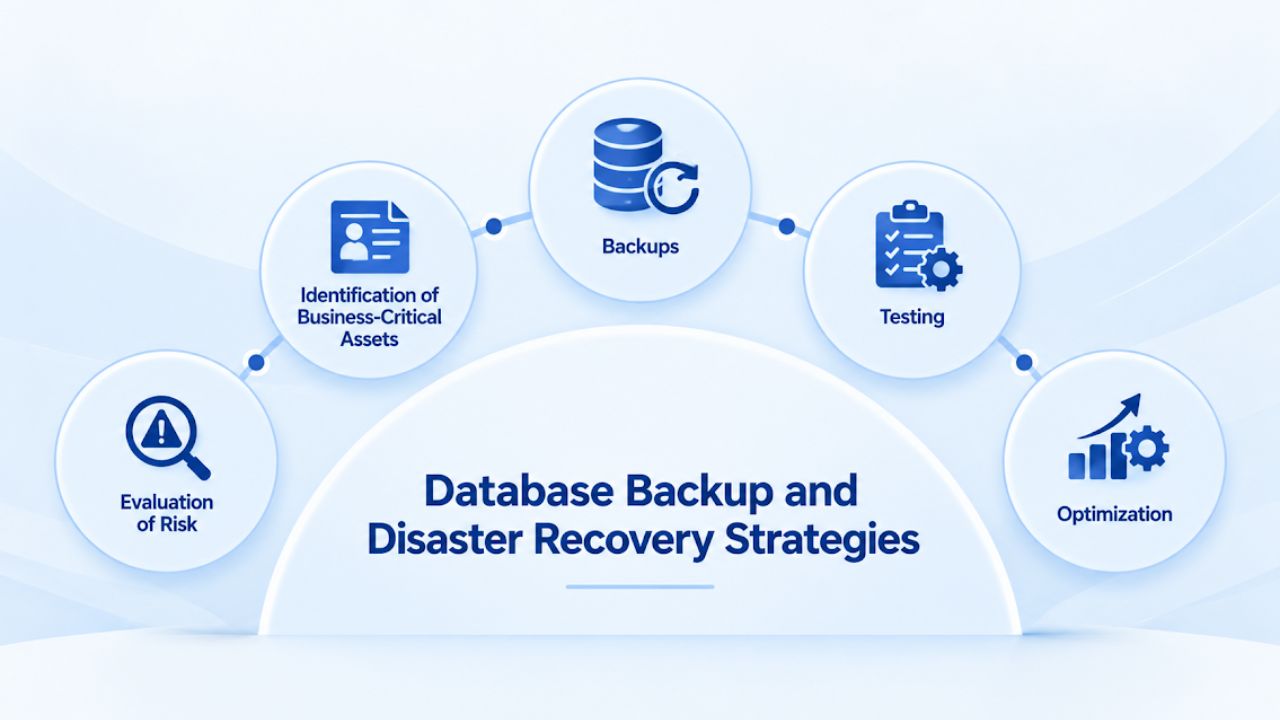
Backup Retention, Verification, and Testing Procedures
Set your hosting provider’s backup retention policy to keep at least 30 days of daily backups and, ideally, 12 months of weekly backups. This multi-tiered approach lets you recover from recent issues (restoring from yesterday’s backup if a plugin malfunction corrupted data today) or from months-old problems if an issue goes unnoticed for an extended period. Some hosting providers charge for extended retention; managed WordPress hosting typically includes generous retention as part of the base service. Verify your hosting provider’s backup retention policy by logging into your control panel and checking the backup management section.
Monthly, select a backup at random and test a restoration to a staging environment or test subdomain. Do this even if you’ve never had a failure; your first restoration test should be planned, not done during an emergency under time pressure. Document the restoration process and how long it took. Create a test post or make a data change, and verify it appears in the restored database. This hands-on experience builds confidence that your backups contain usable data and that your hosting provider’s restoration process works correctly. If restoration fails, contact support immediately to diagnose and fix the backup system before a real disaster occurs.
How Database Corruption Manifests and Recovery Procedures
Database corruption can show up in several ways: posts or pages disappearing, database queries timing out, WordPress returning “database error” messages, or the site stopping entirely. Corruption can result from unexpected server shutdowns, underlying storage hardware failures, malicious attacks that modify database files, or bugs in the database server software. Managed WordPress hosting includes automated database monitoring that detects corruption (often through automated REPAIR TABLE operations) before it significantly impacts your site. Shared hosting places the burden on you to notice corruption and request repair.
If you suspect database corruption, contact your hosting support immediately and explicitly ask them to run database integrity checks and repair commands if necessary. MySQL and MariaDB databases can often repair themselves using the REPAIR TABLE command, which rebuilds table structures and corrects minor corruption. Your hosting provider’s database administration tools can execute this repair. If corruption is severe and repair fails, you’ll need to restore from a recent backup. This is why testing your backup restoration process monthly is essential. If you discover during an actual corruption event that your backups are unusable, you’ve now lost data in addition to experiencing downtime.
Ready to Stabilize Your Database Connection?
Explore our managed WordPress hosting plans and see how connection reliability improves immediately after migration. Schedule a consultation with our team to discuss your site’s current challenges and determine whether a hosting upgrade is the right next step.
Frequently Asked Questions
What does “Error Establishing a Database Connection” mean in plain language?
WordPress attempted to load your site but couldn’t communicate with its database, the storage system containing all your posts, pages, users, and site settings. Without database access, WordPress cannot retrieve any content, so your entire site stops functioning. The error appears because something broke the connection between WordPress and the database: incorrect login credentials, an offline database server, too many simultaneous users trying to access the database, or a network/firewall issue blocking the connection.
Can I fix this error myself without contacting support?
You can attempt to fix it yourself if the cause is misconfigured credentials or a plugin conflict. Verify that your database name, username, and password match exactly between wp-config.php and your hosting control panel. If the credentials are correct, disable all plugins by renaming your plugins folder to “plugins-old” and see whether the error disappears. If the error persists after these tests, or if the database server is offline, you’ll need hosting support to investigate and fix the underlying issue. The good news is that most connection errors can be resolved within a few hours once support gets involved.
Is “Error Establishing a Database Connection” a security threat?
The error itself isn’t a direct security threat; WordPress intentionally hides specific error details to avoid exposing credentials or infrastructure information. However, the underlying cause might be security-related; for example, a malicious plugin could exhaust your connection pool through malicious queries. Run a security scan using a reputable WordPress security plugin, and ask support whether they’ve noticed any suspicious activity in database logs or server traffic.
How long does it typically take to fix this error?
If caused by wrong credentials or a disabled plugin, you can fix it in 5-30 minutes. If the database server is offline, resolution depends on your hosting provider, typically taking 15 minutes to a few hours. If hosting resource limits cause it, resolution involves upgrading your plan or migrating hosting, which could take a few hours to a day depending on whether you migrate yourself or have your hosting provider handle it. If database corruption requires a restoration from backup, the process might take 1-4 hours, depending on database size.
Can I prevent this error from happening again?
Yes. Set up automated daily backups and test restoration monthly. Enable uptime monitoring to catch outages quickly. Monitor your site’s traffic trends quarterly; if you’re consistently near your hosting plan’s resource limits, upgrade your plan proactively rather than waiting for errors. Regularly audit your plugins and remove the ones you no longer use. Keep WordPress, plugins, and themes updated. Most importantly, if this error recurs, use it as feedback that your hosting plan may not meet your site’s needs; consider upgrading to a plan with more resources or switching to managed WordPress hosting, which scales automatically.
How does this error differ from other WordPress errors?
This error is site-wide and catastrophic: nothing works, not even the admin dashboard. Other errors (like “white screen of death,” “500 error,” “404 error,” or “fatal PHP error”) affect specific pages or features but leave parts of your site functional. A database connection error means your entire site’s data store is unreachable, making it the most serious category of WordPress error. This is why hosting support prioritizes database connection errors.
Should I restore from a backup to fix this error?
Not usually. Restoring from backup is a last resort used only if the database is corrupted beyond repair or if the database was deleted entirely. Most connection errors occur with an intact database; the issue is connectivity or credentials. Troubleshoot connectivity first; restore only if support confirms the database is corrupted. If you do need to restore, you’ll lose any data created since the backup was taken, so restoration should be a last resort.
Can my home internet speed affect this error?
No. This error occurs on your hosting server, not on your home internet. Your internet connection speed doesn’t affect whether your hosting provider’s database server can accept connections from your WordPress site. If you can’t access anything online because of internet problems, you won’t be able to troubleshoot, but that’s a different issue than this database error.
What does “too many connections” mean specifically?
It means every available database connection slot is already in use, and your hosting plan doesn’t allow additional connections. This happens when many visitors access your site at the same time, or when a plugin uses connections inefficiently. On shared hosting, connection limits are fixed (often 10-20 per account); on managed hosting, limits are much higher and often scale automatically with plan upgrades.
Does my hosting provider’s uptime guarantee cover database connection errors?
Most hosting provider SLAs guarantee that their servers are “online,” but not specifically that databases are responding. Connection errors may occur even while the physical server is technically “up.” Check your hosting provider’s specific SLA terms, or ask support whether database connection errors are covered. Managed WordPress hosting typically includes more comprehensive SLAs that cover database availability specifically, not just server uptime.
How does managed WordPress hosting prevent database connection errors?
Managed WordPress hosting allocates significantly more database connections per site (often 50-200+), isolates your site’s resources so you’re not affected by traffic on other sites, includes real-time monitoring that alerts you before limits are approached, and provides WordPress-specialist support to diagnose and fix issues in minutes. Together, these features make connection errors rare, even during traffic spikes that would cause errors on shared hosting.
What’s the most cost-effective fix for this error?
If the error stems from hosting resource limits, upgrading your shared hosting plan is the cheapest immediate fix. However, if your site continues growing, you’ll upgrade repeatedly. Switching to managed WordPress hosting at an equivalent or slightly higher cost eliminates connection limit problems. It often proves more cost-effective long-term because you don’t need multiple future upgrades. Calculate your total hosting costs over 12 months under shared hosting (initial plan plus anticipated upgrades) versus managed WordPress hosting’s fixed monthly cost to determine which is economical for your situation.
Can a DDoS attack cause this error?
Yes, indirectly. A large DDoS attack can overwhelm your server’s resources and exhaust database connections as many malicious requests attempt to connect simultaneously. This triggers the connection pool exhaustion error. Managed WordPress hosting includes DDoS protection that filters malicious traffic before it reaches your database, which prevents this scenario. Shared hosting typically lacks built-in DDoS protection; you may need to purchase additional DDoS mitigation services separately.
Should I contact my hosting provider or my web developer about this error?
Contact your hosting provider first. The error occurs at the hosting infrastructure level, and hosting support can verify whether the database server is online, check connection pool status, review server logs, and confirm credentials. Hosting support can often resolve the issue in minutes. If hosting support rules out infrastructure problems and identifies a plugin or theme issue, then contact your developer. Most often, the hosting provider’s initial investigation pinpoints the cause and resolves the issue before you need to involve a developer.
How frequently should database connection errors occur on reliable hosting?
On a properly configured managed WordPress host with adequate resources, connection errors should be rare to nonexistent, perhaps once per year or less, and usually related to temporary infrastructure maintenance rather than resource exhaustion. On shared hosting with tight resource limits, high-traffic sites might experience 2-10 connection errors per year during peak traffic periods. If you’re seeing this error multiple times per month, your hosting plan is inadequate for your site’s needs, and you need an upgrade.
Glossary
- Database Connection Pool: A fixed maximum number of simultaneous database connections the server permits for your account. When this limit is reached, new connection attempts are refused. Shared hosting typically allocates 10-20 connections per account; managed WordPress hosting allocates 50-200+ depending on plan tier, and often scales dynamically based on traffic.
- wp-config.php: The master configuration file for your WordPress installation containing database credentials (hostname, database name, username, password), authentication security keys, and other critical settings. Located in your WordPress root directory, this file must be edited carefully; a single typo breaks your entire site.
- Database Server: The software (MySQL or MariaDB) running on your hosting provider’s infrastructure that stores and retrieves all WordPress data. Your WordPress installation communicates with it over the network using credentials stored in wp-config.php.
- MySQLi Extension: The modern PHP module that lets WordPress communicate with MySQL and MariaDB databases. The older mysql extension is deprecated and removed from PHP 7.0+. MySQLi is required for modern WordPress installations.
- DNS Propagation: The time required for domain name-to-server-IP mappings to spread across internet infrastructure after you change your DNS records. Typically 24-48 hours, though often much faster (minutes to hours). During propagation, some visitors may still reach your old server while others reach your new server.
- Shared Hosting: Web hosting where one physical server hosts dozens or hundreds of websites, each allocated a slice of the server’s resources (CPU, memory, database connections). Resource limits are enforced to prevent any single site from monopolizing server capacity. Lower cost than dedicated or managed hosting but less flexible for high-traffic sites.
- Managed WordPress Hosting: Specialized hosting service designed exclusively for WordPress, with resources optimized for WordPress workloads and support staff trained in WordPress architecture. It isolates or automatically scales resources per site, includes automated backups and monitoring, and provides proactive support. It costs more than shared hosting but includes features and support that reduce downtime and management burden.