
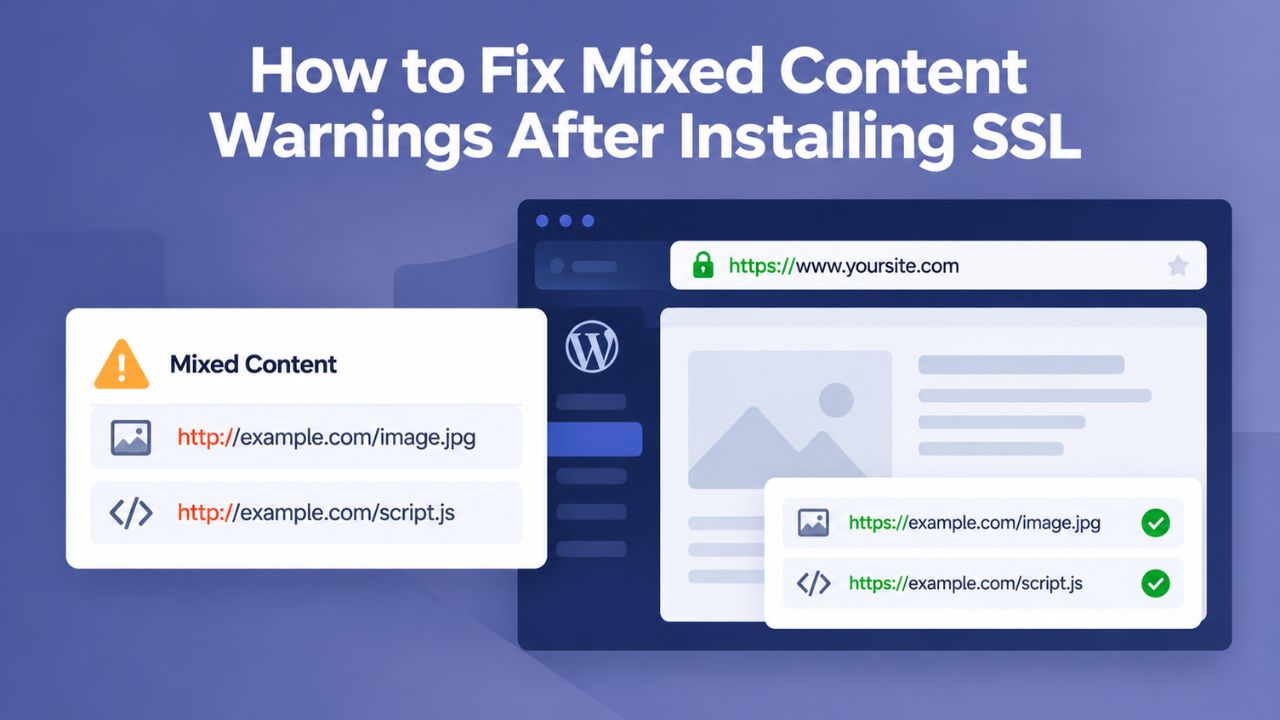
You installed an SSL certificate expecting to see a green padlock. Instead, your browser displays “Not Secure” or a warning icon, and one or more resources on your page load over unencrypted HTTP even though the page itself uses secure HTTPS. This hybrid state, called mixed content, is fixable, and understanding its causes helps you resolve it permanently. Most WordPress sites encounter this issue right after SSL installation because of hardcoded HTTP URLs in databases and theme files.
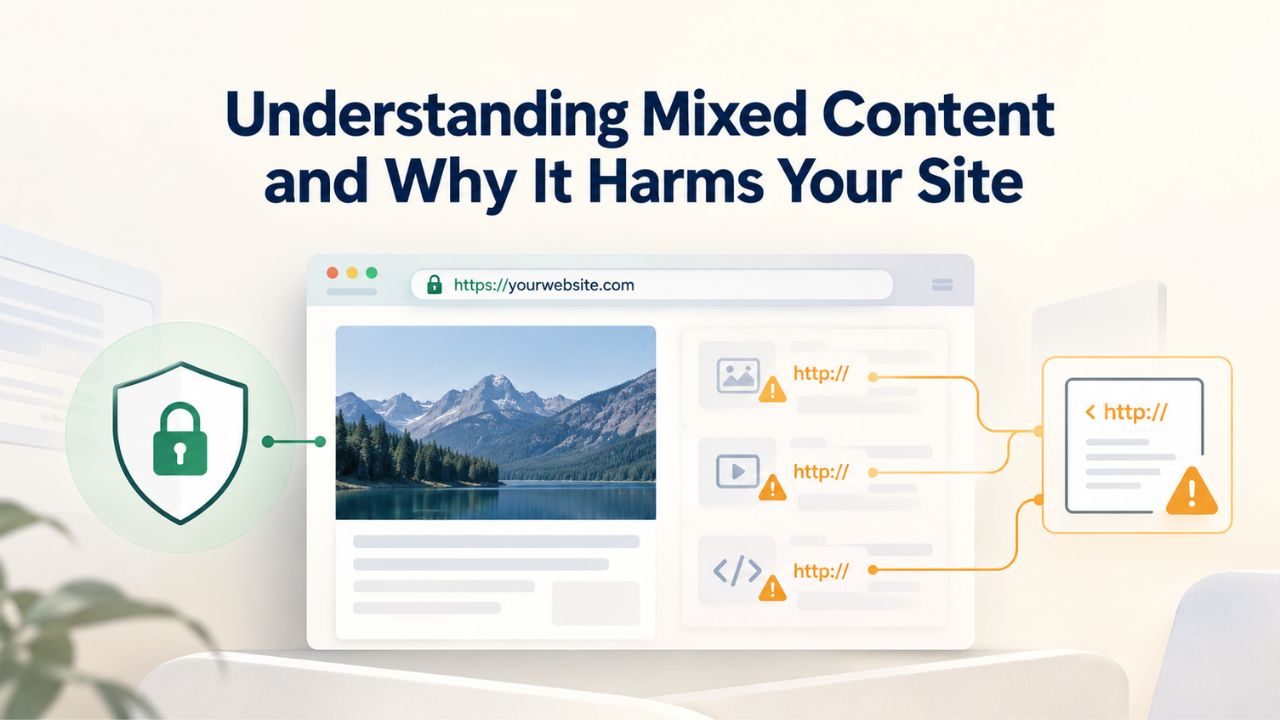
Understanding Mixed Content and Why It Harms Your Site
Mixed content occurs when an HTTPS page requests images, scripts, stylesheets, or interactive elements over unencrypted HTTP. Browsers treat this combination as a security compromise because unencrypted resources traveling across networks can be intercepted and modified by attackers. When a browser detects this, it removes the padlock icon and displays a warning, undermining the trust signal your SSL investment was meant to establish.
The Real Impact on User Trust and Search Rankings
Mixed content directly damages your site’s credibility in visitors’ eyes and harms search engine performance. The padlock icon is your strongest visual trust indicator; when it disappears, visitors become suspicious, bounce rates increase, and conversion rates decline. Since 2014, Google has treated HTTPS as a ranking factor, meaning pages that display security warnings rank lower than fully secure competitors.
The psychological impact is profound. A visitor sees the warning, questions your site’s security, and often leaves without completing their intended action. This isn’t a technical detail that only developers notice; it directly affects your bottom line through lost visitors and reduced engagement. Every second you leave mixed-content warnings in place, you pay a cost in trust and search visibility.
How Browsers Distinguish Between Active and Passive Mixed Content
Browsers handle insecure resources in two fundamentally different ways based on the type of content. Active mixed content- JavaScript files, CSS stylesheets, iframes, and embedded plugins loaded over HTTP- is blocked entirely by modern browsers. When these critical resources fail to load, your page loses functionality: contact forms won’t submit, shopping carts won’t process transactions, and analytics scripts won’t track visitor behavior.
Passive mixed content, images, audio files, and video elements, is handled more permissively by browsers. These resources may load, but the browser still displays a warning and removes the padlock icon. Even if the content appears, the security indicator signals to visitors that something is wrong. The result is a confusing experience: your site functions partially but looks unsafe, creating uncertainty for visitors.
WordPress Pricing Plans
Choose the WordPress hosting plan that fits your website needs, with reliable performance, security, storage, backups, and tools to help your site grow.
WordPress Basic
A great way to get started.
- 1 website
- 10 GB NVMe storage
- Unmetered bandwidth
- Free SSL Certificate *
- WordPress pre-installed
- Weekly backups
- Web Application Firewall
- Daily malware scans
- One-time malware removal

WordPress Deluxe
Improve your site performance with Cloudflare CDN.
- 1 website
- 20 GB NVMe storage
- Unmetered bandwidth
- Free SSL Certificate *
- WordPress pre-installed
- Daily backups
- Web Application Firewall
- Daily malware scans
- One-time malware removal
- Up to 2x faster performance with global Cloudflare CDN **
- Enhanced security with DDoS protection
- Staging site
WordPress Ultimate
Add online marketing with more sites, storage and security.
- 1 website
- 30 GB NVMe storage
- Unmetered bandwidth
- Free SSL Certificate *
- WordPress pre-installed
- Daily + on-demand backups
- Web Application Firewall
- Daily malware scans
- Unlimited malware removal
- Up to 2x faster performance with global Cloudflare CDN **
- Enhanced security with DDoS protection
- Staging site
- WordPress code optimizer
- Smart WordPress plugin manager
- Sell online with WooCommerce
Why SSL Installation Triggers Mixed Content in WordPress
Most WordPress sites develop mixed content warnings immediately after installing an SSL certificate and switching to HTTPS. Understanding why this happens is crucial to preventing it from recurring.
How Your WordPress Database Stores Absolute URLs Permanently
When you create a WordPress post or upload an image through the media library, WordPress stores the full absolute URL in the database at that moment. If your site was running on HTTP when you created that content, the database entry records http://yourdomain.com/wp-content/uploads/image.jpg character-for-character. Even after you install an SSL certificate, install WordPress, and change your site settings to HTTPS, those HTTP URLs remain unchanged in the database.
Here’s the critical distinction: WordPress configuration settings control how WordPress generates new links going forward, not how it displays links already stored in the database. When you change your WordPress Address (URL) and Site Address (URL) settings to HTTPS, you’re telling WordPress, “Use HTTPS for all new links from this point forward.” You’re not instructing the system to rewrite millions of old URLs already stored in posts, pages, widgets, and options tables. This fundamental separation between configuration and stored content is why changing settings alone doesn’t fix mixed content.
Theme and Plugin Files Contain Hardcoded URLs That Database Fixes Don’t Touch
Beyond the database, theme and plugin files frequently contain hardcoded HTTP URLs embedded directly in PHP code, CSS stylesheets, and JavaScript files. These aren’t stored in the WordPress database; they’re baked into the files themselves, part of the permanent code structure. A database search-and-replace operation won’t touch these hardcoded references because they’re not database content.
A theme might reference http://yourdomain.com/wp-content/themes/mytheme/fonts.css directly in its PHP files, or a plugin might load jQuery from http://yourdomain.com/wp-content/plugins/myplugin/jquery.js. Until the theme or plugin developer updates the code to use HTTPS, those resources remain trapped in HTTP. This is why mixed content sometimes persists even after you’ve successfully fixed your database; the problem has multiple layers, each requiring a different solution.
Diagnostic Methods: Finding Mixed Content on Your WordPress Site
Before you can fix mixed content, you must identify exactly which resources are insecure and where they’re coming from. Modern browsers provide multiple tools for this diagnostic process, and most site owners can complete identification in under five minutes.
Using Browser Developer Tools Console for Precise Resource Identification
Open your WordPress site in any modern browser (Chrome, Firefox, Safari, or Edge) and press F12 to launch Developer Tools. Navigate to the Console tab. Now reload the page using Ctrl+Shift+R (Windows and Linux) or Cmd+Shift+R (macOS) to force a fresh load that bypasses browser caches. The console will display all mixed content errors in red or yellow text, with each error providing the exact URL of the insecure resource.
The console format is unmistakable: Mixed Content: The page at ‘https://yoursite.com’ was loaded over HTTPS, but requested an insecure resource ‘http://yoursite.com/wp-content/…’. Pay careful attention to the full URL path in the error. If it shows /wp-content/uploads/, the problem is stored in your database. If it shows /wp-content/plugins/myplugin/, the issue is in plugin files. If it references an external domain like http://fonts.googleapis.com, you’re dealing with a third-party embed that needs updating.
Visual Browser Security Indicators as a Quick Verification Tool
In your browser’s address bar, the padlock icon provides immediate feedback on your site’s security status. With mixed content present, the padlock appears broken, missing, or accompanied by a warning triangle or crossed line. Click the padlock icon directly to view detailed security information about your connection. This quick visual check doesn’t reveal which specific resources are insecure, but it confirms the problem exists and provides urgency to fix it.
Different browsers display this information slightly differently, but the message stays the same: your connection isn’t fully secure. Chrome displays “Not Secure” text where the padlock would be. Firefox shows a red triangle with an exclamation mark. Safari displays a warning message in its security menu. The visual language may vary, but every browser is communicating the same fundamental problem.
Online Scanning Tools for Comprehensive Site-Wide Assessment
Several free online scanning tools crawl your entire site and generate comprehensive reports of mixed-content warnings across multiple pages. These tools are particularly valuable for larger sites where manually testing every page would be time-consuming. They typically display results sorted by resource type (image, script, stylesheet) and severity, helping you prioritize which fixes to tackle first.
These scanners access your site like a regular visitor would, so they capture real-world mixed content problems. They can identify patterns you might miss with manual testing; for example, if a particular plugin loads insecure resources on every page, the scanner will flag this systematically. Use scanner results as a verification step after applying fixes to ensure you haven’t missed any issues.
Step One: Update Your WordPress Site URL Settings to HTTPS
The first essential step is updating your WordPress configuration to use HTTPS for all future links. This won’t fix existing database URLs, but it prevents the problem from growing and signals to WordPress that you’ve transitioned to a secure protocol.
Accessing and Modifying Both Required URL Fields
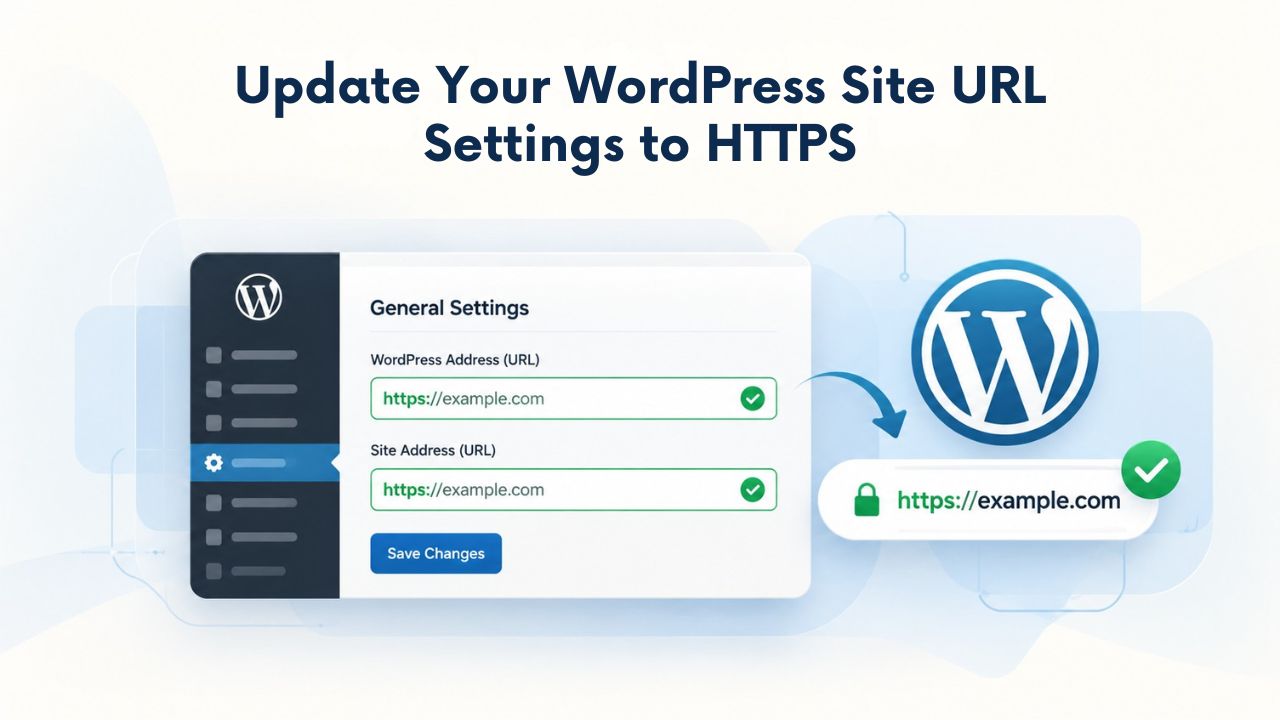
Log in to your WordPress admin dashboard using your administrative credentials. Navigate to Settings in the left sidebar, then select General. Near the top of the General Settings page, you’ll find two URL fields: “WordPress Address (URL)” and “Site Address (URL)”. Both fields likely currently show http://yourdomain.com. Change both of these entries to begin with https:// instead of http://.
The distinction between these two fields is subtle but important for WordPress functionality. WordPress Address controls where WordPress accesses its core application files and admin panel. Site Address controls the public-facing home page and post URLs that appear in browser address bars. For most WordPress installations, these are identical, but both must use HTTPS for your site to function properly under a secure protocol. After entering the HTTPS URLs in both fields, scroll to the bottom of the Settings page and click Save Changes.
Understanding Why Configuration Changes Don’t Immediately Solve Mixed Content
This critical step prevents future mixed content but doesn’t fix what already exists. Think of it like updating your mailing address; changing your address on file doesn’t rewrite letters already sitting in mailboxes. WordPress configuration controls how the system generates links for new content, but it doesn’t modify content created and stored under the old protocol. If a post was created when your site ran on HTTP, the image URLs stored in that post’s database record still show HTTP.
This distinction matters for both psychology and practice. Site owners often feel confused after changing their URL settings but still seeing mixed content warnings. They assume, “I changed the setting, so everything should be fixed.” In reality, they’ve only fixed the mechanism that creates new links. The old stored URLs, potentially thousands of them across your site, remain in the database unchanged.
Step Two: Running a Database Search-and-Replace Operation
Most mixed content warnings come from HTTP URLs stored in your WordPress database, including post content, page body text, widget settings, image attachments, and WordPress options. A database search-and-replace operation is the most efficient way to update all these stored values simultaneously, converting every instance of http://yourdomain.com to https://yourdomain.com across all affected tables.
Using a Search-and-Replace Plugin for User-Friendly Database Updates
The safest approach for most WordPress site owners is using a dedicated search-and-replace plugin from the WordPress plugin directory. These plugins are specifically designed to handle WordPress database complexities correctly, particularly serialized data, which is WordPress’s way of storing complex configuration values. Raw SQL REPLACE commands can corrupt serialized data and break your site’s functionality. Plugins avoid this risk.
Install and activate your chosen search-and-replace plugin through your WordPress admin dashboard. Locate the plugin’s settings page; it’s usually found under Tools or Settings in the admin sidebar. Enter your old domain with the HTTP protocol in the search field (example: http://yourdomain.com) and the same domain with HTTPS in the replacement field (example: https://yourdomain.com). Most quality plugins recommend running a “dry run” first, which shows you exactly how many replacements the operation will make without actually changing anything. Review the dry-run report carefully to ensure the number of replacements is reasonable. If the count seems too high or too low, double-check your search term for accuracy.
Command-Line Approach for Advanced Users and Large Databases
If you have command-line access to your server and WordPress CLI (the official WordPress command-line interface) installed, you can run database replacements directly using this powerful tool. WP-CLI handles WordPress’s serialized data correctly and provides comprehensive reporting. Execute a dry-run first: wp search-replace ‘http://yourdomain.com’ ‘https://yourdomain.com’ –all-tables –dry-run. This command searches every database table and shows you the results without making changes.
If the dry-run results look correct, run the same command without the –dry-run flag to execute the actual replacement. WP-CLI properly processes serialized data throughout the WordPress database, which is a significant technical advantage over manual SQL queries. After execution, immediately visit your WordPress site, open Developer Tools to the Console tab, reload the page with a hard refresh (Ctrl+Shift+R), and check for remaining mixed content warnings. This verification step confirms whether the database fix successfully resolved the issue.
| Fix Method | Skill Level Required | Time Investment | Best For | Limitations |
|---|---|---|---|---|
| Search-and-Replace Plugin | Beginner | 5–15 min | Most WordPress users; safe for complex database data | Requires plugin installation; ongoing plugin dependency |
| WP-CLI Command Line | Intermediate–Advanced | 10–20 min | Large databases; experienced developers; automation | Requires server access and technical knowledge |
| Manual Database Edit | Advanced | 30–60 min | Very small replacements; specific targeted fixes | High risk of data corruption; time-consuming; error-prone |
| Managed Hosting Support | Beginner | Varies | Non-technical users; complex issues | May involve support costs; limited control over process |
Ready to Secure Your WordPress Site Permanently
Niya Digital’s support team can help troubleshoot SSL configuration, site migrations, and ongoing security maintenance. We ensure that your WordPress sites display a secure padlock from installation forward, protecting both your reputation and your visitors’ trust. Explore our managed WordPress hosting plans to discover how our platform handles SSL setup automatically, manages security configurations, and prevents mixed content issues before they occur.
Step Three: Identifying and Fixing Hardcoded URLs in Themes and Plugins
After your database search-and-replace completes and you’ve verified it in the console, check again for remaining mixed content warnings. If messages persist pointing to theme or plugin resources, HTTP URLs are hardcoded in source code files rather than stored in the database. These require manual file editing or developer involvement to correct.
Locating and Editing Hardcoded URLs in Theme Files
Browser console warnings guide you to hardcoded URLs. If an error references /themes/mytheme/style.css, you know the theme’s stylesheet contains HTTP resource references. Use the WordPress Theme File Editor (accessible through Appearance > Theme File Editor in the admin panel) to search theme files for hardcoded http:// references to your own domain. Alternatively, access your theme files via SFTP or your hosting provider’s file manager.
Search the theme’s PHP files (template files, functions.php) and CSS files for absolute HTTP URLs pointing to your domain. When you find them, replace http://yourdomain.com with https://yourdomain.com. Be extremely careful when editing code; a single misplaced character can break your site’s appearance or functionality. Always back up theme files before editing, and test your site thoroughly after making changes. For third-party premium themes, contact the theme developer to request an update that includes HTTPS support rather than editing the code yourself.
Troubleshooting Plugin-Generated Mixed Content
For plugin-related mixed content, first check whether the plugin has a settings panel where you can configure URLs or update settings. Some plugins store configuration that can be updated without touching code. Search the plugin’s documentation or settings interface for any option related to SSL, HTTPS, or resource URLs. If no such setting exists and the plugin is third-party, contact the plugin developer requesting an update that supports HTTPS.
If you maintain the plugin yourself or have developer access, edit the plugin’s PHP files to find and replace hardcoded HTTP URLs with HTTPS equivalents. Document exactly which lines you change so you can update them again if the plugin receives a future update. Consider adding a comment explaining why the change was necessary so future developers understand the modification was intentional.
Step Four: Managing External Resources and Third-Party Embeds
External resources, Google Fonts, analytics scripts, social media embeds, CDN-hosted images, and similar third-party content require different handling than your own database content and code files. You can’t modify their URLs through search-and-replace operations since they’re not part of your WordPress installation.
Updating External Script Embed Codes
Third-party services like Google Fonts, Google Analytics, and CDNs often provide embed code that you paste into your WordPress site. If you embedded this code months or years ago, it may reference the insecure HTTP version. Visit each service’s current documentation and re-copy the latest embed code, which typically defaults to HTTPS now. Replace your old embed with the new secure version.
Search your WordPress site’s custom code sections (in your theme’s header.php or footer.php files, or via a custom code plugin) for any embed codes. Look for instances where external resources are called via http:// URLs. Change these to https://. Most major services now support HTTPS, so simply switching the protocol prefix often resolves the issue. Test your site after each change to confirm the external resource loads correctly over the secure protocol.
Addressing Services That Don’t Support HTTPS
Some legacy services or less common platforms may not support HTTPS yet. If you’re using a service that only provides HTTP URLs, your options are limited. The best solution is to find an alternative service that supports HTTPS; this protects your site’s security and eliminates the mixed content warning. If switching services isn’t feasible, discuss with the service provider when they plan to support HTTPS.
As an interim measure, you could use a protocol-relative URL (discussed in the next section), but this is increasingly unreliable for modern browsers. The long-term solution is to migrate to services that prioritize security, which also signals to your visitors that you take their data protection seriously.
Step Five: Understanding Protocol-Relative and Relative URL Strategies
Beyond absolute HTTP and HTTPS URLs, you can use alternative URL formats that adapt to your site’s current protocol. These approaches are particularly useful when fixing hardcoded theme or plugin files.
How Protocol-Relative URLs Adapt to Your Current Protocol
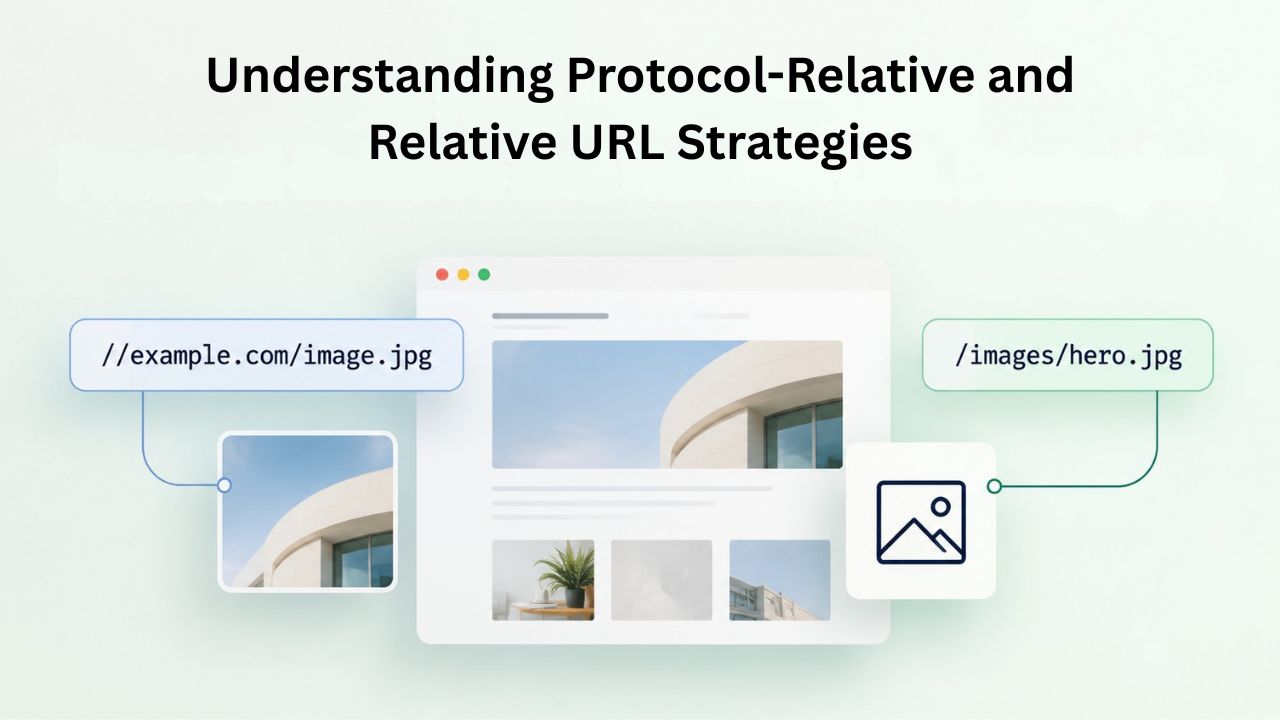
A protocol-relative URL begins with // rather than specifying http:// or https://. For example, //yourdomain.com/image.jpg automatically uses whatever protocol the current page uses. If your page loads as HTTPS, the URL becomes https://yourdomain.com/image.jpg. If the page loads as HTTP, it becomes http://yourdomain.com/image.jpg. This approach was valuable during site transitions when HTTPS and HTTP coexisted.
However, modern security experts generally recommend using absolute HTTPS URLs for sites running entirely on HTTPS, which is increasingly the standard. Protocol-relative URLs add unnecessary complexity and can cause issues with certain security headers and content delivery networks. If you use them, do so consciously as a temporary measure during migration, not as a permanent solution.
Root-Relative and Document-Relative URLs for Internal Site Resources
Root-relative URLs (e.g., /wp-content/themes/mytheme/image.png) reference paths from your domain root without specifying the protocol or domain. Document-relative URLs reference paths relative to the current page’s location. Both types automatically use the page’s protocol, so they never trigger mixed-content warnings. These are the cleanest approaches for internal WordPress resources.
When editing theme files, converting absolute HTTP URLs to root-relative URLs prevents mixed content while keeping the code clean and maintainable. This approach means if your site ever needs to change protocols again, these URLs automatically adapt. For example, instead of storing http://yourdomain.com/wp-content/themes/mytheme/fonts.css in your theme, use /wp-content/themes/mytheme/fonts.css. The protocol is inherited from the page itself.
Step Six: Testing Your Fix and Verifying Complete Resolution
After applying fixes to database URLs, theme and plugin files, and external resources, you must verify that mixed content warnings are completely gone. Incomplete testing often leaves residual problems that continue undermining visitor trust.
Clearing Caches and Performing Hard Refreshes
Browser caches store old versions of pages to load sites faster on repeat visits. Before testing mixed-content resolution, clear your browser cache completely or use an incognito/private browsing window where no cache exists. If you use a WordPress caching plugin, also clear the server-side cache through the plugin’s settings. Then reload your site using a hard refresh: Ctrl+Shift+R (Windows/Linux) or Cmd+Shift+R (macOS).
A hard refresh forces your browser to fetch the absolute latest version of every file and resource from the server, bypassing all caches. This step is essential because an old cached version of a page might show old resource URLs, giving you a false impression that mixed content persists. After clearing all caches and hard-refreshing, you’re testing the site’s current state.
Inspecting the Console for Remaining Warnings and Verifying Protocol Consistency
Open Developer Tools (F12) and navigate to the Console tab. Reload your page once more. Watch for any messages containing “Mixed Content:” in red or yellow. If no such messages appear, congratulations, your database and code fixes have successfully resolved the issue. If warnings still appear, note their exact URLs and repeat the troubleshooting process: identify whether they’re in database content, theme files, plugins, or external services, then apply the appropriate fix.
| Step | What to Check | Expected Result | If Failed |
|---|---|---|---|
| Clear Cache | Browser cache settings; caching plugin settings | Cache cleared successfully; no cache files remain | Find caching plugin settings; look for Clear Cache button |
| Hard Refresh | Browser address bar; page reload | Page fully reloads; new resources fetch from server | Try Ctrl+F5 or Cmd+Shift+R; try incognito window |
| Console Review | Developer Tools Console tab; page reload | No mixed content messages appear; clean console | Search for http:// in console output; identify URL source |
| Padlock Check | Browser address bar padlock icon | Solid padlock appears; green or standard color | Click padlock; check certificate details; look for warning icon |
| Multi-Page Test | Visit multiple pages on your site; check each | Padlock present on every page tested | Repeat test on different page; check if issue is page-specific |
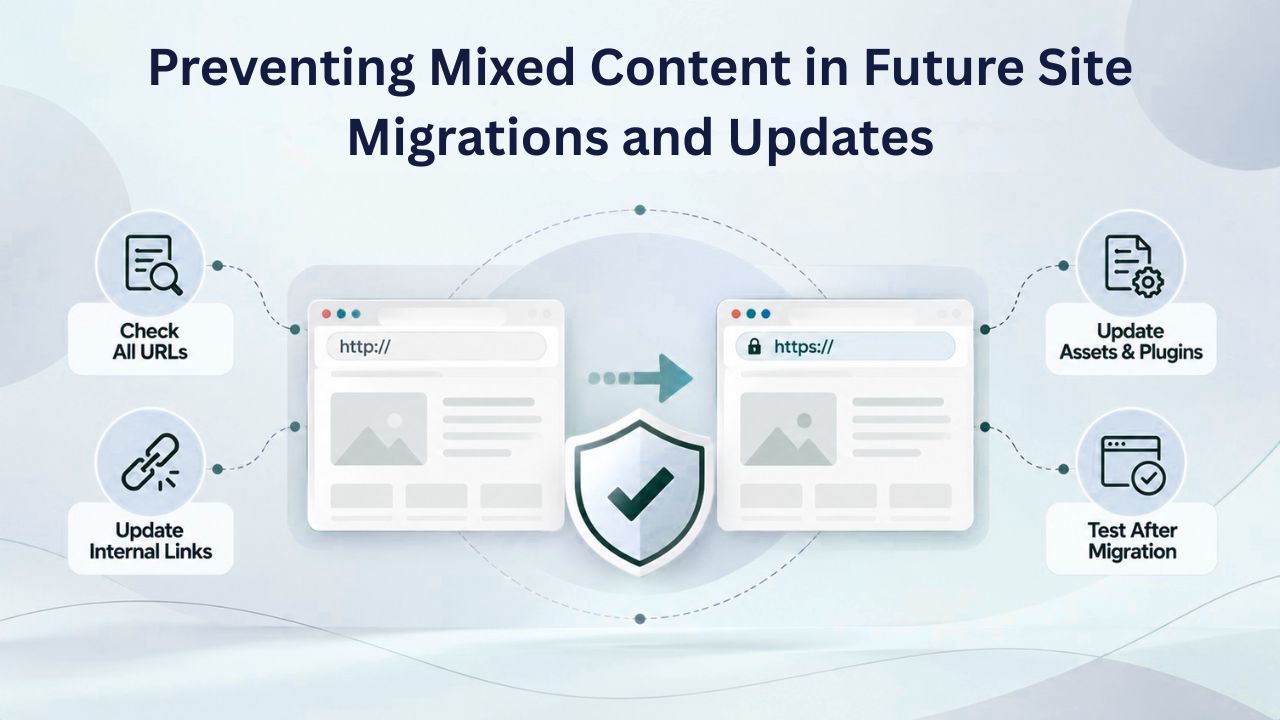
Step Seven: Preventing Mixed Content in Future Site Migrations and Updates
The most effective approach to mixed content is to prevent it from happening in the first place. When you plan a site migration or set up a new WordPress installation, applying preventive practices eliminates future troubleshooting.
Establishing HTTPS from Day One of Site Setup
If you know your WordPress site will use HTTPS, which should be virtually all sites today, configure your WordPress Address and Site Address settings to use HTTPS before creating any content. This ensures that every post you create, every image you upload, and every setting you configure stores HTTPS URLs in the database from the beginning. WordPress automatically uses your configured protocol for all new content, so starting with HTTPS means you never create HTTP URLs to fix later.
Configure HTTPS before adding your first post or uploading your first image. This small investment of time during setup saves hours of troubleshooting later. If you’re working with a hosting provider setting up a new site, verify that HTTPS is configured correctly before you create any content.
Writing Theme Code with Protocol-Agnostic Resource References
When customizing or developing WordPress themes, use root-relative or protocol-relative URLs for internal resources. Instead of writing <img src=”http://yourdomain.com/wp-content/themes/mytheme/image.png”>, write <img src=”/wp-content/themes/mytheme/image.png”>. This simple practice ensures resource URLs automatically use the page’s protocol, eliminating protocol mismatches.
For external resources, use HTTPS explicitly in your theme code. If your theme loads jQuery from a CDN, reference the HTTPS version: <script src=”https://code.jquery.com/jquery-3.6.0.min.js”>. This ensures those external resources always load securely, regardless of your site’s protocol.
Testing Themes and Plugins in HTTPS-Enabled Staging Environments
Before deploying a new theme or plugin to your production WordPress site, thoroughly test it in a staging environment with HTTPS enabled. Open the browser console and check for mixed content warnings while testing various pages and functionality. If you discover hardcoded HTTP URLs in theme or plugin code, either fix them before deploying to production or choose a different theme or plugin that properly supports HTTPS.
This testing practice catches problems before they affect real visitors. It also gives you a chance to contact theme or plugin developers about HTTPS issues before your site goes live, potentially prompting updates that support secure protocols.
Advanced Security Through Proper Hosting Infrastructure
Check out our site migration support services to learn how we help you transition smoothly to a security-first hosting environment. Our team handles the technical details of migration, including proper SSL configuration, database updates, and verification that your site displays a green padlock before the transition is complete.
Frequently Asked Questions
What’s the difference between an expired SSL certificate and mixed content warnings?
These are distinct problems requiring different solutions. An expired or misconfigured SSL certificate triggers browser security warnings about the certificate itself; visitors may see “Your connection is not private” or similar messages. Mixed content warnings appear when your certificate is valid but some page resources load over HTTP. You might have a valid certificate but still see “Not Secure” if mixed content is present. Check your certificate expiration date and validity first; if it’s valid, mixed content is your problem.
Can Content-Security-Policy headers automatically fix my mixed content?
CSP headers with the upgrade-insecure-requests directive can automatically upgrade some HTTP requests to HTTPS, and the block-all-mixed-content directive can block insecure resources entirely. However, CSP works best as a safety net, not a primary solution. The underlying problem, HTTP URLs embedded in your database and code, must still be fixed. Use CSP as a supplementary security measure after applying the primary fixes described in this guide.
Does mixed content affect my site’s Google search rankings?
Yes, significantly. Google has ranked HTTPS sites higher in search results since 2014, and pages displaying “Not Secure” warnings receive fewer clicks from search results and may rank lower than competitors with fully secure sites. Fixing mixed content supports both your security posture and your search engine visibility. This improvement is one of several SEO benefits you’ll see after resolving the issue.
Is mixed content a serious security risk to my website visitors?
Yes. Unencrypted HTTP resources can be intercepted by attackers on unsecured networks like public Wi-Fi, potentially exposing visitor data or modifying page content. While images are less critical than login credentials, any HTTP resource can still be a vulnerability. Fixing mixed content protects both your site’s reputation and your visitors’ security and privacy.
How do I know if my mixed content problem is in the database or in code files?
Your browser’s Developer Tools Console provides this information directly. Errors referencing paths like /wp-content/uploads/ typically indicate database-stored URLs. Errors showing /wp-content/plugins/ or /wp-content/themes/ point to theme or plugin code files. External domain references indicate third-party embed issues. Use these console messages as your diagnostic guide for applying the correct fix type.
What if I can’t access my theme or plugin files directly?
If hardcoded URLs are in third-party plugins and you lack code access, your options are limited. First, check whether the plugin has an updated version that supports HTTPS. Second, contact the plugin developer requesting an HTTPS-compatible update. Third, if the plugin remains unsupported, consider finding an alternative plugin that properly supports secure protocols. For themes, contact the theme developer or switch to a more actively maintained theme.
Will clearing my WordPress cache plugin fix mixed content warnings?
Clearing cache helps with testing and verification but doesn’t fix mixed content. Server-side cache (from caching plugins) and browser cache can hide old page versions, making it seem like problems persist when they’ve actually been fixed. Clear cache as a diagnostic step when testing your fixes, but understand it’s not a solution. The underlying HTTP URLs must be corrected in your database and code.
Can I ignore mixed content if it only appears on certain pages?
No. Even if only one page shows mixed content warnings, that page harms your overall site reputation and affects visitors’ trust in your entire domain. Additionally, mixed content can negatively impact your search engine rankings across your whole site. Fix all mixed content, regardless of which pages are affected.
Should I run a dry-run before applying database search-and-replace?
Absolutely. Always run a dry-run first to see how many replacements will be made. This preview helps you catch potential mistakes before making actual changes. If the count seems too high (for example, showing millions of replacements when you only expect thousands), your search term may be too broad. Adjust your search term and run another dry-run until the results match your expectations.
What if my CDN is causing mixed content warnings?
Most modern CDNs support HTTPS between the CDN and your browser, but you must verify your CDN’s settings. Check that HTTPS is enabled for your domain and configured as the primary protocol. Also ensure the connection from your CDN back to your WordPress server (the origin) is secure. Full-chain encryption means both connections should use HTTPS.
How often should I check for mixed content after fixing it?
After applying fixes, test immediately using the methods described in Step Six. Perform this verification again after installing new plugins or themes, after major WordPress updates, or after creating significant new content. If your managed host handles security configurations, these checks are typically done automatically.
Can I fix mixed content if I’m not comfortable editing the database or code files?
Yes. Use a search-and-replace plugin for database fixes; they’re designed for non-technical users. For theme and plugin issues, contact your hosting provider’s support team. Many managed hosting providers offer support assistance with SSL-related issues, including mixed content. You don’t need to be a developer to resolve mixed content; you may need appropriate support resources.
Will fixing mixed content improve my site’s page load speed?
Potentially. Unblocked resources and proper protocol handling can eliminate rendering delays caused by blocked or failed resource loads. More importantly, visitors will see fewer broken images and less missing functionality. The primary benefit is security and trust, but performance improvements may follow as a secondary effect.
What’s the long-term solution to prevent mixed content from recurring?
Adopt these practices permanently:
(1) Always configure HTTPS from the beginning of any new WordPress installation.
(2) Write theme and plugin code using protocol-relative or root-relative URLs.
(3) Test new themes and plugins in HTTPS-enabled staging environments.
(4) Use managed hosting that handles security infrastructure automatically.
(5) Monitor your site regularly for security issues. These practices transform mixed content from a recurring problem into something you avoid entirely.
Glossary
- Mixed Content: An HTTPS page that includes images, scripts, stylesheets, or iframes loaded over unencrypted HTTP, creating a hybrid security state that browsers flag as a vulnerability and visitors perceive as a trust problem.
- Active Mixed Content: JavaScript files, CSS stylesheets, iframes, and other executable resources loaded over HTTP on an HTTPS page; browsers block these entirely to prevent code injection attacks and protect user security.
- Passive Mixed Content: Images, audio files, and video elements loaded over HTTP on an HTTPS page; browsers may allow these to load but display security warnings and remove the padlock icon, eroding visitor trust.
- Hardcoded URL: An absolute, permanent URL embedded directly in source code files or permanently stored in database records (for example, https://yourdomain.com/image.jpg) rather than using a dynamic reference or relative path.
- Protocol-Relative URL: A URL path beginning with // rather than specifying http:// or https://, which automatically uses the same protocol as the page it appears on (for example, //yourdomain.com/image.jpg).
- SSL Certificate: A digital credential issued by a trusted Certificate Authority that encrypts data exchanged between a browser and web server, enabling the HTTPS protocol and displaying a padlock icon to users.
- HTTPS: HyperText Transfer Protocol Secure; the encrypted version of standard HTTP that protects all data in transit from interception, modification, or eavesdropping by malicious actors on networks.
- Search-and-Replace Operation: A database function that finds all instances of one specific value throughout database tables and automatically changes them to a new value, used to update URLs from HTTP to HTTPS across posts, pages, and settings.