Choosing the right WordPress hosting provider is one of the most consequential decisions you’ll make for your website’s future. Your hosting choice fundamentally shapes your site’s speed, security, scalability, and long-term operational burden. With thousands of providers claiming to be “the best,” each using different benchmarks and marketing language to support their claims, understanding what matters helps you cut through the noise and choose what fits your site’s real needs, not industry hype. Niya Digital delivers WordPress Hosting plans in partnership with an enterprise-grade cloud infrastructure partner.
Understanding Hosting Architecture Types
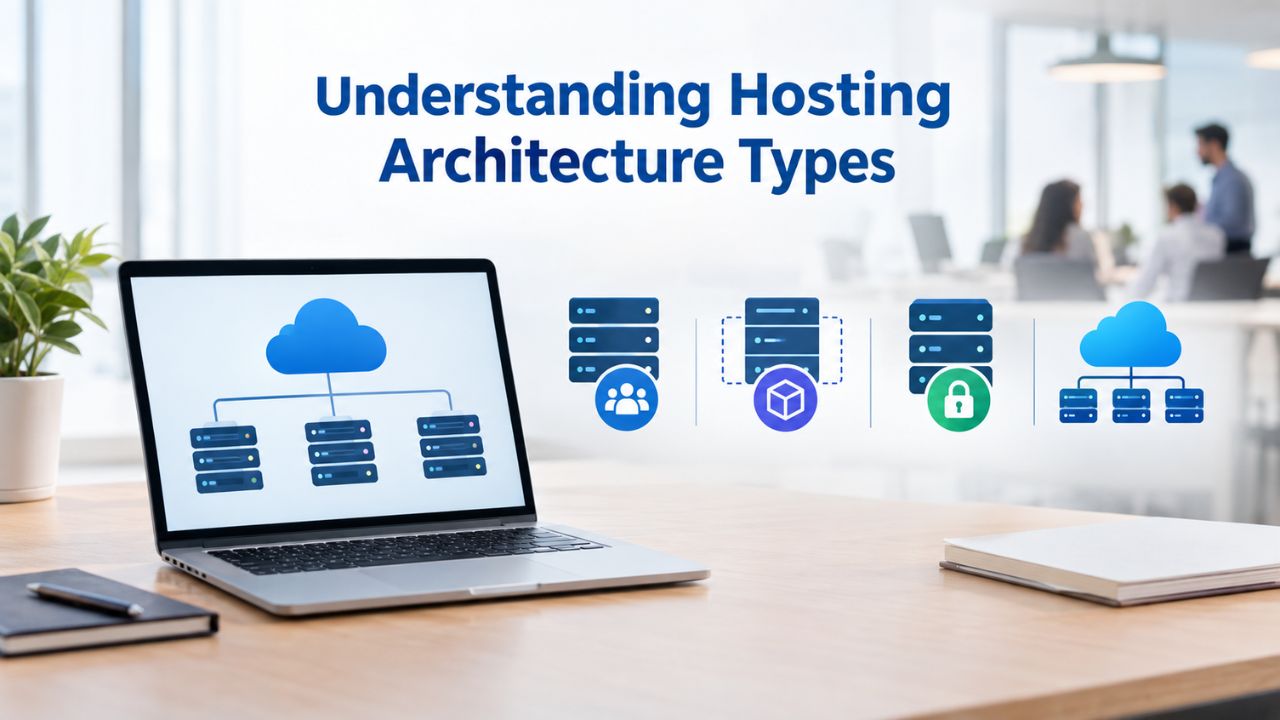
Your website’s hosting architecture determines how your resources are allocated, who you share them with, and how your site performs under traffic load and growth. Architecture isn’t just a technical detail; it’s the foundation for everything else (performance, security, reliability, and scalability). Understanding the differences between shared, managed, VPS, cloud, and dedicated hosting is essential because each model has its own trade-offs and is optimized for different site types and traffic profiles.
Shared Hosting: Budget-Friendly but Resource-Constrained
Shared hosting allocates one physical server’s CPU, RAM, disk storage, and network bandwidth across dozens or hundreds of customer websites simultaneously. Each site operates in isolation at the account level. Still, all sites draw from the same resource pool. All sites on the server perform routine operations, and shared hosting works reasonably well. But shared hosting’s fundamental weakness emerges during load spikes: if a neighboring site gets unexpected traffic (a social media post goes viral, a marketing campaign launches, a news story drives a surge), it can consume available CPU and memory, slowing all other sites on that server.
Shared hosting works acceptably for small blogs, landing pages, and portfolio sites with predictable, modest traffic. However, e-commerce stores, membership sites with concurrent logged-in users, and sites expecting traffic spikes are fundamentally incompatible with shared hosting architecture, because every logged-in user bypasses the server’s caching layers and hits the database and PHP execution layer directly. A handful of simultaneous logged-in users on shared hosting with limited PHP workers can bring a site to a crawl, frustrating customers, damaging brand trust, and costing lost conversions.
Managed WordPress Hosting: Optimized Infrastructure with Operational Overhead Removed
Managed WordPress hosting provides dedicated or isolated resources with the entire server stack optimized specifically for WordPress, including server-level caching, automatic updates, daily backups, and WordPress-specific support from engineers familiar with the platform. Instead of you handling infrastructure maintenance, security patching, backup creation and testing, caching optimization, and performance monitoring, the hosting provider takes on these operational tasks. This means you focus exclusively on what matters to your business: creating content, acquiring customers, and growing revenue.
Niya Digital’s team has found that sites that need consistent performance, automatic backups before updates, and expert troubleshooting benefit significantly from managed hosting, especially when resource predictability matters more than server control. The trade-off is that managed hosting costs more than shared hosting because you’re paying for optimized infrastructure, automated operations, and expert support. But for any site where downtime costs money or damages your brand, the investment pays for itself through avoided outages, faster problem resolution, and the peace of mind that comes from knowing professionals actively monitor and maintain your site.
Hosting Architecture Comparison: Technical Specifications and Resource Allocation
| Architecture Type | Resource Model | Isolation Level | Performance Profile | Typical Use Case | Scalability |
|---|---|---|---|---|---|
| Shared Hosting | Multiple sites share CPU, RAM, disk, and bandwidth equally | Account-level isolation only; server-level resources are shared | Highly variable depending on neighbor activity; typical TTFB 600–1500ms | Small blogs, portfolios, hobby sites, low-traffic brochures | Limited; manual upgrade required to different plan |
| VPS (Unmanaged) | Dedicated slice of server resources; your VM gets fixed CPU cores and RAM allocation | Virtual machine isolation; resource boundaries are strict but you must manage updates | Consistent within resource allocation; typical TTFB 300–600ms | Developers, growing businesses, technically skilled owners | Medium; can increase resources within physical server limits; requires manual configuration |
| Managed WordPress (VPS-based) | Dedicated virtual server resources optimized for WordPress; provider handles infrastructure layer | Virtual machine isolation plus application-level optimization | Reliable and predictable; typical TTFB 120–250ms; includes server-level caching | Growing sites, small business, WordPress specialists, agencies | Medium to High; scaling up is seamless; provider manages all technical changes |
| Cloud Hosting (Managed) | Resources distributed across multiple servers with auto-scaling capability | Automatic distribution and redundancy; provider handles server management entirely | Highly reliable with automatic traffic surge response; typical TTFB 100–200ms | E-commerce, membership sites, high-traffic blogs, mission-critical sites | Very High; automatic resource allocation; scales on-demand without action required |
| Dedicated Server | Entire physical server reserved for one customer | Complete isolation; no resource sharing; you own the server’s computing power | Maximum performance within hardware limits; typical TTFB 50–200ms | Enterprise sites, high-traffic specialized applications, maximum control requirements | Manual; requires hardware upgrades or migration to handle growth |
WordPress Pricing Plans
Choose the WordPress hosting plan that fits your website needs, with reliable performance, security, storage, backups, and tools to help your site grow.
WordPress Basic
A great way to get started.
- 1 website
- 10 GB NVMe storage
- Unmetered bandwidth
- Free SSL Certificate *
- WordPress pre-installed
- Weekly backups
- Web Application Firewall
- Daily malware scans
- One-time malware removal

WordPress Deluxe
Improve your site performance with Cloudflare CDN.
- 1 website
- 20 GB NVMe storage
- Unmetered bandwidth
- Free SSL Certificate *
- WordPress pre-installed
- Daily backups
- Web Application Firewall
- Daily malware scans
- One-time malware removal
- Up to 2x faster performance with global Cloudflare CDN **
- Enhanced security with DDoS protection
- Staging site
WordPress Ultimate
Add online marketing with more sites, storage and security.
- 1 website
- 30 GB NVMe storage
- Unmetered bandwidth
- Free SSL Certificate *
- WordPress pre-installed
- Daily + on-demand backups
- Web Application Firewall
- Daily malware scans
- Unlimited malware removal
- Up to 2x faster performance with global Cloudflare CDN **
- Enhanced security with DDoS protection
- Staging site
- WordPress code optimizer
- Smart WordPress plugin manager
- Sell online with WooCommerce
Server-Level Caching and Performance Optimization
Page load speed isn’t a vanity metric; it directly affects user experience, search engine rankings, conversion rates, and customer satisfaction. A site that loads in 1 second has measurably higher conversion rates than one that loads in 3 seconds. Users abandon sites that feel slow. Search engines (specifically Google) use page speed as a ranking factor. From a business perspective, every extra second of load time means lost revenue for e-commerce sites, lost ad impressions for content sites, and lower-quality leads for service-based businesses.
Google’s Core Web Vitals measure loading performance (LCP), responsiveness (INP), and visual stability (CLS). They are part of Google’s Page Experience ranking signals. A site with poor Core Web Vitals scores may rank lower in search results even if its content is superior, because Google prioritizes user experience signals. This makes performance optimization not just a nice-to-have but a critical business requirement for any site competing in search results.
TTFB and Server Response Time
Time to First Byte (TTFB) measures the interval between a visitor’s request and the server’s first data response, measured in milliseconds. TTFB depends on server location, network latency, and server-side processing time (PHP execution and database queries). On shared hosting with generic tuning and no optimization, TTFB often ranges from 600–1500ms because the server is juggling requests from many sites simultaneously. By comparison, on managed WordPress hosting with server-level caching, TTFB typically drops to 120–250ms because the server is optimized specifically for WordPress and caching eliminates repetitive processing.
TTFB is critical because it’s the first measure of server responsiveness; it’s literally the time before your browser receives any content. A visitor with a fast connection can still perceive a slow site if TTFB is high, because nothing appears on screen for several seconds. Improving TTFB typically has a bigger impact on perceived performance than any other single factor, because it affects the start of the entire loading sequence.
Object Caching and Database Optimization
You can cache database query results in memory (object caching), so repeated queries don’t hit the database. A poorly tuned WordPress site with unoptimized plugins can generate dozens of database queries per page load, sometimes 100+ queries for a complex page. Each query requires the server to retrieve data from disk, which is much slower than accessing data from RAM. With object caching in place, the second and subsequent visitors experience dramatically faster load times because expensive queries are served from memory instead of being re-executed against the database every single time.
Managing hosting providers to optimize MySQL/MariaDB versions (recommending 8.0 or 10.6+), enabling persistent object caching (using technologies like Redis or Memcached), and cleaning up database bloat that accumulates over time (old post revisions, spam comments, transient data from plugins). Unmanaged hosting leaves database tuning entirely to the site owner, which requires technical knowledge, database administration skills, and ongoing maintenance that most WordPress users don’t have and don’t want to learn.
Security Infrastructure and Threat Reduction
WordPress powers over 43% of all websites on the internet, making it an enormous target for automated attacks. Hackers deploy bots that constantly scan for vulnerable WordPress installations, outdated plugins with known security holes, weak login credentials, and misconfigurations. A single unpatched WordPress installation or outdated plugin can give attackers a foothold to inject malware, steal customer data, redirect traffic, or hold your site hostage with ransomware.
A layered security approach includes firewalls to block malicious traffic, automated malware scanning, regular backups for recovery, SSL/HTTPS encryption, two-factor authentication, brute-force protection, and regular plugin/theme/core updates. No single security measure is sufficient; you need multiple overlapping defenses so that if one layer is breached, others still protect your site.
Server-Level Firewalls vs. Plugin-Level Protection
A Web Application Firewall (WAF) monitors and filters HTTP traffic between the internet and your WordPress site, blocking malicious requests before they reach your server by comparing incoming traffic against rules designed to identify common attack patterns like SQL injection, cross-site scripting (XSS), and file inclusion exploits. Plugin-level security tools work inside WordPress and can flag issues. Still, server-level firewalls stop attacks before they consume server resources or reach your WordPress installation.
Server-level firewalls offer stronger protection than plugin-level security alone because they block attacks before they reach WordPress. Managed hosting providers include firewalls and WAF rules tuned to WordPress attack patterns, blocking known attack signatures while allowing legitimate traffic through. Unmanaged hosting requires you to install and configure third-party security plugins, which add overhead to your site’s performance, can conflict with other WordPress functionality, and ultimately provide weaker defense-in-depth than infrastructure-level protection.
Malware Detection and Removal
Automated daily malware scans monitor your files for known malicious signatures and behavioral anomalies that indicate compromise. When automated scanning detects malware, hosting-level detection systems can quarantine affected files immediately, preventing them from being served to visitors. If malware is discovered only through a plugin-level scan or because your site is already compromised, the damage has already occurred; visitor browsers may have been redirected to malicious sites, customer data may have been exfiltrated, or your site’s reputation in search results may be damaged.
This distinction matters enormously when responding to security incidents. Hosting-level scanning isolates issues faster than a plugin-level scan because it accesses files at the filesystem level before WordPress interpretation. This timing difference between detection and isolation determines whether damage is contained or spreads to your entire site.
Backup Automation and Disaster Recovery
Data loss is not a question of if but when; hardware fails, plugins break sites, updates introduce incompatibilities, ransomware encrypts files, and malicious actors delete content. Your backup strategy determines whether you recover in minutes or lose your site permanently. A site without backups is a site that will eventually be lost.
Backup Frequency and Retention
Regular automated backups (daily or on-demand) create restore points that capture the entire WordPress installation: files, database, plugins, themes, and media. Managed hosting typically includes daily automated backups as standard; some offer twice-daily or on-demand snapshots for added protection. Shared hosting often includes weekly backups as a minimum, which means you could lose up to a week of content, customer transactions, or user registrations if something goes wrong.
Backup retention policy matters as much as backup frequency. A weekly backup is useless if you keep it for only 7 days; if you discover a security breach on day 8, you cannot restore to an uninfected state. A ransomware attack encrypts your files, and by the time you notice (often days later), all your backups may be encrypted too if they’re on the same server. Industry best practice recommends retaining at least 30 days of backups, with some retained for 90 days or longer, so you can recover from incidents that aren’t immediately discovered.
Off-Site Storage and the 3-2-1 Rule
Store backups off-site (separate from the live server) following the 3-2-1 rule: 3 copies of your data, across 2 different storage types, with 1 stored off-site. If backups are stored only on the same server as your live site, a complete server failure, a ransomware attack that encrypts the entire server, or a data center disaster can render all backups inaccessible along with your live site.
Managed hosting providers store backups in separate data centers or cloud storage buckets with independent access credentials and physical isolation. This ensures that even if your primary server is completely compromised or destroyed, backups remain protected and recoverable. You should also keep independent backup copies outside the hosting provider’s system, so you’re never dependent on a single party for your site’s survival.
WordPress Updates and Maintenance Automation
WordPress releases security patches constantly. The WordPress core team, plugin authors, and theme developers regularly add performance optimizations and critical security fixes to their updates, sometimes daily for security issues. Staying current protects your site from known vulnerabilities that attackers actively exploit.
The WordPress core team and plugin and theme authors regularly add performance optimizations and security fixes to their updates. An unpatched site is a vulnerable site. As soon as a security vulnerability is publicly disclosed, attackers deploy bots to find all sites running outdated versions and exploit the hole. Waiting to update your site later manually creates a window of vulnerability during which your site is exposed to known exploits.
Automatic Updates at Infrastructure Level
Managed hosting automatically updates WordPress core, plugins, and themes on a schedule you can control, typically checking nightly and applying updates before business hours. This removes the manual work of remembering to check for updates and the risk of forgetting an update that leaves your site vulnerable. Unmanaged hosting requires you to log into wp-admin manually, navigate to the Updates screen, and trigger updates yourself, creating a window of vulnerability while you haven’t applied patches.
Staging environments let you test updates on an isolated copy of your live site before applying them to visitors, so you can catch plugin conflicts or theme incompatibilities before they break your site. Managed hosting includes staging as a standard feature; unmanaged hosting requires you to install and manage a staging plugin or manually set up a staging subdomain, which adds complexity and increases the chance of mistakes.
Limiting Inactive Plugins and Keeping Code Clean
Best practice is to keep only the plugins you need and delete the rest. Each plugin adds code WordPress loads on every page load; even deactivated plugins consume memory and increase the code the server must parse. Broken or unmaintained plugins are a common vector for security attacks because they’re not patched when vulnerabilities are discovered. A plugin with a known security hole is worse than no plugin at all because it’s a known entry point for attackers.
Regularly audit your installed plugins, remove unused ones, consolidate functionality into fewer, better-maintained plugins, and keep active plugins updated to improve both security (fewer entry points for attackers) and performance (less code to load and parse on every page).
Choose Managed WordPress Hosting for Peace of Mind
Evaluating hosting factors in isolation is incomplete; they only make sense when you see how providers bundle them into actual plans and service levels. Niya Digital offers managed WordPress hosting that combines automatic daily backups with one-click restore, server-level caching, daily malware scans with removal capability, free SSL certificates with automatic renewal, and 24/7 expert support from engineers trained specifically in WordPress architecture. These features suit WordPress sites of all sizes, from growing small businesses to established online publications. Rather than bearing the operational burden yourself, managing updates, backups, monitoring, and security, you can delegate the infrastructure layer entirely to professionals and focus your time on what matters to your business.
WordPress Site Migration and Hosting Transitions
Switching hosting providers is one of the highest-risk operations a WordPress site can undergo. Poorly executed migrations introduce downtime (visitors see an unavailable site or partial content), lost data (critical pages or configuration don’t transfer correctly), broken database references (images no longer load, links point to wrong URLs), and search ranking damage (Google’s crawler sees the move as disruption, potentially affecting your search visibility temporarily).
Migration Assistance and Downtime Minimization
Migration involves moving files, moving and reconfiguring the database, and updating URL references. Hosting-level migration support coordinates the transfer, validates data integrity, handles DNS cutover timing, and minimizes visible disruption to visitors. Best practice includes lowering DNS TTL 48 hours before migration and maintaining the old host active for 7–14 days as a safety net in case you need to roll back.
Managed hosting providers often include free migration assistance and take responsibility for moving the site cleanly, a signal that they are willing to own the result and fix any issues that arise, not just provision an account and disappear if something goes wrong. Unmanaged hosting requires you to use a plugin or hire a developer to handle the move, putting the burden and risk on you.
Database Integrity During Transfer
WordPress databases store serialized data, PHP arrays, and objects saved as strings with specific formatting. If the export/import isn’t handled correctly, this serialized data can get corrupted during transfer, and WordPress can’t interpret it. Similarly, the site’s domain name appears in dozens of database locations (post content, settings, plugin configurations). If you don’t migrate the domain carefully with proper search-and-replace operations, it can cause broken links and misconfigured redirects. WordPress-compatible migration tools that understand serialized data handle this safely; generic database dumps often fail. Using the wrong migration approach can result in a site that appears to migrate successfully but has broken functionality discovered only after the old host is decommissioned.
Database Performance and Resource Allocation
Your database is the heartbeat of WordPress. Every page load, every post fetch, every plugin query hits the database. Inadequate resources or poor tuning cause database bottlenecks that make even simple operations feel slow. Database performance issues are the root cause of most WordPress slowness, and fixing them often requires access to database configuration, performance monitoring, and optimization that hosting providers control.
PHP and MySQL Version Requirements
According to WordPress.org, the minimum requirements for a WordPress website are PHP 7.4 or higher, Apache or NGINX servers with the mod_rewrite module, MySQL at least version 5.7 or MariaDB at least version 10.3, and HTTPS. However, minimum requirements are the floor, the bare minimum you need to run WordPress technically. For modern WordPress 7.0, we recommend PHP 8.3 and MySQL 8.0 or MariaDB 10.6. Hosts still running PHP 7.x or MySQL 5.x are security liabilities because older versions no longer receive security patches.
Newer PHP and MySQL versions include performance improvements, security hardening, and optimizations specific to modern web applications. PHP 8.3 delivers a 12–14% speed boost over PHP 8.2, and PHP 8.2+ includes optimizations specific to WordPress workloads. The difference isn’t just performance; older versions are no longer actively supported, meaning new security vulnerabilities are discovered but never patched.
Memory Allocation and Query Optimization
WordPress requires a minimum PHP memory_limit of 64MB but recommends 256MB or higher. A site with many plugins or large datasets easily exceeds 64MB, especially when handling multiple simultaneous visitors. Hosts that set memory_limit to the minimum force plugins to deactivate or cause fatal errors when memory is exhausted.
Database queries require careful monitoring and tuning. A query that takes 5 seconds to execute for a single visitor becomes a bottleneck with 100 simultaneous visitors, each waiting for database access. Managed hosting providers proactively monitor slow queries, identify optimization opportunities, and implement indexing strategies. Unmanaged hosting leaves query optimization to you or requires you to hire a database administrator, which few WordPress users have the expertise to do.
Performance Monitoring and Staging Environments
Debugging site performance issues is nearly impossible without visibility into what’s actually happening behind the scenes. Is slow page load caused by slow database queries, excessive PHP execution time, network latency, or unoptimized images? Without data, you’re guessing. Monitoring tools reveal the root cause so you can fix the actual problem instead of randomly trying performance tweaks.
Access to Performance Metrics and Logging
Managed hosting dashboards typically display key metrics: TTFB, page load times, database query times, and resource utilization (CPU, memory, disk). Some providers integrate Google PageSpeed Insights data so you can see your Core Web Vitals scores directly in your hosting control panel. This means you don’t need to visit Google’s tools separately to see how your site is performing; the information is right in your hosting dashboard alongside your site management tools.
Unmanaged hosting provides raw access to server logs but no parsed dashboards, so you need technical knowledge to interpret them. You’d need to understand log file formats, know which logs to check, and have the expertise to analyze them. This puts the burden on you or a developer to diagnose issues.
Staging Sites for Safe Testing
A staging environment is an exact copy of your live site where you can test updates, plugin changes, theme modifications, and custom code without affecting visitors. Staging lets you test changes before applying them to your live site, catching plugin conflicts before they affect visitors. This is essential for any site where downtime costs money; e-commerce sites can’t afford to discover conflicts after pushing an update to production.
Managed hosting includes Staging as a built-in feature, typically accessible from your hosting dashboard with one click to copy your live site to Staging, make changes, and sync back when ready. Unmanaged hosting requires you to create a staging subdomain manually, configure a WordPress installation there, sync your database, and manage the process manually, adding complexity, consuming your time, and increasing the chance of mistakes.
Support Channels and WordPress Expertise
Technical support quality determines whether critical outages are resolved in minutes or hours, and whether someone who understands WordPress answers your questions or a general support agent follows a script. When your site is down and costing you money, support quality becomes your lifeline.
Support Availability and Response Times
Most WordPress hosting providers offer 24/7 support through multiple channels: live chat (response under 1 minute), email/ticket systems (the 24-hour industry standard for non-urgent issues), and phone support. Premium or priority support may guarantee faster response times (1–4 hours for critical issues). Some providers staff support only during business hours; verify availability matches your timezone needs and when you actually need help.
Response time means little without resolution time. A provider might acknowledge your ticket in 30 minutes but take 8 hours to actually fix the issue while your site is still down. Look for providers that publicly share resolution-time targets and have customer reviews confirming they meet them. “24/7 support” sounds reassuring but is meaningless if the support team doesn’t know WordPress and needs hours to understand your problem.
WordPress-Specific Engineer Knowledge
Support quality depends on whether agents are trained in WordPress architecture, plugin conflicts, and database optimization, not just password resets and billing issues. Generic hosting support can’t diagnose why a custom plugin breaks your site or why a theme is causing database query overload. They follow a script: “restart your site,” “clear your cache,” “disable plugins one by one.” WordPress-specialist hosting companies hire engineers who actively work with the platform daily and understand its internals deeply.
When you describe a problem to a WordPress-specialist support team, they immediately understand the likely culprits and can troubleshoot methodically using WordPress-specific knowledge. They’ve seen plugin conflicts before; they understand how WordPress handles database queries, and they know which performance monitoring tools to use. Generic hosting support, by contrast, follows a troubleshooting script and escalates after basic troubleshooting, wasting your time while your site remains broken.
Scalability and Traffic Handling
Your hosting should grow with your site. A plan perfect for 10,000 monthly visitors becomes inadequate at 100,000 visitors. Some hosting forces you into emergency migrations when traffic outgrows your current plan. Scalability should be seamless and automatic, not a crisis that forces you to move your site.
Burst Capacity and Resource Auto-Scaling
Cloud hosting distributes sites across multiple servers, making it easier to add processing power, storage, and bandwidth as needed. If your site experiences a traffic spike, a social media post goes viral, a news outlet covers your story, or a seasonal event drives visitors, cloud hosting automatically allocates additional resources to handle the surge without your intervention. When traffic normalizes, resources scale back down so you don’t pay for capacity you’re not using.
Shared hosting has no burst capacity; you’re limited by the resources allocated to your account regardless of temporary spikes. If your plan includes 10,000 monthly visitors but you get mentioned on a popular website and receive 50,000 visits in a single day, your site crashes or slows to the point of being unusable. VPS offers burst capacity within the parent server, but not beyond; it can handle spikes up to the server’s limits, but not beyond. Dedicated hosting requires manual upgrades by the hosting provider, which takes hours or days, by which time the traffic spike has passed.
Load Balancing and Multisite Support
High-traffic sites benefit from load balancing, distributing traffic across multiple servers so no single server becomes a bottleneck. Rather than all visitor requests hitting one server’s PHP-FPM pool, requests are routed to whichever server has available capacity. Multisite installations (a single WordPress installation managing multiple sites) are particularly sensitive to resource constraints and benefit from VPS or managed cloud hosting. Multisite networks share a single database and core WordPress installation across many sites, which means database performance becomes the critical bottleneck. Inadequate database resources cripple an entire multisite network.
WordPress Hosting by Scenario and Site Type: Recommended Architecture and Scalability
| Site Type | Recommended Hosting Architecture | Reasoning | Scalability Flexibility | When to Upgrade |
|---|---|---|---|---|
| Blog or content site (< 10k visitors/month) | Shared or managed shared | Cost-efficient; adequate for static content and modest traffic; no complex plugins or transactions | Limited; migrate to VPS when traffic grows | Traffic approaches 10k/month or site adds dynamic features like membership |
| Small business site (10k–100k visitors/month) | Managed WordPress on VPS | Predictable performance; automated updates and backups; expert support; room for growth without crisis migration | Medium; built-in room for 5–10x growth before needing upgrade | Traffic approaches 100k/month or adding e-commerce functionality |
| E-commerce or membership site (50k–500k visitors/month) | Managed WordPress on cloud | Automatic scaling; high availability; fast response to traffic spikes; transaction reliability; database performance for complex queries | Very High; automatic, resources scale with demand without action | Traffic approaches 500k/month or transaction volume increases dramatically |
| High-traffic or mission-critical site (> 500k visitors/month) | Dedicated managed or enterprise cloud | Dedicated infrastructure; custom tuning; priority support; redundancy; DDoS mitigation; geographically distributed; guaranteed uptime SLA | Enterprise; scales to million+ visitors/month; custom optimization | Global expansion requiring multi-region deployment; ultra-high reliability requirements |
| Multi-site network (many small sites) | Managed VPS or cloud with multisite optimization | Shared infrastructure reduces per-site cost; centralized updates and backups; WordPress multisite support; single database management | Medium to High; scales with total visitor volume across all sites | Adding significant number of new subsites; total visitor volume approaches cloud limits |
Protect Your WordPress Site with Automated Backups
Niya Digital provides daily automated backups with one-click restore, off-site storage that follows industry best practices (3-2-1 rule), and expert guidance on backup retention strategies. Backup and disaster recovery capabilities often determine whether site downtime costs you hours or weeks of lost business. Verify your hosting provider includes automated backups as standard (not an add-on), lets you download copies independently, and keeps backups for at least 30 days.
Frequently Asked Questions
What is the difference between managed and unmanaged hosting?
Managed hosting means the provider handles WordPress updates, backups, caching, security monitoring, and server maintenance. You focus on content and business growth; the provider handles the infrastructure. Unmanaged hosting provides raw server access; you handle all maintenance, configuration, updates, and monitoring yourself. Managed hosting costs more but requires less technical knowledge, provides predictable performance, and frees your time to focus on your actual business instead of server administration.
How often should I back up my WordPress site?
Daily backups are the industry standard for business sites. High-traffic e-commerce sites benefit from twice-daily or on-demand backups taken before each update. Retain backups for at least 30 days; longer retention (60–90 days) protects against slow-burn compromises where malware goes undetected for weeks before causing damage. The 3-2-1 rule is your guide: keep 3 copies, across 2 different storage types, with 1 copy stored off-site.
Can I move my WordPress site to a new host without downtime?
Migrations require DNS cutover, which involves a brief period where some visitors see the old site and others see the new site simultaneously. Proper planning minimizes visible disruption: lower the DNS TTL 48 hours beforehand, keep both the old and new servers for 7–14 days as a safety net, and have rollback procedures ready. True zero-downtime migration requires advanced techniques like DNS-level load balancing, which only enterprise hosts offer.
What PHP version should my WordPress site run?
Run PHP 8.2 or 8.3. PHP 7.x is end-of-life and no longer receives security updates; code running on PHP 7.x is vulnerable to newly discovered exploits with no patches available. WordPress 7.0 is optimized for PHP 8.3, which delivers measurable speed improvements and includes security enhancements. Check your current PHP version in wp-admin: Tools → Site Health → Info.
How much storage do I need for WordPress hosting?
A typical WordPress installation is 50–100MB. Add 50–100MB for themes and plugins. Content (posts, media, database) grows as your site ages and expands. A busy blog with 2–3 years of content might reach 2–5GB; an e-commerce site with large product images could exceed 10GB. Choose a plan with headroom (pick the next size up), and confirm you can upgrade storage when needed.
What is a content delivery network (CDN), and do I need one?
A CDN caches your static files (images, CSS, JavaScript) on servers distributed globally. When a visitor from Japan requests your site hosted in the US, the CDN serves cached images from a server geographically closer to Japan, reducing latency and load times. CDNs significantly improve Core Web Vitals performance scores and reduce server bandwidth costs. Managed hosting often includes built-in CDN integration.
Can I use WordPress on shared hosting?
Yes, but only for small sites with moderate traffic and simple functionality. WordPress is flexible enough to run on shared hosting, but performance and security are compromised compared to managed or VPS hosting. One spike in neighbor traffic or a security incident on another account can affect your site. For any business site, managed or VPS hosting is safer and ultimately more economical when you consider the cost of downtime.
What does “99.9% uptime” mean?
Uptime measures the percentage of time your site is accessible to visitors. 99.9% uptime means your site can be down for 43 minutes per month, roughly 1 downtime incident. Always verify uptime guarantees in your hosting contract, and ask what compensation you receive if the host misses the SLA; some hosts offer service credits, while others offer nothing.
How do I know if my host’s performance is good?
Check your site’s Core Web Vitals and TTFB. Use Google PageSpeed Insights or your host’s dashboard. LCP under 2.5 seconds, INP under 200ms, and CLS under 0.1 are good targets. If your host’s servers consistently produce poor scores, it’s time to consider alternatives because no amount of optimization on your part can overcome hosting limitations.
Do I need an SSL certificate?
Yes. HTTPS/SSL is required for every install per WordPress.org and is standard in modern hosting. Most hosts include free SSL via Let’s Encrypt with automatic renewal. Browsers display security warnings for HTTP sites, harming trust and rankings. Make sure your plan includes SSL and automatic renewal so you never have to worry about certificate expiration.
What happens to my site if my host shuts down?
With proper off-site backups, you can restore your site to another host in hours. Without backups, your site is gone permanently. Confirm your host maintains daily backups and lets you download them regularly. Never rely solely on host backups; maintain your own independent copies stored somewhere you control.
How do I optimize my WordPress site for speed?
Use a fast host (the single biggest factor); everything else is secondary to hosting quality. Then enable server-level caching, optimize images before upload, limit plugins to essentials only, remove unused themes, use a CDN for static files, and upgrade PHP to 8.3+. These changes often improve TTFB by 50%+ and deliver measurable Core Web Vitals improvements.
What’s the difference between WordPress.com and WordPress.org hosting?
WordPress.com is a hosted platform with limited customization and built-in limitations on what you can install. WordPress.org is the open-source software you download and install on your own hosting account, giving you complete control and flexibility. Serious WordPress users choose WordPress.org on self-hosted plans because it lets you install any plugin, theme, or custom code without restriction.
Is shared hosting a good choice ever?
Shared hosting is appropriate only for hobby blogs, personal portfolios, and low-traffic brochure sites where occasional downtime and slowdowns are acceptable. For any site generating revenue or representing your brand professionally, shared hosting’s limitations and performance issues create risks that outweigh the cost savings.
How do I check which PHP version my site is running?
Log in to wp-admin, navigate to Tools → Site Health → Info, and expand the Server section. Your exact PHP version appears alongside the MySQL version, memory limit, and other server specifications. If it’s below 8.2, contact your host to upgrade or switch hosts.
Glossary
- TTFB (Time to First Byte): The interval between a visitor’s request and the server’s first data response, measured in milliseconds. Indicates server responsiveness independent of file size or network connection speed. Lower TTFB directly correlates with perceived performance and user satisfaction.
- Caching: Storing pre-computed or pre-generated content (pages, database query results, or object data) so repeated requests are served from memory rather than being recalculated each time, dramatically improving response time and reducing server load.
- WAF (Web Application Firewall): A network-level security tool that filters HTTP traffic based on rules designed to block SQL injection, cross-site scripting, DDoS attacks, and other known web attack patterns before they reach your application server or WordPress installation.
- Core Web Vitals: Google’s metrics measuring loading performance (LCP), responsiveness (INP), and visual stability (CLS). Sites with good Core Web Vitals rank higher in search results and deliver better user experience, making these metrics critical for both SEO and user satisfaction.
- VPS (Virtual Private Server): A virtualized server offering isolated resources (CPU, RAM, storage) within a shared physical server. Provides more control and reliability than shared hosting but less than dedicated hosting. Allows you to install custom software while benefiting from resource guarantees.
- Managed Hosting: A hosting model where the provider handles infrastructure maintenance, updates, backups, security monitoring, and optimization, freeing the customer to focus on site content and business growth instead of server administration.
- Object Caching: Database query result caching stored in server memory (using technologies like Redis or Memcached), so repeated queries serve cached results instead of re-querying the database. Dramatically improves performance for sites with complex database queries.
- DNS TTL (Time-to-Live): A setting controlling how long domain name lookups are cached by client browsers and DNS resolvers. Lowering TTL before migration allows faster cutover to a new host because updated DNS records propagate quickly instead of being cached for hours.