Why Custom Domain Setup Matters
Connecting a custom domain (yourcompany.com, for example) to Microsoft 365 business email keeps your brand consistent and maintains continuity with established customer and partner communications. A custom domain is far more professional than a generic provider-assigned email address, and it travels with you if you ever change email providers. For organizations already using their domain elsewhere, connecting it to Microsoft 365 Business Email ensures a seamless transition without losing your digital identity.

Professional Email Identity
Your domain is often the first impression customers have of your business. A branded email address (sales@yourcompany.com) signals established credibility; a generic email (user@outlook.com) signals a personal account, not a business. Microsoft 365 Business Email hosting lets you project that professional identity consistently across your entire team, all backed by enterprise-grade security and redundancy. This consistency matters because it shapes how prospects, customers, and partners perceive your organization’s legitimacy and stability.
When you connect your domain to Microsoft 365, the domain itself remains yours; you retain full ownership and can modify or move your email elsewhere at any time. This control matters because your domain is a business asset, not something locked into a single provider’s ecosystem. The domain is separate from your Microsoft 365 subscription; you verify it through DNS records you control via your domain registrar, not Microsoft. This distinction means you maintain portable control over your most important communication channel.
Maintaining Your Brand Legacy
Many organizations have built customer relationships, supplier contracts, and internal workflows around their domain email address. Switching email providers without connecting your domain means abandoning those email addresses and asking customers and partners to update their contact lists, a disruptive and risky proposition. Connecting your existing domain to Microsoft 365 ensures continuity: you keep the same email addresses, sender reputation, and brand consistency customers have learned to trust.
For growing businesses, a custom domain is also a prerequisite for bulk licensing and team expansion. As you hire, you add new mailboxes to the same domain; customers and partners see the same professional sender, not a patchwork of different email providers or domain variations. This consistency becomes a quiet competitive advantage, especially for small-to-medium businesses competing with larger firms on professionalism and polish. Maintaining a unified domain identity across your organization reinforces your brand message and makes your team look coordinated and established.
Microsoft 365 Plans & Pricing
Find the Microsoft 365 plan that fits your needs, whether you're using it at home, with your family, or for your business. With a range of plans designed for different budgets and requirements, you can enjoy the tools you need to stay productive, connected, and protected.
Microsoft 365 Email Essentials
Professional email with 10GB of email storage.
- Professional email using your domain name
- 10GB storage for email, contacts & calendar
- Sync across all devices
- Shared online calendars
- Up to 400 email aliases

Microsoft 365 Email Plus
Professional email with 50GB of email storage.
- Professional email using your domain name
- 50GB storage for email, contacts & calendar
- Sync across all devices
- Shared online calendars
- Up to 400 email aliases
Microsoft 365 Online Business Essentials
Office web apps & professional email.
- Office apps (online only)
- 1TB OneDrive storage
- Unlimited online meetings & HD video
- Professional email using your domain
- 50GB email storage
- Sync across all devices
Microsoft 365 Business Professional
Office apps on 5 devices, web apps & professional email.
- Office apps installed on up to 5 devices
- Office web apps
- 1TB OneDrive storage
- Business apps included
- Professional email using your domain
- 50GB email storage
Preparing to Add Your Domain
Before you add a domain to Microsoft 365, a few prerequisites must be in place: your domain must be registered and active, your Microsoft 365 subscription must include Exchange Online (business email), and you must have admin access to both your domain registrar and your Microsoft 365 account. Planning upfront, understanding what you have now, what the platform requires, and what happens to existing email, prevents costly disruption later. Most custom domain setups take 1–4 weeks, depending on mailbox volume and cutover strategy, so build in enough time for testing and coordination.
Checking Plan Eligibility
Not all Microsoft 365 plans include business email. Microsoft 365 Business Standard and Microsoft 365 Business Premium both include Exchange Online and support custom domains; Microsoft 365 apps-only plans (like Microsoft 365 Apps for Business) do not. Verify your plan includes Exchange Online before proceeding. If you’re unsure, log into the Microsoft 365 admin center; you’ll see “Exchange Online” listed in your subscription details if your current plan includes email.
Your subscription doesn’t need to be at the highest tier to use a custom domain; entry-level plans like Business Standard fully support email and domain routing. This means you can start with a lower-cost plan and scale mailboxes as your team grows, all under the same domain. As your organization expands and requirements evolve, you can upgrade to higher tiers that include additional collaboration tools without losing your domain configuration or requiring users to change email addresses.
Assessing Current Setup Requirements
Before connecting your domain to Microsoft 365, you need to know: Where is email currently hosted? (An on-premises server, a third-party provider, or not at all?) Who has admin access to your domain registrar? How many mailboxes are in use, and how much mail history must you preserve? Your answers shape your cutover strategy and timeline. Document these details clearly, as they’ll inform your migration approach and help you estimate the project’s complexity.
If your domain currently hosts email elsewhere, you’ll coordinate a staged migration: set up Microsoft 365 mailboxes first, test mail delivery, then switch DNS records to route new mail to Microsoft 365. During this window, in-flight mail and existing archives often require careful handling to avoid loss. Niya Digital’s team has found that organizations underestimate the time required for DNS propagation (typically 24–48 hours globally) and the coordination needed with existing providers during cutover, which can make the difference between a smooth migration and unexpected mail delays or loss.
| Decision Factor | Why It Matters | Impact |
|---|---|---|
| Plan Eligibility | Ensures the selected Microsoft 365 plan includes Exchange Online and custom domain email support | Medium – affects available features and licensing options |
| Current Email System Status | Determines the migration strategy, cutover approach, and project timeline | High – shapes the overall migration process |
| DNS Admin Access | Required to verify domain ownership and configure MX, SPF, DKIM, and other DNS records | High – without DNS access, technical setup cannot proceed |
| Legacy System Dependencies | Identifies coexistence requirements, application integrations, and migration constraints | High – directly affects downtime risk and cutover planning |
| Team Skill Level & Support Needs | Determines whether internal staff can complete the migration or external assistance is required | Medium – influences project cost and implementation timeline |
| Compliance & Audit Requirements | Defines the priority for implementing SPF, DKIM, DMARC, retention policies, and security controls | Medium–High – may be required for regulatory compliance |
| Mail Volume & Archive Scope | Determines mailbox migration duration, storage requirements, and archive planning | Medium – impact increases with organization size and historical email volume |
How Domain Verification Works
Once you add your domain to the Microsoft 365 admin center, Microsoft requires proof that you own it. This proof comes via a DNS record, a small text file you add to your domain’s DNS zone at your registrar. The process is straightforward but unfamiliar to many non-technical users; understanding what’s happening and why helps you troubleshoot if verification stalls. Verification typically completes within 15 minutes to a few hours after the DNS record is live globally, though global propagation can take 24–48 hours because DNS caching is distributed worldwide.
Understanding Ownership Proof
Microsoft 365 requires verification via a TXT (text) DNS record that you add to your domain’s DNS zone. When you add your domain in the admin center, Microsoft generates a unique verification code and shows you the exact DNS record to add. You log into your domain registrar, find the DNS records section, and add a new TXT record with Microsoft’s code. Once that record is live, Microsoft scans global DNS to confirm it’s present, and it verifies your domain.
The verification code is a one-time proof of ownership; it doesn’t affect mail routing or ongoing operations. It simply tells Microsoft “this person controls this domain.” You can often add the TXT record immediately, but DNS propagation- the time for DNS servers worldwide to sync the change- can take hours or even days in some cases. Until the record is fully propagated, Microsoft’s verification check may time out. Understanding this distinction helps you manage expectations and know when to wait versus when to troubleshoot.
Navigating Verification Timing
Verification rarely fails if you follow Microsoft’s instructions correctly. Still, timing and global DNS caching sometimes cause delays. Microsoft states that DNS verification typically completes within 15 minutes to a few hours. Still, if the record hasn’t propagated globally yet, you may need to wait 24–48 hours before Microsoft can detect it. You can check DNS propagation using free tools to see if the TXT record is live worldwide and whether DNS servers in different regions have picked up the change.
If verification seems stuck, don’t assume failure immediately. Check that you’ve added the correct TXT record (copy-paste minimizes typos), wait 24–48 hours for global propagation, then retry verification in the admin center. If it still doesn’t verify, contact your domain registrar to confirm the DNS record is actually published and not overridden by a firewall or security tool. Some organizations have DNS policies that prevent certain record types; working with your registrar or IT team to understand any DNS restrictions can quickly resolve verification delays.
Configuring Mail Routing (MX Records)
Once your domain is verified, the next step is telling the world’s email systems where to deliver mail for your domain. You do this with Mail Exchange (MX) records, DNS entries that point incoming mail to Microsoft 365’s mail servers. Unlike the verification TXT record, MX records are permanent; they stay in place as long as you use Microsoft 365 for email. Misconfiguring or misplacing an MX record is the most common reason for email delivery failures, so understanding the mechanism is worth the effort.
How MX Records Direct Email
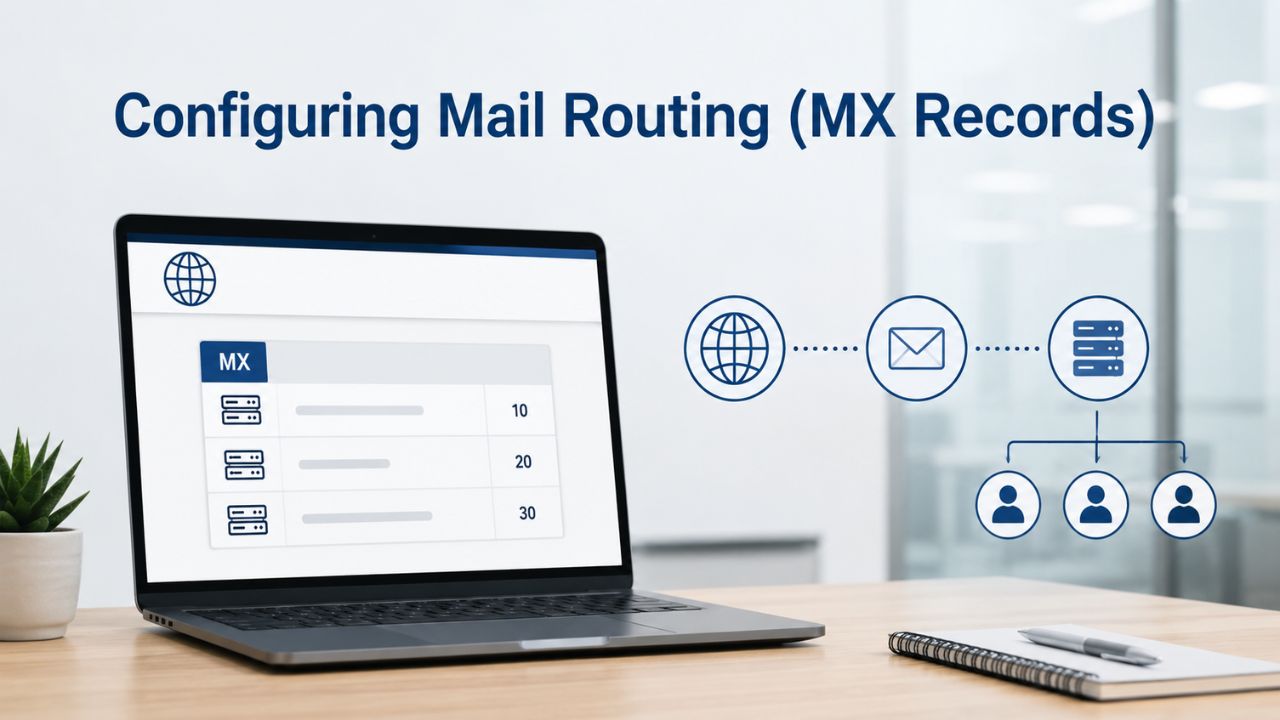
Mail Exchange (MX) records are DNS entries that tell global mail systems where to deliver email for a given domain. When someone sends an email to you@yourcompany.com, their mail server queries DNS for the MX record for yourcompany.com, finds that it points to Microsoft 365’s mail servers, and delivers the message there. Without an MX record, or with one pointing to the wrong server, incoming mail either bounces or goes to the wrong place. This is why MX record accuracy is non-negotiable; mail delivery depends entirely on this configuration being correct.
Microsoft 365 provides you with several MX records to add, typically ending in mail.protection.outlook.com or similar. These records have different priority levels (0, 5, 10, etc.); lower numbers are tried first, and higher numbers act as fallback if the primary is down. This redundancy ensures that even if one Microsoft 365 mail server is temporarily unavailable, mail still reaches you. You don’t choose the priority level; Microsoft assigns it, and you add all of them exactly as specified to ensure failover works correctly.
Setting Up Microsoft 365 Mail Endpoints
When you connect your domain to Microsoft 365 in the admin center, Microsoft generates the exact MX records you need to add. Log in to your domain registrar, navigate to DNS records, and add each MX record exactly as Microsoft specifies. Order matters: use the priority numbers Microsoft gives you. Some registrars let you set priority directly; others use number fields. Copy each entry precisely to avoid typos, as even a single character error can break mail delivery entirely.
After you add the MX records, DNS propagation again takes 24–48 hours globally. During this window, some mail may still go to the old provider (if you had email elsewhere) while other mail routes to Microsoft 365. You can monitor this by sending test emails from external accounts and checking if they arrive in the correct Microsoft 365 mailbox. Once propagation completes and all your new MX records are live worldwide, all incoming mail for your domain goes to Microsoft 365, and the transition is complete.
Securing Email with Authentication Records
Once mail routes correctly to Microsoft 365, your next priority is to prevent impersonation and improve deliverability. Three additional DNS records authenticate mail sent from your domain: SPF (Sender Policy Framework), DKIM (DomainKeys Identified Mail), and DMARC (Domain-based Message Authentication, Reporting, and Conformance). These aren’t blocking requirements for basic email delivery, but they dramatically reduce phishing risk and boost your mail’s trustworthiness across the internet. Together, they create a multi-layer authentication system that protects your domain reputation.
Email Authentication Essentials
SPF is a DNS record that lists which servers are authorized to send mail for your domain. When a recipient’s mail server receives email claiming to be from yourcompany.com, it queries DNS for the SPF record and checks whether the sending server is in the authorized list. If the server isn’t authorized, the mail is flagged as potentially spoofed. For Microsoft 365 email, your SPF record must include Microsoft’s mail servers; if you also send mail from a third-party service (e.g., a CRM or marketing platform), you add that service’s servers to the SPF record too.
DKIM adds a cryptographic signature to every email you send, proving it came from your domain and hasn’t been tampered with in transit. DMARC is a policy layer that tells recipient mail servers what to do if SPF or DKIM checks fail, for example, quarantine the mail, reject it, or monitor it. Together, these three records create an authentication fortress that protects your brand from impersonation and ensures legitimate email reaches inboxes, not spam folders where delivery failures could go unnoticed.
Implementing Security Best Practices
Setup up SPF, DKIM, and DMARC can happen after your MX records are live; they’re not blocking prerequisites. Microsoft provides DKIM keys and policy templates that you add to DNS as soon as your domain is verified. Start with SPF: add a record listing Microsoft’s mail servers and any third-party services that send mail on your behalf (CRMs, newsletters, etc.). Then enable DKIM in the Microsoft 365 admin center; Microsoft generates the keys, and you publish them to DNS.
Finally, set up a DMARC policy. A permissive policy (DMARC p=none) tells recipient servers to accept mail but report failures back to you, letting you catch misconfigurations before they cause delivery problems. Once you’re confident your legitimate mail passes SPF and DKIM, tighten the policy (p=quarantine or p=reject) to block impersonation attempts. If your domain previously sent mail via a different provider, remove or update that old provider’s SPF records to prevent conflicts that could cause legitimate Microsoft 365 mail to be rejected.
Niya Digital’s Microsoft 365 Setup Services
We provide expert guidance on domain verification, DNS configuration, mail routing optimization, security record setup, and migration planning. Niya Digital’s experience across Microsoft 365 setups means we’ve seen the challenges your organization might face and can guide you through them efficiently. Our team works alongside you or your IT staff to ensure a smooth transition, reducing disruption to your business and your users. Let us handle the technical complexity while you focus on your core business.
Handling Existing Email During Cutover
If your domain is currently hosting email elsewhere, on-premises, with a third-party provider, or not at all, you need a cutover plan. Depending on your situation, you may migrate gradually (moving mailboxes in batches) or all at once (switching DNS records during a maintenance window). Each approach has tradeoffs: gradual is safer but takes longer; immediate is faster but carries higher risk if something goes wrong. Your choice depends on your organization’s risk tolerance and operational constraints.
Coexistence Strategies
Organizations can run Exchange Online (Microsoft 365) and on-premises Exchange Server simultaneously, a configuration called hybrid coexistence. This lets you move mailboxes from on-premises to Microsoft 365 at your own pace, with mail seamlessly routed between the two systems while Directory Sync keeps user accounts in sync. Some organizations also run Microsoft 365 and a third-party email provider side by side, though coordination is more complex in that scenario. A hybrid setup requires Directory Sync software (Azure AD Connect) and mail-flow connectors, which add complexity but provide a safety net: if something fails during cutover, mail can still flow between systems.
For organizations with hundreds of mailboxes, this staged approach reduces the risk of a catastrophic failure where everyone’s mail stops at the same time. You can start with a small pilot group, validate the process, and then scale to the rest of the organization with lessons learned. For smaller organizations (under 50 mailboxes), a simpler approach- shut down the old system, migrate data, switch DNS- is often sufficient and faster. Understanding your organization’s complexity and mailbox volume helps you choose the right strategy.
Planning the Migration Window
Regardless of approach, plan a migration window: a defined time block (e.g., Saturday 6 PM to Sunday 6 AM) when you’ll perform the final cutover, migrate remaining data, and switch DNS records. Communicate this window to your team and external contacts in advance so they understand why emails might be delayed or slow to arrive. During the window, expect mail delays or temporary non-delivery as DNS propagates; this is normal. Having a clear communication plan prevents panicked support calls and helps users understand what’s happening.
If you’re migrating from another cloud provider, you typically export mail in bulk, import it to Microsoft 365, then switch DNS records when ready. Mail data export can take hours or days depending on volume; plan accordingly. Archive data that isn’t in active use separately to speed up the migration and reduce import times. Once DNS records change, new mail flows to Microsoft 365 immediately, but old provider mail remains accessible in archive for a transition period, usually 30–90 days before the old provider deletes it. Plan to preserve critical archives before that deletion window closes.
Testing & Validation Before Go-Live
Before you switch DNS records and commit to Microsoft 365 email, validate that everything works. Test mail delivery, confirm DNS records are correct, check that users can log in, and verify that any integrations (scanners, line-of-business apps) can still connect. A pre-cutover test run catches misconfigurations when they’re still easy to fix, before they’re affecting your entire organization. Thorough testing is the best insurance against unexpected problems during the actual cutover.

Pre-Cutover Testing Procedures
Set up one or two test mailboxes in Microsoft 365 (using your domain) and send mail to them from external accounts. Confirm that mail arrives, that replies send back correctly, and that attachments and links work as expected. Test from multiple external email providers to catch obscure routing or authentication issues. If you’re using third-party mail integrations, a CRM that sends invoices via email, or a backup system that alerts via mail, test those connections to Microsoft 365 before go-live. These applications often use credentials or SMTP settings that may need updating, and discovering this during testing is far better than discovering it after cutover.
Check mobile access: configure Microsoft 365 mail on a test phone or tablet and verify that email syncs and sends correctly. Outlook Web Access (the browser interface) should work in all major browsers. Test mail forwarding rules, out-of-office messages, and shared mailboxes if you use them. Each of these features depends on DNS, authentication records, and backend configurations; a glitch in any one can silently break an entire workflow, so testing thoroughly now prevents surprises later. Create a checklist and walk through it methodically to ensure you don’t overlook anything.
Verification Checklist
Create a checklist of items to verify before go-live:
(1) All DNS records (MX, TXT verification, SPF, DKIM, DMARC) are correctly added and globally propagated;
(2) Test mailboxes receive and send mail correctly;
(3) Mobile and web access work;
(4) Third-party integrations connect and function;
(5) Users can log in to the Microsoft 365 admin center and their own mailboxes;
(6) Backup/archive processes are configured;
(7) Compliance or audit logging is enabled if required.
Walk through this list 24–48 hours before your planned MX record cutover. If any item fails, troubleshoot before proceeding; if all pass, you’re ready to move forward with confidence.
Managing the MX Record Cutover
When you switch your MX records from the old provider to Microsoft 365, your organization fully commits to the new platform. Mail delivery depends on DNS, and DNS changes propagate unevenly worldwide. Some recipients will receive your mail via Microsoft 365 immediately; others won’t for hours. During this window, monitoring and readiness to troubleshoot are essential. A clear communication plan and a team standing by are critical to handling unexpected issues quickly.
Coordinating the DNS Switchover
Schedule your MX record change during a low-traffic window (late Friday evening, weekend, or a planned maintenance window) and notify your team and key customers in advance. When you’re ready, log into your domain registrar, remove the old MX records, and add the new Microsoft 365 MX records. Do this during your maintenance window, not in the middle of a business day, to minimize impact if something goes wrong. Keep detailed notes of what you change and when, in case you need to troubleshoot or revert quickly.
After you make the change, send test mail from external accounts to confirm arrival in Microsoft 365. You may see a mix of mail going to the old provider and Microsoft 365 for the next few hours as DNS propagates; this is expected. Niya Digital recommends leaving old provider mail systems running for 24–48 hours after the MX cutover to catch any stragglers; email sent before the cutover but delayed in transit may still try the old server. Once you’re confident all mail is flowing to Microsoft 365, you can safely shut down the old system. Monitor activity closely during this window before decommissioning legacy systems.
Monitoring Propagation
Use free DNS tools (like nslookup or DNS propagation checkers) to verify MX record updates worldwide. These tools query DNS servers in different regions and show you whether they’ve picked up your new records yet. Full global propagation typically takes 24–48 hours. During this window, check your Microsoft 365 mailboxes frequently to confirm mail is arriving. If you see delivery failures (mail bouncing to senders), check spam/junk folders first; sometimes legitimate mail lands there if SPF/DKIM/DMARC isn’t fully configured.
If mail isn’t arriving as expected, verify your MX records are correct by querying DNS. If the record is wrong, fix it immediately; if it’s correct but mail still isn’t flowing, contact Microsoft 365 support and your domain registrar for help. Common issues include registrars not publishing changes (rare but happens), outdated cached DNS entries (wait longer), or a firewall between you and Microsoft’s mail servers (less common but worth checking with your IT team). Having documentation of what you changed helps support teams diagnose issues faster.
Post-Setup Maintenance & Optimization
After your domain is live in Microsoft 365, the heavy lifting is done, but ongoing maintenance keeps your email secure and compliant. Microsoft 365 Business Email hosting includes threat protection features that scan all incoming and outgoing mail for malware and spam, reducing your attack surface immediately. Complement these platform features with your own security tuning: tighten DMARC policies, enable multi-factor authentication, and configure audit logging to keep your organization secure over the long term. This layered approach to security ensures both automated and manual controls are in place.

Ongoing Security Tuning
Once mail is flowing smoothly, review your DMARC policy. If you started with p=none (reporting only), wait a week or two to collect DMARC reports and verify that your legitimate mail passes SPF and DKIM checks. Once you’re confident, upgrade to p=quarantine (suspicious mail is held, not delivered) or p=reject (suspicious mail is refused outright). This tightens security against domain impersonation without breaking legitimate mail delivery; the reports you collected show what legitimate traffic to expect. Gradually tightening policies reduces the risk of accidentally blocking important business mail.
Enable Microsoft 365 multi-factor authentication (MFA) for all administrator accounts immediately; consider it for regular users too, especially those with access to sensitive data. MFA doesn’t depend on the domain; it’s an organization-wide setting. Review your retention and archive policies: Microsoft 365 stores mail in mailboxes and archives, but regulatory requirements may also require local backups or compliance holds. Work with your IT or compliance team to define what data is kept where and for how long, ensuring you meet both operational and regulatory requirements.
Audit & Compliance Monitoring
Set up alerts in the Microsoft 365 admin center to notify you of failed login attempts, suspicious forwarding rules, or other anomalies. Review mailbox permissions regularly to ensure no former employee still has access. If your organization has compliance requirements (HIPAA, SOC 2, GDPR), Microsoft 365 supports these frameworks through audit logging, data residency options, and encryption. Configure the appropriate logging level and audit retention for your industry. These controls create an audit trail that demonstrates your organization’s commitment to security and compliance.
Schedule a quarterly review: test backup restoration procedures, verify MFA is enabled on all admin accounts, and scan for unused mailboxes or forwarding rules left over from migrations. Small organizations sometimes skip these steps, but they’re the difference between a responsive, secure email system and one that silently accumulates risk. A few hours of maintenance each quarter can prevent the costly incident that audit logs should have caught. Document your maintenance procedures, so that if team members change, the next person knows what to do.
Troubleshooting Common Custom Domain Issues
Despite careful planning, DNS configuration sometimes doesn’t go smoothly. Mail routing can fail, authentication records can conflict, or propagation can take longer than expected. Most issues are solvable with a methodical troubleshooting approach: verify the DNS records are correct, confirm they’ve propagated globally, check for conflicts with old records, and contact support if the issue persists. Understanding the root causes of common problems helps you either prevent them or resolve them quickly when they occur.
Addressing Delivery Failures
If mail isn’t arriving after MX records are switched, the most likely causes are
(1) DNS hasn’t fully propagated yet (wait another 12–24 hours and test again),
(2) an MX record is incorrect or missing (verify via DNS query tools), or
(3) SPF/DKIM/DMARC misalignment is causing recipient systems to reject your mail.
To troubleshoot, send a test email from an external account and watch for bounce messages. Bounce messages often include a code and explanation; “550 5.7.1 Unauthenticated email is not accepted” typically means SPF or DKIM failed.
Check your Microsoft 365 admin center for delivery reports. The Message Trace tool shows whether a message arrived or was rejected and why. If you see “SPF check failed,” review your SPF record: it must include Microsoft’s mail servers and any third-party services you use. If you see “No MX records found,” your MX record hasn’t propagated yet or contains a typo. Use a DNS lookup tool to verify the record is published; if it is, wait another 24 hours for global propagation. If it isn’t, contact your domain registrar to ensure the DNS change was saved and published.
Resolving Configuration Conflicts
If you’re migrating from another provider and mail delivery is inconsistent, old DNS records or stale caches may be the culprit. Remove old MX records, SPF records, and any other provider-specific DNS entries from your domain. Some registrars cache DNS changes; if you’ve removed old records but mail still goes to the old provider, wait 24–48 hours for global cache refresh. If your organization previously used a subdomain for mail (mail.yourcompany.com instead of yourcompany.com), ensure you’re configuring the correct domain in Microsoft 365.
Conflicts can also arise if users have forwarding rules set up that send mail back to the old provider, creating a loop. Review forwarding rules in Microsoft 365 (admin center → Mail flow → Rules) and delete any that aren’t needed. Test a full flow: send mail to your domain, confirm it lands in the Microsoft 365 mailbox, reply, and confirm the reply reaches the sender. If the mail ends up elsewhere or is delayed at any stage, use Message Trace to trace the delivery path and identify where the breakdown is occurring. Document what you find so you can explain the issue clearly to support if needed.
| Friction Point | Root Cause | Solution / Mitigation |
|---|---|---|
| Mail Routing Failures | Incorrect or missing MX records, or DNS propagation is incomplete | Verify MX record syntax, confirm DNS configuration, and allow 24–48 hours for global propagation while checking with DNS lookup tools |
| Email Delivery Delays | DNS caching or misconfigured SPF, DKIM, or DMARC authentication | Verify DNS propagation, validate email authentication records, and review Microsoft 365 Message Trace logs |
| Legacy System Conflicts | Old provider DNS records remain active or cached mail routing persists | Remove obsolete MX and SPF records, allow DNS caches to expire, and verify no forwarding loops remain |
| Authentication Failures | SPF, DKIM, or DMARC records are missing, incomplete, or incorrectly configured | Include all authorized mail servers in SPF, enable DKIM signing in the Microsoft 365 admin center, and configure an appropriate DMARC policy |
| Mail Held in Queue | Mail flow connectors or hybrid configuration issues | Review Exchange mail flow connectors, verify directory synchronization if applicable, and contact Microsoft support if necessary |
| Unverified Domain Lockout | Domain verification TXT record has not fully propagated across DNS | Confirm the TXT record at the registrar, wait 24–48 hours for propagation if needed, and retry domain verification in the Microsoft 365 admin center |
Accelerate Your Migration with Expert Support
Ready to move your domain to Microsoft 365 but want to avoid the complexity? Niya Digital can configure your domain, handle DNS setup, migrate your mail, and guide you through go-live with minimal disruption. Our team brings years of Microsoft 365 Business Email provisioning and support experience to every project, catching pitfalls before they become problems. From planning through testing to post-go-live monitoring, we’re with you every step of the way. Contact our team today and get a clear timeline, scope, and support plan for your specific migration needs.
Frequently Asked Questions
Can I use a custom domain with Microsoft 365 Business Basic?
Yes. All Microsoft 365 business plans, Basic, Standard, and Premium, support custom domains for business email. All include Exchange Online functionality. To verify your subscription, log in to the Microsoft 365 admin center and check your subscription details. Entry-level plans include full email capabilities and domain routing support, so you don’t need a premium tier to use a custom domain effectively.
How long does it take to connect my domain to Microsoft 365?
Technical setup typically takes 1–2 days for domain verification and MX configuration. Global DNS propagation takes 24–48 hours. Mail migration from another provider adds 1–4 weeks depending on mailbox volume and your preferred approach. A complete project from planning to go-live typically runs 2–6 weeks, depending on your organization’s complexity and the amount of existing mail data.
What happens to my existing email during domain connection?
If your domain currently hosts email elsewhere, your existing mail stays there until you switch DNS records. Once you switch MX records to Microsoft 365, new incoming mail flows to Microsoft 365; old provider mail remains accessible until you shut down that system. You typically migrate old mail (archives and recent messages) to Microsoft 365 beforehand via export-import or Microsoft’s cloud migration tools to preserve your email history.
Do I need to remove my old MX records before adding Microsoft 365?
Yes, eventually. Your domain can have only one set of active MX records at a time (though they can point to multiple servers with different priorities for redundancy). Before you switch MX records to Microsoft 365, disable or remove the old provider’s MX records so mail doesn’t split between two systems. Some registrars let you temporarily disable records; others require deletion.
What’s the difference between SPF, DKIM, and DMARC?
SPF declares which servers are authorized to send mail for your domain; DKIM adds a cryptographic signature to every email; DMARC is a policy layer that tells recipient servers what to do if SPF or DKIM checks fail. Together, they authenticate your mail, reduce phishing risk, and improve deliverability. Start with SPF, then enable DKIM, then set up a DMARC policy. All three are optional for basic email delivery but strongly recommended for security.
Can I move my domain away from Microsoft 365 later?
Yes. Your domain belongs to you; you control it at your registrar. If you later decide to switch email providers, you change your MX records to point to the new provider and migrate mail archives. This process is the reverse of connecting to Microsoft 365: announce the change, migrate data, update DNS records, and monitor propagation.
What if my domain registrar doesn’t support DNS editing?
Most registrars offer DNS management directly. If yours doesn’t, you can point your domain’s nameservers to a DNS-only service provider and manage DNS there. This adds a layer but isn’t common; nearly all registrars let you edit DNS directly through their admin portal or control panel.
Do I need to buy a new domain to use Microsoft 365 email?
No. If you already own a domain registered anywhere, you can connect it to Microsoft 365 by verifying ownership and configuring DNS records. You don’t need to buy a new domain or transfer it to a specific registrar, though you can transfer if you choose to consolidate management.
Can multiple people have access to domain verification and DNS configuration?
Yes. At minimum, one person needs registrar admin access to add DNS records. A different person can handle Microsoft 365 admin access. This separation of duties is common and recommended for security. Document who has access to what and require multi-factor authentication on all admin accounts to protect your infrastructure.
What happens if DNS records propagate unevenly and some mail goes to the wrong place?
This is normal during cutover. DNS propagates globally over 24–48 hours, so that some mail servers may see your new MX records before others. Mail addressed to the old system is temporarily queued or routed to the new system. Test delivery frequently during the propagation window; if something is truly broken, revert your MX records and troubleshoot. For most misconfigurations, waiting a few hours resolves the issue as caches clear.
Should I enable MFA on Microsoft 365 administrator accounts?
Yes, immediately. Multi-factor authentication is one of the highest-impact security steps you can take. Enable it on all administrator accounts first; consider it for regular users with access to sensitive data. MFA doesn’t depend on your custom domain; it’s an organization-wide security setting configured in the Microsoft 365 admin center.
How often should I review my mail security settings?
At least quarterly. Review mailbox permissions, check for stray forwarding rules, verify MFA is still enabled on all admin accounts, and audit any third-party applications connected to Microsoft 365 accounts. Set calendar reminders for these reviews to stay on top of ongoing maintenance and catch security drift before it becomes a problem.
What if my old email provider keeps my mail hostage after I leave?
Most providers let you export or migrate mail during a transition period (typically 30–90 days). If your provider refuses, ask for a data export; if they still refuse, document it and escalate to your industry’s consumer-protection authority. Some providers hold mail hostage as leverage for payment; escalation usually resolves this, but plan to export data as soon as you lose access.
Can I test Microsoft 365 email with a subdomain before switching my main domain?
Yes. You can add a test subdomain to Microsoft 365 separately, set up test mailboxes, and validate the platform before moving your primary domain. This is a good low-risk way to get familiar with the platform and train your team. Once you’re confident, you can add your primary domain with reduced anxiety.
What’s included in Niya Digital’s Microsoft 365 setup support?
Niya Digital provides expert guidance on custom domain setup, DNS configuration, and mail migration from legacy systems. We handle domain verification, MX record configuration, security record setup, and post-go-live monitoring to ensure a smooth transition to Microsoft 365 Business Email. We work with your team to understand your specific requirements and constraints, then deliver a tailored solution with clear timelines and dedicated support throughout the project.
Glossary
- Custom Domain: A business domain (yourcompany.com) connected to Microsoft 365 for business email and other services, giving your organization a professional, branded email address.
- DNS (Domain Name System): The infrastructure that translates domain names into IP addresses and hosts routing records like MX, SPF, and DKIM, enabling mail and web traffic to reach the correct servers globally.
- Mail Exchange (MX) Record: A DNS record that directs email for a domain to a mail server. Global mail systems query the MX record to find where to deliver email for your domain.
- MFA (Multi-Factor Authentication): A security method requiring two or more forms of proof (password + code from an app or SMS, for example) to access an account, reducing the risk of unauthorized login.
- SPF (Sender Policy Framework): A DNS record that lists which servers are authorized to send email for your domain, helping recipient systems verify that mail claiming to be from your domain is legitimate.
- DKIM (DomainKeys Identified Mail): An email authentication method that cryptographically signs outgoing mail to prove it came from your domain and hasn’t been tampered with in transit.
- DMARC (Domain-based Message Authentication, Reporting, and Conformance): An email policy layer that tells recipient servers what to do if SPF or DKIM checks fail (monitor, quarantine, or reject), and collects reports on mail authentication results for analysis.