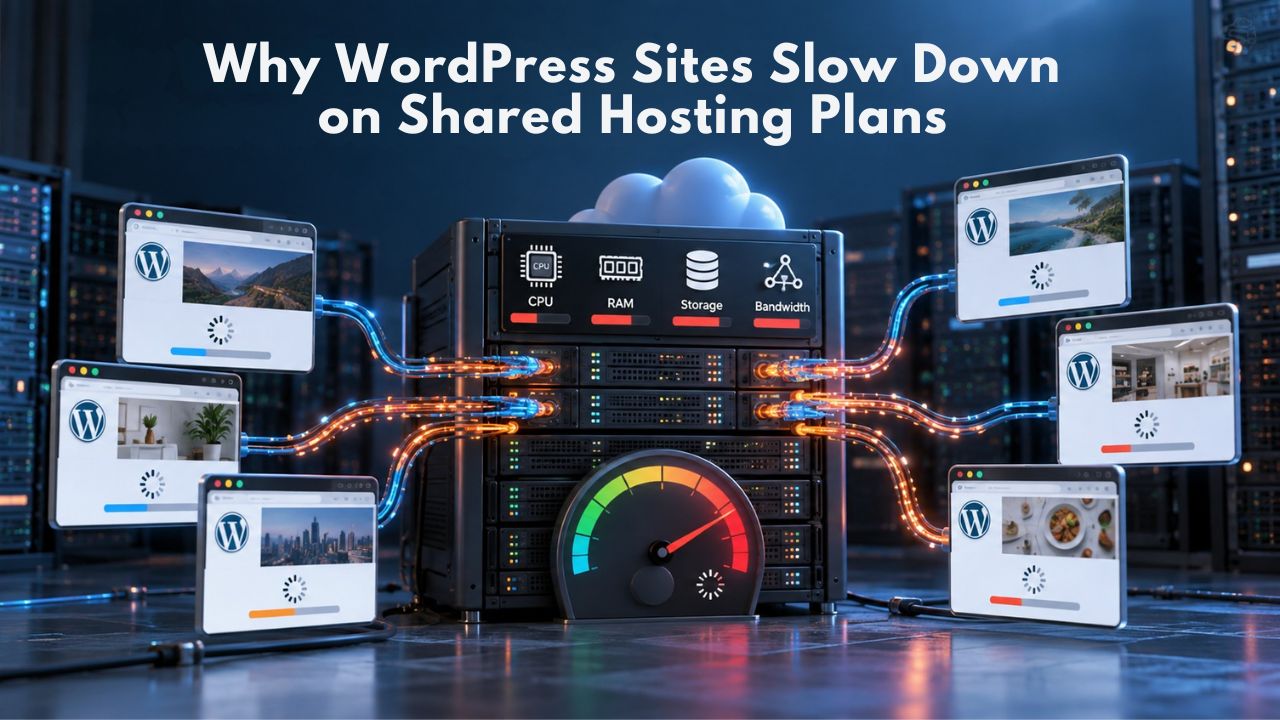
Your WordPress site launches fast, but within weeks or months, visitors start complaining about delays. Pages hang. The dashboard crawls. You’ve added plugins, but nothing extreme. The culprit isn’t your code; it’s your hosting. Shared hosting allocates limited CPU, RAM, and disk I/O across dozens of sites on a single server. When demand spikes, your site gets throttled. Understanding why this happens helps you decide whether to optimize or upgrade.
Niya Digital delivers WordPress hosting in partnership with an enterprise-grade cloud infrastructure partner. Understanding shared hosting’s inherent performance ceiling empowers you to make informed decisions about your site’s infrastructure and growth.
Why Shared Hosting Architecture Creates Performance Ceilings
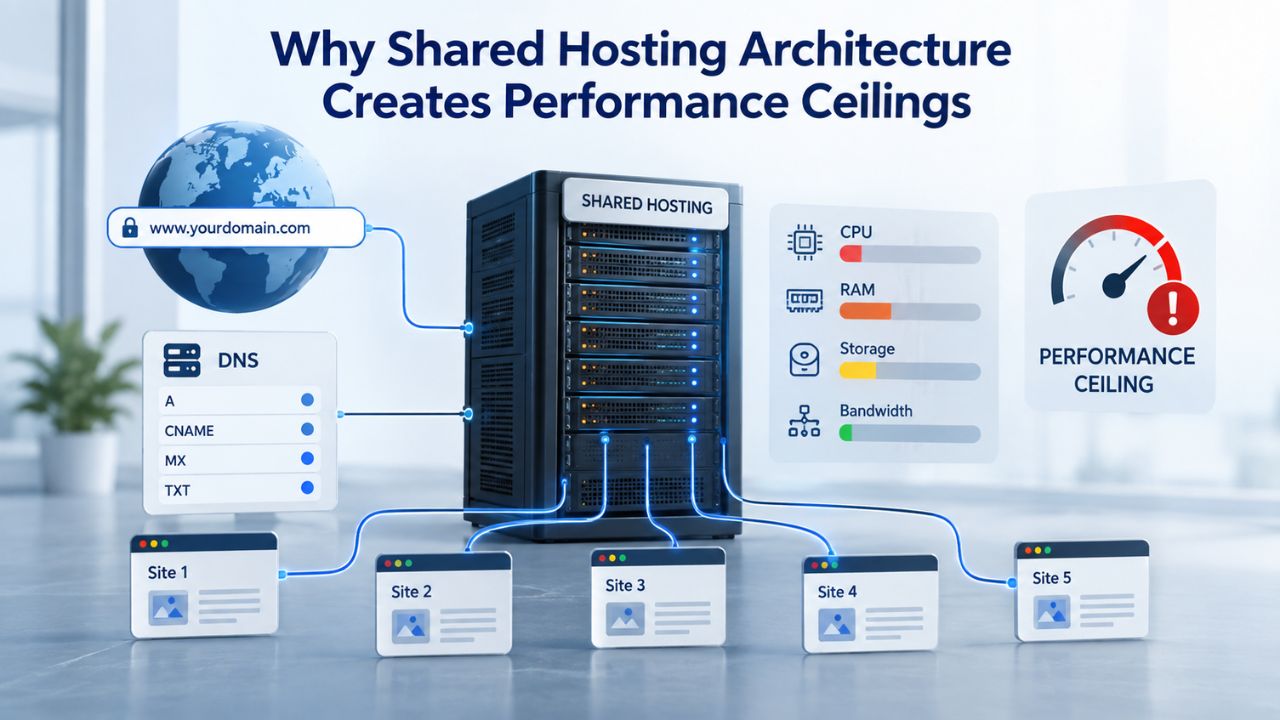
Shared hosting runs multiple customer sites on one physical server to minimize infrastructure costs. Every site on that server competes for the same CPU cycles, memory, and disk I/O resources. This multi-tenant model creates an invisible performance ceiling tied directly to per-account resource allocations, not to your site’s actual traffic or feature requirements. To achieve WordPress hosting that scales with your business, you need infrastructure that prioritizes your site’s workload, not one that divides resources across dozens of competing accounts.
Best WordPress hosting removes this architectural constraint entirely by providing per-site resources that expand automatically with your traffic, rather than static per-account caps that create friction at predictable growth points.
How Multi-Tenancy Fragments Your Site’s Speed
On a shared server, your account receives a fixed CPU percentage, a memory ceiling, and an I/O quota. Container technology like CloudLinux LVE (Lightweight Virtual Environment) enforces these limits. When your site exceeds its allocation, the server doesn’t crash; it queues requests and delays responses. Your site stays online but responds slowly. Other sites on the same server experience identical bottlenecks during peak hours, creating cascading slowdowns across the entire server when one or more accounts spike simultaneously.
Consider the mathematics: a server with 32 gigabytes of total RAM might host 50 to 100 customer accounts, each allocated 128 to 256 megabytes for PHP memory. This distribution works adequately for small sites with stable traffic. But when a site’s traffic grows, a poorly optimized plugin arrives, or seasonal demand hits, that site exhausts its ceiling within minutes. The slowdown is invisible to your site’s monitoring tools; your site uses resources correctly, just within its allocated box. From your visitors’ perspective, your site has become unreliable.
Why Your Neighbors’ Activity Affects Your Site’s Performance
Each site on a shared server draws from the same resource pool. When a neighbor’s site runs a database backup, executes a bulk data import, or experiences unexpected traffic, your site’s resources are diverted to accommodate that demand. CPU limits cap processing power; RAM allocation restricts available memory; I/O restrictions control disk speed, often enforced per second or per minute. When your account hits a limit, the server throttles your site, pages load slower, database queries stall, and administrative tasks hang indefinitely.
To your visitors, the slowdown appears random. You optimize your theme, switch caching plugins, and aggressively compress images. These are valid optimizations. Yet the slowdown persists because the real problem isn’t your site’s code or configuration; it’s overall server resource exhaustion. No amount of front-end optimization overcomes a hosting architecture that can’t allocate adequate resources during demand spikes.
WordPress Pricing Plans
Choose the WordPress hosting plan that fits your website needs, with reliable performance, security, storage, backups, and tools to help your site grow.
WordPress Basic
A great way to get started.
- 1 website
- 10 GB NVMe storage
- Unmetered bandwidth
- Free SSL Certificate *
- WordPress pre-installed
- Weekly backups
- Web Application Firewall
- Daily malware scans
- One-time malware removal

WordPress Deluxe
Improve your site performance with Cloudflare CDN.
- 1 website
- 20 GB NVMe storage
- Unmetered bandwidth
- Free SSL Certificate *
- WordPress pre-installed
- Daily backups
- Web Application Firewall
- Daily malware scans
- One-time malware removal
- Up to 2x faster performance with global Cloudflare CDN **
- Enhanced security with DDoS protection
- Staging site
WordPress Ultimate
Add online marketing with more sites, storage and security.
- 1 website
- 30 GB NVMe storage
- Unmetered bandwidth
- Free SSL Certificate *
- WordPress pre-installed
- Daily + on-demand backups
- Web Application Firewall
- Daily malware scans
- Unlimited malware removal
- Up to 2x faster performance with global Cloudflare CDN **
- Enhanced security with DDoS protection
- Staging site
- WordPress code optimizer
- Smart WordPress plugin manager
- Sell online with WooCommerce
Time to First Byte: The Foundation of Website Speed
Time to First Byte (TTFB) represents the time between when a visitor’s browser sends a page request to your server and when the server sends the first byte of data back. TTFB is 100 percent controlled by hosting infrastructure, not plugins, caching strategies, or image optimization. Google’s Core Web Vitals guidance identifies TTFB as foundational to Largest Contentful Paint (LCP), the metric measuring how quickly visitors see useful content.
Plugin optimizations and caching strategies all execute after the server responds. If TTFB is slow, everything downstream is slow. This makes TTFB the highest-leverage metric for diagnosing whether your slowness originates from hosting constraints or application issues.
What TTFB Reveals About Your Hosting
A healthy TTFB sits below 400 milliseconds. When TTFB consistently exceeds 600 milliseconds, the bottleneck is the server infrastructure, not your site’s code. Shared hosting sites routinely show TTFB of 900 milliseconds to 1,400 milliseconds at the 75th percentile, meaning one in four page loads takes nearly a full second for the server to respond before the browser even begins rendering visible content.
By comparison, managed WordPress hosting with optimized server-level caching delivers TTFB of 120 to 250 milliseconds, a five- to tenfold improvement from moving the same site to properly engineered infrastructure. Shared hosting uses general-purpose web servers like Apache or Nginx with basic caching; managed hosting deploys LiteSpeed or optimized Nginx configurations with direct WordPress integration, Redis object caching, and per-site performance monitoring.
How High TTFB Breaks Your Search Rankings
Largest Contentful Paint (LCP) must occur within 2.5 seconds to pass Google’s “good” threshold. When your TTFB is one second, you’ve already consumed 40 percent of your LCP budget before the browser begins rendering. This leaves minimal room for rendering, asset loading, and script execution, making a passing Core Web Vitals score nearly impossible on shared hosting with inherently high TTFB.
Only 45 percent of WordPress sites globally pass Core Web Vitals on mobile, and shared hosting’s high TTFB is a primary contributing factor. The issue isn’t WordPress itself; it’s the combination of shared hosting’s speed ceiling, bloated themes, and resource-heavy plugins. On managed hosting with optimized server-level caching, the identical site structure passes Core Web Vitals far more consistently, improving search rankings and user engagement.
Resource Limits: The Invisible Ceiling That Stops Optimization
Shared hosting enforces strict per-account CPU, memory, and I/O caps to prevent any single site from monopolizing the server. These limits remain invisible until you hit them, then performance collapses suddenly. Understanding these three core limits clarifies why optimizing your code alone cannot solve shared hosting performance problems.
| Resource | Typical Shared Hosting Allocation | Why It Matters | Typical Bottleneck Point |
|---|---|---|---|
| CPU | 20–50% of one core, X seconds per minute | Powers PHP execution, database queries, plugin processing | Exceeding limit causes queued requests, “Resource Limit Reached” errors |
| Memory (RAM) | 128–256MB per account (server-level cap often 512MB) | Required by WordPress, themes, plugins | Hitting limit triggers “Fatal error: Allowed memory size exhausted” |
| Disk I/O (IOPS) | Limited I/O operations per second or per minute | Controls database query speed and file operations | Saturation causes database locks, slow backups, unresponsive admin |
| Connections | Limited concurrent database connections (often 10–20) | Each connection uses RAM; queued connections timeout | Connection exhaustion prevents admin access, checkout failures on e-commerce |
| Entry Processes (EP) | Limited simultaneous PHP processes (often 10–30) | Each visitor/process consumes one EP | Exhaustion causes queued requests, slowdowns, timeouts |
| Neighbors’ Activity | Shared with 50–100+ other accounts | When neighbors spike, your resources are diverted | Random slowdowns even when your usage is normal |
CPU: The Most Common Bottleneck Under Load
Your shared hosting CPU allocation is expressed as a percentage of a single processor core or as CPU seconds per minute. When your site executes PHP code, generating pages, processing database queries, and running plugins, it consumes CPU from your allocation. Once your allocation is exhausted, the server queues new requests or returns “Resource Limit Reached” errors, preventing new page loads or admin access.
Heavy operations exhaust CPU quickly and predictably. Database queries on large tables without proper indexing, page builder rendering such as Elementor and Divi generating substantially more code than Gutenberg, WooCommerce checkout and payment processing, backup scripts, bulk data imports, and security scanning all trigger immediate CPU consumption. A site running a full database backup during peak traffic hours can consume its entire monthly CPU quota in just minutes. Your site doesn’t crash; it slows or pauses entirely. Your visitors experience that pause as a dead website that won’t respond to their requests.
Memory and I/O: The Compounding Limits
WordPress defaults to 40 megabytes of PHP memory for single-site installations and 64 megabytes for multisite configurations, though modern sites consistently need 128 to 256 megabytes. Shared hosting providers cap server-level memory at 128 to 512 megabytes per account. A typical WordPress site running a standard theme, 10 to 15 plugins, and moderate traffic regularly exceeds the lower memory limit, triggering “Fatal error: Allowed memory size exhausted” messages that break site functionality.
Disk I/O controls both database query speed and file-system operations. Shared hosting restricts I/O operations per second (IOPS). Throttles performance during peak usage periods. When multiple sites access the database simultaneously, lock contention slows all queries proportionally. Even an optimized query executes slowly when the server’s I/O is saturated. WordPress.org’s optimization documentation notes that upgrading to a hosting plan with higher Disk I/O limits helps significantly if you’re consistently maxing out shared hosting’s allocation.
Database Performance Under Shared Hosting Constraints
The WordPress database powers every page request and administrative action. Shared hosting’s resource limits hit the database especially hard because databases consume CPU, RAM, and I/O at the same time. Poor database performance often gets blamed on site optimization when the real culprit is infrastructure-level resource exhaustion beyond any site owner’s control.
Why Databases Struggle on Multi-Tenant Servers
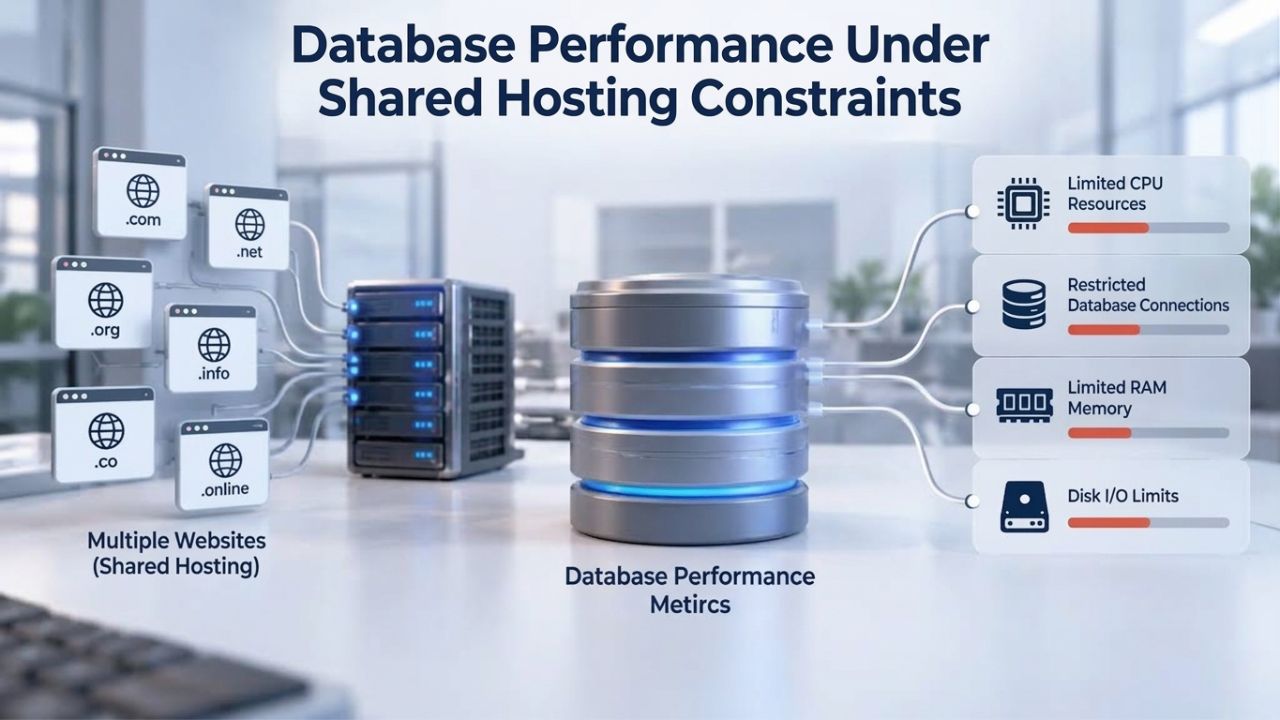
On shared hosting, your MySQL database server is shared with 50 to 100+ customer accounts. Database connections, queries, and locks compete for one server’s finite resources. Per-account connection limits, CPU constraints, and I/O throttling combine to create database slowdowns that query optimization alone cannot fully overcome.
Common symptoms include “Too many connections” errors when the connection limit is reached, slow administrative dashboards despite low plugin counts, administrative tasks like uploads and bulk edits taking 10 or more minutes, and front-end slowdowns during peak traffic hours even with caching enabled. These aren’t database design flaws in WordPress; they’re resource allocation problems the hosting provider can’t solve without overselling and degrading performance for all customer sites.
Why Optimization Has a Ceiling on Shared Hosting
Site owners can clean up databases, optimize queries, and add indexes, all valid and useful strategies. However, if MySQL CPU and I/O are saturated during peak hours, even optimized queries execute slowly. The server’s physical hardware and per-account allocation set the optimization ceiling, not your query design or database structure.
Adding an object cache like Redis or Memcached helps by reducing database queries. On managed hosting, object caching is built-in and optimized from the ground up. On shared hosting, object caching adds overhead; connecting to the cache and managing cache invalidation consume resources, sometimes making sites with Redis slower than sites without it. The lesson is clear: caching and optimization delay the inevitable problem but don’t eliminate it. Once your traffic or feature set outgrows shared hosting’s capacity, optimization yields diminishing returns.
Plugin Optimization vs. Hosting Reality: Which Fix Actually Works
Site owners often assume slowness comes from problematic plugins or bloated themes. Sometimes this assumption is correct. More often on shared hosting, the hosting architecture itself is the real culprit. Accurately distinguishing between the two is critical to choose the right fix and avoid wasted optimization effort.
How to Diagnose the Real Problem
Deactivate all plugins except those needed for basic functionality. If your site is still slow with minimal plugins running- just WordPress core, your theme, and standard assets- the slowdown is hosting-level infrastructure, not application-level. If TTFB remains above 600 milliseconds with plugins deactivated, no plugin optimization will fix it.
If TTFB drops below 400 milliseconds with plugins off, plugin optimization is worthwhile. Audit your plugins for resource consumption, replace heavy plugins with lightweight alternatives, and disable unused features. But if TTFB stays high even with plugins disabled, hosting is the bottleneck, and upgrading is the necessary fix.
Why Heavy Plugins Hit Shared Hosting Harder Than Managed Hosting
Page builders like Elementor, Divi, and Beaver Builder add significant code overhead to every page. On managed hosting with abundant resources, they run smoothly and responsively; on shared hosting with tight CPU and memory caps, page builder rendering can trigger resource limits on every page load, no matter how many pages you build. WooCommerce suffers similarly due to database-intensive operations.
On shared hosting, a small e-commerce store struggles to handle 200 to 300 orders; on managed hosting, the same infrastructure handles 1,000+ orders smoothly. The difference isn’t the plugins; it’s the hosting. Heavy plugins work fine on infrastructure with adequate resources. On shared hosting, they push against hard resource limits immediately.
Explore Managed WordPress Hosting Plans
If your WordPress site shows clear signs of shared hosting strain- TTFB consistently above 600 milliseconds, regular “Resource Limit Reached” errors, slowdowns every time traffic spikes- moving to managed hosting removes the resource-limit ceiling entirely. Managed hosting provides infrastructure specifically engineered for WordPress performance, with built-in server-level caching, automatic daily backups, malware scanning, and expert support available 24/7. Niya Digital’s managed WordPress hosting plans deliver five to tenfold speed improvements and automatic scaling as your traffic grows.
Explore Managed WordPress Hosting Plans →
Caching: Plugin-Level vs. Server-Level Performance
Caching is often presented as a comprehensive solution for website slowness. On shared hosting, caching helps, but only so far. Understanding the difference between plugin-level caching and server-level caching reveals why managed WordPress hosting achieves dramatically better speed with less operational overhead.
Plugin-Level Caching: A Workaround, Not a Complete Fix
Most shared hosting sites use plugin-based page caching through tools like WP Super Cache, W3 Total Cache, or LiteSpeed Cache. These plugins generate static HTML files and serve them to repeat visitors, bypassing PHP execution and database queries. Enabling caching can cut resource usage by up to 80 percent and deliver real, measurable speed improvements.
But plugin-level caching has inherent limitations on shared hosting: cache invalidation still requires PHP access and database operations; logged-in users can’t effectively use full-page caching; WooCommerce and interactive features break plugin-level caching entirely; and cache files stored on slow shared storage add I/O overhead every time a cache miss occurs. These limitations mean plugin caching helps reduce server load but doesn’t solve the underlying resource constraint.
Server-Level Caching: The Infrastructure Advantage
Managed WordPress hosting uses server-level caching integrated directly into the web server architecture, such as LiteSpeed with LSCache or Nginx with Redis object caching. These caches bypass PHP entirely on cache hits, responding to requests in milliseconds. LiteSpeed servers serve WordPress 3 to 9 times more requests per second than Apache under identical conditions, mainly because of server-level caching integration.
Server-level caching also handles logged-in users, WooCommerce, and dynamic content efficiently. On shared hosting, even with plugin caching enabled, TTFB remains high because the server stack can’t match the performance of optimized architectures. Managed hosting combines server-level caching with abundant resources, creating a multiplier effect that shared hosting can’t achieve.
Traffic Spikes and Resource Exhaustion: Why Shared Hosting Fails
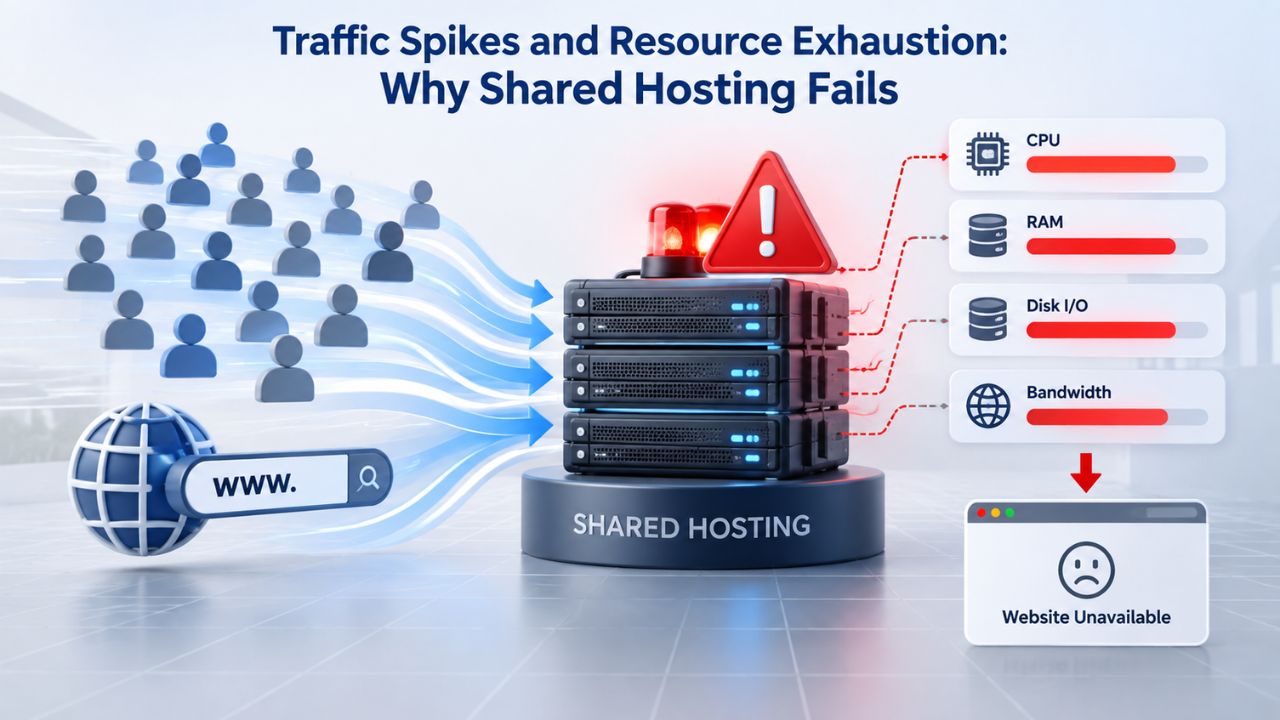
Shared hosting performs adequately during predictable, moderate traffic volumes. Performance collapses suddenly during traffic spikes, which happen regularly for successful sites: viral content, seasonal traffic surges, security incidents, or even your neighbors’ unexpected activity.
The Real-World Spike Scenario
Imagine your WordPress site serves 100 visitors daily under normal circumstances. Traffic suddenly doubles because a popular blog mentions you or social media picks up your content. On shared hosting, your CPU allocation is exhausted immediately. Your site doesn’t crash; it queues all incoming requests. New page loads pause for 10 to 30 seconds. Visitors see blank pages or timeout errors. Your site is processing requests, but so slowly that individual requests time out before the page is generated and sent to the browser.
Spikes also affect background operations like backups and updates. If a backup runs during a traffic spike, the spike delays the backup; the delayed backup consumes more resources and time; and the compounded resource use further slows front-end performance. This cascade can temporarily take your entire site offline.
The Invisible Neighbor Effect on Shared Servers
On a multi-tenant server, if another site experiences a major traffic spike, your site feels the effects immediately. When CPU, RAM, or I/O becomes saturated, the host’s container technology throttles all accounts proportionally. Your site wasn’t touched or changed. Still, it’s slower because neighbors’ traffic consumed available resources. This is invisible to your site’s monitoring tools; your server-health dashboard shows normal usage because you’re within your allocation, not because the server has available headroom.
For e-commerce sites, seasonal traffic surges like holiday shopping represent a recurring infrastructure crisis. On shared hosting, seasonal traffic can make your site struggle or go offline during your busiest and most profitable periods. On managed hosting, seasonal traffic is handled transparently through automatic scaling.
Core Web Vitals: Why Shared Hosting Makes Google Metrics Impossible
Google’s Core Web Vitals, Largest Contentful Paint (LCP), Interaction to Next Paint (INP), and Cumulative Layout Shift (CLS), are used as search ranking factors. Shared hosting makes Core Web Vitals compliance difficult, especially on mobile devices with limited bandwidth and higher latency.
| Core Web Vitals | Passing Threshold (75th Percentile) | Shared Hosting Reality | Managed Hosting Reality |
|---|---|---|---|
| Largest Contentful Paint (LCP) | Under 2.5 seconds | Typically 3–5+ seconds with high TTFB | Typically 1.2–1.8 seconds with optimized server |
| Interaction to Next Paint (INP) | Under 200 milliseconds | Often 200–400ms due to resource limits | Typically 80–150ms with sufficient resources |
| Cumulative Layout Shift (CLS) | Under 0.1 | Achievable with optimization | Achievable out-of-the-box |
| Mobile Performance | Must pass on 75% of page loads | Fails due to limited bandwidth and high TTFB on mobile 3G | Passes due to optimized delivery and lower TTFB |
| Desktop vs. Mobile Gap | Should be minimal (same threshold for both) | Desktop passes, mobile fails (2–3x slower TTFB) | Consistent performance on desktop and mobile |
| Server Response Time (TTFB) | Under 400ms is healthy | 900–1,400ms (p75) causes LCP failure | 120–250ms enables Core Web Vitals compliance |
| SEO Ranking Impact | Impacts search ranking directly | Poor Core Web Vitals hurt organic search visibility | Good Core Web Vitals improve rankings and CTR |
The Shared Hosting Core Web Vitals Reality
To pass Core Web Vitals, LCP must be under 2.5 seconds, INP under 200 milliseconds, and CLS under 0.1, all measured at the 75th percentile. On shared hosting, passing Core Web Vitals requires exceptional optimization: lightweight theme, minimal plugins, aggressive image optimization, low traffic, and zero feature complexity. Only 45 percent of WordPress sites globally pass Core Web Vitals on mobile, and shared hosting is a major contributing factor.
A typical WordPress site on shared hosting with SATA SSD storage, PHP 7.4, and no server-level caching struggles to pass Core Web Vitals regardless of front-end optimization efforts. Mobile performance is especially poor due to limited bandwidth and higher latency; a shared hosting site averaging 900 milliseconds TTFB on desktop might hit 1,500 milliseconds or higher on mobile 3G connections, completely exceeding LCP’s 2.5-second budget.
The Business Impact of Core Web Vitals Failure
A slow site directly impacts both search engine rankings and conversion rates. Poor page performance reduces customer engagement and harms search rankings. At the same time, a site passing Core Web Vitals experiences higher engagement, better search rankings, and measurably more conversions, all directly tied to hosting infrastructure. Managed hosting eliminates the performance ceiling, making Core Web Vitals compliance achievable without requiring heroic front-end optimization efforts.
Signs It’s Time to Upgrade From Shared Hosting
Knowing precisely when shared hosting isn’t right for your site prevents months of frustration and significant lost business opportunity. Your site displays these exact signals when it has outgrown shared hosting’s capacity and needs better infrastructure to support your business.

Your Site Shows These Clear Warning Signals
Consistent slowness persists despite optimization efforts. You’ve enabled caching, optimized images, installed a performance plugin, and the slowdown continues. TTFB remains above 600 milliseconds even with all plugins deactivated. This points to infrastructure-level hosting constraints, not application-level issues that optimization can solve through code changes or plugin adjustments.
“Resource Limit Reached” errors appear regularly in your hosting control panel or email notifications. Your hosting provider is rate-limiting your account due to exceeded CPU, memory, or entry-process limits. These errors indicate you’ve outgrown shared hosting’s capacity. You can contact support for a temporary increase, but the host’s server-level limit still applies to all accounts, so it can’t be a permanent solution.
“Out of Memory” errors appear regularly in your error logs. Your site frequently hits the PHP memory limit, forcing crashes or breaking functionality. The host’s server-level memory limit is too low for your workload. Increasing WP_MEMORY_LIMIT in your configuration won’t help if the server’s ceiling is lower than your request, leaving you unable to allocate the resources your site actually needs.
When to Migrate Away From Shared Hosting
Slowdowns occur consistently during peak traffic or traffic spikes. Your site runs fine during low-traffic periods but becomes unusable when traffic increases. This is the classic shared hosting signature: no available resource headroom for demand fluctuations. It’s predictable and repeatable, indicating your site has outgrown what shared hosting can provide.
Background tasks require excessive time. Backups stall for hours, bulk imports fail to complete, plugin updates hang indefinitely, and migrations time out. This signals I/O saturation on the shared server, affecting all sites and pages; timeouts occur during traffic spikes, leaving visitors with blank pages or “gateway timeout” errors while the server is overwhelmed and can’t queue requests fast enough.
If your site is a personal blog with 1,000 monthly visitors, shared hosting is adequate. If it’s an e-commerce store, membership site, high-traffic blog, or a site using heavy plugins like page builders, managed WordPress hosting removes the performance ceiling and protects your business from infrastructure-related disruptions.
How Managed WordPress Hosting Solves These Problems
Managed WordPress hosting is engineered specifically to address every limitation shared hosting creates. Rather than fighting against architectural constraints, managed hosting eliminates them by providing infrastructure designed for WordPress from the ground up. Every component, from the web server to the database layer, is optimized for WordPress workloads and scales automatically as your traffic grows.
The Infrastructure Difference That Matters
Managed WordPress hosting removes per-account resource caps. Your site doesn’t share CPU, RAM, or I/O with other accounts. When traffic increases, your infrastructure automatically scales to meet demand. Database connections, PHP memory, and I/O throughput all expand proportionally, preventing the resource exhaustion that plagues shared hosting. Niya Digital’s team has found that sites migrating from shared hosting to managed infrastructure experience immediate, dramatic performance improvements with zero code changes.
Your site also gets dedicated monitoring and optimization. Managed hosting providers actively monitor your site’s performance, identify bottlenecks, and implement optimizations like server-level caching configuration, database tuning, and PHP version selection. Shared hosting offers no such active management; you’re on your own to optimize within tight resource constraints.
Automatic Scaling and Peace of Mind
Traffic spikes no longer cause slowdowns or crashes. Managed hosting automatically allocates additional resources during spikes, ensuring your site remains fast and responsive regardless of demand. Seasonal traffic, viral content, or unexpected surges are handled transparently. Your site stays online and fast during your busiest periods, exactly when fast performance matters most for conversions and customer experience.
Daily backups are automated and stored securely. You can restore your entire site to any previous point with one click, protecting your business from data loss, hacks, or accidents. Security scanning runs automatically, malware is detected and removed before it affects your visitors, and DDoS protection is built-in. Managed hosting removes operational overhead so you can focus on building your business instead of managing infrastructure.
Ready to Move to Managed WordPress Hosting? Start Your Migration
Shared hosting slowness isn’t permanent. With managed WordPress hosting, site speed can improve fivefold to tenfold through infrastructure changes alone, with no code modifications required. Niya Digital manages WordPress migrations from start to finish, with zero downtime and zero data loss. Your site remains online throughout the entire process. We securely move your database, files, and configurations, then verify everything before going live.
Start Your Migration Today →
Frequently Asked Questions
What is the exact difference between shared hosting and managed WordPress hosting?
Shared hosting allocates CPU, RAM, and I/O across 50 to 100+ customer sites on a single physical server, with hard per-account limits. When your site exceeds limits, it gets throttled. Managed WordPress hosting provides dedicated infrastructure engineered specifically for WordPress, with automatic scaling and no per-account caps. Result: managed hosting is five to ten times faster, scales automatically with traffic, and includes server-level caching, daily backups, malware scanning, and expert support. The performance difference is immediate and dramatic.
Can I fix shared hosting slowness with plugins and optimization alone?
Plugins can optimize your site, but they can’t overcome hosting resource limits. If TTFB stays above 600 milliseconds with all plugins deactivated, the slowness is infrastructure-level, not application-level code. Caching plugins help, but server-level caching on managed hosting delivers better results because it’s built into the infrastructure. On shared hosting, optimization hits a ceiling tied to your account’s resource allocation.
Why does my site slow down randomly during peak traffic if nothing changed on my end?
Shared hosting allocates fixed resources per account. During peak traffic, your site consumes its full CPU and memory allocation. New requests queue or are rejected entirely. Your site doesn’t crash; it throttles requests, causing slowdowns that feel random. On managed hosting, traffic automatically triggers scaling, so slowdowns don’t occur. Your infrastructure grows transparently with demand.
How can I tell if my slowness is a hosting problem or a plugin problem?
Test with all plugins deactivated using Google PageSpeed Insights to measure TTFB. If TTFB remains above 600 milliseconds with no plugins, it’s a hosting problem. If TTFB drops below 400 milliseconds, your plugins are consuming resources and need optimization or removal. This simple test cuts through guesswork and points directly to the root cause.
Does caching solve shared hosting slowness?
Caching reduces load times for repeat visitors by serving static HTML instead of generating pages dynamically. On shared hosting, plugin-based caching helps but doesn’t reduce server load proportionally; cache generation and invalidation still consume resources. Managed hosting handles this efficiently with server-level caching. For maximum benefit, upgrade hosting and enable caching at the same time.
Should I upgrade my shared hosting plan instead of migrating to managed hosting?
Upgrading a shared hosting plan increases your per-account resource allocation but keeps you on a multi-tenant server sharing resources with other sites’ spikes. Managed hosting provides dedicated infrastructure and automatic scaling. For high-traffic sites or feature-heavy sites, managed hosting is a better long-term investment than repeatedly upgrading shared hosting as you grow.
Why does my site fail Google Core Web Vitals if I’ve optimized everything I can?
Check TTFB on Google PageSpeed Insights. If TTFB is 600 milliseconds or higher, hosting is the bottleneck. Google’s Core Web Vitals require 75 percent of page loads to meet thresholds, which is nearly impossible on shared hosting with high TTFB. Upgrading hosting often fixes Core Web Vitals compliance without any other changes, improving search rankings and conversions.
Will migrating to managed hosting fix my slow site immediately?
Yes. Moving the same site from shared hosting to managed WordPress hosting typically reduces TTFB from 900 to 1,400 milliseconds to 120 to 250 milliseconds, a five- to tenfold improvement from infrastructure alone. You’ll see faster load times immediately after migration. Core Web Vitals scores improve, and visitors experience noticeably faster pages.
What happens to my site during the migration from shared hosting?
Managed hosting providers handle migrations by copying your database, files, and configuration to new infrastructure. Your site remains online throughout. You can preview the site on the new hosting before flipping DNS, so there’s zero downtime and zero data loss. The entire process takes a few hours. Niya Digital provides expert guidance every step of the way.
Is managed WordPress hosting worth the extra cost compared to shared hosting?
Managed hosting costs more monthly but delivers exceptional value: five to tenfold faster performance, automatic scaling, built-in security including malware scanning and DDoS mitigation, daily backups with restore points, automatic updates, expert support 24/7, and no resource limits. For business-critical sites, the improved performance and reliability generate far more value through increased conversions, better search engine ranking, and peace of mind.
Can I run a WooCommerce store on shared hosting?
You can install WooCommerce on shared hosting, but performance suffers significantly. Database queries for product lookups, inventory, orders, and shopping cart operations quickly hit shared hosting’s I/O limits. A small store handles 200 to 300 orders smoothly on shared hosting; managed hosting handles 1,000+ orders on the same infrastructure. For e-commerce, managed hosting is essential.
What does “Resource Limit Reached” error really mean?
Your account exceeded the shared hosting provider’s CPU, memory, or entry-process limits. The host enforces these to protect other customers. You can optimize to reduce consumption, but if you consistently hit limits, your site has outgrown shared hosting. Managed hosting removes these per-account limits entirely.
How often should I expect my site to be slow on shared hosting?
During low-traffic periods, shared hosting performs adequately. During peak hours, traffic spikes, or when neighbors’ sites spike, slowness is normal. For sites depending on consistent performance for business, e-commerce, membership sites, marketing funnels, shared hosting’s variability is a liability. Managed hosting provides consistent, fast performance regardless of traffic or neighbors’ activity.
Does upgrading to PHP 8 or newer fix shared hosting slowness?
PHP 8.2+ is more memory-efficient than PHP 7.x, so upgrading helps slightly. But a slow PHP 8.3 site on shared hosting with a 900-millisecond TTFB is still slow. Infrastructure matters more than PHP version for overall performance. Upgrading both hosting and PHP delivers the biggest gains. Server-level caching and resource availability matter far more than PHP version alone.
Can a CDN fix shared hosting slowness?
A CDN caches static assets globally and serves them from locations near visitors, improving asset delivery speed. But a CDN doesn’t fix high TTFB on your origin server. If your server’s TTFB is one second, a CDN can improve asset delivery by 200 to 300 milliseconds, but your origin remains slow. Fixing the origin by upgrading hosting is the primary fix; a CDN is a bonus on top of good hosting.
Glossary
- Time to First Byte (TTFB): The time between when a visitor’s browser sends a request to your server and when the server sends the first byte of data back. TTFB is 100 percent controlled by hosting infrastructure and forms the foundation for all other page-speed metrics. Healthy TTFB is under 400 milliseconds.
- Largest Contentful Paint (LCP): A Google Core Web Vitals metric measuring how long it takes for the largest visible content element on a page to load. Google’s “good” threshold is under 2.5 seconds. High TTFB consumes much of your LCP budget before rendering begins.
- Resource Limit: A cap on CPU, memory, disk I/O, or concurrent processes allocated to an account on shared hosting. When an account exceeds its limit, the host throttles or rejects requests. These limits are invisible until you hit them, then performance collapses suddenly.
- Managed WordPress Hosting: A hosting model where infrastructure is optimized specifically for WordPress, with automatic updates, daily backups, built-in caching, security features, and resources that scale automatically with traffic, removing the per-account ceiling of shared hosting.
- Object Caching: A server-side cache for frequently accessed database query results using tools like Redis or Memcached. On managed hosting, object caching reduces database load and is optimized for WordPress. On shared hosting, it sometimes adds overhead that offsets its benefits.
- Core Web Vitals: Three Google metrics measuring user experience: LCP (Largest Contentful Paint), INP (Interaction to Next Paint), and CLS (Cumulative Layout Shift). These metrics directly impact search rankings. Shared hosting makes compliance difficult; managed hosting makes it easy.
- Entry Processes (EP): The number of simultaneous PHP processes allowed per account on shared hosting. Each visitor consumes one process; when all available processes are in use, new requests queue or time out, causing slowdowns and visitor abandonment.