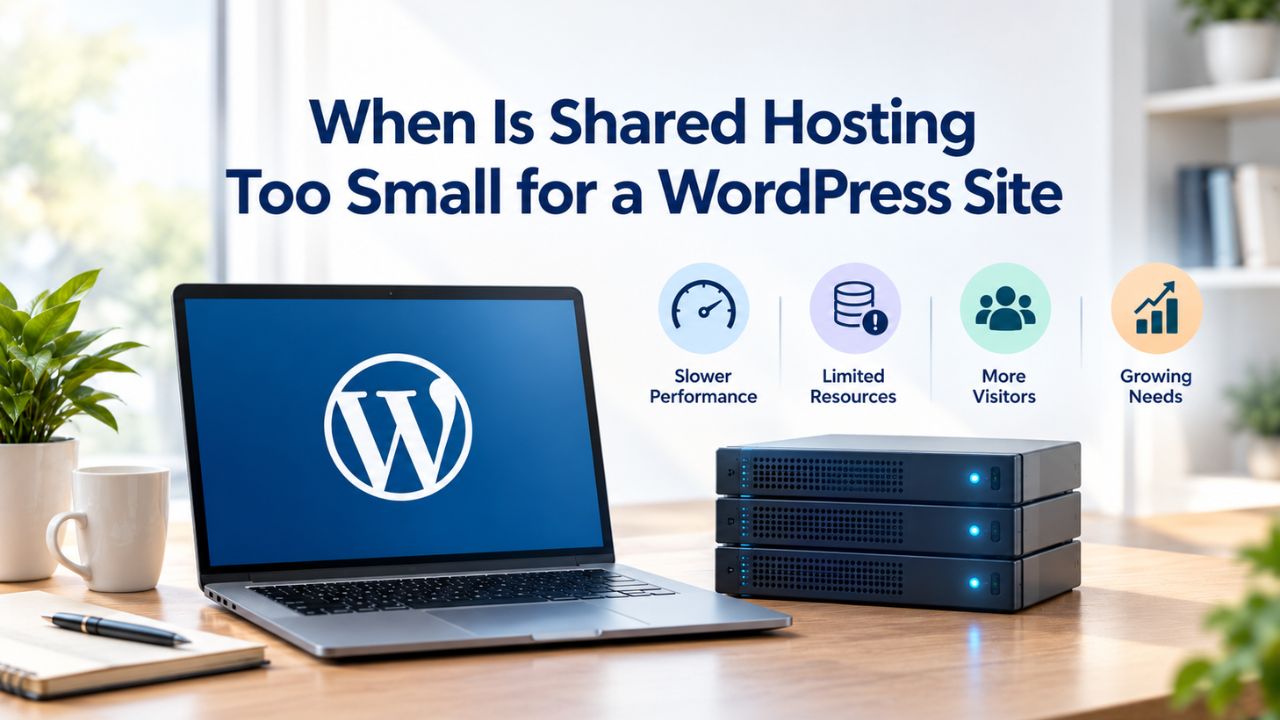
Shared hosting starts out affordable and simple. Then traffic grows, and your site hits resource walls. Pages that loaded in 1 second now crawl at 8 seconds. Backups time out. Admin screens lag. If this sounds familiar, your WordPress site has outgrown shared infrastructure. The real limits of shared hosting helps you recognize when you’ve hit them and explains what to upgrade to. Niya Digital’s team has found that most sites hitting performance walls need just mid-tier managed WordPress hosting. We deliver WordPress hosting in partnership with an enterprise-grade cloud infrastructure partner, designed to scale as your site grows.
Understanding Shared Hosting Resource Limits
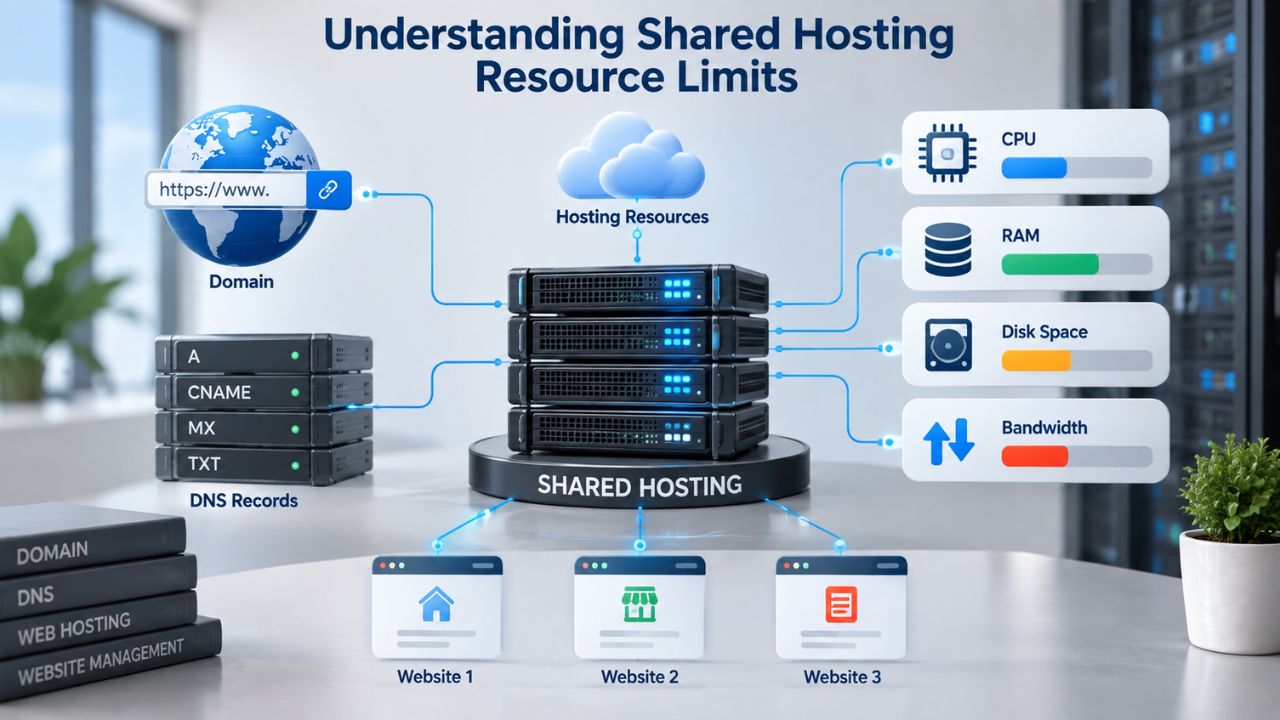
Shared hosting packs dozens or hundreds of websites onto one physical server, pooling CPU, memory, disk space, and bandwidth. This keeps costs low but creates hard resource caps that directly affect your site’s reliability and uptime.
CPU and PHP Worker Constraints
Shared hosting accounts typically cap CPU usage at 25% of total server resources for 90-second bursts. Beyond that, your site throttles. Entry process limits often range from 25–35 simultaneous PHP connections. Each visitor consumes one PHP worker. When traffic exceeds 35 concurrent users, requests queue and time out. For an e-commerce site or membership platform, this becomes a serious bottleneck during normal business hours. You can’t increase it without migrating to better hosting.
Memory, I/O, and Inode Limitations
Memory restrictions on shared hosting typically range from 128MB to 512MB per account. Modern WordPress with a page builder and plugins consumes 200MB during peak traffic, leaving little room for growth. When multiple sites share storage resources, I/O becomes a bottleneck. Inodes represent individual files and directories your hosting account can store. Plugins, themes, cache files, and backups consume inodes. A site with 50 plugins can exhaust the inode limit even if disk space looks low, preventing new files from being created.
WordPress Pricing Plans
Choose the WordPress hosting plan that fits your website needs, with reliable performance, security, storage, backups, and tools to help your site grow.
WordPress Basic
A great way to get started.
- 1 website
- 10 GB NVMe storage
- Unmetered bandwidth
- Free SSL Certificate *
- WordPress pre-installed
- Weekly backups
- Web Application Firewall
- Daily malware scans
- One-time malware removal

WordPress Deluxe
Improve your site performance with Cloudflare CDN.
- 1 website
- 20 GB NVMe storage
- Unmetered bandwidth
- Free SSL Certificate *
- WordPress pre-installed
- Daily backups
- Web Application Firewall
- Daily malware scans
- One-time malware removal
- Up to 2x faster performance with global Cloudflare CDN **
- Enhanced security with DDoS protection
- Staging site
WordPress Ultimate
Add online marketing with more sites, storage and security.
- 1 website
- 30 GB NVMe storage
- Unmetered bandwidth
- Free SSL Certificate *
- WordPress pre-installed
- Daily + on-demand backups
- Web Application Firewall
- Daily malware scans
- Unlimited malware removal
- Up to 2x faster performance with global Cloudflare CDN **
- Enhanced security with DDoS protection
- Staging site
- WordPress code optimizer
- Smart WordPress plugin manager
- Sell online with WooCommerce
The Performance Impact: Core Web Vitals and Search Rankings
Your site’s loading speed isn’t just a user experience issue; it’s a search ranking factor. Google measures user experience through Core Web Vitals, and slow-loading sites lose search visibility and traffic.
What Core Web Vitals Measure
Core Web Vitals are three Google metrics measuring user experience: Largest Contentful Paint (LCP) measures loading speed (good: under 2.5 seconds), Interaction to Next Paint (INP) measures responsiveness (good: under 200 milliseconds), and Cumulative Layout Shift (CLS) measures visual stability (good: under 0.1). Google uses these specific, measurable thresholds to rank websites. To pass Core Web Vitals, at least 75% of page visits must score “good” across all three metrics, based on real user data from the Chrome User Experience Report.
Why Shared Hosting Fails Core Web Vitals
Time to First Byte (TTFB), the delay between a request and the first byte of the response, underpins all other loading metrics. A good TTFB is under 800 milliseconds. On shared hosting, CPU throttling and neighbor noise can push TTFB to 2–3 seconds during peak hours, which can cascade into poor LCP and INP scores. 40% of people abandon a page that takes longer than three seconds to load. Page speed directly affects search rankings. Managed WordPress hosting delivers faster load times than shared plans because infrastructure is tuned specifically for WordPress.
Security Vulnerabilities in Shared Environments
Performance isn’t the only risk of shared hosting. Security is fundamentally compromised when multiple sites share the same underlying infrastructure, creating cross-account exposure.
Isolation and Exploit Risk
Shared environments increase vulnerability impact because multiple sites share the same underlying infrastructure. A compromise on one account can escalate to neighboring sites through shared permissions or resource abuse. If an attacker compromises another site on your server, they may pivot to your account. Other customers may access database credentials, file permissions, and server logs. This risk is inherent to the shared model and cannot be eliminated through optimization.
DDoS and Brute-Force Attack Mitigation
WordPress does not include native DDoS protection. Protecting a WordPress site requires additional tools such as web application firewalls (WAFs). On shared hosting, your provider may offer only basic network-level filtering. Brute force attacks targeting wp-login.php are common. Mitigating them requires rate limiting on login endpoints, two-factor authentication, and often a WAF. On shared hosting, providers often restrict rate-limiting configurations to avoid impacting other accounts, leaving your site vulnerable to credential-stuffing attacks.
When Do You Outgrow Shared Hosting? Early Warning Signs
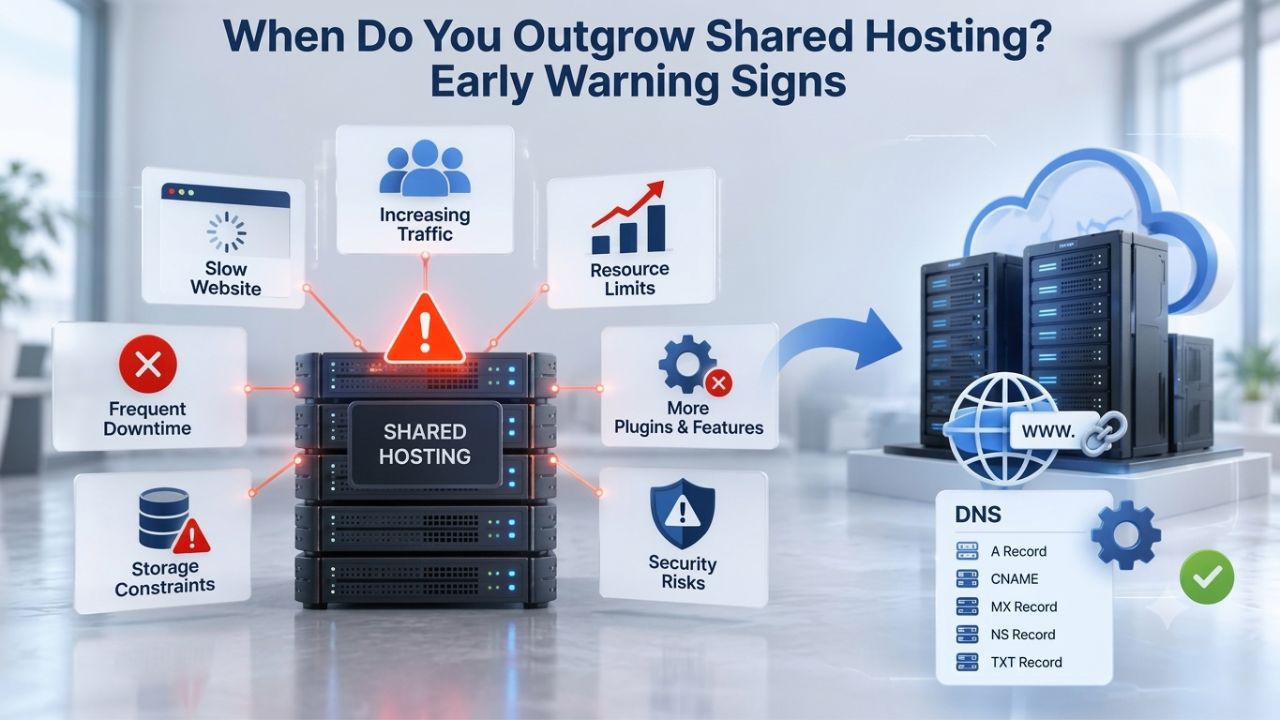
Recognizing the signs of outgrowth early lets you plan an upgrade instead of facing an emergency migration that risks downtime and data loss.
Slow or Inconsistent Page Load Times
A common early sign of outgrowth is inconsistent page load times, fast at 9 a.m., crawling at 9 p.m. This indicates resource competition on the shared server. Admin dashboard responsiveness degrades as CPU limits approach. Backup processes time out. If you’re using WordPress’s Site Health tool (Tools > Site Health > Info), check the “Performance” section; it flags resource bottlenecks directly. Monitor page load times weekly using tools like Google PageSpeed Insights or Lighthouse.
Resource Limit Errors and Recurring Downtime
Errors like “503 Service Unavailable,” “Exceeded memory limit,” “CPU limit exceeded,” or “Allowed memory size exhausted” mean your site needs more resources than the server can provide. These aren’t code bugs; they’re hard limits enforced by the hosting provider. Shared servers can become unstable during high-traffic periods. If your site is frequently offline, it signals that hosting resources cannot handle demand. Even one outage per month is too many for a business-critical site. Track uptime using monitoring services and note patterns; if outages cluster around peak hours, hosting is your bottleneck.
WooCommerce and E-Commerce Hosting Demands
E-commerce sites face unique hosting challenges that shared infrastructure cannot handle reliably, especially during checkout and payment processing.
Database Load Under Transactional Pressure
WooCommerce operations run entirely on database queries. Every product view, cart addition, discount application, and checkout interaction is a database write. When traffic spikes hit during checkout, database queries slow to a crawl, and customers get stuck on payment pages. This directly costs sales. Research confirms that even sub-second increases in page latency materially reduce e-commerce conversion rates and long-term customer returns. Shared hosting’s limited database resources create a critical bottleneck during sales events or seasonal peaks, when you need reliability most.
WooCommerce-Specific Resource Requirements
| Resource | Shared Hosting Allocation | WooCommerce Need | Result on Shared Hosting |
|---|---|---|---|
| PHP Workers (concurrent connections) | 25–35 | 50–100+ during sales events | Queue delays, checkout errors during traffic spikes |
| Database Connections | Shared pool, 5–10 total | 20–40+ per site during checkout | Slow queries, connection timeouts, lost orders |
| RAM for database caching | Minimal or none | 512MB–2GB (Redis/Memcached) | Repeated database hits, slow product page load |
| Disk I/O throughput | Shared, variable | Dedicated or prioritized | Checkout forms lag, inventory updates delay |
| Backup capability | Daily, site-wide | Real-time transaction backups | Risk of order data loss if backup fails |
| WAF or DDoS protection | Basic network-level | Checkout-specific rate limiting | Payment page vulnerable to bot attacks |
WooCommerce stores benefit from at least 2GB of RAM, a dedicated IP address, PHP 8.3+, and Redis object caching. Shared hosting typically provides none of these, making it unsuitable for any store with consistent transaction volume.
Explore Niya Digital’s Managed WordPress Hosting Plans
If your site has outgrown shared hosting, Niya Digital’s managed WordPress hosting is built to scale. Plans include automatic updates, daily backups, 24/7 support, a global CDN, free SSL, and optional WooCommerce optimization. Your infrastructure partner ensures reliable, scalable performance without the complexity of managing a VPS.
Membership Sites and Logged-In User Performance
Membership platforms face a specific performance challenge on shared hosting: cached pages don’t help logged-in members, so every request hits the database directly.
Why Membership Sites Break Page Caching
On membership sites, logged-in users bypass page caching. Every request they make hits PHP and the database directly. As member count grows, this creates resource contention on shared hosting that only object caching (Redis), more server resources, or managed hosting can solve. A site with 50 concurrent members can exhaust shared PHP workers within minutes during peak hours. Shared hosting cannot scale with member growth.
LMS Overhead: Quiz Engines and Database Writes
Learning management system (LMS) plugins add quiz engines, progress tracking, and course-completion logic. Each quiz submission, lesson completion, and course-progress update is a database write, not a read. High-volume LMS sites need VPS or managed hosting with dedicated database resources. Shared hosting’s limited I/O cannot reliably handle the burst of writes during peak course hours, causing timeouts and frustrating learners.
Migration Risks and the Cost of Getting It Wrong
Upgrading to better hosting sounds straightforward, but the migration process carries real risks that can affect your business and search visibility.
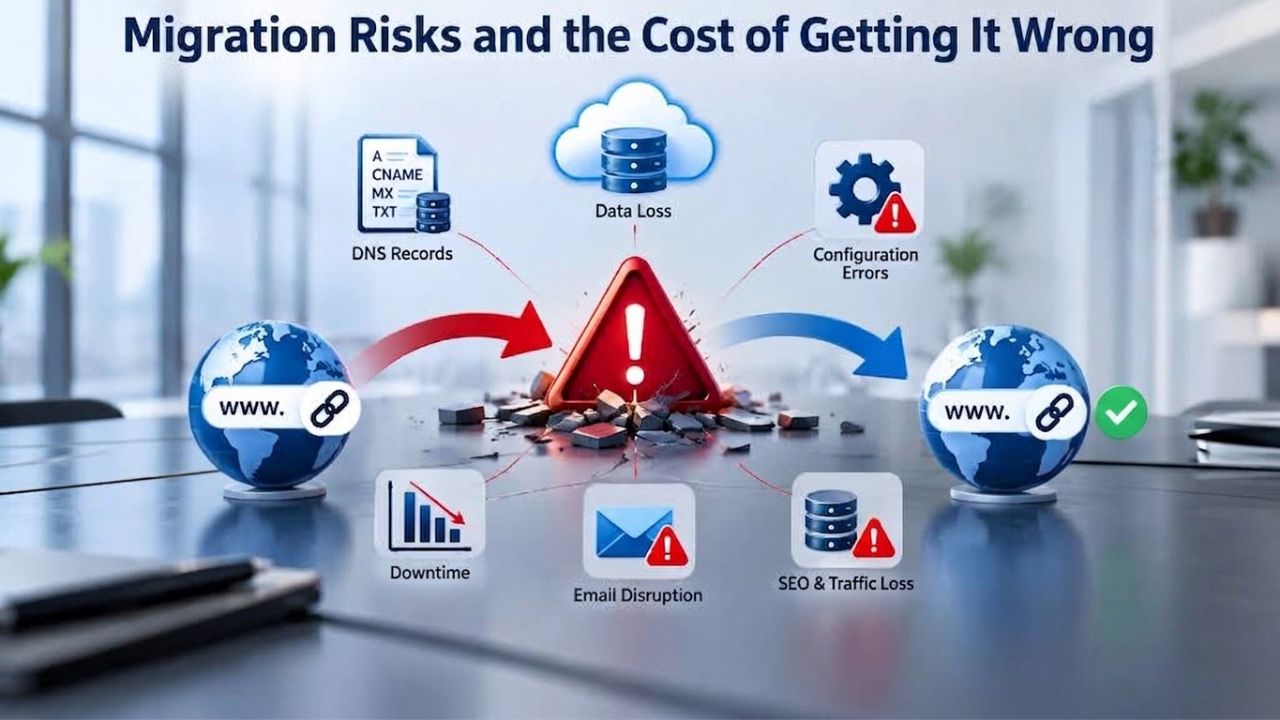
Data Loss and Downtime During Migration
A botched hosting migration can trigger extended downtime. Misconfigured redirects can strip a site of accumulated search rankings overnight. An incorrect database migration can corrupt content or lose transactional data entirely. Without a structured, verified process, a routine move can cause months of recovery work. For a business website, relying on one backup source is a weak risk strategy. Many businesses assume their hosting backup is complete and usable. Still, backups can be outdated, incomplete, or difficult to recover under pressure. A complete backup must include the database, media library, theme files, plugins, and custom configurations. Verify you can restore it before cutover.
Why Managed Migration Support Matters
Downtime during WordPress migration can result in lost sales, frustrated users, and SEO penalties. For transactional sites, misconfigured migrations can lose orders, cause cart abandonment, and damage trust. Managed hosting providers often include professional migration support that reduces downtime and ensures all data transfers correctly. This support alone can justify the upgrade cost and eliminates the stress of a DIY migration.
Making the Decision: Shared Hosting Self-Assessment Checklist
Use this table to determine whether shared hosting still fits your site or whether an upgrade is overdue and justified. If three or more scenarios apply to your site, an upgrade is justified.
Assess Your Site: Decision Criteria and Upgrade Readiness
This table maps common scenarios to assessment and recommended actions. Match your site to the relevant rows and review the action.
| Scenario | Assessment | Recommended Action |
|---|---|---|
| Monthly traffic <1,000 pageviews; simple blog content | Low resource demand; minimal plugin overhead | Shared hosting is adequate; optimize plugins and implement caching |
| Consistent slow page loads (LCP >4 seconds); Core Web Vitals failing | Search visibility at risk; user frustration evident | Upgrade to managed WordPress hosting within 30 days |
| Frequent “CPU limit exceeded” or “Memory limit” errors; 503 errors | Site hitting hard resource limits; cascading downtime risk | Upgrade to VPS or managed WordPress hosting immediately |
| WooCommerce store with >100 products; regular promotional sales events | Checkout performance critical; loss of conversion during peaks | Move to managed WordPress or WooCommerce-optimized hosting now |
| Membership or LMS site with >50 active logged-in members | Logged-in users bypass caching; database load will spike | Move to managed WordPress or VPS with dedicated database resources |
| Growing traffic; doubled in past 6–12 months | Trajectory suggests upcoming resource ceiling | Plan upgrade within 60 days; avoid emergency migration |
| Business-critical or revenue-generating site; downtime unacceptable | Risk of sales loss and trust damage outweighs cost of upgrade | Migrate to managed WordPress hosting with professional support |
| Repeated DDoS or brute-force attack attempts; weak security | Shared server security inadequate; neighbor compromise risk | Move to managed hosting with WAF, DDoS mitigation, isolation |
What Each Scenario Means for Your Hosting Choice
If one or two scenarios apply to your site, optimization and monitoring may extend shared hosting’s lifespan. If three or more apply, or if any “immediate” action is recommended, upgrade within 30 days to prevent emergency migration and data loss. Proactive upgrading protects your business, search visibility, and customer trust better than reactive crisis response ever can.
Understanding Your Upgrade Options: VPS, Cloud, and Dedicated Hosting
When shared hosting becomes a bottleneck, several upgrade paths exist. Choosing depends on your technical skill, budget, and growth trajectory.
Virtual Private Server (VPS) Hosting
A VPS gives you a dedicated portion of a physical server, your own CPU, memory, and disk space that aren’t shared with other customers. Unlike shared hosting, where server resources are split across hundreds of sites and configurations are heavily restricted, a VPS gives you full administrative control over your environment. You can freely adjust performance settings, install custom software, and modify PHP and server parameters to match your exact needs. VPS costs more than shared hosting but less than dedicated infrastructure.
The trade-off: VPS requires more technical knowledge. You’re responsible for server maintenance, security updates, backups, and performance tuning. If you’re not comfortable with server administration, managed WordPress hosting is a better choice. If you prefer control and have the skills, VPS offers flexibility and cost savings. For most WordPress sites, managed hosting removes the burden of server management entirely.
Cloud Hosting and Dedicated Infrastructure
Cloud hosting runs your site across multiple servers with automatic scaling. If one server reaches capacity, your site automatically adds resources. This makes cloud hosting ideal for sites with unpredictable traffic. At the top of the scale, dedicated servers give you an entire physical server exclusively for your site, but this is rarely necessary for WordPress unless you run millions of pageviews monthly. For most growing WordPress sites, managed WordPress hosting or cloud hosting covers all realistic needs at a reasonable price point without the overhead of direct server management.
Take Action: When to Migrate and How to Prepare
If any warning signs above describe your site, it’s time to start planning an upgrade. Avoid migrating during high-traffic periods; schedule during a planned maintenance window when traffic is lowest.
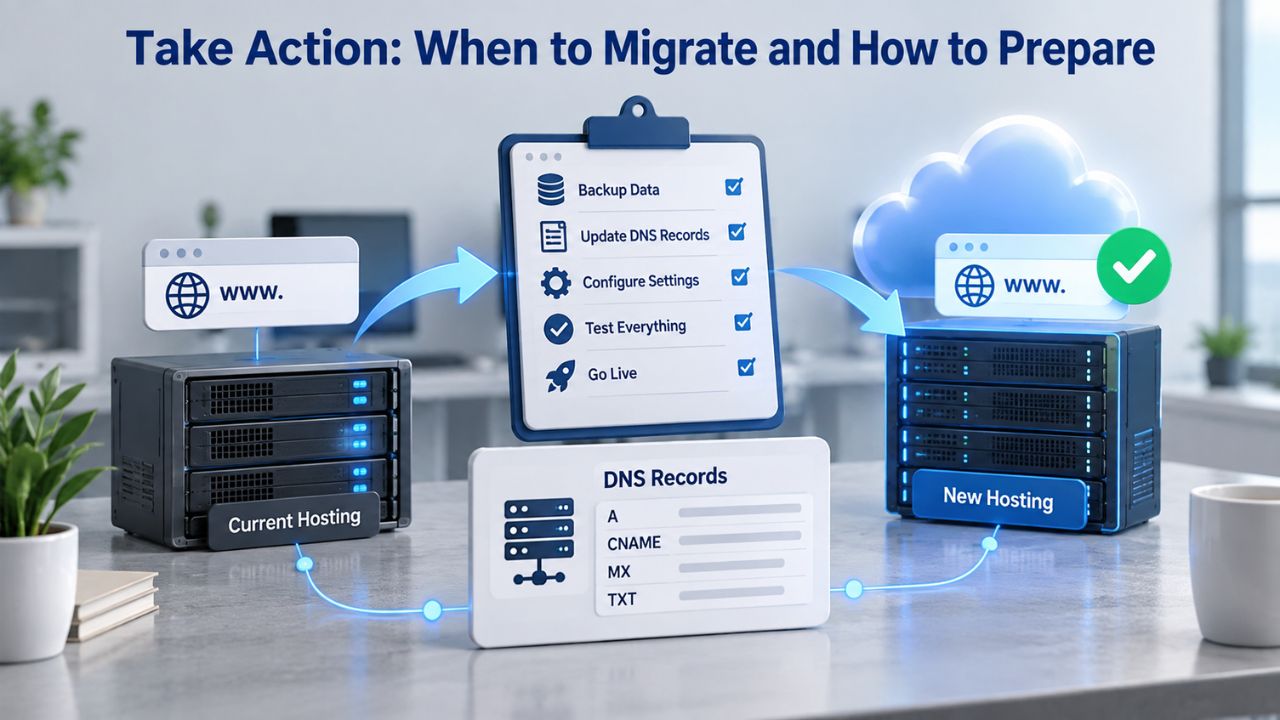
Timing Your Migration and Preparing for Success
Before contacting a new hosting provider, take these steps:
(1) Create a full backup including database, media files, and custom configurations.
(2) Document any custom setup, DNS records, email forwarding, and SSL certificate details.
(3) Identify exact WordPress, PHP, and MySQL/MariaDB versions on your current host.
(4) List all active plugins and themes; note premium plugins requiring license transfers.
(5) Plan a maintenance window and notify users of potential unavailability.
Most managed WordPress hosting providers include professional migration services at no extra cost, handling all technical details and significantly reducing your risk and downtime. This is one of the most valuable services a managed host provides.
Post-Migration Monitoring and Optimization
After migration, monitor your site closely for the first 72 hours. Check that all pages load correctly, forms submit properly, and images display. Verify email functionality if hosting includes email services. Confirm the SSL certificate is active and redirects are correct (HTTP to HTTPS). Monitor uptime, Core Web Vitals, and error logs. Most sites see 30–60% improvement in load times after migrating from shared to managed hosting. Track improvements in Google Search Console; Core Web Vitals scores typically improve within 2–4 weeks.
Ready to Migrate? Start Your Site Move Today
Niya Digital’s managed WordPress hosting handles migration professionally so you don’t have to. Our team manages the technical work, data transfer, DNS configuration, SSL setup, and testing, so your site moves without downtime or data loss. Every plan includes free migration support, 24/7 expert assistance, and performance monitoring to ensure your site thrives after the upgrade.
Frequently Asked Questions
What is the difference between shared hosting and managed WordPress hosting?
Shared hosting places your site on a server with dozens or hundreds of other sites, all competing for the same CPU, memory, and bandwidth. Resource limits are strict and enforced. Managed WordPress hosting provides dedicated or prioritized infrastructure optimized for WordPress, with automatic scaling, better performance, and expert support. Managed hosting costs more but includes features (caching, backups, staging, updates) that shared hosts don’t offer or charge extra for, making it better value long-term.
Can I fix performance issues on shared hosting by optimizing my WordPress site?
Optimization helps; caching plugins, code minification, and image optimization reduce server load. If your core hosting resources are exhausted (CPU limits are hit frequently, memory is maxed out), optimization alone won’t fix the problem. Once you’ve optimized everything reasonable, your hosting plan is the bottleneck. At that point, upgrading is the only real solution. Optimization extends shared hosting’s lifespan but doesn’t eliminate the ceiling.
Does shared hosting get you hacked more often?
Shared hosting increases vulnerability because all sites on the server share the same infrastructure. If one site is compromised, attackers may pivot to others. Shared hosting providers also have fewer resources for security monitoring and faster incident response. Managed hosting includes professional security monitoring, firewalls, and faster threat response, significantly reducing your risk. For business-critical sites, managed hosting’s security advantage justifies the upgrade.
How long does it take to migrate from shared hosting to managed WordPress hosting?
Most migrations take 1–4 hours for sites under 500MB. Larger sites (multiple GB of files and database) may take longer. Your new hosting provider typically handles the entire process if you request managed migration. You’ll have minimal downtime (30 minutes to 2 hours) during DNS propagation. The key is a complete, verified backup of your current site before you start. Without a good backup, recovery from migration errors is slow and risky.
Will my site be faster on managed WordPress hosting?
Most sites see 30–60% improvement in load times after migrating from shared hosting to managed WordPress hosting. The difference comes from optimized server configuration, better resource allocation, object caching, and reduced neighbor noise. Core Web Vitals scores typically improve significantly. Actual speed depends on your theme, plugins, and content, but hosting quality is a major factor that directly affects how fast your site loads compared with competitors.
What if I’m on shared hosting but traffic is still low?
If your traffic is genuinely low (under 1,000 pageviews per month), shared hosting is adequate. The cost savings matter. Focus on optimizing your WordPress site (lightweight theme, minimal plugins, image compression) to keep it running smoothly. Monitor your hosting provider’s resource usage over time. As your traffic grows, plan to upgrade before you hit limits rather than waiting for errors to appear. Proactive upgrading prevents emergencies.
Can I use a CDN to speed up my site on shared hosting?
A CDN (Content Delivery Network) caches static files on servers worldwide, reducing bandwidth usage and improving load times for distant visitors. CDNs help with performance, but they don’t solve the core problem: CPU and database load on your server. During high-traffic periods, visitors can still overwhelm shared server resources. A CDN supplements, not replaces, hosting infrastructure. Combine a CDN with better hosting for the best results.
What if my current host offers “unlimited” resources?
“Unlimited” shared hosting is marketing language. Every host has technical limits (CPU, memory, I/O, PHP workers). They enforce these limits even on unlimited plans. If you exceed them, your site slows down or goes offline. “Unlimited” refers to storage or bandwidth in some cases, but computational resources are always limited. Read the fine print; most hosts cap CPU and entry process usage, exactly as described in this post. Treat all claims of unlimited resources with skepticism.
Do I need to change my domain or DNS when migrating to new hosting?
No. Your domain name stays with your domain registrar. During migration, you’ll update your DNS records to point to your new host’s nameservers. This change typically takes 24–48 hours to propagate globally, during which time some visitors may see the old site while others see the new one. Your domain registrar’s documentation walks through this process. Most migration services handle DNS updates for you, so you don’t need to touch it yourself.
Is VPS hosting better than managed WordPress hosting?
It depends on your needs. VPS hosting gives you more control and lower costs but requires technical skill to maintain. Managed WordPress hosting is easier, includes professional support, and costs slightly more. For business-critical WordPress sites, managed hosting’s included backups, updates, and support justify the extra cost. For developers comfortable with server administration, VPS is more flexible and cost-effective. Most WordPress users benefit from managed hosting’s simplicity.
How do I know when to move from managed WordPress hosting to dedicated server hosting?
Most WordPress sites never need dedicated hosting. Dedicated hosting makes sense only if you’re running extremely high traffic (millions of pageviews monthly), running complex non-WordPress applications alongside WordPress, or need complete physical server isolation for compliance reasons. For nearly all WordPress sites, managed WordPress hosting or cloud hosting handles growth without hitting a new ceiling. Stay on managed hosting unless you have specific technical reasons to upgrade.
Should I migrate during a specific season or time of year?
Plan migration during your lowest-traffic period to minimize impact. For most sites, this is a weekend or late evening. For seasonal businesses (e-commerce, events), avoid peak season entirely. Plan migrations 2–3 months ahead to allow time for testing, backup verification, and provider coordination. Rush migrations during high-traffic periods increase risk of data loss or extended downtime. Patience and planning dramatically reduce migration risk.
What happens to my emails when I move hosting?
Email migration depends on your current setup. If your host provides email hosting, you’ll need to migrate email accounts and update MX records to point to your new host. If you use a separate email provider (Gmail for Business, Zoho Mail), no migration is needed; update your domain’s MX records in DNS. Most managed hosting providers handle this during migration. Confirm email routing with your new provider before cutover to avoid losing messages.
Why does shared hosting host so many sites on one server?
Shared hosting is a business model built on cost efficiency. A hosting provider buys one server and divides it among 100+ customers, spreading the server cost (and profit margin) across many accounts. This lets them offer lower-cost plans. The provider’s incentive is to pack as many sites as possible onto each server to maximize profits. As a result, shared hosting is always oversubscribed, resources are shared tightly, and performance suffers as usage grows.
What is the most common reason WordPress sites outgrow shared hosting?
Traffic growth. Most sites start with low traffic and perform fine on shared hosting. As a site gains visitors (through SEO, marketing, or reputation), the fixed resource limits eventually become a bottleneck. Without an upgrade, performance degrades, and errors appear. Other common reasons include feature additions (e-commerce, membership systems, advanced plugins) that demand more resources. Recognizing these patterns early lets you upgrade proactively instead of facing an emergency migration.
Glossary
- Shared Hosting: Multiple websites hosted on a single server, sharing CPU, memory, bandwidth, and other resources. Cost-effective, but performance is unpredictable when neighboring sites spike in traffic or consume resources.
- PHP Worker: A server process that handles PHP script execution. Each concurrent request consumes one PHP worker. Shared hosting typically limits this to 25–35 concurrent workers, causing request queues and timeouts when traffic exceeds this limit.
- TTFB (Time to First Byte): The delay between a user requesting a resource and the first byte of response arriving from the server. High TTFB indicates slow server response, often due to resource exhaustion or database latency on shared servers.
- Core Web Vitals: Google’s three metrics for measuring user experience: LCP (loading speed), INP (interactivity/responsiveness), and CLS (visual stability). Google uses these as search ranking factors in its Page Experience signal.
- Object Caching: Storing complex database query results in fast memory (Redis or Memcached) so repeated queries return cached results instead of hitting the database every time. Critical for membership sites and WooCommerce under high load.
- WAF (Web Application Firewall): A firewall that filters HTTP/HTTPS traffic, blocking malicious requests before they reach the web server. Can be cloud-based (edge-layer, more effective) or plugin-based (application-layer, weaker during major attacks).
- Managed WordPress Hosting: A hosting service optimized specifically for WordPress, with automatic updates, backups, performance tuning, security features, and 24/7 WordPress-expert support. Typically runs on VPS or cloud infrastructure, not shared servers.
- Inode: A file system data structure that represents a file or directory. The inode limit controls how many individual files and directories your hosting account can store. Plugins, themes, cache files, and backups all consume inodes.