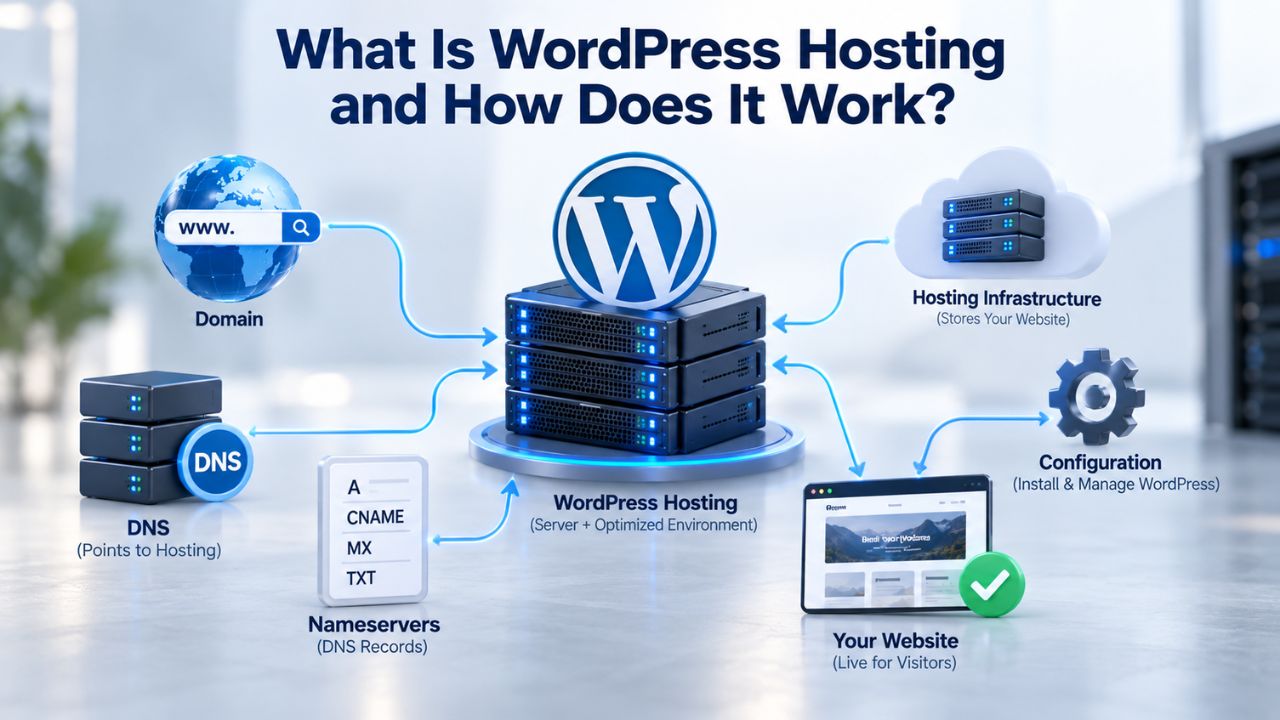
Your WordPress site’s speed, security, and uptime depend on your hosting environment. WordPress hosting is web hosting optimized specifically for WordPress, delivering caching, security, and infrastructure tuned for the platform’s demands. Niya Digital delivers its WordPress hosting plans in partnership with an enterprise-grade cloud infrastructure partner.
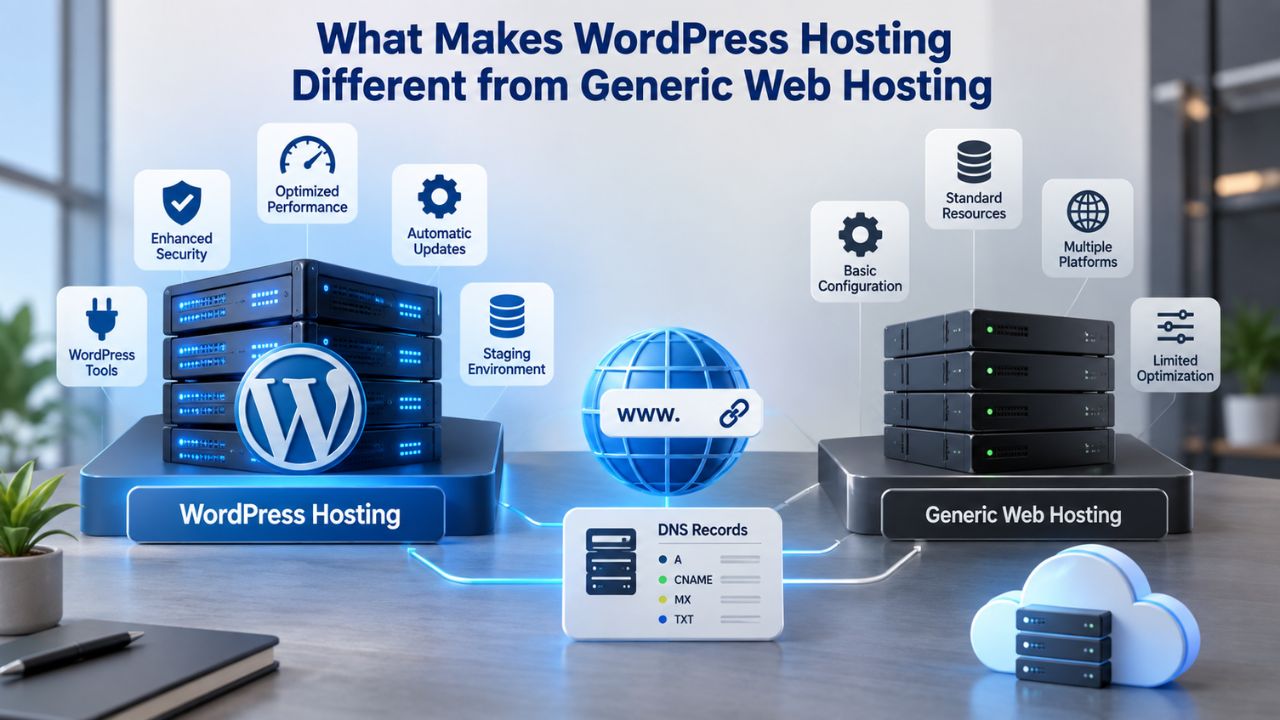
What Makes WordPress Hosting Different from Generic Web Hosting
WordPress hosting is purpose-built. Unlike generic web hosting that treats all applications the same, WordPress hosting is configured, tuned, and supported specifically for how WordPress operates. The server stack, caching layers, security rules, and support expertise all center on WordPress performance and security rather than a one-size-fits-all approach.
The WordPress Technology Stack and Why Hosting Matters
WordPress requires PHP 8.3 or greater, MySQL 8.0+ or MariaDB 10.6+, HTTPS support, and Apache or Nginx as the web server; these are the official baseline requirements. However, meeting the minimum doesn’t mean you’re optimizing for WordPress. A generic web hosting provider might install PHP and MySQL and call it “WordPress compatible”; a WordPress hosting provider configures PHP-FPM (FastCGI Process Manager), persistent object caching, and automatic backup integration so WordPress actually performs.
WordPress also depends on frequent database queries. A typical WordPress page load triggers 50–100+ database queries for posts, users, settings, and plugin data. Without hosting-layer caching, each visitor triggers a fresh query storm against the database. With server-level object caching via Redis or Memcached, query results are stored in fast server memory and reused across requests, reducing database load by 80–90% and dramatically cutting TTFB (Time to First Byte).
How Hosting Architecture Affects WordPress Features
WordPress features like staging environments, one-click backups, automatic updates, and malware scanning are either built into the hosting infrastructure or absent entirely. Shared hosting rarely includes these; managed WordPress hosting makes them standard. This matters because a staging environment is how you safely test theme updates or plugin conflicts before they break your live site. Automatic updates mean you never fall behind on security patches. Built-in backups mean recovery from a hack or failed update is one click, not a week-long rebuild.
The hosting platform also determines whether you get WordPress-specialist support (engineers who understand caching, transients, multisite, and query optimization) or generic helpdesk staff reading a knowledge base. When your site is slow, the difference is immediate.
WordPress Pricing Plans
Choose the WordPress hosting plan that fits your website needs, with reliable performance, security, storage, backups, and tools to help your site grow.
WordPress Basic
A great way to get started.
- 1 website
- 10 GB NVMe storage
- Unmetered bandwidth
- Free SSL Certificate *
- WordPress pre-installed
- Weekly backups
- Web Application Firewall
- Daily malware scans
- One-time malware removal

WordPress Deluxe
Improve your site performance with Cloudflare CDN.
- 1 website
- 20 GB NVMe storage
- Unmetered bandwidth
- Free SSL Certificate *
- WordPress pre-installed
- Daily backups
- Web Application Firewall
- Daily malware scans
- One-time malware removal
- Up to 2x faster performance with global Cloudflare CDN **
- Enhanced security with DDoS protection
- Staging site
WordPress Ultimate
Add online marketing with more sites, storage and security.
- 1 website
- 30 GB NVMe storage
- Unmetered bandwidth
- Free SSL Certificate *
- WordPress pre-installed
- Daily + on-demand backups
- Web Application Firewall
- Daily malware scans
- Unlimited malware removal
- Up to 2x faster performance with global Cloudflare CDN **
- Enhanced security with DDoS protection
- Staging site
- WordPress code optimizer
- Smart WordPress plugin manager
- Sell online with WooCommerce
How Shared Hosting Works and When It’s Appropriate
Shared hosting is the most affordable hosting model: your WordPress site shares a single physical server with dozens or hundreds of other websites. All accounts on that server share CPU, RAM, disk space, and bandwidth allocations. The hosting provider installs one copy of the operating system and web server, and each account gets a “sandbox” of disk space and process limits.
The Economics and Trade-Offs of Shared Hosting
Shared hosting is cheap because it spreads costs across hundreds of accounts. A single physical server might host 300 websites; divide the server cost by 300, and each account pays a fraction of what a dedicated server would cost. This makes shared hosting ideal for startups, personal blogs, or portfolios with light traffic and tight budgets.
The trade-off is performance predictability. On shared hosting, any of those 300 websites can consume excess CPU, trigger runaway processes, or get hit with a traffic spike. When one “noisy neighbor” site surges, it consumes available CPU and memory, slowing every other site on the server. A page that normally loads in 1.5 seconds might crawl to 8+ seconds if a neighbor runs a backup or experiences a traffic spike. Server response times on shared hosting typically range from 800ms to 1,400ms Time to First Byte, noticeably slower than optimized environments.
Shared hosting also has strict resource limits to prevent one account from crashing the entire server. These limits often trigger on: large plugin updates, backup processes, bulk imports, or site migrations. A backup process that should take 5 minutes might time out and fail on a shared server with tight memory constraints.
When Shared Hosting Is the Right Choice
Shared hosting is appropriate for small blogs with fewer than 10,000 monthly visitors, starter projects where you’re learning WordPress, portfolios and brochure sites with minimal updates, or any situation where cost is the primary constraint and performance is acceptable as a trade-off. If your site doesn’t need to handle traffic spikes, doesn’t run resource-heavy e-commerce operations, and your audience accepts slightly slower load times, shared hosting is a legitimate choice.
Managed WordPress Hosting: Optimization Beyond Installation
Managed WordPress hosting is a fully optimized hosting environment designed and tuned specifically for WordPress. The provider handles WordPress updates, security patches, backups, caching configuration, and performance tuning as part of the service. You manage your content and plugins; the provider manages the infrastructure layer.
How Managed Hosting Optimizes WordPress at the Infrastructure Level
Managed WordPress hosting uses distributed cloud infrastructure or dedicated server tiers that isolate your site from others. Instead of competing with hundreds of other sites for resources, your account either gets dedicated CPU and RAM (on a VPS or cloud tier), or runs on servers provisioned only for WordPress sites. Object caching is pre-installed and persistent; Redis or Memcached is configured so query results live in memory across page loads, not in the database.
Page caching is also automated. The hosting provider’s infrastructure renders your WordPress pages once and serves the cached HTML directly on repeat visits, bypassing PHP execution entirely. This combination, persistent object caching plus page caching plus server-level optimization, delivers Time to First Byte in the 120–300ms range, a 5–10x improvement over shared hosting.
The hosting provider also handles WordPress core updates automatically (on a schedule you can control), which means you never fall behind on security patches. Backups run daily or multiple times per day, are stored off-server on redundant cloud storage, and can be restored with a single click. Security is active: firewalls, brute-force protection, malware scanning, and automatic isolation of compromised files happen at the hosting layer, separate from any security plugins you install.
WordPress-Specialist Support and Staging Environments
Managed WordPress hosting includes a staging environment: a clone of your live site where you can test theme updates, plugin changes, or major edits without affecting visitors. You can push changes from staging to live with one click, confident that everything works first.
Support is also WordPress-specialized. Instead of a generalist helpdesk troubleshooting tickets across Linux, cPanel, and email, managed hosting support engineers understand WordPress caching, transients, plugin conflicts, database optimization, and WordPress-specific security. When something goes wrong, they can diagnose it quickly.
Cloud and VPS Hosting for WordPress
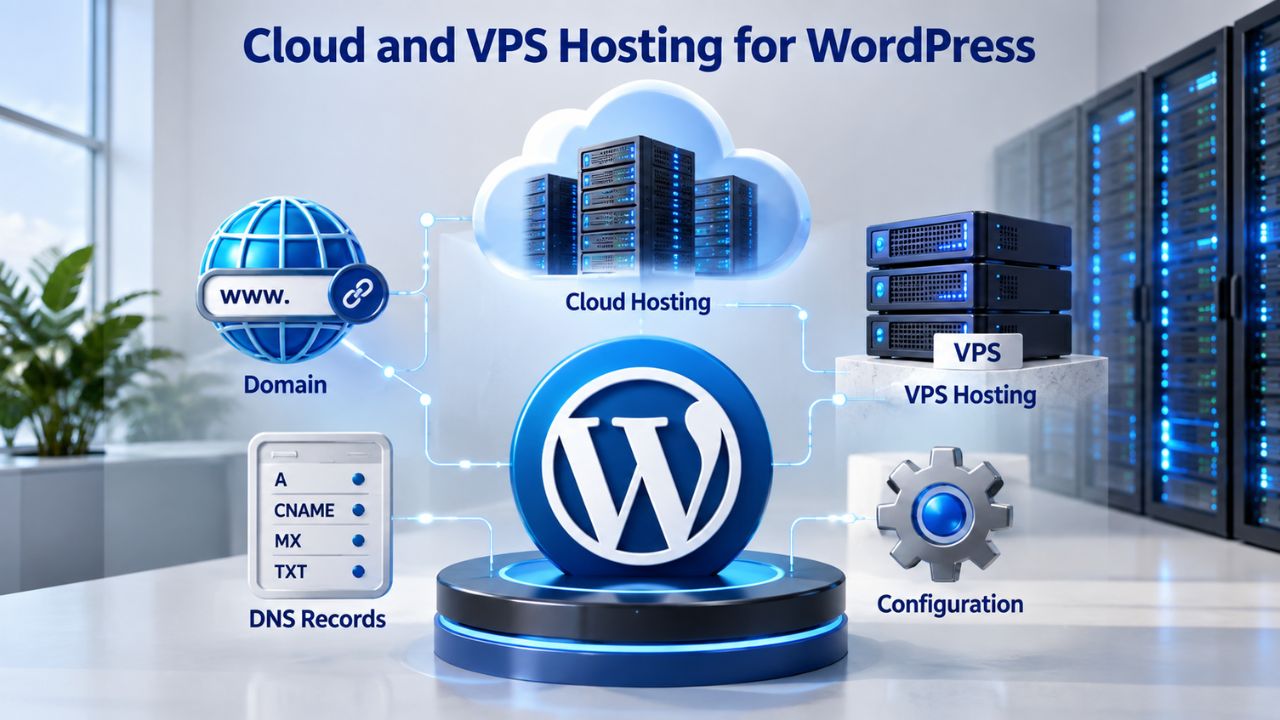
VPS (Virtual Private Server) hosting and cloud-based WordPress hosting sit between shared and dedicated hosting in both cost and complexity. A VPS carves a single physical server into multiple isolated virtual machines, each with its own dedicated CPU, RAM, and disk. Cloud hosting distributes your site across a cluster of servers, with resources allocated dynamically.
VPS: Dedicated Resources, Self-Management
On a VPS, your WordPress site has dedicated CPU cores and RAM that other accounts cannot steal. Performance is predictable: your site’s speed depends on how you configure the server and manage resources, not on neighbor activity. A VPS also gives you root access; you can install any software, configure any service, and customize the stack entirely.
The trade-off is responsibility. A VPS requires server management: you configure PHP, MySQL, caching layers, security updates, and backups yourself (or hire someone to). This suits developers and agencies that want full control and have the expertise to manage the stack. For a non-technical site owner, a VPS without management support becomes a liability: missed security patches, misconfigured backups, or PHP settings that break plugins are your responsibility.
Cloud Hosting: Scalability and Redundancy
Cloud-based WordPress hosting spreads your site across multiple servers in a cluster. If one server fails, another takes over automatically. If traffic spikes, resources scale dynamically to handle the load. This architecture is ideal for sites with unpredictable traffic, seasonal spikes (holiday e-commerce, event-driven content), or high-availability requirements.
Cloud hosting typically costs more than shared hosting but offers better uptime guarantees, auto-scaling, and geographic distribution (your content can be served from data centers near your visitors). The provider usually manages updates, caching, and backups, making it operationally simpler than an unmanaged VPS.
Core Web Vitals and Why Your Hosting Choice Matters
Google’s Core Web Vitals are three key performance metrics that directly affect search rankings: Largest Contentful Paint (LCP), Interaction to Next Paint (INP), and Cumulative Layout Shift (CLS). These metrics measure loading speed, interactivity, and visual stability, all aspects of user experience. Since June 2021, Core Web Vitals have been a direct ranking factor, meaning a fast site has a measurable SEO advantage.
Understanding LCP, INP, and CLS
Largest Contentful Paint (LCP) measures how quickly the largest visible content element loads, ideally under 2.5 seconds. This could be a hero image, large text block, or video. LCP directly depends on Time to First Byte: if your server takes 1.5 seconds to respond, your LCP cannot be faster than 1.5 seconds. On a slow hosting platform, server latency alone can push LCP into the “poor” zone, tanking your Core Web Vitals score before any other optimization matters.
Interaction to Next Paint (INP, which replaced FID in March 2024) measures responsiveness, how quickly the browser reacts when a user clicks a button or fills a form. Optimal INP is under 200ms. On managed WordPress hosting with proper caching and resource allocation, INP improves because the server isn’t CPU-starved.
Cumulative Layout Shift (CLS) measures visual stability and unexpected layout shifts while the page loads. A good CLS score is under 0.1. CLS is less directly tied to hosting performance than LCP, but a slow server that causes delayed image loading can cause layout thrashing and poor CLS.
How Hosting Performance Flows Through to Rankings
The hosting platform is the foundational layer for all three metrics. A site on slow shared hosting will struggle to achieve good Core Web Vitals scores no matter how well-optimized the theme or images are. A site on managed WordPress hosting with object caching and page caching starts with a performance foundation that makes other optimizations actually matter. This is why choosing WordPress hosting specifically matters: you’re not just paying for reliability; you’re investing in a performance architecture that directly affects your search visibility.
| Performance Aspect | Shared Hosting Typical | Managed WordPress Hosting Typical | Impact on Core Web Vitals |
|---|---|---|---|
| Time to First Byte (TTFB) | 800–1,400ms | 120–300ms | Determines LCP ceiling |
| Object Caching | None (per-request only) | Redis/Memcached (persistent) | Reduces query latency, improves INP |
| Page Caching | Plugin-based (unreliable on shared) | Server-level, automatic | Cuts LCP to <1s for cached pages |
| Resource Limits | Strict (shared pool) | Dedicated or scaling | Prevents INP delays under traffic |
| Automatic Updates | Manual or unreliable | Automatic, scheduled | Maintains security, prevents breaks |
| Backup Frequency | Manual or daily | Daily or multiple per day | Reduces recovery risk after failures |
| Server Redundancy | Single server (no failover) | Cluster or multi-server | Protects uptime, prevents complete failure |
Explore Managed WordPress Hosting for Your Site
Understanding WordPress hosting fundamentals helps you choose the right platform for your needs. Whether you’re starting a blog, running an e-commerce store, or migrating an existing site, hosting is the foundation of speed, security, and uptime. Niya Digital’s WordPress hosting plans run on enterprise-grade cloud infrastructure and include automatic updates, daily backups, object caching, and WordPress-specialist support.
How Caching Layers Work
Caching is the core performance technique in WordPress hosting. Without caching, every page request triggers PHP execution, database queries, and data processing from scratch. With caching at multiple layers, repeat requests skip expensive operations and serve data directly from memory.
Object Caching: Query Results in Memory
WordPress’s object cache stores database query results in server memory (typically via Redis or Memcached), so the second request for the same data is served from memory in under 1ms instead of being queried from the database in 50–200ms. A typical WordPress page build queries the same options, user data, and plugin metadata multiple times. Without persistent object caching, each query hits the database. With it, the first query hits the database, the result is stored in memory, and every subsequent query within that page load (and across page loads for other visitors) is served from cache.
By default, WordPress includes a non-persistent object cache that only survives for a single page request. Once the page finishes loading, it clears the cache. A managed hosting provider installs a persistent object cache (Redis or Memcached) so that query results survive across requests, the first visitor’s queries populate the cache, and every subsequent visitor benefits without re-querying the database.
Page Caching: Serve Pre-Rendered HTML
Page caching stores the rendered HTML of your WordPress pages so identical requests skip PHP and database entirely. A visitor loads your homepage; WordPress renders it (PHP runs, database queries run, plugins filter the content), and the final HTML is cached. The next 1,000 visitors get the cached HTML directly, with no PHP execution. This is why managed WordPress hosting can deliver a homepage in 300–500ms instead of 2–3 seconds.
Page caching has one requirement: the page must be the same for every visitor. A public blog post is identical for everyone; a logged-in user’s dashboard is unique per user. Managed hosting caching systems automatically bypass page cache for logged-in users, checkout pages, and other dynamic content, while aggressively caching public content.
Security at the Hosting Layer
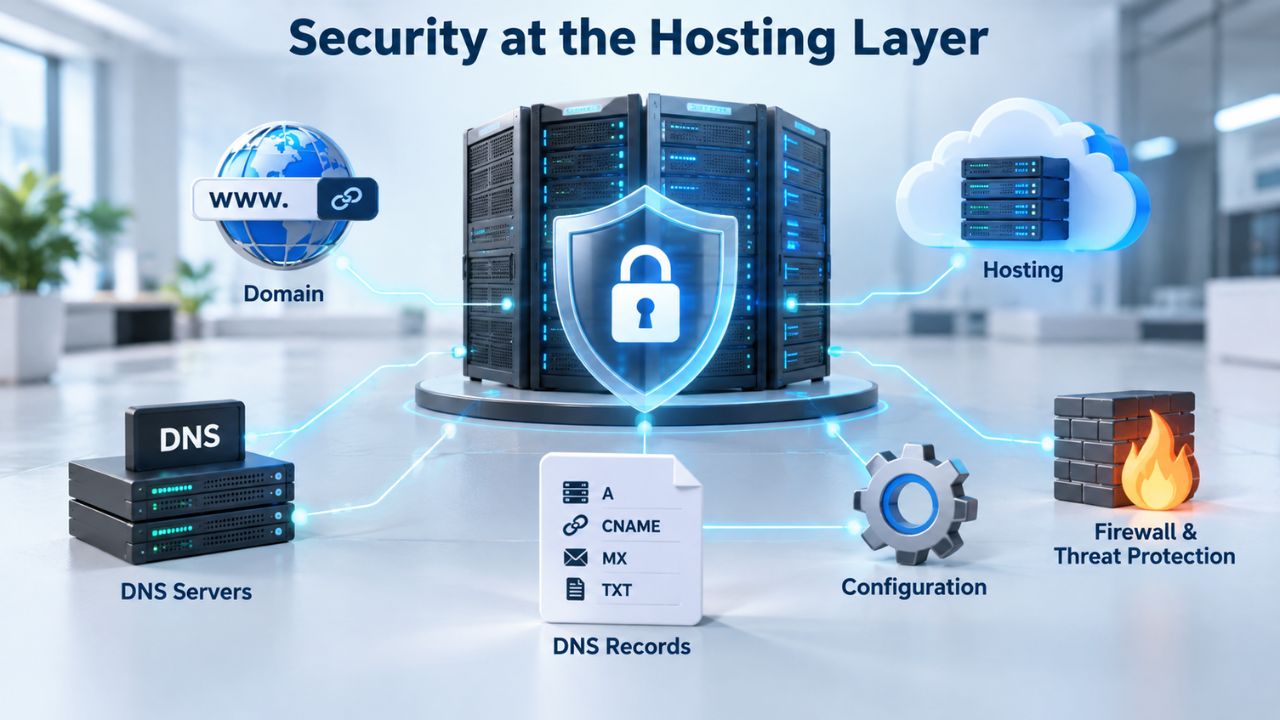
WordPress security depends on multiple layers: application-level (strong passwords, updated plugins, 2FA) and hosting-level (firewalls, malware scanning, server hardening). The hosting layer provides the foundation that application-level measures build on. A compromised hosting environment can undermine even perfect application security.
What Hosting-Layer Security Includes
Server-level security includes firewalls that block suspicious traffic, limit failed login attempts, and filter known attack patterns. Malware scanning runs continuously to detect and isolate compromised files before they infect your WordPress installation. Brute-force protection limits login attempts from a single IP to prevent password guessing. SSL/TLS encryption (HTTPS) is required for every WordPress site to encrypt the connection between the visitor and the server, protecting login credentials and data from interception.
Managed WordPress hosting also handles DDoS mitigation (absorbing sudden traffic surges designed to crash the site), automatically isolating compromised accounts, and applying security updates to server software (PHP, MySQL, operating system). These protections happen without any action on your part.
Your Responsibility Remains
Application-level security is still your responsibility: keep WordPress core, plugins, and themes updated; use strong, unique passwords; enable two-factor authentication; limit user permissions; and audit plugin activity. The hosting layer provides the foundation; you build application security on top. But without a secure hosting foundation, application security has nowhere solid to rest.
Backup Architecture and Disaster Recovery
A backup is only useful if you can restore from it. Many site owners discover their backups don’t work when disaster strikes. A real backup strategy includes what to back up, how often, where to store copies, and whether anyone has ever tested a restore.
What a Complete WordPress Backup Contains
A complete WordPress backup must include the database (posts, pages, comments, settings, user accounts) and files (uploads, themes, plugins, wp-config.php, .htaccess). The database alone is useless without files; files without the database restore a shell with no content. Both are required.
The 3-2-1 backup rule recommends: three copies of your data, stored on two different types of media, with one copy stored off-site or off-server. On-server backups restore quickly but die with the server if hardware fails or a ransomware attack locks down the entire hosting account. Managed WordPress hosting automatically runs daily backups to cloud storage independent of your hosting server, following this principle by default.
Frequency and Restoration Testing
Backup frequency depends on how often your content changes. A brochure site updated monthly is fine on weekly backups. A blog posting daily needs daily backups. A WooCommerce store with transactions and inventory updates needs hourly or every-4-hour backups because each transaction is unique data you cannot reconstruct. Managed hosting providers offer tiered backup frequencies to match your site’s needs.
The hardest part: 87% of website owners never test their backups. A backup you’ve never restored isn’t a real backup; it might be corrupted, incomplete, or incompatible with your current WordPress version. Managed hosting makes testing easy: you restore to a staging environment (a clone of your live site) and verify everything works before promoting back to live. This quarterly restore test is the only way to know your backups actually work.
| Backup Component | Recommended Frequency | Storage Location | Retention Period | Testing Schedule |
|---|---|---|---|---|
| Database | Daily to weekly (content-heavy sites: daily) | Off-server cloud storage | ≥30 days | Quarterly restore test |
| Files (uploads, plugins, themes) | Daily to weekly | Off-server cloud storage | ≥30 days | Quarterly restore test |
| Complete site snapshot | Daily | Off-server + on-server redundancy | ≥7 days | Monthly verification |
| WordPress config files | Per major update | Off-server cloud storage | Indefinite | With each restore test |
| Media library | Daily | Off-server cloud storage | ≥30 days | Included in restore test |
| User roles & permissions | Weekly | Off-server cloud storage | ≥30 days | Included in restore test |
| Plugin/theme versions | Per major update | Off-server cloud storage | ≥30 days | After major updates |
Site Migration: Planning, Execution, and Downtime Mitigation
Migrating your WordPress site to a new host is risky because any downtime can impact user experience, SEO rankings, and revenue. Even a few minutes of downtime can cause visitors to leave, search engines to mark your site unavailable, and your domain to lose search visibility. A careful migration plan and the right support minimize this risk.
The Migration Process: Staging, Testing, DNS Cutover
The safest WordPress migration follows this sequence:
(1) take a complete backup of your current site,
(2) restore that backup to the new host in a staging environment,
(3) test every critical feature and page load times on staging,
(4) after verification, update DNS records to point to the new host’s servers,
(5) monitor for errors and keep the old host running as a fallback for a few days.
The critical moment is the DNS cutover: when domain name servers are updated to point to the new host. Traffic flows to the old host until DNS records propagate worldwide, which takes 24–48 hours but often settles in minutes for most visitors. If you’ve tested thoroughly on staging, the new host is ready, and DNS is configured correctly, most traffic switches smoothly with minimal disruption.
Minimizing Migration Risk
Common migration mistakes: migrating without a staging test (breaking something live), updating DNS before verifying the new host works (complete downtime if the new server is misconfigured), or having support that doesn’t understand WordPress (migrations fail because caching isn’t configured or database paths are wrong). Managed WordPress hosting often includes migration support, engineers who handle the technical details so you don’t have to.
Niya Digital’s team has found that most failed or painful migrations happen when site owners try to DIY with tools that don’t understand WordPress-specific details like serialized PHP data, transients, and object cache invalidation. Professional support that understands these details can cut migration time from days to hours and downtime to minutes or less.
WordPress Hosting for Specific Use Cases
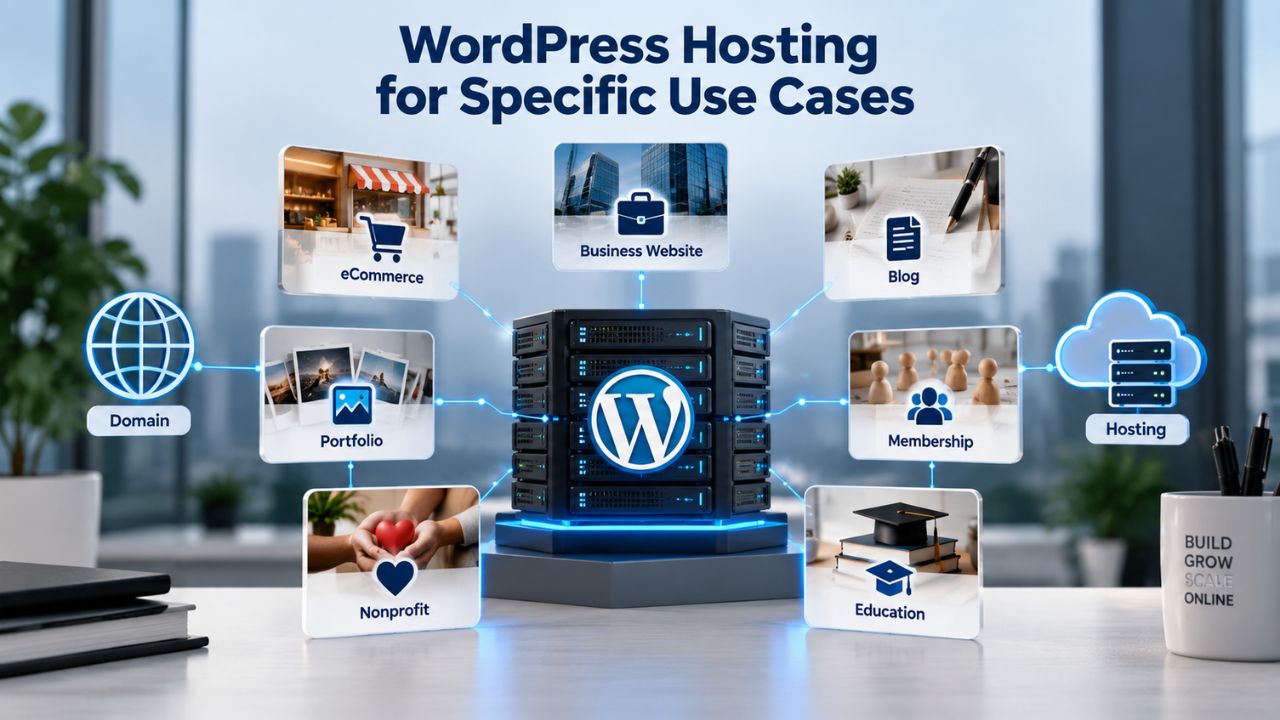
WordPress hosting isn’t one-size-fits-all. The right hosting depends on what your site does and how much traffic, complexity, or unique data it handles. Different site types have different performance, security, and backup needs.
Content Sites: Blogs, News, Portfolios, and Membership Communities
Blogs, news sites, portfolios, and membership communities prioritize: fast page loads (critical for SEO and reader retention), reliable backups (content is your irreplaceable asset), and scalability during traffic spikes. A blog or news site needs staging environments to test theme updates without breaking the live site and CDN integration to deliver images quickly worldwide. Membership sites add complexity: every page load must check member status and permissions, making object caching essential to avoid overwhelming the database.
Managed WordPress hosting handles all these needs automatically: object caching speeds up permission checks, automatic backups protect user-generated content, and staging environments make testing safe. For content-driven sites, managed hosting’s performance and backup reliability often pay for themselves through better SEO rankings and lower content-loss risk.
E-Commerce and High-Transaction Sites
WooCommerce stores, SaaS platforms, and other transaction-heavy sites have stricter requirements than content sites. Each order, user account, and transaction is unique, irreplaceable data that demands real-time backups, sometimes hourly or every 4 hours. Fast checkout pages are critical: delays directly reduce conversions and revenue. Downtime during peak shopping periods costs money every second.
If you process payments directly, PCI-DSS compliance is mandatory. Managed WordPress hosting optimized for WooCommerce typically includes: database tuning for product and order queries, cart-specific caching rules that don’t break order processing, fast checkout page loads, and often built-in PCI-DSS compliance verification. For high-transaction sites, managed WordPress hosting is less an option and more a requirement; performance and uptime guarantees directly protect revenue.
Get Expert Support for Your WordPress Hosting Needs
Choosing the right WordPress hosting platform is complex, and migrating an existing site adds another layer of planning and risk. Niya Digital’s team can help you evaluate your site’s needs, plan a migration if necessary, and set up hosting that scales with your growth. Our WordPress-specialist support is available to answer questions about performance, security, or any hosting decision you’re weighing.
Frequently Asked Questions
What is the difference between WordPress.com and WordPress hosting?
WordPress.com is a hosted platform where you build sites directly on WordPress.com’s servers with limited customization. WordPress hosting (self-hosted WordPress.org) is hosting you rent from a provider where you install and manage WordPress yourself, with full customization, plugin access, and ownership. This guide covers self-hosted WordPress; WordPress.com is a separate service.
Do I need managed WordPress hosting or is shared hosting fine for a small blog?
Shared hosting is fine for a small blog with fewer than 10,000 monthly visitors if you’re on a tight budget. However, managed WordPress hosting offers better performance (faster page loads improve SEO), automatic updates (stay secure without manual effort), and better support (WordPress-specialist help instead of a generalist help desk). For most sites beyond a hobby blog, managed hosting pays for itself through better search rankings and faster conversions.
What does “Time to First Byte” (TTFB) mean and why does it matter?
Time to First Byte is the time between requesting a page and receiving the first byte of server response. It measures server responsiveness and directly affects page load speed. Shared hosting typically has 800–1,400ms TTFB; managed WordPress hosting typically has 120–300ms. Because TTFB underpins all other performance metrics, a slow TTFB makes your site slow regardless of image optimization or plugin caching.
Can I move my WordPress site to a new host without downtime?
Mostly yes. With proper planning, a backup, staging tests, and careful DNS updates, you can minimize downtime to minutes or less. Zero-downtime migration is technically impossible because of DNS propagation, but careful staging, testing, and professional support can significantly reduce disruption. Managed hosting providers often assist with migrations to reduce risk.
What happens if my WordPress site gets hacked and my backups are corrupted?
This is why the 3-2-1 rule matters: off-server, off-site backup copies protect against corruption. If your hosting server is compromised, on-server backups die with it. If you store backups on the same hosting account, malware can corrupt them. Managed hosting stores backups on independent cloud storage, protecting you even if your site is completely compromised.
How often should I back up my WordPress site?
Frequency depends on how often you change your site. A monthly-update brochure site is fine with weekly backups. A daily-posting blog needs daily backups. A WooCommerce store needs at least daily backups, ideally every 4–6 hours to minimize transaction loss if something fails. Managed hosting offers configurable backup frequencies to match your content velocity.
Will caching break my site or hide updates from visitors?
No, when configured correctly. Managed hosting caching automatically:
(1) bypasses page cache for logged-in users,
(2) invalidates cache when you publish or update content, and
(3) serves cached pages only when the content hasn’t changed.
When you update a post, the cache clears, and new visitors see the updated version immediately.
What’s the difference between object caching and page caching?
Object caching stores database query results in memory so queries don’t hit the database. Page caching stores rendered HTML so identical requests skip PHP execution entirely. Page caching is faster (pure HTML delivery) but only works for non-personalized pages. Object caching is more flexible and works for dynamic content like logged-in dashboards. Managed hosting uses both layers together for optimal performance.
Do I need a Content Delivery Network (CDN) with managed WordPress hosting?
CDNs are optional but beneficial. A CDN caches your static assets (images, CSS, JavaScript) on servers worldwide so visitors load them from a location near them instead of your origin server. This further improves page load times, especially for sites with international visitors. Many managed hosting plans offer built-in or deeply integrated CDN options.
What security measures does hosting-layer security provide?
Hosting security includes firewalls, brute-force protection, malware scanning, SSL/TLS encryption, DDoS mitigation, and automatic security updates to server software. Application-level security (strong passwords, updated plugins, 2FA) is still your responsibility. Together, hosting + application security creates layers of protection; either alone is insufficient.
Can I use WooCommerce on shared hosting or do I need managed WordPress hosting?
You can use WooCommerce on shared hosting but may hit performance and reliability limits. WooCommerce generates more database queries than a blog (product filters, cart operations, checkout), which can slow down shared hosting. Managed WordPress hosting optimizes WooCommerce performance and offers more reliable backups (each order is irreplaceable data). For a store doing more than a few transactions per week, managed hosting is worthwhile.
How do I know if my site is ready to migrate to a new host?
Your site is ready if:
(1) you have a complete backup,
(2) you can test on a staging environment before going live,
(3) your current hosting allows enough time to plan (not an emergency), and
(4) you have support or expertise to handle DNS cutover.
Don’t migrate during high-traffic periods or on Friday evenings when support is less available.
What’s the biggest difference between shared, managed, and dedicated hosting?
Shared hosting offers the lowest cost but the slowest, least predictable performance because resources are shared. Managed WordPress hosting offers optimized performance and automation but less control; your provider configures the server. Dedicated hosting offers full control but requires you to manage it. The right choice depends on your budget, technical expertise, and performance needs.
Why does my WordPress site slow down as I add more posts and plugins?
Each post, plugin, and user increases database size and complexity. Without object caching, every page load queries more data from a bigger database, which takes longer. Without optimization, plugins add HTTP requests and JavaScript that slow down pages. Managed hosting with persistent caching prevents this slowdown because caching layers reduce database queries regardless of size.
Is it true that hosting companies sometimes don’t delete backups when you cancel?
Yes, some hosts retain old backups beyond stated retention periods, sometimes indefinitely. This is why the 3-2-1 rule matters: store your own copies of backups independent of your host. Managed hosting providers are typically more transparent about retention and offer easy backup export. When evaluating hosting, ask about backup deletion policies and make sure you have copies in your control.
Glossary
Object Cache: A server-memory storage layer (typically Redis or Memcached) that keeps database query results between page loads, preventing repeated queries to the database and reducing server load.
TTFB (Time to First Byte): The time elapsed from when a browser requests a page until the server sends the first byte of response; a foundational performance metric that determines the page load speed ceiling.
Managed WordPress Hosting: Web hosting purpose-built and optimized for WordPress, including automatic updates, persistent caching, security scanning, backups, and WordPress-specialist support.
Staging Environment: An exact copy of your live WordPress site used for testing updates, theme changes, and migrations before pushing changes to the production site.
Core Web Vitals: Three key performance metrics (Largest Contentful Paint, Interaction to Next Paint, and Cumulative Layout Shift) that Google uses to measure user experience and determine search rankings.
DNS Cutover: The moment when domain name servers are updated to point to a new hosting provider during site migration; minimizing time between cutover and verification reduces migration downtime.
Persistent Caching: Caching system (typically Redis or Memcached) that retains cached data across page requests, unlike WordPress’s default per-request cache that resets after each page load.