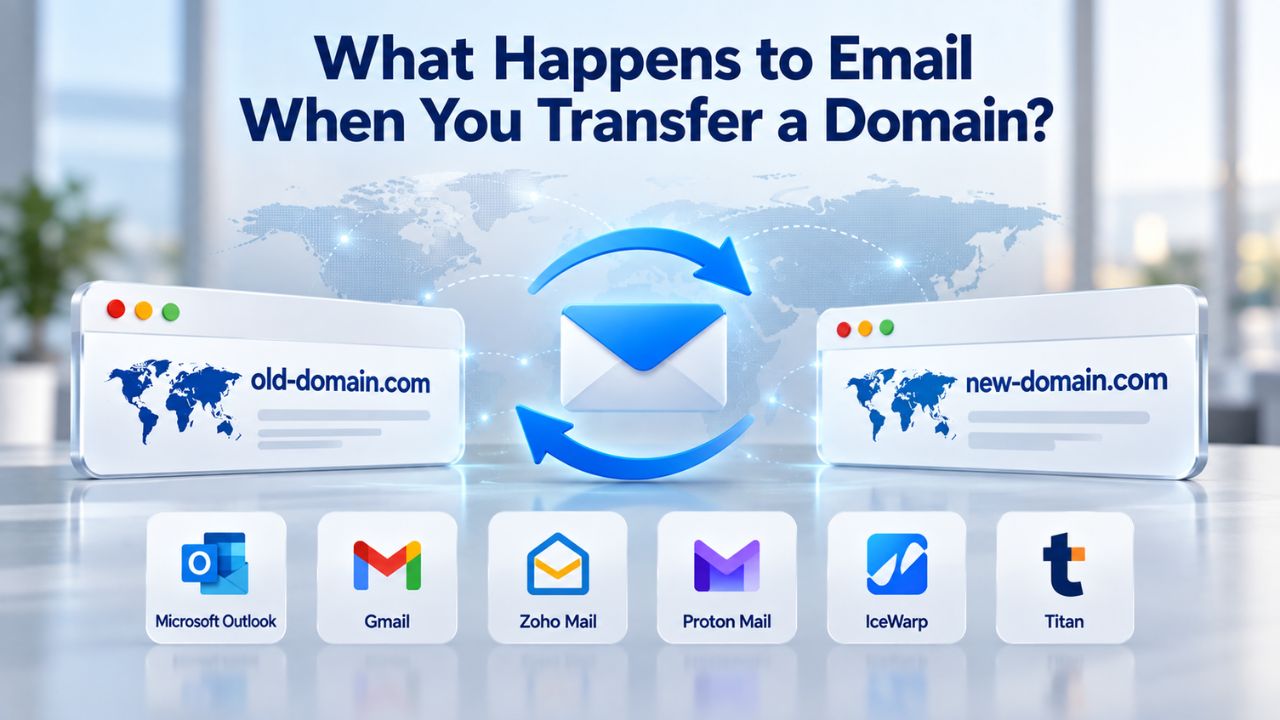
What Your Domain Registrar Actually Controls
When you register a domain, your registrar becomes the sponsoring registrar, the entity that holds your registration at the global domain registry and handles renewal notices and administrative updates. Many business owners assume this means the registrar controls everything tied to the domain, including email, websites, and all related services. In reality, registrar authority is narrow and specific, limited to managing the registration record itself.
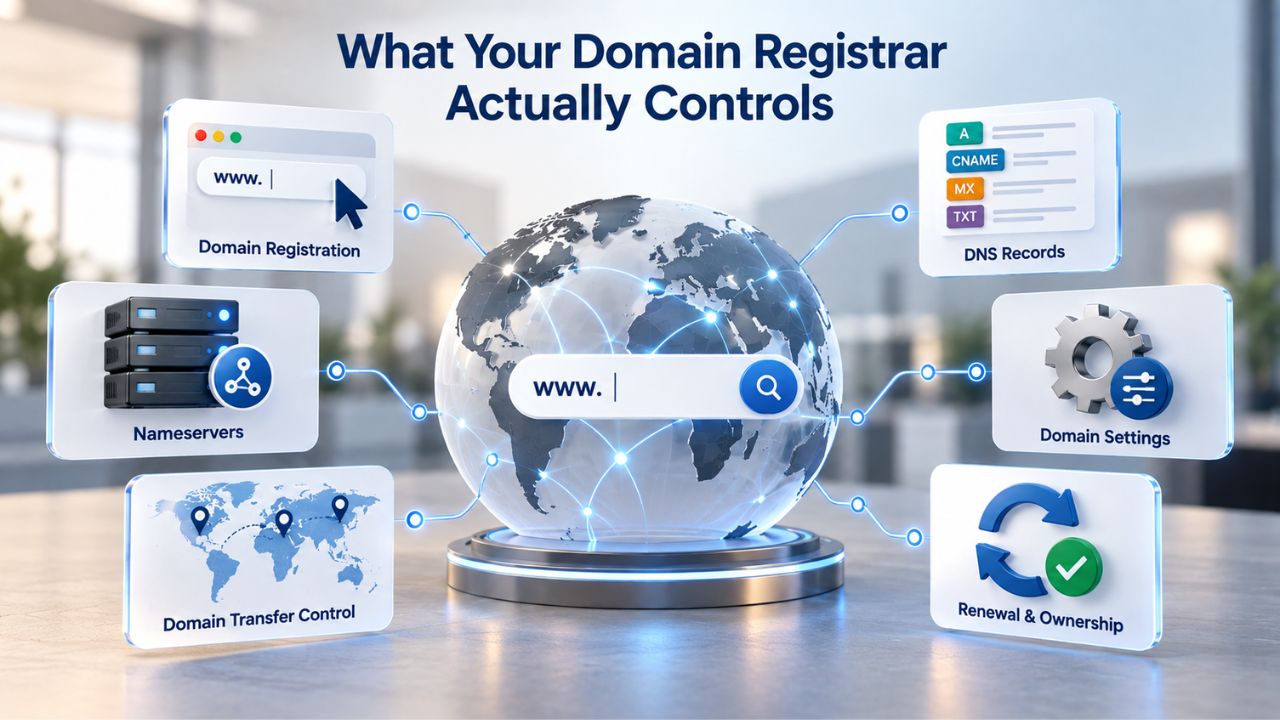
The Registrar’s Actual Role
A domain registrar manages one fundamental responsibility: holding your domain name registration record at the central registry and serving as the administrative point of contact for that registration. When you transfer a domain from one registrar to another, say, from Company A to Company B, you’re moving that registration sponsorship to the new entity. ICANN’s registrant FAQs clarify that the transfer process involves unlocking the domain at your current registrar, obtaining an authorization code, and confirming ownership via email sent to the registered contact address.
The registrar transfer itself changes billing responsibility and administrative contact information only; it does not automatically change your DNS records, nameservers, email configuration, or website hosting. Understanding this distinction is crucial because it explains why services tied to your domain remain unaffected during a transfer. Your registrar holds a record; your services live elsewhere. These are distinct systems that operate independently, connected only through DNS records you control. The registrar’s role ends with managing who owns the registration; it has no authority over the technical routing or service configuration that email and websites depend on.
What a Domain Transfer Does NOT Touch
A registrar transfer does not automatically transfer email services, websites, DNS records, or any other services attached to your domain. If your email is hosted independently, whether through a third-party service like Titan Email, a cloud platform such as a cloud email provider, or another independent provider, it remains completely unaffected by a registrar transfer, provided your DNS records stay intact and correctly configured, pointing to your email host’s servers. This separation protects email during a domain move and is why professional email hosting survives registrar transfers uninterrupted.
The key principle is that domain registration and service hosting are two separate operational systems. The registrar manages the domain name ownership record; your email provider manages the actual email servers and mailbox infrastructure. These systems communicate through DNS records, which act as a directory telling the world where your domain’s services live. As long as DNS records stay correct and point to the right servers, your email flows seamlessly, no matter which registrar holds the registration.
Email Independence from Domain Registration
The relationship between domain registration and email hosting confuses many business owners because registrars often bundle both services under one account. This bundling creates the false impression that domain registration and email hosting are inseparable or that losing one means losing the other. In reality, these are independent services that some providers happen to sell together.
Hosted Email vs. Registrar Email
Network Solutions’ domain transfer guide makes an important distinction between two types of email services: generic services that operate independently of any registrar and proprietary services built directly into a registrar’s platform and infrastructure. Generic services like cloud email platforms continue working seamlessly after a registrar transfer because they’re hosted on independent servers that the registrar doesn’t control. Proprietary email services bundled with registrar accounts may break or stop functioning after a transfer because they’re tied directly to the old registrar’s infrastructure and control systems.
A professional email address using your custom domain, such as [email protected], is technically separate from the domain registration itself. Your email lives on dedicated email hosting servers managed and operated by your email service provider. Your domain registration lives in a database maintained by your registrar at the global registry. Email hosting relies on DNS records (specifically, MX records) to route incoming messages to the correct mail servers; the registrar holds the domain registration and administers the owner contact information. These operate as completely independent systems; email hosting doesn’t depend on who holds the domain registration, only on correct DNS configuration.
Why Your Email Survives a Domain Transfer
If you use a third-party email host like Titan Email, major cloud email providers, or another independent email service, your email accounts continue receiving messages seamlessly through a registrar transfer because the email provider’s infrastructure is entirely independent of your registrar’s systems.
During a domain transfer, emails don’t go anywhere or get interrupted; they stay on your email hosting provider’s servers and keep receiving new messages. A registrar transfer only changes administrative control and billing responsibility for the domain name itself. As long as your DNS records (the technical routing instructions) continue pointing correctly to your email provider’s mail servers, email delivery stays continuous without interruption or service loss.
How Email Routing Works During Transfer
Email delivery depends entirely on a single category of DNS records: the MX record, or Mail Exchange record. Understanding MX records is absolutely critical to understanding why email either continues uninterrupted or breaks during a domain transfer. This single piece of technical infrastructure is the lifeline connecting your domain name to your email provider’s actual mail servers.
What an MX Record Does
An MX record is a DNS instruction that tells the world’s email servers where to deliver incoming mail addressed to your domain. When someone sends an email to [email protected], their email server performs a DNS lookup asking, “Where should I send email for example.com?” The MX record provides the answer: a pointer to your email host’s mail servers (for Titan Email, those servers are mx1.titan.email and mx2.titan.email, according to Titan’s setup documentation). Without an MX record pointing to an active mail server, the sending server has nowhere to deliver the message, and email bounces back to the sender.
If MX records are correct and active throughout your domain transfer, email flows seamlessly regardless of which company holds your domain registration. The registrar change is transparent to the email system because email delivery depends only on the MX records in DNS, not on who administers the domain registration. If MX records are missing, incorrect, or temporarily unreachable during DNS propagation, email bounces or is delayed. DN.org’s domain transfer guide explains that email delivery depends entirely on MX records being present and correct in DNS; without them, the email system cannot function.
The Critical Window: Before, During, and After Transfer
Before initiating a registrar transfer, verify that your MX records are correctly configured at your current registrar and point to the right mail servers for your email provider. Check your registrar’s DNS control panel and confirm that MX records exist and match what your email provider specifies. During the transfer, make sure your new registrar receives a complete, accurate copy of all existing DNS records, especially MX records. Many registrars have tools to import DNS records from the old registrar, but manual verification is essential; a single missing or misconfigured MX record can interrupt email for hours or days.
After the registrar transfer completes, test that MX records still resolve correctly by checking them in your new registrar’s control panel or using email verification tools. Send test emails to and from your domain to confirm routing works correctly. These post-transfer tests catch configuration errors before they affect business-critical communications and let you fix issues while DNS records are still propagating.
DNS Propagation and the 24–48 Hour Window
Once a registrar transfer completes or you update DNS records, those changes don’t propagate instantly across the internet to all DNS servers globally. Understanding DNS propagation timing and how to minimize downtime risk is essential to planning a safe email transfer that maintains business continuity.
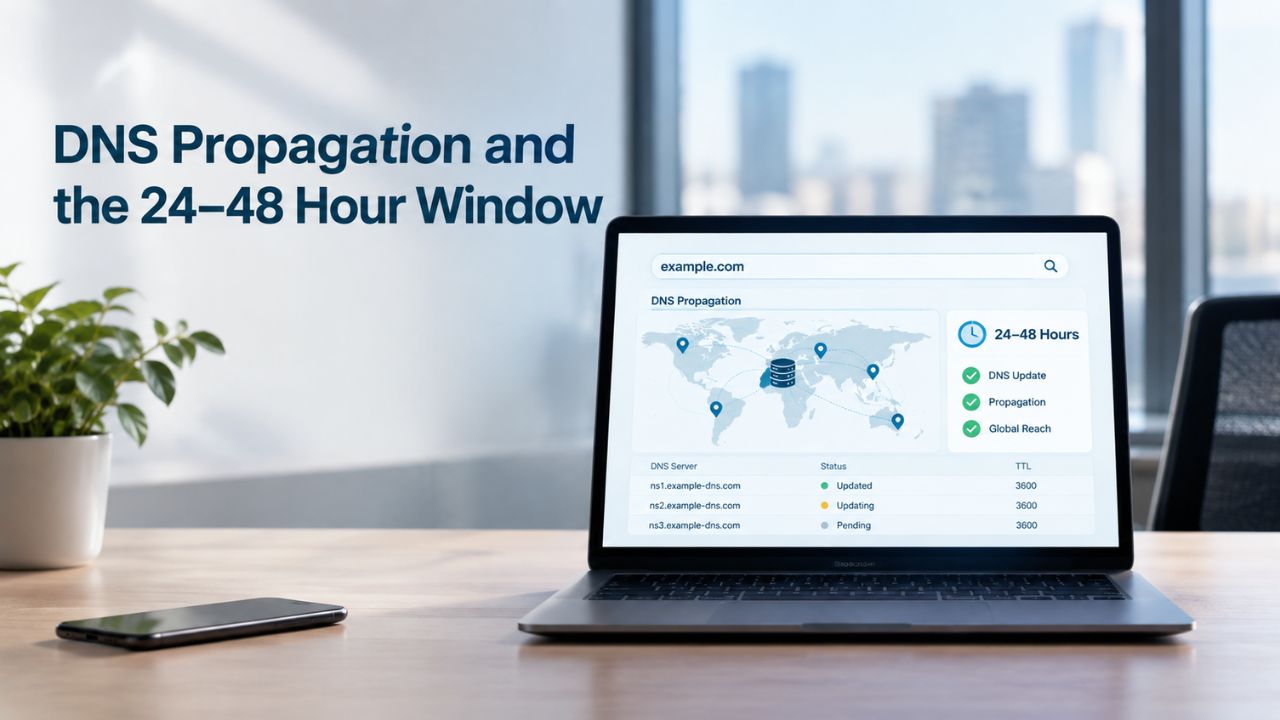
How Long DNS Changes Take to Spread
When you update an MX record or change nameservers, those changes must spread across thousands of DNS servers globally in a process called DNS propagation. Unstoppable’s DNS propagation guide notes that propagation typically requires 24–48 hours, with some changes taking up to 72 hours depending on TTL settings and how widely DNS caches are distributed. During this propagation window, different parts of the internet may have different versions of your DNS records. Some email servers might still use the old records they have cached; others might have already received and cached the new records. This temporary inconsistency is normal during DNS changes.
This overlap between old and new records isn’t necessarily problematic if both sets of records are correct and point to valid, active mail servers. Problems arise only when records are missing, misconfigured, or incomplete during propagation. For example, if your old registrar had MX records but your new registrar’s DNS zone doesn’t include them yet during the propagation window, email sent during that gap will bounce because sending servers can’t find where to deliver the messages.
Speeding Up Propagation with TTL Reduction
TTL stands for “Time to Live”, a DNS setting that controls how long other DNS servers cache a DNS record before automatically checking for updates. DCHost’s domain transfer playbook recommends lowering TTL values to 300–600 seconds (5–10 minutes) on all critical records, especially MX, A, and TXT records containing SPF and DKIM, 24–48 hours before you initiate the domain transfer. Lower TTL values make DNS servers worldwide check for updates more frequently, which dramatically accelerates propagation once you make changes. What would normally take 24–48 hours can propagate in 2–4 hours with properly lowered TTL values.
After the transfer completes and all records are confirmed stable and correct, you can reset TTL to normal values (typically 3600 seconds or 24 hours) to reduce unnecessary DNS queries worldwide and restore DNS efficiency. This two-stage approach- lower TTL before changes, reset it after stability- is the standard best practice for zero-downtime domain and DNS migrations.
Backing Up Email Before a Transfer
Email data loss during a domain transfer is entirely preventable but happens frequently because this critical backup step is overlooked or deprioritized. Once you cancel email service with your previous provider, the data stored on those servers is often gone forever, with no recovery option. Taking time to back up everything before starting a transfer eliminates this risk.
Why Backup Happens First
Webnames’ email migration guide states clearly: if you cancel email hosting during or immediately after a registrar transfer without backing up first, you permanently lose access to those email accounts and all stored messages, contacts, and calendar data. Backups serve as your complete safety net, preserving all your email data regardless of what happens during the transfer process. This simple precaution protects against the most common cause of data loss during email transitions.
Export your emails from your current provider in a standard, widely compatible format, typically MBOX or MIME, which virtually all email applications recognize and can import. Export contacts separately; many providers use vCard format for contact exports. Calendars and shared calendar data, if you use shared calendars or appointment scheduling features, require their own separate backup and export process. These don’t automatically transfer between email hosts, so recording and backing them up now prevents you from having to recreate them manually later.
Timing and Storage
Back up at least one week before your planned domain transfer begins, giving you a full week to confirm the backup completed successfully and verify you can access the backup files. Store backup files on a local hard drive, cloud storage services, or ideally both for redundancy.
Never rely solely on the old email host to retain your data after you’ve initiated a transfer; some registrars and email providers automatically delete data once a domain is transferred away or once you cancel the associated email service.
Ready to Move Your Email Safely? Start Here
Managing a domain transfer while keeping email running smoothly doesn’t require advanced technical expertise or deep knowledge of DNS systems, just the right preparation, timing, and support when you need it. Niya Digital’s Professional Email Hosting, powered by Titan Email, includes built-in migration tools and 24/7 support to help you move email accounts and existing data without any downtime or service interruption. Whether you’re transferring a domain from another registrar or setting up professional email for the first time, the process is straightforward when you plan and have the right team supporting you.
Setting Up Hosted Email on a Transferred Domain
Once your domain transfer is complete and stable, setting up professional email on that domain is straightforward, especially when you choose a hosted email provider like Titan Email with clear setup guidance and support.
DNS Configuration for Hosted Email
After your domain lands at the new registrar and propagation is complete, you’ll configure DNS records to point to your email host’s servers; this is called DNS configuration and is distinct from the registrar transfer process itself. You complete this DNS configuration step wherever you manage your domain’s DNS (often in the registrar’s control panel, but sometimes through independent DNS hosting). For Titan Email, setup documentation explains that if your domain uses the registrar’s nameservers, you add MX records pointing to Titan’s mail servers in the registrar’s DNS zone editor. If your domain uses independent DNS hosting, add those same MX records in that provider’s interface.
Professional email providers usually automate DNS configuration; many email services, including Titan Email, guide you step-by-step through DNS setup and automatically verify records once they’re live in DNS. Once DNS records are verified, email delivery to your domain begins immediately. Testing a few messages from your new email address to external addresses (sending and receiving) confirms that the complete system works correctly and messages flow in both directions.
Email Independence from Website Hosting
An important clarification: your professional email address works independently of website hosting, meaning you can host a website with one provider and email with an entirely different provider; they’re separate systems that don’t interfere with each other.
Titan Email’s official documentation confirms that you don’t need an active website to use professional email; you only need domain ownership. This independence means that during a domain transfer, your website and email can be managed and migrated entirely separately, on different schedules if needed, without creating conflicts or downtime.
Email Authentication Records (SPF, DKIM, DMARC) and Transfer
Email authentication protects your domain’s reputation and prevents fraudsters from spoofing email addresses using your domain name. During a domain transfer, you must carefully preserve and test these records to maintain email deliverability and sender reputation with major email providers.
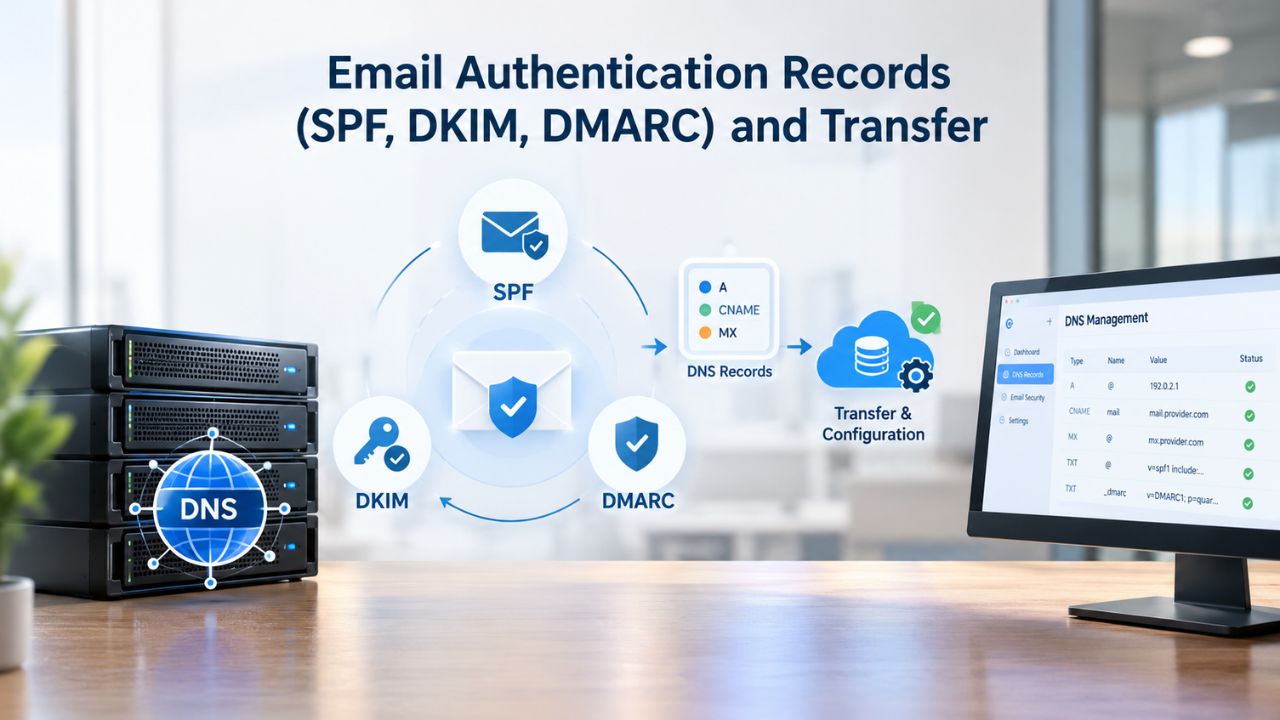
Three Layers of Authentication
SPF (Sender Policy Framework) is a TXT record that authorizes specific mail servers to send email from your domain. IETF RFC 7208 defines SPF, and it essentially tells receiving servers: “Only these specific servers are allowed to send email claiming to be from @yourdomain.com; reject anything else.” DKIM (DomainKeys Identified Mail) adds a digital signature to every email proving it came from your mail server and wasn’t altered or tampered with in transit. IETF RFC 6376 specifies DKIM’s technical implementation. DMARC (Domain-based Message Authentication, Reporting and Conformance) ties SPF and DKIM together and tells receiving servers what to do if authentication fails (reject the message, quarantine it, or monitor it). IETF RFC 7489 covers DMARC’s full specification and policy options.
All three authentication records are TXT records stored in DNS alongside your MX records. If these authentication records are missing or misconfigured after a transfer, your emails are significantly more likely to land in spam folders at recipient email providers, reducing deliverability. Titan Email’s setup guide notes that Titan automatically applies default DKIM signatures to all outgoing mail. Still, SPF and DMARC require manual DNS configuration: you add TXT records pointing to Titan’s authentication infrastructure, and Titan provides the exact values to add.
Email Service Comparison: Hosted vs. Registrar-Provided
| Feature | Registrar-Provided Email | Third-Party Hosted Email (Titan Email) | Hybrid (Independent DNS) |
|---|---|---|---|
| Survives domain transfer | No, breaks when domain moves | Yes, unaffected by registrar changes | Yes, completely independent |
| Email data recovery risk | High, access lost after transfer | Low, provider independent of registrar | Low, completely separate systems |
| Setup complexity | Low, bundled with domain | Low, straightforward DNS configuration | Medium, requires DNS knowledge |
| Support availability | Business hours only | 24/7 dedicated support | Varies by provider |
| Migration tools | Limited or none | Built-in migration assistance | Depends on provider |
| Email continuity guarantee | None, service ends at transfer | High, infrastructure independent | High, completely separated |
| Recommended for business | Not recommended | Highly recommended | Recommended for advanced users |
Verifying Authentication After Transfer
After your registrar transfer and DNS propagation are complete, DN.org’s migration checklist recommends testing email authentication by reviewing message headers from test emails sent to external addresses. Check whether SPF, DKIM, and DMARC all show a “pass” status in the email headers, indicating successful authentication.
Email verification tools can validate that SPF records resolve correctly and point to the right mail servers. If any authentication record is missing or misconfigured, update it immediately and wait for DNS propagation (24–48 hours) before resuming normal business mail sending.
Registrar-Provided vs. Third-Party Email Services
Not all email services survive a domain transfer equally well. Understanding the difference between registrar-provided email and third-party hosted email protects you from unnecessary data loss and service interruptions during a domain move.
Proprietary Services Don’t Port Over
Some registrars bundle a basic email service into their domain registration package, with email addresses hosted on the registrar’s own servers as part of the bundle. These are proprietary services: they exist only within that registrar’s ecosystem and infrastructure. Network Solutions’ guide explains that once you transfer your domain away to a different registrar, these proprietary email services may no longer function because the new registrar doesn’t operate those old mail servers.
After the transfer, the old registrar no longer controls your domain, so the email infrastructure tied to that registrar becomes inaccessible or disabled. Losing proprietary email mid-transfer is a common source of business disruption and data loss, which is why professional email hosting from independent providers is recommended.
Generic Hosted Email Continues Uninterrupted
Third-party email services, providers offering independent email hosting not tied to any registrar, operate completely independently of any registrar or registrar transfer. These services don’t break during a domain transfer because they’re not tied to registrar infrastructure or dependent on who holds the domain registration.
Email for your domain continues flowing uninterrupted to the email host’s own dedicated mail servers, regardless of which company holds the registration. This is precisely why professional email hosting from independent providers is safer and more reliable for businesses: your email isn’t hostage to your registrar relationship, and service continuity is guaranteed through the provider’s independent infrastructure.
Step Email Continuity Checklist
Keeping email running during a domain transfer requires careful coordination across multiple distinct steps and stages, each with specific timing requirements. Following this checklist in order prevents common problems and keeps business communications uninterrupted.
Timeline and Preparation Steps
Planning is the single most effective way to prevent email downtime and service interruptions. Your preparation window typically spans 7–10 days before the actual transfer, with specific recommended actions at each stage. Lowering TTL values early and confirming DNS records before you initiate the transfer prevents the most common causes of email failures.
| Step | Action | Timeline |
|---|---|---|
| 1 | Back up all emails, contacts, calendars, and settings from current provider | 7–14 days before transfer |
| 2 | Verify current DNS records (MX, SPF, DKIM, DMARC) are correct and complete | 7 days before transfer |
| 3 | Lower TTL on MX, A, and TXT records to 300–600 seconds | 2 days before transfer |
| 4 | If switching email hosts, set up accounts and test data imports on new provider | 2 days before transfer |
| 5 | Unlock domain at current registrar and obtain authorization code | 1 day before transfer |
| 6 | Initiate registrar transfer at new registrar; confirm authorization via email | Day of transfer |
| 7 | Verify DNS records copied to new registrar’s DNS zone (if registrar manages DNS) | Day of transfer + 1 hour |
| 8 | Test MX records using verification tools; confirm they resolve correctly | Day of transfer + 2 hours |
| 9 | Send and receive test emails internally and to external addresses | Day of transfer + 4 hours |
| 10 | Wait for full DNS propagation across the global internet | 24–48 hours after transfer |
| 11 | Verify SPF, DKIM, and DMARC records are live and passing authentication checks | 48 hours after transfer |
| 12 | Reset TTL values to normal (3600+ seconds) after stability is confirmed | 72 hours after transfer |
Post-Transfer Verification and Monitoring
After the transfer completes, your focus shifts from preparation to verification and monitoring. Testing email flow in both directions, sending messages out and receiving messages in, confirms that your new setup works correctly from end to end. During the 24–48 hour DNS propagation window, actively monitor incoming email to your domain to confirm messages continue arriving without delays or bounces.
If problems arise during this period, DNS configuration issues are usually the cause, and any adjustments made during propagation take effect relatively quickly because of your previously lowered TTL values. Once 72 hours have passed, and email is stable and flowing normally, your transition is complete, and you can confidently cancel the old email service.
Common Email Transfer Mistakes and How to Avoid Them
Most email outages and service interruptions during domain transfers are self-inflicted, caused by predictable, preventable errors and oversights that proper awareness and planning can avoid.
Premature Cancellation and Timing Errors
The most common and costly mistake is canceling email service with the old registrar before confirming that all data has imported successfully to the new email host and been tested. If you cancel too soon, the old host deletes emails and data, and you can’t recover them. Always confirm that all mailboxes, contacts, folders, calendar events, and custom settings have migrated, imported, and tested successfully on the new host before closing or canceling the old account. Niya Digital’s team has found that this single oversight- premature cancellation- causes more permanent data loss than any technical misconfiguration or DNS error.
A closely related error is updating nameservers while initiating a registrar transfer. When both changes happen simultaneously, DNS propagation can become confused and fragmented; different parts of the internet see half-finished configurations, so some email servers deliver messages correctly. In contrast, others bounce messages as undeliverable. DCHost’s playbook advises making one major change at a time: complete the registrar transfer first (DNS changes can wait), then make DNS changes once the registrar transfer is fully complete. Separate these major operations by at least 24 hours to ensure each completes fully before the next begins.
DNS Configuration Oversights
If your new registrar manages your DNS and your old registrar’s DNS zone included MX records, those records won’t automatically copy to the new registrar’s DNS zone during the transfer. You must manually ask the new registrar’s support team to copy all DNS records from the old registrar, or do it yourself in the DNS zone editor if you have access.
A missing MX record means email bounces; sending servers can’t find where to deliver mail for your domain. Always verify MX records are present in the new registrar’s control panel before closing out the transfer process and before canceling the old registrar account. Use email verification tools to confirm that MX records resolve correctly and return the expected mail server hostnames.
Move Your Domain Confidently With Professional Email Support
Domain transfers don’t have to mean email downtime or service interruptions. The right preparation, proper timing, and access to expert support make all the difference in ensuring continuity. Niya Digital’s Professional Email Hosting, powered by Titan Email, provides built-in migration tools and round-the-clock support to guide you through every step of your transfer. Whether this is your first domain transfer or you’ve moved domains many times before, having a dedicated team available to troubleshoot DNS records, verify email authentication, and confirm message delivery takes the stress and uncertainty out of the process.
Frequently Asked Questions
What’s the difference between a domain transfer and changing email hosts?
A domain transfer moves your domain registration from one registrar to another; it’s purely an administrative and billing change. Changing email hosts means moving your email accounts, messages, and settings to a different email provider entirely.
These are completely separate technical processes that operate independently. You can transfer your domain without changing email hosts (keep DNS records pointing to the same email provider), or change email hosts without transferring the domain (update MX records at your current registrar). Both processes can happen during the same week, but they don’t depend on each other.
Will I lose email during a domain transfer?
No, you won’t lose email if you plan correctly and follow the preparation steps outlined above. Email continuity depends entirely on correct DNS records before, during, and after the transfer.
If MX records point to your email host both before and after the transfer, email is never interrupted or lost. Problems occur only if MX records are missing, incorrect, or delayed during DNS propagation. Proper preparation and verification prevent this.
How long does DNS propagation actually take?
The standard industry answer is 24–48 hours, though some changes propagate faster (within a few hours) and others take up to 72 hours depending on TTL settings and the global distribution of DNS caches. By lowering TTL values 24–48 hours before your transfer, you can significantly speed up propagation once changes occur, potentially reducing the window from 48 hours to just 2–4 hours.
Do I need to notify my email host about the domain transfer?
It depends on the type of email service you use. If you’re using a third-party email host like Titan Email or major cloud platforms, you generally don’t need to notify them; they don’t manage your domain registration, so the registrar transfer doesn’t affect them directly.
If your email host also manages your domain registration (bundled service), contact them immediately to understand what happens after the transfer. Ask your provider’s support team about their specific transfer process and whether any manual setup is required.
Can I migrate email data without changing registrars?
Yes, absolutely. Email migration and domain registration are independent processes. You can change email providers and migrate your email data whenever you want, with or without a registrar transfer.
If you’re only migrating email and keeping the domain with the same registrar, update your MX records at the registrar to point to the new email provider, set up your new email accounts, and import your email data. No registrar transfer is needed for this scenario.
What’s an SPF record and do I need to set it up after a transfer?
An SPF record is a DNS TXT record that authorizes specific mail servers to send email from your domain, preventing others from spoofing it. After a domain transfer, you must check and recreate SPF records if they’re missing from the new registrar’s DNS zone. Without SPF, receiving servers are more likely to mark your emails as spam or reject them. Most email providers, including Titan Email, provide specific SPF values you need to add to DNS. It’s a one-time setup task per email provider.
What if my MX records don’t resolve correctly after the transfer?
Check that MX records were copied to your new registrar’s DNS zone during or after the transfer. If they’re missing, add them manually using the DNS zone editor in your new registrar’s control panel. If the records are present but not resolving correctly, wait 24–48 hours for full DNS propagation; your local DNS cache may have outdated information.
Email verification tools can test MX record resolution by entering your domain. If records still don’t resolve after 48 hours, contact your registrar’s support team to confirm the DNS zone is active and properly configured.
Do I need a website to use professional email?
No, you don’t. Professional email services like Titan Email require domain ownership, but not an active website. You can own a domain, use it for email only, and not maintain a website on that domain at all. Your email address will work perfectly as long as DNS records (specifically MX records) point to your email host’s servers.
What happens to email forwarding rules, signatures, and filters during a transfer?
These custom settings don’t transfer automatically between email providers or registrars. Before switching email hosts or during a domain transfer, document all your email forwarding rules, custom signatures, folder structures, and inbox filters.
After you set up the new email provider, recreate these settings manually, or ask your provider to import them if they offer an import or migration tool. This is why backing up your old email before the transfer matters; it serves as your reference guide for rebuilding your setup.
Should I lower TTL if I’m not changing registrars?
Yes, even if you’re not changing registrars. If you’re only updating DNS records (like MX records for a new email host) and keeping the same registrar, lowering TTL beforehand still helps significantly.
It accelerates propagation of your MX record changes across the internet, reducing the window where some email servers use old records and others use new ones, which minimizes the potential for bounced messages.
How do I know if my email is using Titan Email or a registrar’s email?
Log in to your email account and check where the login interface is. If you access it through Titan Email’s website or mobile app, Titan Email hosts it. If you access it through a control panel that looks like your registrar’s interface, it’s likely registrar-provided email. Registrar email carries higher risk during a domain transfer, which is why we recommend third-party hosted email.
Can I test email after a transfer without sending real business mail?
Yes, absolutely. Send test emails from your new email address to several major email providers. Ask colleagues to reply to those test emails to confirm two-way delivery works correctly. Check email headers in those replies to verify SPF, DKIM, and DMARC pass authentication. This testing phase catches configuration errors before critical business mail starts flowing through the new setup.
What support should I expect from my email provider during a transfer?
Most professional email hosts, including Titan Email when accessed through Niya Digital, offer 24/7 support for DNS configuration, email migration, and troubleshooting throughout your transfer.
Don’t hesitate to reach out if MX records aren’t resolving, migration tools aren’t working properly, or you aren’t receiving email. Support teams can often identify and fix issues much faster than you can troubleshoot alone.
How long should I keep both email accounts active during a transfer?
Keep the old email account active for at least 48–72 hours after the registrar transfer completes. This window covers DNS propagation time and gives you adequate time to confirm all email has been successfully imported and that new messages are arriving correctly at the new host. After 72 hours of stable, normal operation, you can safely cancel the old account and delete or archive the local backup.
Do I need a domain transfer to change email providers?
No, you don’t need a domain transfer. You can change email providers without moving your domain registration. Update MX records at your current registrar to point to the new email provider, set up your new email accounts, and migrate your data. Domain registration and email hosting are independent, so either can change without affecting the other.
Glossary
- MX Record (Mail Exchange Record): A DNS record that tells email servers worldwide where to deliver incoming messages addressed to your domain. Correct MX records are critical; without them, email sent to your domain will bounce back to the sender as undeliverable.
- DNS Propagation: The process of DNS changes (like new MX records or nameserver updates) spreading across the internet through multiple nameservers and DNS caches globally, typically taking 24–48 hours to reach complete global resolution across all internet systems.
- TTL (Time to Live): A DNS setting that controls how long other servers cache your DNS records before automatically requesting an updated version. Lower TTLs speed up propagation but increase DNS traffic; higher TTLs reduce query load but delay global propagation of changes.
- Nameserver: A server that holds and manages your domain’s complete DNS records and responds to queries about where email, websites, and other services are located for your domain. Nameservers are the infrastructure that delivers DNS information globally.
- DKIM (DomainKeys Identified Mail): A digital signature technology added to outgoing emails that proves they originated from your mail server and were not altered or tampered with during transit. IETF RFC 6376 defines DKIM, a key component of email authentication.
- SPF (Sender Policy Framework): A TXT record in DNS that authorizes specific mail servers to send email from your domain, preventing unauthorized senders from spoofing your domain name. IETF RFC 7208 specifies SPF, a foundational email security mechanism.
- DMARC (Domain-based Message Authentication, Reporting and Conformance): A DNS policy that combines SPF and DKIM authentication results, instructing email receivers how to handle emails that fail authentication (reject, quarantine, or monitor). IETF RFC 7489 defines DMARC and provides comprehensive domain protection.