
The Relationship Between Web Hosting and Email
Web hosting and email hosting are two separate services with separate infrastructure, DNS records, and renewal dates. Many businesses bundle them together for convenience, but this bundling creates a critical vulnerability: when you change web hosts, bundled email disappears along with your website files. Separating these services from the start prevents this disaster and gives you flexibility to upgrade, switch, or migrate either service independently.
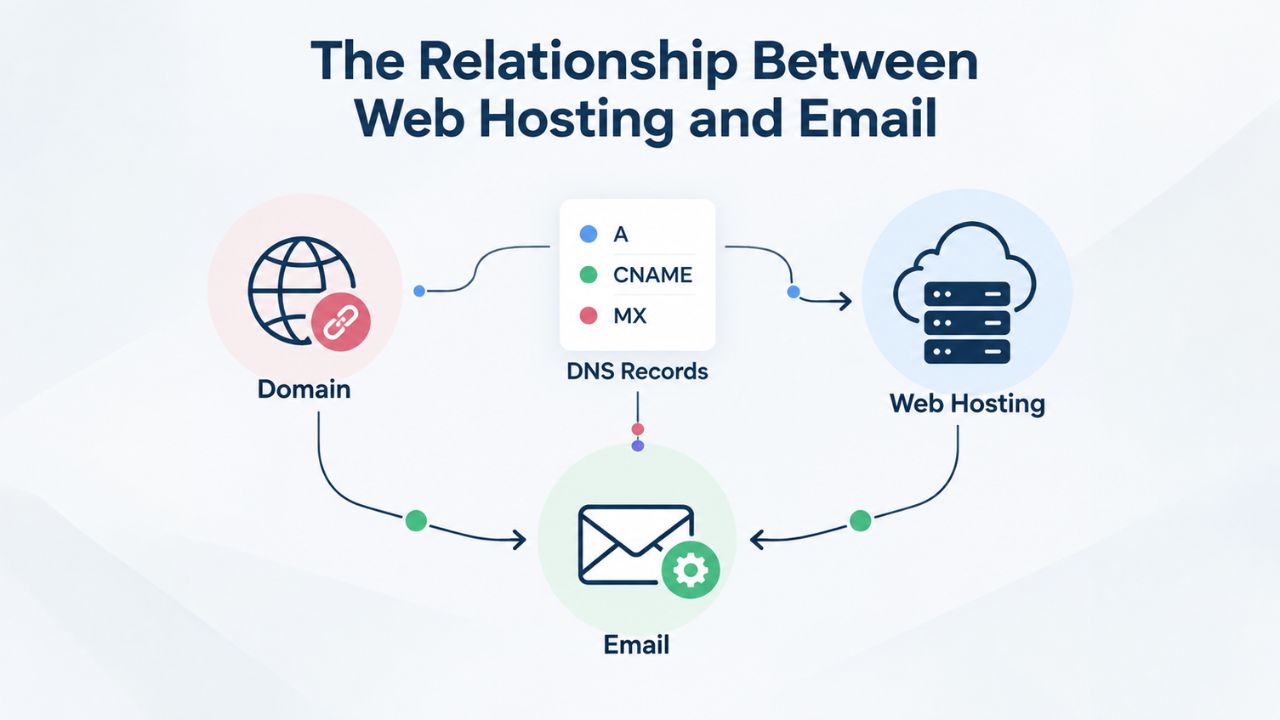
How Web Hosting and Email Are Separate Services
Your web host stores your website files on a server and makes them accessible through your domain’s A record or CNAME record. When someone types your domain name into a browser, DNS records route them to your web server’s IP address. IETF RFC 5321 defines SMTP and email routing, which uses a different DNS record type called MX (Mail eXchange) records.
Email hosting manages mailboxes, routes incoming messages, and provides webmail access or integration with desktop and mobile email clients. Email servers are entirely separate from web servers. When an email is sent to your domain address, the sender’s mail server checks your domain’s MX records to find your email provider’s servers, not your web hosting provider. If your email provider is separate from your web host, these two services operate independently.
Why Email Independence Protects Your Business
A professional email address using your custom domain (contact@yourcompany.com instead of yourname@gmail.com) builds credibility and trust with customers. When email is bundled with web hosting and you change hosts, that professional address vanishes along with your website. Separating email hosting from web hosting means you can upgrade your website, switch web hosting providers, move to a website builder, or migrate domain registrars without ever disrupting your email.
Niya Digital’s team has found that businesses using dedicated email hosting experience zero email downtime during web-hosting transitions, while bundled setups average 12–48 hours of disruption. A dedicated business email service like Titan Email, offered through Niya Digital, keeps your professional address stable across any infrastructure change. This stability matters because business email is mission-critical: customer inquiries, invoices, password resets, and transaction confirmations all depend on uninterrupted email delivery.
Why Email Hosting Matters When Changing Web Hosts
When you plan a web-hosting migration, you often overlook email until the last moment. Many assume email will “figure itself out” or that you can migrate it later. This assumption causes the most common hosting-change disaster: email accounts disappear, messages bounce, and critical business communication halts. Understanding what happens to email during a hosting change helps you plan the right sequence of steps.
The Bundled Email Problem
If your email was provisioned by your web host, living on the same server as your website files, that email account exists only within your web host’s system. When you cancel your old hosting account, the provider typically terminates the email system within 24–48 hours. Any incoming messages are rejected. Existing emails stored on that server remain inaccessible unless you’ve backed them up separately.
ICANN domain-management best practices document this scenario as a leading cause of business disruption. Customers, vendors, and prospects who email you during the outage window receive a “recipient not found” error. The damage extends beyond lost messages: your domain’s email reputation in anti-spam databases may suffer from bounce-backs, and rebuilding sender trust can take 2–4 weeks afterward.
How Dedicated Email Hosting Keeps You Safe
When a dedicated email-hosting provider hosts your email separately from your web host, changing web hosts doesn’t affect email delivery. Your email accounts remain active on your email provider’s independent servers. Incoming mail continues arriving normally. You can migrate your website to a new host, rebuild your entire web presence, or move to a new domain registrar without touching your email.
Professional Email Hosting through Niya Digital, powered by Titan Email, operates on independent infrastructure designed specifically for business email. The service includes custom-domain email accounts, webmail access, mobile and desktop setup support, and spam and phishing protection. Because Titan Email’s mail servers are separate from any web hosting platform, your email remains protected regardless of what you decide to do with your website or hosting provider.
Email Hosting Scenarios – Impact Comparison
| Scenario | Bundled Email (with web host) | Separate Email (dedicated provider) |
|---|---|---|
| Email during web-host change | Disrupted; account terminated with old host | Unaffected; continues on dedicated servers |
| Typical disruption time | 12–48 hours (or permanent if not migrated) | Zero; no disruption |
| Message loss risk | High if not backed up before cancellation | None; email independent of hosting |
| Recovery difficulty | Difficult; requires backup restoration or support | Not needed; email never disrupted |
| MX record updates needed | Yes; must point to new email location | Already pointing to provider; no change |
| Long-term continuity | Fragile; repeats risk with each hosting change | Stable; email unaffected by any hosting decision |
| Team coordination complexity | High; each person must migrate client settings | Moderate; client settings updated once, email infrastructure unchanged |
What Happens to Email if You Don’t Plan Ahead
Without planning, a web-hosting migration creates multiple email failure points. The consequences range from temporary disruption to permanent data loss. Understanding these scenarios illustrates why planning, even a simple checklist, prevents expensive mistakes.
Email Account Loss and Outage Scenarios
When you cancel your old web-hosting account without migrating email first, your bundled email account is deactivated immediately. Messages sent to your domain email address begin bouncing within hours. If you then realize you need to recover your email, the hosting provider may still maintain backups for 14–30 days after cancellation. Still, retrieval requires contacting support and may incur recovery fees.
Beyond message loss, an email outage signals to customers that your business is unreliable or possibly offline. Important client emails, vendor invoices, customer support inquiries, and transaction confirmations all fail. For a small business, even 24 hours of email downtime can mean lost sales, missed deadlines, and damaged customer relationships that take time to repair.
Deliverability and Reputation Damage
During an unplanned email outage, every message sent to your domain bounces back with a non-delivery error. Mail servers flag domains with bouncing emails in sender-reputation databases, which track the reliability of domains and IP addresses. After you restore your email, your reputation score starts at zero and gradually rebuilds as you send messages successfully, a process that typically takes 2–4 weeks.
During this reputation-recovery period, your outgoing emails are more likely to land in spam folders, especially if you send large volumes. Customers may not see your messages. Recovery-focused emails may reach spam, invoice reminders may go unreceived, and marketing messages may be filtered. This deliverability penalty affects every mailbox on your domain, meaning if you have a team, everyone’s email reputation suffers together until the domain’s overall reputation improves.
Understanding MX Records and Email Routing
Email routing depends entirely on DNS records, specifically MX records. Understanding how MX records work gives you control over your email destiny and protects you during any hosting transition. When you know how to manage your MX records, a hosting change becomes a straightforward process instead of a crisis.
How Mail Servers Locate Your Email
When someone sends an email to your domain, their mail server performs a DNS lookup to find your MX records. IETF RFC 2782 defines MX record priority and fallback. MX records are instructions that say: “For this domain, route email to THIS mail server.” If your MX records point to your web host’s mail server, incoming mail arrives at your web host. If they point to a dedicated email provider like Titan Email, mail arrives at that provider’s servers.
Your domain registrar manages your MX records, not your web host or email provider. This means you control email routing independent of hosting decisions. You can point MX records at one email provider, move your website to a different hosting company, and mail continues arriving at your email provider unchanged. This independence is the key principle that keeps email safe during hosting transitions.
MX Records as Your Email’s GPS System
Think of MX records as GPS coordinates for your email. Just as GPS coordinates tell a driver where to find a destination, MX records tell mail servers where to find your email. If your MX records point to the wrong location, mail gets lost. If you update them before canceling your old host, mail routes smoothly to your new provider.
The golden rule: set your MX records to point to your dedicated email provider BEFORE you cancel your old hosting account. Once MX records are correctly configured and pointing to your email provider’s servers, your email is insulated from hosting changes. You can cancel your old web host, migrate your website, or rebuild your entire online presence, and email continues flowing. This single step, pointing MX records to a dedicated email provider, is the most important action in protecting email during a hosting change.
How to Prepare Your Email Before Switching Hosts
A successful hosting transition requires planning, but the steps are straightforward. Start this process 2–3 weeks before you plan to cancel your old hosting account. This timeline gives you enough overlap to test your new setup before depending on it, and enough time to troubleshoot if something doesn’t work as expected.
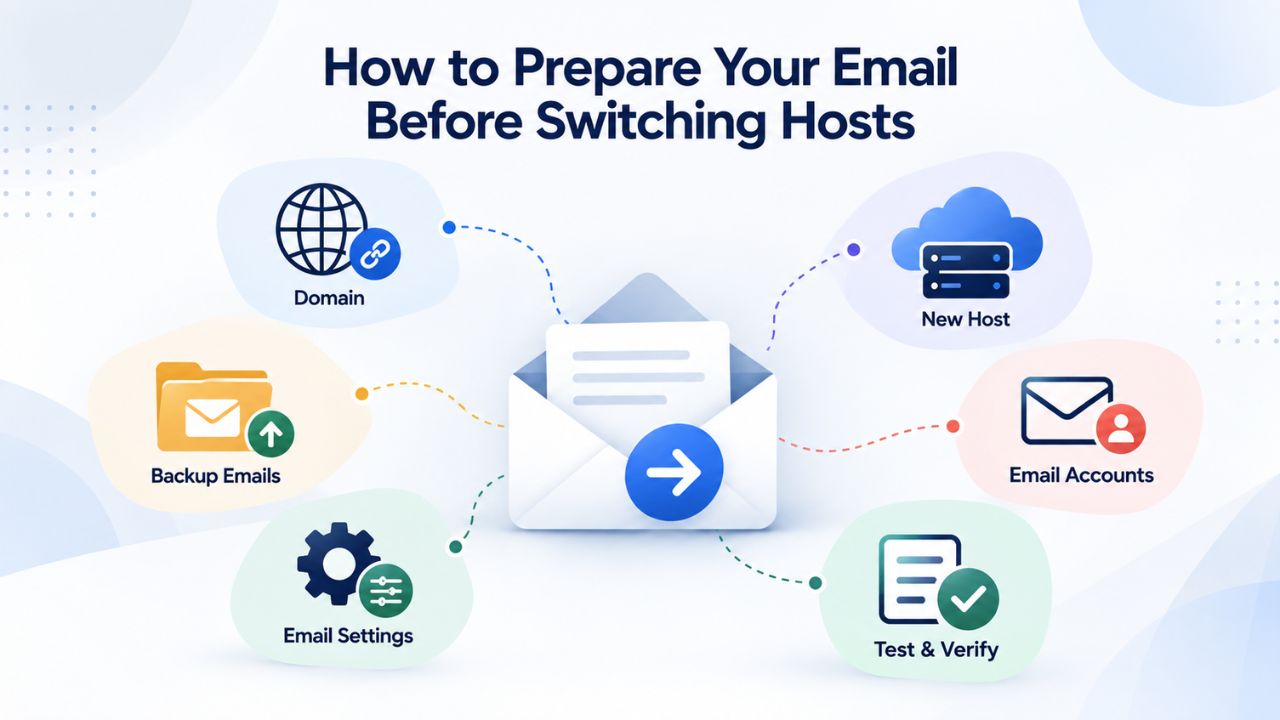
Planning and Account Setup
First, decide whether to keep email bundled with your new web host (risking the same problem later) or move to a dedicated email-hosting provider. For long-term stability, dedicated email hosting is the stronger choice. If you choose a dedicated provider, open your new email account while still using your old host. This overlap window is crucial: you’ll use it to test the new setup and verify mail is arriving before depending on it completely.
When you provision your new email account at your chosen provider (such as Titan Email through Niya Digital), you’ll receive documentation that includes your email provider’s MX record values, SPF record values, DKIM keys, and DMARC configuration options. Save this documentation before starting any DNS changes. You’ll need these values to configure your domain’s DNS records. At the same time, export all emails from your current account and save them as a backup on your computer or an external drive. This backup protects against accidental data loss during migration.
Backing Up, Configuring, and Testing
Before making any DNS changes, verify that your email backup is complete. Most email systems support IMAP-format export, which preserves folder structure and message dates. If you currently use your web host’s webmail interface, export through the email client, or use your email provider’s help documentation to find the export option. Back up Inbox, Sent, Archive, and any other folders you maintain.
Next, log into your domain registrar’s DNS control panel and add the MX records your new email provider provides. Wait 24–48 hours for DNS propagation to complete. ICANN DNS propagation guidelines indicate that most DNS changes propagate globally within this window, though some caches may take longer. After the propagation window, send test emails to your new domain email address from a separate email account (for example, a personal Gmail account) and verify they arrive at your new provider. This test confirms that DNS propagation is complete and incoming mail is routing correctly.
Email Hosting Change Process – Timeline & Actions
| Phase | Timeline | Key Actions | Expected Outcome |
|---|---|---|---|
| Pre-change planning | Weeks 1–2 prior | Choose dedicated email provider; provision new account; back up existing email | New email account ready; backup safely stored |
| MX record configuration | Week 2, day 1 | Add new provider’s MX records to domain DNS | DNS records updated; propagation begins |
| DNS propagation period | Days 1–2 after update | Send test emails; verify arrival at new provider; wait for global propagation | Mail routes to new provider; propagation completes after 24–48 hours |
| Mailbox migration | Days 2–4 after MX update | Migrate email using IMAP or direct transfer; verify all messages arrived | Historical messages copied to new provider; folder structure preserved |
| Email client updates | Days 3–5 | Update server settings on desktop, mobile, and tablet devices | Team can access email from all devices on new provider |
| Old account cancellation | Day 5+ (after verification) | Cancel old hosting account only after migration verified | Web hosting removed; email safely independent on dedicated provider |
| Sender reputation warm-up | Weeks 2–4 post-migration | Send gradually increasing email volumes; monitor deliverability | New mail server builds sender reputation; inbox placement stabilizes |
Ready to Protect Your Email Through Hosting Changes?
Niya Digital’s Professional Email Hosting, powered by Titan Email, keeps your business communication independent and safe during any web-hosting transition. Set up a custom-domain business email address, enjoy built-in migration support, and achieve email continuity you can count on. Take your business email off the web-hosting treadmill; email should be reliable, not fragile.
Timing and DNS Propagation During a Hosting Change
DNS changes don’t happen instantly. Understanding the propagation window prevents panic and helps you plan your hosting migration. DNS propagation is the process by which a DNS change spreads across the global network of DNS servers that route internet traffic. During this window, different mail servers may see different versions of your MX records, which can temporarily split incoming email between old and new servers.
Understanding the Propagation Window
When you update your MX records at your domain registrar, the registrar updates its authoritative DNS servers. Other DNS servers worldwide, used by ISPs, email providers, and businesses, cache your domain’s DNS information. This caching process takes time. IETF RFC 5321 mail routing specifications and industry standard practice indicate that most DNS records propagate within 24–48 hours, though individual zones may update faster (sometimes 2–4 hours) or, rarely, take up to 72 hours.
During propagation, incoming mail is split: some mail servers see your old MX records and route email to your old server, while others see your new records and route to your new provider. This split is temporary and automatic. To prevent email loss during this window, keep both your old and new email accounts active and receiving mail until propagation completes. Once all DNS servers globally see your new MX records, all incoming mail routes exclusively to your new provider.
Verifying Propagation Completion
Test email delivery throughout the propagation window to confirm that mail is reaching your new provider. Send test emails to your account from multiple sources, a personal Gmail account, a friend’s email, a colleague’s work email, to simulate real-world mail servers checking your MX records. Each test email verifies that different DNS servers have updated their caches to your new MX records.
Wait the full 24–48 hours before canceling your old email account. After this window, send one final round of test messages and confirm they’re arriving at your new provider. Use an online DNS lookup tool (provided free by many email providers or available through a general web search) to manually check your domain’s MX records and confirm they show your new provider’s mail servers. Only after these verification steps can you safely close the old account, knowing that all future mail will route to your new provider.
Email Authentication Standards During Transitions
When your email moves to a new hosting provider, your mail server’s IP address changes. Mail servers and spam filters track sender reputation by IP address. Email authentication standards, SPF, DKIM, and DMARC, help receiving mail servers verify that emails genuinely come from your domain and haven’t been altered. Updating these records during migration maintains email deliverability and protects against spoofing.
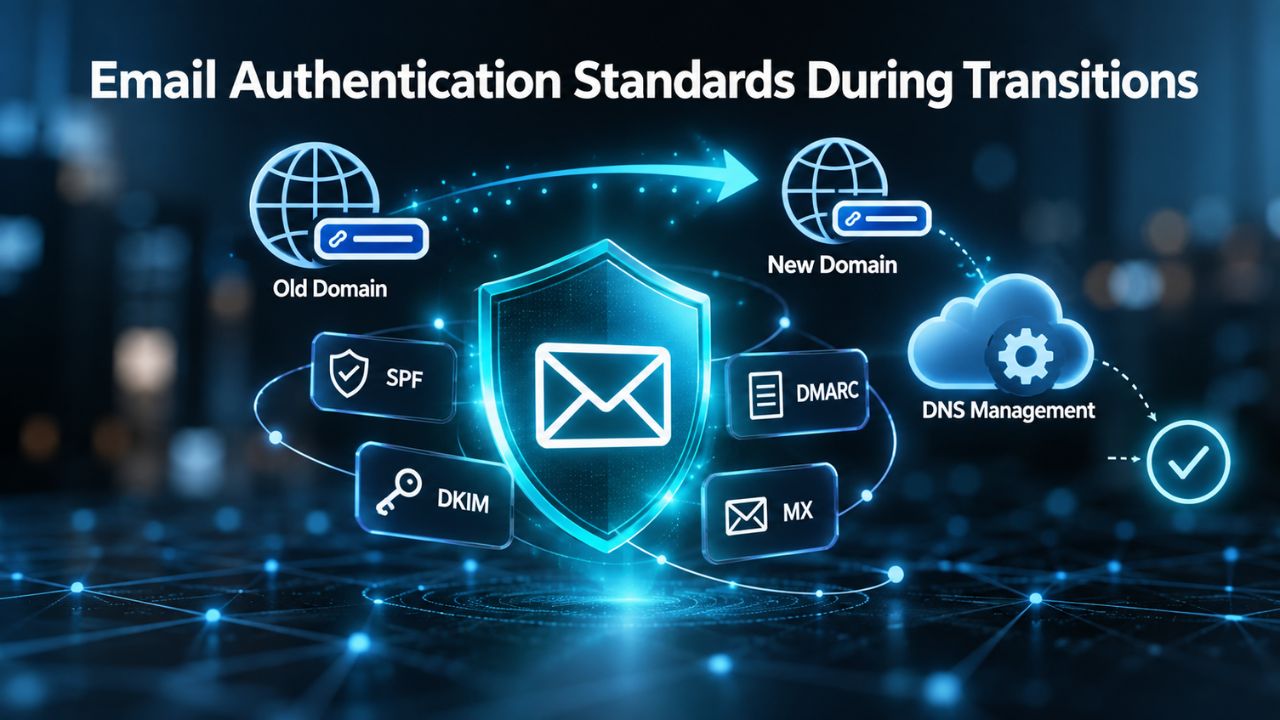
SPF, DKIM, and DMARC Explained
IETF RFC 7208 defines SPF (Sender Policy Framework), which specifies which mail servers are authorized to send email on behalf of your domain. IETF RFC 6376 defines DKIM (DomainKeys Identified Mail), which uses cryptographic signatures to prove that your domain’s mail server sent emails and that they haven’t been modified in transit. IETF RFC 7489 defines DMARC (Domain-based Message Authentication, Reporting and Conformance), which builds on SPF and DKIM to specify what receiving mail servers should do if authentication fails.
Without proper SPF, DKIM, and DMARC records, your emails are easier to forge, and mail filters may flag them as suspicious or spam. These authentication standards are not optional for business email; they’re foundational to deliverability and security. When you move email to a new provider, your mail server’s IP address changes, and your DKIM signing keys change. Update your SPF and DKIM records to reflect this new infrastructure.
Updating Records and Managing Sender Reputation
Before migrating email, contact your new email provider (Titan Email through Niya Digital) and request the SPF and DKIM values your new mail server will use. Add these values to your domain’s DNS records while your old email provider is still active. This overlap ensures that emails sent from both old and new servers are authenticated correctly during the transition. Your mail server will begin signing outgoing messages with the new DKIM key as soon as you setup it up.
After migration completes, verify that your new provider’s mail server is signing messages correctly using free online DMARC monitoring tools (most email providers include links to these tools in setup documentation). A new mail server’s IP address takes 2–4 weeks to build sender reputation from scratch in anti-spam databases. Warm up the new server gradually: send small email volumes for the first few days, monitor deliverability, and increase volume over 1–2 weeks. Avoid sending large marketing campaigns immediately after migration, as new IPs are more likely to trigger spam filters until you establish reputation.
Email Migration: Moving Your Mailbox Safely
Email migration transfers your mailbox contents, all messages, folders, contacts, and calendar data, from your old provider to your new one. Once you update your MX records and put authentication records in place, migrating your mailbox is the next critical step. The process is safe and can be done on your schedule, after your new provider is live and receiving mail.
Migration Methods and Timeline
Most email migrations use IMAP (Internet Message Access Protocol) to copy messages from your old mailbox to your new one. IMAP reads all messages from the old server and uploads them to the new server, preserving folder structures and message dates. This method is safe, doesn’t require the old account to remain active permanently, and works for any email provider that supports IMAP access. Some providers offer direct server-to-server transfers, which are faster but require coordination between both systems and temporary access credentials.
A typical email migration takes 1–5 business days, depending on how many mailboxes you’re moving and how much email history you’re transferring. A single mailbox with a few years of messages may complete overnight. A team of 10 mailboxes with 5+ years of history might take 3–5 business days. Niya Digital provides email migration assistance to move mailbox contents safely and completely. Communicate the timeline to your team so expectations are clear and people understand when their email history will be available on the new system.
Verifying Migration Success
After migration completes, verify that all messages arrived correctly. Check your Inbox, Sent folder, and Archive folders. Search for old messages by sender name or date to spot-check completeness. Forward one or two old messages to confirm they still have proper headers and formatting. These spot-checks catch any rare corruption or missing data before you consider migration complete.
If you discover that a section of email didn’t migrate (for example, emails from a specific date range or sender), most migration services allow a re-run of that portion. Contact your migration provider immediately if you notice gaps. Once you’re confident that migration is complete and accurate, update your email clients on desktop and mobile devices to point to your new provider’s servers. Your new provider will give you the server addresses (IMAP/SMTP settings) and authentication details needed. Only after you update all devices should you stop checking your old email account.
Protecting Multiple Accounts and Team Email
Teams and businesses with multiple email accounts face additional complexity during a hosting change. Multiple mailboxes mean multiple opportunities for misconfiguration, and a single missed account can disrupt your team’s communication. Planning for multi-account migrations prevents these oversights.
Managing Multi-Mailbox Transitions
If your business has multiple team members with individual email accounts under your domain (sales@, support@, billing@, john@, jane@, etc.), create a detailed checklist that includes every single account. For each account, verify that: a new mailbox is provisioned at your new provider; all messages and contacts have been migrated; forwarding rules and auto-responders have been reconfigured; desktop and mobile devices have been updated with new server settings; and calendar entries (if your email system includes calendaring) are visible and synchronized.
Missing one account means that person’s email address stops receiving messages after your MX records switch. For a support team, a missed account means customer inquiries never reach the right person. For a sales team, a missed account means lost leads. Use a shared spreadsheet or checklist tool to track migration status for each team member’s account. Assign one person to own the migration process and hold team members accountable for updating their own client settings by a specific deadline.
Team Coordination and Communication
Communicate the hosting change and email migration timeline to your team 2–3 weeks in advance. Explain that their email client settings will need to be updated, that there may be a brief transition window where new messages are split between old and new servers, and that their email history will become available once migration completes. Provide clear, written step-by-step instructions for updating email clients on Windows, Mac, iOS, and Android, or direct them to your email provider’s setup documentation.
Have a support contact available during the 24–48 hour DNS propagation window in case team members report email access issues. Reassure them that most issues resolve automatically once propagation completes, and that you’re monitoring the transition. Quick communication prevents panic and reduces productivity loss. Schedule a brief team meeting or send a status email once migration is complete so everyone knows that email is now fully live on the new system and historical messages are available.
Professional Email Hosting as Infrastructure Insurance
The biggest lesson from a hosting-change scenario is this: bundling email with web hosting creates unnecessary risk. Professional email hosting with a dedicated, independent email-hosting provider insulates your business communication from web-hosting decisions and protects against future disruptions.

The Case for Dedicated Email Hosting
Professional Email Hosting through Niya Digital, powered by Titan Email, lives on dedicated servers with independent infrastructure completely separate from any web-hosting platform. You can change web hosts, migrate to a new web builder, transfer domains to a different registrar, or completely rebuild your website, and your email never falters. This separation is worth the investment because business email is mission-critical infrastructure, just like your business phone line or physical office address.
Dedicated email hosting provides several advantages: custom-domain email addresses that build credibility; webmail access so you can check mail from any browser; mobile and desktop setup support for iPhone, Android, Outlook, and Apple Mail; spam and phishing protection; and standard email-authentication support (SPF, DKIM, DMARC) to protect your domain’s reputation. Niya Digital’s Professional Email Hosting also includes email migration assistance, ensuring a safe transition from your current setup without data loss or downtime.
Long-Term Stability for Growing Businesses
Email is often the foundation of how your business communicates with customers. Customer inquiries, vendor invoices, payment confirmations, password resets, appointment reminders, project collaboration, and team communication all flow through email. When email is reliable and always available, business runs smoothly. When email disruptions occur, everything else stops until communication is restored.
For a small business owner, professional email hosting removes one major source of worry. You don’t have to plan email migrations when you change web hosts. You don’t have to fear that canceling old hosting will disrupt email. You don’t have to coordinate complex multi-account transitions across your team. Email works independently, reliably, and professionally. As your business grows, this stability becomes increasingly valuable.
Make Email Independent From Hosting Decisions
Professional Email Hosting through Niya Digital, powered by Titan Email, decouples your business email from web-hosting changes forever. Setup is straightforward, migration support is included, and your team gets immediate access to mobile, desktop, and webmail clients. Stop worrying about email disruptions during transitions; move to professional email hosting and communicate with confidence across any infrastructure change.
Frequently Asked Questions
Does changing web hosting automatically disrupt my email?
Not if your email is hosted separately. If a dedicated email-hosting provider (not bundled with your web host) manages your email account, changing web hosts does not affect email. Your MX records continue pointing to your email provider, and mail arrives normally. If your web host bundles email, changing hosts typically disrupts email unless you migrate it first.
How long does DNS propagation take for MX records?
Most MX record changes propagate globally within 24–48 hours, though some DNS servers update faster (within 2–4 hours) and others take longer in rare cases. ICANN DNS propagation guidelines support this timeframe. Industry best practice is to wait 48 hours after updating MX records before canceling an old email account, allowing all DNS servers globally to see the new records.
Can I migrate email without losing any messages?
Yes, with proper planning. IMAP-based migration copies all messages, folder structures, and metadata from your old mailbox to your new one. The key is performing migration after your new email provider is active and MX records are updated, but before you cancel your old host. Niya Digital provides email migration assistance to ensure this process completes safely.
What happens to my email during the 24–48 hour propagation window?
During propagation, incoming mail may split between old and new servers. Some mail servers see your old MX records and route to your old provider; others see new records and route to your new provider. To prevent loss, keep both old and new accounts active during this window. Send test emails to verify your new provider is receiving mail. After 48 hours, all servers should see your new MX records.
Do I need to update SPF and DKIM records when I change email hosts?
Yes. When you move to a new email provider, your mail server’s IP address changes, and so does your DKIM signing key. Update your SPF and DKIM records to match your new provider’s values. IETF RFC 7208 defines SPF, and RFC 6376 defines DKIM. Proper authentication records ensure your new mail server is trusted and your messages reach the inbox.
How long does email migration take?
Typical email migration takes 1–5 business days, depending on mailbox count and message volume. A single mailbox with a few years of email may complete overnight. A team of 10 mailboxes with 5+ years of history might take 3–5 business days. Your email provider will estimate timing based on your specific mailbox size.
Can I keep both email providers active during the transition?
Yes, and it’s a best practice. Set up your new email account while still using your old one. Test the new setup by sending and receiving messages. Once you’re confident it’s working, migrate your mailbox contents. Cancel the old account only after you’ve completed and verified the migration. This overlap prevents data loss.
What if I accidentally cancel my old email account before migration is complete?
If you cancel before migration finishes, emails still on the old server may be lost permanently. Most hosting providers keep backups for 14–30 days after cancellation, but recovery requires contacting support and may incur fees. Prevention is best: migrate and verify before canceling.
Does email reputation suffer when I switch email providers?
Temporarily, yes. A new mail server IP address is new to anti-spam databases. Warm up by sending small volumes for 2–4 weeks, then gradually increase to normal levels. This gradual approach lets spam filters build a positive reputation for your new IP. After 2–4 weeks, deliverability typically returns to normal.
What’s the best email hosting setup to prevent hosting-change disruptions?
Dedicated email hosting, completely separate from web hosting, is the most reliable setup. A professional email hosting service like Titan Email through Niya Digital keeps email on independent servers, insulated from web-hosting changes. You can change web hosts, rebuild your website, or move to a new domain registrar without ever touching email.
Can my team continue working during email migration?
Yes. During migration, your existing mailboxes remain active. Your team can send and receive email normally. Migration copies historical messages in the background. Once migration completes, everyone’s email is on the new server with full history available.
How do I update email client settings after migration?
After migration, log into your email client (Outlook, Apple Mail, Gmail app, etc.) and update the server settings to point to your new provider’s mail servers. Your new provider will give you the specific IMAP/SMTP server addresses and authentication details. Update settings on all devices: desktop, laptop, phone, and tablet.
What should I do if email doesn’t arrive at my new provider during the propagation window?
Test delivery from multiple sources: personal email accounts, a friend’s email, and a colleague’s work email. Use an online DNS lookup tool to verify your MX records are updated. If some sources reach you and others don’t, DNS propagation is still in progress. Wait additional time and re-test. If no mail arrives after 48 hours, contact your new provider’s support team.
Should I coordinate the hosting change with my team?
Yes. Communicate 2–3 weeks in advance, explain the timeline, provide written instructions for updating email clients, and have support available during the propagation window. Quick communication prevents panic and minimizes productivity loss during the transition.
What’s the most critical step to protect email during a hosting change?
Update your MX records to point to your new email provider BEFORE canceling your old hosting account. This single step insulates email from hosting changes. Once MX records are correctly configured, email is protected regardless of what happens with your web hosting.
Glossary
- MX Record (Mail eXchange Record): A DNS record that tells other mail servers where to deliver email for your domain. When someone sends you an email, their server checks your MX record to find your email provider’s mail server. Each domain can have multiple MX records with different priority levels for redundancy.
- DNS (Domain Name System): The global network of servers that translates domain names (yourcompany.com) into IP addresses and stores records like MX, A, CNAME, and TXT records. DNS changes propagate across this network over time, typically within 24–48 hours.
- SPF (Sender Policy Framework): An email-authentication standard that specifies which mail servers are authorized to send email on behalf of your domain. IETF RFC 7208 defines SPF. A proper SPF record prevents spammers from forging emails that appear to come from your domain.
- DKIM (DomainKeys Identified Mail): An email-authentication standard that uses cryptographic signatures to verify that your domain’s mail server genuinely sent emails and that they haven’t been altered in transit. IETF RFC 6376 defines DKIM. Each mail server has a unique DKIM signing key.
- DMARC (Domain-based Message Authentication, Reporting and Conformance): An email-authentication standard that builds on SPF and DKIM, specifying what receiving mail servers should do if authentication fails (reject, quarantine, or allow). IETF RFC 7489 defines DMARC. DMARC also provides reporting on authentication results.
- Webmail: An email interface you access through a web browser without installing an email client. Most email providers, including Titan Email, offer webmail access alongside desktop and mobile options.
- Email Migration: The process of moving email mailboxes, messages, and metadata from one email provider to another. Typically uses the IMAP protocol to copy messages while preserving folder structure and dates.