Understanding Add-on Domains: What They Are & How They Work
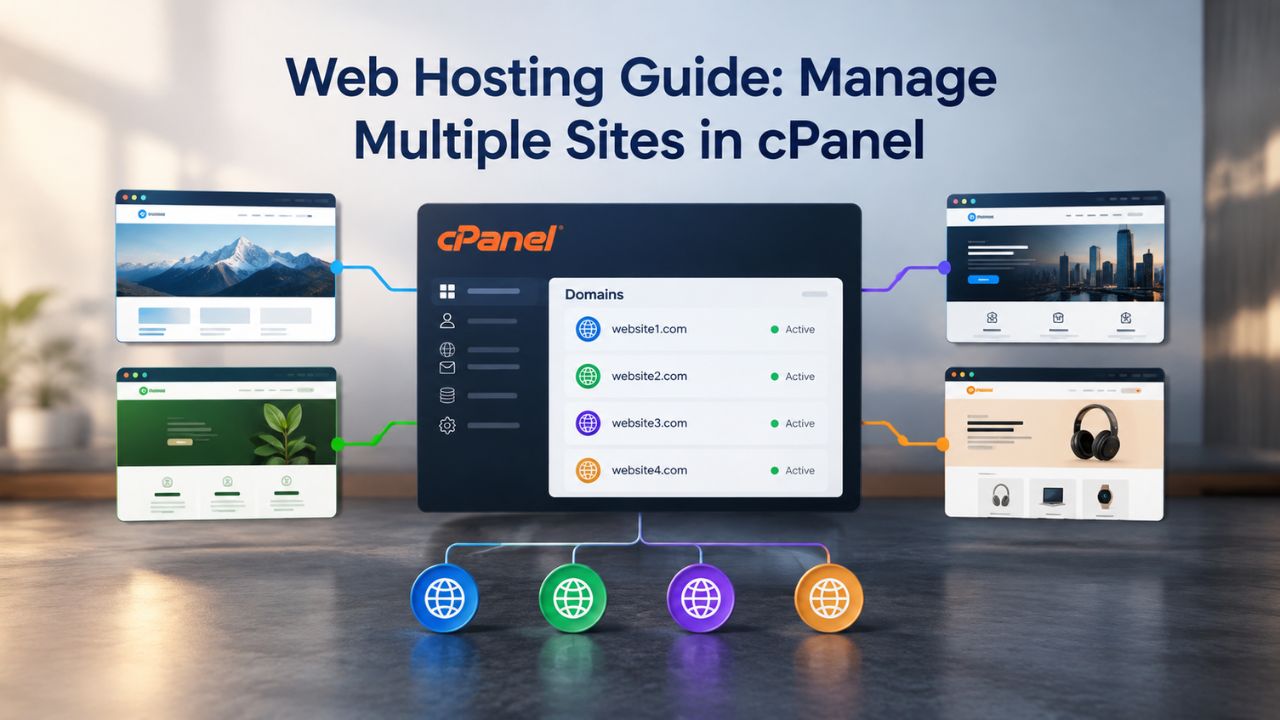
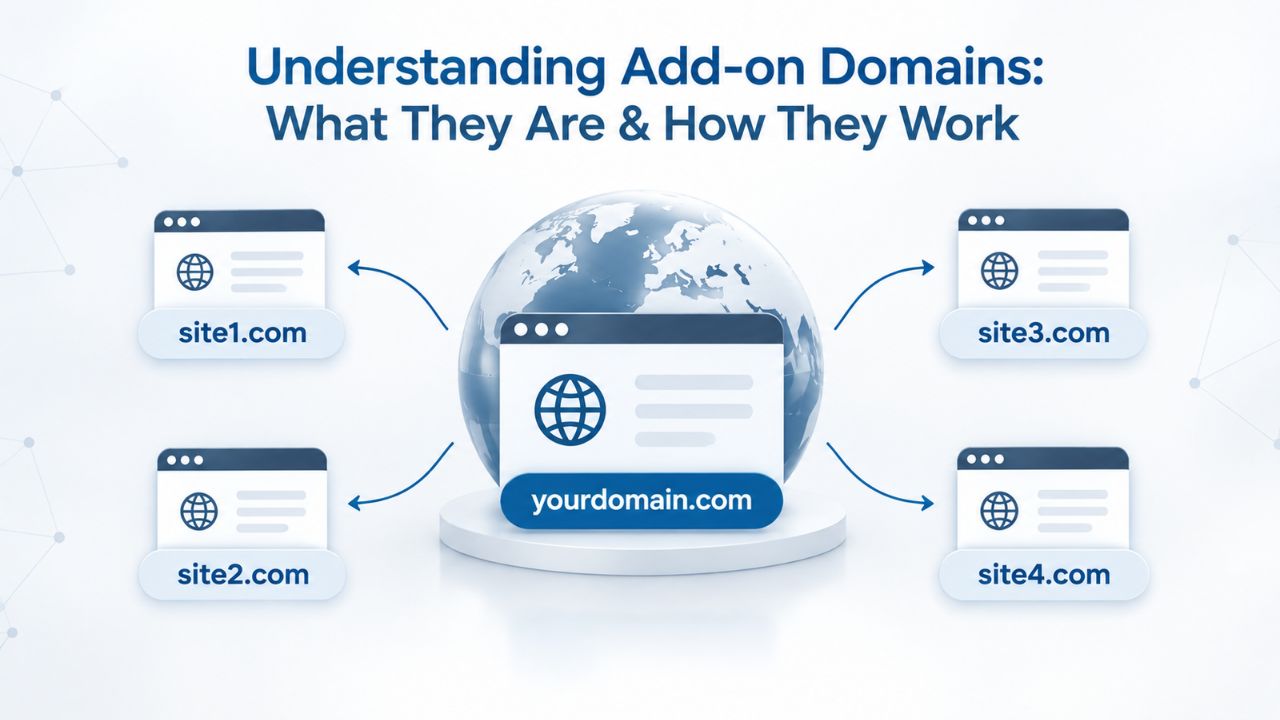
An add-on domain is a second or additional website that runs on the same cPanel account as your primary domain. Instead of purchasing separate hosting plans for each site, cPanel lets you host multiple independent websites under one account and one control panel interface, with each site maintaining its own files, databases, email accounts, and SSL certificates. This approach makes multisite hosting affordable while keeping each website logically separate and independently manageable.
How Add-on Domains Differ from Subdomains and Parked Domains
Add-on domains, subdomains, and parked domains are three distinct cPanel features that serve different purposes, and choosing the right one prevents setup confusion. An add-on domain lets you host a separate website with its own content and database. In contrast, a subdomain (like blog.yoursite.com) is typically used to organize sections within your primary site rather than host an entirely separate website. A parked domain is simply an alias, a second domain name that redirects visitors to your primary website without hosting any separate content. For multisite scenarios where you own multiple distinct websites or brands, add-on domains are the right choice because they give each site complete independence.
The key structural difference between shared hosting add-on domains and separate cPanel accounts (available on reseller, VPS, or dedicated hosting plans) is access control and resource isolation. With add-on domains, all websites share a single cPanel login credential and operate under a shared system user account, which simplifies administration and keeps everything in one dashboard but provides less isolation than separate accounts. Separate cPanel accounts, by contrast, each have their own login credentials and operate as independent hosting environments, providing better privacy and security boundaries if you need to grant clients access to manage their own sites independently.
Why Use Add-on Domains Instead of Separate Hosting Plans
Add-on domains eliminate the cost and management burden of multiple hosting subscriptions and separate control panels. A small business, freelancer, or agency managing three to ten client sites can consolidate everything into one cPanel interface, significantly simplifying routine administrative tasks like SSL certificate renewal, backup scheduling, email account setup, and security updates.
GoDaddy’s shared Web Hosting plans, which power Niya Digital’s offering, include unlimited add-on domains on higher-tier plans, making this approach cost-effective as your portfolio scales. However, this centralization also means all sites share the same server’s total storage quota, bandwidth allocation, and computing resources (CPU, RAM, disk I/O), so understanding your plan’s resource limits and planning for growth becomes essential.
Add-on Domains vs. Subdomains vs. Parked Domains
| Feature | Add-on Domain | Subdomain | Parked Domain |
|---|---|---|---|
| Separate Website | Yes | No | No |
| Independent Files | Yes | Shares primary site | No (alias only) |
| Independent Database | Yes | Optional | No |
| Independent Email | Yes | Yes | No |
| Independent SSL | Yes (AutoSSL) | Yes (AutoSSL) | No (uses primary) |
| Use Case | Host distinct website/brand | Organize sections of main site (blog.site.com) | Redirect multiple domains to one site |
| File Location | public_html/secondsite.com/ | public_html/blog/ | N/A (redirect) |
| Setup Complexity | Moderate | Simple | Very simple |
Business Web Hosting Plans & Pricing
Choose the hosting plan that fits your website, WordPress site, or growing business. Compare features, storage, performance, security, and website capacity to find the right hosting environment for your needs.
cPanel Starter
cPanel Hosting that's easy, reliable and lightning-fast.
- 1 website
- 30 GB storage
- Unmetered bandwidth*

cPanel Economy
cPanel Hosting that's easy, reliable and lightning-fast.
- 1 website
- 100 GB space
- Unlimited bandwidth*
- 100 email accounts**
- 10 MySQL databases (1 GB ea.)
cPanel Deluxe
cPanel Hosting that's easy, reliable and lightning-fast.
- Unlimited websites
- Unlimited space
- Unlimited bandwidth*
- 500 email accounts
- 25 MySQL databases (1 GB ea.)
cPanel Ultimate
cPanel Hosting that's easy, reliable and lightning-fast.
- Unlimited websites
- Unlimited space
- Unlimited bandwidth*
- 1000 email accounts
- Unlimited MySQL databases (1 GB ea.)
- 2X Processing power & memory (available for Linux/cPanel only)
- Premium DNS
- 1-year SSL certificate to secure customer data and increase search rankings
*We don't limit the amount of storage and bandwidth your site can use as long as it complies with our Hosting Agreement. Should your website bandwidth or storage usage present a risk to the stability, performance or uptime of our servers, we will notify you via email and may be required to upgrade, or we may restrict the resources your website is using.
**Email account storage is limited to 100 email accounts with 100 MB of total storage.
WordPress Basic
A great way to get started.
- 1 website
- 10 GB NVMe storage
- Unmetered bandwidth
- Free SSL Certificate *
- WordPress pre-installed
- Weekly backups
- Web Application Firewall
- Daily malware scans
- One-time malware removal

WordPress Deluxe
Improve your site performance with Cloudflare CDN.
- 1 website
- 20 GB NVMe storage
- Unmetered bandwidth
- Free SSL Certificate *
- WordPress pre-installed
- Daily backups
- Web Application Firewall
- Daily malware scans
- One-time malware removal
- Up to 2x faster performance with global Cloudflare CDN **
- Enhanced security with DDoS protection
- Staging site
WordPress Ultimate
Add online marketing with more sites, storage and security.
- 1 website
- 30 GB NVMe storage
- Unmetered bandwidth
- Free SSL Certificate *
- WordPress pre-installed
- Daily + on-demand backups
- Web Application Firewall
- Daily malware scans
- Unlimited malware removal
- Up to 2x faster performance with global Cloudflare CDN **
- Enhanced security with DDoS protection
- Staging site
- WordPress code optimizer
- Smart WordPress plugin manager
- Sell online with WooCommerce
*An SSL certificate is included with every site and free for the life of the hosting plan. Certificates are automatically installed, validated and renewed.
Web Hosting Plus Launch
For multiple basic sites.
- 100 GB storage*
- 4 GB RAM
- 2 CPUs
- Unmetered traffic
- 50 websites & databases
- Free, unlimited SSL for all your websites**

Web Hosting Plus Enhance
For high-traffic WordPress, Joomla, and other sites.
- 200 GB storage*
- 8 GB RAM
- 4 CPUs
- Unmetered traffic
- 100 websites & databases
- Free, unlimited SSL for all your websites**
Web Hosting Plus Grow
For advanced eCommerce sites like Magento.
- 300 GB storage*
- 16 GB RAM
- 8 CPUs
- Unmetered traffic
- 150 websites & databases
- Free, unlimited SSL for all your websites**
Web Hosting Plus Expand
For multiple basic sites.
- 400 GB storage*
- 32 GB RAM
- 16 CPUs
- Unmetered traffic
- 200 websites & databases
- Free, unlimited SSL for all your websites**
*The total amount of usable storage capacity for your particular Hosting Service(s) may differ from the represented capacity as there is required space for the operating system(s), system file(s) and other supporting file(s).
**If you cancel the Web Hosting Plus product, you will lose the associated SSL certificate as well.
Planning Your Multisite Setup in cPanel
Before adding add-on domains to your account, take time to plan the overall structure. A well-thought-out setup from the beginning prevents common mistakes like unexpectedly running out of storage, hitting resource limits mid-year, or creating backup and restoration complications later. Planning upfront saves troubleshooting time and prevents emergency upgrades.
Checking Your Hosting Plan’s Add-on Domain Limit
Not all cPanel-based Web Hosting plans support the same number of add-on domains, and this limit varies significantly by plan tier. Shared hosting plans vary in how many add-on domains they allow, ranging from just a few on entry-level plans to unlimited on higher-tier business and enterprise packages. Before you set up multiple sites, log into your hosting account or contact your provider to confirm the exact maximum number of add-on domains your plan supports.
If your plan’s limit is lower than the number of sites you eventually want to host, you’ll need to upgrade to a higher-tier plan or consider alternative hosting options like reseller or VPS hosting, which offer more flexibility. Confirming this limit upfront prevents the frustration of successfully adding domains up to a cap, then discovering you can’t add more without an upgrade.
Niya Digital’s support team has observed that customers planning multisite setups often underestimate their growth trajectory and choose a plan tier with add-on domain limits that prove insufficient within the first year. When evaluating your plan, consider not just the sites you have now but the sites you reasonably expect to add within the next 12–24 months, then choose a plan with headroom beyond that number. Niya Digital’s team can help you assess your multisite needs and recommend the right plan tier to support your growth without surprise limitations.
Registering Domains Before Adding Them to cPanel
Add-on domains require the domain name to be registered with a domain registrar and the domain’s DNS to point to your hosting server before they will resolve in a browser. You can register domain names through any registrar, GoDaddy, Namecheap, your hosting provider, or dozens of others, and the registrar you choose does not need to match your hosting provider. Once a domain is registered and active, update the domain’s nameservers to point to your hosting server’s nameserver addresses, or configure the domain’s A record to point to your hosting server’s IP address.
Your hosting provider supplies the correct nameserver addresses or IP information; GoDaddy and Niya Digital provide these during account setup. This DNS configuration step typically takes 24–48 hours to propagate globally across the internet, so plan accordingly before you expect the domain to become accessible. Only after DNS is confirmed to be pointing to your server can you add the domain as an add-on domain in cPanel and have visitor traffic route to your website files.
Organizing Files & Document Roots for Each Website
Proper file organization is the practical foundation of efficient multisite management. When you structure add-on domains correctly from the start, finding and managing each site’s files becomes straightforward, and troubleshooting issues becomes much faster. Understanding the document root concept and maintaining consistent file naming patterns are the two most important organizational practices.
Understanding Document Roots and Directory Structure
A document root is the server directory where a website stores and serves its files when a visitor requests your domain. For your primary domain, the document root is typically a folder named public_html/ in your hosting account’s file system. For add-on domains, cPanel automatically creates a subdirectory under public_html/ for each additional site you add, for example, public_html/secondsite.com/ or public_html/mybusiness.net/. Keeping the default naming convention and using the domain name as the folder name makes it easy to identify which folder belongs to which website, reducing confusion during file uploads or troubleshooting.
Once cPanel creates each add-on domain’s directory, upload your website files to the corresponding folder using File Manager or an FTP client. If you’re installing WordPress or another CMS, use cPanel’s one-click installer and select the specific add-on domain from the dropdown; the installer automatically places all CMS files in the correct document root without manual file movement. For manual file uploads, navigate to the add-on domain’s folder before uploading your index.html or index.php home page file and supporting files like stylesheets, images, and application code. This structure keeps each site’s files logically separate and prevents accidental overwrites or cross-site file conflicts.
FTP and File Manager Access for Each Site
You can create separate FTP (File Transfer Protocol) accounts for each add-on domain, enabling different team members, contractors, or clients to upload and manage files for their own site without accessing other sites or needing the main cPanel login credentials. When adding an add-on domain in cPanel, you can create an FTP account for that domain and assign each account a unique username and password.
Restrict each FTP account’s directory access to that specific add-on domain’s document root folder, which prevents users from browsing or editing files outside their assigned site. This setup provides both convenience and security: team members can upload and manage content independently without needing the master cPanel login, and if one FTP password is compromised, only that single site is exposed, not your entire account.
Managing Databases & Email for Multiple Sites
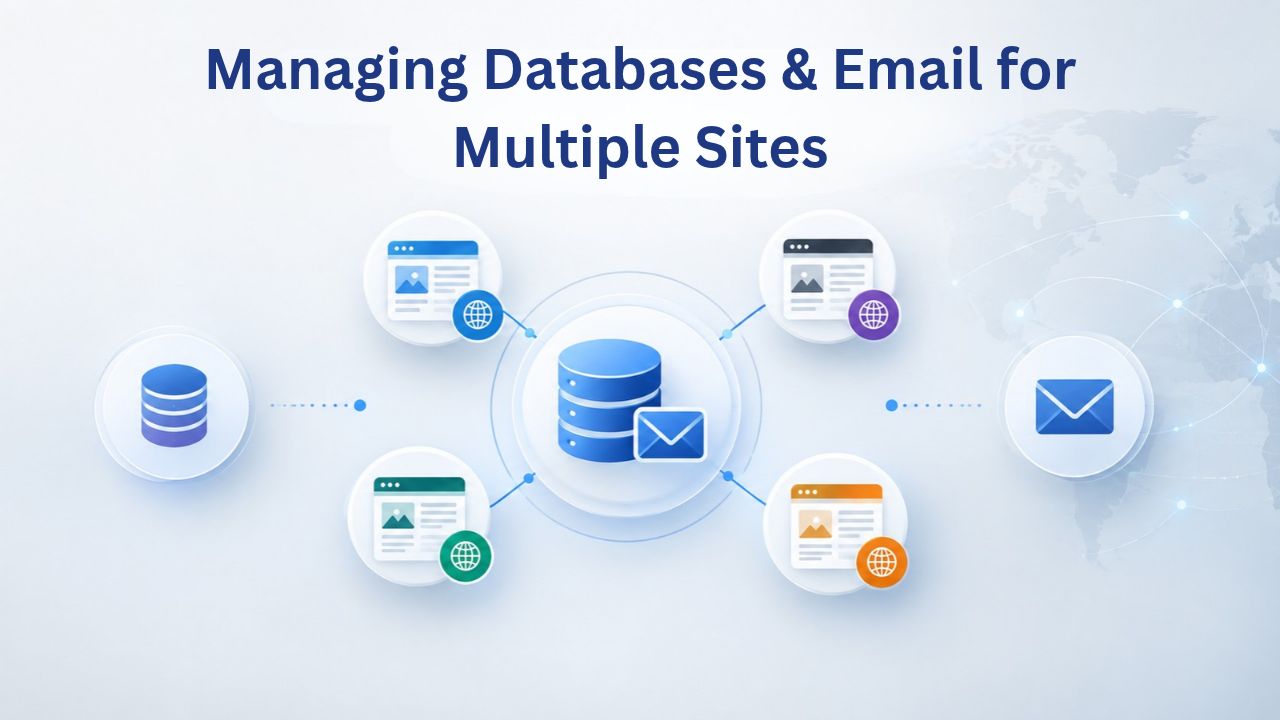
Each add-on domain can have its own resources, a separate MySQL database, and separate email accounts, keeping data logically isolated and greatly simplifying backups, site migrations, and troubleshooting. This separation is one of the most important multisite management practices because it prevents data conflicts and makes recovery straightforward.
Creating Separate MySQL Databases Per Site
Multiple add-on domains on the same cPanel account can each have their own MySQL database, with each database assigned its own username and password for application access. Best practice for multisite cPanel accounts is to create a dedicated database for each website, especially if different sites use different CMS platforms or applications. For example, a WordPress blog might use a database named site2_wordpress, while an online store might use site3_woocommerce, and a portfolio site might use site4_portfolio. This separation makes it easy to back up individual sites, migrate a site to another hosting provider, or restore a site from backup without affecting other sites’ data.
To create a database in cPanel, navigate to the MySQL Databases section, click the Create New Database button, assign it a descriptive name that identifies which site it belongs to, and then create a MySQL user with a strong password and grant that user all necessary privileges on the new database. Store these database credentials in a password manager or secure document; you’ll need them to configure your CMS, application, or website platform to connect to the database. If multiple unrelated sites accidentally share a database due to misconfiguration, troubleshooting becomes complicated, restoring individual sites becomes difficult, and one site’s data could appear in another. Maintaining the one-database-per-site practice consistently throughout your account prevents these issues.
Setting Up Email Accounts for Each Add-on Domain
Each add-on domain can have its own dedicated email accounts, such as support@domain2.com, info@domain3.com, or sales@anotherdomain.com, giving each site a professional, branded email presence. To create email accounts for an add-on domain, log into cPanel, navigate to Email Accounts, click the Create button, select the add-on domain you want from a dropdown menu, then enter the desired email username and password. This process is the same for your primary domain and all add-on domains, making email setup straightforward and consistent across your account. Each email account gets its own mailbox and can be configured independently with forwarding rules, auto-responders, or spam filtering.
Using separate email domains for different websites improves email deliverability and isolates email reputation between sites, which matters significantly for business communication. If one domain’s emails trigger spam filters or get flagged for problematic sending practices, other domains’ sender reputation and deliverability remain unaffected. This isolation matters most for ecommerce sites, client service portals, and any business where email reliability and inbox delivery are critical to customer communication and trust.
Automating HTTPS: SSL Certificate Management Across All Domains
Every website should use HTTPS to encrypt sensitive visitor data and demonstrate security to search engines and browsers. cPanel’s AutoSSL feature automatically provisions SSL certificates for all add-on domains, eliminating manual certificate management and the risk of missed renewals.
How AutoSSL Works and What It Covers
cPanel’s AutoSSL feature automatically provisions and renews free, Domain Validated (DV) SSL certificates for all add-on domains on a shared hosting account, including both the www and non-www variants of each domain (e.g., domain.com and www.domain.com). AutoSSL is activated by default on most shared Web Hosting plans and runs regularly, typically weekly or on-demand, to check which domains need new certificates or renewals. Once a domain passes a domain control validation (DCV) test, which confirms through email or DNS that you own the domain, AutoSSL automatically installs a free certificate. Visitors see the secure HTTPS padlock in their browser address bar, and search engines reward secure, HTTPS-enabled sites with better rankings and trust signals.
AutoSSL certificates automatically renew within 15 days of expiration, ensuring continuous HTTPS coverage and encryption for all add-on domains as long as your account remains active and domains point to your server. You don’t need to purchase, install, or renew SSL certificates manually; the process is hands-off and automatic. This is one of the biggest advantages of shared Web Hosting for multisite customers: you get free, automatic HTTPS for every site at no extra cost or effort, and you never have to worry about certificates expiring and breaking your sites’ security.
Checking AutoSSL Status and Troubleshooting Certificate Issues
Log into cPanel and navigate to SSL/TLS Status to view a comprehensive list of all SSL certificates on your account, including their status, expiration dates, and whether AutoSSL is configured to include each domain. The interface shows which domains have active certificates, when they’re scheduled to expire, and whether any domain failed certificate provisioning.
If a domain fails AutoSSL (most commonly because DNS isn’t yet pointing to your server, or because the domain failed domain control validation), you can manually request a certificate through cPanel or wait for AutoSSL to retry after DNS is corrected. AutoSSL will attempt to renew certificates that expire within 15 days. Still, it prioritizes new certificates over renewals because of certificate authority rate limits, so add your domains to cPanel well before your launch date to avoid certificate gaps or HTTPS errors.
Start Hosting Multiple Sites with Confidence
Niya Digital’s Web Hosting plans, powered by GoDaddy infrastructure, include full cPanel access and automatic AutoSSL for all add-on domains. Whether you’re starting with two sites or planning to scale to 10 or more, Niya Digital’s shared hosting tiers give you the flexibility to grow your multisite portfolio from one control panel. Explore plans designed for multisite management and discover the support and tools needed to manage multiple sites effectively.
Backup Strategy for Multisite cPanel Accounts
Protecting all your sites with a solid backup strategy is critical to business continuity. A single backup can include all add-on domains, but restoring individual sites requires planning if you need to recover just one site without affecting others.
Full Account Backups vs. Selective Restoration
cPanel’s built-in backup feature can create a full account backup that includes all add-on domains, their files, all MySQL databases, and email accounts in a single compressed archive file. This full account backup is valuable for complete account recovery or migrating your entire multisite setup to another hosting provider without losing data. However, there is no automated, built-in method within cPanel to restore a partial backup, a single add-on domain only, from a full account backup; selective restoration of individual add-on domains requires manual file extraction and database restoration, which is a labor-intensive process that most hosting providers don’t recommend for non-technical users.
For this reason, rely on your hosting provider’s automatic daily backup service rather than attempting manual partial restores yourself. GoDaddy Web Hosting plans include daily automatic backups, which means Niya Digital customers get daily snapshots of all sites, databases, and email accounts without manual setup or intervention. If data loss, file corruption, malware, or a security issue affects one site, you can contact Niya Digital’s support team to restore a specific add-on domain from a previous backup date; they handle the restoration and leave other sites untouched.
Best Practices for Multisite Backup and Recovery
Set a backup frequency that matches your update schedule and business needs. Blogs and ecommerce sites that update content daily should rely on daily backups; static portfolio sites that update content monthly can operate with weekly backups. Document which backup dates correspond to which content updates or deployments, so if you need to restore a site, you can choose a backup that captures the state you want rather than restoring to the wrong point in time. For add-on domains running production sites or handling customer data, consider requesting additional weekly or monthly full-account backups from your hosting provider as an extra safety net beyond daily automatic backups.
Test your backup restoration process at least once per year to ensure it actually works. Restore a test copy of one add-on domain to a staging environment or development folder and verify that website files, databases, and email accounts all restore correctly and function as expected. This test run confirms your backup strategy works when needed, gives you practice with the restoration process before a real emergency, and helps identify configuration issues that might prevent successful restoration. Niya Digital’s support team can help with restoration testing and guide you in verifying that restored sites function correctly.
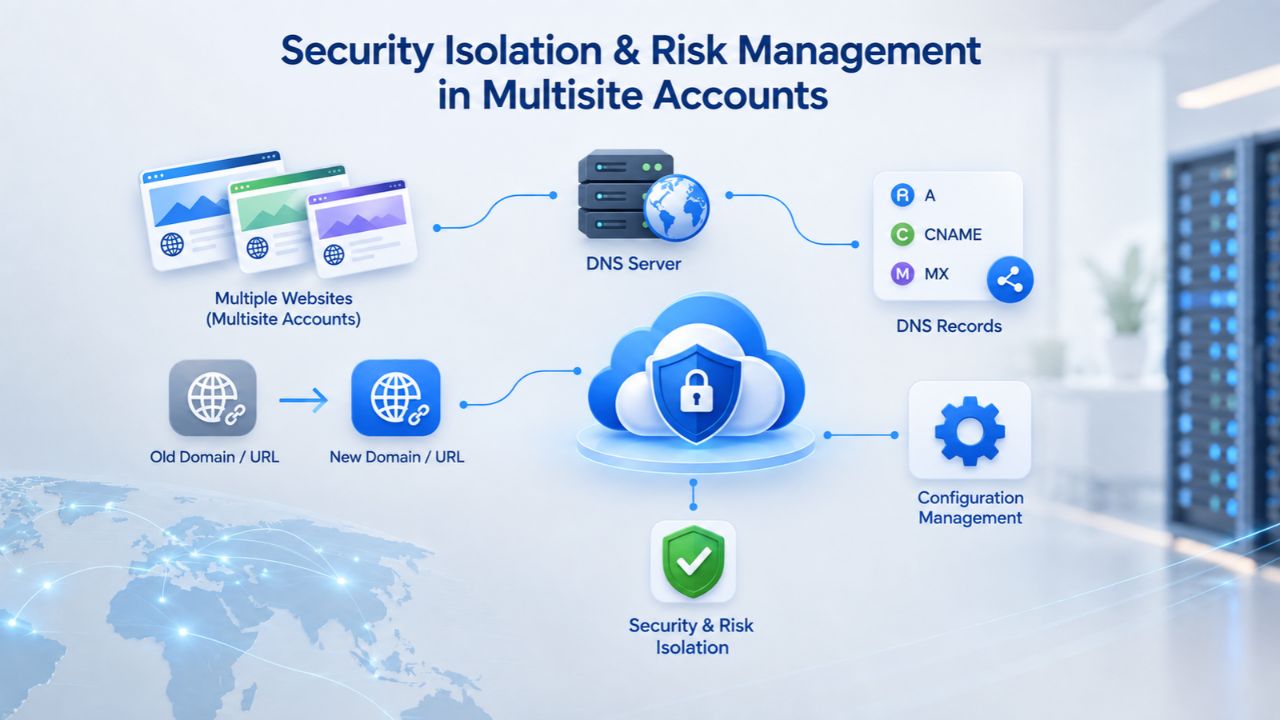
Security Isolation & Risk Management in Multisite Accounts
Hosting multiple sites on a single account provides convenience but introduces shared security considerations that require attention. Understanding the risks of shared hosting and applying best practices to mitigate them helps keep all your sites secure and reduces the impact if one site is compromised.
How Shared System User Accounts Affect Security
All add-on domains on a single cPanel account share the same system user account at the server level, a fundamental architectural aspect of shared hosting. This means a security breach in one website can potentially expose the entire account, including all other add-on domains’ files and databases, to compromise, allowing an attacker to access files and data from all your sites.
If one site’s code is hacked or its application is exploited, an attacker can theoretically access all sites’ files, databases, and email accounts. This is a fundamental limitation of shared hosting with add-on domains compared to separate cPanel accounts or VPS hosting, where each site runs as its own isolated system user with its own resource allocation and access boundaries.
To reduce this shared-account risk, keep all sites up to date. Outdated WordPress plugins, themes, CMS versions, and application code are common attack vectors that hackers exploit. Enable automatic updates for all CMS platforms and applications wherever possible, or schedule weekly manual updates if the CMS requires manual intervention. Implement strong, unique passwords for every admin account, database connection, and FTP credential; never reuse passwords across sites or applications.
Monitor email for security alerts from your CMS platforms and application vendors, and address security updates immediately when released. Consider adding optional security features your hosting provider offers, such as firewall rules, malware scanning, or intrusion detection. These practices don’t eliminate the shared-account risk, but they dramatically reduce the likelihood that any site will be successfully compromised.
When to Consider Upgrading for Better Isolation
Shared hosting with add-on domains provides less isolation than reseller hosting or VPS hosting, where each site runs as its own user with its own resource allocation. If you’re hosting sensitive client sites, handling personal data subject to GDPR or CCPA compliance requirements, managing high-value ecommerce stores, or running applications that handle payment information, the security isolation provided by separate cPanel accounts or VPS hosting is worth the additional investment. Similarly, if one of your sites is compromised and you need to isolate it from other sites while investigating the breach, upgrading to reseller hosting lets you move that site to its own independent cPanel account and resources without migrating your entire account.
For small businesses, freelancers, bloggers, and consultants hosting two to five personal or internal sites on shared hosting with add-on domains, solid security practices (updates, strong passwords, backups) provide adequate security for non-sensitive content. As your portfolio grows or your sites begin handling sensitive data, security isolation becomes a key factor in your hosting decision and architecture. Niya Digital’s team can help you evaluate whether your current sites’ security needs exceed what shared hosting provides.
Performance Optimization: Keeping Multiple Sites Fast on Shared Hosting
Multiple sites sharing one server’s resources means performance management is essential to maintain site speed. A high-traffic site, resource-intensive application, or misconfigured plugin can consume a significant portion of server resources and slow down all other add-on domains on the account.
Understanding Resource Sharing on Shared Hosting
All add-on domains on a single cPanel account share the server’s CPU, RAM, and disk I/O resources; one high-traffic or resource-intensive site can consume resources and degrade performance for all other add-on domains on the same account. For example, a WordPress plugin misconfiguration causing excessive database queries, a poorly optimized image gallery loading thousands of files, a traffic spike from a viral social media post, or a malicious bot overwhelming your site can consume CPU and I/O, making all sites on the account noticeably slower. This shared-resource reality is why shared hosting is affordable: you split server costs with other customers, but you must also monitor each site’s performance and resource consumption.
Most hosting providers, including GoDaddy and Niya Digital, offer resource usage reports in cPanel or a separate customer dashboard. Check these reports at least monthly to identify resource-heavy sites and usage trends. If one site consistently uses 80% or more of available CPU or I/O resources, consider optimizing that site’s code and database queries, moving that site to its own hosting plan (reseller or VPS hosting), or temporarily disabling heavy features during peak traffic. Knowing which sites consume resources helps you make informed decisions about optimization or upgrades.
Optimization Steps for Multiple Sites
Implement caching on all sites to dramatically reduce the server resources needed for each page load. WordPress caching plugins like WP Super Cache or W3 Total Cache store static copies of your pages, so the server doesn’t need to regenerate them for every visitor. Optimize images before uploading to your server; large, uncompressed images consume storage quota and bandwidth and slow page loads.
Use a content delivery network (CDN) if available as an add-on feature through your host; a CDN serves images and static files from geographically distributed servers worldwide, reducing load on your hosting server and improving load times for distant visitors. Delete old backup files, server logs, and unused email accounts regularly to stay well below your storage limit; approaching or exceeding storage limits can trigger performance throttling or file write errors.
Page load time directly impacts user experience, search engine rankings, and conversion rates; when multiple sites share server resources on shared hosting, performance monitoring and regular optimization are essential. If a site still performs poorly after optimization, that’s a clear signal it has outgrown shared hosting and needs dedicated resources. Niya Digital’s support team can help you identify performance bottlenecks and recommend optimization steps or hosting upgrades.
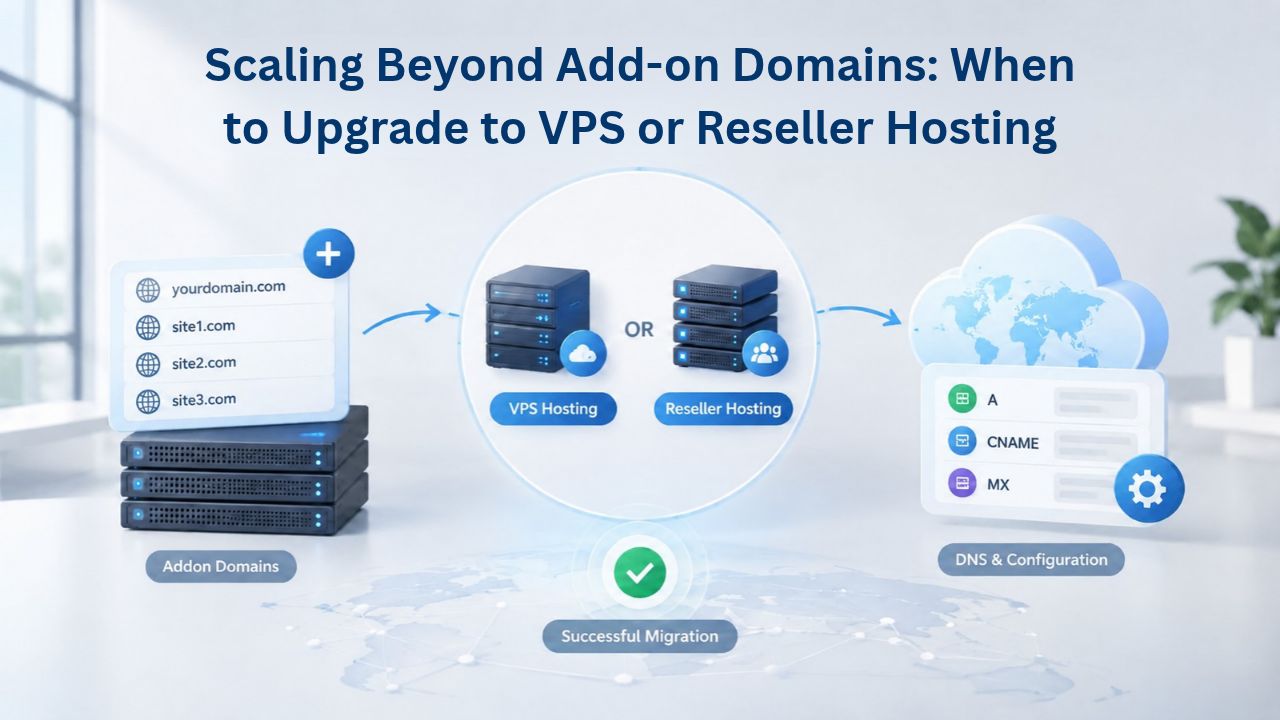
Scaling Beyond Add-on Domains: When to Upgrade to VPS or Reseller Hosting
Add-on domains work well for small-to-medium multisite scenarios, but growth eventually demands a hosting upgrade to maintain performance and isolation. Understanding when to upgrade helps you plan and avoid sudden outages or slowdowns.
Signs You’ve Outgrown Shared Hosting Add-on Domains
Your account may need an upgrade if storage usage consistently approaches your plan’s limit; traffic spikes cause noticeable slowness across sites; one site gets hacked, and you need immediate isolation from others; you want to give clients access to their own control panels and accounts without sharing the main cPanel login; you’re hosting 15 or more sites and want better resource predictability; or your security requirements (HIPAA, PCI-DSS for payment processing) demand isolated environments and compliance controls.
Additionally, if your sites experience consistent performance issues even after optimization, or if you manage many client websites for an agency, shared hosting’s resource constraints can become a bottleneck that limits your growth.
Hosting Options for Multiple Websites
| Hosting Type | 2–5 Sites | 5–15 Sites | 15+ Sites | Client Access | Security Isolation |
|---|---|---|---|---|---|
| Shared (Add-on Domains) | ✓ Ideal | ✓ Works | Limited | Shared login | Shared user |
| Reseller Hosting | Overkill | ✓ Better | ✓ Excellent | ✓ Separate logins | ✓ Isolated users |
| VPS Hosting | Overkill | ✓ Good | ✓ Excellent | ✓ Possible | ✓ Isolated resources |
| Best for Scalability | To \~10 sites | To 50+ sites | Unlimited | Multiple clients | High security needs |
VPS Hosting for Growing Multisite Portfolios
VPS hosting provides a middle ground between shared hosting with add-on domains and dedicated servers, allocating guaranteed, isolated CPU/RAM to your account and preventing one site’s resource overuse from affecting others. A VPS gives you more control over your hosting environment, significantly better performance than shared hosting, and the ability to host 10–50+ sites with predictable resource allocation and minimal performance conflicts.
VPS hosting costs more than shared hosting but substantially less than dedicated servers, making it an ideal choice for growing agencies or businesses serious about multisite hosting and client management. Niya Digital and other hosting providers offer managed VPS options that handle server maintenance, operating system updates, backups, and security patches, so you don’t need deep technical knowledge to run and manage a VPS.
Reseller Hosting for Agencies and Multi-Client Scenarios
cPanel’s Web Host Manager (WHM) included in reseller hosting allows administrators to create multiple separate, independent cPanel accounts from a single reseller account, providing each client site with its own control panel, user account, databases, and resource allocation.
Reseller hosting is specifically designed for agencies, web designers, and hosting resellers managing multiple client websites; each client gets their own cPanel login, separate billing, and isolated resources, but you manage everything from a master WHM interface. This setup provides better isolation and security than add-on domains, a superior client experience with independent dashboards, and scales from 10 to 100+ client sites without compromising performance or isolation.
Best Practices & Workflows for Managing a Multisite cPanel Account
Consistent practices and routines keep multisite accounts organized, secure, and performant throughout their lifecycle. Investing in good management habits early prevents problems from accumulating.
Documentation and Naming Conventions
Maintain a simple spreadsheet, document, or wiki listing all add-on domains, their primary purpose or business function, key contacts, backup schedules, and any special configurations or notes. Include database names, FTP credentials (stored securely in a password manager, not in plain text), and SSL certificate renewal dates if using manual certificates.
Adopt consistent naming conventions for databases, FTP accounts, folders, and documentation; for example, always prefix database names with the domain name or site number (site2_wordpress, site3_shopify, mybusiness_contacts, etc.). This documentation becomes invaluable when troubleshooting issues, onboarding new team members or contractors, handing off account management to a colleague, or recovering from data loss. Review and update this documentation quarterly to keep it current.
Regular Maintenance and Monitoring Tasks
Schedule weekly or monthly reviews of resource usage, backup status, and any security alerts from your CMS or applications. Update all CMS platforms, plugins, themes, and applications on a regular schedule, ideally with automatic updates enabled if the CMS supports it, or with weekly manual updates if required.
Monitor email deliverability by checking for spam complaints, bounce rates, and authentication issues (SPF, DKIM records); poor email reputation can spread across add-on domains if not caught early. Review access logs and user accounts quarterly; delete inactive FTP accounts, disable user accounts that no longer need access, and remove team members from sites they no longer manage. These routine maintenance tasks, spread throughout the month, prevent small issues from becoming big problems that require emergency fixes.
When to Contact Hosting Support
Don’t hesitate to contact your hosting provider’s support team with multisite-specific questions or requests for help. Niya Digital’s support team can help with domain setup and DNS configuration, SSL and certificate troubleshooting, backup restoration, resource-usage questions, performance-optimization recommendations, and upgrade planning.
If you’re unsure whether your current plan supports the number of sites you want to host, or if you’re experiencing performance issues and need help identifying which site is consuming resources, your hosting provider’s technical expertise can save time and prevent costly mistakes. Niya Digital offers 24/7 support to help you succeed with multisite hosting.
Grow Your Multisite Presence with Niya Digital
As your sites grow, so do your hosting requirements and resource needs. Niya Digital offers Web Hosting Plus and VPS hosting options for accounts outgrowing shared hosting, with add-on domains and dedicated managed support to guide your migration and transition. Whether you’re optimizing your current shared hosting setup or upgrading to VPS or reseller hosting for better isolation and performance, Niya Digital’s team is here to support your growth and help you scale without downtime or disruption.
Frequently Asked Questions
What’s the difference between an add-on domain and a subdomain in cPanel?
An add-on domain hosts a completely separate website with its own files, databases, and email accounts, functioning as a fully independent site on your account. A subdomain (like blog.yoursite.com) is typically part of your main site’s structure and shares the primary domain’s files, database, and email system.
Use add-on domains when you own multiple distinct websites or brands; use subdomains to organize sections within a single website. Both can have independent SSL certificates via AutoSSL, but add-on domains provide complete separation.
How many add-on domains can I host on one cPanel account?
The number of add-on domains depends entirely on your hosting plan tier. Entry-level shared hosting plans may allow two to five add-on domains, while higher-tier business plans allow unlimited add-on domains.
Check your plan details in your hosting account or contact your hosting provider to confirm the exact add-on domain limit for your specific plan. If you need more add-on domains than your current plan allows, you can upgrade to a higher-tier plan with more generous limits.
Do I need to register each add-on domain separately with a domain registrar?
Yes, each add-on domain must be a registered domain name pointing to your hosting server’s DNS. You can register domains through any domain registrar (GoDaddy, Namecheap, your hosting provider, or others). The registrar does not need to match your hosting provider. Once you register the domain and update the DNS to point to your hosting server, you can add it as an add-on domain in cPanel.
Can each add-on domain have its own free SSL certificate?
Yes, absolutely. AutoSSL automatically provisions a free SSL certificate for each add-on domain on your account. No manual setup, payment, or renewal is required; certificates install and renew automatically. All your add-on domains get HTTPS encryption at no additional cost.
What happens if one add-on domain gets compromised by hackers?
All add-on domains on a single cPanel account share the same system user account, which means a breach in one site can potentially expose all other sites to risk. Minimize this risk by keeping all sites updated with security patches, using strong unique passwords, enabling backups, and monitoring for suspicious activity. If one site is compromised, contact your hosting provider immediately to assess the extent of the breach and determine if other sites were affected.
Can I back up and restore individual add-on domains separately?
Full account backups include all add-on domains. However, there’s no automated way to restore just one add-on domain from a full backup without manual extraction and database restoration. Contact your hosting provider’s support team to restore a specific add-on domain from a previous backup date; they can selectively restore it without affecting other sites on your account.
How much storage and bandwidth does each add-on domain get?
All add-on domains on a single cPanel account share the total storage and bandwidth allowance of your hosting plan. For example, if your plan includes 100 GB of storage, all sites combined share that 100 GB. Monitor storage usage monthly to avoid exceeding your limit, which could cause site errors or performance issues.
When should I upgrade from shared hosting add-on domains to VPS hosting?
Consider upgrading when storage usage consistently approaches your plan’s limit; traffic causes noticeable slowness across multiple sites; you need to isolate a site after a security breach; clients need access to separate control panels; you’re hosting 15 or more sites; or your security requirements demand isolated, dedicated resources. Planning your upgrade 1–2 months in advance helps ensure a smooth transition without downtime.
Can multiple add-on domains share a single MySQL database?
Technically yes, but it’s not recommended for unrelated sites. Separate databases per site simplify backups, migrations, troubleshooting, and recovery. Sharing a database between unrelated sites complicates data isolation, makes selective restoration difficult, and can cause data conflicts if sites use different CMS platforms. Maintain one database per site as best practice.
How do I create a separate FTP account for each add-on domain?
When adding an add-on domain in cPanel, check the option to create an FTP account associated with that domain. Assign a unique username and password for each domain’s FTP account. FTP access will be restricted to that domain’s document root folder, allowing team members to upload files without needing the main cPanel login or access to other sites.
Does one add-on domain’s high traffic affect the performance of other add-on domains on my account?
Yes, if one add-on domain receives high traffic or runs resource-intensive processes, it can consume CPU, RAM, and I/O resources, potentially slowing all other sites on your account. Monitor resource usage in cPanel and optimize or move resource-heavy sites to dedicated hosting if performance becomes an issue.
Can I convert add-on domains into separate cPanel accounts if I upgrade?
Yes, if you upgrade to reseller hosting or VPS hosting. cPanel’s Web Host Manager includes a “Convert Add-on Domain to Account” feature that separates an add-on domain into its own independent cPanel account with separate resources and login. This is not available on shared hosting plans.
How often does my hosting provider back up add-on domains?
Most hosting providers offer daily automatic backups on shared hosting plans. GoDaddy Web Hosting, which powers Niya Digital’s service, includes daily automatic backups by default. Backups are typically retained for 30 days; older backups are automatically removed to manage storage.
Is shared hosting add-on domains secure enough for storing sensitive client data?
Shared hosting with add-on domains and solid security practices (updates, strong passwords, backups) provides reasonable security for small businesses, blogs, and non-sensitive content. However, for sites handling sensitive client data, payment information, HIPAA-regulated data, or PCI-DSS compliance requirements, separate cPanel accounts or VPS hosting is recommended.
What’s the cost advantage of add-on domains compared to separate hosting accounts?
Multiple add-on domains share one hosting plan’s cost, making them significantly cheaper than purchasing separate hosting accounts for each site. One shared hosting plan with five add-on domains costs a fraction of five separate hosting plans. You trade some resource allocation and isolation for cost savings, but the savings are substantial for multisite users.
Can I move an add-on domain to another hosting account?
Yes. Create a backup of the add-on domain (files and database), upload it to the new hosting account, and restore it. Update the domain’s DNS to point to the new hosting server. Contact your hosting provider’s support team for detailed instructions on migrating an add-on domain between accounts, as the exact process varies by provider.
Glossary
- Add-on Domain: A second or additional website hosted on the same cPanel account as your primary domain, with its own independent files, database, and email accounts, functioning as a completely separate website.
- Backup: A copy of your website files, databases, and email accounts stored separately from your live hosting server, used to recover data in case of loss, corruption, or security compromise.
- cPanel: A web-based graphical control panel providing a user interface for managing all aspects of a web hosting account, including domains, files, databases, email, backups, SSL certificates, and security settings.
- Document Root: The server directory where a website’s files are stored and served from; the primary domain’s document root is typically public_html/, while add-on domains have subdirectories like public_html/secondsite.com/.
- MySQL Database: A structured data storage system used by dynamic websites and applications (WordPress, Joomla, WooCommerce, etc.) to store and retrieve content, user information, and application settings.
- SSL/HTTPS: Secure Sockets Layer (SSL) is a security protocol that encrypts data between a visitor’s browser and your web server; HTTPS is the secure version of HTTP. An SSL certificate is required to enable HTTPS and the security padlock.
- AutoSSL: cPanel’s automatic SSL certificate provisioning service that generates, installs, and renews free Domain Validated (DV) SSL certificates for all add-on domains on your account without manual intervention.
- Bandwidth: The total amount of data transferred between your website and visitors’ browsers per month; once monthly bandwidth is consumed, users may experience slowness or service interruptions until the limit resets.