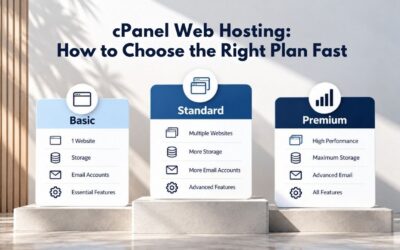
Starting a blog means bringing your ideas online, but choosing where to host it shouldn’t feel like a technical puzzle. Most bloggers don’t need enterprise-grade infrastructure; they need simplicity, uptime that keeps readers engaged, and support that doesn’t assume they speak server-administration language. Niya Digital’s Web Hosting service, running on GoDaddy’s server and network infrastructure, is built for exactly this use case, helping bloggers get a site online and keep it running without the overhead of managing their own servers. Everything you read here reflects Niya Digital’s reseller platform and hosting experience, backed by GoDaddy’s infrastructure.
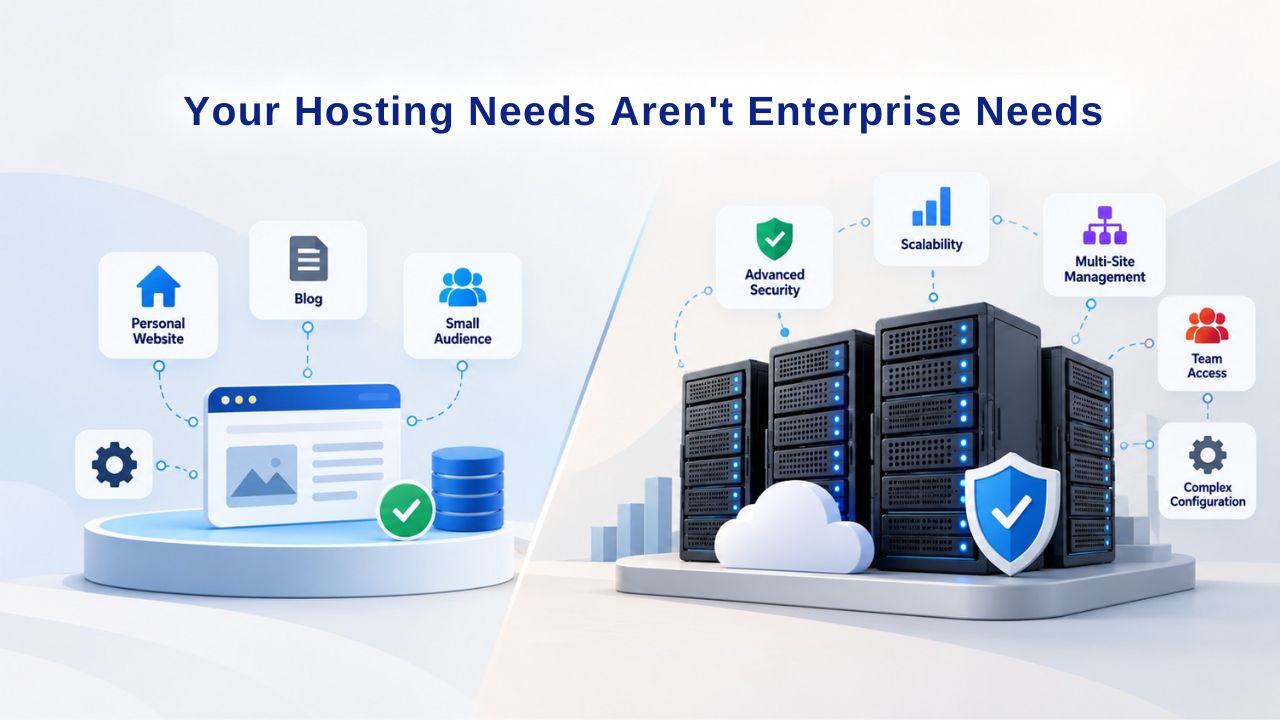
Your Hosting Needs Aren’t Enterprise Needs
Blogs exist at a completely different scale from e-commerce platforms or SaaS applications serving millions of users. A typical hobby blog sees hundreds to low thousands of monthly visitors; a growing local-business blog might hit five figures. Neither needs dedicated server hardware, advanced clustering, or infrastructure built to handle enterprise-level traffic surges.
Why Shared Hosting Is Your Right Starting Point
Shared hosting is the entry-level hosting model where multiple websites live on the same physical server and share CPU, memory, disk space, and bandwidth. For bloggers, this is genuinely the right fit, not a compromise, but the correct choice. Your blog doesn’t constantly consume server resources; it sits quietly until a reader visits, the page loads, and the connection closes. That pattern repeats thousands of times monthly, not millions of times per second. When you’re not actively publishing or experiencing traffic spikes, your site uses minimal resources, which is why shared hosting works so well for this use case.
GoDaddy’s shared hosting plans come with high-performance NVMe Solid State Drives (SSD) for files and databases, so your sites load incredibly fast, and you get cPanel. This industry-standard control panel handles your files, email, databases, and domain settings through a simple web interface you access from any browser.
You don’t need to pay for dedicated resources you’ll never use. Shared hosting plans give you everything a blog needs: one or more domains, storage allocations, bandwidth, email accounts, and one-click WordPress installers. Most bloggers stay on shared hosting for years because, frankly, it works. The only reason to move to a VPS or managed plan is when traffic consistently maxes out your plan’s resources, a sign your blog has actually grown into a business asset worth more investment.
The Hidden Truth About Resource Limits
Your hosting provider has to prevent one customer’s runaway database query or traffic spike from crashing the server everyone else shares. To do this, every shared hosting plan enforces resource limits. GoDaddy’s shared hosting offers storage allocations from 25 GB to unlimited across its plan tiers. Unmetered bandwidth, though, “unlimited” almost always means a fair-use policy applies; the provider monitors for abuse and reserves the right to scale back if your usage becomes extreme. This isn’t hidden or unfair; it’s simply how shared hosting must work. One customer running massive data-processing jobs or constantly hosting media files would slow everyone else down if unchecked.
Niya Digital’s team has found that bloggers often assume “unlimited” is truly without limit; when they hit fair-use thresholds later, they’re surprised. The remedy is simple: read the plan terms, estimate your actual needs conservatively, and ask support how much storage and bandwidth a typical growing blog consumes. That conversation is more useful than chasing a spec sheet’s promises. Most bloggers will never hit fair-use limits because typical blog usage stays well within the intended parameters. The limits exist to separate shared hosting (for bloggers and small sites) from dedicated or managed hosting (for high-volume operations).
Business Web Hosting Plans & Pricing
Choose the hosting plan that fits your website, WordPress site, or growing business. Compare features, storage, performance, security, and website capacity to find the right hosting environment for your needs.
cPanel Starter
cPanel Hosting that's easy, reliable and lightning-fast.
- 1 website
- 30 GB storage
- Unmetered bandwidth*

cPanel Economy
cPanel Hosting that's easy, reliable and lightning-fast.
- 1 website
- 100 GB space
- Unlimited bandwidth*
- 100 email accounts**
- 10 MySQL databases (1 GB ea.)
cPanel Deluxe
cPanel Hosting that's easy, reliable and lightning-fast.
- Unlimited websites
- Unlimited space
- Unlimited bandwidth*
- 500 email accounts
- 25 MySQL databases (1 GB ea.)
cPanel Ultimate
cPanel Hosting that's easy, reliable and lightning-fast.
- Unlimited websites
- Unlimited space
- Unlimited bandwidth*
- 1000 email accounts
- Unlimited MySQL databases (1 GB ea.)
- 2X Processing power & memory (available for Linux/cPanel only)
- Premium DNS
- 1-year SSL certificate to secure customer data and increase search rankings
*We don't limit the amount of storage and bandwidth your site can use as long as it complies with our Hosting Agreement. Should your website bandwidth or storage usage present a risk to the stability, performance or uptime of our servers, we will notify you via email and may be required to upgrade, or we may restrict the resources your website is using.
**Email account storage is limited to 100 email accounts with 100 MB of total storage.
WordPress Basic
A great way to get started.
- 1 website
- 10 GB NVMe storage
- Unmetered bandwidth
- Free SSL Certificate *
- WordPress pre-installed
- Weekly backups
- Web Application Firewall
- Daily malware scans
- One-time malware removal

WordPress Deluxe
Improve your site performance with Cloudflare CDN.
- 1 website
- 20 GB NVMe storage
- Unmetered bandwidth
- Free SSL Certificate *
- WordPress pre-installed
- Daily backups
- Web Application Firewall
- Daily malware scans
- One-time malware removal
- Up to 2x faster performance with global Cloudflare CDN **
- Enhanced security with DDoS protection
- Staging site
WordPress Ultimate
Add online marketing with more sites, storage and security.
- 1 website
- 30 GB NVMe storage
- Unmetered bandwidth
- Free SSL Certificate *
- WordPress pre-installed
- Daily + on-demand backups
- Web Application Firewall
- Daily malware scans
- Unlimited malware removal
- Up to 2x faster performance with global Cloudflare CDN **
- Enhanced security with DDoS protection
- Staging site
- WordPress code optimizer
- Smart WordPress plugin manager
- Sell online with WooCommerce
*An SSL certificate is included with every site and free for the life of the hosting plan. Certificates are automatically installed, validated and renewed.
Web Hosting Plus Launch
For multiple basic sites.
- 100 GB storage*
- 4 GB RAM
- 2 CPUs
- Unmetered traffic
- 50 websites & databases
- Free, unlimited SSL for all your websites**

Web Hosting Plus Enhance
For high-traffic WordPress, Joomla, and other sites.
- 200 GB storage*
- 8 GB RAM
- 4 CPUs
- Unmetered traffic
- 100 websites & databases
- Free, unlimited SSL for all your websites**
Web Hosting Plus Grow
For advanced eCommerce sites like Magento.
- 300 GB storage*
- 16 GB RAM
- 8 CPUs
- Unmetered traffic
- 150 websites & databases
- Free, unlimited SSL for all your websites**
Web Hosting Plus Expand
For multiple basic sites.
- 400 GB storage*
- 32 GB RAM
- 16 CPUs
- Unmetered traffic
- 200 websites & databases
- Free, unlimited SSL for all your websites**
*The total amount of usable storage capacity for your particular Hosting Service(s) may differ from the represented capacity as there is required space for the operating system(s), system file(s) and other supporting file(s).
**If you cancel the Web Hosting Plus product, you will lose the associated SSL certificate as well.
Sizing Your Hosting: Storage, Bandwidth & Database
Getting the resource numbers right means understanding what actually consumes space and transfer on a blog. Too often, bloggers either dramatically overestimate their needs (leading to overspending) or underestimate them (leading to mid-year surprise upgrades). The truth is somewhere in between, and it depends entirely on how often you publish and what kind of content you share.
Storage: How Much Do You Actually Need?
A blog’s storage footprint grows through three distinct channels: WordPress core files (the CMS software itself), the database (where posts, comments, and settings live), and your uploaded media (images, videos, PDFs). Understanding each helps you estimate accurately. WordPress core files stay small, around 50 MB. The database grows with every post, comment, and plugin setting; a typical text-heavy blog archive grows 2–5 GB per year, depending on post frequency and whether you keep years of historical data. Media is the wild card. A high-quality image runs 2–5 MB. If you publish two posts per week, each with three images, you’re adding 60–300 MB per week, or roughly 3–15 GB per year depending on image quality and compression.
A typical blog archive of text and images can occupy 10–50 GB depending on post frequency, archive depth, and image quality. For a typical blogger, 50–100 GB storage covers 3–5 years of regular publishing without running into space constraints. If you run a high-volume photography blog or publish video frequently, estimate more aggressively or plan to upgrade once your media grows. The good news is that shared hosting tiers scale by storage allocation, and scaling up (moving from a 50 GB plan to a 100 GB plan) is as simple as clicking an upgrade button in your account control panel. There’s no need to migrate your entire site or change hosting providers; most hosts make the upgrade seamless.
Bandwidth: The Invisible Resource Most Bloggers Misunderstand
Bandwidth is the data transferred between your site and your visitors’ browsers each month. A single page load uses bandwidth: if your blog homepage is 2 MB and 1,000 readers visit in a month, that’s 2 GB of bandwidth consumed. GoDaddy’s shared hosting plans offer unmetered bandwidth, meaning you’re not charged per GB; you share the server’s total connection capacity with other customers. For bloggers, “unmetered” is reassuring shorthand: your blog isn’t restricted to 10 GB or 100 GB monthly transfers. You’re provisioned fairly like everyone else on the server, and your traffic can grow without triggering sudden overage fees.
For bloggers, unmetered bandwidth is reassuring. Realistically, a blog with 5,000 monthly visitors and pages averaging 2–3 MB uses roughly 10–15 GB of bandwidth per month, well within any shared hosting plan’s practical limits. Only viral-moment traffic spikes or embedded video bandwidth would test that boundary, and even then, shared hosting providers rarely penalize temporary surges. The “unlimited” or “unmetered” designation means you won’t see surprise overage charges if your blog gets shared on social media and traffic quadruples for a week. This freedom is valuable for bloggers who can’t predict when their content might go viral.
Databases: One Database Per Site Is Typical
WordPress stores all your posts, comments, categories, and plugin data in a MySQL database, a structured repository the CMS queries thousands of times per month. GoDaddy’s shared hosting plans include MySQL databases, typically one per website, though higher-tier plans offer multiple. A single database for a single blog is the standard setup; you only need multiple databases if you run multiple sites on one hosting account (a common pattern for agencies or prolific bloggers).
Database size grows with content age. A five-year blog with weekly posts and thousands of comments might have a 500 MB–2 GB database. That’s tiny by modern standards and fits comfortably in any shared plan’s database allocation. Database performance depends more on your site configuration and WordPress plugin choices than on storage size. A poorly optimized plugin that runs excessive database queries can cause slowness even with a small database, while a well-tuned site with a larger database might run fast. This is why regular maintenance, cleaning up old comments, removing unused plugins, and optimizing the database annually matters more than the raw size allocation.
| Blog Profile | Typical Monthly Visitors | Recommended Storage | Typical Bandwidth Usage | Best Shared Plan Tier | Why This Tier |
|---|---|---|---|---|---|
| Hobby/Personal Blog | 100–500 | 20–50 GB | 1–5 GB/mo | Entry-level (50 GB storage) | Low traffic, text-heavy; storage covers 5+ years of growth |
| Local Business/Growing Blog | 500–2,000 | 50–100 GB | 5–15 GB/mo | Mid-tier (100 GB storage) | Moderate traffic, regular updates; room for media growth |
| Newsletter/Email List Blog | 1,000–3,000 | 50–75 GB | 5–10 GB/mo | Mid-tier (75 GB storage) | Engaged subscriber base; smaller file footprint than photo blogs |
| High-Traffic/Monetized Blog | 2,000–10,000 | 100+ GB | 15–50 GB/mo | Higher-tier (150+ GB) or consider VPS upgrade path | Significant traffic; ready to scale toward managed hosting if growth continues |
| Photography/Media-Heavy Blog | Any size | 100+ GB (more if significant photo library) | 10–30+ GB/mo | Mid-tier minimum; consider upgrade if adding video | High media consumption; bandwidth rarely the constraint |
| E-commerce + Blog Hybrid | 3,000–8,000 | 100+ GB | 20–40 GB/mo | Consider VPS or managed hosting | Product images, transactions, and blog content combine; resource demands higher |
WordPress on Shared Hosting: Setup, Performance & Gotchas
WordPress powers roughly 43% of all websites and dominates the blogging segment. Shared hosting vendors universally offer one-click WordPress installers, a simple process that deploys WordPress in minutes without manual server configuration. Understanding how this works, what happens after installation, and common performance pitfalls will help you avoid common mistakes.
One-Click Installation Is Real, But “Setup” Isn’t the Whole Story
Most shared hosting control panels include a Softaculous or Installatron one-click installer. You click “Install WordPress,” choose a domain and subdomain, confirm a few settings, and WordPress is live within minutes. This is genuine time-saving magic compared to manual installation (downloading files, creating databases, configuring config files). However, “installed” and “ready to blog” are different endpoints. The installer gets WordPress running; it doesn’t configure it optimally for your needs.
After installation, you need to choose a theme, configure basic plugins (backup, SEO, security), set up email notifications, and adjust performance settings. That post-installation setup typically takes 30 minutes to an hour for a non-technical person following a simple guide. GoDaddy’s shared hosting includes 24/7 support via phone or chat, and Niya Digital’s setup guidance walks you through the WordPress dashboard, first-plugin choices, and basic site configuration during onboarding. The difference between “I have WordPress” and “I have a blog ready to publish” is small but worth accounting for in your timeline. Most bloggers can have their first post published within two hours of signing up for hosting.
Plugin & Theme Performance: The Silent Resource Drain
WordPress plugins and themes are the lever that makes the platform powerful; you can add contact forms, SEO features, caching, security scanning, and a hundred other capabilities without code. But they’re also the most common performance bottleneck on shared hosting. A lightweight blog with a fast theme and 3–5 essential plugins (backup, SEO, caching, security) loads quickly on shared hosting. Add 20 poorly-coded plugins, and your WordPress installation bogs down the server, page load times climb to 5+ seconds, your site feels sluggish, and readers bounce.
Because you share server resources with other customers, resource-hungry plugins don’t just crash your blog; they can slow everyone on that server. The solution is pragmatic: start with one-click installation, add only plugins you genuinely use (most bloggers need: automated backup, SEO optimization, caching, and basic security scanning, four plugins total), and periodically audit your plugin list. Disable or delete anything you don’t actively use. Test your site speed regularly using free tools like Google PageSpeed Insights; if load times creep above 3 seconds, you’ll probably need to review your plugin choices before upgrading your hosting plan.
Typical Shared Hosting WordPress Performance Expectations
A well-configured WordPress blog on shared hosting typically loads in 1.5–3 seconds for a page request, assuming your theme is lightweight or uses built-in caching, you have 3–8 plugins (not 20+), your traffic doesn’t spike above the plan’s resource allocation, and your hosting provider’s servers aren’t oversold. Page-load speed directly impacts reader experience and SEO ranking. Google’s Core Web Vitals and page-load time are confirmed ranking factors. Blogger sites on under-provisioned hosting see significant bounce-rate and SEO impact. If your blog is consistently slow, shared hosting may be undersized, or your WordPress configuration may need optimization. Many bloggers fix this with a plugin (like WP Rocket or W3 Total Cache) before upgrading hosting.
WordPress requires PHP (5.6.20+, recommended 7.2+), MySQL 5.6+ or MariaDB 10.1+, and typically 20 GB of disk space minimum for a growing blog. Shared hosting plans from reputable providers meet these specifications as a baseline. Before signing up, verify the plan includes the minimum PHP version WordPress recommends and a modern MySQL or MariaDB database engine. Outdated database versions can cause plugin incompatibilities and security vulnerabilities. Most modern shared hosting plans exceed these minimums, so this is rarely a blocker, but it’s worth confirming.
The Uptime, Speed & Backup Trifecta
Three features matter infinitely more than anything else: your site stays online, it loads fast, and you can recover if something breaks. Everything else is nuance. These three pillars directly impact reader experience, your site’s search engine ranking, and your peace of mind as a site owner. Invest in hosting that excels at all three.

Uptime: What the SLA Actually Guarantees
Uptime is the percentage of time your site is accessible to readers. GoDaddy’s web hosting includes a 99.9% uptime guarantee, backed by 24/7 network monitoring and remediation that includes protection against DDoS attacks. 99.9% sounds perfect until you do the math: it means roughly eight hours of total downtime per year is acceptable under the SLA. More practically, 99.9% means one 44-minute outage per month is within the guarantee. That sounds like a lot, but in reality, most shared hosting experiences far fewer outages; the SLA defines the provider’s floor commitment.
Here’s the crucial caveat: the SLA covers infrastructure uptime, GoDaddy’s servers, network, and data centers. It doesn’t cover application-level downtime caused by your WordPress site crashing, a plugin breaking, or database corruption triggered by your site’s own code. If a faulty plugin hangs your database and your site goes down, the server is still running; no SLA credit applies. This is a shared responsibility: the provider guarantees the server; you’re responsible for the WordPress installation. Understanding this distinction prevents frustration when you can’t blame your hosting provider for application-level failures.
Speed: More Than Hosting Specs
Page load speed comes from three sources: your hosting’s hardware performance, your WordPress configuration, and your content delivery. GoDaddy’s shared hosting servers use high-performance NVMe Solid State Drives (SSD) for files and databases, which covers the hosting layer. Your theme, plugins, and image optimization cover the WordPress layer. GoDaddy’s shared hosting delivers faster-than-expected speeds for the price, with NVMe SSD storage on new plans, built-in caching, and an easy upgrade path if you outgrow entry-level resources.
Niya Digital’s setup support helps you configure WordPress caching (a built-in performance multiplier) and verify your theme isn’t carrying bloat. The typical result: blogs on properly configured shared hosting load in 1.5–2.5 seconds. If your site loads in 5+ seconds, optimization (caching plugin, image compression, theme audit) solves 80% of problems before an upgrade is needed. Don’t assume slow load times mean your hosting is inadequate; WordPress configuration usually has more impact than hosting-level specs. A fast shared hosting server can’t overcome a poorly optimized WordPress installation, and vice versa.
Backups: Non-Negotiable
A backup is a complete copy of your WordPress files and database, stored separately from your live site. If your site gets hacked, ransomware corrupts your database, a plugin update breaks your site, or you accidentally delete a post, a backup lets you restore to a known-good state. Web hosting with automatic backups and a service-level agreement with a 99.99% uptime guarantee is an industry-standard security measure. Automated backups are essential because manual backups (relying on you to remember) fail; you’ll forget. Most shared hosting plans include automated daily backups retained for 7–30 days; many support one-click restore through cPanel.
Niya Digital’s Web Hosting service includes managed backups; the infrastructure automatically creates daily snapshots of your site. In a crisis (ransomware, accidental deletion, plugin disaster), you click “Restore,” and your site rolls back to yesterday’s state. This single feature has prevented countless blog disasters. Many bloggers have had moments when a plugin update broke their site or they accidentally deleted an important post, and a backup restored everything in seconds. That peace of mind is priceless. Don’t just trust that backups exist; test one by restoring to a staging environment to confirm the process works if you ever need it.
Control Panel Access & Setup Support: How Important?
Your hosting control panel is the interface you interact with after launch. cPanel is the industry standard for shared hosting; it’s where you manage files, email accounts, databases, SSL certificates, and domain settings. Understanding what cPanel does and why setup support matters will help you choose hosting that fits your comfort level.
Why cPanel Matters More Than You’d Think
cPanel’s web interface means you don’t touch a terminal or write server commands. Need to create an email account? cPanel has a button-click interface. Want to back up your site? One click in cPanel. The contrast: terminal-based server administration requires SSH access, command-line knowledge, and reading error logs that look like gibberish to most bloggers. For a non-technical blogger, cPanel makes hosting manageable, not scary. You can troubleshoot basic issues (reset a password, create a new email account, check disk usage) without support tickets. That autonomy saves time and reduces frustration when minor issues arise. cPanel has remained largely consistent for years, so once you learn it, you can use it on any shared hosting provider.
The cPanel interface is organized logically: file management, databases, email, domains, SSL, backups, and support are all in distinct sections. Each section has tooltips and help documentation. You don’t need to remember commands; you find the section, read the brief description, and click. For someone new to web hosting, cPanel feels approachable. For an experienced developer, cPanel is efficient enough to get work done without wasting time. This universal appeal is why cPanel has dominated shared hosting for decades.
Setup Support as a Performance Multiplier
Installation is one thing; configuration is another. A good hosting provider’s setup support walks you through WordPress login credentials, initial theme selection, critical plugin choices (backup, security, caching), and domain/DNS configuration. Niya Digital’s onboarding includes this guidance, not a hands-on installation, but a checklist and explanation of what each step does and why it matters. Poor setup support leaves you googling WordPress fundamentals at 11 PM on a Sunday. Good setup support means you’re ready to publish your first post by Tuesday morning. The difference in time to launch can be days.
During setup, a knowledgeable support person can catch common mistakes: installing too many plugins, choosing a poorly optimized theme, forgetting to enable SSL, or not setting up email forwarding. These corrections take minutes during setup but can take hours to fix later. Setup support is an investment that pays dividends throughout your hosting relationship. Look for hosting providers offering phone or chat support during business hours (or better, 24/7) and specifically mentioning WordPress setup guidance.
Ongoing Support Availability & Cost Implications
Once your blog is live, you’ll need support for occasional issues: “Why doesn’t my email work?” “Can I upgrade my storage plan?” “Should I enable this security plugin?” Good hosts offer chat and phone support 24/7 at no extra cost. GoDaddy’s web hosting includes expert support via phone, chat, and SMS. This might sound like standard customer service, but it’s genuinely valuable. A blogger facing an issue at 1 AM before a big traffic day can chat with someone who understands WordPress and cPanel, not a sales representative reading a script. Slow email response times or support available only during daytime hours mean waiting to troubleshoot, which can cost you reader engagement and revenue if your site is down.
Get Started With Niya Digital Hosting
Choosing the right hosting provider is one of the most important decisions you’ll make as a blogger. Niya Digital’s Web Hosting service puts you on GoDaddy’s proven infrastructure with setup guidance, cPanel access, daily backups, free SSL, and 24/7 support to keep your blog running from day one.
Migration & Switching: When & How to Move Your Blog
Some bloggers start on one platform (Wix, Medium, Squarespace) and later want more control. Others outgrow a small hosting provider and need to scale. Both scenarios mean migrating your blog, moving site files, database, and DNS records from one host to another. Understanding when to migrate and how to do it safely protects your content and minimizes downtime.
When Scaling Up Makes Sense
Shared hosting scales until traffic or resource limits are hit. A blog consistently getting 10,000+ monthly visitors, or a business site running WooCommerce, may see slow page loads even with caching and optimization, database queries time out during traffic spikes, or hosting providers issue notices about resource overages or fair-use violations. None of these mean shared hosting has “failed.” They mean it’s time to graduate. GoDaddy’s hosting includes an upgrade path if you outgrow entry-level resources, allowing you to move to managed or VPS tiers without changing providers or losing data.
The timeline is usually years, not months. A hobby blog stays on shared hosting indefinitely. A growing business blog might graduate after 2–3 years as traffic builds. A blog monetized through ads or sponsorships might scale earlier if traffic spikes unexpectedly. Don’t overthink scaling; start on shared hosting, monitor performance metrics, and upgrade when load times consistently exceed 3 seconds or traffic regularly hits your plan’s resource ceiling. Most bloggers never need to scale beyond shared hosting because their audience grows gradually, giving time to upgrade before problems hit.
How Migration Works Without Downtime
Migration means moving your domain, WordPress files, database, and email accounts from Host A to Host B. Done poorly, your blog goes dark for hours (readers see “site unavailable”). Done well, downtime is minutes or zero. The process is straightforward: set up WordPress on the new host (usually the new host does this for you or walks you through it), export your database from the old host, import it on the new host, update DNS records pointing your domain to the new host’s servers, test everything (email, WordPress admin, site pages) before flipping the DNS switch, and after validation, flip DNS. Propagation typically takes 24–48 hours for full effect.
Web hosting with free website migration is an industry-standard feature for reducing downtime and migration risk. Many hosting providers (including GoDaddy-backed resellers like Niya Digital) offer one-click or guided migration assistance, handling the database export/import and DNS coordination so you don’t have to figure it out yourself. The key insight: don’t migrate during your busiest traffic day. Plan for a slow traffic day or evening, and allow 2–4 hours for DNS propagation. Email may take a few hours longer to route to the new host fully. This is why provider migration support matters; you’re not alone troubleshooting DNS timeout issues at 3 AM.
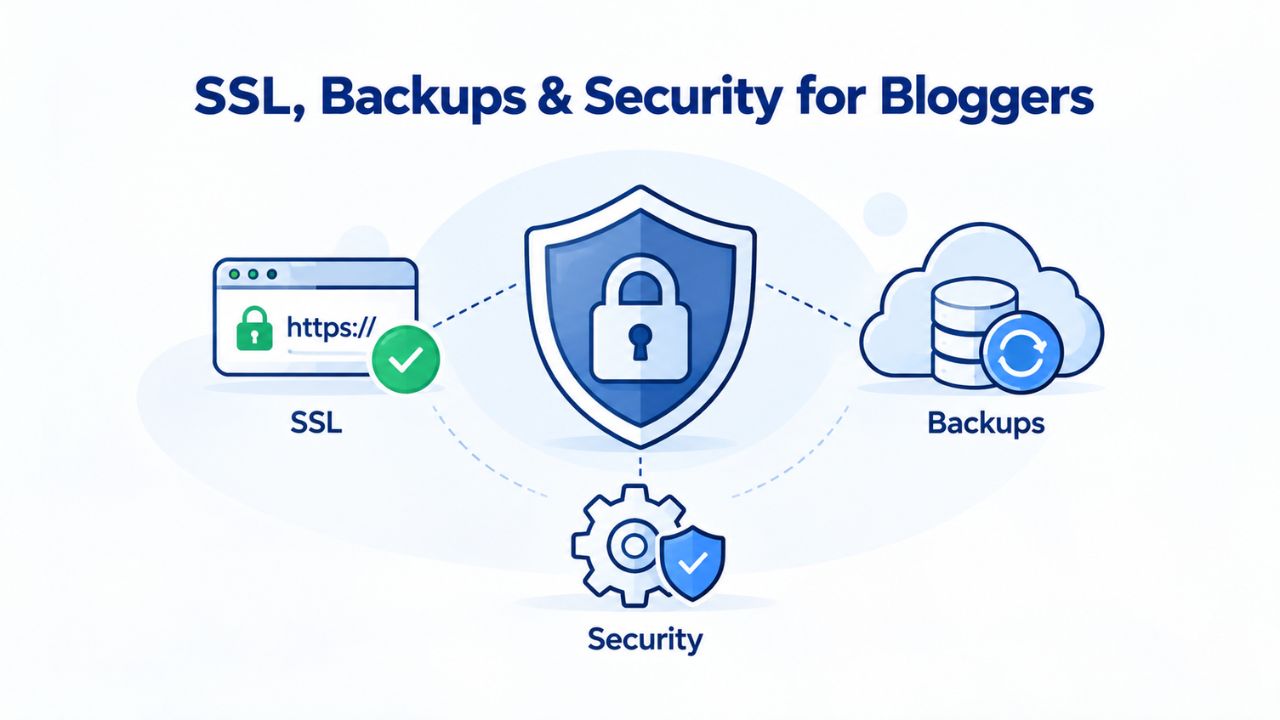
SSL, Backups & Security for Bloggers
Security is a shared responsibility. Your hosting provider provides the server infrastructure, firewalls, and DDoS protection. You’re responsible for WordPress updates, strong passwords, and plugin choices. Both must work together to keep your blog safe and your reader data protected.
Free SSL Is Now Non-Negotiable
SSL (Secure Sockets Layer) is encryption between your reader’s browser and your website server. Without it, a reader’s data is transmitted in plain text; anyone on the network could theoretically intercept it. With it, everything is encrypted. Every modern browser shows a padlock next to your site URL when SSL is active; sites without SSL show a “Not Secure” warning.
Google ranks SSL-enabled sites higher in search results, and readers expect the padlock. Visitors will abandon an unsecured blog and never return, especially if they’re considering a purchase or sharing personal information. Let’s Encrypt SSL certificates are an industry standard in modern web hosting plans. Any host charging extra for SSL is behind the times. GoDaddy’s shared hosting includes free SSL with automatic renewal, so you never have to worry about an expired certificate breaking your site.
Automated Backups Aren’t “Nice-to-Have”
Your blog’s content is your asset. A ransomware attack, plugin bug, or database corruption can destroy months of work. Automated daily backups with one-click restore are the only realistic protection. Web hosting with automatic backups retained for 2+ weeks is standard security practice. Most providers keep 7–30 days of daily snapshots. When disaster strikes, you restore to yesterday’s backup, limiting the damage to at most one day’s changes. Without backups, recovery is manual, time-consuming, and often impossible. That’s why automated daily backups matter more than any security tool. Prevention (strong passwords, two-factor authentication, plugin audits, WordPress updates) stops most hacks; backups handle the rare case where prevention fails. A backup restore is your safety net when the unexpected happens.
The Shared Responsibility Model
Your hosting provider secures the server: firewalls, DDoS mitigation, network monitoring, data-center physical security. That’s infrastructure-level security. You secure the application: WordPress updates (core, plugins, themes), strong passwords, two-factor authentication on your WordPress admin, regular backups that you’ve tested actually restore, and careful plugin choices (don’t install 50 plugins from unknown developers).
If the server is breached due to a provider failure, that’s a provider problem (rare with reputable hosts). If your WordPress admin password is “password123” and someone brute-forces it, that’s your problem. Both scenarios are common; only the first triggers an SLA credit. Own your part of the responsibility: update WordPress and plugins as new versions are released, use strong unique passwords, and consider two-factor authentication for your admin account.
Avoiding Renewal Shock & Hidden Costs
One of the most common blogger pain points is renewal-pricing surprises. You sign up for a low introductory rate, love the service for a year, and receive a substantially higher renewal invoice. That jump isn’t deceptive, but it is shocking if you didn’t plan for it. Understanding how introductory pricing works and what to look for before signing up prevents mid-year budget surprises.
How Introductory Pricing Works
Hosting companies use introductory pricing to lower the barrier to entry. Your first 12 months are deeply discounted; renewal at the regular rate is substantially higher. This is transparent (if you read the fine print) but often shocking (if you didn’t). The fix is simple: at signup, ask support for the renewal rate. If it’s a 3x jump, decide upfront whether you’re comfortable with it, or look for a provider with lower renewal rates or price-lock guarantees. Understanding the full cost of ownership (entry price × first year + renewal price × additional years) helps you decide with confidence instead of being surprised later.
Price-Lock Policies & Renewal Reminders
Some hosting providers offer price-lock: renew at the same rate (or a modest increase) year after year. Others don’t. A provider offering price-lock (even at a slightly higher entry price) might be cheaper long-term than a provider with rock-bottom entry pricing and punishing renewals. Niya Digital’s account transparency includes renewal pricing visibility; you know the yearly commitment before you sign up. GoDaddy’s web hosting includes renewal-reminder emails and transparent billing information, so you won’t be surprised 48 hours before your card is charged. The best providers remind you 30 days before renewal, show you the renewal price upfront, and let you lock in or shop around before billing.
Hidden-Cost Audit: What to Look For
Before signing up, scan the hosting plan page for: “Setup fees” or “installation charges” (should be zero), “Renewal pricing” clearly stated (should match or be close to intro rate), “Add-on costs” for SSL, backups, email, or support (should be included), and upgrade/downgrade penalties (should be none). Any of these hidden as fine print usually means you’ll face surprise charges later. Reputable providers make all costs clear upfront; if pricing is vague or scattered across the page, that’s a red flag. Ask support directly: “What’s my total cost for year one, and what will I pay to renew?” Avoid a provider that won’t answer clearly.
Growing Your Blog: From Shared to Managed/VPS
Most blogs start on shared hosting and stay there forever. Some grow into businesses and need to scale. Understanding the upgrade path and when it makes sense helps you plan for growth without overthinking it.
The Shared Hosting Ceiling
Shared hosting performance degrades when you hit the plan’s resource limits. Early warning signs include page load times climbing to 3–5+ seconds during peak traffic, database queries timing out, WordPress admin feeling sluggish, or hosting provider sending warnings about resource overages. None of these mean shared hosting has “failed.” They mean it’s time to graduate. The warning signs give you time to act before your site crashes. Most providers are generous with resource allocation, so you’ll see these warnings before actual outages occur.
The Upgrade Path: Managed Hosting or VPS
Managed hosting (sometimes called “managed WordPress hosting”) is a middle tier. You get more dedicated resources, automatic WordPress updates, better security, and usually better support focused on WordPress users. A VPS (virtual private server) is closer to a dedicated server: more control, more responsibility, more performance, and a higher cost. You’re responsible for updates, backups, and server configuration; it’s more hands-on than managed hosting or shared. For a growing blog transitioning to a business (an e-commerce store, a membership site, a high-traffic news outlet), managed hosting is the sweet spot. It scales without requiring server administration knowledge. Many bloggers jump from shared to managed and never need anything more.
Planning Your Growth Trajectory
Don’t overthink scaling. Start on shared hosting. As you publish, track your traffic and page-load performance using built-in WordPress tools or free services like Google Analytics. When (if) load times consistently exceed 3 seconds or traffic regularly hits 10,000+ monthly visitors, it’s time to explore managed hosting. Most blogs never need to scale beyond that. A typical blog reaches an audience of 1,000–5,000 monthly readers and stays stable for years. Even successful blogs with 10,000+ monthly readers often run comfortably on well-optimized shared hosting. Scaling should be driven by actual traffic growth and performance metrics, not hypothetical “what-ifs.”
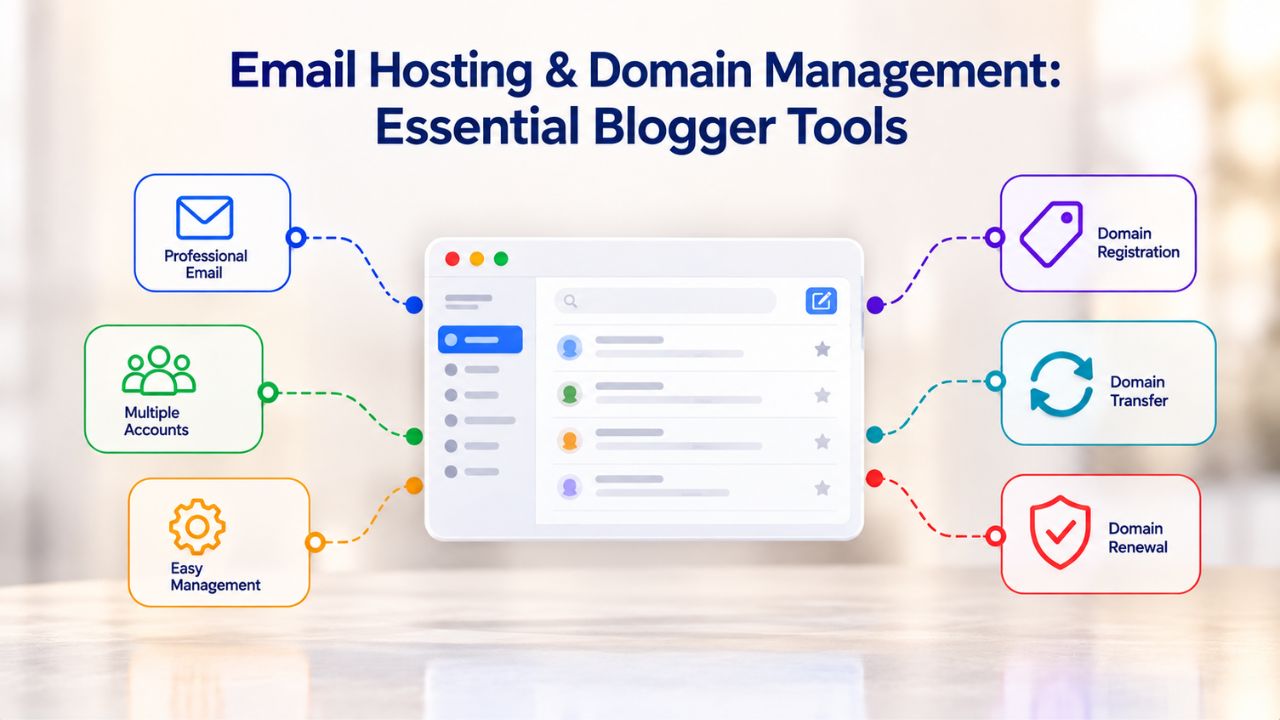
Email Hosting & Domain Management: Essential Blogger Tools
Email and domain management are foundational features new bloggers often overlook, yet they’re critical to your professional presence and reader communication. Your domain name is your blog’s address on the internet; email on that domain is your professional communication channel. Together, they define how readers and partners perceive your blog’s credibility and longevity.
Professional Email on Your Blog Domain
Running a blog from a free email account (Gmail, Yahoo, Outlook) works for getting started, but it signals “hobbyist” to readers and business partners. A professional email address on your domain (hello@myblog.com instead of myblogger2024@gmail.com) transforms reader perception instantly. It says you’re serious, invested, and professional.
If you ever monetize your blog through sponsorships, affiliate marketing, or selling products, a professional email domain is non-negotiable. Partners and advertisers won’t take you seriously from a free email account. GoDaddy’s shared hosting includes email accounts, so you can create multiple addresses on your domain without purchasing a separate email service. Most plans offer dozens or hundreds of mailboxes depending on tier, giving you room to create support@myblog.com, contact@myblog.com, and other functional addresses.
Setting up domain email through cPanel is straightforward: create a new email account in the Mail section, choose your address and password, configure it in your email client (Outlook, Apple Mail, Gmail), and start receiving mail. Readers and customers send emails to your professional address; your hosting provider’s mail servers route them and deliver them to your inbox. Most hosting providers include anti-spam filtering and the ability to set mail forwarding (forward domain email to your personal Gmail if you prefer). Niya Digital’s Web Hosting service includes email hosting with your shared hosting plan, so you don’t need to pay extra for a separate email service. This integrated approach simplifies account management and billing.
Domain Connection & DNS Management
Your domain name (myblog.com) is registered with a domain registrar; your hosting is with a hosting provider. These are separate services that must “talk” to each other. DNS (Domain Name System) settings make that conversation happen. When someone types myblog.com into their browser, DNS records tell their computer: “Go to this hosting server’s IP address.” Without proper DNS configuration, your domain points nowhere, and your blog is unreachable. Setting up DNS correctly may sound technical, but it’s straightforward in cPanel.
| Task | Purpose | Where in cPanel | Why It Matters for Bloggers | Typical Time |
|---|---|---|---|---|
| Create Email Account | Set up professional email on your domain (hello@myblog.com) | Mail > Email Accounts | Builds credibility; essential for sponsorships, partnerships, and reader communication | 2–3 minutes |
| Configure Email Client | Add your domain email to Outlook, Gmail, Apple Mail for easy access | Your email software settings (not cPanel) | Lets you read/send domain emails from your preferred email app without logging into cPanel | 5–10 minutes |
| Set Up Mail Forwarding | Forward domain emails to your personal Gmail or another email | Mail > Forwarders | Consolidates emails in one inbox if you prefer not to manage a separate email client | 2–3 minutes |
| Update Name Servers | Point your domain to your hosting provider’s DNS servers | Domain Registrar (not cPanel) | Makes your domain connect to your hosting so WordPress is accessible when visitors type your URL | 5 minutes (propagates over 24–48 hours) |
| Add MX Records | Configure email routing so mail reaches your domain email account | Advanced DNS Zone Editor (if needed) | Usually auto-configured; only needed if you use a third-party email service instead of hosting email | 2–5 minutes |
| Create Subdomains | Add additional domain variations (blog.myblog.com, store.myblog.com) | Addon Domains or Subdomains section | Useful for organizing multiple sections or running multiple sites on one hosting account | 2–3 minutes each |
| Enable Auto-Reply | Set up automatic email responses when you’re away | Mail > Auto Responders | Lets readers know you received their email and when you’ll respond | 3–5 minutes |
| Configure SPF/DKIM Records | Add email authentication for spam filtering | Advanced DNS Zone Editor | Improves email deliverability; signals to recipients’ email providers that your domain emails are legitimate | 5–10 minutes |
Start Hosting Your Blog Today
The fundamentals are simple: shared hosting works for bloggers, uptime and backups matter most, and a provider offering 24/7 support, one-click WordPress, daily backups, free SSL, and transparent pricing makes the whole experience stress-free and predictable.
Frequently Asked Questions
Will my blog be slow on shared hosting?
Not if it’s properly configured. Shared hosting with NVMe SSD storage, modern caching, and a lightweight WordPress theme typically loads in 1.5–2.5 seconds. Slowness usually comes from plugin bloat, high-resolution unoptimized images, or undersized storage/database, not the hosting itself. Add a caching plugin and audit your plugins; you’ll usually see immediate improvement before upgrading hosting. Most shared hosting performance issues are fixable through WordPress configuration.
How often should I back up my blog?
Daily automated backups are the standard and sufficient for most bloggers. Most shared hosting providers include daily backups retained for 7–30 days. You don’t need hourly backups unless you’re running a business-critical site with real-time data changes. A daily backup captures your published posts, comments, and database; if disaster strikes, you lose at most one day of work. Test one backup restore annually to confirm the process works when you need it.
Is it complicated to switch hosting providers?
Not if the new provider offers migration assistance, which most do. You export your database from the old host, import it on the new host, update DNS records, and test. The new provider usually walks you through this or handles it for you. Total time: 2–4 hours. Downtime: often zero if done carefully, or a few minutes if DNS propagation takes time. Without provider help, it’s more complex; that’s why setup support matters.
What’s the difference between managed hosting and shared hosting?
Shared hosting splits server resources among customers; you share CPU, memory, and disk space with others. Managed hosting gives you more dedicated resources and is usually optimized for WordPress; it includes automatic updates, better backups, and WordPress-focused support. It costs more but scales better as traffic grows. Stay on shared hosting until load times consistently exceed 3 seconds or traffic regularly hits 10,000+ monthly visitors.
Do I need a dedicated IP address?
No, not for a blog. A shared IP address (your site shares the IP with other customers on the server) is fine for blogs and is the standard on shared hosting. A dedicated IP is useful only if you run an e-commerce site with SSL, operate your own mail server, or need to hide your site’s hosting provider from competitors, which is rare for bloggers. A dedicated IP adds cost and complexity for zero reader benefit, so skip it unless you have a specific need.
Can I use WordPress.com instead of self-hosted WordPress?
Yes, WordPress.com is simpler and requires no hosting knowledge. You get WordPress, themes, plugins (limited), and hosting in one service. The tradeoff: less control, limited plugin options, and higher costs as you scale. Self-hosted WordPress (on a hosting provider’s shared/managed servers) gives you full plugin access, complete control, and lower costs long-term. If you want simplicity, WordPress.com works. If you want control and flexibility, self-hosted WordPress on Niya Digital’s hosting is better.
What happens if my blog gets hacked?
With regular automated backups, you restore to the last known-good backup and lose minimal recent content, usually just one day of changes or less. Without backups, recovery is manual, time-consuming, and often impossible. That’s why automated daily backups matter more than any security tool. Prevention (strong passwords, two-factor authentication, plugin audits, WordPress updates) stops most hacks; backups handle the rare case where prevention fails. A backup restore is your safety net.
How much does a good hosting plan actually cost?
Introductory shared hosting pricing typically runs from a few dollars per month for the first year; renewal pricing usually ranges from moderate to higher per month after that. That’s affordable, roughly the cost of a coffee per week for infrastructure that runs your entire blog. Managed hosting costs 2–3x more per month but scales better as traffic grows. Budget accordingly and understand renewal pricing upfront; it’s a business investment in reliability.
Should I choose Linux or Windows hosting?
Linux. WordPress runs exclusively on Linux-based servers; the OS is free, rock-solid stable, and ubiquitous across shared hosting providers. Windows hosting is more expensive, adds complexity, and is unnecessary for WordPress. The only reason to choose Windows hosting is if you run legacy Microsoft ASP.NET applications on an older .NET Framework (extremely unlikely for a blogger). For any WordPress blog, stick with Linux shared hosting; you’ll get faster performance and better value.
What’s an SLA, and why does it matter?
An SLA (Service Level Agreement) is a contract specifying the provider’s uptime guarantee, typically 99.9%, and compensation if they fall short. For bloggers, 99.9% uptime means roughly one 44-minute outage per month is acceptable. If the provider falls below that, you get account credits. It matters because it holds the provider accountable; without an SLA, you have no recourse if your site is constantly down. Review the SLA before signing; understand what’s covered (infrastructure) and what’s not (application errors).
Can I migrate my blog from Wix, Squarespace, or Medium to self-hosted WordPress?
Yes, it’s possible. It’s more complex than migrating between two self-hosted WordPress sites (database export/import), but most hosting providers offer migration assistance. Niya Digital’s reseller support can export your posts, comments, and media from your platform’s export file and import it into WordPress. The process usually takes 2–4 hours; your provider walks you through each step to ensure nothing is lost. Some third-party tools also automate this process for common platforms like Wix and Squarespace.
How long does it take to set up a WordPress blog on new hosting?
One-click installation: 5 minutes. Initial WordPress configuration (theme, critical plugins, settings): 30–60 minutes. Publishing your first post: depends on how much you’ve written, but usually 15–30 minutes. Total: 1–2 hours from signup to live blog, if you’re focused. Niya Digital’s setup support can cut that down further with guided onboarding and quick answers to your configuration questions.
Do I need to understand server administration to run a blog on shared hosting?
No. cPanel handles the technical tasks (files, databases, email, SSL, backups). WordPress handles content management. You use a web browser and simple interfaces; you don’t need terminal access or command-line knowledge. If you get stuck, 24/7 support is available via chat or phone. Most bloggers manage their sites confidently without any server administration background.
What’s the difference between .com, .net, .org domains, and does hosting include a domain?
.com, .net, .org, and thousands of other extensions are top-level domains (TLDs). They’re managed separately from hosting (different companies). Most hosting providers include one free domain for the first year; after that, you pay a renewal fee to keep it (or move it to a cheaper registrar). Choose .com if available; it’s most familiar to readers. Don’t overthink it; the domain is separate from hosting.
Can I run multiple blogs on one shared hosting account?
Yes. Shared hosting plans typically let you host multiple websites on one account (usually 2–5 depending on plan tier). You get one hosting account, multiple domains, and multiple WordPress installations. Each blog has its own database and files, managed separately in cPanel. This is common for agencies, freelancers, or prolific bloggers managing several sites. Higher-tier shared plans support more domains.
Glossary
- Bandwidth: The monthly data transfer allowance between your website and visitors’ browsers. Most shared hosting plans offer “unmetered” (unlimited within a fair-use policy) bandwidth rather than hard monthly caps.
- Backup: An automated copy of your WordPress files and database, stored separately from your live site, used for recovery if data is lost, corrupted, or deleted. Most hosting includes daily automated backups retained for 7–30 days.
- cPanel: An industry-standard control panel that provides a web-based interface to manage hosting account features, files, email, databases, domains, SSL certificates, and backups without command-line knowledge.
- Database: A structured repository where WordPress stores all posts, comments, categories, settings, and plugin data. Most blogs use a single MySQL database per site.
- DNS (Domain Name System): A system that directs a domain name (e.g., myblog.com) to a hosting server’s IP address so that web browsers can find and load your site.
- SLA (Service Level Agreement): A contract specifying a hosting provider’s uptime guarantee (e.g., 99.9%) and compensation if the guarantee is breached.
- SSL Certificate: Encryption technology securing data transmission between a browser and server. Free SSL (via Let’s Encrypt) is now standard on web hosting plans; auto-renewal is automatic.
- Uptime: The percentage of time your hosting server is operational and your site is accessible. Industry standard is 99.9%, meaning roughly eight hours of acceptable downtime per year.
- Web Hosting: A service providing server space, bandwidth, database access, and tools to make a website accessible on the internet. Shared hosting is the entry-level tier, where multiple sites share one server.